The Claude Slack GIF creator skill teaches Claude Code how to draw an animated GIF and shrink it to fit Slack. You ask for a bouncing ball or a pulsing heart, and Claude writes a small Python script, builds the file and checks it against Slack’s limits. We loaded the skill into a throwaway project, made two GIFs, shrank one, and wrote down everything that went right and wrong.
This guide is part of our Claude Code tutorials. Find more add-ons in our skills directory.
Tested with Claude Code v2.1.318 on November 7, 2026. We read the skill from the anthropics/skills repository at commit 2c5958e (committed November 6, 2026).
Slack GIF Creator Skill at a Glance
| Question | Short answer |
|---|---|
| What is it? | A skill (a written set of instructions plus helper code) for making GIFs that suit Slack |
| Where does it live? | skills/slack-gif-creator in the anthropics/skills repository |
| What is inside? | SKILL.md, a license, a requirements.txt and four Python helpers in core/ |
| What does it need? | Python with pillow, imageio and numpy |
| What did we run? | A 128×128 emoji GIF, a 480×480 message GIF and a size reduction |
| What did we not run? | Uploading a GIF to Slack, and the image-upload route (animating your own picture) |
| Our verdict | Fun and useful for simple motion. Expect to check the numbers yourself |
What the Slack GIF Creator Skill Is
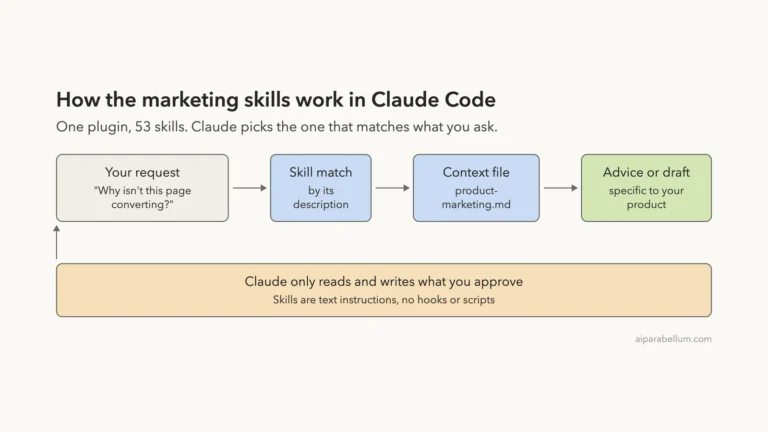
A skill is a folder with a SKILL.md file. Claude Code reads it when your request matches the description, then follows it. Our guide to Claude Code skills covers the basics.
The description of this one says it provides constraints, validation tools and animation concepts for GIFs made for Slack. It triggers on requests like “make me a GIF of X doing Y for Slack”.
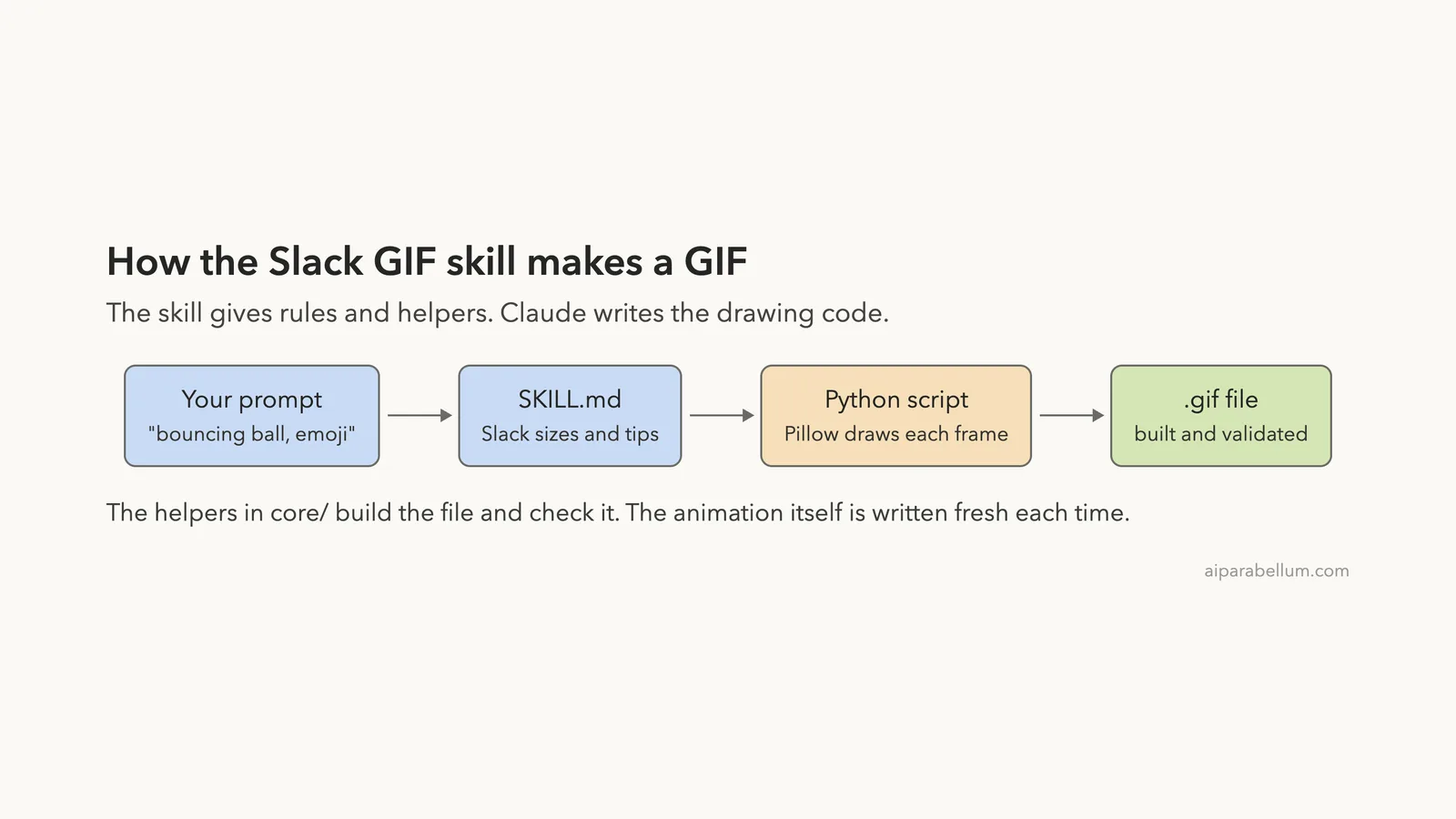
The skill does not ship any pictures or ready-made animations. Its own text says so. Claude draws every frame from scratch with Pillow, a Python imaging library.
The skill gives you rules and helpers. The animation itself is written fresh each time.
What Is Inside the Skill Folder
We read every file before running anything. The folder holds the instructions and four small Python files, about 800 lines in total.
core/gif_builder.pycollects frames and saves an optimized GIF.core/validators.pychecks a GIF against Slack’s size and length limits.core/easing.pygives smooth motion curves such asease_out,bounce_outandelastic_out.core/frame_composer.pyhas helpers for blank frames, gradients, circles, text and stars.
The Python files import only standard libraries plus numpy, imageio and Pillow. We found no network calls, no subprocess calls and no hooks. That made it safe to run in a sandbox.
How the Skill Makes a GIF
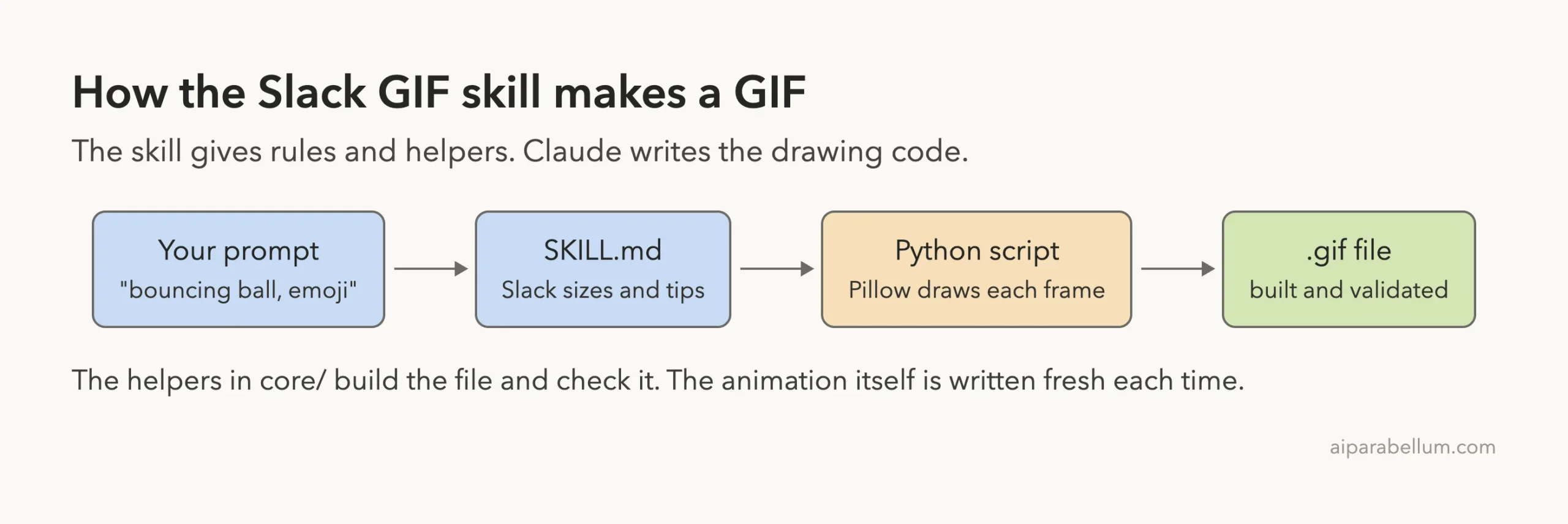
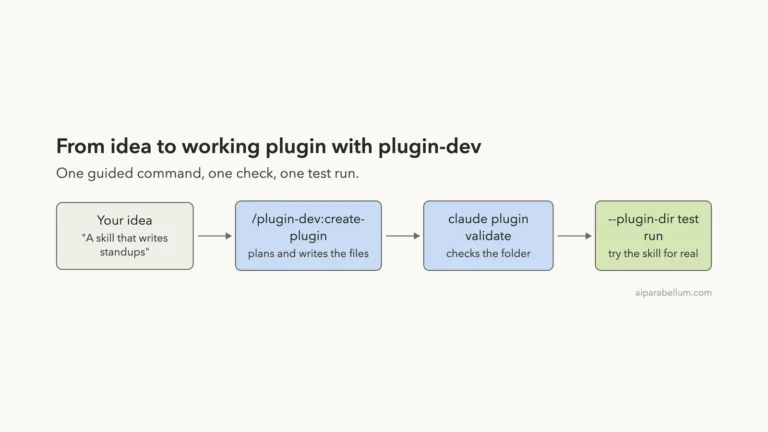
The skill file lists Slack’s limits and a short workflow. You create a GIFBuilder, draw each frame with Pillow, add it to the builder and save. Then you can run the validator.
It also lists animation ideas: shake, pulse, bounce, spin, fade, slide, zoom and a particle burst. Claude mixes them as needed.
The two sizes it knows
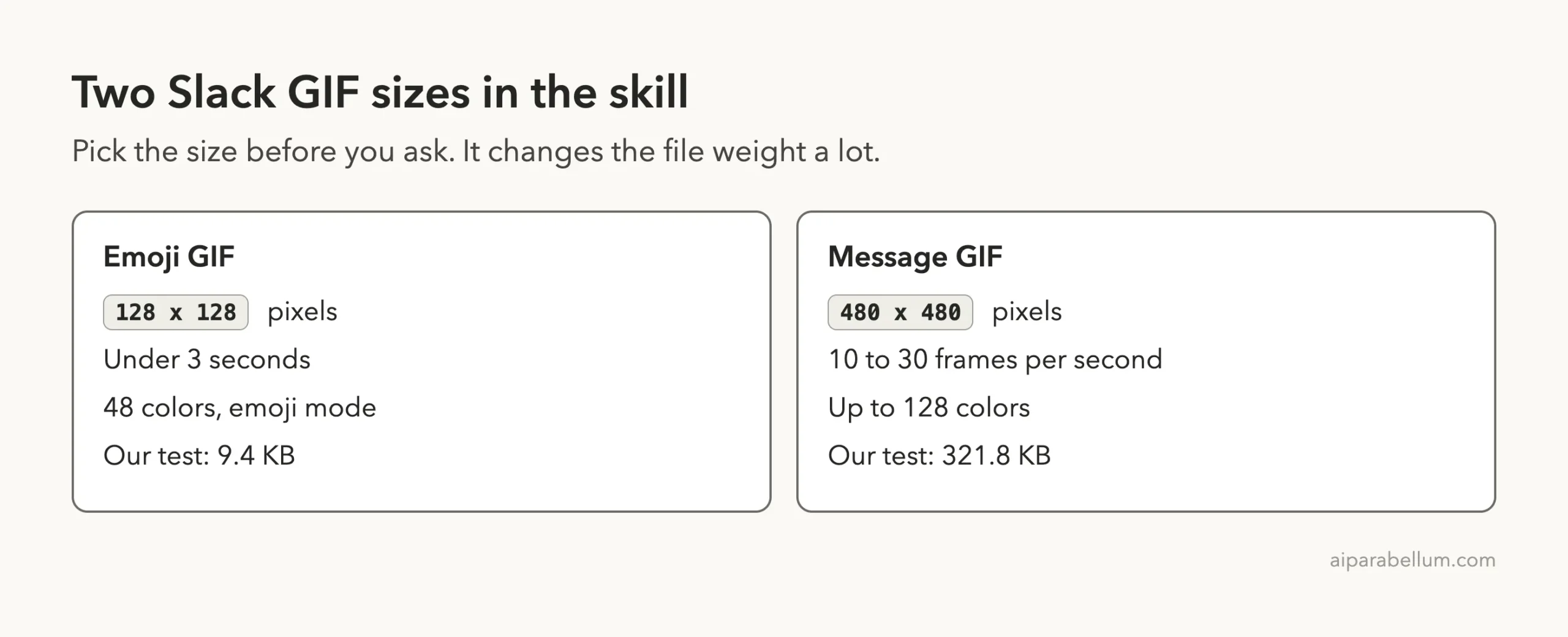
| Type | Size | Other limits in the skill |
|---|---|---|
| Emoji GIF | 128×128 pixels (recommended) | Keep it under 3 seconds |
| Message GIF | 480×480 pixels | 10 to 30 frames per second, 48 to 128 colors |
How We Set It Up Safely
The directory lists two install commands. They add the whole anthropics/skills collection as a marketplace and install a bundle.
/plugin marketplace add anthropics/skills
/plugin install example-skills@anthropic-agent-skills
We did not run them, because they change your own setup. The official plugin discovery guide explains marketplaces.
Instead, we cloned the repository into a throwaway folder and copied skills/slack-gif-creator into a demo project at .claude/skills/slack-gif-creator. The skills documentation says project skills live in .claude/skills/. We started Claude Code with --setting-sources project.
The Python environment
The skill needs Pillow, imageio and numpy. We made a virtual environment inside the sandbox and installed them there, so nothing touched the system Python. That detail matters, as you will see below.
Confirming the Skill Is Loaded
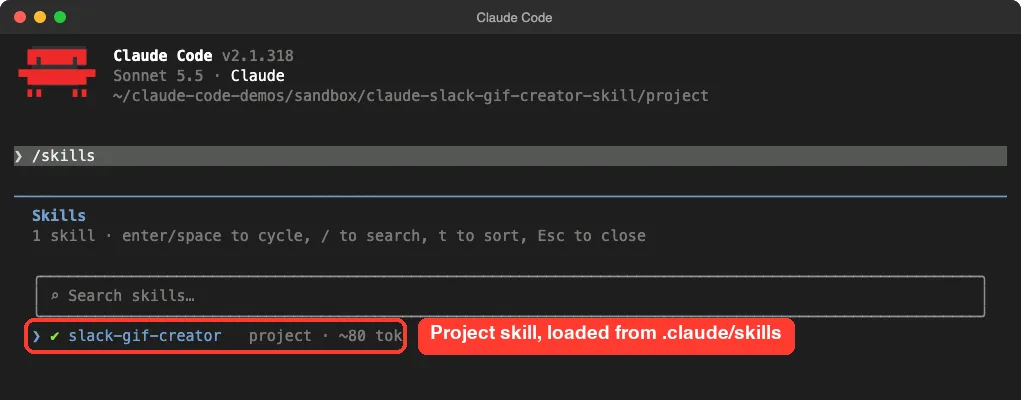
After the folder trust prompt, we typed /skills. The list showed one skill, slack-gif-creator, marked as a project skill with about 80 tokens counted for it.
/skills as a project skillTest 1: A 128×128 Emoji GIF
Our first prompt asked for a bouncing red ball:
Use the slack-gif-creator skill to make a 128x128 Slack emoji GIF of a red ball that drops and bounces, under 3 seconds. Write the code to make_ball.py with the Write tool, then run it with ../venv/bin/python (Pillow is installed there). Save the GIF as out/ball.gif and validate it with the skill's validator.Claude loaded the skill, listed its folder, wrote make_ball.py and ran it. Before the GIF came out, it had to fix a Python version problem.
The Python 3.9 problem
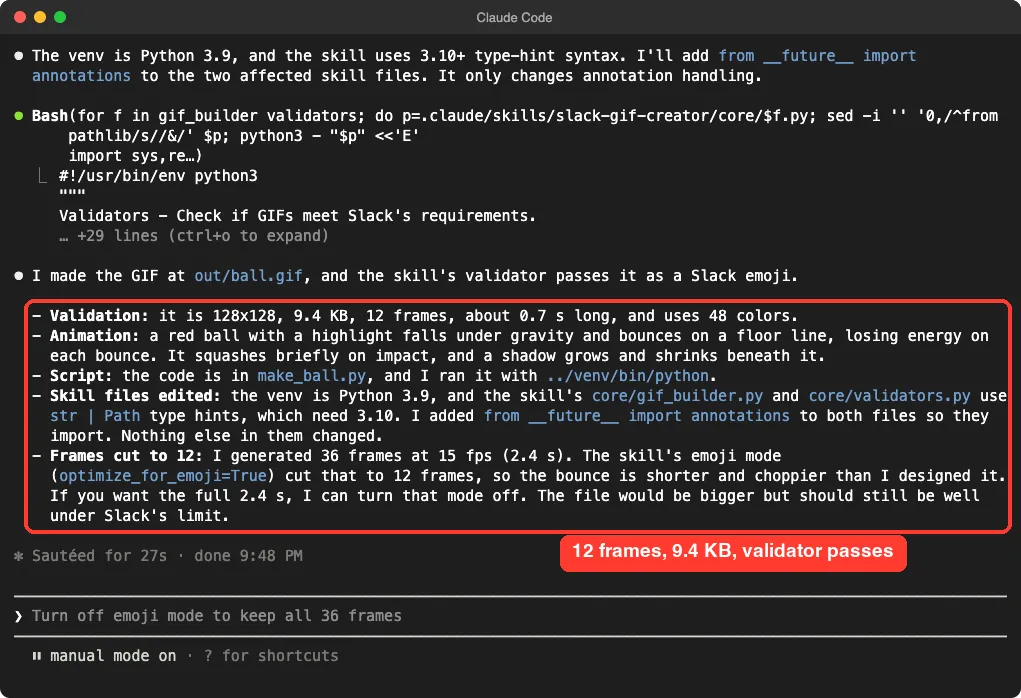
Our environment used Python 3.9, which is what the Mac’s built-in Python gave us. The skill’s gif_builder.py and validators.py use the str | Path type hint style, which needs Python 3.10 or newer.
Claude noticed the mismatch and added from __future__ import annotations to both files in our project copy. That fixed it. If you use a newer Python, you will not hit this, but the skill’s requirements file does not mention a Python version.
The result
The validator passed the GIF as a Slack emoji. It was 128×128, 9.4 KB and 48 colors. The ball fell under gravity, squashed on impact and left a shadow on the floor line.
We also opened the file ourselves and split it into frames. This is the real output, not a mock-up.
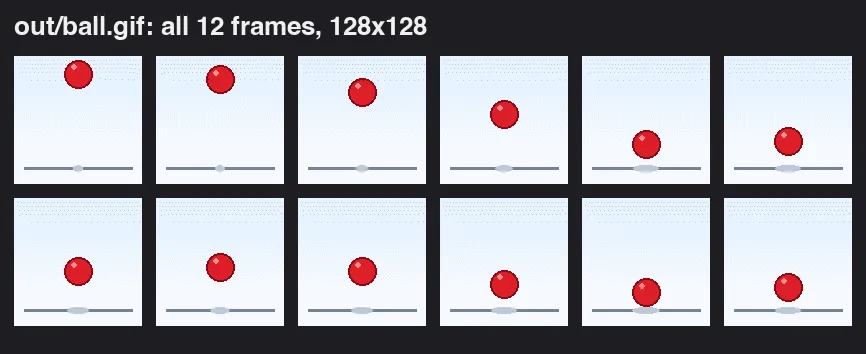
out/ball.gif, read straight from the fileWhy 12 frames, not 36
Claude had generated 36 frames at 15 frames per second, which is 2.4 seconds. The saved file held only 12 frames, each shown for 60 milliseconds, about 0.7 seconds in total.
The cause is the skill’s emoji mode (optimize_for_emoji=True). It cut the frame count, so the bounce is shorter and choppier than Claude designed.
Claude told us this and offered to switch emoji mode off. We confirmed the 12 frames and 60 ms delays by reading the file.
Test 2: A 480×480 Message GIF
Next, we asked for a bigger GIF:
Now make a 480x480 message GIF of a pulsing heart on a gradient background. Write make_heart.py with the Write tool, run it with ../venv/bin/python, save as out/heart.gif and validate it.Claude made a pink to purple gradient with a red heart that has a glow and a highlight. The heart gives two quick beats and then rests. The file was 480×480, 321.8 KB and 128 colors.
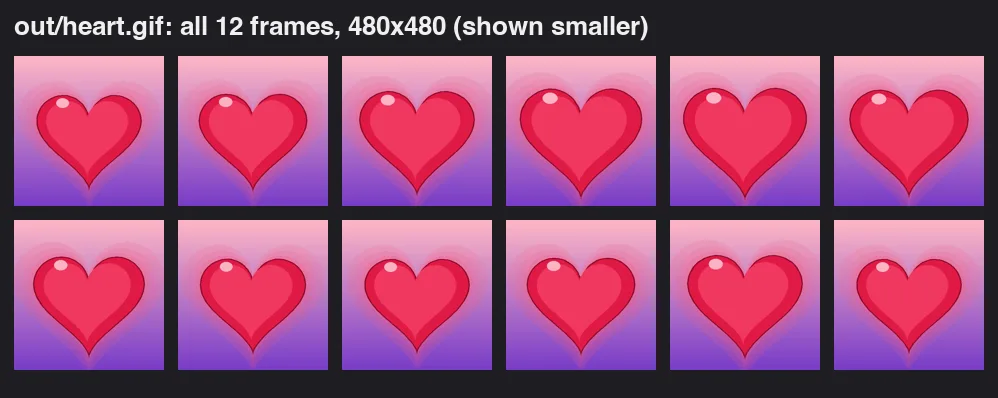
out/heart.gif, shown smaller than the real 480×480 sizeThe validator printed a wrong duration
The validator said PASS, but it reported “12 frames at 1.7 fps (7.2s)”. That is not true.
We read the file and found frame delays of 50 ms for most frames, plus one 400 ms delay and one 600 ms delay. The delays add up to 1,500 ms, or 1.5 seconds.
Claude explained that the encoder merges identical frames into one longer frame. The validator seems to compute duration from the frame count and the average delay, so uneven delays throw it off. Claude said it had not read the validator code to confirm that cause, so treat it as a likely explanation, not a proven one.
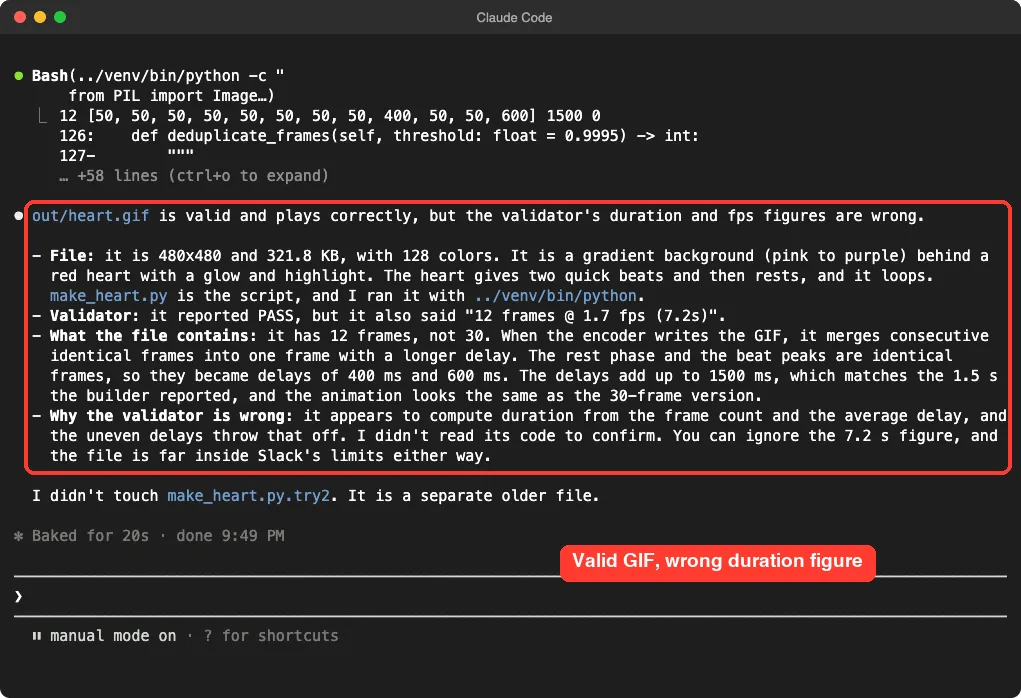
The lesson is simple. A passing validator means the size, color count and basic limits are fine.
Do not rely on its duration number when your GIF has pauses. Add up the frame delays yourself.
Test 3: Shrinking the File
The skill says to optimize only when asked. So we asked:
Shrink out/ball.gif as much as the skill allows. Write shrink.py with the Write tool, run it with ../venv/bin/python, and tell me the file size before and after.Claude cut the ball GIF from 9,645 bytes to 4,614 bytes, about 52 percent smaller. The new file passed the validator as an emoji and the original stayed untouched.
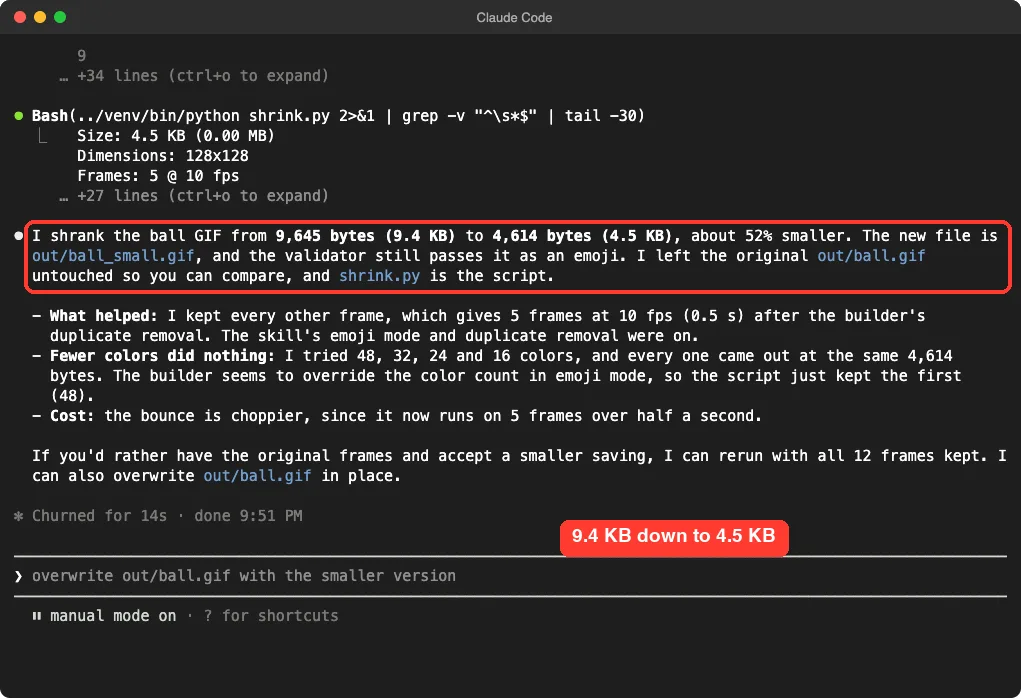
What helped and what did not
- Dropping every other frame helped. The file went to 5 frames at 10 frames per second.
- Fewer colors did nothing. Claude tried 48, 32, 24 and 16 colors, and every one gave the same 4,614 bytes. In emoji mode the builder seems to override the color count.
- The cost was smoothness. The bounce now runs on 5 frames over half a second, so it is choppy.
We checked the new file ourselves. It has 5 frames with a 100 ms delay each.
What We Did Not Test
We did not upload any GIF to Slack, so we cannot say how Slack treats these files. We also did not use the skill’s upload route, where you give Claude your own picture to animate.
We tested on a Mac with a Python 3.9 environment, so other systems may differ.
We only used Claude Code, so we cannot speak for the chat app. See our Claude AI page for that.
What the Skill Does Well and Where It Falls Short
- It gets a polished result from one prompt. The ball had shadows, squash and a highlight, which a plain circle would not.
- It is honest in chat. Claude flagged the Python problem, the frame cut and the wrong duration without being asked.
- It is cheap to keep loaded. About 80 tokens for the description.
- It needs Python 3.10 or newer, and does not say so. We had to patch two files on 3.9.
- Emoji mode trades smoothness for size without asking. Check the frame count.
- The validator duration can be wrong for uneven delays.
- It draws with shapes only. It tells Claude not to use emoji fonts, so complex art stays simple.
Try It Yourself
Copy the skill folder into a throwaway project, set up a virtual environment with Pillow, imageio and numpy, and run this prompt:
Use the slack-gif-creator skill to make a 128x128 Slack emoji GIF of [your idea], under 3 seconds. Write the code to a .py file, run it, save the GIF to out/, and validate it. Tell me the frame count and the file size.Then ask for a bigger 480×480 version and compare the file sizes. Open each GIF before you post it.
Common Mistakes
- Trusting the duration number. Read the frame delays instead.
- Skipping the Python check. Use Python 3.10 or newer, or let Claude patch the type hints.
- Asking for tiny file sizes and a smooth bounce at once. They pull in opposite directions.
- Installing the whole skills collection when you need one skill. Copying one folder keeps your setup small.
- Posting without looking. Open the GIF and play it first.
Pro Tips
- Ask Claude to write the code to a file first. You can then edit and rerun it.
- State the size in your prompt: 128×128 for emoji, 480×480 for messages.
- Ask Claude to report the frame count after saving, so surprises show up at once.
- Keep the skill and project notes in a CLAUDE.md file if you make GIFs often.
- For posters and still graphics, try our canvas design skill test.
- Compare skills with plain commands in our guide to commands versus skills.
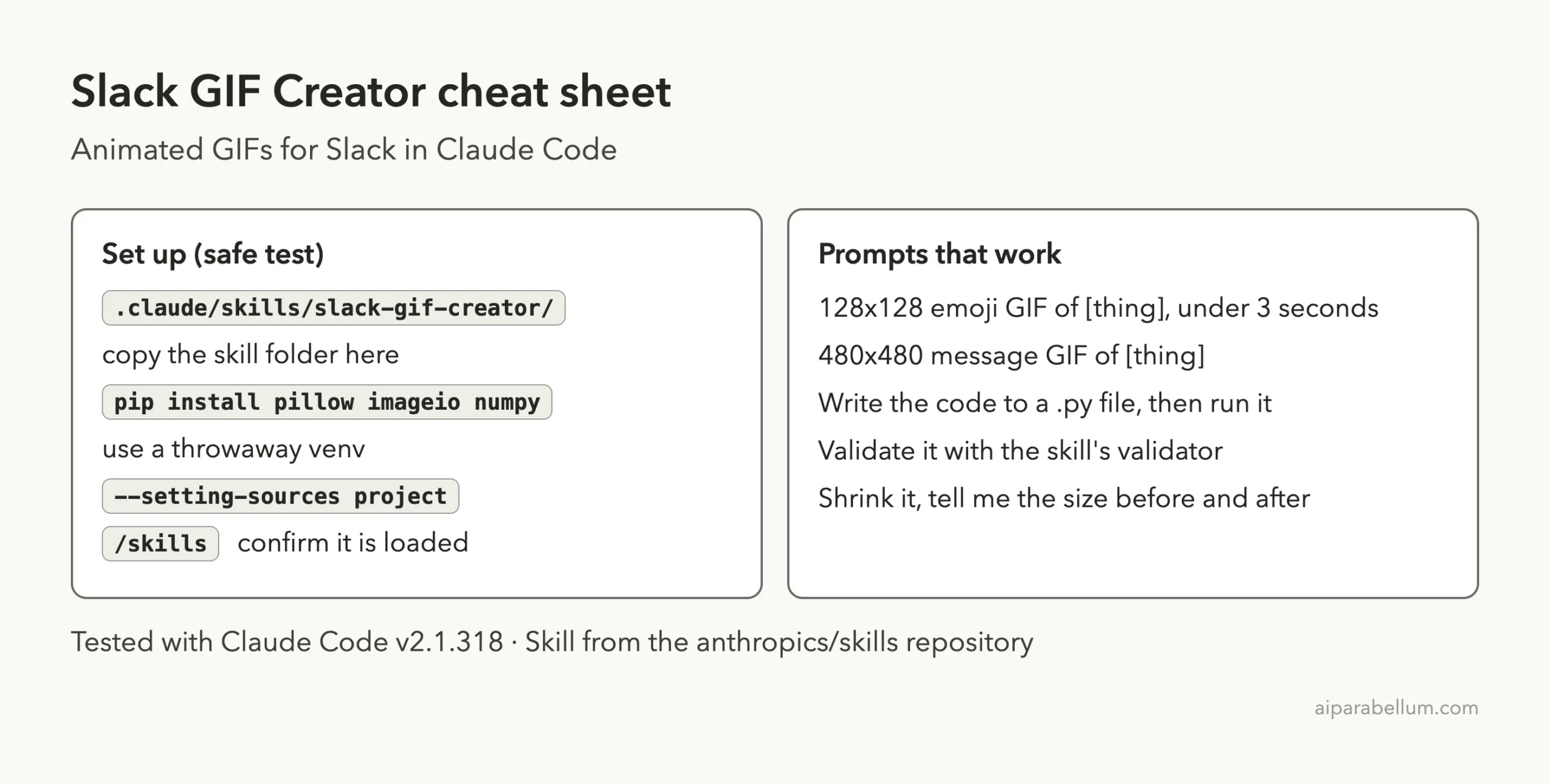
Slack GIF Creator Cheat Sheet
Frequently Asked Questions
What is the Claude Slack GIF creator skill?
It is a skill from the anthropics/skills repository that gives Claude Slack’s GIF limits, animation ideas and helper code for building and checking GIFs.
What size should a Slack emoji GIF be?
The skill recommends 128×128 pixels, under 3 seconds, with 48 colors. Message GIFs are 480×480 in the skill.
Do I need to install Python packages?
Yes. The skill needs pillow, imageio and numpy. We installed them in a throwaway virtual environment.
Can it animate my own picture?
The skill text says Claude can load an uploaded image with Pillow and animate it. We did not test that route.
Is the validator reliable?
It checked size and colors correctly in our run. Its duration figure was wrong for a GIF with uneven frame delays, so check delays yourself.
Conclusion
The Slack GIF creator skill turned two one-line prompts into a polished bouncing ball and a pulsing heart, and it shrank the ball by about half. It also needed a Python patch on version 3.9, cut our emoji GIF from 36 frames to 12, and printed a wrong duration, though Claude told us about each of these without being asked. We did not upload to Slack or try your own images. If you make team emoji or reaction GIFs, copy the folder into a throwaway project, use Python 3.10 or newer, and open every file before you post it.