If you want to use DuckDB Claude Code together, the official duckdb-skills plugin is the quickest way to try it. It teaches Claude Code to read data files, run SQL on them and convert them to other formats, all with plain slash commands. We loaded it into a throwaway project, pointed it at a 500-row sales file, and checked every answer by hand.
This guide is part of our Claude Code tutorials. Find more add-ons in our Skills Directory.
Tested with Claude Code v2.1.318 on November 7, 2026, using duckdb-skills version 0.2.4 (commit 7feda8e, dated April 14, 2026) and DuckDB CLI v2.0.0, on macOS. Everything ran in a sandbox folder with --setting-sources project and the plugin loaded through --plugin-dir, so nothing was added to the global Claude Code setup.
We ran three of the plugin’s skills: read-file, query and convert-file. The other skills are described from the plugin’s own files.
Quick Summary
| Question | Answer |
|---|---|
| What is it? | A plugin with nine skills that let Claude Code use DuckDB to read, query and convert data files |
| Who makes it? | The DuckDB team, listed in the official plugin marketplace |
| Install command | /plugin install duckdb-skills@claude-plugins-official |
| What you need first | The duckdb command-line program on your computer |
| Hooks or background scripts? | None. We found only skill files, a manifest and one test script |
| Our test | A 500-row sales.csv file we generated ourselves |
| Result | Correct row count, correct revenue totals, and a Parquet copy about one third the size |
| Main catch | It needs the DuckDB program installed, and the file preview only looks at the first 20 rows |
What DuckDB Claude Code Skills Are and Why You Need Them
DuckDB is a small database that runs on your own computer. You do not set up a server. You point it at a file, write SQL, and get an answer in a second or two.
It reads CSV, JSON, Parquet and Excel files directly. That makes it a handy tool when someone sends you a big spreadsheet export and asks a quick question about it.
Claude Code can already write code and run shell commands, so it can use DuckDB without help. The plugin saves you the setup. It packs the right commands and the safe defaults into skills, so a short slash command does the whole job.
If skills and plugins are new to you, our guide to Claude Code plugins covers the basics. The official plugins documentation explains the file layout.
What is a Parquet file?
Parquet is a compact file format for tables. It stores data by column instead of by row, so it is much smaller than CSV and much faster to read. Data teams use it a lot, and DuckDB reads it natively.
What Is Inside the DuckDB Skills Plugin
Before loading any plugin, we read what it contains. This one is small.
There is a plugin.json manifest, a license, a README, and a folder of skills. We found no hooks and no background scripts.
Each skill is a text file of instructions that tells Claude which DuckDB commands to run. The plugin has nine of them.
| Skill | What it does | Did we run it? |
|---|---|---|
read-file | Previews a file: column types, row count and 20 sample rows | Yes |
query | Runs SQL or answers a plain-English question about a file or database | Yes |
convert-file | Converts a file between CSV, Parquet, JSON, Excel and more | Yes |
attach-db | Attaches a DuckDB database file and explores its tables | No |
duckdb-docs | Searches the DuckDB and DuckLake documentation | No |
spatial | Answers questions about maps and location data | No |
s3-explore | Explores files in S3 and other cloud storage | No |
read-memories | Searches your past Claude Code session logs | No |
install-duckdb | Installs or updates DuckDB extensions | No |
The cloud skill needs your own storage credentials, and we did not use any. We also left out the session-log skill, because it reads your private history.
How to Install It
On a normal setup, you add the plugin from the official marketplace inside a Claude Code session. The marketplace is on by default.
/plugin install duckdb-skills@claude-plugins-official
/reload-plugins
The discover plugins page explains the scope choices. Pick the narrowest one if you are only trying it.
You also need the DuckDB program itself. The plugin does not bundle it. On a Mac you can run brew install duckdb, and the plugin’s own notes list a command for Linux and Windows too.
How we loaded it safely
We did not install anything into our real setup. We cloned the plugin repository into a sandbox folder, checked out the exact commit, and loaded the plugin folder for one session only.
claude --permission-mode default \
  --setting-sources project \
  --plugin-dir ./duckdb-skills
For DuckDB, we downloaded the official v2.0.0 command-line release into the sandbox and put that folder on the path for the session. The same trick works for any plugin you are not sure about.
The Data We Tested With
We wanted something small and fully under our control. So we generated a file called sales.csv with 500 made-up orders from the first half of 2026.
| Column | Meaning |
|---|---|
order_id | Number from 1 to 500 |
order_date | A date between January and June 2026 |
region | North, South, East or West |
product | Notebook, Pen Set, Desk Lamp, Backpack or Headphones |
quantity | 1 to 5 units |
unit_price | A fixed price per product, from 6 to 80 |
Because we made the file, we know the right answers. That let us check Claude’s output with a plain DuckDB command of our own.
Step 1: See the Skills
Once the plugin loads, its skills show up as slash commands with a duckdb-skills: prefix. Typing that prefix in Claude Code opens a list with every skill and a short description.
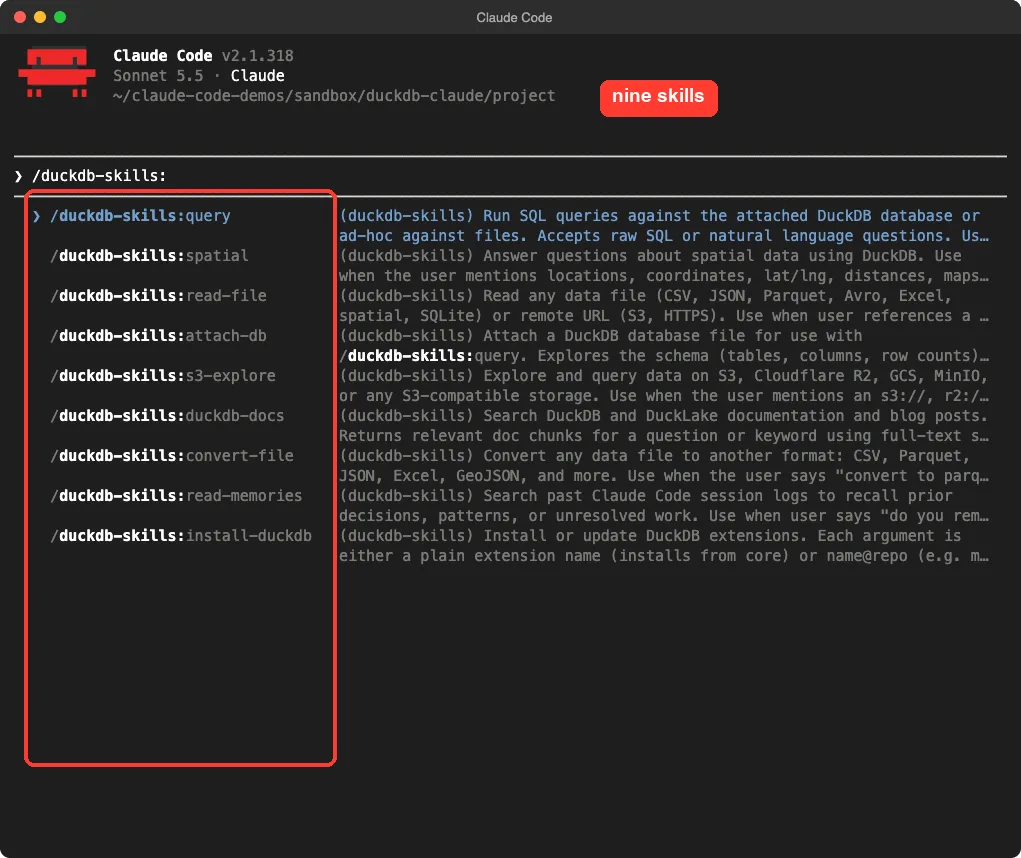
This is a good way to discover what a plugin offers. It is also how you confirm it loaded. If the list is empty, run /reload-plugins or check the path you passed to --plugin-dir.
Step 2: Read a File With read-file
Our first prompt was one line. We gave the skill a file name and a question.
/duckdb-skills:read-file sales.csv what columns does it have and how many rows?Claude ran one DuckDB command that describes the file, counts the rows and shows the first 20. It then summed up the result in plain English.
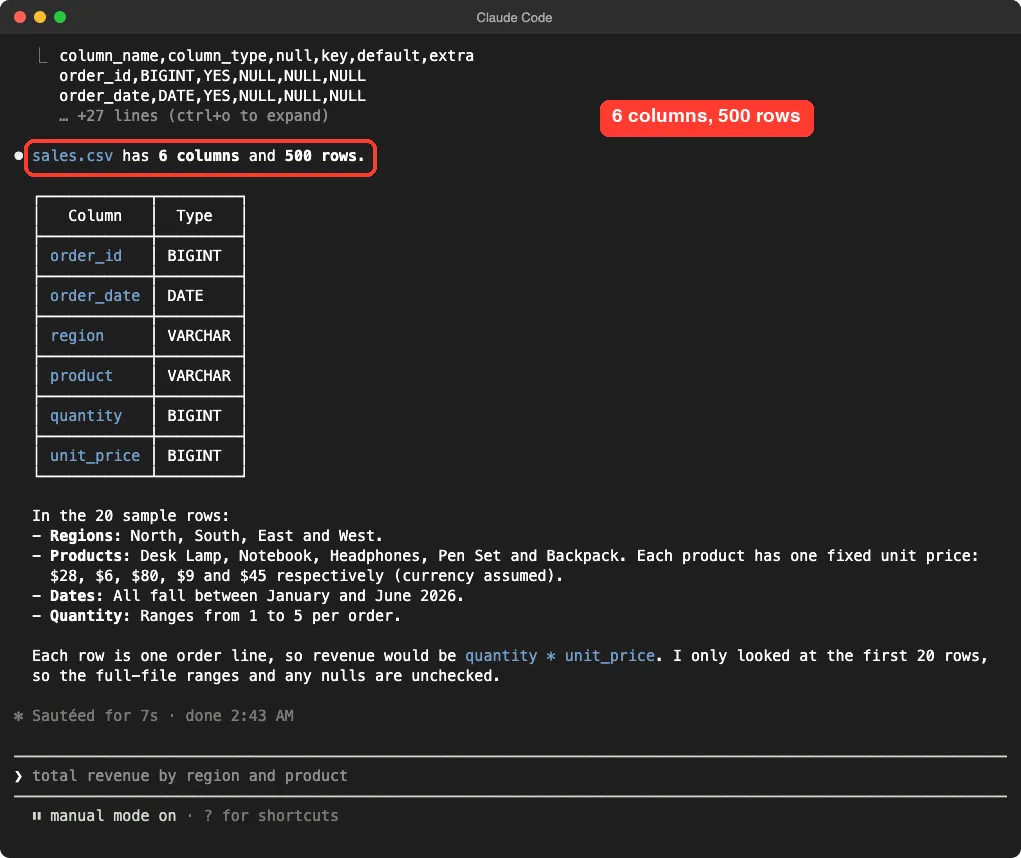
The answer was right: 6 columns and 500 rows. Claude also noticed that each product always had the same price, and that the dates fell between January and June.
One honest detail matters here. The skill shows only the first 20 rows.
Claude said so itself, and added that it had not checked the whole file for empty values. Treat this as a quick preview, not a full audit.
Why the answer was fast
The skill does not load your file into the chat. DuckDB reads it from disk, and only the small summary comes back. That keeps token use low even when the file is large.
Step 3: Ask DuckDB a Question From Claude Code
Next we asked something a manager might ask. Which region earned the most, and which product sold best there?
/duckdb-skills:query which region earned the most revenue (quantity times unit_price) in sales.csv, and which product sold best there?You can pass raw SQL or a plain question. For a question, Claude writes the SQL for you. The skill’s instructions tell it to prefer DuckDB’s short “friendly” SQL, such as GROUP BY ALL.
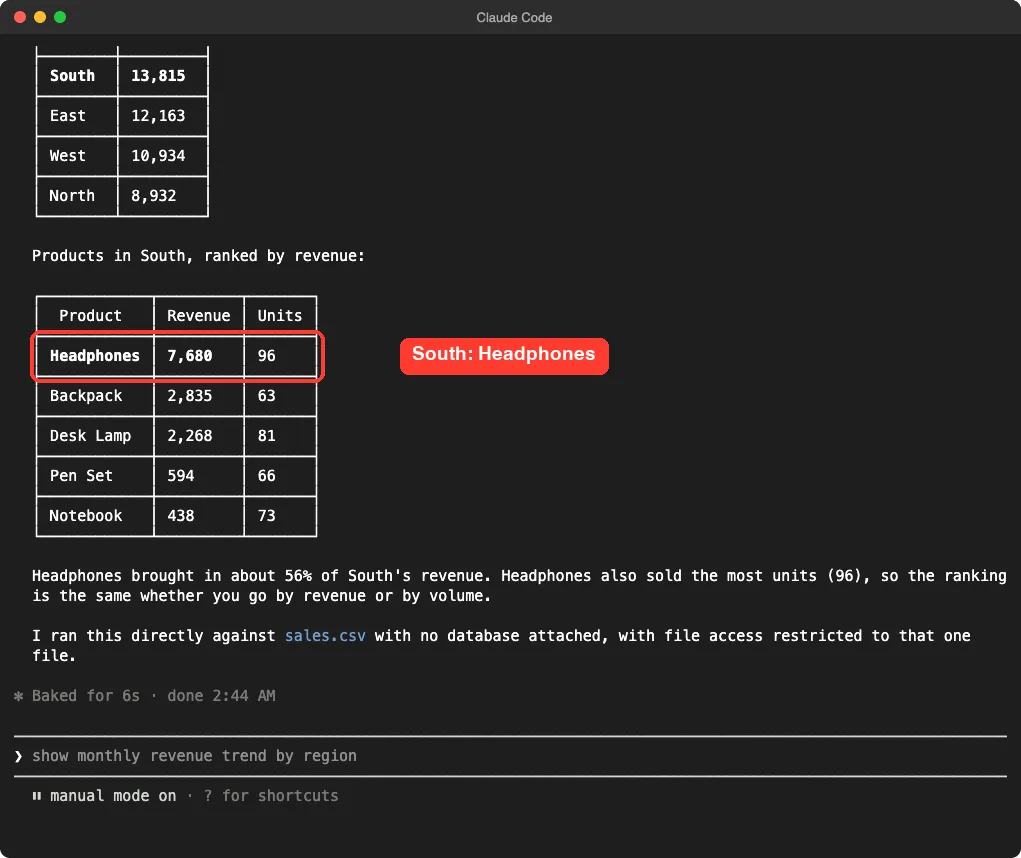
Claude answered with two small tables. South came first with 13,815, then East with 12,163, West with 10,934 and North with 8,932. Inside South, Headphones led with 7,680 across 96 units.
We checked the answer ourselves
We never trust an answer we have not checked. So we ran our own DuckDB query on the same file, outside Claude Code.
SELECT region, sum(quantity * unit_price) AS revenue
FROM 'sales.csv'
GROUP BY ALL
ORDER BY revenue DESC;
Our numbers matched Claude’s exactly, for all four regions and for all five products in South. One demo is only one demo, but it is a good sign that the skill does what it says.
How the query skill keeps your files safe
The skill file shows how it handles a one-off question on a file. It runs DuckDB in memory and limits access to the single file you named. It turns off outside file access and locks the settings so the query cannot wander.
Claude said the same in its answer: it ran the query directly on sales.csv, with no database attached and with file access limited to that one file. That is a sensible default when you work with data you did not write.
Step 4: Convert a File With convert-file
CSV is easy to read but bulky. Parquet is smaller and faster. The third skill converts between them in one line.
/duckdb-skills:convert-file sales.csv to sales.parquetClaude ran a single DuckDB copy command, listed both files and counted the rows in the new one.
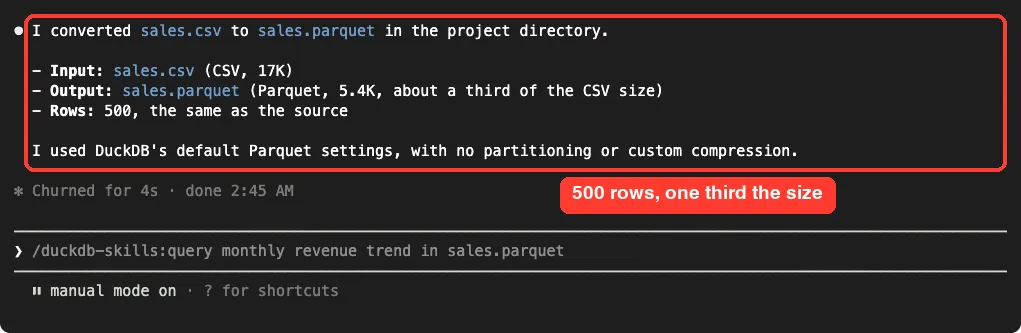
The CSV was 17K and the Parquet file was 5.4K. The row count stayed at 500. Claude also noted that it used DuckDB’s default settings, with no partitioning or custom compression.
This was a tiny file, so the exact ratio will differ on your data. The direction, smaller and faster, is the reason people use Parquet.
How the Pieces Fit Together
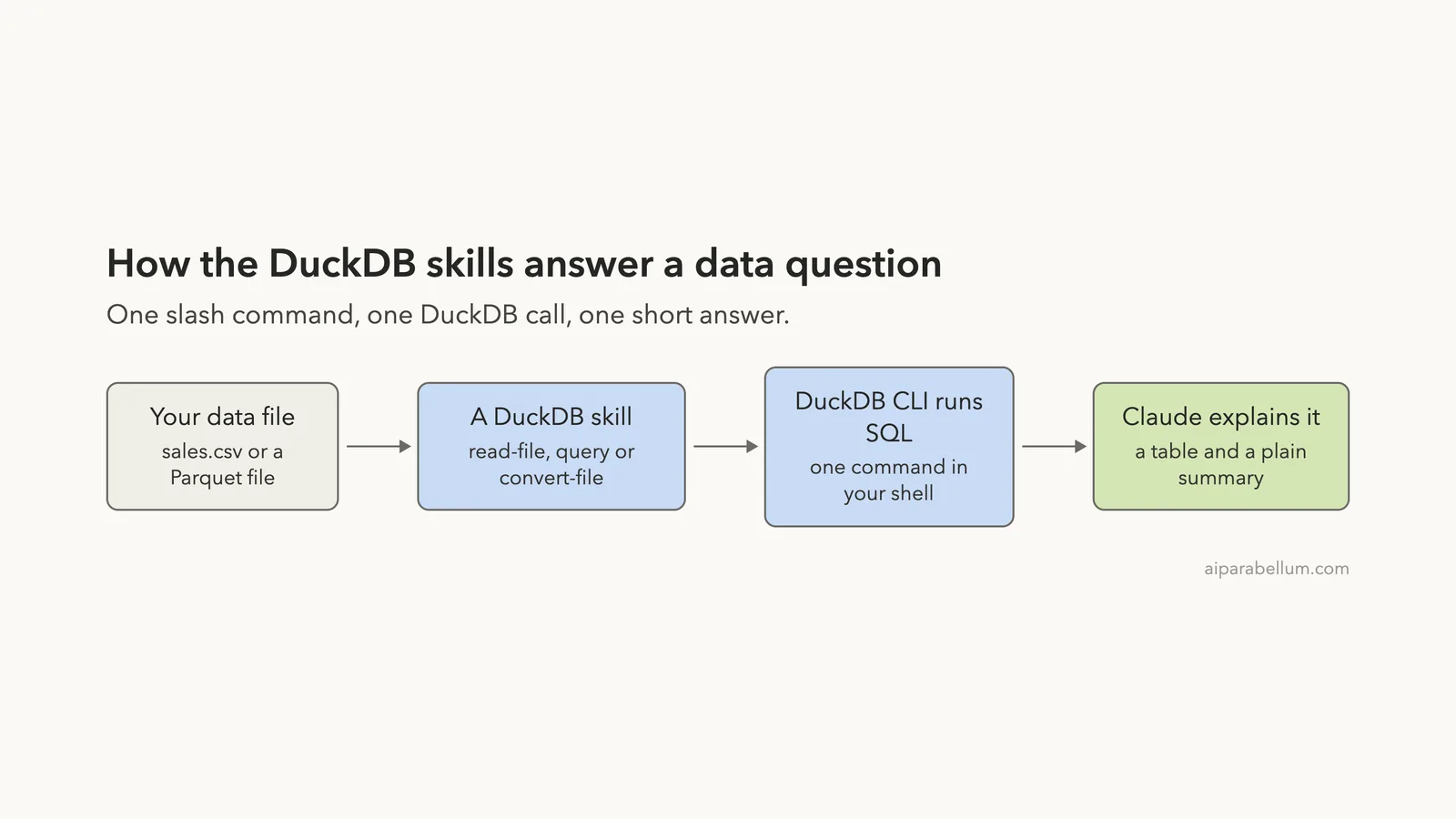
The flow is the same for every skill. You type one command, the skill tells Claude which DuckDB commands to run, DuckDB does the heavy work on disk, and Claude explains what came back.
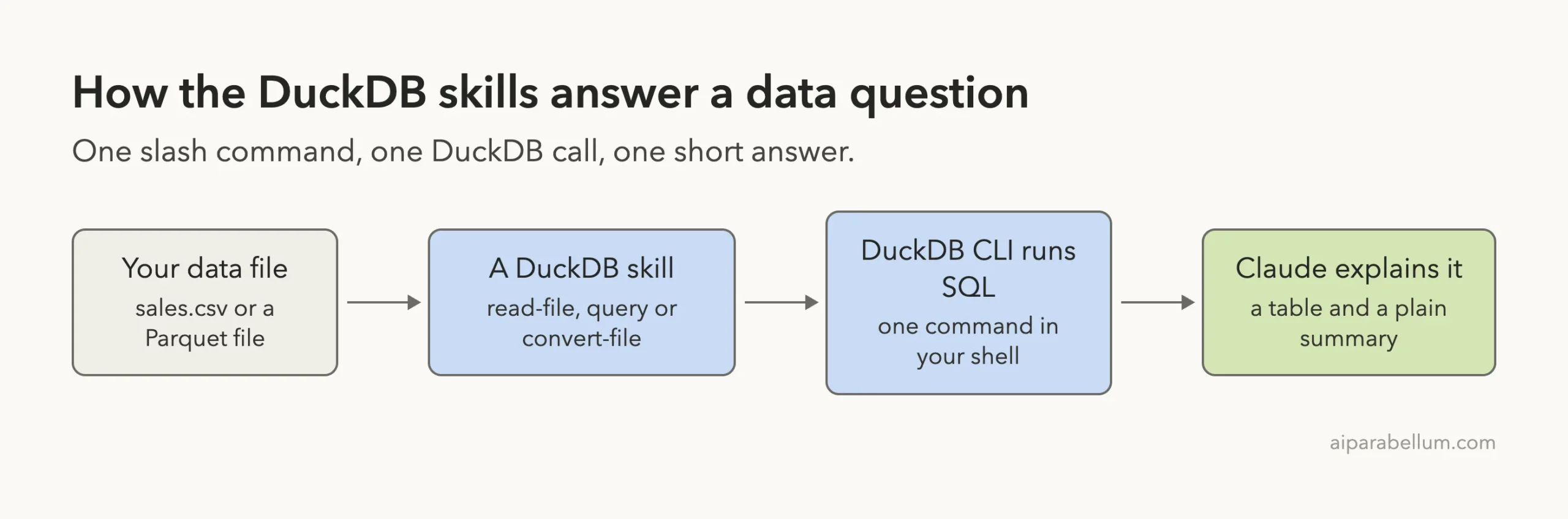
This is different from asking Claude to read the whole file. The data stays on your machine, and only the summary enters the conversation. If you want to compare helper types, see our guide to skills versus plugins.
Try It Yourself
You can repeat our test in about ten minutes. Make a new empty folder, never a real project, and put any small CSV file in it.
- Install the DuckDB command-line program.
- Start Claude Code in the demo folder and add the plugin.
- Run
/duckdb-skills:read-fileon your file. - Ask one question with
/duckdb-skills:query. - Run your own SQL on the same file and compare the answers.
Here is a prompt to copy once the plugin is loaded.
/duckdb-skills:query show the five biggest values in each numeric column of data.csv, then tell me if anything looks oddBecause Claude Code asks before it runs commands in the default permission mode, you stay in control. Our guide to permission modes explains the options.
Common Mistakes
- Forgetting to install DuckDB. The plugin does not include it, and the skills stop with a “command not found” message.
- Trusting the 20-row preview. It is a sample, so ask a real question to check totals, empty values or odd entries.
- Pointing it at a huge file with no limit. The query skill warns you when a result could be very large, so add a
LIMITor a summary. - Using a real project folder for your first try. Test in an empty folder instead.
- Skipping your own check. Run one simple query by hand to confirm a number before you share it.
Pro Tips
- Ask for totals, counts and top-N lists. Those return short answers and keep token use down.
- Convert big CSV files to Parquet once, then query the Parquet copy afterward.
- Add a short note about your data to
CLAUDE.md, such as what each column means. Our CLAUDE.md guide shows how. - Use
attach-dbwhen you work with a saved DuckDB database across many questions. We did not test it, so read its skill file first.
A good data question returns a short, checkable answer.
Who Should Install the DuckDB Skills
Install it if you often get CSV, JSON or Parquet files and want quick answers without opening a spreadsheet. It also suits people who already like SQL and want Claude to write the first draft of a query.
Skip it if you never touch data files, or if you are happy typing your own DuckDB commands. The plugin does not add a new ability. It packages sensible commands and safe defaults, and you can read every line of it in the repository.
You can also read more about Claude on our tool page.
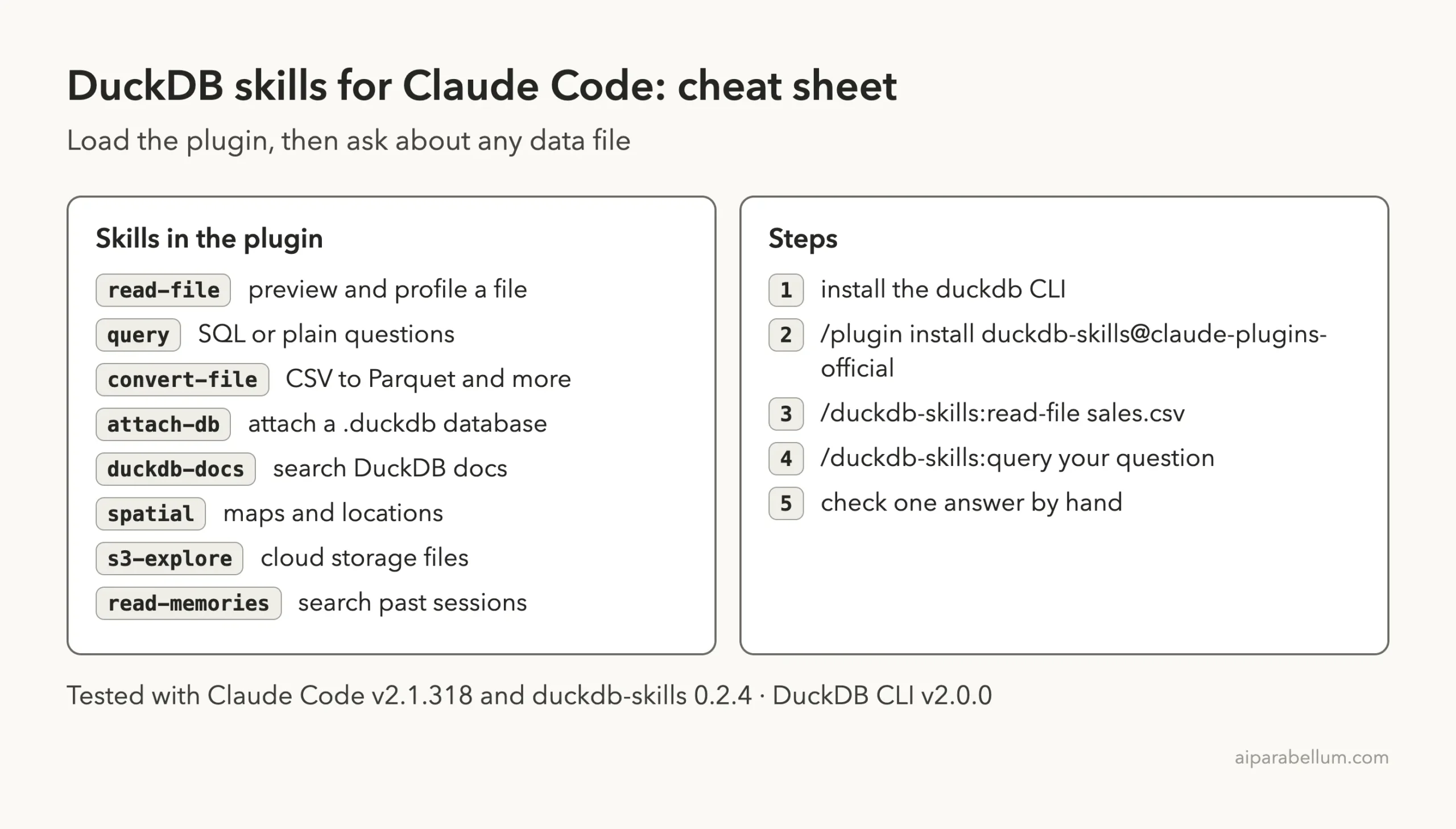
Cheat Sheet
Frequently Asked Questions
What is the DuckDB Claude Code plugin?
It is the official duckdb-skills plugin. It adds slash commands that let Claude Code read data files, run SQL on them with DuckDB, and convert them between formats such as CSV and Parquet.
Do I need to install DuckDB separately?
Yes. The plugin only holds instructions. You need the duckdb command-line program on your computer, for example with brew install duckdb on a Mac.
Can Claude Code query a Parquet file with SQL?
Yes, through DuckDB. We converted our CSV to Parquet in our test. The query skill is built to read Parquet, and the plugin says it handles it, but our own test questions ran on the CSV file.
Is it safe to run on my own data?
The skills run DuckDB on your computer, and the one-off query mode limits access to the file you name. We found no hooks or background scripts. Still, read the skill files and start with a copy of your data.
Did every answer come out right?
In our test, yes. Revenue by region and by product matched our own DuckDB query exactly. That is one small demo, so check important numbers yourself.
Conclusion
The DuckDB skills turn Claude Code into a quick helper for data files. In our test, three short slash commands gave us the right row count, the right revenue totals and a smaller Parquet copy, and our own query agreed with every number. Install it if you work with CSV or Parquet files, keep DuckDB and a hand check close, and start in an empty demo folder before you point it at anything important.