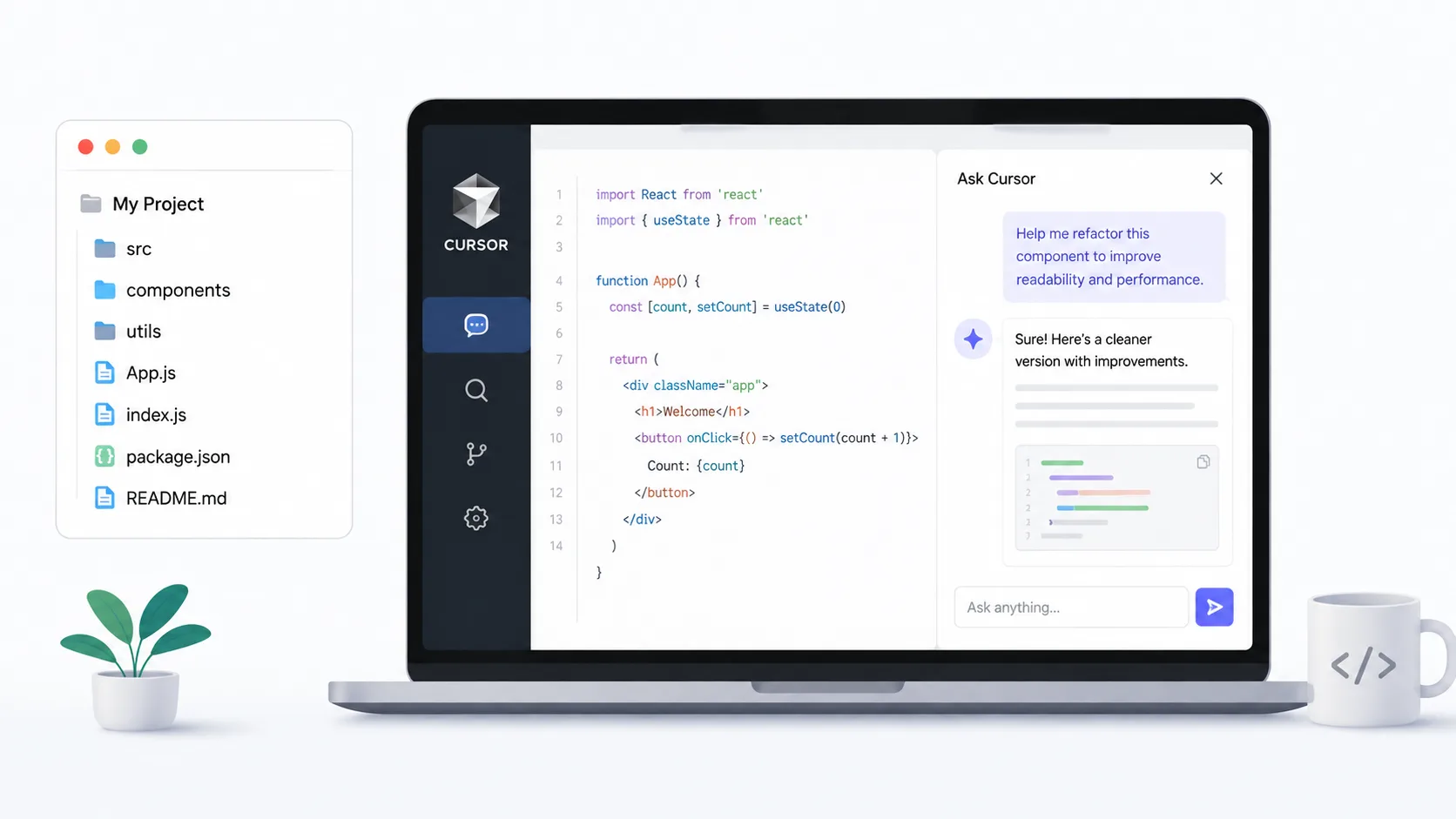
Starting a new project with AI assistance is straightforward. The real challenge is bringing AI into a codebase that already has thousands of files, complex dependencies, and years of accumulated decisions. Cursor AI handles this better than most tools because it was built to understand context at scale.
Here is how to set it up, give it the right context, and actually get useful results from it on a codebase that already exists.
What Makes Cursor AI Different for Existing Projects
Most AI coding assistants treat every file in isolation. You paste a snippet, ask a question, and get an answer that ignores everything else in your project. Cursor AI works differently because it indexes your entire codebase and uses that context when generating suggestions, writing code, or answering questions.
This means when you ask it to refactor a function, it already knows what calls that function, what types it expects, and what tests cover it. That awareness is what makes it useful on a real project instead of just a toy demo.
Setting Up Cursor AI on Your Codebase
Getting started takes less than five minutes, but doing it right makes a significant difference in the quality of results you get.
Step 1: Open Your Project
Download Cursor from the official site and open your existing project folder. Cursor is built on top of VS Code, so if you already use VS Code, the transition is seamless. Your extensions, keybindings, and settings carry over.
Step 2: Let It Index
When you first open a project, Cursor indexes the codebase to build its understanding of file relationships, function definitions, imports, and types. For small projects this takes seconds. For larger codebases with tens of thousands of files, give it a few minutes to finish.
You can check the indexing status in the bottom status bar. Wait for it to complete before you start asking complex questions, otherwise the AI will be working with incomplete context.
Step 3: Configure .cursorrules
This is the step most people skip, and it is the one that matters most. Create a `.cursorrules` file in your project root to tell Cursor about your project’s conventions, architecture, and preferences.
# .cursorrules example
You are working on a Django REST API with a React frontend.
Backend code is in /api and uses Python 3.11.
Frontend code is in /web and uses TypeScript with Next.js 14.
Always use snake_case for Python and camelCase for TypeScript.
Use existing utility functions from /api/utils/ before creating new ones.
Tests go in __tests__ directories next to the code they test.
This file acts as persistent instructions that apply to every conversation. Without it, the AI guesses at your conventions and often guesses wrong.
How to Use Cursor AI Effectively on Existing Code
Having the tool installed is one thing. Getting real value from it requires knowing which features to use and when.
Understanding Code with Chat
The chat feature is the fastest way to get up to speed on unfamiliar parts of your codebase. Select a file or function, open the chat panel, and ask questions like “What does this middleware do?” or “How does authentication flow through this app?”
Cursor pulls context from related files automatically, so you get answers that reference your actual code rather than generic explanations. This is especially valuable when onboarding onto a project or debugging an issue in a module you did not write.
Refactoring with Composer
Composer is Cursor’s multi-file editing feature. Instead of changing one file at a time, you can describe a refactor and let Cursor apply changes across multiple files simultaneously.
For example, you might say “Rename the UserService class to AuthService and update all imports and references across the project.” Composer identifies every file that needs to change and shows you a diff before applying anything.
| Feature | Best For | How to Use |
|---|---|---|
| Chat (Cmd+L) | Understanding code, asking questions | Select code, open chat, ask your question |
| Inline Edit (Cmd+K) | Quick single-file changes | Select code, press Cmd+K, describe the change |
| Composer (Cmd+I) | Multi-file refactors and features | Open Composer, describe the task, review diffs |
| Tab Autocomplete | Writing new code in context | Just start typing, accept suggestions with Tab |
| @file references | Giving the AI specific context | Type @filename in chat to include a file |
Giving Cursor the Right Context
The biggest mistake people make with Cursor on an existing codebase is expecting it to figure everything out on its own. You get dramatically better results when you guide its context.
Use @ References
When asking a question or requesting a change, reference specific files with the @ symbol. Typing @auth.py or @UserModel tells Cursor exactly which files to consider. Without these references, it may pull in irrelevant context or miss critical dependencies.
Add Documentation Files
If your project has an architecture document, API spec, or design decisions log, drop them in the project root. Cursor indexes these alongside your code, which means it can reference your design decisions when suggesting changes.
The AI is only as good as the context you give it. Five seconds of adding @ references saves five minutes of correcting wrong assumptions.
Common Tasks on an Existing Codebase
Here are the tasks where Cursor AI saves the most time on projects that are already in production.
- Writing tests for existing functions by referencing the function and asking for unit tests that cover edge cases.
- Adding TypeScript types to a JavaScript codebase incrementally, one file at a time.
- Migrating from one library to another by describing the old and new patterns.
- Generating API documentation from existing route handlers and models.
- Debugging production issues by pasting error logs and asking Cursor to trace the cause through your code.
What Cursor AI Gets Wrong on Large Codebases
No tool is perfect, and knowing the limitations helps you avoid wasting time.
- Very large monorepos can overwhelm the indexer. If your repo has over 100,000 files, consider using .cursorignore to exclude build artifacts, vendor directories, and generated files.
- Cursor sometimes suggests changes that conflict with patterns established elsewhere in the codebase. Always review diffs before accepting.
- Complex database migrations need human judgment. The AI can write the migration file, but you should verify it against your production schema.
- It occasionally hallucinates function names or imports that do not exist in your project. The .cursorrules file reduces this but does not eliminate it.
Trust the AI to draft. Trust yourself to review. That division of labor is where the speed comes from.
Cursor AI vs Other Options for Existing Codebases
GitHub Copilot works well for autocomplete but lacks the deep codebase awareness that Cursor provides through indexing and Composer. Cody by Sourcegraph offers similar codebase context but requires a separate setup and does not integrate as tightly into the editor. For existing projects where context matters more than simple autocomplete, Cursor is the stronger choice.
Conclusion
Using Cursor AI on an existing codebase comes down to three things: let it index fully before you start, set up a .cursorrules file with your project conventions, and use @ references to guide context on every request. The tool is powerful enough to understand large projects, but it works best when you meet it halfway. Start with understanding and debugging tasks, build trust in the suggestions, and then move to refactoring and feature work once you see how well it knows your code.