The Claude Code explanatory output style is now a plugin, and so is a second one called learning mode. Both change how Claude talks to you while it writes code, and both are free in Anthropic’s official plugin marketplace. This guide shows what each one does in a real session on a Mac, what we saw, and which one to install.
This guide is part of our Claude Code tutorials. Find more add-ons in our Skills Directory.
Tested with Claude Code v2.1.319 on 2026-11-09 (macOS), using explanatory-output-style and learning-output-style from anthropics/claude-plugins-public at commit 0412be7.
We read both plugins’ files first. Then we loaded each one into a throwaway sandbox, asked Claude for small edits to a tiny Python file, and compared the answers with a session that had no plugin. We ran five short prompts in total, never installed anything into our own setup, and never ran the code Claude wrote.
Quick Summary: Two Output Style Plugins at a Glance
Both plugins do one simple thing. They add a block of instructions to Claude at the start of every session, so Claude explains more as it works. The difference is how much they ask of you.
| Plugin | What it adds | What we saw | Install command |
|---|---|---|---|
| explanatory-output-style | Short “Insight” blocks about the code Claude writes | An Insight block with 2 bullets in our run | /plugin install explanatory-output-style@claude-plugins-official |
| learning-output-style | The same Insight blocks, plus requests for you to write 5-10 lines at key decisions | Insight blocks in 3 runs; no request to write code | /plugin install learning-output-style@claude-plugins-official |
What Is the Claude Code Explanatory Output Style?
An output style changes how Claude presents its answers, not what it can do. The explanatory style asks Claude to teach as it works, so you learn why a piece of code looks the way it does and not only that it was written.
The plugin README says it recreates the deprecated Explanatory output style as a hook. If you used the old setting, "outputStyle": "Explanatory", the plugin is the replacement. For the built-in styles that still exist, see our guide to output styles.
The learning plugin goes one step further. Its README says it combines the unshipped Learning output style with all of the explanatory features. So installing the learning plugin already includes Insight blocks, and you do not need both.
How Do These Plugins Work?
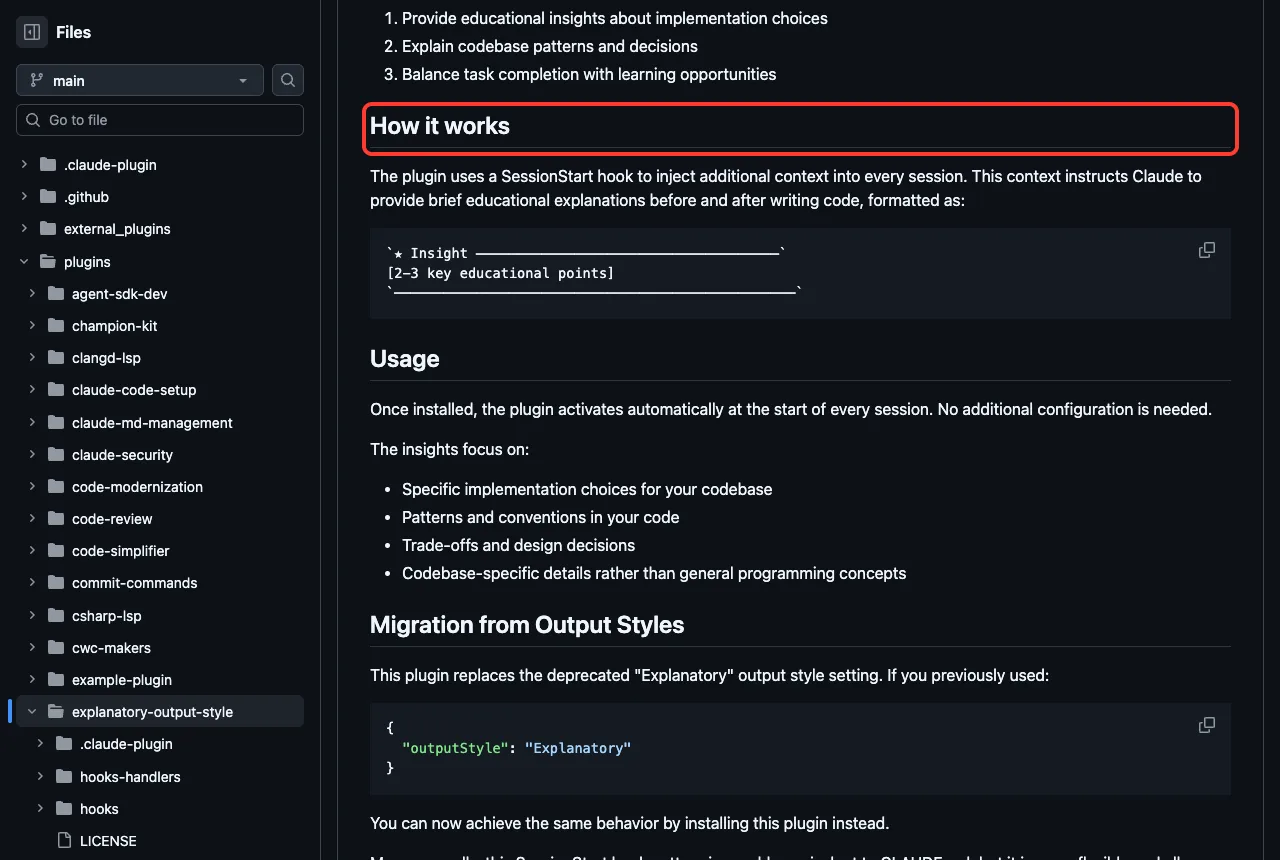
Each plugin is a tiny folder. It holds a plugin.json file, a hooks/hooks.json file and one shell script, hooks-handlers/session-start.sh.
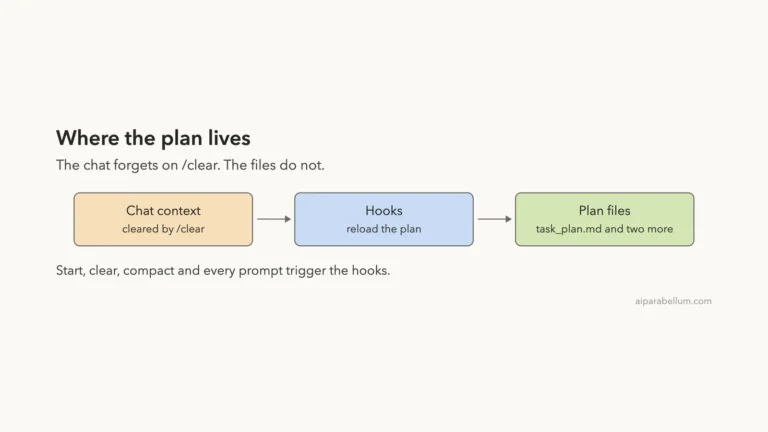
The hook runs when a session starts, and the script prints a JSON message with a field called additionalContext. Claude Code adds that text to the conversation.
In plain words, the plugin is a ready-made instruction note that loads every time. The README says this pattern is roughly equivalent to a CLAUDE.md file, but it is easier to share through plugins. Our hooks guide explains the hook system behind it.
What We Checked Before Running Anything
A hook runs a command on your computer, so we read both scripts before loading them. Each script contains one cat command that prints the instruction text and then exits. They make no network calls, read no files and write nothing to disk.
We tested the files at commit 0412be7 of Anthropic’s public plugins repository, dated 2026-11-06. Neither plugin sets a version number in our copy. We loaded each folder with --plugin-dir and used --setting-sources project, so none of our own settings mixed into the test.
| Check | Result |
|---|---|
| Hook events used | Only SessionStart |
| Script behavior | Prints text and exits, no network or file access |
| MCP servers, skills, agents | None |
| Account needed | No |
| Cost warning in README | Yes, both warn about the token cost of the extra instructions |
The Test Setup
The demo project has one small file, wordcount.py, with a function that counts the words in a text file. We reset the file before every session so each run started from the same code. Every session used accept-edits mode, and every prompt told Claude not to run anything.
Baseline: Claude Code Without a Plugin
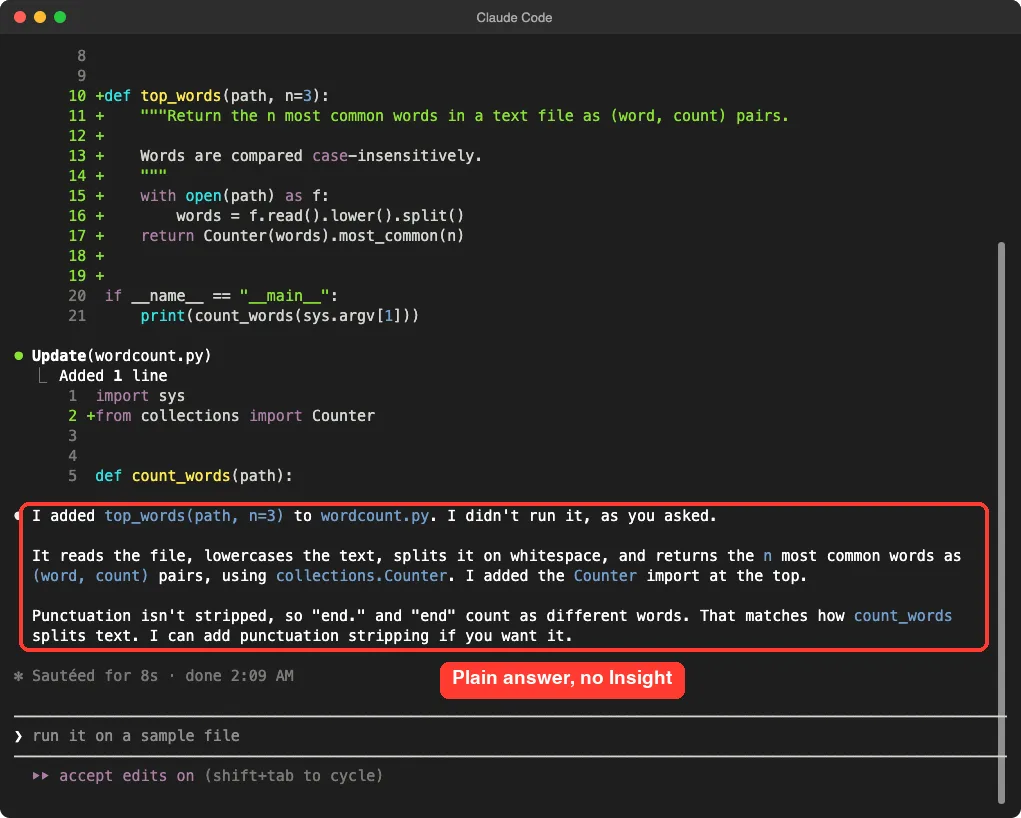
First we asked a plain session to add a function. The prompt was: add top_words(path, n=3) to wordcount.py so it returns the n most common words, edit the file only, and do not run it.
Claude added the function and the import, then wrote three short paragraphs.
It said what the function does and noted that punctuation is not stripped. It offered to add that if we wanted it. There was no Insight block and no extra teaching.
Explanatory Output Style in Action
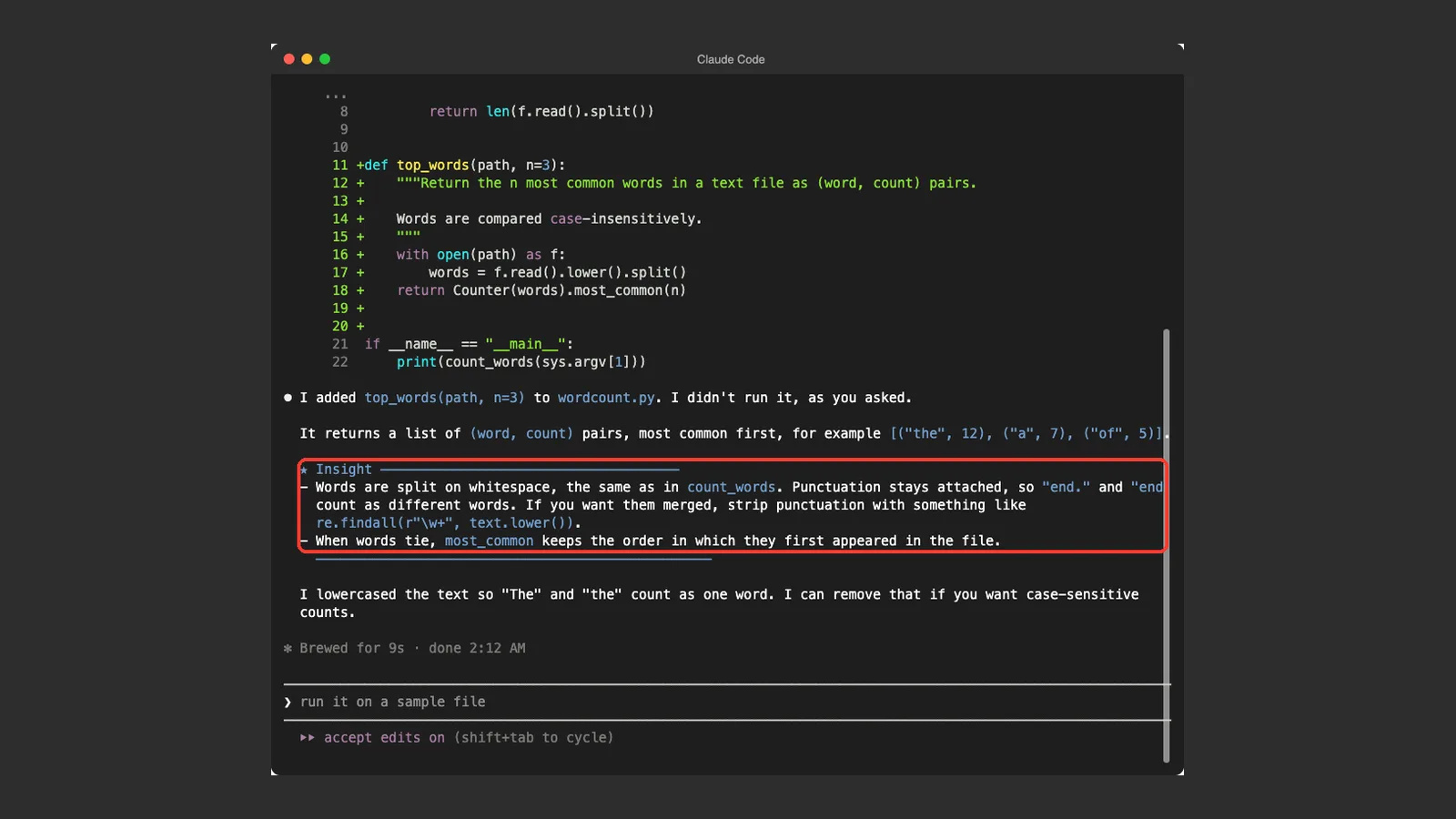
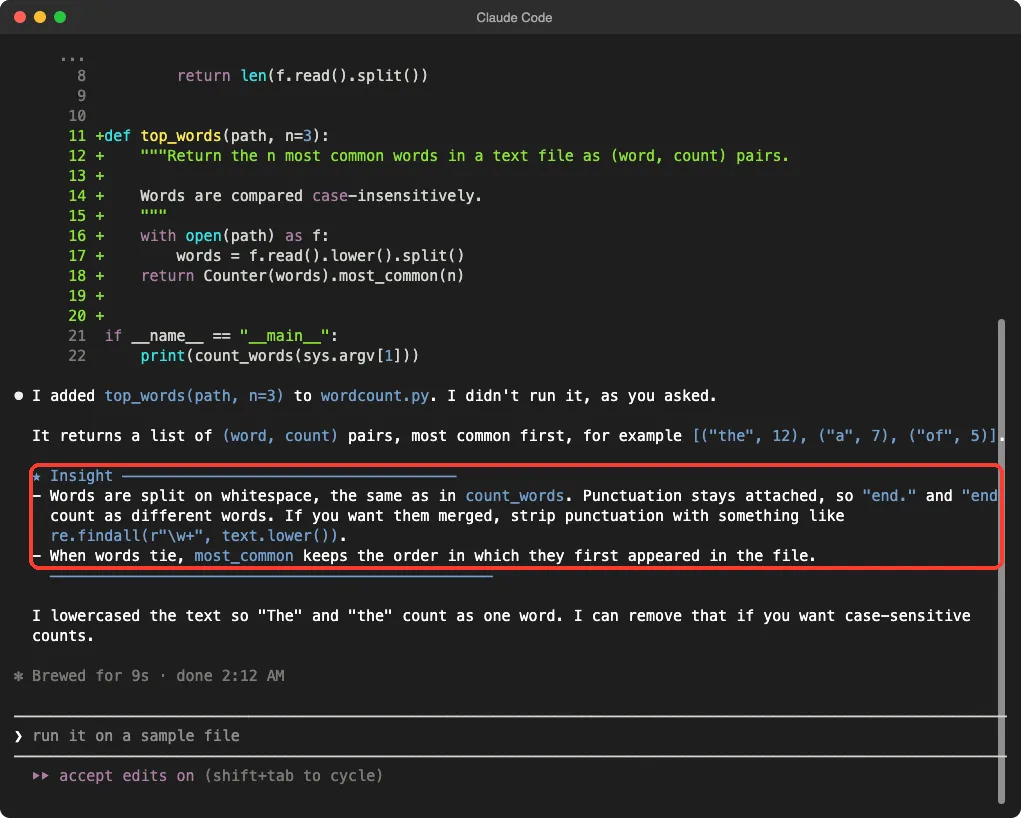
Next we repeated the same prompt with the explanatory plugin loaded. The code Claude wrote was the same kind of function. The answer around it changed.
After the summary, Claude added a block starting with a star and the word Insight, followed by two points. The first said words are split on whitespace, so “end.” and “end” count as different words, and suggested a fix with re.findall. The second said that when words tie, most_common keeps the order in which they first appeared in the file.
The block follows the format the plugin script asks for: a backtick header, two or three educational points and a closing line. Those details are about our small file, not general programming advice, which is exactly what the README says the plugin aims for.
Learning Output Style in Action
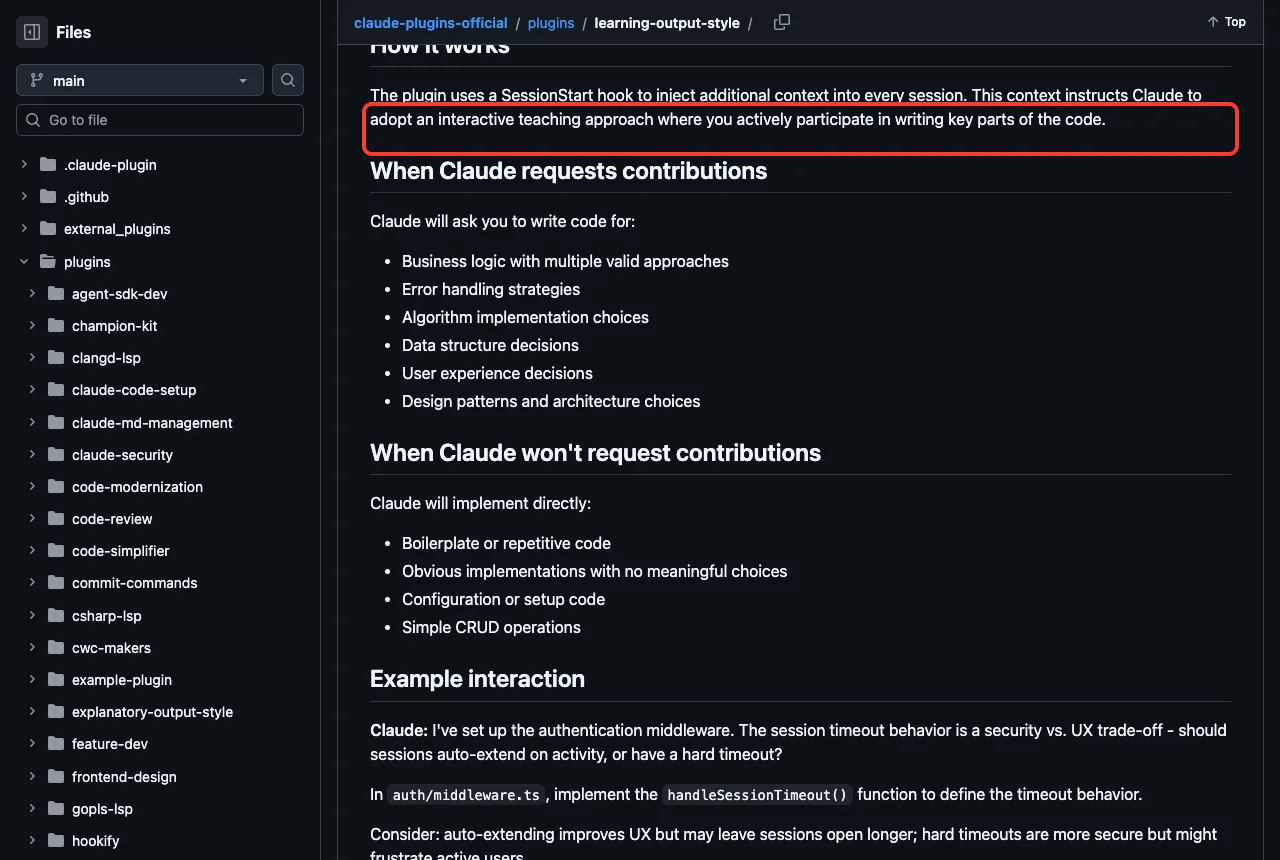
The learning plugin promises more. Its README says Claude will find places where you can write 5-10 lines of meaningful code, prepare the file and explain the trade-offs. We ran three different prompts to see that.
Run 1: Add a Function
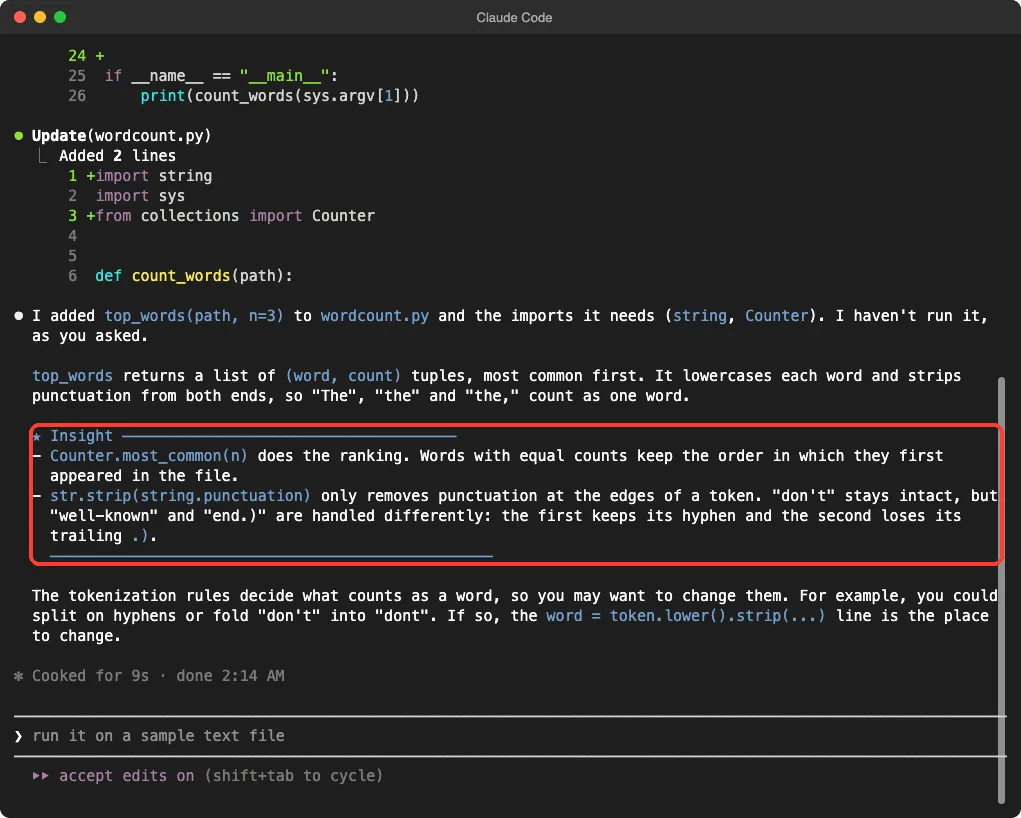
We used the same top_words prompt. Claude wrote the whole function itself and again added an Insight block. The two points covered how Counter.most_common ranks words, and how str.strip(string.punctuation) only removes punctuation at the edges of a word, so “don’t” stays whole.
Run 2: A Design Choice
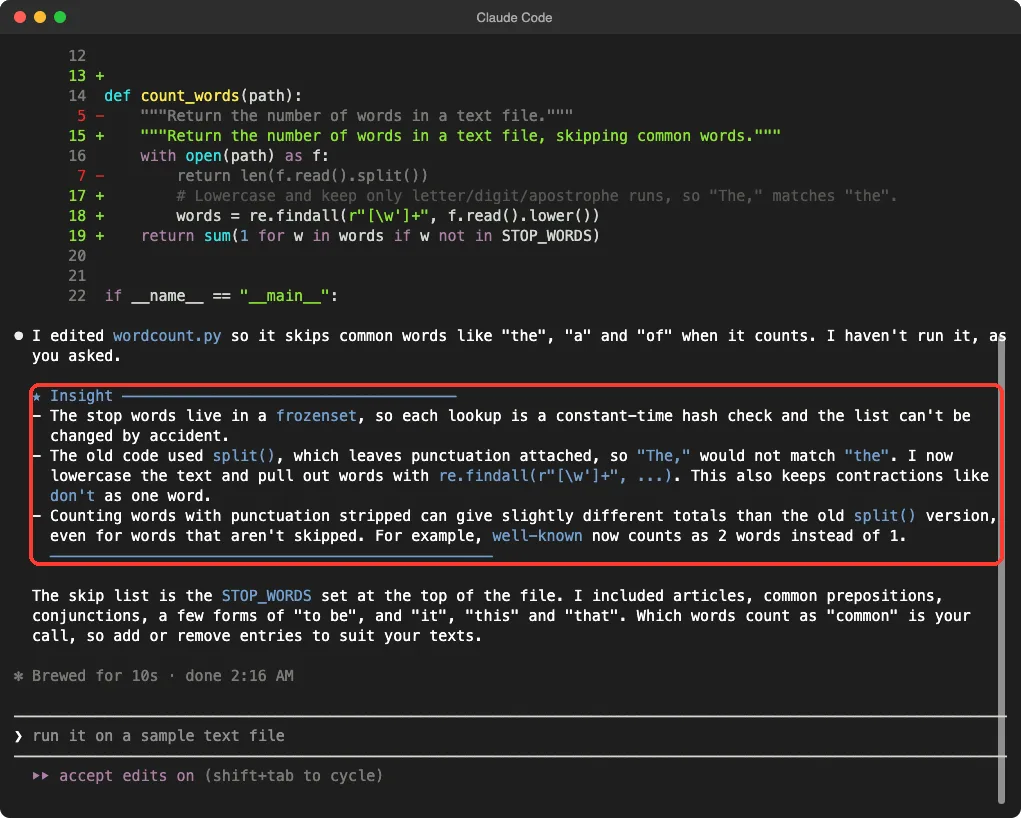
This time we gave a prompt with a real choice in it: make wordcount.py skip common words like “the”, “a” and “of”. Which words count as common is a judgment call, so this looked like a good moment for a request to write code.
Claude still wrote everything. It created a STOP_WORDS set and added an Insight block about why a frozenset gives fast lookups.
It ended by saying which words count as common is your call, so add or remove entries to suit your texts. That is an invitation to edit, but not a request to write code.
Run 3: Error Handling
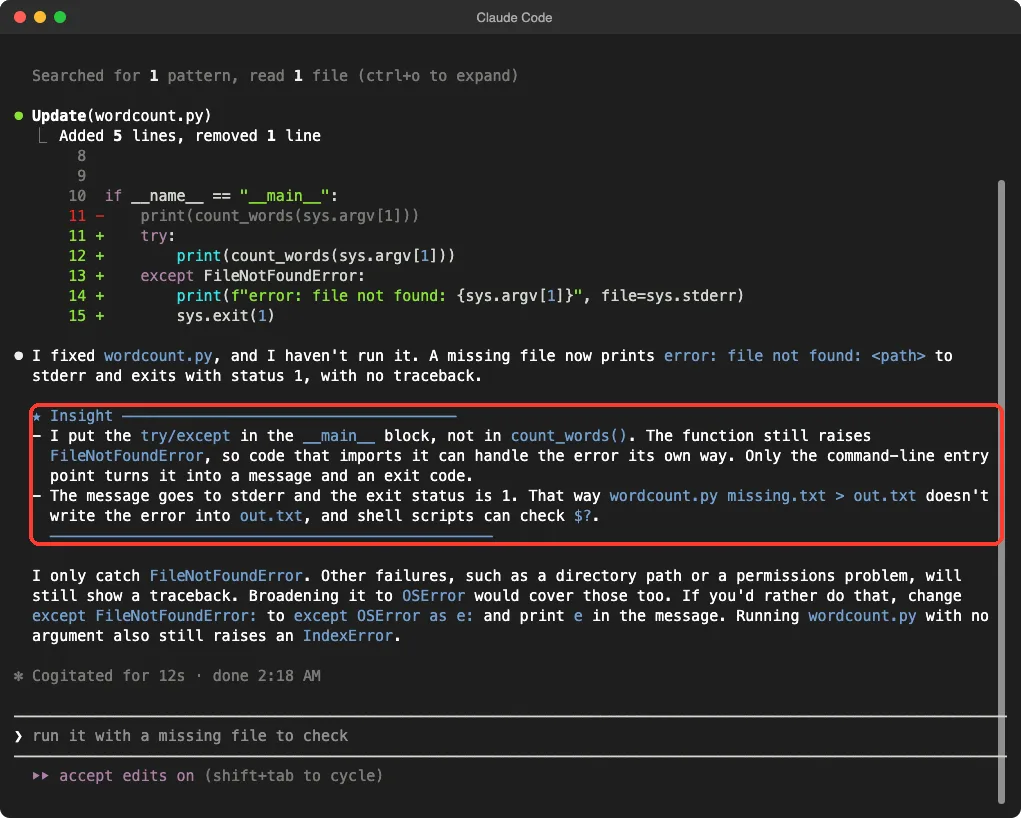
Error handling is the first item in the README’s list of things Claude may ask you to write. We said that wordcount.py crashes with a traceback when the file does not exist, and asked for a fix.
Claude wrapped the call in a try and except FileNotFoundError block. The Insight explained why the handler sits in the __main__ block, not inside count_words(), and why the message goes to stderr with exit status 1. Claude also pointed out that other errors, such as a directory path, would still show a traceback and said how to broaden the catch.
What We Conclude About Learning Mode
In three runs, learning mode gave us Insight blocks every time and never asked us to write code.
The honest reading is narrow. Our prompts were small and each told Claude exactly what to do, so Claude may have judged there was no meaningful decision left for us. The README also lists simple tasks Claude will implement directly.
We cannot say how it behaves on a larger feature with open questions. If you want to see the contribution requests, try a vague prompt on a bigger task, and check the README’s example for what to expect.
Which Output Style Plugin Should You Install?
Start with how you work. If you want fast answers, install nothing.
If you want to understand the code Claude writes, the explanatory plugin is the lighter choice. If you are learning to code and want to practice, try the learning plugin on a larger task.
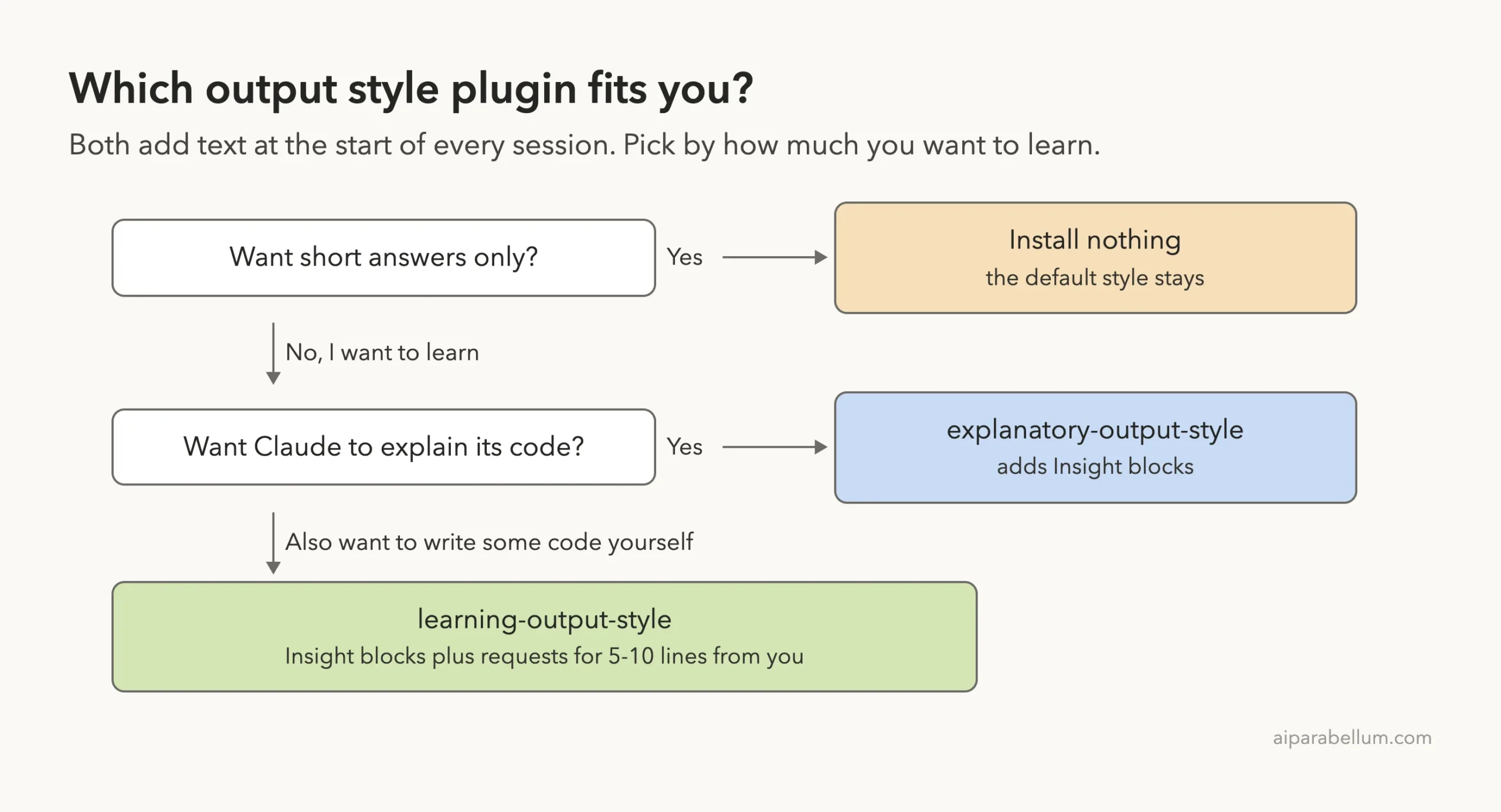
| You want | Choose | Why |
|---|---|---|
| Quick edits, little text | No plugin | The default answer in our baseline was short and clear |
| To understand why code looks the way it does | explanatory-output-style | It gave an Insight block tied to our file |
| To practice writing key parts yourself | learning-output-style | It adds the contribution requests, though we did not trigger one |
An output style plugin is a standing instruction, so it affects every session until you turn it off.
The Cost: Extra Tokens in Every Session
Both READMEs open with the same warning. Do not install the plugin unless you are fine with the token cost of its extra instructions and output. The instructions load at the start of every session, and every Insight block adds output.
We did not measure the token difference, so we have no number to give you. What we can say from the screenshots is that the Insight blocks were about two or three short points each, and they appeared in every answer that involved code.
How to Install, Disable and Remove Them
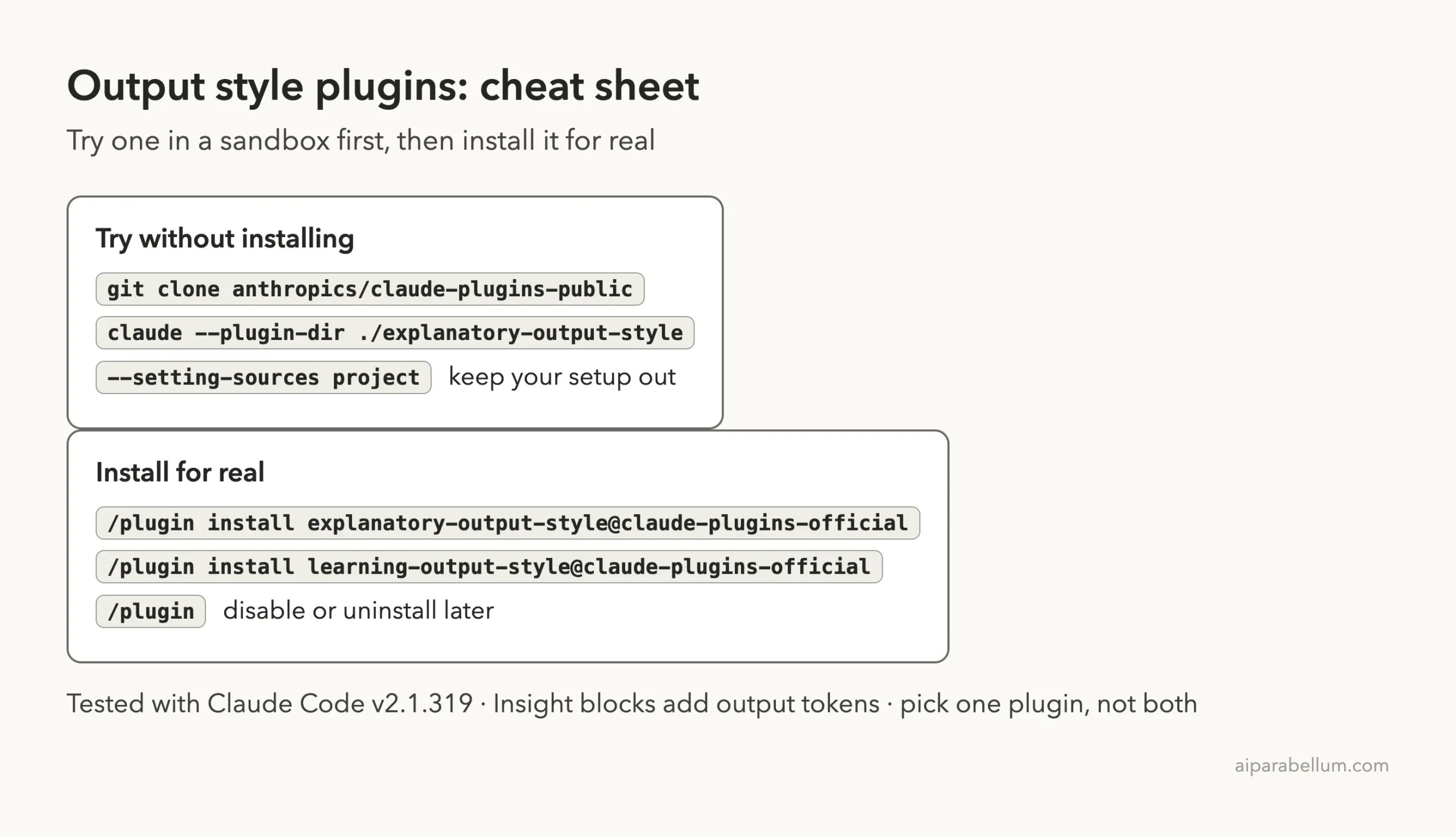
To try a plugin without touching your setup, clone the repository and load one folder. Adjust the path to where you cloned it.
git clone https://github.com/anthropics/claude-plugins-public
claude --setting-sources project --plugin-dir ./claude-plugins-public/plugins/explanatory-output-style
To install for real, run one of these inside Claude Code. Our plugin install guide covers scopes and updates, and Anthropic’s pages on discovering plugins and creating plugins describe the rest.
/plugin install explanatory-output-style@claude-plugins-official
/plugin install learning-output-style@claude-plugins-official
The READMEs describe the choices in plain terms. Disable keeps the code on your device, uninstall removes it, and you can copy the plugin to make a personal version with your own wording. We did not test the disable and uninstall steps ourselves.
Try It Yourself
Make a demo folder with a tiny Python file, load one plugin with the command above and paste this prompt. Then run the same prompt in a session with no plugin and compare.
In wordcount.py add a function top_words(path, n=3) that
returns the n most common words. Edit the file only and
do not run it.
For learning mode, try a bigger prompt with open questions, such as asking Claude to design how a small tool should handle bad input, and see whether it asks you to write part of the code.
Common Mistakes
- Installing both plugins. The learning plugin already includes the explanatory features, so you only need one.
- Expecting learning mode to quiz you on every task. Its README says simple code is implemented directly.
- Forgetting the plugin is on. It loads every session, so disable it when you want short answers.
- Treating Insight blocks as code comments. They appear in the conversation, not in your files, and our result files held no Insight text.
Pro Tips
- Try a plugin with
--plugin-dirfirst, then install it only if you like it. - Use the explanatory plugin when you review code you did not write, since Insights point to the choices behind it.
- Use the learning plugin on bigger tasks with real trade-offs, not one-line edits.
- Pair it with a clear CLAUDE.md template so Claude also knows your project rules.
- See what other add-ons exist in our CLAUDE.md management plugin guide and the Skills Directory.
Cheat Sheet
Frequently Asked Questions
What is the Claude Code explanatory output style?
It is a plugin that makes Claude add short Insight blocks about the code it writes. It works through a hook that adds instructions at the start of each session. It replaces the deprecated Explanatory output style, according to its README.
What is the difference between explanatory and learning mode?
Learning mode includes everything in explanatory mode and adds requests for you to write 5-10 lines of code at key decisions. In our three runs it gave us Insight blocks but did not ask us to write any code.
Do output style plugins cost more tokens?
The READMEs warn that they do, because of the extra instructions and the extra output. We did not measure the amount, so check your own usage after you turn one on.
Can I use both plugins together?
You do not need to. The learning plugin README says it already includes the explanatory plugin’s functions, so install one or the other.
Do these plugins work on Windows or Linux?
We tested on macOS. The Windows and Linux steps follow Anthropic’s official instructions, and the plugins’ hook script is a bash script, so check the plugin docs for your system.
Conclusion
The Claude Code explanatory output style and learning mode are two small, free plugins that add teaching to every session through a hook. In our sessions the explanatory plugin added an Insight block tied to our own file, while learning mode added the same blocks but never asked us to write code on small prompts. Try one in a sandbox with --plugin-dir, watch the token cost, and read more in our Claude guide and the Skills Directory.