A claude code mcp timeout shows up in two different ways: a server that never connects, or a tool call that stops before the answer arrives. Both look like the server is broken, but usually it is only slow and Claude Code gave up waiting. In this guide we build a slow test server on purpose, trigger each timeout for real, and fix every one with a single setting.
Browse all our Claude Code tutorials for more guides like this one.
Tested with Claude Code v2.1.322 on November 13, 2026, on macOS. Every error below came from a small local test server in a throwaway project. The idle timeout and background task details follow Anthropic’s official docs, and we say so where that applies.
Claude Code MCP Timeout: The Quick Answer
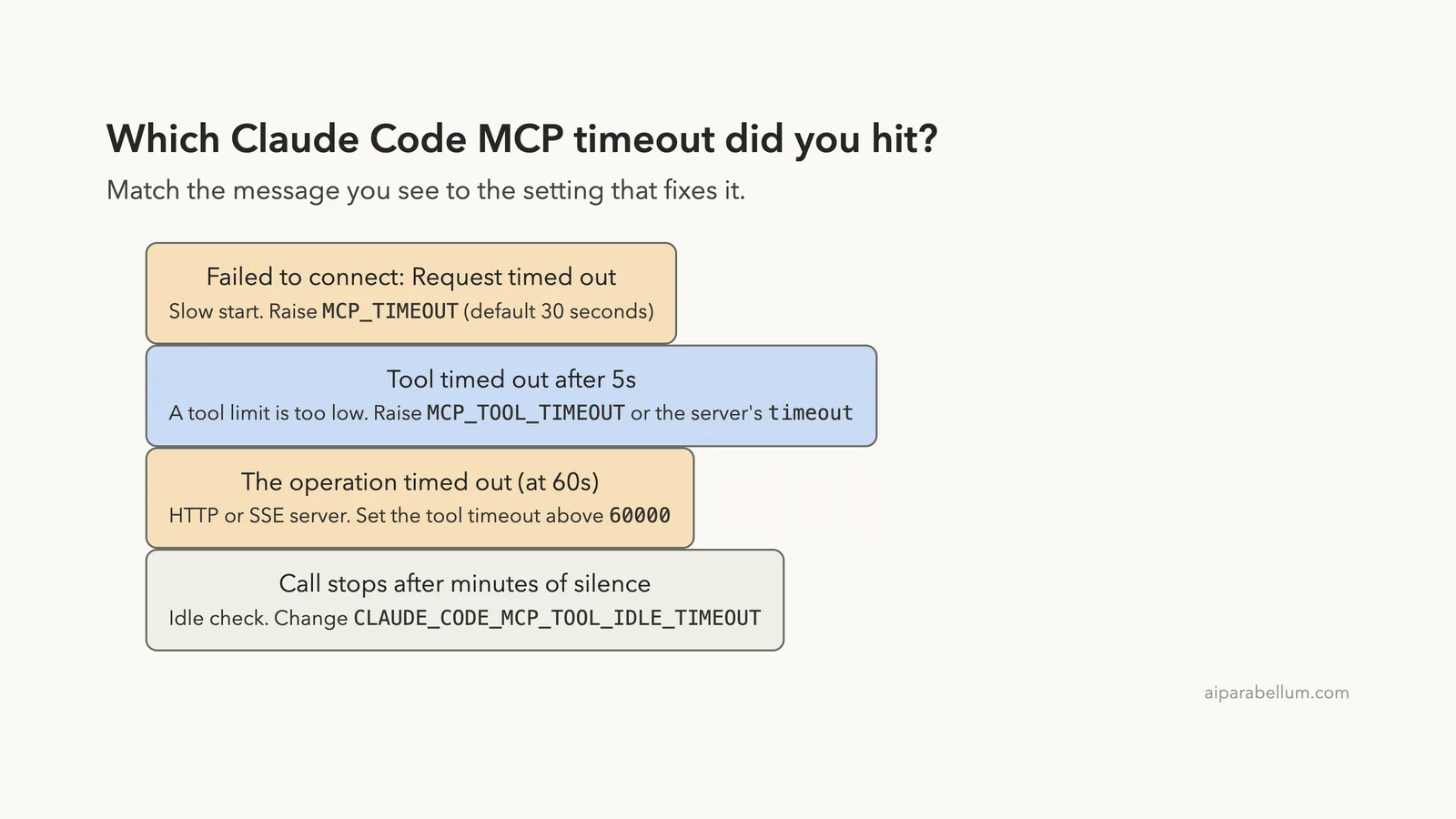
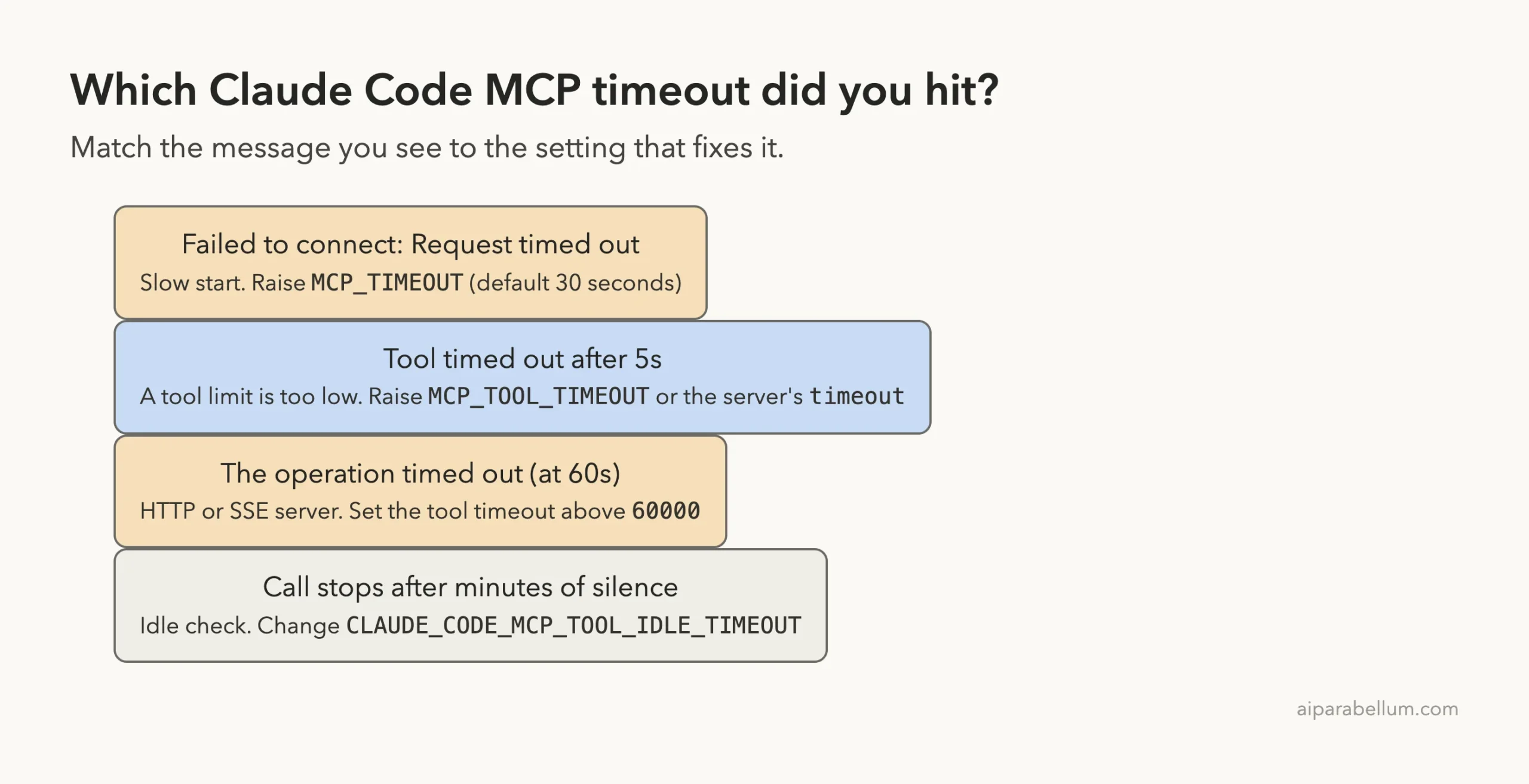
If the server fails to connect with Request timed out, it took longer than 30 seconds to start. Give it more time by setting MCP_TIMEOUT in milliseconds when you launch Claude Code.
MCP_TIMEOUT=60000 claudeIf the server connects but a tool call stops early, raise the tool limit instead. Use MCP_TOOL_TIMEOUT for every server, or add a timeout field to one server in .mcp.json.
MCP_TOOL_TIMEOUT=120000 claudeRemote HTTP and SSE servers have one extra rule: each request stops after 60 seconds unless the tool timeout is set above 60000. That one catches a lot of people, and we show it failing and working below.
| What you see | What it means | The fix |
|---|---|---|
Failed to connect - Request timed out | The server took over 30 seconds to start | Raise MCP_TIMEOUT |
tool "name" timed out after 5s | A tool limit is set too low | Raise MCP_TOOL_TIMEOUT or the per-server timeout |
The operation timed out at 60 seconds | An HTTP or SSE request hit the 60-second timer | Set the tool timeout above 60000 |
| A call stops after minutes of silence | The idle check ended it | Change CLAUDE_CODE_MCP_TOOL_IDLE_TIMEOUT |
Why MCP Servers Time Out in Claude Code
MCP servers are small programs that give Claude extra tools, like a database or a browser. Claude Code starts each one, waits for it to say hello, and later waits again every time it calls a tool. If you are new to the idea, our MCP servers guide covers the basics.
Each of those waits has its own clock. The environment variables reference lists the defaults, and they are very different from each other.
| Setting | What it limits | Default |
|---|---|---|
MCP_TIMEOUT | How long a server may take to start | 30000 (30 seconds) |
MCP_TOOL_TIMEOUT | How long one tool call may run, for all servers | 100000000 (about 28 hours) |
timeout in .mcp.json | How long one tool call may run, for that server only | Not set |
| Per-request timer | Each request to an HTTP, SSE or claude.ai connector server | 60 seconds |
CLAUDE_CODE_MCP_TOOL_IDLE_TIMEOUT | How long a call may stay silent | 5 minutes for network servers, 30 minutes for stdio |
Notice the gap. Startup gets 30 seconds, while a tool call on a local server can run for more than a day. So most real timeouts come from slow starts and from the 60-second timer on remote servers.
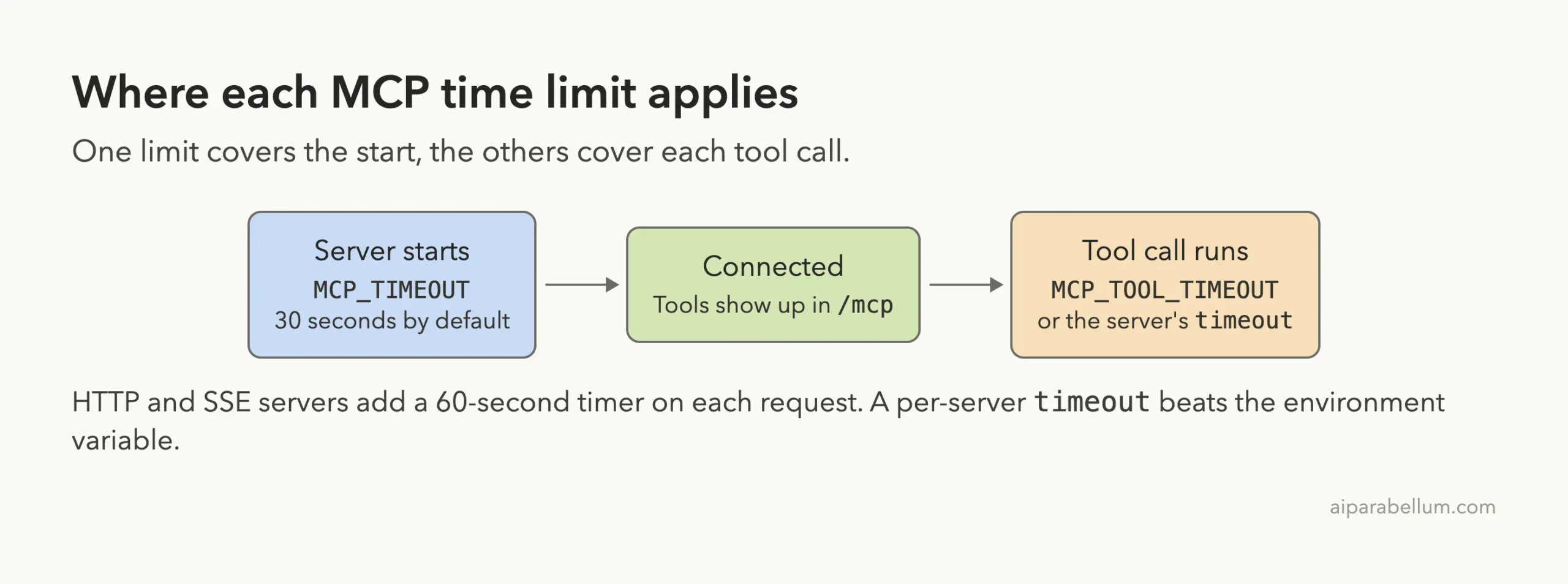
A timeout does not mean the server is broken. It means Claude Code stopped waiting.
Our Test Setup: A Server That Is Slow on Purpose
To see each timeout for real, we wrote a tiny MCP server in one Node.js file with no dependencies. It has one tool, slow_report, that waits for the number of seconds you ask for and then answers. A START_DELAY_MS variable makes the server slow to start as well.
Here is the part that matters. The start delay holds back the first reply, and the tool simply sleeps before it returns.
async function handle(msg) {
  if (msg.method === 'initialize') {
    await sleep(startDelay);   // slow start
    return { protocolVersion: msg.params.protocolVersion,
             capabilities: { tools: {} },
             serverInfo: { name: 'slow-server', version: '1.0.0' } };
  }
  if (msg.method === 'tools/call') {
    const seconds = Number(msg.params.arguments?.seconds || 0);
    await sleep(seconds * 1000);   // slow answer
    return { content: [{ type: 'text',
             text: `Report ready after ${seconds} seconds.` }] };
  }
}
The server lives in a throwaway project and is registered in the project’s .mcp.json file. If you are not sure where that file goes, see our guide on the MCP config file.
Fix 1: The Server Takes Too Long to Start
We set the start delay to 45 seconds, which is longer than the 30-second default. Then we asked Claude Code for the server status with claude mcp list.
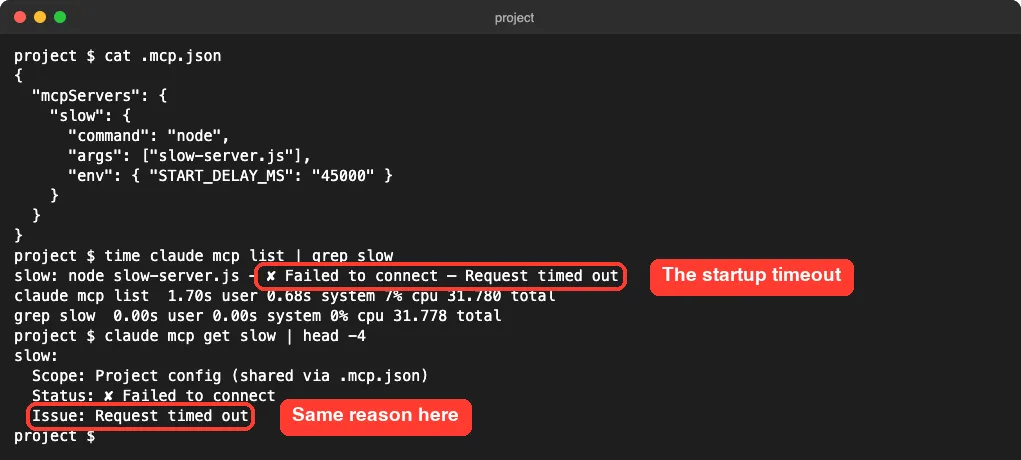
The status line says Failed to connect - Request timed out, and claude mcp get slow repeats it on the Issue: line. The whole command took 31.8 seconds, which matches the 30-second limit plus a moment to start up.
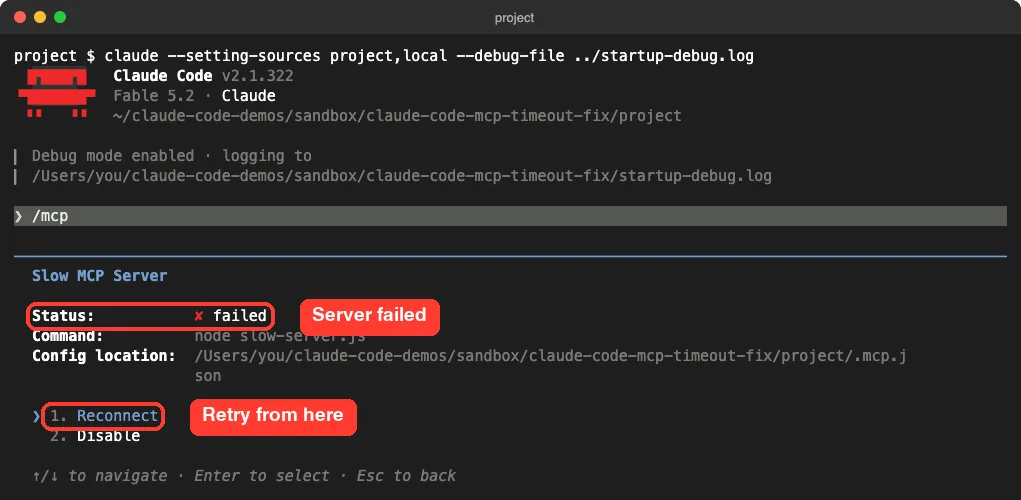
Inside a session, the /mcp panel shows the same server as failed. It also gives you a Reconnect option, which is how you retry a local server without restarting Claude Code.
Confirm It in the Debug Log
The status alone does not tell you which limit was hit. The debug log does. We started the session with --debug-file and searched the log for our server name.
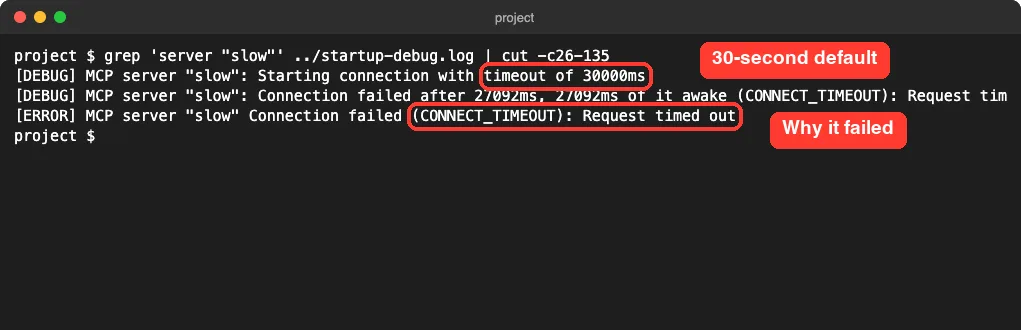
The first line prints the limit Claude Code is using: timeout of 30000ms. The last line gives the reason, CONNECT_TIMEOUT. On this run the log reported the failure after about 27 seconds, so do not expect the cut-off to land on exactly 30.
That first line is handy later too. After you change the setting, it should print your new number. Our guide to reading MCP logs covers the other errors you may find in the same file.
Raise MCP_TIMEOUT
The fix is one variable in front of the command. The value is in milliseconds, so 60 seconds is 60000.
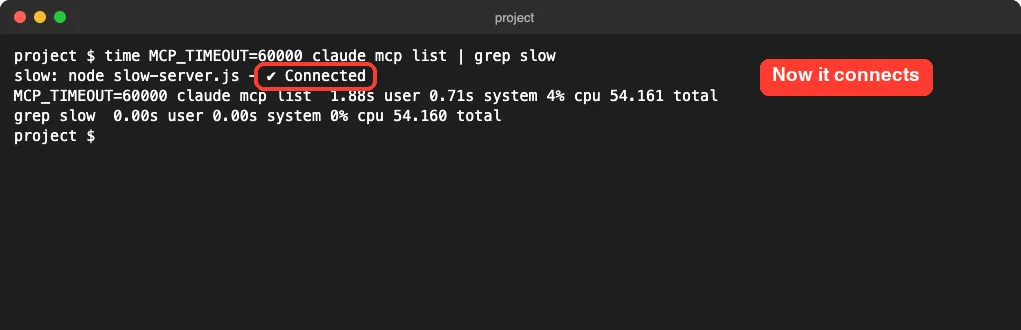
The same server now shows Connected. It still took 54 seconds, because the variable does not make the server faster. It only tells Claude Code to wait longer.
According to the official MCP docs, MCP_TIMEOUT is the startup timeout, and the same page uses MCP_TIMEOUT=10000 claude as its example. Pick a value a little above your server’s worst start time, not a huge one.
Fix 2: A Tool Call Times Out
Now the other kind. We removed the start delay so the server connects at once, then set a very low tool limit of 5 seconds and asked for a 20-second report. To keep it short, we used a one-line script that sends a single prompt in headless mode.
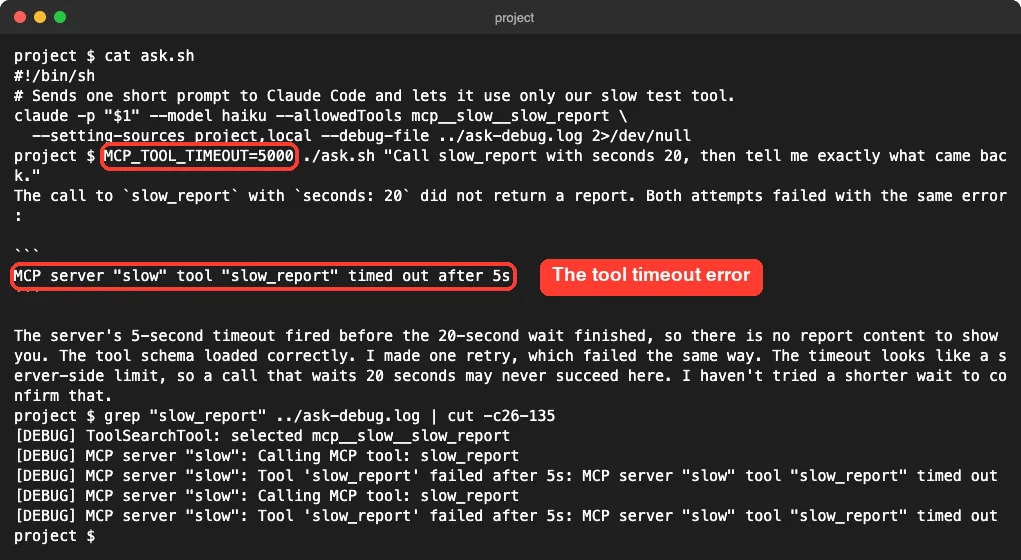
This is the tool timeout error, word for word: MCP server "slow" tool "slow_report" timed out after 5s. It names the server, the tool and the limit, which makes it easy to tell apart from a startup failure.
Look at the debug lines at the bottom. Claude tried the call a second time and hit the same wall, so a low limit can cost you two waits, not one.
In real life nobody sets 5 seconds on purpose. You usually see this error when a shared .mcp.json or a shell profile carries a limit that is too tight for one heavy tool. Our environment variables guide shows how to check what your shell has set.
Set a Per-Server Timeout in .mcp.json
You can raise MCP_TOOL_TIMEOUT, but there is a more precise option. Add a timeout field, in milliseconds, to the one server that needs it.
{
  "mcpServers": {
    "slow": {
      "command": "node",
      "args": ["slow-server.js"],
      "timeout": 60000
    }
  }
}
The docs say this field overrides MCP_TOOL_TIMEOUT for that server only. We checked it by leaving the 5-second variable in place and running the same 20-second call again.
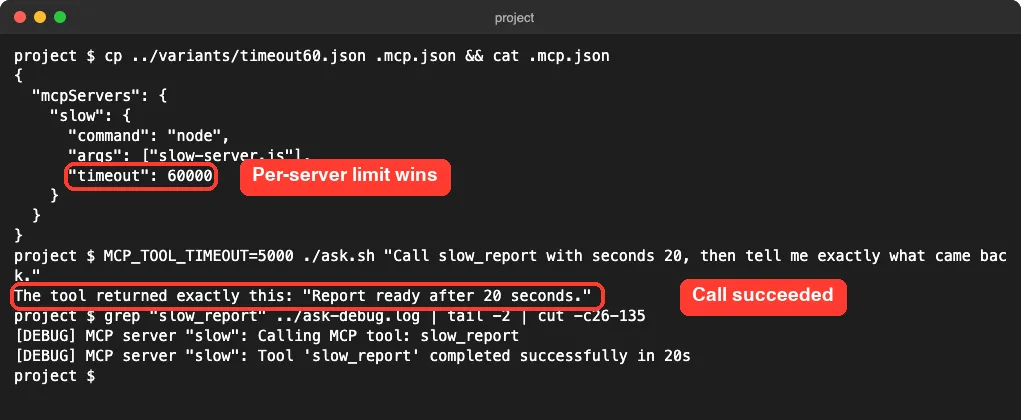
The call finished in 20 seconds, even though the variable still said 5. So the per-server field really does win, which makes it the right tool when one server is slow and the rest are fine.
Two details from the docs are worth knowing. The per-server timeout is a hard limit for each call, and progress messages from the server do not extend it. Values below 1000 are ignored, so always write the number in milliseconds.
Fix 3: The 60-Second Limit on HTTP and SSE Servers
Remote servers have a second clock that local ones do not. For an HTTP, SSE or claude.ai connector server, each request also times out after 60 seconds by default. Local stdio servers have no such timer.
To test it, we ran the same slow server over HTTP on localhost and asked for a 70-second report. We set no timeout variables at all.
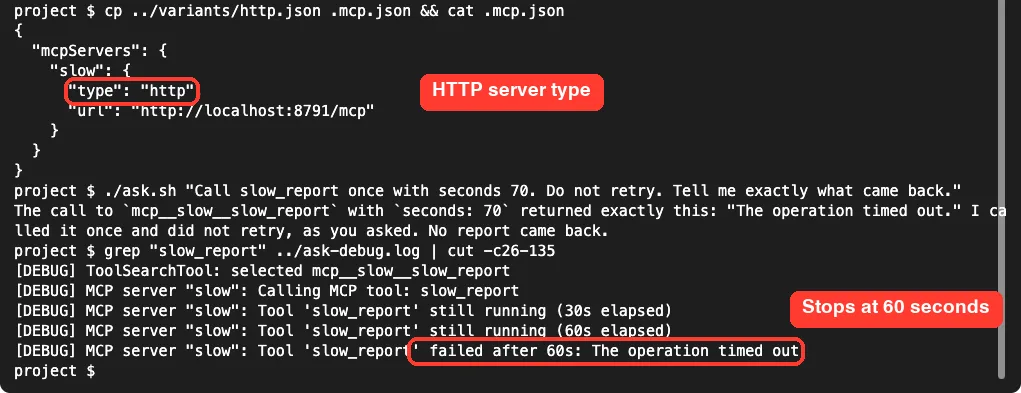
The call stopped at 60 seconds with a different message: The operation timed out. There is no server or tool name in it, which is your clue that the per-request timer fired and not the tool limit.
This surprises people because the tool default is about 28 hours. The docs explain that the 28-hour default does not count for this timer. You have to set a tool timeout yourself, and it must be above 60000.
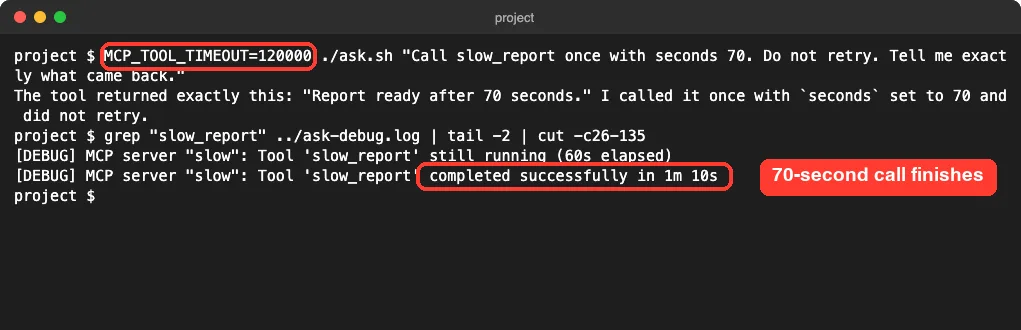
With MCP_TOOL_TIMEOUT=120000, the same call completed in 1 minute 10 seconds. A per-server timeout above 60000 does the same job for a single remote server.
One more note from the docs: a value below 60 seconds does not shorten this timer. It still shortens the overall tool limit, as we saw in Fix 2.
Fix 4: The Idle Timeout for Silent Tools
There is one more limit, and we did not trigger it because it takes minutes. This part follows the time limits section of the official docs.
If a tool sends no response and no progress update for a set window, Claude Code ends the call with an error. The window is five minutes for HTTP, SSE and WebSocket servers, and 30 minutes for stdio servers.
- Set
CLAUDE_CODE_MCP_TOOL_IDLE_TIMEOUTin milliseconds to change the window. - Set it to
0to turn the idle check off. - A per-server
timeoutof at least 1000 also acts as a floor, so the idle check never ends that server’s calls sooner than thetimeout.
So for a tool that works quietly for ten minutes on a remote server, the per-server timeout is again the simplest fix. It lifts the tool limit, the 60-second timer and the idle floor together.
Make the Timeout Settings Stick
Typing the variable in front of claude only covers that one launch. To keep it, you have two choices.
The first is your shell. Add an export line to ~/.zshrc or ~/.bashrc and open a new terminal.
export MCP_TIMEOUT=60000
export MCP_TOOL_TIMEOUT=120000
The second is the env block in a Claude Code settings file. Use .claude/settings.json to share it with your team, or .claude/settings.local.json to keep it to yourself.
{
  "env": {
    "MCP_TIMEOUT": "60000",
    "MCP_TOOL_TIMEOUT": "120000"
  }
}
Our settings guide explains which file applies where. We tested the variables on the command line; the settings file method follows the official docs.
We tested on macOS; the Windows and Linux steps follow Anthropic’s official instructions. On Linux the commands are the same. In Windows PowerShell, the docs set a variable with $env:MCP_TIMEOUT = "60000" before running claude.
What Happens After Two Minutes
A long tool call does not always freeze your session. The docs say that in an interactive session, a main-conversation call still running after two minutes moves to a background task. Claude keeps working and gets the result when the call settles.
The time limits still apply while the call runs in the background. You can change the two-minute threshold with CLAUDE_CODE_MCP_AUTO_BACKGROUND_MS, or set it to 0 to turn the move off.
This does not happen in non-interactive runs by default, which is why our 70-second test simply waited. We did not test the background move ourselves.
Try It Yourself
You can find your own slowest server in a few minutes. Start a session with a debug file, then paste this prompt.
Read the debug log for this session and list every MCP server with how many
milliseconds it took to connect. Tell me which ones took more than 10 seconds
and whether any failed with CONNECT_TIMEOUT.
If one server is close to 30 seconds, raise MCP_TIMEOUT before it starts failing on a busy day. Then check the log again and confirm the first line shows your new limit.
Common Mistakes
- Writing seconds, not milliseconds.
MCP_TIMEOUT=60is 60 milliseconds, not one minute. - Raising
MCP_TOOL_TIMEOUTfor a server that never connects. That is a startup problem, soMCP_TIMEOUTis the one to change. - Expecting the 28-hour default to cover remote servers. HTTP and SSE requests stop at 60 seconds until you set a tool timeout above
60000. - Putting
timeoutinside theenvblock of a server. It belongs next tocommandorurl. - Setting a giant timeout to hide a crash. If the server exits or the command is wrong, more waiting will not help.
Pro Tips
- Use the per-server
timeoutfor one slow server, and keep the global variables for limits you want everywhere. - Check the debug log line
Starting connection with timeout ofto confirm your setting was picked up. - After fixing a local server, pick Reconnect in
/mcp. The docs also list/mcp reconnect all, which needs v2.1.284 or later. - If a server is slow because it downloads itself on every start, install it once so it starts from disk.
- Fewer servers means fewer waits. Our MCP servers directory lists what each one costs before you add it.
- If your tool list is long, MCP tool search keeps unused tools out of the way.
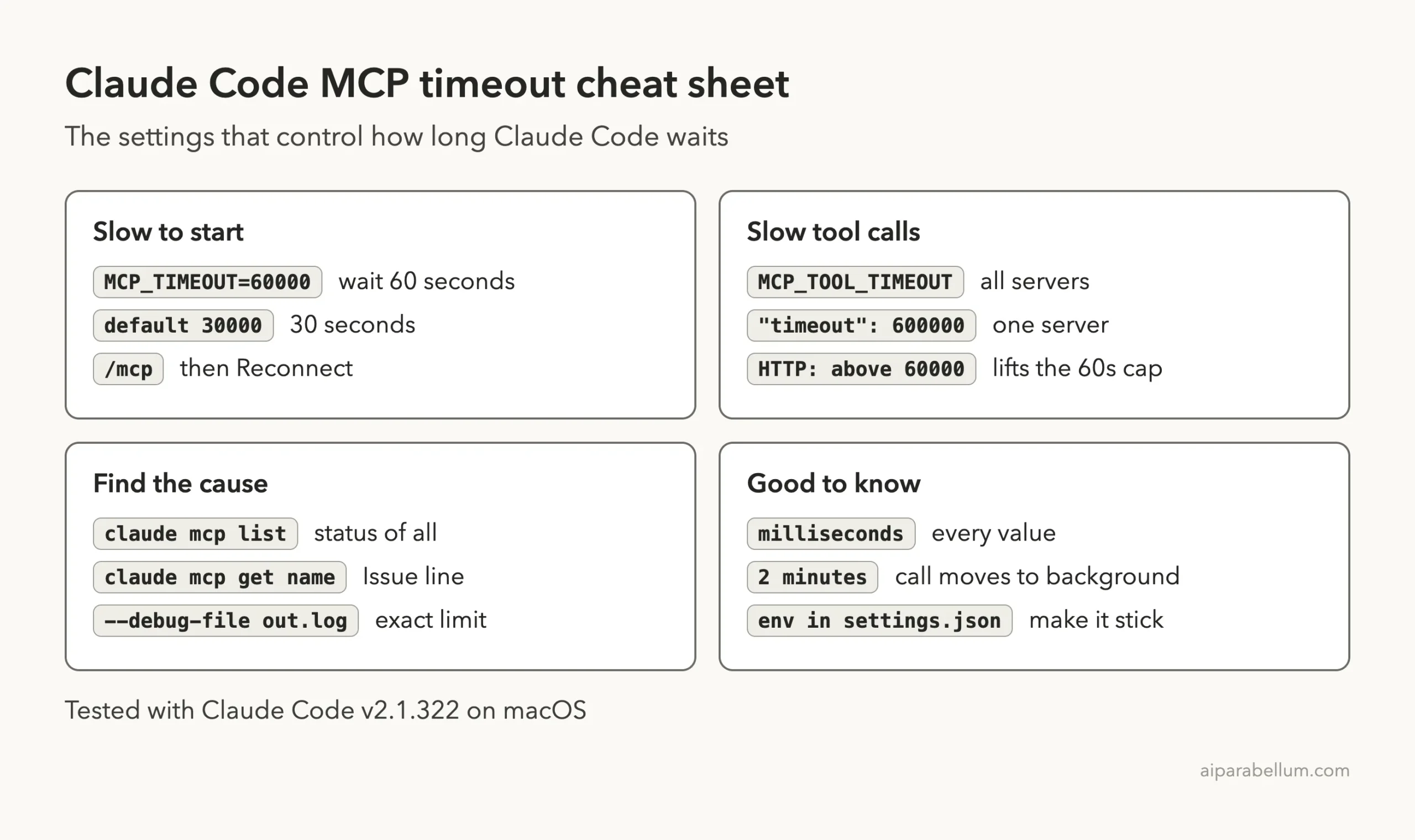
Cheat Sheet
Frequently Asked Questions
What is the default MCP timeout in Claude Code?
Server startup gets 30 seconds (MCP_TIMEOUT, default 30000). Tool calls get about 28 hours (MCP_TOOL_TIMEOUT, default 100000000), but requests to HTTP, SSE and claude.ai connector servers stop after 60 seconds unless you raise the tool timeout above 60000.
How do I increase the MCP timeout in Claude Code?
Set the variable in milliseconds when you start Claude Code, for example MCP_TIMEOUT=60000 claude for slow starts or MCP_TOOL_TIMEOUT=120000 claude for slow tools. To keep it, add the values to the env block of a settings file or export them in your shell profile.
What is the difference between MCP_TIMEOUT and MCP_TOOL_TIMEOUT?
MCP_TIMEOUT limits how long a server may take to start and connect. MCP_TOOL_TIMEOUT limits how long a single tool call may run after the server is connected.
Can I set a timeout for just one MCP server?
Yes. Add a timeout field in milliseconds to that server’s entry in .mcp.json. In our test, a per-server value of 60000 overrode MCP_TOOL_TIMEOUT=5000 for that server.
Why does my remote MCP tool stop at exactly 60 seconds?
HTTP, SSE and claude.ai connector servers have a per-request timer that defaults to 60 seconds. Set MCP_TOOL_TIMEOUT or the per-server timeout above 60000 to raise it. In our test, 120000 let a 70-second call finish.
Conclusion
A Claude Code MCP timeout is almost always a waiting problem, not a broken server. Slow starts need a higher MCP_TIMEOUT, slow tools need MCP_TOOL_TIMEOUT or a per-server timeout, and remote servers need that tool timeout set above 60 seconds. In our tests each fix was one line, and the debug log confirmed which limit was in play every time, so check the message first and change only the setting that matches it.