Claude Code headless mode lets you run Claude from a script, a pipe, or a CI job without opening the chat screen. You add the -p flag, pass a prompt, and Claude prints its answer and exits like any other command-line tool. That one flag turns Claude into something you can plug into build scripts, git hooks, and scheduled jobs.
In this guide you will pipe a build log into Claude, get answers as JSON, force a fixed output shape with a schema, continue an earlier run, and control which tools Claude may use when nobody is there to click “allow”. We ran every command for real in a tiny demo folder, and each screenshot below comes from that session.
This is Part 36 of 53 in our Claude Code tutorials series. In the previous part we covered the /loop command; today you take Claude out of the chat window and into your scripts.
Tested with Claude Code v2.1.310 on October 25, 2026, on macOS, inside a small throwaway demo folder.
Quick Summary: Claude Code Headless Mode at a Glance
| Question | Short answer |
|---|---|
| How do I start it? | claude -p “your prompt” (or –print) |
| Can I pipe data in? | Yes, stdin is read, up to 10MB |
| Output formats | text (default), json, stream-json |
| Fixed output shape | –output-format json plus –json-schema |
| Follow-up questions | –continue for the last run, –resume with a session ID |
| Let Claude edit files | –allowedTools “Read,Edit” or –permission-mode acceptEdits |
| Same result on every machine | Add –bare to skip local hooks, skills, plugins and CLAUDE.md |
| How do scripts know it worked? | Exit code 0 on success, non-zero on failure |
What Is Headless Mode in Claude Code?
Normally you open Claude Code, type a prompt, watch it work, and approve actions as they come up. Headless mode skips that screen. You hand Claude one prompt on the command line, it does the job, prints the result to standard output, and the process ends.
Anthropic now calls this running Claude Code “programmatically”. The official headless docs describe claude -p as the command-line face of the Agent SDK, which gives you the same tools and agent loop that power the normal Claude Code app. There are also Python and TypeScript packages, but this guide sticks to the CLI.
Interactive mode is a conversation. Headless mode is a command you can put inside other commands.
Why it exists
A lot of useful work happens where no person is watching. A CI pipeline might want a quick review of a diff, and a nightly job might want a summary of new error logs. A build script might want a typo check before a release.
None of those can sit and wait for someone to type into a chat box. With -p, Claude behaves like grep, jq or any other Unix tool: data goes in, text comes out, and an exit code tells the script what happened.
Our Demo Setup
We made a throwaway folder with three small files. auth.py holds three tiny Python functions for storing users and checking passwords. build-error.txt holds a fake TypeScript build failure with a typo, and README.md has a two-line description.
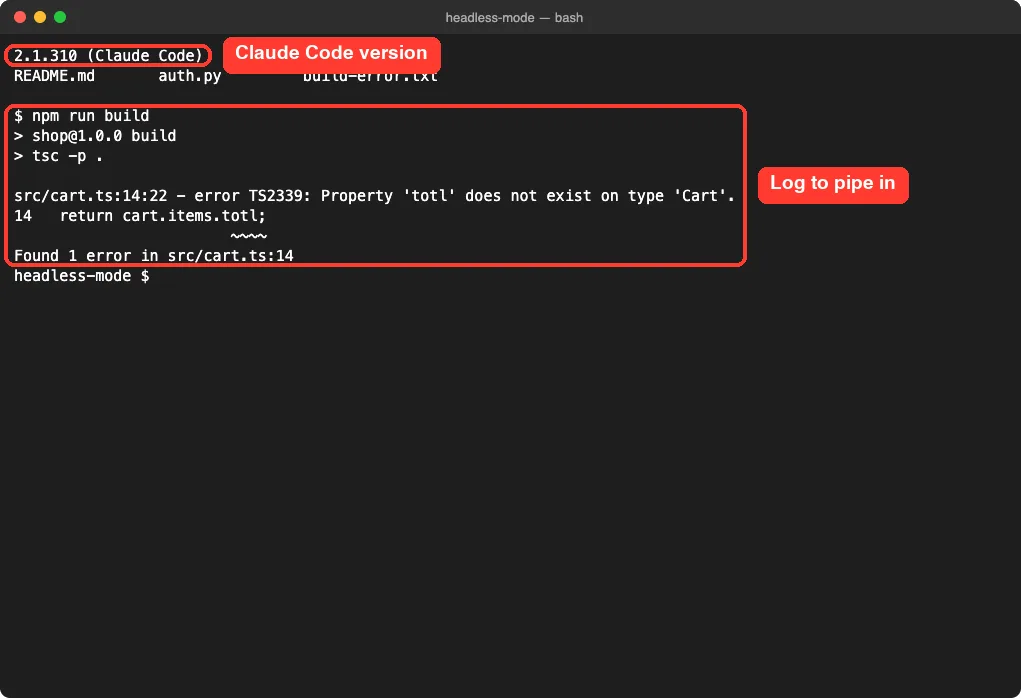
We ran every command from a plain bash shell, not from inside Claude Code. That is exactly how a script or CI job would call it. If you have not set up Claude Code yet, start with our install guide.
Step 1: Run Your First claude -p Command
The simplest headless call is one line. Put your prompt in quotes after -p:
claude -p "What does the auth module do?"Claude reads what it needs from the current folder, prints the answer, and exits. There is no welcome screen, no input box, and no trust dialog. You get your shell prompt back as soon as the answer is printed.
Check the exit code
Claude Code exits with code 0 on success and a non-zero code when the run fails. If you pass an invalid flag, the error goes to stderr before the run starts. If something fails inside the run, such as missing authentication, the failure is printed as the result on stdout.
That means a script can branch on the result like this:
if claude -p "Summarize README.md" > summary.txt; then
  echo "Summary saved"
else
  echo "Claude run failed"
fi
Step 2: Pipe Data Into Claude
Headless mode reads stdin, so you can pipe any text straight in. We piped our fake build log and saved the answer to a file:
cat build-error.txt | claude -p 'concisely explain the root cause of this build error' > output.txtThen we printed the exit code and read output.txt back. Claude spotted the typo (totl instead of total), suggested the fix, and even flagged that the error message and the code did not quite line up.
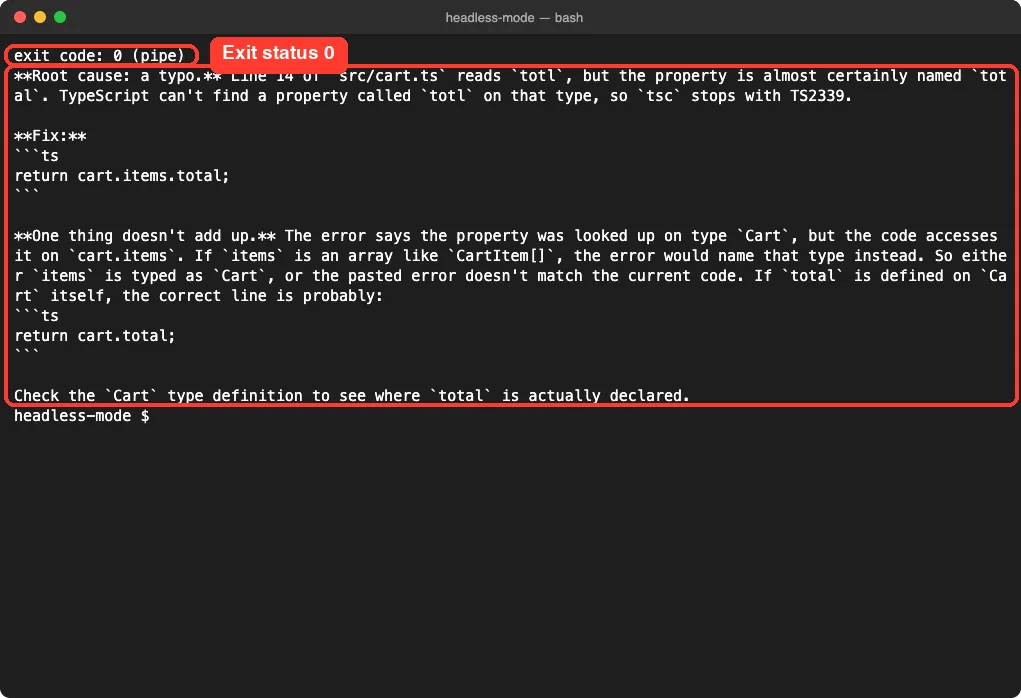
Notice the answer uses Markdown, like ** and “`. In text mode you get exactly what Claude wrote, so plan for that if you paste the result somewhere that does not render Markdown.
Limits on piped input
Piped stdin is capped at 10MB. Go over it and Claude Code exits with a clear error and a non-zero status. For larger inputs, save the content to a file and mention the file path in your prompt instead.
Step 3: Get JSON Output for Your Scripts
Plain text is fine for humans. Scripts usually want fields they can read. Add –output-format json and Claude returns one JSON object with the answer plus metadata.
claude -p "Summarize README.md in one sentence" --output-format json | jq '{result, session_id, num_turns, is_error, total_cost_usd}'The full object is long, so we used jq to keep just five fields. The answer lives in result, and session_id is what you need to come back to this conversation later.
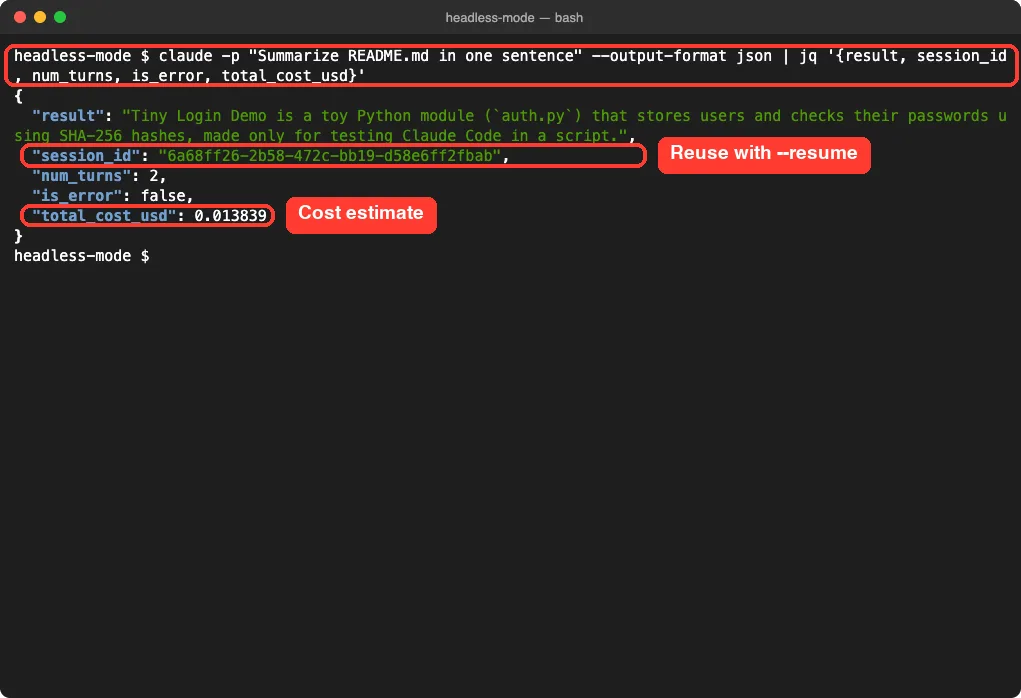
The total_cost_usd field is a client-side estimate, so it can differ from your actual bill. Still, it is handy for keeping an eye on spend when a script runs many times a day.
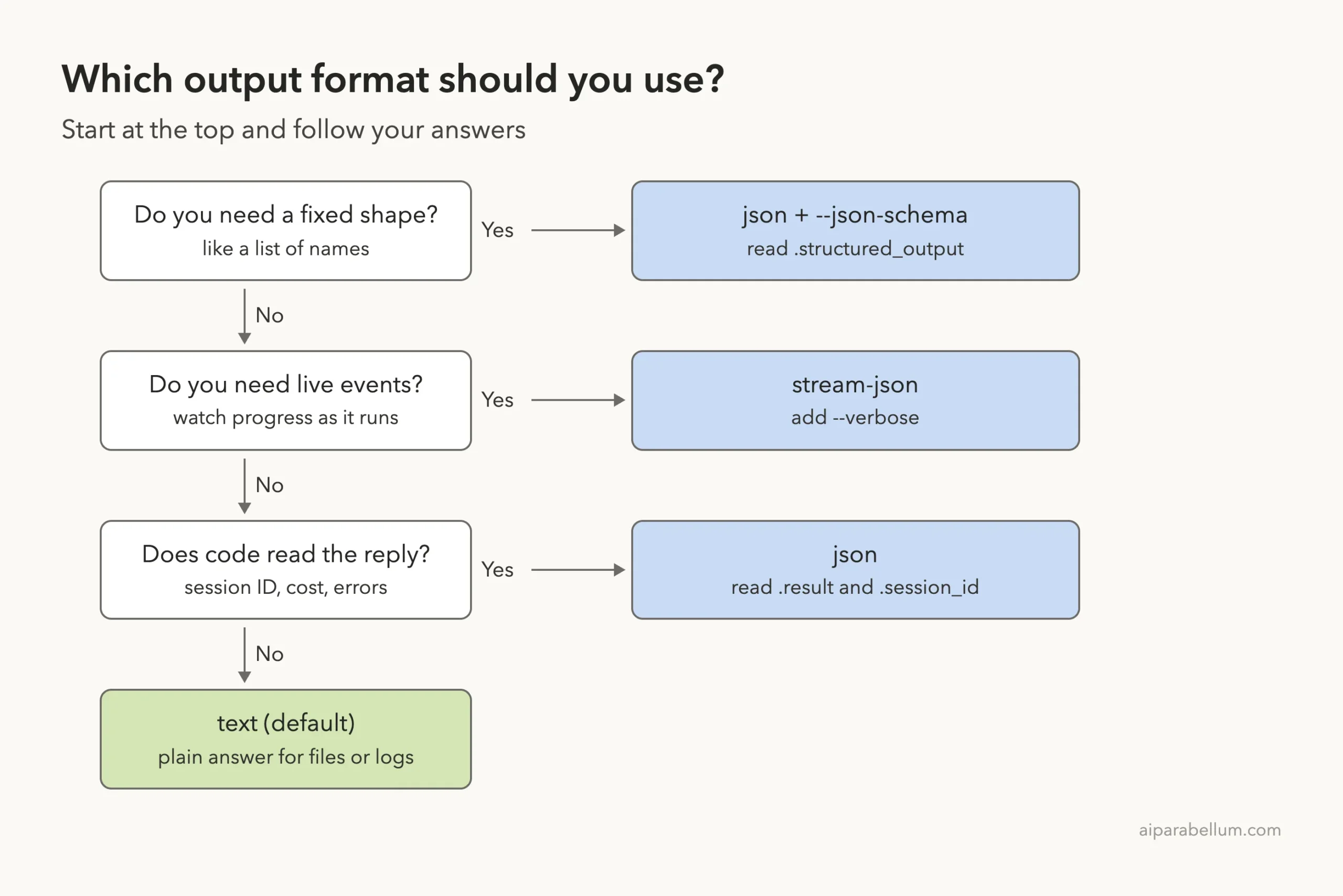
The three output formats
| Format | What you get | Good for |
|---|---|---|
| text | Plain answer only | Saving to a file, reading in a log |
| json | One object with result, session ID and metadata | Scripts that read fields |
| stream-json | One JSON event per line as Claude works | Live progress in your own tool |
Step 4: Force a Fixed Shape With –json-schema
Sometimes you need more than “some JSON”. You need a list of names, or a yes/no field, every single time. For that, pair –output-format json with –json-schema and a JSON Schema.
We asked for the function names in auth.py as an array of strings:
claude -p "Extract the main function names from auth.py" \
  --output-format json \
  --json-schema '{"type":"object","properties":{"functions":{"type":"array","items":{"type":"string"}}},"required":["functions"]}' \
  | jq '.structured_output'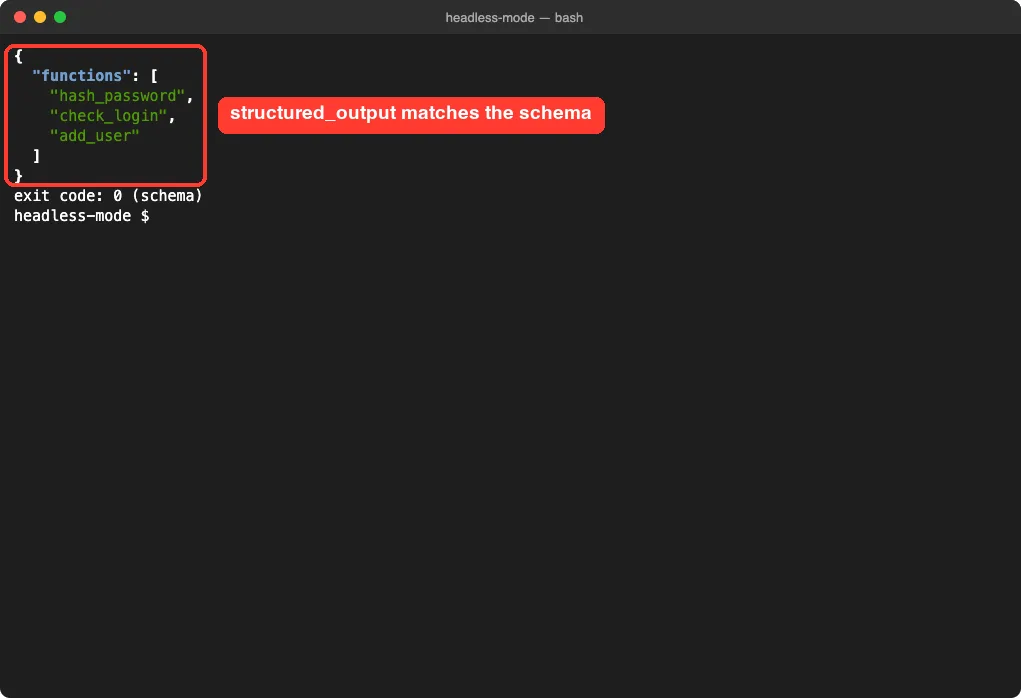
The shaped answer lands in the structured_output field, not in result. If the run ends without valid structured output, for example because Claude declined, that field is missing. So have your script check that structured_output exists before it uses it.
If the schema itself is broken, claude exits with an error that says –json-schema is not a valid JSON Schema. The format keyword (like “format”: “email”) is accepted but treated as a note, not enforced.
Step 5: Continue a Headless Conversation
Each -p call is a full session, and you can pick it back up. Use –continue to keep going with the most recent conversation in this folder:
claude -p "Which of those functions take a password argument? One line." --continueOur follow-up said “those functions” without naming them. Claude still knew we meant the three functions from the previous run and answered correctly.
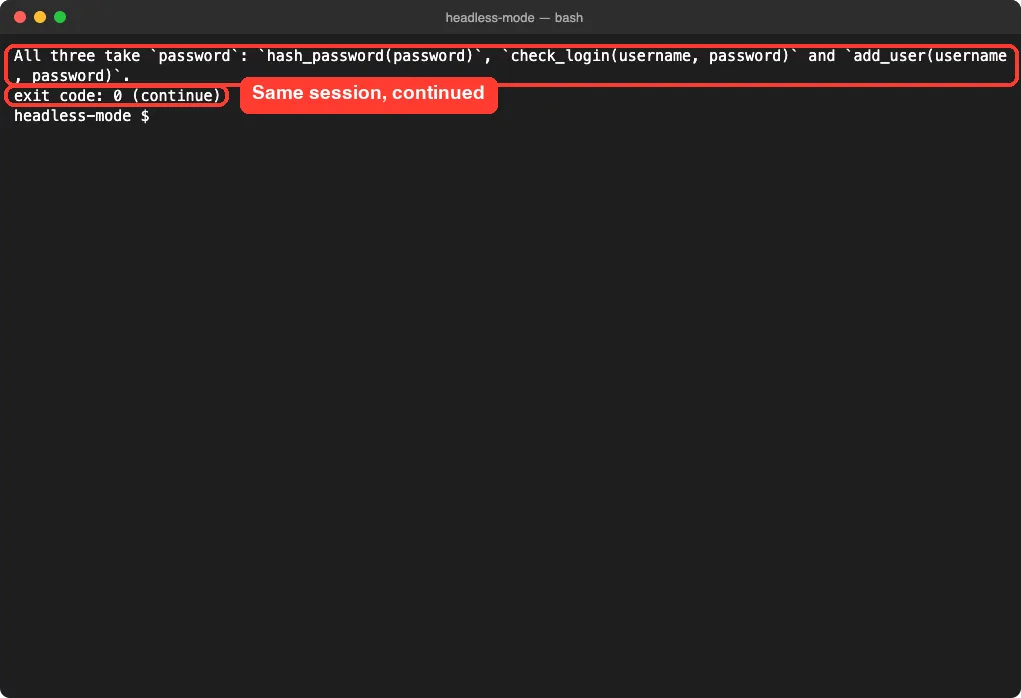
When several conversations run at once, –continue can grab the wrong one. Capture the session ID instead and pass it to –resume:
session_id=$(claude -p "Start a review" --output-format json | jq -r '.session_id')
claude -p "Continue that review" --resume "$session_id"
The docs note that –resume finds the session by its ID in any project on the same machine. Our guide to resuming sessions covers the interactive side of this.
Step 6: Control Which Tools Claude Can Use
This is the part that trips people up. In a headless run there is nobody to answer a permission prompt. Since v2.1.302, a -p run starts in Manual mode when nothing sets a permission mode, and any call that needs approval is denied unless something else approves it.
We tested it. We asked Claude to create notes.txt with no extra flags:
claude -p "Create notes.txt containing the word hello"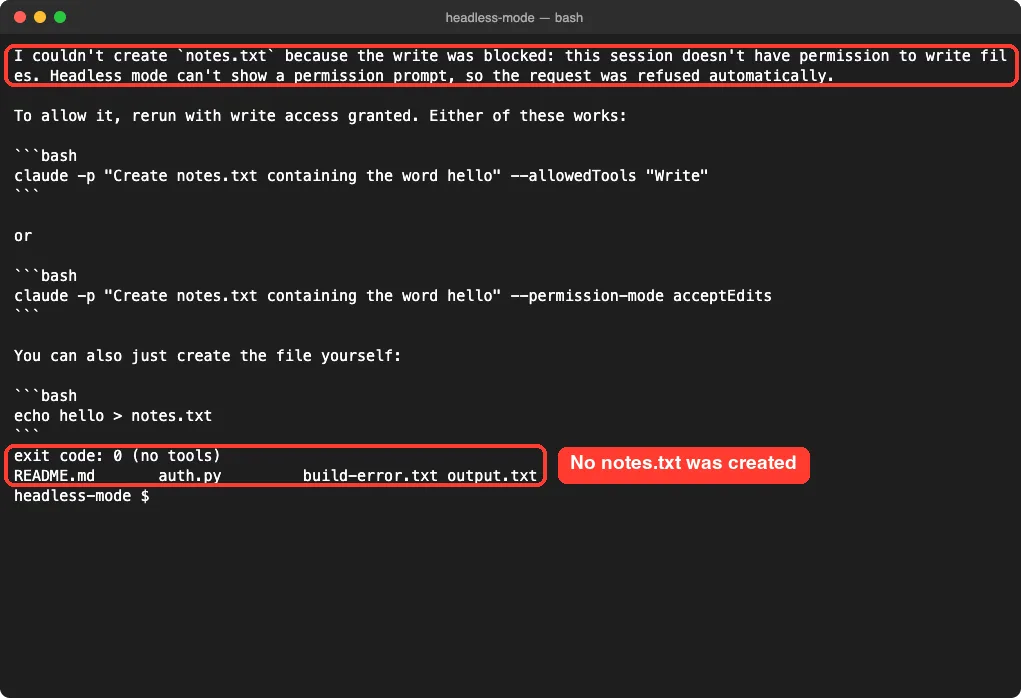
Look closely at the exit code: it was still 0, because the run itself finished fine and only the file write was refused. So never treat exit code 0 as “the task was done”. Check the output, or check the files your script expected.
Pre-approve tools with –allowedTools
Next we ran the same prompt and allowed the Write tool:
claude -p "Create notes.txt containing the word hello" --allowedTools "Write"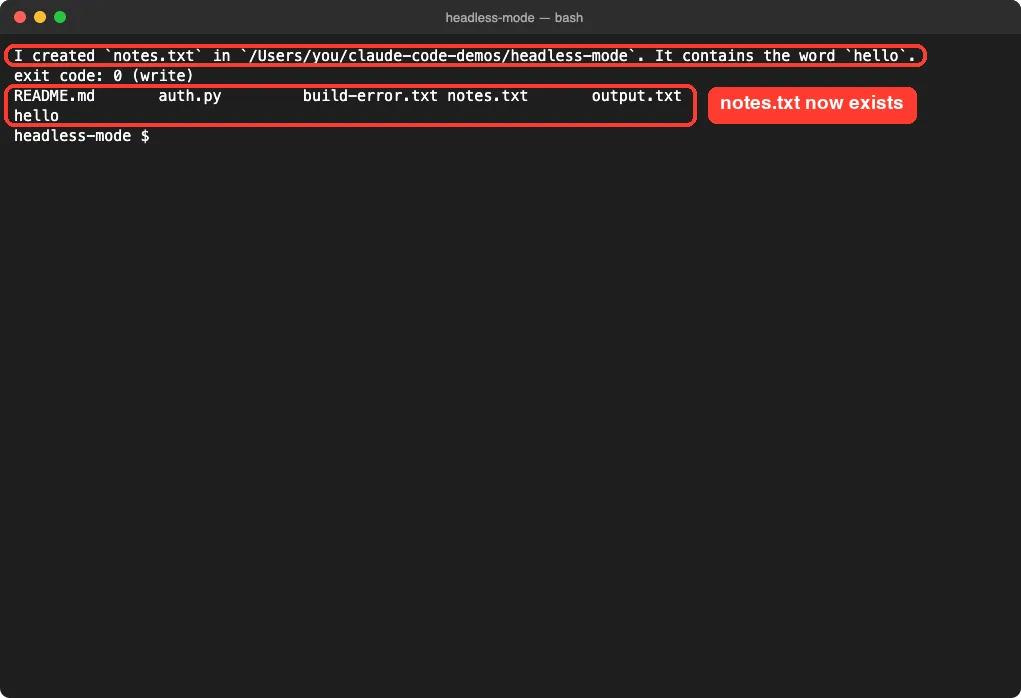
–allowedTools uses the same rule syntax as your permission rules, so you can narrow Bash to certain commands. For example, Bash(git diff *) allows any command that starts with git diff. Keep the space before the *, or Bash(git diff*) would also match git diff-index.
Or set a permission mode
Instead of listing tools one by one, you can set a baseline for the whole run with –permission-mode. The docs mention three that suit headless runs:
- acceptEdits: Claude writes files without asking and can run common filesystem commands like mkdir, touch, mv and cp. Other shell commands still need an allow entry.
- dontAsk: anything that would prompt is denied. Useful for locked-down CI runs where only pre-approved actions may happen.
- auto: a classifier reviews most actions in place of a person.
For fully unattended jobs, add –permission-prompts none (v2.1.259 or later). It tells Claude that nobody can approve requests, so it should not retry them. Our guide to permission modes explains each mode in more depth.
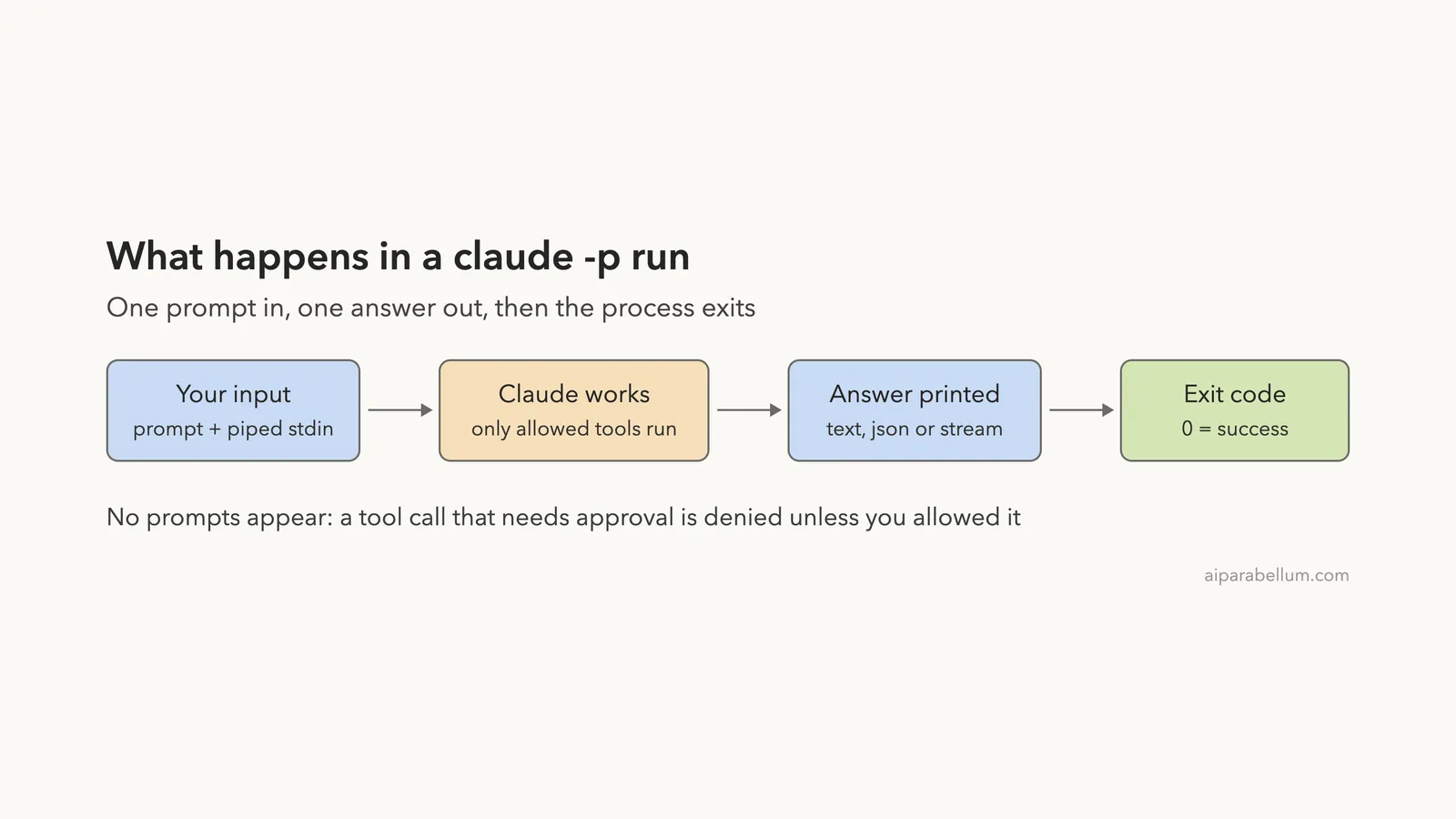
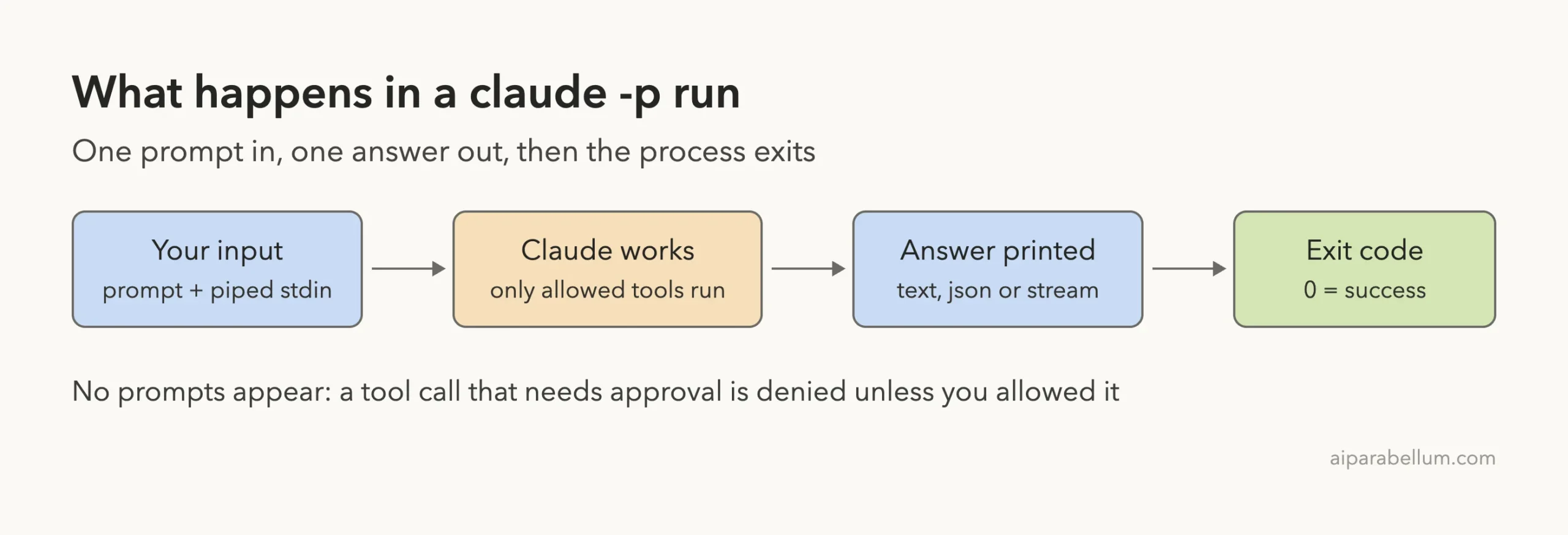
How a Headless Run Flows
Here is the whole picture in one view. Input goes in, Claude works with only the tools it is allowed, the answer comes out in the format you chose, and the exit code tells your script how it went.
Start Faster and Stay Predictable With –bare
By default, claude -p loads everything an interactive session would: hooks, skills, subagents, plugins, MCP servers, auto memory and your CLAUDE.md file. That includes things in ~/.claude, which differ from machine to machine.
Add –bare and Claude Code skips all of that auto-discovery. Startup is faster, and the result is the same on your laptop and in CI. The docs call –bare the recommended mode for scripted calls and say it will become the default for -p in a future release.
There is one catch. Bare mode never reads your subscription login or the system keychain, so you need ANTHROPIC_API_KEY set (or an apiKeyHelper in –settings). We did not run –bare in our demo for that reason. Anything you still want, you pass with flags:
| To load | Flag |
|---|---|
| Extra system prompt text | –append-system-prompt or –append-system-prompt-file |
| Settings | –settings <file-or-json> |
| MCP servers | –mcp-config <file-or-json> |
| Custom agents | –agents <file-or-json> |
| A plugin | –plugin-dir <path> |
A safety note from the docs: without –bare, a -p run in a folder you never trusted still runs that project’s hooks and connects servers from its .mcp.json, with no trust dialog. Use –bare when you run Claude on code you did not write.
Real Examples You Can Copy
A typo linter in package.json
The official docs show this npm script. It pipes your diff into Claude, so Claude does not even need Bash permission to read it:
{
  "scripts": {
    "lint:claude": "git diff main | claude -p \"you are a typo linter. for each typo in this diff, report filename:line on one line and the issue on the next. return nothing else.\""
  }
}
Run it with npm run lint:claude.
A security review script
–append-system-prompt adds a role while keeping Claude Code’s normal behavior. Save this as review.sh and run bash review.sh 123 to review pull request 123:
gh pr diff "$1" | claude -p \
  --append-system-prompt "You are a security engineer. Review for vulnerabilities." \
  --output-format json
A commit with tightly scoped Bash
claude -p "Look at my staged changes and create an appropriate commit" \
  --allowedTools "Bash(git diff *),Bash(git log *),Bash(git status *),Bash(git commit *)"
Live streaming
For your own progress display, stream events as they happen. The last line of the stream is a result message with the final text, cost and session data:
claude -p "Explain recursion" --output-format stream-json --verbose --include-partial-messagesUser-invoked custom skills also work in -p mode: put /skill-name in the prompt and Claude Code expands it before running. Terminal-only commands like /login do not.
If you want this inside a pipeline, Anthropic has setup guides for GitHub Actions and GitLab CI/CD.
Try It Yourself
Make a new folder with one small code file and one text file containing an error message. Then run these three commands one at a time and compare what you get:
cat error.txt | claude -p 'explain the root cause in two lines'
claude -p "List the functions in this folder" --output-format json | jq -r '.result'
claude -p "Which one is the longest?" --continue
For a bonus, ask Claude to create a file with and without –allowedTools “Write”, and check the exit code both times with echo $?.
Common Mistakes
- Trusting exit code 0 as proof the job was done. A refused tool call still ends in 0, as our demo showed.
- Forgetting permissions. Edits and most shell commands are denied in a -p run unless you allow them.
- Reading result when you used –json-schema. The shaped answer is in structured_output.
- Using –bare without an API key. Bare mode ignores your subscription login.
- Piping huge files. Stdin stops at 10MB, so point Claude at a file path instead.
- Allowing plain Bash in CI when you only need git diff. Scope it with Bash(git diff *).
Pro Tips
- Use jq -r ‘.result’ to get just the answer text from JSON output.
- Save session_id from the first call so later steps can –resume the exact same run.
- Pipe data in rather than asking Claude to fetch it. Fewer tools means fewer permissions to grant.
- Stopping a run with SIGTERM exits with code 143 and leaves the turn unfinished. Send SIGINT first if you want the turn to end cleanly.
- Keep prompts short and specific, like “return nothing else”, so scripts get output they can parse.
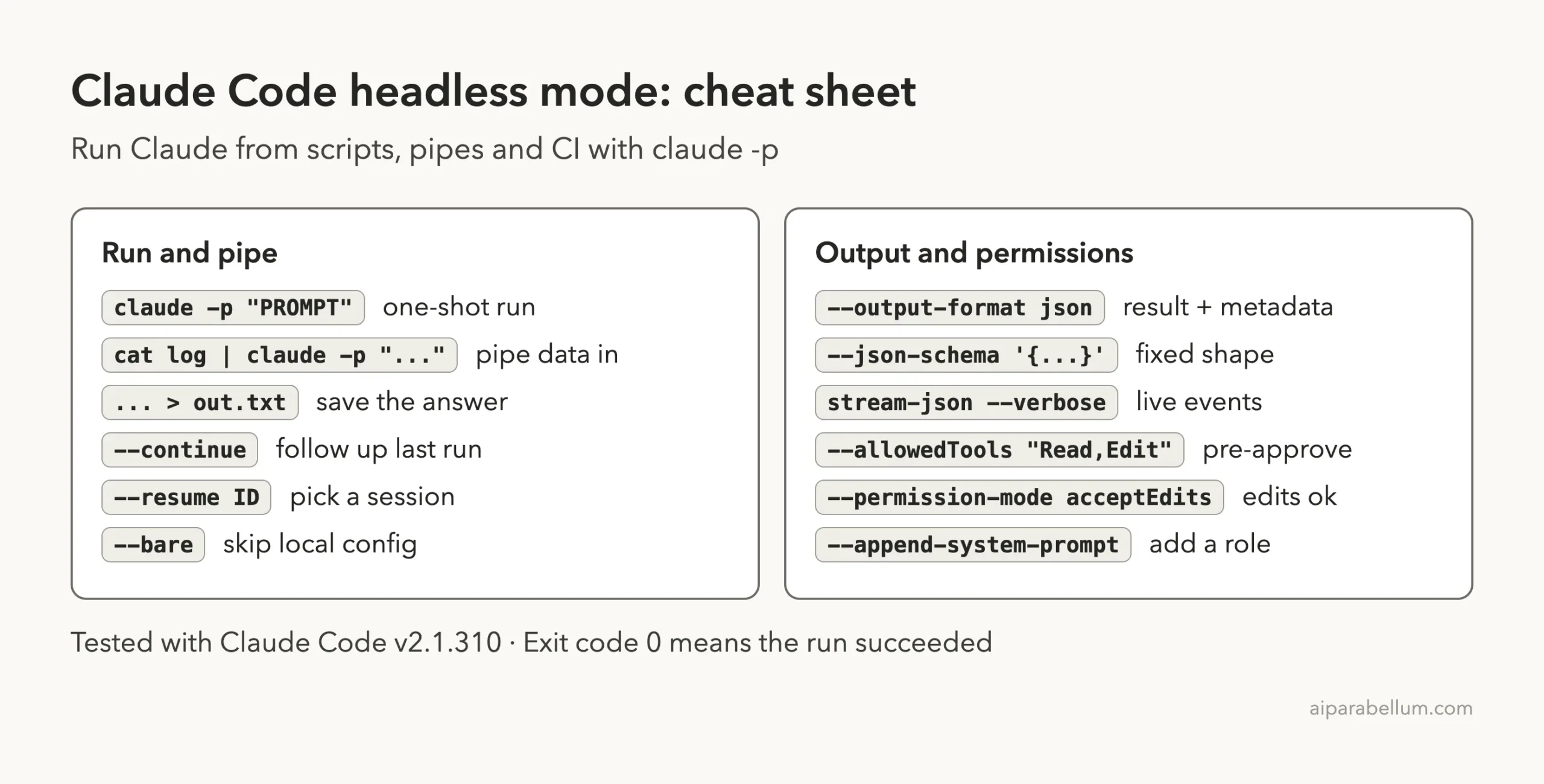
Claude Code Headless Mode Cheat Sheet
Frequently Asked Questions
Is claude -p the same as headless mode?
Yes. -p (or –print) is the flag that runs Claude Code non-interactively. Anthropic’s docs now describe it as using the Agent SDK from the CLI.
Why did Claude say it could not write a file?
A -p run cannot show permission prompts, so actions that need approval are denied. Add –allowedTools “Write” or –permission-mode acceptEdits.
Does headless mode use my CLAUDE.md and hooks?
Yes, by default it loads them just like an interactive session. Add –bare to skip them for predictable results.
How do I see what a run cost?
Use –output-format json and read total_cost_usd. It is a client-side estimate and can differ from your bill.
Can I use slash commands with -p?
Your own skills and custom commands work if you put /skill-name in the prompt. A few built-ins like /model take a value, for example /model sonnet, but terminal-only ones like /login do not work.
Conclusion
Claude Code headless mode turns Claude into a regular command-line tool you can call from scripts, pipes and CI jobs. Start with claude -p and a prompt, pipe data in when you can, switch to –output-format json when code needs to read the answer, and add –json-schema when you need a fixed shape. Use –continue or –resume for follow-ups, grant only the tools a job needs, never treat exit code 0 as proof the work happened, and reach for –bare when results must match on every machine. For more on Claude itself, see our Claude AI overview.
Previous in the series: Part 35, Run Prompts on a Schedule With /loop in Claude Code
Next in the series: Part 37: Run Parallel Claude Code Sessions With Git Worktrees.