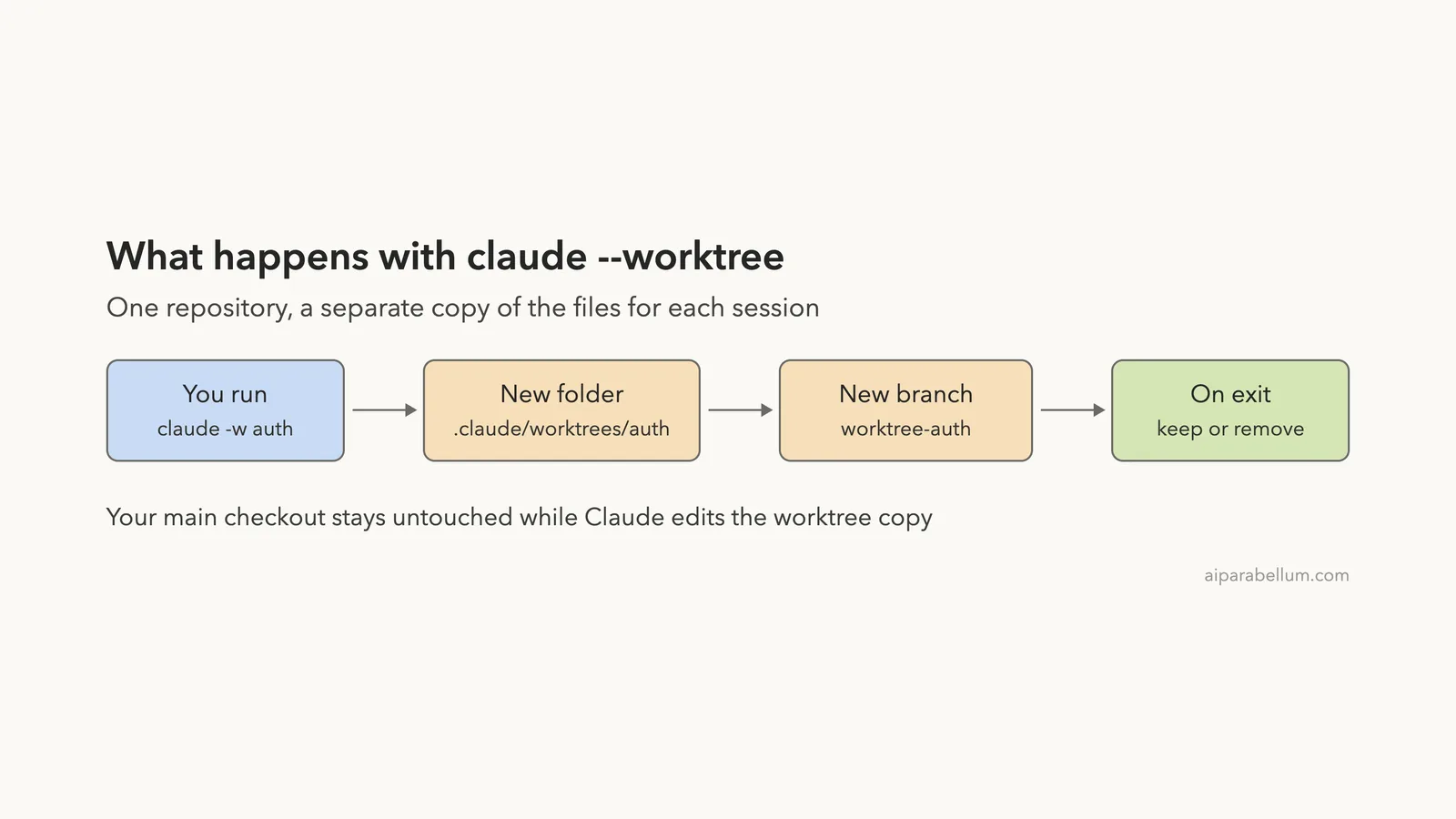
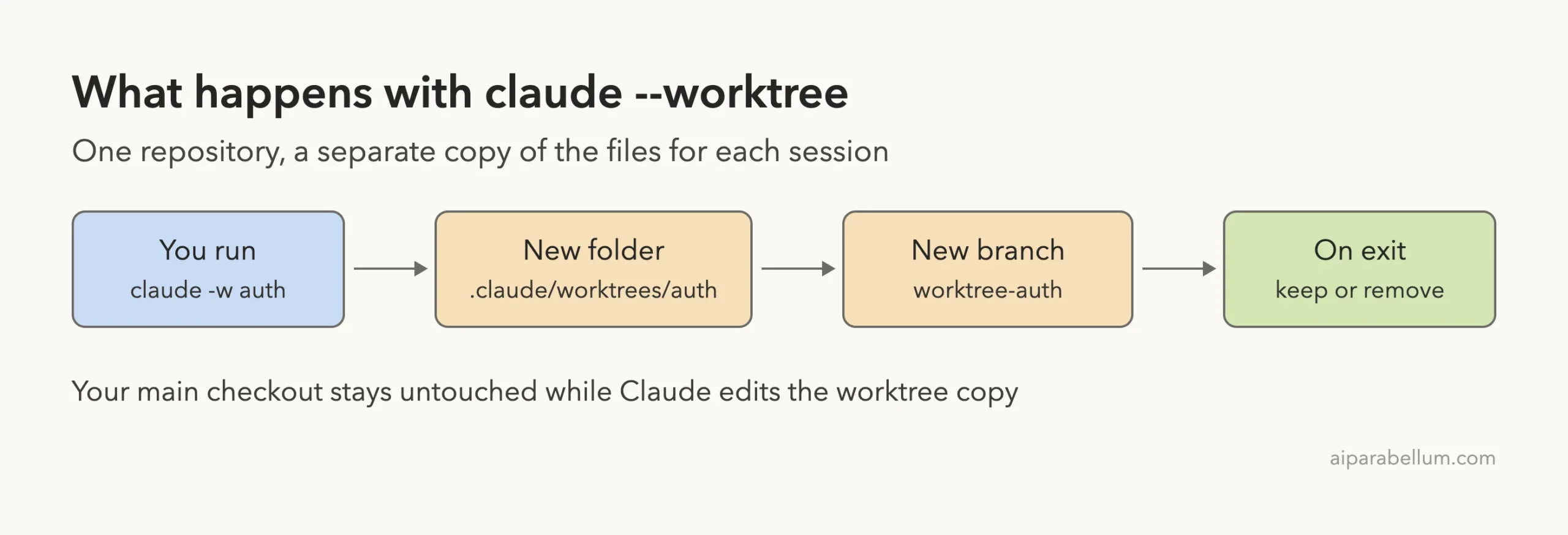
Claude Code worktrees let you run two or more Claude sessions on the same project at once without their edits crashing into each other. Each session gets its own folder and its own git branch, while all of them share one repository history. One session can build a feature while a second one fixes a bug, and neither touches the files you have open.
In this guide you will start Claude in a worktree with one flag, copy your .env file into it automatically, run a second session in parallel, merge the work back, and clean everything up. We ran every step for real in a tiny demo repository, and each screenshot comes from that session.
This is Part 37 of 53 in our Claude Code tutorials series. In the previous part we covered headless mode with claude -p; today you learn how to keep several sessions from stepping on each other.
Tested with Claude Code v2.1.310 on October 25, 2026, on macOS, inside a small throwaway git repository.
Quick Summary: Claude Code Worktrees at a Glance
| Question | Short answer |
|---|---|
| How do I start one? | claude –worktree my-task (or claude -w my-task) |
| Where do the files go? | .claude/worktrees/my-task/ at your repository root |
| Which branch is used? | A new branch named worktree-my-task |
| Does it need git? | Yes, or WorktreeCreate and WorktreeRemove hooks for other systems |
| How do I bring .env along? | List it in a .worktreeinclude file |
| What happens on exit? | Clean worktrees can be removed automatically; ones with work ask you to keep or remove |
| Can subagents use worktrees? | Yes, add isolation: worktree to the subagent’s frontmatter |
| Can I start from a pull request? | Yes, claude -w “#1234” creates pr-1234 |
What Are Git Worktrees in Claude Code?
A git worktree is a second working folder for the same repository. It has its own files and its own checked-out branch, but it shares the history, the remote, and the .git data with your main checkout. Git has offered this for years; Claude Code simply makes it a one-flag habit.
When two Claude sessions work in the same folder, they edit the same files. One session can overwrite the other’s half-finished change, or run tests against code that is midway through a refactor. Giving each session its own worktree removes that problem at the file level.
Worktrees isolate file edits only. Inside one session you can still split work with Claude Code subagents, and the official docs describe how worktrees and subagents work together. If you are new to the assistant itself, our Claude AI overview is a good place to start.
One task, one worktree, one branch. That simple rule keeps parallel sessions from colliding.
Our Demo Setup
We built a tiny repository called worktrees with one commit on main. It has a small Python file, a README with a deliberate spelling mistake, a .gitignore and a .worktreeinclude file. There is also a .env file that git ignores, just like a real project with local secrets.
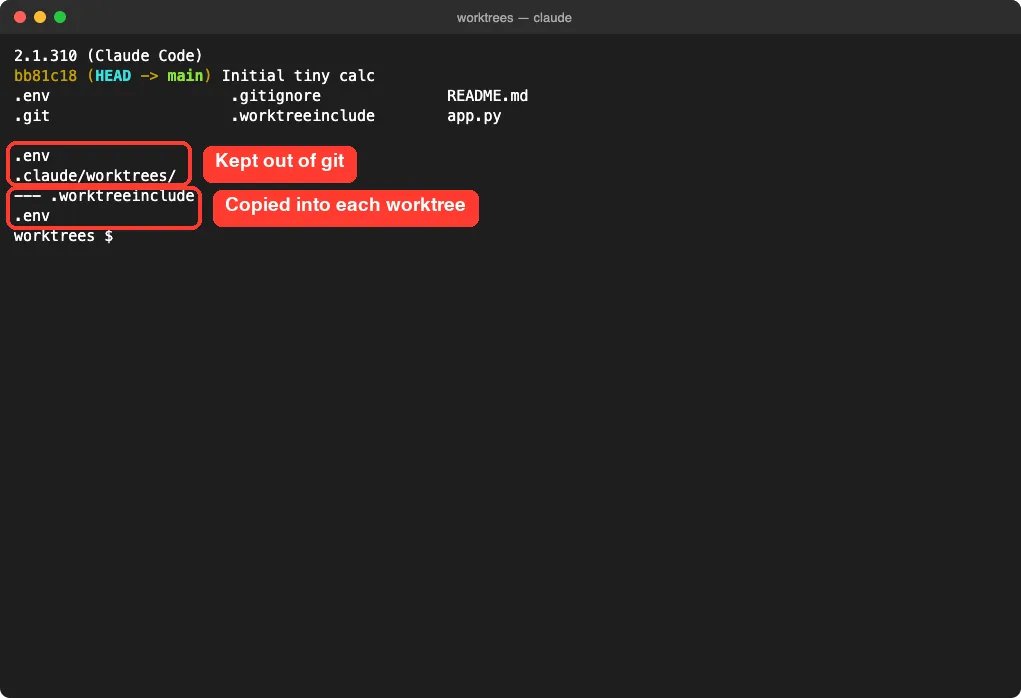
Two lines in .gitignore matter here. The first keeps .env out of git, and the second hides the .claude/worktrees/ folder so worktree contents never show up as untracked files in your main checkout. The official docs recommend adding that second line to every project where you use worktrees.
Step 1: Trust the Folder First
Our very first try failed, and that is useful to know. Interactive worktree sessions need workspace trust, so if you have never run Claude in that folder, the –worktree flag stops with an error and tells you what to do.
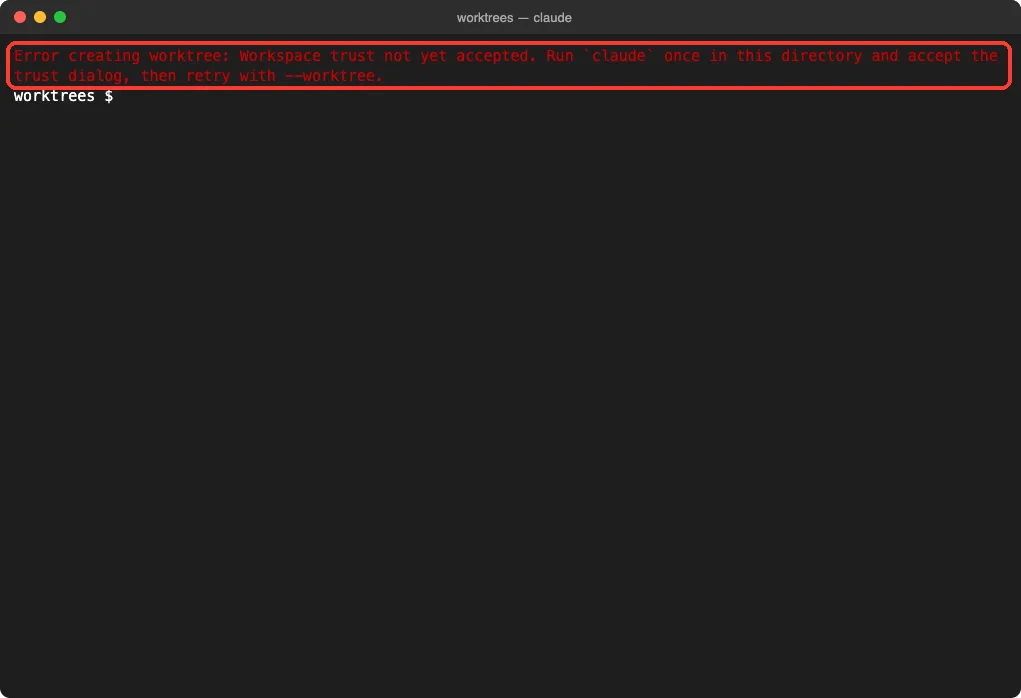
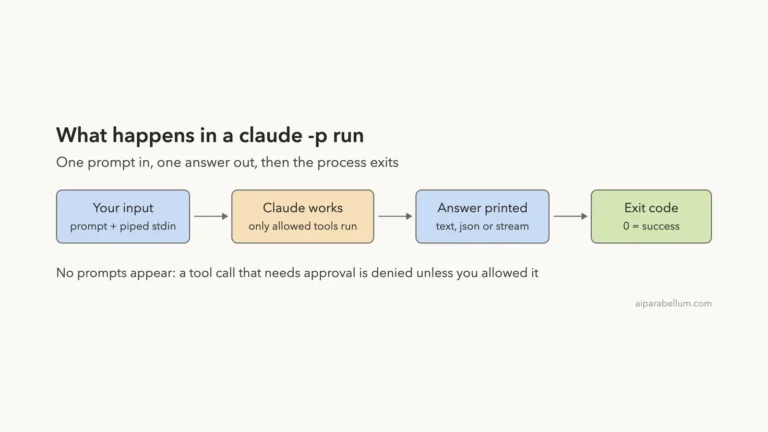
The fix is quick. Run plain claude once in the folder, accept the trust dialog, then exit and try again. Headless runs with -p skip the trust check, so claude -p –worktree works without this step.
Step 2: Start Claude in a Worktree
Now start a named session. Pass –worktree, or the short form -w, followed by a name for the task:
claude --worktree feature-greetingClaude Code created the folder .claude/worktrees/feature-greeting and a new branch called worktree-feature-greeting, then opened the session inside that folder. You can see the path right on the welcome screen.
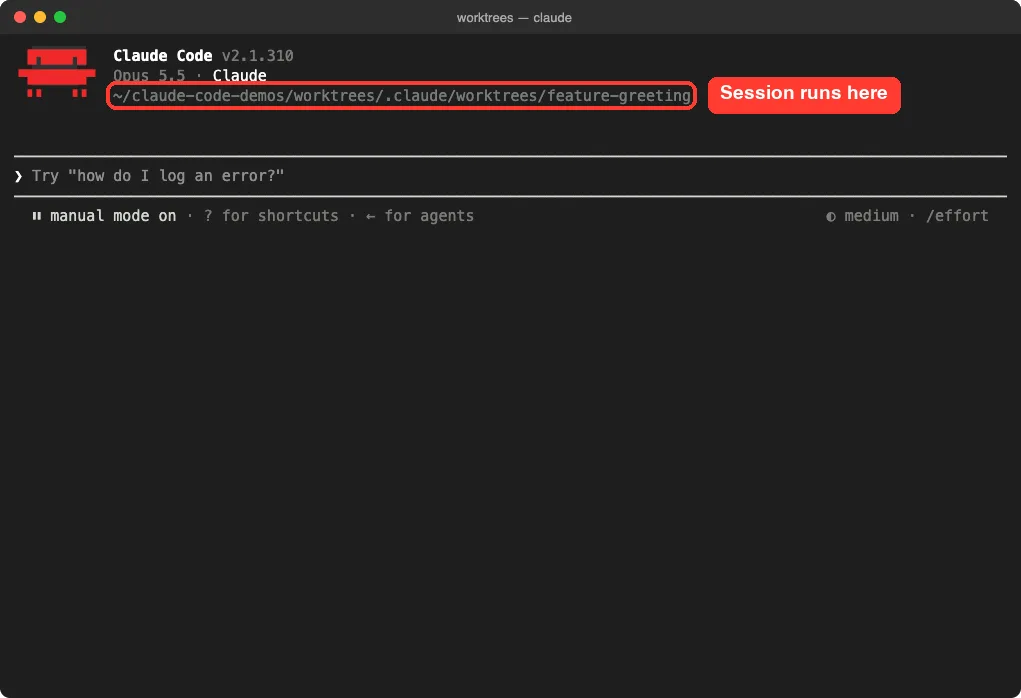
If you skip the name, Claude picks a random one such as bright-running-fox. A clear name is better, though, because you will see it in branch names and in git worktree list later.
Which commit does the worktree start from?
By default, new worktrees branch from your repository’s default branch on the remote, usually main, so each one starts clean. Our demo had no remote at all, so the docs say Claude Code falls back to your current local HEAD, which is what happened here. You will learn how to change this with the worktree.baseRef setting further down.
Step 3: Let Claude Work Inside the Worktree
We gave Claude one small task: add a greet(name) function to app.py and print a greeting from main. It asked permission for the edit as usual, made the change, and ran the script to check it.
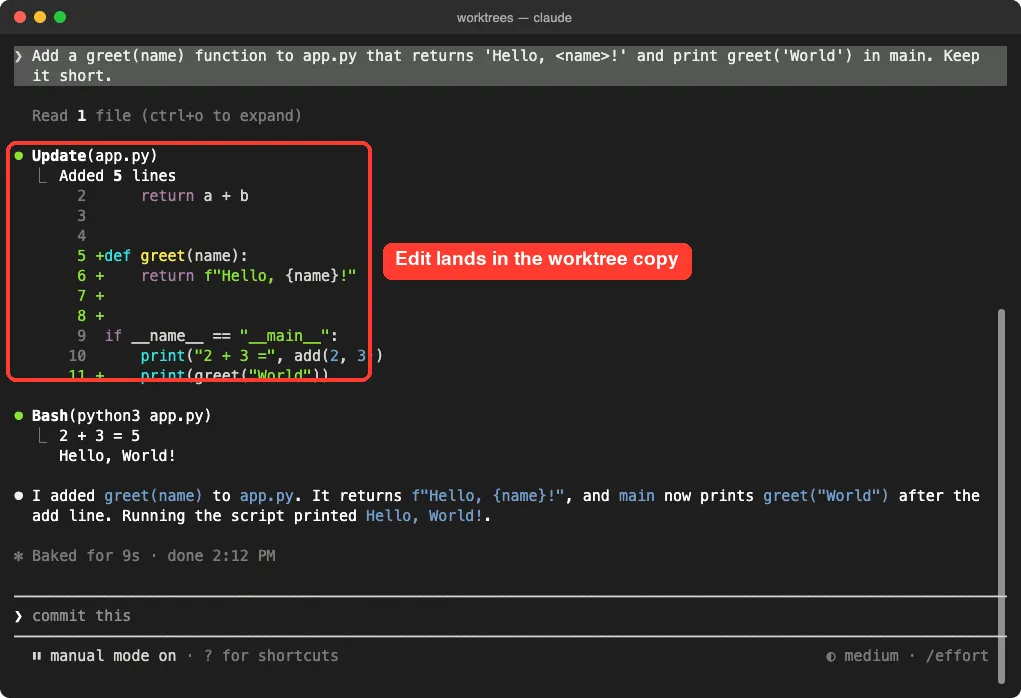
Here is the important part. Back in a normal terminal, the main checkout’s app.py had no greet function at all, and git status in the main folder was clean. The change lived only in the worktree.
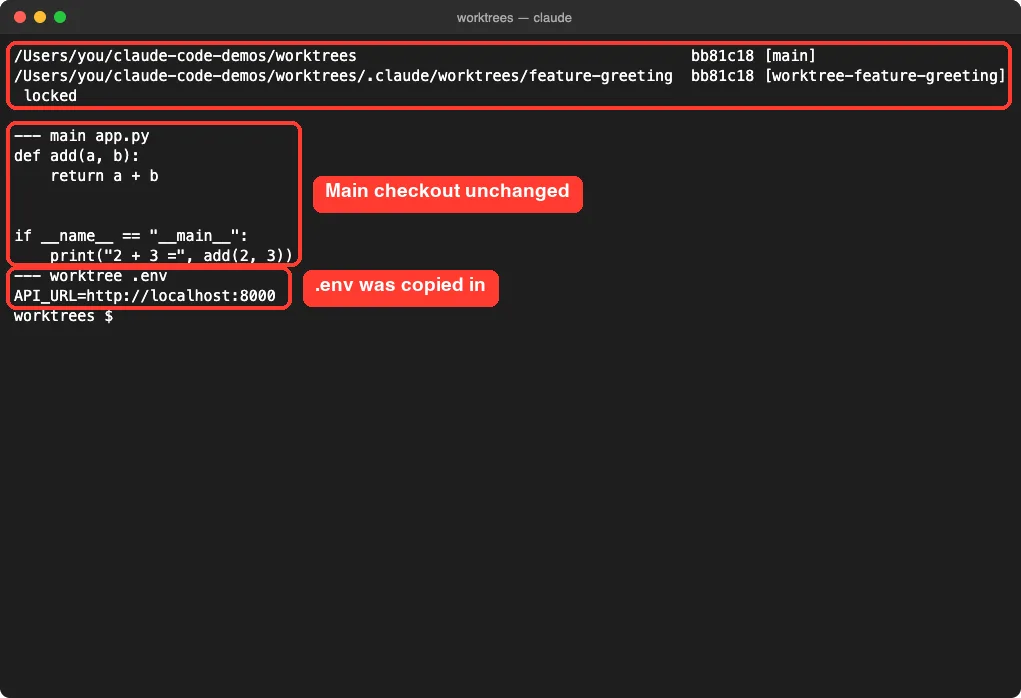
Notice the last lines too. The worktree had its own copy of .env with the same API_URL value, even though git ignores that file. That copy came from .worktreeinclude, which we cover next.
Step 4: Copy .env Files With .worktreeinclude
A worktree is a fresh checkout, so files git does not track, like .env or .env.local, are normally missing. That often breaks a dev server or a test run in the new folder. A .worktreeinclude file at your project root fixes it.
.env
.env.local
config/secrets.json
The file uses the same pattern syntax as .gitignore. Only files that match a pattern and are also gitignored get copied, so tracked files are never duplicated. It applies to –worktree sessions, subagent worktrees, and parallel sessions in the desktop app.
Remember that a worktree is still a fresh checkout for everything else. If your project needs npm install or a virtual environment, ask Claude to set it up in the worktree, or run your setup script there yourself.
Step 5: Exit and Choose Keep or Remove
When you type /exit in a worktree session, Claude Code checks for work that removal would delete. Our worktree had one uncommitted file, so it asked what to do.
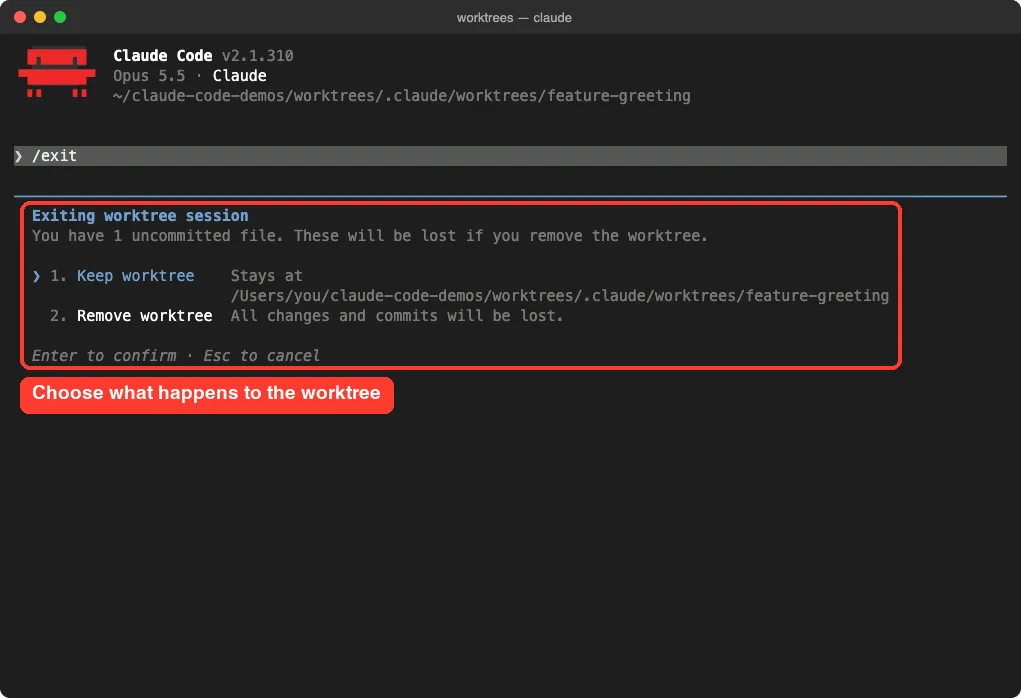
Keep worktree leaves the folder and branch in place for later. Remove worktree deletes both, along with any changes inside, so read the prompt before you press Enter. We chose Keep.
| State on exit | What Claude Code does |
|---|---|
| Clean, unnamed session | Removes the worktree and its branch automatically |
| Clean, named session | Asks first so you can keep it for later |
| Changed or untracked files, or new commits | Asks you to keep or remove |
| State cannot be checked | Asks you instead of removing anything |
| Headless run with -p | No prompt and no cleanup; you remove it yourself |
To return later, run claude –worktree feature-greeting –resume. Passing –worktree a name that already exists also reopens that worktree instead of creating a new one, which is what we saw when we came back to ours. For more on picking up old conversations, see our guide to resuming sessions.
Step 6: Run a Second Session in Parallel
The real payoff is running more than one session. You can open a second terminal and run claude -w with a different name, or kick off a quick headless job. We used a headless run to fix the README typo while the feature worktree was still on disk:
claude -p 'Fix the spelling mistake in README.md. Reply in one line.' --worktree fix-typo --allowedTools EditPut the prompt before –allowedTools. On our first try we placed it after, and the tools flag swallowed the prompt as another tool name, so the run stopped with an input error.
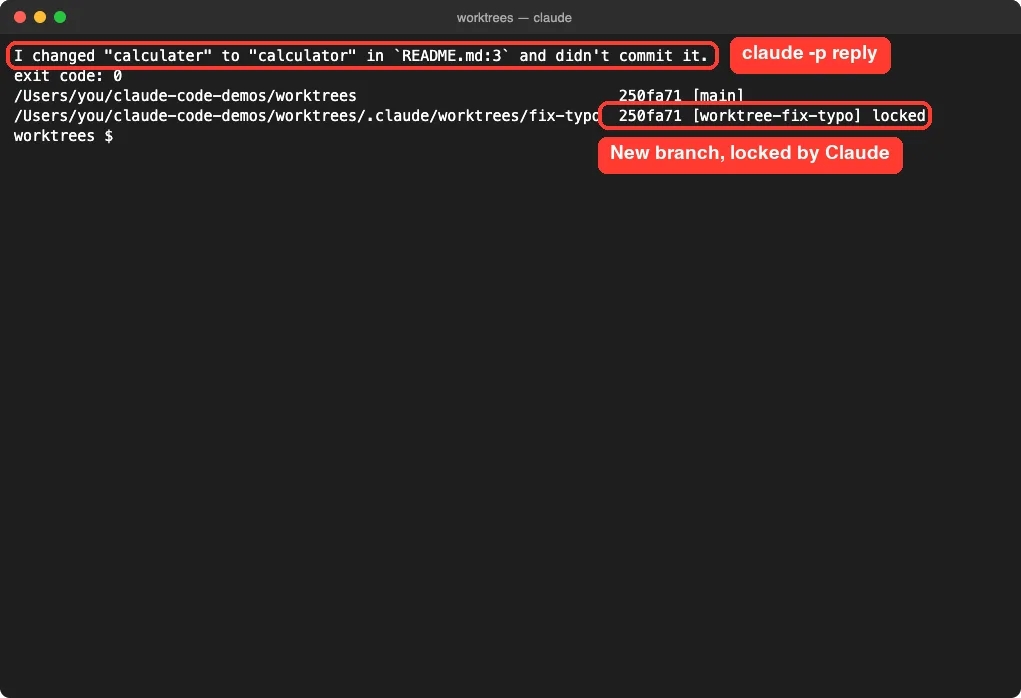
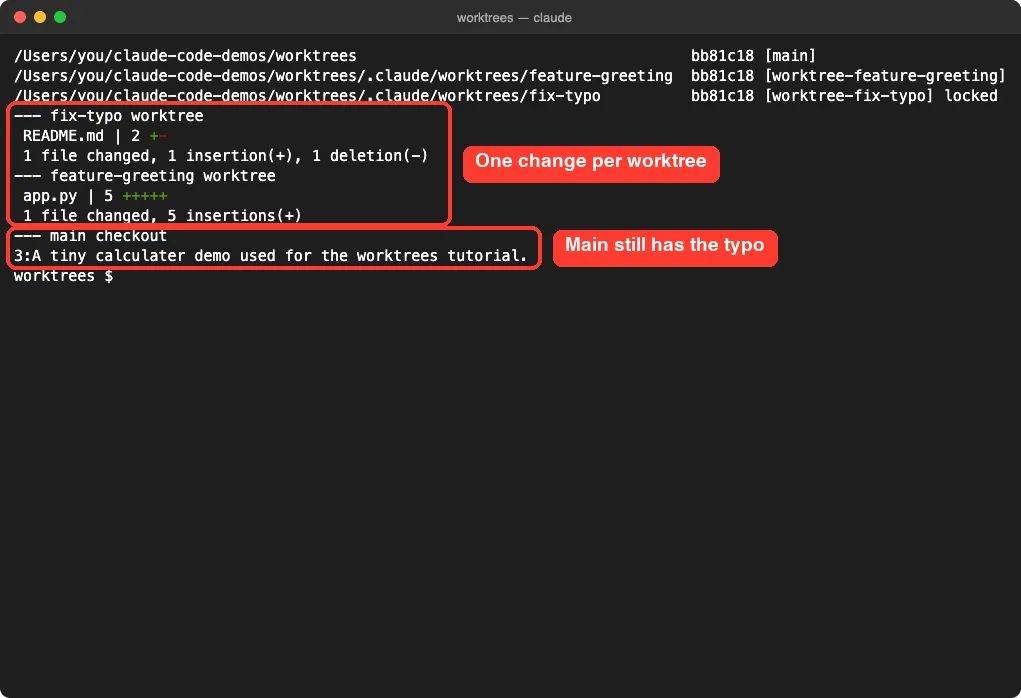
Now there were three folders side by side. Each worktree held exactly one change, and the main checkout still had the original typo.
Step 7: Merge the Work Back Into Main
A worktree is just a branch, so you merge it the normal git way. We committed the greeting change inside its worktree, then went back to the main folder and merged the branch:
cd .claude/worktrees/feature-greeting
git commit -am "Add greet()"
cd -
git merge --ff-only worktree-feature-greeting
python3 app.py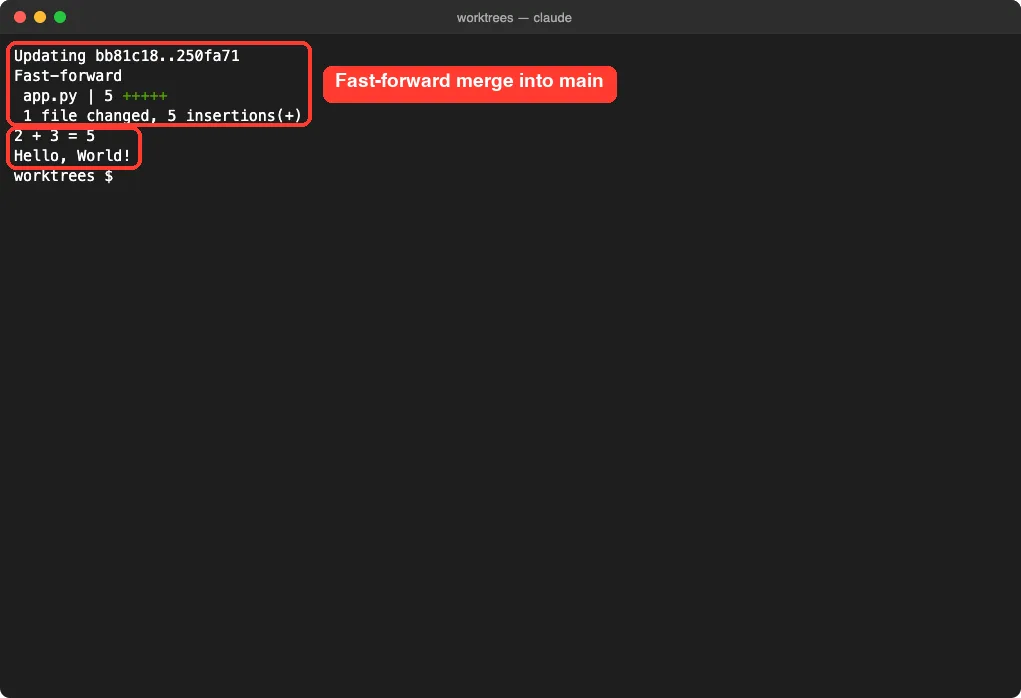
On a team you would usually push the branch and open a pull request instead. Either way, the worktree’s job ends once its branch is merged.
Step 8: Clean Up Old Worktrees
Headless runs have no exit prompt, so Claude Code does not clean up their worktrees. It also keeps the lock it took when it created the worktree, so git refuses a plain remove. That is exactly what we saw.
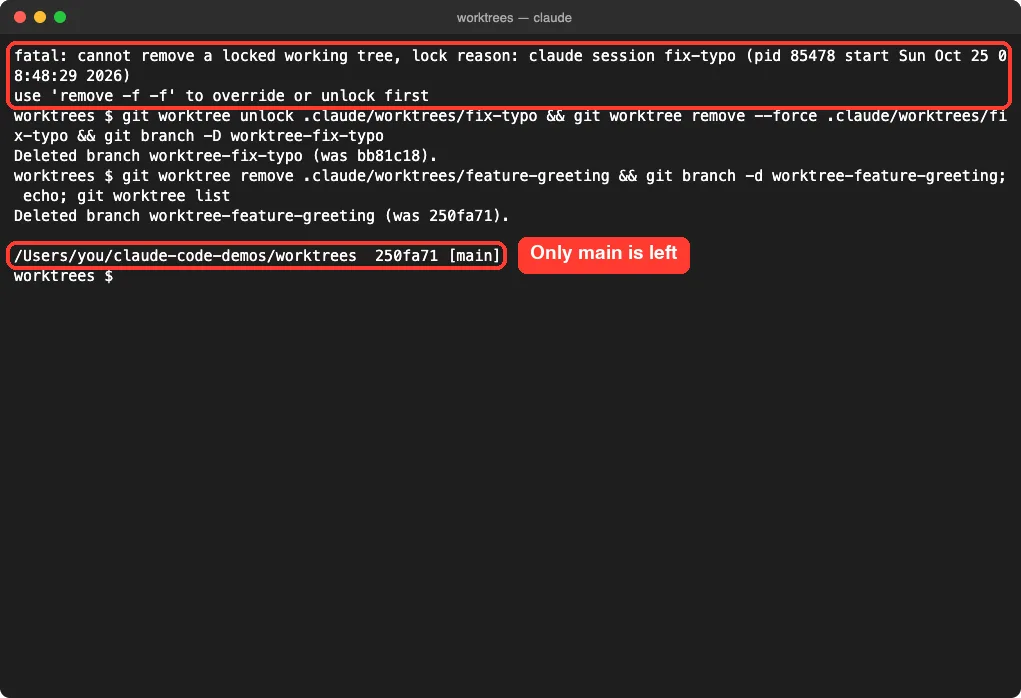
The fix is to unlock it, then remove it. Add –force when the worktree still has uncommitted changes you do not need:
git worktree unlock .claude/worktrees/fix-typo
git worktree remove --force .claude/worktrees/fix-typo
git branch -D worktree-fix-typo
git worktree list
Claude Code also runs a periodic sweep that removes old subagent and background-session worktrees after your cleanupPeriodDays setting, but it always leaves worktrees that still hold work. A –worktree session you have not sent to the background is never swept.
Customize How Worktrees Are Created
The defaults cover most sessions, but a few settings and flags change them. All of these come from the official worktrees documentation.
Branch from your current work
Set worktree.baseRef to “head” in your Claude Code settings when a worktree needs your unpushed commits. The default value, “fresh”, branches from the remote’s default branch instead.
{
  "worktree": {
    "baseRef": "head"
  }
}
You cannot set baseRef to a branch name. To start from a specific existing branch, create the worktree yourself with git worktree add, then run claude inside it.
Start from a pull request
Pass a pull request number with a # sign, or a GitHub pull request or GitLab merge request URL. Claude Code fetches that change from origin and creates the worktree at .claude/worktrees/pr-1234. Quote the number so your shell does not treat # as a comment:
claude --worktree "#1234"Give subagents their own worktrees
You can ask Claude to “use worktrees for your agents”, or make it permanent for a custom subagent with one frontmatter line. Each subagent then gets a temporary worktree that is removed automatically when it finishes without changes.
---
name: refactorer
description: Applies mechanical refactors across many files
isolation: worktree
---

Apply the requested refactor across every affected file, then run the tests
and report the results.
The subagents documentation lists the other frontmatter fields you can combine with it.
Use a version control system other than git
Worktrees need git by default. For SVN, Perforce or Mercurial, you can replace the git logic with WorktreeCreate and WorktreeRemove Claude Code hooks. Note that .worktreeinclude is not processed when a hook creates the worktree, so copy local files inside your hook script.
Choosing the Right Worktree Option
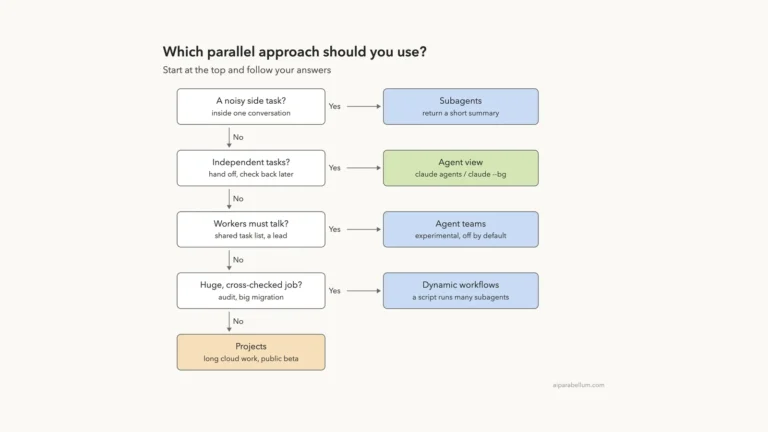
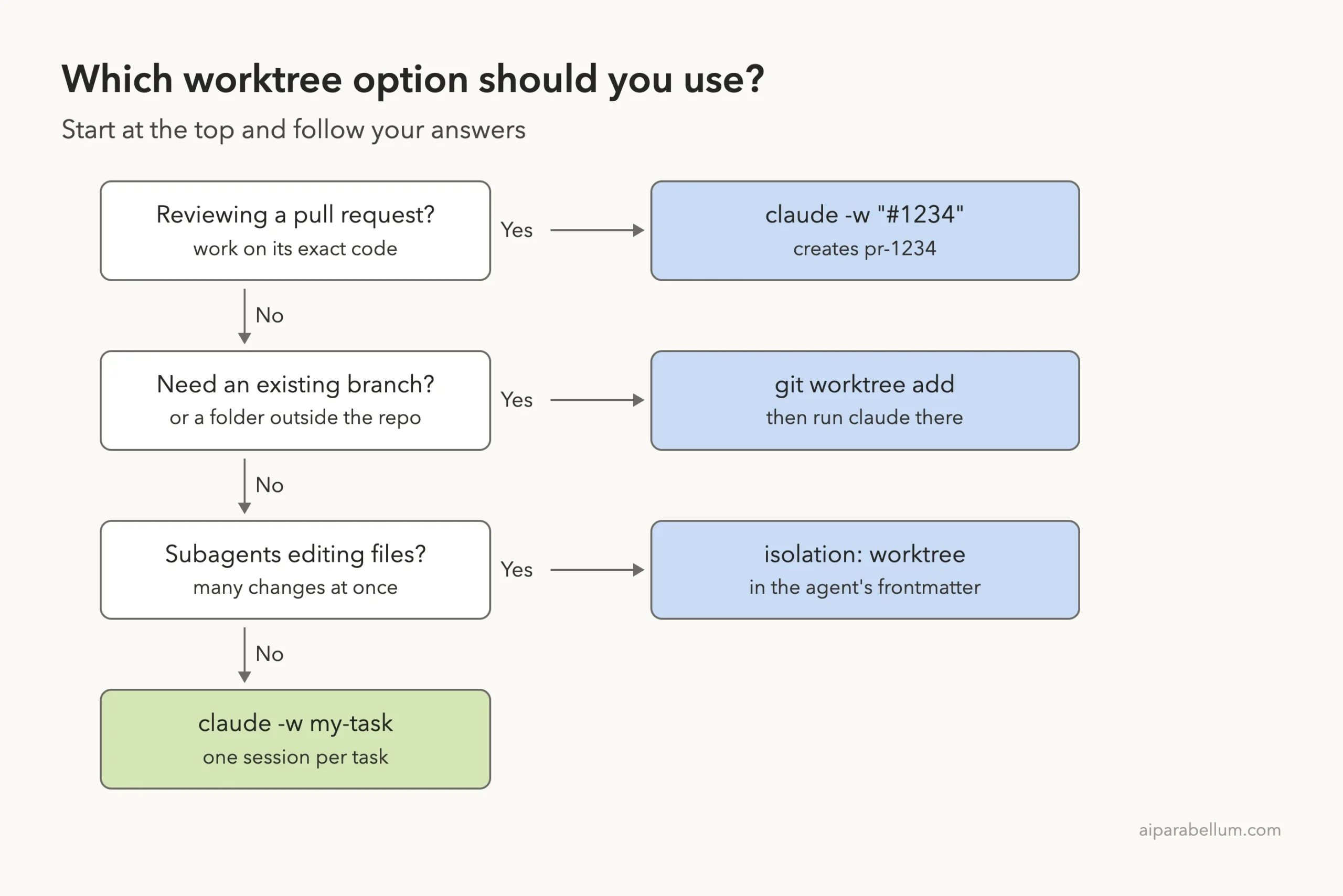
With several options, it helps to follow a simple decision path. Start at the top and stop at the first yes.
What Worktrees Share With the Main Checkout
A worktree gets its own files and branch, but some things carry over. Knowing these saves you from repeating setup work.
- The repository’s .git data, so git commit works from inside a worktree.
- Plugins installed at project scope in the main checkout.
- “Yes, and don’t ask again” Bash approvals, which are saved to the main checkout’s .claude/settings.local.json in most setups (on Windows they stay with the worktree).
- Project skills, agents and commands from the main checkout when the worktree has no .claude/skills folder of its own, for example because it is gitignored.
Claude Code also guards the boundary while a session is isolated. It blocks file edits that target the main checkout, and Bash commands that run there or redirect git into it. Our permission modes guide explains the approval prompts you will still see inside a worktree.
Real Examples You Can Copy
A feature and a bug fix at the same time
# Terminal 1
claude -w add-search

# Terminal 2
claude -w fix-login-redirect
Review a teammate’s pull request without touching your branch
claude -w "#482"A quick scripted fix in its own branch
claude -p 'Update the copyright year in the footer.' -w footer-year --allowedTools Edit
git -C .claude/worktrees/footer-year diff
Try It Yourself
Make a throwaway folder, run git init, commit two small files, and add .claude/worktrees/ to .gitignore. Run claude once to trust the folder, then start a worktree session and paste this prompt:
Add a short comment at the top of every file explaining what it does. Keep each comment to one line.While it works, open a second terminal in the main folder and run git status. It should stay clean until you merge the worktree branch.
Common Mistakes
- Forgetting the trust step, so –worktree exits with a workspace trust error.
- Not adding .claude/worktrees/ to .gitignore, which fills git status with untracked files.
- Expecting .env and node_modules to appear in a new worktree without .worktreeinclude or a setup step.
- Choosing Remove worktree on exit when you still need the changes.
- Placing the prompt after –allowedTools in a headless run, so it is read as a tool name.
- Leaving headless worktrees around and wondering why git worktree remove says they are locked.
Pro Tips
- Name worktrees after the task, like fix-login or add-search, so branches explain themselves.
- Run git worktree list often to see every folder and its branch at a glance.
- Use “baseRef”: “head” only when work really depends on unpushed commits; the default keeps worktrees clean.
- Pair worktrees with plan mode so each session agrees on a plan before it edits anything.
- Keep each worktree small and focused; it makes merging back much easier, as our best practices guide explains.
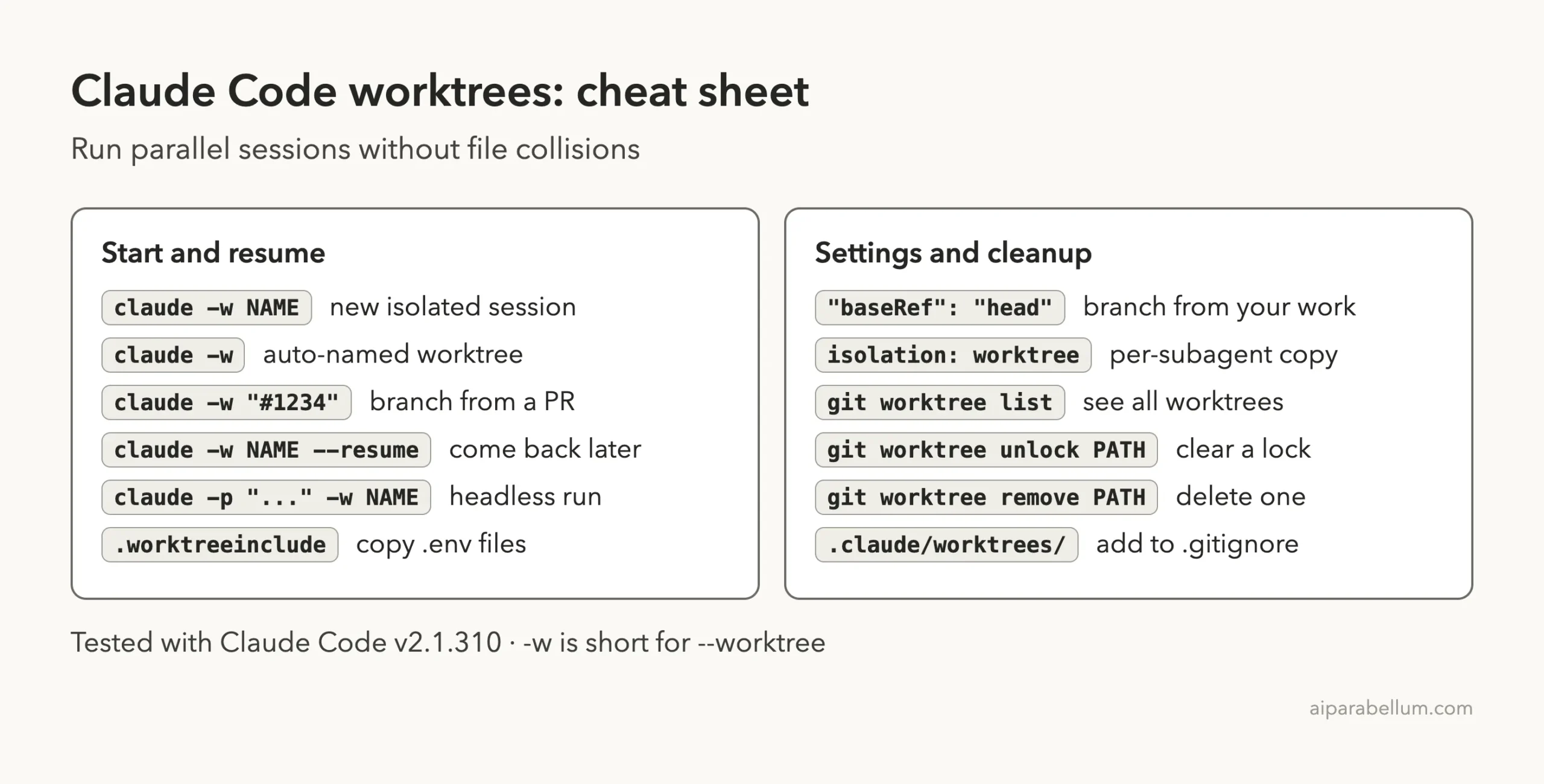
Claude Code Worktrees Cheat Sheet
Frequently Asked Questions
Do Claude Code worktrees copy my whole repository?
They create a new working folder with your tracked files, but they share the repository’s history and .git data. Untracked and ignored files are not copied unless you list them in .worktreeinclude.
Can I run two Claude sessions in the same folder instead?
You can, but both sessions will edit the same files and may overwrite each other. Worktrees exist to avoid exactly that.
How do I go back to a worktree I kept?
Run claude –worktree NAME –resume from the main checkout. You can also run claude –worktree NAME, which reopens the existing worktree instead of creating a new one.
Does the desktop app support worktrees?
Yes. The desktop app can run a session in its own worktree, and .worktreeinclude applies to those parallel sessions too.
Why does git say my worktree is locked?
Claude Code locks worktrees it creates while they are in use, and headless runs leave that lock in place. Run git worktree unlock on the path, then git worktree remove.
Conclusion
Claude Code worktrees give every parallel session its own folder and branch, so a feature, a bug fix and a pull request review can all move forward at once without touching each other’s files. Trust the folder once, start each task with claude -w and a clear name, bring local files along with .worktreeinclude, and merge each branch back when the work is done. Clean up headless worktrees with git worktree unlock and remove, and you will have a tidy, collision-free way to run Claude on several tasks at the same time.
Previous in the series: Part 36, Claude Code Headless Mode: Use claude -p in Scripts
Next in the series: Part 38: How to Run Several Claude Code Agents in Parallel.