Claude Code parallel agents let you hand off several coding tasks at once and keep working while they run. Instead of waiting on one long conversation, you dispatch a bug fix, a small feature and a question to separate background sessions, then check back when one of them is done or needs you. Each session works in its own git worktree, so the agents never trip over each other’s files.
In this guide you will learn the five ways Claude Code can work on several tasks at the same time, then try the main one for real: agent view. You will dispatch background sessions from the shell and from agent view, answer a question from the peek panel, attach and detach, merge the results and clean up.
This is Part 38 of 53 in our Claude Code tutorials series. In the previous part we covered git worktrees, which are the building block that keeps parallel sessions apart.
Tested with Claude Code v2.1.310 on October 25, 2026, on macOS, inside a tiny throwaway git repository.
Quick Summary: Claude Code Parallel Agents at a Glance
| Question | Short answer |
|---|---|
| How do I open the dashboard? | Run claude agents to open agent view |
| How do I start a background task from the shell? | claude –bg “your task”, with an optional –name |
| How do I check on a session? | Select its row and press Space to peek and reply |
| How do I open the full conversation? | Press Enter or the right arrow; press the left arrow to go back |
| Do parallel sessions edit the same files? | No, each one moves into its own worktree before editing |
| Is agent view final? | No, it is a research preview, so keys and screens may change |
| Does it cost more? | Yes, every session uses your quota on its own |
| How do I clean up? | Ctrl+X twice in agent view, or claude rm ID in the shell |
What Are Parallel Agents in Claude Code?
A normal Claude Code session handles one conversation at a time. If you ask it to fix a test, you usually wait until it finishes before you ask for the next thing. Parallel agents remove that wait by running several Claude sessions side by side.
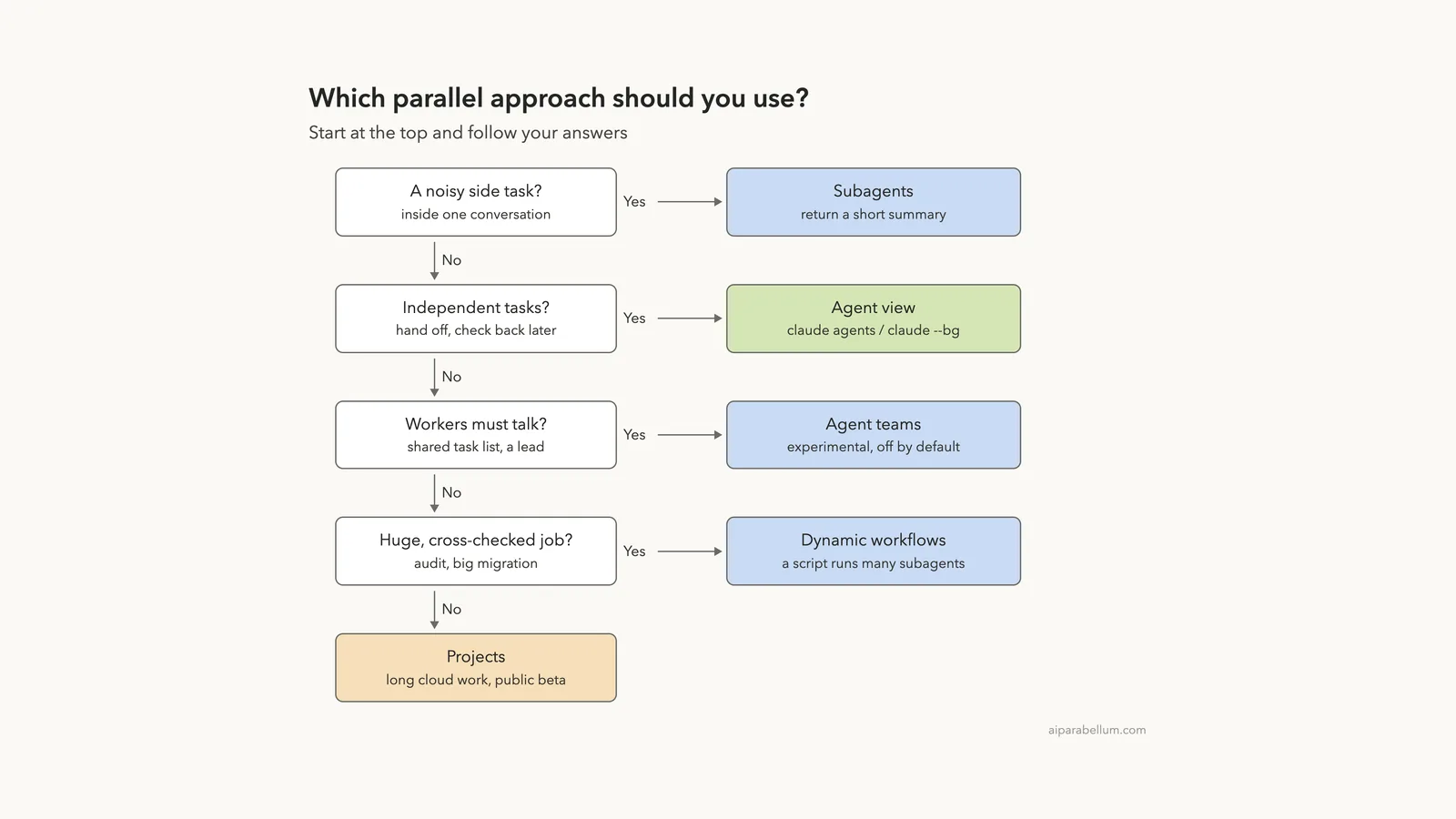
The official guide on parallel agents guide lists five approaches. They differ in who coordinates the work, whether the workers talk to each other, and whether the work runs on your computer or in the cloud.
| Approach | What it gives you | Good fit |
|---|---|---|
| Subagents | Helpers inside one session that do a side task and return a summary | Searches or logs that would flood your main chat |
| Agent view | One screen to dispatch and watch background sessions (research preview) | Several independent tasks you want to hand off |
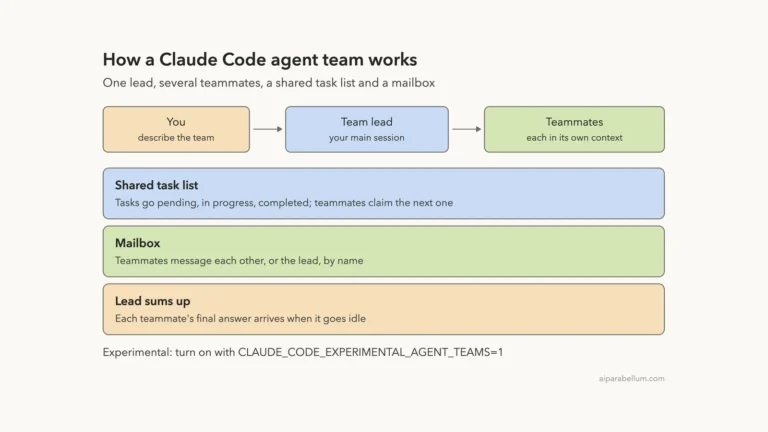
| Agent teams | A lead plus teammates with a shared task list and messaging (experimental, off by default) | A project Claude should split up and supervise |
| Dynamic workflows | A script that runs many subagents and cross-checks their results | Codebase-wide audits or very large migrations |
| Projects | One ongoing conversation that starts parallel threads, mostly in the cloud (public beta on Pro and Max) | Work spread over days or weeks |
You already met Claude Code subagents earlier in this series, and agent teams get their own part next. This tutorial focuses on agent view, because it is the most direct way to run several independent tasks on your own machine. If you are new to the assistant itself, start with our Claude AI overview.
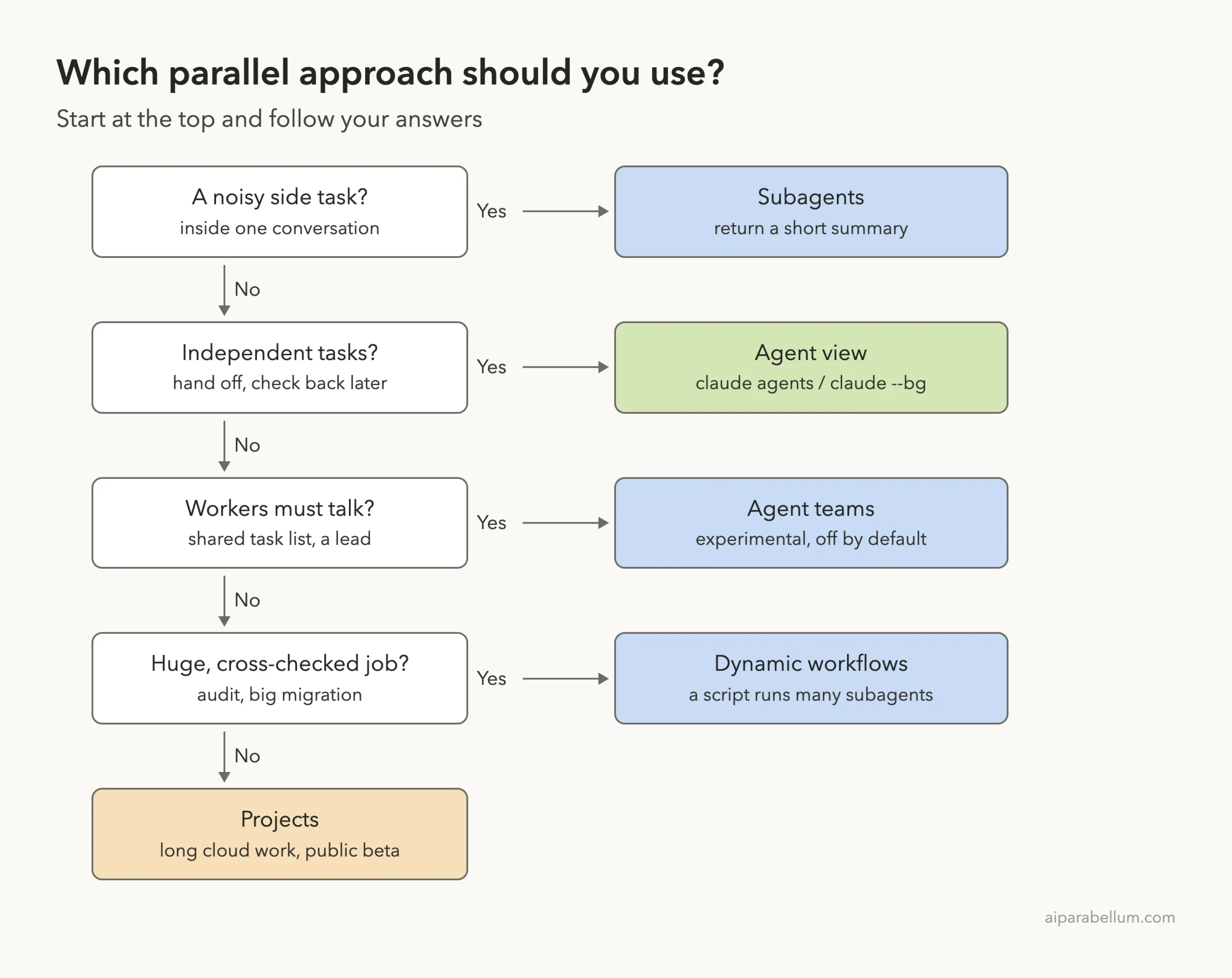
Hand off independent tasks, check back only when a row needs you, and review each branch before you merge it.
Our Demo Project
We made a tiny git repository called parallel-agents with three files. README.md has three deliberate spelling mistakes, mathlib.py has add() and average() helpers, and app.py prints two results. There is one commit on main.
The plan was simple: give Claude three small, separate jobs and run them at the same time. One fixes the README, one adds a median() helper, and one asks us a design question before it changes average(). We kept every prompt short, because each background session uses quota on its own.
Step 1: Find the Agent View Shortcut
Open a regular session with claude inside your project. For the first ten seconds, the footer shows a small hint that says the left arrow opens agents. The hint fades, but the shortcut keeps working on an empty prompt.
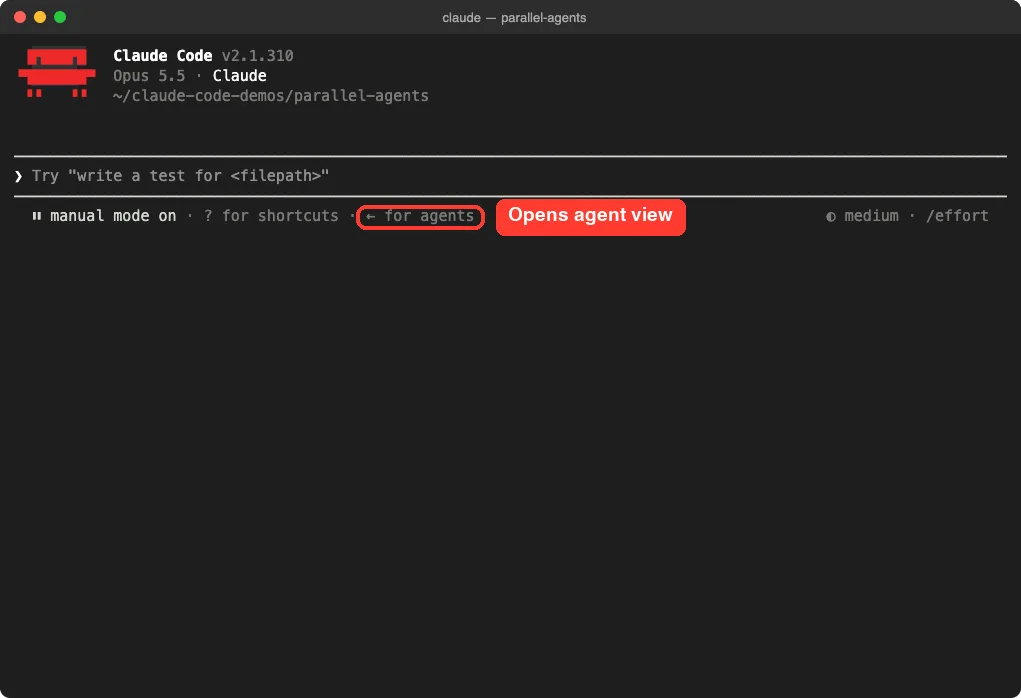
Pressing the left arrow on an empty prompt sends your current conversation to the background and opens agent view with that row selected. Typing /bg or /background does the same, and /bg can take one more instruction first. You can turn the arrow shortcut off with the leftArrowOpensAgents setting in /config.
Step 2: Dispatch Background Sessions From Your Shell
The quickest way to start a parallel agent is the –bg flag. The prompt goes in as a normal argument, not with -p. We ran these two commands one after the other:
claude --bg --name fix-readme "Fix the spelling mistakes in README.md. Change nothing else."
claude --bg --name add-median "Add a median(numbers) function to mathlib.py with a one-line docstring."
Each command returned right away. The first one also printed a line saying it was starting the background service, which is the supervisor process that keeps sessions running after you close your terminal.
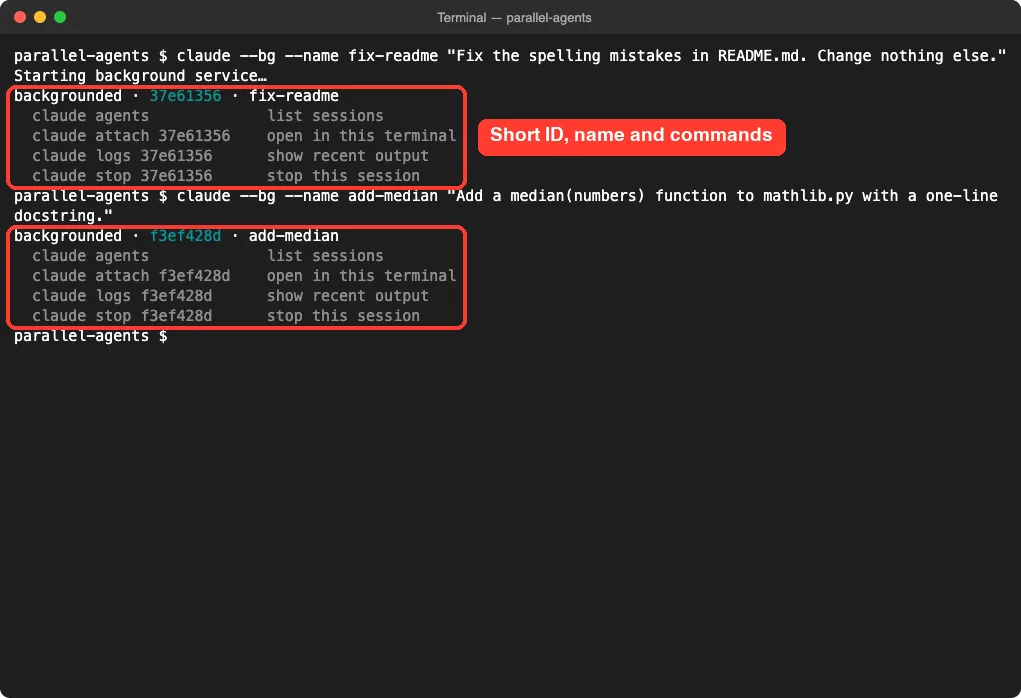
Note the short ID, such as 37e61356. You can use it with claude attach, claude logs and claude stop. The –name flag sets the label you see in agent view; without it, Claude writes a short name for you.
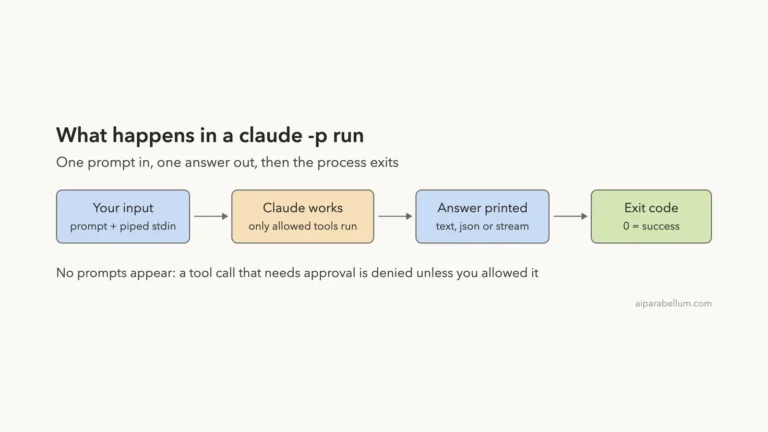
One thing to know: claude –bg cannot be combined with -p or –print. Headless mode never starts the interactive session that agent view attaches to, so Claude Code rejects that mix. For one-shot scripted runs, stick with headless mode instead.
Step 3: Watch Every Session in Agent View
Next we ran claude agents in the same folder. Agent view takes over the terminal and groups every background session by state. The header shows the model and effort new sessions will use, plus a count of sessions awaiting input, working and completed.
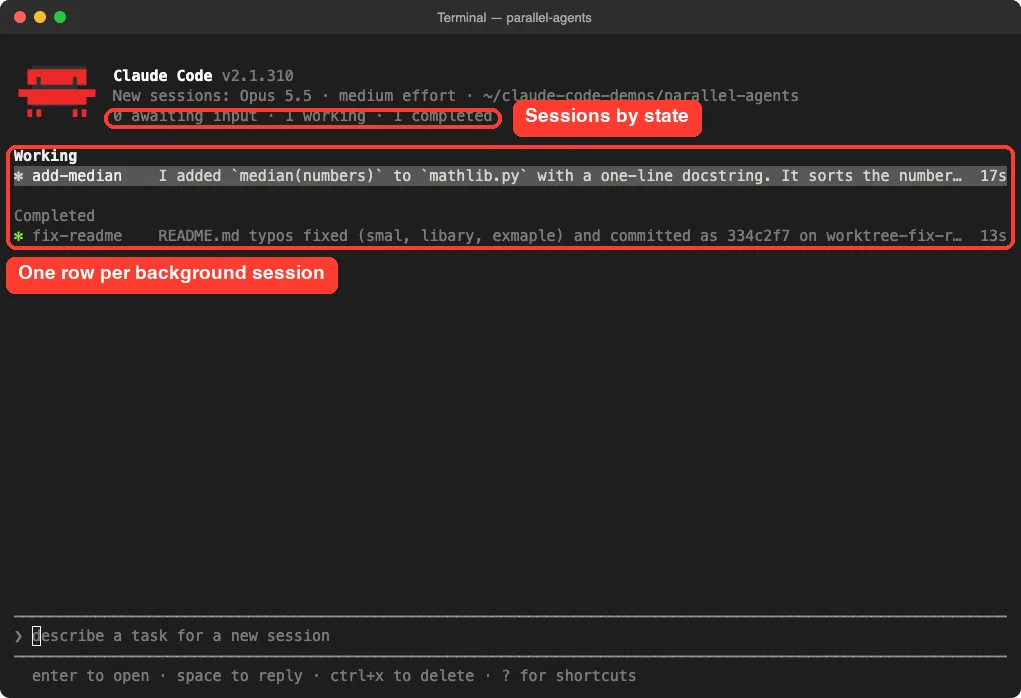
Each row shows the session name, a one-line summary and its age. The summary comes from a small Haiku-class model, so you can see what a session did without opening its transcript. Within about 20 seconds both of our rows had moved to Completed.
What the States Mean
| State | What it means |
|---|---|
| Working | Claude is running tools or writing a reply |
| Needs input | Claude is waiting on a question, a permission decision or a dialog only you can answer |
| Idle | The session is ready for your next prompt |
| Completed | The task finished successfully |
| Failed | The task ended with an error |
| Stopped | You stopped it with Ctrl+X or claude stop, or it ended while the service was off |
Agent view also has a Ready for review group for sessions with an open pull request that needs review or has failing checks. Our demo had no remote, so that group never appeared.
Step 4: Dispatch a Task From Agent View
You do not have to go back to the shell to start more work. The input at the bottom of agent view starts a brand-new session every time you press Enter. It never sends a follow-up to an existing row.
Ask me whether average() in mathlib.py should return 0 or raise ValueError for an empty list. Wait for my answer, then make that change.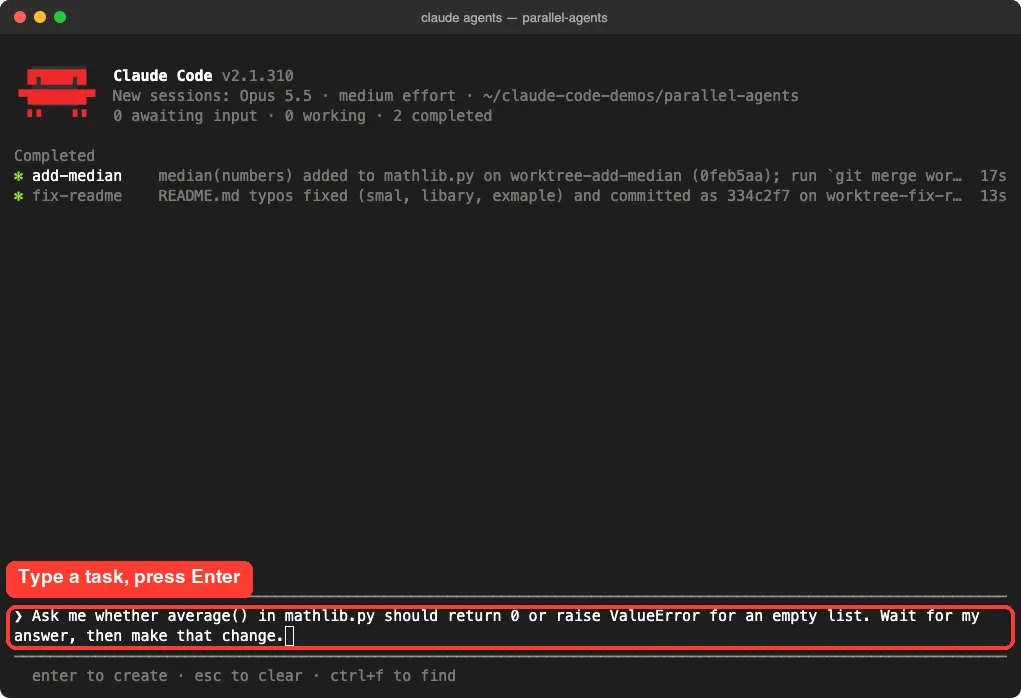
The input understands a few prefixes too. Starting with a custom subagent name, or mentioning @name, runs that subagent as the main agent.
Starting with ! runs a shell command as a background job, and @repo sends the session to a child repository.
Step 5: Peek and Reply Without Leaving the List
About half a minute later, our new session moved to Needs input. Its row already showed the start of the question. We selected it and pressed Space to open the peek panel.
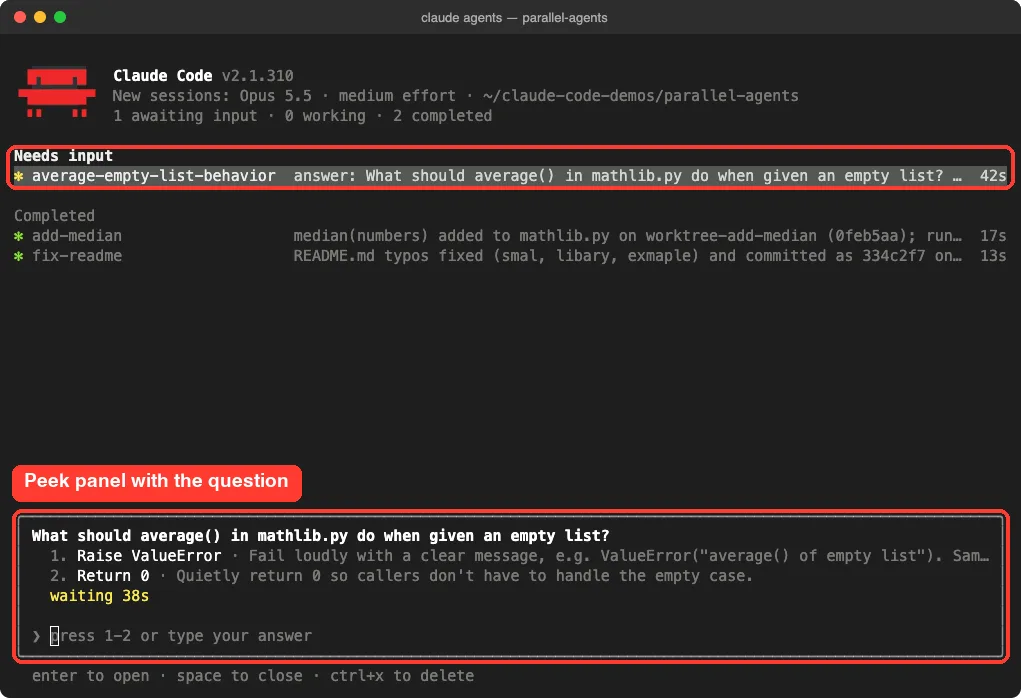
The panel listed two choices and a waiting timer. With the reply box empty, pressing 1 filled in Raise ValueError, and Enter sent it. The session went back to work on its own.
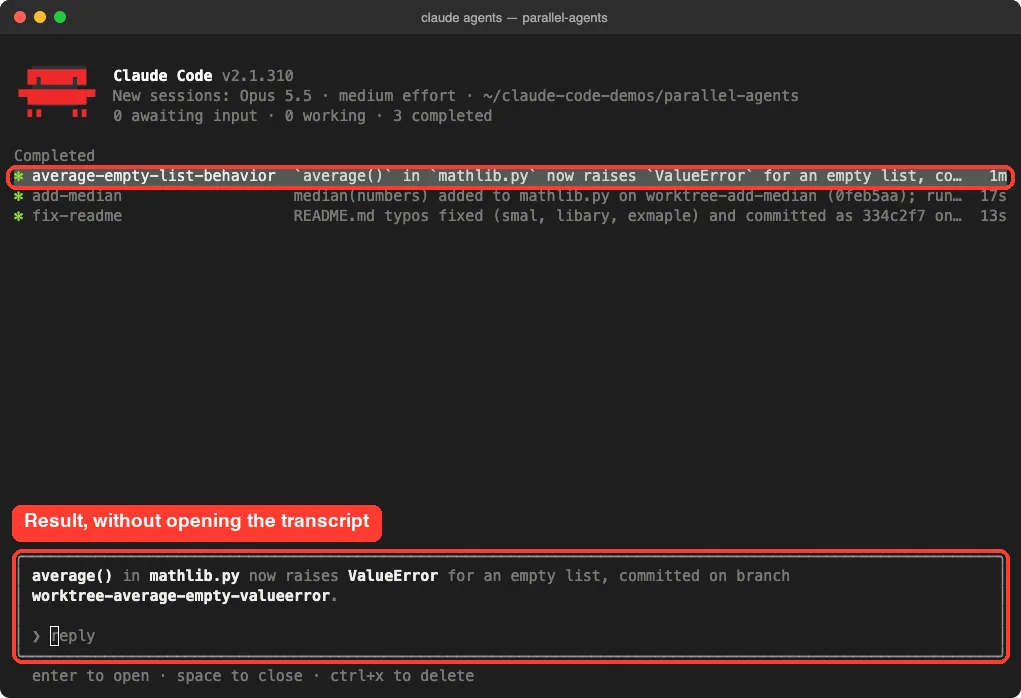
Peeking is enough most of the time. One catch: a reply cannot answer a permission prompt or another dialog. For those, attach to the session and answer there.
Step 6: Attach, Then Detach Again
To see a whole conversation, select a row and press Enter or the right arrow. The session takes over the terminal as a normal Claude Code session, and Claude posts a short recap of what happened while you were away.
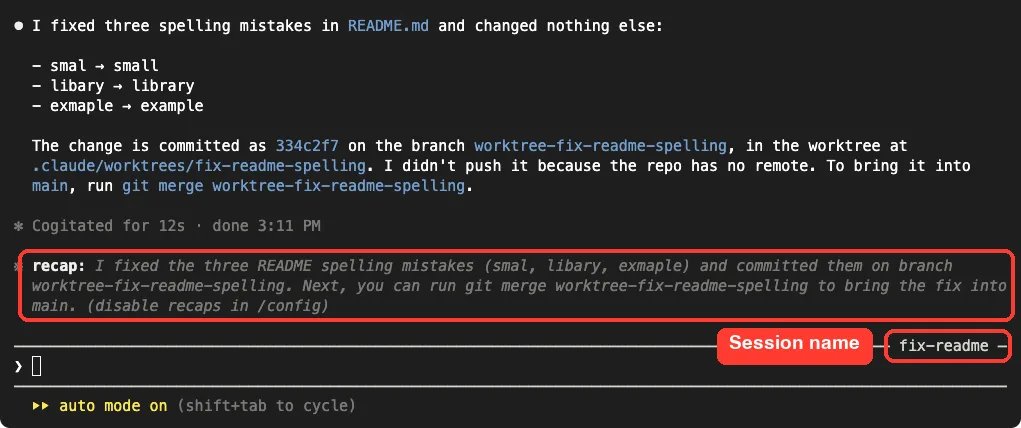
Our fix-readme session listed its three spelling fixes and named the branch it committed to. Press the left arrow on an empty prompt, or run /exit, to go back to the list. Detaching never stops a background session; to end one from inside, run /stop.
Our attached session showed auto mode in its footer. A session you dispatch starts the way a new claude session in that folder would, so it picks up the default mode from your settings.
To choose one for every dispatch, open agent view with a flag such as claude agents –permission-mode plan. Our guide to permission modes explains the options.
Handy Agent View Shortcuts
Press ? in agent view to see shortcuts for the current screen. Here is what our version showed.
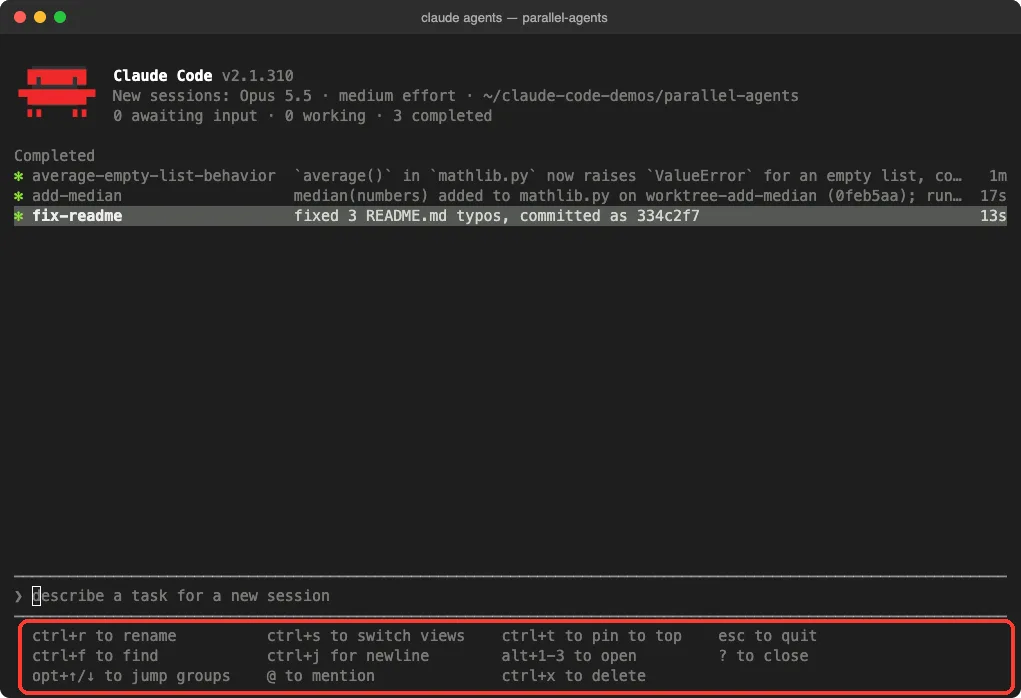
- Ctrl+R renames the selected session.
- Ctrl+S switches between grouping by state and grouping by folder.
- Ctrl+T pins a session to the top and keeps its process running while idle.
- Ctrl+X stops a session; a second press within two seconds deletes it.
- Ctrl+F finds sessions by name, and filters such as s:blocked show only sessions waiting on you.
Several of these keys follow your keybindings.json file, which we covered in the keyboard shortcuts guide.
How Claude Code Keeps Parallel Agents From Colliding
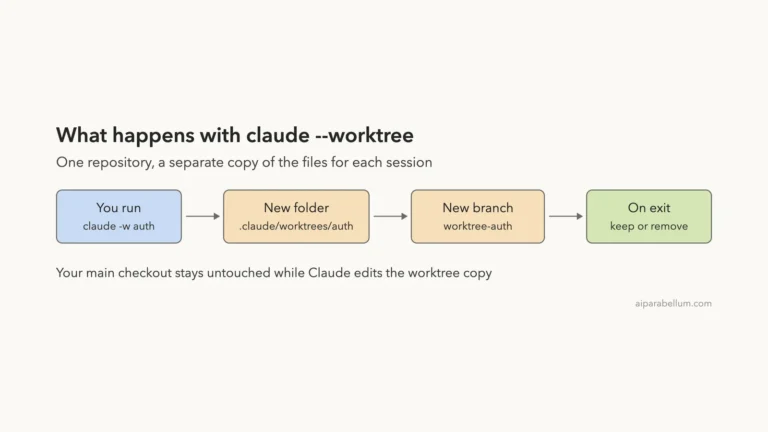
Here is the part that makes parallel work safe. A session dispatched from agent view or with claude –bg starts in your working folder, but before it edits a file it moves into its own git worktree under .claude/worktrees/. Parallel sessions can read the same checkout while each one writes to its own copy.
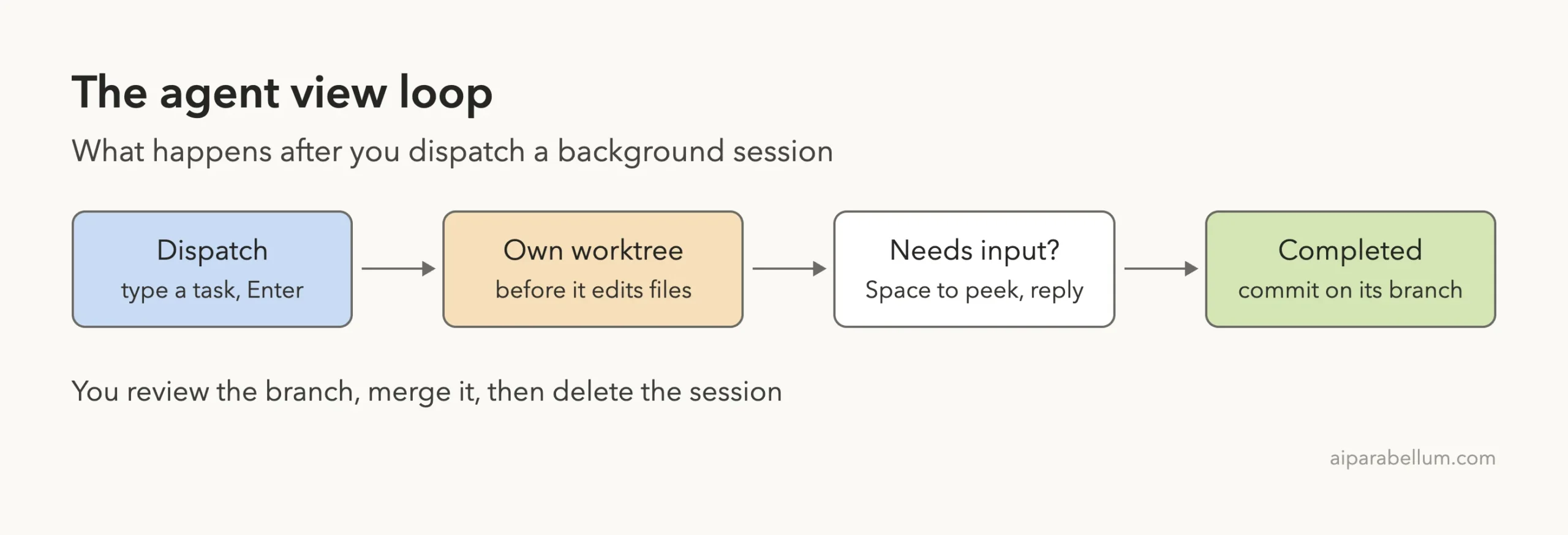
We checked this from the shell. git worktree list showed three new worktrees, one per task, each on its own branch and locked while in use. claude agents –json returned the same three sessions, all in the done state.
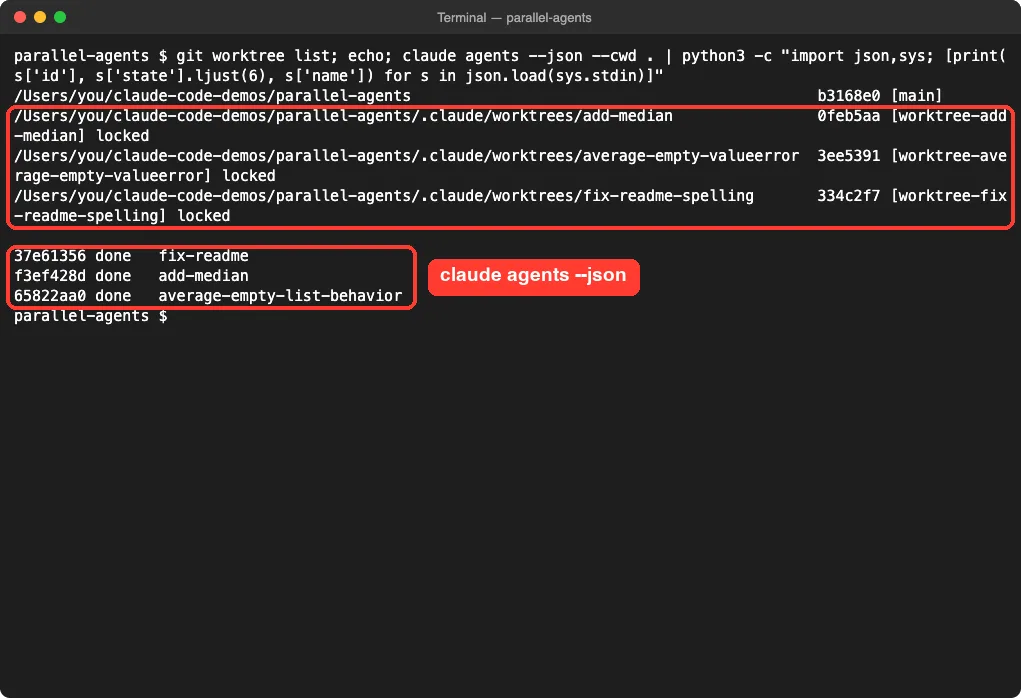
When a background session changes code in its worktree, the docs say Claude commits without asking and pushes the branch if the repository has a remote. It never pushes to main or master, never force-pushes and never merges. If your CLAUDE.md or task says you handle git yourself, Claude leaves it to you.
Isolation is skipped in a few cases. A session you sent to the background yourself keeps editing where it was. A folder that is not a git repository also has no isolation unless you set up a WorktreeCreate hook, so avoid parallel sessions that edit the same files there.
Step 7: Merge the Work and Clean Up
Each session left its work on a branch, so we merged all three into main. git merged mathlib.py automatically, the README typos were gone, median() returned 2.5 for four numbers, and average() of an empty list now raised ValueError.
git merge worktree-fix-readme-spelling
git merge --no-edit worktree-add-median
git merge --no-edit worktree-average-empty-valueerror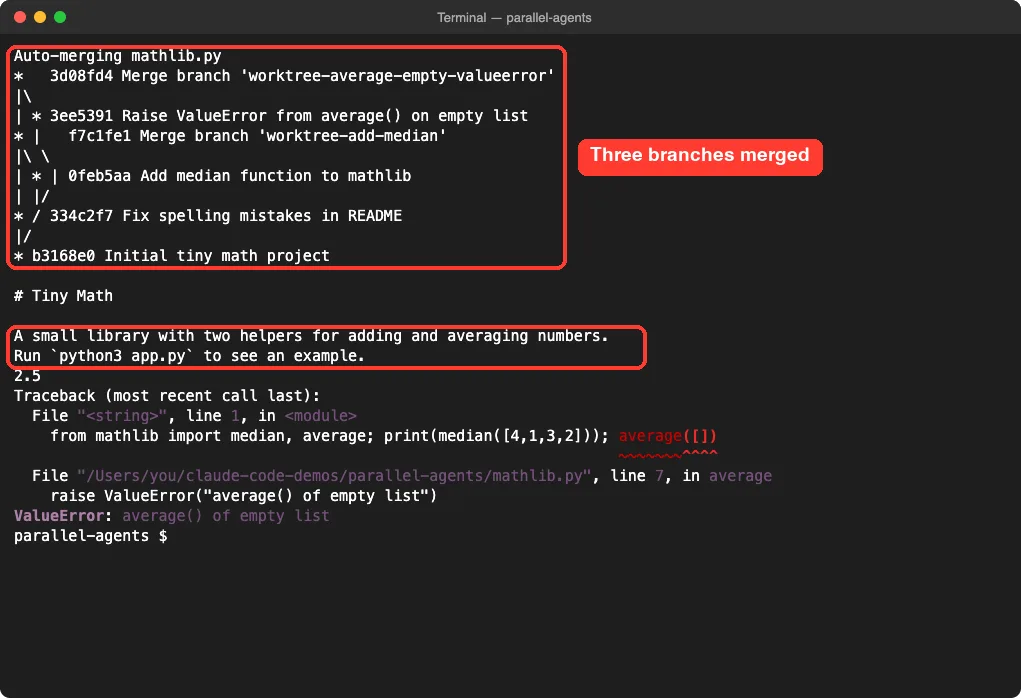
Then we tried claude rm on each session ID. Claude Code refused, and kept the sessions and their worktrees. Its message named each branch, said the commits existed on no remote, and printed the exact command to discard them.
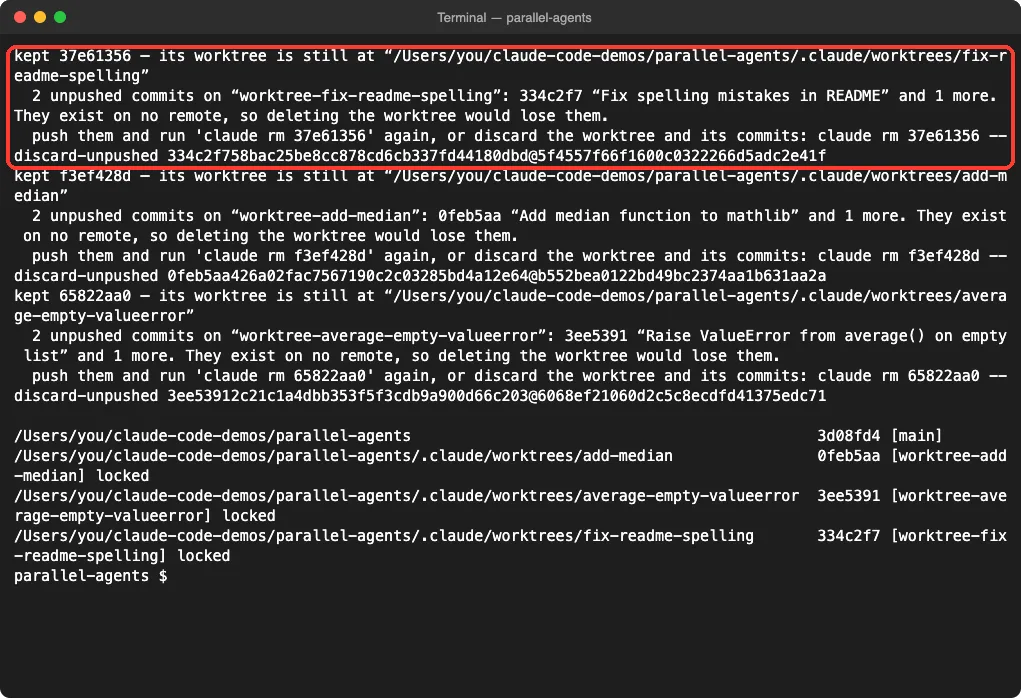
That is a safety net, not an error. Commits already on a remote do not block a delete, and neither do commits on your origin remote’s default branch checked out in your main folder. Our demo had no remote at all, so Claude Code could not confirm the work was saved.
Since we had already merged everything, we ran the printed claude rm ID –discard-unpushed commands. The sessions, worktrees and branches were removed, only main was left, and app.py still ran.
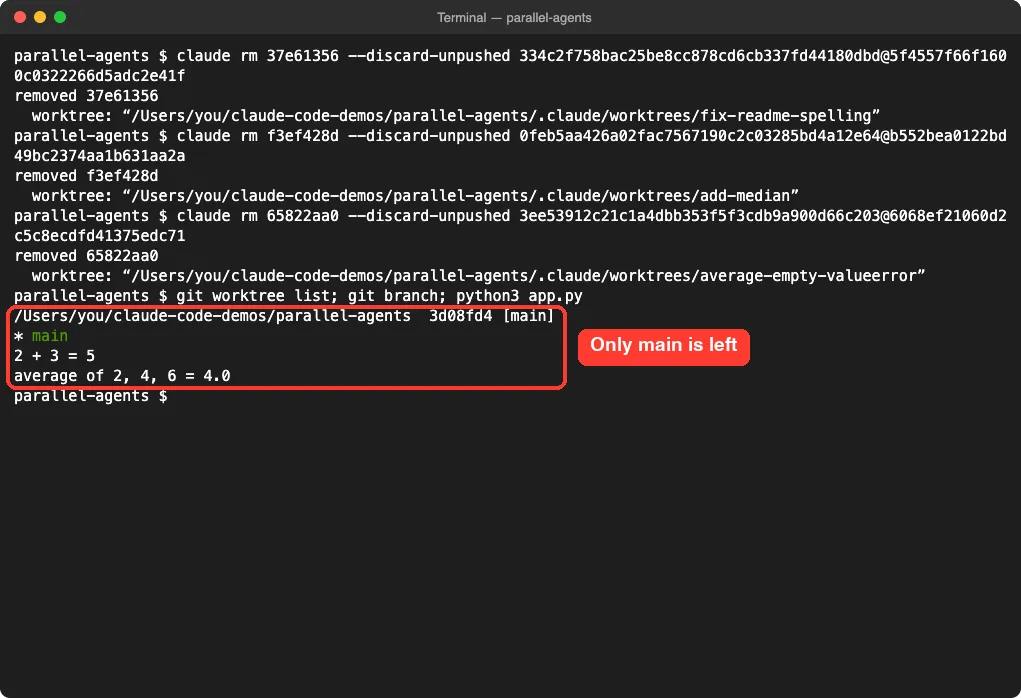
Be careful with the agent view delete. Pressing Ctrl+X twice there removes the worktree Claude created, including uncommitted changes. Commit or merge what you want to keep first.
More Ways to Send Work to the Background
We did not test these in our demo, but the agent view documentation describes them and they are worth knowing.
| Command | What it does |
|---|---|
| /bg or /background | Moves the current conversation to the background and frees your terminal |
| /fork | Copies the conversation into a new background session while you keep working |
| /subtask | Starts a forked subagent that inherits your full conversation |
| claude –bg –exec ‘pytest -x’ | Runs a shell command as a background job, with no model involved |
| claude –agent code-reviewer –bg “…” | Runs one of your custom subagents as the session’s main agent |
| claude agents –cwd PATH | Shows only sessions started under one project |
| /model, /effort or /fast in the dispatch input | Sets what the next dispatched sessions start with |
Inside any single session, /tasks lists everything running in its background, including subagents. Despite the similar name, /agents inside a session is about subagent files, while claude agents in your shell opens agent view.
Real Examples of Parallel Agents
- Dispatch a bug fix, a pull request review and a flaky-test investigation as three rows, then keep coding in another window.
- Start a documentation cleanup on one row while another adds tests for a module, each on its own branch.
- Send a long refactor to the background with /bg so your terminal is free for a quick question.
- Use /fork to try a riskier approach in a copy while the original conversation continues.
- Run a recurring /loop task as its own row; agent view shows its run count and a countdown.
Try It Yourself
Make a small practice repository with a README and one code file, commit it, and run these from inside it. Then open claude agents and watch the rows.
claude --bg --name typo-fix "Fix any spelling mistakes in README.md. Change nothing else."
claude --bg --name add-tests "Add one small test file for the main function. Keep it short."
claude agents
In the dispatch input, try a task that makes Claude ask you something first, such as the average() prompt above. Answer it from the peek panel, attach to one finished row, then merge the branches and clean up with claude rm.
Common Mistakes
- Expecting a second prompt in the dispatch input to reach the first session. Every Enter starts a new session; use Space on a row to reply instead.
- Combining claude –bg with -p. Claude Code rejects it before any session is created.
- Deleting a session in agent view before saving its work. That delete removes the Claude-created worktree, uncommitted changes included.
- Running parallel sessions in a folder that is not a git repository. Without worktrees, they write to the same files.
- Dispatching ten agents at once without checking your plan. Each session uses quota on its own, so ten parallel agents burn it roughly ten times as fast.
- Shutting down your computer mid-task. Sessions survive sleep but stop on shutdown; reopen a row to resume it.
Pro Tips for Claude Code Parallel Agents
- Give every session a clear name with –name or Ctrl+R so the list stays readable.
- Keep tasks independent; if two jobs touch the same lines, run them one after another.
- Pin long-running sessions with Ctrl+T. Unpinned sessions that are finished and unattached for about an hour have their process stopped to save resources.
- Use claude agents –json –all in scripts or status bars instead of reading files under the jobs folder.
- Set dispatch defaults when you open agent view, for example plan mode for risky work.
- Pick a cheaper model for simple chores with /model in the dispatch input; our model guide compares the options.
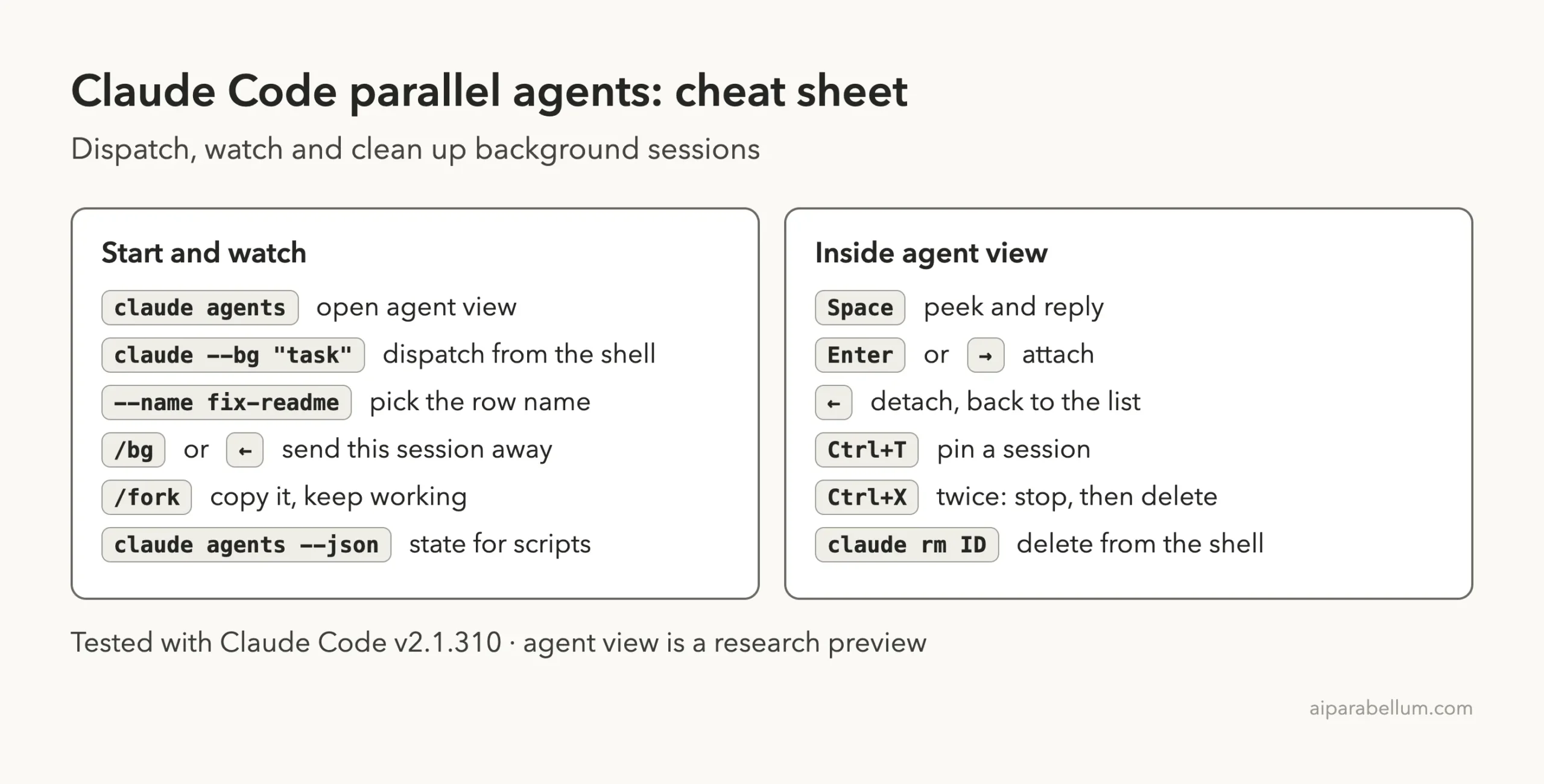
Claude Code Parallel Agents Cheat Sheet
Frequently Asked Questions
Is agent view the same as subagents?
No. Subagents are helpers inside one conversation that report back to it. Agent view manages separate, full Claude Code sessions that run in the background and report to you.
Do background sessions keep running if I close the terminal?
Yes. A supervisor process hosts them, so you can close agent view or your shell. They do stop if the machine shuts down, but their saved conversations stay on disk.
Can each background session use a different model?
Yes. Type /model in the dispatch input before you dispatch, pass –model with claude –bg, or switch with /model after you attach.
Why did claude rm refuse to delete my session?
Its worktree had commits that Claude Code could not find on a remote or on your default branch. Push or merge them and delete again, or use the –discard-unpushed command it prints if you no longer need them.
Can I turn agent view off?
Yes. Set disableAgentView to true in your settings, or set the CLAUDE_CODE_DISABLE_AGENT_VIEW environment variable.
Conclusion
Claude Code parallel agents turn one waiting line into several moving lanes. Pick the right approach for the job, then use claude –bg or the agent view input to dispatch independent tasks, watch their rows, answer questions from the peek panel and attach only when you need the full conversation. Each session finishes on its own worktree branch, so you stay in control of what gets merged, and claude rm makes sure you do not lose unsaved commits on the way out.
Previous in the series: Part 37, Run Parallel Claude Code Sessions With Git Worktrees
Next in the series: Part 39: Claude Code Agent Teams Explained.