The Claude Code loop command, /loop, lets Claude run the same prompt again and again while your session stays open. You can use it to check on a build every few minutes, keep an eye on a pull request, or get a reminder later in the day. It saves you from typing “is it done yet?” over and over.
In this guide you will learn the three ways to start a loop, how to set a one-time reminder, how to list and cancel scheduled tasks, and how to stop a loop fast. We tested all of it for real in a tiny demo folder with a pretend build, and every screenshot below comes from that session.
This is Part 35 of 53 in our Claude Code tutorials series. In the previous part we covered plugin marketplaces; today you teach Claude to check back on its own.
Tested with Claude Code v2.1.310 on October 25, 2026, on macOS, inside a small throwaway demo folder.
Quick Summary: The Claude Code Loop at a Glance
| Question | Short answer |
|---|---|
| What does /loop do? | Runs a prompt again on a schedule while your session is open |
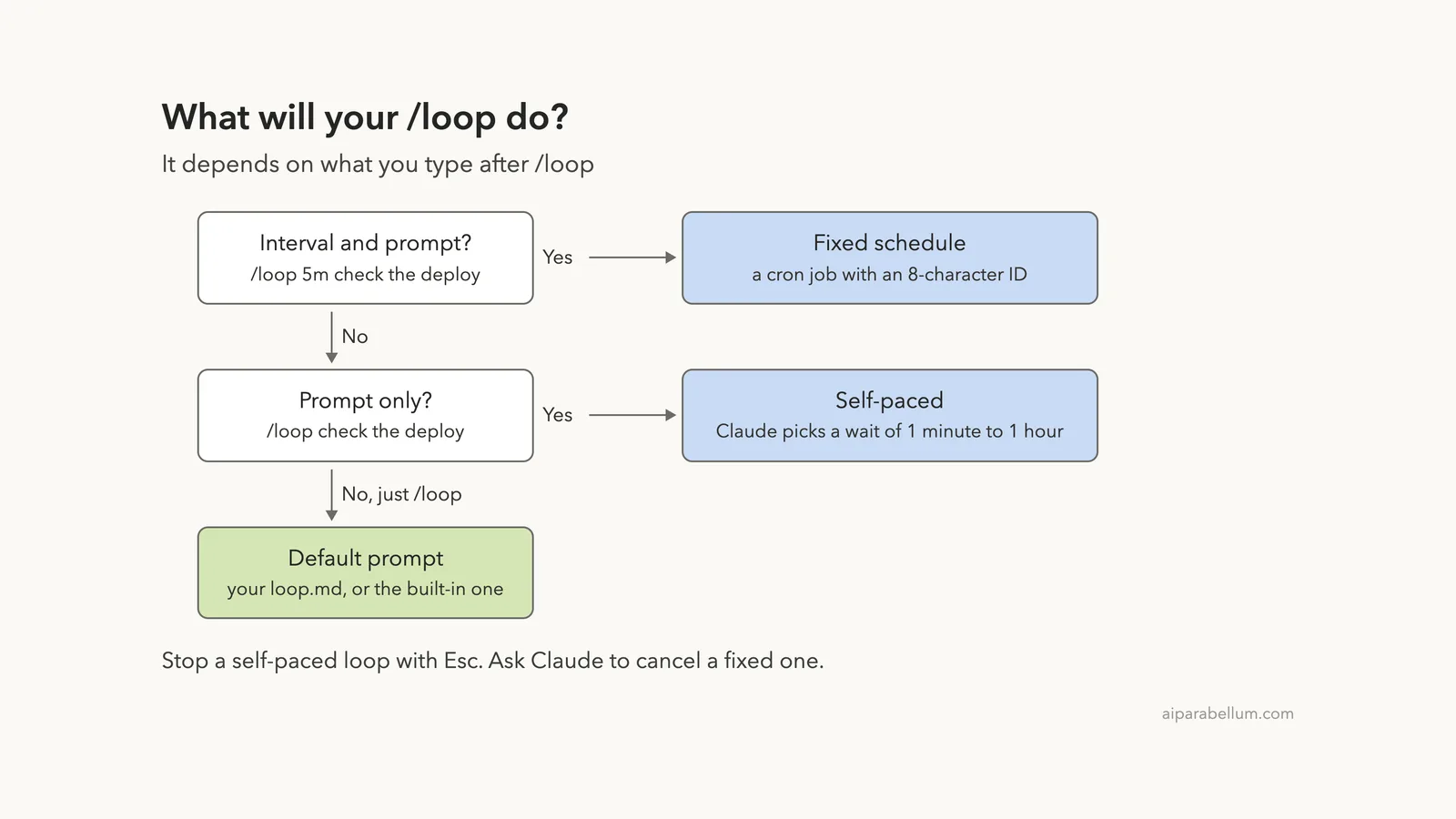
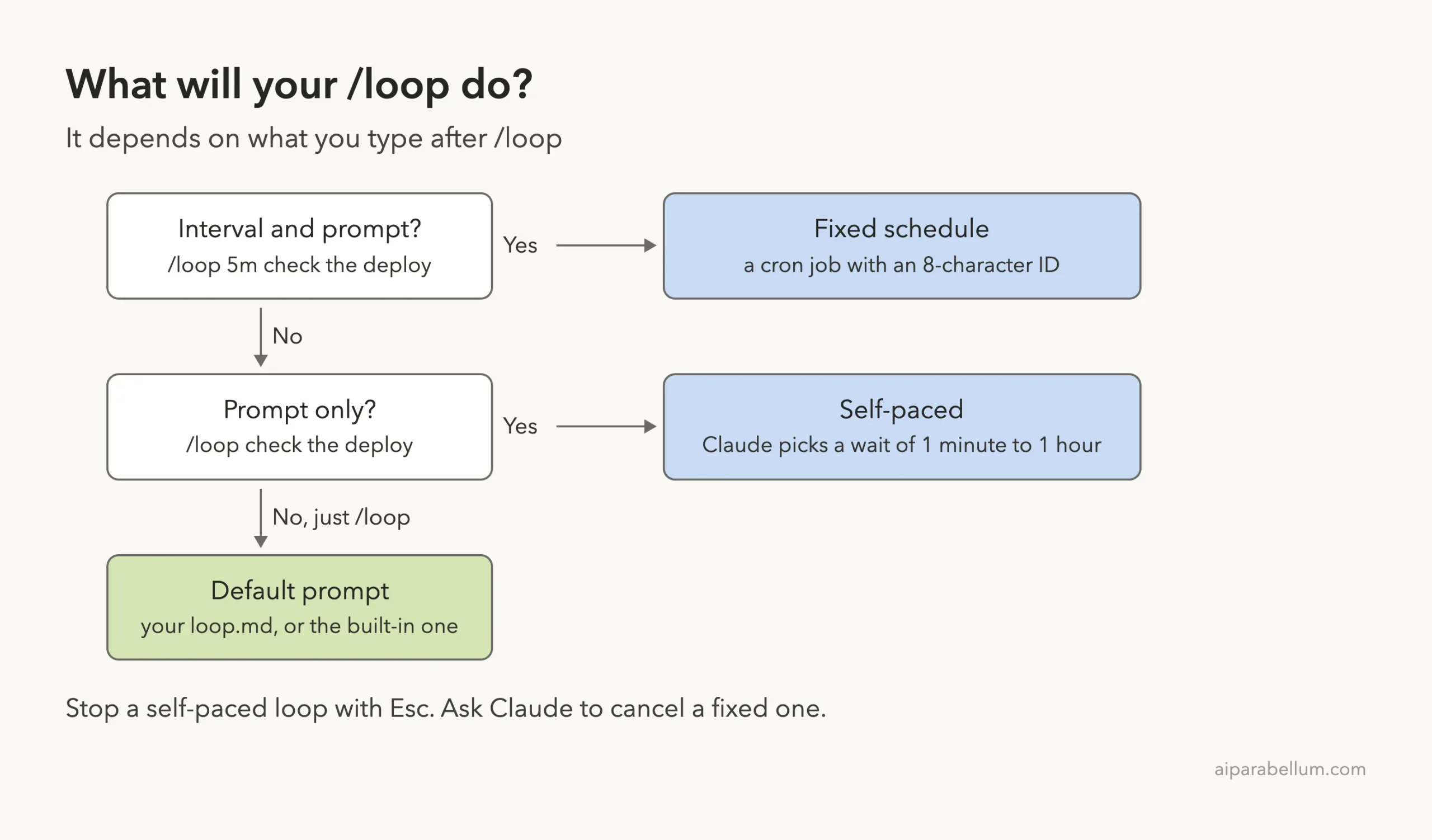
| Fixed interval | /loop 5m check the deploy |
| Let Claude pick the timing | /loop check the deploy (waits 1 minute to 1 hour each time) |
| Run a default prompt | /loop on its own uses .claude/loop.md or a built-in prompt |
| One-time reminder | remind me at 3pm to push the release branch |
| List or cancel tasks | Ask: what scheduled tasks do I have? or cancel the deploy check |
| How long does it last? | Until the session closes, and recurring tasks expire after 7 days |
| Smallest interval | 1 minute |
What Is /loop in Claude Code?
/loop is a bundled skill that ships with Claude Code. You give it an interval, a prompt, both, or neither, and Claude turns that into a scheduled task inside your current session. Each time the task comes due, the prompt runs as if you had typed it yourself.
Under the hood, Claude uses three scheduling tools. CronCreate makes a task, CronList shows your tasks, and CronDelete cancels one. You rarely need to name these tools, because you can just ask Claude in plain English.
A loop lives inside the Claude Code session you started it in. Close that terminal and the loop stops firing. For work that has to run with your laptop closed, Anthropic offers other schedulers, which we compare later in this guide.
Think of /loop as a helper that taps you on the shoulder every few minutes, but only while you are at your desk.
Why it exists
A lot of coding work is waiting. You wait for a deploy, a test run, a CI pipeline, or a reviewer. Instead of switching back to check, you hand the checking to Claude and keep working on something else.
The official scheduled tasks docs list a few common uses: polling a deployment, babysitting a pull request, checking back on a long build, and reminding yourself to do something later in the session.
Our Demo Setup
We made a small folder with three files. The file status.txt pretends to be a build log, and it starts out saying the build is still running. A short .claude/loop.md file holds a default loop prompt, which we use near the end.
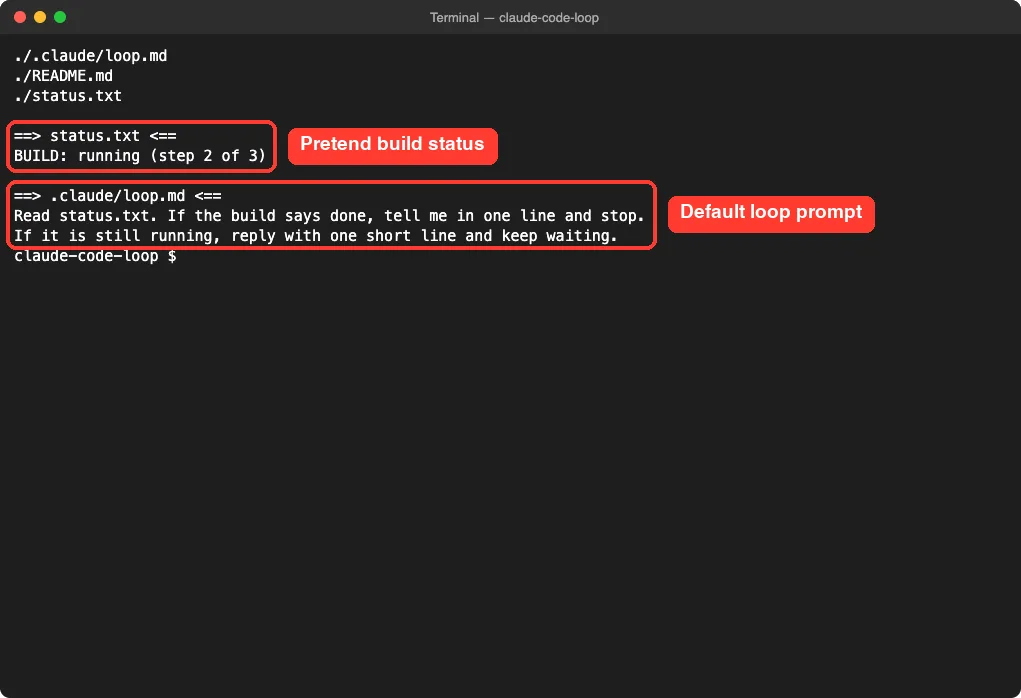
Nothing here needs a real build tool. The point is to watch Claude check a file on a timer and notice when it changes.
How to Start a Claude Code Loop on a Fixed Interval
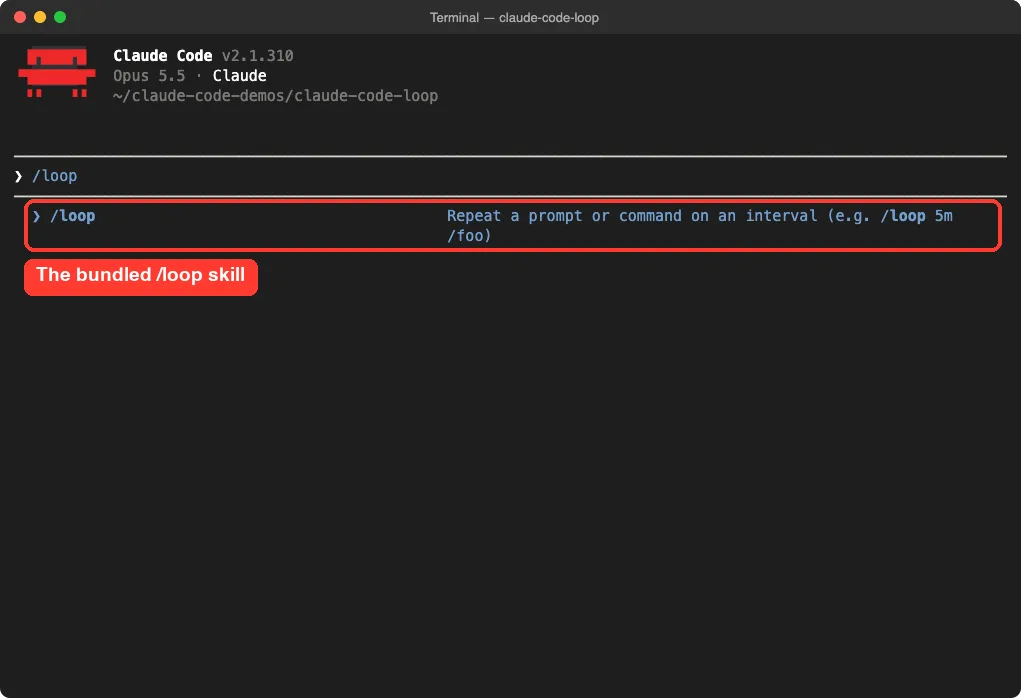
Open Claude Code in your project and type /loop. The command menu shows it with a short description: repeat a prompt or command on an interval.
Step 1: Type the interval and the prompt
We typed this and pressed Enter:
/loop 1m read status.txt and tell me in one short line whether the build is doneThe interval can come first as a short token like 30m, or at the end as a phrase like “every 2 hours”. The docs list four units: s for seconds, m for minutes, h for hours, and d for days.
Step 2: Read the confirmation
Claude called CronCreate with the cron expression */1 * * * *, which means every minute. It printed the job ID, bf4b6e3a, and the next run time. In our session it also did a first check right away and told us the build was still on step 2 of 3.
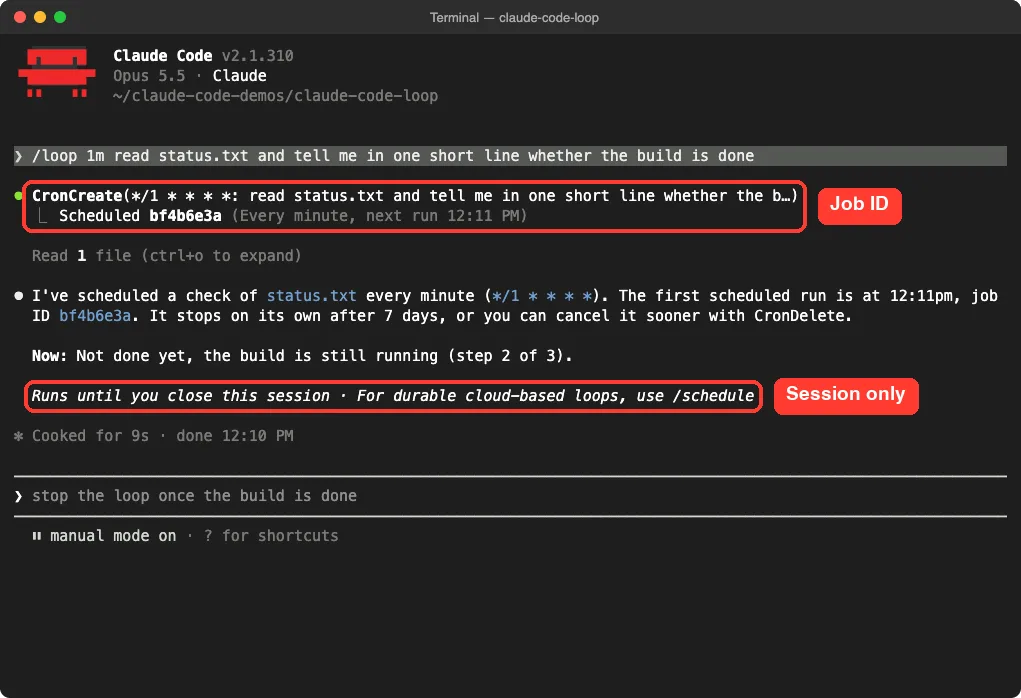
Look at the gray line near the bottom. Claude Code tells you the loop runs until you close the session and points you to /schedule for durable cloud loops.
Step 3: Watch it fire
Each run shows a “Running scheduled task” line with the time, and ours came at 12:12, 12:13 and 12:14. Between runs, we finished the pretend build with a quick shell command using the ! prefix.
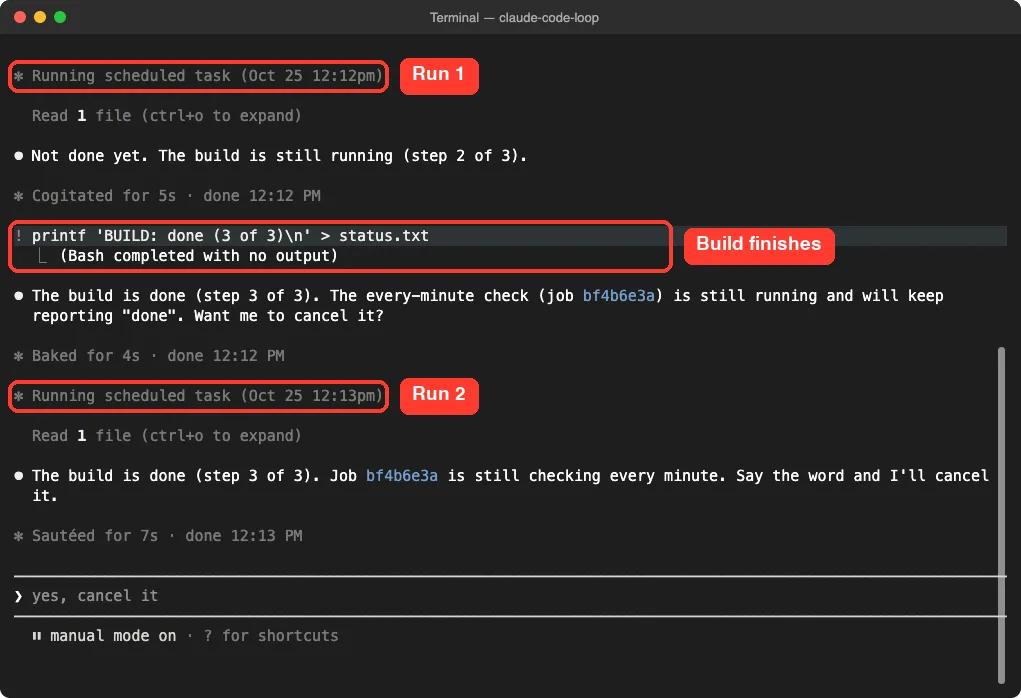
The next run read the file again and reported that the build was done. That is the whole idea: you change nothing about the prompt, and Claude notices the new state on its own.
How intervals get rounded
Cron works in whole minutes, so seconds round up to the nearest minute. An interval that does not fit a clean cron step, like 7m or 90m, gets rounded to the closest one that does. Claude tells you what it picked.
| You type | What happens |
|---|---|
| /loop 30s … | Rounded up to 1 minute |
| /loop 5m … | Every 5 minutes (*/5 * * * *) |
| /loop 7m … | Rounded to the nearest clean step, and Claude says which |
| /loop … every 2 hours | Interval written as a trailing phrase works too |
Let Claude Choose the Interval
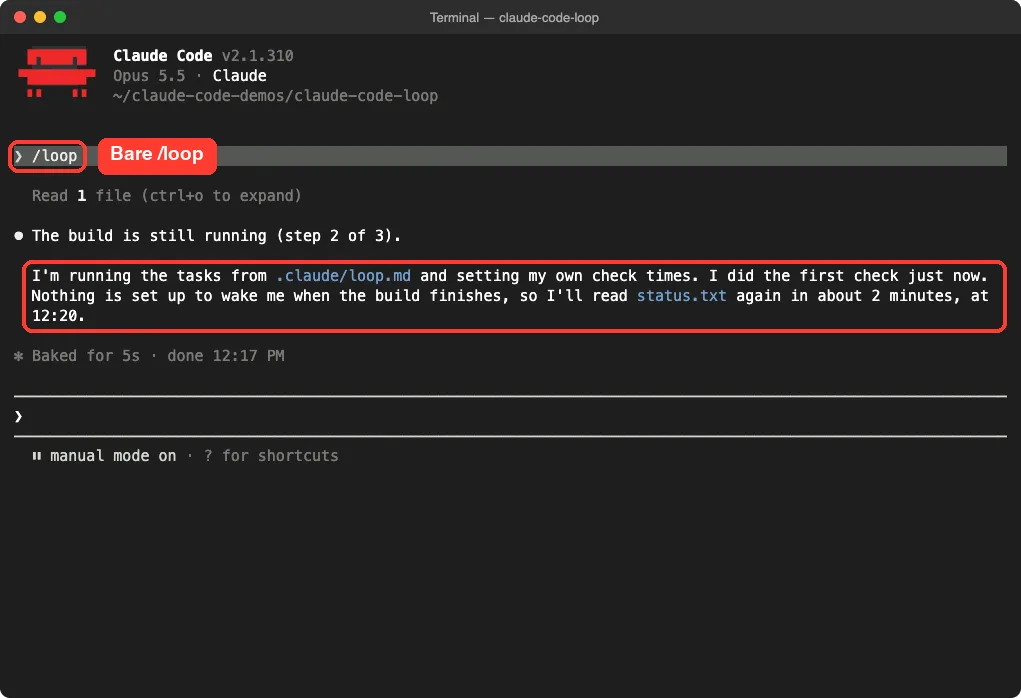
Leave out the interval and Claude paces itself. After each run it picks a wait between one minute and one hour, based on what it saw. It waits less while something is moving and longer once things go quiet.
Claude also explains its choice at the end of each run. In our test, it said nothing was set up to wake it when the build finished, so it would read status.txt again in about 2 minutes. In a second run of the same test, it chose about 4 minutes.
The docs add one more detail. If the Monitor tool is available in your session, Claude may use it instead. Monitor runs a background script and streams each new line back, which avoids polling and can save tokens.
Run /loop With No Prompt: loop.md and the Built-In Prompt
Type /loop by itself and Claude runs a default prompt. If you have a loop.md file, that file is the prompt. If not, Claude uses a built-in maintenance prompt.
The built-in maintenance prompt
According to the docs, the built-in prompt works through these steps in order on each run:
- Continue any unfinished work from the conversation
- Tend to the current branch’s pull request: review comments, failed CI runs and merge conflicts
- Run cleanup passes such as bug hunts or simplification when nothing else is pending
Claude does not start new projects outside that scope. Risky actions like pushing or deleting only go ahead when they continue something you already approved earlier in the conversation.
Write your own loop.md
Claude looks in two places and uses the first file it finds:
| Path | Scope |
|---|---|
| .claude/loop.md | Project level, wins when both exist |
| ~/.claude/loop.md | User level, used in any project without its own file |
The file is plain Markdown, written as if you were typing the prompt yourself. Ours said to read status.txt, report in one line, and keep waiting while the build runs. Bare /loop picked it up and said it was running the tasks from .claude/loop.md, as you saw in the self-paced screenshot above.
Edits to loop.md take effect on the next run, so you can tweak it while a loop is going. Keep it short, because anything past 25,000 bytes gets cut off. If you are new to this folder, our guide to the .claude folder explains what else lives there.
Loop a skill
You can also pass a skill as the prompt, for example /loop 20m /review-pr 1234. Only skills Claude may call on its own will run this way, while built-in commands like /model, skills marked disable-model-invocation, and MCP prompts reach Claude as plain text instead. Our skills tutorial shows how that setting works.
Set a One-Time Reminder
For a single nudge, you do not need /loop at all. Just ask in plain words, like “remind me at 3pm to push the release branch” or “in 45 minutes, check whether the integration tests passed”.
We typed “remind me in 20 minutes to commit the changes”. Claude checked the current time with a quick date command, then created a one-shot task for 12:34 PM with its own job ID.
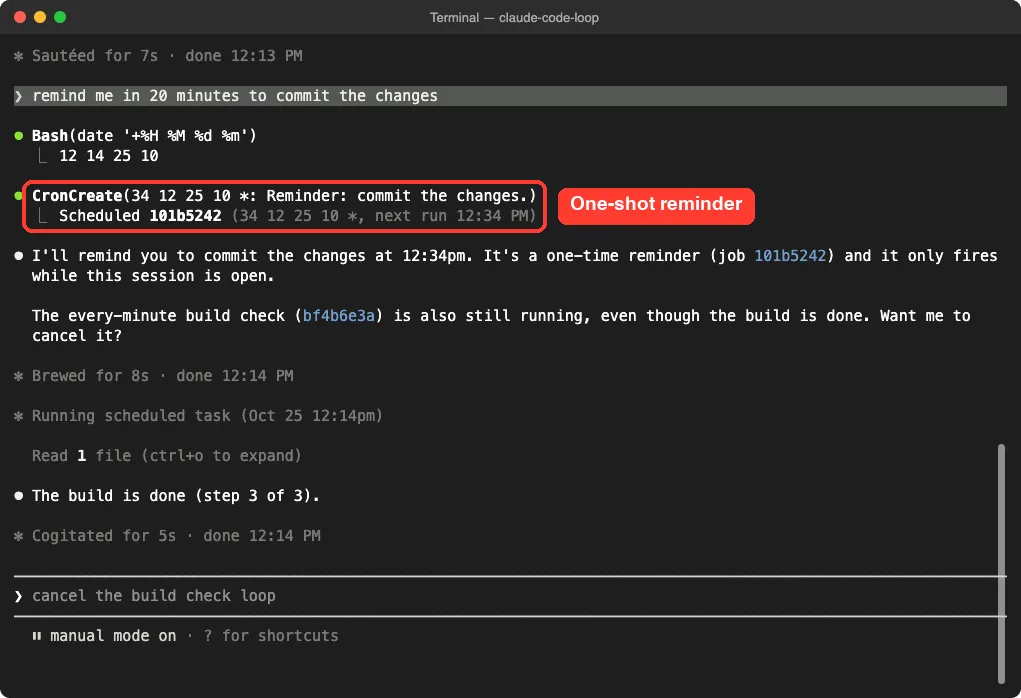
A one-shot task deletes itself after it fires. Like a loop, it only fires while the session is open.
List and Cancel Scheduled Tasks
To see everything that is scheduled, ask “what scheduled tasks do I have?” Claude calls CronList and shows each task’s ID, schedule, next run time and prompt.
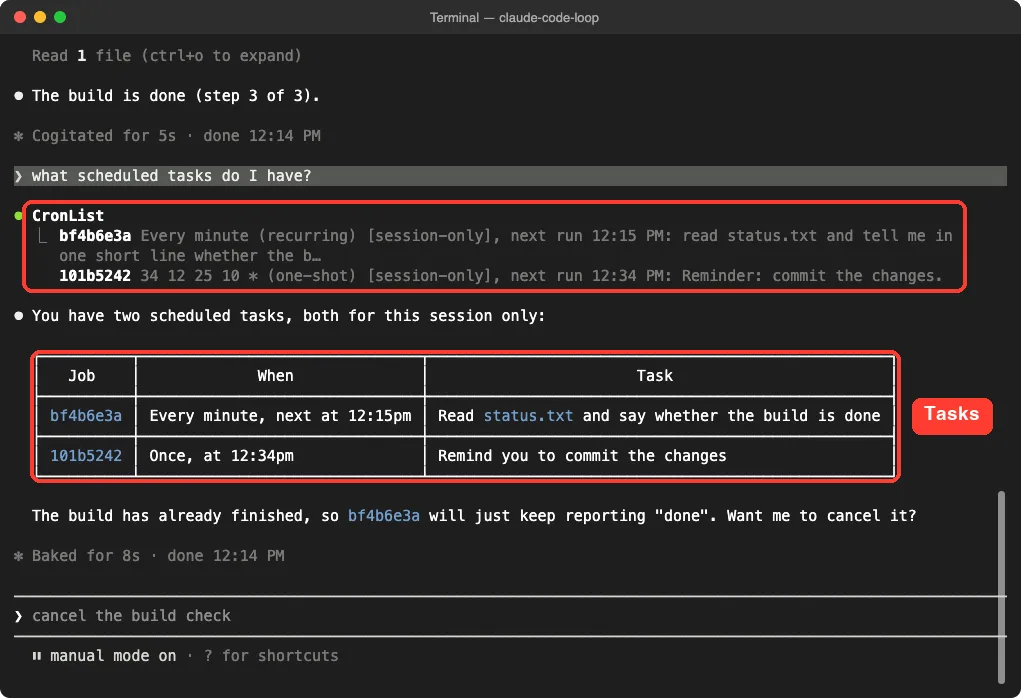
To cancel, just say so. We typed “cancel both scheduled tasks” and Claude ran CronDelete once for each job ID.
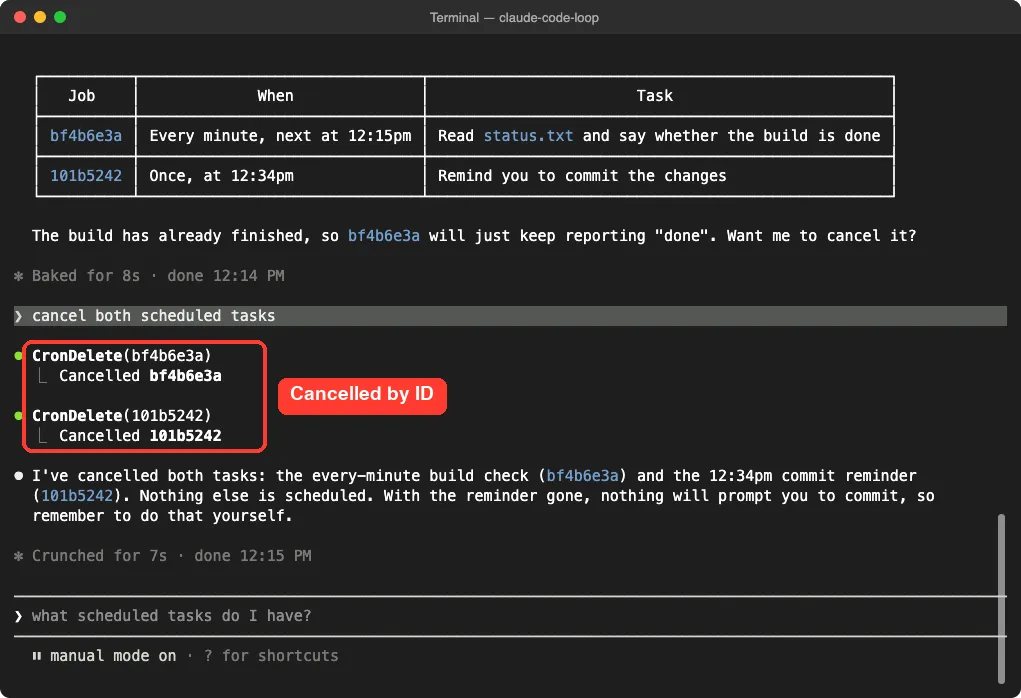
A session can hold up to 50 scheduled tasks at once. Each one has an 8-character ID, which helps when you have several running.
How to Stop a Loop
How you stop a loop depends on its type. This trips people up, so it is worth knowing before you start one.
| Loop type | How to stop it |
|---|---|
| Self-paced (no interval) | Press Esc while it waits for the next run |
| Fixed interval (/loop 5m …) | Ask Claude to cancel it; Esc and Ctrl+C do not stop it |
| Any task you never cancel | Recurring tasks end on their own after 7 days |
We tested the Esc path. While our self-paced loop was waiting, we pressed Esc and a “Pending wakeup cancelled” notice appeared in the corner. It only shows for a moment, so watch for it.
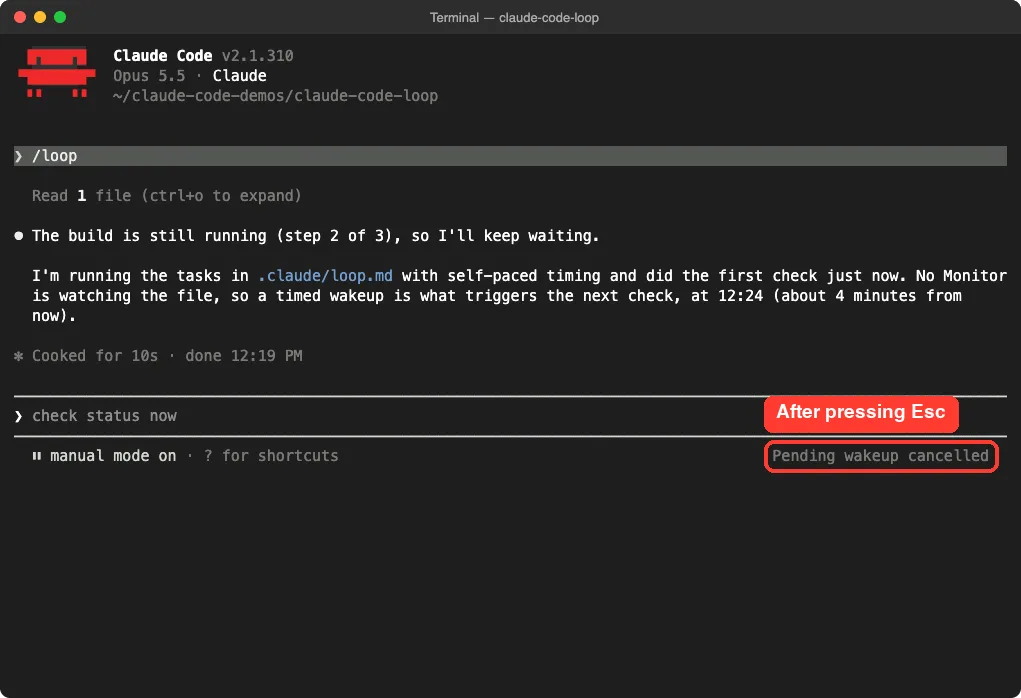
Claude can also end a self-paced loop by itself once the job is done. If you want to turn scheduling off completely, set CLAUDE_CODE_DISABLE_CRON=1 in your environment. Our environment variables guide covers how to set one.
When Scheduled Tasks Actually Run
The scheduler checks every second, but a task never interrupts Claude mid-answer. If Claude is busy, the task waits until the current turn ends. All times use your local time zone, not UTC.
Small timing shifts (jitter)
So that thousands of sessions do not hit the API at the same second, Claude Code shifts run times a little. Here is what the docs say:
| Schedule | When each run starts |
|---|---|
| Every 5 minutes (what /loop 5m creates) | 4 minutes 45 seconds after the previous run |
| Every 10 minutes | 0 to 5 minutes late |
| Every 30 minutes | 0 to 15 minutes late |
| Hourly or less often | 0 to 30 minutes late |
| One-shot at :00 or :30 | Up to 90 seconds early |
If timing matters for a reminder, pick an odd minute like 9:03 instead of 9:00. The docs suggest exactly this.
Limits worth knowing
- Tasks fire only while Claude Code is running and idle. Closing the terminal stops them.
- There is no catch-up. If several runs were missed while Claude was busy, it fires once, not once per missed run.
- When you resume with claude –resume or –continue, tasks made with CronCreate come back unless they expired, but a self-paced /loop does not. Our sessions guide explains resuming.
- Each run is a normal Claude turn, so a fast loop uses your usage just like typing the prompt by hand.
/loop vs Desktop and Cloud Scheduled Tasks
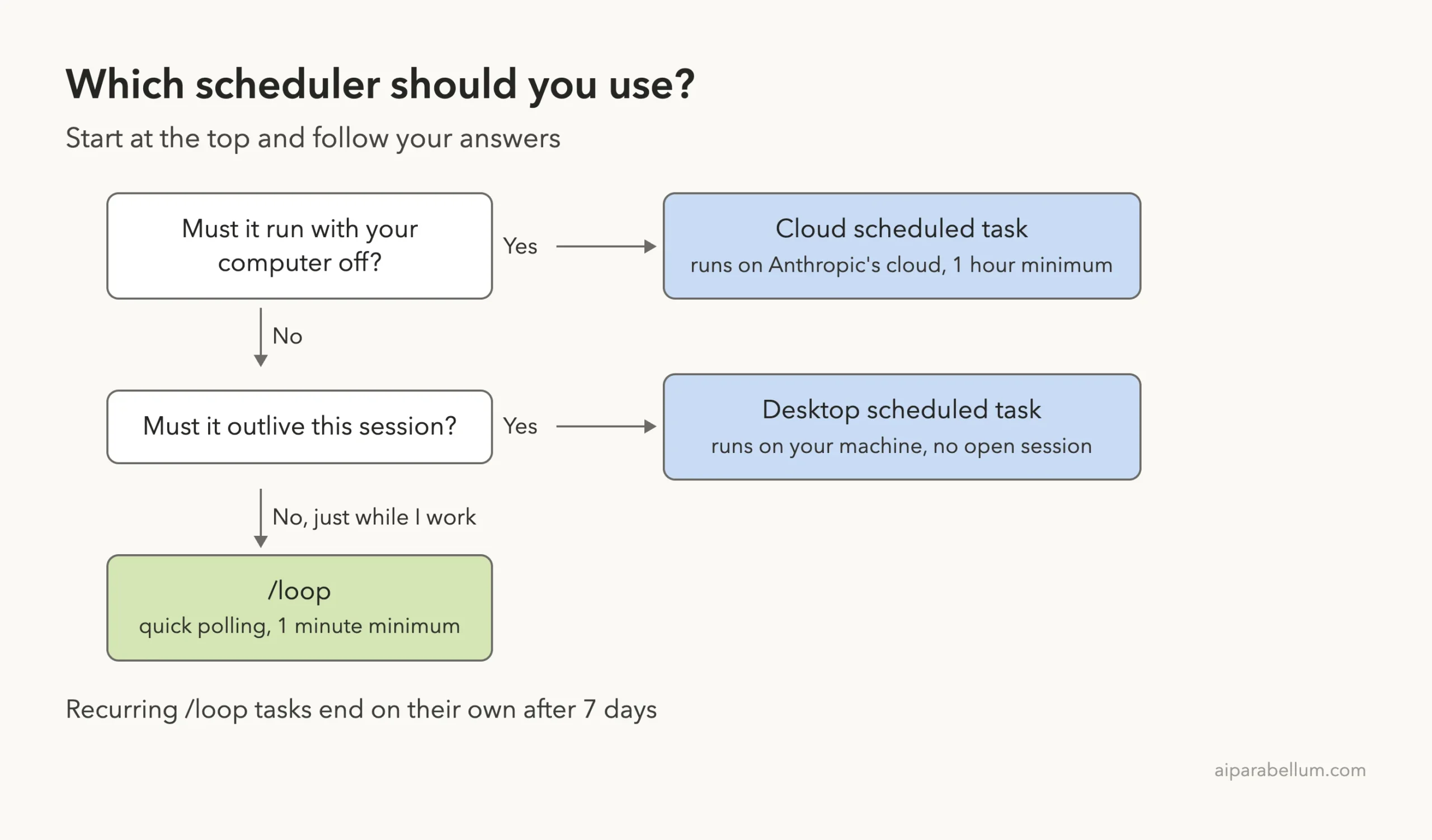
/loop is one of three ways to schedule work. The docs compare them like this:
| Feature | Cloud | Desktop | /loop |
|---|---|---|---|
| Runs on | Cloud, Anthropic-managed by default | Your machine | Your machine |
| Needs your machine on | No | Yes | Yes |
| Needs an open session | No | No | Yes |
| Local files | No (fresh clone) | Yes | Yes |
| Minimum interval | 1 hour | 1 minute when Claude sets it | 1 minute |
Use cloud scheduled tasks for jobs that must run without your computer. Use Desktop scheduled tasks when you need local files without keeping a session open. Use /loop for quick polling while you work.
Real Examples of the Claude Code Loop
Here are a few prompts that fit the way /loop works. Swap in your own branch names and commands.
- /loop 5m check if the deployment finished and tell me what happened
- /loop check whether CI passed and address any review comments
- /loop 20m /review-pr 1234
- in 45 minutes, check whether the integration tests passed
- /loop with a loop.md that keeps a release branch’s pull request healthy
The second one is a good fit for self-paced mode, since Claude can check often while CI runs and slow down once the pull request goes quiet. Your permission mode still applies to every run, so a loop cannot do more than the session allows.
Try It Yourself
Make an empty practice folder with a file named status.txt that says “BUILD: running”. Start Claude Code there and paste this:
/loop 1m read status.txt and tell me in one short line whether the build is doneAfter the first run, change the file from inside Claude Code with a shell command (the ! prefix runs it directly; our shortcuts guide covers it):
!printf 'BUILD: done\n' > status.txtWait for the next run, then ask “what scheduled tasks do I have?” and finish with “cancel the build check”. You will have seen the full life of a loop in under five minutes.
Common Mistakes
- Pressing Esc to stop a fixed-interval loop. It will not stop; ask Claude to cancel it instead.
- Closing the terminal and expecting the loop to keep going. Session tasks stop when the session ends.
- Expecting exact timing. Recurring tasks can start late, and one-shot tasks on the hour can start a bit early.
- Forgetting a 1-minute loop is running. Each run is a full Claude turn, so cancel loops you no longer need.
- Trying to loop /model or /clear. Built-in commands reach Claude as plain text, not as commands.
Pro Tips
- Ask for one-line answers in your loop prompt so the transcript stays short.
- Tell the loop when to stop, like “stop once the build says done”, so a self-paced loop can end itself.
- Put your standard “watch my PR” prompt in .claude/loop.md, then just type /loop each day.
- Schedule reminders at odd minutes, like 3:07, when you care about exact timing.
- For anything that must run overnight or across days, use a cloud or Desktop scheduled task.
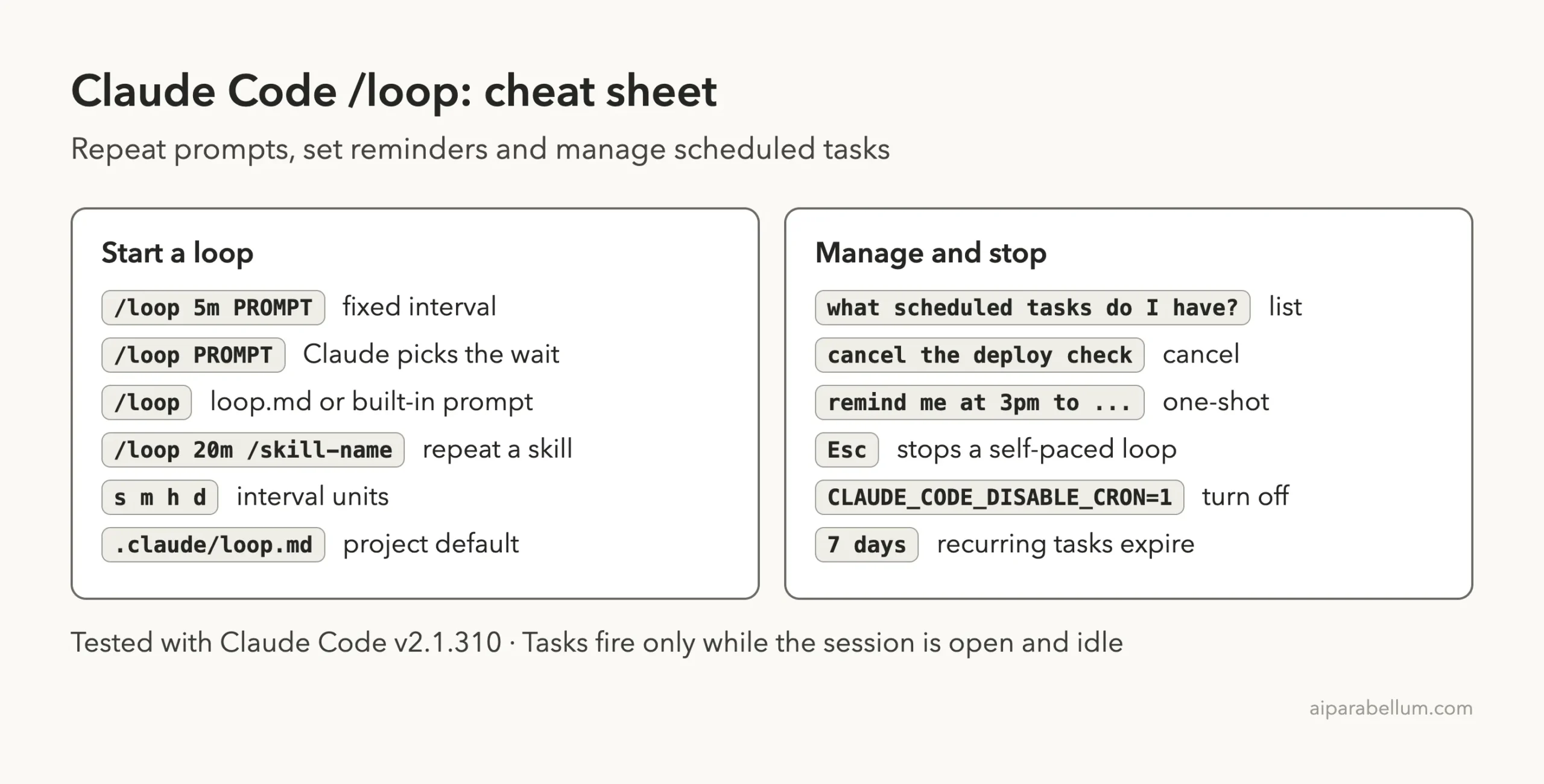
Claude Code Loop Cheat Sheet
Frequently Asked Questions
Does /loop keep running after I close Claude Code?
No. Tasks fire only while the session is running. Backgrounding the session carries /loop tasks over to a background session, and resuming restores most CronCreate tasks, but a closed session runs nothing.
What is the shortest interval I can use?
One minute. Seconds are rounded up to the nearest minute, because cron works in whole minutes.
How do I stop a /loop 5m loop?
Ask Claude to cancel it, for example “cancel the deploy check loop”. Esc and Ctrl+C only stop self-paced loops.
Why did my loop stop after a week?
Recurring tasks expire 7 days after you create them. They fire one last time and then delete themselves. Recreate the task, or move it to a cloud or Desktop scheduled task.
Can I run a loop in my own time zone?
Yes, and you do not need to do anything. All schedules use your local time zone, so 0 9 * * * means 9am where you are.
Conclusion
The Claude Code loop turns “check again in a few minutes” into something Claude does for you while you keep working. Use /loop with an interval for steady polling, leave the interval out to let Claude pace itself, keep a loop.md for your daily routine, and ask in plain English for one-time reminders. Remember that loops live and die with your session, cancel fixed loops by asking Claude, press Esc for self-paced ones, and reach for cloud or Desktop scheduled tasks when the job has to run without you. For more on Claude itself, see our Claude AI overview.
Previous in the series: Part 34, Claude Code Plugin Marketplaces Explained
Next in the series: Part 36: Claude Code Headless Mode: Use claude -p in Scripts.