Claude Code agent teams let one Claude Code session act as a team lead while several other Claude Code sessions work as its teammates. Each teammate has its own context window, and they can message each other directly instead of only reporting back to the boss. The feature is experimental and switched off by default, so you have to turn it on before you can try it.
In this guide you will learn what an agent team is, how it differs from a subagent, how to switch it on, and how to start, steer and shut down your first team. We tried it for real on a tiny Python file with two teammates, and we will show you exactly what happened, including one mistake we made along the way.
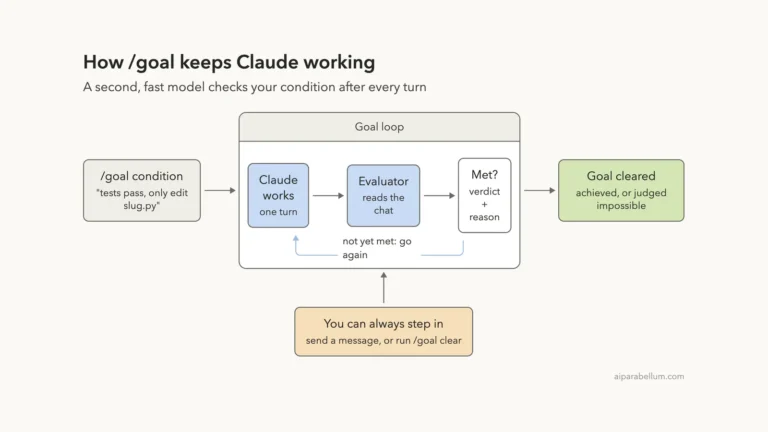
This is Part 39 of 53 in our Claude Code tutorials series. In the previous part you learned how to run several agents side by side yourself; today a lead session does the coordinating for you.
Tested with Claude Code v2.1.310 on October 25, 2026, on macOS, inside a small throwaway demo folder.
Quick Summary: Claude Code Agent Teams at a Glance
| Question | Short answer |
|---|---|
| What is an agent team? | A lead session plus teammates that share a task list and message each other |
| Is it on by default? | No. It is experimental and disabled until you set an environment variable |
| How do I turn it on? | Set CLAUDE_CODE_EXPERIMENTAL_AGENT_TEAMS to 1 in settings.json or your shell |
| How do I start a team? | Describe the teammates you want in plain English |
| How do I talk to one teammate? | Arrow keys in the agent panel, then Enter |
| Does it work with claude -p? | No. Teammates need an interactive session |
| Is it more expensive? | Yes. Every teammate is a separate Claude instance with its own context |
| How do I end it? | Ask the lead to shut the teammates down by name |
What Are Claude Code Agent Teams?
Think of a small project team at work. One person leads, hands out jobs and pulls the results together. Everyone else works on their own piece and can walk over to a coworker’s desk to compare notes.
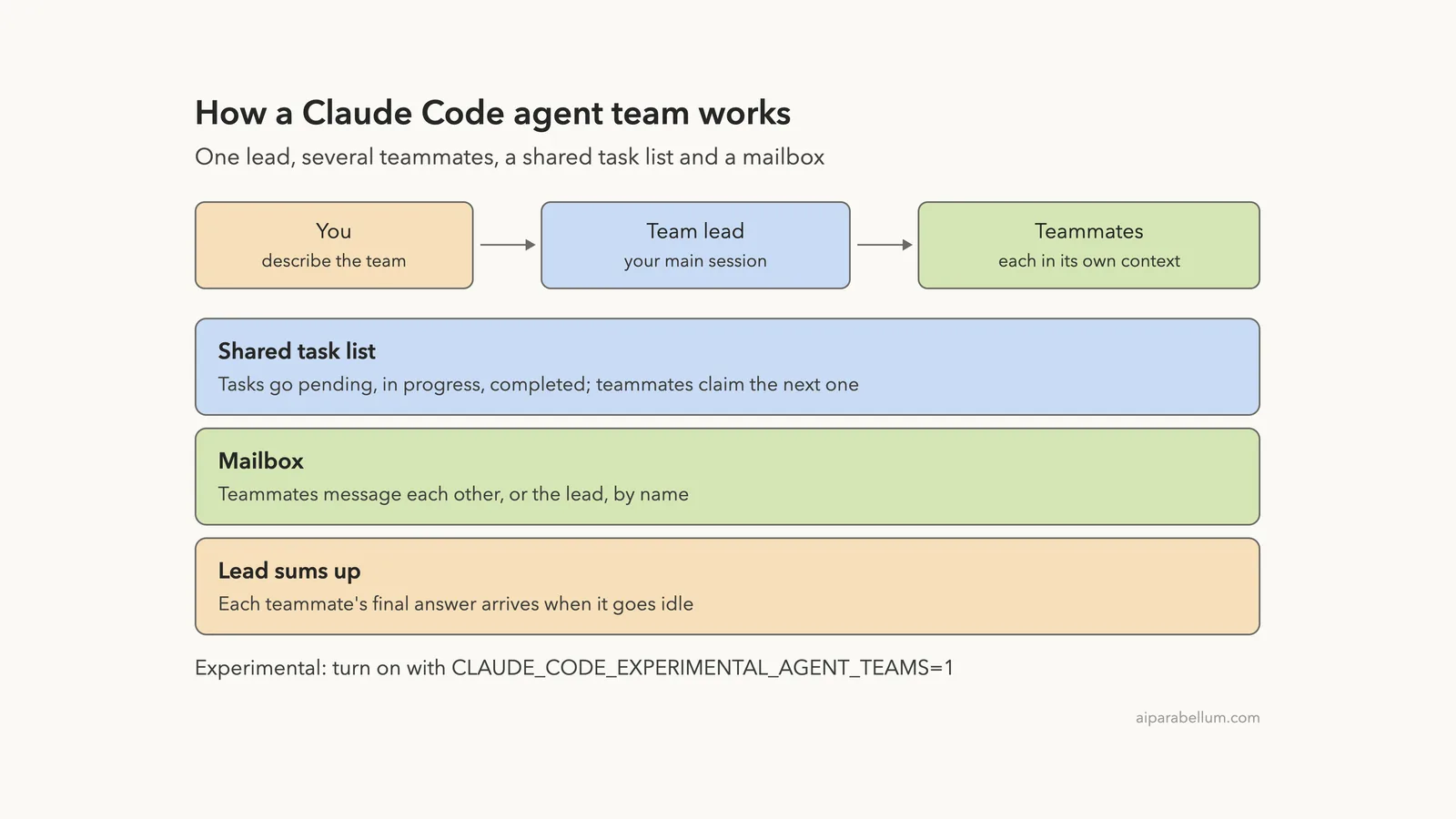
Agent teams copy that setup. According to the official agent teams guide, a team has four parts: a team lead, the teammates, a shared task list and a mailbox for messages between agents.
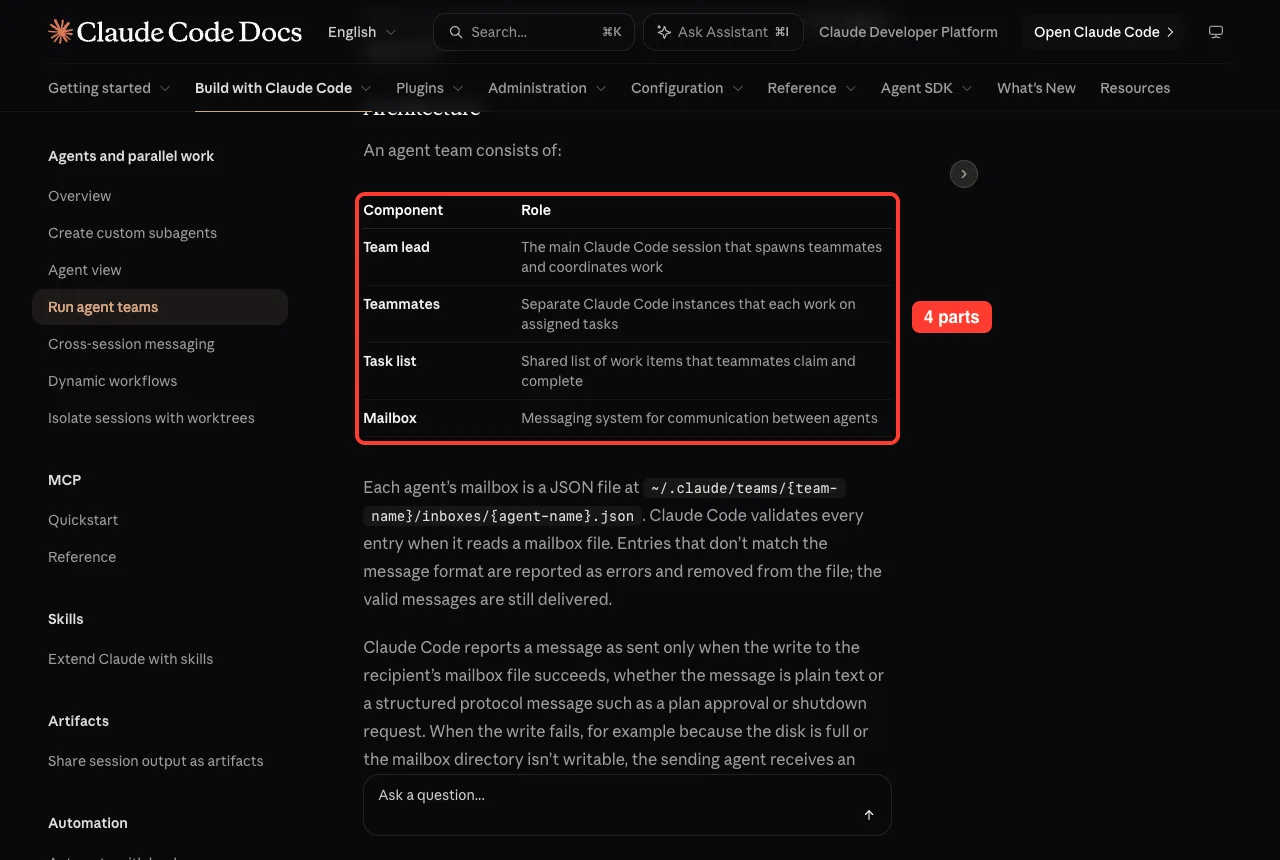
The lead is simply the session you started. It stays the lead for its whole life, and only the lead can add or remove teammates. Teammates cannot start teams of their own.
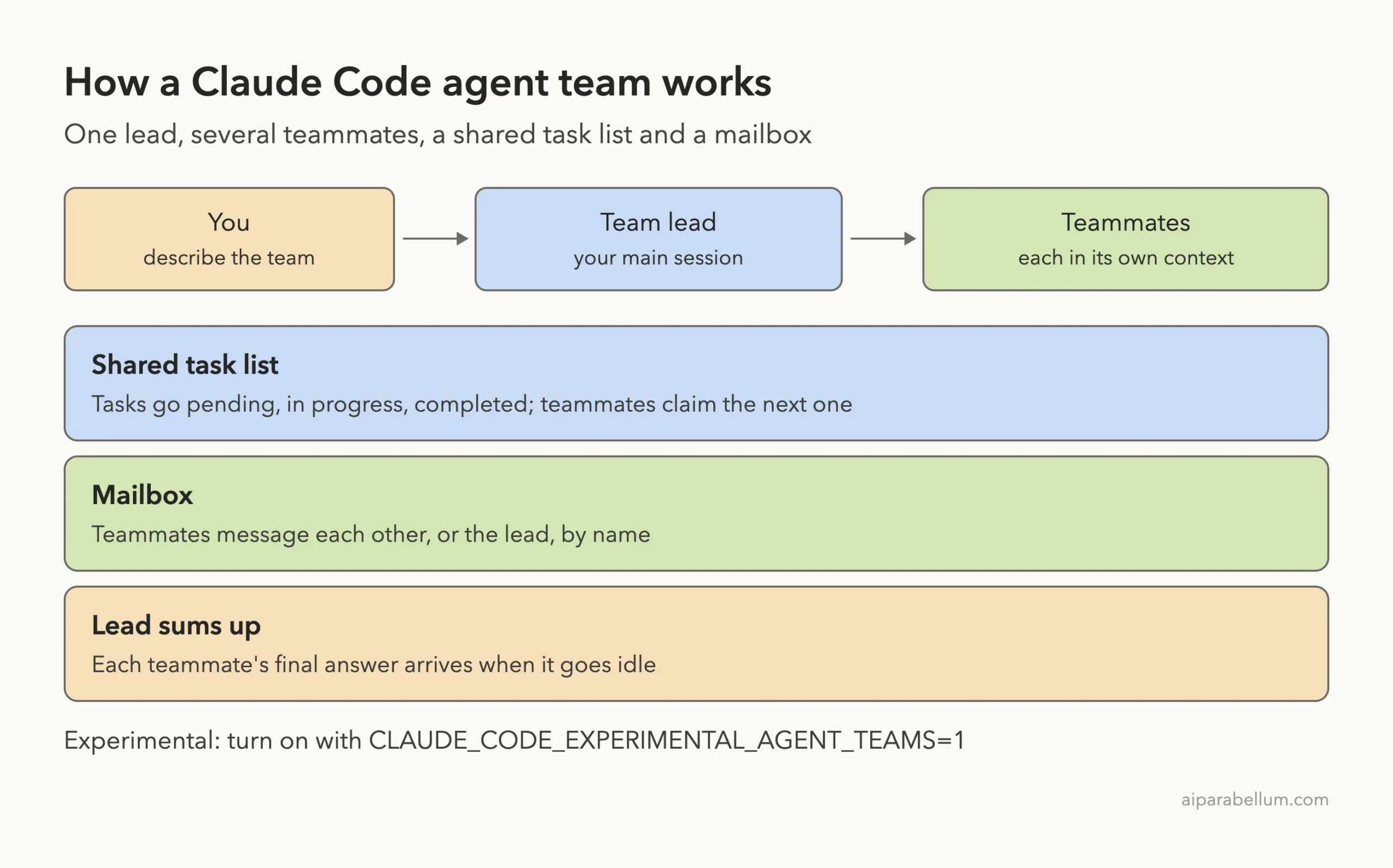
A subagent reports to its boss. A teammate can also talk to its coworkers.
Agent teams vs subagents
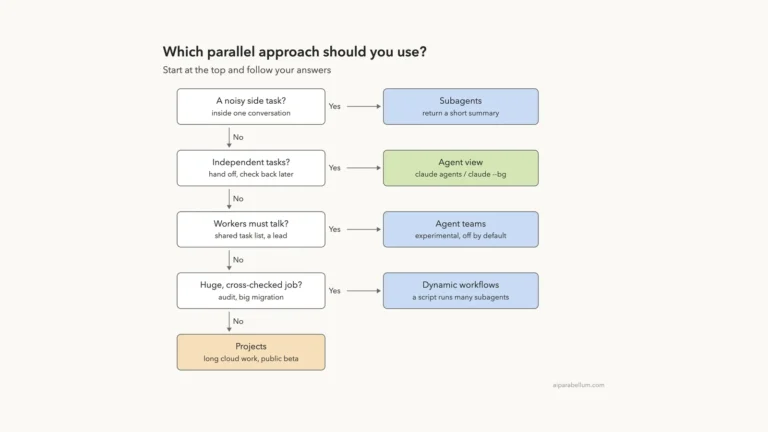
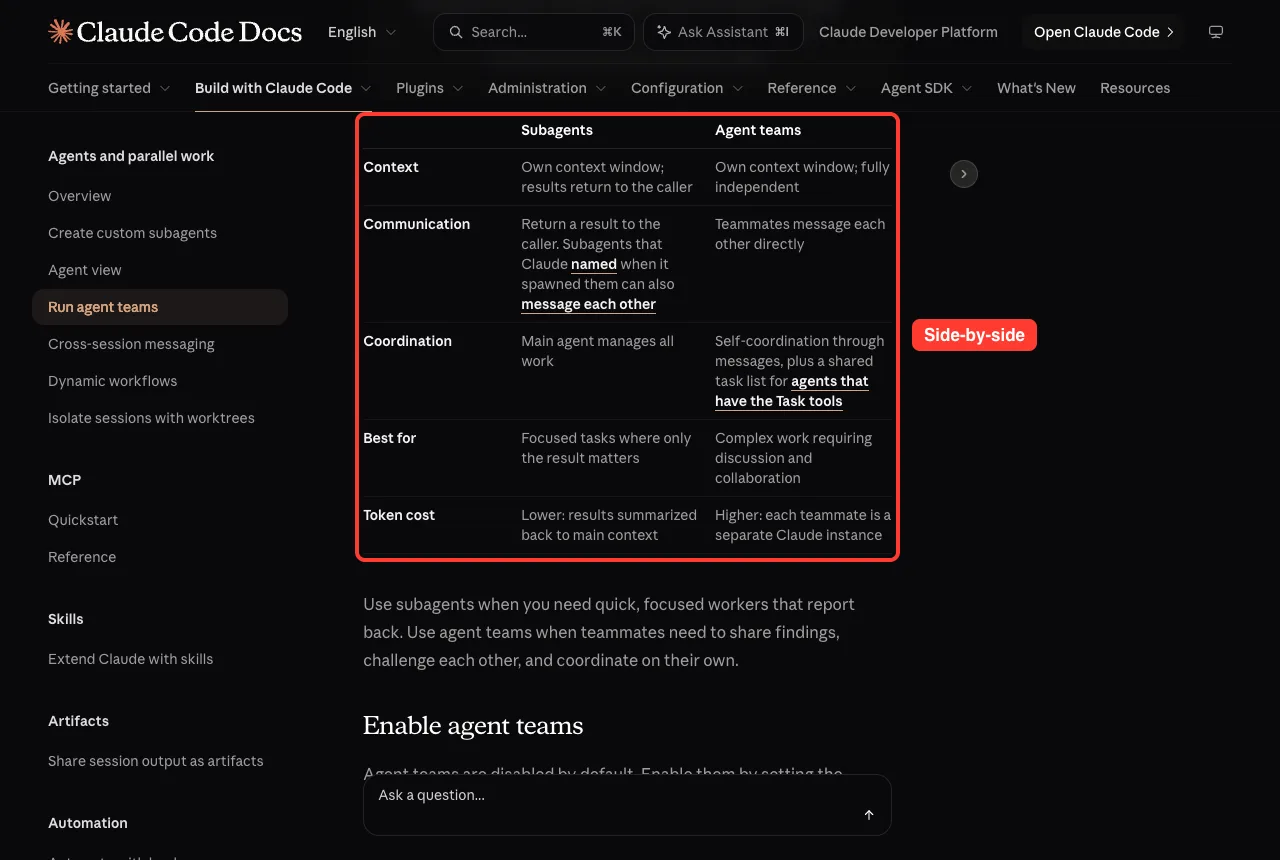
You met Claude Code subagents earlier in this series. Both features run work in a separate context window, so it is easy to mix them up. The real difference is who talks to whom.
| Subagents | Agent teams | |
|---|---|---|
| Who coordinates | The main agent manages all the work | A lead plus a shared task list and messages |
| Communication | Results return to the caller | Teammates message each other directly |
| Best for | Focused jobs where only the result matters | Work that needs discussion and collaboration |
| Token cost | Lower, results are summarized back | Higher, every teammate is a full Claude instance |
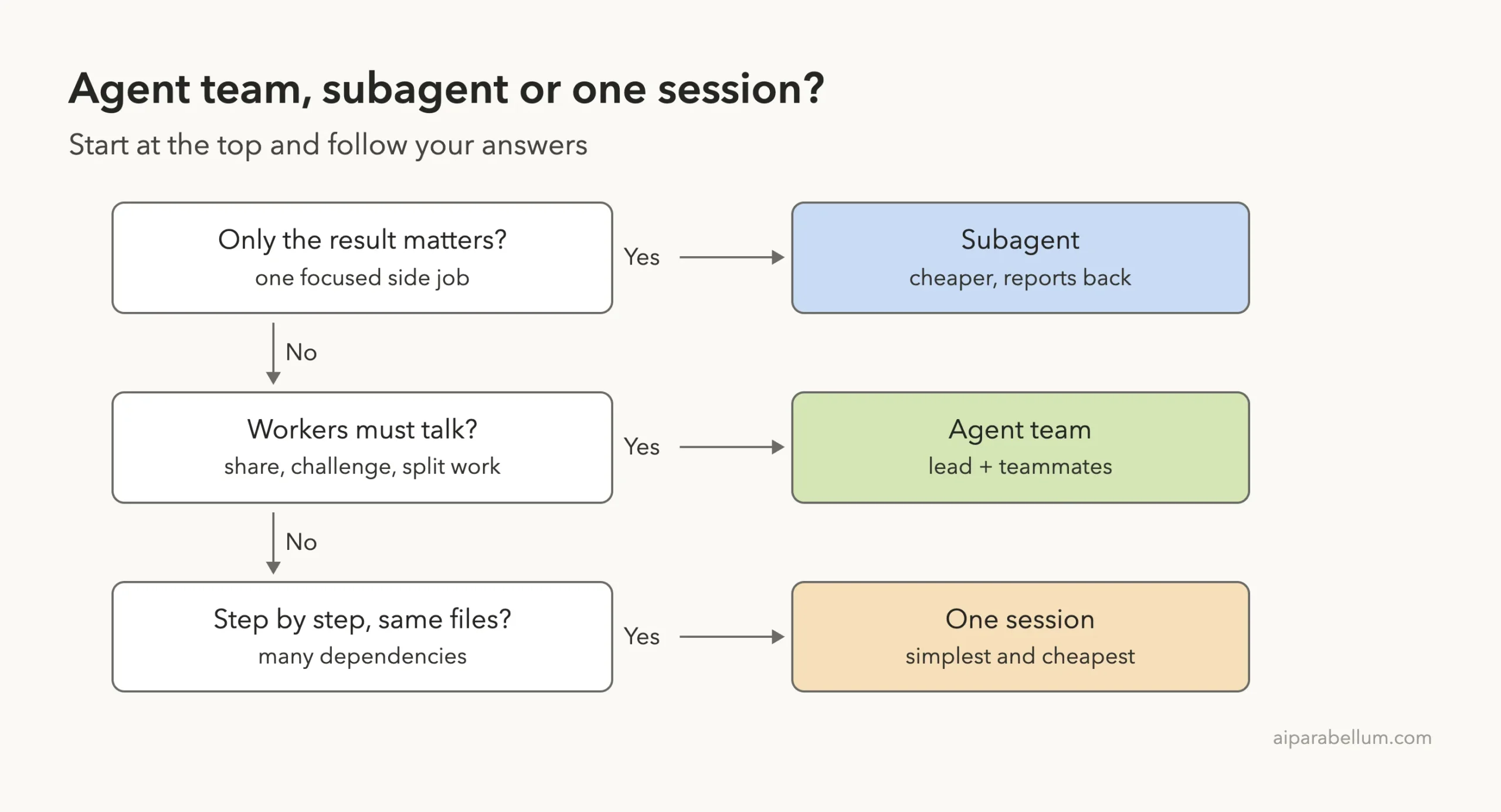
The docs are honest that teams are not always the answer. For step-by-step work, edits to the same file, or tasks with many dependencies, one session or a subagent does the job better and costs less.
How to Enable Claude Code Agent Teams
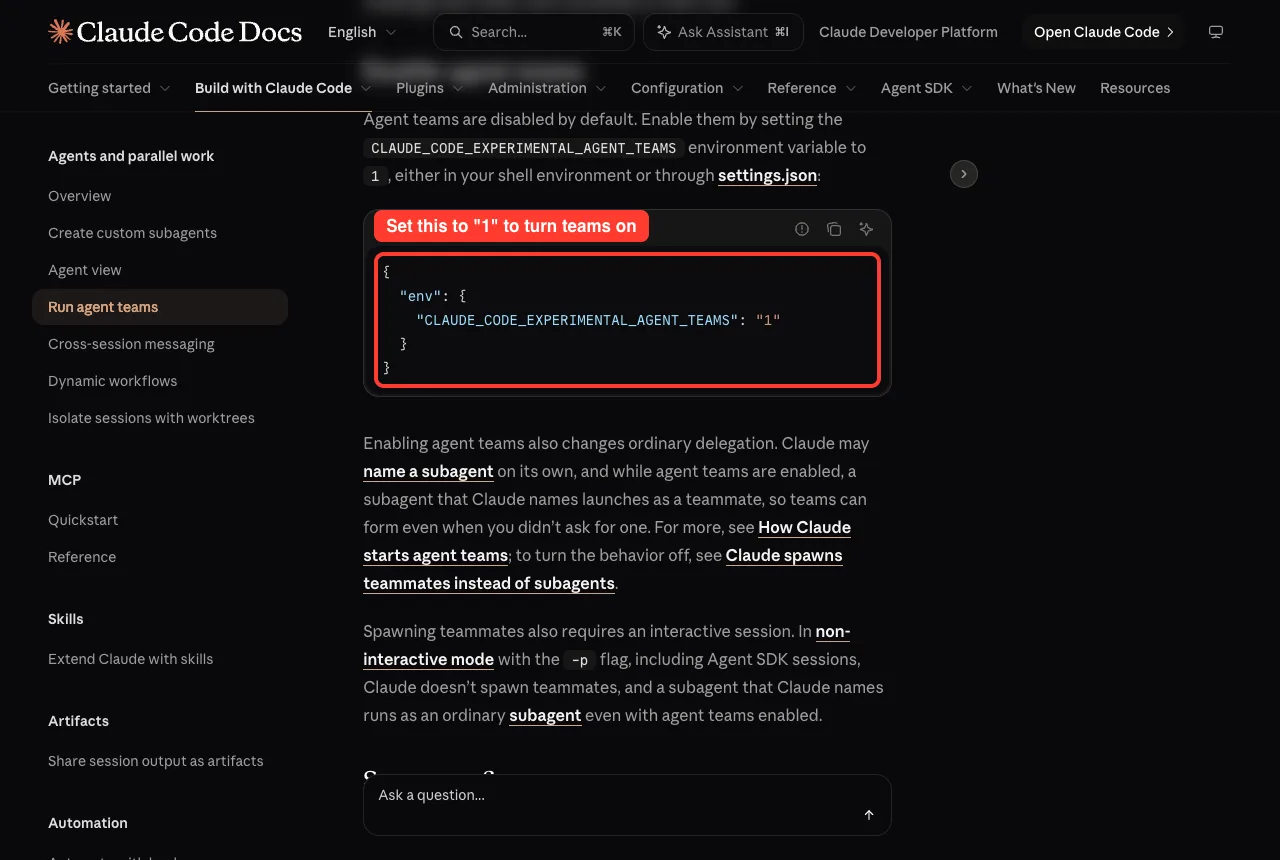
Agent teams stay off until you set one environment variable, CLAUDE_CODE_EXPERIMENTAL_AGENT_TEAMS, to 1. You can export it in your shell, or put it in the env block of a settings file so it travels with the project.
{
  "env": {
    "CLAUDE_CODE_EXPERIMENTAL_AGENT_TEAMS": "1"
  }
}
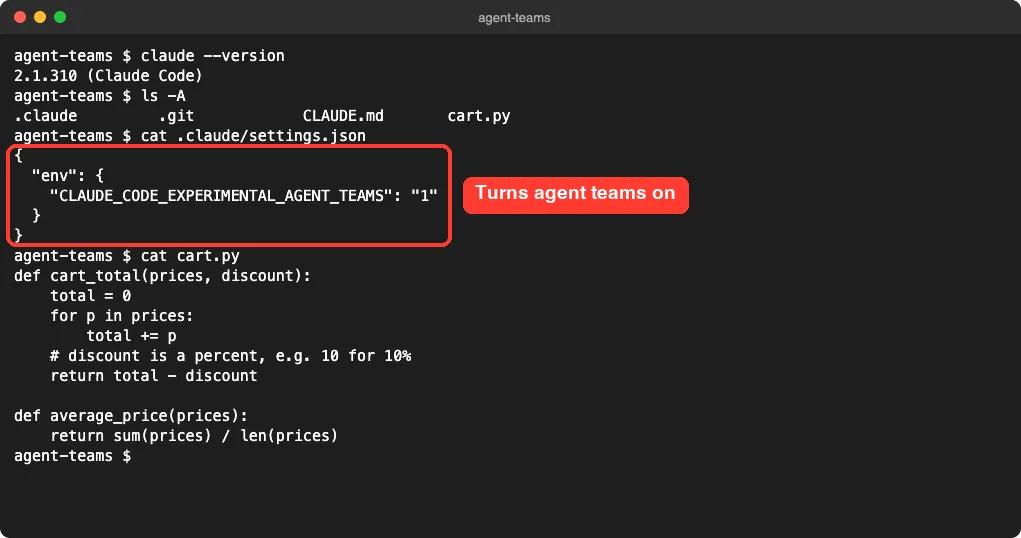
For our test we made a demo folder with a short CLAUDE.md, a nine-line cart.py file with two planted bugs, and the setting above in .claude/settings.json. Keeping it in the project file means the setting only applies to that folder.
Two things change once teams are on
- Claude sometimes names a subagent on its own so it can message it later. While teams are enabled, a named subagent launches as a teammate, so a team can form even when you did not ask for one.
- Teammates only appear in interactive sessions. With claude -p or the Agent SDK, Claude does not spawn teammates and named subagents stay ordinary subagents.
If you see teammates you did not want, set the same variable to 0. The docs say Claude Code rereads settings-file env values in a running session, so the next named subagent launches as a plain subagent again.
Start Your First Claude Code Agent Team
There is no special command. You describe the team in plain English and the lead spawns it. Clear, independent roles work best, because each teammate can dig in without waiting on the others.
Here is the exact prompt we used. Naming the teammates gives you names you can use later, and asking for Haiku keeps a small test cheap.
Create an agent team to review cart.py. Spawn two teammates using Haiku:
one named bug-hunter who finds bugs, one named test-writer who suggests
3 test cases. No file edits. Each reports in under 60 words, then you
sum up. When both have reported, ask them to shut down.
Step 1: Watch the team launch
Within a few seconds the lead reported two background agents launched, @bug-hunter and @test-writer. A new agent panel appeared below the prompt box with one row for the lead, labeled main, and one row per teammate.
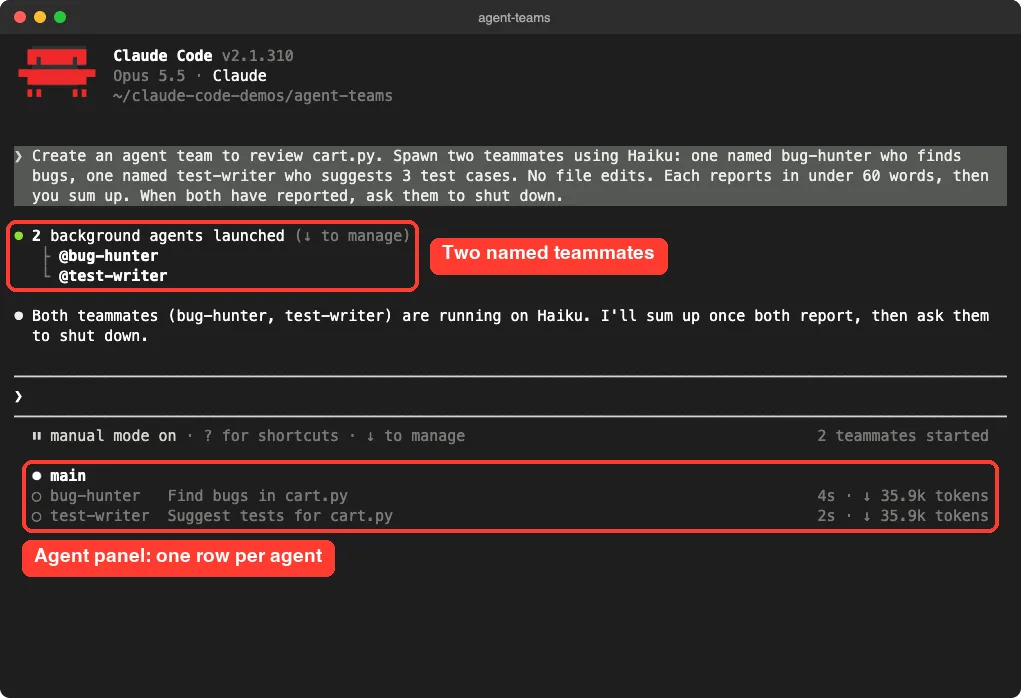
Look at the token counts on the right. Each teammate showed about 35.9k tokens within its first few seconds, because every teammate loads its own copy of the project context. That is the cost side of agent teams in one glance.
Step 2: Let teammates report in
You do not need to poll. When a teammate sends a message, it lands in the lead’s conversation on its own. In one run, bug-hunter finished first, so the lead shared its findings and said it was still waiting on test-writer.
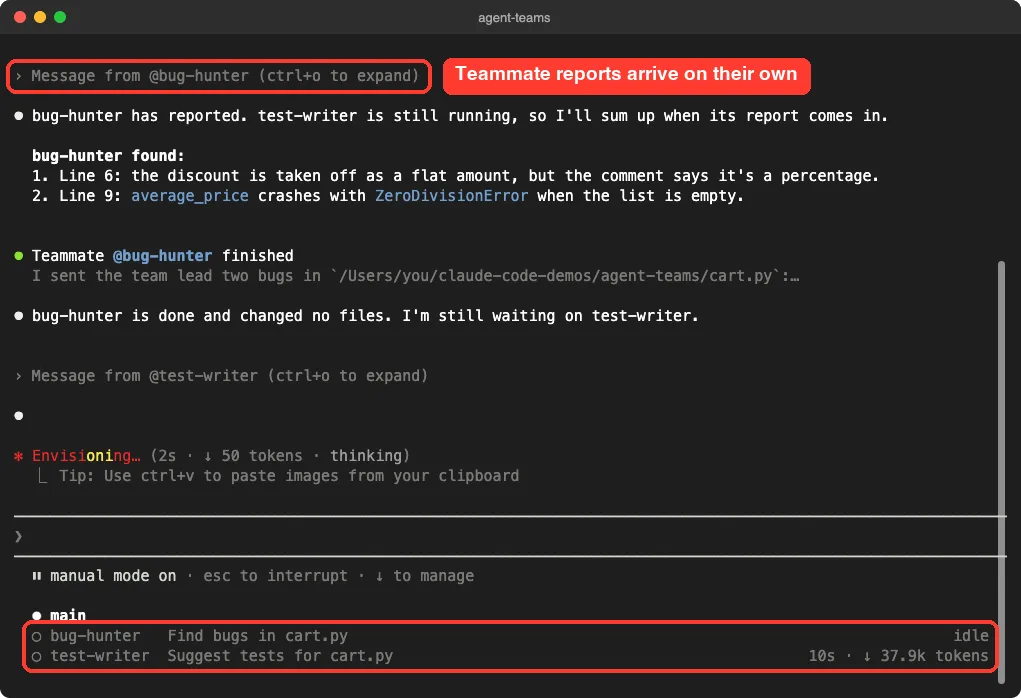
Both teammates found the planted problems: the discount is taken off as a flat amount even though the comment says it is a percent, and average_price crashes on an empty list. The test-writer then suggested test cases that fail on the current code, which is exactly what you want from a test.
Step 3: Read the lead’s summary and shut down
Once both reports arrived, the lead combined them into one answer and asked both teammates to shut down. The grey line under the prompt, fix both bugs in cart.py, is only a suggested next prompt, not something we typed.
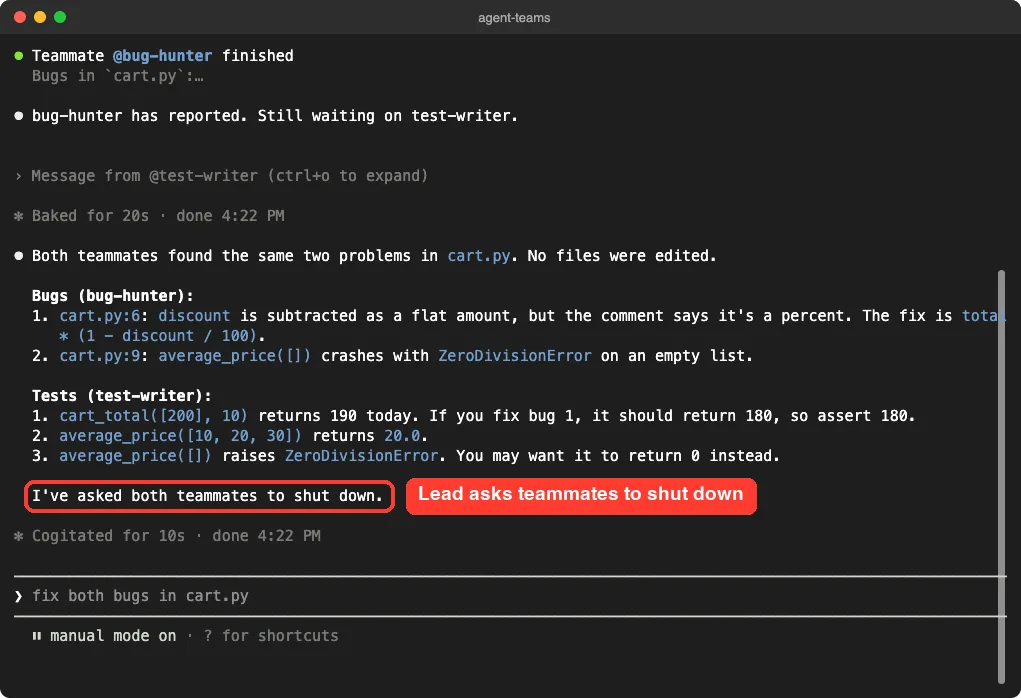
You can also shut down one teammate by name at any time, for example “Ask the researcher teammate to shut down.” The teammate can agree and exit, or refuse with a reason.
Talk to a Teammate Directly
Every teammate is a full Claude Code session, and you can talk to it without going through the lead. In the default in-process mode, everything happens in your one terminal window.
- Press the down arrow to move into the agent panel.
- Use the up and down arrows to select a teammate.
- Press Enter to open its session and type a message.
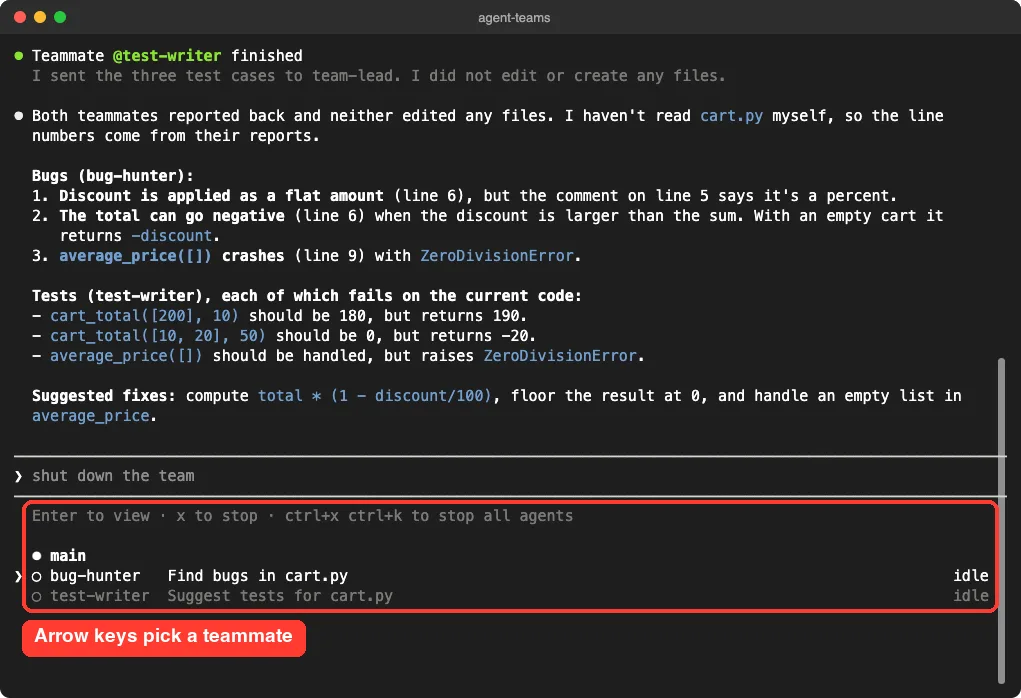
The hint line also shows that x stops the selected teammate. In our session it listed a shortcut to stop all agents at once, too.
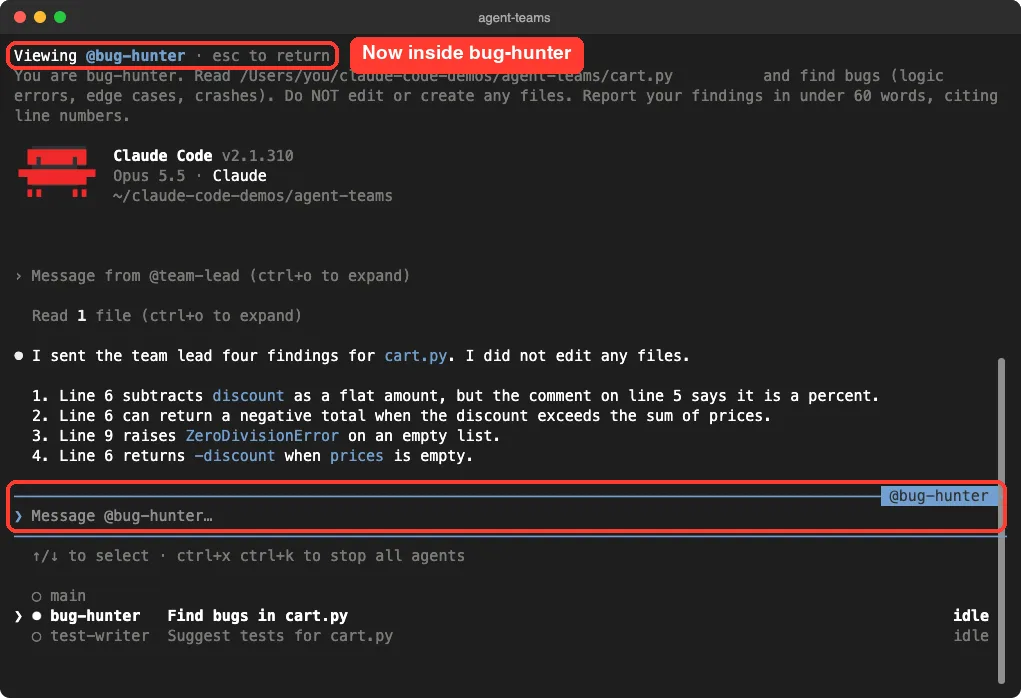
Notice what the teammate received. It got a short spawn prompt written by the lead, not your whole conversation. The docs confirm this: teammates load CLAUDE.md, MCP servers and skills, but not the lead’s chat history.
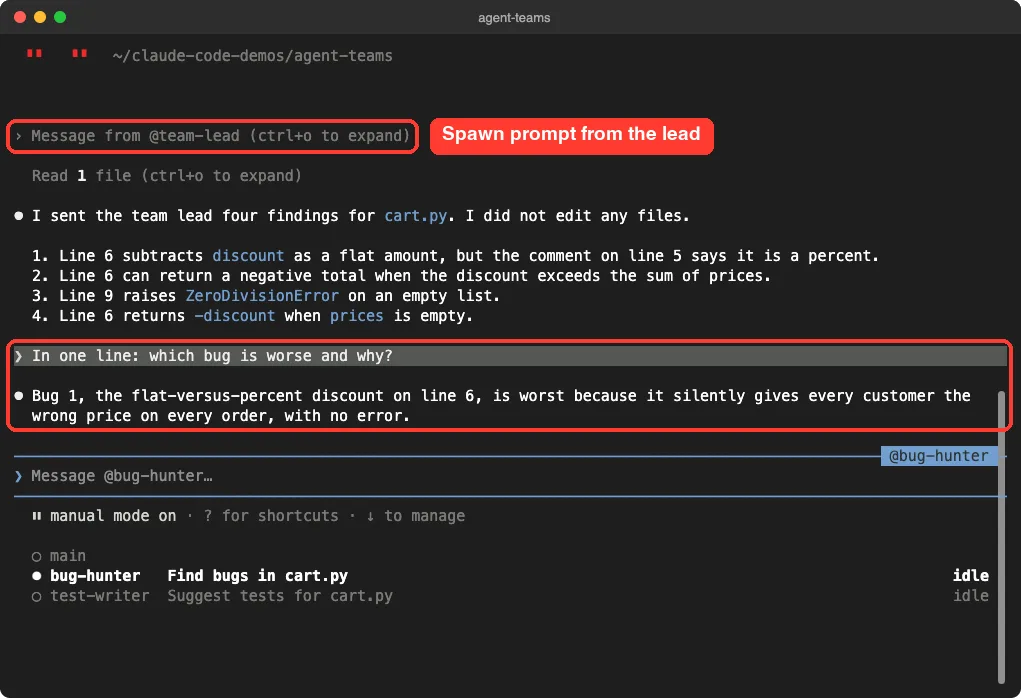
We then asked bug-hunter a follow-up question straight from its session. It answered in one line that the discount bug is worse, because it silently gives every customer the wrong price.
The mistake we made
Next we typed “Ask both teammates to shut down”, meaning it for the lead. But we were still inside bug-hunter’s view, so the message went to bug-hunter. It tried to send a shutdown request to the team lead and asked us for the other teammate’s name.
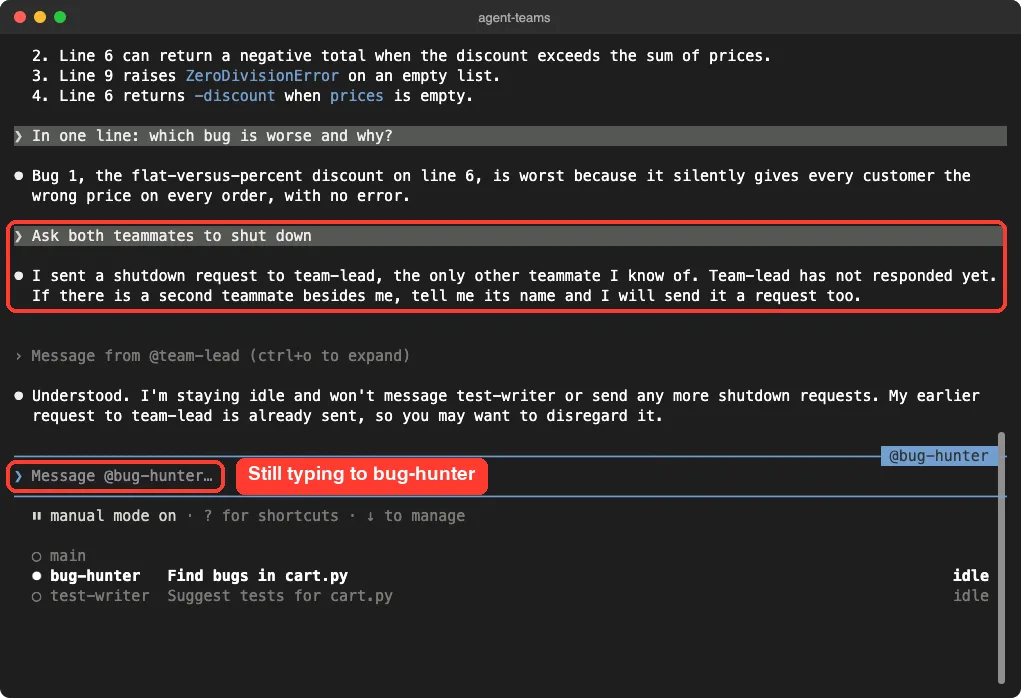
The lesson is simple: check the input box label before you type. If it says @bug-hunter, you are talking to bug-hunter. Go back to the main row in the agent panel to talk to the lead again.
Display Modes, Models and Plans
In-process or split panes
The default display mode is in-process: all teammates run inside your main terminal, like in our screenshots. Split-pane mode gives each teammate its own pane so you can watch everyone at once, but it needs tmux or iTerm2 with the it2 command-line tool.
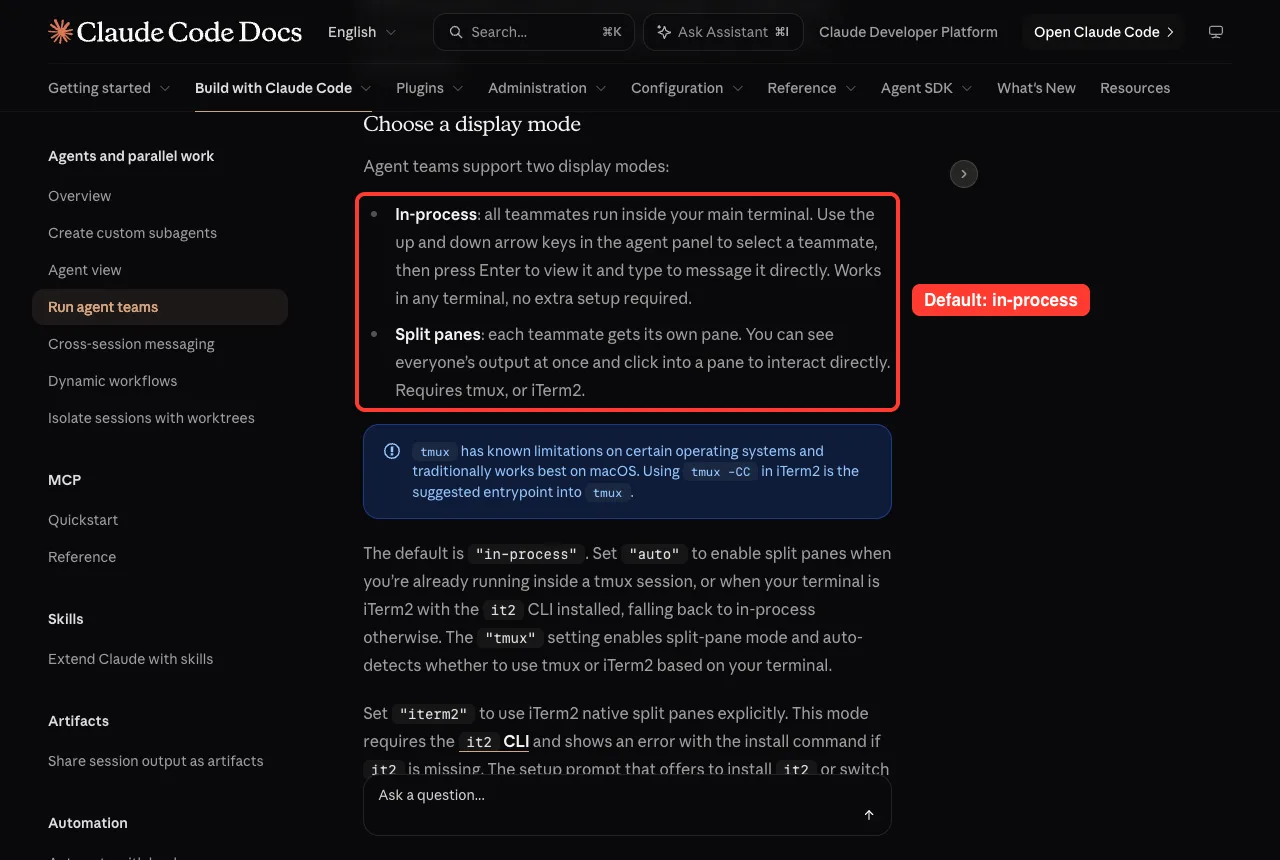
To change the default, set teammateMode in ~/.claude/settings.json to “auto”, “tmux” or “iterm2”. For one session only, start Claude with claude –teammate-mode auto. Split panes are not supported in VS Code’s built-in terminal, Windows Terminal or Ghostty.
Which model each teammate uses
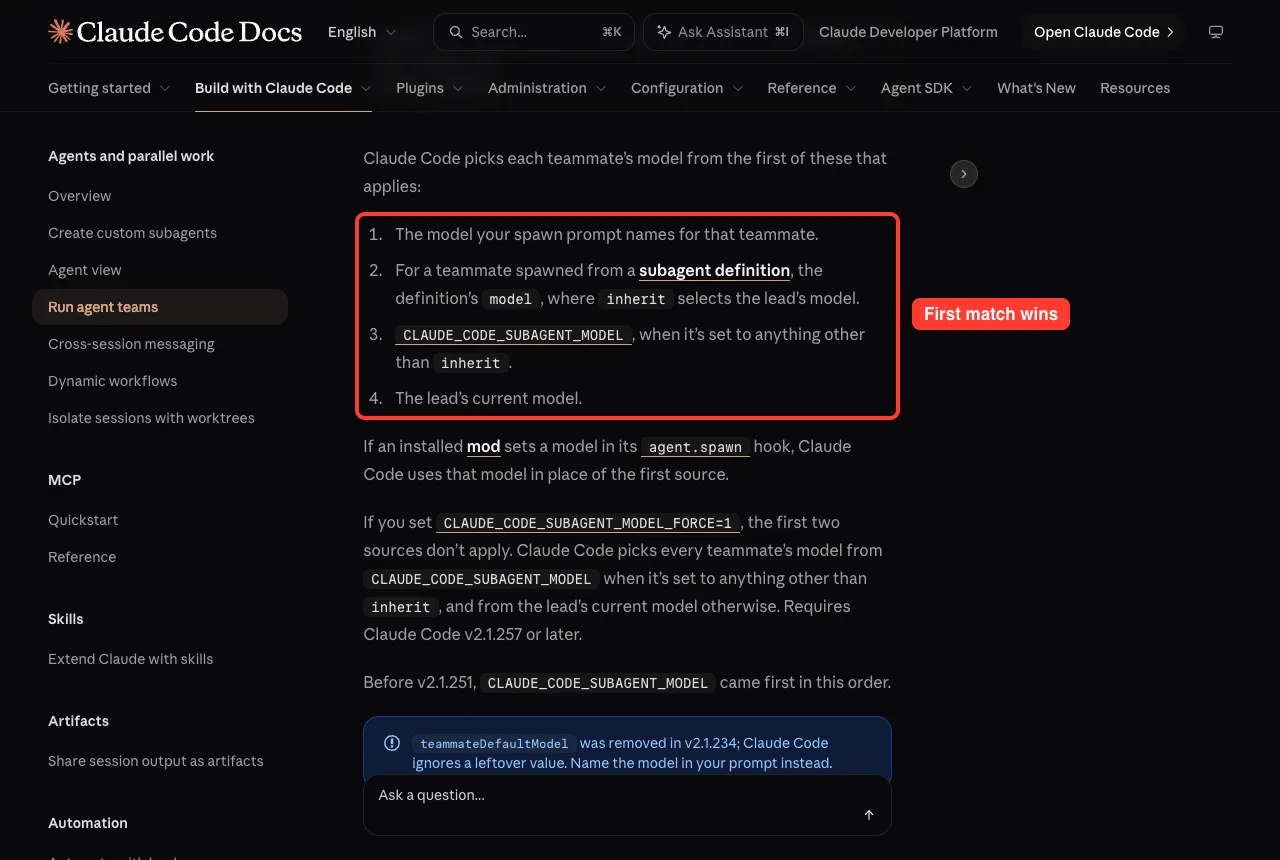
You can name a model in your spawn prompt, as we did with Haiku. Claude Code picks each teammate’s model from the first rule that applies, as shown below. Learn more about choosing models in our model guide.
| Order | Where the model comes from |
|---|---|
| First | The model your spawn prompt names for that teammate |
| Second | The model in a subagent definition the teammate is spawned from |
| Third | CLAUDE_CODE_SUBAGENT_MODEL, if it is set to something other than inherit |
| Last | The lead’s current model |
Have teammates plan first
For risky changes, switch the lead into plan mode before you ask for a teammate. That teammate then works read-only until its plan is ready. Teammate permission prompts show up in the lead session, so you approve them there.
You can also reuse a subagent definition as a teammate role, such as “Spawn a teammate using the security-reviewer agent type to audit the auth module.” The teammate gets that definition’s tools and model.
Where Claude Code Keeps Team Files
Teams are stored on your machine under a name made from the session ID. The team config lives in ~/.claude/teams/ and is removed when the session ends. The task list lives in ~/.claude/tasks/ and stays on disk.
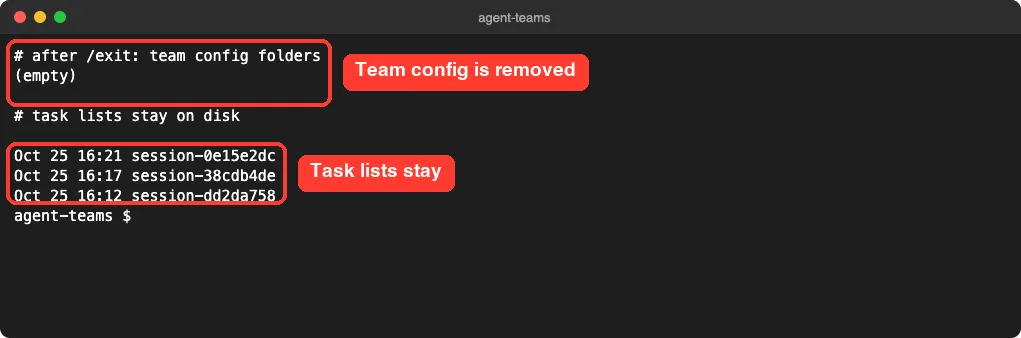
Our check matched the docs. The docs also warn not to edit the team config by hand, because Claude Code overwrites it, and a file like .claude/teams/teams.json in your project is just an ordinary file.
Quality gates with hooks
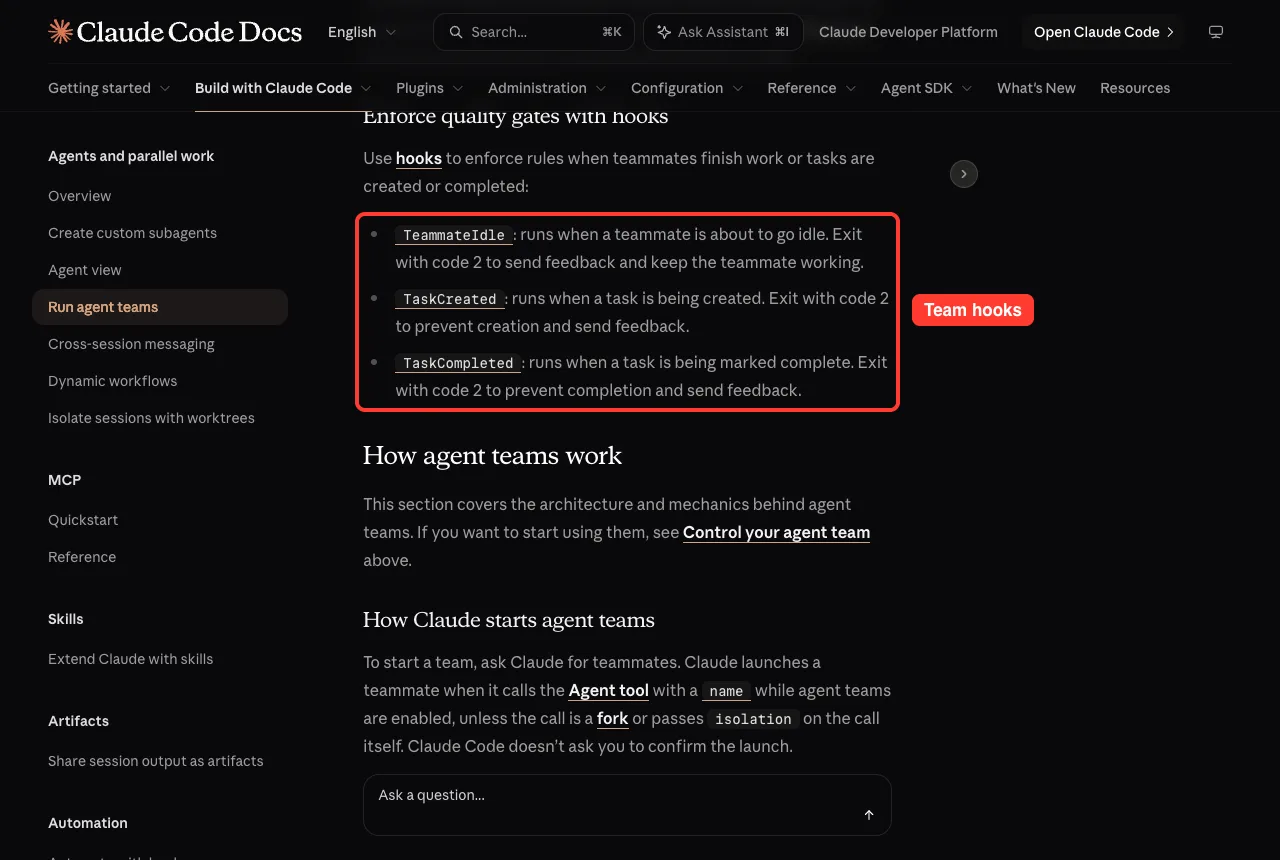
Three Claude Code hooks exist for teams. TeammateIdle runs when a teammate is about to go idle, TaskCreated when a task is created, and TaskCompleted when one is marked done. Exit with code 2 to send feedback and block the step.
Real Ways to Use Agent Teams
The docs suggest starting with research and review, because those tasks show the value of parallel work without file conflicts. Here are three good fits.
- Parallel code review: one teammate on security, one on performance, one on test coverage, and the lead merges the findings.
- Competing bug theories: several teammates each test a different theory and try to disprove each other’s, so the theory that survives is more likely to be right.
- Cross-layer features: frontend, backend and tests each owned by a different teammate, as long as they never edit the same file.
Try It Yourself
Make a throwaway folder, add the env setting from above to .claude/settings.json, and drop in one small file with a bug or two. Then start Claude Code in that folder and paste this prompt.
Create an agent team to review app.py. Spawn two teammates using Haiku:
one named reviewer who finds bugs, one named skeptic who tries to prove
the reviewer wrong. No file edits. Each reports in under 80 words, then
you sum up what they agree on. Then ask both teammates to shut down.
While it runs, press the down arrow, select a teammate and press Enter to read its session. Ask it one follow-up question, then go back to main before you type to the lead.
Common Mistakes
- Forgetting the setting. Without CLAUDE_CODE_EXPERIMENTAL_AGENT_TEAMS set to 1, Claude does not spawn or propose teammates at all.
- Typing in the wrong view. As we found, a message typed while viewing a teammate goes to that teammate, not the lead.
- Giving teammates too little context. They do not see your chat with the lead, so put file paths and goals in the spawn prompt.
- Letting two teammates edit one file. That leads to overwrites, so give each teammate its own set of files.
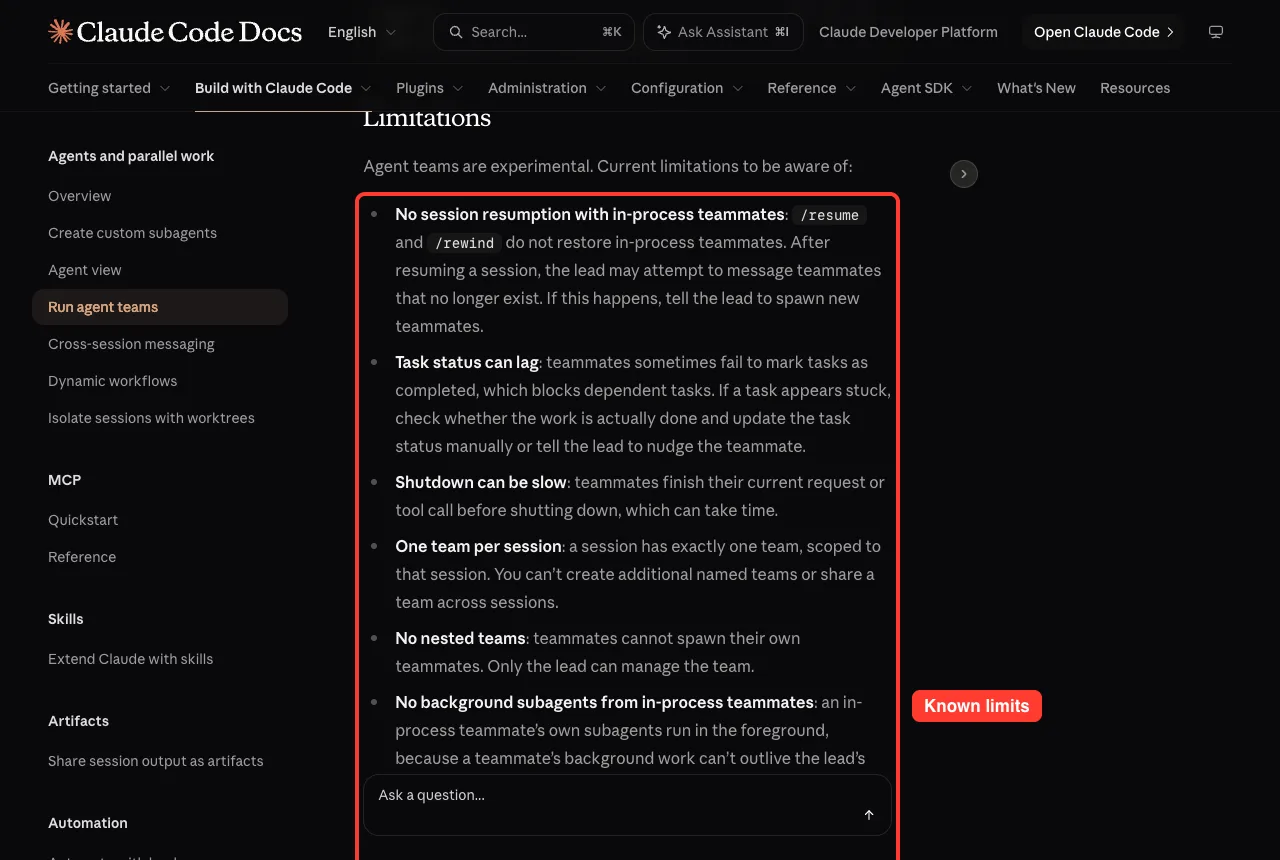
- Expecting /resume to bring teammates back. In-process teammates are not restored after you resume a session.
- Using a team for a small job. Each teammate costs a full context window, so a single session is cheaper for routine work.
Pro Tips
- Start with three to five teammates. The docs say three focused teammates often beat five scattered ones.
- Aim for five or six tasks per teammate, each with a clear result such as a function, a test file or a review.
- Name your teammates in the spawn prompt so you can message or shut them down by name later.
- If the lead starts doing the work itself, tell it: “Wait for your teammates to complete their tasks before proceeding.”
- Pre-approve common actions in your permission rules, since teammate prompts all land in the lead session.
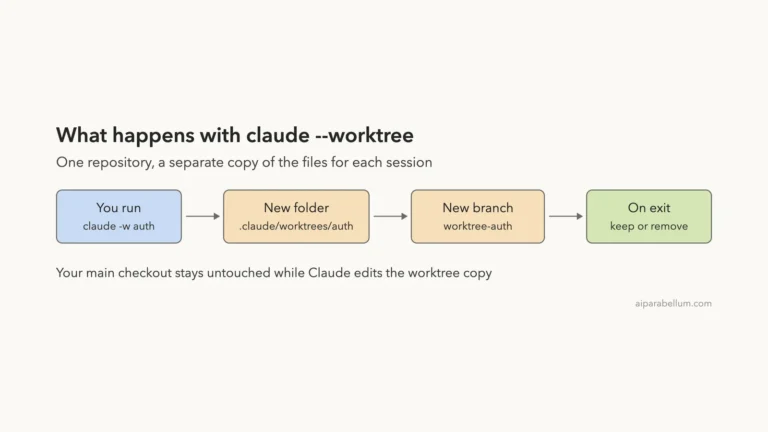
- For work you split across sessions by hand instead, git worktrees are the simpler choice.
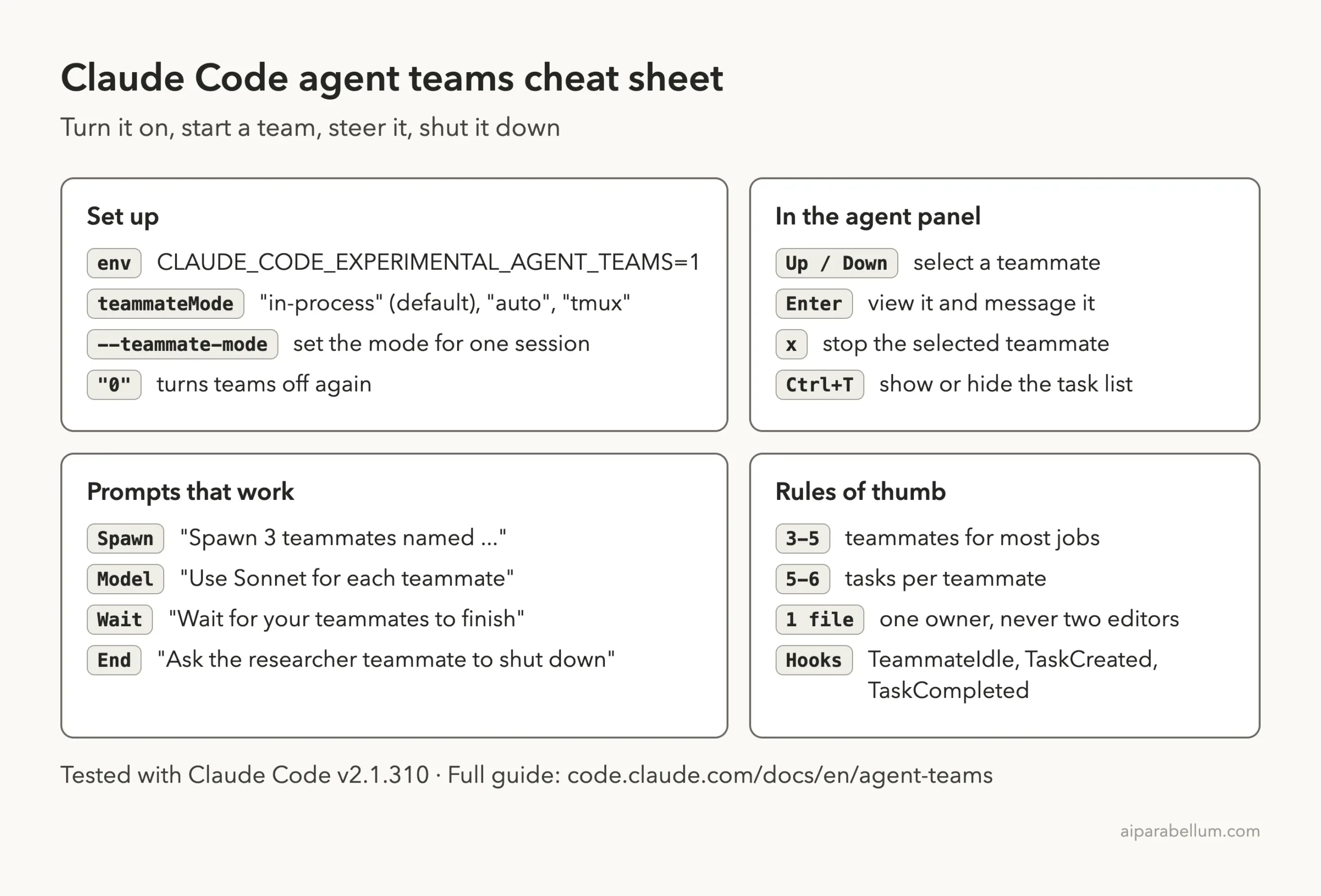
Claude Code Agent Teams Cheat Sheet
For details on what teams cost, see the official costs page. New to Claude itself? Our Claude AI overview is a good start.
Frequently Asked Questions
Are Claude Code agent teams free to use?
They use your normal Claude Code plan or API usage, but they use a lot more tokens than one session. Each teammate is a separate Claude instance with its own context window.
Can I use agent teams with claude -p in scripts?
No. Spawning teammates needs an interactive session. In non-interactive mode, including the Agent SDK, a named subagent runs as an ordinary subagent even with teams enabled.
How many teammates can a team have?
There is no hard limit, but cost and coordination grow with every teammate. The docs recommend three to five for most work.
Can teammates approve permission prompts for me?
No. Claude Code tells each agent that a message came from another Claude session, not from you, so a teammate cannot give consent on your behalf. You approve prompts in the lead session.
Can I run more than one team at a time?
Not in one session. Each session has exactly one team, and you cannot share a team across sessions or nest teams inside teams.
Conclusion
Claude Code agent teams turn one session into a lead that spawns teammates, hands out work through a shared task list and gathers results through a mailbox, which makes them a strong fit for parallel reviews, competing bug theories and features split across layers. They are experimental, off by default and expensive in tokens, so turn them on with one setting, start with a small research or review task, name your teammates, keep each one on its own files, and always check who you are typing to before you hit Enter.
Previous in the series: Part 38, How to Run Several Claude Code Agents in Parallel
Next in the series: Part 40: Keep Claude Code Working Toward a Goal With /goal.