
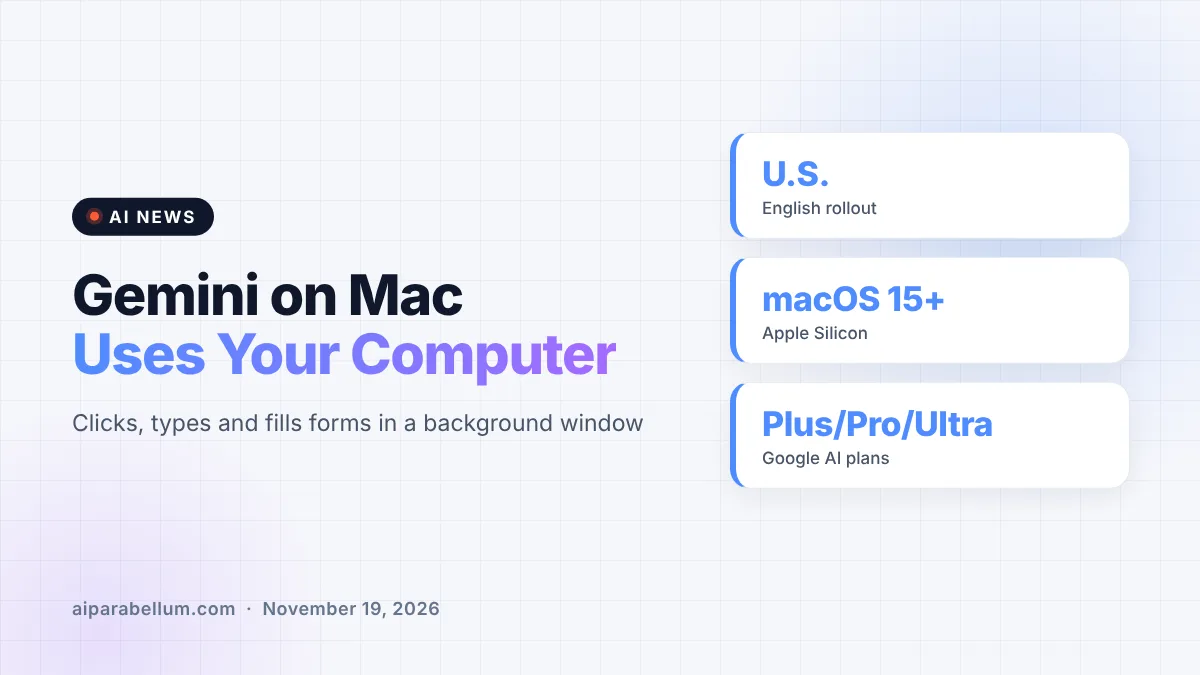
Google just gave the Gemini app for Mac a big new skill: computer use. Starting November 19, you can describe a multi-step job, and Gemini will click, type, open menus and fill in forms across your local files, desktop apps and the web. It works in its own background window, so your screen and cursor stay free while it handles the busywork.
The feature is rolling out now in English for users in the U.S. It is aimed at the kind of repetitive work that normally takes dozens of clicks, like moving data from a PDF into a web form or turning dashboard numbers into a slide deck.
What Gemini Computer Use on Mac Actually Does
Computer use means the AI can operate apps the way a person would. Instead of only answering questions in a chat box, Gemini can navigate menus, press buttons and type into fields to complete a task you describe in plain language.
Google says the agent runs inside an isolated window, with a live preview shown right in your Gemini chat. That design matters, because it means you can keep typing, designing or taking calls while the AI works in parallel instead of taking over your whole screen.
Example tasks Google highlights
Google shared a handful of starter ideas to show where the feature fits. They lean toward creative and admin chores rather than one-off questions.
- Batch color-grading photos in design software or setting up complex 3D scenes.
- Pulling weights, dimensions and addresses out of local PDFs to fill in multi-box shipping quotes.
- Grabbing metrics and screenshots from live dashboards and building a presentation in Google Slides.
- Analyzing clothing photos in a folder, researching prices and staging listings on resale sites.
If you have been looking for ways to automate repetitive tasks without writing scripts, this is the kind of tool that could replace a lot of manual copy-and-paste work.
Who Can Use the New Gemini Mac Feature
Not everyone gets access right away. Google’s fine print lists specific hardware, software and plan requirements, so it is worth checking before you download.
| Requirement | Details |
|---|---|
| Computer | Apple Silicon Mac |
| Operating system | macOS Sequoia 15.0 or newer |
| Account type | Personal Google accounts, age 18+ |
| Plans | Google AI Plus, Pro and Ultra subscribers |
| Region and language | U.S., English only for now |
| Where to get it | The Gemini app for Mac |
That means free Gemini users and work accounts are not part of this first rollout. Intel-based Macs are also left out.
How Google Keeps You in Control
Letting an AI click around your computer raises fair questions about safety and privacy. Google says it built several checks into the feature from the start.
- You choose which apps Gemini is allowed to access.
- You can watch every step through the live preview.
- You can pause the agent at any time.
- You approve key actions before Gemini carries them out.
These guardrails echo what other agent tools have started to adopt. Approval before key actions is especially important for anything involving purchases, messages or files you cannot easily undo.
Timing next to Apple’s new permission rules
The launch also lands as Apple tightens its own controls. According to The Verge, Apple is preparing new restrictions for apps that want full disk access on the Mac, citing potential risks from AI agents with computer use, and a preview of those settings appeared in this week’s macOS 27.3 beta.
How It Fits Into the Race for AI Agents
Google has been pushing Gemini beyond chat for weeks. Its recent Gemini task mode already lets the assistant make calls, pay bills and shop on your behalf, and the company just rolled out its new Gemini 4 Neon model.
Desktop agents are getting crowded, too. Perplexity Computer now runs fully local on Apple Silicon Macs, giving Mac users more than one AI agent to choose from. If you are comparing assistants, our Claude vs Gemini breakdown is a helpful starting point.
The real shift here is not that an AI can click buttons. It is that the agent now works beside you, in its own window, instead of taking over your machine.
What This Means for You
If you pay for a Google AI plan and use an Apple Silicon Mac, you can try this today. Start small so you learn how the agent behaves before handing it anything important.
- Begin with low-risk chores, like renaming files or drafting a slide deck from numbers you already have.
- Give Gemini access only to the apps a task truly needs, and review the list often.
- Keep an eye on the live preview the first few times, and use the approval step for anything that sends, buys or deletes.
- Double-check data the agent copies from PDFs or dashboards, since a single wrong number can spread fast.
For more ideas on getting time back, see our roundup of AI productivity tools, and follow the latest updates on our AI news page.
Sources
Primary source: Google’s computer use in Gemini for Mac announcement. Additional reporting from The Verge.
Conclusion
Computer use turns the Gemini app for Mac from a chat window into an assistant that can actually do the clicking for you. It runs in the background, asks for approval on key steps and lets you pick which apps it can touch. For now it is limited to paying U.S. users on Apple Silicon Macs, but it shows where desktop AI is heading. If repetitive work eats your day, this is worth a careful test run.