You rename files the same way every Monday. You copy data between apps, resize images, sort downloads, and send the same follow-up emails week after week. Each task takes only a few minutes, but they add up to hours of lost productivity every month.
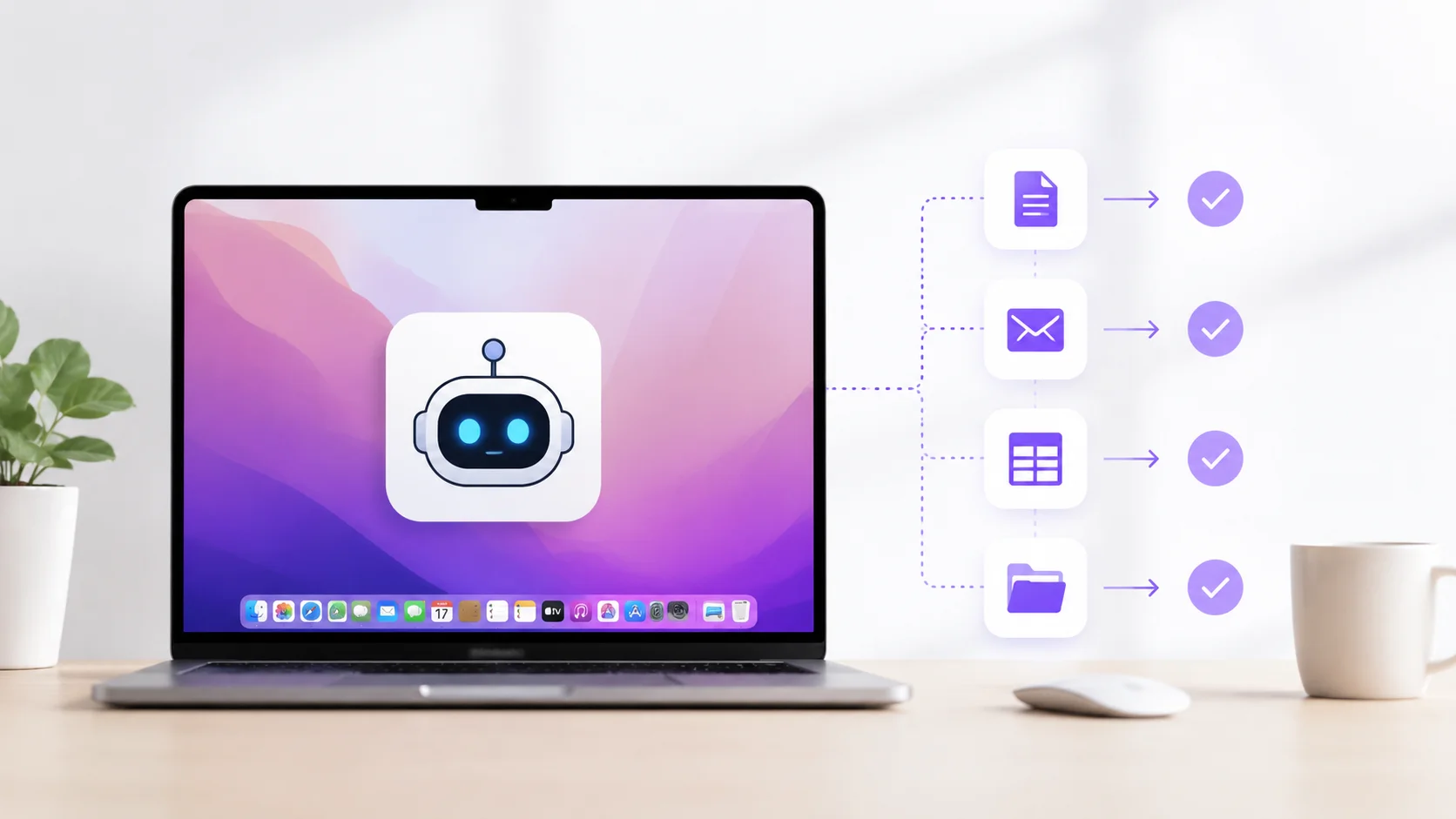
AI tools combined with your Mac’s built-in automation features can handle most of these repetitive tasks for you. From simple keyboard shortcuts to intelligent workflows that adapt based on context, automating your Mac with AI frees you up to focus on work that actually requires your brain.
Why Mac Is Great for AI-Powered Automation
macOS has a strong foundation for automation that most users never touch. Apple Shortcuts, Automator, AppleScript, and the Terminal give you multiple ways to create automated workflows. Adding AI on top of these tools makes them dramatically more powerful.
Apple Silicon Macs also run local AI models efficiently thanks to their Neural Engine. This means many AI-powered automations can run entirely on your machine without sending data to the cloud, which is a major advantage for privacy and speed.
The combination of native macOS automation tools with modern AI productivity tools creates a system where your Mac does the repetitive work while you handle the creative and strategic tasks.
Built-in Mac Automation Tools You Should Know
Before adding AI into the mix, it helps to understand what your Mac can already do on its own.
| Tool | What It Does | Skill Level |
|---|---|---|
| Apple Shortcuts | Visual workflow builder for multi-step automations | Beginner |
| Automator | Legacy workflow tool with deep system integration | Beginner to Intermediate |
| AppleScript | Scripting language to control Mac apps | Intermediate |
| Terminal (Shell Scripts) | Command-line automation for file and system tasks | Intermediate to Advanced |
| Keyboard Maestro | Third-party macro tool with triggers and conditions | Intermediate |
| Raycast | Launcher with built-in AI and extensible commands | Beginner to Intermediate |
Apple Shortcuts is the most accessible starting point. It uses a drag-and-drop interface and integrates with Siri, so you can trigger automations by voice. For more complex workflows, AppleScript and shell scripts give you fine-grained control over nearly everything on your Mac.
How AI Supercharges Mac Automation
Traditional automation follows rigid rules. If a file lands in this folder, move it there. If an email arrives from this sender, flag it. These rules work well for predictable tasks but break down when the task requires judgment.
AI adds intelligence to automation. Instead of following fixed rules, AI-powered workflows can understand context, interpret natural language, classify content, and make decisions based on patterns rather than exact matches.
For example, a traditional automation might move all PDF files from your Downloads folder to a Documents subfolder. An AI-powered version can read each PDF, determine whether it is an invoice, a contract, or a receipt, and file it into the correct category automatically. This is the kind of intelligent sorting that AI-powered personal assistants excel at.
Practical AI Automations for Your Mac
Here are specific automations you can set up today to eliminate repetitive tasks from your daily workflow.
Automatic File Organization
Your Downloads folder is probably a mess. AI can watch this folder and automatically sort files based on their content, not just their file type. Use a combination of Apple Shortcuts and an AI service to classify documents as they arrive.
Set up a folder action that triggers when a new file appears. The automation reads the file name and content, then uses AI to categorize it and move it to the appropriate folder. Invoices go to Finance, screenshots go to Images, and project documents go to their respective project folders.
Smart Email Drafting and Responses
If you send similar emails repeatedly, AI can draft them for you based on context. Tools like Raycast AI and ChatGPT integrate with your Mac to generate email drafts from short prompts.
Create a Shortcut that takes selected text, sends it to an AI model with instructions like “Draft a polite follow-up email based on this context,” and pastes the result directly into your email client. What used to take five minutes of typing now takes ten seconds of review.
Batch Image Processing
Designers and content creators often need to resize, compress, rename, or convert batches of images. Automator and Shortcuts can handle the basic transformations, while AI adds features like automatic background removal, smart cropping, and image description generation for alt text.
A practical workflow watches a specific folder for new images, automatically resizes them to your standard dimensions, converts them to WebP format, and generates descriptive file names based on the image content.
Meeting Notes and Summaries
After every meeting, you probably spend time typing up notes and action items. AI can automate this by processing meeting recordings or transcripts and generating structured summaries with key decisions and next steps highlighted.
Set up a workflow that takes a recording from your Voice Memos app, sends it to a transcription service, then passes the transcript through an AI model that extracts action items and formats everything as a clean summary document.
The goal of automation is not to do more work. It is to stop doing the work your computer should be doing for you.
Setting Up AI Automations With Apple Shortcuts
Apple Shortcuts is the easiest way to create AI-powered automations on your Mac. Here is how to build one step by step.
Step 1: Identify the Repetitive Task
Pick a task you do at least three times a week that follows a similar pattern. Good candidates include formatting text, converting files, sending templated messages, or organizing data.
Step 2: Map Out the Steps
Write down every step involved in the task. Open this app, copy this text, paste it here, format it this way, save it there. This becomes your automation blueprint.
Step 3: Build the Shortcut
Open the Shortcuts app and create a new shortcut. Add actions that match each step in your blueprint. For AI-powered steps, use the “Get Contents of URL” action to call an AI API, or use Shortcuts that integrate with tools like Raycast or ChatGPT.
Step 4: Add a Trigger
Decide how the automation should start. You can trigger it manually from the menu bar, assign a keyboard shortcut, schedule it at a specific time, or set it to run automatically when certain conditions are met, like a new file appearing in a folder.
Step 5: Test and Refine
Run the shortcut several times with different inputs to make sure it handles edge cases. AI-powered steps can sometimes produce unexpected results, so review the output carefully during your testing phase. Knowing how to write effective AI prompts makes a big difference in getting reliable results from AI steps in your automations.
Using Raycast AI for Quick Mac Automations
Raycast is a Spotlight replacement that has become one of the most popular tools for Mac power users. Its built-in AI features make it especially powerful for quick automations.
- Instant text transformations: select any text on your Mac, trigger Raycast, and ask AI to summarize it, rewrite it, translate it, or extract specific information from it.
- Custom AI commands: create saved prompts that you use frequently, like “Convert this meeting transcript into action items” or “Rewrite this paragraph in a more professional tone.”
- Clipboard history with AI: Raycast tracks your clipboard history and lets you search through past copies. AI can analyze clipboard contents to find specific items you copied hours ago.
- Script commands: write small scripts in Python, Bash, or JavaScript that Raycast can execute instantly from its launcher, combining traditional scripting with AI processing.
The beauty of Raycast is that everything is triggered from a single keyboard shortcut. You never have to leave what you are working on to run an automation.
Automating With AI Coding Assistants on Mac
If you are comfortable with code, AI coding assistants can help you write automation scripts faster than you could write them manually. Tools like GitHub Copilot, Cursor, and Claude can generate AppleScripts, shell scripts, and Python automations from natural language descriptions.
Describe what you want in plain English: “Write an AppleScript that checks my Calendar for meetings in the next hour, creates a summary of the agenda, and sends it to me via Messages.” The AI generates the script, you review it, and run it. This approach works particularly well for one-off automations that are too specific for a general-purpose tool.
AI code assistants are especially useful for creating automations that connect multiple apps through their APIs or scripting interfaces.
AI Automation Ideas Sorted by Time Saved
Not all automations save the same amount of time. Here are common Mac tasks ranked by how much time AI automation typically saves.
| Task | Manual Time per Week | With AI Automation | Weekly Time Saved |
|---|---|---|---|
| Sorting and filing downloads | 30-45 minutes | Fully automatic | 30-45 minutes |
| Writing follow-up emails | 1-2 hours | 5-10 minutes of review | 50-110 minutes |
| Resizing and converting images | 20-40 minutes | Fully automatic | 20-40 minutes |
| Summarizing meeting notes | 30-60 minutes | 2-3 minutes of review | 25-55 minutes |
| Data entry between apps | 1-3 hours | 15-30 minutes of setup | 45-150 minutes |
| Renaming files with consistent naming | 15-20 minutes | Fully automatic | 15-20 minutes |
The biggest wins come from automating tasks that happen daily and involve transferring information between apps. Data entry and email are where most people see the most dramatic time savings.
Connecting AI Automation Tools Together
The real power of AI automation on Mac comes from connecting multiple tools into seamless workflows. Here is how different tools work together.
- Apple Shortcuts handles the overall workflow logic, triggering actions and passing data between steps.
- AI APIs like OpenAI or Claude handle the intelligent processing, text generation, classification, and decision-making.
- AppleScript controls specific Mac apps that do not have Shortcuts support, like older applications or custom software.
- Shell scripts handle file system operations, data transformations, and interactions with command-line tools.
- Raycast provides the user interface layer, giving you quick access to trigger any automation from anywhere on your Mac.
A single automation might use all of these: Raycast triggers the workflow, Shortcuts orchestrates the steps, a shell script processes some files, an AI API classifies the content, and AppleScript delivers the result to the right app. The same principles behind AI agents replacing traditional integration platforms apply to personal Mac automation as well.
The best automation is invisible. It runs in the background, handles the boring stuff, and only interrupts you when something actually needs your attention.
Common Mistakes When Automating Mac Tasks With AI
Automation can backfire if you approach it wrong. Avoid these common pitfalls.
- Automating tasks you do not fully understand manually first. If you cannot do it by hand, you cannot debug it when the automation breaks.
- Over-engineering simple tasks. Not everything needs AI. If a simple Finder folder rule solves the problem, use that instead of building a complex AI pipeline.
- Ignoring error handling. Automations fail when inputs are unexpected. Build in checks so that a failed step does not corrupt your files or send a garbled email.
- Setting and forgetting without monitoring. Run your automations manually for a few weeks before letting them run unattended. Watch for edge cases you did not anticipate.
- Sending sensitive data to cloud AI services unnecessarily. If your automation handles financial documents or personal information, use local AI models when possible.
Running Local AI Models on Your Mac
One of the biggest advantages of modern Macs is their ability to run AI models locally. Tools like Ollama and LM Studio let you download and run language models directly on your Mac without sending any data to external servers.
This matters for automation because local models can process your files, emails, and documents with zero privacy risk. The AI runs entirely on your hardware, and nothing leaves your machine.
Apple Silicon Macs with 16 GB or more of unified memory can run capable models like Llama, Mistral, and Phi with good performance. For most automation tasks like text classification, summarization, and data extraction, these local models work well enough that you do not need a cloud service.
Getting Started: Your First AI Automation
If you have never automated anything on your Mac before, start with something small and immediately useful.
Here is a beginner-friendly first automation: create a Shortcut that takes selected text from any app, sends it to an AI model, and returns a summary. Assign it a keyboard shortcut like Command-Shift-S. Now whenever you are reading a long article, document, or email thread, select the text, press your shortcut, and get an instant summary.
This single automation teaches you the fundamentals: capturing input, processing it with AI, and delivering the output. Once you are comfortable with this pattern, you can apply it to dozens of other tasks. Many AI business tools follow this exact same input-process-output pattern at a larger scale.
From there, gradually add more automations as you notice yourself doing the same thing over and over. Keep a list of tasks that feel repetitive, and work through them one at a time. Within a month, you will have a collection of automations that save you hours every week.
Conclusion
Automating repetitive tasks on your Mac with AI transforms how you use your computer. Between Apple Shortcuts, Raycast, AI coding assistants, and local language models, you have everything you need to eliminate the busywork that eats into your productive hours. Start with one simple automation, learn the pattern of capturing input, processing it with AI, and delivering the result, then expand from there. The tasks that used to drain your energy and attention can run in the background while you focus on work that actually matters. Your Mac is capable of doing far more than you are currently asking it to do.