You asked Claude Code to change a file, and instead of a tidy diff you got a red line that says Error editing file. If you are staring at a claude code error editing file message right now, take a breath. In most cases the cause is simple: something on your Mac is refusing to let the file change, and Claude Code is only the messenger.
This guide is part of our Claude Code help and fixes collection. If an update problem brought you here, see our update fix guide.
Tested with Claude Code v2.1.312 on macOS on October 29, 2026.
The Quick Answer
An “Error editing file” or “Error writing file” message means Claude Code tried to save a change and the operating system said no.
The words after the error tell you why. Open the full text with Ctrl+O, read the error code (such as EPERM or EACCES), and fix the permission, lock or path problem it names. Then ask Claude to try the same edit again.
In our test, a file locked with the macOS immutable flag produced this exact failure, and the fix was one command. The rest of this guide shows what we saw, every common cause, and how to prevent the problem.
Quick Summary: Error Codes and What to Do
| What you see | What it usually means | First thing to try |
|---|---|---|
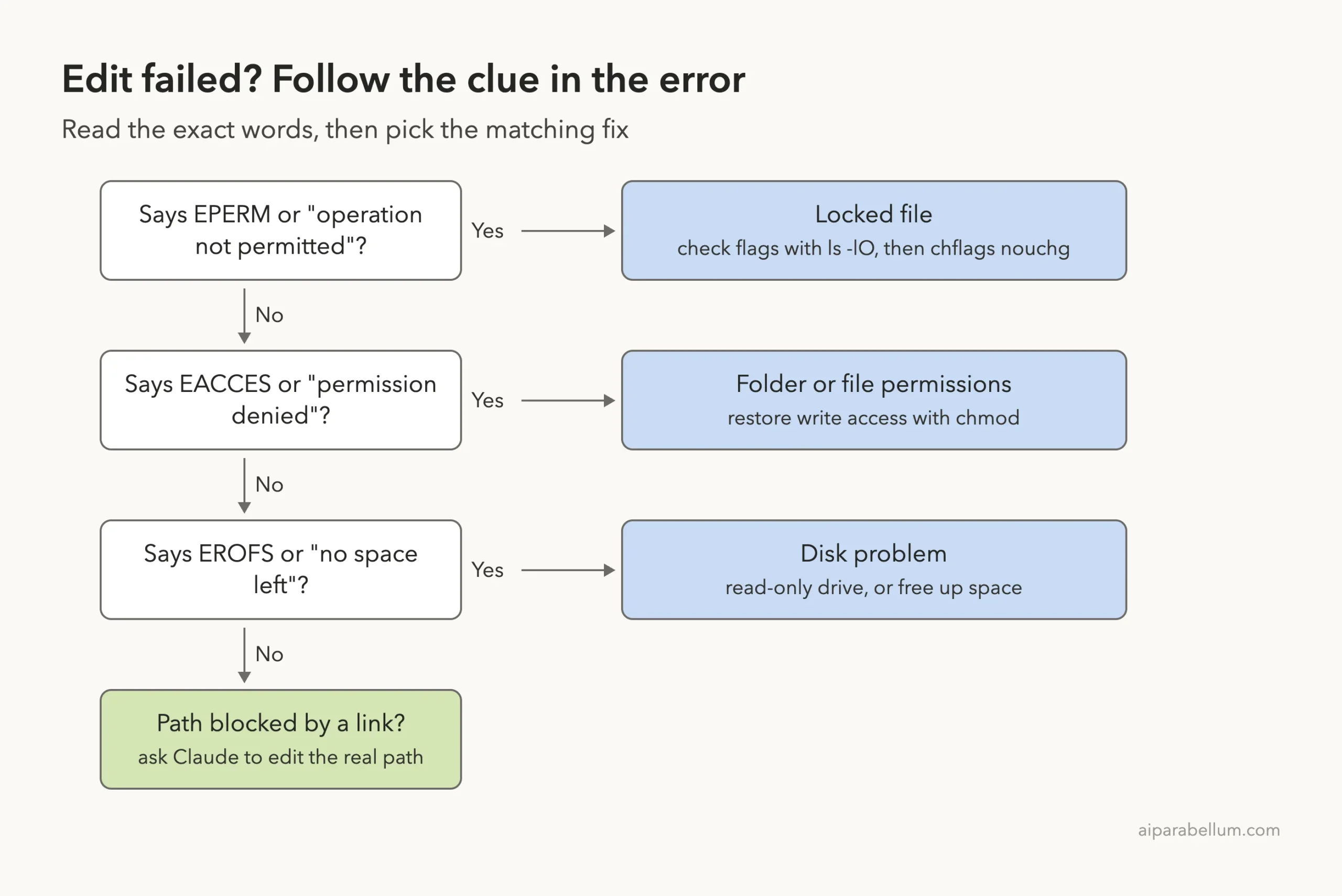
| EPERM: operation not permitted | The file is locked (for example the macOS uchg flag) or protected | Run ls -lO on the file, then chflags nouchg |
| EACCES: permission denied | You lack write or execute permission on the file or a folder above it | Check with ls -l and ls -ld, then chmod |
| EROFS | The file sits on a read-only filesystem | Make the location writable, or work on a copy |
| Short “Error editing file” line only | The path could not be safely resolved, often a symlink | Press Ctrl+O for details, then edit the real path |
What a Claude Code Error Editing File Message Actually Means
Claude Code does not edit your files by magic. It uses a file-editing tool that asks the operating system to write the new text to disk. If the operating system refuses, the tool reports a failure and Claude sees that failure as a tool error.
Anthropic’s error reference describes this for blocked paths: the full message goes to Claude as a tool error, and the conversation view shows only a short Error editing file line. The full message appears in the transcript view, which you open with Ctrl+O.
That detail matters. The short line is not the whole story, so always look at the long version before you try random fixes.
Read the full error with Ctrl+O before you change anything: the error code names the cause.
Think of the short line as a doorbell and the transcript as the person standing at the door. One tells you someone is there, the other tells you who and why.
See the Normal Edit First
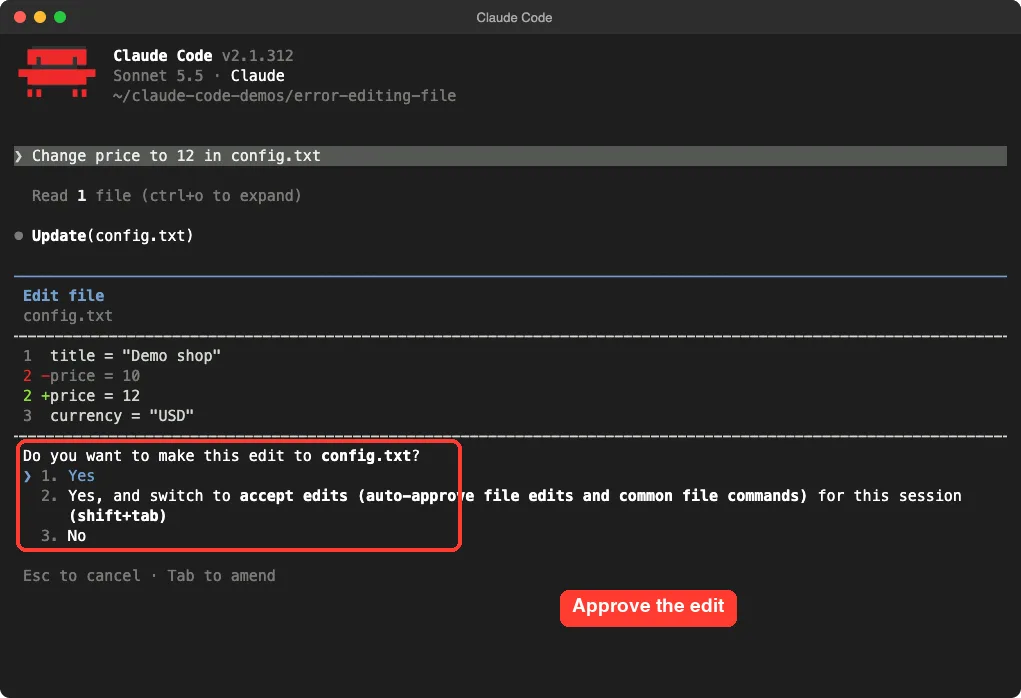
Before we break anything, here is what a healthy edit looks like. We created a tiny demo folder with a file called config.txt and typed one prompt: Change price to 12 in config.txt. Claude Code read the file and showed an approval screen with the exact change.
After we approved, the edit went through and Claude confirmed the change. This is the result you want every time.
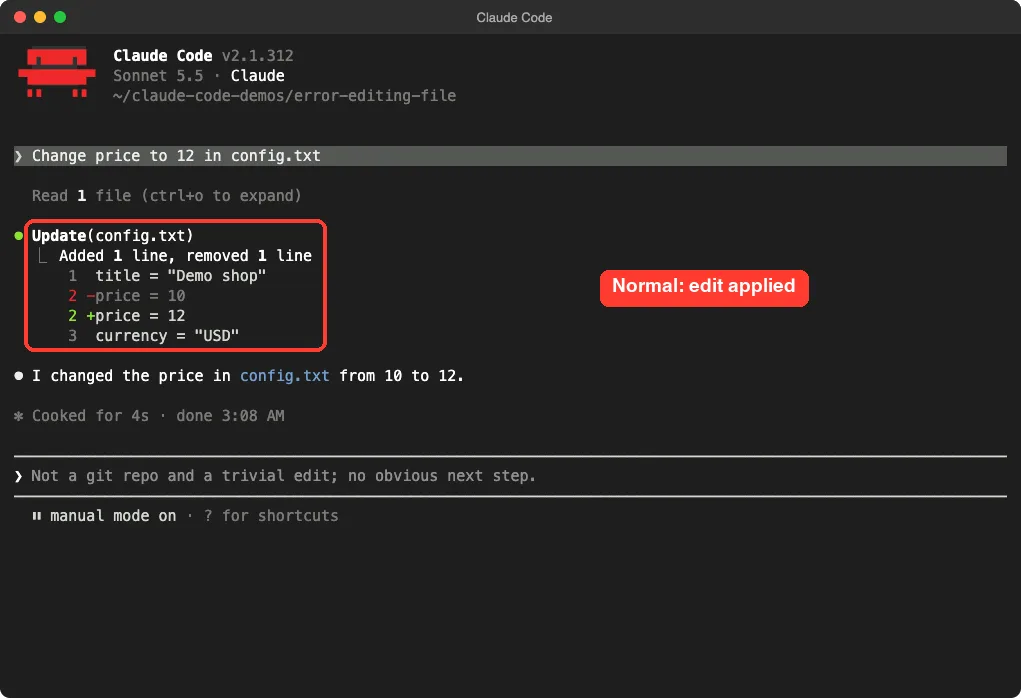
Interesting side note: we first made config.txt read-only with chmod 444, expecting an error. The edit still worked, because we own the file and Claude Code replaced it instead of writing into it. So a read-only permission bit alone does not always cause this error, and the cause on your machine may be something different.
Reproducing a Real Error: The Locked File
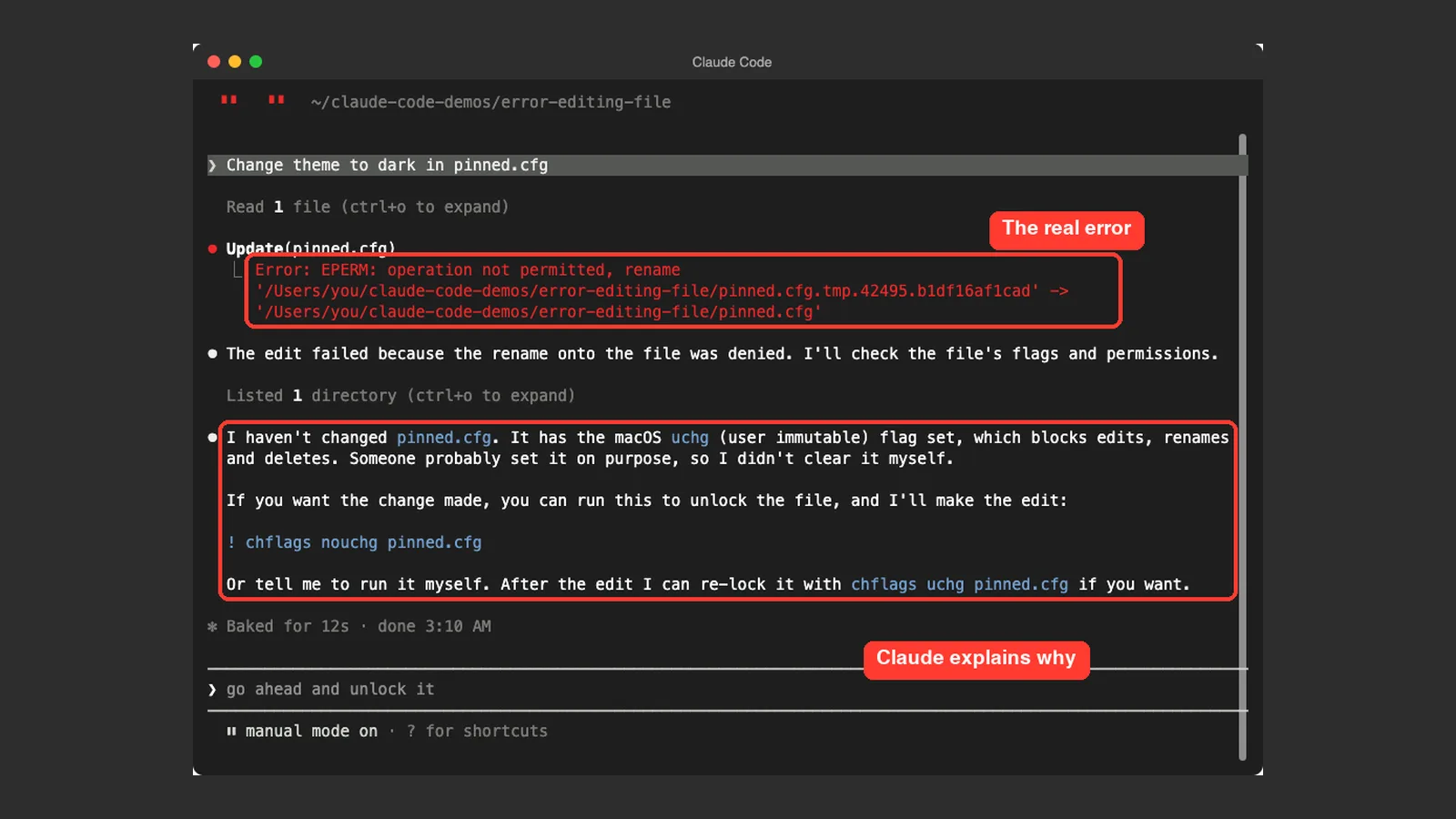
To trigger a genuine failure, we created a second file, pinned.cfg, and locked it with the macOS immutable flag using chflags uchg. Then we asked for a simple change: Change theme to dark in pinned.cfg.
The edit failed straight away, and the error was clear about the cause.
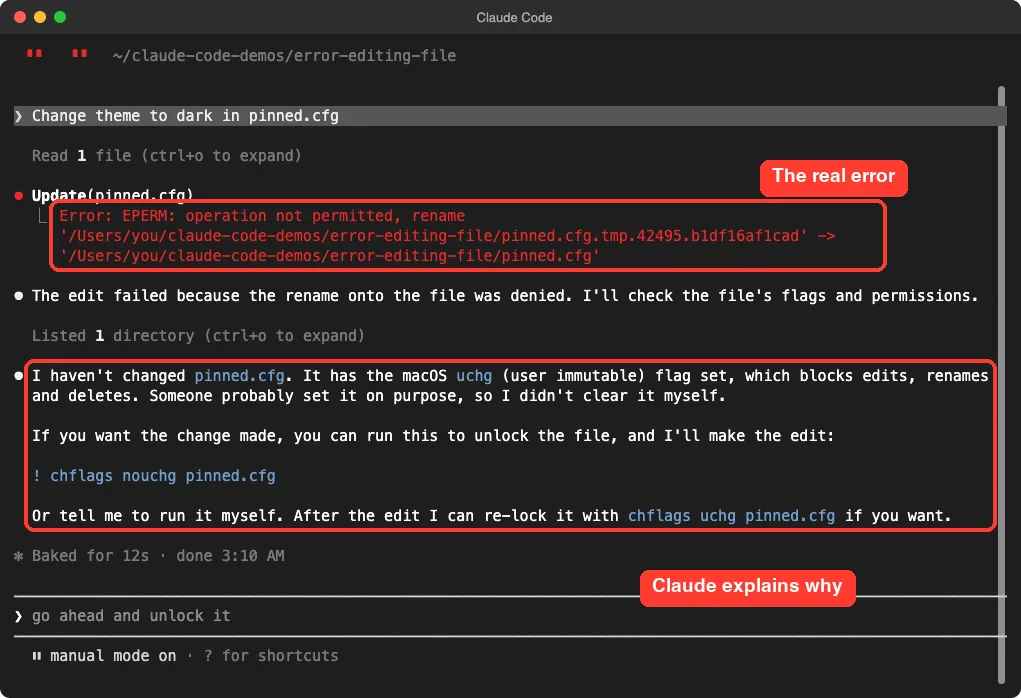
Look at the wording: EPERM: operation not permitted, rename. Claude Code writes the new content to a temporary file and then renames it over the original. The rename was refused because the original was locked.
Claude did the sensible thing here. It checked the file’s flags, found uchg, and did not remove the lock by itself. It told us the command to run instead.
Confirm the Lock With Ctrl+O
Press Ctrl+O to open the transcript view. In our test it showed the output of a directory listing with flags, and the uchg flag sat right next to pinned.cfg.
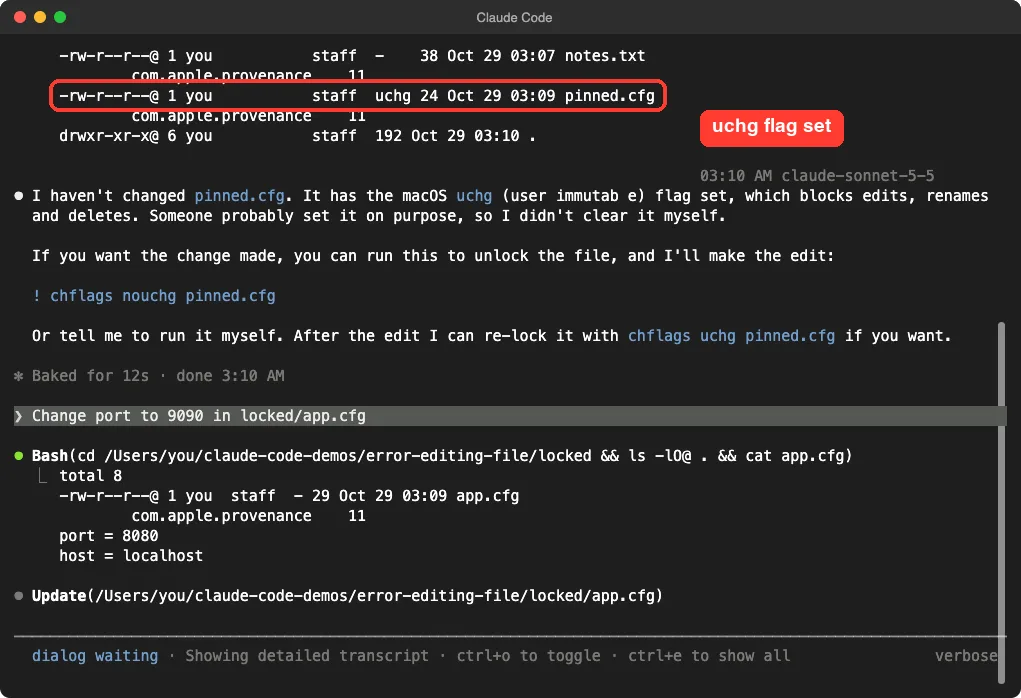
You can run the same check yourself in any terminal:
ls -lO pinned.cfgIf the flags column shows uchg, the file is locked. Any other flag worth a look will show in the same column.
Unlock It and Try Again
Remove the lock with the command Claude suggested, then ask for the edit again. You can type an exclamation mark first to run the command from inside Claude Code.
! chflags nouchg pinned.cfgAfter that, reply with something like: Try the edit again. If you want the lock back afterward, run chflags uchg pinned.cfg once the change is saved.
Every Common Claude Code Error Editing File Cause and Its Fix
The locked file is only one possibility. Here are the other causes you are likely to meet, with the fix for each.
1. A Locked or Protected File (EPERM)
This is what we reproduced. The immutable flag stops edits, renames and deletes, even for the owner. Check with ls -lO, unlock with chflags nouchg, and re-lock afterward if the lock was there for a good reason.
2. Missing Permissions (EACCES)
EACCES means permission denied. The official docs say that if a message ends with EACCES, you should restore your execute permission on every directory leading to the file or folder the path names, and follow each symlink you reach and check the directories leading to where it points.
Start with these two checks, then use chmod to add write access for your own user:
ls -l config.txt
ls -ld .
chmod u+w config.txt
3. A Read-Only Disk or Folder (EROFS)
EROFS shows up when a file sits on a filesystem that refuses writes, such as a disk image mounted read-only or a network share. Claude Code cannot fix that. Make the location writable, or copy the file somewhere writable and ask Claude to edit the copy.
4. A Path That Runs Through a Symlink
Sometimes only the short Error editing file line appears. The docs explain that if the block repeats on the same file, the path likely runs through a committed symlink whose target contains two dots, such as docs/current pointing to ../README.md.
The fix is to ask Claude to edit the target file by its real path instead of through the link.
5. A Full Disk or Quota Limit
Writes also fail when the disk has no free space.
The error reference lists ENOSPC for a full disk and EDQUOT for a quota limit in a related write failure. Free some space, or raise the quota, then try again. You can see free space with df -h in your terminal.
6. Another Tool Is Holding or Changing the File
Editors, sync apps and build tools can also touch the same file. If an edit fails and nothing above explains it, close the other program, ask Claude to read the file again so it has the current content, and retry. This is general troubleshooting advice rather than something we reproduced.
How Claude Code Saves an Edit, Step by Step
Knowing the sequence makes the error messages easier to read. When you approve an edit, Claude Code does not type into your file the way you would in an editor.
In the error we captured, the failing step was a rename from a temporary file name onto pinned.cfg. That is why the message names two paths, a temporary one and your real file.
- Claude reads the file so it knows the exact current text.
- It proposes the change and waits for your approval in default mode.
- After you say Yes, it writes the new content to a temporary file next to the original.
- It renames the temporary file over the original, and the operating system either allows or refuses that step.
If step four is refused, you get the error. Anything that makes the operating system say no at that moment, such as a lock, a permission rule, or a read-only disk, produces a message like the ones above.
What to Do Right After the Error Appears
A calm routine saves time. Work through these steps in order, and stop as soon as one of them solves the problem.
- Do not retry yet. A retry without a change will fail the same way.
- Press Ctrl+O and read the full message, noting any error code such as EPERM or EACCES.
- Ask Claude what it found. In our test it listed the file’s flags and permissions on its own.
- Run the matching fix from the table, using the exclamation mark prefix if you like.
- Ask Claude to try the same edit again and check that the diff appears.
If the problem repeats on one particular file, check the folder above it too, because a locked or unwritable folder can block files that look fine on their own.
Decision Guide: Which Fix Should You Use?
Use this ladder when you are not sure where to start. Read the exact words of the error, then follow the matching branch.
Try It Yourself
You can practice safely in a throwaway folder. Make a tiny file, lock it, and watch the error appear, then fix it. Never practice on a real project.
mkdir ~/edit-error-practice && cd ~/edit-error-practice
printf 'theme = light\nlang = en\n' > pinned.cfg
chflags uchg pinned.cfg
claude
Then paste this prompt into Claude Code:
Change theme to dark in pinned.cfgWhen you see the error, press Ctrl+O, run the unlock command, ask Claude to retry, and confirm the file changed. Clean up at the end by unlocking the file before you delete the folder yourself.
Common Mistakes
- Reading only the short error line and not pressing Ctrl+O for the full message.
- Running chmod 777 on everything, which opens up far more than you need.
- Asking Claude to retry again and again without changing anything, which cannot work.
- Forgetting that a lock was set on purpose, then removing it without checking why.
- Editing through a symlink instead of the real file path.
Pro Tips
- Let Claude investigate first. In our test it checked the flags and permissions on its own before suggesting a fix.
- Run fixes with the exclamation mark prefix so the output lands in the conversation.
- Keep project files owned by your own user, and avoid running installs with sudo inside project folders.
- If a file is locked on purpose, ask Claude to put the change in a separate file or a patch instead.
- Check the other help posts in this series, such as login error fixes, if the error seems to be about your account and not your files.
Cheat Sheet
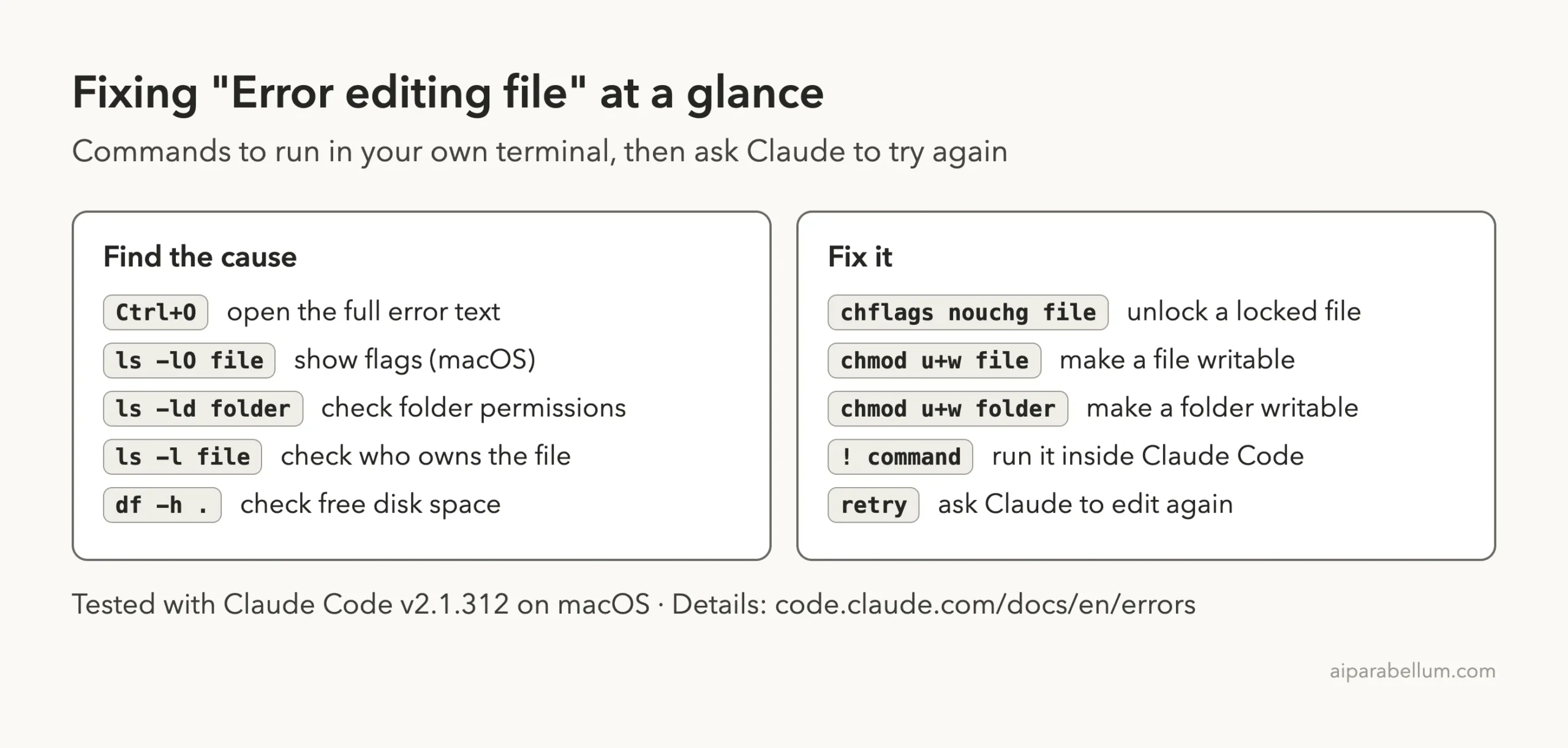
Browse all our Claude Code tutorials. For more about the assistant itself, see our Claude AI overview.
Frequently Asked Questions
Why does Claude Code say “Error editing file” when the file looks normal?
A file can look normal and still be locked, owned by another user, or inside a folder you cannot write to. Press Ctrl+O to read the full message and look for the error code.
Is “Error writing file” different from “Error editing file”?
They describe the same kind of problem: a save that the system refused. Editing changes part of an existing file, while writing saves a whole file. The causes and fixes in this guide apply to both.
Will chmod fix every case?
No. chmod fixes permission problems (EACCES). A locked file (EPERM with the uchg flag) needs chflags nouchg, and a read-only disk needs a writable location.
Does a read-only file always block Claude Code?
Not in our test. We set a file to read-only with chmod 444 and the edit still worked, because we owned the file. Locks and folder or disk problems are the more likely blockers.
Does this work the same on Windows and Linux?
We tested on macOS; the Windows and Linux steps follow Anthropic’s official instructions. The chflags command is macOS-specific, while chmod and the error codes apply on Linux too.
Conclusion
An Error editing file message looks scary, but it is really the system telling Claude Code why a save was refused. Press Ctrl+O to read the full message, match the error code to the cause, apply the fix, and ask Claude to retry. With a locked file it took us one command, and Claude Code even explained it before we asked.