If Claude Code is not updating, the fix usually takes less than a minute. Run claude update in your terminal, then restart Claude Code so the new version starts. If that does not help, one of a few settings or install types is holding the update back, and this guide shows you how to find which one.
We tested every step on a real Mac and watched Claude Code move from version 2.1.310 to 2.1.312. Along the way we found the exact reason our own copy had stopped updating by itself. You can run the same checks in a few minutes.
Tested with Claude Code v2.1.312 on October 29, 2026. We tested on macOS; the Windows and Linux steps follow Anthropic’s official instructions.
Quick Answer: How to Update Claude Code Now
Here is the short version for the most common situations. Pick the row that matches how you installed Claude Code.
| How you installed it | Command to update | Updates itself? |
|---|---|---|
| Native installer (recommended) | claude update | Yes, in the background |
| Homebrew | brew upgrade claude-code (or claude-code@latest) | No, unless you opt in |
| WinGet on Windows | winget upgrade Anthropic.ClaudeCode | No, unless you opt in |
| apt, dnf or apk on Linux | Your normal system upgrade command | No |
| npm | npm install -g @anthropic-ai/claude-code@latest | Only if the npm folder is writable |
After any of these, close Claude Code and start it again. Anthropic’s setup guide says an update takes effect the next time you start Claude Code, so a session that was already open keeps running the old version.
How Claude Code Updates Work
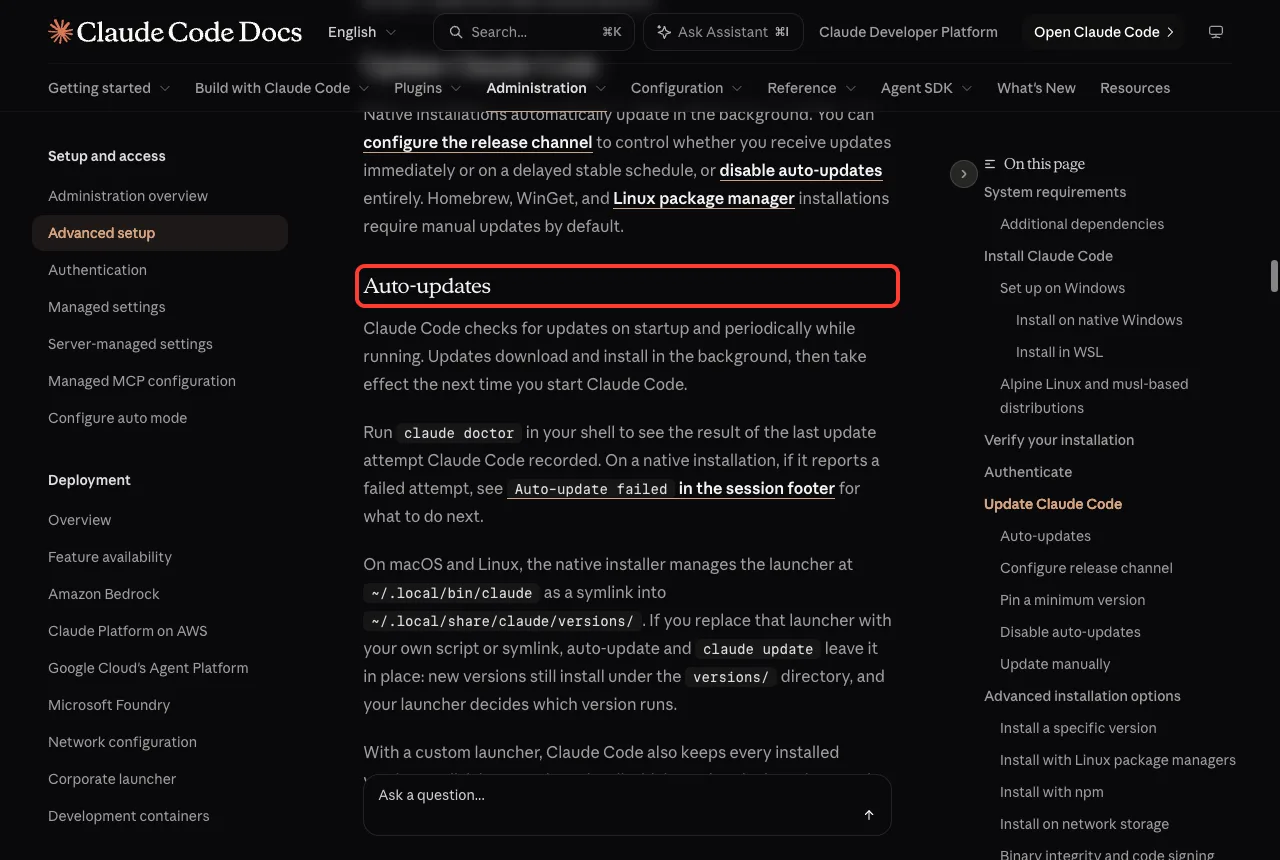
Native installations check for updates when Claude Code starts and again from time to time while it runs. New versions download and install in the background, and you get them on your next start. You do not have to do anything.
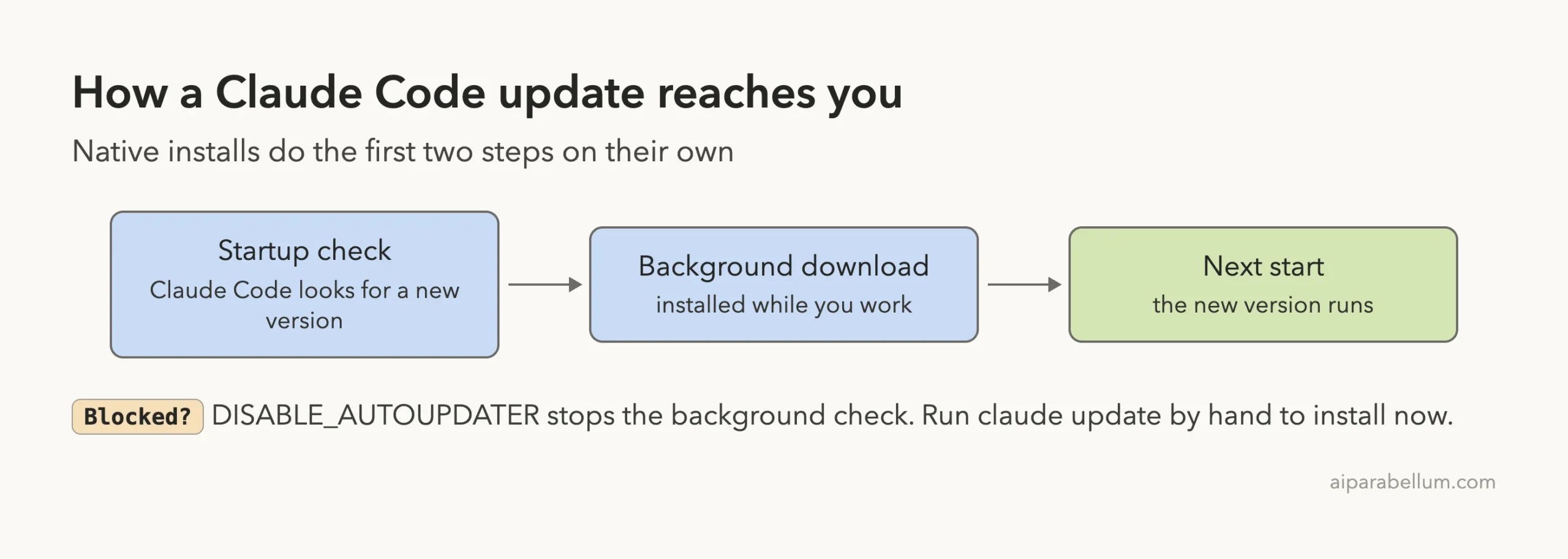
This is the default for the native installer only. Homebrew, WinGet, apt, dnf and apk installs do not update themselves by default, so people who installed that way often think updates are broken when they are simply manual. You can read the full rules on the official setup page.
Step 1: Check Your Version and Your Installs
First, find out what you are running. Open a terminal and run these commands.
claude --version
which -a claude
ls -la ~/.local/bin/claude
ls -la ~/.claude/local/
npm -g ls @anthropic-ai/claude-code 2>/dev/null
The first command prints your version. The second lists every copy of claude your terminal can find, which is the quickest way to spot a duplicate install. The last three check the three places a copy can live: the native installer, an old local npm install, and a global npm install.
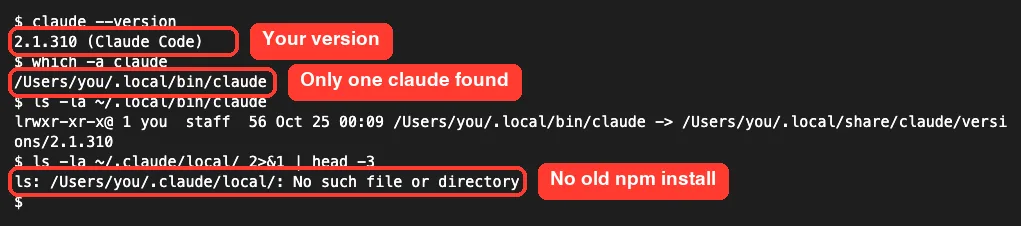
On a native install, ls -la ~/.local/bin/claude shows a symlink into ~/.local/share/claude/versions/. In our test it pointed to the 2.1.310 folder, which is what you expect from the native installer. If you see more than one path in the second command, you have a conflict, and we cover that below.
Step 2: Run claude doctor to Find the Real Cause
The claude doctor command prints a report about your install, and it has two lines that matter for updates. One says whether auto-updates are enabled, and one shows the result of the last update attempt. Our doctor command guide covers the rest.
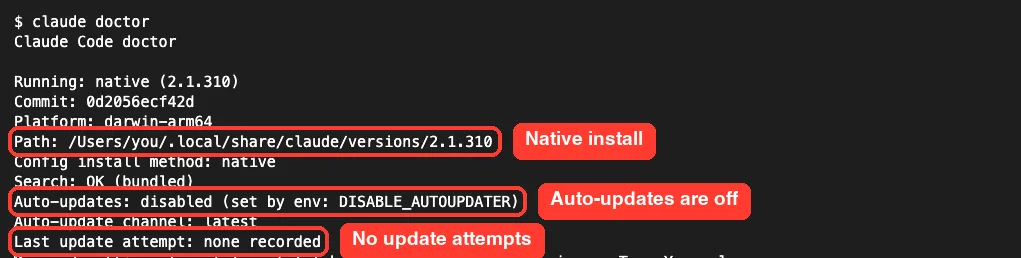
This is where we found our answer. The report said Auto-updates: disabled (set by env: DISABLE_AUTOUPDATER), and the last update attempt line said none was recorded. In plain words, Claude Code had not even tried to update because that setting told it not to.
The official docs describe this exact message. They say that on a native or npm install, the Auto-updates line should show disabled (set by env: DISABLE_AUTOUPDATER) when that setting is on, instead of enabled.
What the Auto-Updates Line Can Tell You
- Disabled with a source in parentheses: something turned updates off on purpose. Go to Step 3.
- Enabled, but the last attempt failed: the download or install broke. Go to the error section below.
- Enabled and no failures: you are probably already current, or you are on a package manager install that does not self-update.
Step 3: Turn Auto-Updates Back On
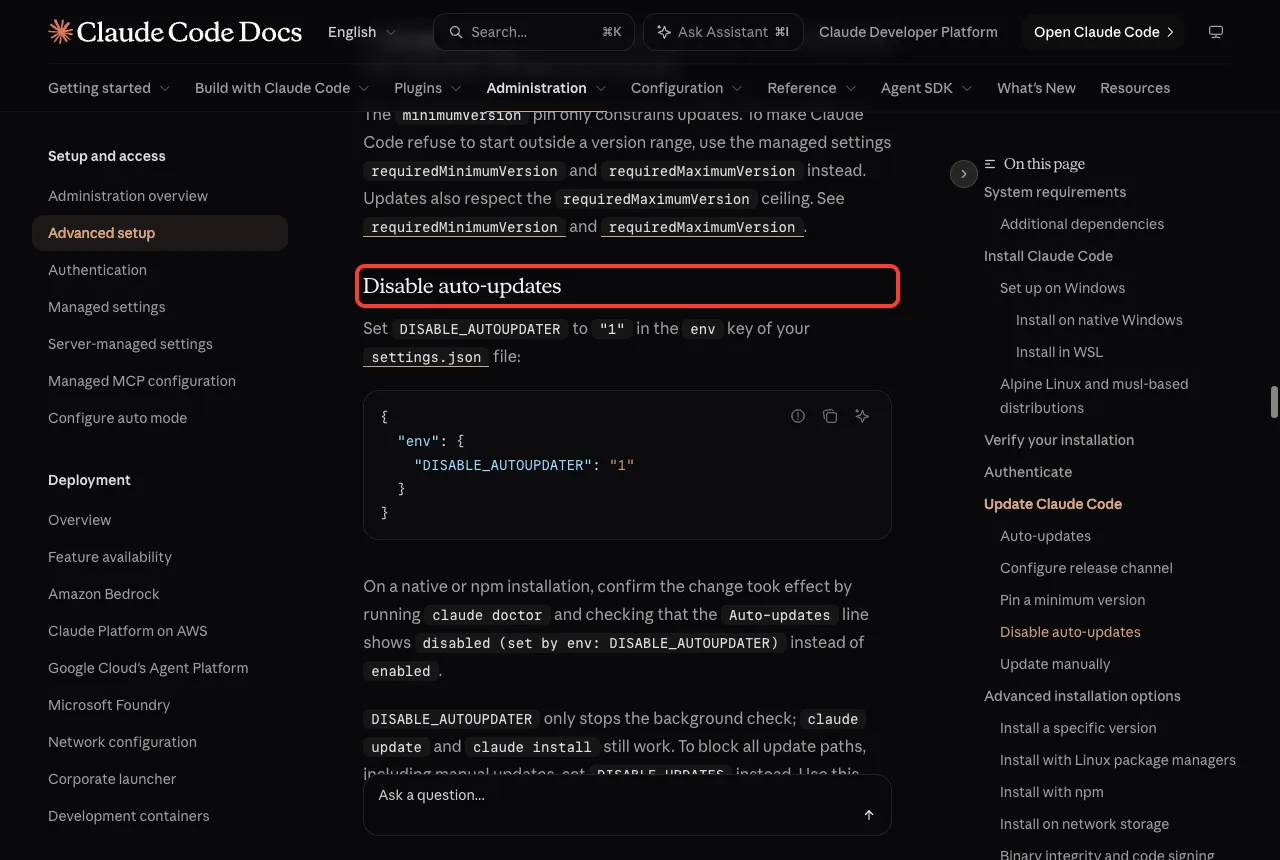
The setting we found is DISABLE_AUTOUPDATER. It lives in the env section of your settings file, and it stops the background check. The official page shows the format like this.
{
  "env": {
    "DISABLE_AUTOUPDATER": "1"
  }
}
To turn updates back on, remove that line from your settings file, or change it so it is no longer set. Our guides to settings files and environment variables explain where these files live and which one wins. Then run claude doctor again and check that the Auto-updates line no longer says disabled.
You can also see the same thing inside a session. Type /config and search for channel. On our Mac the Auto-update channel row said disabled and named the same setting.
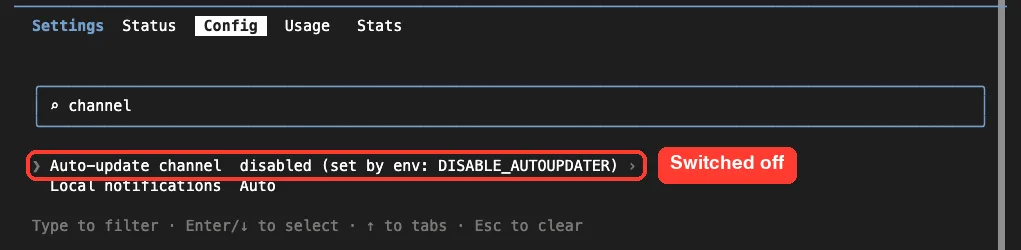
One more thing to know. The docs say DISABLE_AUTOUPDATER only stops the background check, so claude update still works.
A different setting, DISABLE_UPDATES, blocks every path including manual updates. The docs say to use it when you distribute Claude Code through your own tools, so check it if claude update refuses to run.
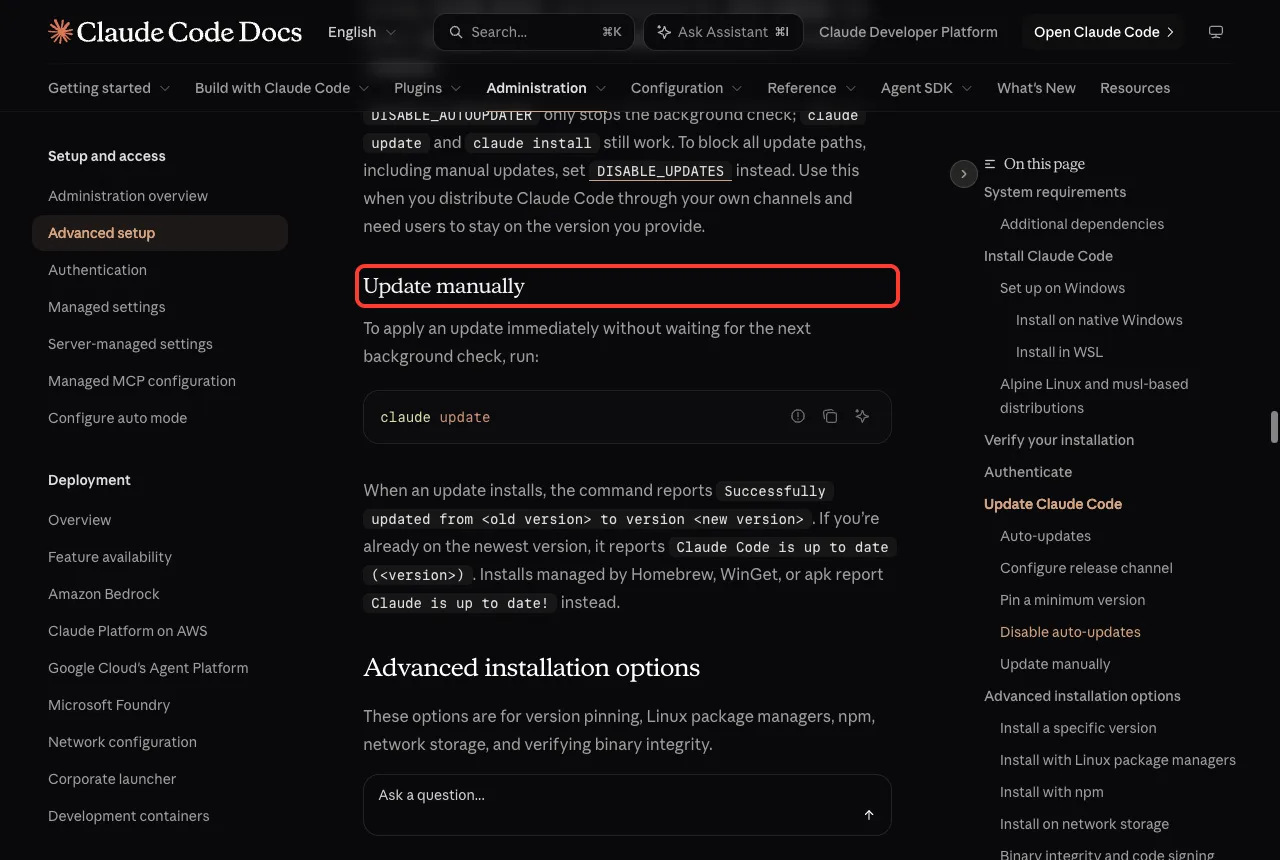
Step 4: Update by Hand With claude update
Even with auto-updates off, you can update whenever you like. Run this in your terminal, not inside a Claude Code session.
claude updateWhen it works, the command prints a line that starts with Successfully updated from your old version to the new one. If you are already current, it says Claude Code is up to date and shows the version.
Installs managed by Homebrew, WinGet or apk print Claude is up to date! instead.

Step 5: Restart Claude Code to Use the New Version
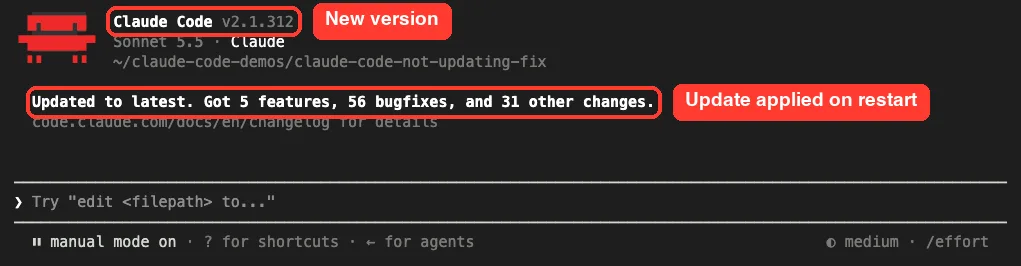
This step is the one people skip. An update installs in the background but only takes effect on the next start. If you leave an old session open, claude --version in a new tab may show the new number while your open session still runs the old one.
Close the session and start it again. On our Mac, the first start after the manual update showed a banner that said the update was applied, along with the new version number in the header. It also counted the changes it brought, which is a handy sign that you really moved forward.
Not Updating? Work Through This Checklist
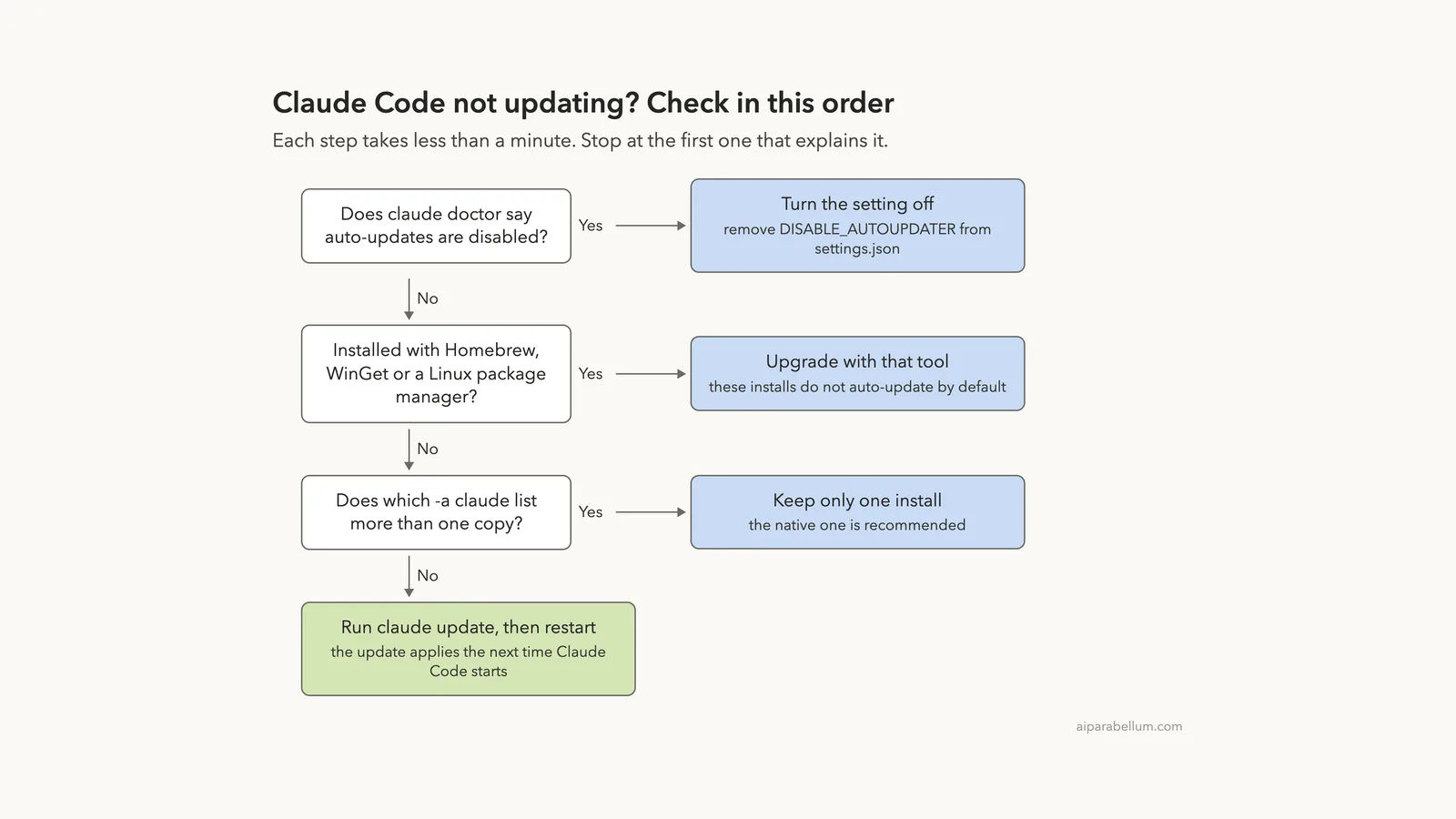
If the steps above did not solve it, use this order. It starts with the most likely cause and ends with the least likely, so you can stop as soon as one explains the problem.
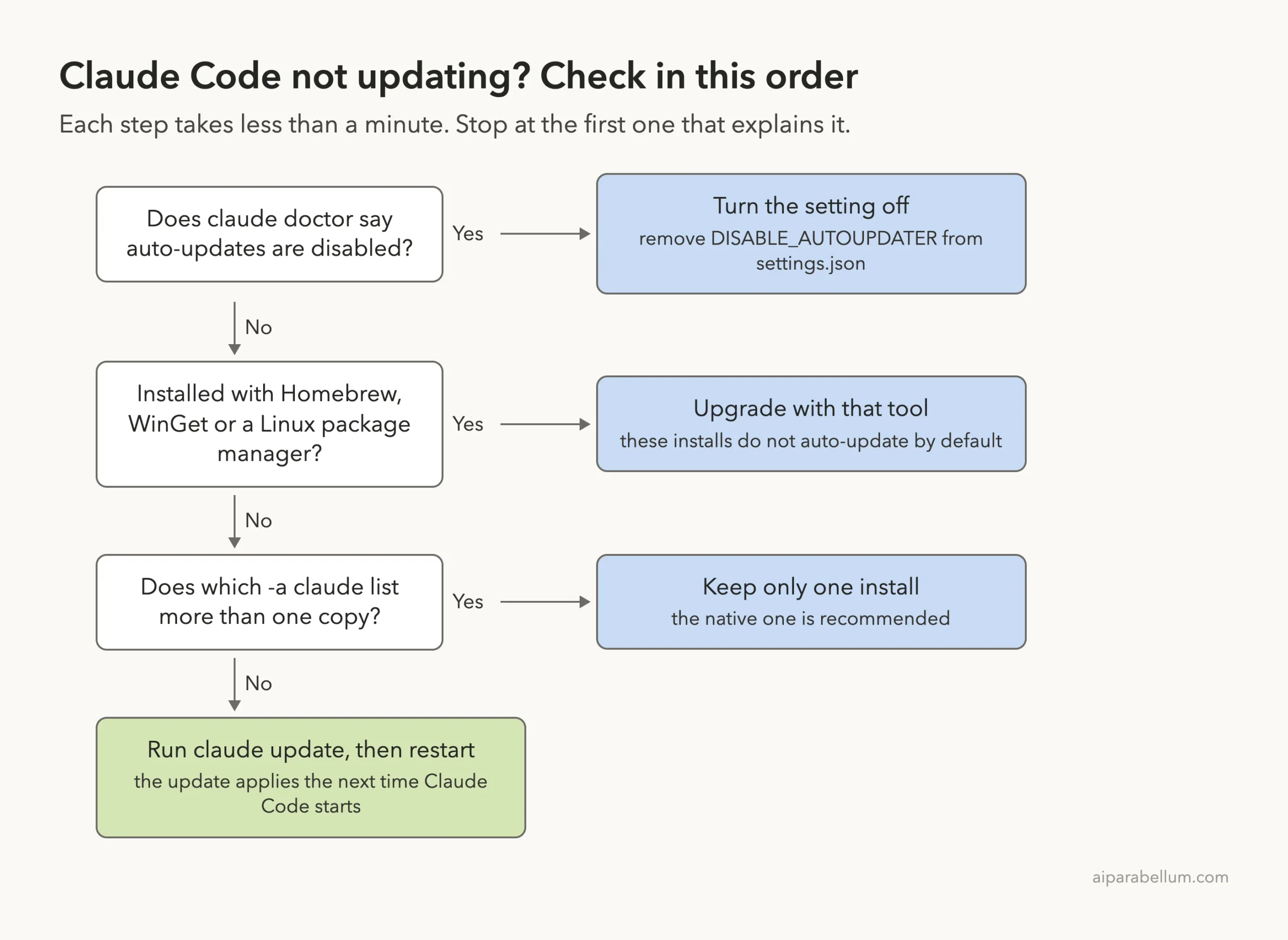
You Installed With Homebrew, WinGet or a Linux Package Manager
These installs do not update through Claude Code by default. On a Mac, run brew upgrade claude-code or brew upgrade claude-code@latest, depending on which cask you installed. On Windows, run winget upgrade Anthropic.ClaudeCode.
If you want Claude Code to run the upgrade for you on Homebrew or WinGet, set CLAUDE_CODE_PACKAGE_MANAGER_AUTO_UPDATE to 1. Claude Code then upgrades in the background and shows a restart prompt. The docs also note a known issue: Claude Code can announce an update before the package manager has it, so if an upgrade fails, wait and try again later.
The Homebrew channel depends on the cask name. The docs say claude-code tracks stable, while claude-code@latest tracks latest. Homebrew also keeps old versions on disk, so run brew cleanup now and then to free space.
You Installed With npm
To upgrade an npm install, run npm install -g @anthropic-ai/claude-code@latest. The docs say to avoid npm update -g, because it respects the version range from your original install and may not reach the newest release.
If the npm global folder is not writable, Claude Code shows a one-time notice at startup, and claude doctor lists the available fixes. Our install troubleshooting guide covers permission errors in more detail.
You Have More Than One Copy Installed
Two installs can fight each other. You update one, but your terminal keeps launching the other, so the version never changes. The official troubleshooting page says to keep only one and recommends the native install at ~/.local/bin/claude on macOS and Linux.
If which -a claude printed two paths, the docs give the removal commands. To remove an npm global install, run npm uninstall -g @anthropic-ai/claude-code. Check the official troubleshooting page before removing the legacy local install, so you delete the right folder.
You Use a Custom Launcher or a Pinned Version
On macOS and Linux, the native installer manages ~/.local/bin/claude as a symlink. The docs say that if you replace it with your own script or symlink, auto-update and claude update leave it alone. New versions still install under the versions folder, but your launcher decides which one runs.
To let Claude Code manage the launcher again, the docs say to remove ~/.local/bin/claude and run claude update. Also check for a minimumVersion setting, which sets a floor that updates will not go below.
Run claude doctor first, then claude update, then restart. That order solves most update problems.
Latest or Stable: Which Channel Are You On?
Claude Code follows a release channel. The default is latest, which gives you new features as soon as they ship. The other is stable, which the docs describe as a version that is typically about one week old, skipping releases with major regressions.
You can set it in /config under Auto-update channel, or with the autoUpdatesChannel setting in your settings file. Our claude doctor report showed the channel as latest.
{
  "autoUpdatesChannel": "stable"
}
If you are on stable and a new model or feature has not reached you, that is the reason. The docs say a newly launched model can need a Claude Code version newer than the stable channel serves, so switch to latest to use it right away.
Fixing Update Errors
Sometimes the update starts but fails. These are the messages the official troubleshooting page covers, and what to do about each.
| What you see | What it means | What to do |
|---|---|---|
| Auto-update failed, run claude doctor (red line in the footer) | The background update did not install | Run claude update in your shell to finish it or see the real error |
| Failed to fetch version from downloads.claude.ai | Network, proxy or firewall problem | Check your connection and proxy, then retry |
| The connection dropped while downloading the update | The transfer failed after retries | Run claude update again, from a faster network if possible |
| Release verification failed for Claude Code | The release could not be confirmed, so nothing was installed | Run claude update or claude install again; your current version keeps working |
The red footer line is the one most people meet first. The docs say you can keep working and do nothing, but the claude doctor line only shows a date and no cause. Running claude update in your shell is the way to finish the update or reveal the actual error.
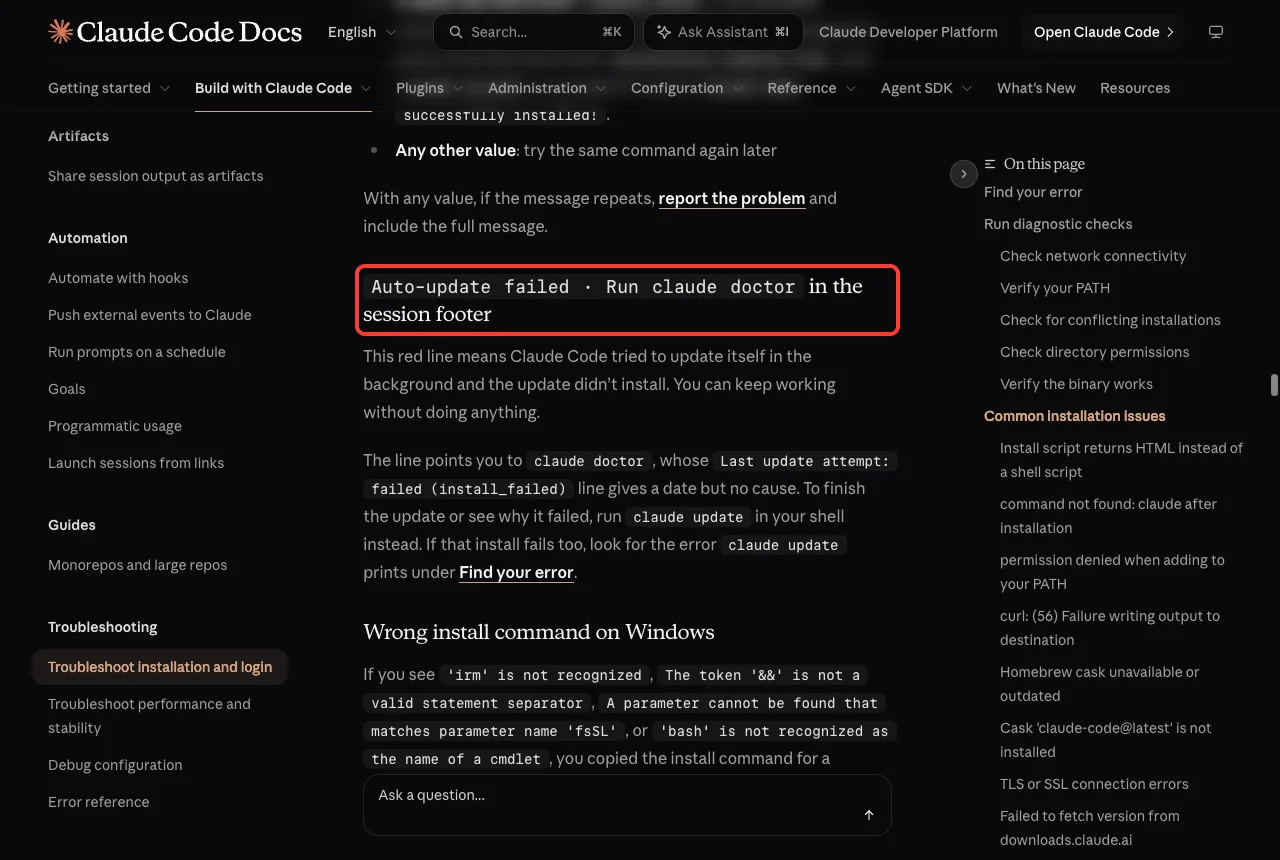
We could not safely trigger these errors on our own machine without breaking a working setup, so the screenshot above comes from the official docs. For broader error help, see our common errors guide.
When claude update or claude doctor Hangs
The docs describe one older bug. Before version 2.1.214, a directory sitting at the path of a shell config file such as ~/.zshrc made both commands hang, because they scan those files for an outdated claude alias.
The fix is to move that directory aside or update to 2.1.214 or later. Since claude update hangs on the affected versions, the docs say to update by rerunning the install script instead.
Try It Yourself
Here is a short practice run that takes about five minutes. It shows you whether your own setup updates correctly. Paste these lines into a terminal, one at a time.
claude --version
which -a claude
claude doctor
claude update
claude --version
Look at three things. Did which -a claude print one path? Did the doctor report show auto-updates as enabled?
Did the version number change, or did you see the up to date message? If auto-updates were not enabled, go back to Step 3.
If you would rather let Claude Code check things for you, start a session and ask it directly.
Look at my Claude Code install. Tell me which install method I use,
whether auto-updates are on, and the safest way to update.
Common Mistakes
- Running
claude updateinside a session instead of your shell. Use a normal terminal window. - Forgetting to restart. The update applies on the next start, so close the old session.
- Using
npm update -gfor npm installs. Use the install command with @latest instead. - Keeping two installs. Check
which -a claudeand keep one. - Waiting on Homebrew or WinGet to update by themselves. They do not by default.
- Ignoring the red footer line forever. It is harmless short term, but it means the update did not install.
Pro Tips
- Run
claude doctorfirst. It answers the question in one screen. - Pick one install method and stick with it. The native install is the one Anthropic recommends.
- If you need a steady version for a team, use the stable channel instead of turning updates off.
- Check the official changelog after an update to see what changed.
- If a login problem appears right after an update, see the install troubleshooting guide linked above.
Claude Code Update Cheat Sheet
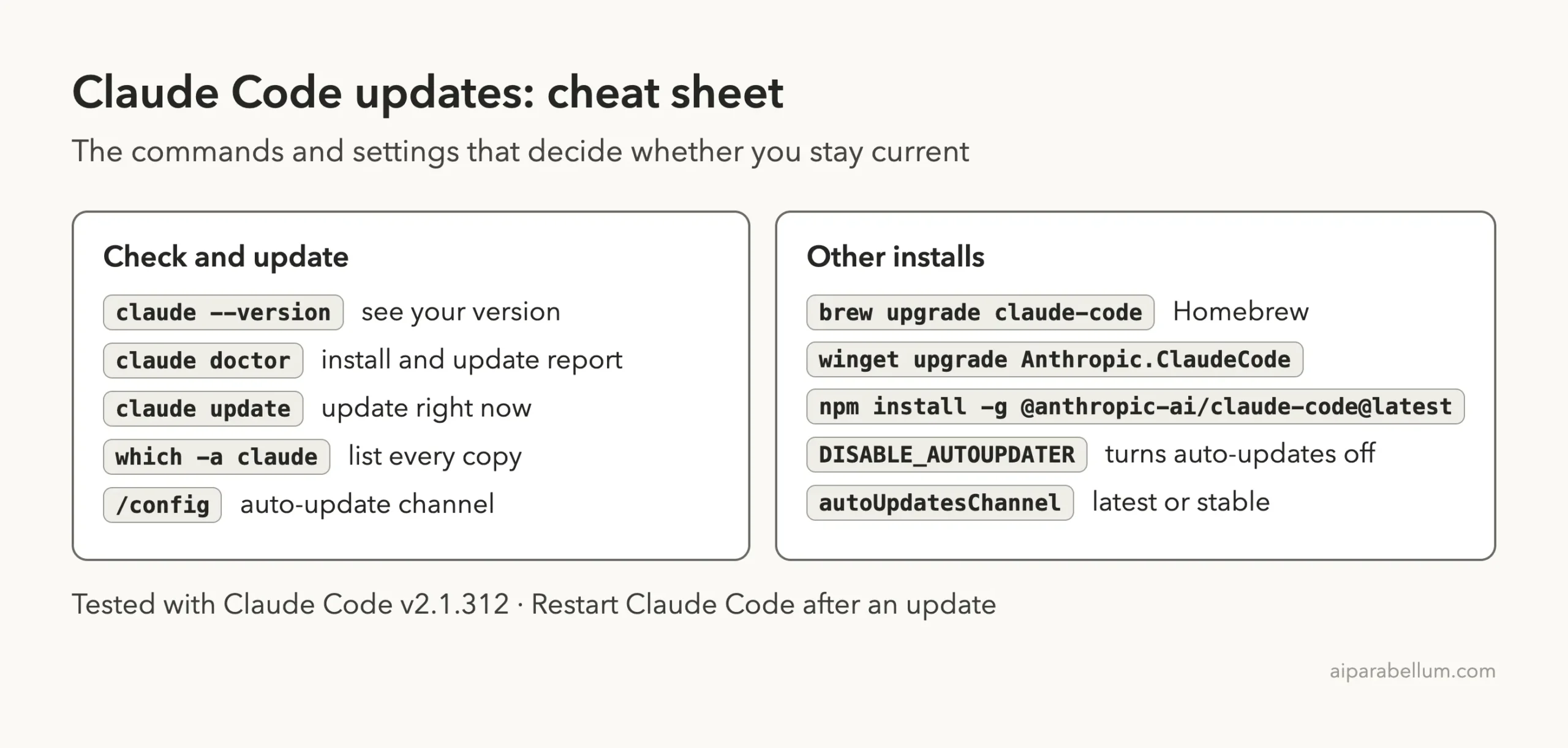
Frequently Asked Questions
How do I update Claude Code?
Run claude update in your terminal, then restart Claude Code. If you installed with Homebrew, WinGet or npm, use that tool’s upgrade command instead.
Does Claude Code update automatically?
Native installs do. They check at startup and while running, then install in the background and apply the update on the next start. Homebrew, WinGet and Linux package manager installs do not update by default.
Why does claude doctor say auto-updates are disabled?
Something set DISABLE_AUTOUPDATER, and the report names the source in parentheses. Remove it from your settings file to turn updates back on. You can still run claude update by hand in the meantime.
Why is my version still old after updating?
You probably need to restart, or you have a second install that your terminal launches first. Check which -a claude and start a fresh session.
Can I stay on a slightly older, steadier version?
Yes. Set the release channel to stable, which serves a version typically about one week old. You can set it in /config or with autoUpdatesChannel.
Conclusion
When Claude Code is not updating, start with claude doctor, because it tells you whether auto-updates are on and whether the last attempt failed. Then run claude update, restart, and check your version again. If that does not move you forward, look at your install type, duplicate copies, your release channel and any custom launcher. For more guides like this, browse all our Claude Code tutorials, and see our Claude AI overview or the install guide if you are starting fresh.