Desktop Commander for Claude Code is one of the plugins in Anthropic’s official marketplace, and its description sounds big: terminal commands, process management and file operations across PDF, Word, Excel and more. Claude Code can already read files and run commands, so you may wonder what this plugin really adds. You may also wonder if handing it a shell is a good idea.
We loaded the plugin in a throwaway demo folder and ran it for real. We read a CSV, kept a Python session alive across turns, read a file outside the project, and tried a blocked command. Here is what it adds, what we saw, and how to use it without regrets.
This guide is part of our Claude Code tutorials. Find more add-ons in our Skills Directory.
Tested with Claude Code v2.1.318 on November 8, 2026, using Desktop Commander plugin 0.2.0 from wonderwhy-er/DesktopCommanderMCP at commit 7504827, with the npm server package 0.3.1, on macOS.
Quick Summary
| Question | Short answer |
|---|---|
| What is it? | A plugin that starts a local helper program (an MCP server) and adds 6 skills |
| What does it add? | 25 tools for files, shells, searching and processes, plus guidance skills |
| Does it ask permission? | Yes, Claude Code asks before each Desktop Commander tool call |
| Is it sandboxed? | No. By default it can read files anywhere your user account can |
| Who should install it? | People who need long-lived shells, REPLs or document reading that built-in tools do not give them |
| Who should skip it? | Anyone whose work is plain code edits inside one project |
What Is Desktop Commander?
Desktop Commander is an open-source MCP server. MCP is the standard way to plug extra tools into Claude Code, and you can read how it works in our guide to Claude Code MCP. The plugin version bundles that server together with six skills, which are short instruction files that tell Claude when and how to use the tools.
The plugin lives in the official marketplace as desktop-commander@claude-plugins-official. When it starts, it runs npx -y @wonderwhy-er/desktop-commander@latest, which downloads the latest published package from npm and runs it on your machine. That detail matters for safety, and we come back to it below.
What the plugin contains
We read the plugin folder before running anything. It has a manifest, a README and six skills. It has no hooks and no scripts of its own, so the only code that runs is the npm package it launches.
| Skill | What it is for |
|---|---|
desktop-commander-overview | Explains when to reach for the Desktop Commander tools |
terminal | Persistent shells, REPLs, SSH and process or port checks |
computer-health-check | A read-only check of CPU, memory, disk, battery and startup items |
ai-tools-setup | Fixing MCP config files and local AI tools |
knowledge-base | Building a Markdown notes folder an agent can navigate |
obsidian-vault | Organizing an Obsidian vault |
How It Plugs Into Claude Code
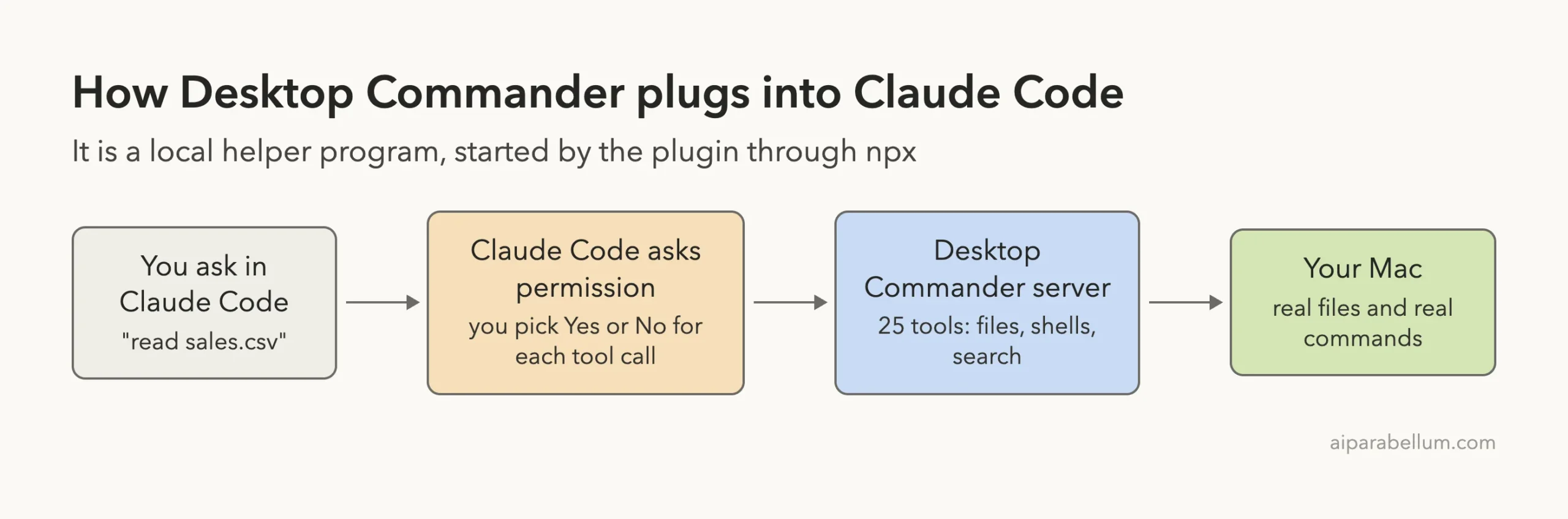
The flow is simple. You ask for something, Claude Code asks for your permission to call the tool, the Desktop Commander server does the work on your Mac, and the result comes back. Nothing is hidden: the permission prompt is the same one you see for any MCP tool.
How We Tested It Safely
The plugin can run commands, so we did not install it into our normal setup. We copied the plugin folder into a throwaway project and loaded it with --plugin-dir, and we used --setting-sources project so no personal settings applied. That is the same approach we describe in our plugins guide.
We made two changes to the plugin’s server entry for the test. We added the --no-onboarding flag, and we set two environment values: a separate home folder so the server’s config file landed in the demo folder, and DESKTOP_COMMANDER_DISABLE_TELEMETRY=1. Everything else, including the package and the skills, is as published.
claude --permission-mode default --plugin-dir ./dc-plugin --setting-sources projectOne note on versions: the marketplace entry points at a September commit of the plugin. The npm package it launches uses @latest, so you run whatever is newest on npm, which was 0.3.1 for us.
Step 1: Confirm the Server and Skills Loaded
Start Claude Code with the plugin loaded, then type /mcp. The Desktop Commander server should show a green check and a tool count. In our run it showed 25 tools.
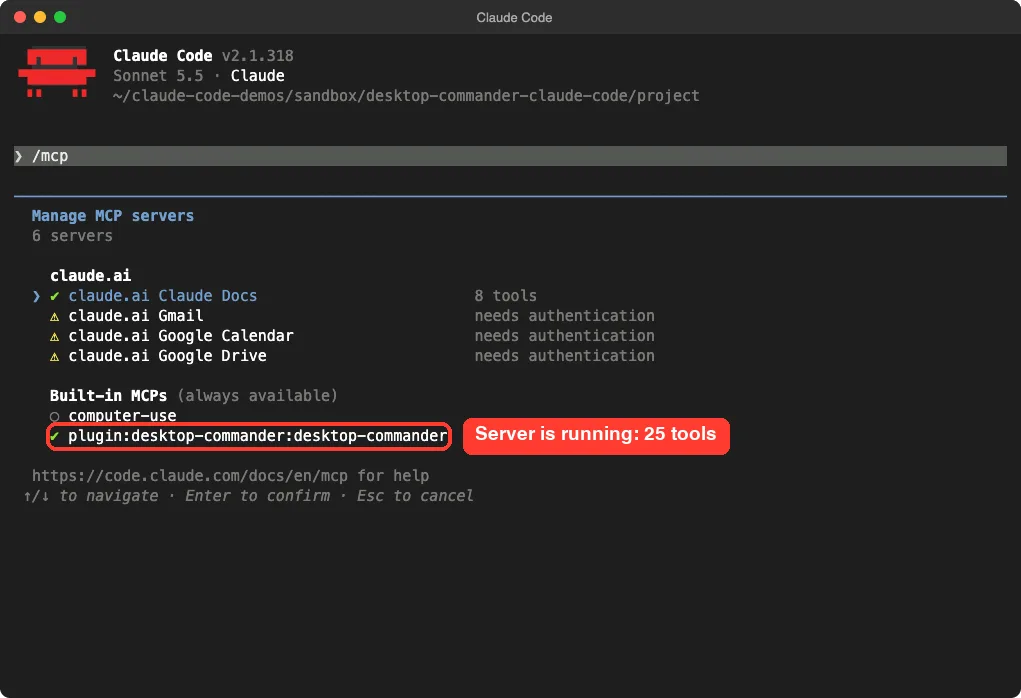
/mcp panel lists the plugin’s server with 25 toolsNext, type /skills. You should see the six skills with the prefix desktop-commander:, each marked as managed by the plugin.
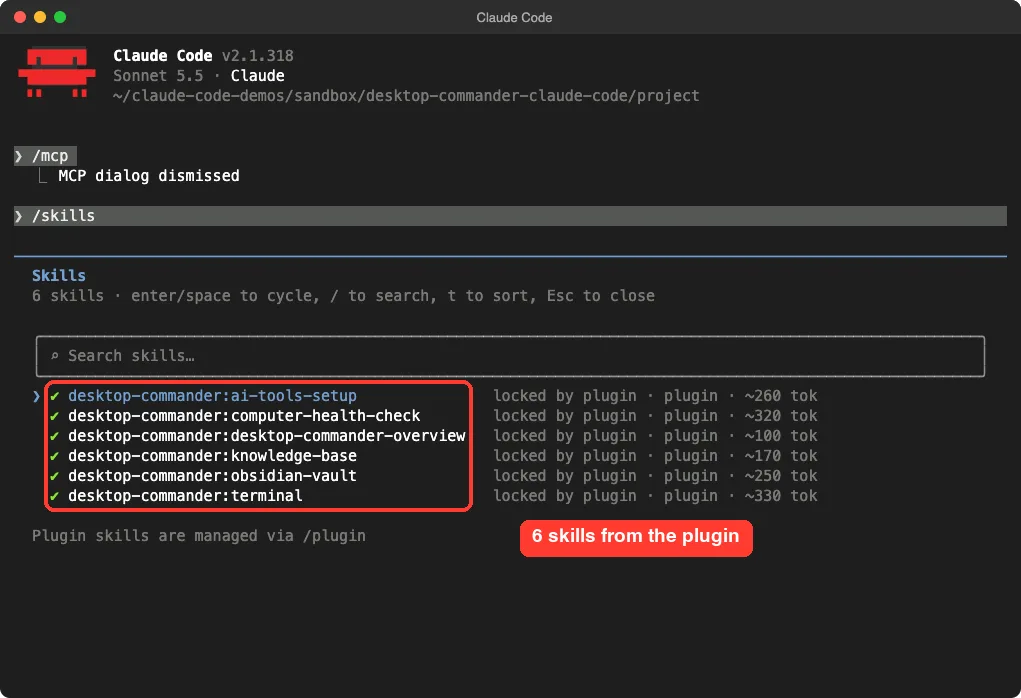
/skills listStep 2: Read a File and Do Real Work
Our first test was ordinary on purpose. We made a small sales.csv with four products and asked Claude to total the revenue with Desktop Commander. Claude Code asked before calling the read tool, and the prompt shows the exact path.
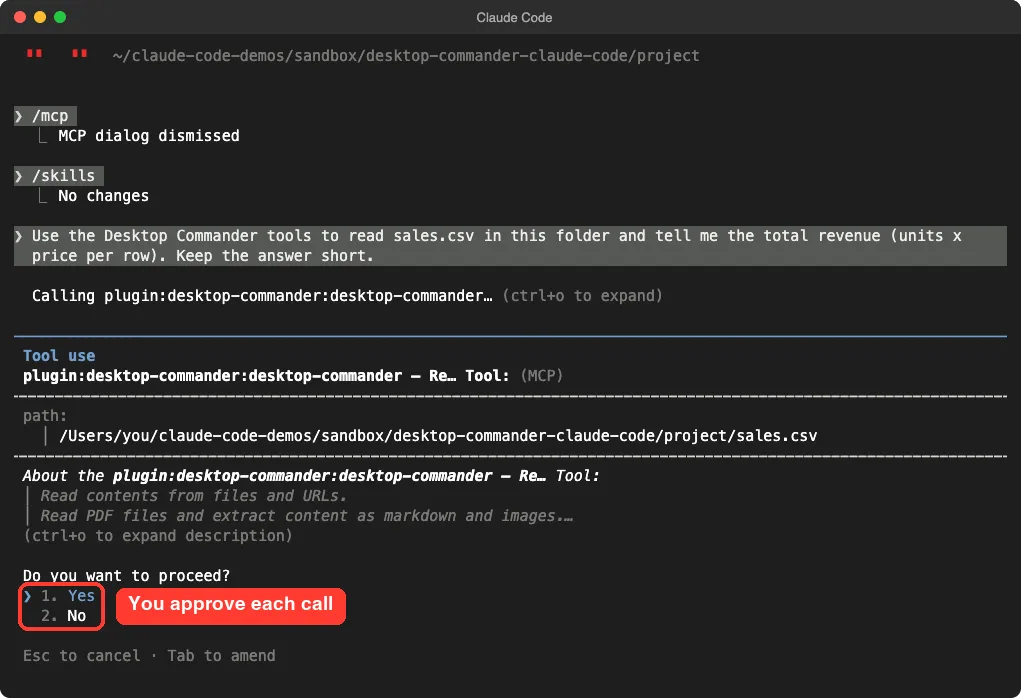
We chose Yes. The answer came back correct: 54.00, 69.93, 37.50 and 60.00 add up to 221.43.
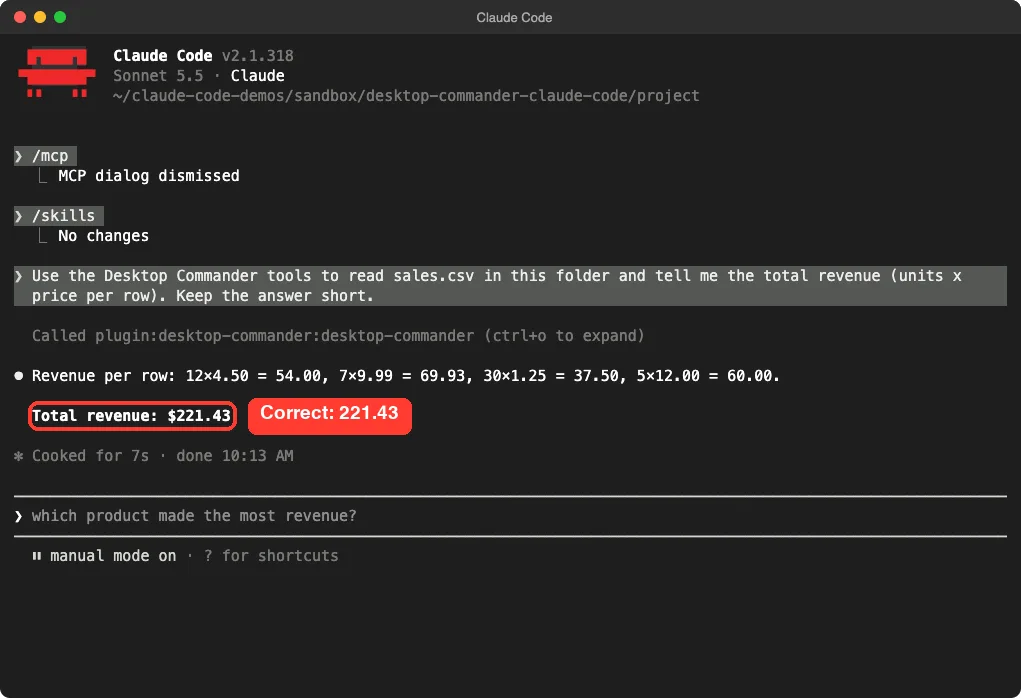
Honest note: Claude Code’s built-in tools can read a small CSV just as well. This test proves the plugin works, not that you need it for this job. The tool description says the read tool also handles PDFs, and the README lists Excel, Word and image support, but we did not test those formats in this run.
What Desktop Commander Really Adds
The real value shows up in the places where built-in tools are thinner. Here is what we could confirm and what we could not.
| Capability | Our result |
|---|---|
| Persistent Python session | Tested. A variable set in one call was still there in the next |
| Reading a file outside the project | Tested. It worked with no folder limit configured |
| Command blocklist | Tested. sudo was refused |
| PDF, Excel and Word handling | Not tested. Listed in the README and tool descriptions |
| SSH sessions and long-running processes | Not tested. Described in the plugin’s skills |
| Health check skill | Not run. We only read its instructions, which say it is read-only by default |
A shell that remembers things
We asked Claude to start a Python REPL, set x = 21, then send x * 2 to the same session. The answer was 42, and Claude reported that the session kept x between calls. This is the clearest benefit: you can run a dev server, a database shell or an SSH connection and keep talking to it across turns.
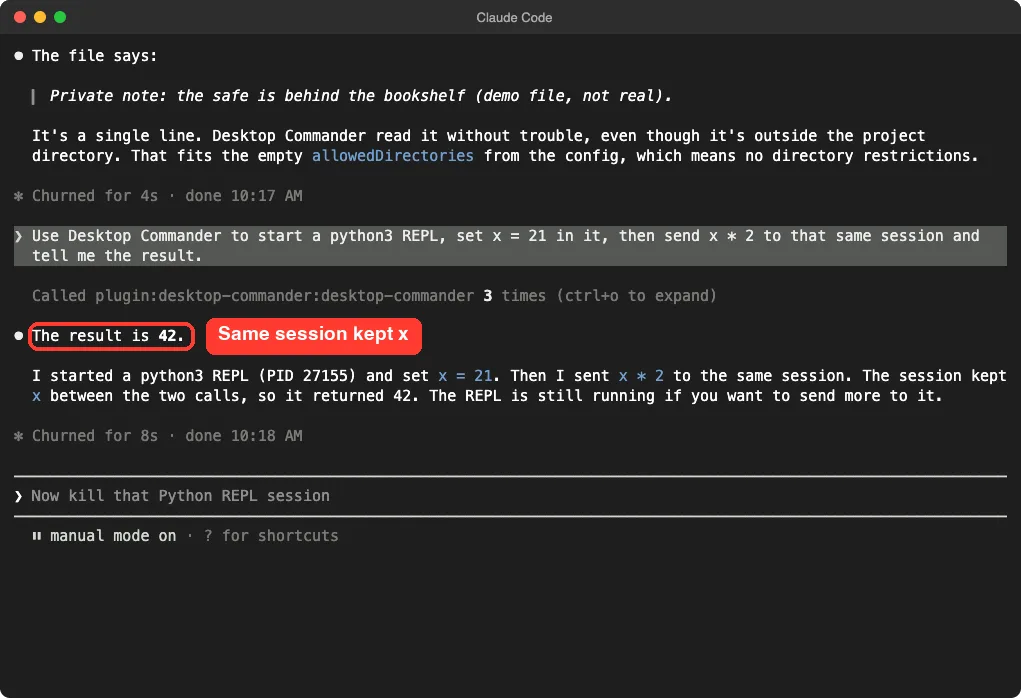
x was still setThe plugin’s own README is careful here. Persistence lives inside one session. Separate start_process calls open separate sessions that do not share state.
Is Desktop Commander Safe?
Let us be direct. The plugin has no hooks, the project is open source, and its security page is frank about its limits. But it is a powerful tool with open default settings, and three things we saw matter most.
Default settings have no folder limit
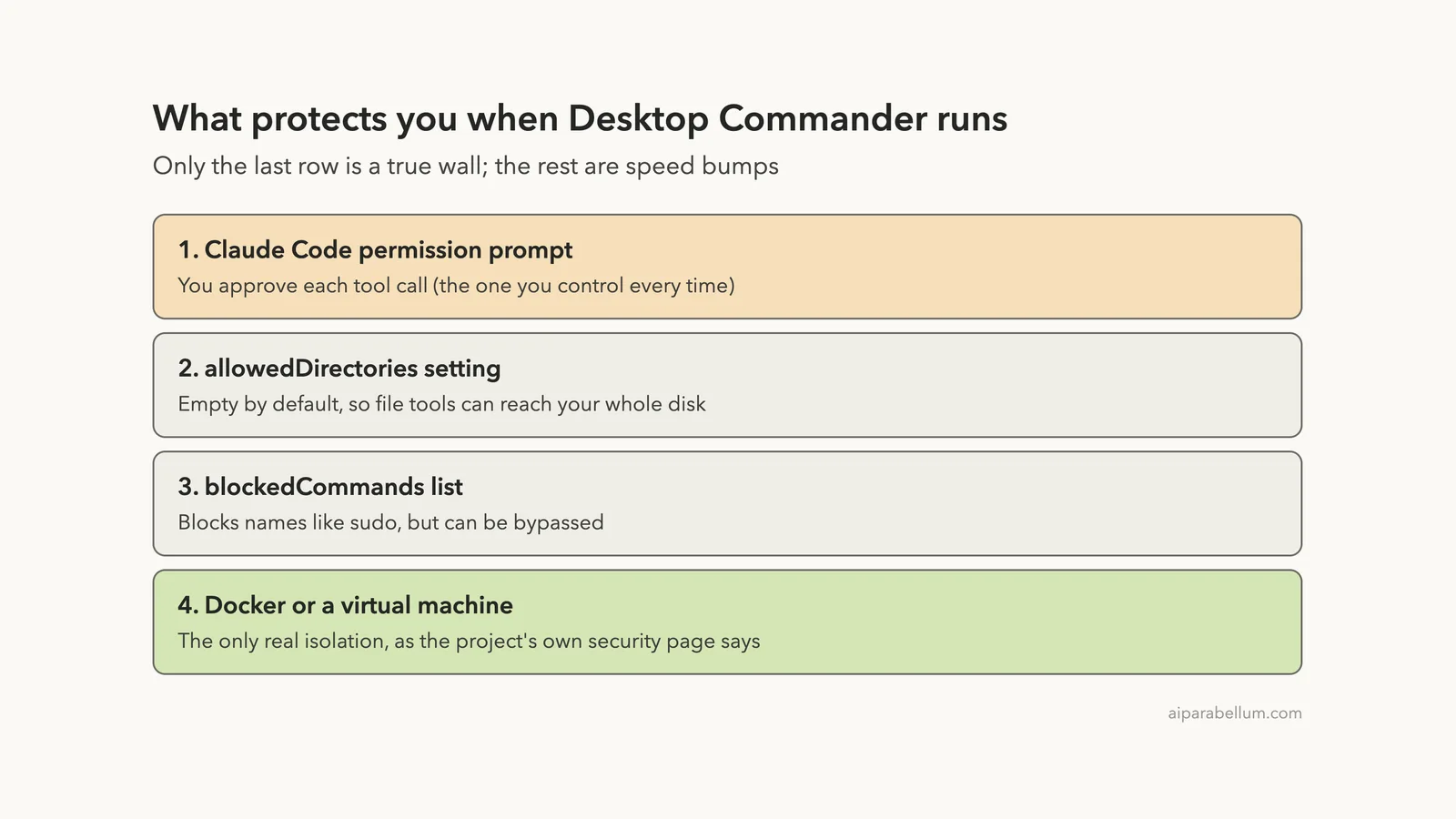
We asked Claude to read the config. The allowedDirectories value was an empty list, and the first blocked commands were mkfs, format, mount, umount, fdisk, dd, parted and diskpart. The README says an empty allowedDirectories list grants access to your entire filesystem for file operations.
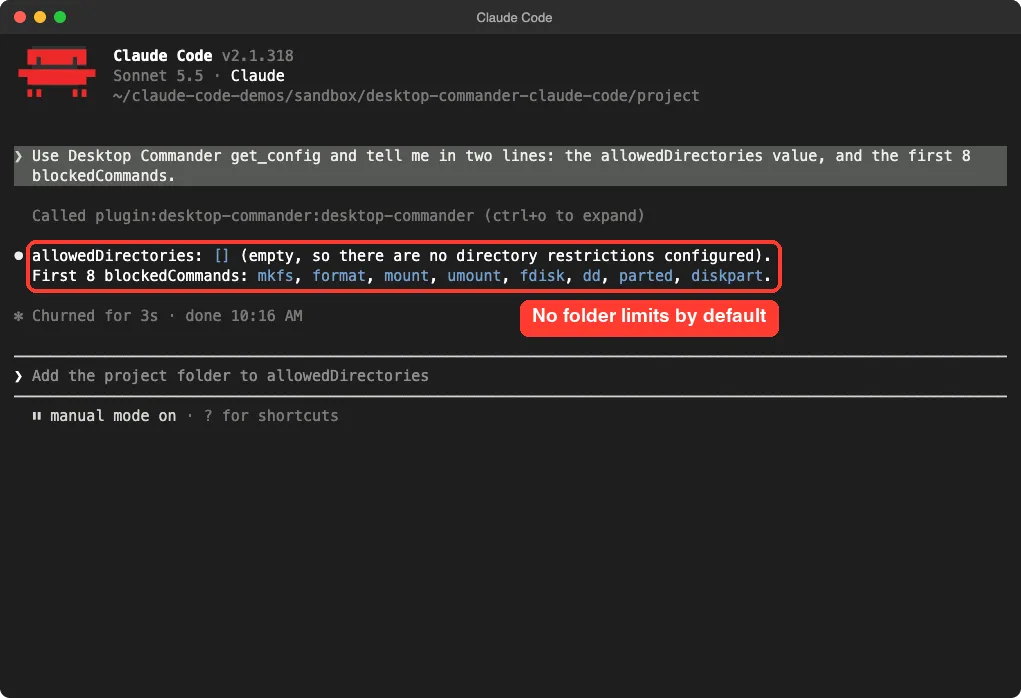
allowedDirectories is empty, so no folder limit is setIt can read outside your project
To prove that, we put a harmless note in a folder next to the demo project and asked Claude to read it with Desktop Commander. It worked. The permission prompt still appeared, and you should read it every time, but the tool itself did not stop at the project boundary.
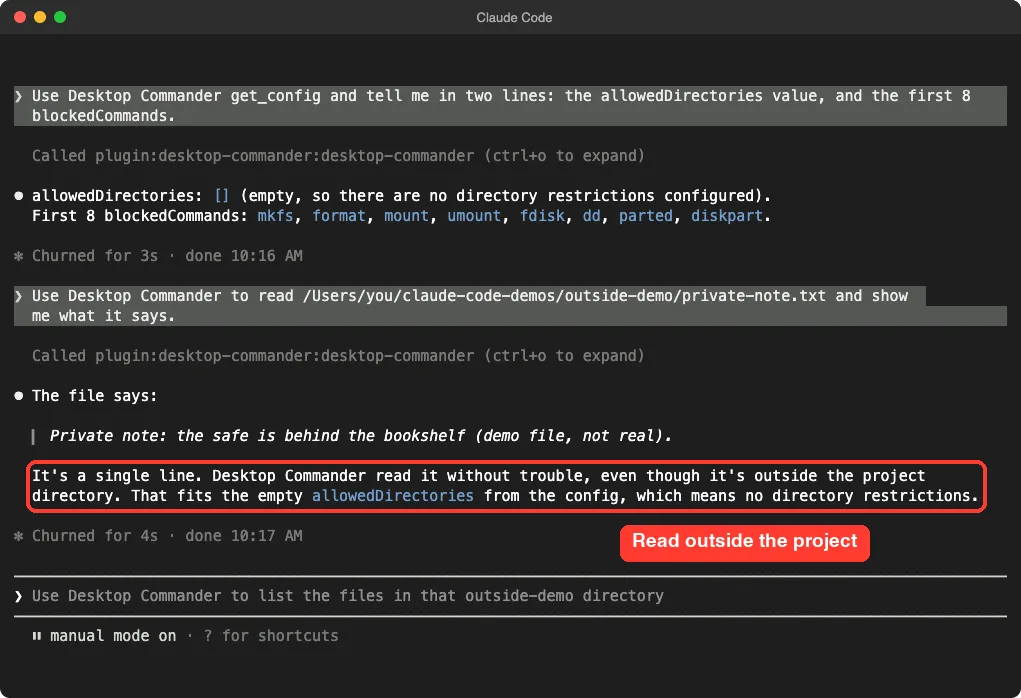
The blocklist works, but it is a speed bump
We asked it to run sudo whoami. The call came back with Command not allowed: sudo whoami, and Claude confirmed that nothing ran and it did not look for a way around the block.
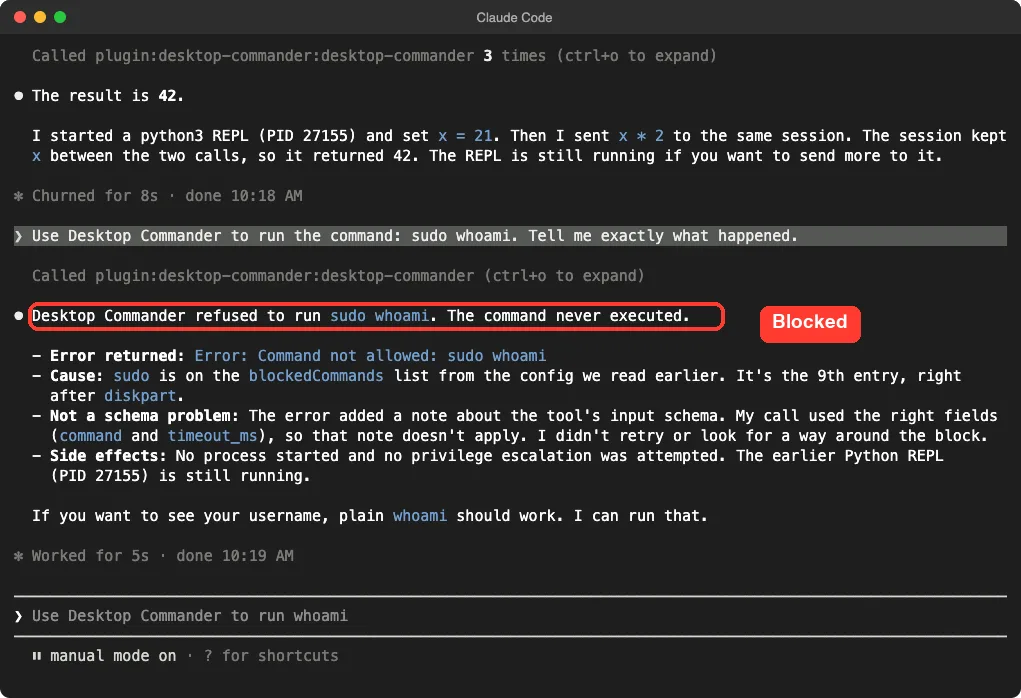
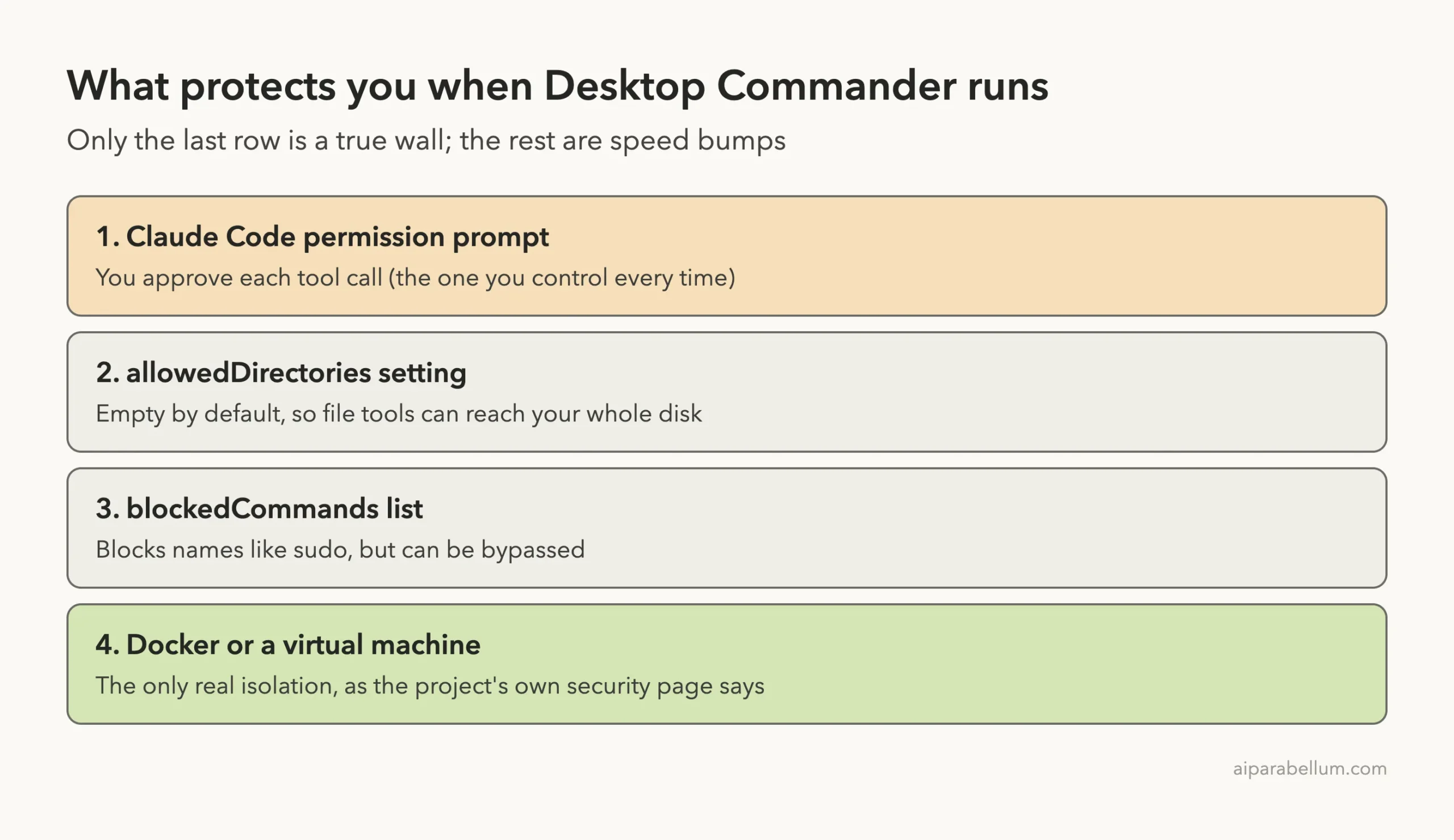
sudo is on the default blocked list, so the command never ranDo not read that as a wall. The project’s security page calls the allowed folders, the blocklist and the symlink checks guardrails against accidents, not a sandbox. It says they can be bypassed through shell substitution, absolute paths or another interpreter.
We did not try to bypass them.
Two things that happen by default
Reading the source, we found two defaults you may not expect. First, telemetry is opt-out, according to the project’s privacy policy. It describes a random client ID and usage details such as the base command name and file extensions, but not file contents or paths.
You can switch it off with the DESKTOP_COMMANDER_DISABLE_TELEMETRY variable, which we did. Second, the code can open a welcome page in your browser on first use, and --no-onboarding turns that off. We used both settings, so we did not observe either behavior ourselves.
How to Install It Normally
If you decide you want it, the normal route is the plugin command inside Claude Code. Our guide on plugin marketplaces explains where this comes from.
/plugin install desktop-commander@claude-plugins-officialThis installs into your own Claude Code setup, which we did not do for this test. Because the server is fetched with @latest, plan to re-check it now and then, and read the release notes of the npm package when it updates.
Make it safer after installing
- Ask Claude to set
allowedDirectoriesto your project folder only, using theset_config_valuetool. The README suggests doing config changes in a separate chat, because Claude may try to change limits when it hits one. - Keep Claude Code in a permission mode that asks. Our guide to permission modes shows the options, and deny rules lets you block specific tool calls.
- Remember that terminal commands are not limited by
allowedDirectories. The README says that setting only restricts file operations. - For anything sensitive, run the whole thing in a container. See a devcontainer.
Desktop Commander vs Built-In Tools
| Need | Built-in Claude Code | With Desktop Commander |
|---|---|---|
| Edit code in your project | Works well | Not needed |
| Run a one-off command | Bash tool, with its own permission rules | Also possible, with its own blocklist |
| Keep a REPL or server session open across turns | Limited | Confirmed in our test |
| Work with files in many folders | Asks per folder | No folder limit until you set one |
| Strong isolation | Optional sandboxed Bash | None built in; use Docker |
If your main goal is working with documents, also see how we handled splitting PDF files, and compare other servers in our list of the best MCP servers.
Our Verdict
Treat the Desktop Commander blocklist as a seatbelt, not a vault.
Desktop Commander works as described for what we ran. The server loaded, the tools were called through normal permission prompts, the Python session persisted, and the blocklist refused sudo. The plugin is clean: no hooks, no extra scripts.
Install it if you need long-lived shells, REPLs, remote sessions or document reading across many folders. Skip it if you mostly edit code in one repository, because the built-in tools already cover that. Whatever you choose, set allowedDirectories first and treat the blocklist as a seatbelt, not a vault.
Try It Yourself
Practice in a demo folder, never a real project. Create a folder with a small CSV and run Claude Code with the plugin loaded as shown above. Then paste this prompt:
Use Desktop Commander to start a python3 REPL, load sales.csv with the csv module, then in the same session tell me which product made the most revenue.After that, ask Claude to show your allowedDirectories value, then restrict it to the demo folder in a separate chat and try reading a file outside it.
Common Mistakes
- Installing it into your main setup before reading what it does. Try it with
--plugin-dirfirst. - Assuming
allowedDirectoriesprotects you from terminal commands. It does not. - Clicking Yes on permission prompts without reading the path or command.
- Forgetting that
@latestmeans the server can change between sessions. - Using it for jobs the built-in tools already do well.
Pro Tips
- Add
--no-onboardingto the server arguments if you do not want a welcome page to open. - Set
DESKTOP_COMMANDER_DISABLE_TELEMETRY=1if you prefer no usage analytics. - Check
/mcpand/skillsafter every update to see what changed. - The default
fileWriteLineLimitis 50 lines per write, so expect Claude to write big files in chunks.
Cheat Sheet
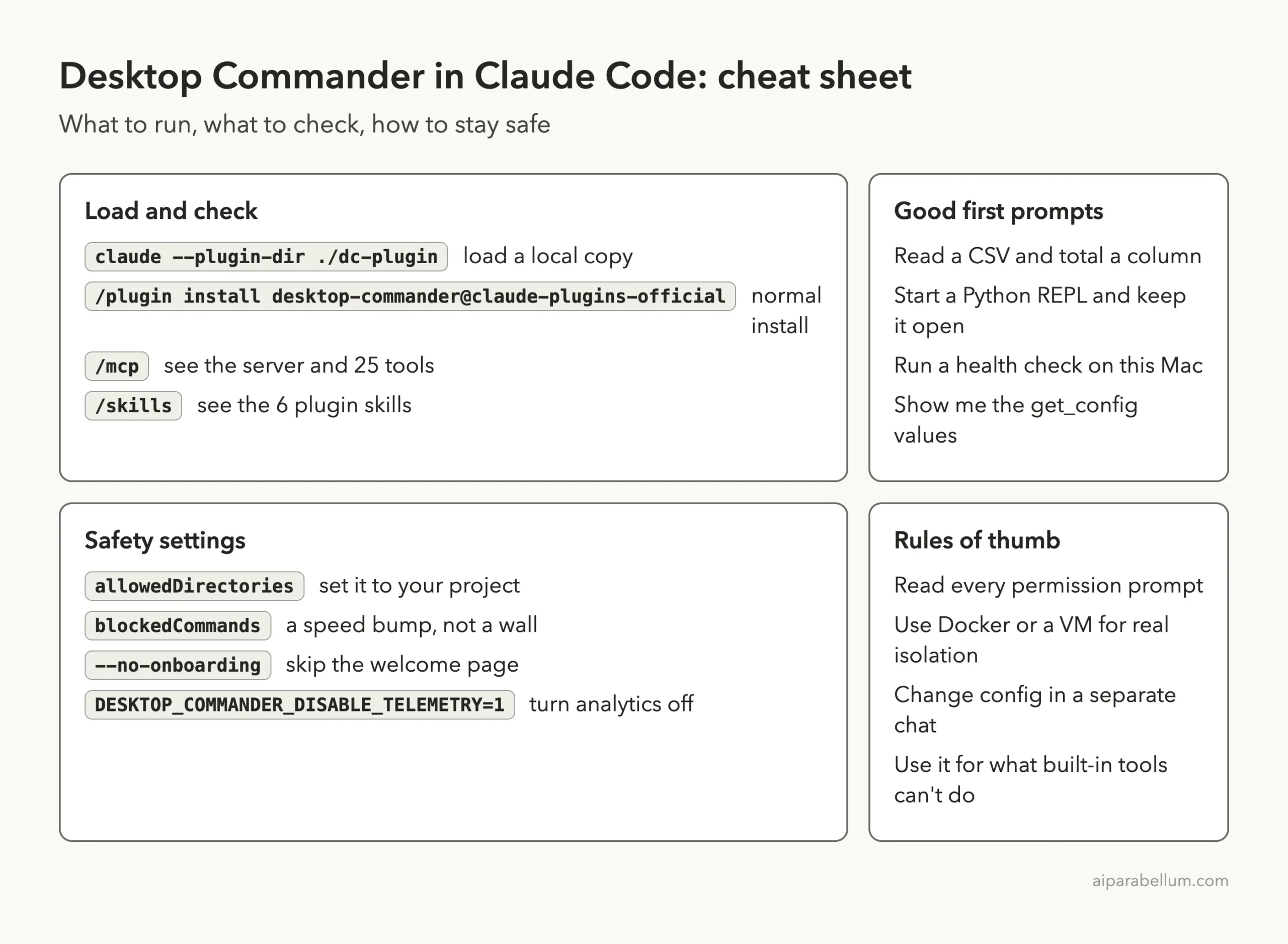
Frequently Asked Questions
Is Desktop Commander an official Anthropic product?
No. It is made by the Desktop Commander project. It is listed in Anthropic’s official plugin marketplace, but the server is third-party code fetched from npm.
Does it ask before running commands?
Claude Code asks before each Desktop Commander tool call unless you have allowed that tool in your permission rules. In our test we saw the prompt every time.
Can it access my whole computer?
By default, yes for file operations, because allowedDirectories is empty. Terminal commands can also reach outside any allowed folder. Use Docker or a virtual machine if you need a hard boundary.
Does Desktop Commander send my data anywhere?
The project says it runs locally and collects opt-out telemetry such as usage events, not file contents. You can disable it with DESKTOP_COMMANDER_DISABLE_TELEMETRY. Read the project’s privacy policy for the full list.
Do I need it if I already use Claude Code?
Often no. It helps most with persistent shells, long-running processes and working with documents across many folders.
Conclusion
Desktop Commander gives Claude Code a longer reach: a shell that stays alive, tools for files anywhere on your Mac and skills that guide common jobs. In our demo it did exactly that, and its blocklist stopped sudo. The catch is that its default limits are guardrails, so lock down allowedDirectories, read every prompt and use a container when the stakes are high. For more add-ons, browse our Claude page and the plugin directory, and read the official docs on plugins and discovering plugins.