Need to merge PDF with Claude Code, or cut one long PDF into smaller files? You can describe the job in plain English, and Claude Code picks a tool, runs it and shows you the result. You do not need to program, and in our test it combined three PDFs and split a fourth in just four short prompts.
This is Part 4 of 10 in our Claude Code for Non-Coders series, part of our Claude Code tutorials. We wrote it for someone who has never programmed. Last time we changed file types in our document conversion tutorial, and the same safety habits apply here: work on copies, read before you approve, then check.
Tested with Claude Code v2.1.310 on October 28, 2026, on macOS. We tested on macOS; the Windows and Linux steps follow Anthropic’s official instructions.
What We Did in This Tutorial
A merged PDF is only done when you have flipped through every page and seen them in the right order.
| Item | Details |
|---|---|
| Goal | Combine three PDFs into one packet and split one six-page PDF into two files |
| Starting point | Five made-up PDFs for a pretend garden club: a cover letter, a schedule, a price list, volunteer notes and a six-page handbook |
| Results | A three-page sale packet, and two three-page handbook files |
| Safety net | Results went into a separate output folder, and we had Claude read the pages back |
| Typed prompts | 4 short prompts, plus a few Enter presses to approve commands |
| Installed for this | Nothing. Claude wrote small scripts using a tool that already comes with the Mac |
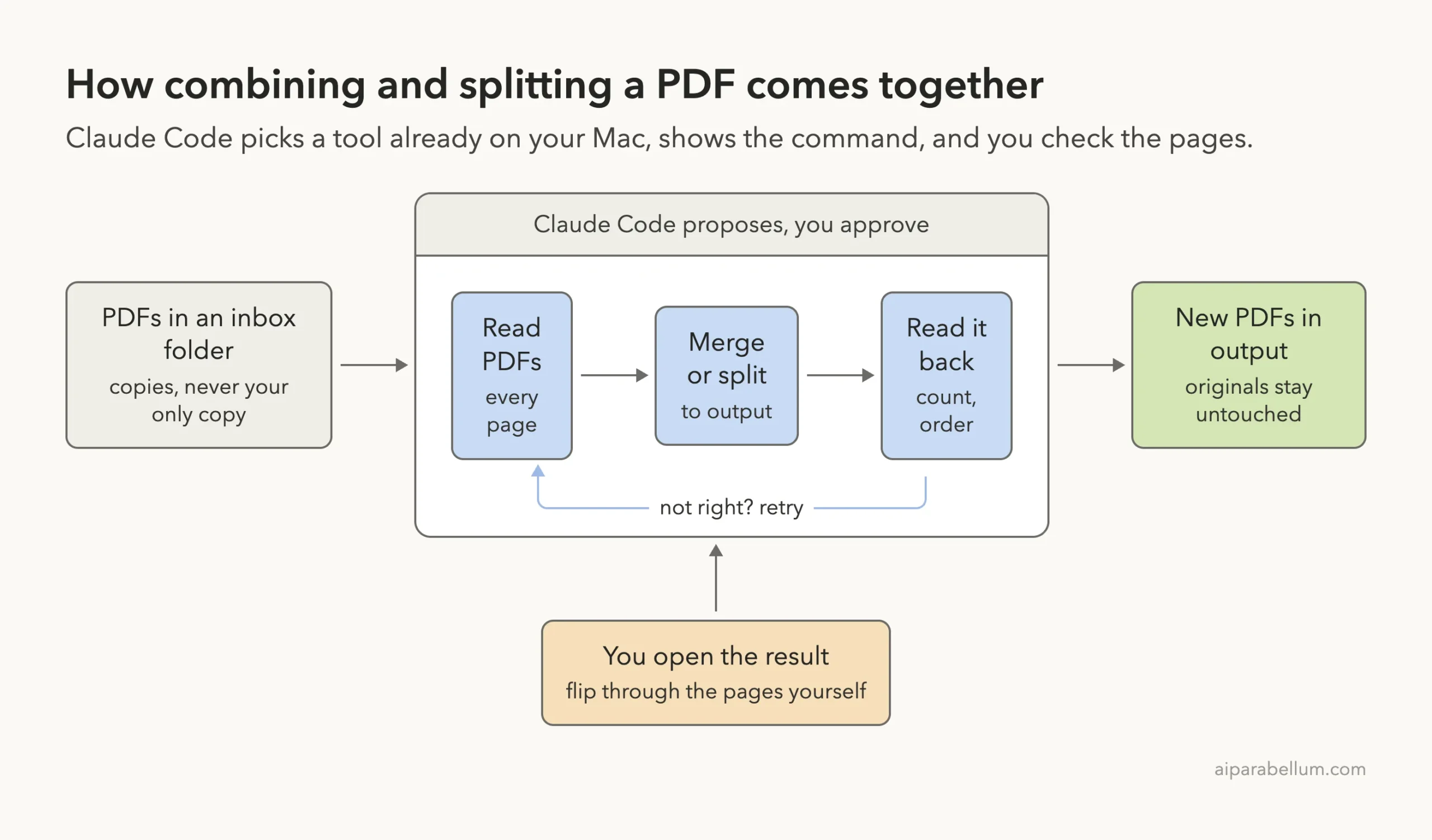
Everything here uses made-up files that we created in a practice folder. We did not touch any real documents, and you should not either until you have practiced.
Why Merge PDF Files With Claude Code
PDFs are handy because they look the same everywhere. They are also awkward to change. A cover letter, a schedule and a price list arrive as three separate files, but the person you are sending them to wants one.
The usual answer is a website that merges PDFs for you. That means uploading your documents to a stranger’s server, which is not great for contracts, invoices or anything private.
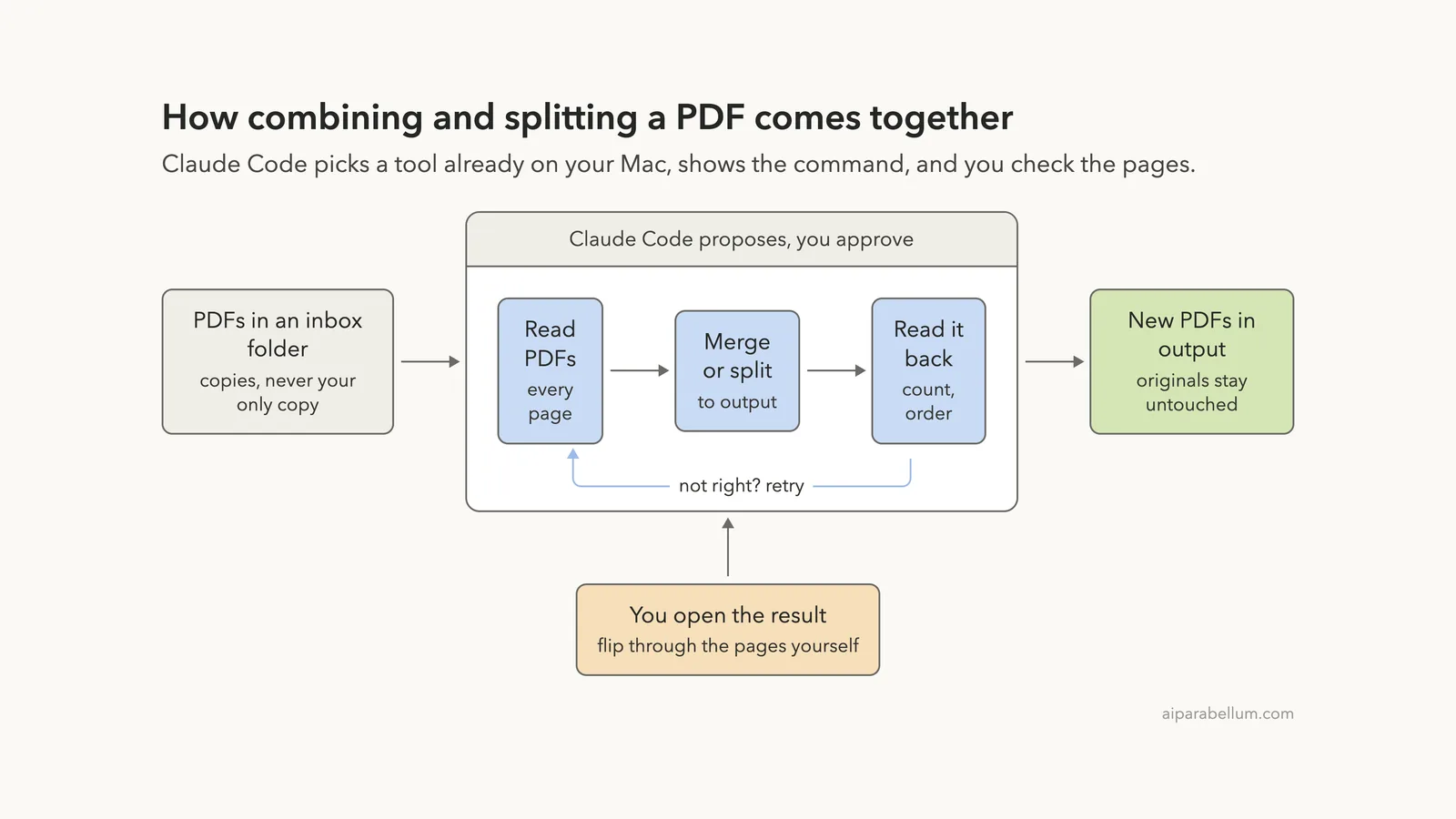
With Claude Code, you describe the result and it works on your own computer. You say which files, in which order, and where the new file goes. It checks what tools are on your Mac, runs the job and reports what happened.
Combine and Split, in Plain Words
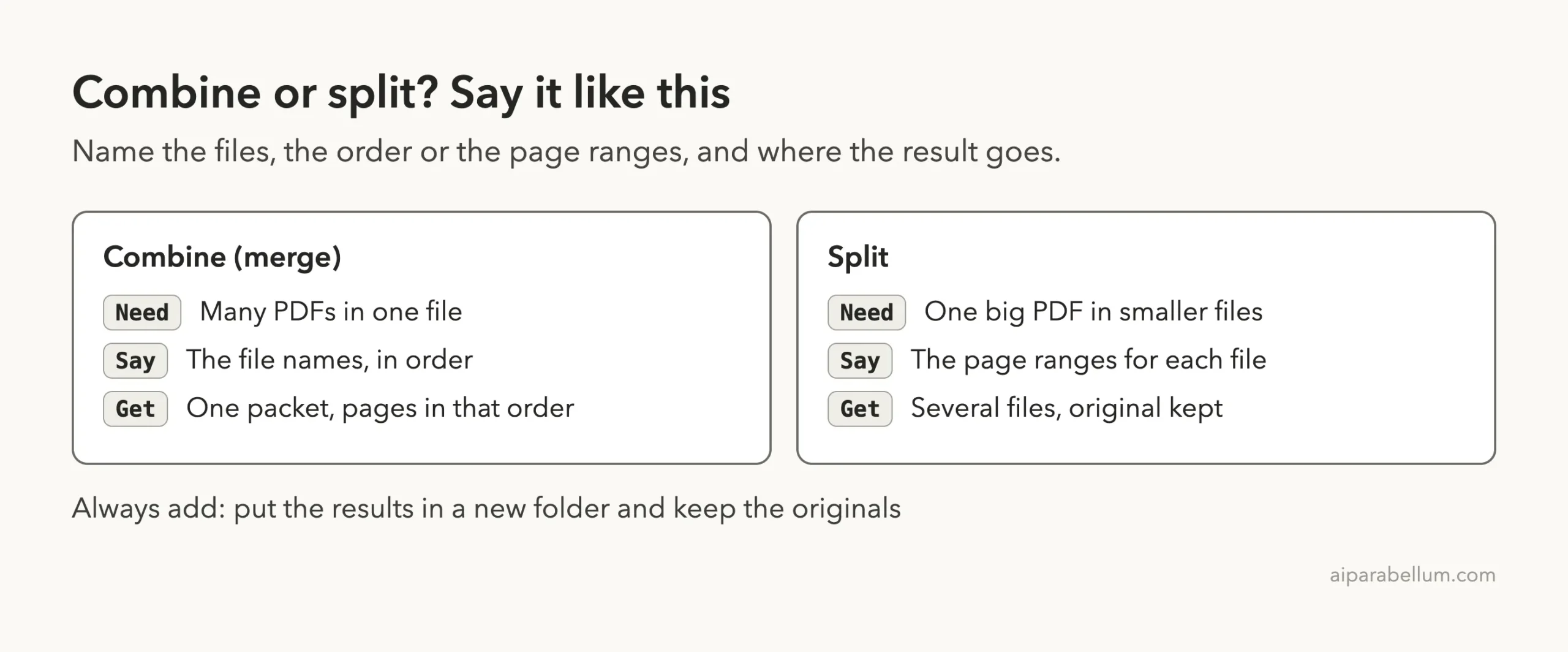
Combining, also called merging, joins several PDFs into one file. The pages stay in the order you give. Splitting does the opposite: it takes one PDF and saves chosen pages as separate files.
The words you use matter. “Pages 1 to 3” and “pages 4 to 6” are clear instructions. “Cut it in half” is not, because Claude has to guess where the middle is.
What Claude Code Can and Cannot See
Claude Code reads the files you point it to and the folder layout around them. Anthropic’s common workflows page says that when you mention a folder with an @ sign, Claude gets a list of the files, not their contents. For this job, we simply named the files in our prompts.
It cannot see how a PDF looks on your screen the way you do. It can read the text on each page, though, and that is how it checked our results. A scanned page that is only a picture has no text to read, so you should always look at the final file yourself.
Before You Start: Make a Safe Practice Folder
Create a new folder just for practice and put copies of a few PDFs in it. Never start with your only copy of something important.
- Make a folder, for example Documents/pdf-practice.
- Inside it, make a subfolder called inbox and copy in three or four short PDFs, plus one with several pages.
- Open a terminal in the pdf-practice folder and type claude to start.
- When Claude Code asks whether you trust the folder, read the question and choose yes only for your practice folder.
If you have never started Claude Code, our first session guide walks through the first minutes. You also need a Claude account to sign in.
Step 1: Ask Claude Code to Look Before It Touches Anything
Our first prompt only asked questions. We told Claude not to change anything, to count the pages in each PDF and say what is on them, and to name the tool it would use on this Mac without installing anything.
Look at the PDF files in inbox. Do not change anything. Tell me how many pages each one has and what is on it, and which tool you would use to combine and split PDFs on this Mac without installing anything.Claude answered with a table. It found five PDFs and ten pages in total, and it described each file correctly, including the chapters in the handbook.
It also gave us two ways to do the job. The simple way was Preview, the app that comes with macOS: drag pages into the thumbnail sidebar, reorder them and export. The scripted way was a small program using Apple’s built-in PDF tools.
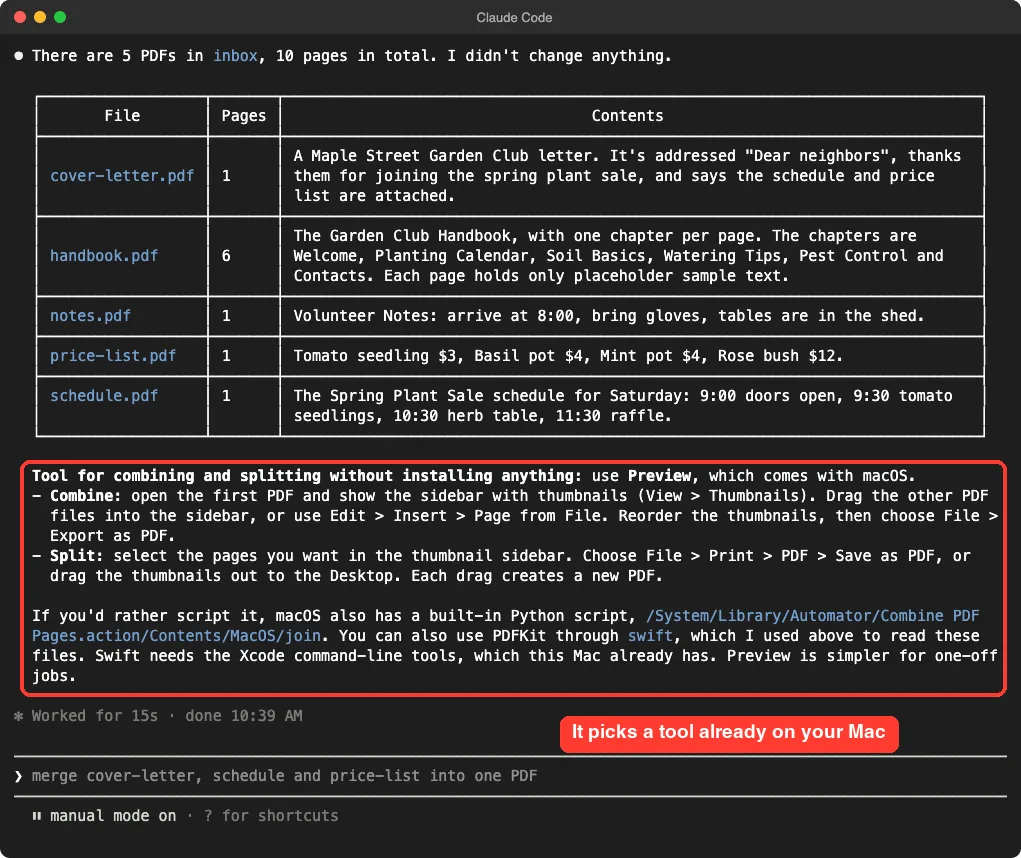
This step is worth the extra minute. You learn what Claude sees, and you find out early if it misread a file. If a PDF is a scan, this is where Claude would tell you it found no text.
Step 2: Combine Three PDFs Into One
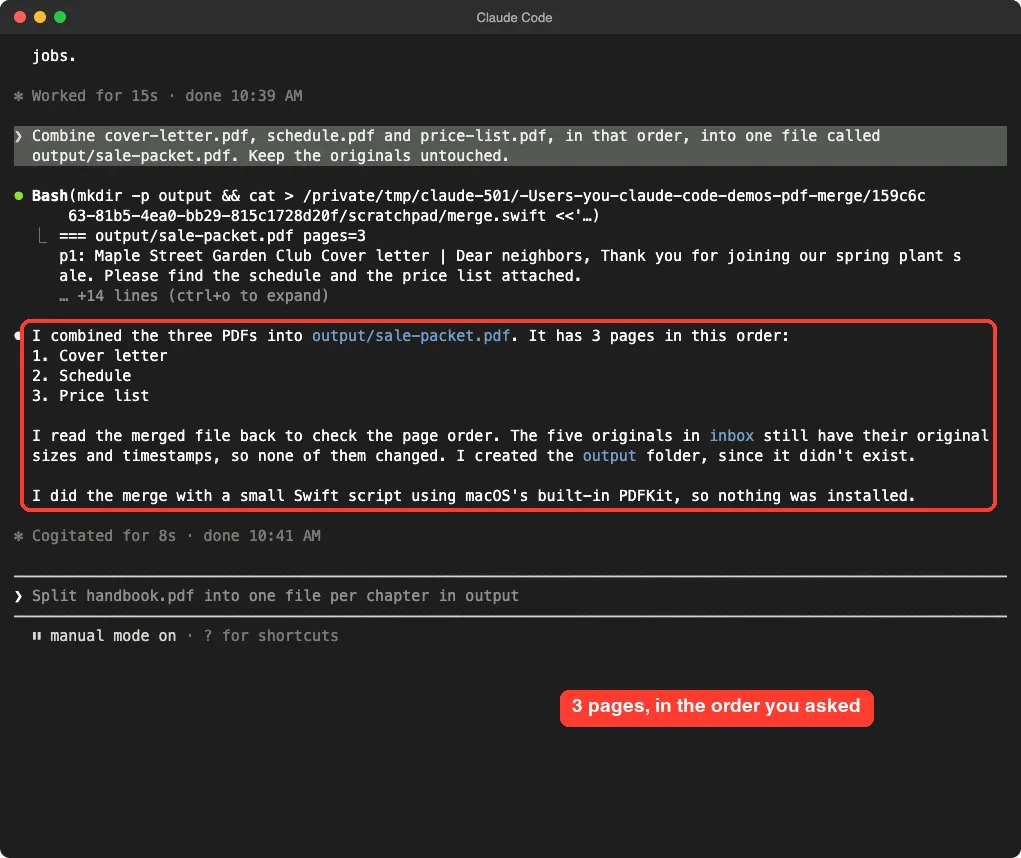
Now for the real job. We named the three files in the order we wanted, gave the new file a name and a folder, and said to keep the originals.
Combine cover-letter.pdf, schedule.pdf and price-list.pdf, in that order, into one file called output/sale-packet.pdf. Keep the originals untouched.Read the Command Before You Approve
Claude Code does not run a command without asking, unless you have told it to. It showed a box titled Bash command with a short script. The script created the output folder, opened each PDF, copied the pages into a new document in order, and saved it.
You do not need to understand every line. Look for three things: it writes into the output folder, it only reads from inbox, and it does not delete anything. Then choose option 1, Yes.
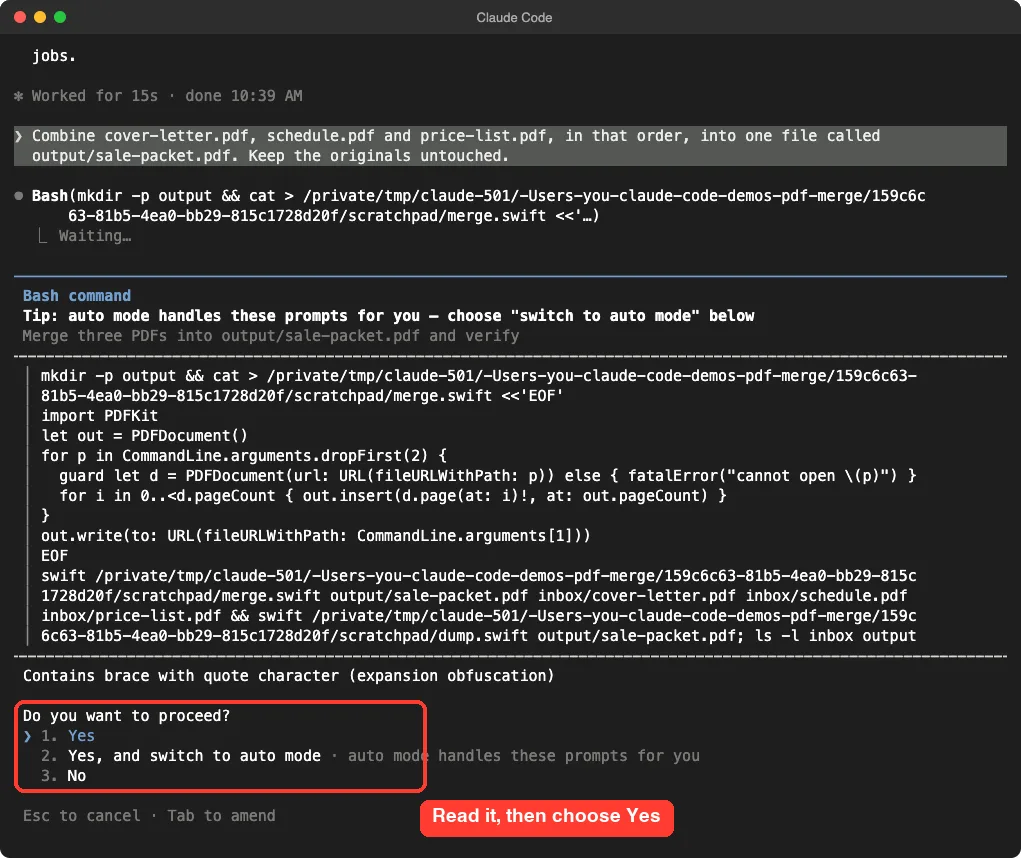
The screen also offered to switch to auto mode so it would stop asking. We did not take it. While you are learning, approving each command yourself is the best way to see what Claude does.
The Merged Packet
Claude reported that it made a three-page file with the cover letter first, the schedule second and the price list third. It also said it had read the new file back to check the order, and that the five originals still had their old sizes and dates.
We also created the sale packet’s page list ourselves with a separate script outside Claude Code. It showed the same three pages in the same order, and nothing was lost.
Step 3: Split One PDF Into Two Files
Splitting needs exact page ranges. We asked for the six-page handbook to become two files of three pages each, and we named both.
Split handbook.pdf into two files in output: handbook-part1.pdf with pages 1 to 3, and handbook-part2.pdf with pages 4 to 6. Keep the original.Claude again showed a script and asked for approval. After we pressed Enter, it reported that the first file held chapters 1 to 3, Welcome, Planting Calendar and Soil Basics. The second file held chapters 4 to 6, Watering Tips, Pest Control and Contacts.
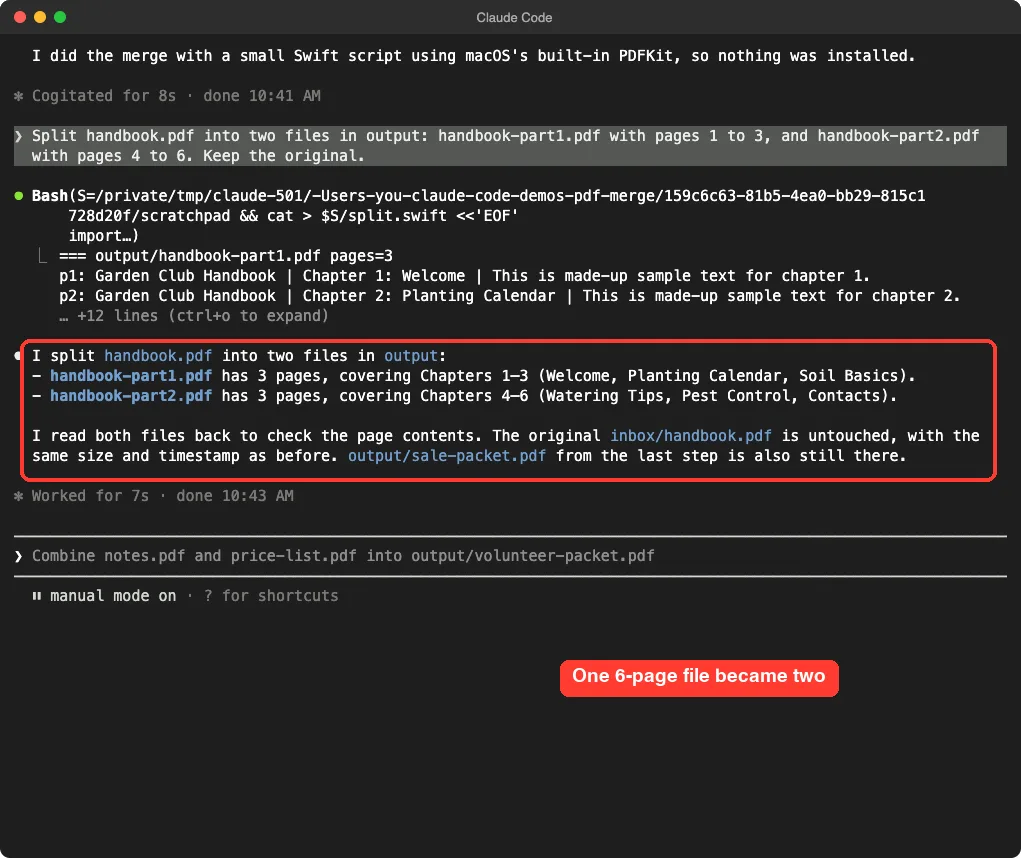
Notice that Claude described what was on the pages, not only the page counts. That gives you a second way to confirm that page 4 really is where the second half begins.
Other Ways to Say Which Pages
| What you want | How to say it |
|---|---|
| A page range | Pages 2 to 5 as one file |
| Only some pages | Pages 1, 3 and 7 |
| One file per page | Save every page as its own PDF |
| Remove pages | A new copy without page 4 |
| Reverse the order | A new copy with the pages in reverse order |
We only tested the first two rows of our own wording above: a merge and a page-range split. The others use the same kind of job, but run a small check on them before you trust them.
Step 4: Check the Work
The last prompt asked Claude to check everything: list the files in both folders with page counts, confirm the inbox files were unchanged, and give the first line of text on each page of the merged packet.
Check the work: list the files in inbox and output with page counts, confirm the inbox files are unchanged, and tell me the first line of text on each page of sale-packet.pdf.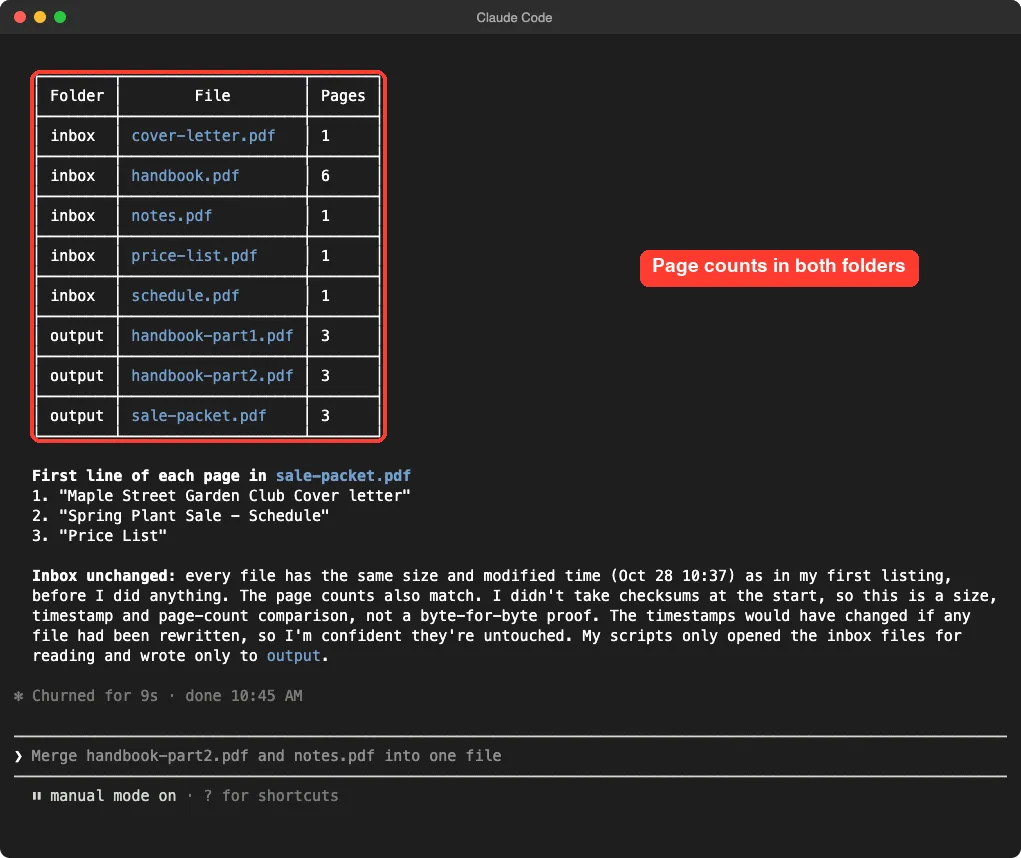
The table showed all five originals and all three new files. The first lines were “Maple Street Garden Club Cover letter”, “Spring Plant Sale – Schedule” and “Price List”, exactly the order we wanted.
The Honest Part
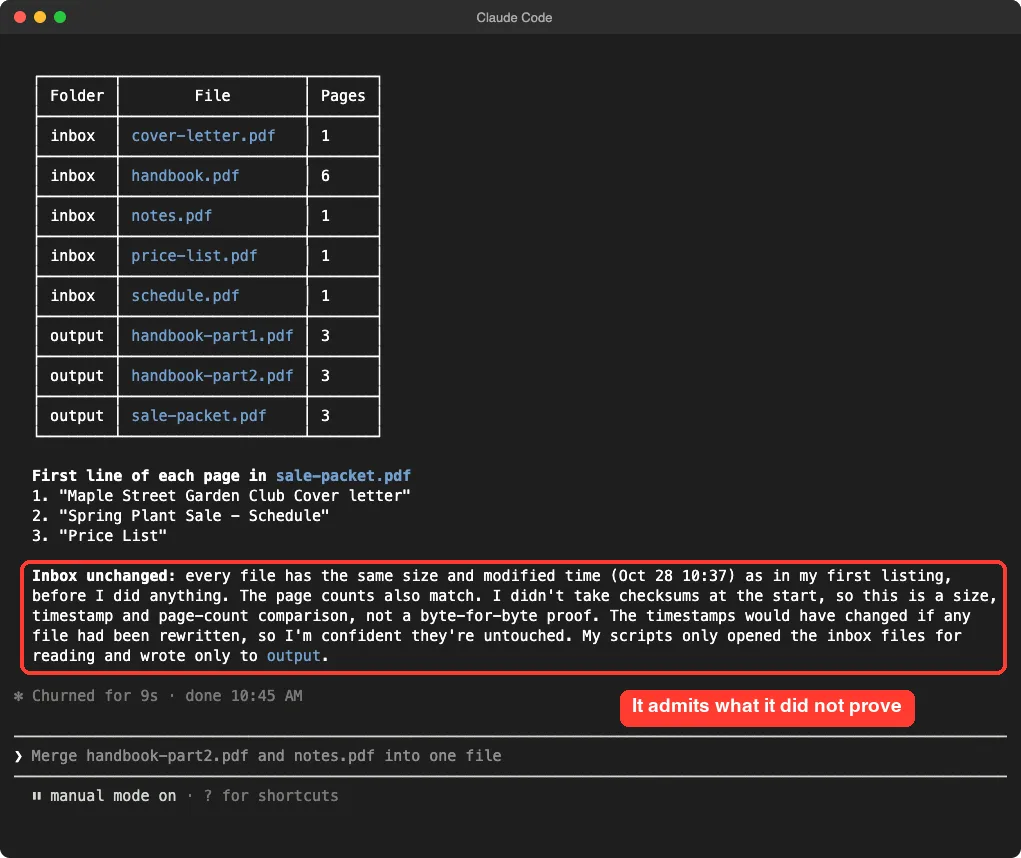
Here is what we liked most. Claude said every inbox file had the same size and modified time as in its first listing. Then it added that it had not taken checksums at the start, so this was a size, timestamp and page-count comparison, not a byte-for-byte proof.
That is the right way to report a check. It told us what it did and what it could not prove. If you need hard proof, ask for checksums of the originals before you start.
Preview or Claude Code: Which Should You Use?
Claude itself said Preview is simpler for one-off jobs, and we agree. If you have two files and a few seconds, drag them together in Preview and you are done.
Claude Code starts to pay off when the job is bigger or repeats. Think of fifty monthly statements to merge by year, a folder of scans to split at page one of each document, or the same packet you build every week.
| Situation | Better choice |
|---|---|
| Two files, one time | Preview |
| Many files with a clear rule | Claude Code |
| Same packet every week | Claude Code, with the rule saved |
| Private document you do not want to send anywhere | Preview, or read the privacy note below first |
One note on privacy. Claude Code works on your computer, but the text of what it reads can be sent to Anthropic’s servers as part of the conversation. Read our guide to privacy and security before you use it on real contracts or medical papers.
Try It Yourself
Here is a practice task you can finish in about twenty minutes. Use copies of your own PDFs in a new folder.
- Put three short PDFs and one longer PDF in a folder called inbox inside a practice folder.
- Start Claude Code in the practice folder and paste the prompt below.
- Read each command before you choose Yes.
- Open every new PDF and flip through the pages.
Look at the PDFs in inbox. Do not change anything yet. Tell me the page count of each one. Then combine the three short ones into output/packet.pdf, in alphabetical order, and split the longest one into two files of equal length in output. Keep the originals. When you are done, read the new files back and tell me anything you could not verify.Ideas for Your Own PDF Jobs
- Merge a cover page, your CV and a reference letter into one application.
- Split a long scanned manual into one file per chapter.
- Pull out the three pages of an invoice you need to send to your accountant.
- Combine your monthly receipts into one yearly file.
Common Mistakes
- Working on your only copy. Always keep the originals in a separate folder.
- Skipping the order. If you do not say the order, Claude has to guess, so list the files in the order you want.
- Vague page ranges. Say “pages 1 to 3”, not “the first half”.
- Not opening the result. Text checks do not show a page that looks wrong on screen.
- Expecting scans to have text. A scanned page is a picture, so Claude may find nothing to read on it.
- Choosing “switch to auto mode” too early. Keep approving commands yourself until you trust the result.
- Pressing Enter on the grey suggestion at the bottom without reading it.
Pro Tips
- Say what must not happen: “do not overwrite, do not install anything, keep the originals.”
- Ask Claude to list what it could not verify. In our test it did, and that list told us where to look.
- Use clear file names, such as 01-cover.pdf and 02-schedule.pdf, so the order is obvious.
- Save your folder rules in a CLAUDE.md file so you do not repeat them next time.
- Use plan mode for the first look, so Claude cannot change anything by accident.
- If you change your mind, rewind can undo changes made through Claude’s own edit tools, but it does not cover every command, so keep your backup too.
- Check password-protected PDFs on a copy first. We did not test them, so we cannot say how Claude handles them.
Cheat Sheet
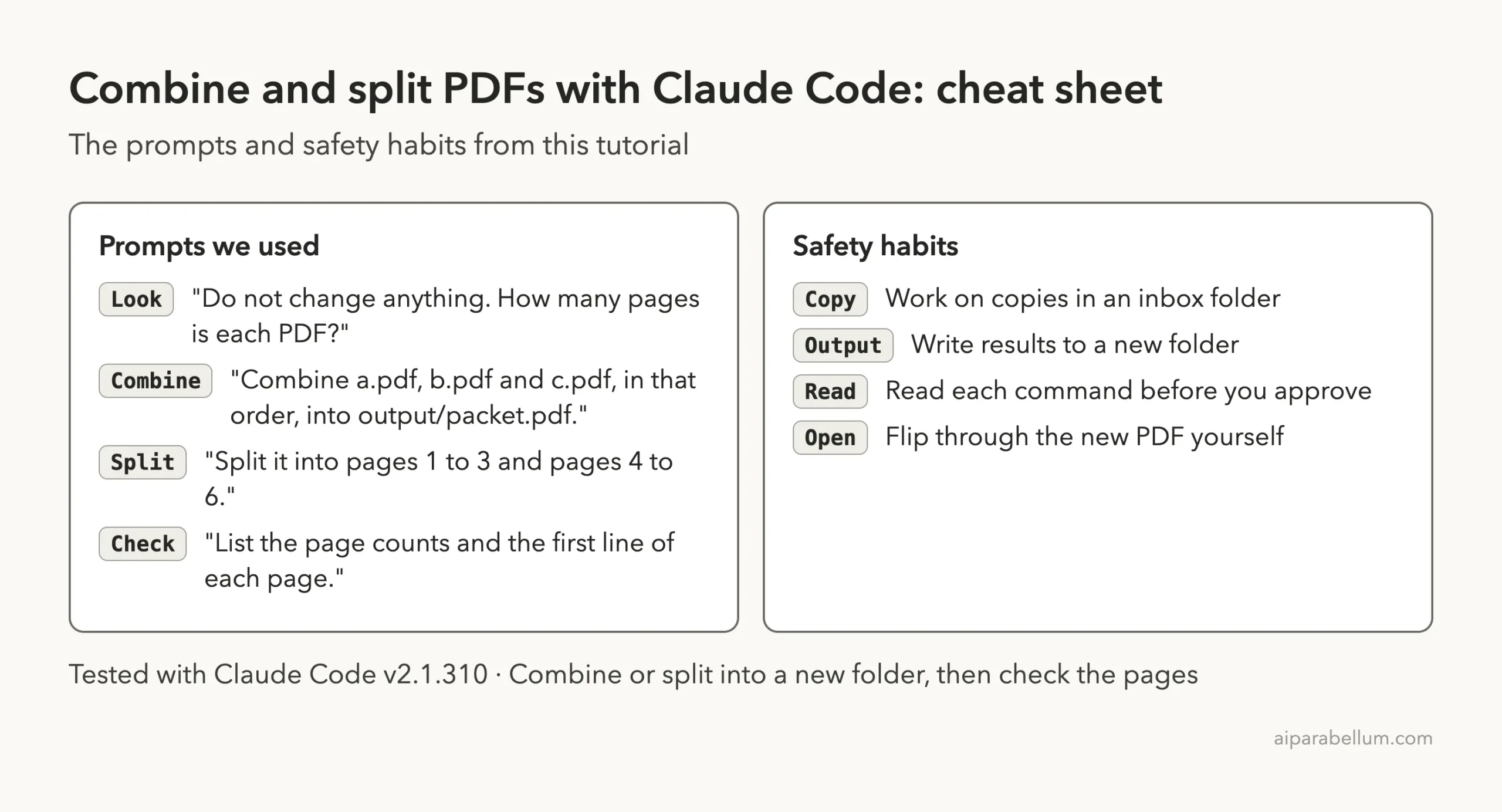
Frequently Asked Questions
Can Claude Code merge PDF files?
Yes. In our test it combined three PDFs into one three-page file, in the order we named. It wrote a small script using a tool already on the Mac, showed it to us and ran it after we approved.
Can it split a PDF into separate files?
Yes. We split a six-page PDF into two three-page files by naming the page ranges. Give exact ranges so Claude does not have to guess.
Do I need to install anything first?
Not in our test. Claude used a tool that comes with macOS, so nothing had to be installed. On Windows or Linux the tool may differ, and Claude will tell you what it plans to use before it runs anything.
Will my original PDFs change?
Not in our test, since results went into a separate output folder and sizes and dates matched. Claude said this was not a byte-for-byte proof, so keep a backup and work on copies.
Is it better than Preview?
For two files, Preview is quicker, and Claude said so itself. Claude Code helps when you have many files, a clear rule or a job you repeat.
Conclusion
You can combine or split PDF files with Claude Code by asking it to look first, naming the files and page ranges, writing the results to a new folder and checking them at the end. In our test, four short prompts produced a three-page packet and two handbook halves, and Claude was upfront about what it had and had not proved. Start with a practice folder, read every permission prompt, keep a backup and open each new PDF yourself. For more background on the tool itself, see our Claude AI overview.
Previous in the series: Part 3: Convert Documents Between Formats With Claude Code
Next in the series: Part 5, Clean Up an Email List in a Spreadsheet With Claude Code, is coming soon.