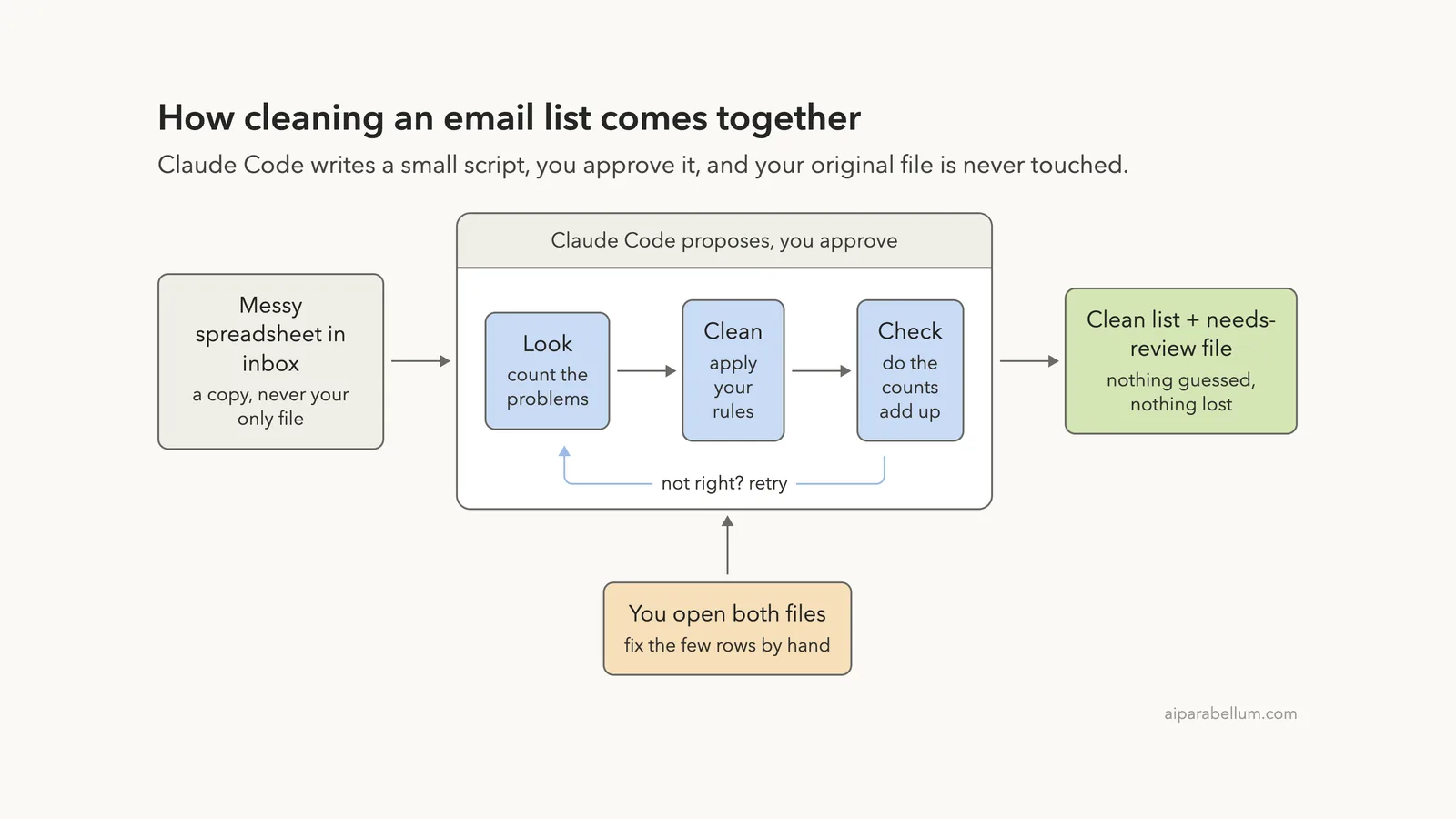
Want to clean an email list with Claude Code instead of fixing it by hand, row after row? You describe the mess in plain English, Claude Code writes a small script, you approve it, and a tidy file comes out. In our test, three short prompts turned a 25-row spreadsheet into 16 clean rows and a separate list of 6 rows that needed a human.
This is Part 5 of 10 in our Claude Code for Non-Coders series, part of our Claude Code tutorials. We wrote it for someone who has never programmed. Last time we joined and cut files in our PDF tutorial, and the same safety habits apply: work on copies, read before you approve, then check.
Tested with Claude Code v2.1.312 on October 29, 2026, on macOS. We tested on macOS; the Windows and Linux steps follow Anthropic’s official instructions.
What We Did in This Tutorial
A cleaned list is only done when the row counts add up and the leftovers are in a file a person can read.
| Item | Details |
|---|---|
| Goal | Tidy a messy subscriber list saved as a CSV file |
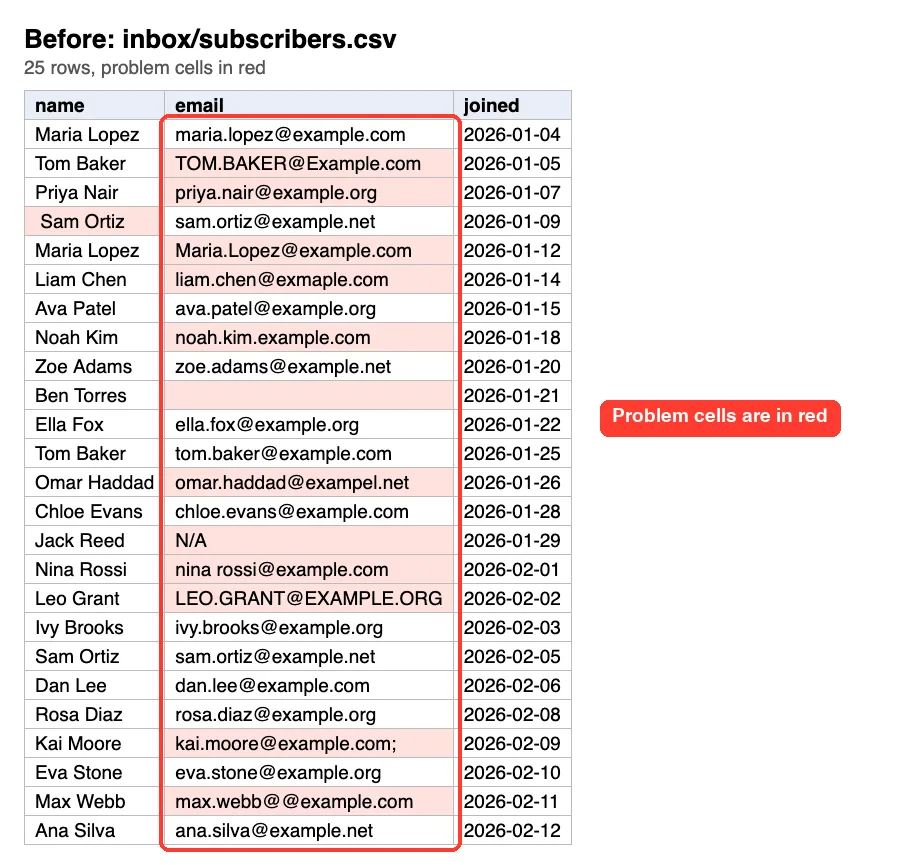
| Starting point | A made-up list of 25 people with duplicates, blank emails, typos, stray spaces and capital letters |
| Results | A clean file with 16 rows and a needs-review file with 6 rows |
| Safety net | Results went into a separate output folder, and Claude checked that the numbers add up |
| Typed prompts | 3 short prompts, plus a few Enter presses to approve scripts |
| Installed for this | Nothing. Claude wrote a small script with tools already on the Mac |
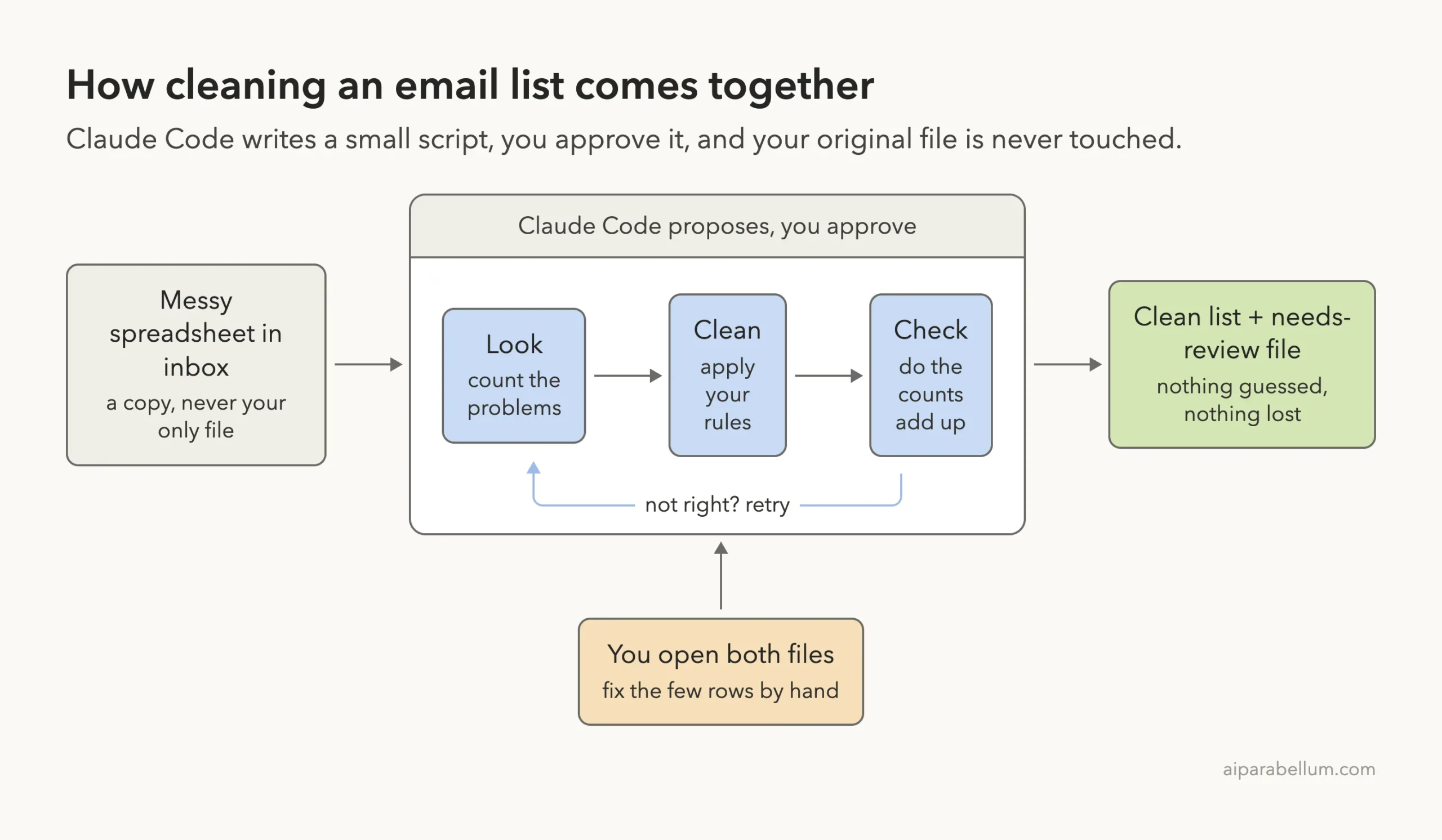
Every name and address in this tutorial is made up, and the addresses use the reserved example domains. We did not touch a real customer list, and you should practice on a copy before you do.
Why Clean an Email List With Claude Code
Email lists get messy fast. People type their address twice, sign up with capital letters, add a space at the end or mistype the part after the @ sign. A few of these are harmless, but duplicates mean someone gets two messages, and typos mean a message goes nowhere.
You can fix fifty rows by hand. Five thousand is another story. Spreadsheet formulas can help, but you need to know which ones, and each problem needs its own trick.
With Claude Code you state the rules the way you would explain them to a helper. It finds the problems, applies your rules and shows what it did. Anthropic’s common workflows page describes the same habit of asking specific questions to get detailed answers, and that is exactly how we worked here.
What a CSV File Is
A CSV file is a plain text spreadsheet. Each line is a row, and commas separate the columns.
Excel, Numbers and Google Sheets all open and save CSV files, so it is the easiest format to hand to Claude Code. If your list is an .xlsx file, you can first save a copy as CSV, or ask Claude to convert it, as we did in our document conversion tutorial.
What Claude Code Can and Cannot Decide
Claude can apply clear rules, such as trimming spaces, lowercasing and removing exact duplicates. It cannot know who a real person is or what address they meant to type. That is why we asked it to put unclear rows in a separate file, not to guess.
Before You Start: Make a Safe Practice Folder
Create a new folder just for practice and put a copy of your spreadsheet in it. Never start with your only copy of a customer list.
- Make a folder, for example Documents/email-practice.
- Inside it, make a subfolder called inbox and copy in your CSV file.
- Open a terminal in the email-practice folder and type claude to start.
- If Claude Code asks whether you trust the folder, read the question and choose yes only for your practice folder.
If you have never started Claude Code, our first session guide walks through the first minutes. You also need a Claude account to sign in.
Here is what our made-up list looked like before we started. The red cells are the problems we planted on purpose.
Step 1: Ask Claude Code to Look Before It Touches Anything
Our first prompt only asked questions. We told Claude not to change anything and to count each kind of problem with line numbers.
Look at inbox/subscribers.csv. Do not change anything. Tell me how many rows it has and which kinds of problems you see (duplicates, blank emails, typos, spaces, capital letters). Give counts and line numbers.Claude read the file and sorted the trouble into groups. It found two domain typos, four malformed addresses, two stray spaces and three addresses with capital letters. It also told us that 15 of the 25 rows had at least one problem and that 10 looked clean.
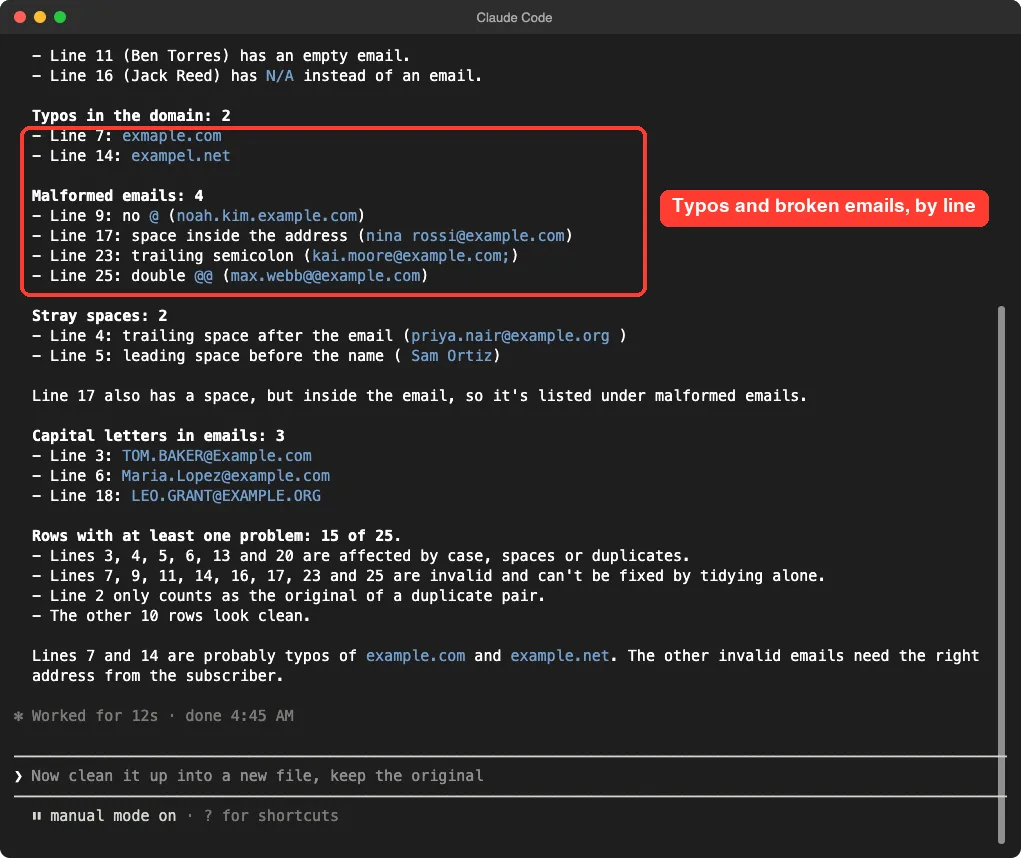
This step is worth the extra minute. You learn what Claude sees, and you can compare its list with your own eyes. If a count looks wrong, say so before anything is written.
Step 2: Clean the Email List With Your Own Rules
Now for the real job. We listed our rules one by one, named the two output files and said to keep the original.
Clean it. Save output/subscribers-clean.csv with spaces trimmed, emails in lowercase, duplicate emails removed (keep the first), and the typos exmaple.com and exampel.net fixed. Put every row with a missing or invalid email into output/needs-review.csv with a reason column. Keep the original.Notice the three habits in this prompt. It names every rule, it says which copy of a duplicate to keep, and it gives unclear rows somewhere to go. That last habit is the most important one.
Read the Script Before You Approve
Claude Code does not run a command without asking, unless you have told it to. It showed us a short Python script and asked, “Do you want to proceed?” The script opened the original file for reading, checked each row against our rules and wrote two new files in the output folder.
You do not need to understand every line.
Look for three things: it only reads from inbox, it writes into output, and it does not delete anything. In our script we could also see the reasons it would write, such as “missing email” and “contains a space”. Then choose option 1, Yes.
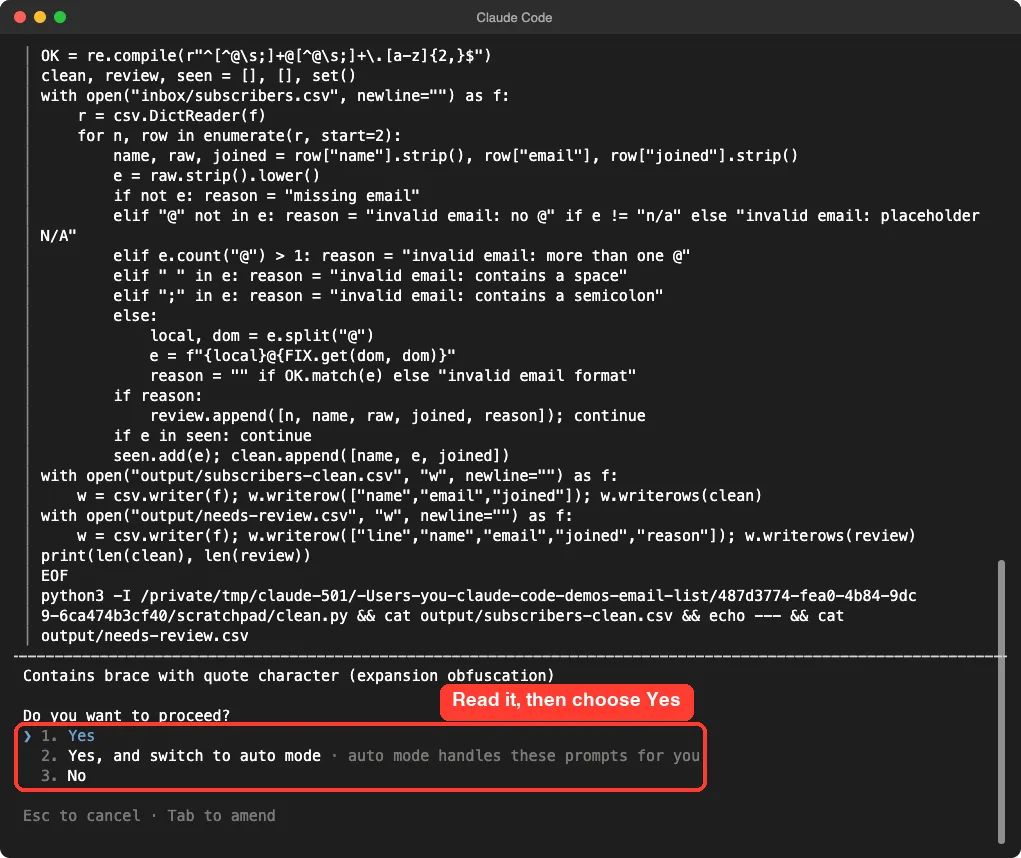
The screen also offered to switch to auto mode so it would stop asking. We did not take it. While you are learning, approving each script yourself is the best way to see what Claude does.
What Claude Did With Our List
Claude reported that the clean file had 16 rows, down from 25. It had trimmed spaces, lowercased every address, fixed the two typos and dropped three duplicates, keeping the first row of each pair. Six rows went to the review file with a reason beside each one.
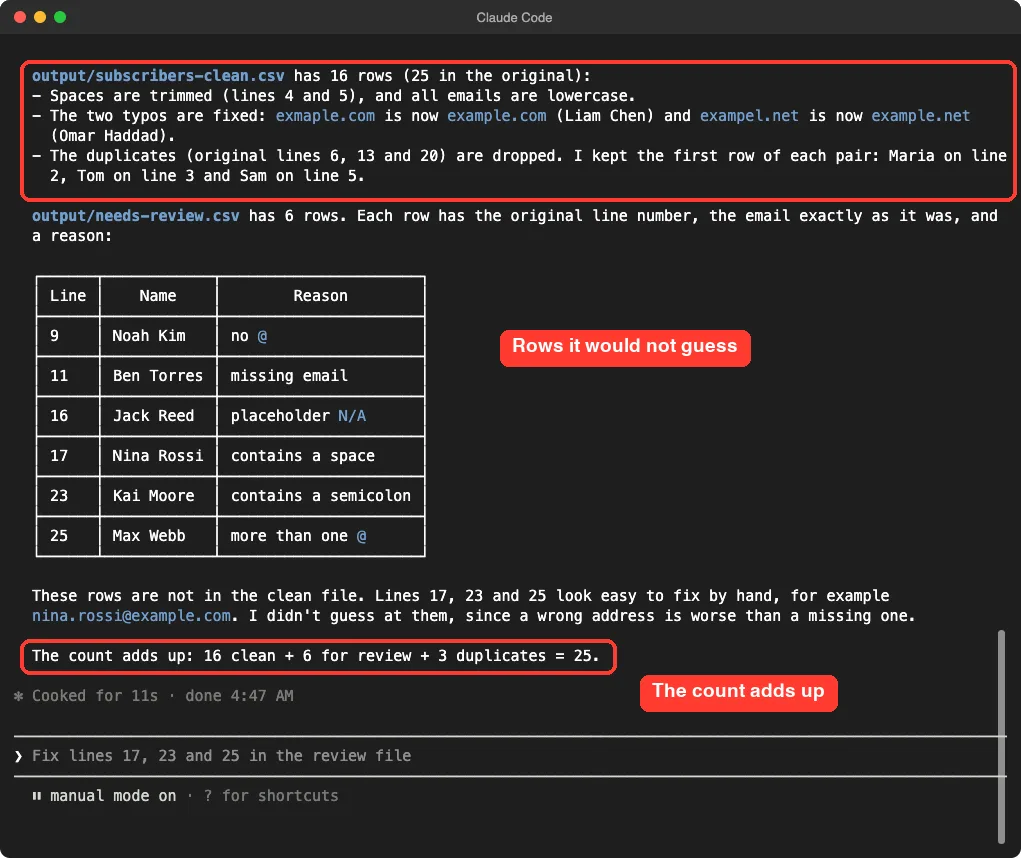
Claude also noted that three of the review rows looked easy to fix by hand, but it did not guess at them. In its words, a wrong address is worse than a missing one. That is the behavior you want when the list belongs to real people.
Step 3: Open Both Files Yourself
Claude’s summary is good, but your eyes are better. We opened both new files to see the real result. The clean file is sorted in the same order as the original, and the review file keeps the original line number, so you can find each row again.
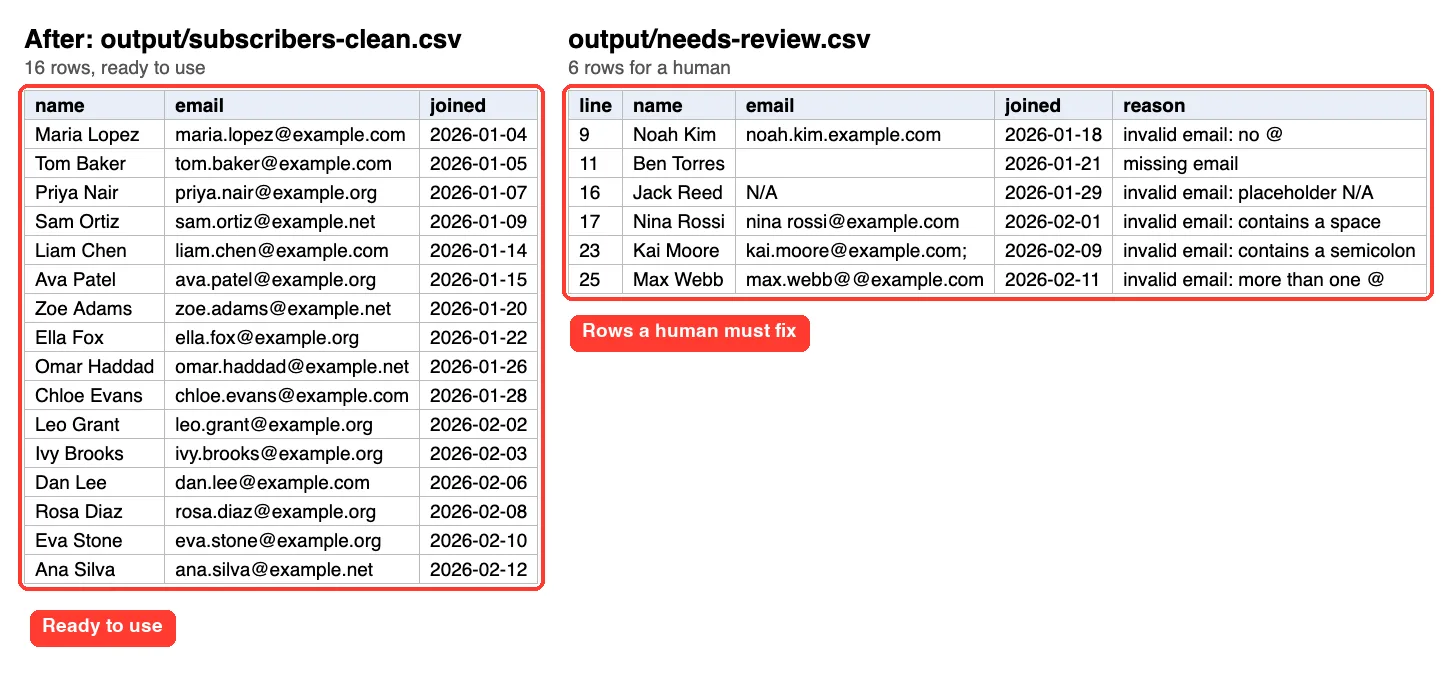
Look at Liam Chen and Omar Haddad in the clean file. Their typos are gone, because we told Claude exactly which two typos to fix. Anything else that looks like a typo would have gone to review, not been corrected silently.
Rules You Can Ask For
| What you want | How to say it |
|---|---|
| Remove extra spaces | Trim spaces at the start and end of every field |
| Make addresses consistent | Put every email in lowercase |
| Drop repeats | Remove duplicate emails and keep the first row |
| Fix known typos | Change this exact typo to this exact text |
| Set aside unclear rows | Put rows with a missing or invalid email in a review file with a reason |
We tested every row in this table in our demo. Rules we did not test, such as checking whether a mailbox really exists, are different: Claude cannot know that from a spreadsheet alone.
Step 4: Check the Work
The last prompt asked Claude to prove that nothing went missing.
Check the work: count the rows in the original, the clean file and the review file and show that the numbers add up. Confirm the original is unchanged.Claude showed a small table with 25 rows in the original, 16 in the clean file and 6 in the review file. It added that 16 plus 6 plus the 3 removed duplicates makes 25.
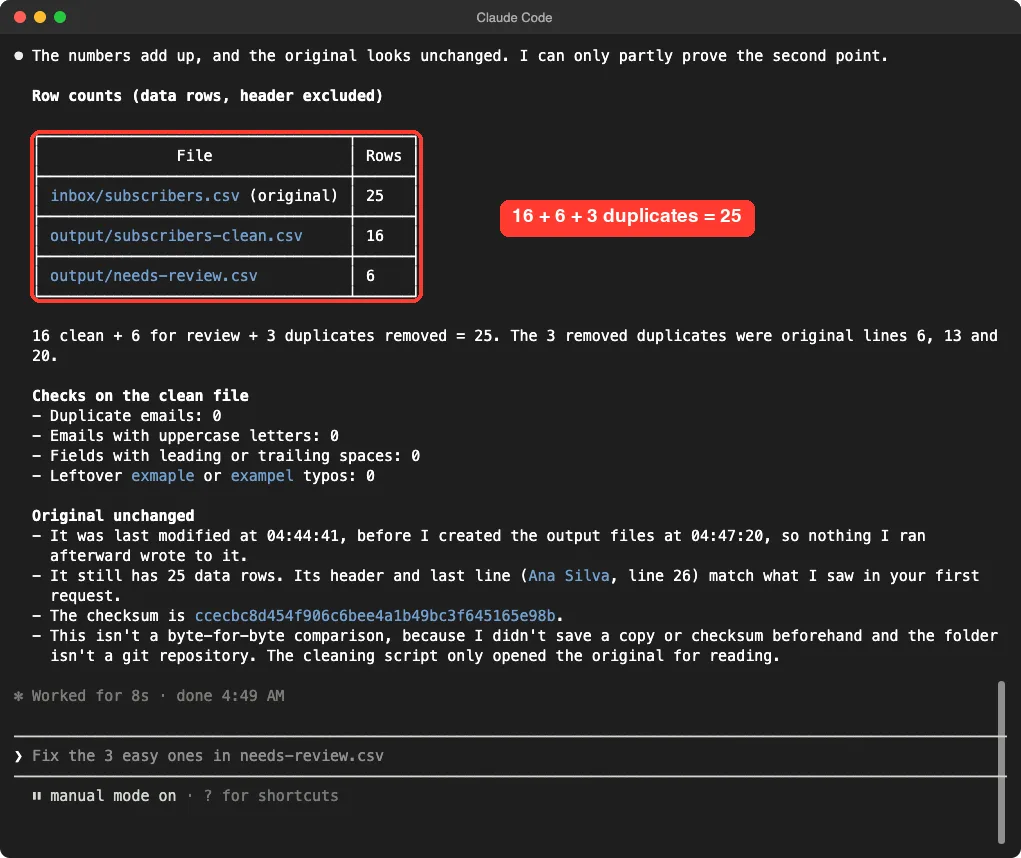
It also ran checks on the clean file and reported zero duplicates, zero uppercase letters, zero stray spaces and zero leftover typos.
The Honest Part
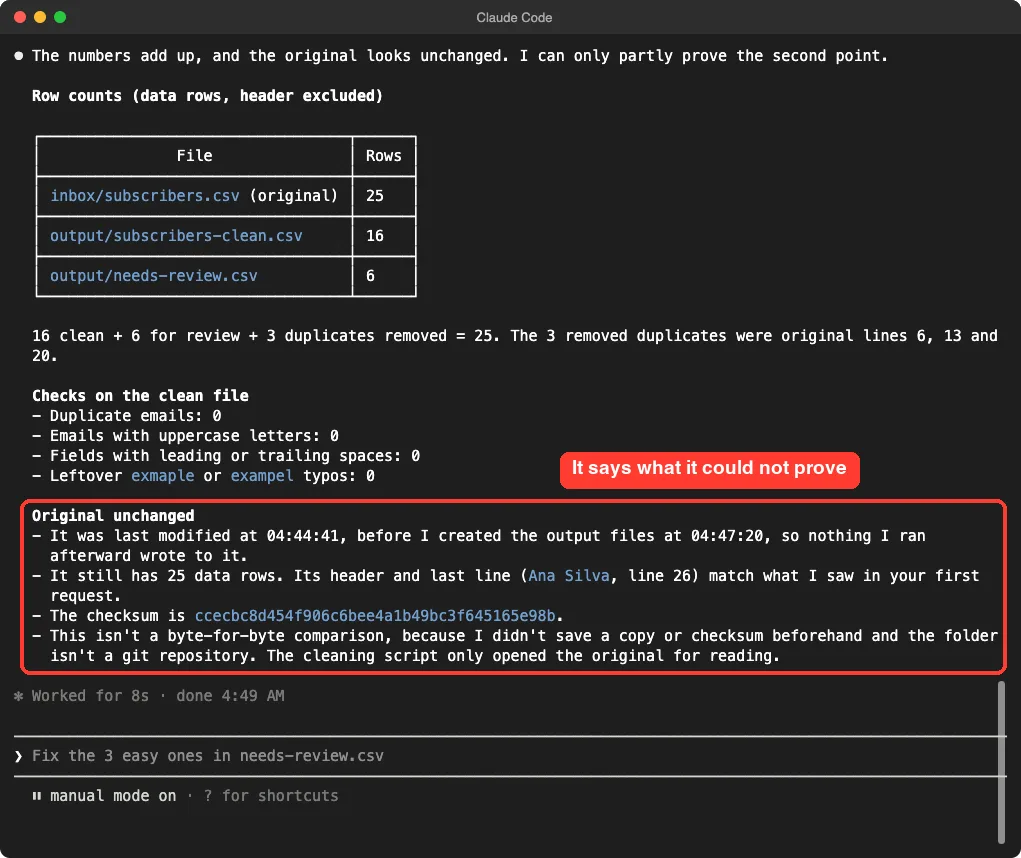
Here is what we liked most. On the question of whether the original was unchanged, Claude said the file was last modified before the output files were created and still had 25 data rows. Then it added that this was not a byte-for-byte comparison, because it had not saved a copy or checksum beforehand.
That is the right way to report a check. It told us what it did and what it could not prove. If you need hard proof, ask for a checksum of the original before you start.
Clean an Email List: Formulas or Claude Code?
For a ten-row list with one problem, a spreadsheet formula or the built-in remove duplicates button is faster. Claude Code starts to pay off when several problems pile up, or when you repeat the job every month.
| Situation | Better choice |
|---|---|
| A few rows, one problem | Your spreadsheet app |
| Many problems at once, thousands of rows | Claude Code |
| Same cleanup every month | Claude Code, with the rules saved |
| A list you must not share with anyone | Your spreadsheet app, or read the privacy note below first |
One note on privacy. Claude Code works on your computer, but the text it reads can be sent to Anthropic’s servers as part of the conversation. An email list is personal data, so read our guide to privacy and security before you use a real list, and check your own rules for customer data.
Try It Yourself
Here is a practice task you can finish in about twenty minutes. Use a copy of your own list, or make a small made-up one with ten to twenty rows.
- Save your list as a CSV file in a folder called inbox inside a practice folder.
- Start Claude Code in the practice folder and paste the prompt below.
- Read each script before you choose Yes.
- Open both new files and compare them with the original.
Look at inbox/list.csv first and do not change anything. Tell me how many rows there are and what kinds of problems you see, with line numbers. Then save output/list-clean.csv with spaces trimmed, emails in lowercase and duplicate emails removed (keep the first). Put rows with a missing or invalid email in output/needs-review.csv with a reason column. Keep the original. At the end, show that the row counts add up and tell me anything you could not verify.Ideas for Your Own Lists
- Tidy a newsletter list before you import it into your email tool.
- Clean the sign-up sheet from a club or event.
- Make phone numbers look the same, with the same rule-by-rule approach.
- Split a list into two files, one for each region or group.
Common Mistakes
- Working on your only copy. Always keep the original in a separate folder.
- Letting Claude guess. If you do not give unclear rows somewhere to go, it may fix or drop them in ways you did not want.
- Vague rules. “Clean it up” leaves too much open, so name each rule.
- Forgetting which duplicate to keep. Say whether you want the first row or the newest.
- Not opening the result. Summaries do not show a column that looks wrong on screen.
- Choosing “switch to auto mode” too early. Keep approving scripts yourself until you trust the result.
- Using a real list before practicing. Try a made-up one first.
Pro Tips
- Say what must not happen: “do not overwrite, do not guess addresses, keep the original.”
- Ask Claude to list what it could not verify. In our test it did, and that list told us where to look.
- Keep a review file instead of deleting bad rows, so no person disappears from your records without a reason.
- Save your usual rules in a CLAUDE.md file so you do not retype them each month.
- Use plan mode for the first look, so Claude cannot change anything by accident.
- If you are unsure about an address pattern, ask Claude to show five examples before it applies the rule.
- Check lists with accented names or very large files on a copy first. We did not test those, so we cannot say how Claude handles them.
Cheat Sheet
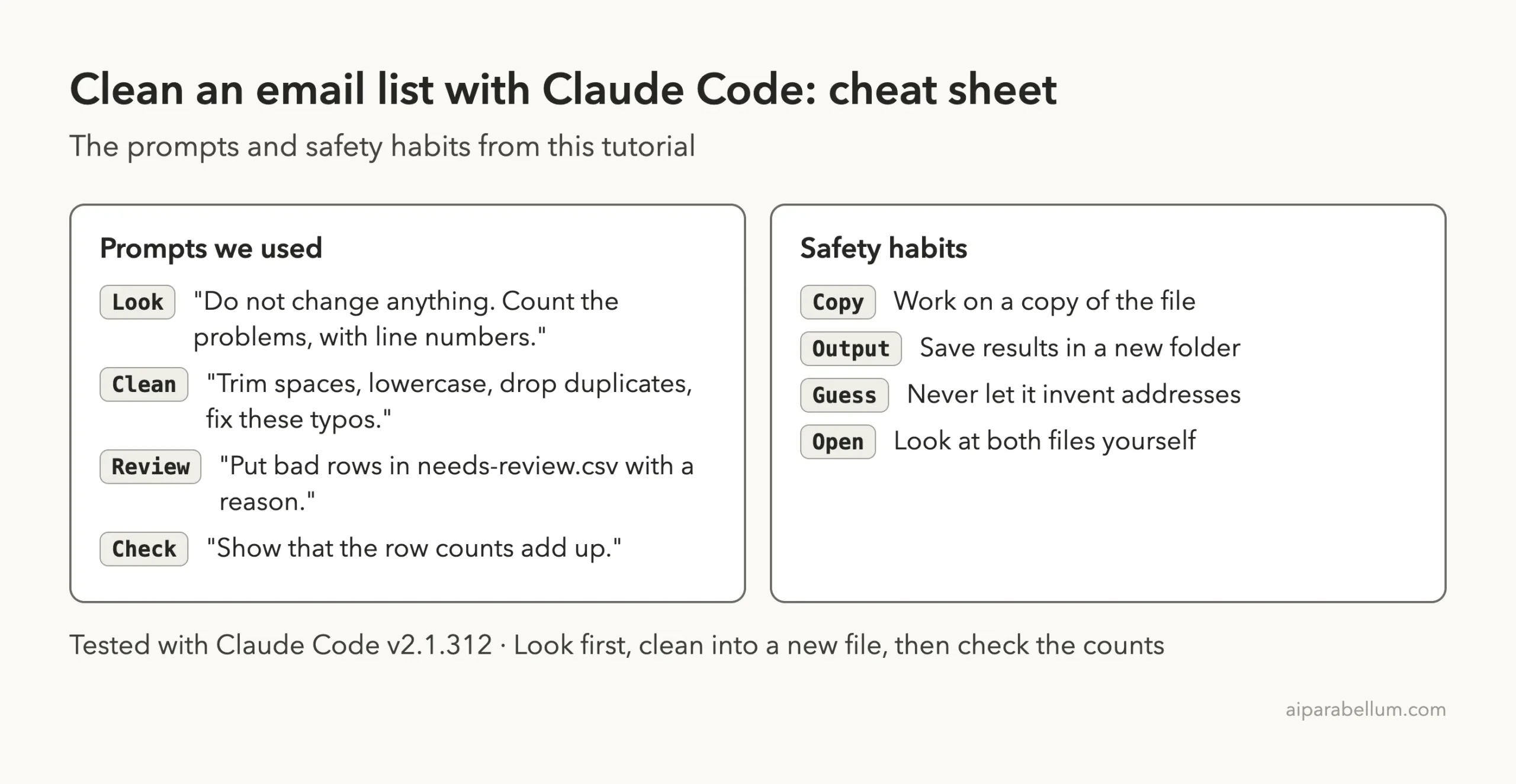
Frequently Asked Questions
Can Claude Code remove duplicate emails from a spreadsheet?
Yes. In our test it removed three duplicate rows from a 25-row CSV and kept the first row of each pair. Tell it which copy to keep, and ask it to list the line numbers it removed.
Does it work with Excel files?
We tested a CSV file. Many spreadsheet apps save a copy as CSV, which is the simplest way to start. Check the result carefully if you try another format.
Will Claude Code fix typos in email addresses?
It fixed the two typos we named. We kept the rule narrow on purpose, and rows with other problems went to a review file. Guessing at addresses can send a message to the wrong person.
Will my original file change?
Not in our test, since results went into a separate output folder. Claude said this was not a byte-for-byte proof, so keep a backup and work on copies.
Is it safe to use a real customer list?
That depends on your rules and your customers’ expectations. The text Claude reads can be sent to Anthropic’s servers, so read the privacy guide first and practice on made-up data.
Conclusion
You can clean an email list with Claude Code by asking it to look first, stating your rules one by one, sending unclear rows to a review file and checking the counts at the end. In our test, three short prompts turned 25 messy rows into 16 clean rows and 6 rows for a person, and Claude was upfront about what it had not proved. Start with a practice folder, read every permission prompt, keep a backup and open each new file yourself. For more background on the tool itself, see our Claude AI overview.
Previous in the series: Part 4: Combine or Split PDF Files With Claude Code
Next in the series: Part 6: Make a Simple Landing Page for Your Business With Claude Code.