Got a Markdown note you need as a Word file, or a spreadsheet export you need as JSON? You can convert documents with Claude Code by describing the result in plain English and letting it pick a tool and do the work. You do not need to program, and in our test it turned five conversions into four short prompts, with one honest surprise along the way.
This is Part 3 of 10 in our Claude Code for Non-Coders series, part of our Claude Code tutorials. We wrote it for someone who has never programmed. Last time we filed photos by date in our photo sorting tutorial, and the same safety habits apply here: work on copies, preview, then check.
Tested with Claude Code v2.1.310 on October 28, 2026, on macOS. We tested on macOS; the Windows and Linux steps follow Anthropic’s official instructions.
What We Did in This Tutorial
A conversion is only done when you have opened the new file and seen that nothing got lost.
| Item | Details |
|---|---|
| Goal | Turn three made-up files into other formats, without touching the originals |
| Starting point | A Markdown meeting note, a CSV member list and a Word letter |
| Results | A Word file and a web page from the note, a JSON file from the CSV, and a plain text file from the Word letter |
| Safety net | New files go in a separate folder, and we checked the row count and read the files back |
| Typed prompts | 4 short prompts, plus a few Enter presses to approve commands |
| Installed for this | Nothing. Claude used tools that already come with a Mac |
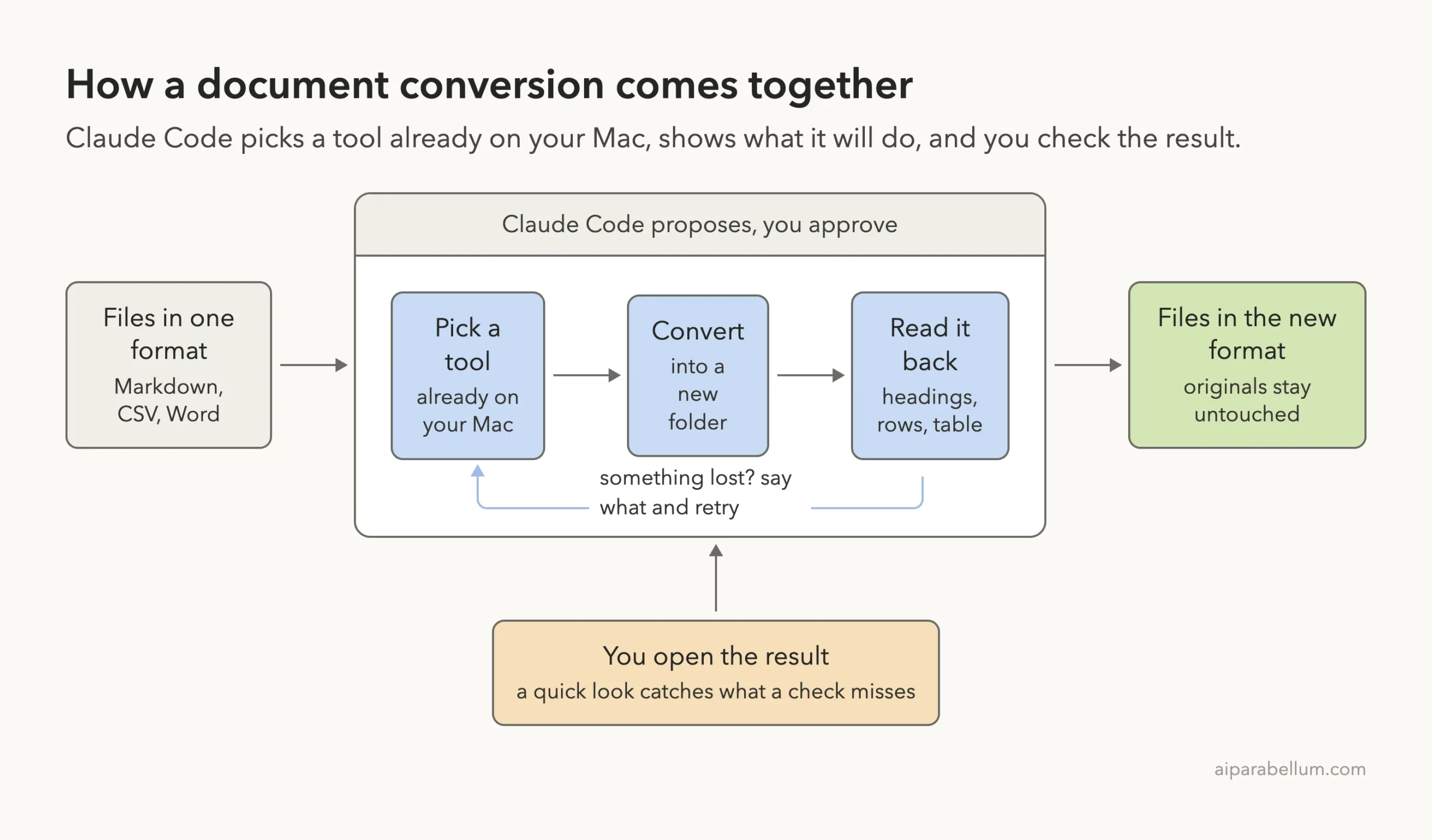
Everything here uses made-up files that we created in a practice folder for a pretend garden club. We did not touch any real documents, and you should not either until you have practiced.
Why Convert Documents With Claude Code
Every program likes its own file type. A friend wants a Word file, a website wants a web page, and another program wants your spreadsheet as JSON. Doing each by hand means finding the right tool, learning its settings, and hoping the table or list survives.
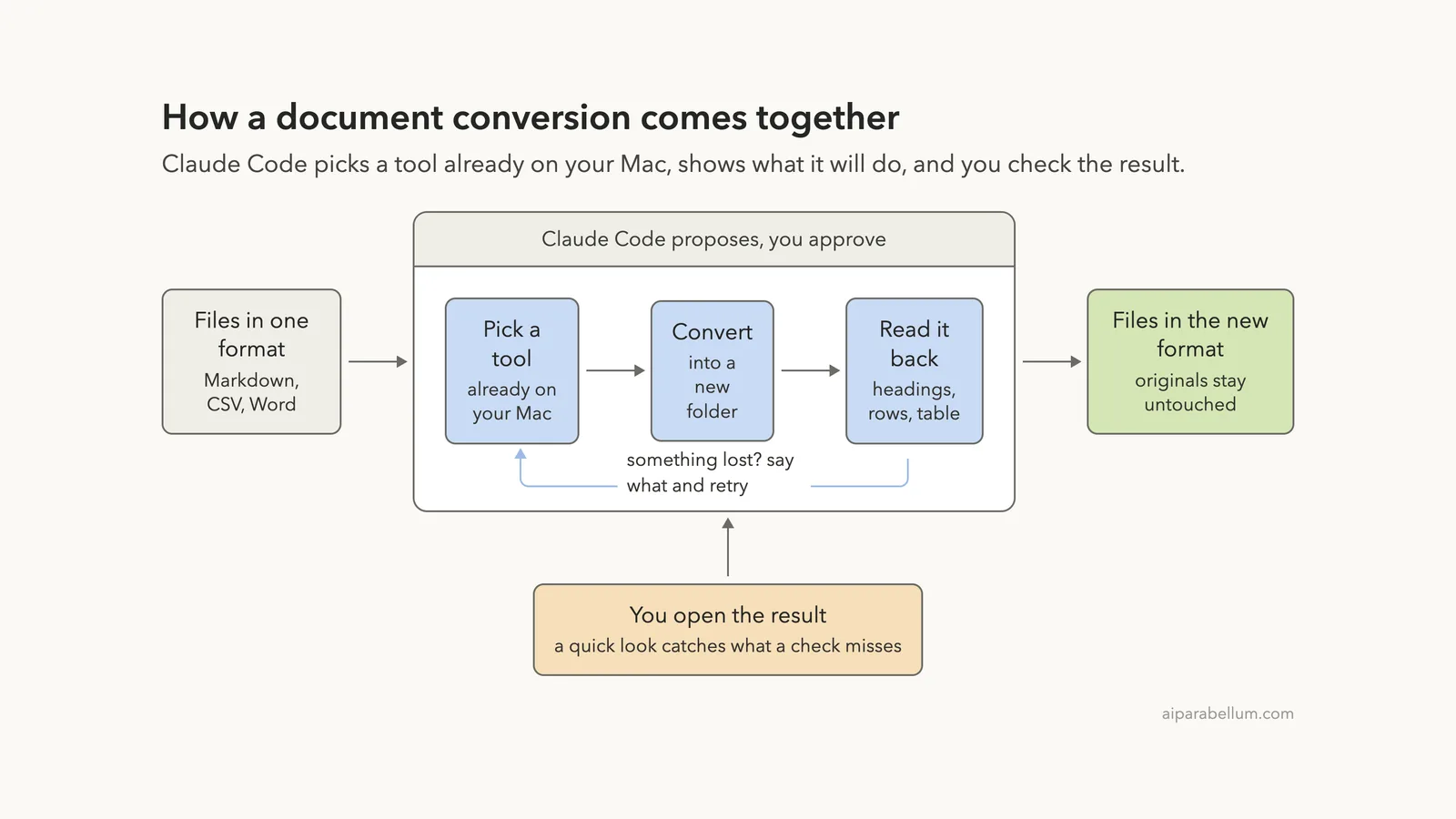
With Claude Code you describe the result you want. It looks at what is installed on your computer, picks a method, runs it, and shows you what happened. If a tool is missing, it says so and offers another way.
The Formats in This Tutorial
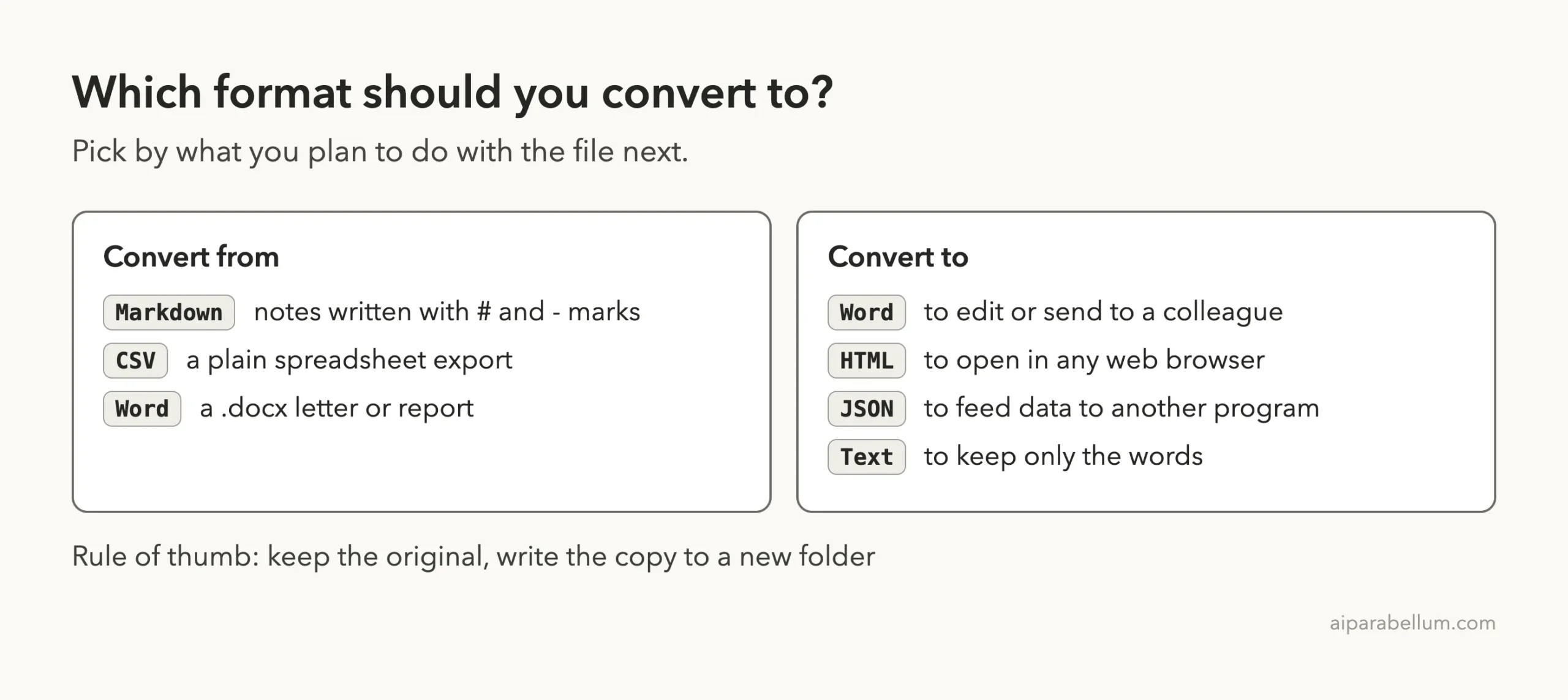
A short vocabulary helps. Markdown is plain text with small marks, such as a pound sign for a heading. CSV is a spreadsheet saved as plain text, with commas between the cells.
JSON is a tidy list of labeled values that other programs read easily. HTML is the language of web pages, and docx is a Word file.
What Claude Code Can and Cannot See
Claude Code reads the files you point it to and the folder layout around them. Anthropic’s common workflows page says that when you mention a folder with an @ sign, Claude gets a list of the files, not their contents. For this job, we simply named the files in our prompts.
It does not open your finished Word file in Word, and it cannot see how a page looks on screen. That limit matters, and you will see it come up below.
Before You Start: Make a Safe Practice Folder
Create a new folder just for practice and put copies of a few documents in it. Never start with your only copy of something important.
- Make a folder, for example Documents/convert-practice.
- Inside it, make a subfolder called inbox and copy in a text note, a spreadsheet saved as CSV and a Word file.
- Open a terminal in the convert-practice folder and type claude. Our guide to installing Claude Code shows how, and our first session guide explains what you will see.
When Claude Code starts in a new folder, it asks if you trust it. Say yes only for folders you chose on purpose, such as your practice folder.
We also kept a spare copy of the inbox folder outside the project before we began. That copy was our way back if anything went wrong.
Step 1: Ask Which Conversions Are Possible
Our first prompt changed nothing. It asked Claude to describe each file and to say which conversions it could do without installing anything.
Look at the files in inbox. Do not change anything. Tell me what each file is. Then tell me which of these conversions you can do with tools already on this Mac, without installing anything: meeting-notes.md to a Word .docx, meeting-notes.md to a web page .html, members.csv to .json, old-letter.docx to plain text.The answer was a surprise, and a useful one. Claude checked what was installed and gave us a table with a verdict for each conversion.
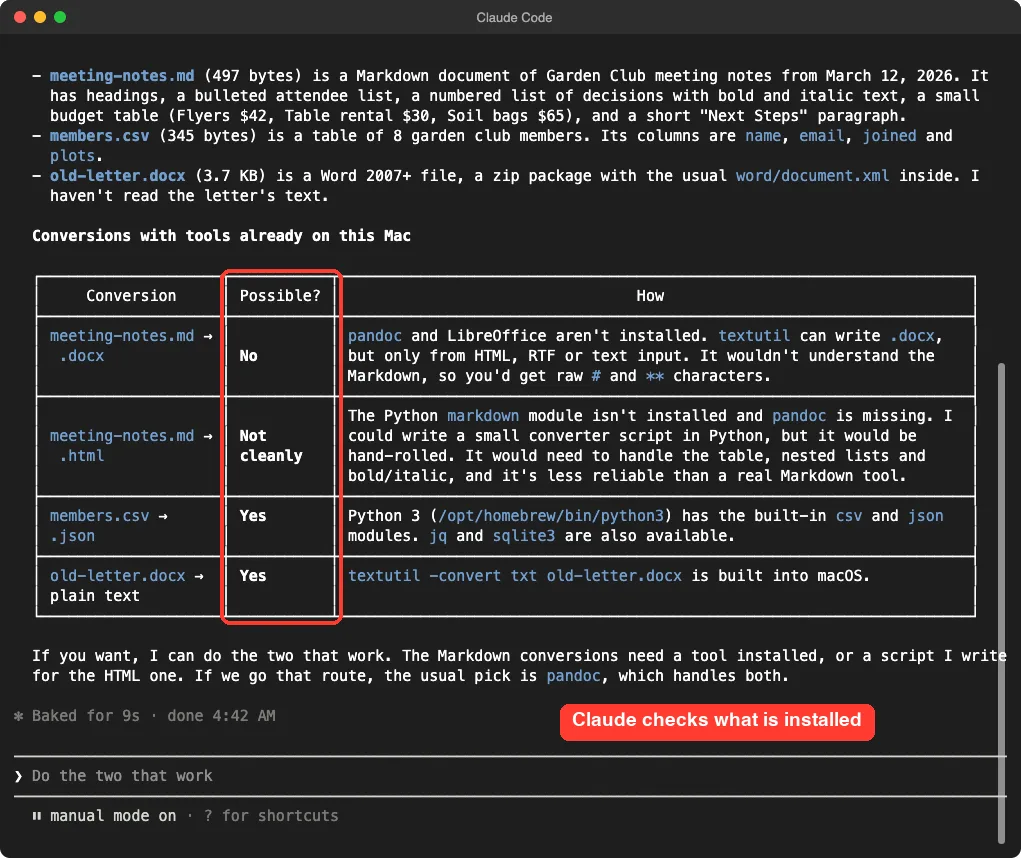
Two conversions were easy. The CSV could become JSON with Python, which comes with the Mac, and the Word letter could become plain text with a built-in tool called textutil. The two Markdown conversions were harder, because the usual converter, a free program called pandoc, was not installed on this Mac.
Why a Plan Beats a Guess
Asking first saved us from a bad surprise. Claude explained that textutil can write a Word file only from web page, rich text or plain text input. If it were fed Markdown directly, you would get raw pound signs and asterisks inside your document.
That is a good habit for any conversion. Ask what is possible, and why, before you ask for the work.
Step 2: Convert Documents With Claude Code to Word and HTML
The easy route would have been to install pandoc. We wanted to see what Claude could do on its own, so our second prompt said not to install anything.
Convert meeting-notes.md to a Word file (.docx) and a web page (.html). Put the new files in a new folder called converted. Keep the original, keep the headings, the list and the table, and do not install anything.Notice what the prompt says. It names both target formats, the folder for the results, three things that must survive, and the one thing not to do. The more exact the prompt, the fewer surprises.
Claude wrote a short script to turn the Markdown into a web page, then used another small script to build the Word file. Each time it asked for permission and showed the exact command.
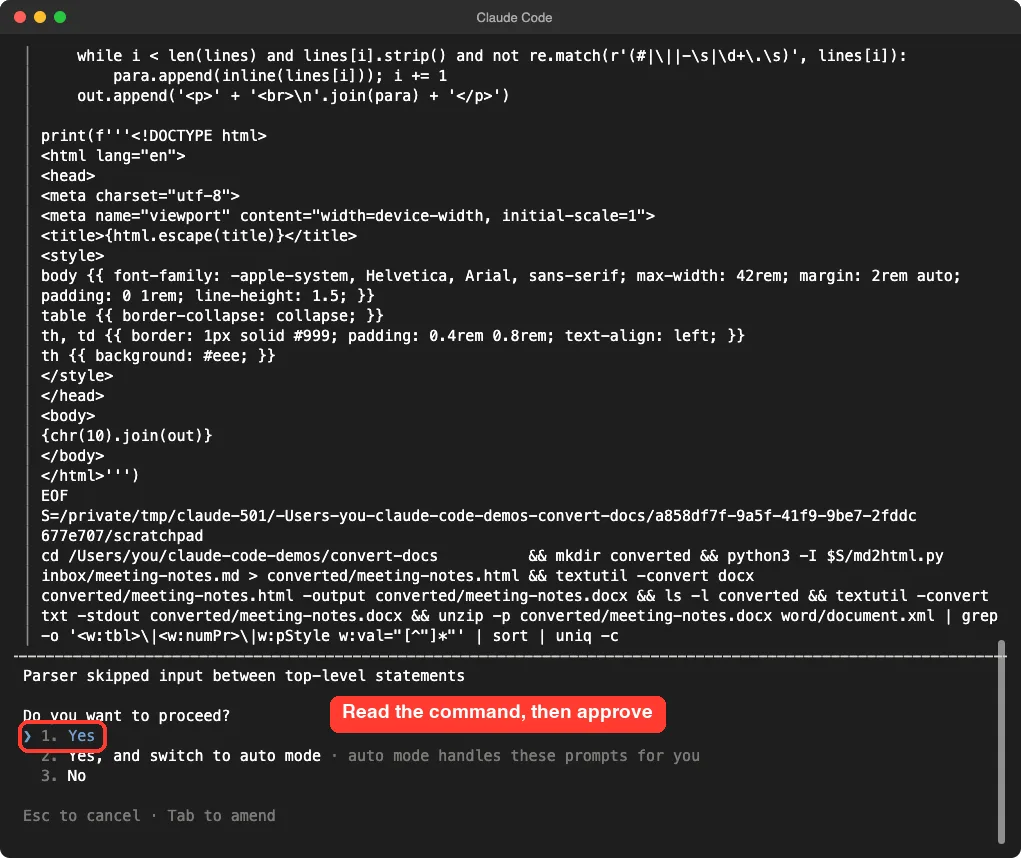
You can read more in our guide to permissions. We chose the plain Yes each time. Option 2 would switch to auto mode, so keep approving commands yourself until you trust the result.
What Claude Tried First, and Why It Changed Course
Claude’s own summary tells the story. It tried textutil first, but that flattened the table into plain lines and turned the headings into large bold text. So it built the Word file directly with a short Python script that uses only built-in modules.
That is a real example of Claude checking its own output. A conversion that “works” but loses the table is not a good conversion.
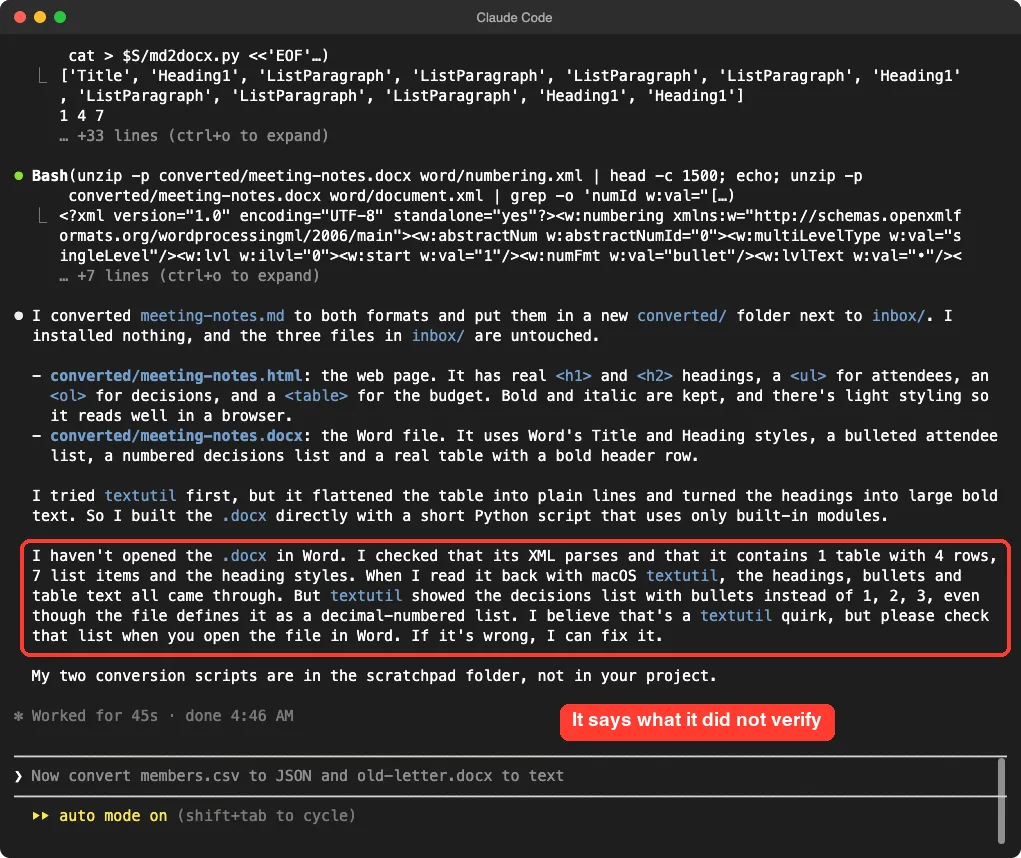
Read the last paragraph of that answer. Claude said it had not opened the Word file in Word.
It had checked the file’s inside structure, and one read-back showed the numbered decisions as bullets, even though the file defined them as numbers. Claude said it believed this was a quirk of its reading tool and asked us to look at the list in Word.
We appreciated that honesty. It is also the reason you should always open the result yourself.
Step 3: Convert Data and an Old Word File
Our third prompt covered the two easy conversions. We were specific about the shape of the JSON.
Convert members.csv to converted/members.json (a list of objects, one per person, with plots as a number) and convert old-letter.docx to converted/old-letter.txt. Keep the originals.The detail about plots matters. In a CSV, every cell is text, so a tool may save the number 2 as the text “2”. Telling Claude that plots should be a number made it convert that column.
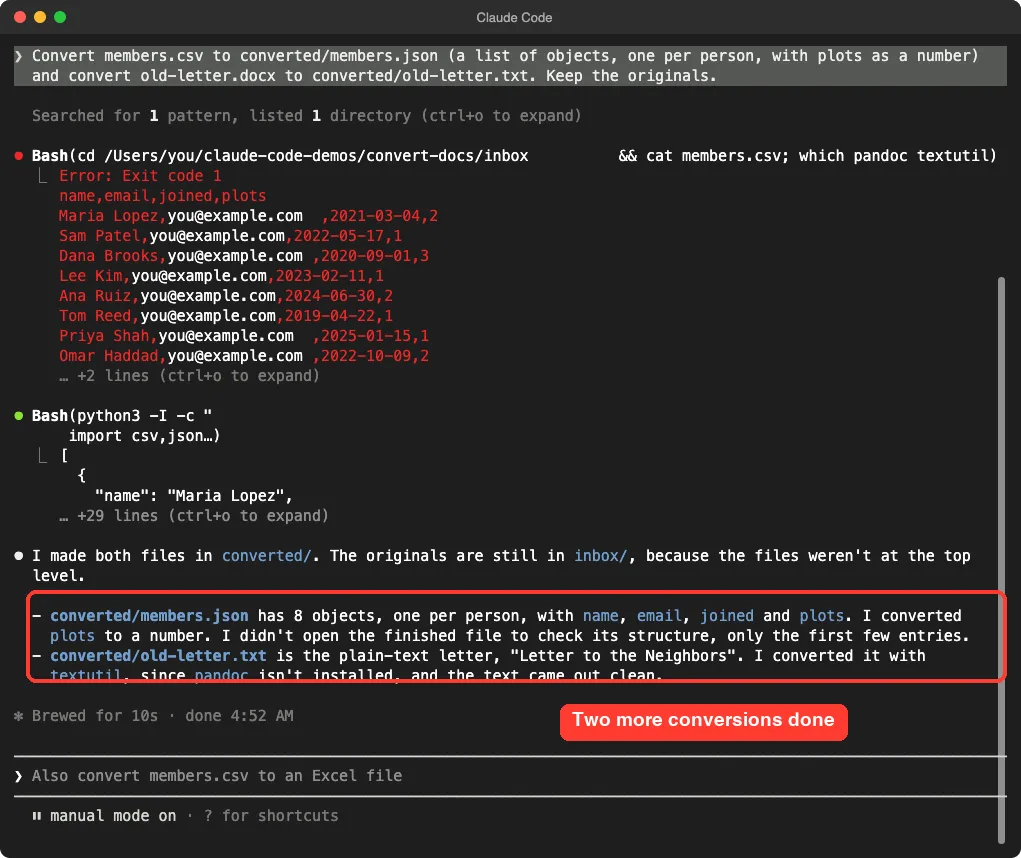
In this screenshot, the email addresses look odd because our capture tool replaces any personal-looking address with a placeholder. Our sample data used made-up addresses anyway.
A Slip You Can Learn From
You may notice that Claude’s first command in that screen ended in a red error. It ran a command that tried to find a tool called pandoc and exited with an error code, because pandoc is not installed. That was Claude checking, not a failure, and the work continued.
Claude also said it had not opened the finished JSON to check its structure, only the first few entries. It told us this plainly instead of claiming a full check, so we asked for one.
Step 4: Check the Result Yourself
Never trust a done message by itself. Our last prompt asked for proof that the data matched.
Check the work: confirm members.json has the same number of people as the CSV has rows, show the first person from the JSON, and show the text of old-letter.txt.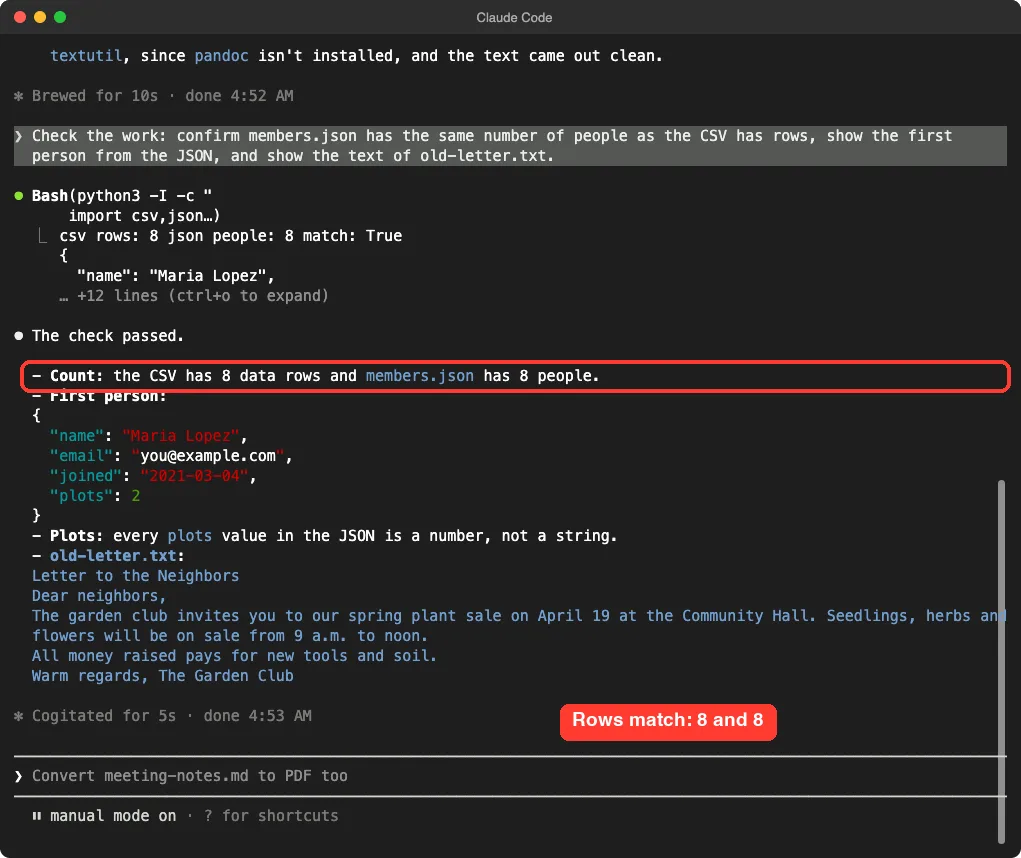
The count matched: 8 rows in the CSV and 8 people in the JSON. The first person showed plots as a number, 2, not as text. The letter text came out clean, with the heading and every paragraph.
The Earlier Check That Found a Gap
We ran a similar check earlier in a longer test session, and it taught us something. In that run, a stray Enter press sent one of Claude’s grey suggested prompts by accident, and our own third prompt never ran the way we planned. Then our check prompt asked Claude to confirm the JSON.
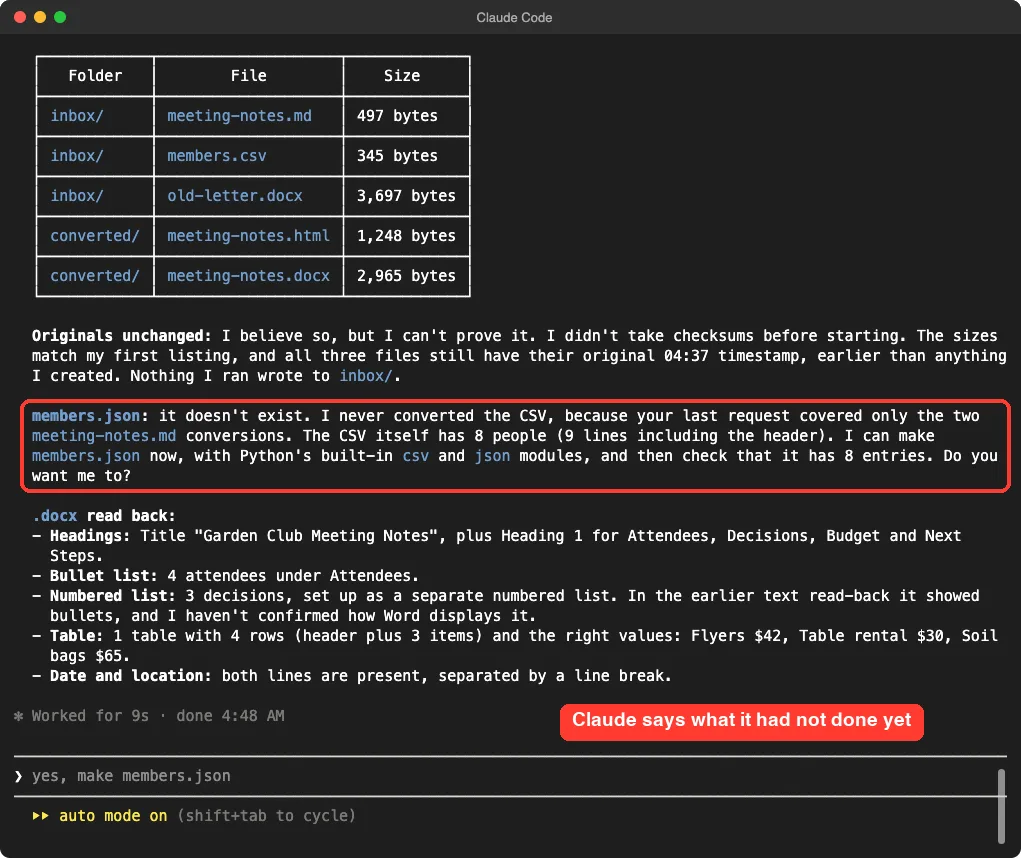
Claude did not pretend. It said members.json did not exist, because no one had asked it to convert the CSV yet, and offered to make it. It also said that it believed the original files were unchanged, but could not prove it, because it had not taken checksums before starting.
That is the value of a check prompt. It also shows why you should read the grey suggestion text before pressing Enter on an empty prompt box.
Read the Word File Back
The same check read the Word file back. It found the title and four headings, four attendees in a bullet list, three decisions in a separate numbered list, and one table with four rows: a header plus flyers at 42 dollars, table rental at 30 and soil bags at 65. It also noted that the date and location lines were both present.
This is more than a file size check. It confirms that the parts you care about survived. Still, it was Claude reading the file, not Word showing it, so open it once yourself.
What Worked and What Needed a Human
The job went well, but not perfectly. Here is an honest scorecard.
| Part of the job | How it went | What you should do |
|---|---|---|
| Checking the tools | Told us which conversions were easy and which were not | Always ask this first |
| Markdown to Word | First tool flattened the table, Claude switched methods | Name what must survive: headings, lists, tables |
| Markdown to a web page | Real headings, lists and a table, with light styling | Open it in your browser |
| CSV to JSON | 8 rows became 8 people, plots became numbers | Say which columns are numbers |
| Word to plain text | Clean text from a built-in tool | Expect plain text to lose all formatting |
| Numbered list in Word | Claude could not confirm how Word shows it | Open the file in Word and look |
| Proof originals are unchanged | Claude could not prove it without checksums | Keep a backup, or ask for checksums first |
One thing we did not test is complex documents. Our files were small and made up. Real Word files with images, comments, tracked changes or unusual fonts will lose more in a conversion, and a PDF to Word conversion is a harder job than anything here.
Try It Yourself
Here is a practice task you can finish in about twenty minutes. Use copies of your own files in a new folder.
- Put a text note, a CSV file and a Word file in a folder called inbox inside a practice folder.
- Start Claude Code in the practice folder and paste the prompt below.
- Read the plan. If a conversion needs something to be installed, decide whether you want that before you answer.
- Approve the work, then open every new file yourself.
Look at the files in inbox. Do not change anything yet. Tell me what each file is and which conversions you can do with tools already on this computer, and which would need something installed. Then convert what you can into a new folder called converted. Keep the originals, keep the headings, lists and tables, and when you are done, check that the new files match the originals and tell me anything you could not verify.Ideas for Your Own Conversions
- Turn a web page you saved into plain text for reading offline.
- Convert a spreadsheet CSV into JSON for a small web project.
- Change a set of old Word files into plain text so you can search them.
- Ask for a PDF too, and check what Claude says is possible before you approve anything.
Common Mistakes
- Converting over the original. Always write the new files to a separate folder.
- Skipping the check. A file that opens is not always a file that kept your table.
- Forgetting number columns. Say which values are numbers when you convert a CSV.
- Expecting plain text to keep formatting. It keeps the words and drops the style.
- Accepting an install without thinking. Ask Claude to try built-in tools first, and read what it wants to install.
- Pressing Enter on the grey suggestion without reading it.
- Choosing “switch to auto mode” too early. Keep approving commands yourself until you trust the result.
Pro Tips
- Say what must not happen: “do not overwrite, do not install anything, keep the originals.”
- Ask Claude to list what it could not verify. In our test it did, and that list told us where to look.
- Ask for a checksum of the originals before you start if you need proof that nothing changed.
- Save your folder rules in a CLAUDE.md file so you do not repeat them next time.
- Use plan mode for the first look, so Claude cannot change anything by accident.
- If you change your mind, rewind can undo changes made through Claude’s own edit tools, but it does not cover every command, so keep your backup too.
- Remember that your file contents can go to Anthropic’s servers as part of the conversation. Read our note on privacy and security before converting real documents.
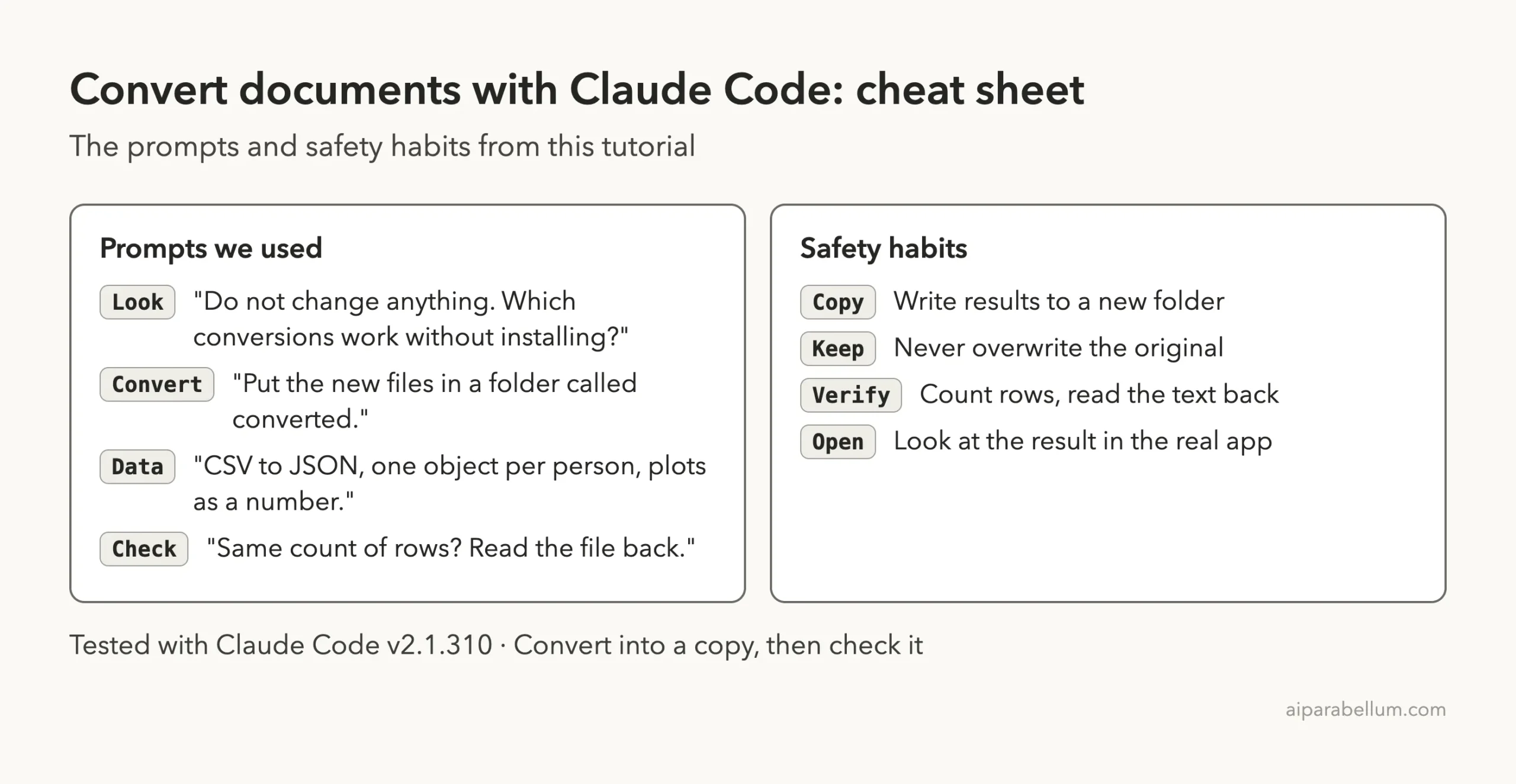
Cheat Sheet
Frequently Asked Questions
Can Claude Code convert a document from one format to another?
Yes. In our test it converted a Markdown note to a Word file and a web page, a CSV to JSON, and a Word file to plain text. It picks a method based on what is installed on your computer.
Do I need to install anything first?
Not in our test. We told Claude not to install anything, and it used a built-in Mac tool and small scripts instead. A free converter such as pandoc would be a common choice, but Claude asks before relying on one.
Will the formatting survive?
It depends on the format. Our headings, lists and table survived the move to Word and to a web page, but plain text keeps only the words. Claude could not confirm how Word shows one numbered list, so open the file and check.
Will my original files change?
Not in our test, since the results went into a separate folder and file sizes and dates matched. Claude said it could not prove this without checksums, so keep a backup and work on copies.
Can it convert a PDF?
We did not test PDFs, so we cannot say how well it works. Ask Claude what is possible with the tools on your computer before you approve any conversion, and open the result to judge it.
Conclusion
You can convert documents with Claude Code by asking what is possible first, writing the results to a new folder, and checking them at the end. In our test the most useful moments were the honest ones: Claude spotted that its first tool flattened a table and switched methods, and it told us what it had not been able to verify. Start with a practice folder, read every permission prompt, keep a backup, and open each new file yourself. For more background on the tool itself, see our Claude AI overview.
Previous in the series: Part 2: Sort Photos Into Folders by Date With Claude Code
Next in the series: Part 4: Combine or Split PDF Files With Claude Code.