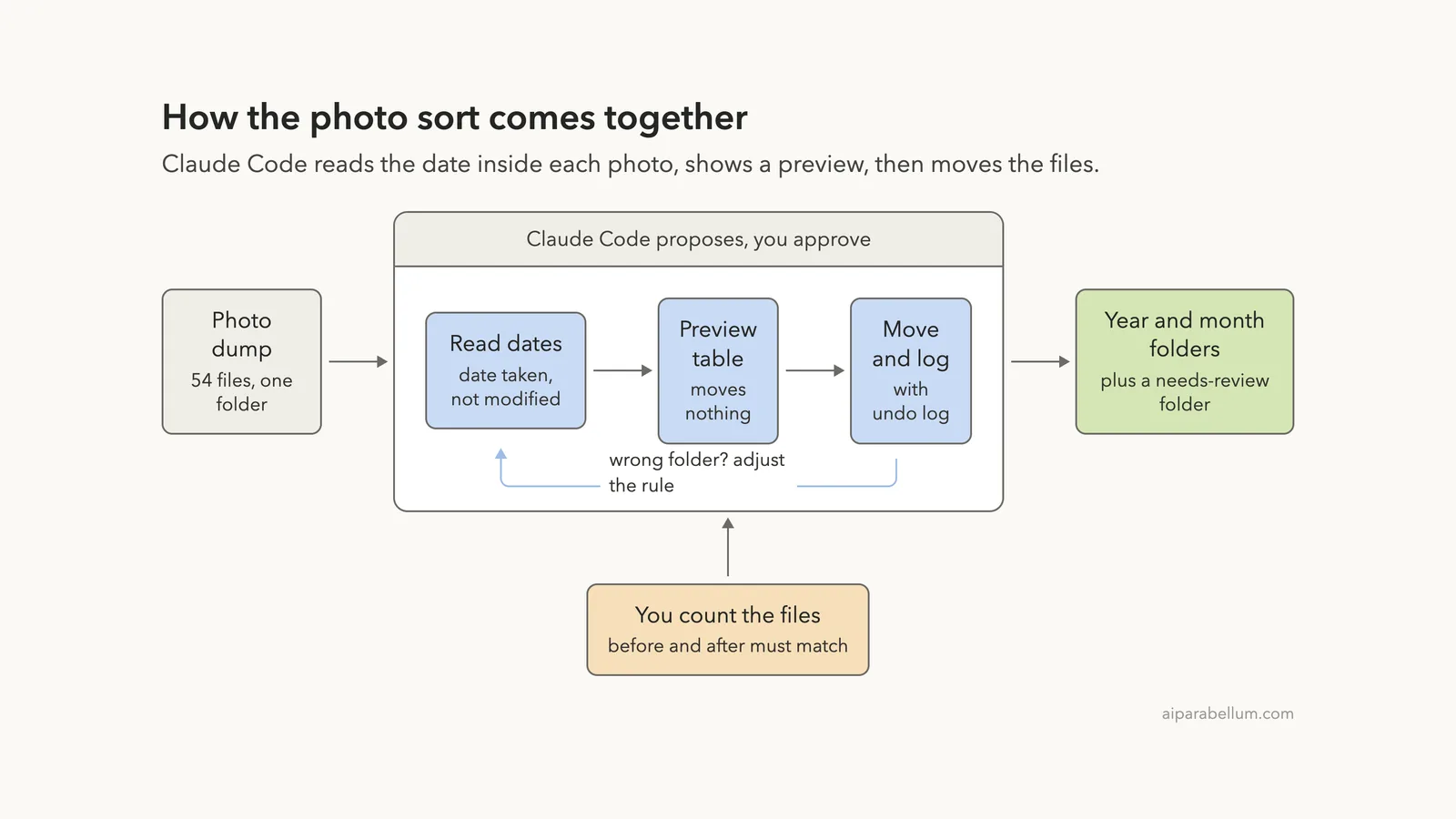
Is your photo folder one giant pile of IMG_4803.jpg, IMG_4804.jpg and a few hundred more? You can sort photos with Claude Code by telling it, in plain English, to read the date each photo was taken and file it into year and month folders. You do not need to program, and in our test it sorted 54 files into seven tidy folders without losing one.
This is Part 2 of 10 in our Claude Code for Non-Coders series, part of our Claude Code tutorials series. We wrote it for someone who has never programmed. Last time we cleaned up file names in our rename tutorial, and the same safety habits carry over here.
Tested with Claude Code v2.1.310 on October 27, 2026, on macOS. We tested on macOS; the Windows and Linux steps follow Anthropic’s official instructions.
What We Did in This Tutorial
A photo has two dates: the day it was taken and the day the file was last touched. Sort by the first one.
| Item | Details |
|---|---|
| Goal | Put every photo in a year and month folder based on when it was taken |
| Starting point | One folder with 54 made-up files: 51 JPEG photos, 2 PNG screenshots and 1 text note |
| Result | 53 files in 7 folders, plus the text note left where it was |
| Safety net | A preview first, a check that file contents did not change, and an undo log |
| Typed prompts | 4 short prompts, plus a few Enter presses to approve commands |
| Cost to you | No programming and nothing to install beyond Claude Code |
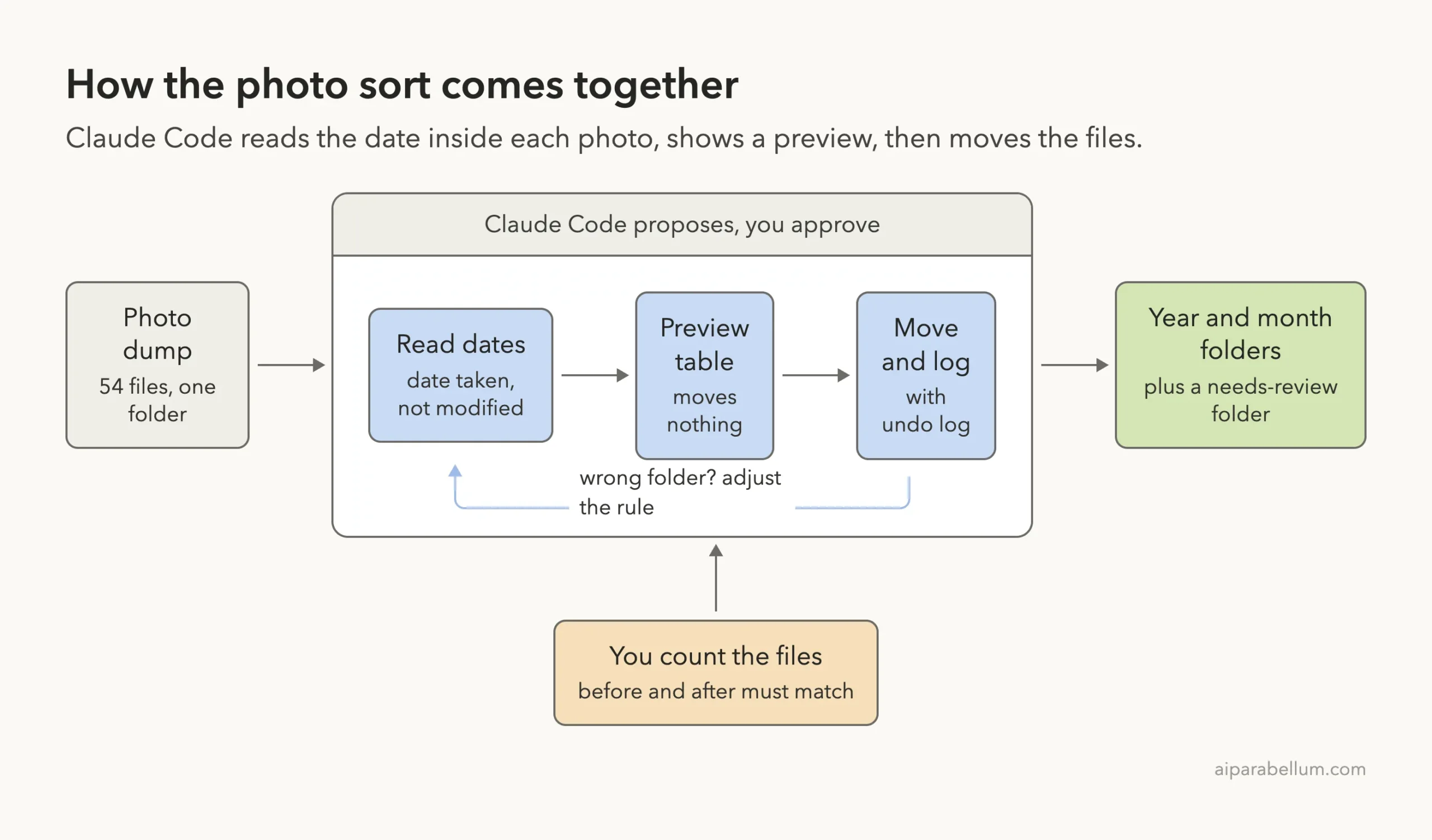
Everything here uses made-up files that we generated in a practice folder. We did not touch any real photos, and you should not either until you have practiced. Our files were small colored pictures with a date stored inside, which is how a real phone or camera stores it.
Why Sort Photos With Claude Code?
Phones and cameras name photos with numbers. After a few years, that means thousands of files that tell you nothing about when or where they were taken.
Photo apps can sort by date, but they often keep everything inside their own library. Sometimes you just want plain folders on your computer, such as 2026 and then 2026-03, that you can back up or share without any special software.
Claude Code is good at this kind of job. You describe the folder layout you want, and it writes a small helper script, checks the result, and moves the files. The catch is the same as last time: moving files is easy to get wrong, so we always preview first and count last.
Why the Date Taken Beats the Date Modified
Every file on your computer has a last modified date. When you copy photos from a phone, an old drive or a cloud backup, that date usually becomes the day you copied them. Hundreds of photos from five different months can all say the same day.
Photos also carry a second date inside the file, called the date taken. It is part of a block of hidden information called EXIF data, which cameras and phones add automatically. That is the date you want for sorting.
We did not tell Claude which date to use. We asked it to compare the two and recommend one, and it gave the right answer, as you will see in the first step.
What Claude Code Can and Cannot See
Claude Code can read file names, folder layouts and the dates stored by your computer. It can also write a small script that opens each photo and reads the date inside it. In our test, Claude never needed to view the pictures themselves.
Anthropic’s common workflows page says that when you point to a folder with an @ reference, Claude gets a list of the files, not their contents. Keep that in mind: for this job, the list and the dates are what matter.
Before You Start: Make a Safe Practice Folder
Create a new folder just for practice and put copies of a few photos in it. Never start with your only copy of something precious.
- Make a folder, for example Pictures/sort-practice.
- Copy 20 to 50 photos into a subfolder called photos-inbox. Include a screenshot or two if you have them.
- Open a terminal in the sort-practice folder and type claude. Our guide to installing Claude Code shows how, and our first session guide explains what you will see.
When Claude Code starts in a new folder, it asks if you trust it. Say yes only for folders you chose on purpose, such as your practice folder.
We also kept a second copy of the whole inbox outside the project folder before we began. If anything had gone wrong, that copy was our way back.
Step 1: Ask Claude Code to Look First
Our first prompt did not change anything. It asked how many files there were, which two dates to compare, and which one to trust.
Look at the files in photos-inbox. Do not change anything. Tell me how many files there are and what types. Then compare two dates for the photos: the date taken stored inside each photo, and the date the file was last modified. Which one is the right one to sort by? Tell me if any files have no date taken.Claude found 51 JPEG photos, 2 PNG screenshots and 1 text file. It then reported something very useful about the dates.
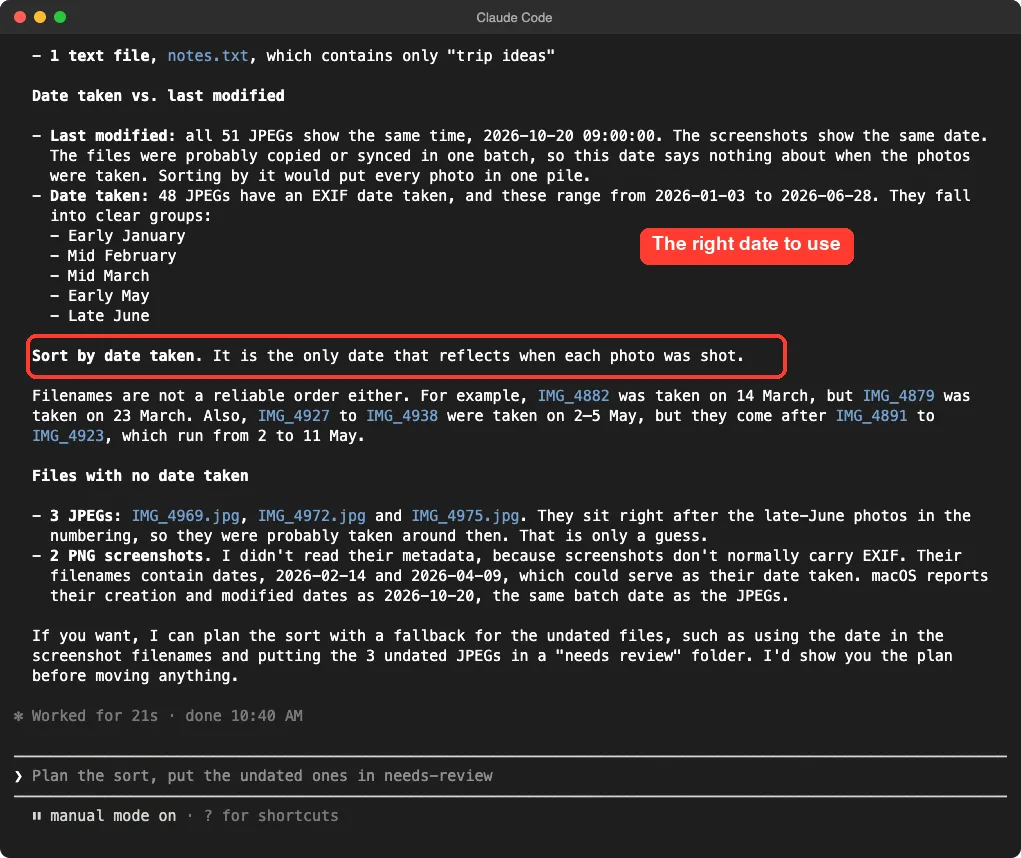
All the files showed the same last modified time, October 20, 2026, because they had been copied in one batch. Sorting by that date would have put every photo into one pile. Of the 51 JPEGs, 48 had a date taken inside them, spread over five clusters from early January to late June.
Spot the Files With No Date
Claude also pointed out the odd ones. Three JPEGs had no date taken at all, and two PNG screenshots had dates only in their file names, such as Screenshot 2026-02-14.
That is a real-world problem. Screenshots, photos saved from messaging apps and scans often carry no date taken. A good plan needs a fallback for them, and Claude suggested one: use the date in the screenshot name, and put the three undated JPEGs in a review folder instead of guessing.
Step 2: Ask for a Preview (a Dry Run)
A dry run shows what would happen without doing it. It is the most important step, so we spelled out every rule in one prompt.
In photos-inbox there are 51 JPEG photos, 2 PNG screenshots and 1 text file. Plan: sort the photos by the date taken stored inside each photo (EXIF) into folders photos-sorted/YYYY/YYYY-MM. Screenshots without date taken use the date in their file name. JPEGs with no date taken go to photos-sorted/needs-review. Leave notes.txt where it is. Keep the original file names. Do not move anything yet. Write a script plan_sort.py that only prints a dry-run table of old path and new folder, and show me a summary count per folder.Look at how much the prompt says. It names the date source, the folder pattern, the fallback for screenshots, the fallback for undated photos, the file to leave alone, and the one thing not to do yet. The more exact you are, the fewer surprises you get.
Claude Code asked permission several times while it looked at the folder, wrote the script and ran it. Each time it showed the exact command.
You can read more in our guide to permissions. We chose the plain Yes every time.
The Preview Was Wrong, and Claude Noticed
This is the most interesting moment in the whole test. Claude’s first dry run sent all 51 JPEGs to the needs-review folder, as if none of them had a date.
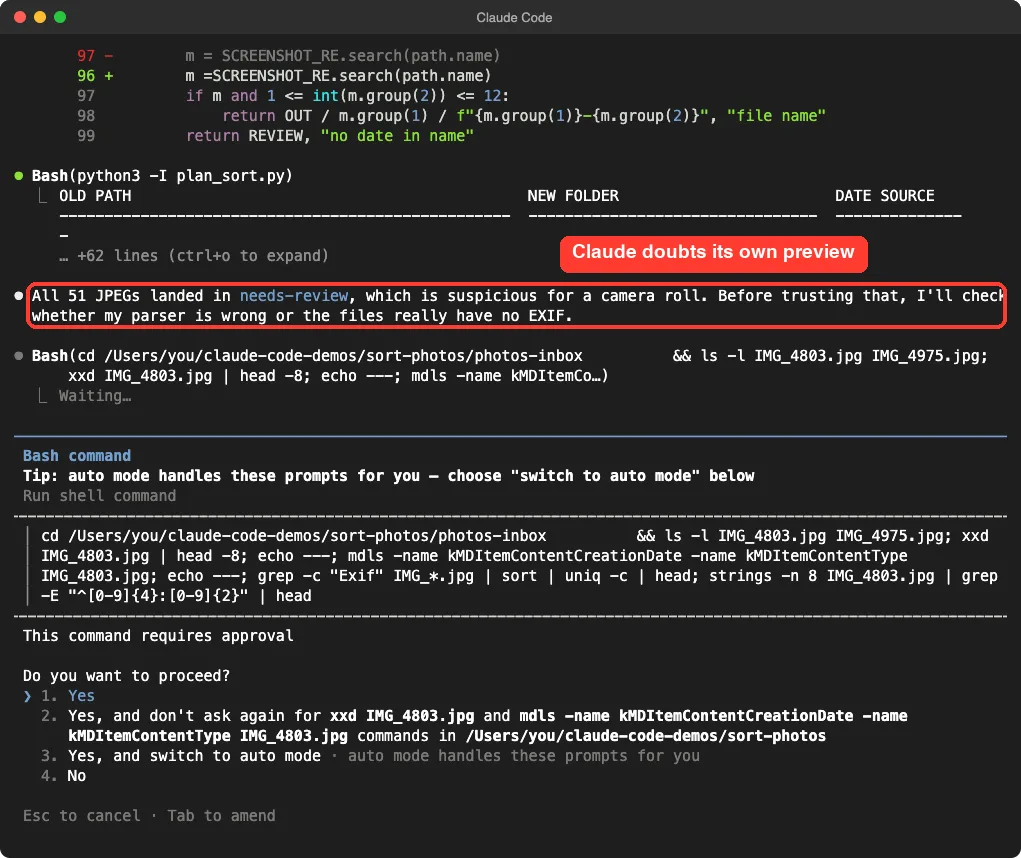
Claude did not shrug and carry on. It said that result was suspicious for a camera roll and checked whether its own reading code was wrong or the files really had no date.
This is why the dry run matters. A preview that looks wrong is a gift, because nothing has moved yet.
After a few more checks, Claude explained what happened.
Its first script looked for the date in one section of the photo’s hidden data, where cameras normally store it. Our generated files stored it in the main section. Claude fixed the script to check both places and ran it again.
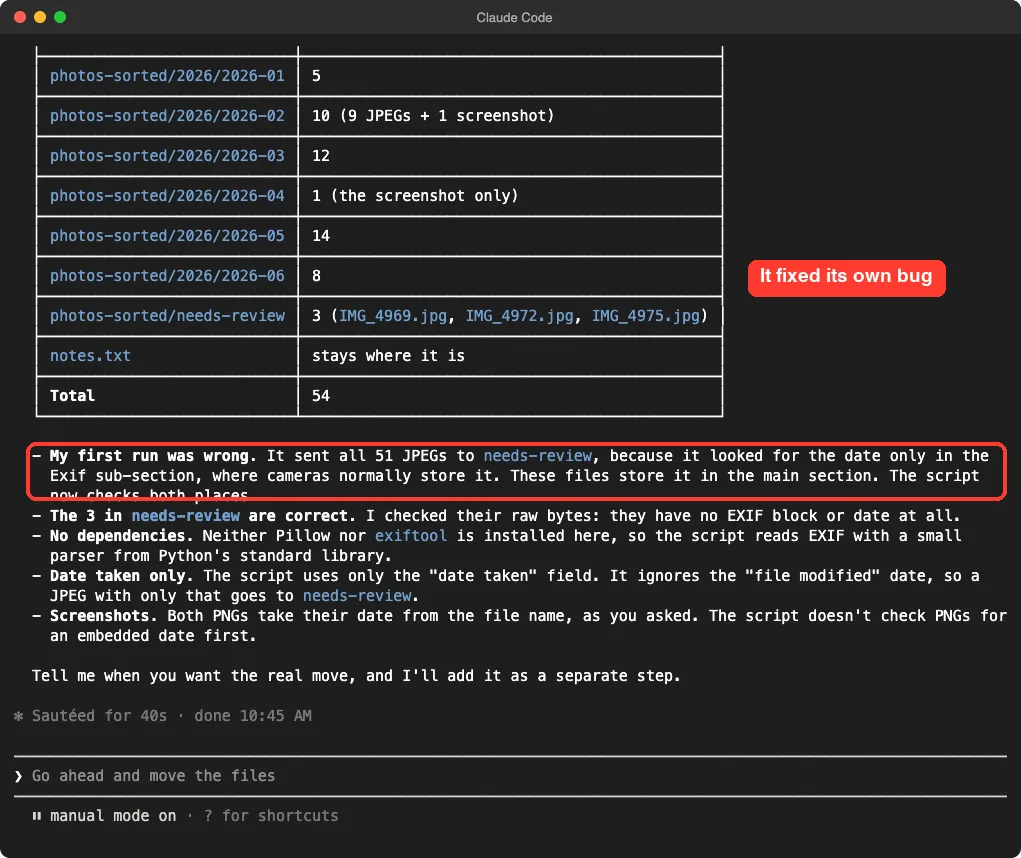
The new table matched what we expected: 5 photos for January, 10 for February, 12 for March, 1 for April, 14 for May, 8 for June and 3 in needs-review. It also confirmed that the three in needs-review really had no date, by checking their raw bytes.
Read the Notes After the Table
The notes under the table are as important as the table. Claude said the script ignores the last modified date and uses only the date taken. It also said that for the PNG screenshots it did not look for an embedded date first and used the file name instead.
That is a limit worth remembering. A screenshot named Screenshot 2026-04-09 goes into April because of its name, even if some other date is stored inside it.
Step 3: Move the Photos and Keep an Undo Log
The preview now looked right, so we asked Claude to apply it. We added three rules that protect you.
The preview looks right. Now apply it: move every photo (do not copy, do not delete, do not change any file contents) into the new folders. If two files would get the same name, stop and tell me. Save undo-log.csv with the old path and new path of every file so I can undo it.The stop rule matters. Two photos from different cameras can have the same name, and without a rule one could overwrite the other. In our run no names collided.
The undo log is a simple spreadsheet file. Each row holds one file’s old location and its new location. If you dislike the result, that log is the map back.
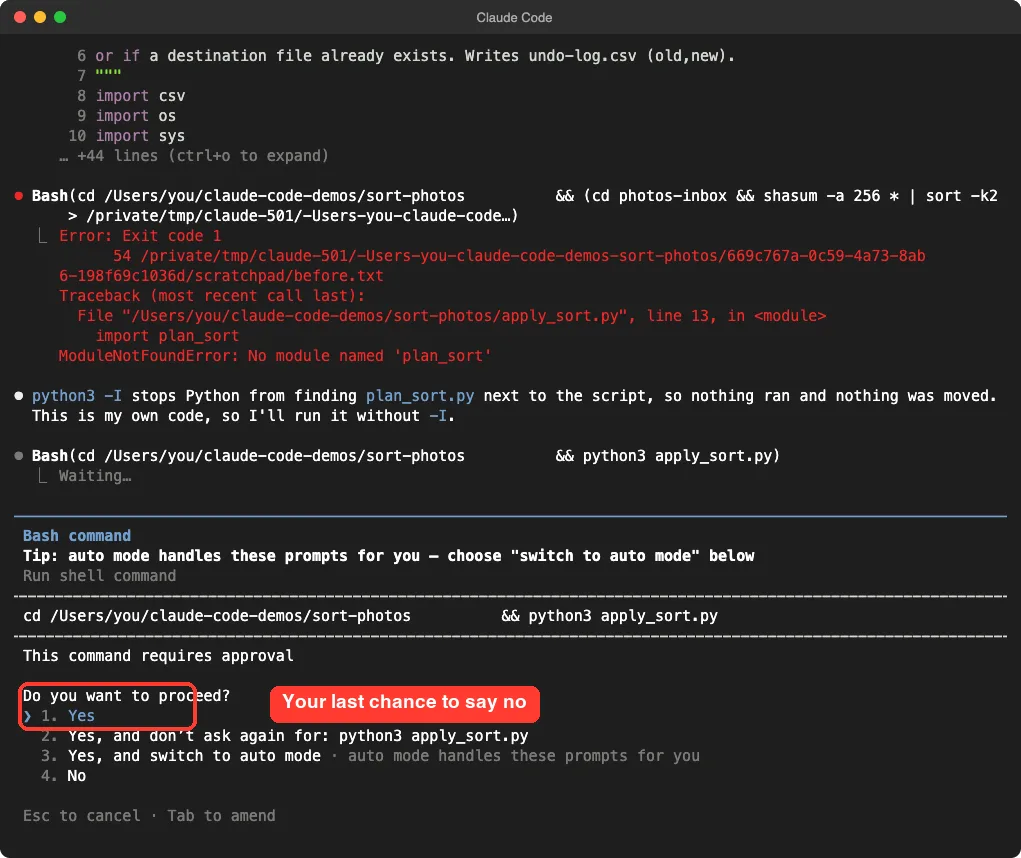
Look at the red error above the prompt.
Claude’s first attempt to run the move script failed with a “no module named plan_sort” message. Claude explained that it had run Python in a stricter mode that could not find the helper file next to the script, so nothing ran and nothing was moved. It then asked to run the command again the normal way.
This is a good reminder that an error message is not always a disaster. Read what Claude says about it. If it says nothing was moved, you can verify that by looking at the folder.
What Claude Checked After the Move
After we approved, the script ran. Claude did not just say done. It reported the counts, and then it did something we had not asked for.
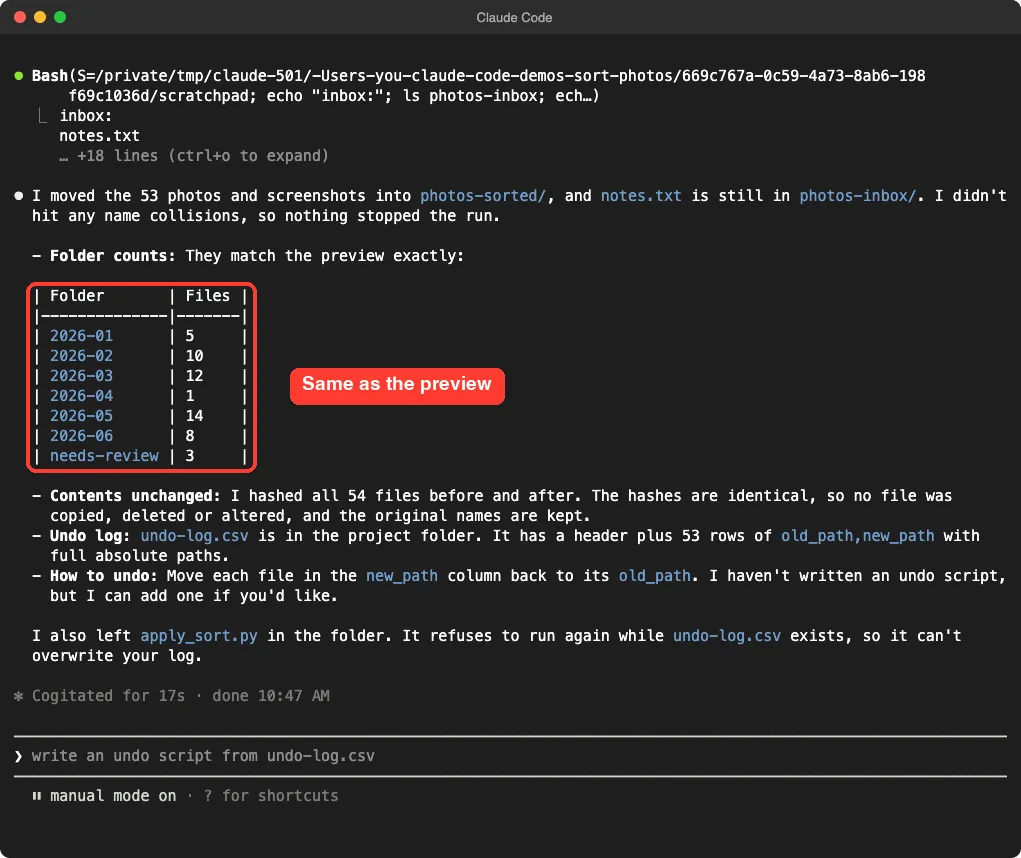
Claude computed a fingerprint, called a hash, of all 54 files before and after the move. Identical fingerprints mean no file was copied, deleted or altered, and the original names were kept. It also told us that the undo log has a header row plus 53 rows, and that it had not written an undo script, but could.
A Small Trap: The Grey Suggestion
You may notice a faint grey sentence in the prompt box after an answer, such as “write an undo script from undo-log.csv.” This is a suggested next prompt from Claude Code. If you press Enter on an empty box, it sends that suggestion.
That is handy when you agree, but easy to trigger by accident. Always read the grey text before pressing Enter on an empty box.
Step 4: Count the Files Before and After
Never trust a done message by itself. Ask for proof. Our last prompt asked for a count and a folder tree.
Check the result: count the files before (54) and after, and show the new folder tree with a file count for each folder.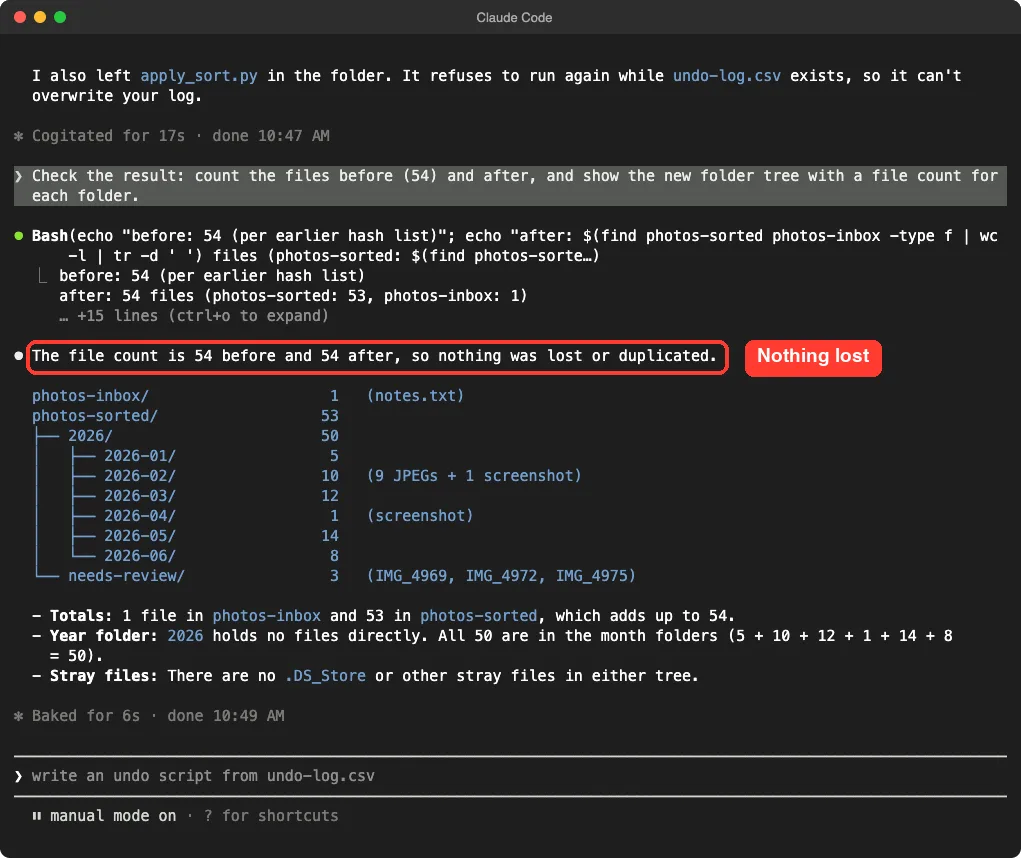
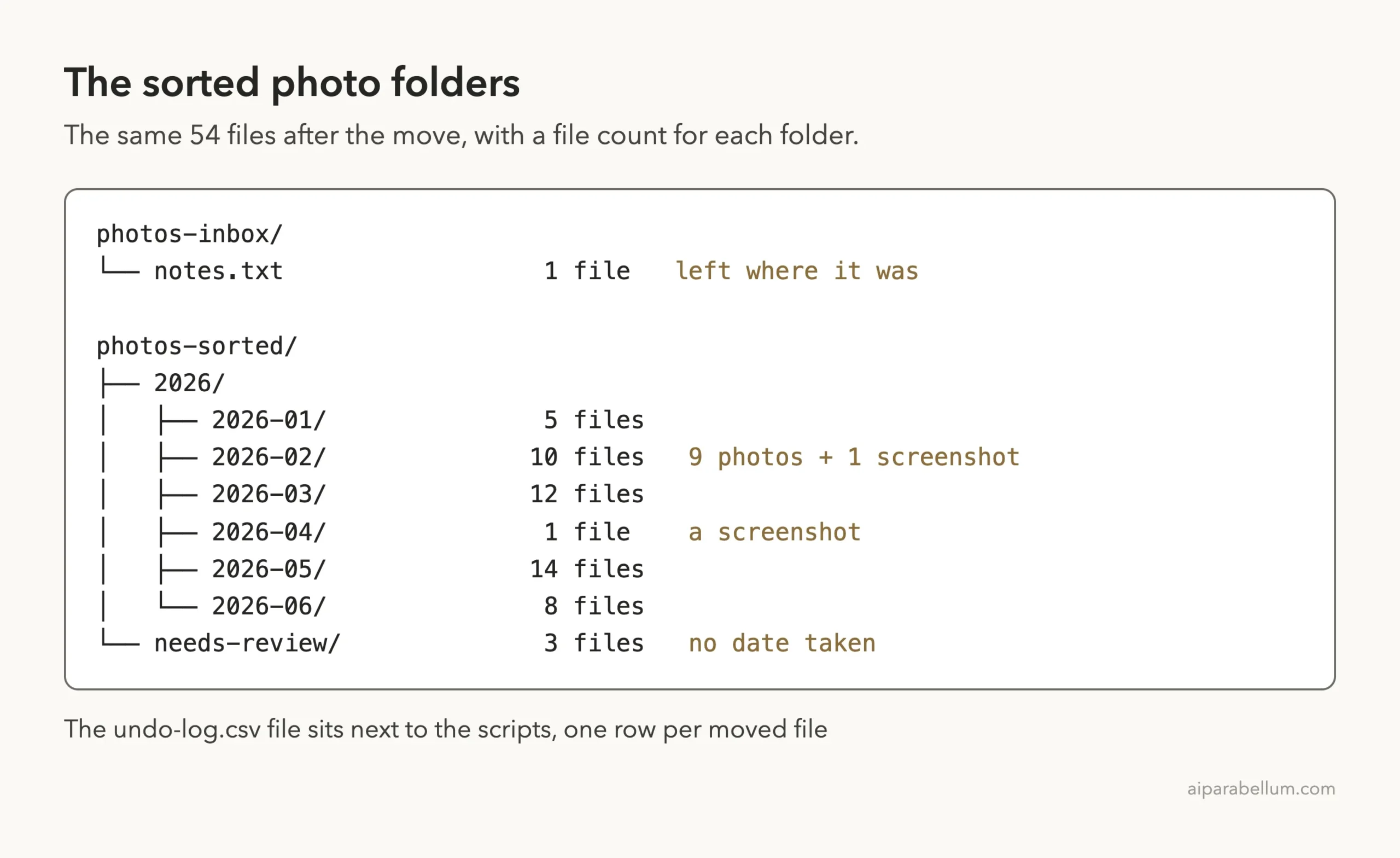
The numbers matched: 54 before and 54 after, with 1 file left in the inbox and 53 in the sorted folder. The months added up too: 5 plus 10 plus 12 plus 1 plus 14 plus 8 makes 50, and the 3 in needs-review brings it to 53.
We also checked the folders ourselves on the Mac. The counts were the same as Claude reported. You should do the same, because a quick look takes thirty seconds.
What Worked and What Needed a Human
The job went well, but not perfectly. Here is an honest scorecard.
| Part of the job | How it went | What you should do |
|---|---|---|
| Choosing the date | Correctly picked date taken over date modified | Still ask it to compare both, so you see why |
| First dry run | Wrong: all 51 photos went to needs-review | Treat a strange preview as a signal to stop and ask why |
| Fixing the script | Claude found the cause and corrected it | Ask it to explain the cause, not just fix it |
| Screenshots | Used the date in the file name | Check a few by hand, since a name can be wrong |
| Photos without a date | Parked in needs-review, not guessed | Sort those yourself, or tell Claude a rule |
| Safety | Nothing lost, contents unchanged, log saved | Always count and keep your backup |
One thing we did not test is real photo libraries. Our files were generated for this tutorial, so they did not include things like time zones, edited copies or files from cloud services that strip the hidden data. Try a small batch of your own copies first.
Try It Yourself
Here is a practice task you can finish in about twenty minutes. Use copies of your photos in a new folder.
- Copy 30 or more photos into a folder called photos-inbox inside a practice folder.
- Start Claude Code in the practice folder and paste the prompt below.
- Read the preview. If the numbers look strange, ask Claude why before you approve anything.
- Approve the move, then ask for a count of the files before and after.
Look at the files in photos-inbox. Do not change anything yet. Compare the date taken stored inside each photo with the date the file was last modified, and tell me which one to sort by. Then plan folders like photos-sorted/YYYY/YYYY-MM. Put anything without a date taken in photos-sorted/needs-review. Write a script that prints a preview only, and wait for my approval. When I approve, move (do not copy or delete) the files and save undo-log.csv with the old and new path of every file.Ideas for Your Own Rules
- Use month names, such as 2026/03-March, if you find them easier to read.
- Add the event name by hand afterward, such as 2026-03 Beach Trip.
- Put videos in their own folder and sort them with the same rule.
- Keep the camera or phone name in the folder path if you have photos from several devices.
Common Mistakes
- Sorting by the modified date. After a copy or a download, it is often the same for every file.
- Skipping the preview. A wrong rule applied to 5,000 photos is a big mess to repair.
- Working on your only copy. Always back up first.
- Ignoring a strange preview. If everything lands in one folder, something is off, as our own test showed.
- Forgetting the files with no date. Decide in advance where they go.
- Pressing Enter on the grey suggestion without reading it.
- Choosing “switch to auto mode” too early. Keep approving commands yourself until you trust the result.
Pro Tips
- Say what must not happen: “do not delete, do not copy, do not change file contents.”
- Ask for a fingerprint check. Claude’s before-and-after hash check proves that no file changed.
- Save your folder rule in a CLAUDE.md file so you do not repeat it next time.
- Use plan mode for the first look, so Claude cannot change anything by accident.
- If you change your mind, rewind can undo changes made through Claude’s own edit tools, but it does not cover every command, so keep the undo log too.
- Remember that your file names go to Anthropic’s servers as part of the conversation. Read our note on privacy and security before using real folders.
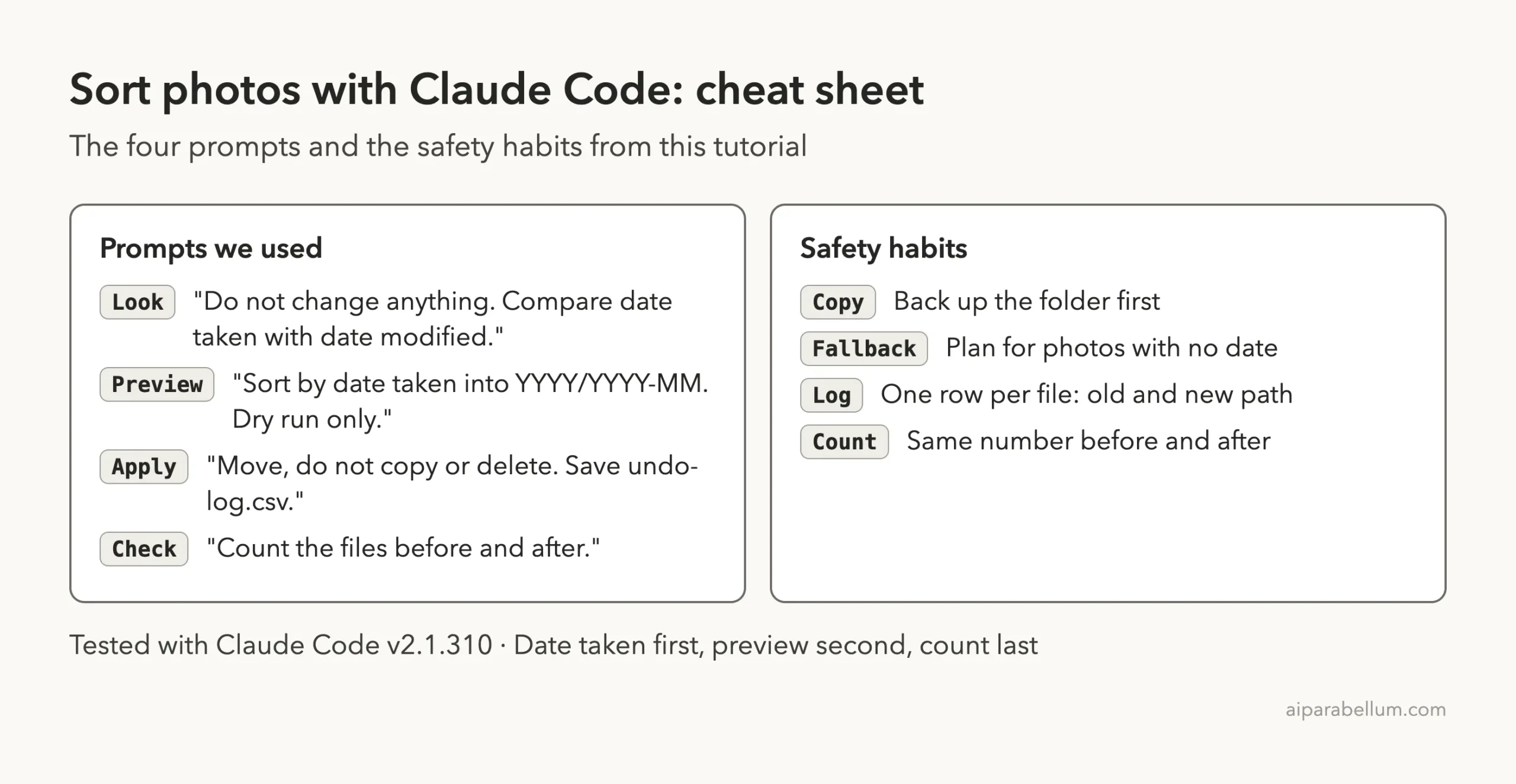
Cheat Sheet
Frequently Asked Questions
Can Claude Code sort photos by date?
Yes. In our test it sorted 53 files into year and month folders after we described the layout in plain English. It writes a small script, shows a preview, and asks your permission before moving anything.
Which date does it use, taken or modified?
It uses whichever you ask for. We asked it to compare both and recommend one, and it chose the date taken stored inside the photos, because the modified date was the same for every file.
What happens to photos that have no date?
That is up to your rule. We told Claude to put them in a needs-review folder, and the three undated photos went there instead of being guessed into a month.
Will it lose or change my photos?
Not in our test. Claude compared fingerprints of all 54 files before and after, and they were identical. Still, keep a backup and work on copies until you trust the result.
Can I undo the sorting?
If you ask for an undo log, it saves the old and new location of every file. Claude offered to write an undo script from that log, but we did not run one in this test, so try it on practice files first.
Conclusion
You can sort photos with Claude Code by asking it to look first, previewing the plan, moving the files with an undo log, and counting at the end. In our test the best moment was the wrong first preview: Claude spotted that all 51 photos landing in one folder looked suspicious, found its own bug and fixed it before anything moved. Start with a practice folder, read every permission prompt, keep a backup, and you can tackle a much bigger photo library with confidence. For more background on the tool itself, see our Claude AI overview.
Previous in the series: Part 1: Rename and Organize Hundreds of Files With Claude Code
Next in the series: Part 3, Convert Documents Between Formats With Claude Code, is coming soon.