Do you have a folder full of names like IMG_4821.jpg, scan(3).pdf and Invoice final FINAL v2.pdf? You can rename files with Claude Code by describing the naming rule in plain English, checking a preview, and letting it do the moving for you. You do not need to know how to program, and in our test it sorted 138 messy files without losing a single one.
This is Part 1 of 10 in our Claude Code for Non-Coders series, part of our Claude Code tutorials. We wrote it for someone who has never programmed. If you have not used the tool yet, our guide to your first session takes about ten minutes.
Tested with Claude Code v2.1.310 on October 27, 2026, on macOS. We tested on macOS; the Windows and Linux steps follow Anthropic’s official instructions.
What We Did in This Tutorial
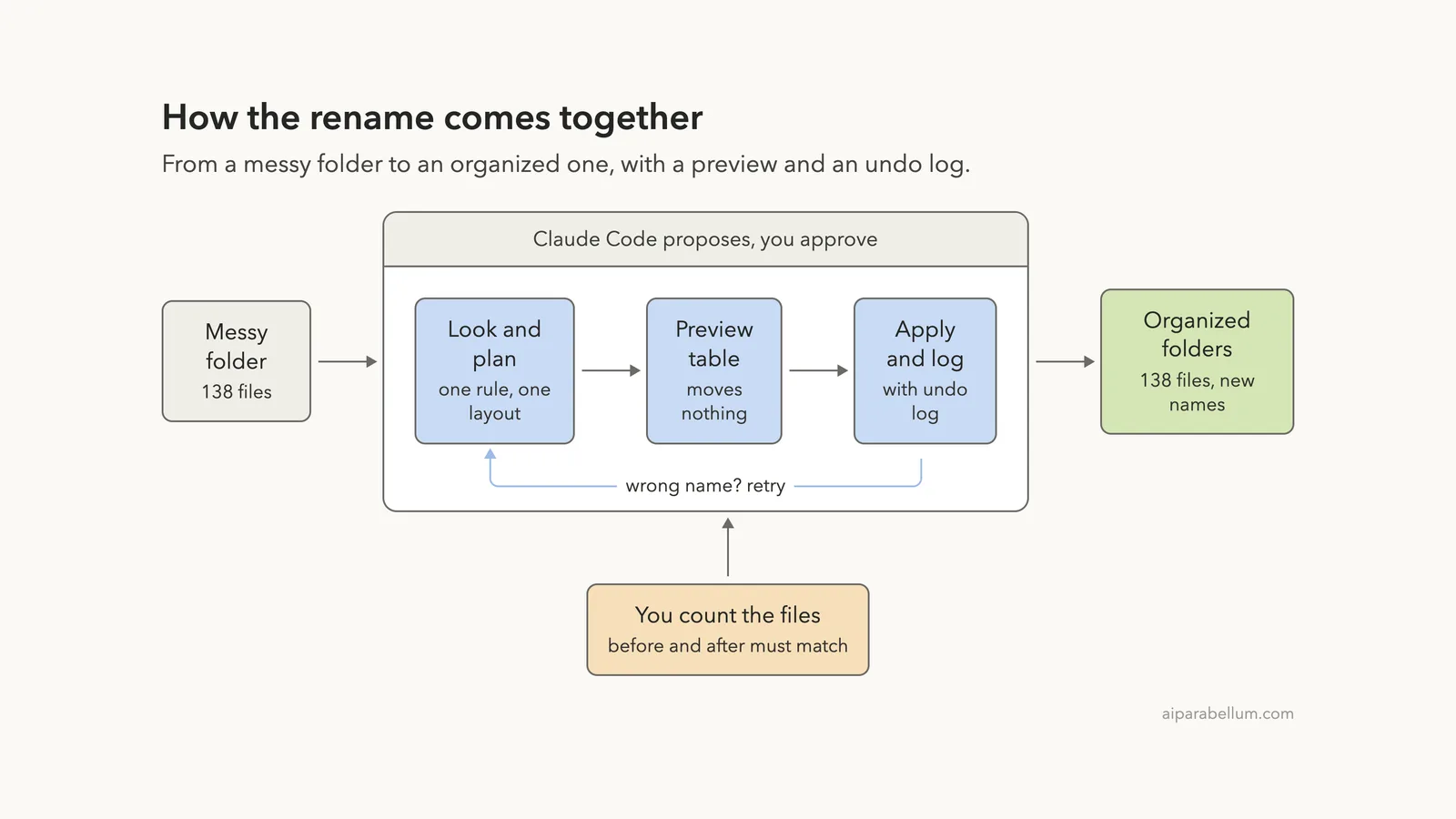
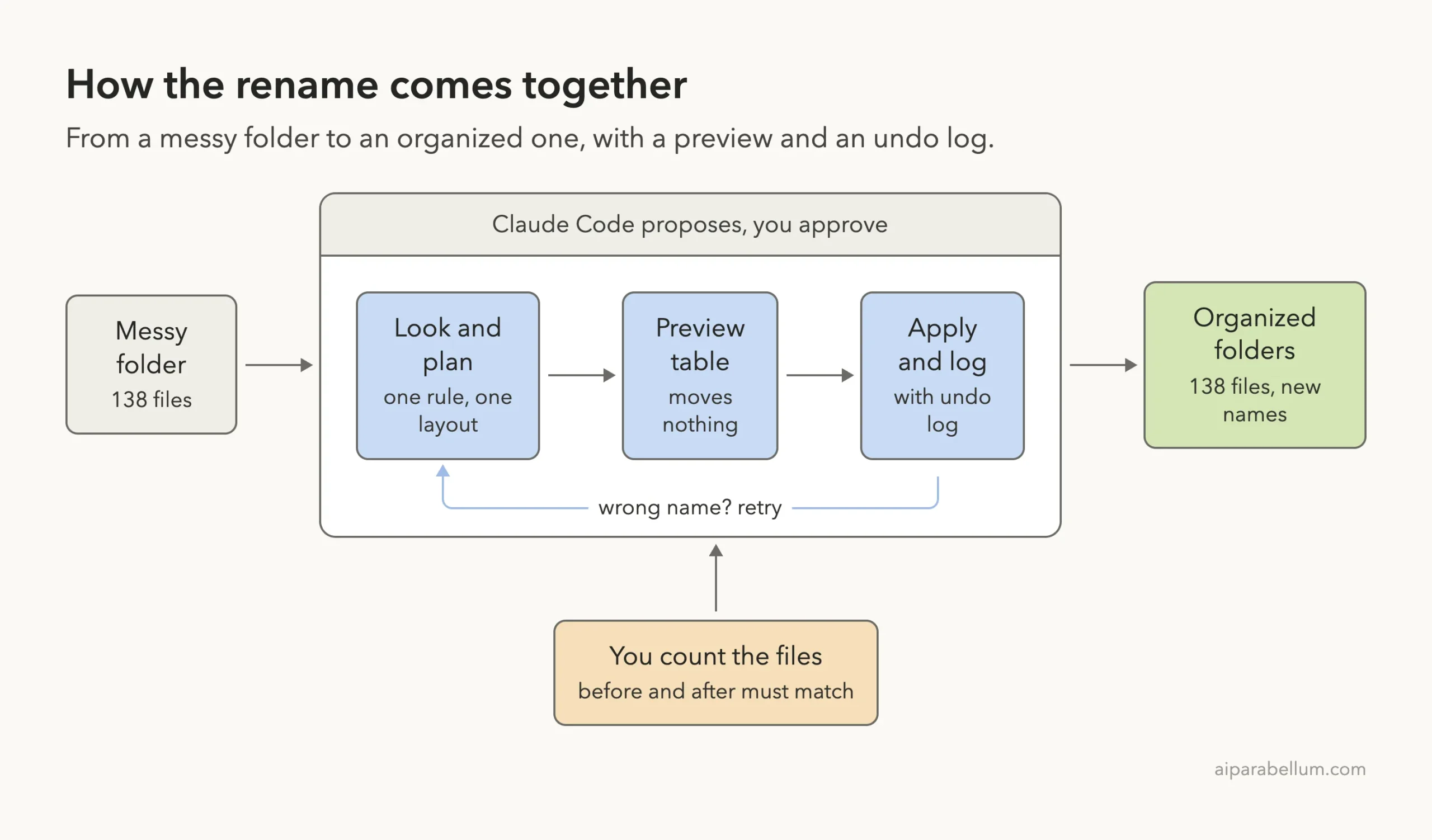
Never let any tool move your files until you have seen a preview, and never trust the result until you have counted the files.
| Item | Details |
|---|---|
| Goal | Give every file a clean, dated name and put it in the right folder |
| Starting point | One flat folder with 138 made-up files: photos, scans, invoices, receipts, notes and recordings |
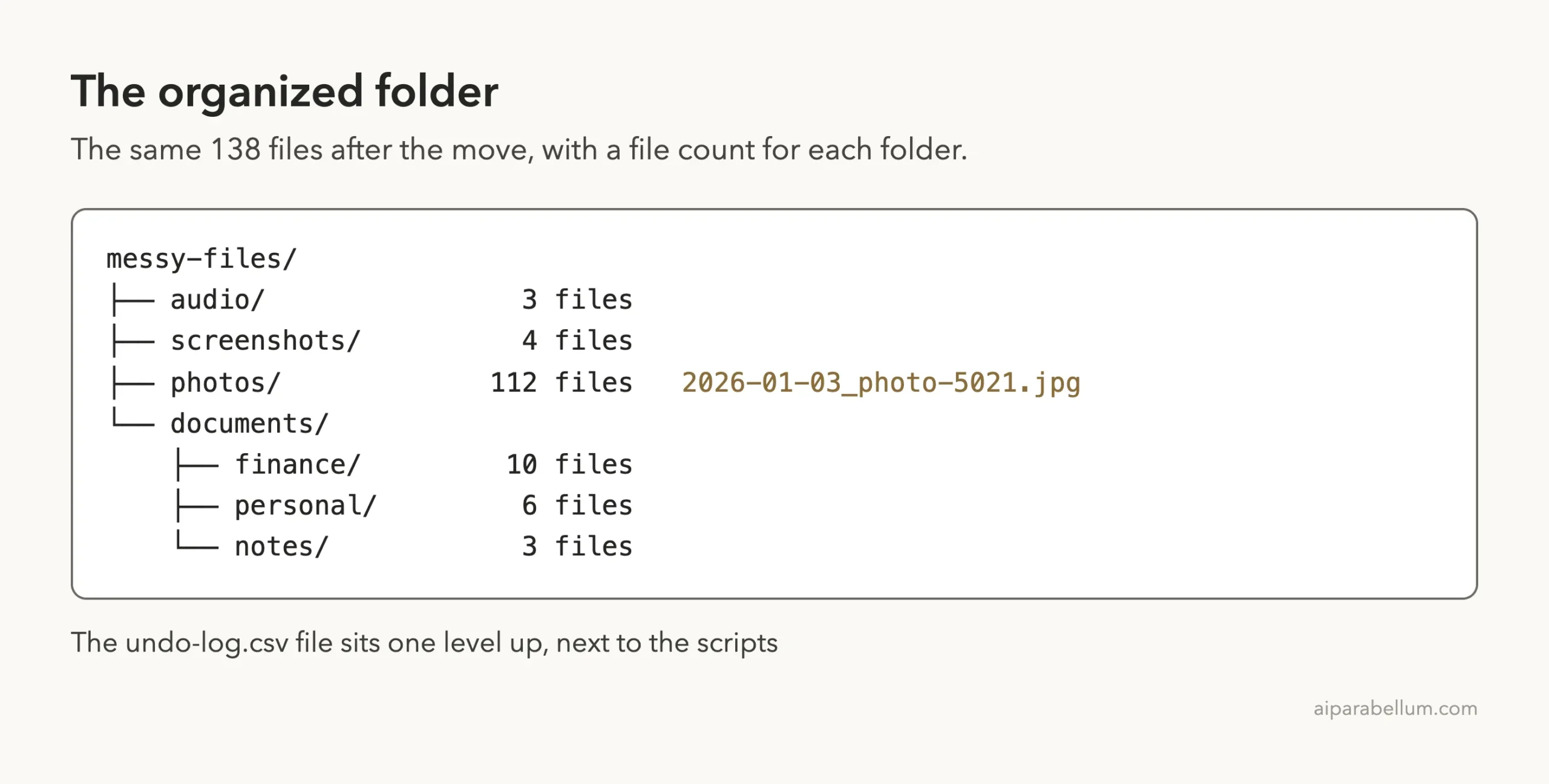
| Result | 138 files in 6 folders, all with names like 2026-05-02_photo-4814.jpg |
| Safety net | A preview first, then an undo log with one row per file |
| Typed prompts | 4 short prompts, plus a few Enter presses to approve commands |
| Cost to you | No programming and no software to install beyond Claude Code |
Everything in this tutorial uses made-up files that we created in a practice folder. We did not touch any real photos or documents, and you should not either until you have practiced. Our test used 138 files; the same steps work for a bigger folder, but we only tested this size.
Why Rename Files With Claude Code?
Renaming one file takes ten seconds. Renaming a hundred of them by hand takes an afternoon, and you will probably make mistakes halfway through. Most file-renaming apps solve this, but you have to learn their patterns and settings first.
Claude Code works differently. You say what you want, such as “put the date first and use lowercase,” and it figures out the steps. It can look at the file names, read the modified dates, write a small helper script, and run it for you.
The catch is simple: moving files is easy to get wrong, and a wrong move can be hard to spot. That is why this tutorial is built around three habits. Look first, preview second, move third.
What Claude Code Can and Cannot See
Claude Code can read file names, folder layouts and the dates stored by your computer. It can also open text files and read their contents. In our test the PDFs and spreadsheets were empty placeholders, so it could only judge them by their names.
Anthropic’s common workflows page notes that when you point to a folder with an @ reference, Claude gets a list of the files, not their contents. That is a good fit here, because for renaming you mostly need the list.
Before You Start: Make a Safe Practice Folder
Create a new folder just for practice, and put copies of a few files in it. Never start with your only copy of something important.
- Make a folder, for example Documents/rename-practice.
- Copy 20 to 50 files into it. Mix photos, PDFs and notes.
- Open a terminal in that folder and type claude. Our guide to installing Claude Code shows how.
When Claude Code starts in a new folder, it asks if you trust it. This is a safety question. Say yes only for folders you chose on purpose, such as your practice folder.
Step 1: Ask Claude Code to Look First
Our first prompt did not change anything. It asked for a short list of what was wrong, plus one naming rule and a folder layout.
Look at the files in messy-files. Do not change anything. In a short list, tell me what is wrong with the file names, then suggest one naming rule and a folder layout that would fix it.The phrase “Do not change anything” matters. It turns Claude Code into a reviewer instead of a worker, which is exactly right for a first look.
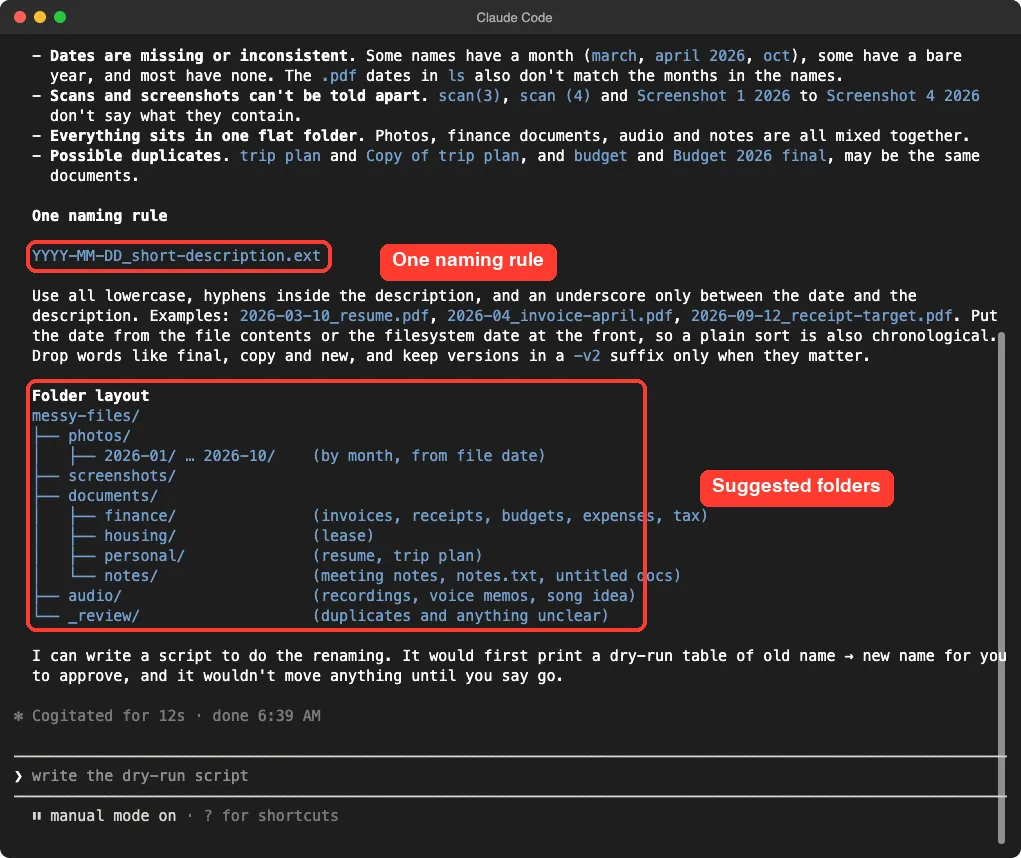
It found the problems we planted: a mix of capital letters and spaces, copies named “final” and “FINAL v2,” scans and screenshots that all look alike, and everything sitting in one flat folder. It also pointed out that two pairs of files might be duplicates, which we cover below.
Read the Suggestion Like a Person
Claude proposed this rule: the date first, then a short description, all lowercase with hyphens, like 2026-03-10_resume.pdf. The date comes first so that a plain alphabetical sort is also a sort by date.
It also suggested more folders than we ended up using, including housing and a review folder. You are the boss. If you do not want a folder, say so before anything moves.
Step 2: Ask for a Preview (a Dry Run)
A dry run shows what would happen without doing it. This is the most important step, so we asked for it with very clear rules.
In messy-files there are 138 files. Plan: name every file YYYY-MM-DD_short-description.ext in lowercase with hyphens, using the date the file was last modified, and sort them into folders: photos, screenshots, documents/finance, documents/personal, documents/notes, audio. Do not move anything yet. First write a script plan_rename.py that only prints a dry-run table of old name and new name, and show me the first 12 rows.Notice how much detail is in the prompt. It names the pattern, the date source, every folder, and the one thing not to do yet. The more exact you are, the fewer surprises you get.
Approve Each Command You Understand
Claude Code stopped and asked before it ran its preview script. This is the permission prompt, and it appears whenever Claude wants to run a command. It shows the exact command and asks, “Do you want to proceed?”
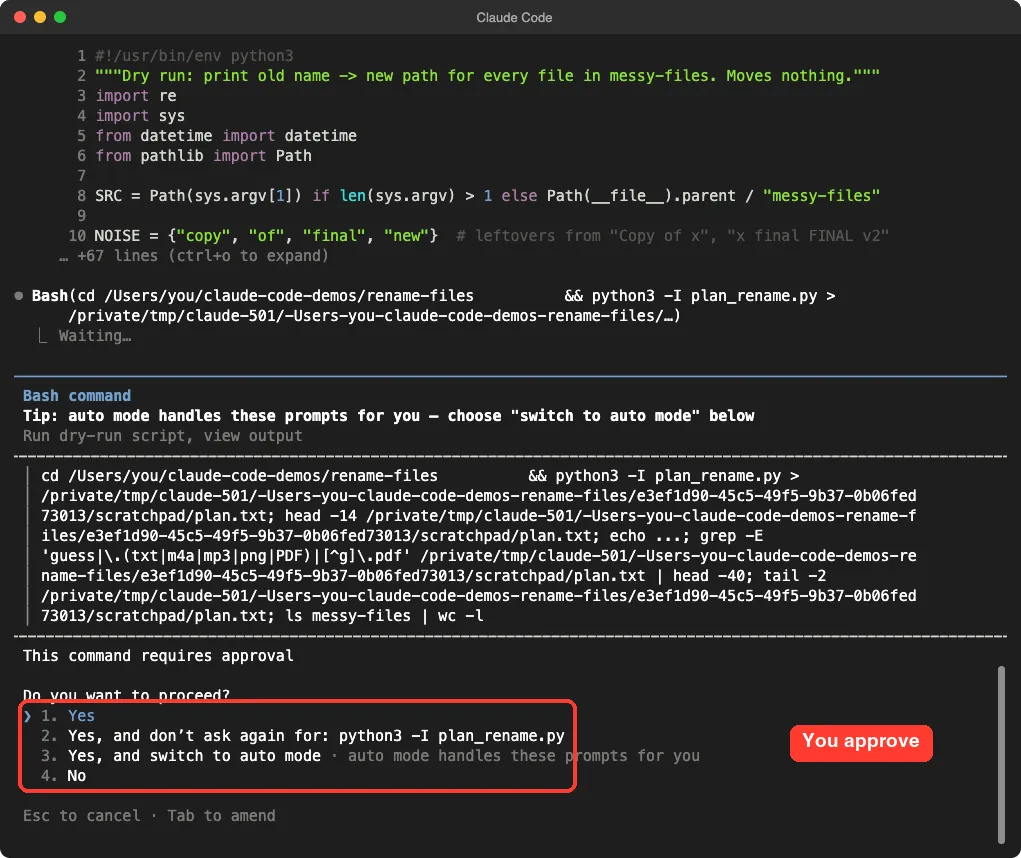
You do not need to understand every word of the command. Look for two things: does it match what you asked for, and does it avoid anything scary like deleting? This one only ran the dry-run script and counted the files.
You can read more in our guide to permissions.
We chose the plain Yes each time. The other options let Claude skip future questions, which we did not want while it could still move files.
What the Preview Told Us
The preview showed old names on the left and new names on the right. A photo named IMG_4814.jpg became photos/2026-05-02_photo-4814.jpg, taken from the date the file was last modified.
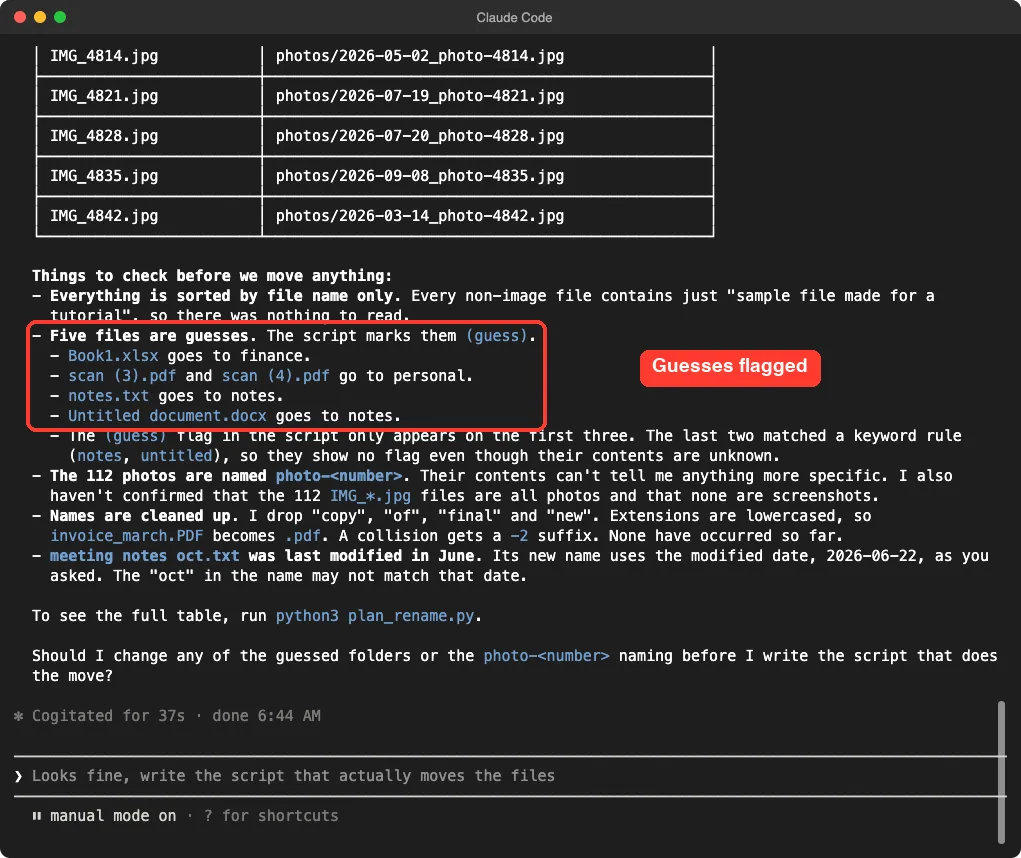
The best part was the list after the table. Claude said that five files were guesses, because their names did not say clearly where they belonged. It also admitted that the photo names could not be more specific than a number, and that it had not checked whether any IMG file was really a screenshot.
This is the kind of honesty you want. If a tool tells you what it is unsure about, you know where to look.
Step 3: Move the Files and Keep an Undo Log
The preview looked right, so we asked Claude to apply it. We added two rules that protect you.
The preview looks right. Now apply it: move every file (do not copy, do not delete) into the new folders with the new names. If two files get the same name, add -2 at the end. Save undo-log.csv with the old path and new path of every file so I can undo it.The undo log is a simple spreadsheet file. Each row holds one file’s old location and its new location. If you hate the result, that log is the map back to where everything started.
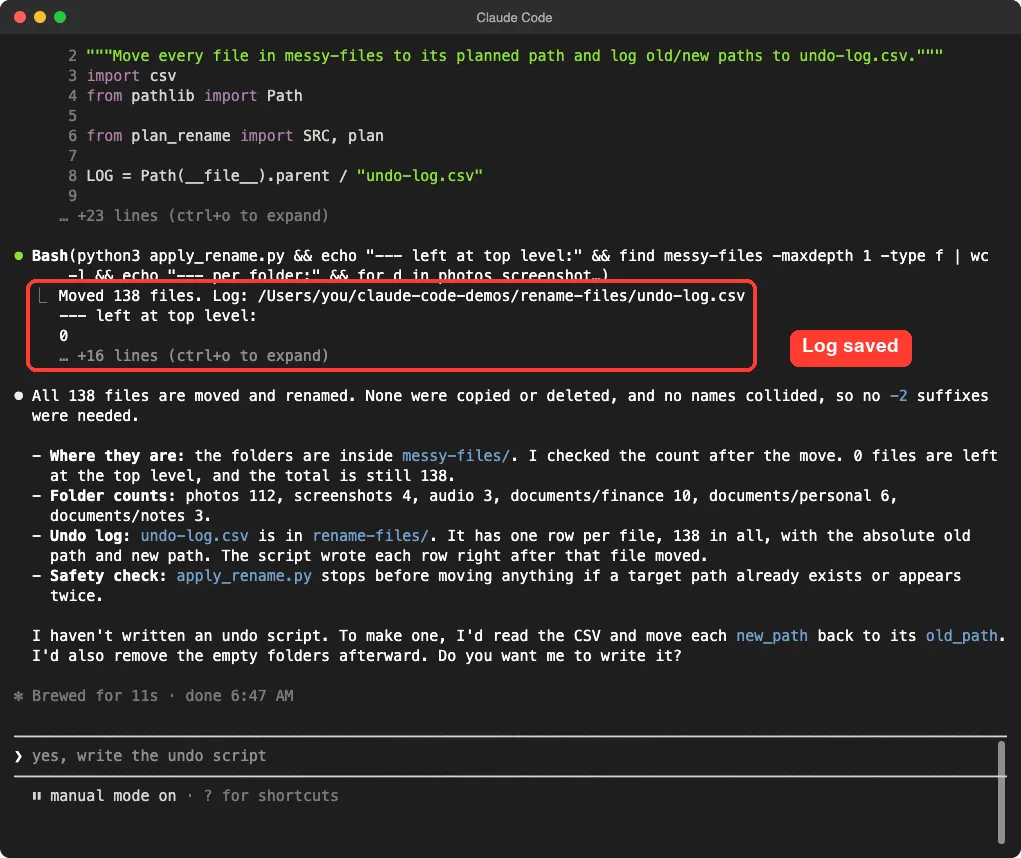
The collision rule matters too. Two files can end up with the same new name, and without a rule one might overwrite the other. In our run no names collided, so nothing needed the -2.
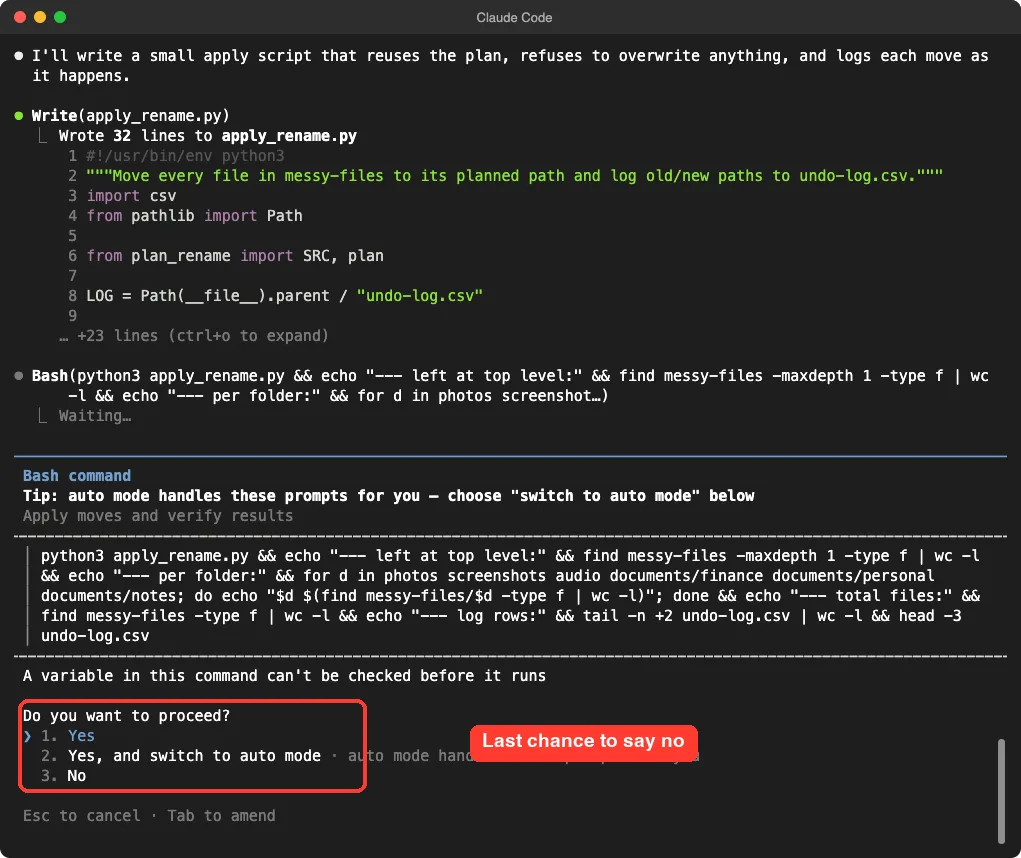
Claude wrote a small script, apply_rename.py, and showed us part of it. According to Claude’s own summary, the script stops before moving anything if a target path already exists or shows up twice. After we approved, it ran.
A Small Trap: The Grey Suggestion
You may notice a faint grey sentence in the prompt box after an answer, such as “write the undo script.” This is a suggested reply from Claude Code. If you press Enter on an empty box, it sends that suggestion.
That is handy when you agree, but easy to do by accident. In our own run, a few extra Enter presses sent suggestions we had not typed. Always read the grey text before you press Enter on an empty box.
Step 4: Count the Files Before and After
Never trust a “done” message by itself. Ask for proof. Our last prompt asked for a count.
Check the result: count the files before (138) and after, and show the new folder tree with a file count for each folder.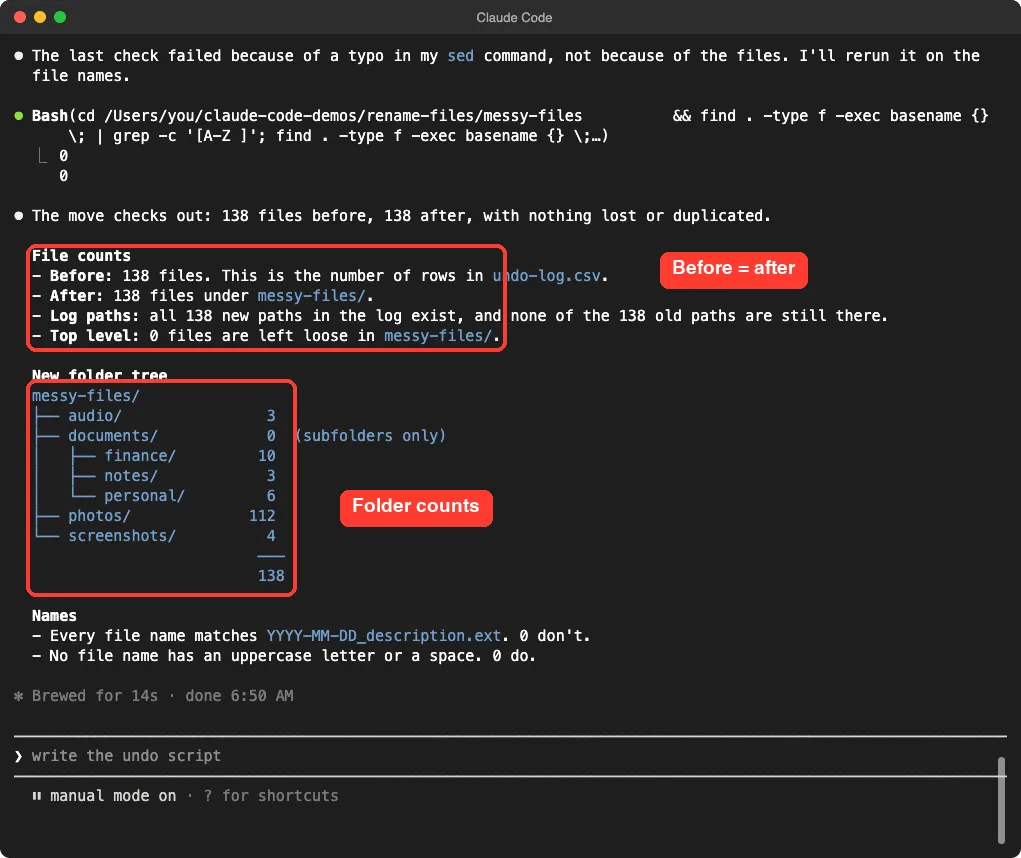
The numbers matched: 138 before, 138 after, and none left loose in the top folder. Claude also checked that every new name followed the pattern, with no capital letters and no spaces.
We also looked at the folders ourselves on the Mac and counted the files. They matched what Claude reported. You should do the same, because a quick look takes thirty seconds.
What Worked and What Needed a Human
The job went well, but it was not perfect. Here is the honest scorecard.
| Part of the job | How it went | What you should do |
|---|---|---|
| Cleaning up names | Removed words like copy, final and new, fixed capitals and spaces | Skim the preview for names that lost something important |
| Dating files | Used the last modified date as asked | Remember that a modified date is not always the date a photo was taken |
| Picking folders | Right for obvious names, guessed for five unclear ones | Fix the guesses before you approve the move |
| Photo names | Kept only the old number, like photo-4814 | Add detail yourself, or tell Claude a pattern to use |
| Safety | Nothing lost, log saved | Always count and keep your backup |
Look at the date row again. A file’s modified date can change when you edit or copy it, so it can differ from the day a photo was taken.
Real photos often store the true date inside the file. We did not test that, so do not assume it works.
Try It Yourself
Here is a practice task you can finish in about twenty minutes. Use copies of your files in a new folder.
- Copy 30 or more files into a practice folder called rename-practice.
- Start Claude Code in that folder and paste the prompt below.
- Read the preview, fix anything you do not like, and only then approve the move.
- Ask for a count of the files before and after.
Look at the files in this folder. Do not change anything yet. Tell me what is wrong with the names, then suggest one naming rule and folders. After I say yes, write a script that prints a preview of old name and new name, and wait for my approval before moving anything. When I approve, move (do not copy or delete) the files and save undo-log.csv with the old and new path of every file.Ideas for Your Own Rules
- Put the client name first for work files, such as acme_2026-05_invoice.pdf.
- Number a set of files in order, such as vacation-001.jpg to vacation-120.jpg.
- Replace spaces with hyphens so the files are safe to upload to a website.
- Move old files into a folder named archive-2025.
Common Mistakes
- Skipping the preview. A wrong rule applied to 500 files is a big mess to fix by hand.
- Working on your only copy. Always copy first, or use a backup.
- Saying “clean up my files” with no rule. Vague prompts give surprising results, so name the pattern.
- Pressing Enter on the grey suggestion without reading it.
- Choosing “switch to auto mode” too early. Keep asking permission until you trust the result.
- Forgetting to look for duplicates. Claude flagged two pairs that might be the same, but it cannot know for sure from names alone.
Pro Tips
- Say what must not happen: “do not delete, do not overwrite, do not change contents.”
- Ask for one rule at a time. Dates first, then folders, then other cleanup.
- Save the naming rule in a CLAUDE.md file so you do not need to repeat it next time.
- If you change your mind, rewind can undo changes Claude made through its own edit tools, but it does not cover every command, so keep the undo log too.
- Use plan mode for the first look, so Claude cannot change anything by accident.
- Remember that your file names go to Anthropic’s servers as part of the conversation. Read our note on privacy and security before using real folders.
Cheat Sheet
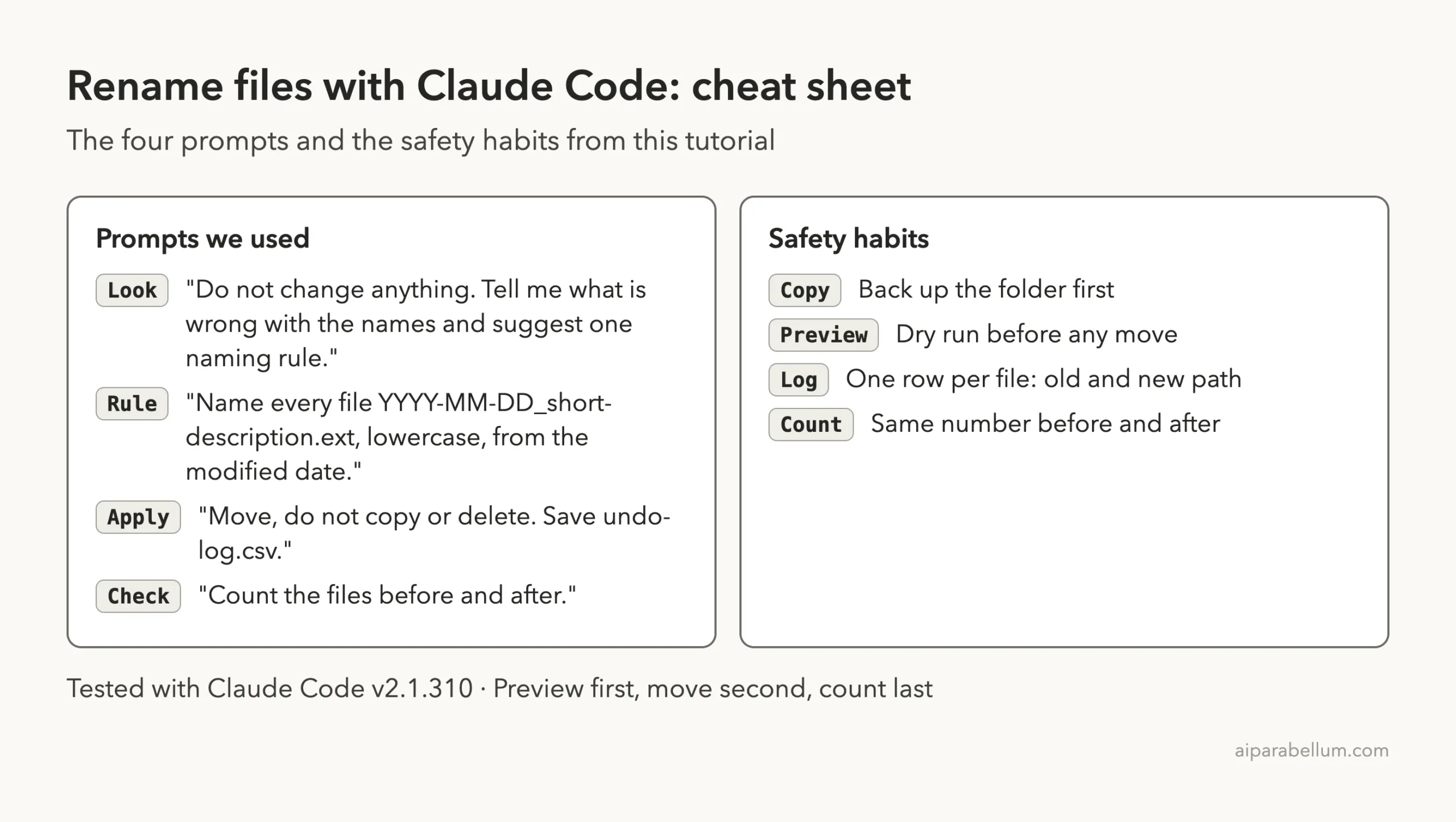
Frequently Asked Questions
Can Claude Code rename files in bulk?
Yes. In our test it renamed and sorted 138 files after we described the rule in plain English. It does this by writing a small script and running it, and it asks your permission first.
Do I need to know how to code to use it?
No. You write normal sentences. You will see some code on screen, but you only need to check that the command matches what you asked for.
Will Claude Code delete or lose my files?
It did not in our test, and we told it not to copy or delete anything. Still, keep a backup and an undo log, and count your files afterward. Never test on your only copy.
Can it undo the renaming?
If you ask for an undo log, it saves the old and new location of every file. Claude offered to write an undo script from that log, but we did not run it in this test, so try it on practice files first.
Can Claude Code rename photos using the date they were taken?
We used the last modified date, because our sample photos were plain generated images. Real camera photos often store the capture date inside the file, but we did not test that. Check a few results by hand before you trust it.
Conclusion
You can rename files with Claude Code by looking first, previewing second, moving third, and counting last. In our test that turned 138 messy files into six tidy folders with clean dated names, and every file was still there afterward. Start with a practice folder, read every permission prompt, keep an undo log, and you will be able to tackle bigger clean-ups with confidence. For more background on the tool itself, see our Claude AI overview.
Next in the series: Part 2: Sort Photos Into Folders by Date With Claude Code.