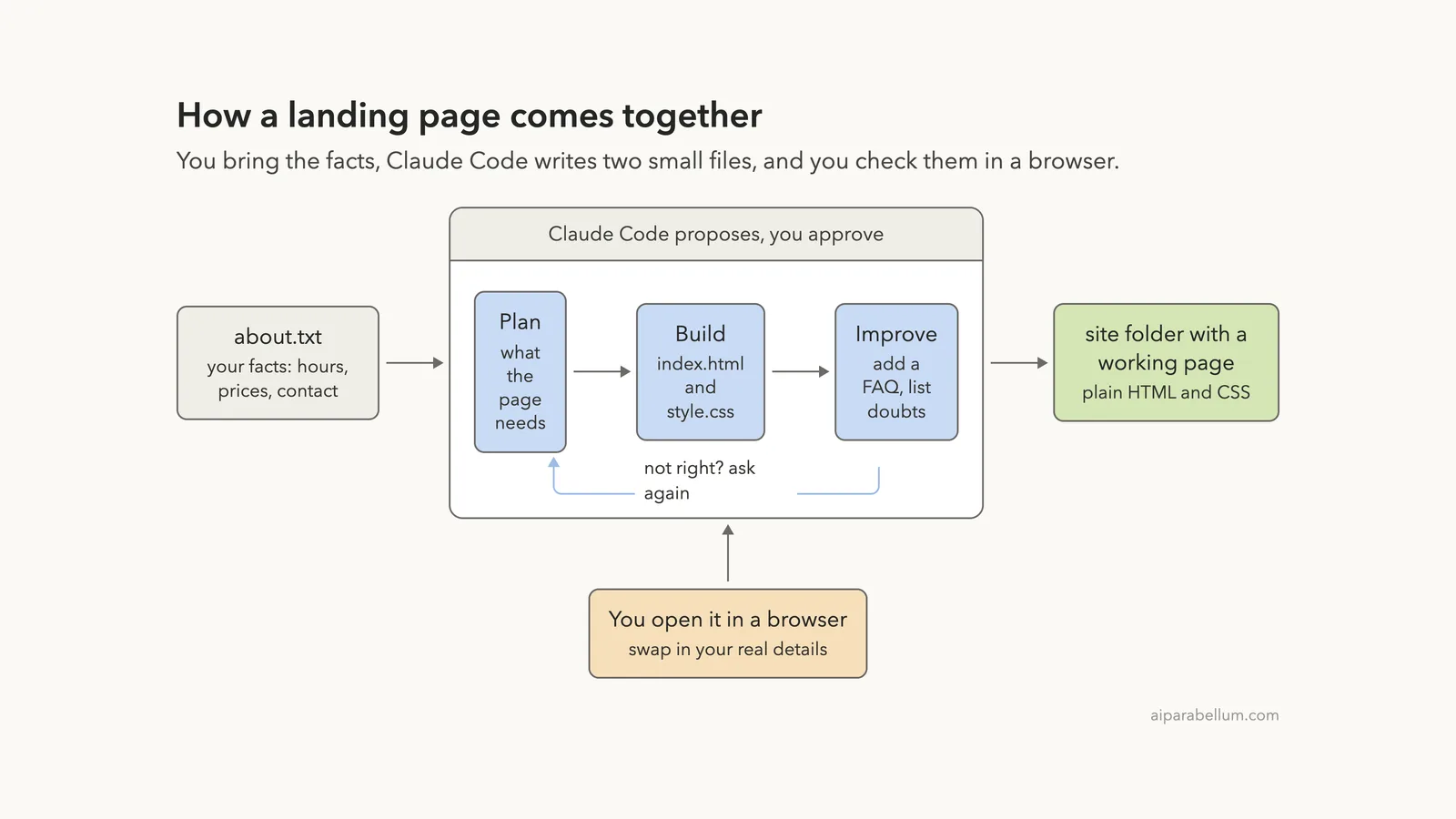
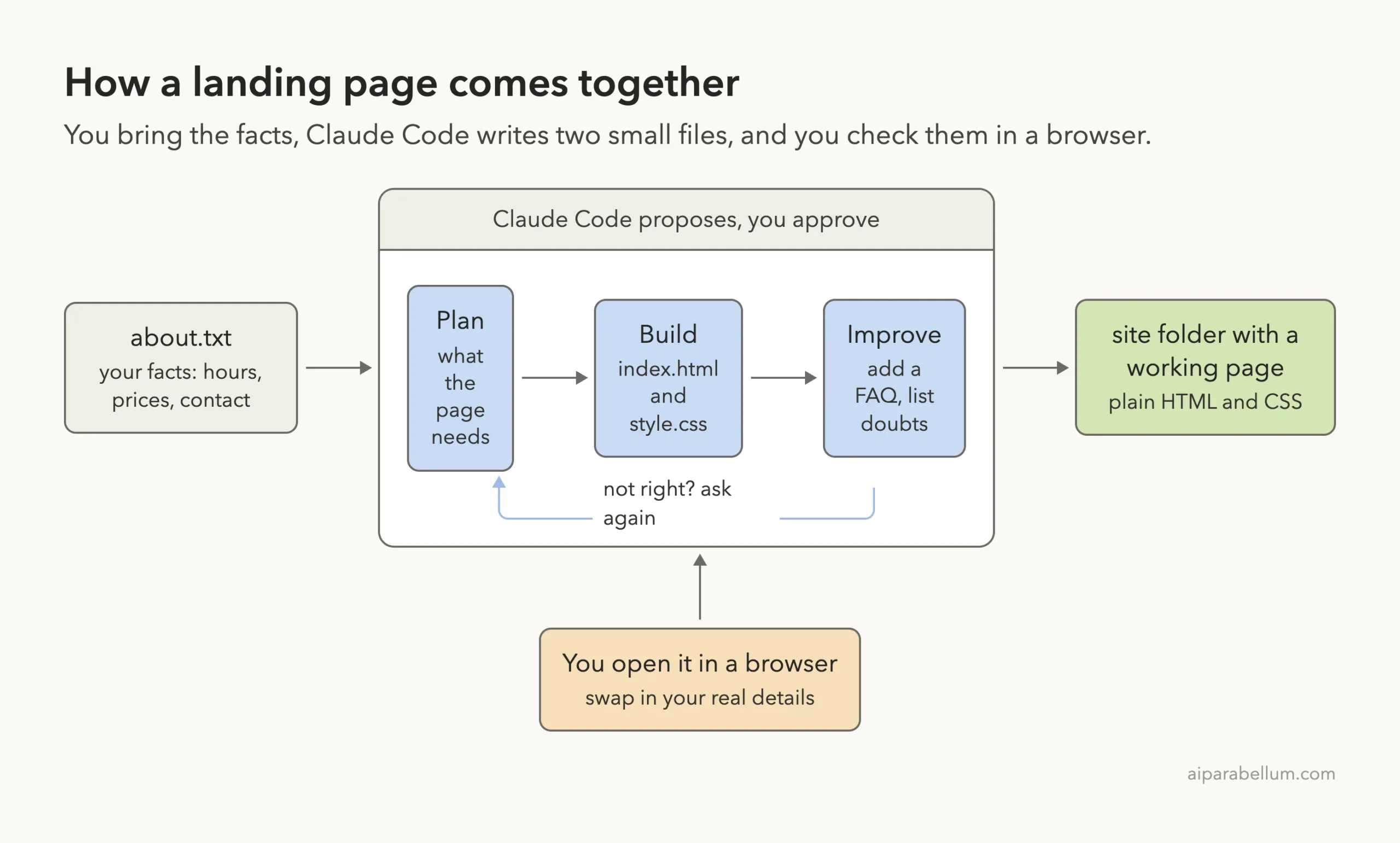
Can you build a landing page with Claude Code if you have never written a line of code? In our test, yes. We gave Claude Code one small text file about a made-up bakery, and three short prompts later we had a real page with a big order button, prices, opening hours and a FAQ, ready to open in any browser.
This is Part 6 of 10 in our Claude Code for Non-Coders series, part of our Claude Code tutorials. We wrote it for someone who has never programmed. Last time we tidied a spreadsheet in our email list tutorial, and the same habits apply here: give clear facts, read before you approve, then check the result yourself.
Tested with Claude Code v2.1.312 on October 29, 2026, on macOS. We tested on macOS; the Windows and Linux steps follow Anthropic’s official instructions.
What We Did in This Tutorial
A landing page is only as good as the facts you give it, so write the facts down first and let Claude Code do the layout.
| Item | Details |
|---|---|
| Goal | A one-page website for a small business that gets visitors to order by phone or email |
| Starting point | One text file, about.txt, describing a made-up bakery: hours, prices, contact details |
| Result | Two files, index.html and style.css, in a folder called site |
| Typed prompts | 3 short prompts, plus Enter presses to approve each file |
| Installed for this | Nothing. The page uses plain HTML and CSS, which every browser understands |
| Cost to host | Not covered here. We stopped at a page that works on your own computer |
Everything in this tutorial is made up. The bakery, the address, the phone number and the email address are examples, and the email address uses the reserved example.com domain. Do not publish any of it as a real business.
What a Landing Page Is and Why It Helps
A landing page is a single web page with one job. For a bakery the job is simple: get someone to order a cake. It does not need menus, logins or a blog.
Small businesses often skip a website because it feels like a big project. A landing page is small enough to finish in one afternoon. It tells people who you are, what you sell, when you are open and how to reach you.
Website builders can do this too, and they are a fine choice. Claude Code is different because you describe the page in plain English and it writes the files for you. You also keep the files, so you can move them to any host later.
What HTML and CSS Mean
You will see two file types in this tutorial. An HTML file holds the words and structure of the page, such as the headings, the button and the list of prices. A CSS file holds the looks, such as colors, spacing and fonts.
You do not need to read either one closely. You only need to know that together they make a page that opens in Chrome, Safari or Firefox by double-clicking the file.
Why Real Facts Matter
Claude Code writes good layouts, but it cannot know your opening hours or your prices. If you leave them out, it may fill the gap with guesses. That is why we started with a text file of facts and told Claude to use only those.
Before You Start: Set Up a Practice Folder
Make a new folder just for this project and put one text file in it. Do not start in a folder full of other work.
- Create a folder, for example Documents/landing-page.
- Inside it, create a text file called about.txt with the facts about your business.
- Open a terminal in that folder and type claude to start.
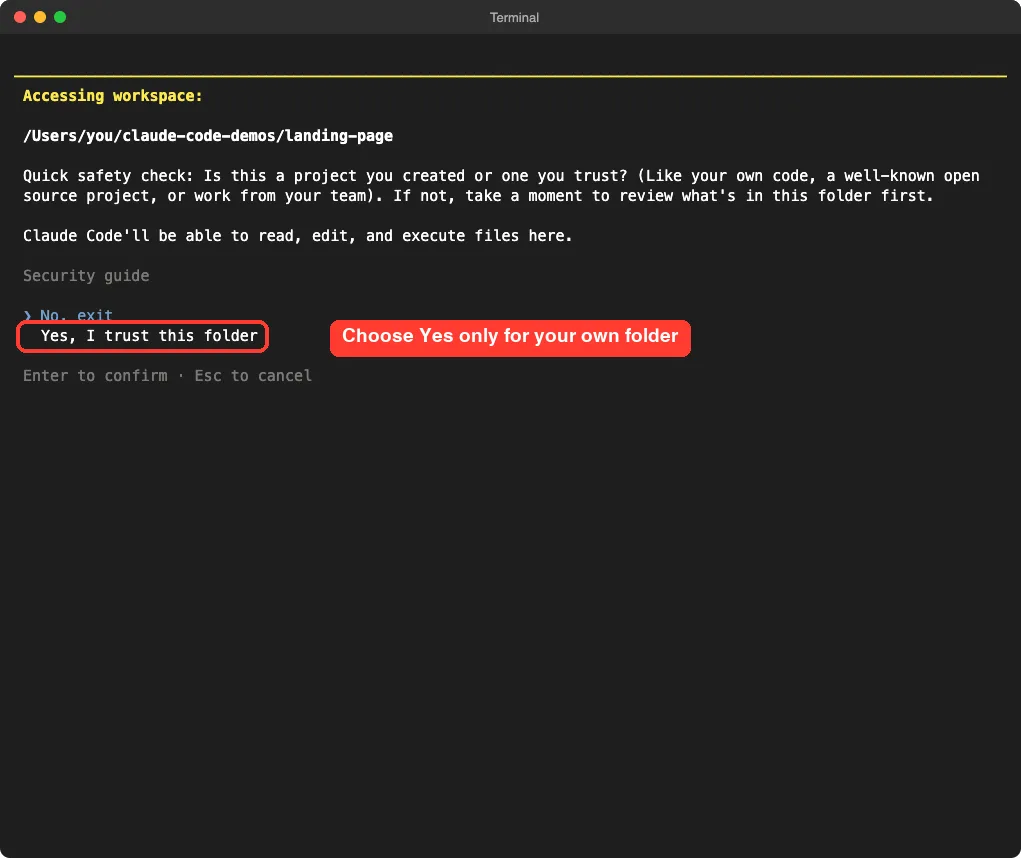
- Read the trust question and choose yes only for your own practice folder.
If you have never started Claude Code, our first session guide walks through the first minutes. You also need a Claude account to sign in.
Here is what our about.txt contained: the business name, what it does, the address, the hours, a phone number, an email address, three popular items with prices, the tone we wanted, the colors we liked and the goal of the page. Nine or ten short lines are enough.
Business name: Maple Street Bakery (made-up example)
What we do: small neighborhood bakery. Fresh sourdough, croissants, birthday cakes made to order.
Location: 42 Maple Street, Springfield (example address)
Hours: Tuesday to Saturday 7am to 4pm, Sunday 8am to 1pm, closed Monday
Phone: 555-0142 (example number)
Email: [email protected]
Popular items: Country sourdough $8, Butter croissant $4, Birthday cake from $45 (order 3 days ahead)
Tone: warm and friendly
Colors we like: cream and warm brown
Goal of the page: get people to order a cake by phone or email
The first time you open a new folder, Claude Code asks whether you trust it. This is a safety check, because Claude Code can read, edit and run files in the folder.
Step 1: Let Claude Code Read Your Brief First
Our first prompt did not build anything. We asked Claude to read the file, change nothing and tell us what a one-page site should include.
Read about.txt. Do not change anything. In a few short lines, tell me what this business is and what a one-page website for it should include.Claude read the file and answered in seconds. It described the business, noticed that the name, address, phone number and email were marked as made-up examples, and listed the parts of a good page: a hero area with a tagline and an order button, popular items, a cake ordering section, hours and location, and a contact footer. It ended with the line “I haven’t changed anything.”
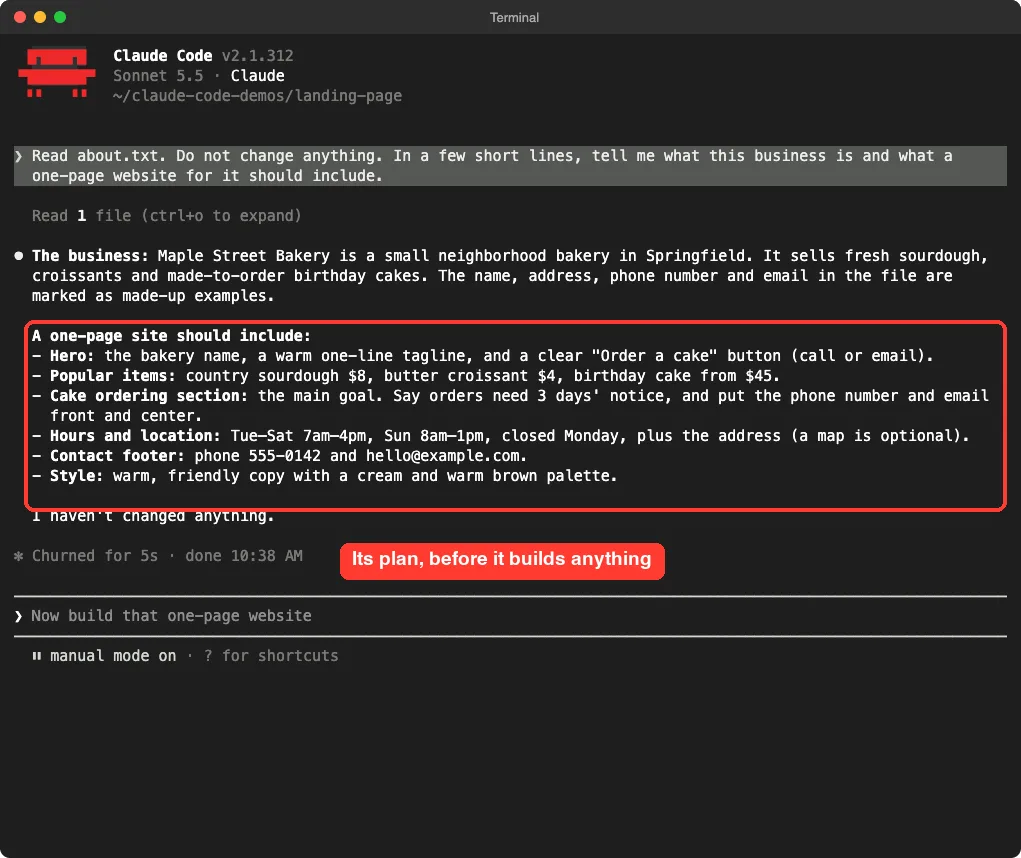
This step costs almost nothing and saves you from surprises. If the plan misses something, such as a map or a price list, say so now. If it adds something you do not want, say that too.
Step 2: Build the Landing Page With Claude Code
Now we asked for the real thing. The prompt names the two files, the style, the button and the rule about facts.
Build a simple landing page from about.txt. Create site/index.html and site/style.css only. Plain HTML and CSS, no outside libraries, looks good on a phone, warm cream and brown colors, a big Order a cake button that opens an email to the address in about.txt. Use only facts from about.txt.Notice the habits packed into it. It limits the files, so Claude cannot scatter new ones around.
It rules out outside libraries, so the page does not depend on anything you would have to install. It asks for a phone-friendly layout, because most visitors to a small business page arrive on a phone. And it says to use only facts from the file.
Read What You Approve
Claude Code does not create a file without asking, unless you have changed its settings. It shows the whole file first and asks, “Do you want to create index.html?” with three choices: Yes, Yes and accept edits for the session, or No.
You do not need to understand every tag. Skim for three things: the words are your words, the contact details match your file, and nothing points to a website you do not know. Then choose option 1, Yes.
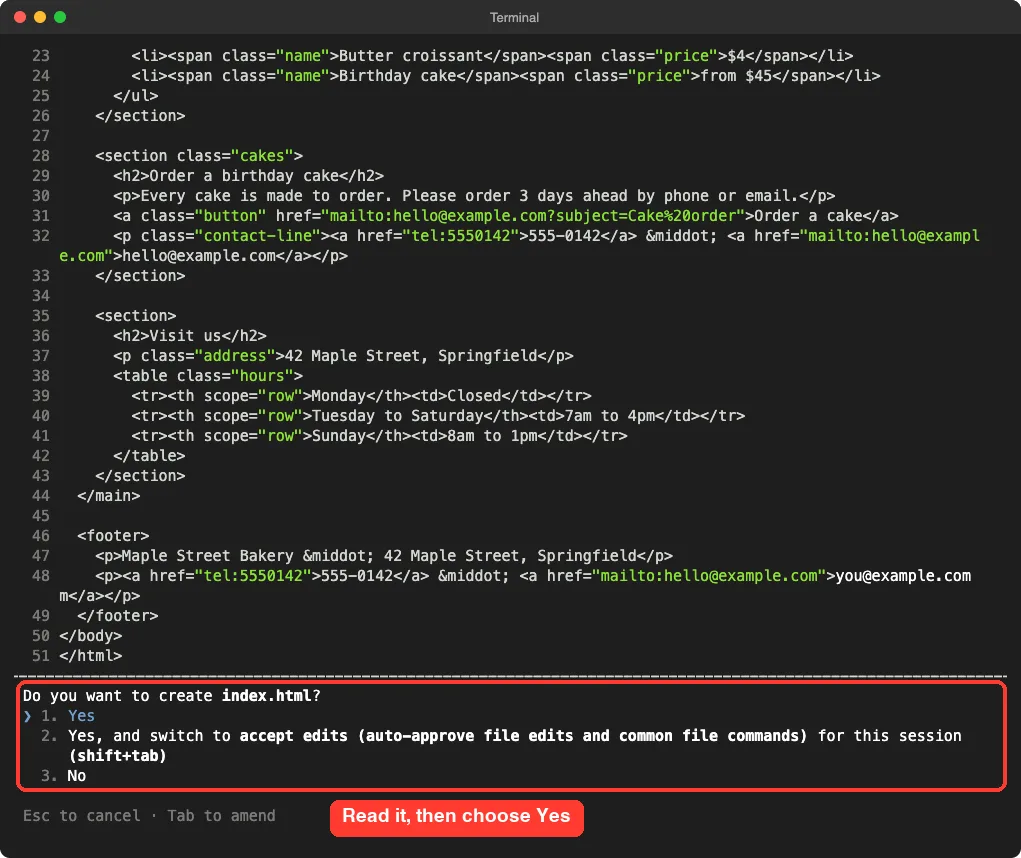
The second choice would stop the questions for the rest of the session. We did not take it. While you are learning, approving each file yourself is the best way to see what Claude does.
We approved index.html, then style.css, which was 170 lines long. When it finished, Claude summarized the page in plain English: a hero with the name, tagline and big button, a favorites list, a cake section with a second button, an address with hours, and a footer.
Claude Was Honest About What It Had Not Checked
Two lines in the summary are worth your attention. First, Claude said it had not opened the page in a browser, so it had not seen how the page looks. Second, it reminded us that the name, address, phone number and email were the example values from our file, and to swap in real ones before publishing.
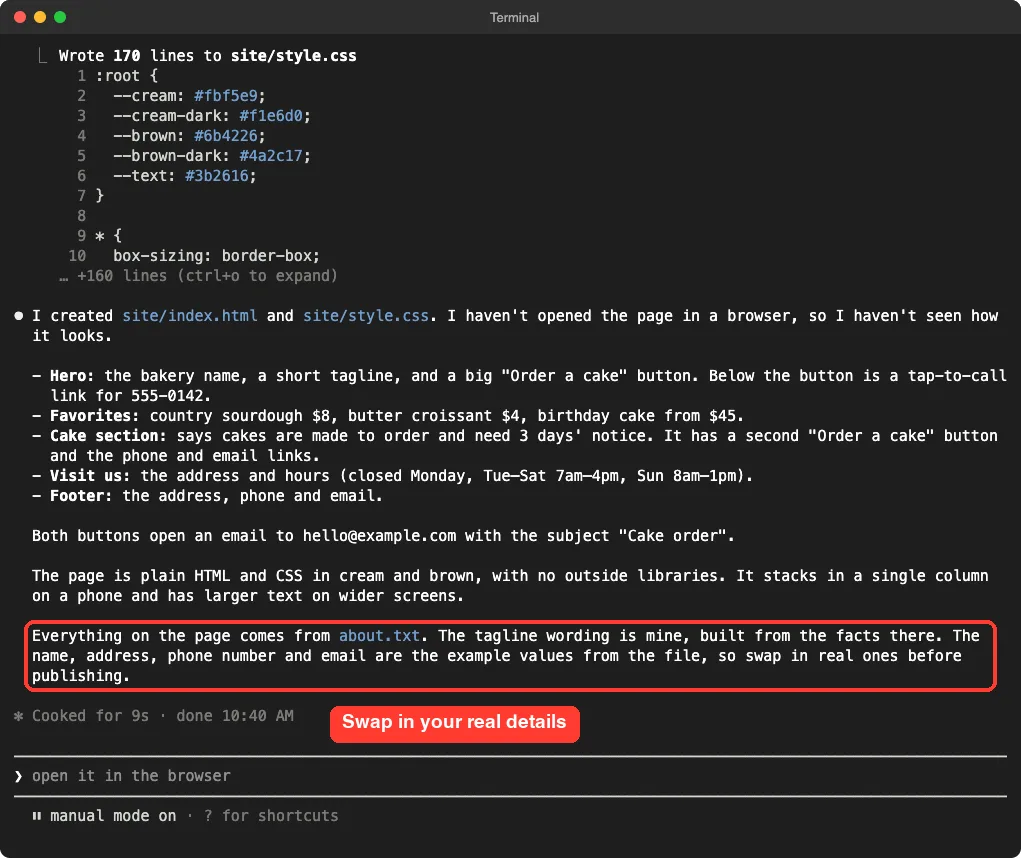
That honesty is useful. It tells you exactly where to look next, which is the browser.
Step 3: Open the Page and Look at It Yourself
Open the site folder and double-click index.html. It opens in your normal browser. This is the most important check in the whole tutorial, because the summary describes the page and your eyes confirm it.
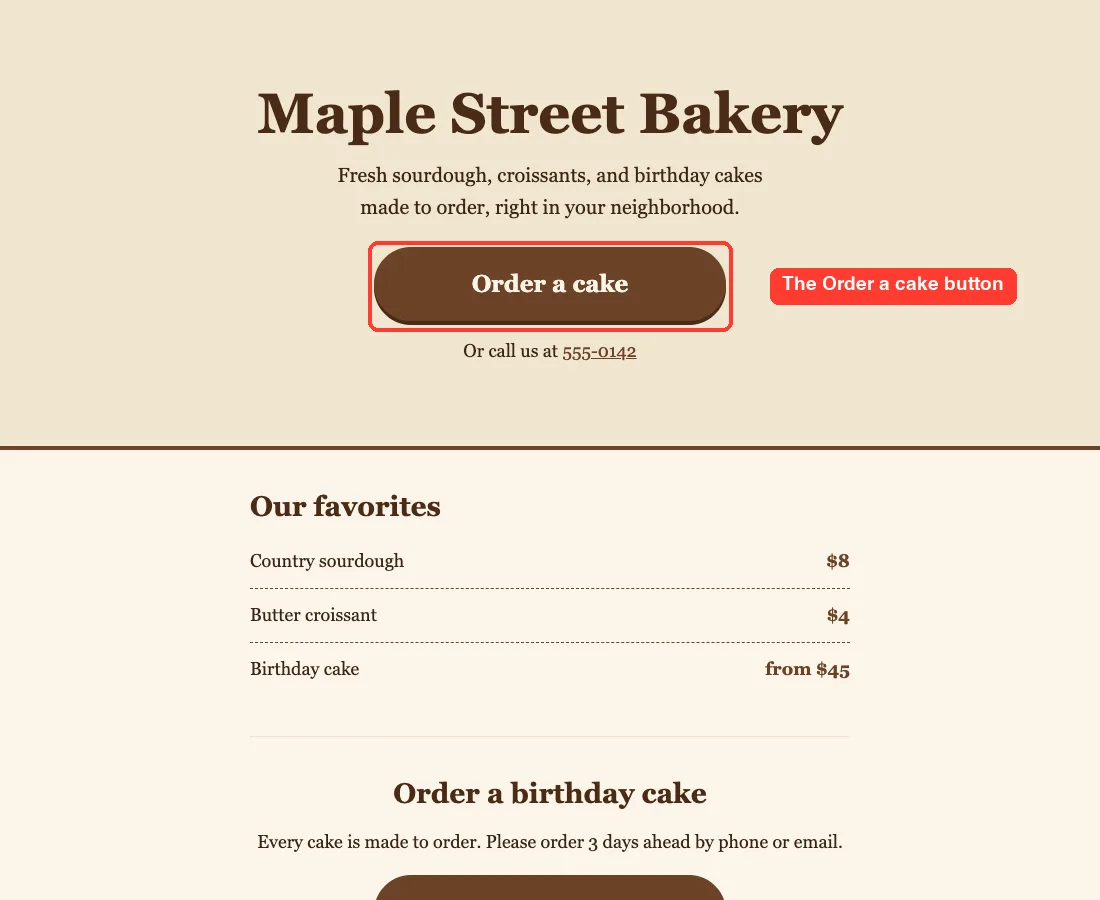
Here is our page on a laptop-sized window. The cream background and brown button came from our “cream and warm brown” request.
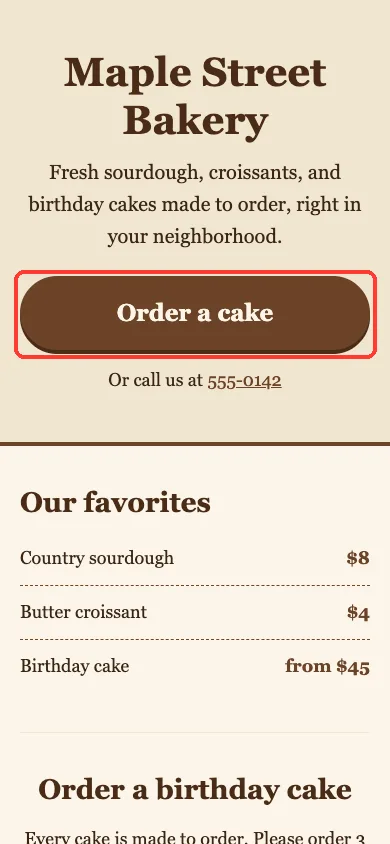
Next, check it at phone width. We narrowed the browser window to about the width of a phone. The text wrapped neatly, the button stretched across the screen so a thumb can tap it, and nothing ran off the edge.
Then click the button.
On our Mac it opened a new email addressed to the example address with the subject line “Cake order”. If your computer has no email app set up, the click may do nothing. Claude warned about this in its checklist, which is why the phone number and email are also written out as plain text.
What to Look For
| Check | What good looks like |
|---|---|
| Words | Every price, hour and address matches your own notes |
| Button | It is easy to see and does what you expect when clicked |
| Phone width | Text wraps, nothing is cut off, the button is easy to tap |
| Contact details | Phone and email are real, not the examples |
| Spelling | No typos in names or street words |
Step 4: Add a FAQ and Ask Claude What to Double-Check
A short FAQ answers the questions people would otherwise call about. We asked for one, and in the same prompt we asked Claude to list anything we should check before publishing.
Add a short FAQ section with three questions, using only facts from about.txt. Then tell me anything on the page I should double-check before publishing.Claude showed the exact edit first, with the new lines marked in green, so we could see it was adding a block and not rewriting the page. We approved it, and then approved a matching style change.
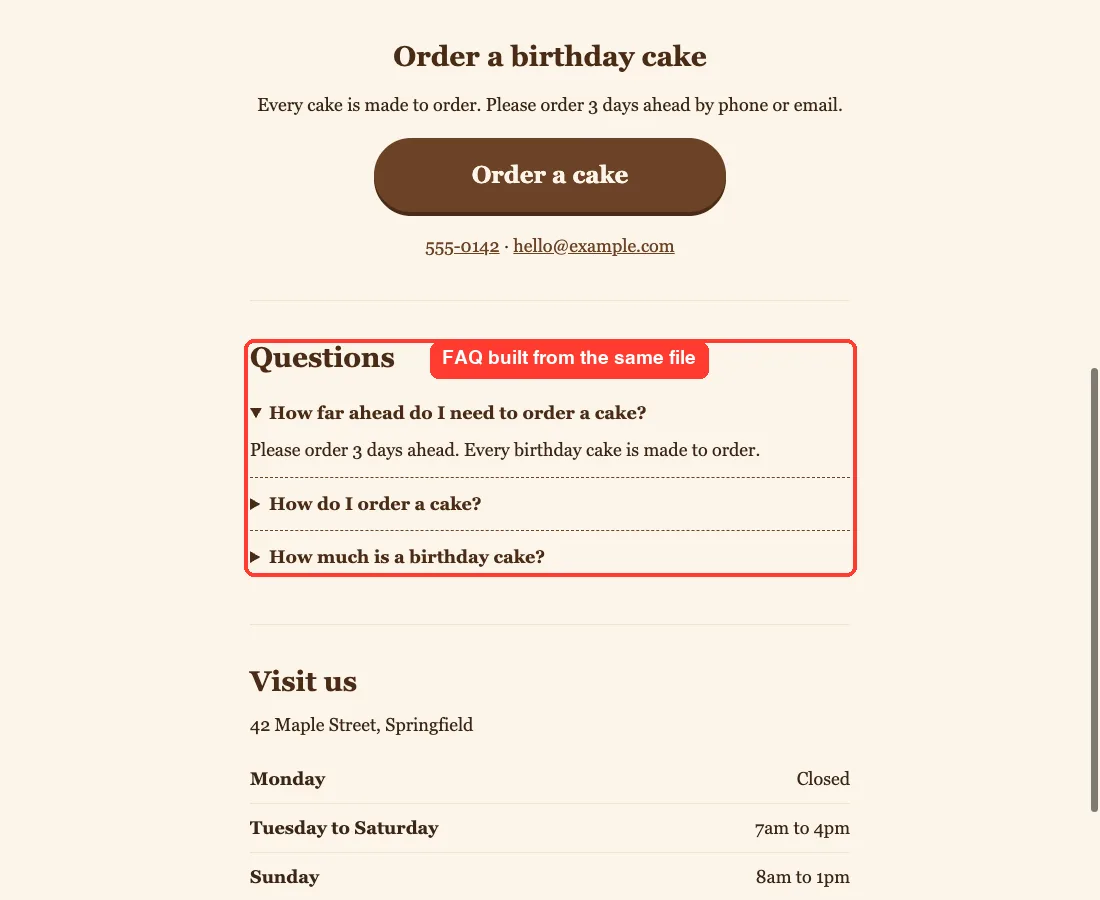
The three questions were how far ahead to order a cake, how to order one and how much a birthday cake costs. Each answer came straight from about.txt: three days ahead, by phone or email, from $45. Claude did not invent a delivery policy, a flavor list or an allergy statement, and it was right not to.
The Double-Check List
Claude’s final answer was a numbered list of things for us to confirm. It named the placeholder contact details, the made-up business name, the prices, the hours and its own tagline wording, which it said was its phrasing of the facts. It also repeated the warning that email buttons depend on a mail app.
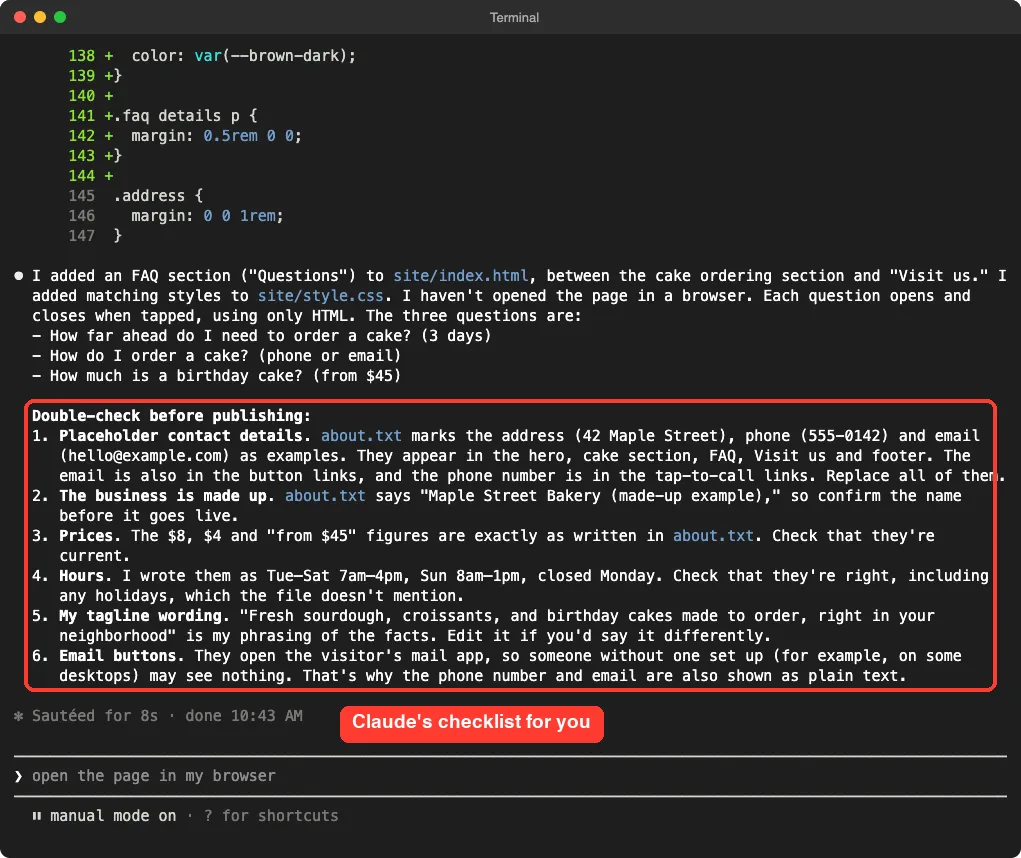
Treat this list as your to-do list. A page with the wrong phone number is worse than no page at all.
Ways to Change the Page
Once the first version exists, you can ask for small changes in plain English.
Each one is a short prompt, and Claude shows the edit before it makes it. We tested the FAQ request above. The rest of this table lists ideas that follow the same pattern, but we did not run them in this demo, so check each result yourself.
| What you want | How to say it |
|---|---|
| Different colors | Change the button to dark green and keep the cream background |
| Bigger text | Make the body text larger and easier to read on a phone |
| A new section | Add a section about us using only facts from about.txt |
| Different wording | Make the tagline shorter and friendlier |
| A photo | Leave a clear spot for a photo and tell me which file name to use |
Photos deserve a note.
Claude cannot take pictures of your bakery. You must supply the image files, and you should say where they are. We did not test images in this demo.
What Comes After: Putting the Page Online
This tutorial ends with a page that works on your computer. To put it on the internet, you need a place to host the files, and that depends on your situation. Many small businesses use a hosting company or a simple site host, and your web address (domain) is a separate purchase.
We did not test any hosting service, so we will not recommend one. What we can say is that two plain files are easy to move anywhere. You can also ask Claude Code to explain the steps for the host you choose, and then check them against that host’s own help pages.
One note on privacy.
Claude Code works on your computer, but the text it reads can be sent to Anthropic’s servers as part of the conversation. Do not put private customer details in about.txt. Our guide to privacy and security explains what is shared.
Try It Yourself
Here is a practice task you can finish in under an hour. Use a real business, a club, a side project or a made-up one.
- Make a practice folder and write about.txt with your name, what you do, hours, prices and contact details.
- Start Claude Code in the folder and paste the prompt below.
- Read each file before you choose Yes.
- Open site/index.html in your browser, then shrink the window to phone width.
- Work through Claude’s double-check list.
Read about.txt first and do not change anything. Tell me what a one-page website for this should include. Then create site/index.html and site/style.css only. Plain HTML and CSS, no outside libraries, looks good on a phone, with a big button for the main action. Use only facts from about.txt. At the end, tell me what I should double-check before publishing.Ideas for Your Own Pages
- A page for a dog walker or tutor with prices and a contact button.
- An event page with a date, a place and a sign-up email link.
- A page for a garage sale, club or school fundraiser.
- A simple page that lists your services and how to book.
Common Mistakes
- Skipping the facts file. Without real details, Claude has to guess, and guesses on a business page cause trouble.
- Publishing the example values. Phone numbers, emails and addresses from a practice file must be replaced.
- Trusting the summary without opening the page. Claude told us it had not looked at the page in a browser, so look yourself.
- Forgetting the phone. Check the page at phone width, because many visitors will use one.
- Asking for too much at once. A hero, a menu, a store and a blog in one prompt gives you a mess. Build small, then add.
- Letting it invent claims. Prices, delivery promises and allergy statements must come from you.
- Choosing auto-approve too early. Keep reading each file until you trust the pattern.
Pro Tips
- Say what must not happen: “use only facts from about.txt, no outside libraries, no extra files.”
- Ask Claude to list what it could not verify. Ours reminded us about the mail app and the placeholder details.
- Use plan mode for the first look if you want to be sure nothing is written.
- Save your usual instructions, such as your tone and colors, in a CLAUDE.md file so you do not retype them.
- Keep one change per prompt. It is easier to see what went wrong when only one thing changed.
- Back up your site folder before big changes, for example by copying it to a folder named site-backup.
- Ask a friend to open the page on their phone. Fresh eyes spot problems you have stopped seeing.
Cheat Sheet
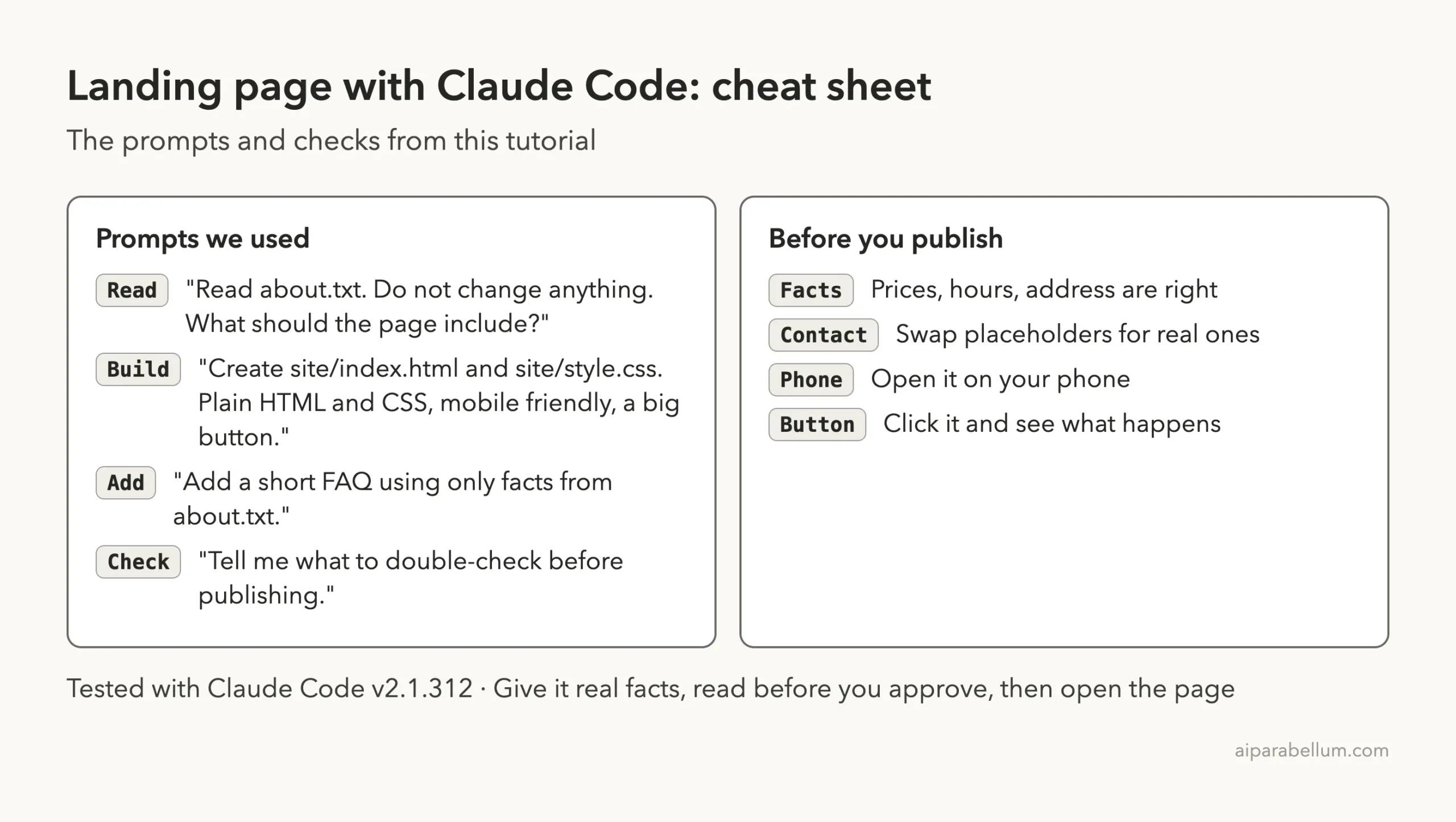
Frequently Asked Questions
Can I make a landing page with Claude Code without knowing how to code?
Yes. In our test, three short prompts produced a working page, and we never wrote code ourselves. You still need to read what Claude shows you, open the page and check every fact.
Do I need to install anything?
Not for the page. Claude Code wrote plain HTML and CSS, which every browser can open. You do need Claude Code itself and a Claude account.
Will the Order button work for real customers?
Our button opens an email to the address in the file. It works when the visitor’s device has a mail app set up. Claude warned about that, so we also showed the phone number and email as plain text.
Can Claude Code put my page online?
We did not test publishing. This tutorial stops at a page that opens on your own computer. Choose a host, then check its instructions before you upload anything.
Is it safe to put my business details in the file?
The text Claude reads can be sent to Anthropic’s servers. Use public business details such as hours and prices, and leave out private customer information. Read the privacy guide before you start.
Conclusion
You can make a landing page with Claude Code by writing your facts in a text file, letting Claude plan first, approving each file and then opening the result in a browser. In our test, three short prompts gave us a cream and brown bakery page with a big order button, a price list, opening hours and a tap-to-open FAQ, and Claude was clear about what it had not checked. Start in a practice folder, keep every fact your own, replace the example details and test the page on a phone. For more background on the tool itself, see our Claude AI overview.
Previous in the series: Part 5: Clean Up an Email List in a Spreadsheet With Claude Code
Next in the series: Part 7, Summarize a Folder of Documents With Claude Code, is coming soon.