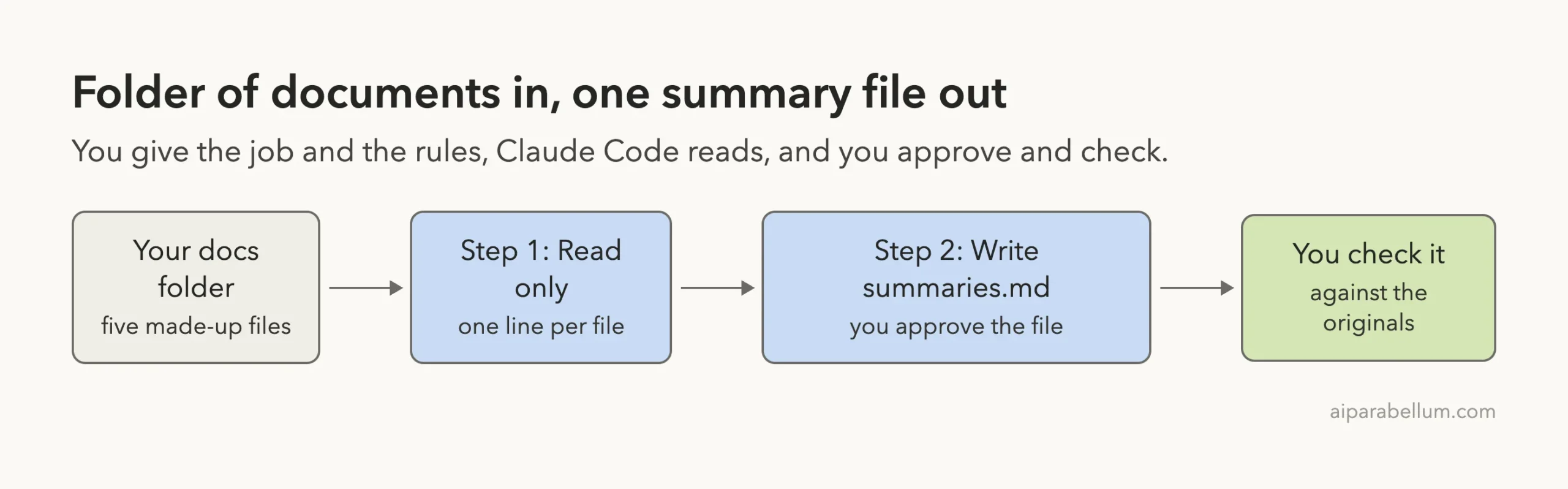
Can you summarize documents with Claude Code without opening each one yourself? In our test, yes. We put five short made-up business files in one folder, asked Claude Code to read them, and ended up with one clean summary file and a table of every deadline, in about two minutes.
This is Part 7 of 10 in our Claude Code for Non-Coders series, part of our Claude Code tutorials. We wrote it for someone who has never programmed. Last time we built a page in our landing page tutorial, and the same habits apply here: give clear rules, read before you approve, then check the result yourself.
Tested with Claude Code v2.1.312 on October 30, 2026, on macOS. We tested on macOS; the Windows and Linux steps follow Anthropic’s official instructions.
What We Did in This Tutorial
A summary is only useful if you can trust it, so tell Claude to stick to the files and to say so when something is missing.
| Item | Details |
|---|---|
| Goal | Turn a pile of documents into one short summary file plus a list of deadlines |
| Starting point | Five plain text files in a folder called docs: meeting notes, a supplier letter, customer comments, an inspection result and a menu draft |
| Result | One new file, summaries.md, with five two-sentence summaries and a deadline table |
| Typed prompts | 2 prompts, plus one Enter press to approve the new file |
| Installed for this | Nothing extra |
| Time | About 10 seconds to read the files and about 12 seconds to write the summary |
Everything in this tutorial is made up. The bakery, the people, the supplier and the prices are examples that we wrote ourselves for this test. No real documents were used.
Why Summarize Documents With Claude Code
Most of us have a folder like this somewhere. A few meeting notes, a letter from a supplier, some customer comments, a form from an office. Reading them all takes time, and the important dates hide in the middle of paragraphs.
You can paste text into a chat app and ask for a summary. That works for one or two pages. With a whole folder, you end up copying, pasting and losing track of which file said what.
Claude Code works differently. It runs inside a folder on your computer, so it can read every file there by itself and write the result back as a new file. You keep the summary next to the originals and you can ask follow-up questions about any of them.
What Claude Code Can and Cannot Read
In our test we used plain text files, which are the easiest. Claude Code can also read other kinds of files, and Anthropic’s common workflows page describes how to point it at files and images with the @ symbol. We did not test PDFs or Word files in this tutorial, so we make no promises about them here.
If you have documents in another format, our document conversion tutorial shows how to turn them into something simpler first.
Why Two Steps Instead of One
We split the job into a read step and a write step. The first prompt only reads and changes nothing. The second prompt creates a file.
This costs you one extra prompt, and it gives you a chance to catch a misunderstanding before anything is written. If Claude misread a document in step one, you can correct it right there.
Before You Start: Set Up a Practice Folder
Use a copy of your documents, not the originals. Claude Code can create and edit files, so a practice folder keeps your real files safe while you learn.
- Create a folder, for example
summarize-docs. - Inside it, create a subfolder called
docsand put your copied files there. - Open a terminal in the main folder and type
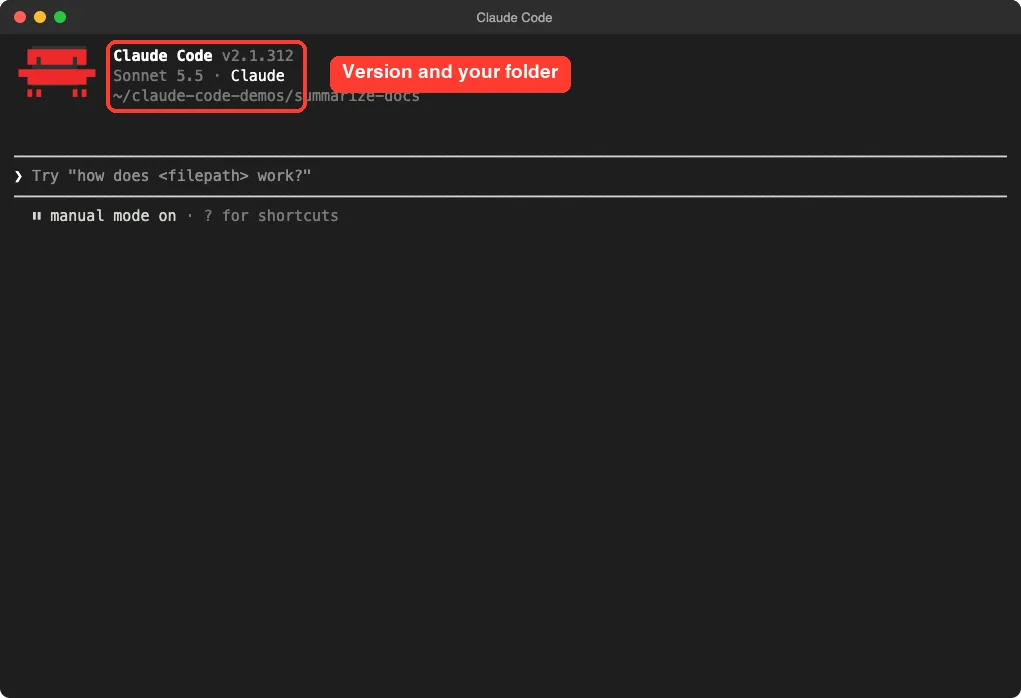
claudeto start. - Read the trust question and choose yes only for your own practice folder.
If you have never started Claude Code, our first session guide walks through the first minutes. You also need a Claude account to sign in.
Here is what our five made-up files covered:
01-team-meeting-oct-02.txt: notes from a team meeting with three action items.02-supplier-letter-flour.txt: a letter about a flour price increase.03-customer-feedback-october.txt: fifteen comment-box comments.04-health-inspection-summary.txt: a county inspection result with one fix to make.05-holiday-menu-draft.txt: a draft menu with two open questions.
Each file was only 60 to 120 words long. That is small on purpose, so you can check every claim against the original in a minute.
Step 1: Ask Claude Code to Read the Files First
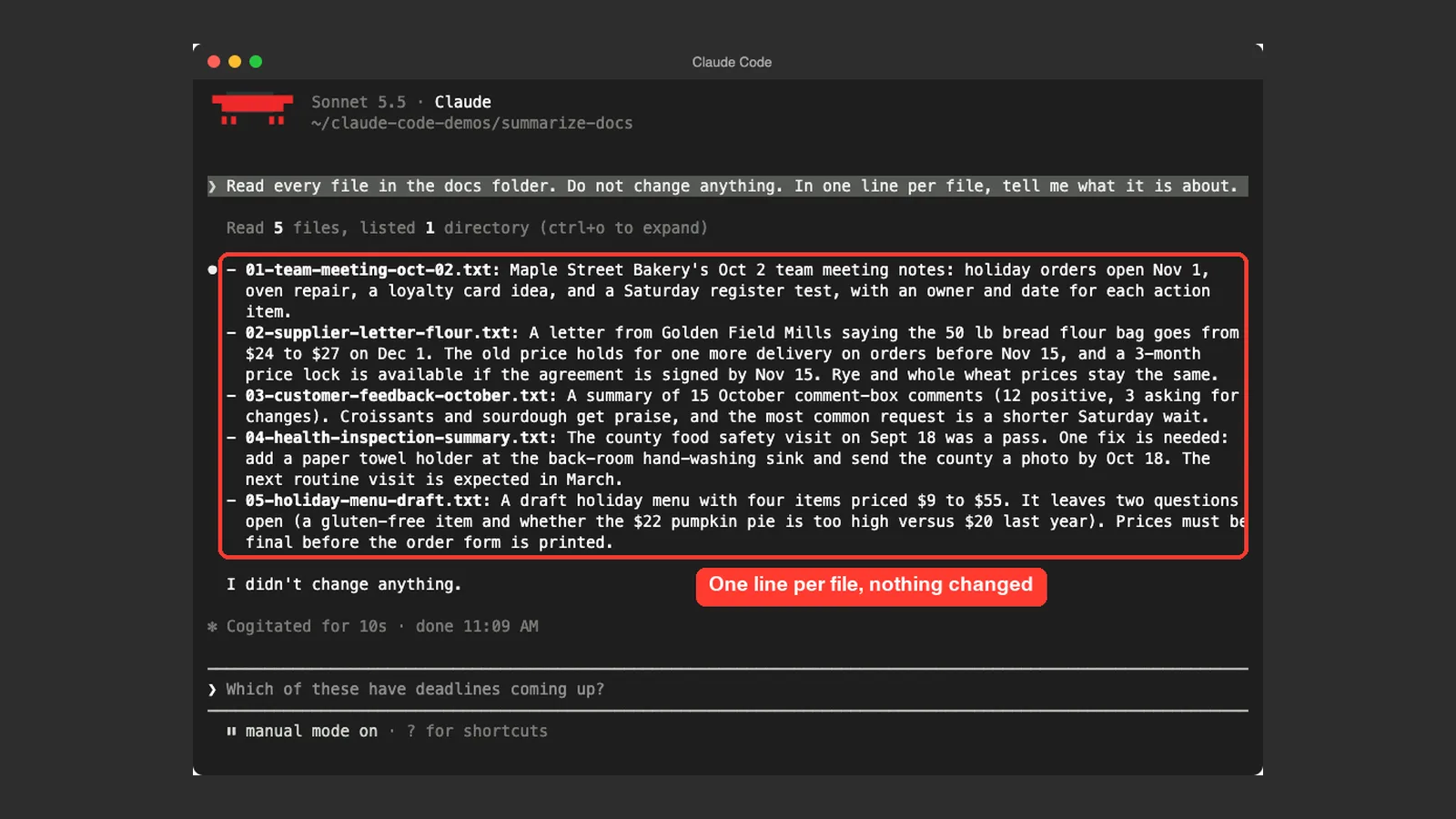
Our first prompt did not write anything. We asked Claude to read the folder, change nothing and tell us what each file was about.
Read every file in the docs folder. Do not change anything. In one line per file, tell me what it is about.Claude read all five files and answered in about ten seconds. The screen said it had read five files and listed one directory, and then it gave one line per file. It ended with the sentence “I didn’t change anything.”
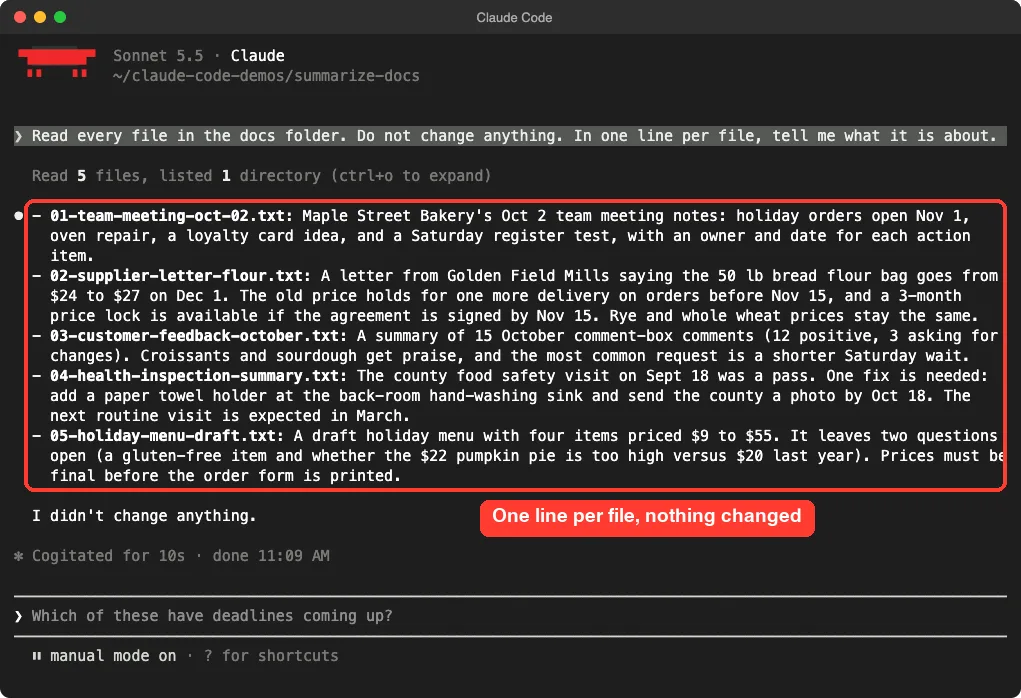
Look at what you got here. The meeting notes line mentioned the holiday order date and the oven repair.
The supplier line had the new price and the cutoff date. The inspection line had the one fix and its deadline.
Now compare those lines with the files. If a line is wrong, say so right now, for example “File 03 is about feedback, not complaints.” This is the cheapest moment to fix a mistake.
Why Say Do Not Change Anything
Claude Code is built to act, so a vague prompt like “look at the docs folder” might lead it to start tidying or renaming. A short rule such as “do not change anything” removes that risk. It also makes Claude Code confirm at the end that your files are untouched.
Step 2: Write the Summary File
Next we asked for the real output. The prompt names the file, the length of each summary, the table we wanted and one important rule.
Create summaries.md with a 2-sentence summary of each document, then a table of every deadline with the date, what is due and who owns it. Use only what is written in the files.Three details in this prompt matter. A length limit (two sentences) keeps the summaries short enough to scan.
A table with named columns tells Claude exactly what shape you want. And “use only what is written in the files” stops Claude from filling gaps with guesses.
Read What You Approve
Claude Code does not create a file without asking, unless you have changed its settings. It showed the whole file on screen first, with line numbers, and then asked, “Do you want to create summaries.md?” You can learn more about these choices in our permission modes guide.
You get three choices: Yes, Yes and accept edits for the session, or No. For a first try, choose option 1, Yes. That approves only this one file.
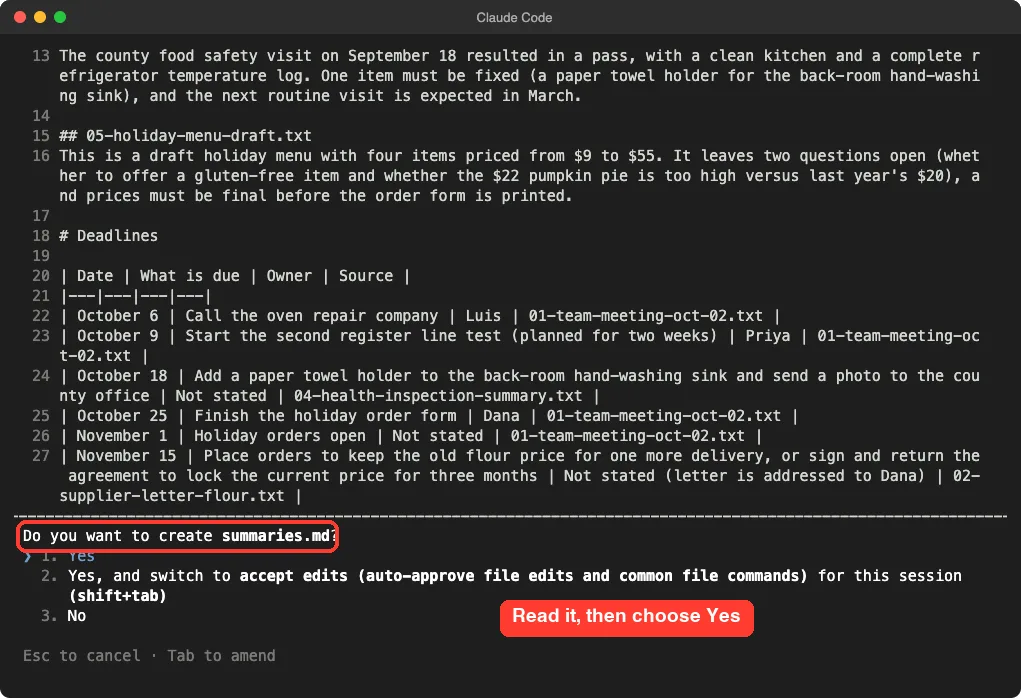
Skim the file for three things before you press Enter. The summaries should match what you know about the documents.
The dates should be real dates from your files. And nothing should be there that you do not recognize.
What Claude Did When Information Was Missing
This is the part we liked most. After it created the file, Claude explained what it had done and how it handled gaps.
It told us that for three rows the files did not name an owner. Those were the October 18 inspection fix, the November 1 order opening and the November 15 flour deadline. Instead of guessing a name, it wrote “Not stated” in those rows.
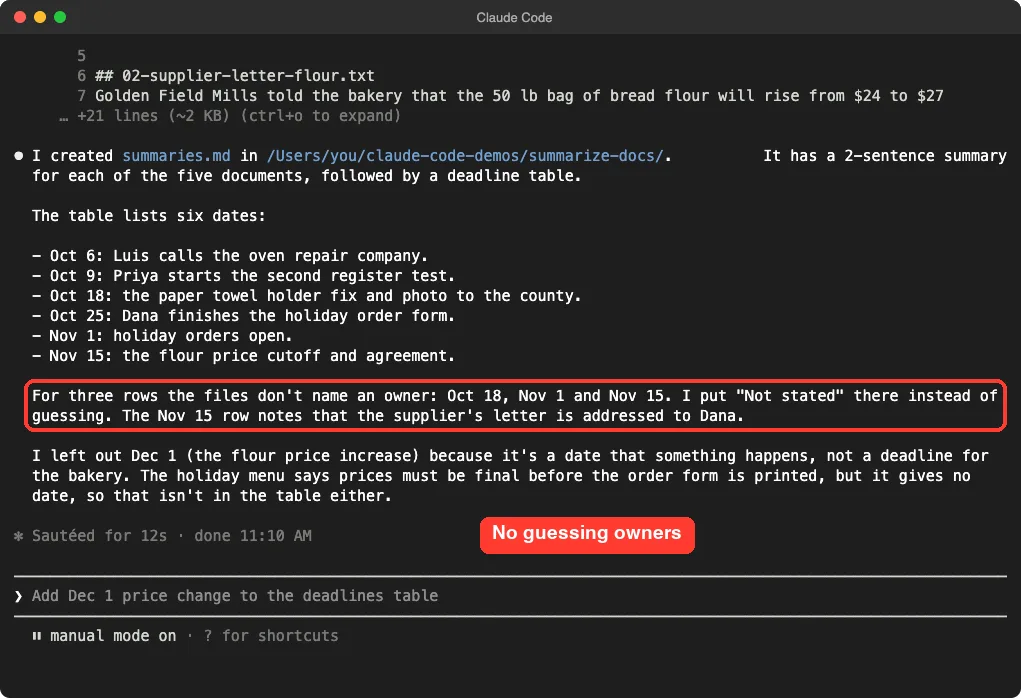
It also told us what it left out. The December 1 flour price increase is a date when something happens, not a deadline the bakery must meet, so it was not in the table. The holiday menu said prices must be final before the form is printed, but gave no date, so that was left out too.
You may disagree with those choices, and that is fine. They are easy to change with one more prompt, such as “Add Dec 1 price change to the deadlines table.” The key point is that Claude told us what it did, so we could decide.
Why the Only What Is Written Rule Works
AI tools can sound sure of themselves even when they are guessing. When you tell Claude to use only what is written in the files, you give it permission to say “not stated.” That one phrase turns many silent mistakes into visible gaps you can fix.
Step 3: Check the Finished Summary File
We wanted to see the saved file, not only Claude’s description of it. Inside Claude Code you can run a quick command by starting a line with an exclamation mark. We typed it to show the file’s contents.
! cat summaries.mdThe cat command simply prints a file on screen. The file looked the way Claude had described it: five short summaries, a heading called Deadlines and a table with the date, what is due, the owner and the source file.
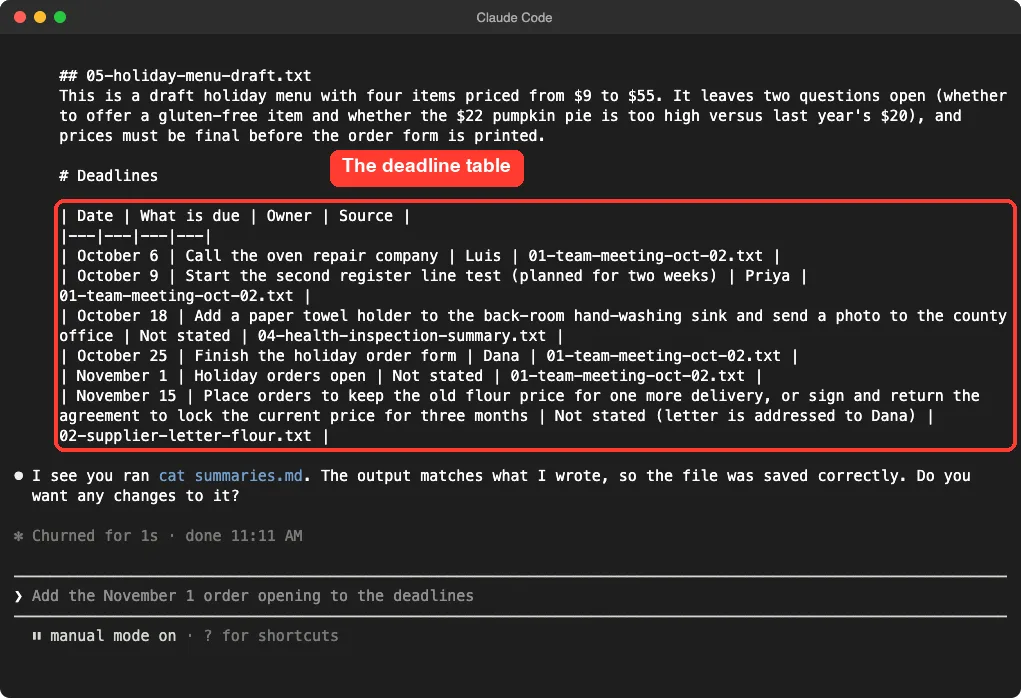
The Source column is worth keeping. It lets you open the original file whenever you want to double-check a date. In our run, every row matched its source file.
The file is plain Markdown, which is just text with a few symbols. You can open it in any text editor. Many apps also show Markdown nicely formatted, so the table looks like a real table.
The Result We Got
| Date | What is due | Owner |
|---|---|---|
| October 6 | Call the oven repair company | Luis |
| October 9 | Start the second register line test | Priya |
| October 18 | Add a paper towel holder and send a photo to the county | Not stated |
| October 25 | Finish the holiday order form | Dana |
| November 1 | Holiday orders open | Not stated |
| November 15 | Keep the old flour price or sign the price agreement | Not stated (letter addressed to Dana) |
This is a short version of the table in the file. The real table also listed the source file for each row. We shortened some wording so it fits here.
Real Examples You Can Try
The same two-step method works for many piles of paper. Change the folder and the rule, and the rest stays the same.
- Meeting notes from a club or team: ask for decisions made and who owes what.
- Customer comments: ask for the most common requests, with counts.
- Letters and notices: ask for every date, amount and thing you must do.
- Study notes: ask for a one-paragraph summary per file and a list of terms to learn.
For each one, start with the read-only prompt. Then ask for the file.
Try It Yourself
Make a practice folder with three to five short files. They can be your own notes, copied, or made-up text. Open Claude Code in that folder and paste this prompt.
Read every file in the docs folder. Do not change anything. Then create summaries.md with a 2-sentence summary of each file and a list of every date and who it belongs to. If something is not written in the files, write "not stated". Use only what is written in the files.Read the file before you approve it. Then open the originals and check at least three dates against what Claude wrote.
If you want to go one step further, ask a follow-up question in the same session, such as “Which deadline is closest to the supplier price change, and what should I do first?” Claude can answer from the files it already read. Always check the answer against the originals before you act on it.
Common Mistakes
- Working on your only copy of important files. Always practice on copies.
- Skipping the read-only step. A quick first pass catches misunderstandings early.
- Leaving out the rule about using only what is written. Without it, Claude may fill gaps with reasonable-sounding guesses.
- Pressing Enter on the approval without reading the file. Take ten seconds to skim it first.
- Trusting every date without checking. Compare a few against the originals each time.
- Asking for too much at once. Five to ten files is easier to check than fifty.
Pro Tips
- Ask for a source column. It makes checking quick, as you saw in our table.
- Set a length limit, such as two sentences or one line. Claude follows size limits well.
- Name the output file in your prompt, so it lands where you expect.
- Ask Claude to list anything it left out and why. It did this on its own in our test, and you can ask for it every time.
- Use plan mode if you want Claude to describe its plan before it touches any file.
- Keep sensitive documents out of practice runs. Claude Code reads the files in your folder, so only open it where you are comfortable doing that.
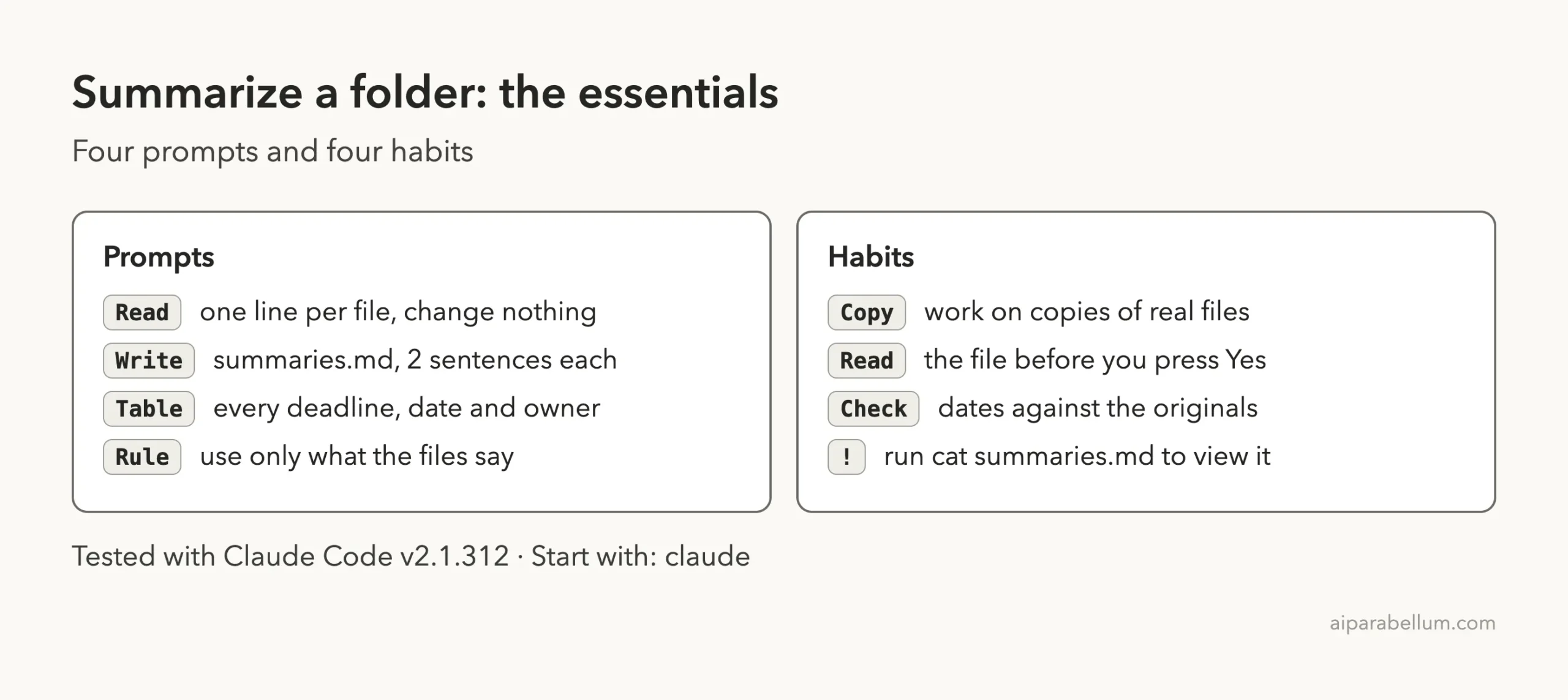
Cheat Sheet
Frequently Asked Questions
Can Claude Code summarize documents on my computer?
Yes. It runs in a folder on your computer and can read the files there.
In our test it read five text files and wrote one summary file. We did not test other file types, so check a small sample first.
Will Claude Code change my original files?
Not unless you ask it to. In our test the first prompt said “do not change anything”, and Claude confirmed it had not.
It also asked before creating the new file. Still, work on copies while you learn.
How do I know the summary is correct?
Check it yourself. Ask for a source column, then open the original and compare a few lines. In our run each row matched its source file, but you should always verify, especially dates and amounts.
What if a document does not say who owns a task?
Tell Claude to use only what is written in the files. In our test it wrote “Not stated” for three tasks instead of making up an owner. You can then fill those in yourself.
Does this cost money?
You need a Claude account to use Claude Code, and usage depends on your plan. Our test used two short prompts, so it was a very small job. See Anthropic’s pages for current plan details.
Conclusion
To summarize documents with Claude Code, ask for a read-only pass first, then ask for one summary file with clear rules, read it before you approve it, and check a few facts against the originals. In our test, five files turned into one tidy page and a six-row deadline table in two prompts, and Claude was honest about what the files did not say. You can learn more about how Claude works in our Claude AI overview, and the same habit of small prompts and careful checking will carry into every tutorial in this series.
Previous in the series: Part 6: Make a Simple Landing Page for Your Business With Claude Code
Next in the series: Part 8, Back Up Important Folders Automatically With Claude Code, is coming soon.