Can you backup files with Claude Code without learning any programming? In our test, yes. We described what we wanted in plain English, Claude Code wrote a small backup script, and one command later a dated copy of our folder was sitting in a new Backups folder.
This is Part 8 of 10 in our Claude Code for Non-Coders series, part of our Claude Code tutorials. We wrote it for someone who has never programmed. Last time we worked through our document summary tutorial, and the same habits apply here: read before you approve, then check the result yourself.
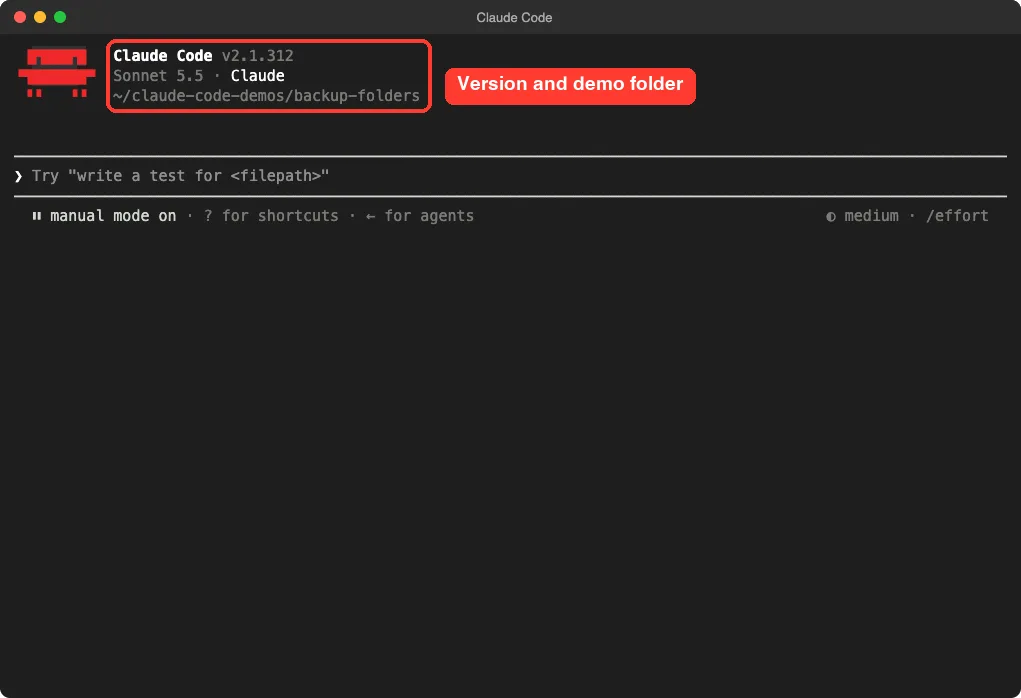
Tested with Claude Code v2.1.312 on October 30, 2026, on macOS. We tested on macOS; the Windows and Linux steps follow Anthropic’s official instructions.
What We Did in This Tutorial
A backup you have never checked is only a hope, so run it, look inside the copy and test what happens when a file changes.
| Item | Details |
|---|---|
| Goal | Make a dated copy of a folder, and skip the copy when nothing has changed |
| Starting point | A made-up Documents folder with six small text files in three subfolders |
| Result | A script called backup.sh and a Backups folder with dated copies |
| Typed prompts | 2 prompts, three quick shell commands and a few Enter presses to approve |
| Installed for this | Nothing extra. The script uses tools already on a Mac |
| Time | About 25 seconds for Claude to write the script |
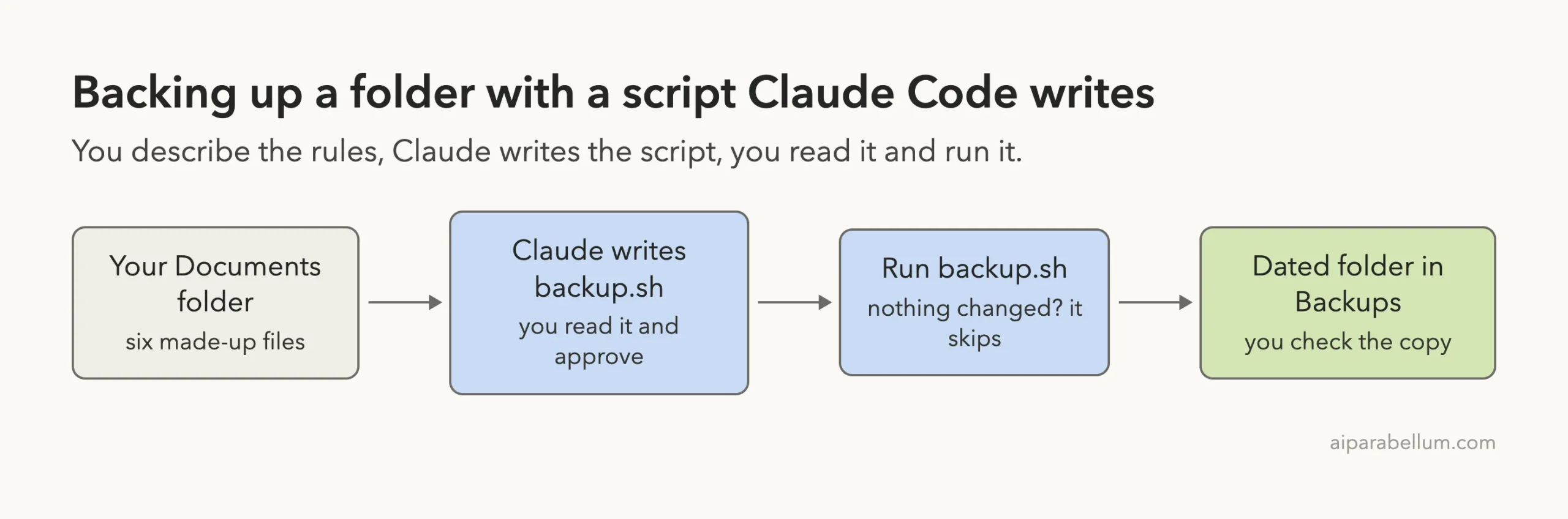
Everything here is made up. The invoices, recipes and notes are examples we wrote for this test. No real files were used.
Why Backup Files With Claude Code
Most of us know we should back up our files, and most of us put it off. Copying a folder by hand is easy to forget, and easy to do wrong.
A script fixes that. A script is a short list of instructions the computer follows the same way every time. You do not have to write it yourself, because Claude Code can write it for you from a plain description.
Claude Code runs inside a folder on your computer, so it can look at your files, write the script next to them and run it. You stay in charge because it asks before it creates a file or runs a command.
What a Script Backup Is and Is Not
The script in this tutorial makes a full copy of a folder into another folder on the same computer. That protects you from deleting or overwriting a file by mistake, because the older copy is still there.
It does not protect you if the computer is lost, stolen or broken. For that, keep another copy on an external drive or a cloud service. We cover that in the tips below.
What About Doing It Automatically
You can run the script yourself whenever you like, and we did exactly that. Running it on a timer is a separate step that your operating system handles. We did not set up a timer in this test, so we only describe the idea below.
Before You Start: Set Up a Practice Folder
Use a practice folder first, not your real documents. Claude Code can create files and run commands, so a test folder keeps your real files safe while you learn.
- Create a folder, for example
backup-folders. - Inside it, create a folder called
Documentsand put a few small copied files in it. - Open a terminal in the main folder and type
claudeto start. - Read the trust question and choose yes only for your own practice folder.
If you have never started Claude Code, our first session guide walks through the first minutes. You also need a Claude account to sign in.
Our made-up Documents folder held todo.txt, two files in Taxes, two in Recipes and one in Photos. That is six files, which matters later when we count.
Step 1: Ask Claude Code to Backup Files
Our first prompt did two things. It told Claude to look without changing anything, and it described the script in plain English, including the rule to skip the copy when nothing changed.
Look at the Documents folder and change nothing. Then write a small script called backup.sh that copies Documents into a new dated folder inside Backups (like Backups/2026-10-30), skips the copy if nothing changed since the last backup, and prints what it did. Keep it simple and explain it in plain English.Each part of the prompt has a job. “Prints what it did” gives you a message to read.
The folder name and the file name stop Claude from guessing. The dated folder gives you a history, and the skip rule avoids piles of identical copies.
Read What You Approve
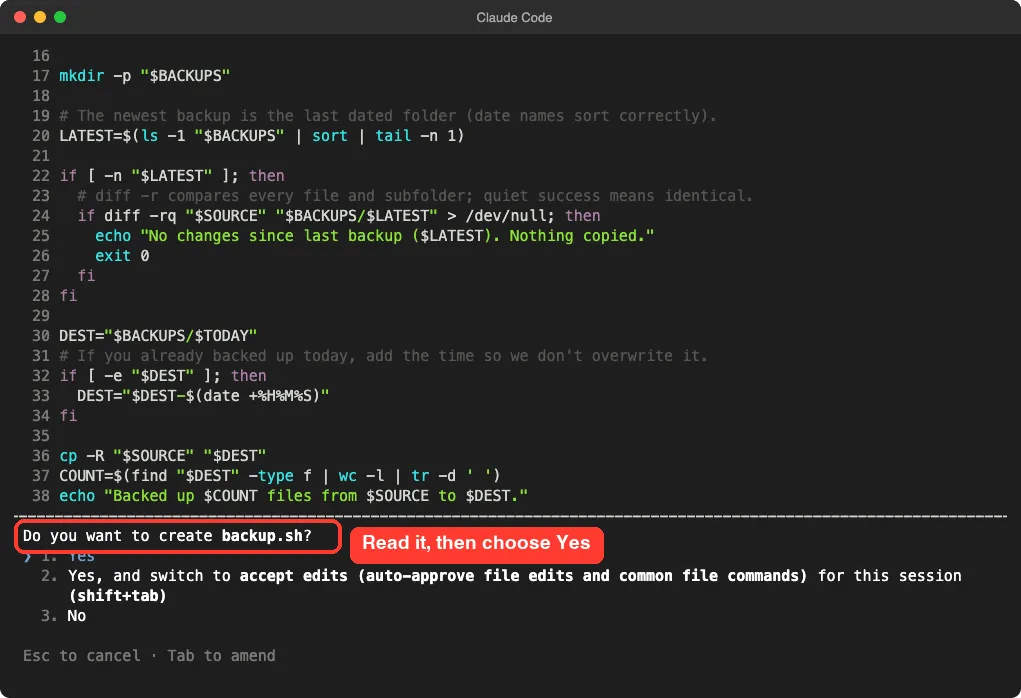
Claude Code did not create the script right away. It showed the whole file on screen with line numbers and asked, “Do you want to create backup.sh?” You can learn more about these choices in our permission modes guide.
For a first try, choose option 1, Yes, which approves only this one file. You do not need to understand every line. Look for the folder names and make sure nothing is being deleted.
Step 2: Let Claude Explain the Script
After it created the file, Claude Code asked to run one safety check, which only tested that the script was written correctly. It did not run the backup yet. Claude then explained the script in five plain steps.
It said the script finds its own folder, creates Backups if it is missing, finds the most recent backup, compares your files against it, and copies only if something differs. It also pointed out one choice it made: if you back up twice in one day and something changed in between, it adds the time to the folder name so the earlier backup is not overwritten.
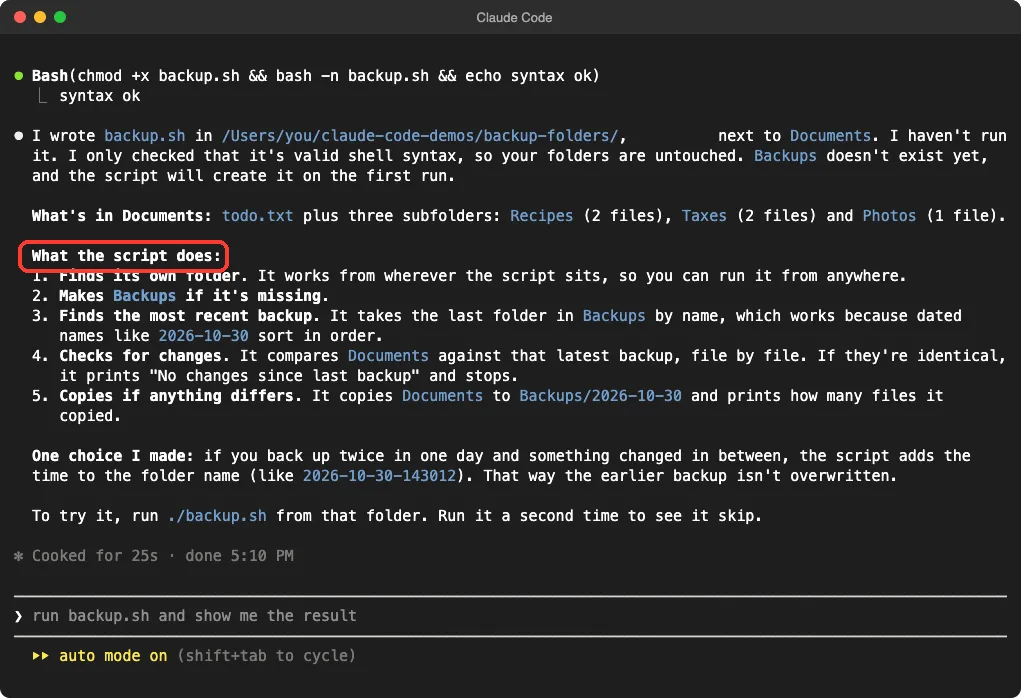
This explanation is worth reading. It tells you exactly what will happen, in words, before you run anything. If a step sounds wrong, say so now and ask Claude to change it.
The Script We Got
Here is the heart of the script. It is short on purpose. The lines starting with a hash symbol are notes for humans, and the computer ignores them.
SOURCE="Documents"
BACKUPS="Backups"
TODAY=$(date +%Y-%m-%d)

mkdir -p "$BACKUPS"

# The newest backup is the last dated folder.
LATEST=$(ls -1 "$BACKUPS" | sort | tail -n 1)

if [ -n "$LATEST" ]; then
  # diff -r compares every file and subfolder.
  if diff -rq "$SOURCE" "$BACKUPS/$LATEST" > /dev/null; then
    echo "No changes since last backup ($LATEST). Nothing copied."
    exit 0
  fi
fi

DEST="$BACKUPS/$TODAY"
if [ -e "$DEST" ]; then
  DEST="$DEST-$(date +%H%M%S)"
fi

cp -R "$SOURCE" "$DEST"
COUNT=$(find "$DEST" -type f | wc -l | tr -d ' ')
echo "Backed up $COUNT files from $SOURCE to $DEST."
We trimmed a few lines at the top (an error check and a line that makes the script work from any folder). The full file was 38 lines.
Step 3: Run It Twice
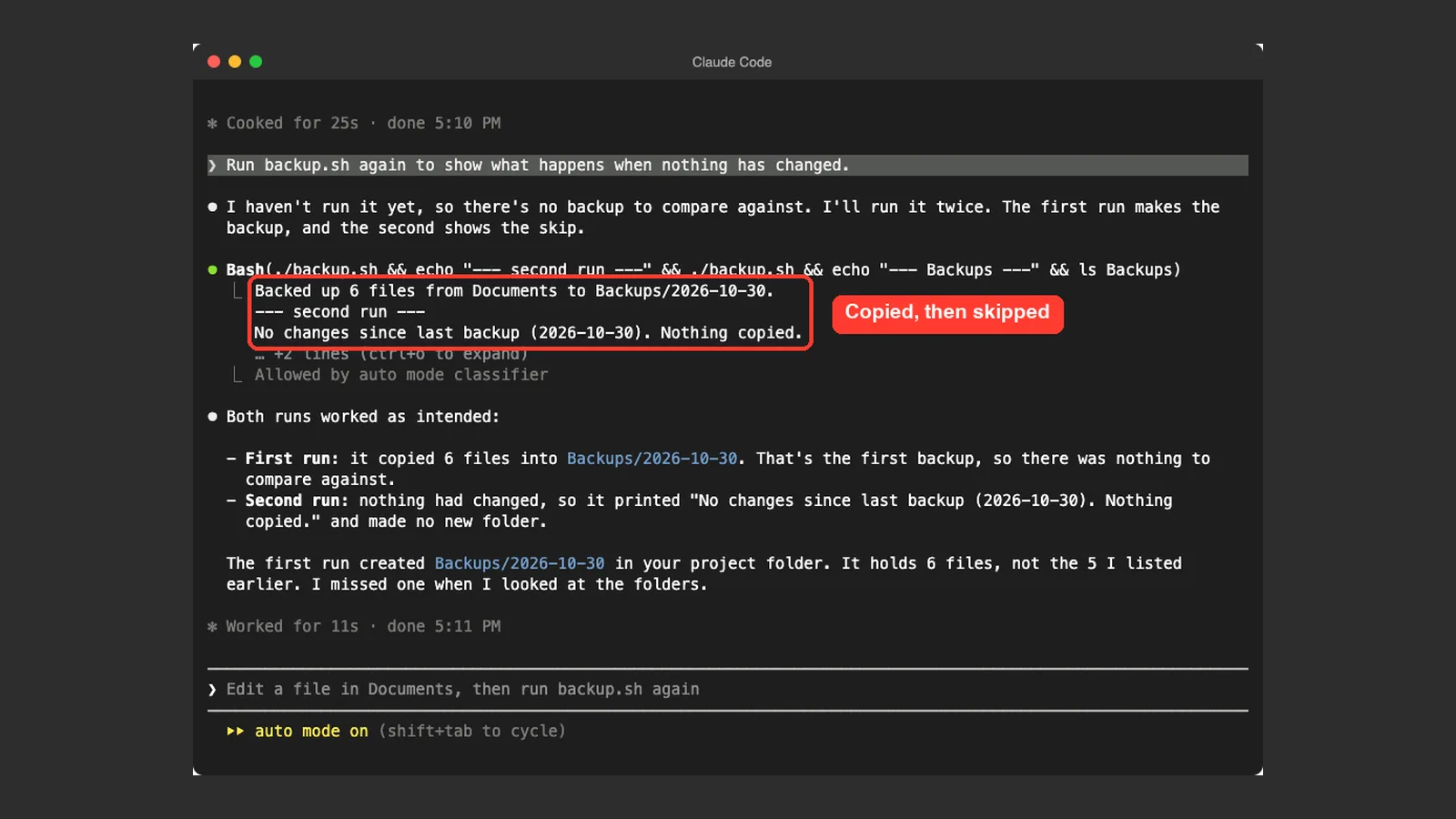
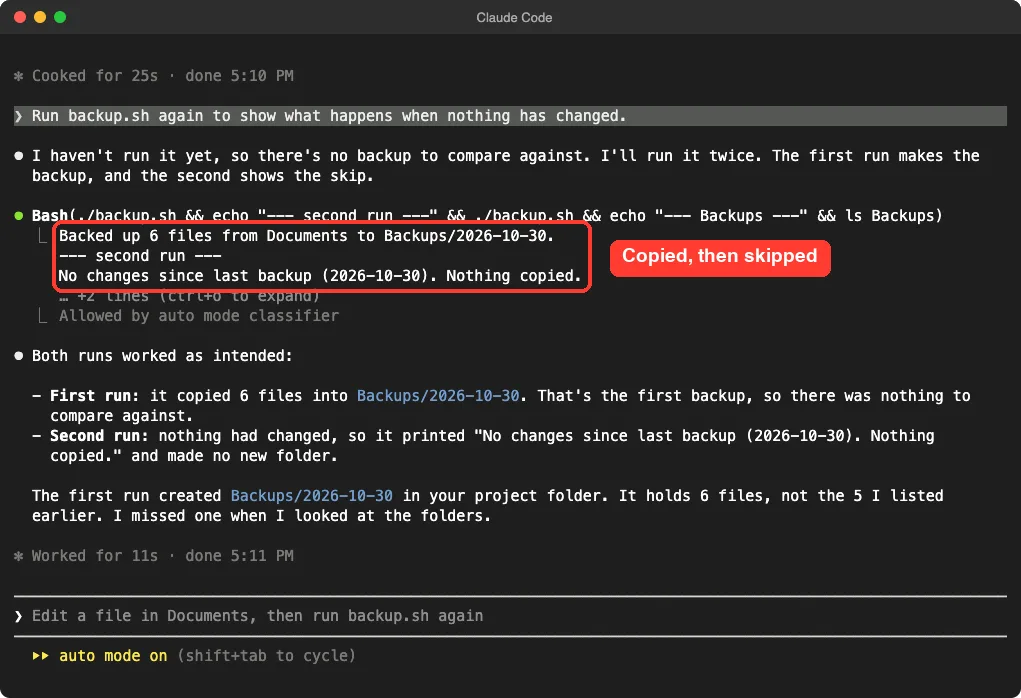
Next we asked Claude Code to run the script, and to run it a second time so we could see what happens when nothing has changed. Claude chose to run both in one command and showed the output.
Run backup.sh again to show what happens when nothing has changed.The first run printed “Backed up 6 files from Documents to Backups/2026-10-30.” The second run printed “No changes since last backup (2026-10-30). Nothing copied.” No new folder was made.
That second message is the feature we wanted. A backup that skips identical copies saves space and keeps your Backups folder tidy.
Catch Mistakes in the Summary
Notice what Claude said after the runs. It admitted the folder held 6 files, not the 5 it had listed earlier, because it missed one when it first looked.
That is a good reminder. Claude Code can miscount, so check the numbers yourself. We knew our folder had six files, so the count of six was right.
Step 4: Change a File and Back Up Again
A skip rule only helps if the script notices real changes. So we added a line to todo.txt and ran the script again. Inside Claude Code you can run a command by starting a line with an exclamation mark.
! echo '- call the supplier' >> Documents/todo.txt
! ./backup.sh
! ls Backups
The script saw the difference and made a second backup, named 2026-10-30-171331. The extra numbers are the time of day, so the first backup was not overwritten. The ls Backups command then listed both folders.
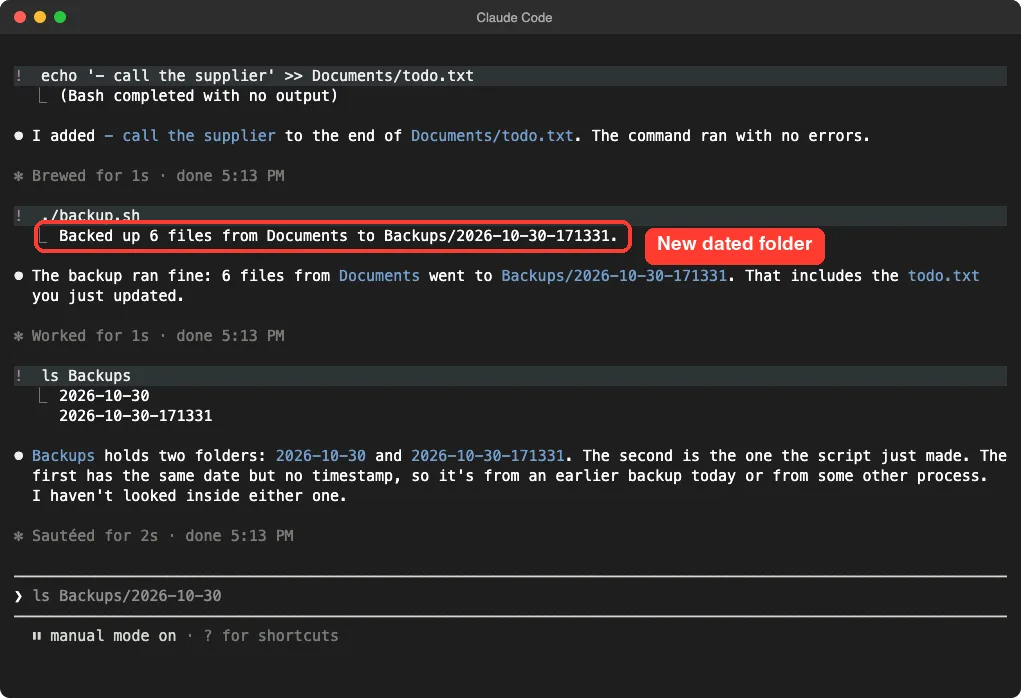
Claude also commented that it had not looked inside either folder. That is true, and it is why you should open a backup folder yourself and compare a file or two with the original.
Run Your Backup Files With Claude Code on a Schedule
So far you start the script yourself. To make it automatic, your computer needs to run it on a schedule. We did not test scheduling in this tutorial, so here is only the plan.
- On a Mac or Linux computer, the built-in scheduler is called cron. You can ask Claude Code to explain how to add a daily entry for
backup.sh. - On Windows, the built-in scheduler is Task Scheduler. The script here is written for macOS and Linux, so you would ask Claude to write a Windows version.
If you try this, ask Claude to explain each step and tell you how to undo it. Scheduled tasks change your computer’s settings, so read before you approve.
Real Examples You Can Try
The same idea works for many folders. Change the names in the prompt and the rest stays the same.
- Tax records: copy the folder each month into dated backups.
- Recipes or a hobby project: keep a copy before you make big edits.
- Business invoices: copy them to an external drive folder.
- School work: back up the folder at the end of each week.
Try It Yourself
Make a practice Documents folder with a few small files. Open Claude Code in the folder above it and paste this prompt.
Look at the Documents folder and change nothing. Then write a small script called backup.sh that copies Documents into a new dated folder inside Backups, skips the copy if nothing changed since the last backup, and prints what it did. Explain it in plain English, and do not delete anything.Read the script before you approve it. Run it twice, then change a file and run it again. Finally, open a backup folder and check that a few files match the originals.
Common Mistakes
- Testing on your only copy of important files. Always practice on a test folder.
- Keeping the backup only on the same computer. A drive failure takes both copies.
- Never opening the backup to check it. Compare at least two files.
- Approving a script you did not read. Look for any line that deletes things.
- Forgetting that backups use disk space. Each changed run adds a full copy.
- Trusting numbers without checking. Claude miscounted our files once, then corrected itself.
Pro Tips
- Ask Claude to explain the script in plain English, as we did. It takes a few seconds.
- Tell Claude not to delete anything. Our script only copies.
- Point your backup folder at an external drive or a synced cloud folder for a second copy.
- Ask Claude to add an old-backup cleanup only after you trust the basic script, and ask for a list of what it would remove before it removes anything.
- Use plan mode if you want Claude to describe its plan before it touches any file.
- Keep sensitive files out of practice runs, because Claude Code reads the files in your folder.
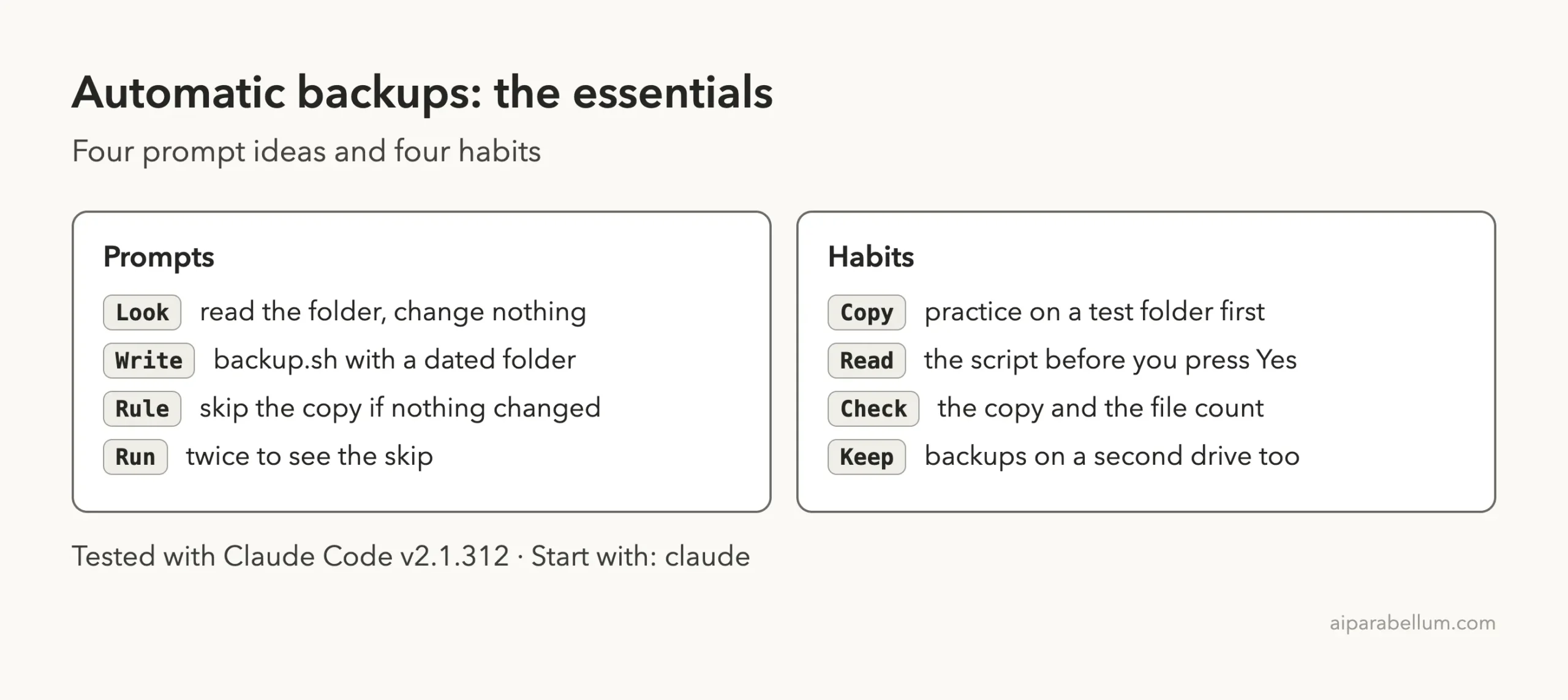
Cheat Sheet
Frequently Asked Questions
Can Claude Code back up my files?
Yes, in the sense that it can write and run a script that copies a folder. In our test it copied six files into a dated folder. It is not a backup service, so keep a copy on another drive as well.
Do I need to know how to code?
No. You describe what you want in plain English and Claude writes the script. You still need to read what it shows you before you approve it.
Will the script delete or change my originals?
Ours only copied files. We asked Claude to change nothing at first, and the script uses a copy command, not a move or delete. Check any script you get for lines that delete things.
Is this backup automatic?
You run the script yourself. Running it on a schedule needs your computer’s scheduler, such as cron on a Mac. We did not test scheduling, so ask Claude to explain it step by step before you try.
Does this cost money?
You need a Claude account to use Claude Code, and usage depends on your plan. Our test used only a few short prompts. See Anthropic’s pages for current plan details.
Conclusion
To backup files with Claude Code, describe the copy you want in plain English, read the script before you approve it, run it twice, then change a file and confirm a new dated folder appears. In our test, six files were copied, an unchanged folder was skipped, and a changed file made a second backup, all from a couple of short prompts. Keep a second copy on another drive, and learn more about the tool in our Claude AI overview.
Previous in the series: Part 7: Summarize a Folder of Documents With Claude Code
Next in the series: Part 9, Find Duplicate Files on Your Computer With Claude Code, is coming soon.