Can you find duplicate files with Claude Code without learning any programming? In our test, yes. We described the problem in plain English, and Claude Code compared what was inside every file.
It handed us a short list of extra copies. Then we asked it to move them aside instead of deleting them.
This is Part 9 of 10 in our Claude Code for Non-Coders series, part of our Claude Code tutorials. We wrote it for someone who has never programmed. Last time we covered automatic folder backups, and the same rule applies here: read before you approve, then check the result yourself.
Tested with Claude Code v2.1.312 on October 31, 2026, on macOS. We tested on macOS; the Windows and Linux steps follow Anthropic’s official instructions.
What We Did in This Tutorial
Two files are duplicates when their contents match, not when their names match, so let the computer compare the contents and let yourself make the final call.
| Item | Details |
|---|---|
| Goal | Find files with identical content, then set the extra copies aside safely |
| Starting point | A made-up folder called Messy-Downloads with 15 small files in four folders |
| Result | 5 groups of duplicates found, and 7 extra copies moved into Duplicates-to-review |
| Typed prompts | 2 prompts and two Enter presses to approve commands |
| Installed for this | Nothing extra. Claude used tools already on a Mac |
| Time | About 8 seconds to report, and 7 seconds to move the files |
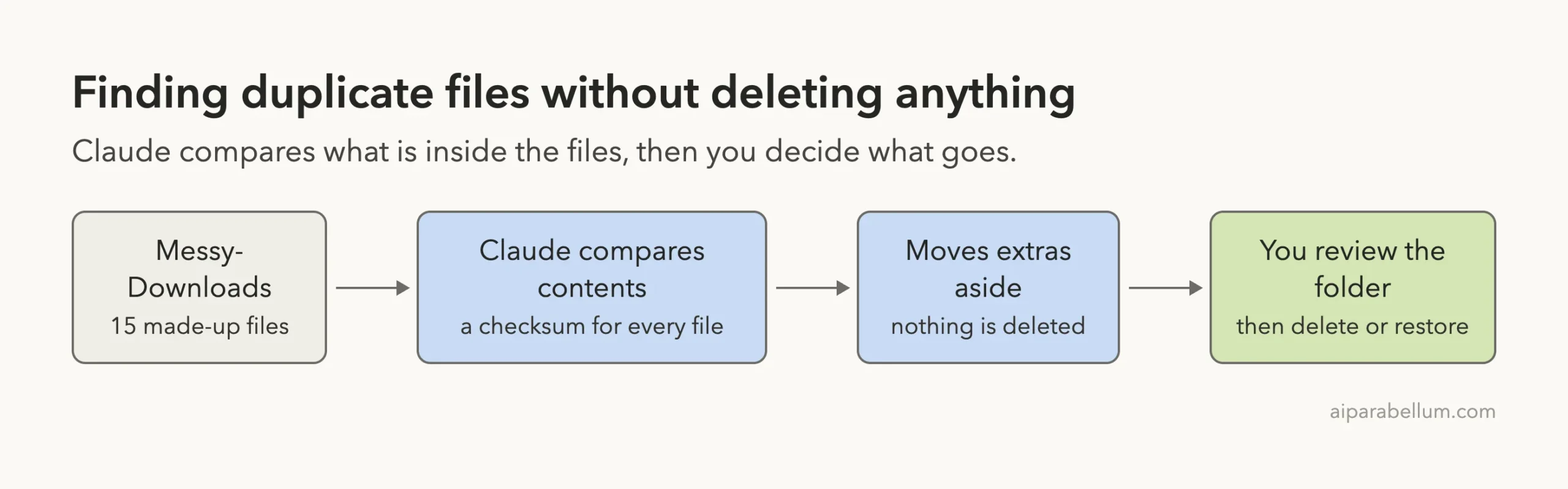
Everything here is made up. The invoices, recipes, notes and photo files are examples we created for this test. No real files were used.
Why Find Duplicate Files With Claude Code
Duplicate files pile up quietly. You download an invoice twice, save a photo as a backup, or copy a notes file into another folder, and soon you have several copies of the same thing.
Most tools that find duplicates only look at file names, which is not reliable. A file called pancakes-final.txt may be identical to pancakes.txt, while two files with the same name can hold different text. Claude Code can compare the actual contents instead.
Claude Code runs inside a folder on your computer, so it can look at your files, run a comparison and report back in plain English. It asks before it runs a command, and that is what keeps you in control.
What Counts as a Duplicate
In this tutorial, a duplicate means a file whose content is exactly the same as another file. The name, folder and date do not matter. Claude calculates a checksum for each file, which is a short fingerprint made from the contents, and files with the same fingerprint are copies.
A near-duplicate is different. Our test folder had a pancake recipe that differed by one number, 2 eggs in one file and 3 in another. Claude correctly treated that as a different file and left it alone.
What This Does Not Do
It will not tell you which photo is the nicest, or find two pictures of the same scene that were saved at different sizes. Those are not exact copies, so their fingerprints differ. This tutorial is about exact copies only.
Before You Start: Set Up a Practice Folder
Use a practice folder first, not your real downloads. Claude Code can move and delete files when you allow it, so a test folder keeps your real files safe while you learn.
- Create a project folder, for example
find-duplicate-files. - Inside it, create a folder with a unique name, such as
Messy-Downloads, and fill it with a few small files, including some copies. - Open a terminal in the project folder and type
claudeto start. - Read the trust question and choose yes only for your own practice folder.
If you have never started Claude Code, our first session guide walks through the first minutes. You also need a Claude account to sign in.
Our folder held 15 files: three copies of an invoice, three copies of a photo file, two copies of a notes file, two copies of a recipe, two empty files, plus four files that were not copies of anything. We knew the answer in advance, which let us check Claude’s work.
Why We Did Not Call It Downloads
Our first attempt used the folder name Downloads. Claude Code took that to mean the real Downloads folder in our home directory, not the practice folder, and started comparing files there. We stopped that run and threw its screenshots away.
The lesson is to give your practice folder a name that cannot be mistaken for a real one, and to say “in this project folder” in your prompt. Names like Downloads, Documents and Desktop exist on every computer.
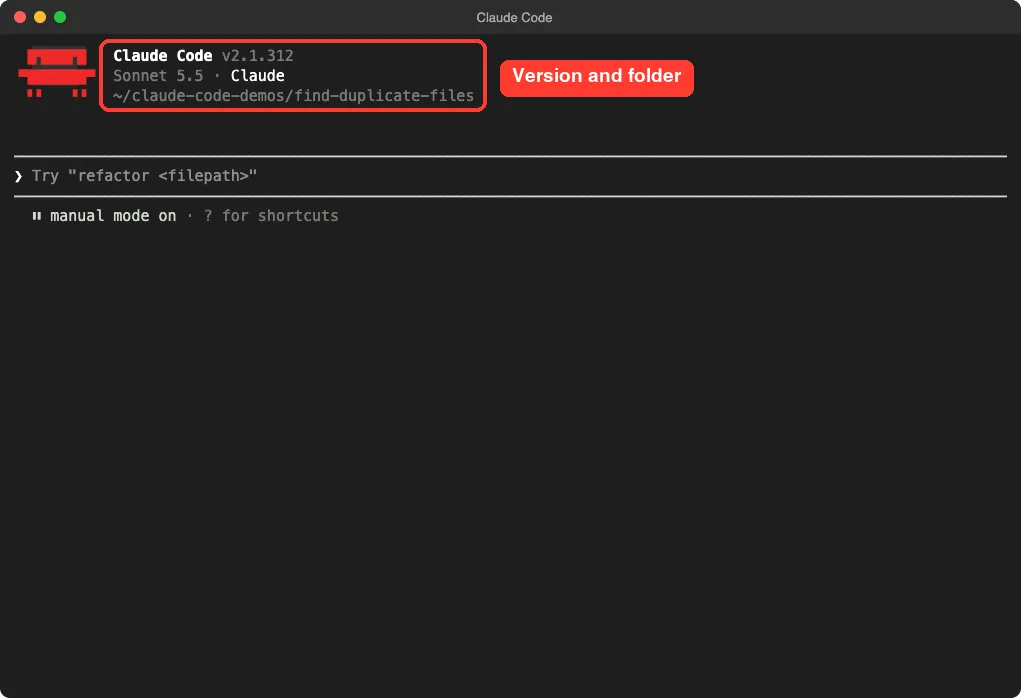
Step 1: Ask Claude Code to Find Duplicate Files
Our first prompt did three things. It named the folder and said it was inside the project, it explained that content matters and not names, and it told Claude to change nothing.
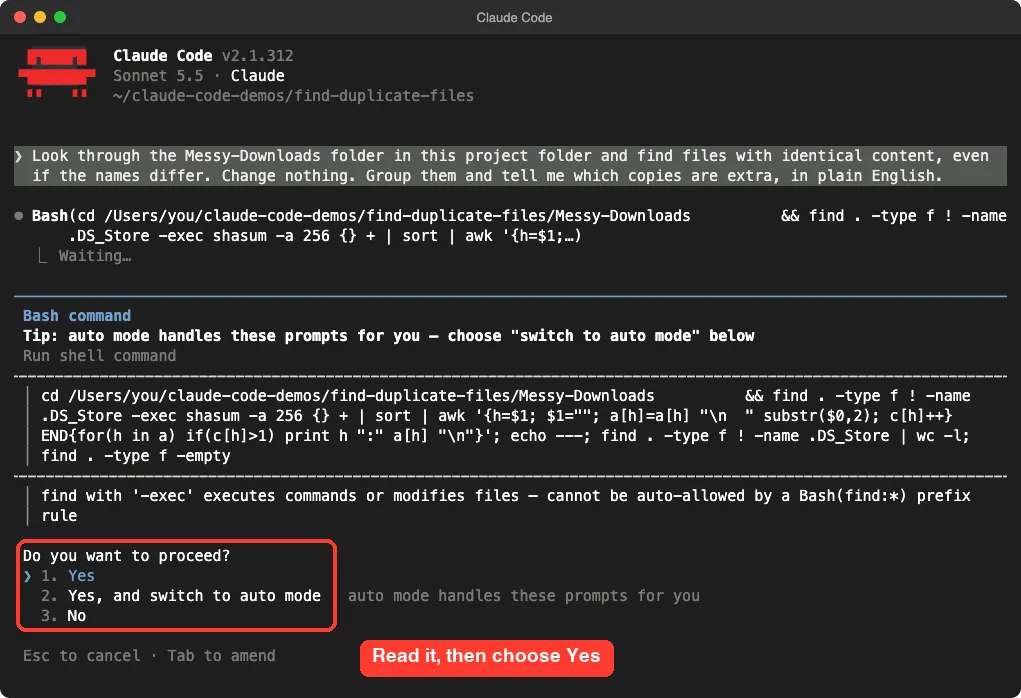
Look through the Messy-Downloads folder in this project folder and find files with identical content, even if the names differ. Change nothing. Group them and tell me which copies are extra, in plain English.Each part has a job. “Identical content” tells Claude how to compare. “Change nothing” makes this a safe look.
“Group them” gives you a tidy answer instead of a long list.
Read the Command Before You Approve
Claude Code did not run the comparison right away. It showed the command and asked, “Do you want to proceed?” You can learn more about these choices in our permission modes guide.
The command looked scary, but you only need to spot a few things.
It starts in our practice folder, it uses shasum to calculate the fingerprints, and it only lists results. Nothing in it moves or deletes a file. For a first try, choose option 1, Yes.
Step 2: Read the Report
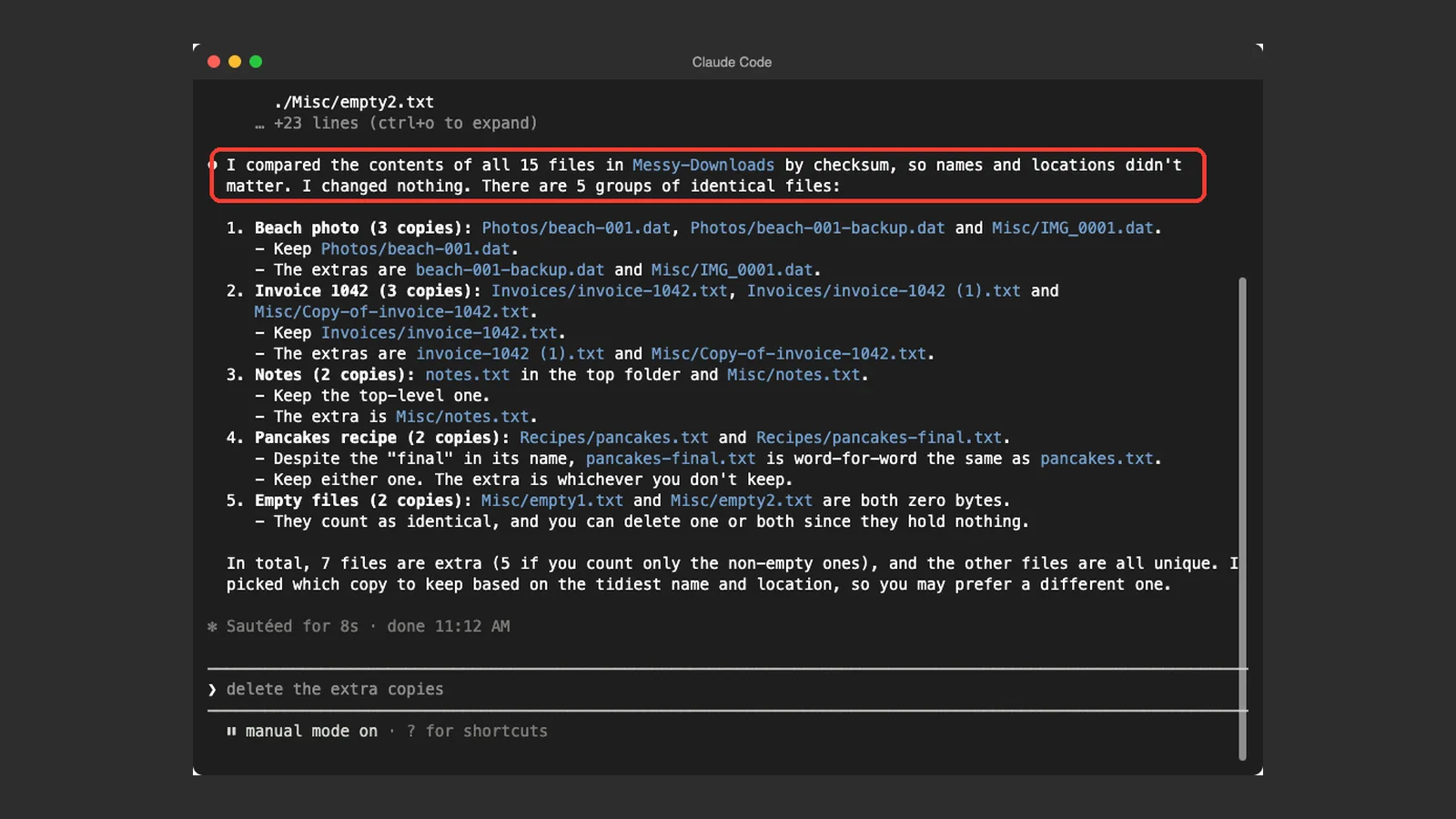
Claude’s answer was clear. It said it compared the contents of all 15 files, changed nothing, and found 5 groups of identical files. For each group it named the copy to keep and the extras.
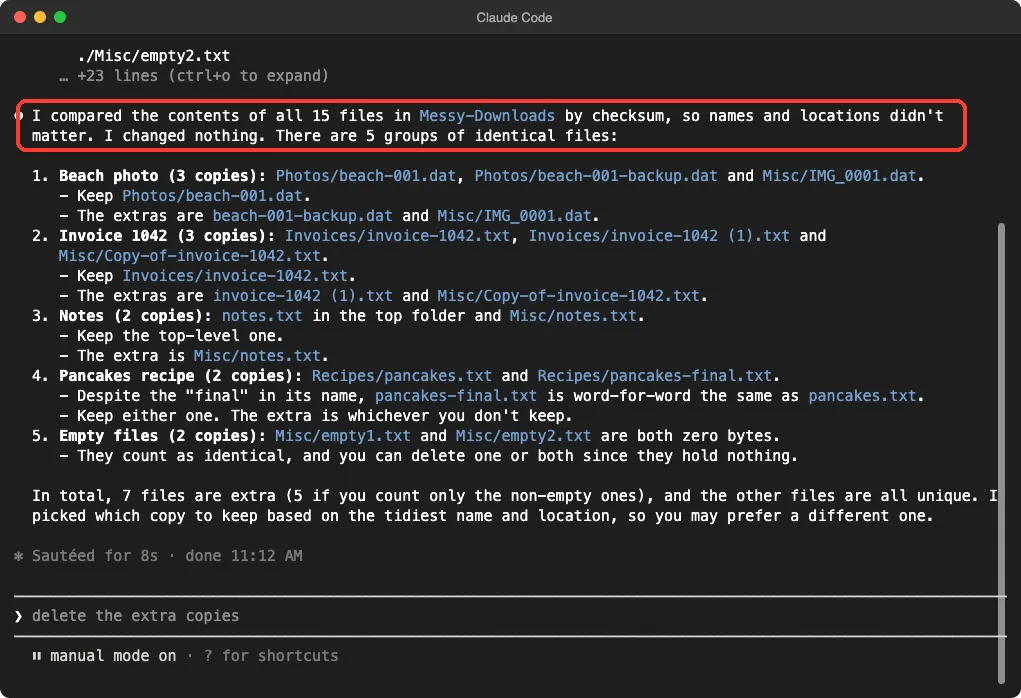
Here is what it found, and it matched what we had planned.
| Group | Copies | Extras Claude listed |
|---|---|---|
| Beach photo | 3 | beach-001-backup.dat and IMG_0001.dat |
| Invoice 1042 | 3 | invoice-1042 (1).txt and Copy-of-invoice-1042.txt |
| Notes | 2 | notes.txt in the Misc folder |
| Pancakes recipe | 2 | Either one, because pancakes-final.txt was word for word the same |
| Empty files | 2 | empty2.txt, since both were zero bytes |
In total, Claude said 7 files were extra, or 5 if you count only the non-empty ones. It also told us it chose which copy to keep by the tidiest name and location, and that we might prefer a different one.
Check Claude’s Work
Because we built the folder ourselves, we could check the math. Three copies of the invoice plus three of the photo, plus one extra each for the notes, recipe and empty files, gives 2 + 2 + 1 + 1 + 1 = 7 extras. Claude was right.
Notice that pancakes-v2.txt was not in any group. It differs by one number, so Claude kept it as its own file. That is the behavior you want, because a recipe with 3 eggs is not the same as one with 2.
Why Empty Files Are a Special Case
Every empty file has the same fingerprint, so empty files always show up as duplicates. Claude pointed out that they hold nothing, so you can delete one or both. In your own folders, an empty file is sometimes a placeholder a program expects, so ask before removing them.
Step 3: Move the Extras Aside, Do Not Delete Them
This is the step that makes the whole job safe. Deleting is permanent on many computers, and a mistake can cost you a file you needed. Moving is easy to undo.
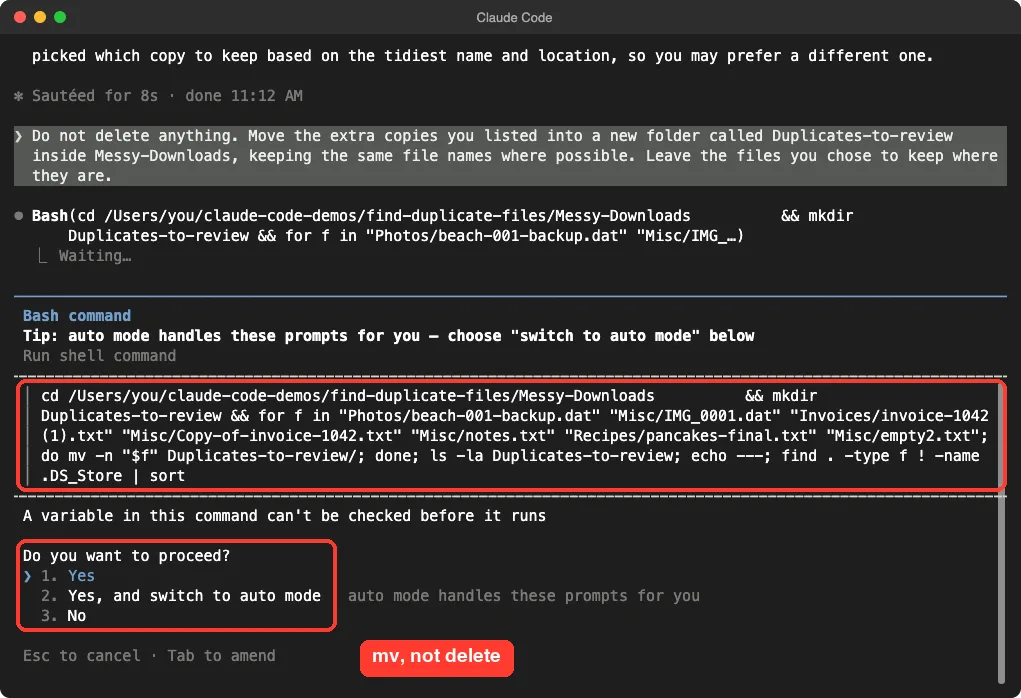
Our second prompt told Claude to move the extras into a review folder, to keep names, and to leave the keepers where they are.
Do not delete anything. Move the extra copies you listed into a new folder called Duplicates-to-review inside Messy-Downloads, keeping the same file names where possible. Leave the files you chose to keep where they are.Claude again showed the command before running it. This time it created the new folder and used mv -n to move each listed file. The -n flag means “do not overwrite”, so if two files had the same name, one would not replace the other.
Read the Move Command
You do not need to understand every symbol.
Look for the file names inside the quotes, and make sure they match the extras Claude listed. Look for the word mv, which means move. If you ever see rm, which means remove, stop and ask Claude to explain.
After we approved, Claude reported that it moved 7 files, deleted nothing and that no names clashed. It also listed what it left in place, including the four files that had no copies.
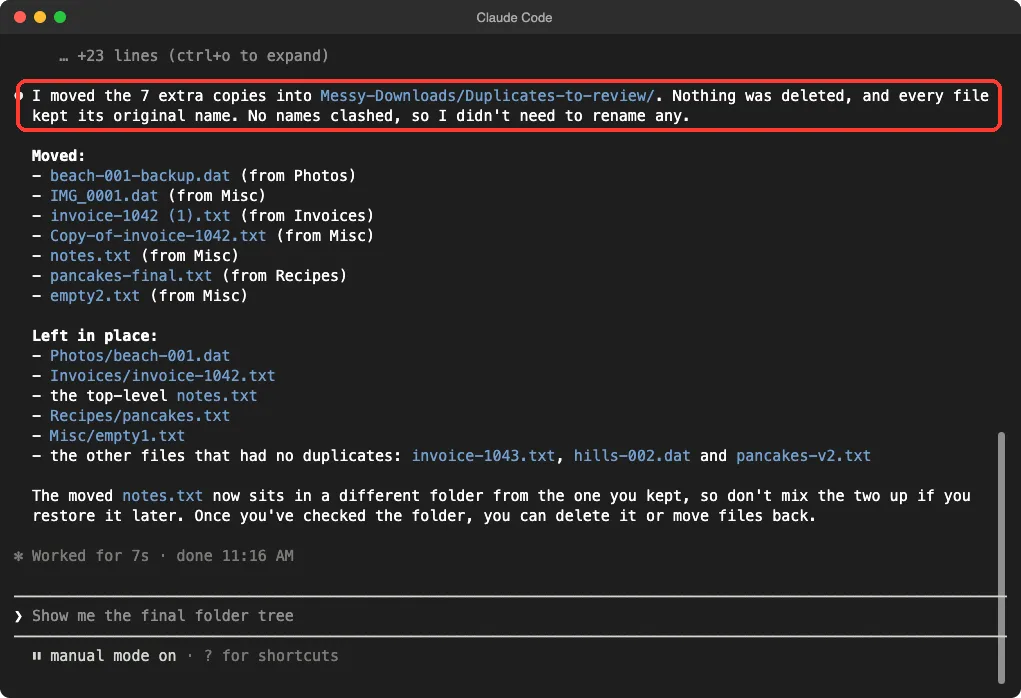
Claude added a useful warning. The moved notes.txt came from a different folder than the one we kept, so if you restore it later, do not mix the two up.
Step 4: Check the Result Yourself
Do not take Claude’s word for it. Open the folder in your file manager, or list it in the terminal. We listed ours and counted 15 files in total: 7 inside Duplicates-to-review and 8 in their original places.
Claude’s own check gave the same answer. It listed all 15 files and said the 7 duplicates were in the review folder and the 8 keepers were still in place.
A Small Mix-Up We Hit
When we ran our own listing command inside Claude Code, it printed an error saying the folder did not exist. The cause was simple: Claude’s shell had moved into Messy-Downloads while working, so our command looked one level too deep.
Claude explained this itself, and then ran the listing from the right place.
If you see a “no such file” error after Claude has been moving things around, ask it where it is working, or type cd .. and try again. Nothing was missing.
Real Examples You Can Try
The same idea works for many messy folders. Change the folder name in the prompt and the rest stays the same.
- A downloads folder full of repeated invoices and receipts.
- A photos folder where you copied the same pictures from a phone twice.
- A school or work folder with several copies of one document.
- A music or video folder with the same file saved under different names.
Try It Yourself
Make a practice folder with a handful of small files and copy a few of them under new names. Open Claude Code in the folder above it and paste this prompt.
Look through the Practice folder in this project folder and find files with identical content, even if the names differ. Change nothing. Group them and tell me which copies are extra, in plain English.Read the command before you approve it. Check the groups against what you know. Then ask Claude to move the extras into a review folder, and open that folder yourself to confirm.
Common Mistakes
- Using a folder name like Downloads. Claude may look at your real one. Use a unique name and say “in this project folder”.
- Judging duplicates by name. Two different files can share a name, and copies often have different names.
- Deleting straight away. Move extras to a review folder first.
- Pointing it at a folder you have no copy of. Back up before you clean up.
- Trusting the list blindly. Check one or two groups by opening the files.
- Forgetting that near-duplicates are not found. A copy with one changed character will not match.
Pro Tips
- Say “change nothing” in your first prompt, as we did, so the first run is only a report.
- Ask Claude which copy it would keep and why. Tell it your own rule, such as keeping the newest or the one in the best folder.
- Ask for the total space the extras take up, so you know whether the cleanup is worth it.
- Use plan mode if you want Claude to describe its plan before it touches any file.
- Tidy messy names first with our file renaming tutorial, then look for copies.
- Keep sensitive files out of practice runs, because Claude Code reads the files in your folder.
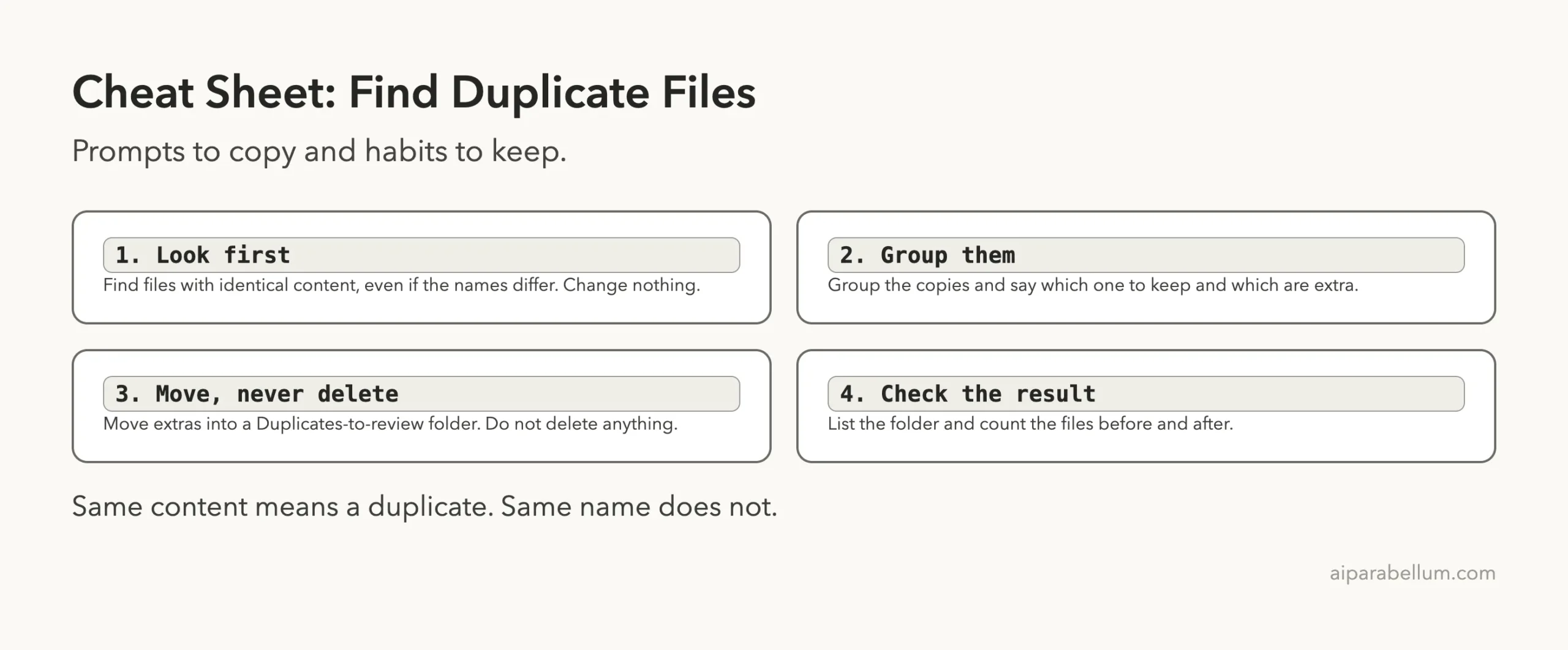
Cheat Sheet
Frequently Asked Questions
Can Claude Code find duplicate files?
Yes, for exact copies. In our test it compared the contents of 15 files, found 5 groups of identical files and named the 7 extras. It does not find near-duplicates or similar photos.
Do I need to know how to code?
No. You describe what you want in plain English and Claude writes the command. You still need to read what it shows you before you approve it.
Will it delete my files?
Only if you ask and approve it. We told Claude not to delete anything and to move the extras instead. Always read the command, and be wary of any command that uses rm.
Does it work on large folders?
We only tested a small folder of 15 files, so we cannot say how it behaves on thousands of files. Start with a small folder and see how it goes before trying a bigger one.
Does this cost money?
You need a Claude account to use Claude Code, and usage depends on your plan. Our test used only two short prompts. See Anthropic’s pages for current plan details.
Conclusion
To find duplicate files with Claude Code, use a practice folder with a unique name, ask for files with identical content, and tell Claude to change nothing. In our test it found 5 groups and 7 extra copies, and a second prompt moved them into a review folder without deleting a thing. Check the result yourself before you remove anything for good, and learn more about the tool in our Claude AI overview.
Previous in the series: Part 8: Back Up Important Folders Automatically With Claude Code
Next in the series: Part 10, Automate a Weekly Report With Claude Code, is coming soon.