
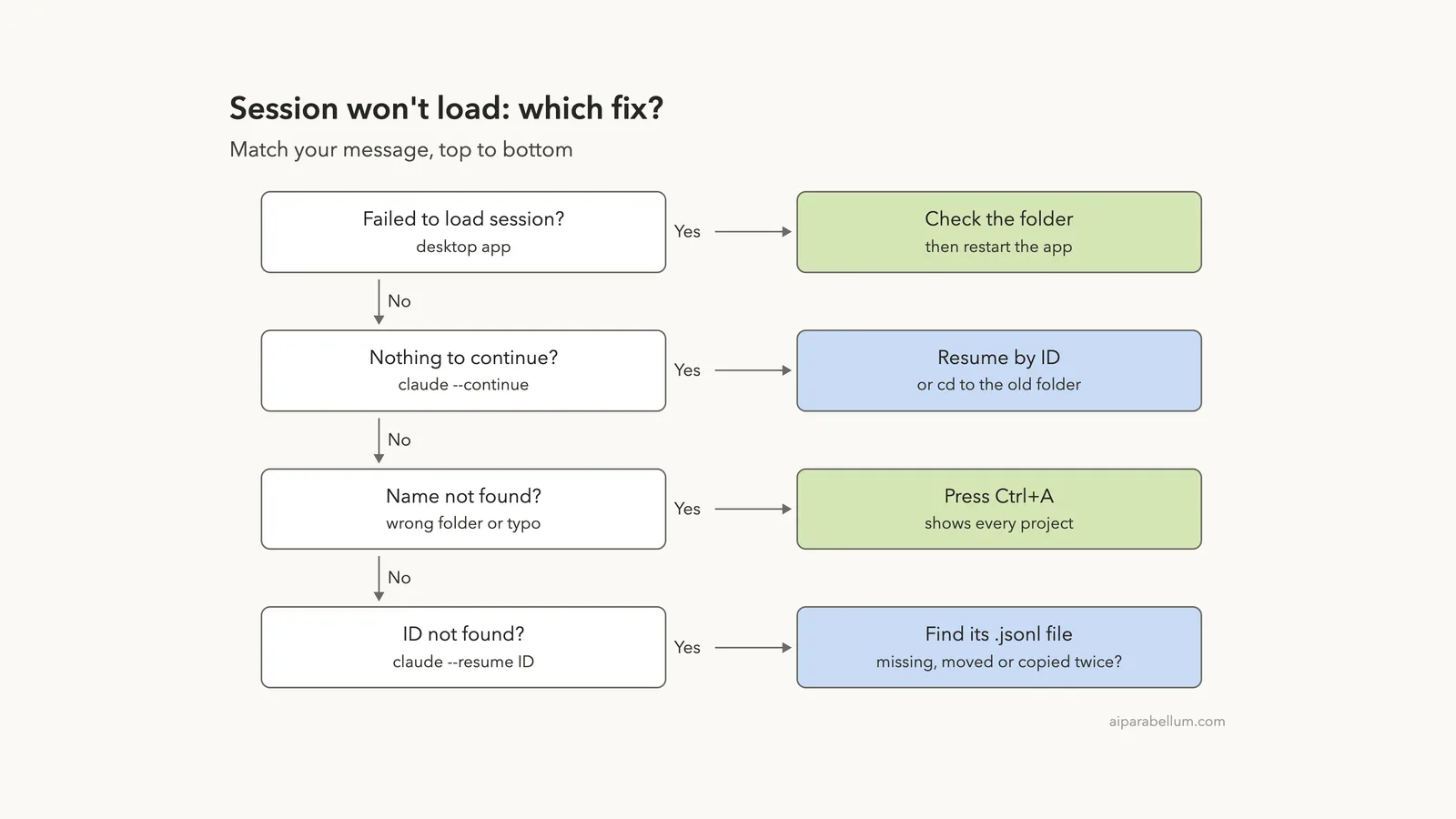
The Claude Code failed to load session message comes from the desktop app, and it usually means the session’s folder is gone or can’t be opened. In the terminal, the same kind of problem reads No conversation found. Most of the time, your chat is still saved and Claude Code is just looking in the wrong place.
In the terminal, run claude --resume and press Ctrl+A to list sessions from every project. If you have the session ID, run claude --resume <session-id>, which works from any folder.
In the desktop app, check that the session’s folder still exists and that you can open it. Install Git LFS if the repository needs it, then restart the app.
Browse all our Claude Code tutorials for more fixes and how-tos.
Tested with Claude Code v2.1.330 on macOS on November 22, 2026. We triggered the terminal errors in throwaway folders and tried each fix there. The desktop app, VS Code and Windows advice comes from Anthropic’s docs.
Quick Summary
| What you see | Likely cause | Fix |
|---|---|---|
Failed to load session | Desktop app can’t open the folder | Check the folder, Git LFS and permissions |
No conversation found to continue | Nothing saved for this folder | Go to the right folder, or resume by ID |
No conversation found with session ID: ... | Wrong ID, deleted file, other config folder or duplicate copies | Look for the transcript file |
No sessions match "..." | The name belongs to another project | Press Ctrl+A |
This session is from a different directory | You picked another project’s session | Run the command it prints |
Failed to resume the conversation | The transcript couldn’t be read | Update, then retry by ID |
Why Claude Code Failed to Load Your Session
Claude Code saves each conversation as a file on your computer, called a transcript. It lives at ~/.claude/projects/<project>/<session-id>.jsonl, and the project part is your folder path with symbols swapped for dashes.
So a chat belongs to the folder where it started. Open a different folder and Claude Code sees a different project with its own history.
How far it searches depends on the command you use. Anthropic’s sessions docs describe the rules, and this is how they line up:
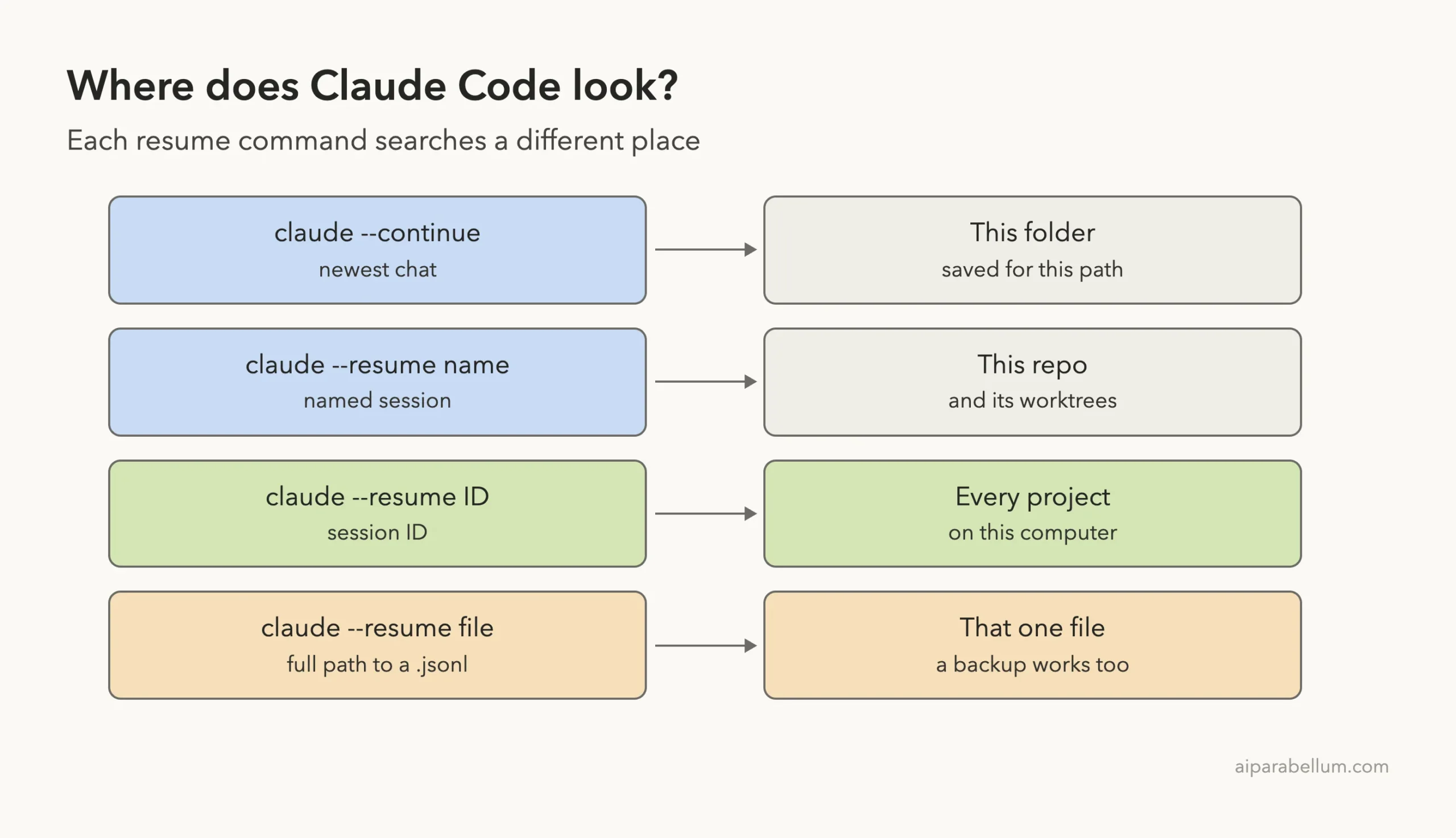
The ID search across all projects arrived in v2.1.223. Older versions stopped at the current project and its git worktrees, so run claude update first.
What the terminal errors look like
We changed one digit in a real session ID, then tried a wrong name and a wrong file path. Each one stopped with exit code 1:
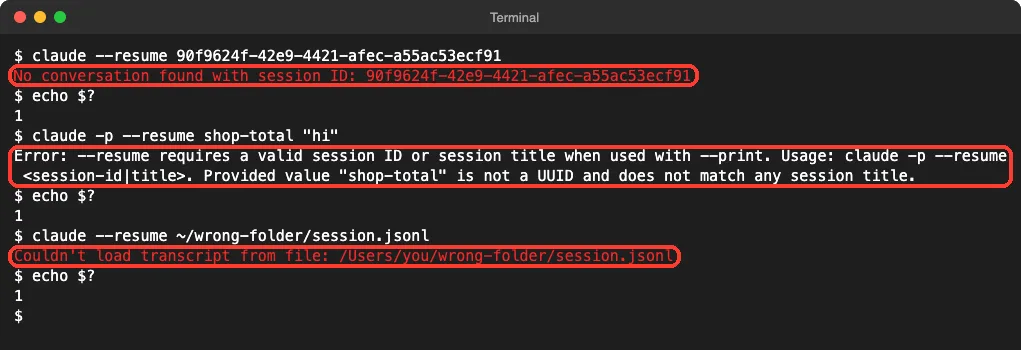
Inside a running session, /resume no-such-session answers Session no-such-session was not found. Your current chat stays open, so nothing is lost.
How to Fix “No Conversation Found” and Resume Your Session
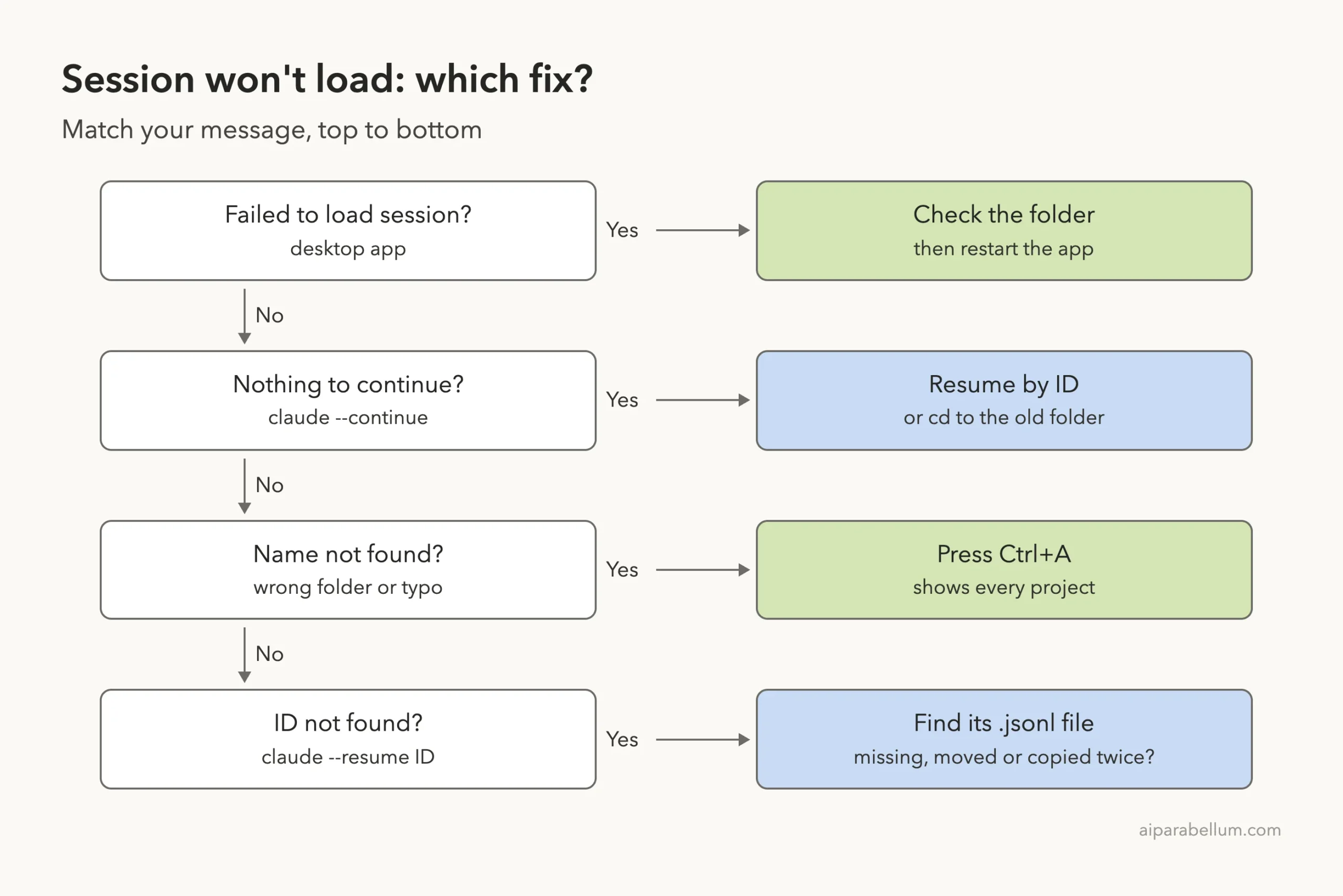
Find your message below and follow the first row that matches.
Fix 1: “No conversation found to continue”
We started a session called shop-totals in a shop folder and then opened a notes folder. Here, claude --continue had nothing to open:
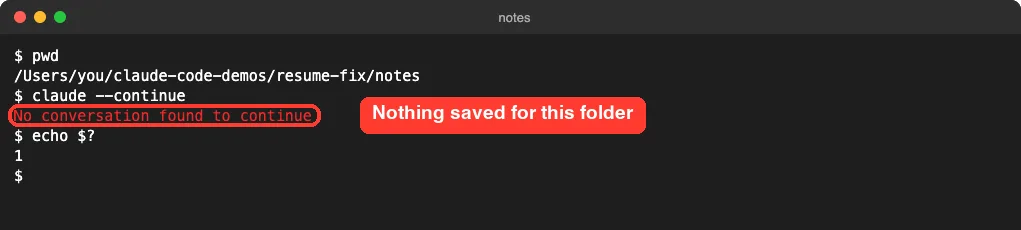
Run pwd to see where you are. Then move to the folder where you were working and try again:
cd ~/projects/shop
claude --continue
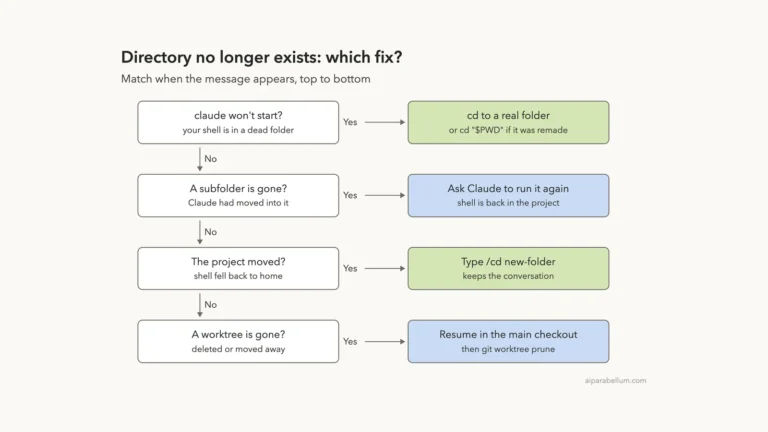
A renamed or moved folder has the same effect, since its path changed. Our guide to the missing working directory error covers that case.
Fix 2: The session name isn’t found
From the notes folder, claude --resume shop-totals opened the picker with no match. The hint at the bottom is the fix:
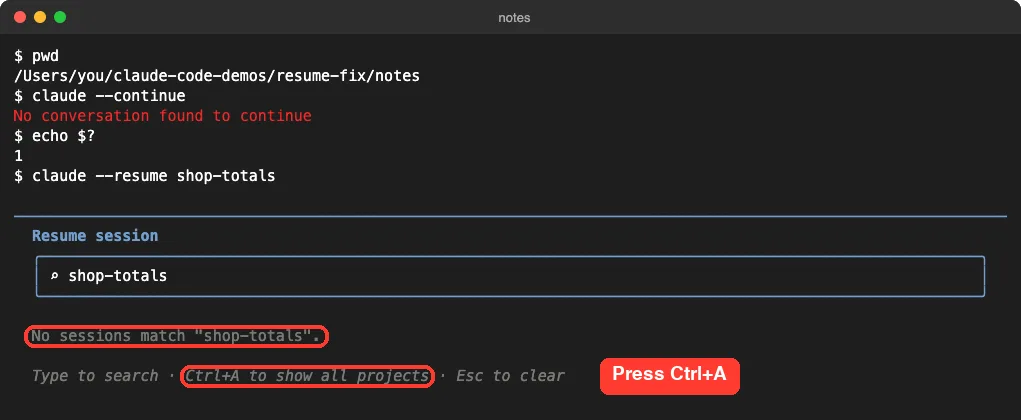
One press of Ctrl+A found it, along with the folder it belongs to:
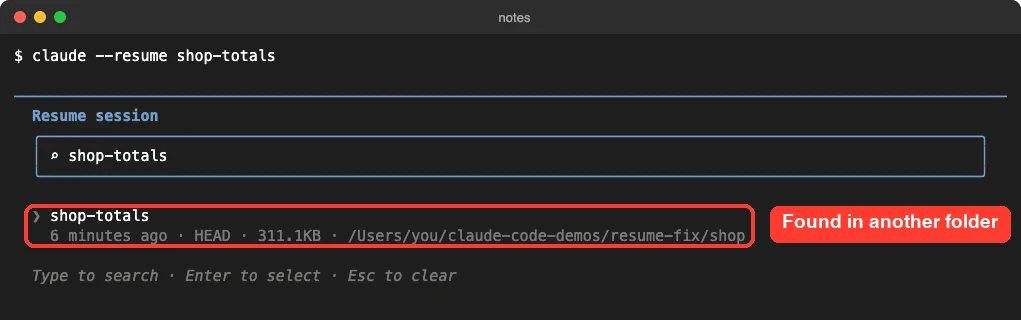
Press Enter and Claude Code doesn’t open it here. It prints a command for the right folder and copies it to your clipboard:
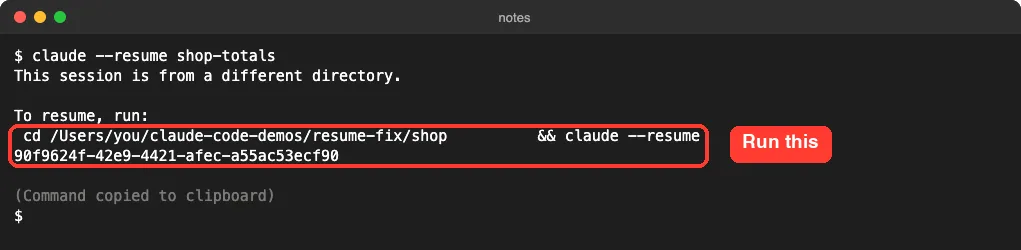
In a repository with several worktrees, use Ctrl+W to show sessions from all of them. Also check the label you typed: the docs say the default display name, such as my-app-3f, can’t be used to resume.
Fix 3: Resume by session ID from any folder
Claude Code prints the ID when you exit, on the line after Resume this session with:. We used it from the notes folder:
claude --resume 90f9624f-42e9-4421-afec-a55ac53ecf90The full history came back, and Claude still knew the code word from the first session. One thing surprised us, though:
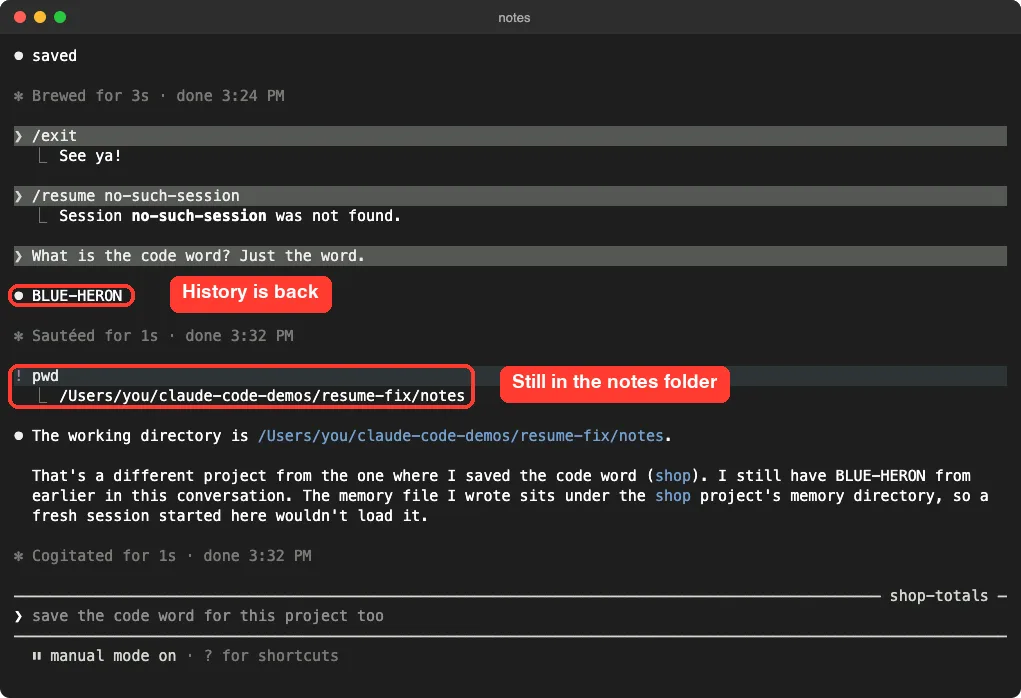
Claude was now working in notes, not shop. If the old folder still exists, cd there before you resume, so edits land in the right project.
An ID brings back the conversation from anywhere, but it doesn’t take you back to the folder.
Fix 4: “No conversation found with session ID”
Anthropic’s error reference lists four causes:
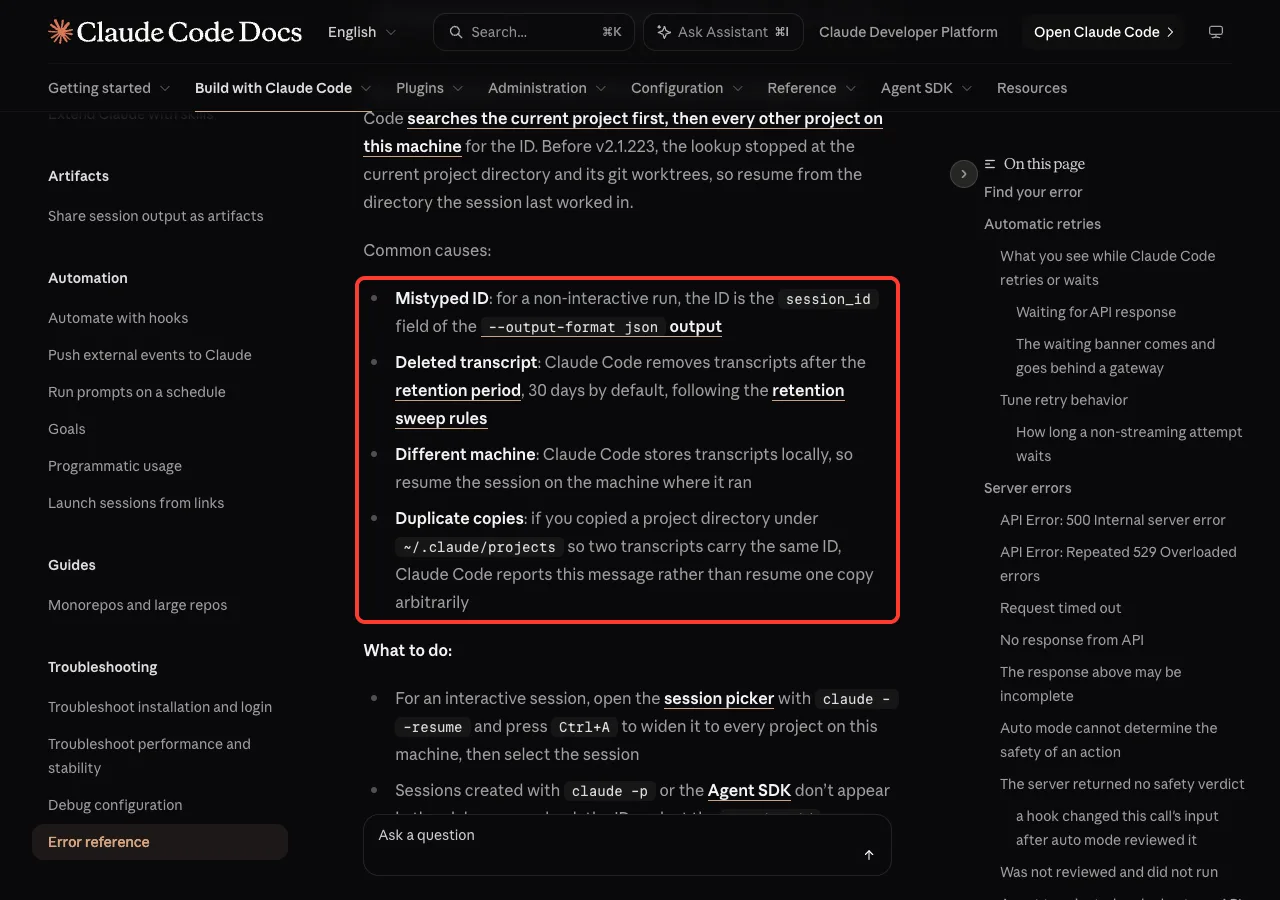
On macOS or Linux, one command tells you which you have. Put your ID in place of the example:
find ~/.claude/projects -name "90f9624f-42e9-4421-afec-a55ac53ecf90*"
Now match the result. Ignore names with orphaned or superseded in them, since the docs say those are older versions Claude Code set aside.
| Files found | What it means | What to do |
|---|---|---|
| None | Wrong ID, deleted, never saved or on another computer | Check the ID, then Fix 5 and Fix 6 |
One .jsonl | The file is fine | Check CLAUDE_CONFIG_DIR and update |
Two or more .jsonl | Copies share an ID | Move the extra copy out |
A different config folder
CLAUDE_CONFIG_DIR moves all of Claude Code’s saved data. If one terminal sets it and another doesn’t, each has its own history. We got the error with it set, then cleared it and the session was back:
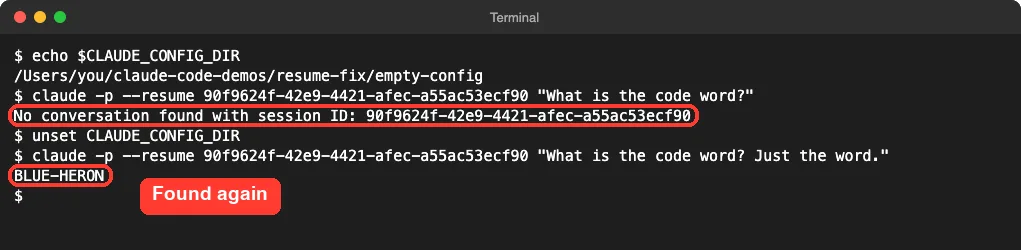
Run echo $CLAUDE_CONFIG_DIR to check yours. An empty line means the default folder, ~/.claude. If it shows a path, search that path’s projects folder too.
Two copies of the same transcript
When two projects hold the same ID, Claude Code won’t guess which one you want. We copied a project folder inside a throwaway config folder, and resuming failed right away:

Move the extra copy out of the projects folder instead of deleting it. In our test, the error went away as soon as one copy was left.
Fix 5: Sessions from claude -p and the Agent SDK
Sessions you start with claude -p don’t appear in the picker, and claude --continue skips them. They’re still saved, so use claude -p --continue or the ID:
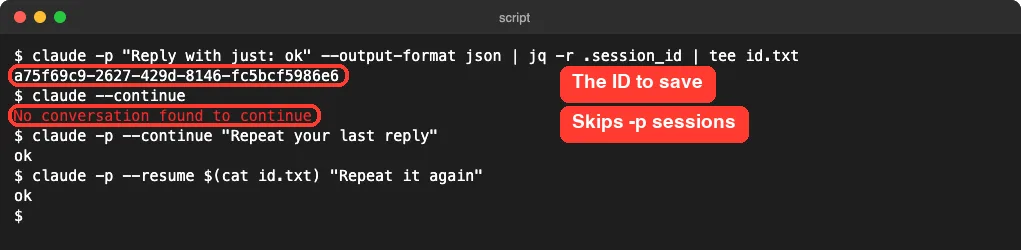
Two things leave no session to find. The --no-session-persistence flag turns saving off for a -p run, and CLAUDE_CODE_SKIP_PROMPT_HISTORY does it in any mode. Interactive sessions show a warning:
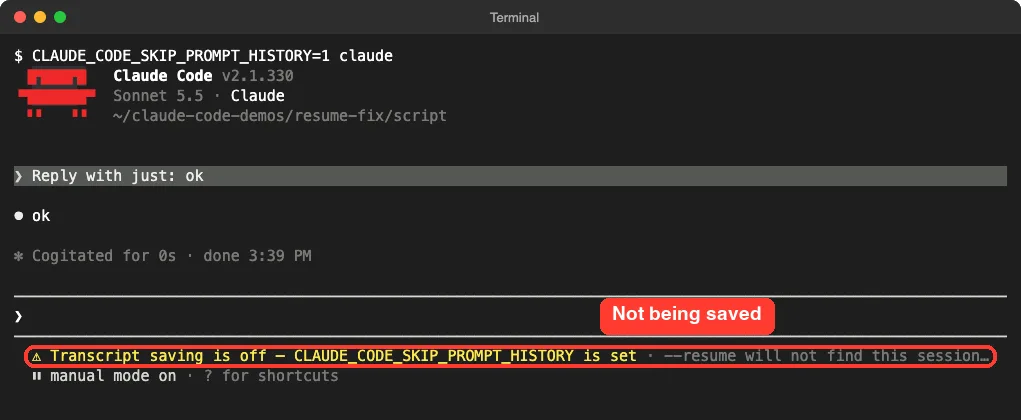
Remove the variable from your shell or script and start a new session. The docs say earlier messages aren’t saved after the fact. A similar warning that names CLAUDE_CODE_CHILD_SESSION appears when you start claude from inside another session.
Fix 6: The transcript was deleted
Claude Code removes old transcripts by itself. The default is 30 days, set by cleanupPeriodDays:
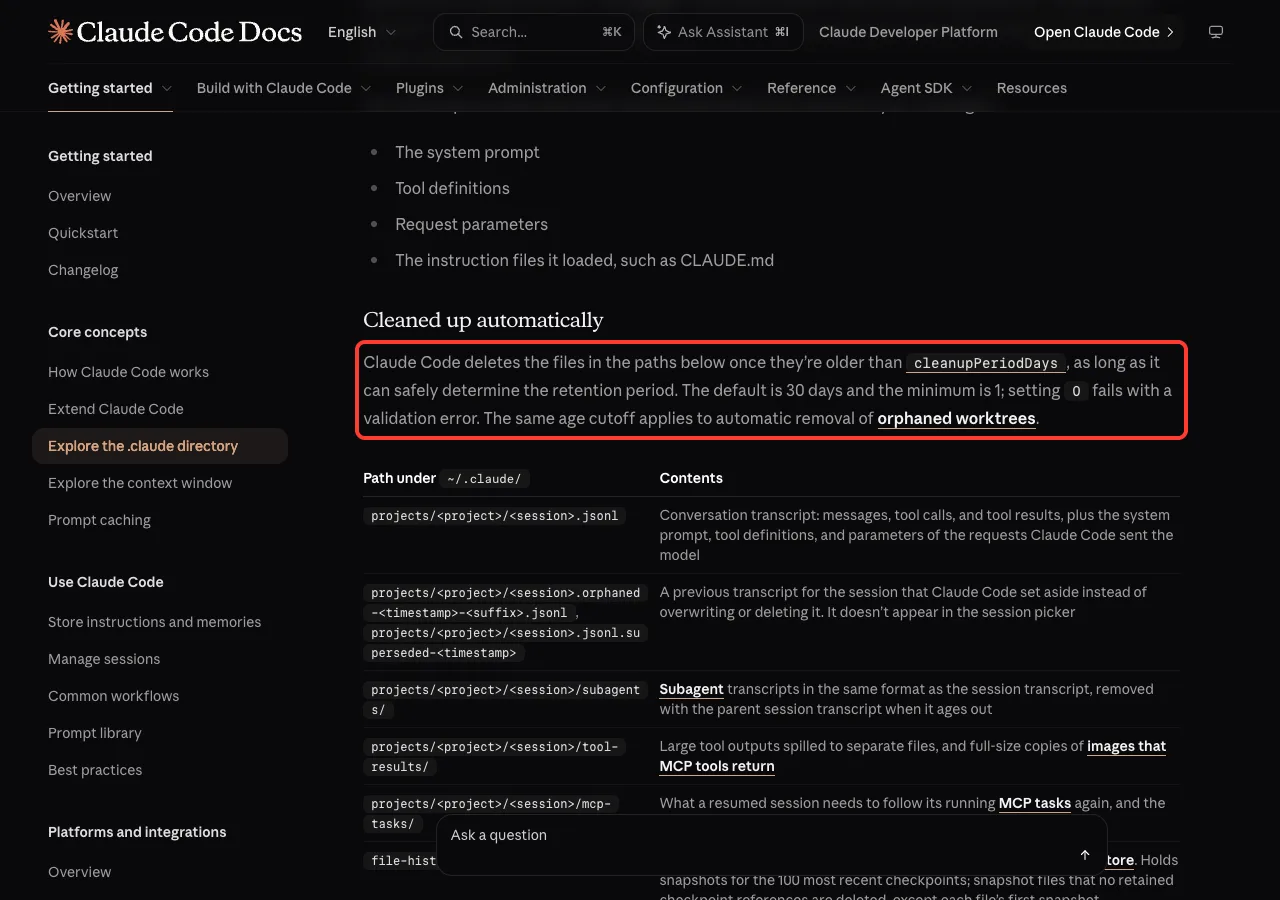
If you have a backup, such as Time Machine, you can open the restored file directly. We resumed a copy from another folder, using its full path:
claude -p --resume ~/backup/old-session.jsonl "What is the code word? Just the word."It answered BLUE-HERON. New messages went into a file named after the session ID, in the backup’s own folder. Keep that folder until you’re done.
To keep future sessions longer, add this to ~/.claude/settings.json:
{
  "cleanupPeriodDays": 90
}
If you want the opposite, see how to delete session history safely.
Fix 7: “Failed to resume the conversation”
This one means Claude Code found the session but couldn’t read it. The error reference says to run claude --resume with the ID in the message. Versions before v2.1.285 failed on any entry they couldn’t read, so run claude update if the retry fails.
If you passed a file and got Couldn't load transcript from file, check the path first. We also got that message from a file with no valid session data, so a broken backup looks the same as a wrong path.
How to Fix Claude Code “Failed to Load Session” in the Desktop App
Anthropic’s desktop docs give three causes for this message:
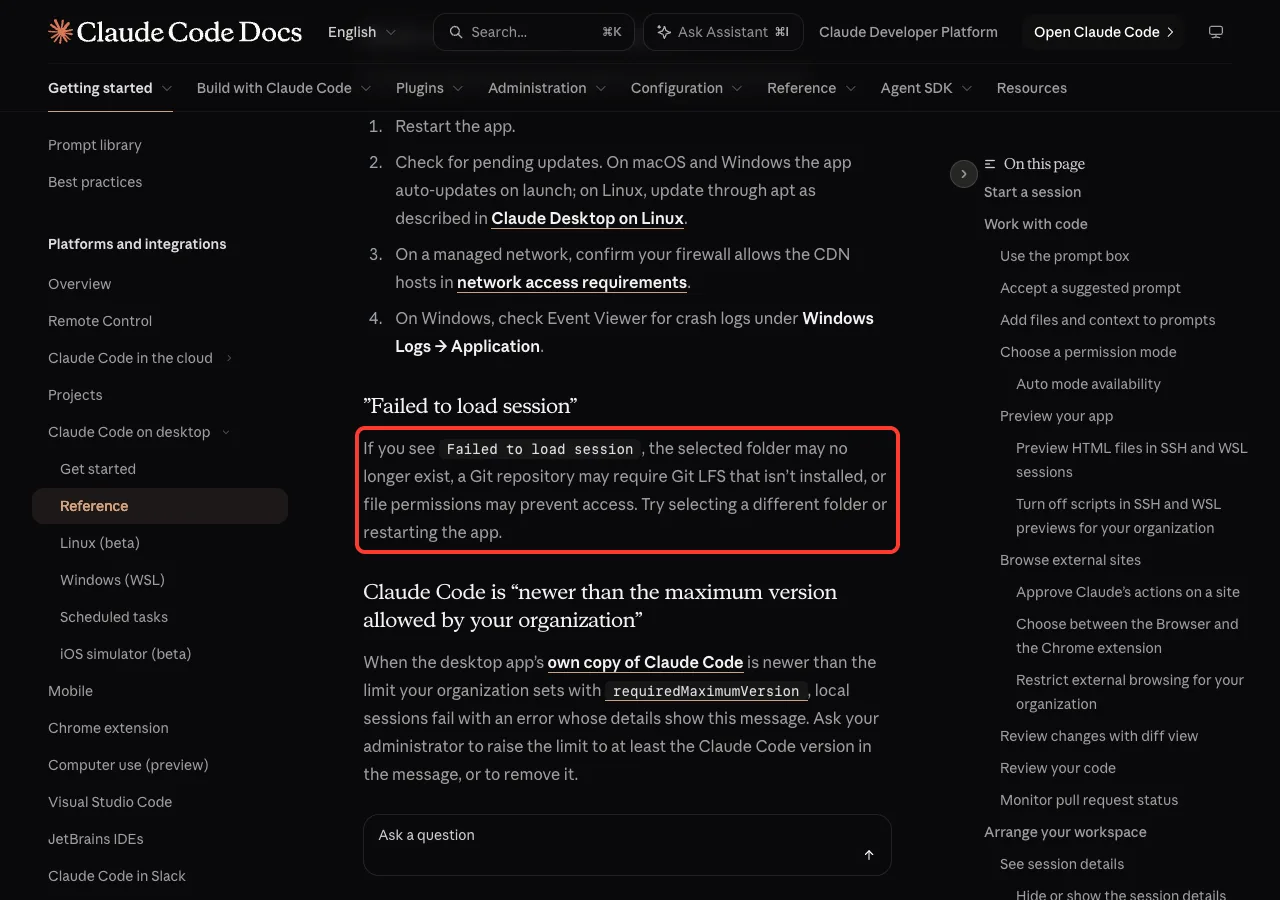
- Check that the folder exists. If you renamed or moved it, put it back or select the new folder.
- If the repository uses Git LFS, install it, run
git lfs installand restart the app. - Open the folder in a terminal and run
ls. If that’s refused, fix the folder permissions. - Quit and reopen the app, then try again.
Each app also keeps its own session list. To bring a terminal chat into the desktop app, close it in the terminal and type /resume in the desktop prompt box.
What about “Session not found on disk”?
We couldn’t find that exact wording in Anthropic’s docs or produce it in the terminal. Treat it like a missing transcript: search for the file as in Fix 4, then use Fix 6. If it came from another tool built on Claude Code, check which config folder that tool uses.
VS Code says the conversation isn’t found
The extension and the terminal share history, so claude --resume in a terminal can find a VS Code chat. The changelog also lists a fix for tabs stuck on “No conversation found” when a session was never saved, so update the extension.
Try It Yourself
You can practice with two empty folders:
mkdir -p ~/resume-test/a ~/resume-test/b
cd ~/resume-test/a
claude -n resume-demo
Give Claude this prompt, then type /exit:
For this conversation only, the code word is RIVER. Don't save it to memory. Reply with just: okNow run cd ~/resume-test/b and claude --continue to see the error. Then run claude --resume resume-demo, press Ctrl+A and follow the command it gives you.
Common Mistakes
- Assuming the chat was deleted because
--continuefound nothing in this folder. - Copying only part of the ID. Copy the whole line that Claude Code prints.
- Copying a project folder inside
~/.claude/projectsas a backup. Keep backups somewhere else. - Resuming by ID in the wrong folder and letting Claude edit files there.
- Resuming one session in two terminals. The docs warn that messages can go missing, so add
--fork-session. Our forking guide shows how.
Pro Tips
- Name important sessions with
claude -nor/rename. Our sessions guide covers naming and the picker. - Use
/cdwhen you move a project during a session. It refiles the chat under the new folder. - In scripts, store the
session_idfrom--output-format jsonrather than counting on--continue. - Run
/exportbefore you wipe a computer, so you have a readable copy of the chat.
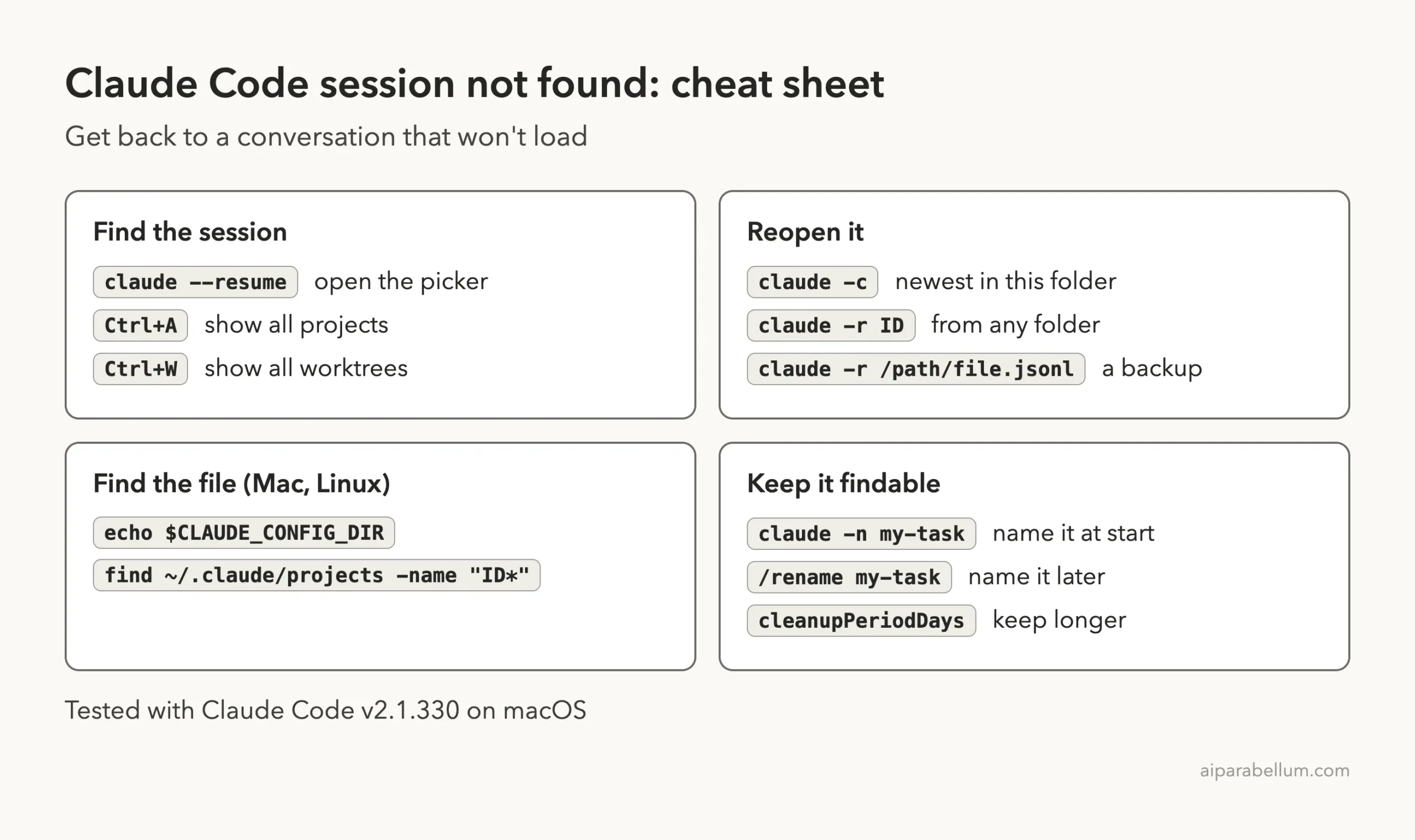
Cheat Sheet
Frequently Asked Questions
Does “No conversation found” mean my chat is gone?
Not usually. Look for the transcript file first. It’s only gone if the file isn’t on the computer where you ran the session, or in a backup.
Can I resume a Claude Code session on another computer?
Not on its own, because transcripts are stored locally. Resume it on the machine where it ran, or open a copied transcript by its full path.
Where do I find my session ID?
Claude Code prints it when you exit, and the docs say /status shows it too. For claude -p, it’s the session_id field in the JSON output.
Why does –continue work in the terminal but not in my script?
It’s often the working folder. A scheduled job may start somewhere else, so add cd /your/project || exit 1 first, or resume by ID.
Why does it ask me to log in after I change the config folder?
A new config folder starts with no sign-in of its own. Unset CLAUDE_CONFIG_DIR, or see our guide to the login error.
Conclusion
When Claude Code says no conversation was found, check the folder before you assume the chat is gone. Press Ctrl+A in the picker, resume by ID, and search for the transcript file if that fails. For the desktop app’s “Failed to load session,” the folder, Git LFS and permissions are the three things to check. If another message shows up, try our list of common errors, or start with our Claude overview if you’re new.