
If Claude Code stops with “–dangerously-skip-permissions cannot be used with root/sudo privileges for security reasons”, it means you asked for bypass permissions mode while running as the root user. This Claude Code dangerously skip permissions root check is on purpose: on Linux and macOS, Claude Code refuses to skip every permission prompt when it has full control of the machine.
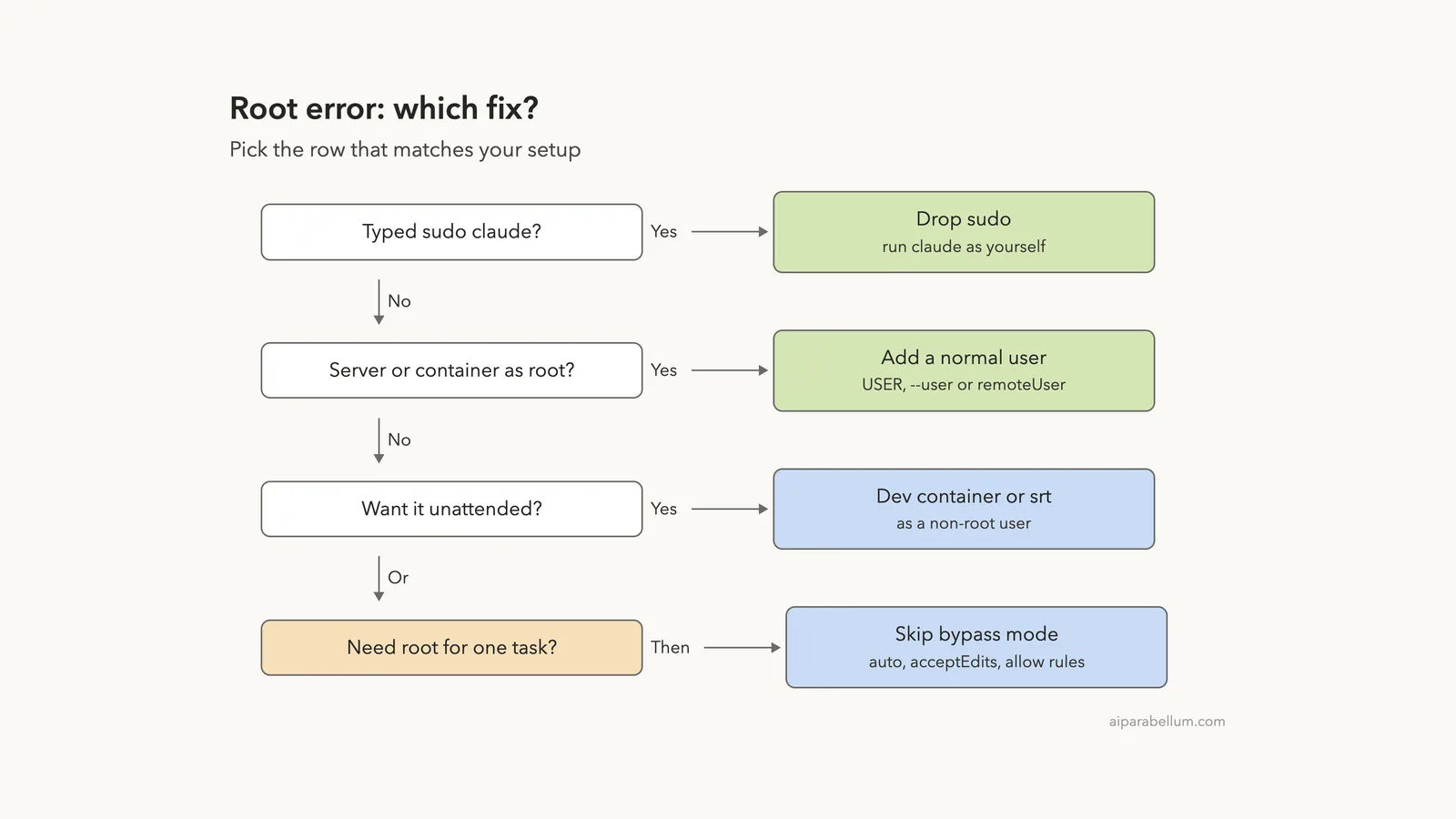
The fix is to run Claude Code as a normal, non-root user. Drop sudo from the command, or create a regular user on your server or container and start claude from that account. If you want Claude to work unattended, do it inside a dev container, a VM or the sandbox runtime, still as a non-root user.
If you don’t truly need bypass mode, you can skip the flag entirely. Auto mode, acceptEdits and allow rules cut down on prompts without turning off every safety check, and none of them care whether you are root.
Browse all our Claude Code tutorials for more fixes and how-tos.
Tested with Claude Code v2.1.328 on macOS on November 21, 2026. We did not run Claude Code as root to trigger this error, because that is exactly the unsafe setup the check exists to stop. The error text and the rules below come from Anthropic’s official docs; the terminal screenshots show the safe alternatives running for real as a normal user in a throwaway demo folder.
We tested on macOS; the Windows and Linux steps follow Anthropic’s official instructions.
Quick Summary
| Question | Short answer |
|---|---|
| What the error means | You asked for bypass permissions mode while running as root |
| Which systems check this | Linux and macOS |
| What triggers it | --dangerously-skip-permissions, --permission-mode bypassPermissions or a bypass default in settings, as root |
| Main fix | Run claude as a normal user, without sudo |
| Fix in Docker or a VPS | Create a non-root user and run Claude Code from it |
| Safe unattended setup | Dev container or sandbox runtime, as a non-root user |
| No bypass needed? | Use auto mode, acceptEdits or --allowedTools |
| Should you run it as root? | No. There is no safe reason to. |
What the Claude Code Dangerously Skip Permissions Root Error Means
The --dangerously-skip-permissions flag starts Claude Code in bypass permissions mode. In that mode, Claude edits files and runs shell commands without asking you first. The CLI reference says the flag is equivalent to --permission-mode bypassPermissions.
Now add root to the picture. The root user can change any file on the system, install software, and remove anything. Bypass mode plus root means a single wrong command, or a prompt injection hidden in a file Claude reads, could damage the whole machine with no prompt to stop it.
So Claude Code refuses that combination. The permission modes docs say that on Linux and macOS it won’t start in bypassPermissions mode when running as root or under sudo, and they show the exact message:
--dangerously-skip-permissions cannot be used with root/sudo privileges for security reasons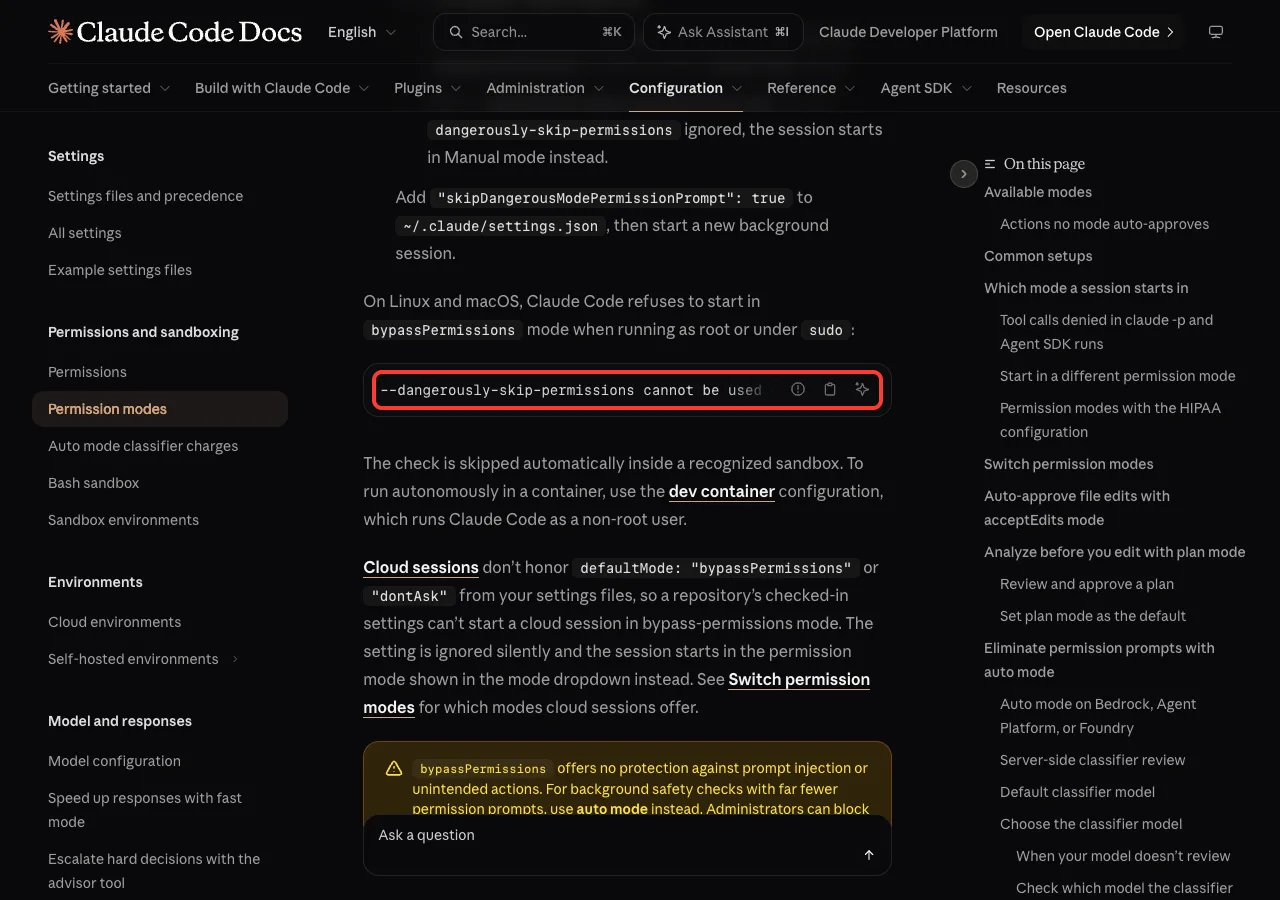
We also searched the program file of our installed Claude Code v2.1.328 for that sentence, and the same wording is there. So the docs text matches what current builds print.
Root plus no prompts is the one combination Claude Code won’t start. Change the user, not the check.
Where you usually see it
- You typed
sudo claude --dangerously-skip-permissionsbecause something else needed admin rights. - You logged in to a cloud server or VPS as
root, installed Claude Code, and started it in bypass mode. - A Docker container runs as root by default, and your entrypoint calls
claude -p "..." --dangerously-skip-permissions. - A dev container has no
remoteUserset, or sets it toroot. - A settings file sets the default mode to
bypassPermissions, and you started a plainclaudeas root.
Why Dangerously Skip Permissions Fails as Root
The check runs before your session starts. Here is the order of decisions, drawn from the docs:
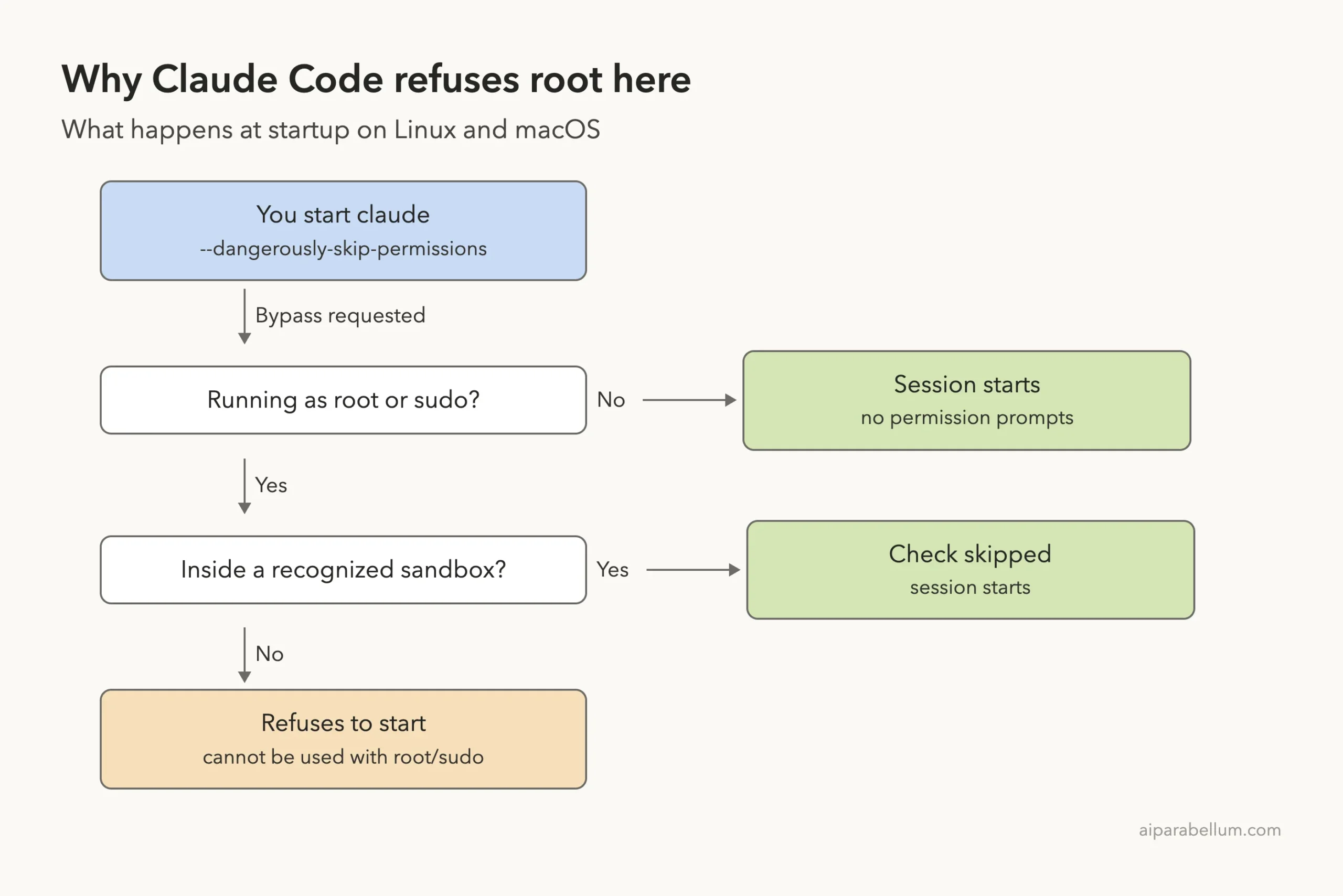
The docs add one exception: the check is skipped automatically inside a recognized sandbox. They don’t publish a list of what counts as recognized, and they don’t document a switch to turn the check off.
You may find forum posts suggesting an environment variable for this. Because Anthropic doesn’t document one, we don’t recommend relying on it.
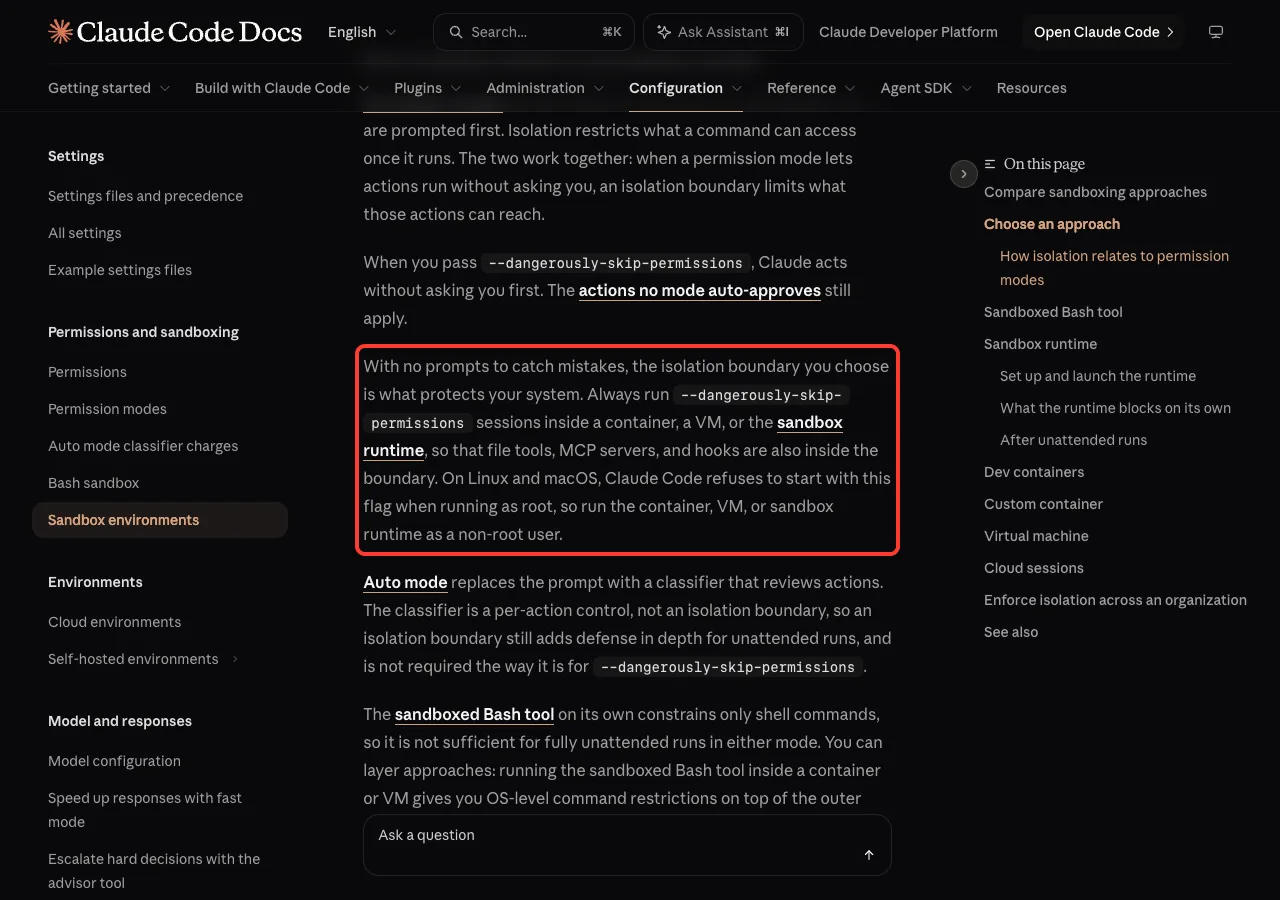
Anthropic’s sandbox guide is clear about the intended setup. It says to always run --dangerously-skip-permissions sessions inside a container, a VM or the sandbox runtime, and to run them as a non-root user.
What about Windows?
The docs describe this check for Linux and macOS only. Windows has no root user in the same sense, so you won’t see this exact message there. The advice still holds: on Windows, the sandbox guide points you to a container, a VM or WSL2 for isolated runs.
How to Fix the Dangerously Skip Permissions Root Error
Pick the fix that matches how you started Claude Code. Most people only need Fix 1 or Fix 2.
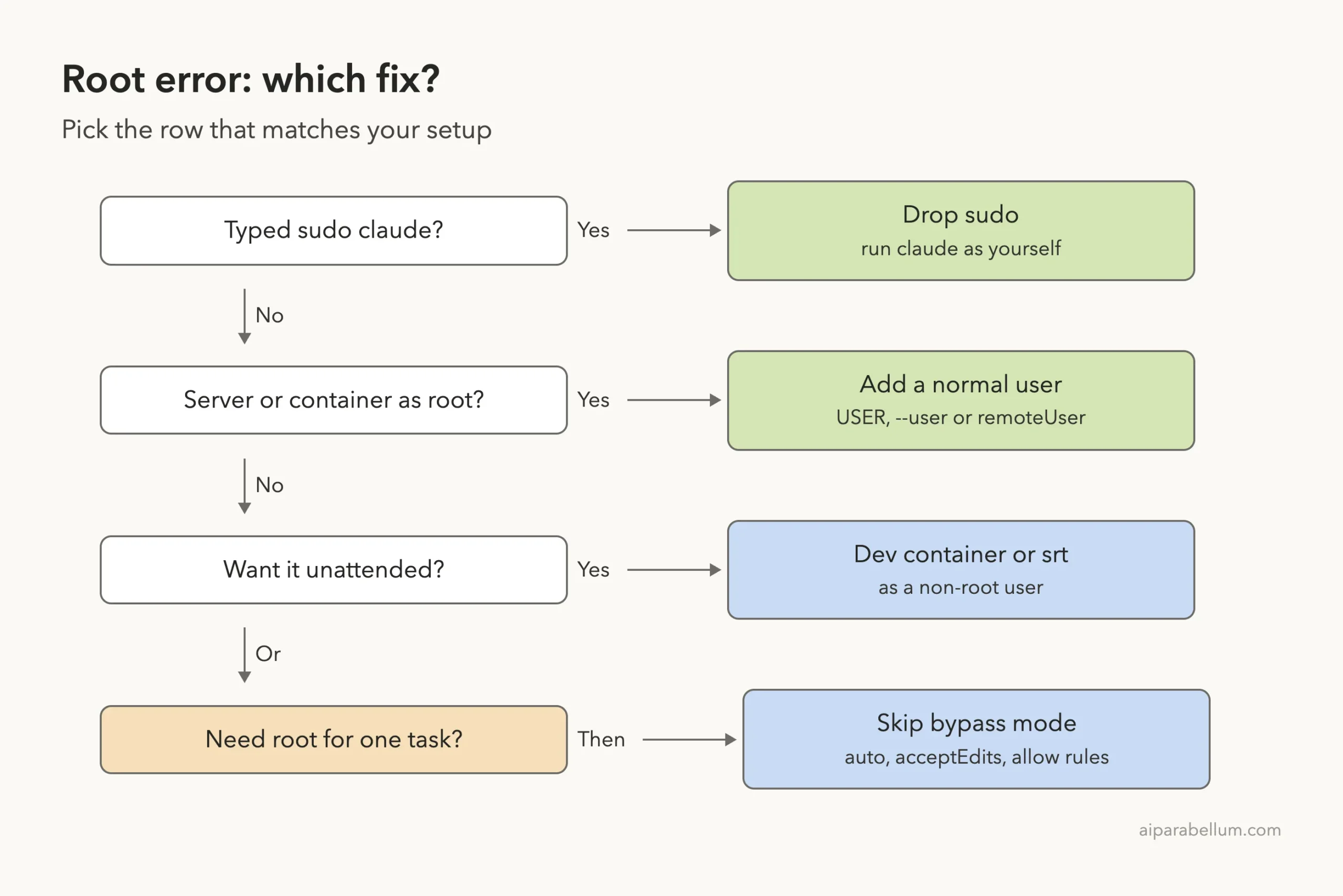
Fix 1: Drop sudo and run claude as yourself
Claude Code doesn’t need admin rights to work in your project. Start it from your own account:
cd ~/my-project
claude
Not sure who you are right now? Run id -u. A result of 0 means root; any other number is a normal user. Here is our check on the test Mac, plus the help text for the flags involved:
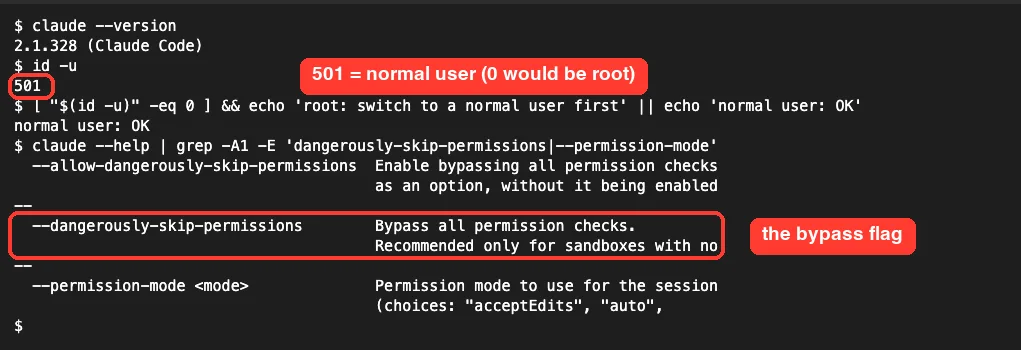
Notice what the help text says about the flag: it is recommended only for sandboxes. If a task inside the session needs admin rights, such as installing a system package, run that one command yourself in another terminal instead of running all of Claude Code as root.
If you installed Claude Code with sudo
Some people run sudo claude because they installed it with sudo npm install -g, and now a plain claude fails. The setup docs warn against that install method because it can lead to permission issues and security risks.
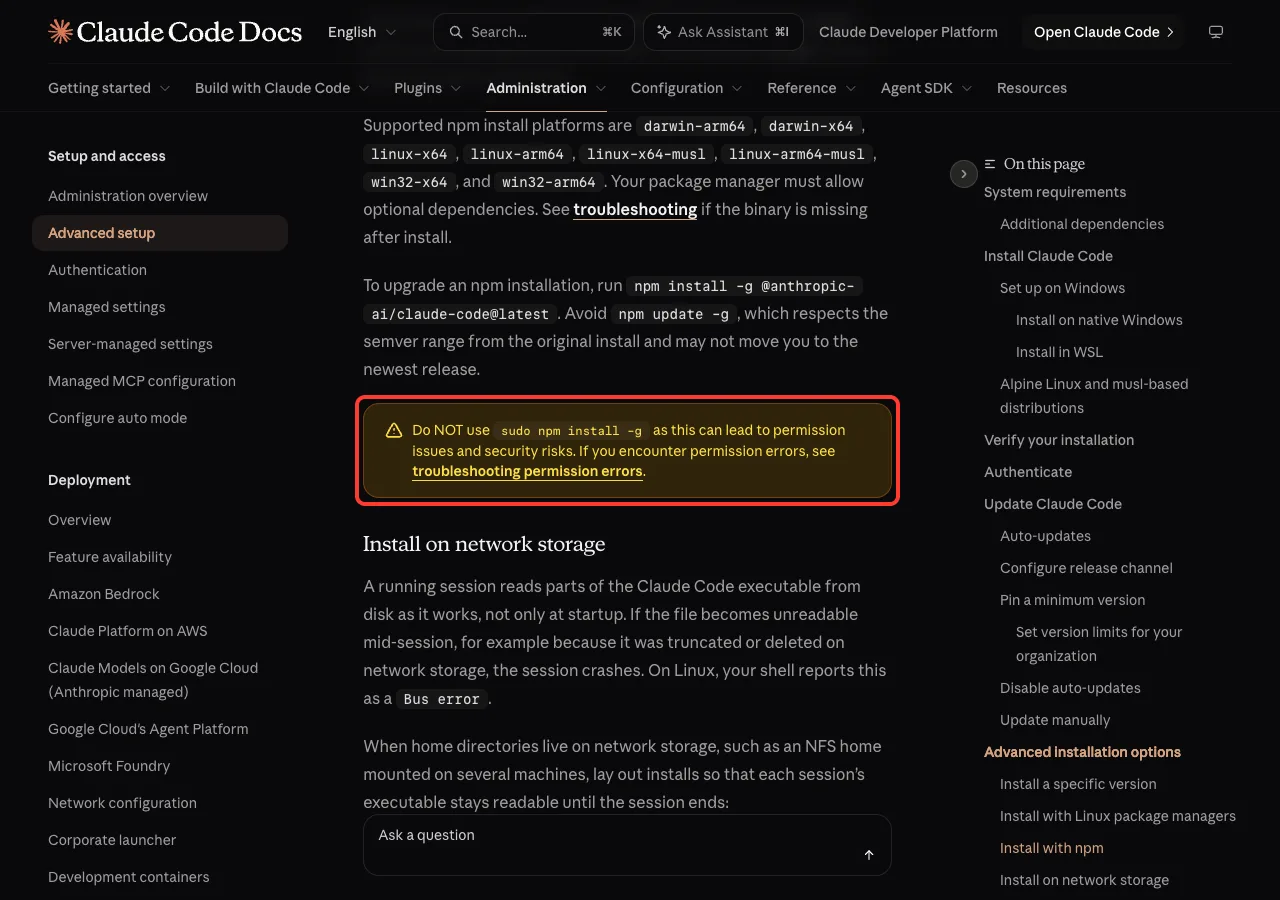
The cleaner route is the native installer, which installs into your own user account:
curl -fsSL https://claude.ai/install.sh | bash
claude --version
Our full install guide covers each platform, and the guide to removing Claude Code helps you clean up the old sudo install first.
Fix 2: Create a normal user on a server or VPS
Fresh cloud servers often log you in as root. Make a regular user once, then use it for Claude Code. These are standard Linux commands (Debian and Ubuntu shown), not Claude Code commands:
# as root, once
adduser dev
su - dev

# now as dev
curl -fsSL https://claude.ai/install.sh | bash
cd ~/my-project
claude
Claude Code keeps its sign-in and settings per user, so you will sign in again as dev the first time. Give that user access to only the project folders it needs. If your projects live under /root, move them somewhere the new user owns.
Fix 3: Run your container as a non-root user
Docker containers run as root unless you say otherwise, which is why this error is so common in CI and containers. Add a user in your Dockerfile and switch to it before Claude Code runs:
RUN useradd -m dev
USER dev
WORKDIR /home/dev/app
You can also pick the user when you start the container with docker run --user 1000:1000 .... Install Claude Code as that user too, so its files live in that user’s home folder. Our guide on using Docker walks through a full container setup.
Fix 4: Use a dev container with a non-root remoteUser
Anthropic’s dev container docs are written for exactly this case. Because the container runs Claude Code as a non-root user and keeps commands inside the container, you can pass --dangerously-skip-permissions there. The docs warn that the CLI rejects the flag as root, so make sure remoteUser is a non-root account.
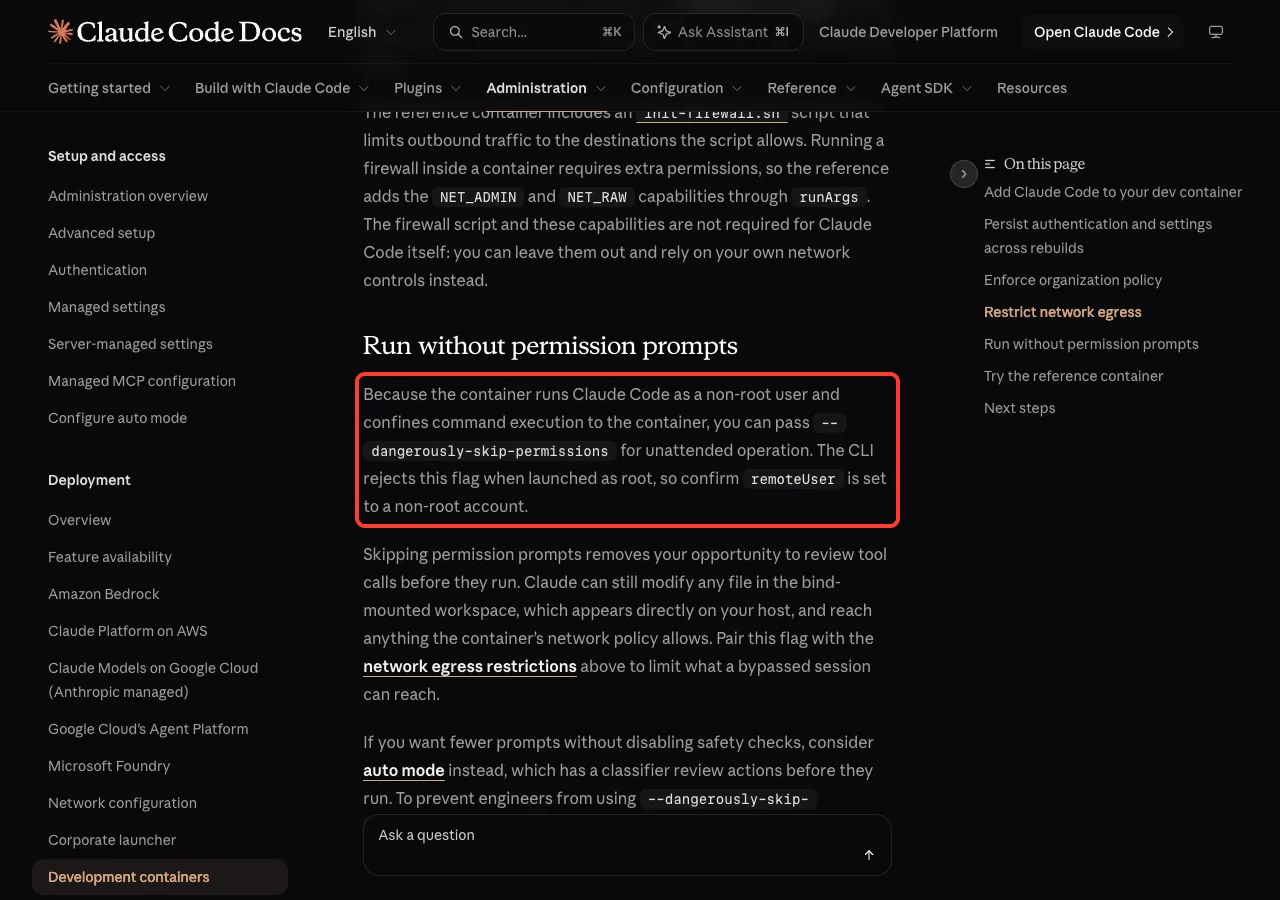
A minimal .devcontainer/devcontainer.json looks like this. The docs show the image and feature lines; the remoteUser line is ours, and its value should be the non-root user your image provides:
{
  "image": "mcr.microsoft.com/devcontainers/base:ubuntu",
  "features": {
    "ghcr.io/anthropics/devcontainer-features/claude-code:1.0": {}
  },
  "remoteUser": "vscode"
}
Inside the container, check with id -u before you start a bypass session. Our walkthrough on safe dev containers shows the whole flow. The docs also suggest pairing bypass mode with network egress limits, since Claude can still change any file in the mounted workspace.
Fix 5: Use the sandbox runtime without Docker
If you don’t want Docker, the sandbox environments guide describes the @anthropic-ai/sandbox-runtime package. It wraps the whole Claude Code process in the same Seatbelt (macOS) or bubblewrap (Linux) isolation used by the built-in Bash sandbox, so file tools, MCP servers and hooks are covered too.
npm install -g @anthropic-ai/sandbox-runtime
srt claude
Configure it first in ~/.srt-settings.json, as the docs explain, because by default it blocks network access and most writes. Run it as your normal user, not root.
The runtime is a beta research preview, so expect its settings format to change. For the lighter, built-in option, see our explainer on the Claude Code sandbox.
Fix 6: Skip bypass mode when you don’t need it
Many people reach for --dangerously-skip-permissions just to stop the constant “Allow?” questions. You have safer choices that work for any user:
| Option | What it does | Command |
|---|---|---|
| Auto mode | A classifier reviews each action before it runs | claude --permission-mode auto |
| Accept edits | File edits run without asking; other actions still prompt | claude --permission-mode acceptEdits |
| Allow list | Only the tools you name run without a prompt | claude -p "..." --allowedTools "Write" |
| CI allow list | Anything not on the list is denied, not prompted | --permission-mode dontAsk --allowedTools "Bash(npm test)" "Read" |
We ran two of these as a normal user in our demo folder. First, an allow list that lets Claude use only the Write tool:
claude -p 'Create notes.txt with one line: tested as a normal user. Reply in one short line.' --allowedTools 'Write'
Then the acceptEdits mode, which approves file edits on its own:

Auto mode needs a supported model and an account where it’s turned on, so check the docs if it doesn’t appear for you. Our guides to permission modes and permission rules explain each choice in depth.
Fix 7: Remove a bypass default from your settings
If you never typed the flag but still see the error, look for "defaultMode": "bypassPermissions" under permissions in ~/.claude/settings.json, .claude/settings.json or .claude/settings.local.json. The docs say the refusal applies to bypass mode however you enable it, so a settings default counts too. Remove the line, or start Claude Code as a normal user.
Real Examples: Server, Docker and CI
The right fix depends on where Claude Code runs. This table sums up the common setups and what to change.
| Where you run it | Usually root? | What to do |
|---|---|---|
Your laptop with sudo claude | Yes, because of sudo | Drop sudo |
| Fresh VPS or cloud server | Yes | Create a user, install there |
| Plain Docker container | Yes by default | USER dev or --user |
| Dev container | Depends on remoteUser | Set a non-root remoteUser |
| CI runner | Often | Non-root container, or dontAsk plus an allow list |
| Sandbox runtime | Only if you start it as root | srt claude as your normal user |
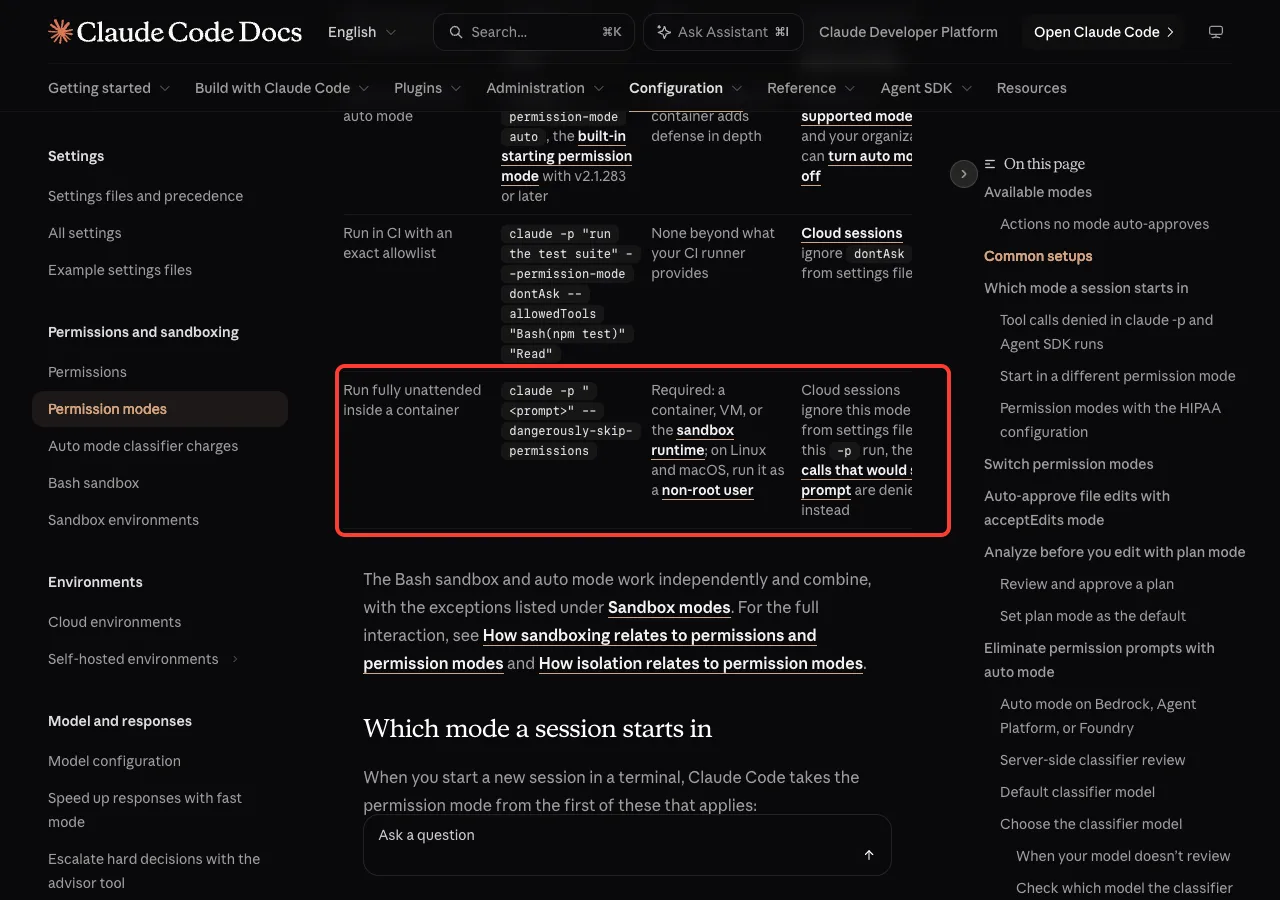
Anthropic’s own common setups table lists running fully unattended inside a container as the case for claude -p "<prompt>" --dangerously-skip-permissions, and it names a non-root user as a requirement on Linux and macOS.
For scripted runs in general, our headless mode guide covers -p and output formats.
Try It Yourself
In a small practice folder, as your normal user, confirm you are not root and try a no-bypass run:
id -u
claude -p 'Create hello.txt with the word hi. Reply in one line.' --allowedTools 'Write'
cat hello.txt
If you have a Dockerfile or a server script that keeps hitting the root error, paste it into a normal Claude Code session with this prompt:
This setup runs Claude Code with --dangerously-skip-permissions as root and
fails with "cannot be used with root/sudo privileges". Change it so Claude
Code runs as a non-root user (add the user, switch to it, install Claude Code
for it). Don't remove the safety check. Explain each change in one line.
Common Mistakes
- Looking for a way to turn the check off. Anthropic doesn’t document one, and the check exists to protect your machine.
- Running all of Claude Code with
sudobecause one command needs admin rights. Run that one command yourself instead. - Creating a non-root user but keeping the project under
/root, where that user can’t write. - Forgetting that a Docker image runs as root unless the Dockerfile has a
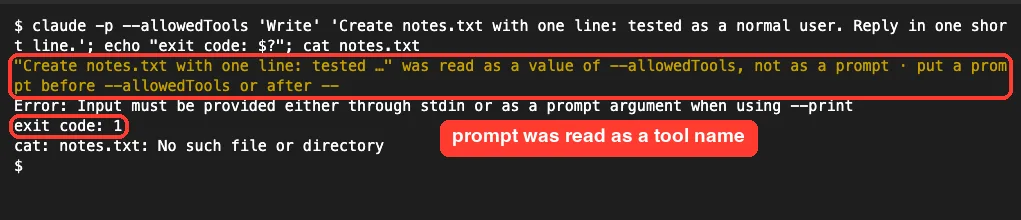
USERline. - Putting the prompt after
--allowedTools. The flag takes a list, so it swallows the prompt. We hit this in our own test:
Pro Tips
- Add a guard to scripts:
[ "$(id -u)" -eq 0 ] && echo "switch to a normal user" && exit 1, so the problem shows up before Claude Code starts. - Even as a normal user, keep bypass mode inside a container or VM. On your own laptop, auto mode or allow rules give you fewer prompts with far less risk.
- Admins can block bypass mode for everyone by setting
permissions.disableBypassPermissionsModeto"disable"in managed settings. - Tired of prompts on everyday work? Our guide on how to stop permission prompts shows the safer settings.
- Seeing a different message? Our list of common Claude Code errors covers the rest.
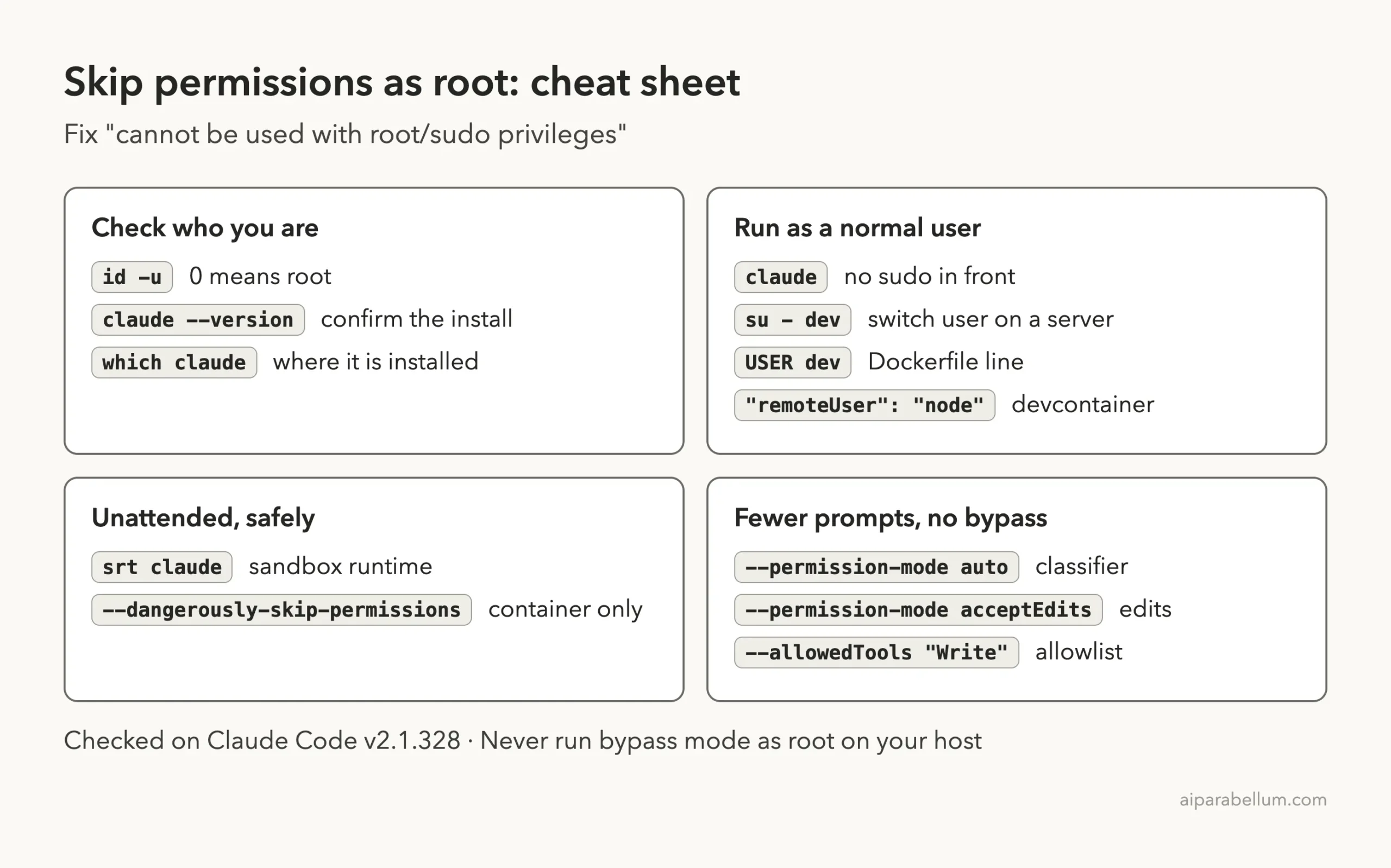
Cheat Sheet
Frequently Asked Questions
Why does Claude Code block –dangerously-skip-permissions as root?
Bypass mode lets Claude run commands without asking, and root can change anything on the system. Together they put the whole machine at risk, so on Linux and macOS Claude Code refuses to start that way.
Can I turn off the root check?
The docs only say the check is skipped inside a recognized sandbox. They don’t document a setting or variable to disable it, so the supported fix is to run Claude Code as a non-root user.
Does plain claude work as root?
The docs describe the refusal for bypass permissions mode only. Still, running any AI agent as root is risky, so use a normal user for every session.
How do I use –dangerously-skip-permissions in Docker?
Add a non-root user to your image with USER, or start the container with --user, then run claude -p "..." --dangerously-skip-permissions as that user. Limit the container’s network access too.
Is there a safer option than bypass mode?
Yes. Auto mode has a classifier review each action, acceptEdits only skips prompts for file edits, and --allowedTools approves just the tools you list.
Conclusion
The Claude Code dangerously skip permissions root error is a safety stop, not a bug: on Linux and macOS, Claude Code won’t run in bypass mode as root or under sudo. Drop sudo, create a normal user on servers and in containers, set a non-root remoteUser in dev containers, or use the sandbox runtime as your own user. And if you only wanted fewer prompts, auto mode, acceptEdits and allow lists get you there without bypass mode at all, as our own runs showed. To learn more about the model behind the tool, see our overview of Claude AI.