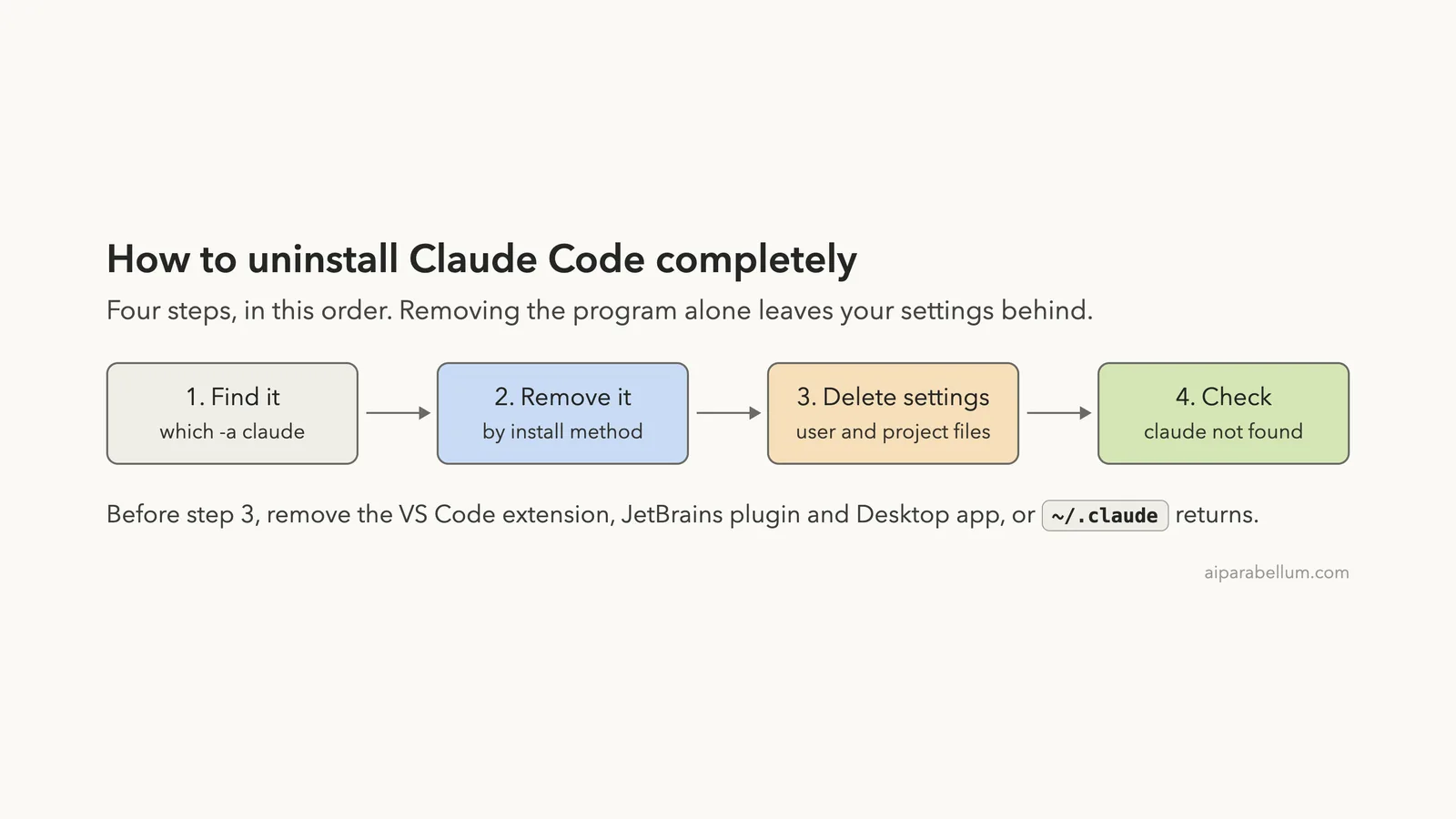
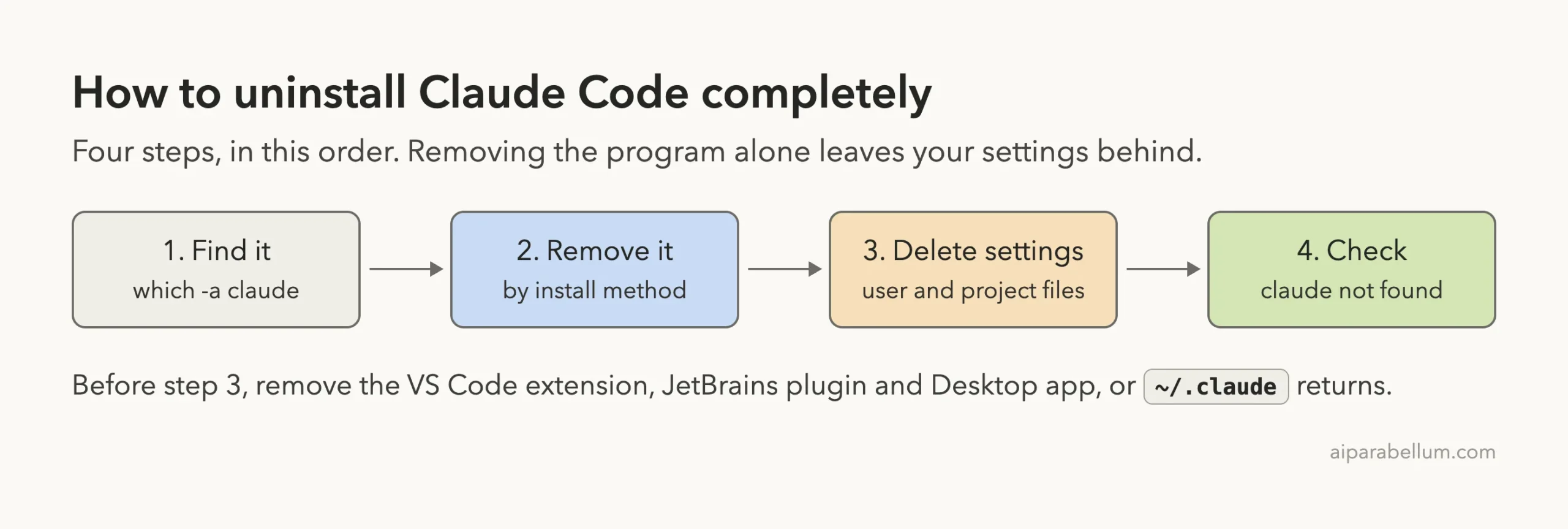
A full Claude Code uninstall takes two jobs, not one. First you remove the program with the command that matches how you installed it, then you delete the settings folders it leaves behind. Skip the second job and your settings, MCP servers and session history stay on your computer.
The short answer for most people: if you used the native installer on Mac, Linux or WSL, run rm -f ~/.local/bin/claude and rm -rf ~/.local/share/claude. Then, if you want every trace gone, delete ~/.claude and ~/.claude.json. Homebrew, WinGet, npm and Linux package installs each have their own one-line command, covered below.
This guide is part of our help series. Browse all our Claude Code tutorials for more fixes and how-tos.
Paths checked with Claude Code v2.1.322 on macOS on November 14, 2026. We ran the read-only checks on macOS, and every removal command on this page comes from Anthropic’s official setup documentation, including the Windows and Linux steps.
Claude Code Uninstall: Quick Summary
Pick the row that matches your install method. If you are not sure which one you used, the next section shows how to find out in a few seconds.
| How you installed it | Where it applies | Uninstall command |
|---|---|---|
| Native installer | Mac, Linux, WSL | rm -f ~/.local/bin/claude then rm -rf ~/.local/share/claude |
| Native installer | Windows PowerShell | Two Remove-Item commands (shown below) |
| Homebrew | Mac | brew uninstall --cask claude-code |
| WinGet | Windows | winget uninstall Anthropic.ClaudeCode |
| npm | Any system | npm uninstall -g @anthropic-ai/claude-code |
| apt, dnf or apk | Linux | Remove the package, then its repository files |
Why Removing Claude Code Takes More Than One Command
Claude Code is not a single app in a single folder. There is the program itself, and there is the data it writes while you work. The two live in different places, and no uninstaller removes both for you.
The program can come from five sources: the native installer, Homebrew, WinGet, npm or a Linux package manager. Each one puts the claude binary somewhere different, so each one has its own removal command. Using the wrong command does nothing, which is why people often think the uninstall failed.
The data is the same no matter how you installed. Your user settings sit in ~/.claude and ~/.claude.json, and each project can have its own .claude folder and .mcp.json file. Our guide to the .claude folder explains what each piece holds.
Removing the program stops Claude Code from running. Removing the settings is what makes the uninstall complete.
Step 1: Find Out How Claude Code Was Installed
Start by asking your system where claude lives. On Mac and Linux, open a terminal and run this command.
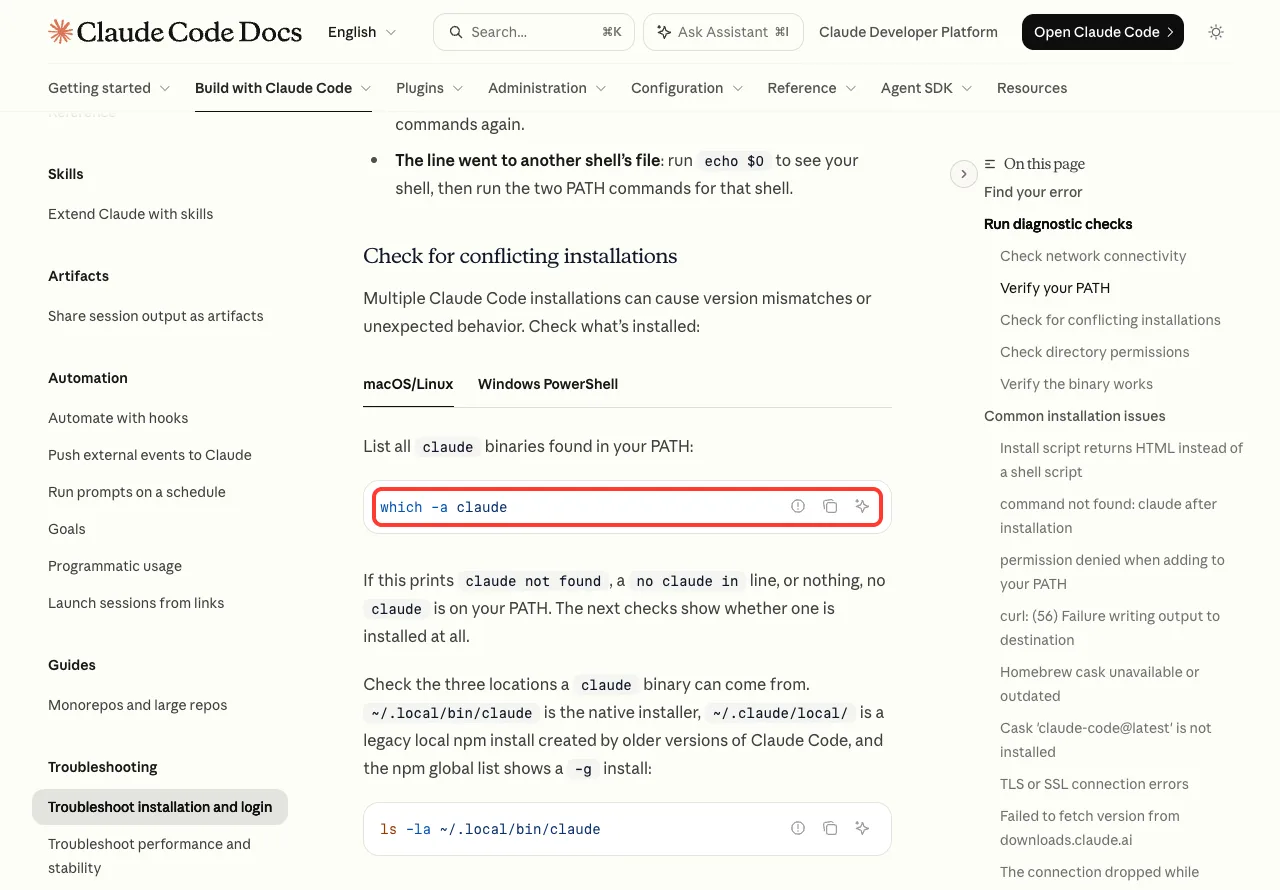
which -a claudeIt lists every claude binary on your PATH. A path ending in .local/bin/claude means the native installer. On Windows, the matching command in PowerShell is where.exe claude.
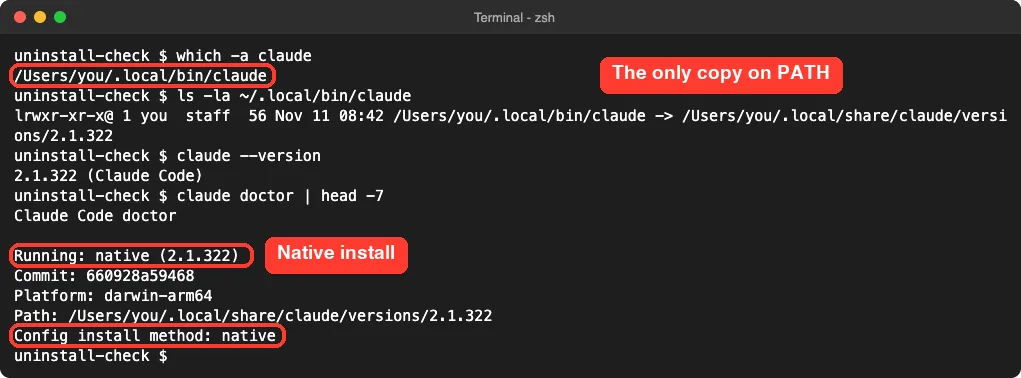
In our check, ls -la ~/.local/bin/claude showed a link pointing into ~/.local/share/claude/versions/. That link is the sign of a native install, as the official docs describe. Running claude doctor gives the same answer in plain words on the line that starts with Running.
Check for a Second Copy
Some machines have two installs, often an old npm one next to a newer native one. Anthropic’s docs list three places a claude binary can come from. Check each of them before you remove anything.
ls -la ~/.local/bin/claude
ls -la ~/.claude/local/
npm -g ls @anthropic-ai/claude-code
The first is the native installer. The second is a legacy local npm install made by older versions of Claude Code. The third shows a global npm install.
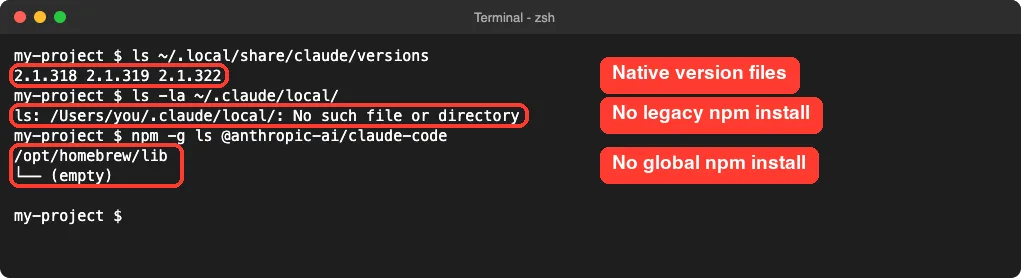
A “No such file or directory” reply is not an error here. It simply means nothing is installed at that spot, so you can move on to the next check.
Step 2: Uninstall Claude Code by Install Method
Now run the command for the install you found. If you found two installs, run both commands. Close any running Claude Code sessions first so nothing is in use.
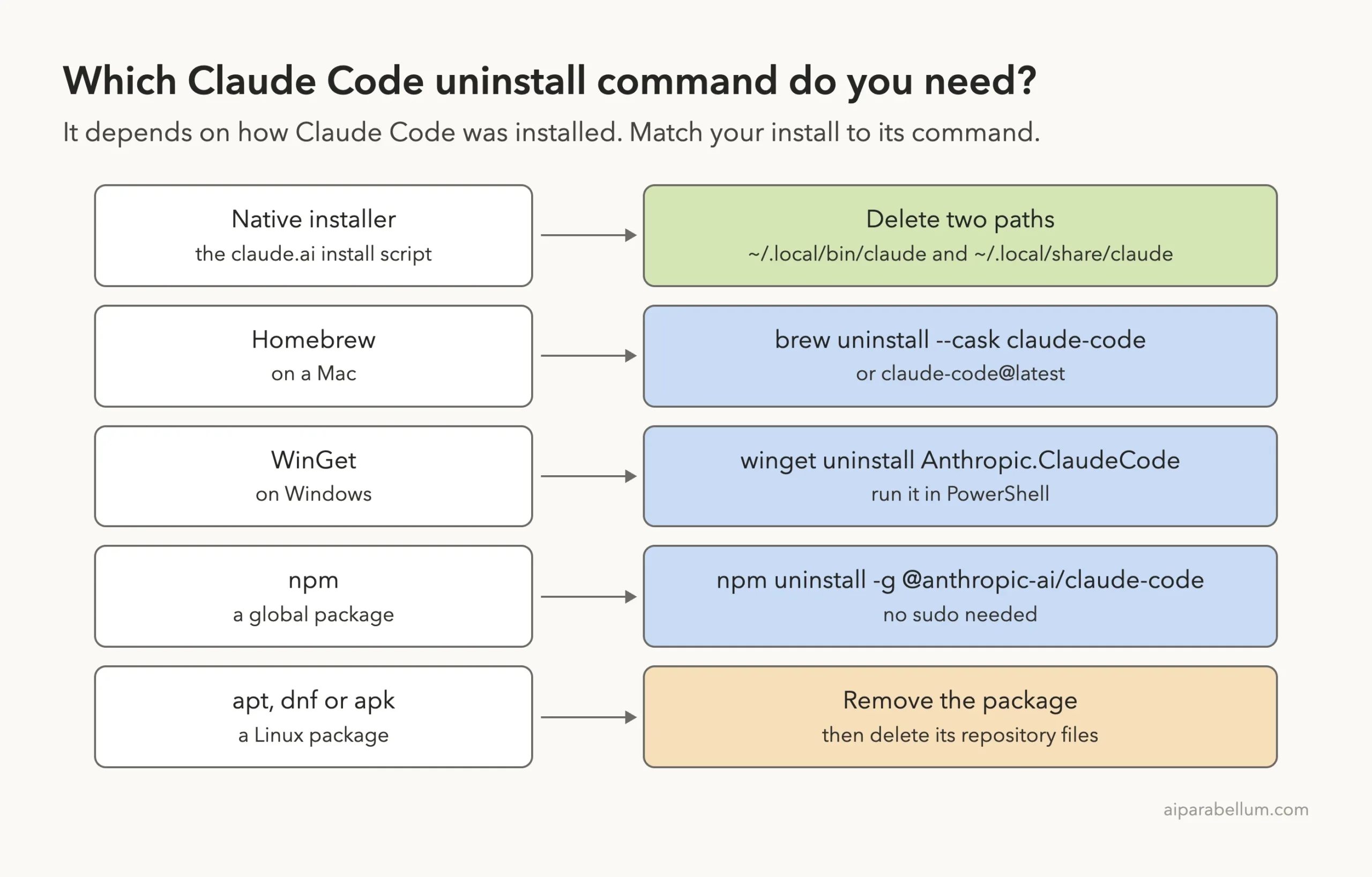
Native Install on Mac, Linux and WSL
The native installer has no uninstall command. You delete two paths by hand: the launcher and the folder of downloaded versions.
rm -f ~/.local/bin/claude
rm -rf ~/.local/share/claude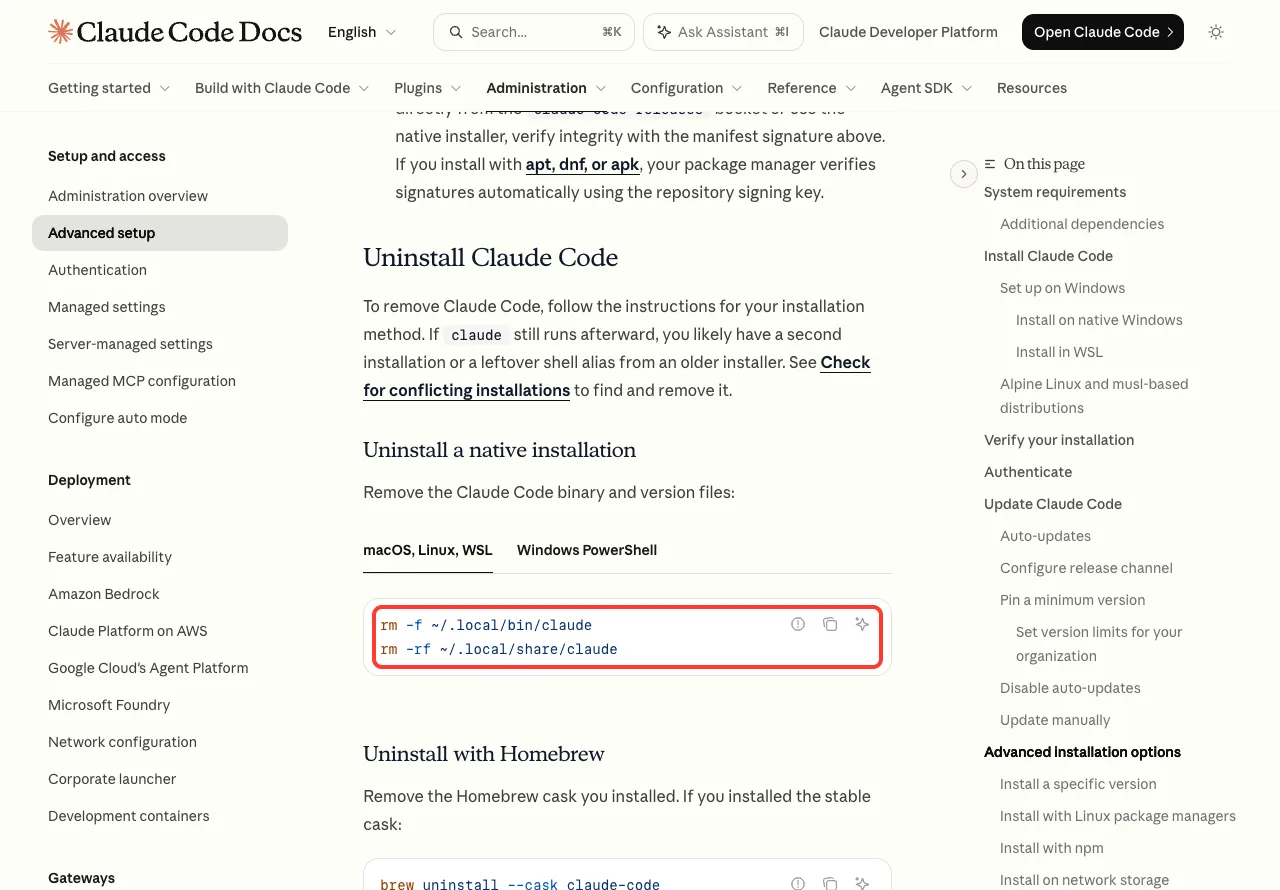
Type these carefully, since rm -rf deletes without asking. The paths are fixed, so copy them exactly as shown.
Native Install on Windows
On Windows the same two paths live under your user profile. Open PowerShell and run both lines.
Remove-Item -Path "$env:USERPROFILE\.local\bin\claude.exe" -Force
Remove-Item -Path "$env:USERPROFILE\.local\share\claude" -Recurse -Force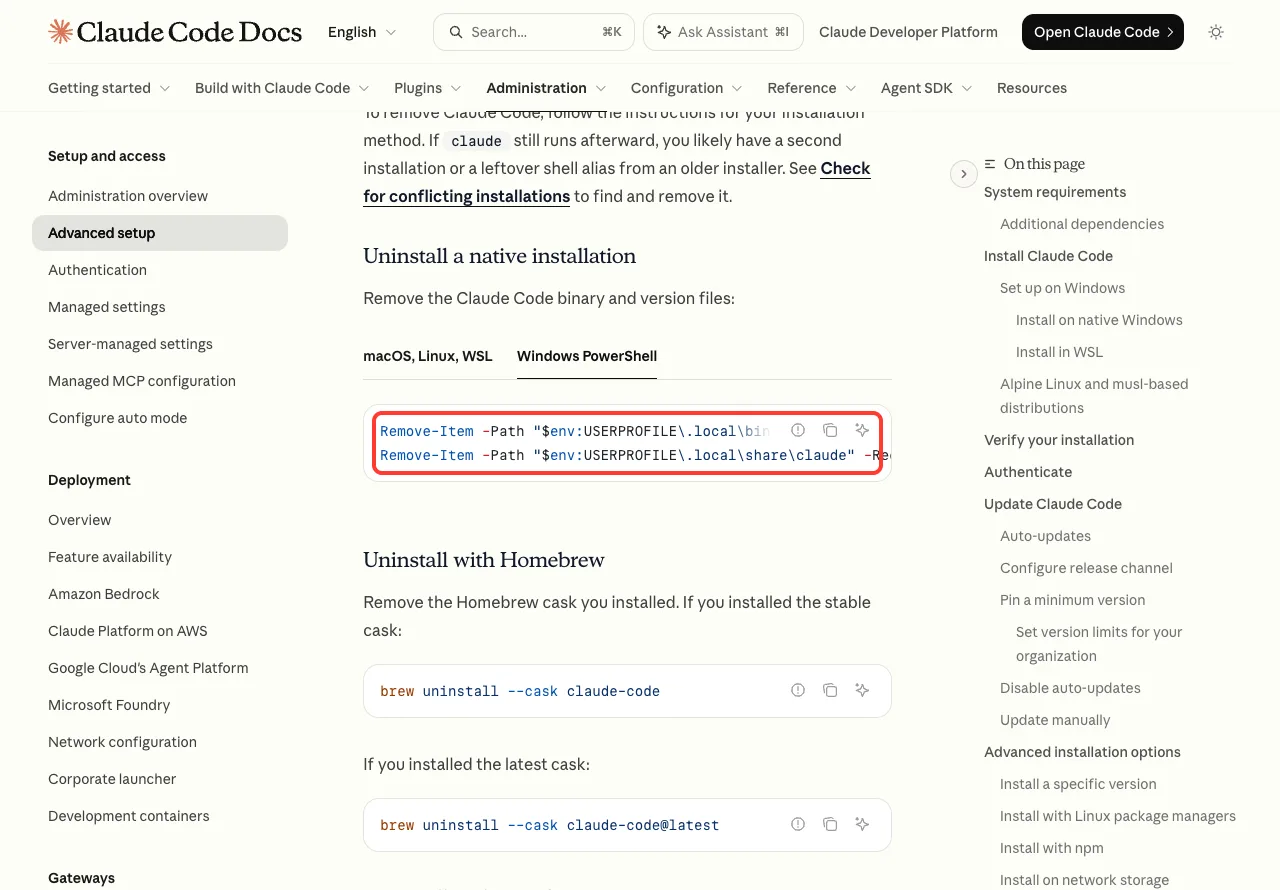
These commands are for PowerShell, not CMD. Your prompt starts with PS when you are in PowerShell.
Homebrew and WinGet
Homebrew offers two casks, so remove the one you installed. The stable cask is claude-code and the other is claude-code@latest.
brew uninstall --cask claude-code
brew uninstall --cask claude-code@latest
On Windows, a WinGet install comes off with one line.
winget uninstall Anthropic.ClaudeCode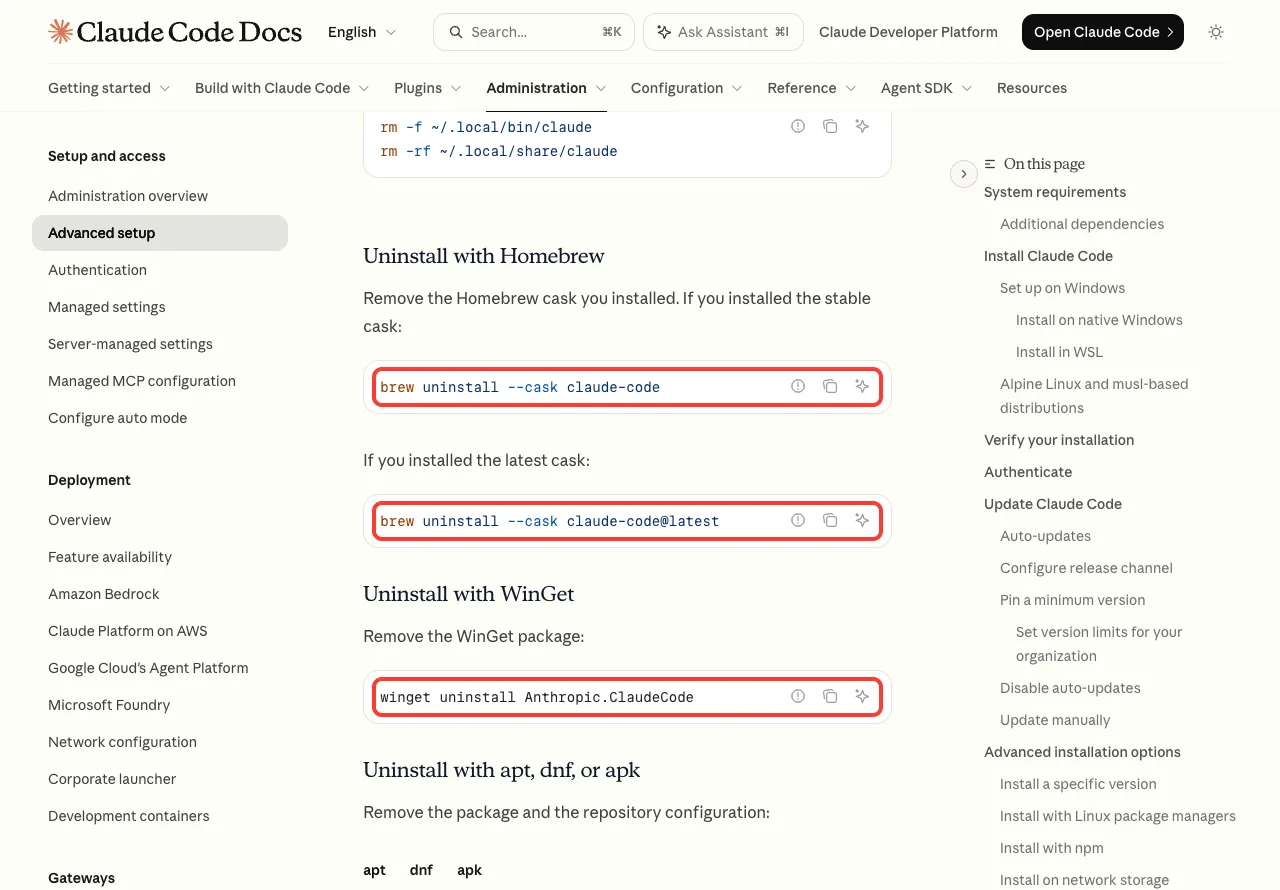
npm
If you installed the global npm package, remove it the same way you added it. You do not need sudo for this.
npm uninstall -g @anthropic-ai/claude-codeIf the legacy folder check found something at ~/.claude/local, the docs say to delete that folder too with rm -rf ~/.claude/local. On Windows, the same folder sits under your user profile.
Linux Packages: apt, dnf and apk
A package manager install has two parts: the package and the repository entry that was added for it. The docs remove both.
# Debian and Ubuntu
sudo apt remove claude-code
sudo rm /etc/apt/sources.list.d/claude-code.list /etc/apt/keyrings/claude-code.asc

# Fedora and RHEL
sudo dnf remove claude-code
sudo rm /etc/yum.repos.d/claude-code.repo

# Alpine
apk del claude-code
sed -i '\|downloads.claude.ai/claude-code/apk|d' /etc/apk/repositories
rm /etc/apk/keys/claude-code.rsa.pub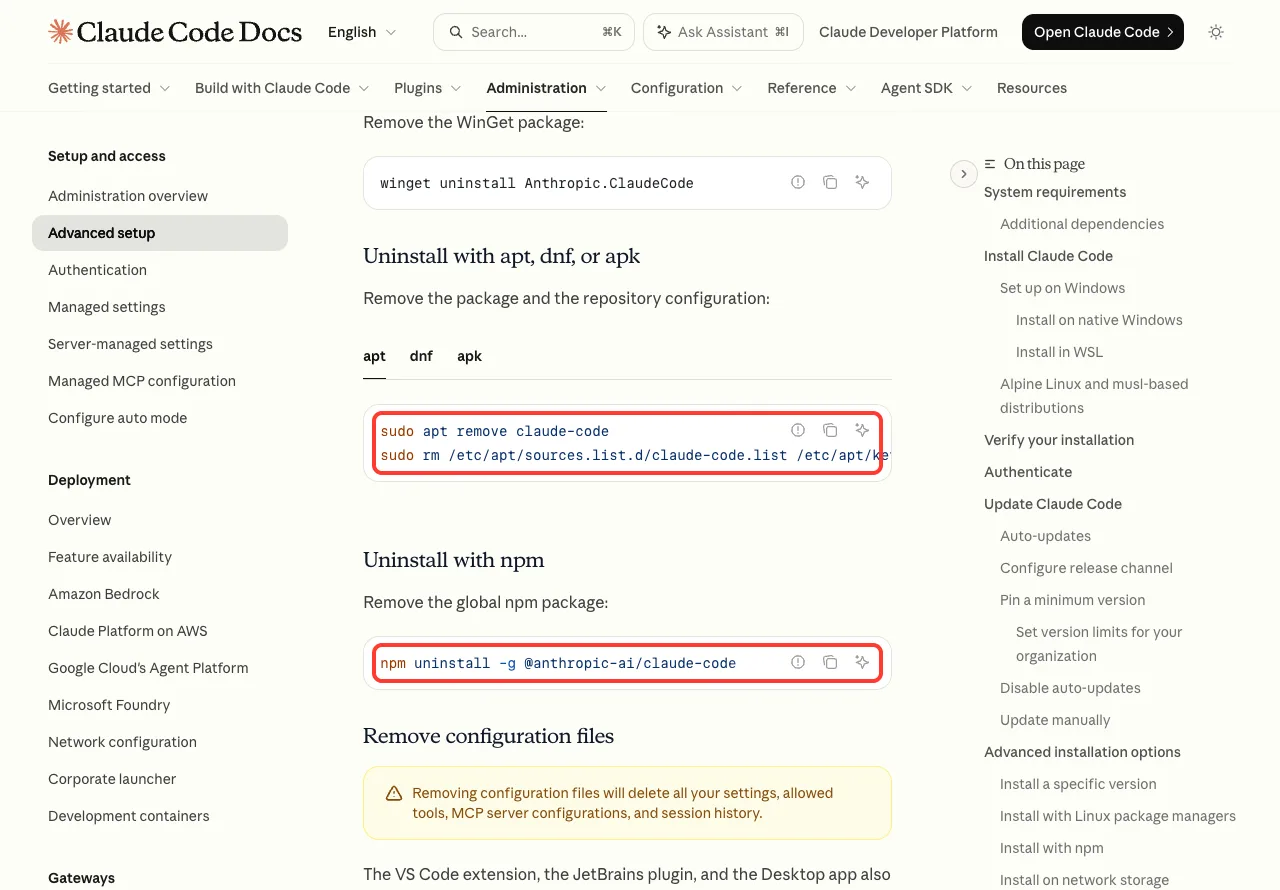
Step 3: Delete Claude Code Settings and Leftover Files
This is the step that makes the removal complete, and it is optional. If you plan to reinstall later, stop here and keep your settings. If you want a clean slate, read on.
The official docs carry a clear warning for this step. Removing the configuration files deletes all your settings, allowed tools, MCP server configurations and session history. There is no undo, so copy anything you want to keep first.
| Path | What it is | Where to delete it |
|---|---|---|
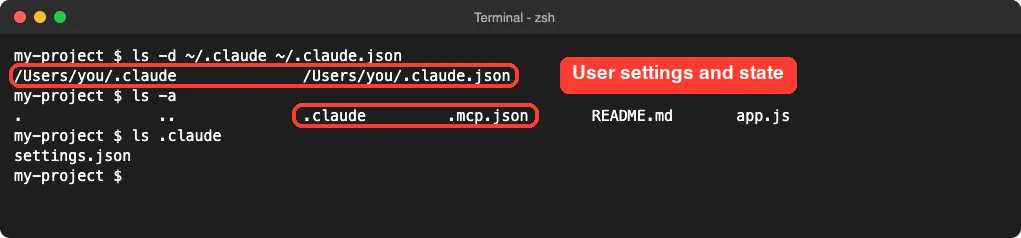
~/.claude | User settings and state | Your home folder |
~/.claude.json | User state file | Your home folder |
.claude | Project-specific settings | Inside each project |
.mcp.json | Project MCP servers | Inside each project |
We listed these on our Mac without deleting anything. Both user paths were there, and our small demo project had its own .claude folder and .mcp.json file.
Remove Other Claude Apps First
Here is the detail most guides miss. The VS Code extension, the JetBrains plugin and the Desktop app also write to ~/.claude. If any of them is still installed, the folder is recreated the next time it runs.
So uninstall those before you delete the files. Our guide to the IDE extensions shows where they live, and the official docs have a section on how to uninstall the extension in VS Code.
The Commands for Mac, Linux and WSL
# Remove user settings and state
rm -rf ~/.claude
rm ~/.claude.json

# Remove project-specific settings (run from your project directory)
rm -rf .claude
rm -f .mcp.json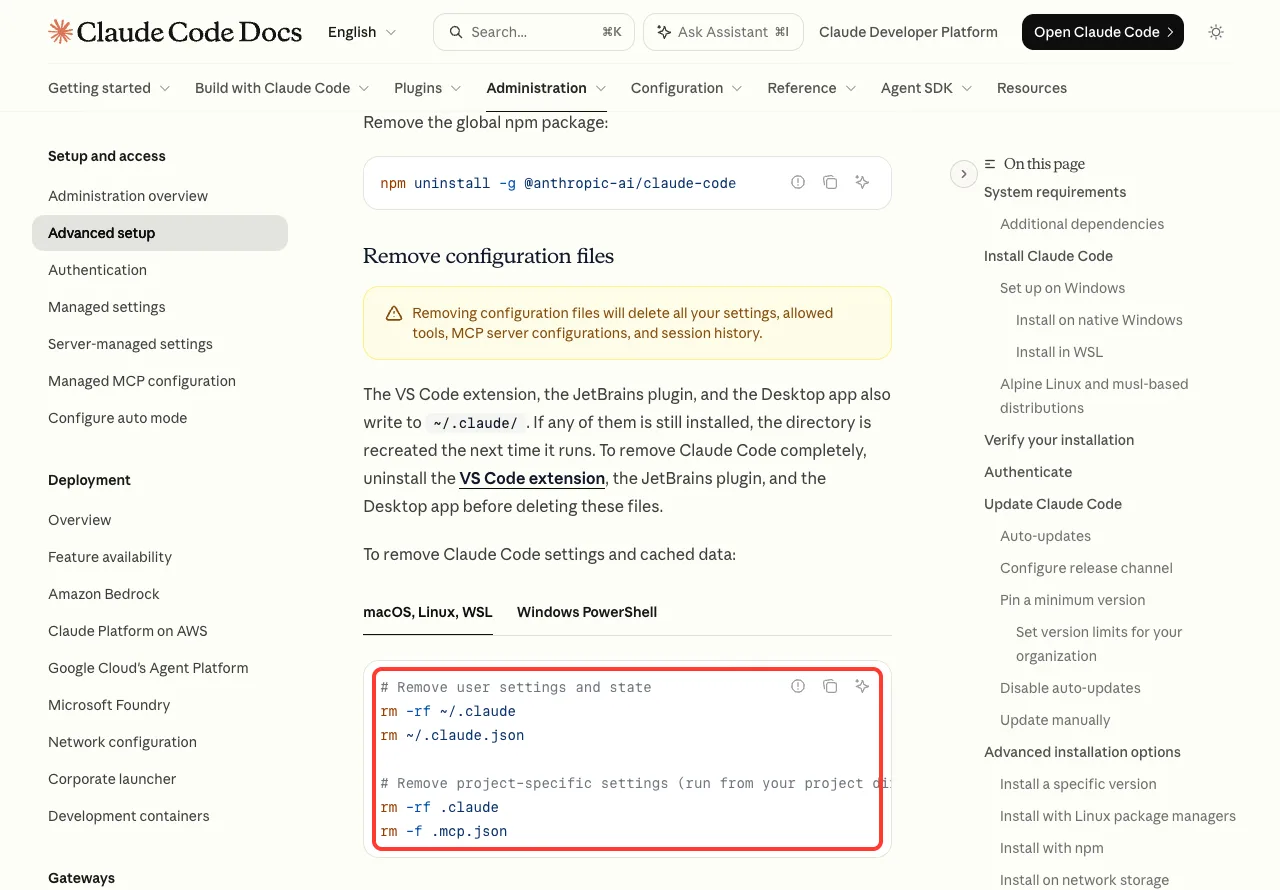
The project commands only work inside a project folder. Run them once in each project where you used Claude Code.
The Commands for Windows PowerShell
# Remove user settings and state
Remove-Item -Path "$env:USERPROFILE\.claude" -Recurse -Force
Remove-Item -Path "$env:USERPROFILE\.claude.json" -Force

# Remove project-specific settings (run from your project directory)
Remove-Item -Path ".claude" -Recurse -Force
Remove-Item -Path ".mcp.json" -Force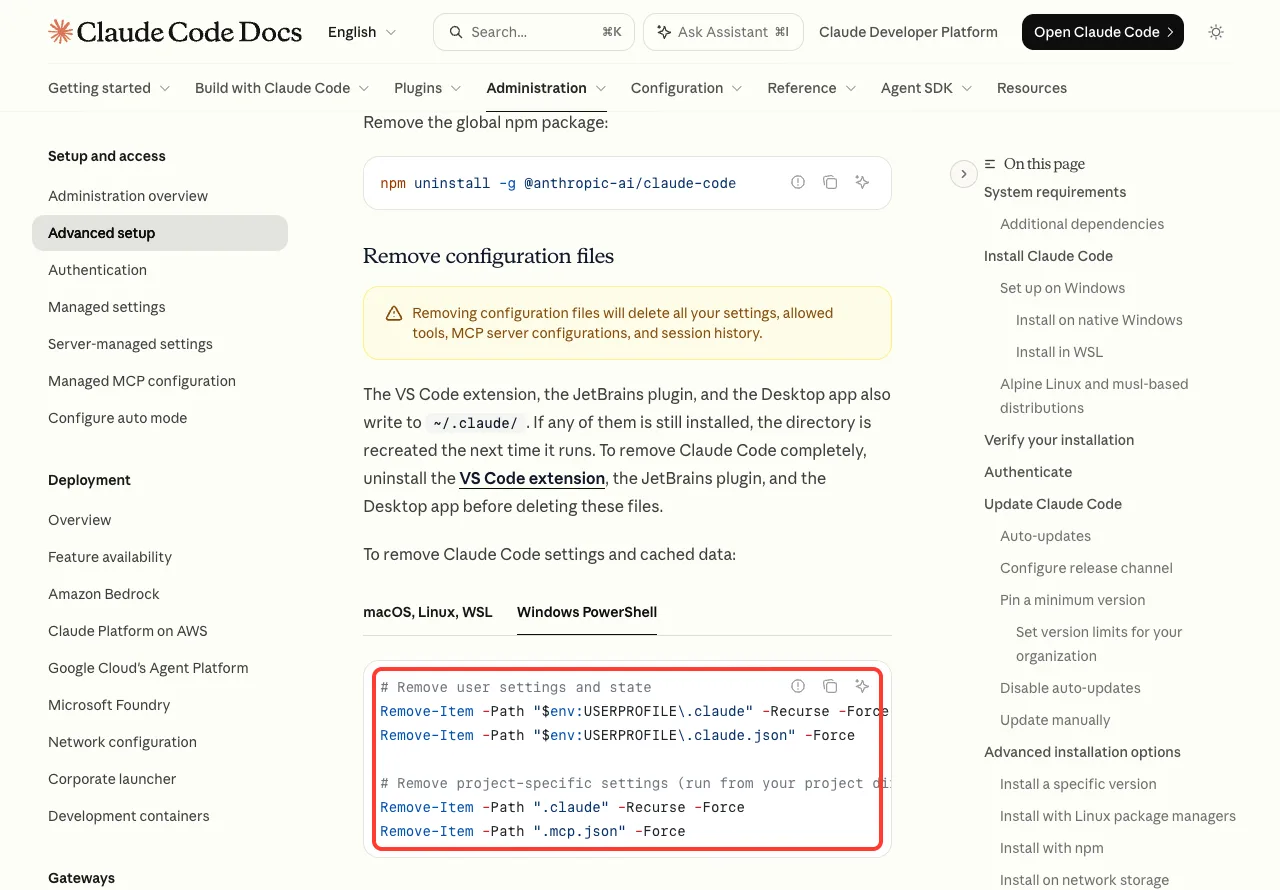
Step 4: Check That Claude Code Is Gone
Open a new terminal window and run the same check from step 1. A fresh window matters, because an old one can remember where claude used to be.
which -a claude
claude --version
On Mac and Linux, the docs say a reply of “claude not found”, a “no claude in” line or nothing at all means no claude is on your PATH. On Windows, where.exe claude prints a message that it could not find files for the pattern.
If the claude Command Still Runs
The docs name two likely causes: a second installation, or a leftover shell alias from an older installer. Go back to the three checks in step 1 and remove whatever they find.
For an alias, look in your shell startup file, such as ~/.zshrc or ~/.bashrc, for a line that starts with alias claude. Delete that line and open a new terminal. The official page on how to check conflicting installations walks through the same hunt.
Try It Yourself: A Safe Dry Run
Before you delete anything, run this read-only block. It only lists files, so it is safe on any Mac or Linux machine. It shows exactly what a full removal would touch.
which -a claude
ls -la ~/.local/bin/claude
ls ~/.local/share/claude/versions
ls -la ~/.claude/local/
npm -g ls @anthropic-ai/claude-code
ls -d ~/.claude ~/.claude.json
Write down which lines return a real path. Those are the only things you need to remove. Everything that returns “No such file or directory” can be ignored.
Common Mistakes When You Uninstall Claude Code
- Running the wrong command.
npm uninstalldoes nothing to a native install, andbrew uninstalldoes nothing to an npm one. - Stopping after the program is gone. Your settings and session history are still in
~/.claude. - Deleting
~/.claudewhile the VS Code extension or Desktop app is installed. The folder comes right back. - Deleting a project’s
.claudefolder or.mcp.jsonthat your team keeps in git. That removes shared project settings for everyone on the next commit. - Using the wrong Homebrew cask name. If you installed
claude-code@latest, the plainclaude-codecommand will not find it. - Checking in the same terminal window. Open a new one before you decide the uninstall failed.
Pro Tips
- Back up first. A quick
cp -r ~/.claude ~/claude-backupsaves your settings in case you change your mind. - Want to fix a broken install instead? Removing only the program and then reinstalling keeps your settings in place. Our guide on updating Claude Code covers the lighter fixes to try first.
- Not sure what your settings files contain? See where settings.json lives before you delete it.
- Project MCP servers are easy to lose. Check the MCP config file if you want to keep a copy of your server list.
- To come back later, the install guide has the one-line installer for every system.
- If login trouble is the reason you are removing it, try our fixes for login problems first. A reinstall is rarely needed for those.
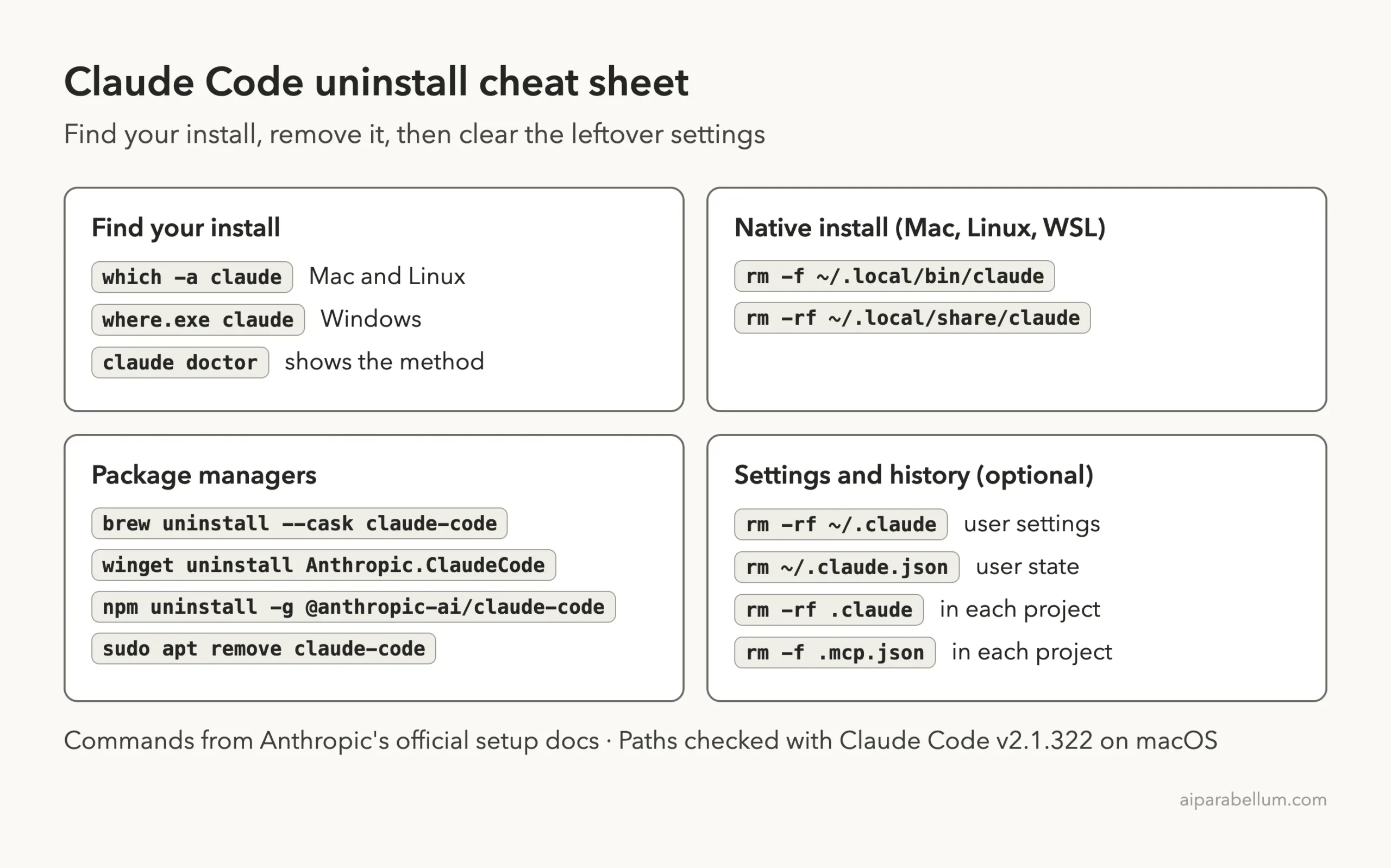
Uninstall Cheat Sheet
Save this card for later. It holds the find, remove and clean-up commands on one page.
Frequently Asked Questions
Is there a claude uninstall command?
The official setup docs do not list one. A native install is removed by deleting two paths, and every other install uses its package manager’s own uninstall command.
Will uninstalling delete my chat history and settings?
Not by itself. Removing the program leaves ~/.claude and ~/.claude.json in place, so your settings and session history survive. They are only deleted if you run the configuration removal step.
Why does the .claude folder keep coming back?
Another Claude product is still installed. The VS Code extension, the JetBrains plugin and the Desktop app all write to ~/.claude, so the folder is recreated when one of them runs. Uninstall those first.
Does uninstalling Claude Code cancel my plan?
The uninstall steps in the docs only remove files from your computer. They do not touch your account, so manage any paid plan from your account settings on the Claude website.
Can I reinstall Claude Code after removing it?
Yes. On Mac, Linux or WSL, run curl -fsSL https://claude.ai/install.sh | bash and then claude --version in a new terminal. If you kept your settings folder, your setup is still there when you return.
Conclusion
To remove Claude Code for good, work in order: find how it was installed, run the matching removal command, delete the settings if you want a clean slate, and check in a new terminal. The native install needs two rm commands, while Homebrew, WinGet, npm and Linux packages each need one uninstall line. The settings in ~/.claude and ~/.claude.json stay until you delete them, and they return if another Claude app is still installed. For the latest wording of every command, see the official uninstall steps.