The Claude Code MCP disable switch lets you turn a server off without deleting it. That matters when a server is noisy, slow, or just not needed in the project you are working on today. In this guide we switch two test servers off and on, check what Claude can still see, and find out what really reloads after you change a server or its config.
Browse all our Claude Code tutorials for more guides like this one.
Tested with Claude Code v2.1.322 on November 14, 2026, on macOS. Every command ran against small local test servers in a throwaway project. Our sessions loaded project settings only, so the screenshots show just the test servers and the built-in ones.
Claude Code MCP Disable: The Quick Answer
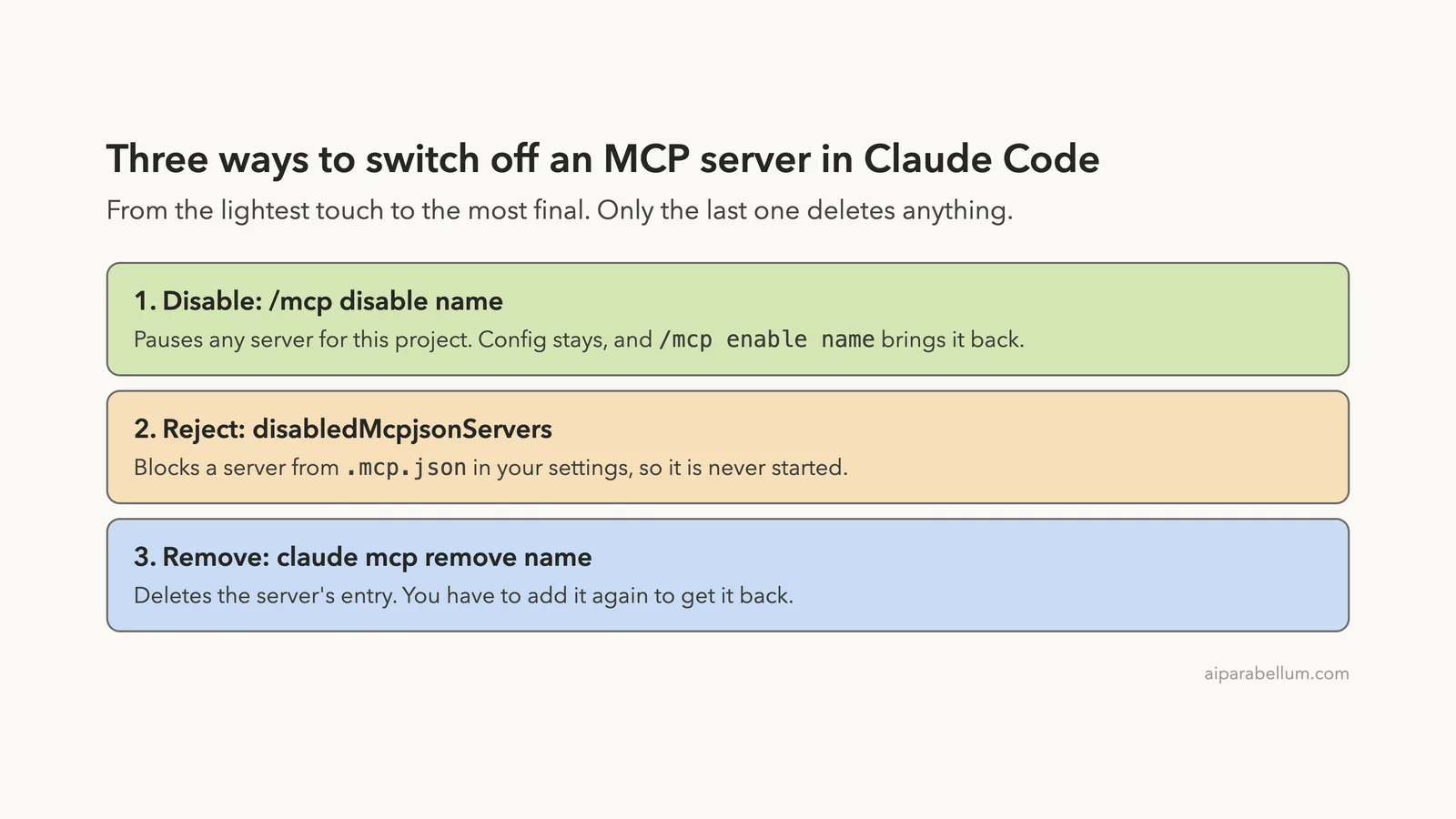
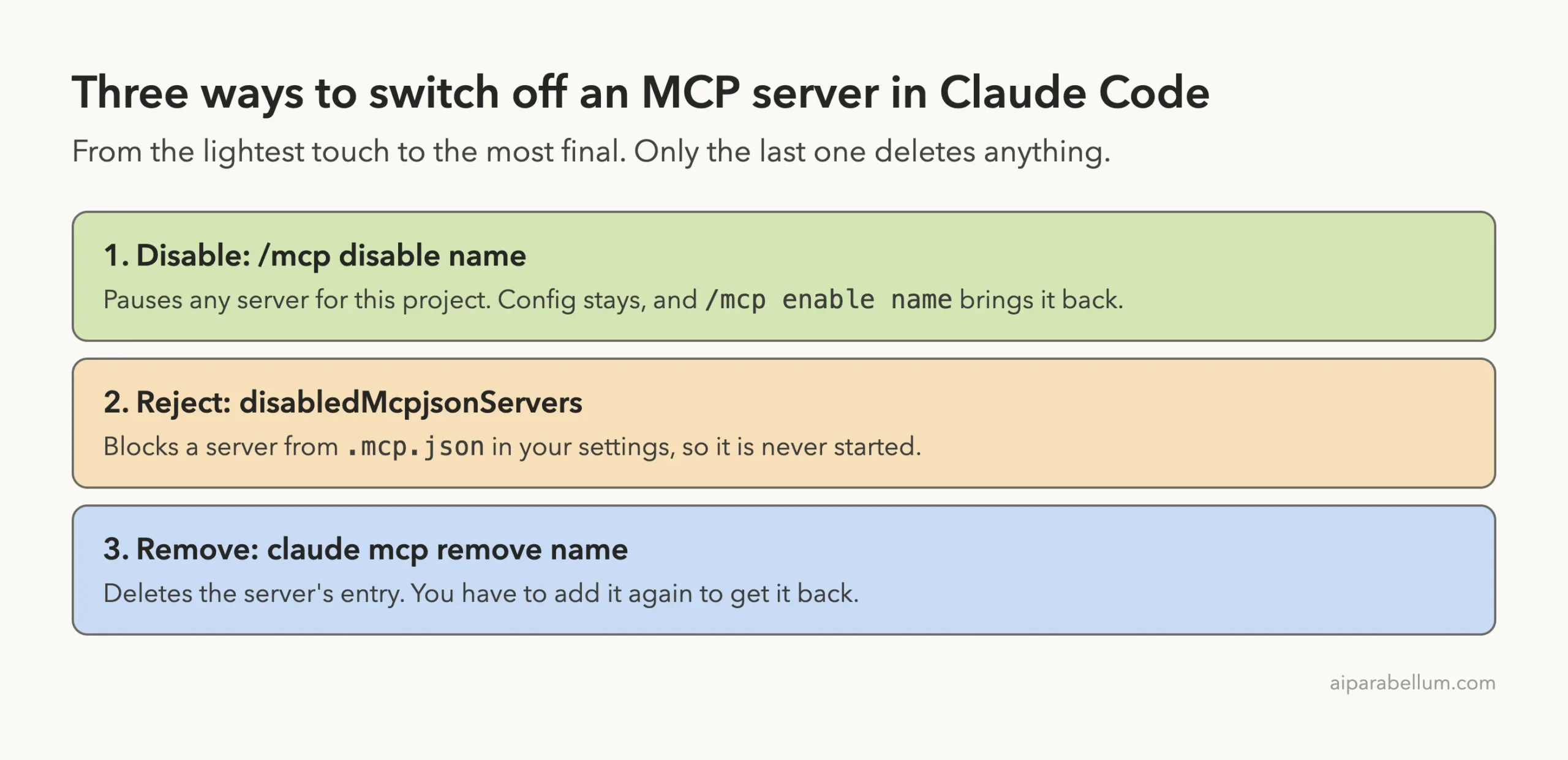
Inside a session, type /mcp disable and the server name. To turn it back on, use /mcp enable.
/mcp disable weather
/mcp enable weather
You can do the same from the panel: run /mcp, pick the server, and choose Disable. The server stays in your config, and the choice is saved for the current project only.
| You want to | Use this | What happens |
|---|---|---|
| Pause a server in this project | /mcp disable name | Claude Code stops connecting to it; config is kept |
| Turn it back on | /mcp enable name | The server connects again in the same session |
| Restart one server | /mcp reconnect name | Picks up new server code and a changed config entry |
| Retry broken servers | /mcp reconnect all | Retries servers that failed or need sign-in |
Block a server from .mcp.json | disabledMcpjsonServers | The server is rejected and never started |
| Delete a server | claude mcp remove name | The entry is gone until you add it again |
Why Disable an MCP Server Instead of Removing It
MCP servers give Claude extra tools, such as a database or a browser. If the idea is new, start with our MCP servers guide. The trouble is that every connected server stays connected in every session, whether you need it or not.
Removing a server fixes that, but you lose its command, its arguments and its keys. Next week you have to set it all up again. Disabling keeps the setup and only stops the connection.
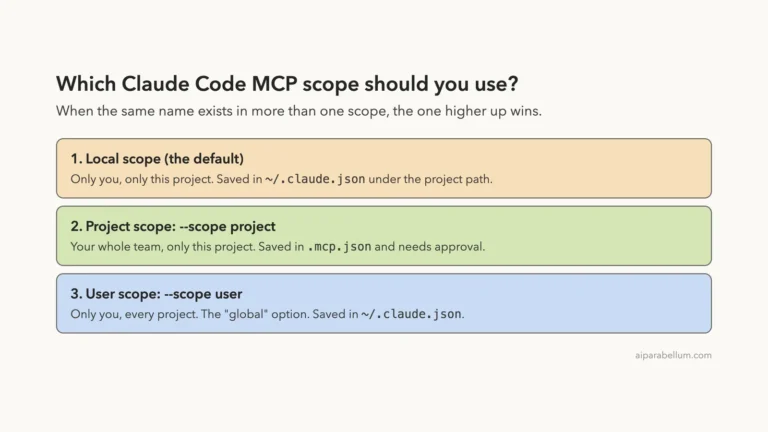
There is a second reason. A server you added at user scope loads in all your projects, and you may want it in most of them but not in one. The official MCP docs say the toggle is recorded per project, so you can switch a global server off in one folder and leave it on everywhere else.
Disable is a pause button. Remove is a delete button. Most of the time you want the pause.
Our Test Setup
We made an empty project named shop-app with a .mcp.json file that defines two tiny servers. One is called notes and has two tools. The other is called weather and has one tool.
{
  "mcpServers": {
    "notes": {
      "command": "node",
      "args": ["servers/notes-server.js"]
    },
    "weather": {
      "command": "node",
      "args": ["servers/weather-server.js"],
      "env": { "STATION": "station-A" }
    }
  }
}
The servers return sample data and nothing else. That keeps the test about switching servers on and off, and you can follow along with any server you already use.
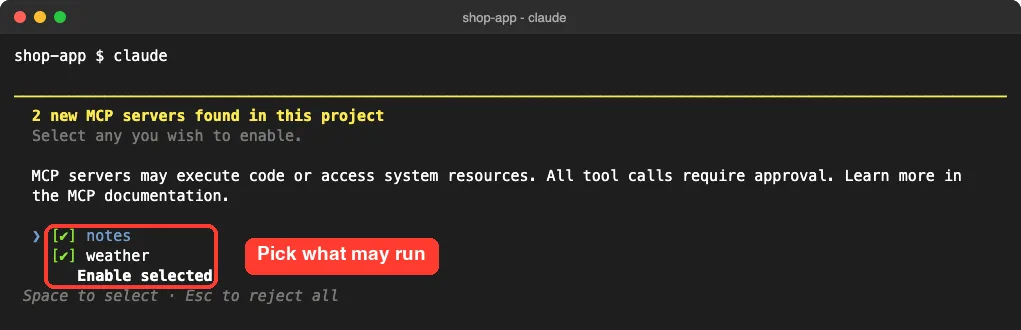
Because the servers come from .mcp.json, Claude Code asked for approval the first time we started a session. We left both boxes ticked and chose Enable selected.
Step 1: Open the /mcp Panel
Type /mcp in a session and press Enter. The panel lists every server Claude Code knows about, grouped by where it comes from, with a tool count next to each connected one.
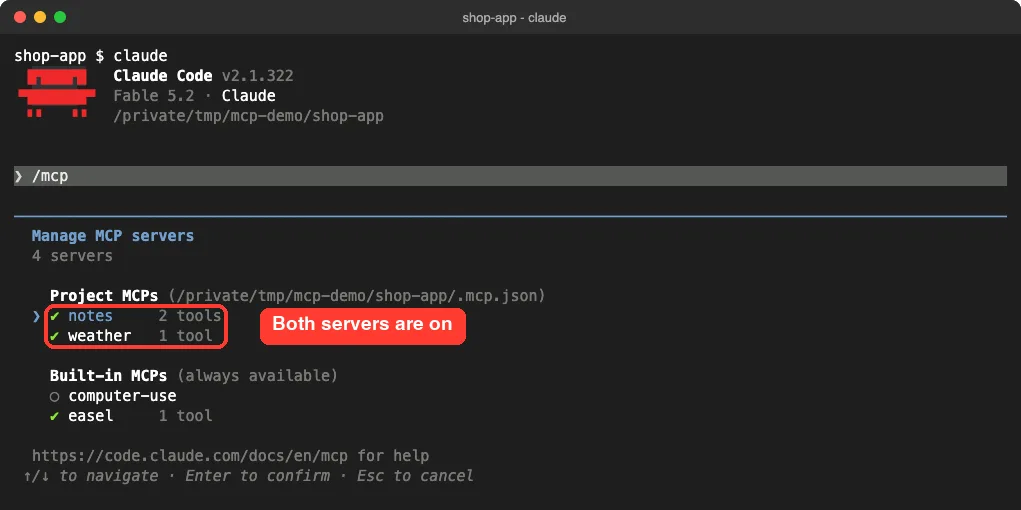
Our two servers show a green check. Below them are two built-in entries that ship with Claude Code. One of them, computer-use, has an empty circle because the docs list it as a built-in server that is off by default.
Step 2: Disable a Server From the Panel
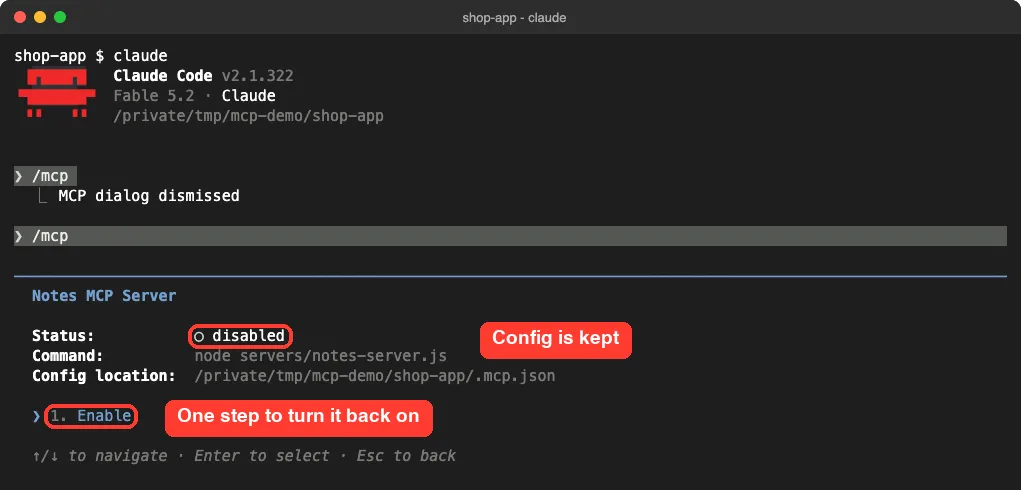
We selected notes and pressed Enter. The detail view shows the status, the command, the config file the server comes from, and a short menu.
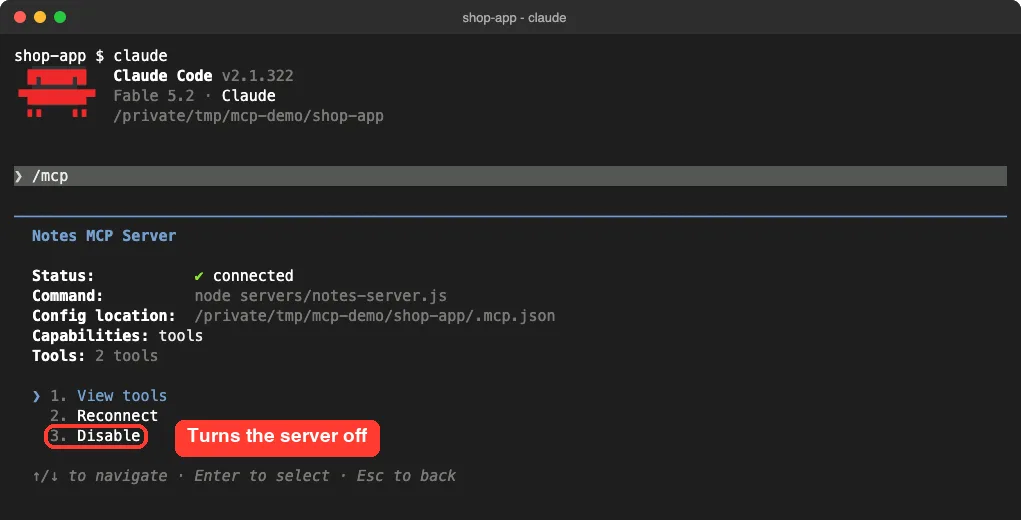
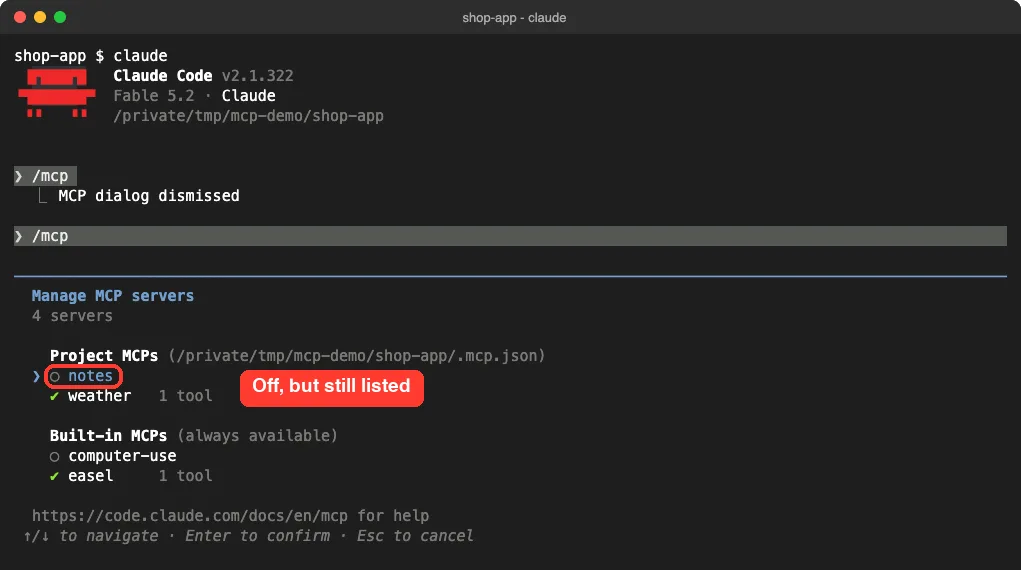
We chose Disable. Back in the panel, notes now had an empty circle and no tool count, while weather was untouched.
Opening the disabled server shows why this is safe. The command and the config location are still there, and the menu shrinks to one action.
Step 3: Enable and Disable With One Command
The panel takes a few key presses. In our session there was a faster way: put the action and the server name right after /mcp.
/mcp enable notes
/mcp disable weather
Each command answered with a one-line confirmation, such as MCP server "weather" disabled. The docs page we read describes the panel toggle, so treat these short forms as what we saw in v2.1.322.
To prove the switch does something, we asked Claude the same question before and after turning weather off.
Which MCP tools can you call right now? List the names only and do not run anything.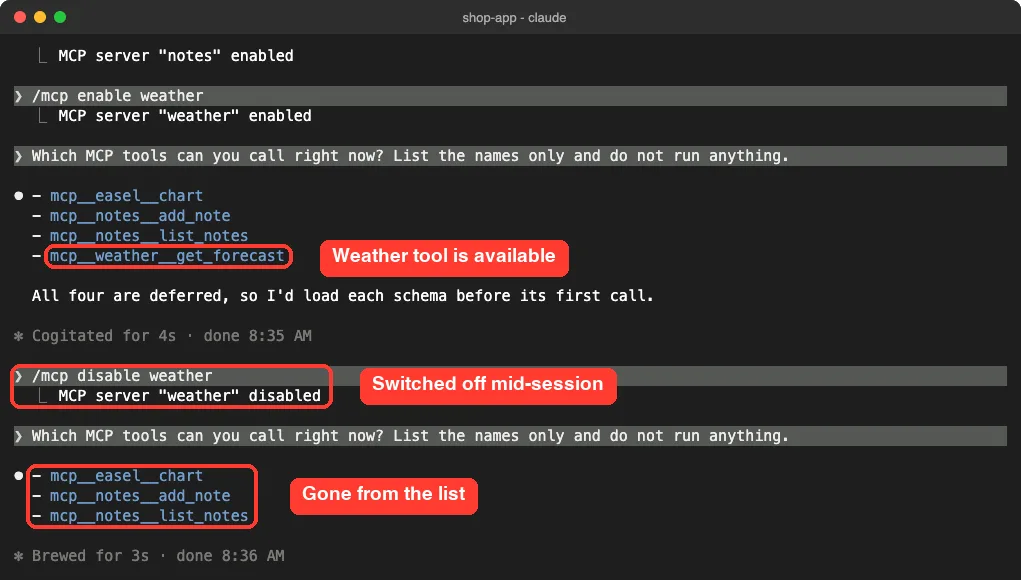
The first answer listed four tools, including mcp__weather__get_forecast. After the disable command, the second answer listed three. No restart was needed, and the change took effect in the middle of the conversation.
Step 4: Check the Status From the Shell
You do not need an open session to see which servers are off. With both test servers disabled, we ran the two status commands in the project folder.
claude mcp list
claude mcp get weather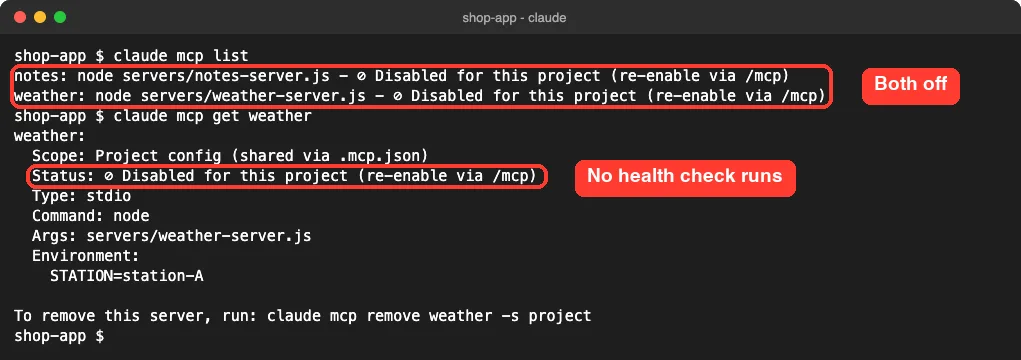
Both servers showed Disabled for this project (re-enable via /mcp). The docs explain that this status reports a configuration decision, so Claude Code prints it without trying to connect.
That screenshot also answers a common question. The choice survived the end of the session: we had already quit Claude Code when we ran these commands. A disabled server stays disabled until you enable it.
One limit is worth knowing. We found no claude mcp disable command in the shell, and the status line itself points you back to /mcp.
Where Claude Code Saves the Disabled List
The docs say the toggle is saved per project in ~/.claude.json, in a list named disabledMcpServers. We printed that list for our project with jq.
jq '.projects["/private/tmp/mcp-demo/shop-app"].disabledMcpServers' ~/.claude.json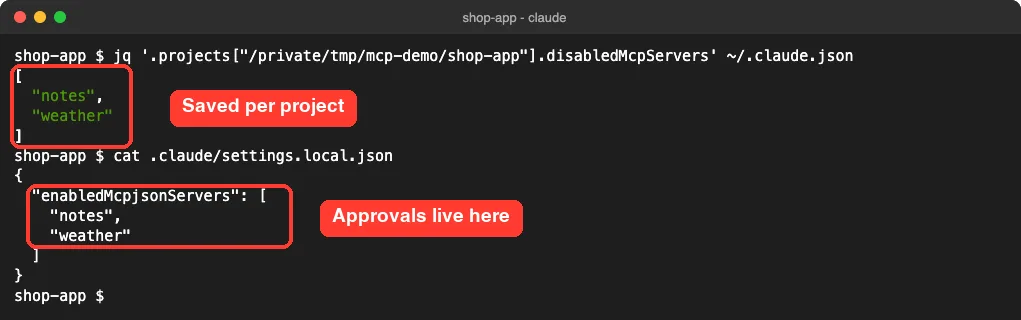
Both server names were there, under the entry for this one folder. That is why disabling a server here does nothing to the same server in another project. Our guide to the MCP config file covers the rest of that file.
The second half of the screenshot shows a different list, enabledMcpjsonServers, in the project’s .claude/settings.local.json. It records which .mcp.json servers you approved. The docs are clear that the two are unrelated: one is about approval, the other is the on and off switch.
The docs also describe a sister list named enabledMcpServers. It is an opt-in list for built-in servers that start off, such as computer-use. Claude Code checks exactly one of the two lists for each server, so they never fight each other.
What Disabling a Server Does Not Do
Disabling removes the server’s tools from the session. It does not hide the server’s files. We learned this by accident.
With notes disabled, we asked Claude to list the project notes. It had no notes tool, so it looked around the project, asked permission to run a shell command, and after we approved it, started the server script by hand.
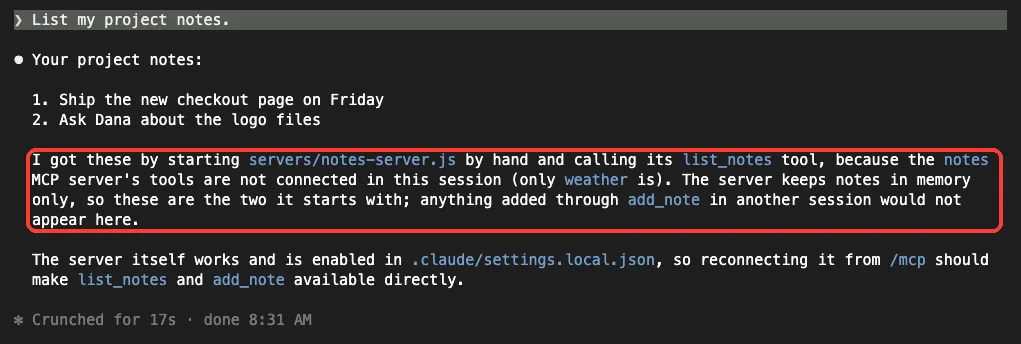
This only happened because our server lives inside the project as a plain script, and because we said yes to the shell command. Still, the lesson holds. Disabling is a way to cut noise and save context, not a security wall, so use permission rules when you need to block something for real.
Reload an MCP Server After a Change
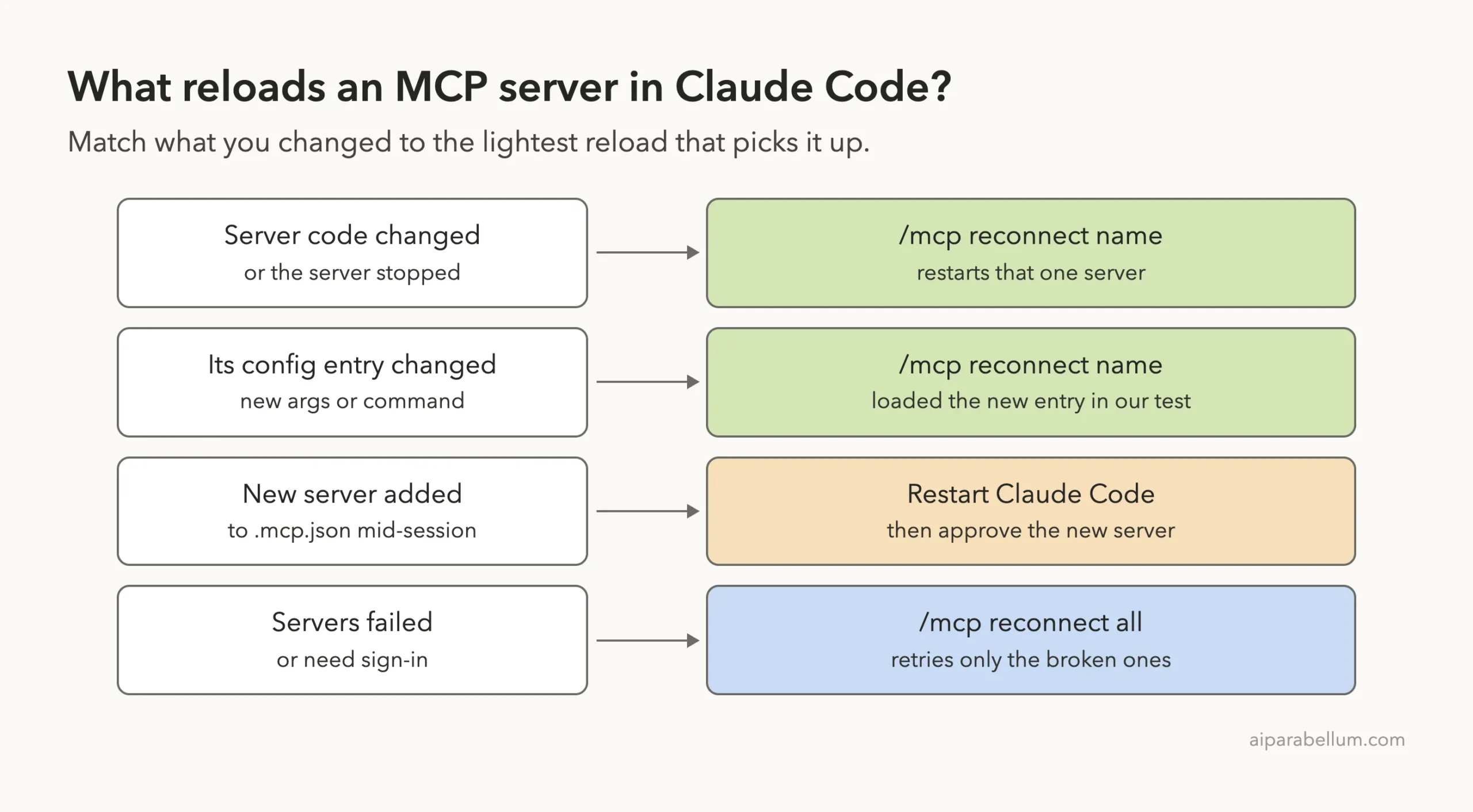
The other half of this topic is reloading. You edit a server, or its config, and want the running session to notice. We tested three kinds of change, and they did not behave the same way.
You Changed the Server’s Code
While a session was open, we edited the notes server from a second terminal and gave it a third tool. The /mcp panel still showed 2 tools, because the old process was still running.
Then we reconnected that one server.
/mcp reconnect notes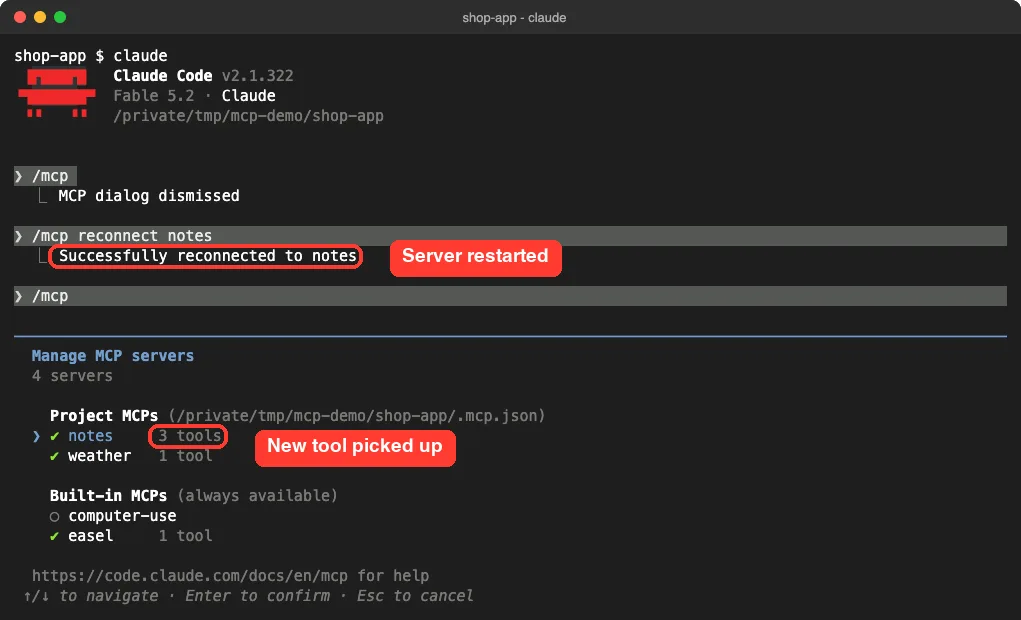
Claude Code answered Successfully reconnected to notes, and the count went from 2 to 3. The same action sits in the panel as Reconnect, in the server’s menu.
The docs add one detail. A server can announce changes to its own tool list while it is connected, and in an interactive session Claude Code then fetches the new list by itself. Our test servers do not send that notice, so we needed the reconnect.
You Changed the Server’s Config Entry
Next we edited .mcp.json while the session was open. We pointed weather at a newer script with two tools, and we added a third server named todo. Then we ran both reconnect commands.
/mcp reconnect weather
/mcp reconnect all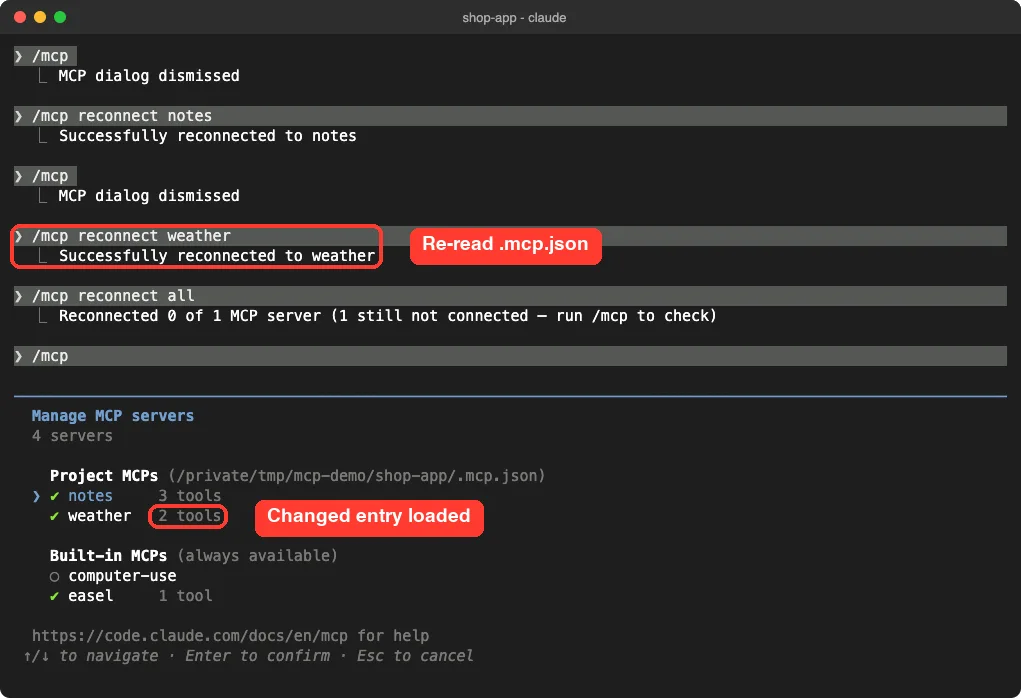
The result was split. Reconnecting weather loaded the changed entry, and its count went from 1 tool to 2. The new todo server did not appear at all, even after /mcp reconnect all.
That second command is easy to misread. The docs say it retries every server that failed or needs authentication, and that it needs v2.1.284 or later. In our session nothing had failed, so it reported zero servers reconnected and left the healthy ones alone.
You Added a New Server
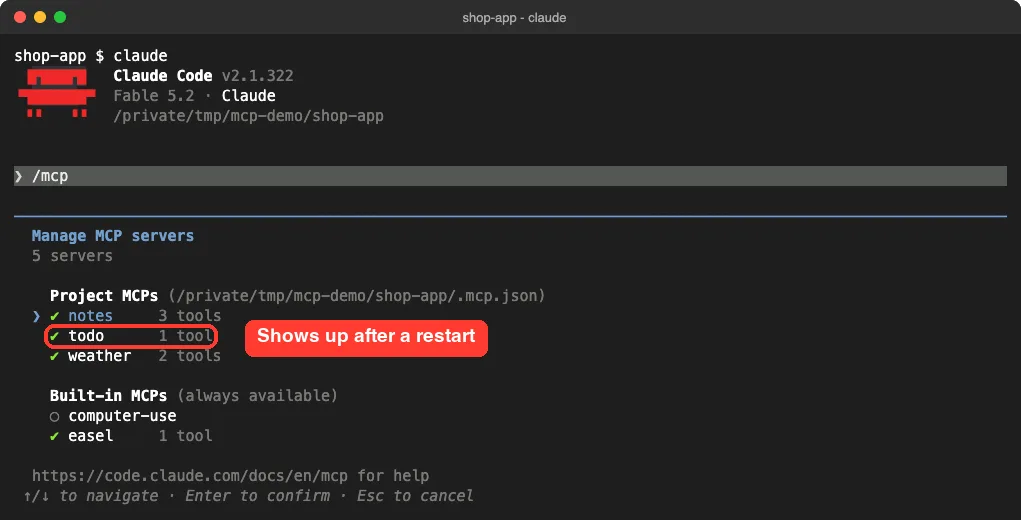
To get todo, we had to quit and start Claude Code again. The new session spotted the extra server right away and asked about it.
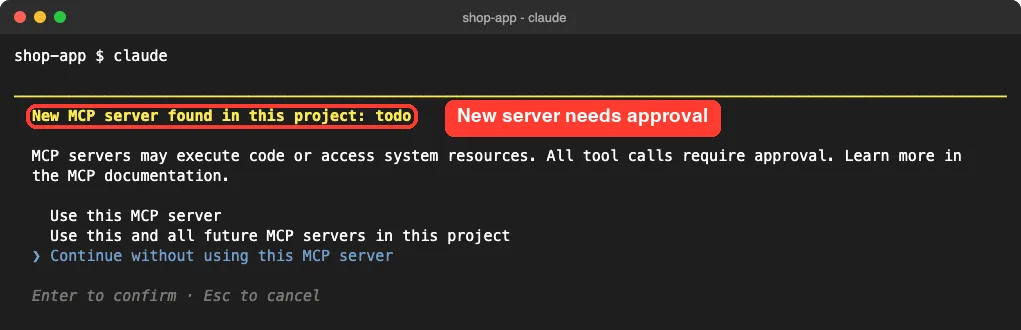
We chose Use this MCP server. The panel then showed all three project servers.
| What we changed | What picked it up | How we know |
|---|---|---|
| Server code (new tool) | /mcp reconnect notes | Tested |
Arguments of a server in .mcp.json | /mcp reconnect weather | Tested |
New server added to .mcp.json | Restart, then approve | Tested |
| Server announces its own tool changes | Nothing, it updates by itself | Anthropic’s docs |
| Failed or signed-out servers | /mcp reconnect all | Anthropic’s docs |
We ran this test with project scope only. One demo is one demo, so if a local or user scope server does not pick up an edit after a reconnect, restart the session.
Block a Project Server Before It Ever Runs
Servers from .mcp.json have one more switch, and it works differently from the pause. Instead of disabling a server you approved, you can reject it.
The easy way is the approval prompt: untick the server, or choose Continue without using this MCP server. When we pressed Esc on the first prompt, Claude Code rejected both servers and wrote them to disabledMcpjsonServers in .claude/settings.local.json.
You can also write that list yourself. We added todo to it and checked the result.
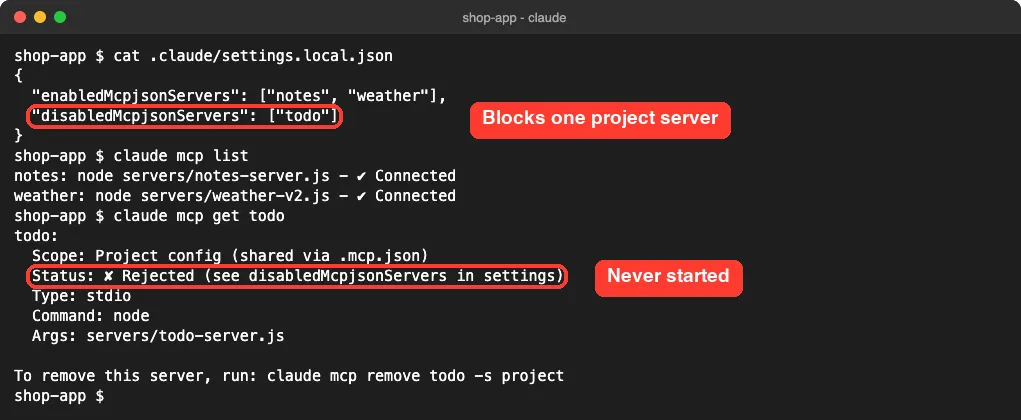
The rejected server vanished from claude mcp list, and claude mcp get todo reported Rejected (see disabledMcpjsonServers in settings). The docs note that an entry in this list blocks the server in every permission mode, which makes it the stronger choice for a server you do not trust.
If you change your mind, clear the saved answers and start a session to be asked again.
claude mcp reset-project-choicesPlugin Servers and claude.ai Connectors
We did not test these two, so this part follows Anthropic’s docs. Servers that come with a plugin are added and removed with the plugin, but you can still toggle one off in /mcp without uninstalling the plugin.
Connectors from your claude.ai account can be toggled per project in /mcp as well. To switch all of them off, the docs give a setting and an environment variable.
{
  "disableClaudeAiConnectors": true
}ENABLE_CLAUDEAI_MCP_SERVERS=false claudeFor a single clean run, the docs also list --strict-mcp-config. With that flag, Claude Code loads only the servers you pass with --mcp-config and skips the ones configured elsewhere.
Try It Yourself
Open a project that has at least one MCP server and run /mcp. Pick a server you are not using today, disable it, and ask Claude which MCP tools it can call. Then enable it again and ask once more.
You can also let Claude help you decide what to pause.
Run "claude mcp list" and show me every server and its status.
For each connected server, tell me whether this project's files suggest I need it.
Do not change anything. Just give me a list of servers I could disable here.
Disable the ones you agree with using /mcp disable and the server name. Nothing is lost, so it is a safe experiment.
Common Mistakes
- Removing a server when you only wanted a break from it. Use
/mcp disableand keep the setup. - Expecting a disabled server to be off everywhere. The choice is saved for one project folder.
- Looking for a disable command in the shell. The switch lives in
/mcp, inside a session. - Mixing up
disabledMcpServersanddisabledMcpjsonServers. The first pauses any server, the second rejects a server from.mcp.json. - Running
/mcp reconnect allto load a new server. It retries broken servers and does not read new entries. - Editing server code and wondering why nothing changed. The old process keeps running until you reconnect it.
- Treating disable as a safety feature. Claude can still read and run files in the project if you allow it.
Pro Tips
- Disable servers you rarely use in a project to keep the tool list short. If the list is still long, MCP tool search keeps unused tools out of the way.
- Check the tool count in
/mcpafter a reconnect. It is the quickest proof that your change loaded. - If a server shows as failed instead of disabled, our guide on reading MCP logs walks through the usual causes.
- A server that is slow to start is a good one to pause. Our post on MCP timeouts shows how to fix it for good.
- Want a server on in one project and off by default? Our MCP scope guide explains how to add it to that project only.
- Before you add another server, look it up in our MCP servers directory to see what it costs in tokens.
- Use
claude mcp getwith a server name when a server seems missing. A rejected server is hidden from the list but shows up there.
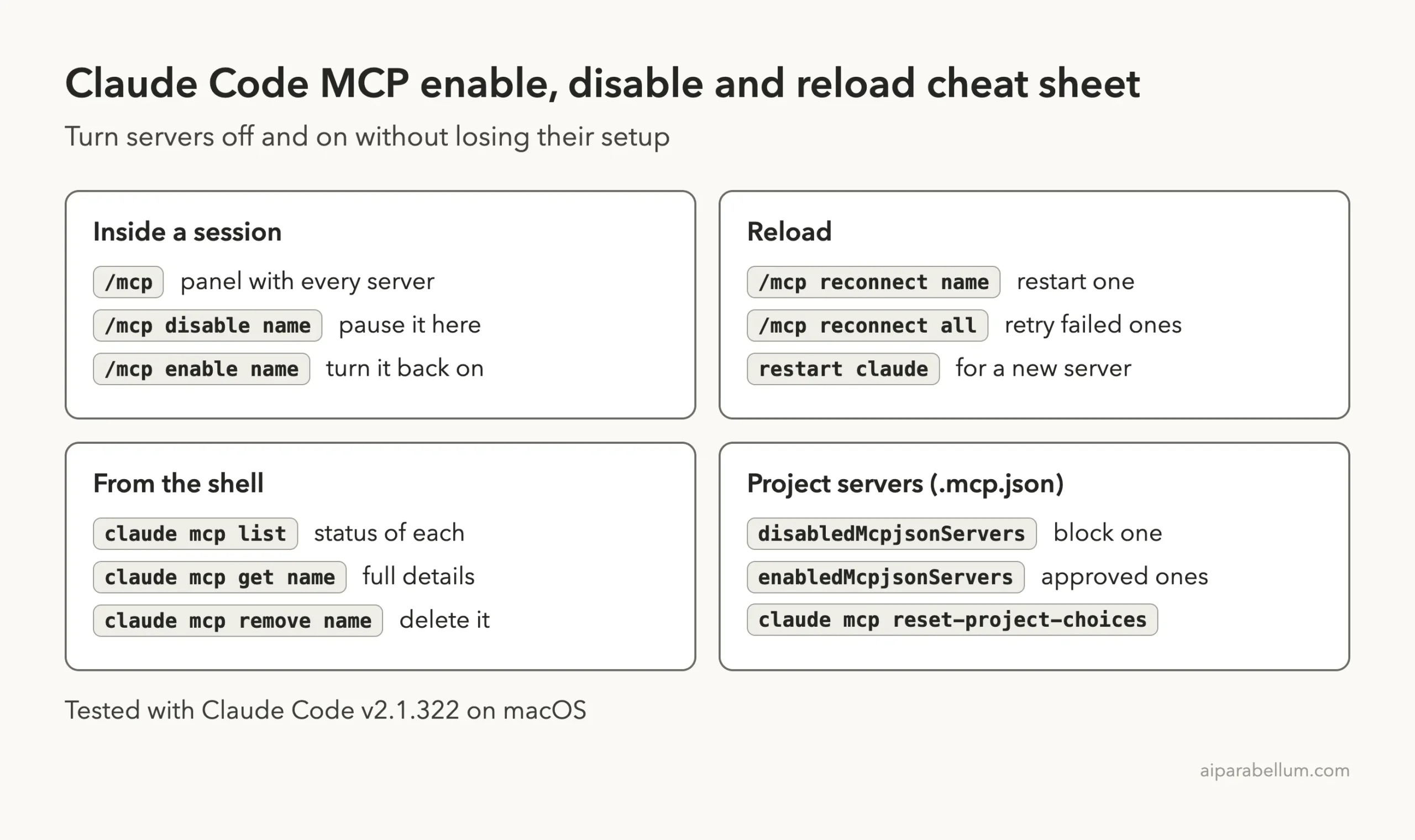
Cheat Sheet
Frequently Asked Questions
How do I disable an MCP server in Claude Code?
Run /mcp in a session, select the server and choose Disable. In our test, typing /mcp disable followed by the server name did the same thing in one step. The server’s setup is kept.
Does disabling an MCP server delete its configuration?
No. The command, arguments and config location were all still shown for our disabled server, and one Enable action brought it back. Only claude mcp remove deletes the entry.
Is a disabled MCP server off in all my projects?
No. The docs say the choice is recorded per project in ~/.claude.json, and we found our two server names under the entry for one folder. Other projects keep using the server.
How do I reload an MCP server without restarting Claude Code?
Use /mcp reconnect with the server name, or choose Reconnect in the server’s menu. In our test this picked up new server code and changed arguments in .mcp.json. A server that is new to the file needed a restart.
What does /mcp reconnect all do?
According to the docs, it retries every server that failed or needs authentication, on v2.1.284 or later. In our session all servers were healthy, so it reconnected none of them.
Conclusion
The Claude Code MCP disable switch is the gentle option: /mcp disable pauses a server for one project, /mcp enable brings it back, and nothing in your setup is lost. In our tests the tool list changed in the middle of a conversation, the choice survived a restart, and /mcp reconnect picked up both new server code and a changed config entry, while a brand new server needed a fresh session and an approval. So before you remove a server you might want again, pause it, and save the restart for the day you add a new one.