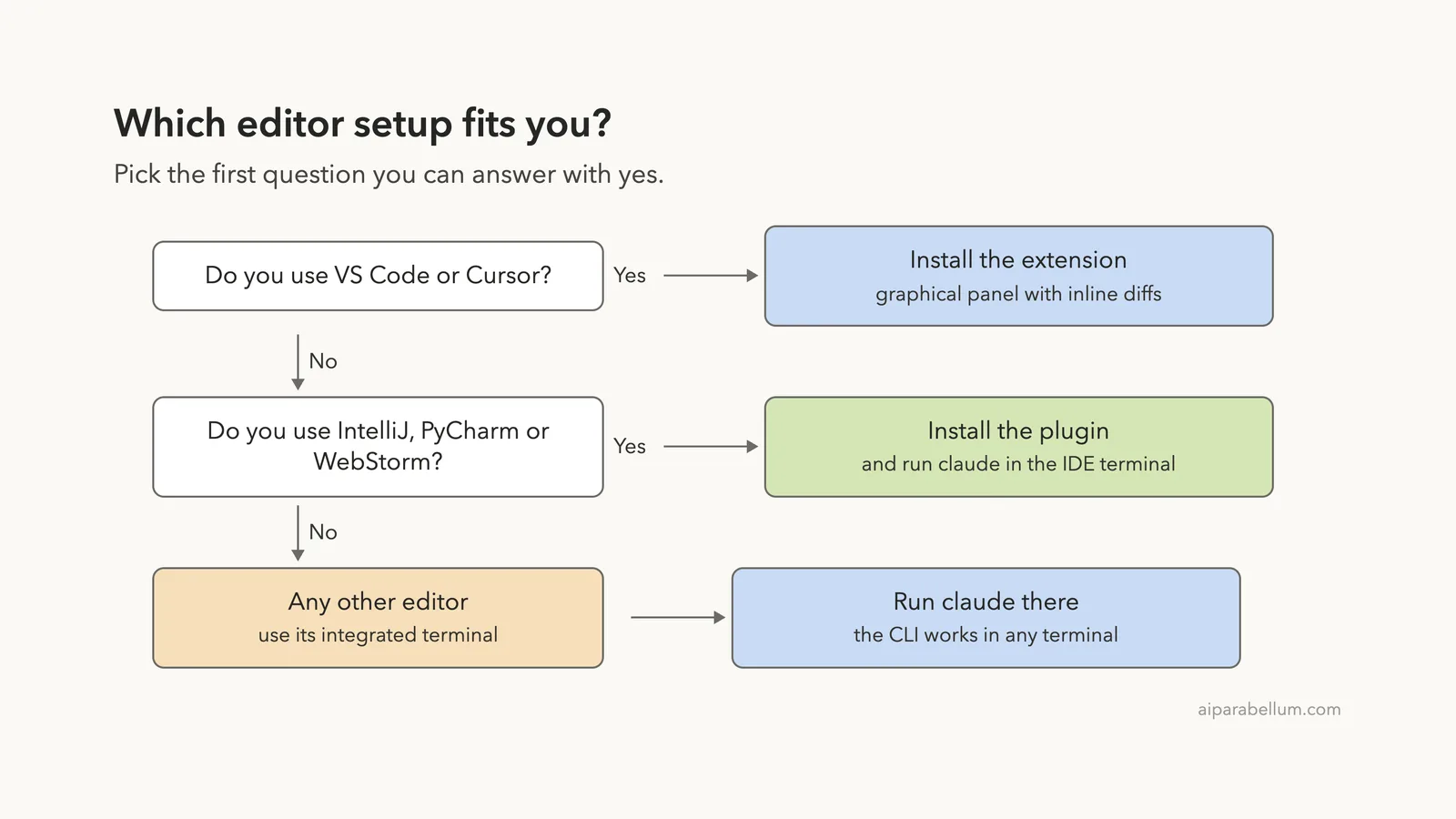
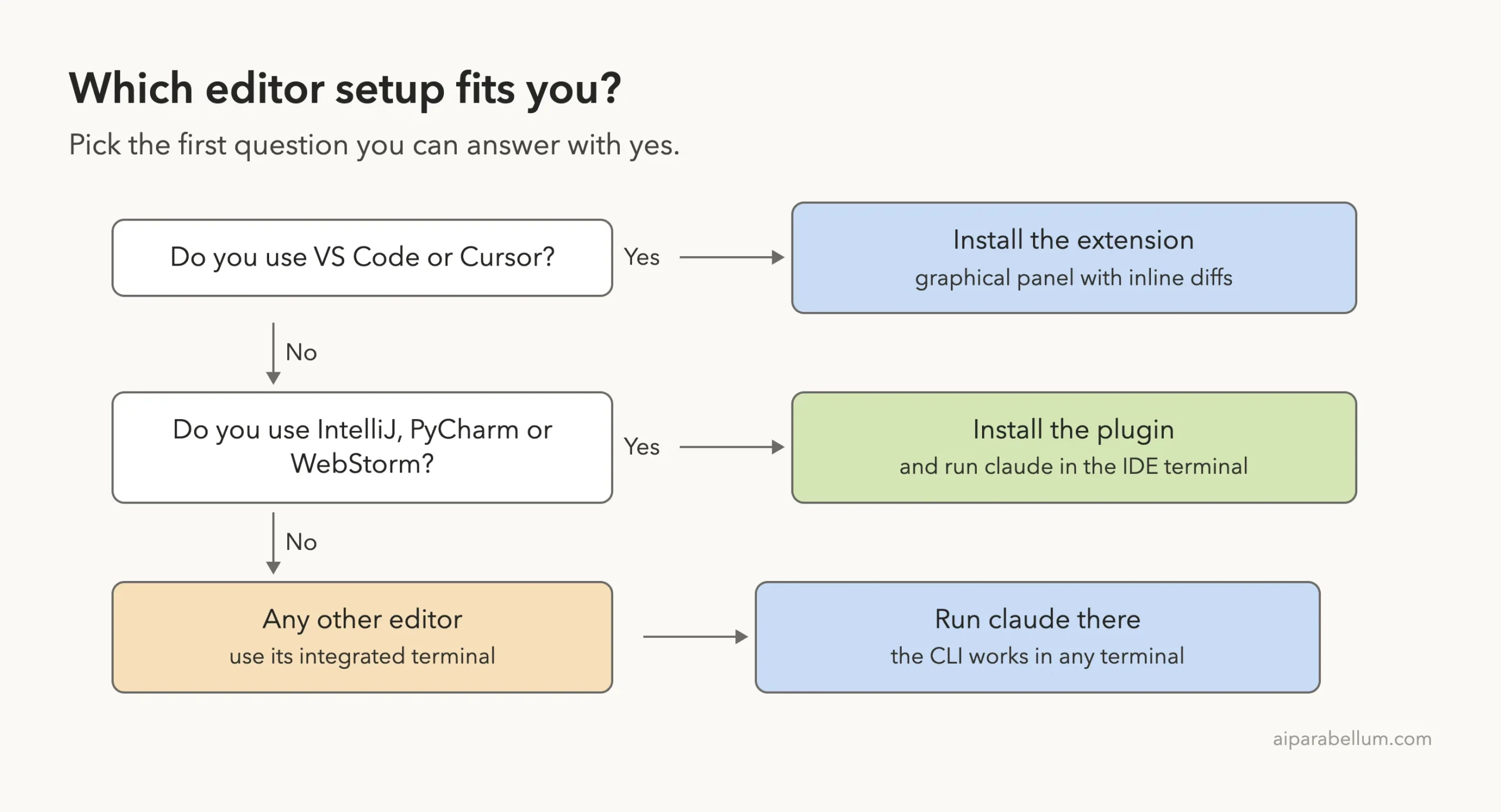
If you spend your day in an editor, you do not have to leave it to use Claude Code. Claude Code VS Code support comes as a graphical extension, and JetBrains IDEs like IntelliJ and PyCharm get a plugin that connects to the same Claude Code you already know. Both show Claude’s edits as real diffs inside your editor.
This guide walks through installing each one, opening Claude, reviewing changes and fixing the most common problems.
This is Part 51 of 53 in our Claude Code tutorials series. In the previous part we set up GitHub Actions, which runs Claude in your repository instead of your editor.
Tested with Claude Code v2.1.310 on October 26, 2026, on macOS. This is a docs-based tutorial, so every screenshot is a highlighted capture of Anthropic’s official VS Code and JetBrains pages, taken that day. We did not install the extension or plugin for this article, so the steps below come from the official documentation.
We tested on macOS; the Windows and Linux steps follow Anthropic’s official instructions.
Claude Code in Your Editor at a Glance
The extension and the plugin give you Claude plus your editor’s own diff viewer, so you review changes where you already work.
| Question | VS Code extension | JetBrains plugin |
|---|---|---|
| What you get | A graphical chat panel | Claude Code running in the IDE terminal, tied to the IDE |
| Needs the CLI installed? | No for the panel, yes to run claude in a terminal | Yes, the plugin does not bundle it |
| Quick launch | Cmd+Esc toggles editor and Claude | Cmd+Esc opens Claude |
| Where diffs open | VS Code’s native diff viewer | The IDE diff viewer |
| Minimum version | VS Code 1.94.0 | Any supported JetBrains IDE |
What Does the IDE Integration Do?
Claude Code started as a terminal tool. The editor integrations bring it next to your files. Claude can see what you have selected, show a proposed edit as a side-by-side diff, and read the errors your editor already found.
The two integrations are built differently. The VS Code extension is a full chat panel with buttons, menus and session lists.
The JetBrains plugin runs the claude command in your IDE’s integrated terminal and connects to it. If you have not used the terminal tool yet, start with our beginner guide, or read how Claude works in general.
Install Claude Code in VS Code
What you need first
The docs list two requirements: VS Code 1.94.0 or later, and an Anthropic account. Any paid Claude subscription (Pro, Max, Team or Enterprise) or a Claude Console account works, and no API key is required.
Our plans guide explains the options.
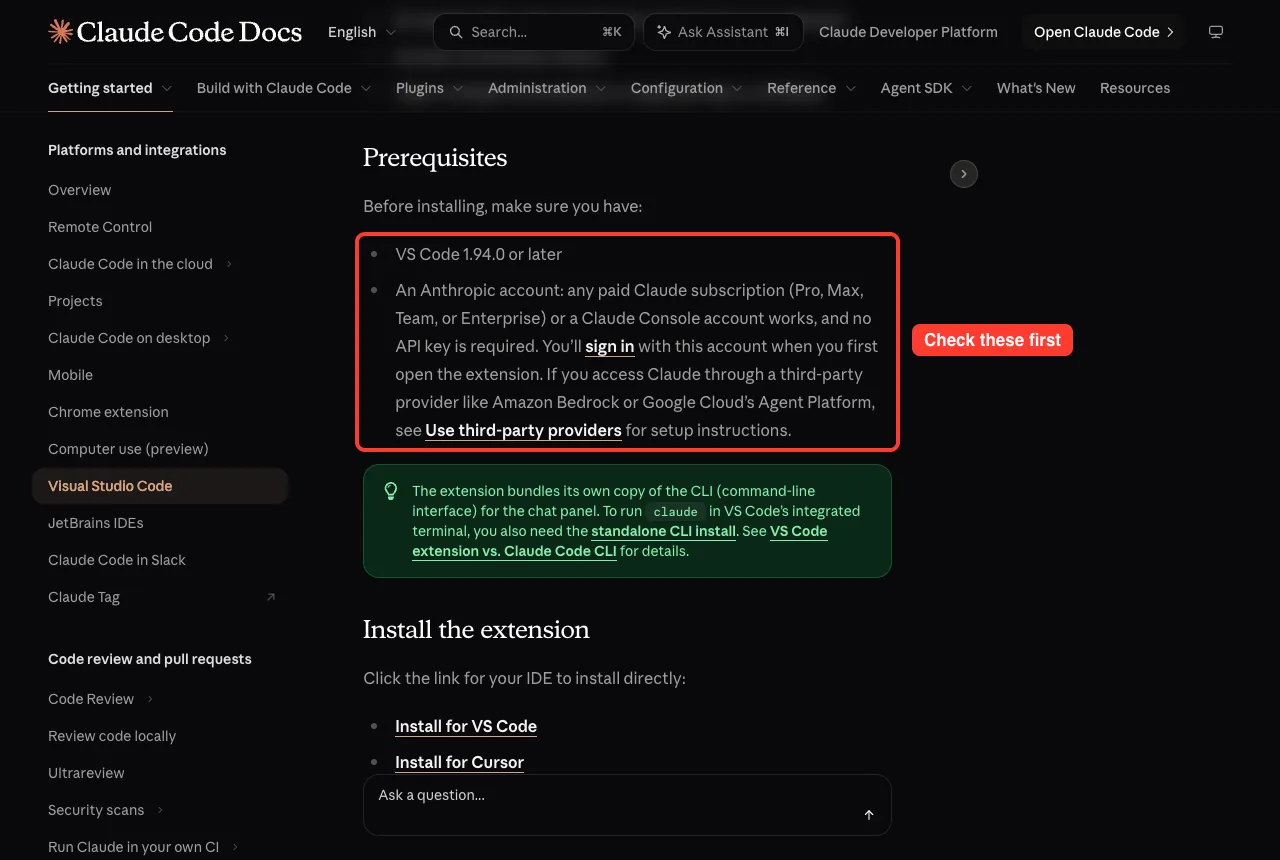
One detail surprises people. The extension bundles its own private copy of the CLI for the chat panel.
That means installing the extension does not put claude on your shell PATH. To run claude in a terminal you still need the standalone install, which our install guide covers.
Install the extension
Click Install for VS Code on the docs page. You can also open the Extensions view with Cmd+Shift+X on Mac or Ctrl+Shift+X on Windows and Linux, search for Claude Code and click Install.
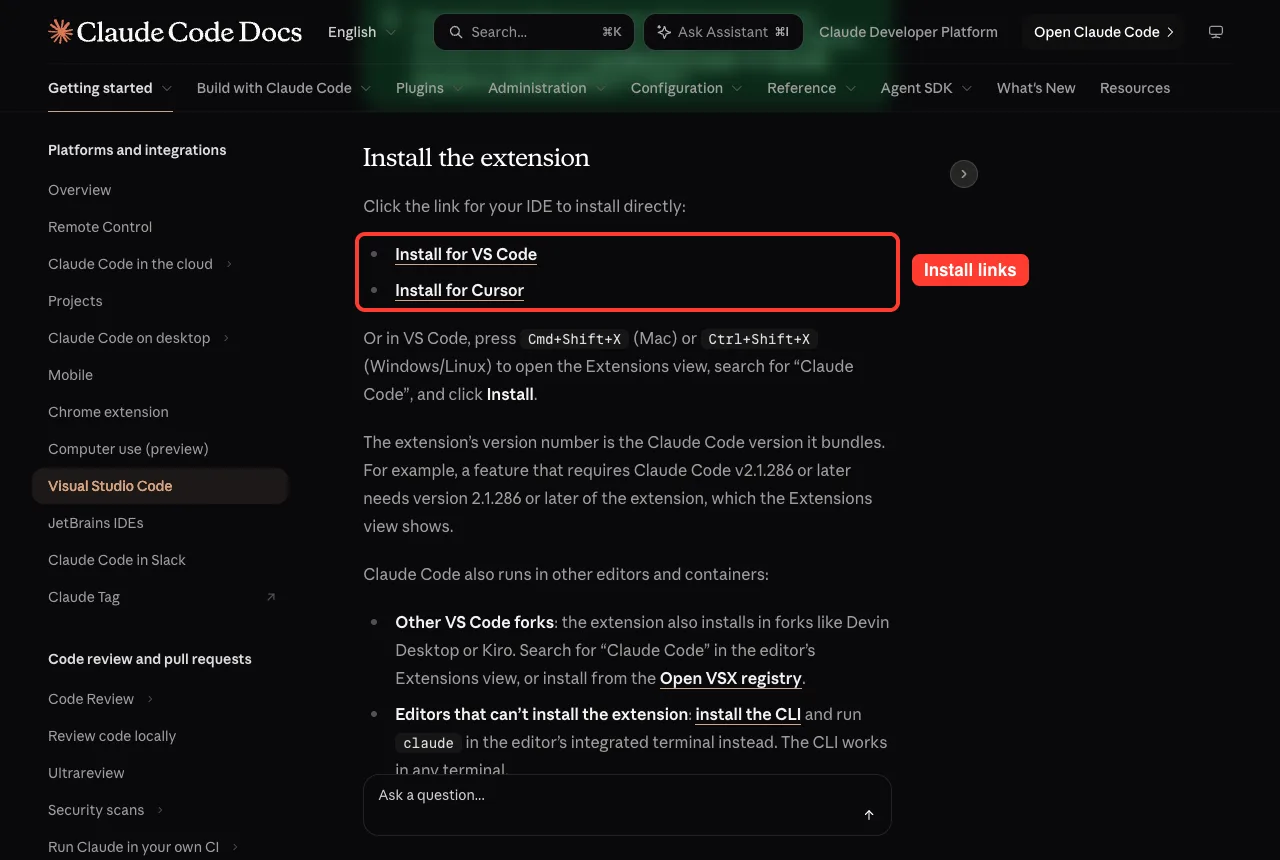
The extension’s version number is the Claude Code version it bundles. If a feature needs Claude Code v2.1.286, you need extension 2.1.286 or later.
It also installs in forks such as Devin Desktop or Kiro. If it does not appear after installing, restart VS Code or run Developer: Reload Window from the Command Palette.
Open the panel and sign in
The Spark icon marks Claude Code throughout VS Code. The quickest way in is the Spark icon in the Editor Toolbar at the top right, but it only shows when a file is open. These other routes also work.
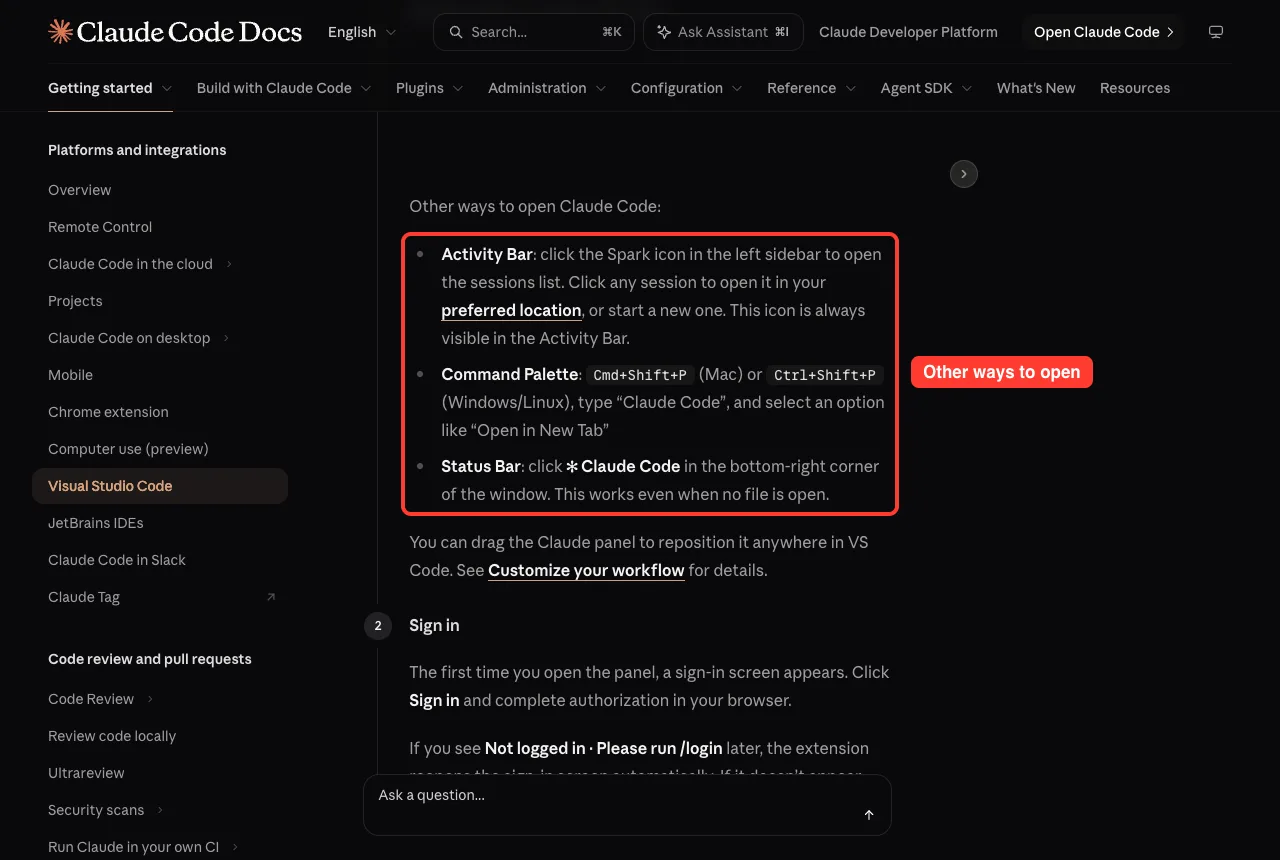
- Activity Bar: click the Spark icon in the left sidebar to see your sessions list.
- Command Palette: press Cmd+Shift+P, type Claude Code and pick an option such as Open in New Tab.
- Status Bar: click Claude Code in the bottom-right corner. This works even with no file open.
The first time you open the panel, a sign-in screen appears. Click Sign in and finish authorization in your browser. A Learn Claude Code checklist then appears, which you can follow or dismiss.
Review Changes Before They Land
The permission mode at the bottom of the prompt box decides how much Claude asks first. In Auto or Edit automatically mode, Claude edits most files in your workspace without asking. In Manual mode, Claude shows a side-by-side comparison of the original and proposed code and waits for you.
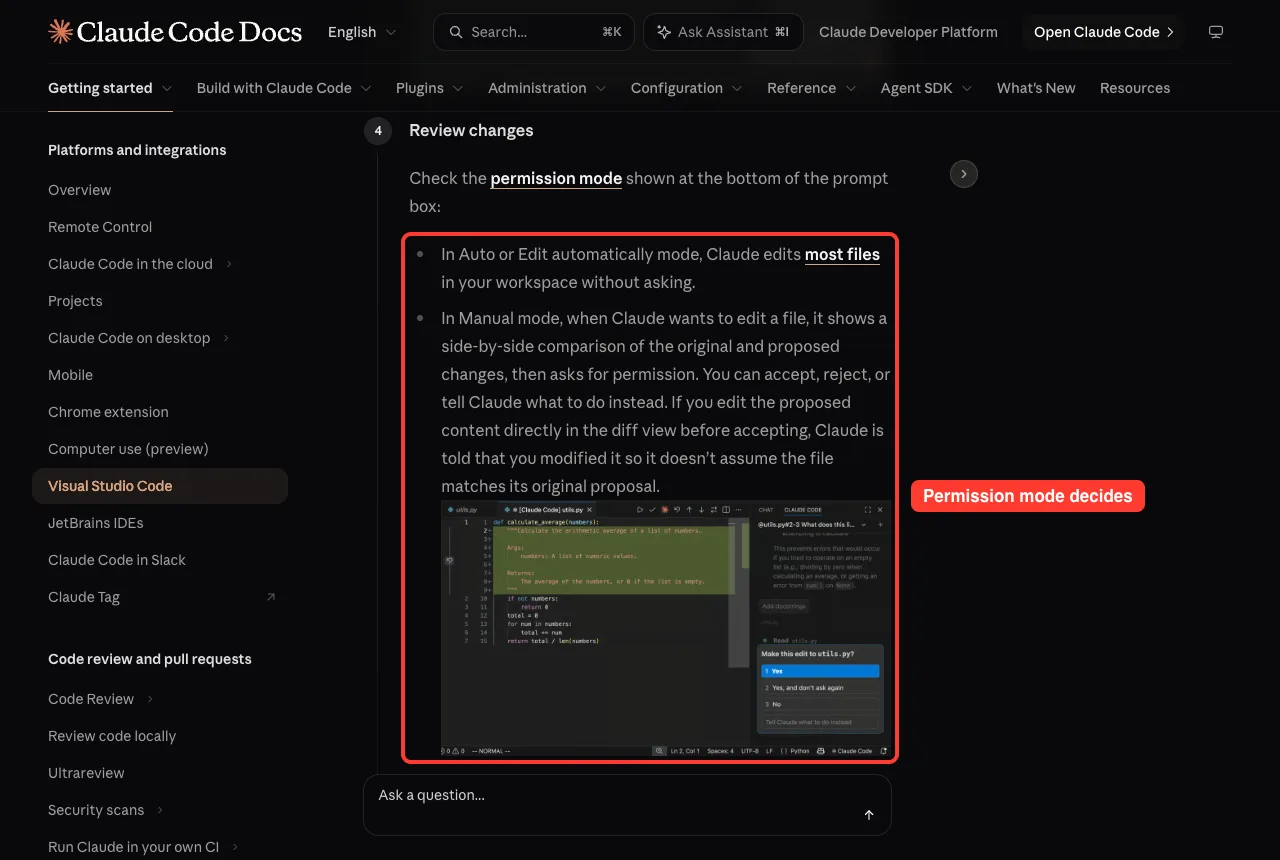
In the diff you can accept, reject, or tell Claude what to do instead. If you edit the proposed text directly before accepting, Claude is told you changed it, so it does not assume the file matches its own proposal. With Claude Code v2.1.275 or later, each change in a diff also has its own Accept and Reject buttons.
Plan mode works here too. Claude describes what it will do and VS Code opens the plan as a Markdown document where you can add inline comments before anything changes.
You can also type /plan. Our guides to permission modes and plan mode explain the choices.
Everyday Features in the VS Code Panel
Once the basics work, a few features save the most time.
- Selection context: Claude automatically sees the text you select. Press Option+K on Mac or Alt+K on Windows and Linux to also insert an @-mention such as @file.ts#5-10.
- Command menu: type / or click the slash button to attach files, switch models, toggle extended thinking and open entries like Hooks, Permissions and Memory.
- Model picker: click the model name at the bottom of the prompt box, or type /model on v2.1.284 or later.
- Past conversations: the extension has session history, and you can rename, archive and group sessions.
- Checkpoints: hover over a message to fork the conversation, rewind your code, or do both. Our rewind guide goes deeper.
- Images and files: paste an image into the prompt box, or hold Shift while dragging files in.
Shortcuts worth learning
The Command Palette lists every extension command when you type Claude Code. These are the ones to learn first.
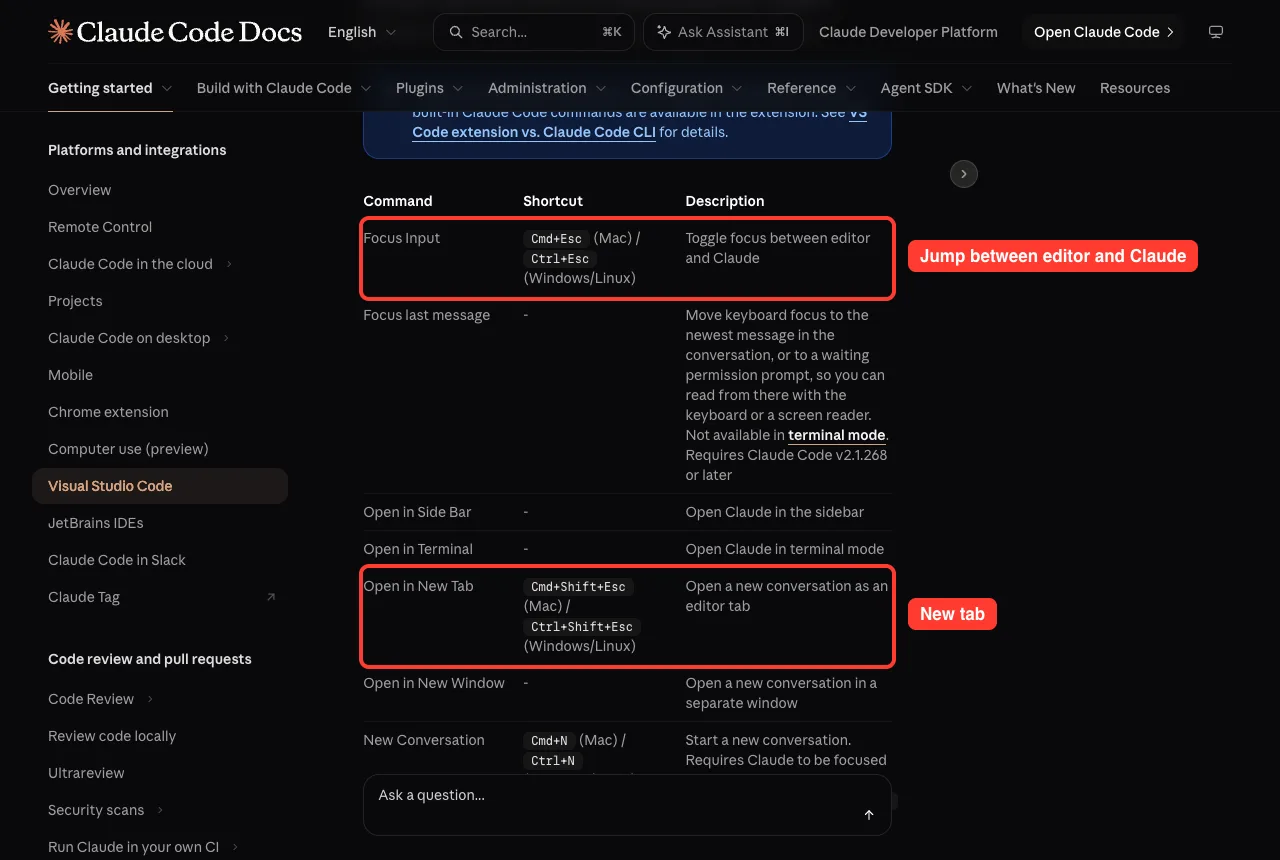
| Command | Mac shortcut | What it does |
|---|---|---|
| Focus Input | Cmd+Esc | Toggle focus between editor and Claude |
| Open in New Tab | Cmd+Shift+Esc | Open a new conversation as an editor tab |
| Insert @-Mention Reference | Option+K | Reference the current file and selection |
| Reopen Closed Session | Cmd+Shift+T | Bring back the last closed Claude tab |
| Toggle Focus view | Ctrl+Option+F | Hide tool activity, keep prompts and replies |
On Windows and Linux, use Ctrl in place of Cmd and Alt in place of Option. Cmd+N for a new conversation is off by default; turn on the enableNewConversationShortcut setting to use it.
Extension or CLI in VS Code?
You can use either, and they share the same conversation history. To continue an extension conversation in the terminal, run claude –resume.
To use the CLI inside VS Code, open the integrated terminal with Cmd+backtick on Mac or Ctrl+backtick on Windows and Linux, then run claude. It connects to VS Code on its own. In an external terminal, run /ide to connect it.
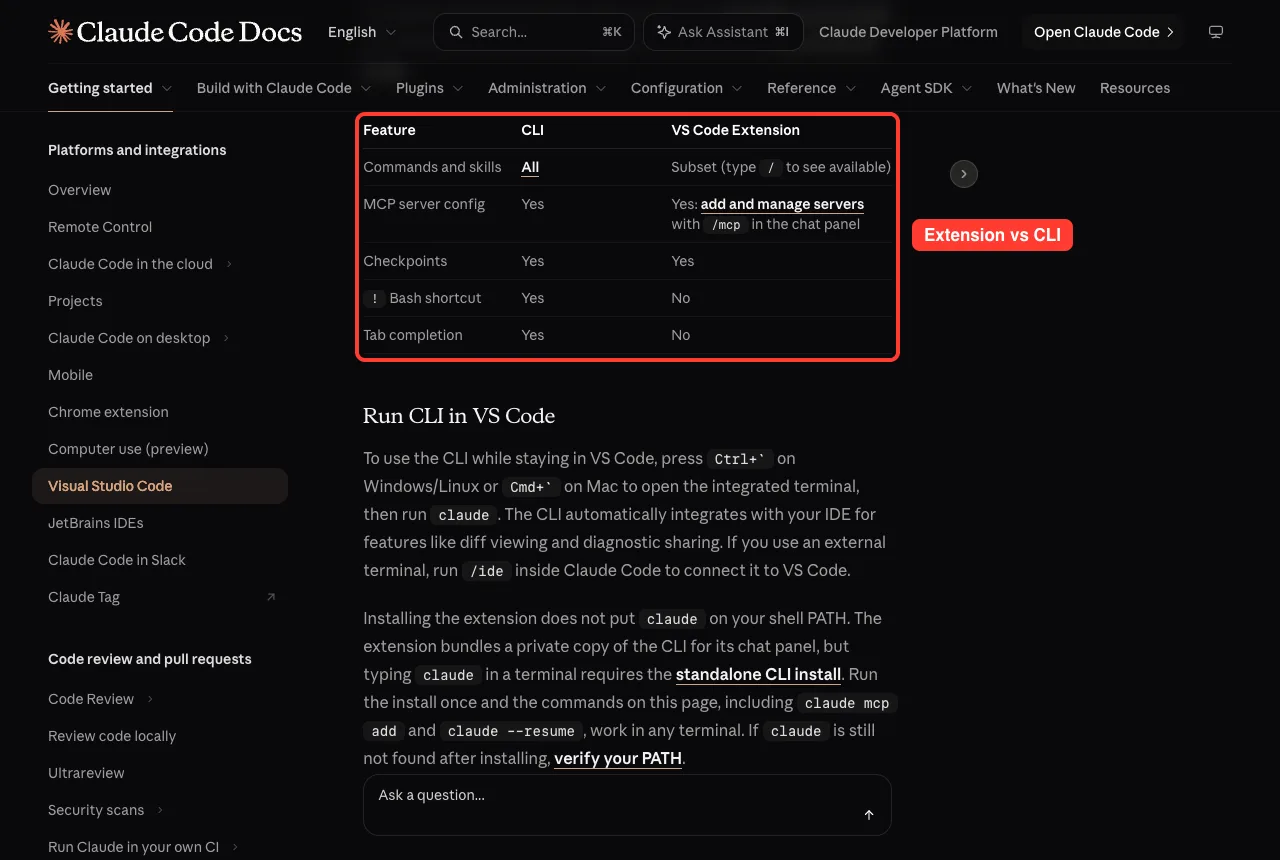
The table shows what the extension lacks. It supports a subset of commands and skills, and it has no ! Bash shortcut and no tab completion.
MCP servers and checkpoints work in both. If you need a CLI-only feature, run claude in the terminal. Our MCP guide shows how to connect tools, and in the panel you manage them with /mcp.
Claude Code in JetBrains IDEs
The plugin works with most JetBrains IDEs, including IntelliJ IDEA, PyCharm, Android Studio, WebStorm, PhpStorm and GoLand. It adds these features.
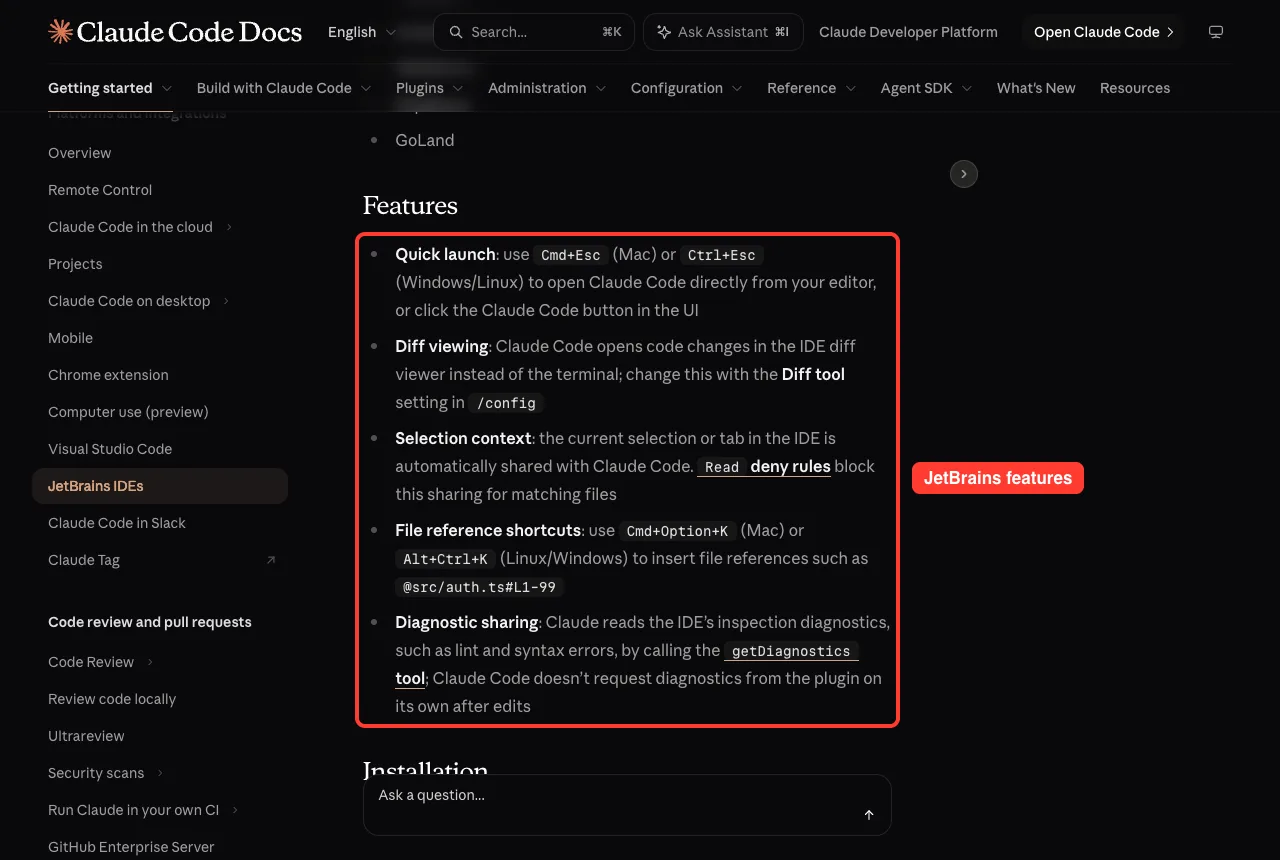
- Quick launch: Cmd+Esc on Mac or Ctrl+Esc on Windows and Linux opens Claude from the editor.
- Diff viewing: changes open in the IDE diff viewer instead of the terminal.
- Selection context: your current selection or tab is shared with Claude automatically.
- File references: Cmd+Option+K on Mac, or Alt+Ctrl+K elsewhere, inserts references such as @src/auth.ts#L1-99.
- Diagnostic sharing: Claude can read the IDE’s lint and syntax errors.
Install the CLI and the plugin
The plugin does not bundle its own copy of the CLI, so you install two pieces. First install the Claude Code CLI. If claude is not on your PATH, the plugin shows a Cannot launch Claude Code notification.
Then install the Claude Code plugin from the JetBrains Marketplace and restart your IDE.
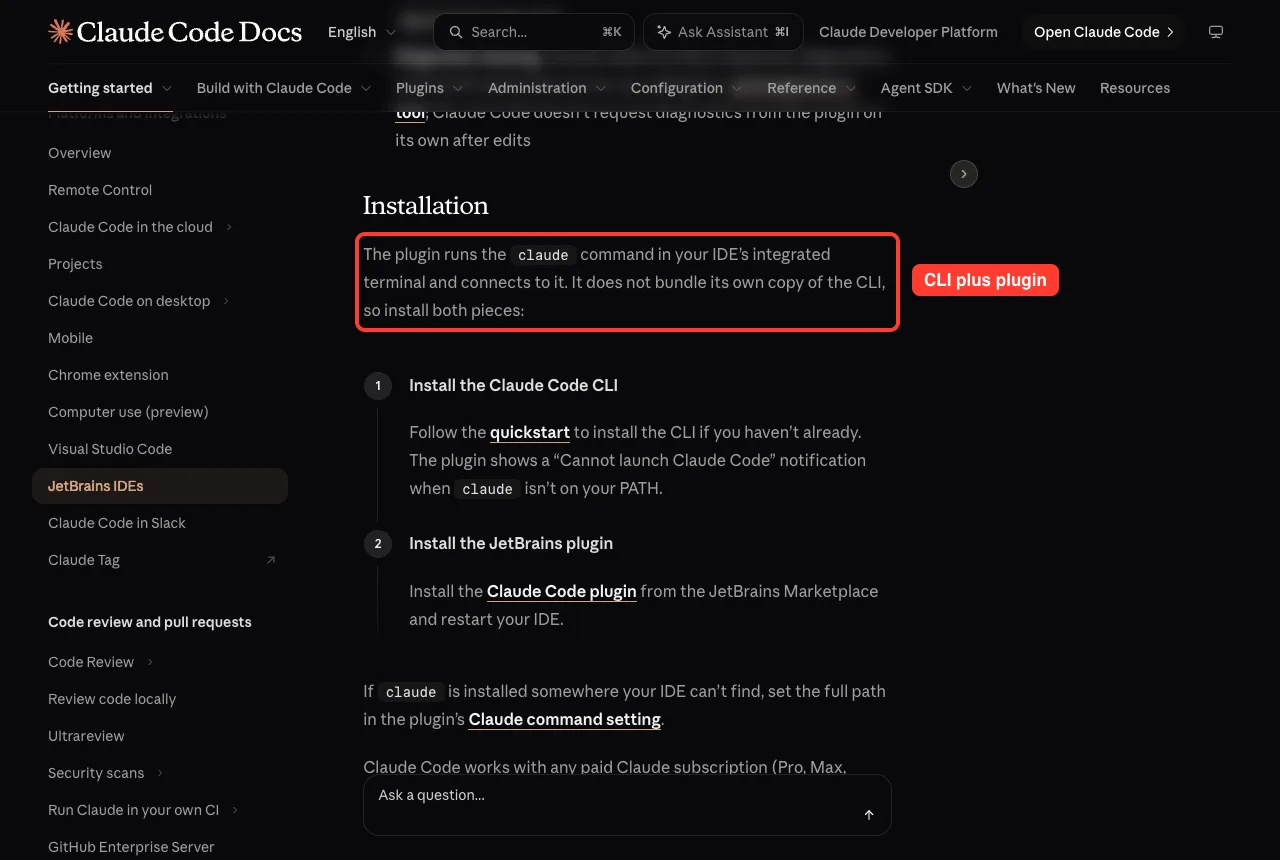
If claude lives somewhere your IDE cannot find, set the full path in the plugin’s Claude command setting. You will be asked to log in the first time you run claude.
Start Claude, or connect from outside
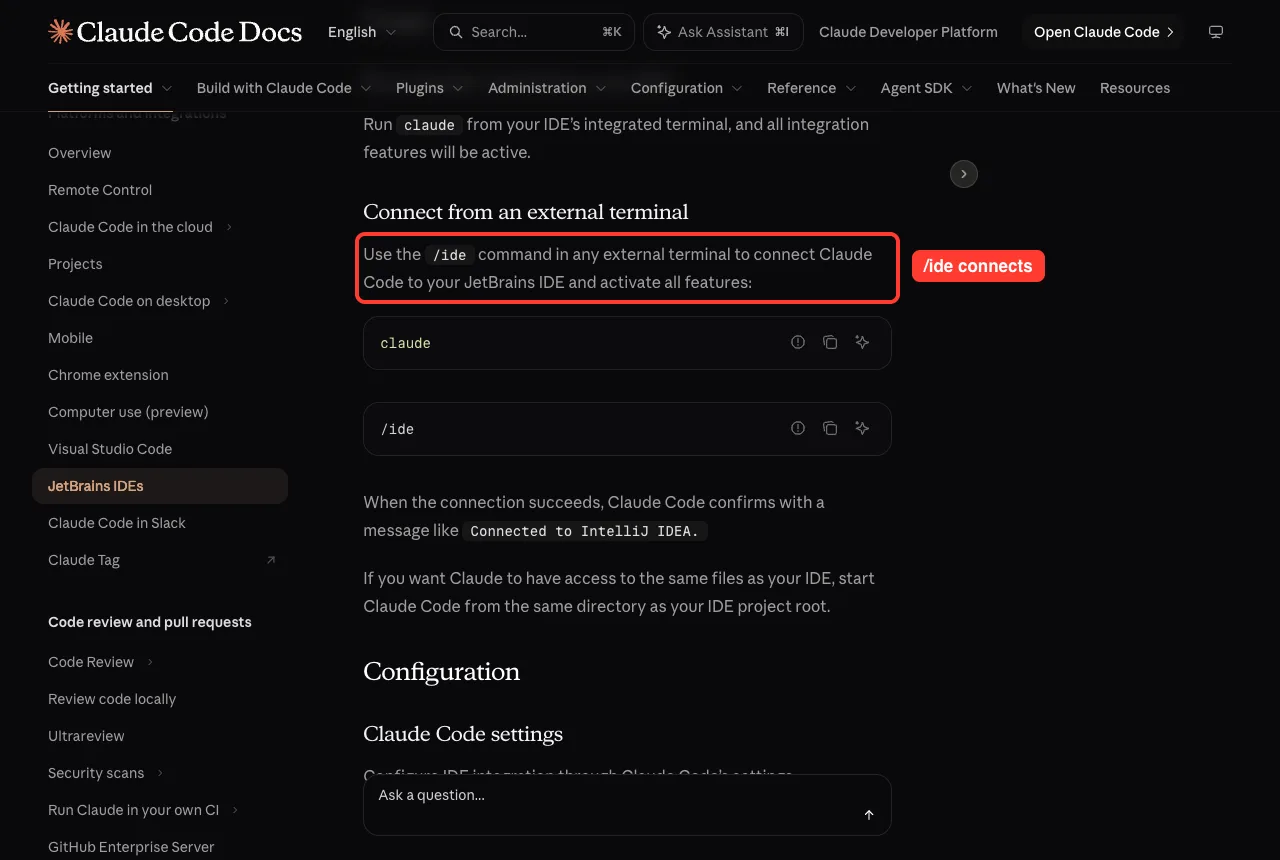
Run claude in the IDE’s integrated terminal and every integration feature is active. If you prefer an external terminal, start claude and then run /ide.
When it works, Claude Code confirms with a message like Connected to IntelliJ IDEA. Start from your IDE’s project root so Claude sees the same files.
Plugin settings and the Diff tool
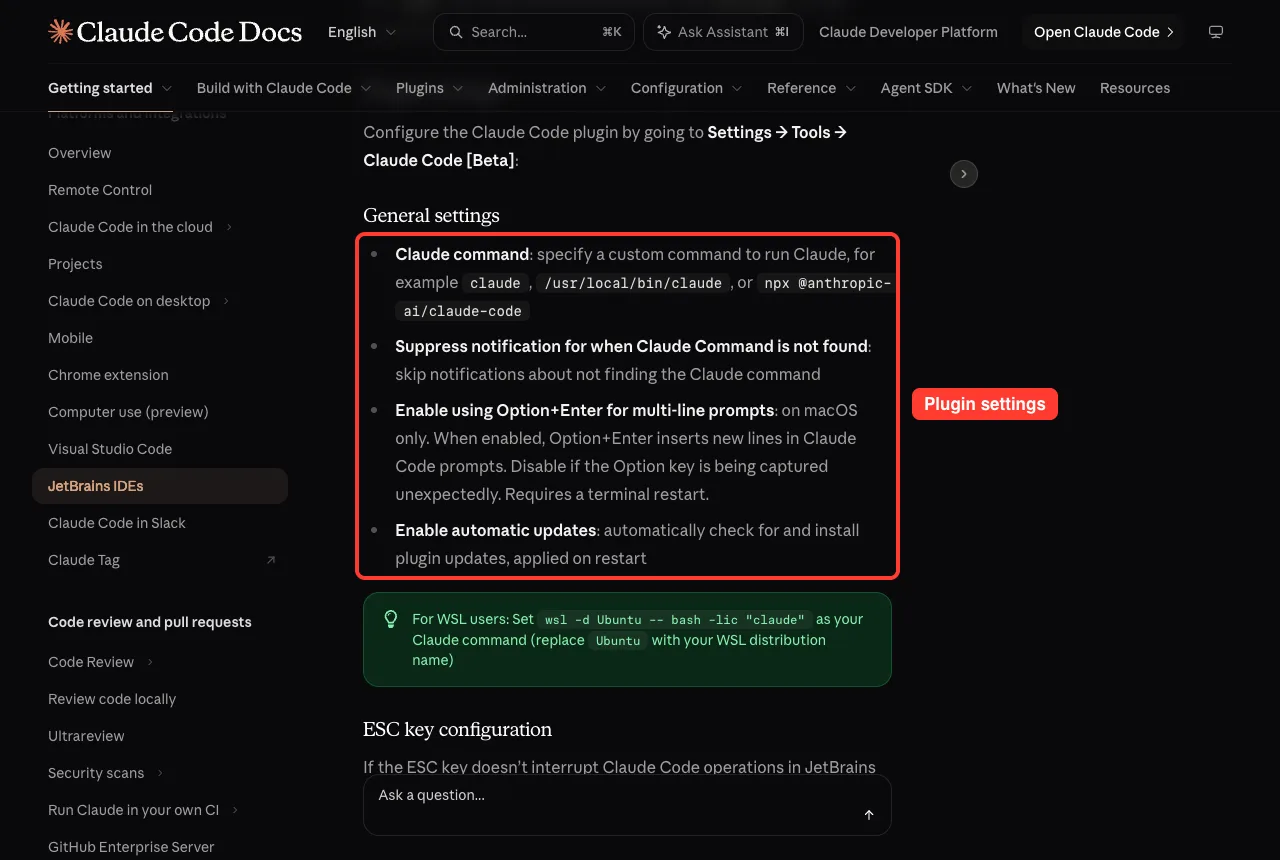
Open Settings, then Tools, then Claude Code [Beta]. The general settings include a custom Claude command, a switch to hide the not-found notification, Option+Enter for multi-line prompts on macOS, and automatic plugin updates.
To choose where diffs appear, run claude, enter /config and set Diff tool to auto for the IDE or terminal to keep diffs in the terminal. The Diff tool entry only shows when Claude is connected to the IDE. If Esc does not interrupt Claude in a JetBrains terminal, the docs say to uncheck Move focus to the editor with Escape under Settings, Tools, Terminal.
How the Editor Talks to Claude
Both integrations run a small local server named ide that the CLI connects to automatically. It is hidden from /mcp because there is nothing to configure. It opens diffs in your editor, reads your selection, and lets Claude read your editor’s diagnostics.
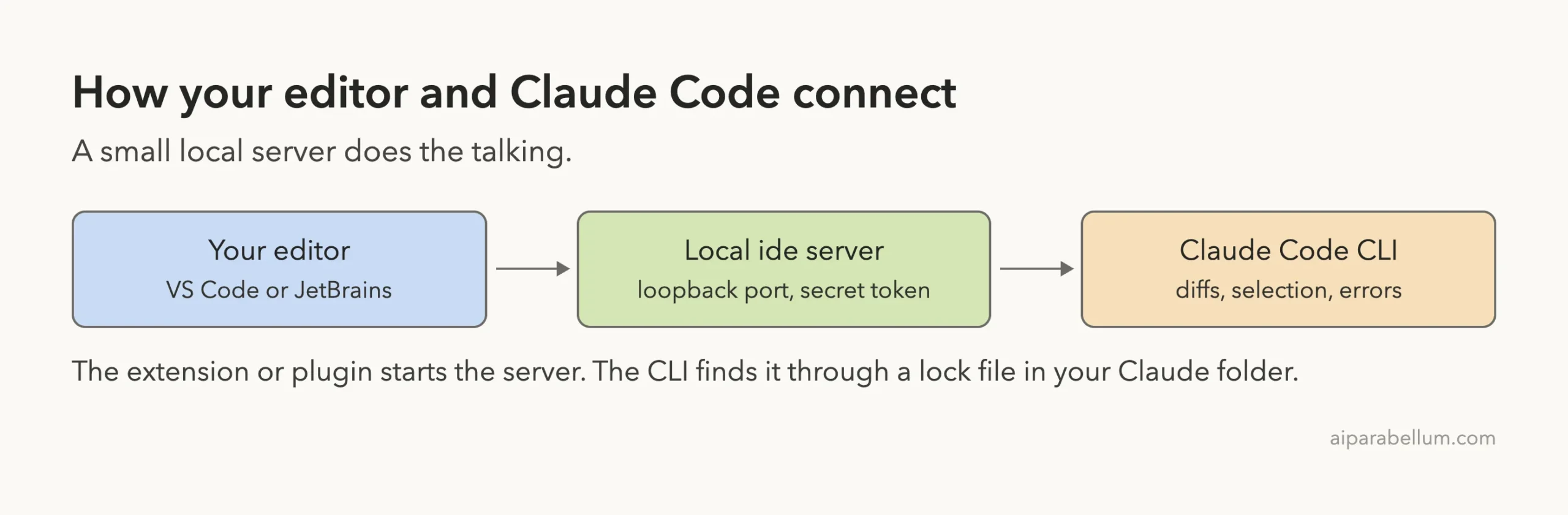
The docs describe how it is protected. The VS Code server binds to 127.0.0.1 on a random port, and each start writes a fresh auth token to a lock file under your Claude folder that only your user can read.
Only one tool is visible to Claude in JetBrains: getDiagnostics, which is read-only. In VS Code there is a second, executeCode, which runs Python in a Jupyter notebook, and it always asks you to Execute or Cancel first.
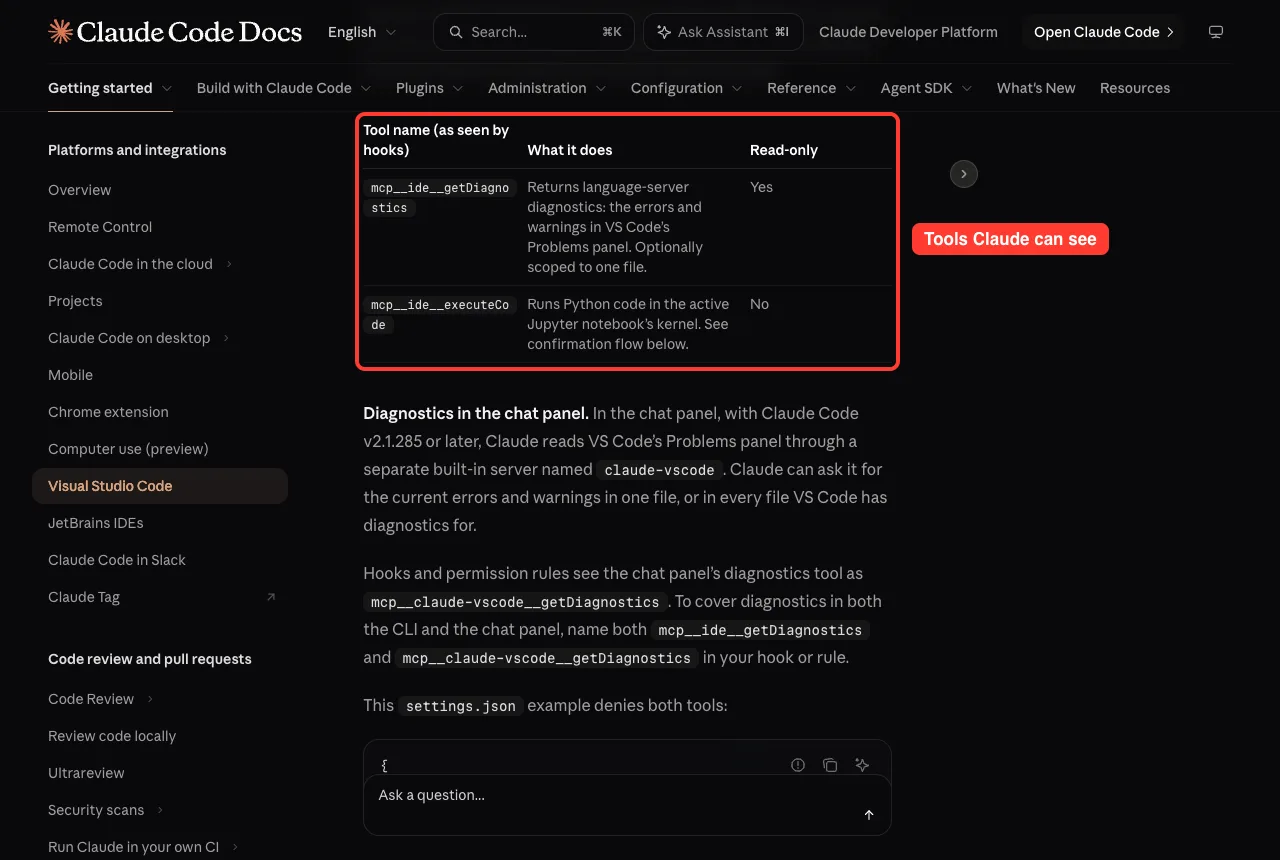
To keep a sensitive file such as .env out of Claude’s view, add a Read deny rule for its path. Our permission rules guide shows the syntax.
Staying Safe in JetBrains
The JetBrains docs include a specific warning. In acceptEdits mode, Claude may be able to change IDE configuration files that your IDE can run automatically. That could let someone bypass Claude’s permission prompts for Bash.
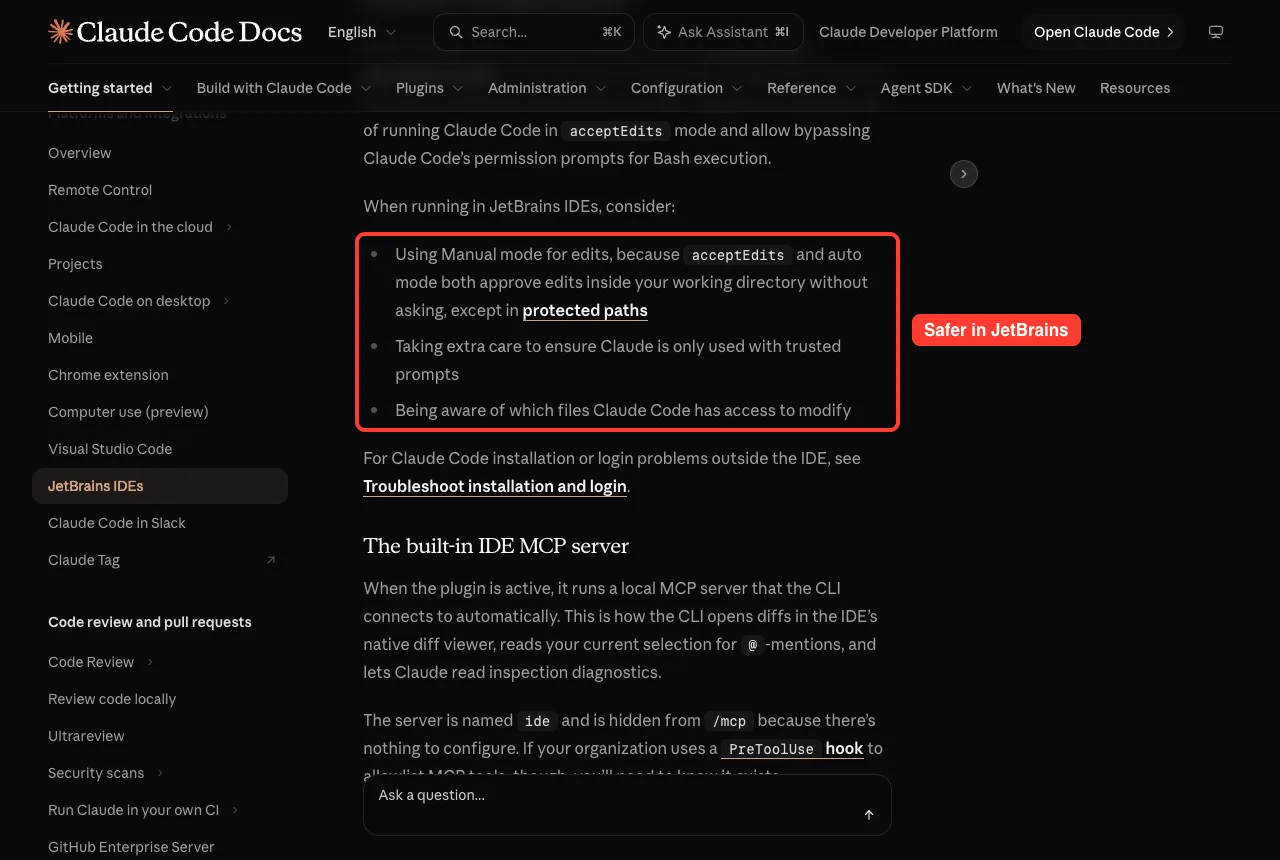
- Use Manual mode for edits, because acceptEdits and auto mode approve edits in your working directory without asking, except in protected paths.
- Take extra care to use Claude only with trusted prompts.
- Know which files Claude Code can modify.
Fix Common Problems
These are the checks the official pages recommend.
| Problem | What to try |
|---|---|
| Extension will not install | Confirm VS Code is 1.94.0 or later, that it may install extensions, or install from the Marketplace directly |
| Spark icon missing in VS Code | Open a file, since a folder alone is not enough, then reload the window; also disable other AI extensions and trust the workspace |
| Cmd+Esc does nothing | Check for a keybinding conflict in VS Code’s keyboard shortcuts |
| No available IDEs detected in JetBrains | Verify the plugin is enabled, restart the IDE fully, and launch claude from the IDE terminal |
| Command not found in JetBrains | Run claude –version in a terminal, then set the Claude command path in plugin settings |
| Claude never responds | Check your connection, start a new conversation, and run claude in a terminal for a clearer error |
For sign-in trouble, see our login fixes guide.
JetBrains users on WSL2 who see No available IDEs detected usually face a networking issue. The docs recommend a Windows Firewall rule for the WSL2 subnet, or mirrored networking on Windows 11 22H2 or later. For remote development, install the plugin on the remote host, not your local machine.
Try It Yourself
Practice on a small throwaway project, not real code. Open it in VS Code, install the extension, and keep the permission mode on Manual so you see every diff.
Explain what this file does in two sentences.

Add a short comment above each function, then show me the diff.
First select a function and press Option+K so Claude knows exactly which lines you mean. Then reject one change and tell Claude what to do instead, so you feel how the review step works. If you use JetBrains, repeat the exercise by running claude in the IDE terminal.
Common Mistakes
- Expecting the VS Code extension to put claude on your PATH. Install the standalone CLI for that.
- Looking for the Spark icon with no file open. Use the Activity Bar or Status Bar instead.
- Installing the JetBrains plugin without the CLI.
- Running claude from a folder other than the IDE’s project root.
- Using acceptEdits mode in a JetBrains IDE without reading the security note.
- Expecting every CLI command, tab completion or the ! shortcut inside the extension panel.
Pro Tips
- Use Cmd+Esc to jump between code and Claude without touching the mouse.
- Press Option+K after selecting code so Claude gets the file and line range.
- Add a $schema line to your settings.json to get autocomplete and checks for Claude Code settings inside VS Code.
- Turn on Focus view if tool activity clutters the panel.
- Use Cursor or another VS Code fork? The same extension installs there.
Cheat Sheet
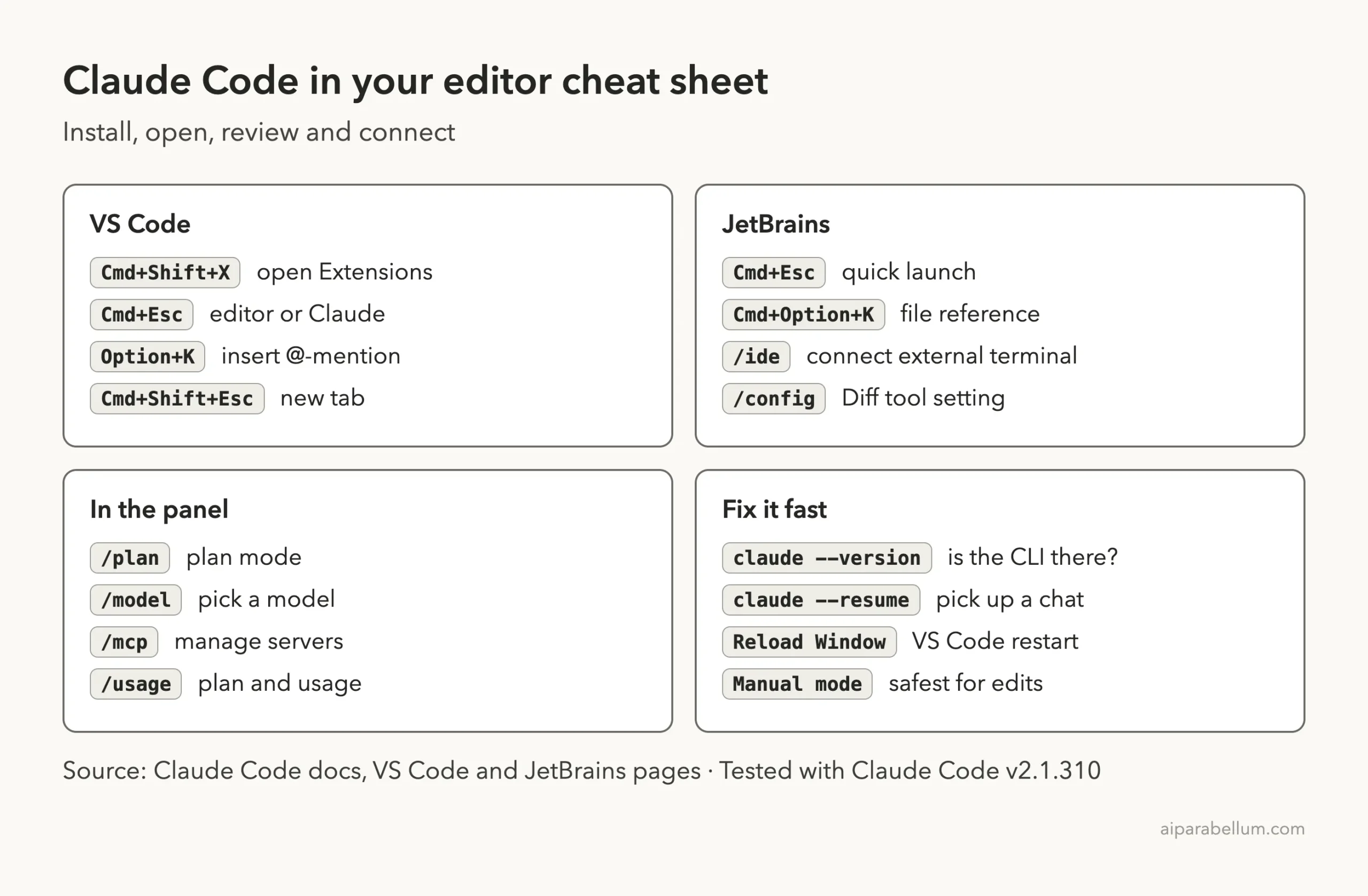
Frequently Asked Questions
Is Claude Code in VS Code free?
The extension is free to install, but you need a paid Claude subscription (Pro, Max, Team or Enterprise) or a Claude Console account to sign in. No API key is required.
Does the VS Code extension work in Cursor?
Yes. The docs offer an Install for Cursor link, and the extension also installs in forks such as Devin Desktop and Kiro.
Do I need the CLI if I install the VS Code extension?
Not for the chat panel, because the extension bundles a private copy. You need the standalone CLI only to run claude in a terminal.
How do I connect Claude Code to JetBrains from an external terminal?
Run claude, then type /ide. Claude Code confirms with a message such as Connected to IntelliJ IDEA when the link works.
Can I use Claude Code in an editor that has no extension?
Yes. Install the CLI and run claude in the editor’s integrated terminal. The CLI works in any terminal.
Conclusion
Claude Code fits into the editor you already use. In VS Code, install the extension, open the Spark icon and review diffs in Manual mode. In a JetBrains IDE, install the CLI and the plugin, then run claude in the IDE terminal. Keep edits in Manual mode, and use the troubleshooting table when something does not connect. You can find every guide in our Claude Code tutorials hub, and the official VS Code and JetBrains pages have the full details.
Previous in the series: Part 50: Claude Code GitHub Actions: A Beginner Guide
Next in the series: Part 52: Claude Code in Slack, on the Web and on Mobile.