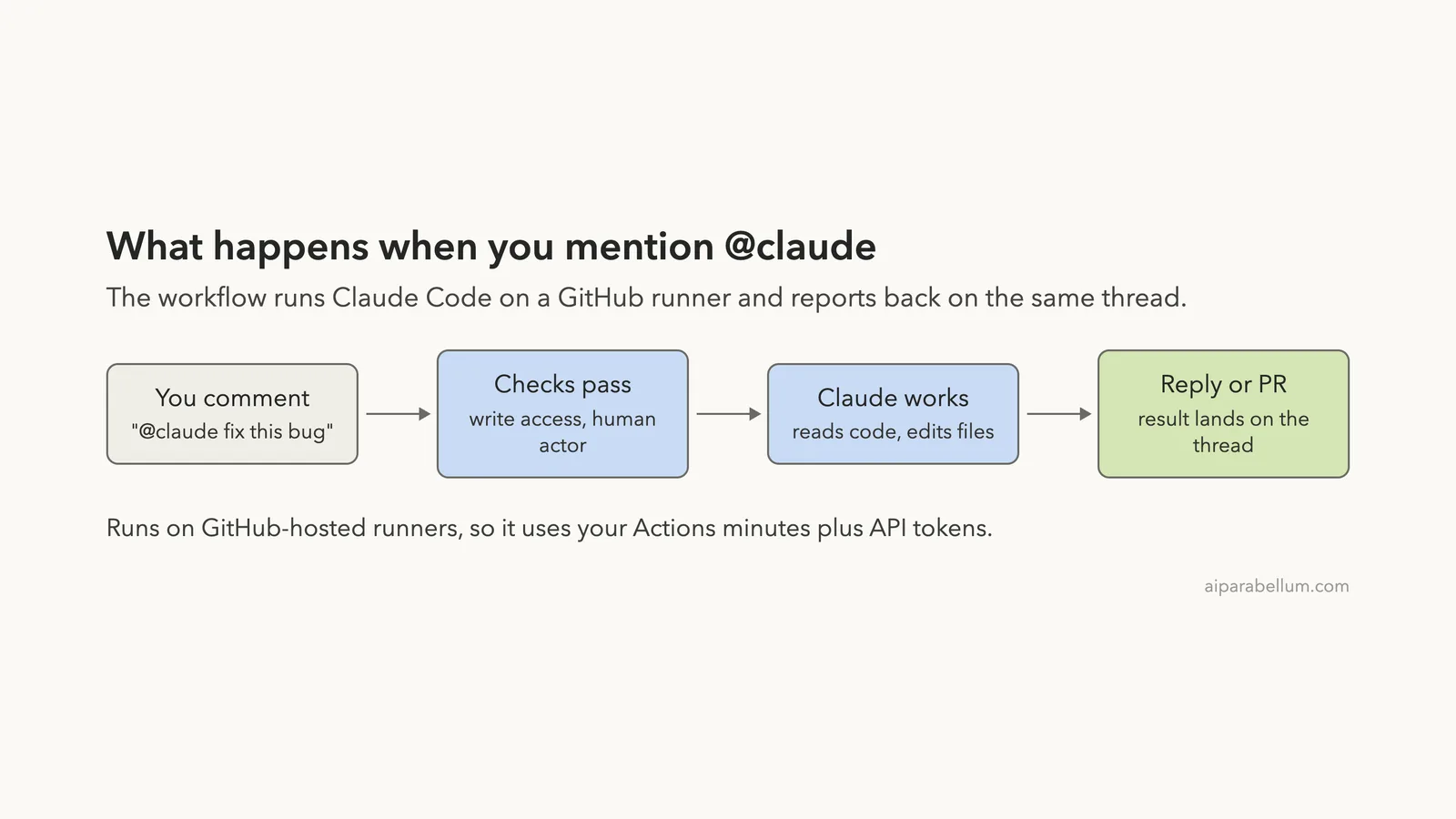
Imagine typing @claude in a GitHub issue and coming back to a pull request that already fixes it. That is what Claude Code GitHub Actions does. It runs Claude Code inside your repository’s workflows, so Claude can answer questions, write code and push commits without you opening a terminal.
This guide shows you how to set it up, what the workflow files mean, and how to keep the cost under control.
This is Part 50 of 53 in our Claude Code tutorials series. In the previous part we covered privacy and security, which is a good read before you give any tool access to your repository.
Tested with Claude Code v2.1.310 on October 26, 2026, on macOS. This is a docs-based tutorial, so every screenshot is a highlighted capture of Anthropic’s official GitHub Actions page, taken that day.
We tested on macOS; the Windows and Linux steps follow Anthropic’s official instructions. We did not run the workflow against a live repository, so everything below comes from the official documentation.
Claude Code GitHub Actions at a Glance
One mention of @claude can turn an issue into a pull request, as long as the workflow and secret are in place.
Here is the short version before we go step by step.
| Question | Short answer |
|---|---|
| What is it? | A GitHub Action (anthropics/claude-code-action) that runs Claude Code in your workflows |
| How do you trigger it? | Mention @claude in an issue or pull request comment, or give the workflow a prompt |
| Fastest setup? | Run /install-github-app inside Claude Code |
| What do you need? | Admin access to the repository, the Claude GitHub App and one authentication secret |
| What does it cost? | GitHub Actions minutes plus Claude API tokens, or your Claude subscription if you use an OAuth token |
What Is Claude Code GitHub Actions?
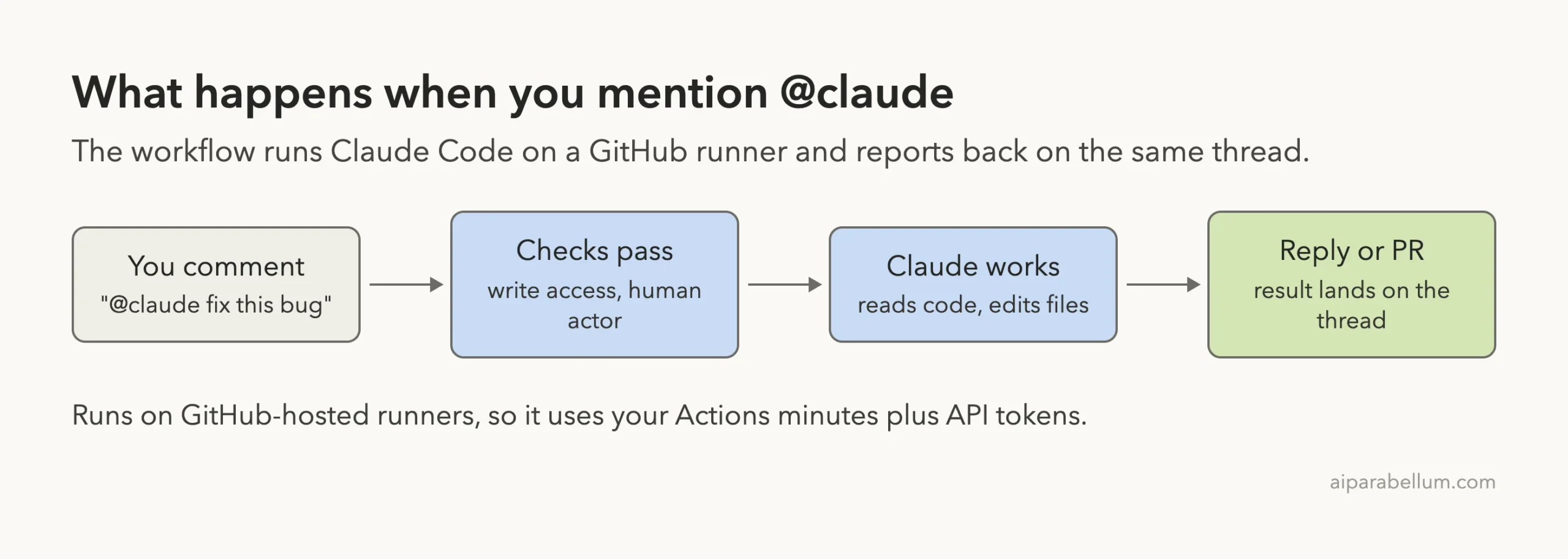
Claude Code GitHub Actions is a GitHub Action that runs Claude Code on GitHub’s own runners. You mention @claude in a pull request or issue comment, and Claude can analyze code, implement changes and push commits. You can also give the action a prompt so it runs on any GitHub event on its own.
Typical jobs include turning an issue into a pull request, fixing a bug from a comment, and running a recurring report. The action is built on the Claude Agent SDK, so it behaves like the Claude Code you already use. If you have not seen that tool yet, start with this beginner overview.
One note from the docs: several products share the Claude Code name. This page is about the workflow integration you configure with files in your repository. Code Review, Claude Code in the cloud and the Agent SDK are separate things.
How to Set Up Claude Code GitHub Actions
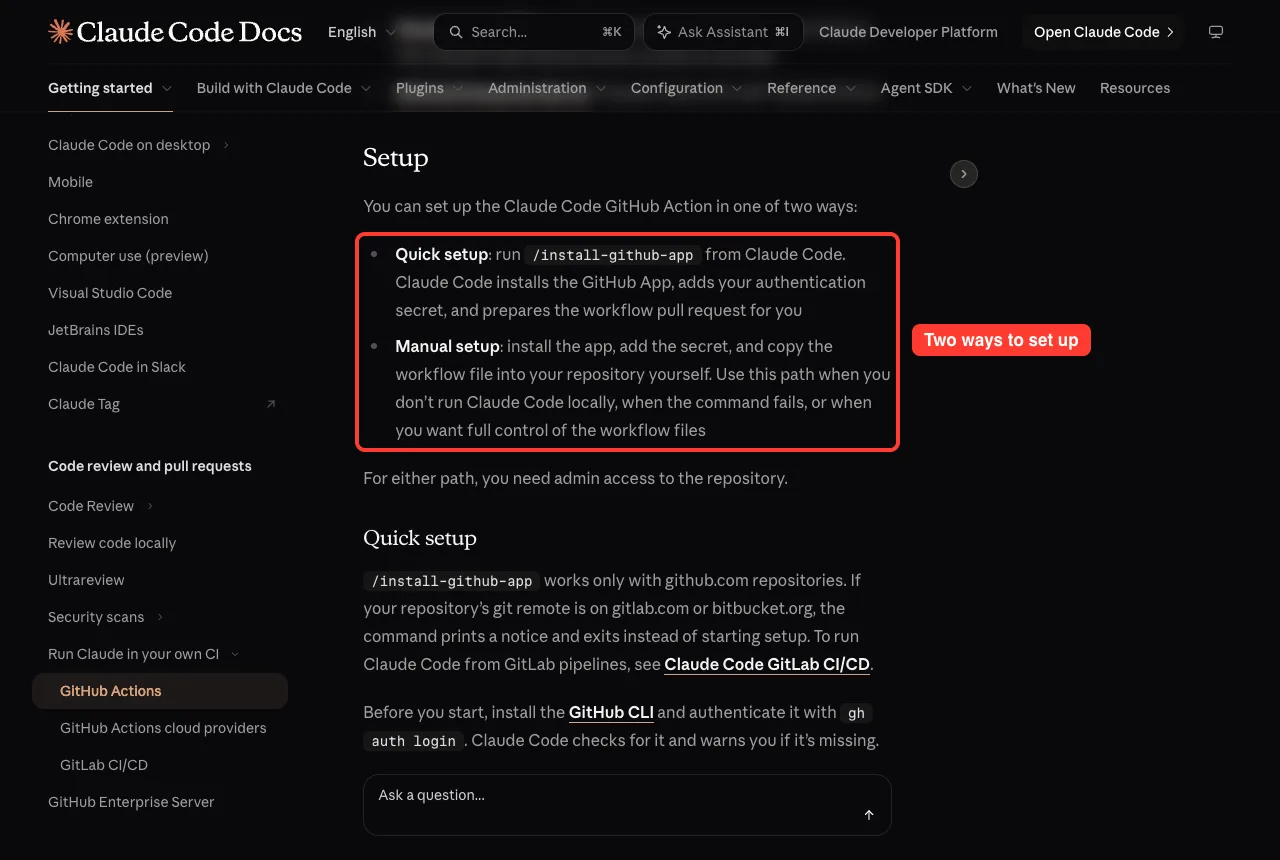
You can set it up in one of two ways. For either path you need admin access to the repository.
Quick setup with /install-github-app
Quick setup is the easiest path. Before you start, install the GitHub CLI and sign in with gh auth login. Claude Code checks for it and warns you if it is missing.
- Open claude inside the repository you want to connect.
- Run /install-github-app and follow the prompts.
- Choose how to authenticate. If Claude Code already has an API key, it reuses it. Otherwise you pick between a long-lived token from your Claude subscription and a pasted API key.
- Claude Code saves the credential as a repository secret, then pushes a branch with the workflow files you select.
- GitHub opens in your browser with a pull request ready. Create and merge it, and @claude works in the repository.
Two limits are worth knowing. The command works only with github.com repositories, so a remote on gitlab.com or bitbucket.org makes it exit with a notice. And you can press Esc to stop partway; a step already in progress finishes, and the closing message lists what already happened.
If you are new to slash commands, our guide to slash commands covers the basics.
Manual setup in three steps
Use the manual path when you do not run Claude Code locally, when the command fails, or when you want full control.
- Install the Claude GitHub App on your repository.
- Add an authentication secret.
- Copy the examples/claude.yml workflow into .github/workflows/ in your repository.
The docs say the example file is a working workflow, not just a sample. As committed, Claude responds whenever someone mentions @claude in an issue or pull request. Then test it by tagging @claude in a comment.
The three permissions the action needs
The action relies on three permissions from the GitHub App.
- Contents: read and write, so Claude can modify repository files
- Issues: read and write, so Claude can respond to issues
- Pull requests: read and write, so Claude can create pull requests and push changes
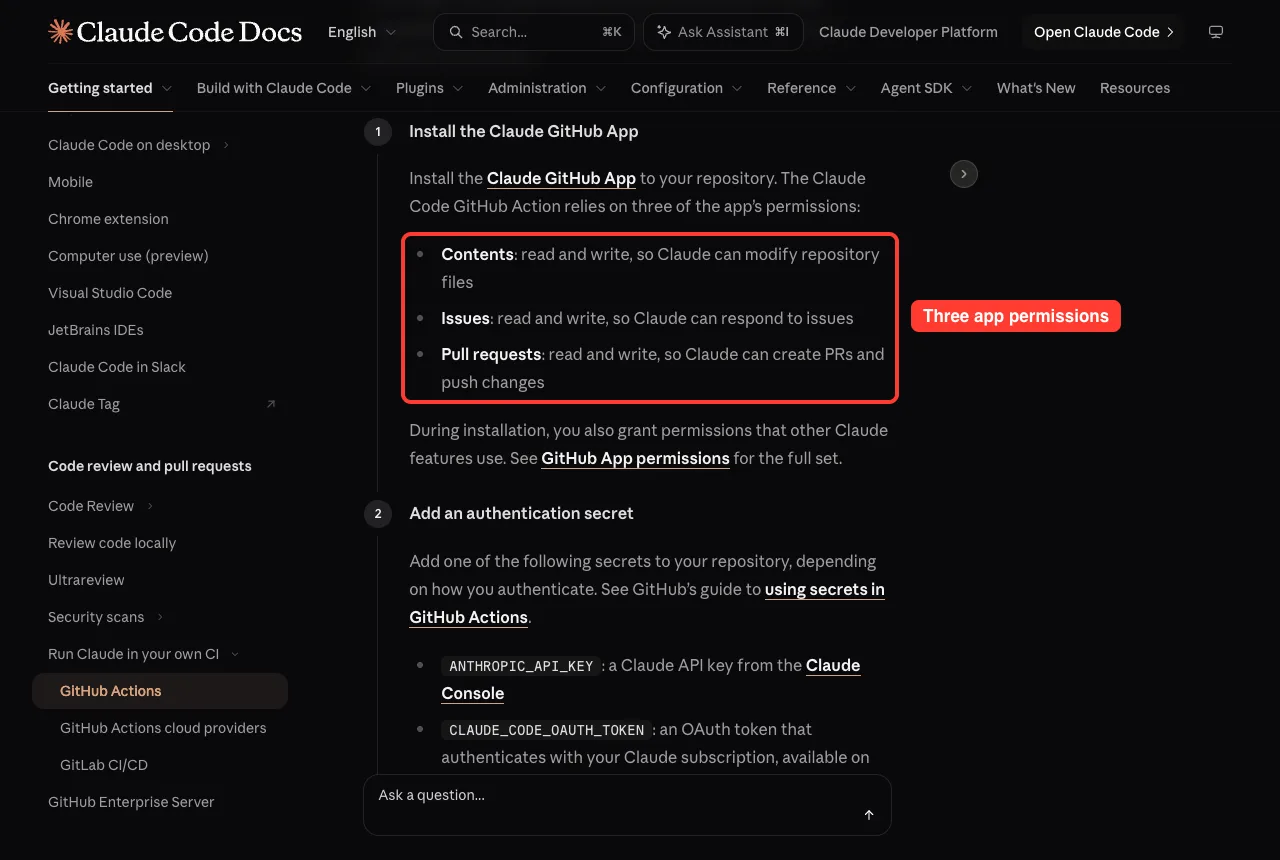
The app is shared by every Claude feature that works with GitHub, so installing it grants a larger permission set than this action alone uses. GitHub does not let you accept a subset. If your organization needs only the three, the docs point to creating a custom GitHub App instead.
Choose Your Authentication Secret
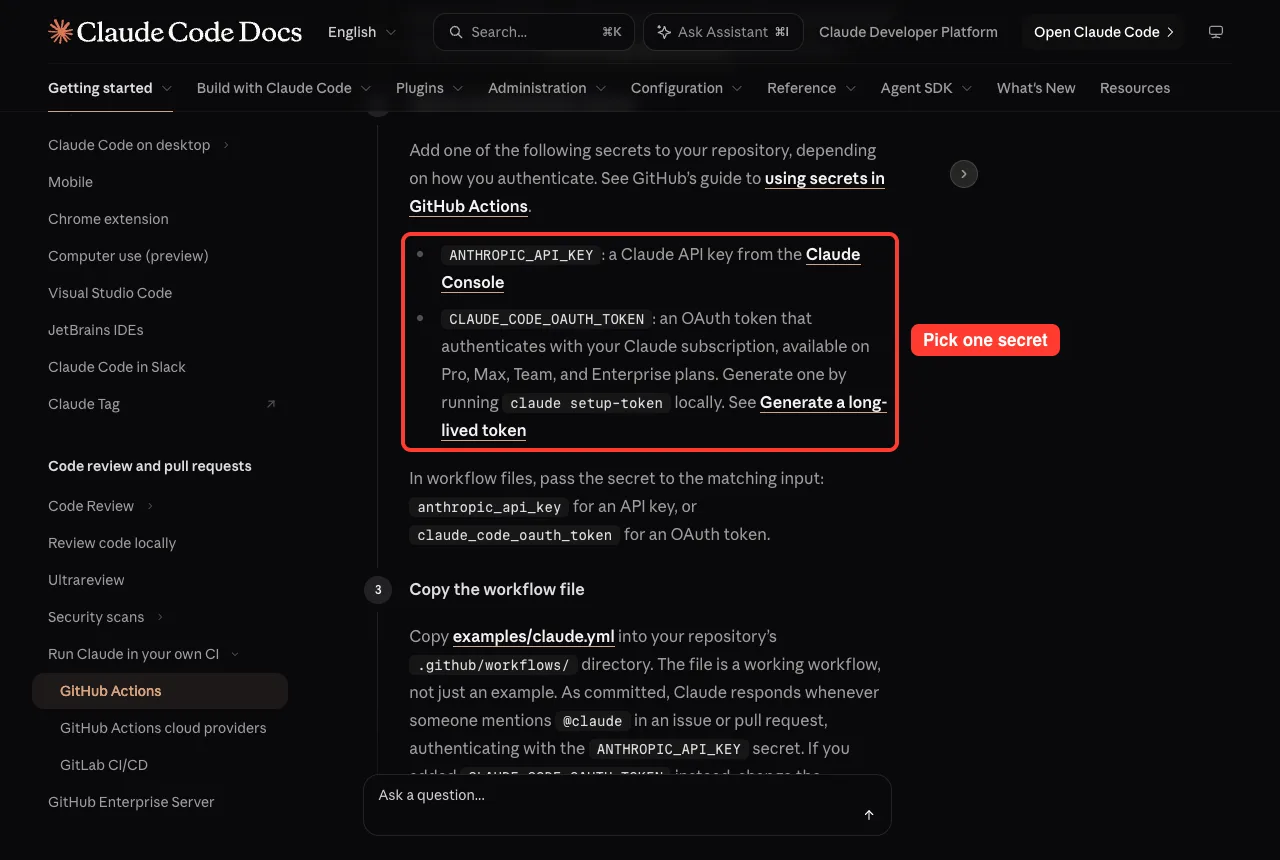
Claude needs a credential to run. Add one of these as a repository secret.
| Secret name | What it is | Workflow input |
|---|---|---|
| ANTHROPIC_API_KEY | A Claude API key from the Claude Console | anthropic_api_key |
| CLAUDE_CODE_OAUTH_TOKEN | A token for your Claude subscription (Pro, Max, Team or Enterprise), made with claude setup-token | claude_code_oauth_token |
Never paste a key into a workflow file or commit it to the repository. Store it as a GitHub Secret and reference it, as in the examples below. Our plans guide explains which accounts can use a subscription token.
Read Your First Workflow File
This is the official workflow for responding to @claude mentions. It is short, and each part has a job.
name: Claude Code
on:
  issue_comment:
    types: [created]
  pull_request_review_comment:
    types: [created]
jobs:
  claude:
    if: contains(github.event.comment.body, '@claude')
    runs-on: ubuntu-latest
    permissions:
      contents: write
      pull-requests: write
      issues: write
      id-token: write
      actions: read
    steps:
      - uses: actions/checkout@v6
        with:
          fetch-depth: 1
      - uses: anthropics/claude-code-action@v1
        with:
          anthropic_api_key: ${{ secrets.ANTHROPIC_API_KEY }}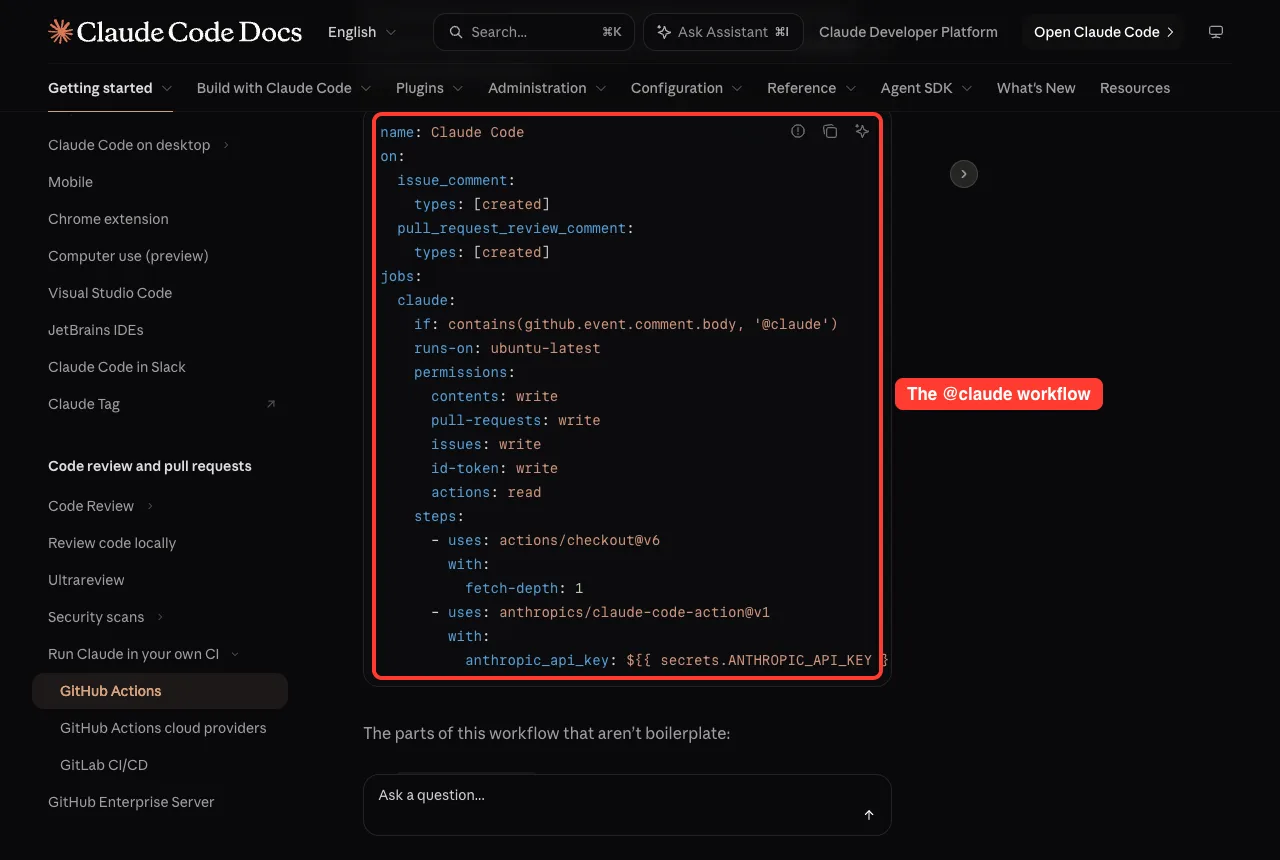
The docs explain the parts that are not boilerplate.
- id-token: write is required for the action’s default GitHub App authentication.
- actions: read lets Claude read CI results on pull requests.
- actions/checkout gives Claude a local copy of the repository to work in.
- The if line keeps runners from starting on comments that do not mention @claude.
If you use a subscription token, change the last line to claude_code_oauth_token: ${{ secrets.CLAUDE_CODE_OAUTH_TOKEN }}.
What to type in a comment
Once the workflow is merged, mention @claude with a request. These are the official examples.
@claude implement this feature based on the issue description
@claude how should I implement user authentication for this endpoint?
@claude fix the TypeError in the user dashboard component
Claude replies in a comment on the same issue or pull request and updates it as it works. Specific requests save turns.
Interactive Mode vs Automation Mode
The action decides how to run by looking at your workflow. If there is no prompt input, it runs in interactive mode. If there is a prompt, it runs in automation mode.
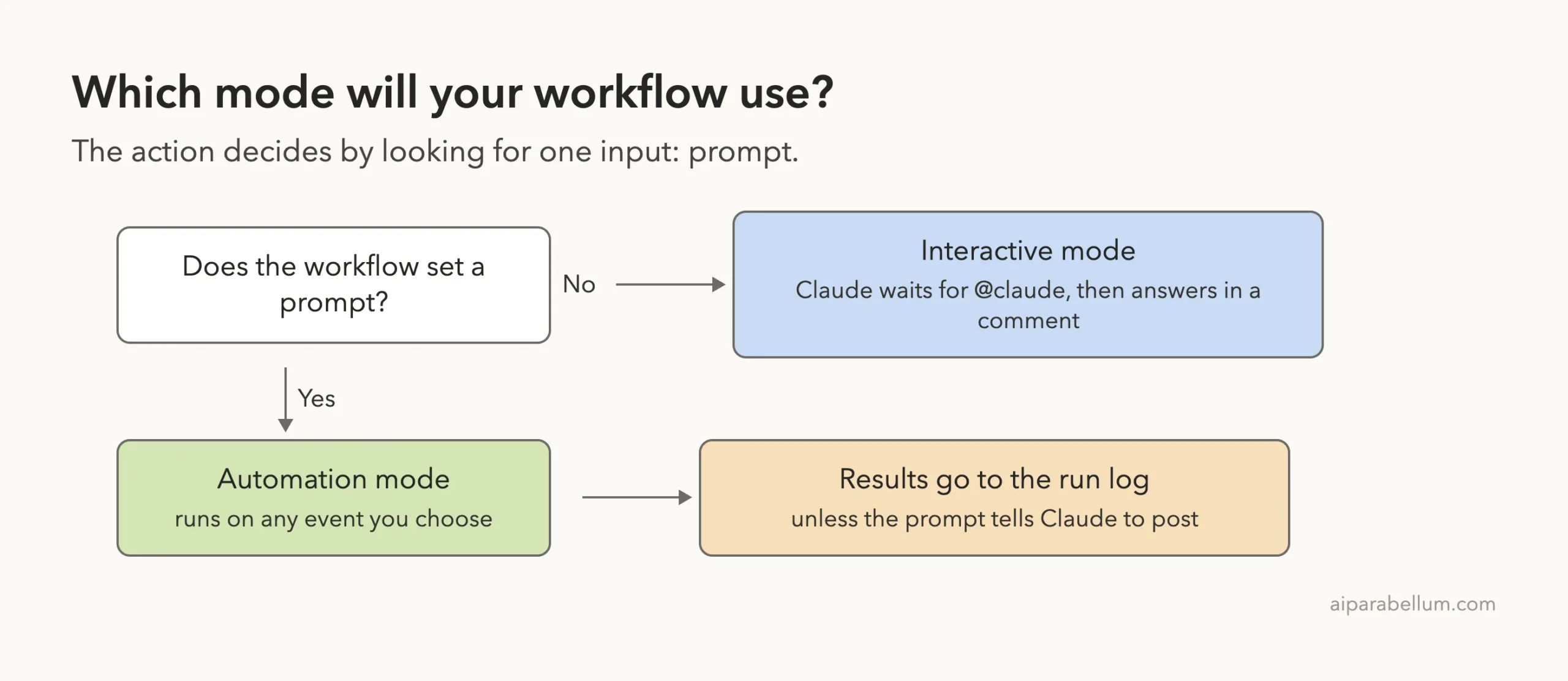
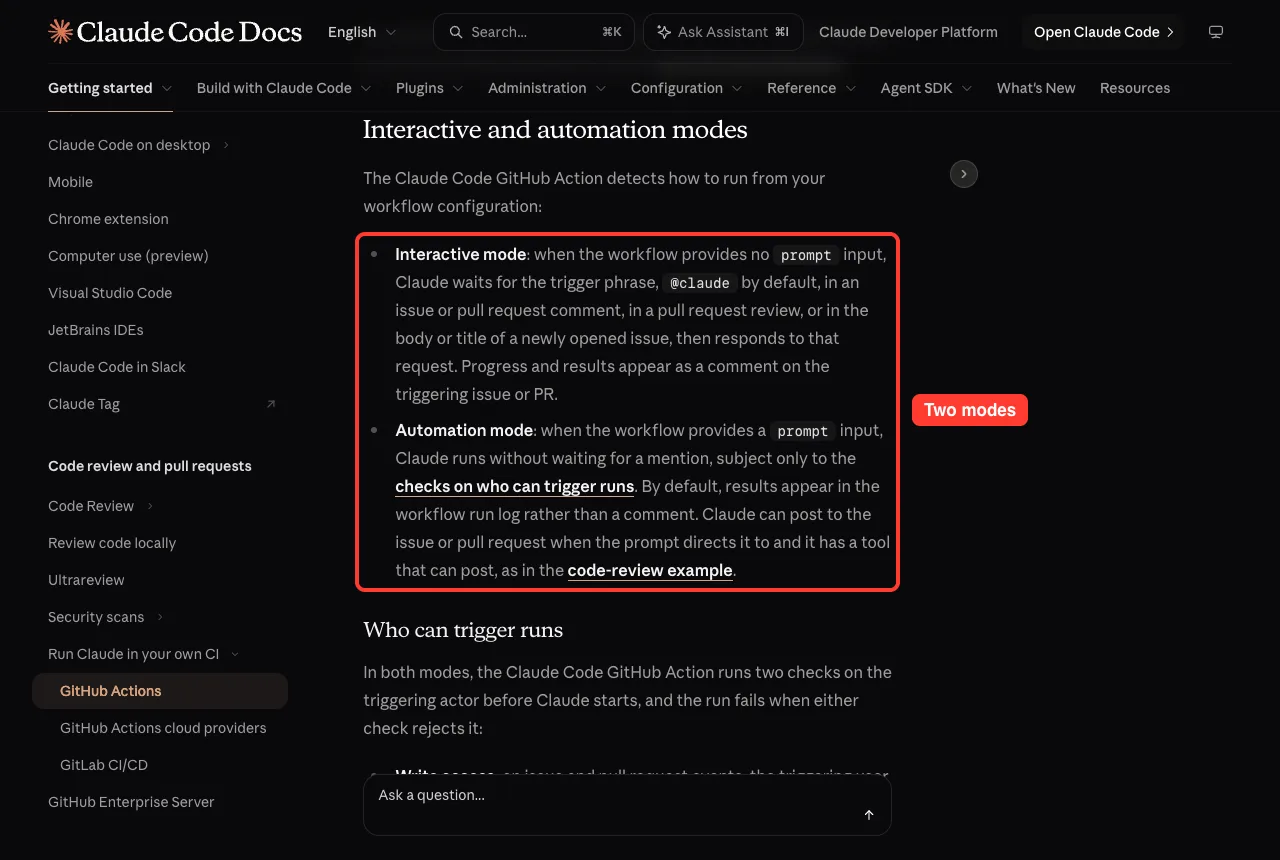
- Interactive mode: Claude waits for the trigger phrase (@claude by default) in a comment, a pull request review, or the title or body of a new issue. Progress and results appear as a comment on that thread.
- Automation mode: Claude runs without waiting for a mention. By default the results appear in the workflow run log rather than a comment, unless the prompt tells Claude to post and it has a tool that can.
Who can trigger a run
In both modes, the action checks the person or bot that started the run, and the run fails if a check rejects it.
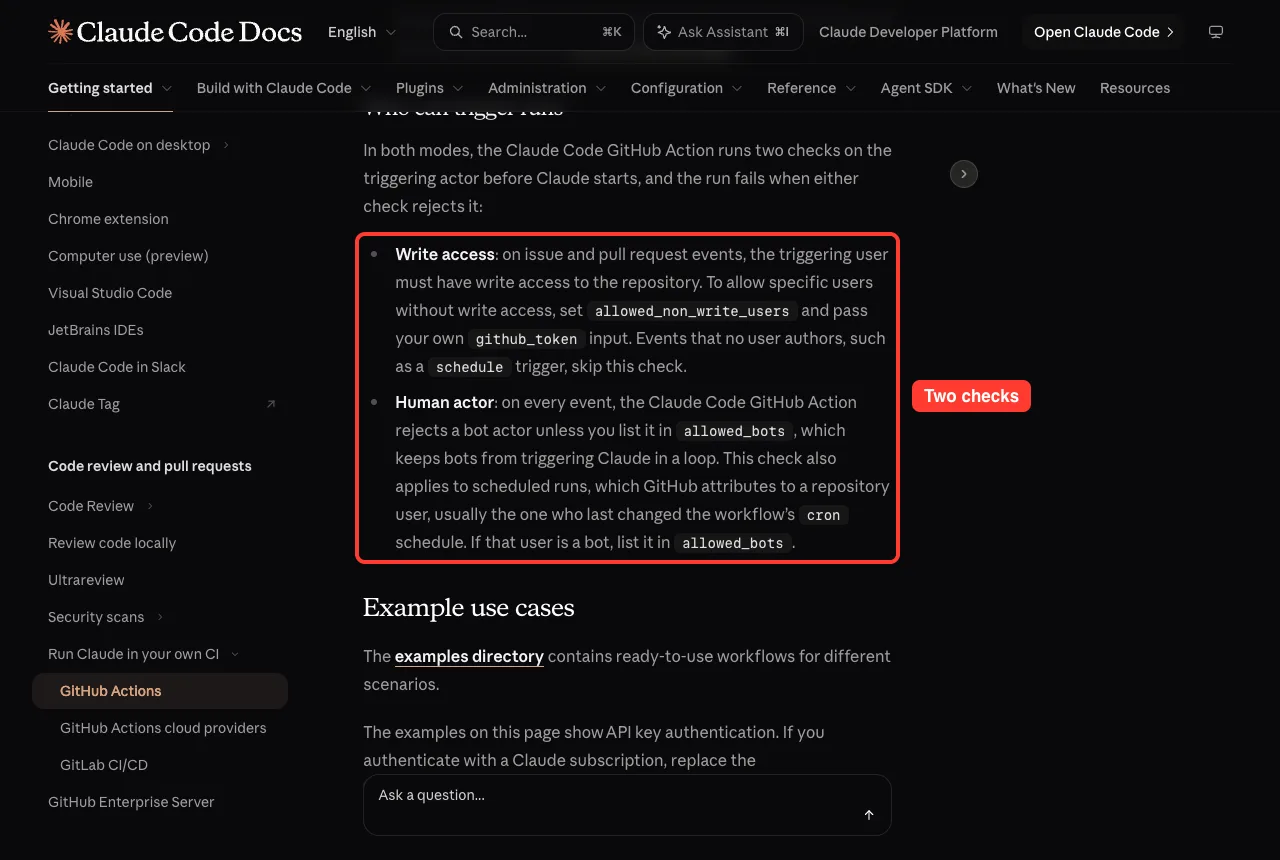
- Write access: on issue and pull request events, the user must have write access to the repository. You can allow specific users without it with allowed_non_write_users, plus your own github_token.
- Human actor: bots are rejected unless you list them in allowed_bots. This stops bots from triggering Claude in a loop.
Run Claude on a Schedule
With a prompt, the action can run on any GitHub event, including a cron schedule. This official example writes a report to the workflow run log at 09:00 UTC each day.
name: Daily Report
on:
  schedule:
    - cron: "0 9 * * *"
jobs:
  report:
    runs-on: ubuntu-latest
    permissions:
      contents: read
      issues: read
      id-token: write
    steps:
      - uses: anthropics/claude-code-action@v1
        with:
          anthropic_api_key: ${{ secrets.ANTHROPIC_API_KEY }}
          prompt: "Generate a summary of yesterday's commits and open issues"
          claude_args: |
            --model claude-opus-5-5
            --allowedTools "mcp__github__list_commits,mcp__github__list_issues"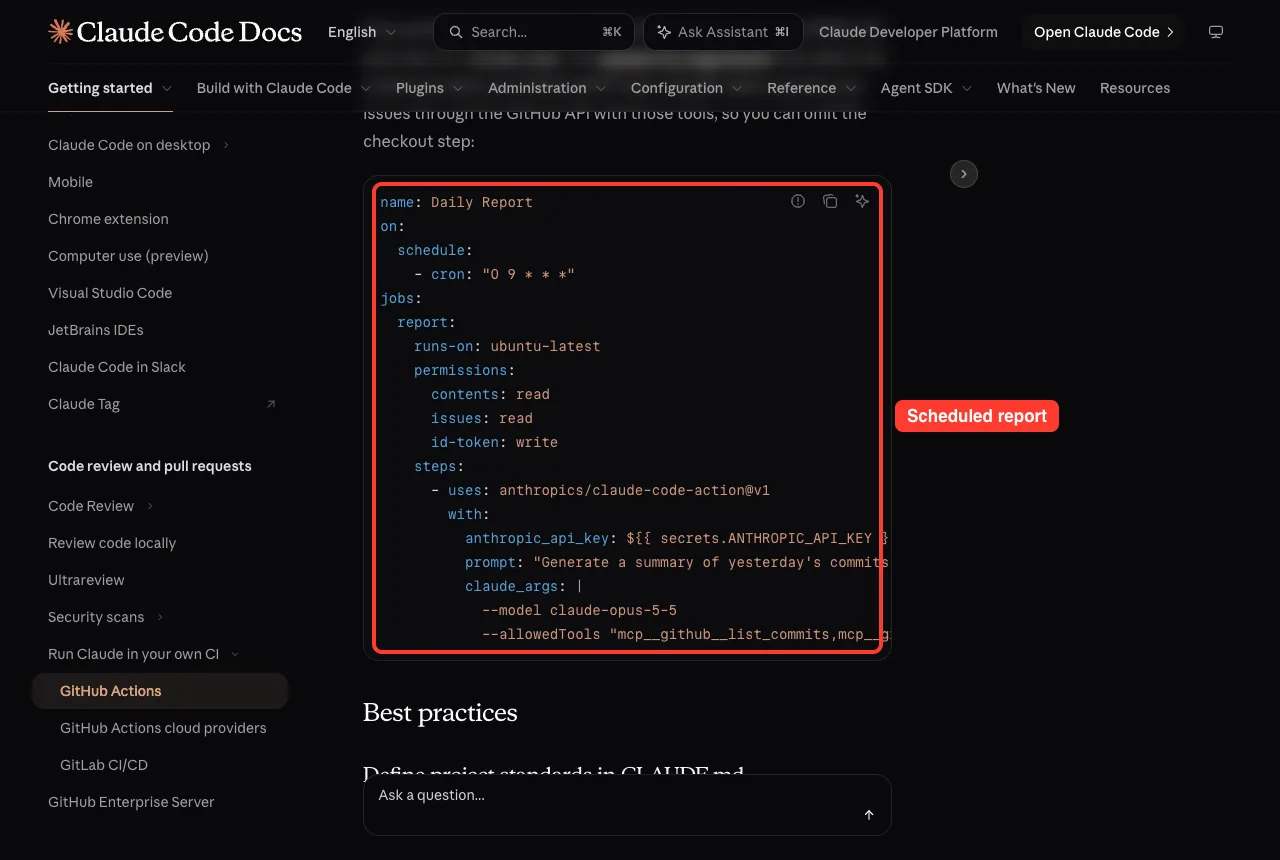
Notice the claude_args line. For a plain-text prompt, Claude has no shell or GitHub API access until you grant the tools it needs with –allowedTools. The docs also warn that GitHub runs scheduled workflows only from the default branch, and in public repositories it disables the schedule after 60 days without activity.
Run a skill or the code-review plugin
The prompt input also accepts a skill. For a skill in your repository’s .claude/skills/ directory, run actions/checkout first, then pass /skill-name as the prompt.
For a plugin skill, install the plugin with the plugin_marketplaces and plugins inputs. Our guides to Claude Code skills and plugins explain the pieces.
The docs include a full workflow that runs the code-review plugin when a pull request is opened, updated, reopened or marked ready. For automatic reviews with no workflow file to maintain, see the official Code Review page, and our guide to running a local code review.
Common Action Inputs
These are the most used inputs. Each one is a key under the with: section of the action step.
| Input | What it does |
|---|---|
| prompt | Instructions for Claude as text or a skill; leave it out to respond to the trigger phrase |
| claude_args | CLI arguments passed to Claude Code |
| anthropic_api_key | Your Claude API key |
| claude_code_oauth_token | Subscription token made with claude setup-token |
| github_token | Token for GitHub operations; when omitted, the action authenticates as the Claude GitHub App |
| trigger_phrase | Phrase Claude responds to; the default is @claude |
| plugins and plugin_marketplaces | Plugins to install before the run |
| settings | Claude Code settings as a JSON string or a file path |
| use_bedrock, use_vertex, use_foundry | Route inference through Amazon Bedrock, Google Cloud’s Agent Platform or Microsoft Foundry |
The claude_args input accepts any Claude Code CLI argument.
For example, claude_args: “–max-turns 5 –model claude-sonnet-5” limits the turns and picks a model. Other common flags are –mcp-config, –allowedTools and –debug. See the official GitHub Actions page for the full list.
Keep Costs Under Control
Each run uses two kinds of resources.
The first is GitHub Actions minutes, because the action runs on GitHub-hosted runners. The second is Claude API tokens, which depend on prompt length, task complexity and codebase size. If you authenticate with an OAuth token, runs use your Claude subscription instead of API billing.
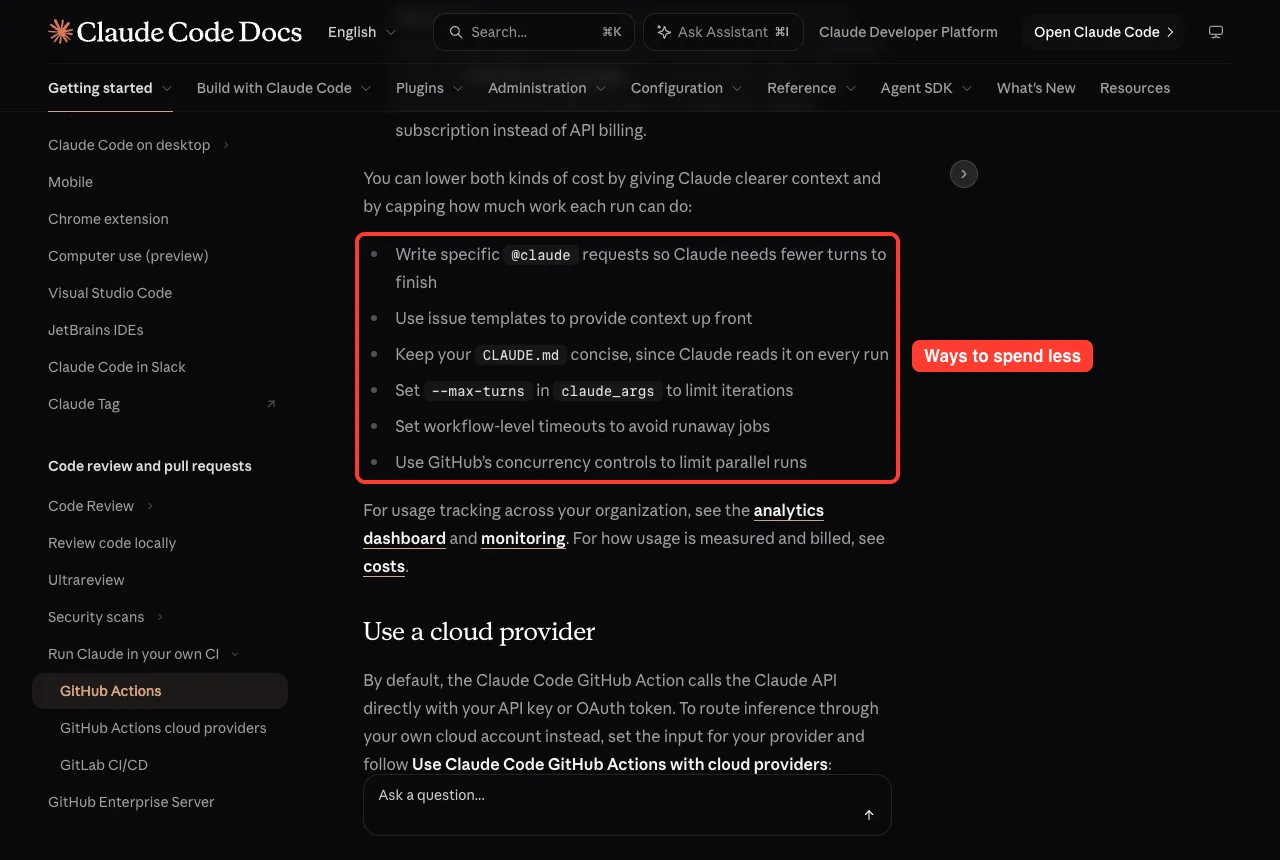
- Write specific @claude requests so Claude needs fewer turns.
- Use issue templates to give context up front.
- Keep your CLAUDE.md concise, because Claude reads it on every run.
- Set –max-turns in claude_args to limit iterations.
- Set workflow-level timeouts to avoid runaway jobs.
- Use GitHub concurrency controls to limit parallel runs.
Your CLAUDE.md is also where you define code style and review rules. Our CLAUDE.md guide shows how, and the general cost guide covers spending on your own machine.
Troubleshooting Claude Code GitHub Actions
If Claude does not answer, go through this list first.
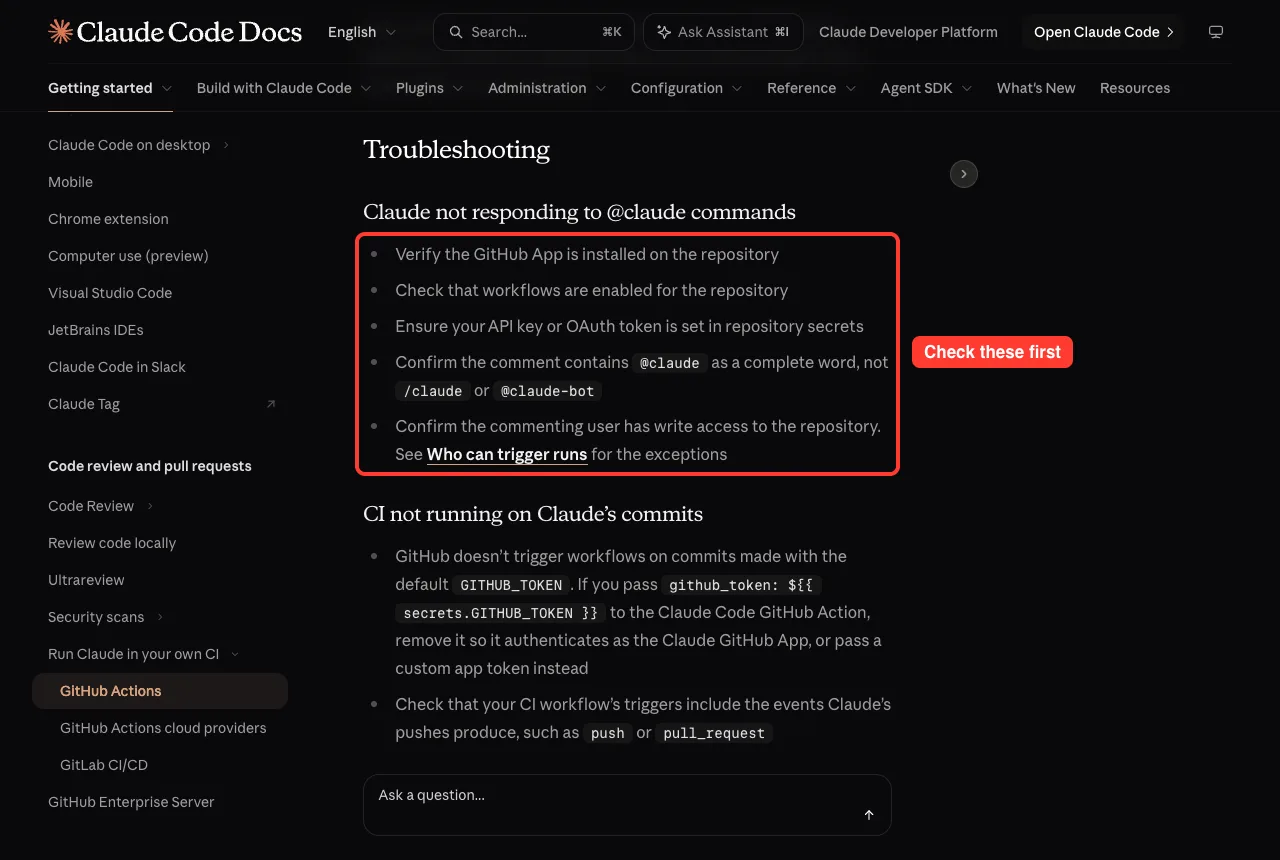
- Verify the GitHub App is installed on the repository.
- Check that workflows are enabled.
- Make sure your API key or token is set in repository secrets.
- Confirm the comment contains @claude as a whole word, not /claude or @claude-bot.
- Confirm the commenting user has write access.
If your other CI does not run on Claude’s commits, the cause is often the token. GitHub does not trigger workflows on commits made with the default GITHUB_TOKEN. If you pass that token to the action, remove it so the action authenticates as the Claude GitHub App.
Also check that your CI triggers include push or pull_request.
For authentication errors, test the same key or token locally with claude first. If that fails too, see our guide to login fixes.
Set It Up for a Whole Organization
Quick and manual setup configure one repository at a time. For many repositories, install the Claude GitHub App once at the organization level and store the secret as an organization-level Actions secret. Then add the workflow file to each repository, or define the job once as a reusable workflow.
For a secret shared across repositories, the docs recommend an API key from the Claude Console rather than an OAuth token, because an OAuth token is tied to the subscription of the person who ran claude setup-token. To avoid a long-lived secret entirely, you can use workload identity federation, which exchanges the workflow’s GitHub OIDC token for API access.
Try It Yourself
Practice on a throwaway repository, not a real project. Create a small test repo on github.com, open Claude Code inside it, and run the setup. Then open an issue and ask Claude for a tiny change.
/install-github-app

@claude add a README section that explains how to run this project, then open a pull request
Review the pull request Claude opens before you merge it. The docs say to grant the workflow only the permissions it needs and to review Claude’s changes before merging.
Common Mistakes
- Committing an API key into the repository instead of using a GitHub Secret.
- Passing the default GITHUB_TOKEN, which stops your other workflows from running on Claude’s commits.
- Writing /claude or @claude-bot instead of @claude as a whole word.
- Leaving out –allowedTools in a scheduled workflow, so Claude cannot reach GitHub.
- Using an OAuth token as a shared team secret, when it is tied to one person’s subscription.
- Leaving @beta in an old workflow instead of moving to @v1.
Pro Tips
- Start with the example claude.yml and change one thing at a time.
- Add –max-turns and a workflow timeout on day one.
- Keep CLAUDE.md short and specific; Claude reads it on every run.
- Use issue templates so each request arrives with context.
- If your workflows still use anthropics/claude-code-action@beta, switch to @v1, remove the mode input, replace direct_prompt with prompt, and move CLI options into claude_args.
- To remove everything, delete the workflow files, delete the secret and, if nothing else uses it, uninstall the GitHub App. Deleting a secret does not revoke the key itself, so also delete the key in the Claude Console.
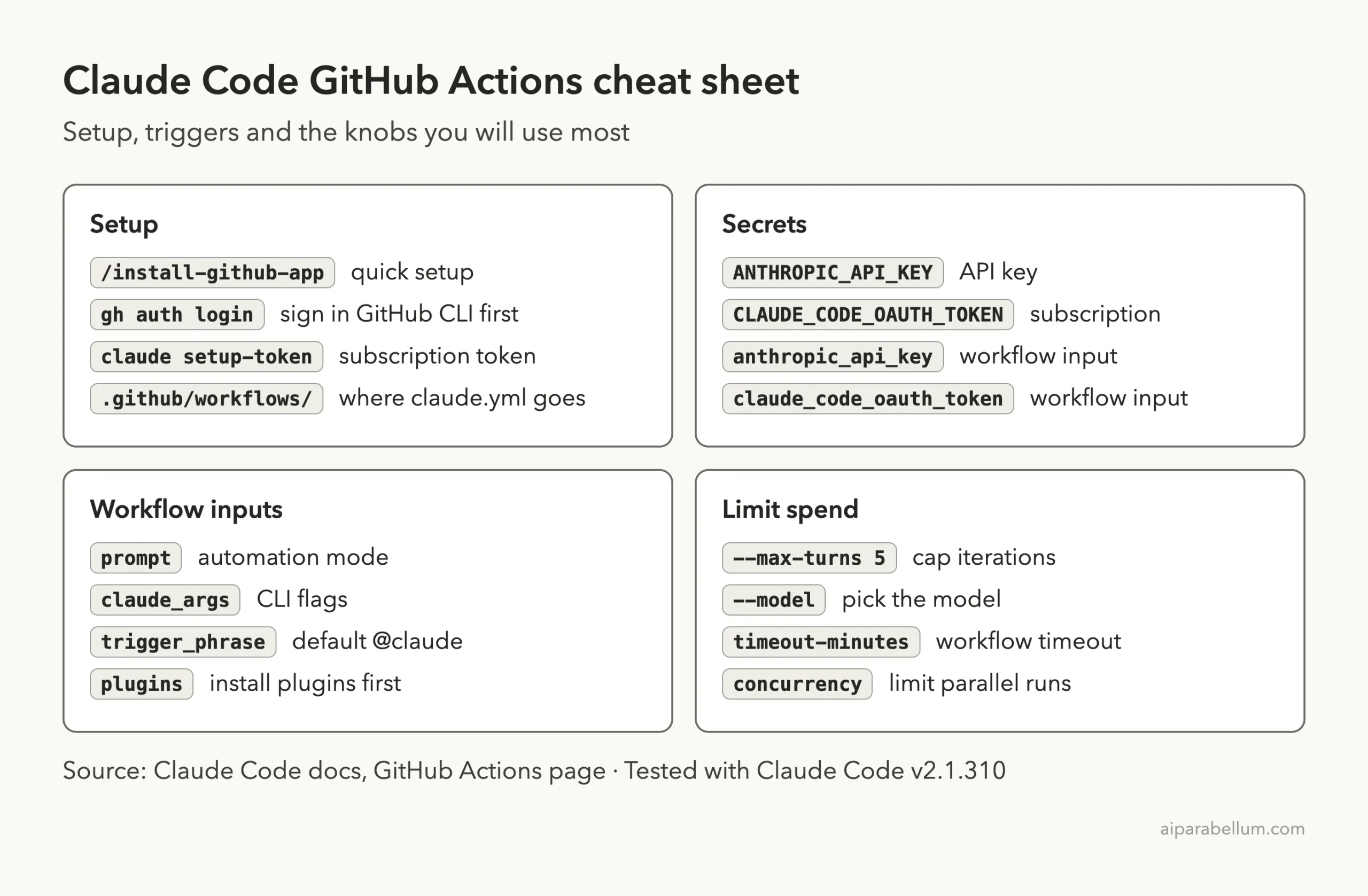
Cheat Sheet
Frequently Asked Questions
What is Claude Code GitHub Actions?
It is a GitHub Action that runs Claude Code inside your repository’s workflows. It responds to @claude mentions or runs a prompt you set on any GitHub event.
How do I install it?
Run /install-github-app from Claude Code inside your repository, or install the app, add a secret and copy the example workflow by hand. You need admin access to the repository either way.
Does it work with GitLab or Bitbucket?
The /install-github-app command works only with github.com repositories. For GitLab, the docs point to a separate Claude Code GitLab CI/CD page.
Can I use my Claude subscription instead of an API key?
Yes. Run claude setup-token locally to create a token, store it as CLAUDE_CODE_OAUTH_TOKEN, and pass it with the claude_code_oauth_token input. It is available on Pro, Max, Team and Enterprise plans.
Can it use Amazon Bedrock or Google Cloud?
Yes. Set use_bedrock, use_vertex or use_foundry to “true” and follow Anthropic’s cloud provider page. All three use OIDC identity federation, so you store no static cloud credentials in the repository.
Conclusion
Claude Code GitHub Actions brings Claude into the place where your team already talks about code. Run /install-github-app, pick one secret, merge the workflow pull request, and mention @claude. From there, add a prompt for scheduled jobs, limit turns and timeouts to control cost, and always review what Claude pushes. You can find every guide in this series on our Claude Code tutorials page, and our overview of Claude AI explains the models behind it.
Previous in the series: Part 49, Claude Code Data Usage, Privacy and Security Explained
Next in the series: Part 51: Claude Code in VS Code and JetBrains IDEs.