You do not have to sit at your laptop for Claude Code to work. Claude Code web sessions run in the cloud, so a task keeps going after you close the lid, and you can check it from a browser, your phone or a Slack thread. This guide shows the three ways to reach Claude away from your terminal and how to pick the right one.
We cover Slack mentions, cloud sessions at claude.ai/code and the Claude app on iOS and Android.
This is Part 52 of 53 in our Claude Code tutorials series. In the previous part we put Claude inside your editor with editor setup.
Tested with Claude Code v2.1.310 on October 26, 2026, on macOS.
This is a docs-based tutorial. Every screenshot is a highlighted capture of Anthropic’s official Slack, cloud sessions and mobile pages, taken that day. We did not connect a Slack workspace, a GitHub account or a phone for this article, so the steps come from the official documentation.
We tested on macOS; the Windows and Linux steps follow Anthropic’s official instructions.
Claude Code Away From Your Terminal at a Glance
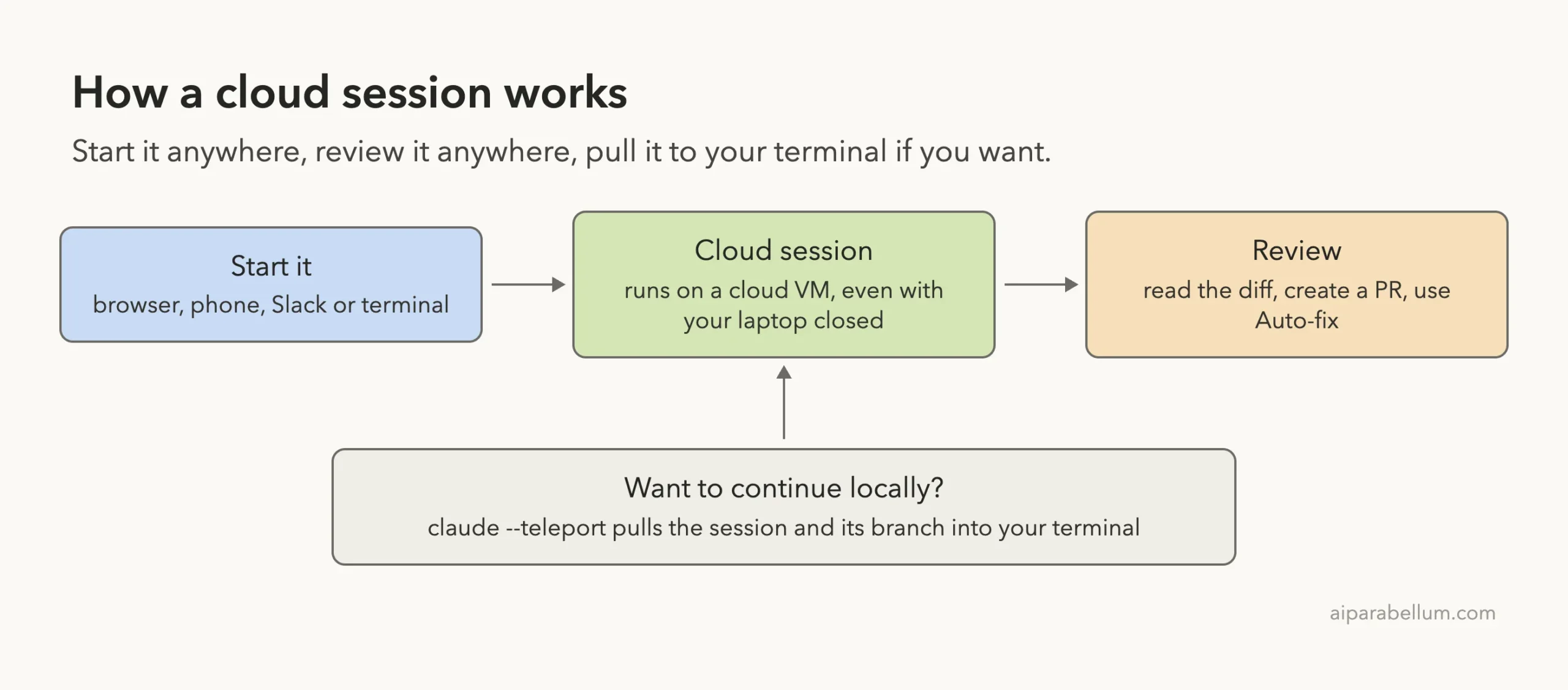
Slack, the web and your phone are three doors into the same Claude Code cloud sessions, so a task you start in one place can be checked in another.
| Way in | Where the work runs | Best for |
|---|---|---|
| Slack | A cloud session created on claude.ai/code | Tasks that start from a team discussion |
| Web (claude.ai/code) | A cloud session on Anthropic’s infrastructure by default | Longer tasks you want to watch and steer |
| Mobile app | Cloud sessions, or your own computer through Remote Control | Checking progress and answering questions on the go |
| Terminal (claude –cloud) | A new cloud session for your current repository | Sending a task away while you keep working locally |
What Is a Cloud Session?
A cloud session is a Claude Code session that runs on cloud infrastructure instead of on your machine. By default it runs on infrastructure Anthropic manages. The docs also mention self-hosted environments for organizations.
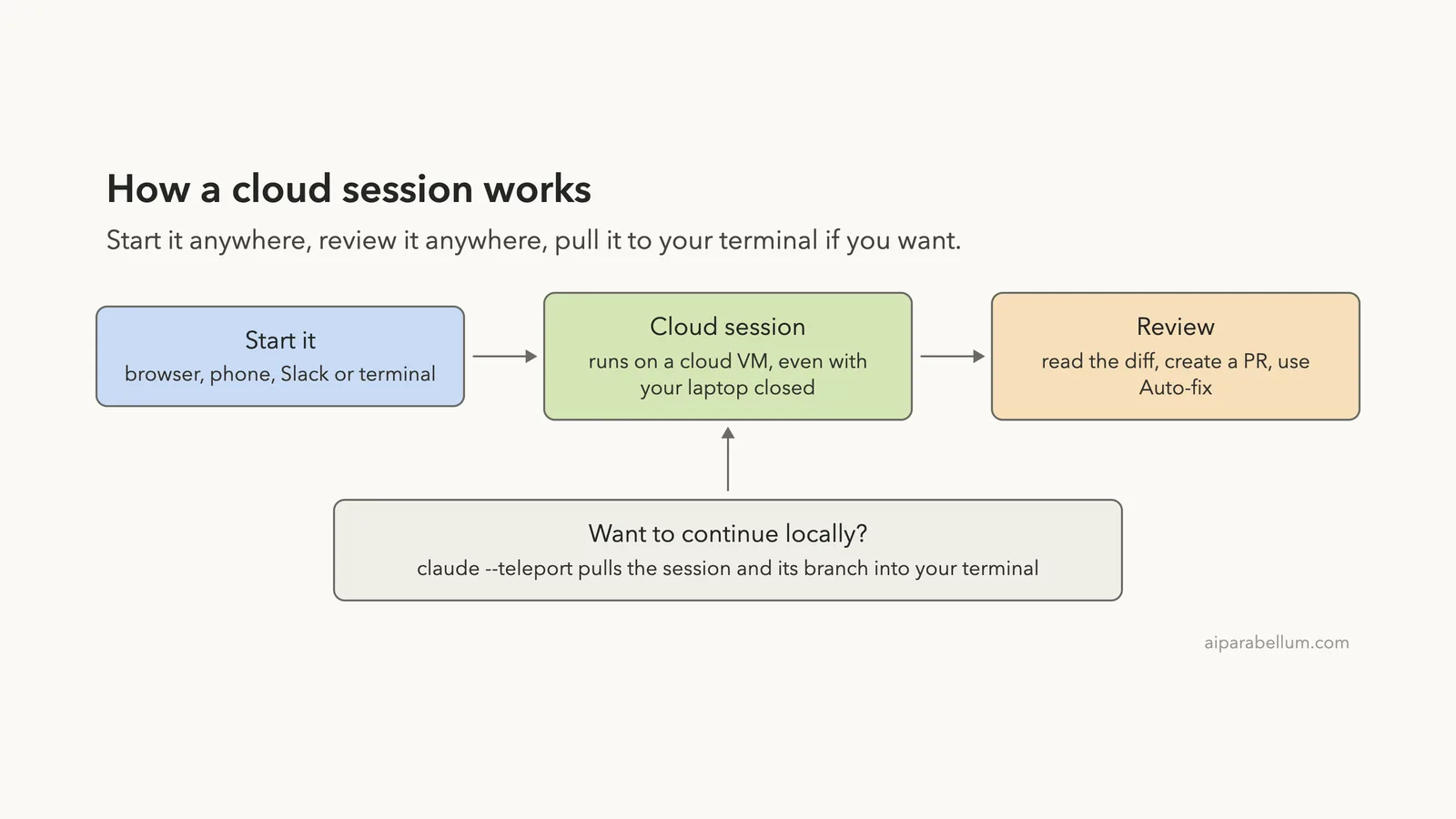
The session keeps running after you close your laptop, and you can check on it or steer it from any device. It counts toward your plan’s usage limits like all your other Claude and Claude Code usage, and the docs say there is no separate charge for the cloud virtual machine. Our costs guide explains how usage adds up.
Cloud sessions are available on Pro, Max and Team plans, and for Enterprise users with premium seats or Chat + Claude Code seats. They need a claude.ai sign-in, so they do not work with an API key or a third-party provider such as Amazon Bedrock. See our plans guide for the account side, or read how Claude works in general.
Start a Cloud Session on the Web
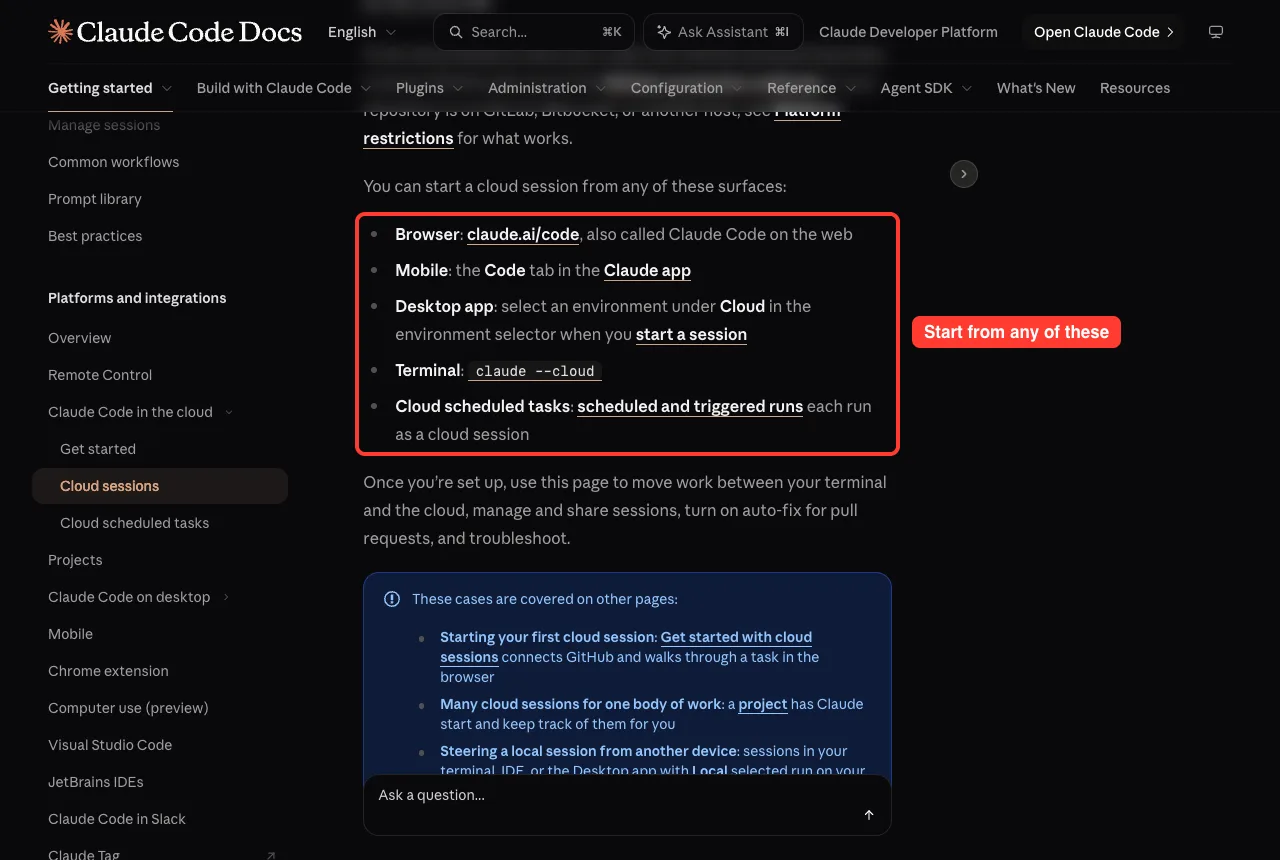
The browser is the home of cloud sessions. You open claude.ai/code, connect GitHub, pick a repository and describe the task. The docs list five ways to start a cloud session.
Connect GitHub first
Cloud sessions clone your code from GitHub and push branches back, so GitHub access comes first. The docs describe two ways to grant it.
- GitHub App: authorize the Claude GitHub App during web onboarding. Sessions can reach any public repository, plus private ones the app is installed on. This option also enables Auto-fix.
- /web-setup: run this command in your terminal to send your local gh CLI token to your Claude account. Sessions can reach any repository your token can access.
On Team and Enterprise plans, an Owner can turn on a Quick setup toggle that removes some of these steps for members. The docs say your first environment is created for you or you are asked to create it, with Trusted network access by default.
If your repository lives on GitLab or Bitbucket, the docs say you can send it as a local bundle by setting CCR_FORCE_BUNDLE=1. The session then cannot push results back to that remote.
Send a Task From the Terminal With –cloud
You can start a cloud session without leaving your terminal. Run claude with the –cloud flag and a task description.
claude --cloud "Fix the authentication bug in src/auth/login.ts"This creates a new session on claude.ai. The cloud machine clones your repository’s GitHub remote at your current branch, not your local checkout, so push your commits first. The task runs in the cloud while you keep working locally.
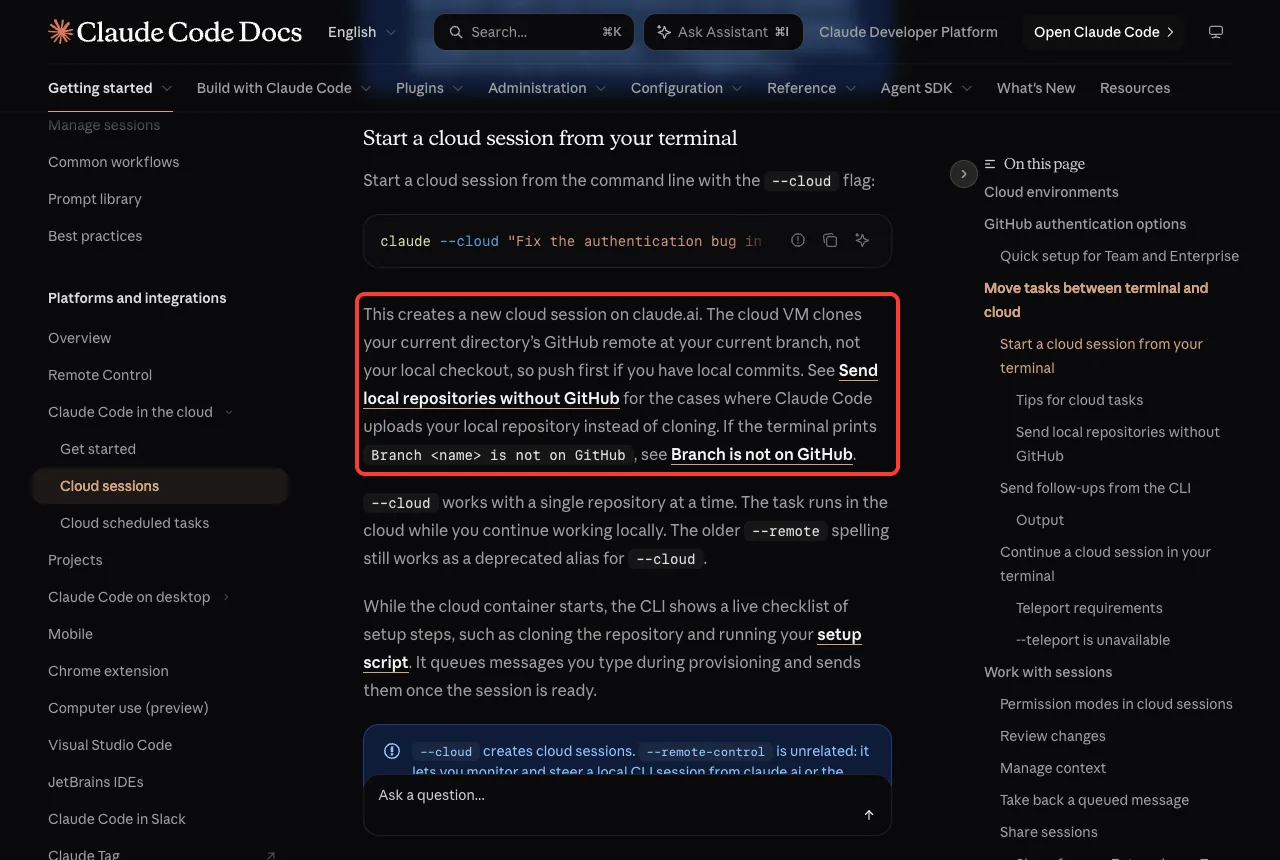
While the container starts, the CLI shows a live checklist of setup steps, and it queues anything you type until the session is ready. Each –cloud command makes its own session, so you can start several tasks in parallel.
Plan locally, execute in the cloud
The docs suggest a handy pattern for big tasks. Start Claude in plan mode, agree on an approach, save the plan to the repo, commit and push. Then send the work away.
claude --permission-mode plan

claude --cloud "Execute the migration plan in docs/migration-plan.md"
Our plan mode guide explains the first step.
Send a follow-up message
Once a session is running, you can message it from any machine where you are logged in. The command posts one message and exits, so it also works from a CI script.
claude -p "your message" --cloud <session-id>Find the session ID in your session list at claude.ai/code. The older –remote spelling still works as a deprecated alias for –cloud.
Bring a Cloud Session Back to Your Terminal
Handoff goes one way from the command line. You can pull a cloud session into your terminal with teleport, but you cannot push an existing terminal session up to the cloud. The docs list five ways to teleport.
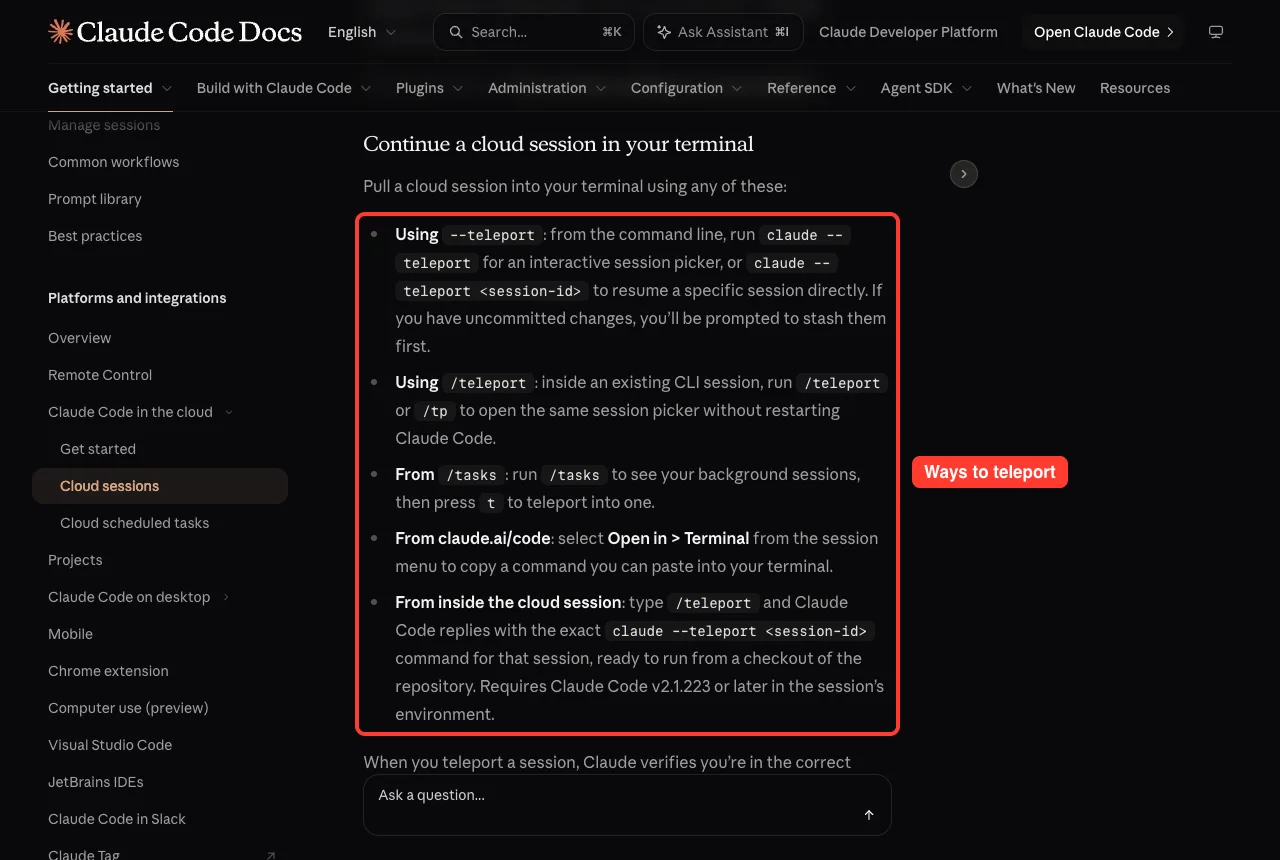
When you teleport, Claude checks you are in the right repository, fetches and checks out the session’s branch, and loads the full conversation. The terminal gets its own copy, so new work there does not appear in the cloud session. Teleport also needs a clean git state, the same claude.ai account, and a branch that was pushed to the remote.
Do not confuse it with resume. The docs say –resume reopens a conversation from this machine’s local history, while –teleport pulls a cloud session and its branch. Our sessions guide covers resume.
Review Changes and Auto-Fix Pull Requests
After Claude pushes its work to a branch, a Changes card in the session shows the lines added and removed. Click it to open the diff view. You can leave inline comments on lines and send them to Claude with your next message, or compare against any other branch.
Auto-fix goes one step further. Claude watches a pull request and responds to CI failures and review comments.
If a fix is clear, Claude makes the change, pushes it and explains what it did. If a comment is ambiguous, Claude asks you first.
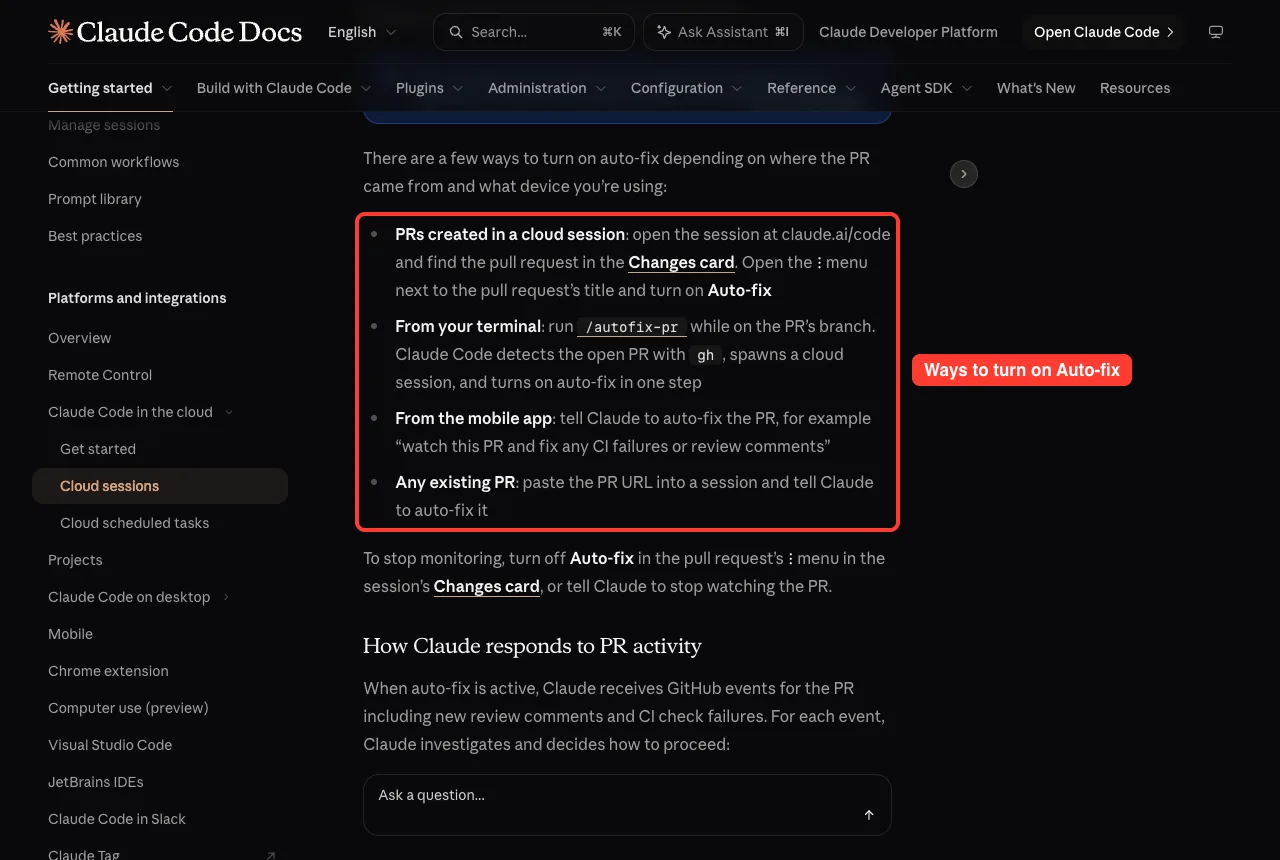
Auto-fix needs the Claude GitHub App on the repository. If you want to see how the same idea works in your own pipeline, read our GitHub Actions guide.
Sharing and safety
You can share a session by changing its visibility.
Team and Enterprise accounts choose between Private and Team. Max and Pro accounts choose between Private and Public, where Public means any user signed in to claude.ai. The docs warn that sessions may contain code and credentials from private repositories, so check before you share.
Each session runs in an isolated, Anthropic-managed virtual machine. In Anthropic-hosted environments, your git credentials stay outside the sandbox and a proxy attaches them on the session’s behalf. Our privacy guide covers more.
Use Claude Code From Your Phone
The docs are clear that Claude Code has no separate mobile app. The Claude app for iOS and Android is a client for sessions that run elsewhere. Cloud sessions and Remote Control both live in the Code tab of the app.
Get the app
- Install the Claude app for iOS or Android. On an iPad, install the same iOS app.
- Sign in with the same claude.ai account and organization you use for Claude Code.
- Tap Code in the app, or open claude.ai/code/new on your phone to start a new session.
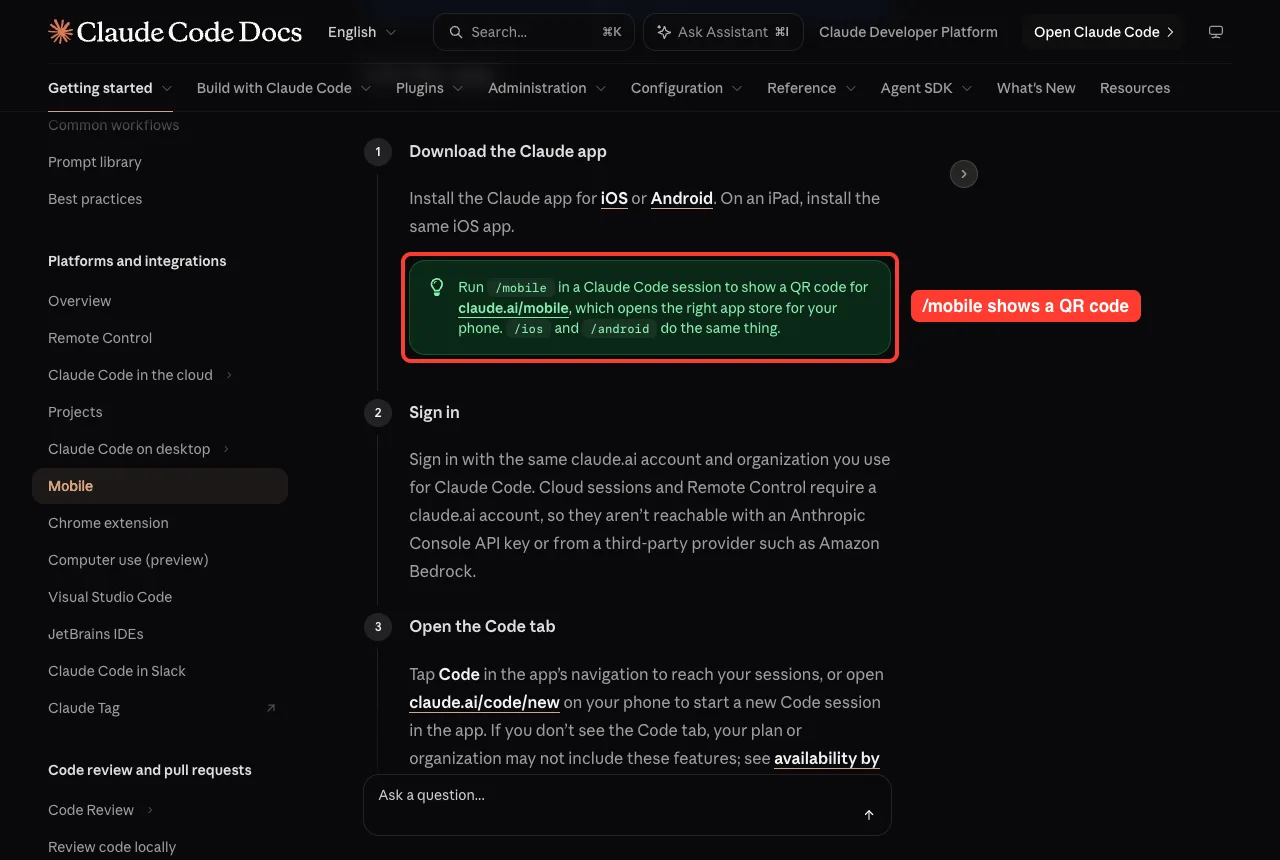
If you do not see the Code tab, your plan or organization may not include these features.
Four ways to connect from the app
The app looks the same for each, but the work happens in different places.
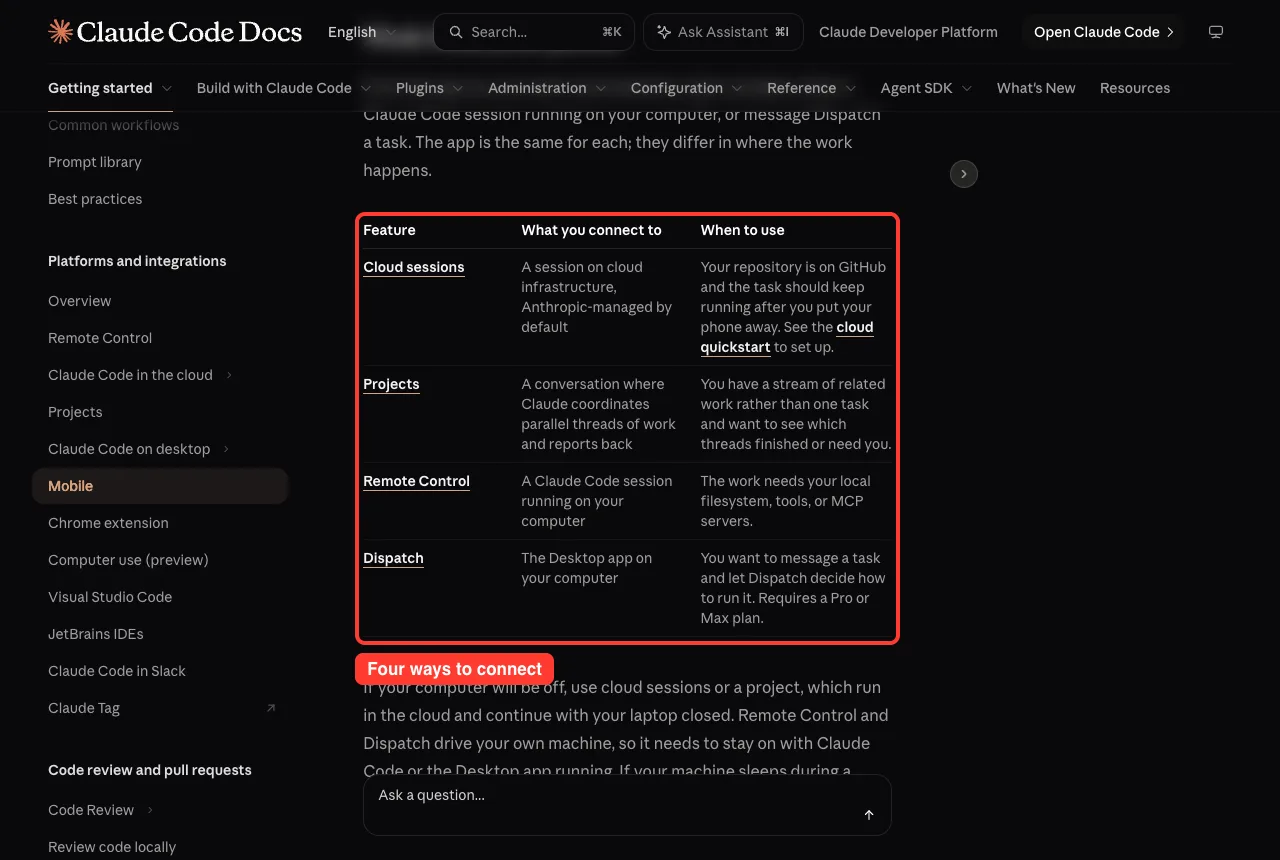
If your computer will be off, use cloud sessions or a project, which keep running with your laptop closed. Remote Control and Dispatch drive your own machine, so it must stay on.
Drive a local session with Remote Control
Remote Control connects the app to a Claude Code session on your own computer. Code execution and file access stay local while you steer from your phone.
Start it with claude remote-control, or run /remote-control inside a session that is already open. Then scan the QR code or pick the session from the Code tab.
Photos you attach in the app reach the local session. Claude Code saves each photo under ~/.claude/uploads/ and tells Claude the file path. Other files are downloaded to your machine and passed in as @ file references.
When Remote Control is active, Claude can send push notifications, usually when a long task finishes or when it needs a decision. You can ask for one in your prompt, such as notify me when the tests finish.
Phone limits to know
- Terminal-only commands such as /plugin and /resume do not work from the app.
- Cloud sessions offer Accept edits, Plan and Auto modes. Remote Control sessions add Manual. You cannot choose Bypass permissions from the app.
- Dispatch requires a Pro or Max plan and is not available on Team or Enterprise.
Our permission modes guide explains each mode.
Delegate Coding Tasks From Slack
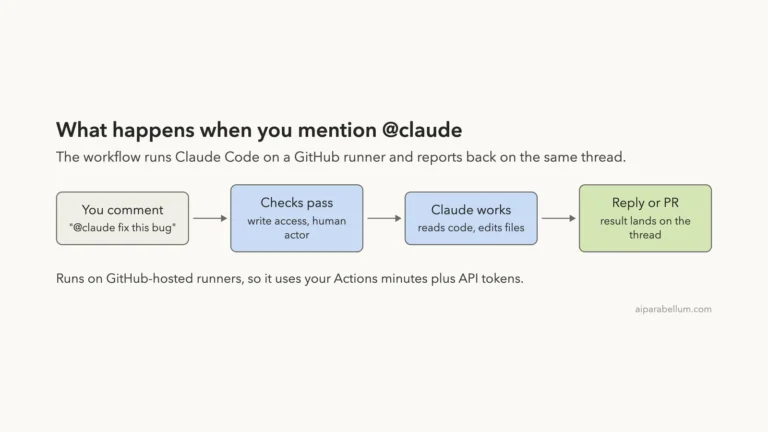
Slack is the third door. When you mention @Claude with a coding task, Claude detects the intent and creates a Claude Code cloud session, so you can delegate work without leaving the conversation. Typical uses are investigating a bug someone just reported, making a small change a teammate asked for, or debugging with the context from a thread.
Which version of Claude in Slack applies to you?
The Slack page we tested describes the earlier version of Claude Code in Slack. It runs each session under your own account and answers channel mentions only from Pro and Max accounts, in a workspace that no organization has connected to Claude Tag.
Claude Tag is the organization-managed version, where @Claude acts as a shared identity with admin-configured access. The docs say it is the route for Team and Enterprise plans.
If @Claude replies that the legacy bot is retired, the docs say your workspace is connected to a Claude organization and an Owner needs to switch the channel to Claude Tag in admin settings. This article covers the Pro and Max setup described on that page.
What you need
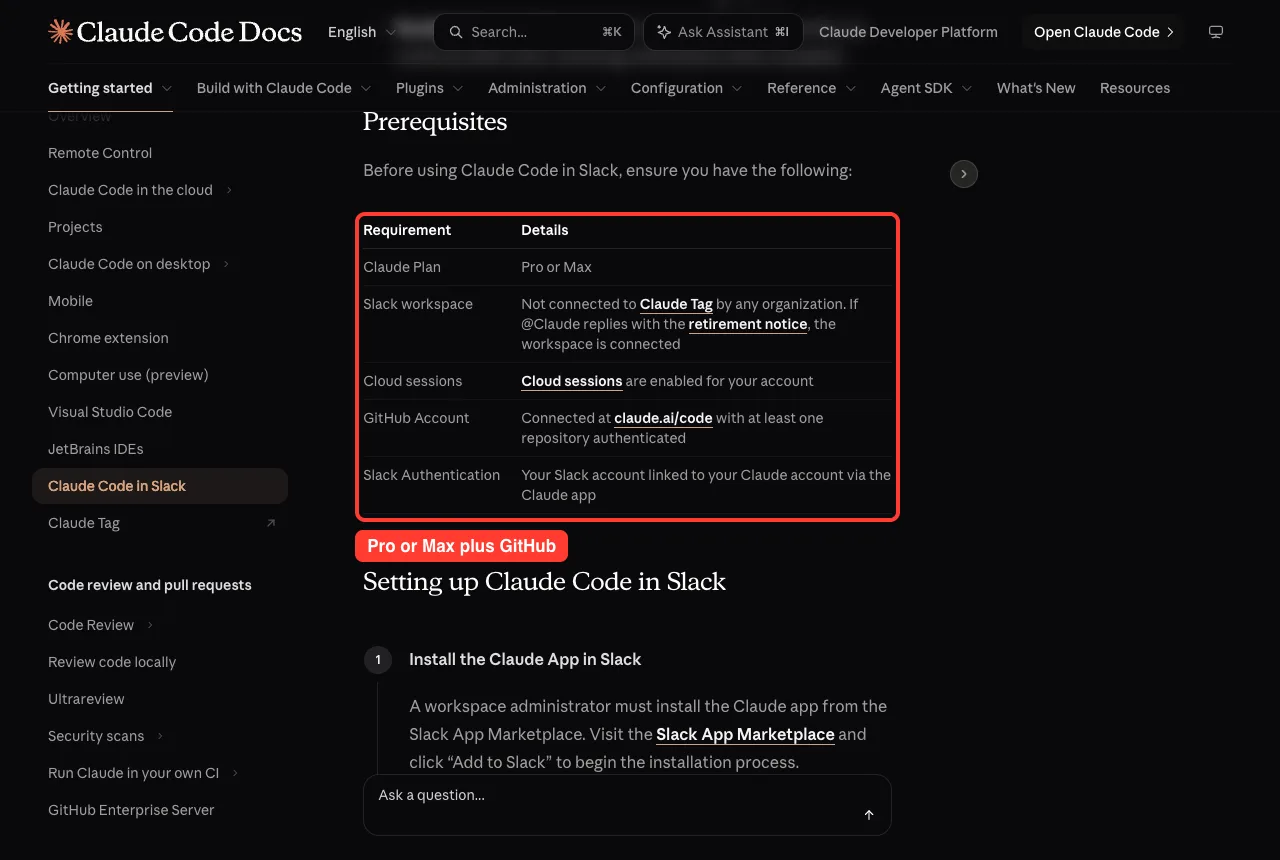
Set it up in five steps
- A workspace administrator installs the Claude app from the Slack App Marketplace.
- Open the Claude app in Slack, go to the App Home tab, click Connect and finish sign-in in your browser.
- Visit claude.ai/code with the same account, connect GitHub and authenticate at least one repository.
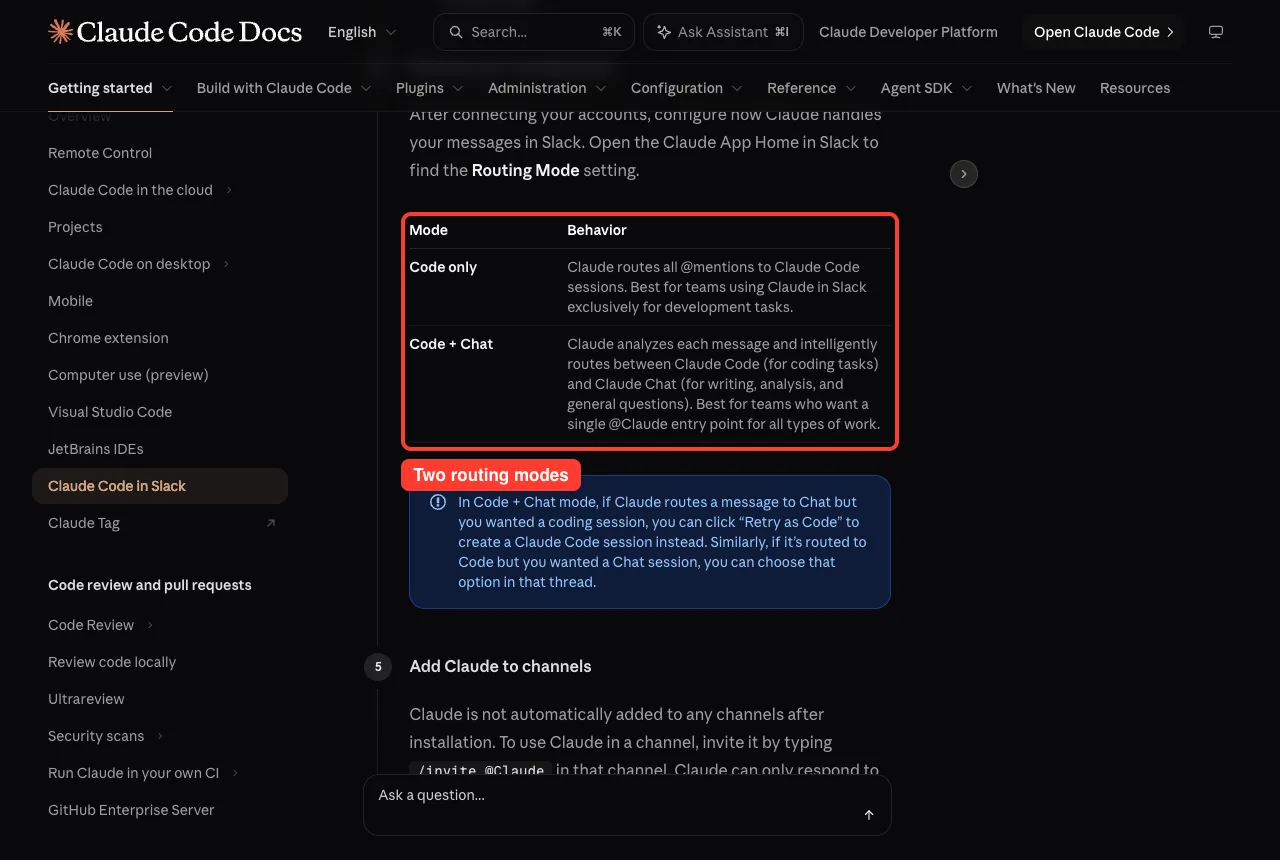
- Choose a routing mode in the App Home.
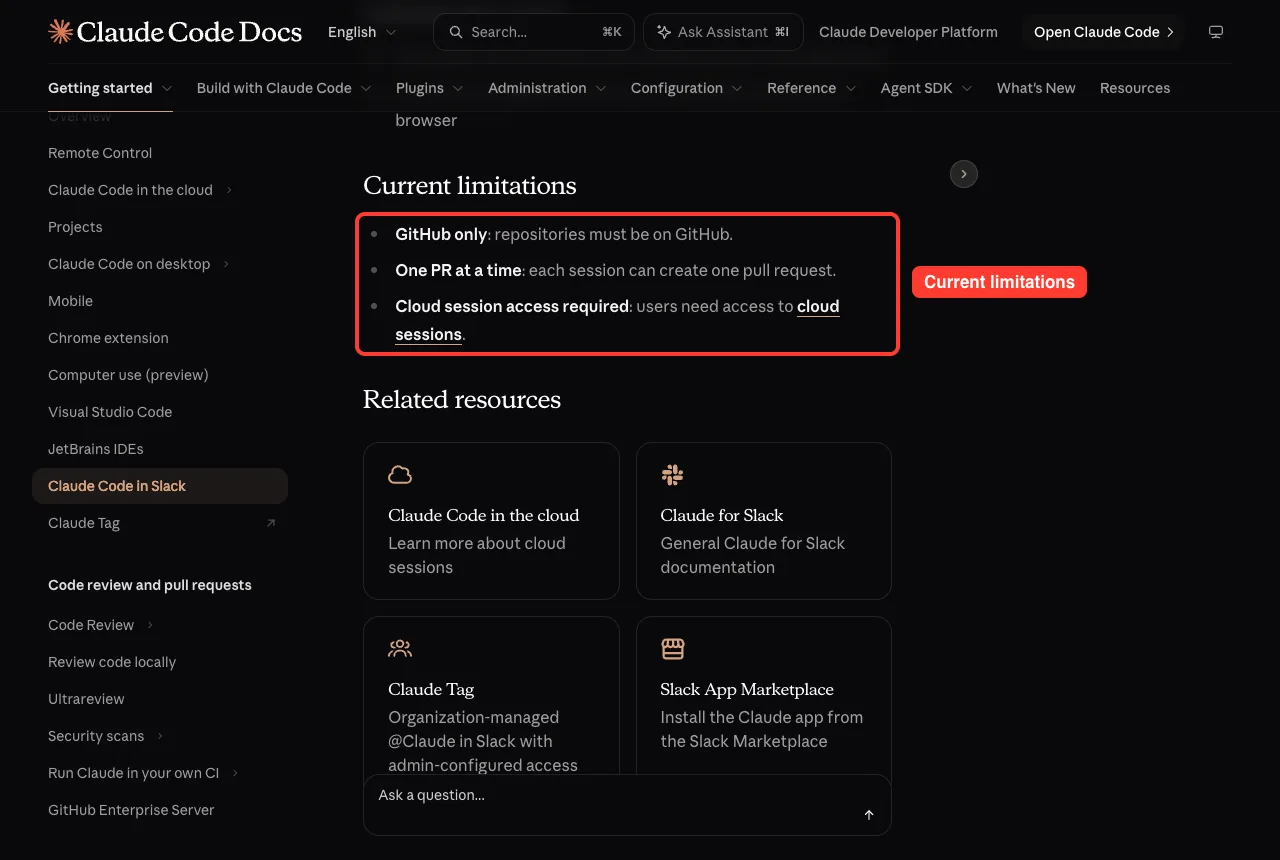
- Invite Claude to a channel with /invite @Claude. It is not added to any channel automatically.
The routing mode decides what happens to each mention.
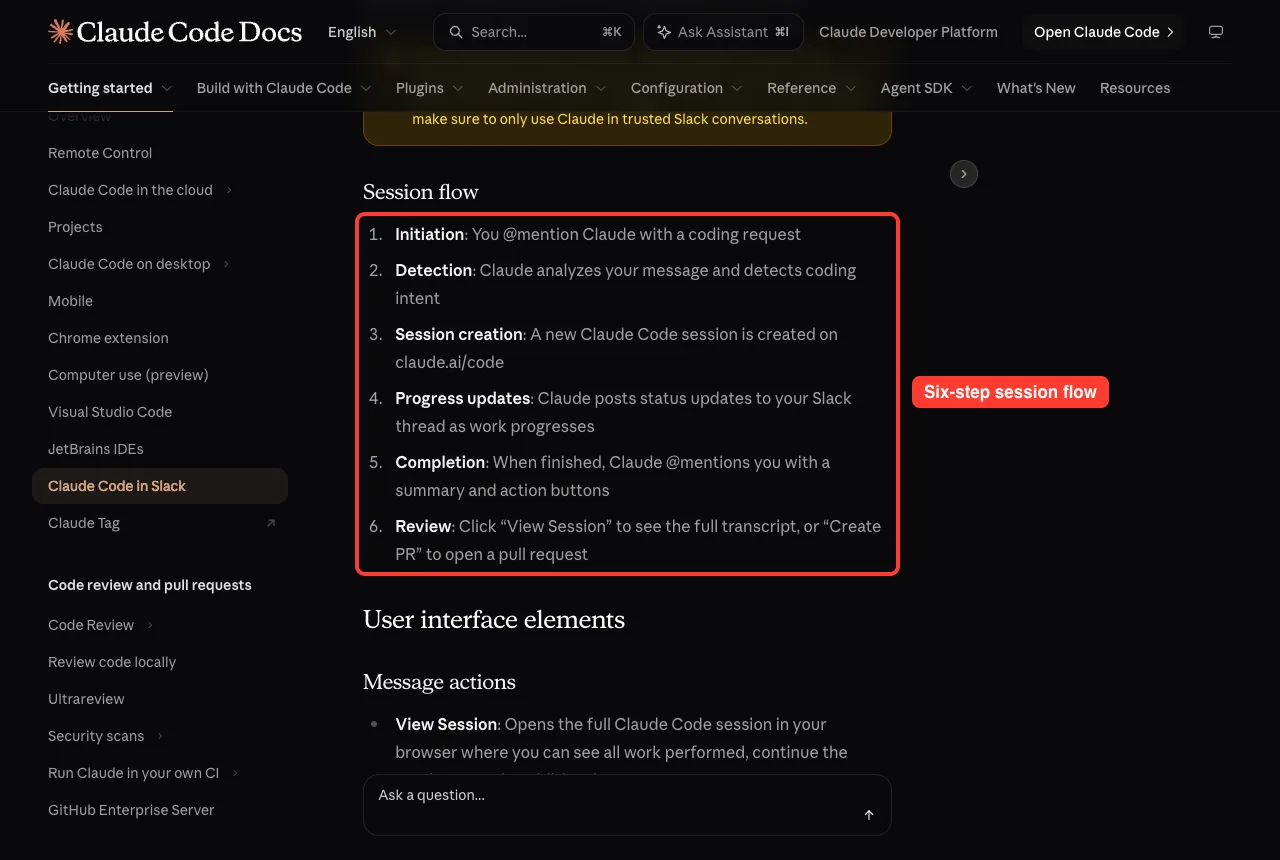
What happens after you mention Claude
Claude works through six steps, from your mention to a pull request. Claude Code in Slack works only in channels, public or private, and not in direct messages.
In a thread, Claude reads all the messages in it for context. When mentioned directly in a channel, it looks at recent channel messages. The docs add a safety note: Claude may follow directions from other messages in that context, so use it only in trusted conversations.
Buttons in the thread
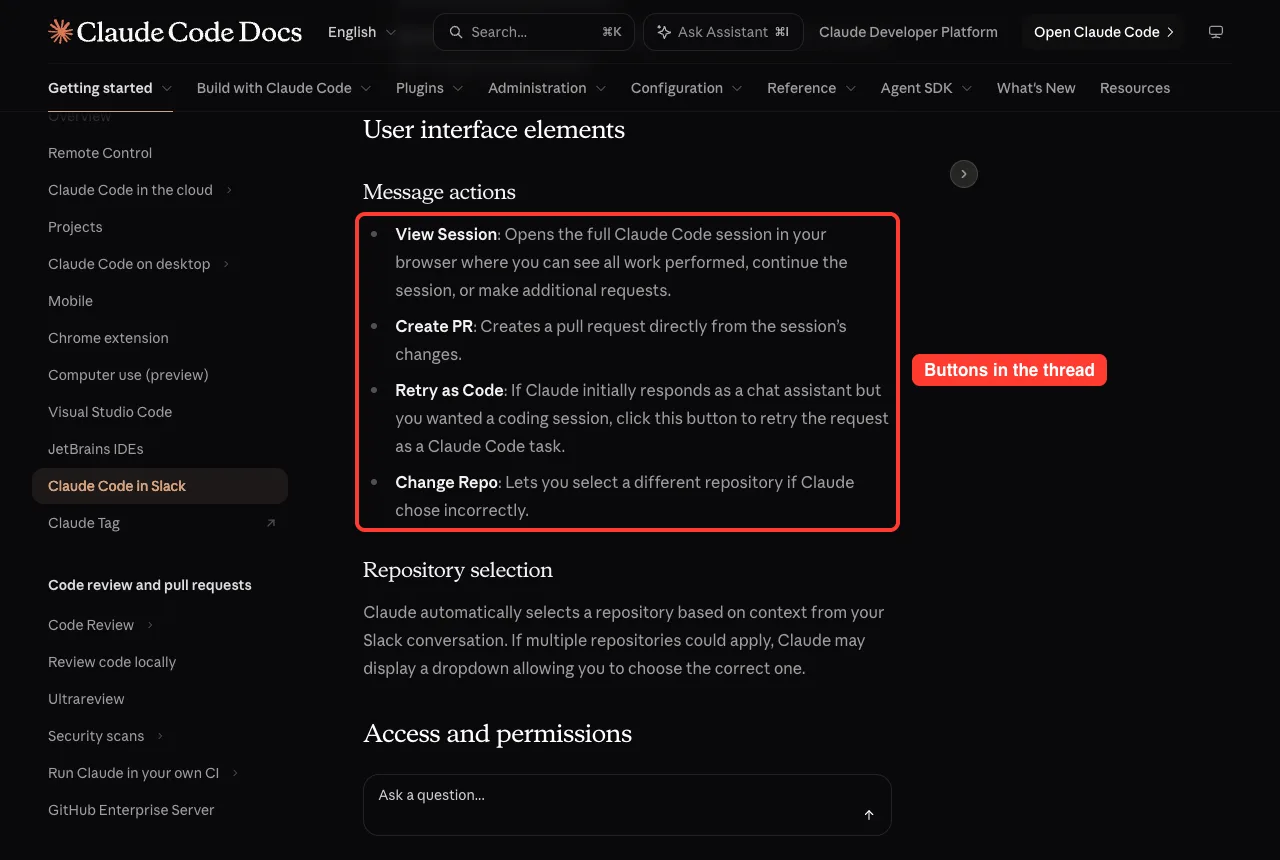
View Session opens the full transcript on claude.ai/code. Create PR opens a pull request from the changes. Retry as Code reruns a chat answer as a coding task, and Change Repo fixes a wrong repository guess.
Slack sessions count against your own plan limits, and they appear in your Claude Code history on claude.ai/code. On Enterprise and Team accounts, sessions created from Claude in Slack are automatically visible to the organization.
Write requests Claude can act on
- Be specific: name files, functions or error messages.
- Mention the repository if the conversation does not make it clear.
- Define what done looks like, such as tests, docs or a pull request.
- Reply in threads so Claude can read the whole discussion.
The docs also say to use the web directly when you need to upload files, want real-time interaction, or have a longer, more complex task.
Which Option Should You Choose?
You can use the diagram below as a quick rule. Start with where the conversation already is, then ask whether the work needs your own machine.
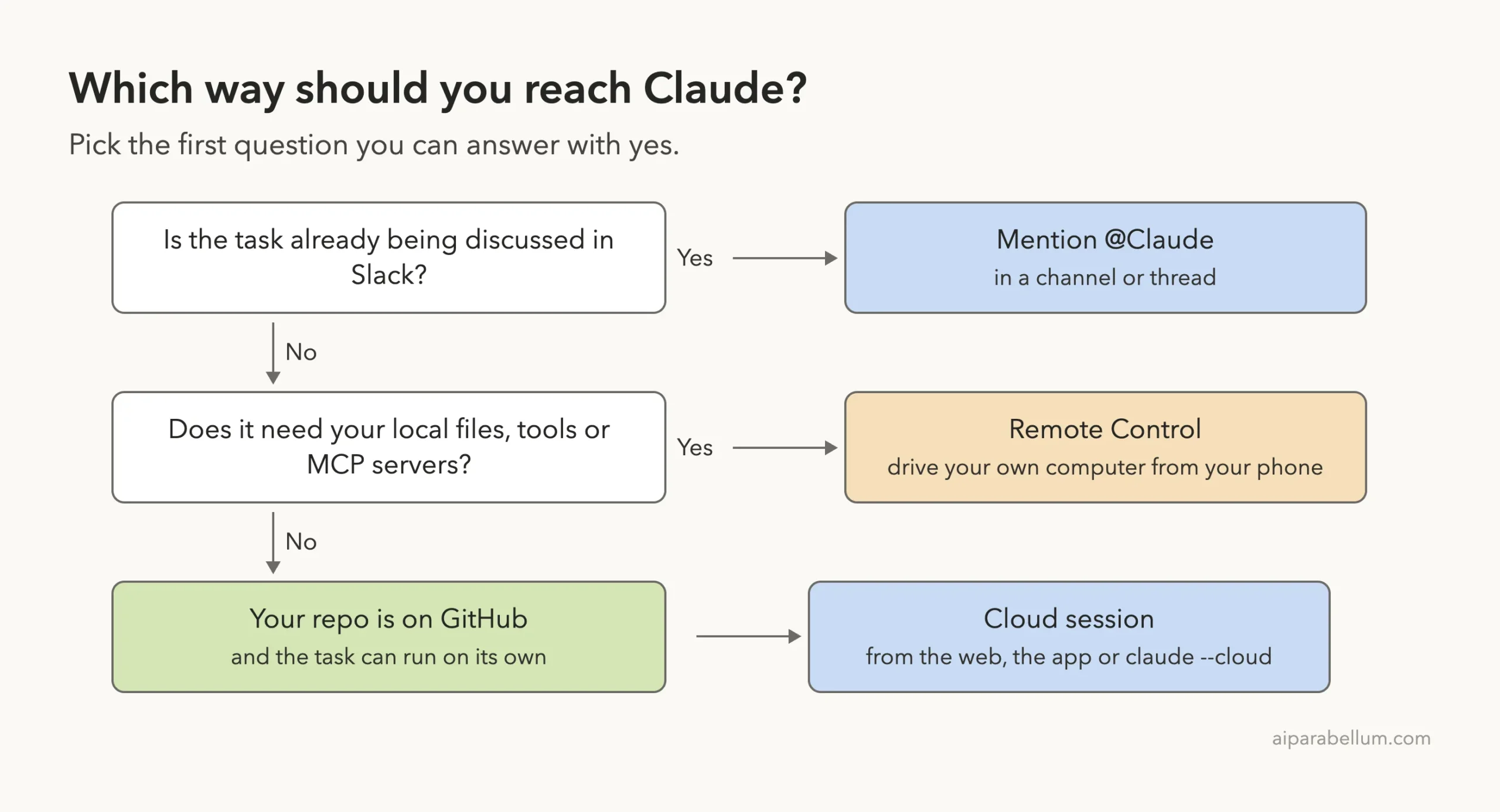
Local tools are the deciding factor. A cloud session does not have your machine’s files or MCP servers, while Remote Control does. Our MCP guide explains why that matters.
Fix Common Problems
| Problem | What the docs suggest |
|---|---|
| Claude Code is not enabled for your account (Slack) | Sign in at claude.ai/code once with the same account and finish web onboarding, which creates your cloud environment. Each user must do this |
| Sessions not starting from Slack | Check that your account is connected in the App Home, cloud sessions are enabled and a GitHub repository is connected |
| Repository not showing | Connect it at claude.ai/code, check your GitHub permissions, or reconnect GitHub |
| Wrong repository chosen | Click Change Repo, or name the repository in your request |
| Teleport unavailable | Sign in with /login using your claude.ai account instead of an API key |
| Branch is not on GitHub | Push the branch before running claude –cloud |
Try It Yourself
Practice on a small throwaway repository, not real work. Connect it at claude.ai/code, then send one small task from your terminal.
claude --cloud "Add a short README section that explains how to run the tests"Open the session on claude.ai/code or in the Claude app and watch the progress. Click the Changes card to read the diff, then run claude –teleport to bring the branch into your terminal. If you use Slack, invite Claude to a test channel and mention it with a similar request.
Common Mistakes
- Starting claude –cloud before pushing your latest commits. The cloud copy comes from GitHub, not your laptop.
- Expecting to push a running terminal session up to the cloud. Handoff from the CLI only goes down with –teleport.
- Using an API key and wondering why cloud sessions and teleport do not work. They need a claude.ai sign-in.
- Mentioning @Claude in a direct message. It works only in channels.
- Forgetting to invite Claude with /invite @Claude.
- Expecting Remote Control to keep running when the computer is off.
Pro Tips
- Run /mobile once and scan the QR code instead of searching the app store.
- Send several small tasks with separate –cloud commands so they run in parallel.
- Reply inside a Slack thread so Claude gets the full discussion as context.
- Turn on Auto-fix for a pull request, then let Claude handle routine CI failures.
- Use /tasks and press t to jump into a background session.
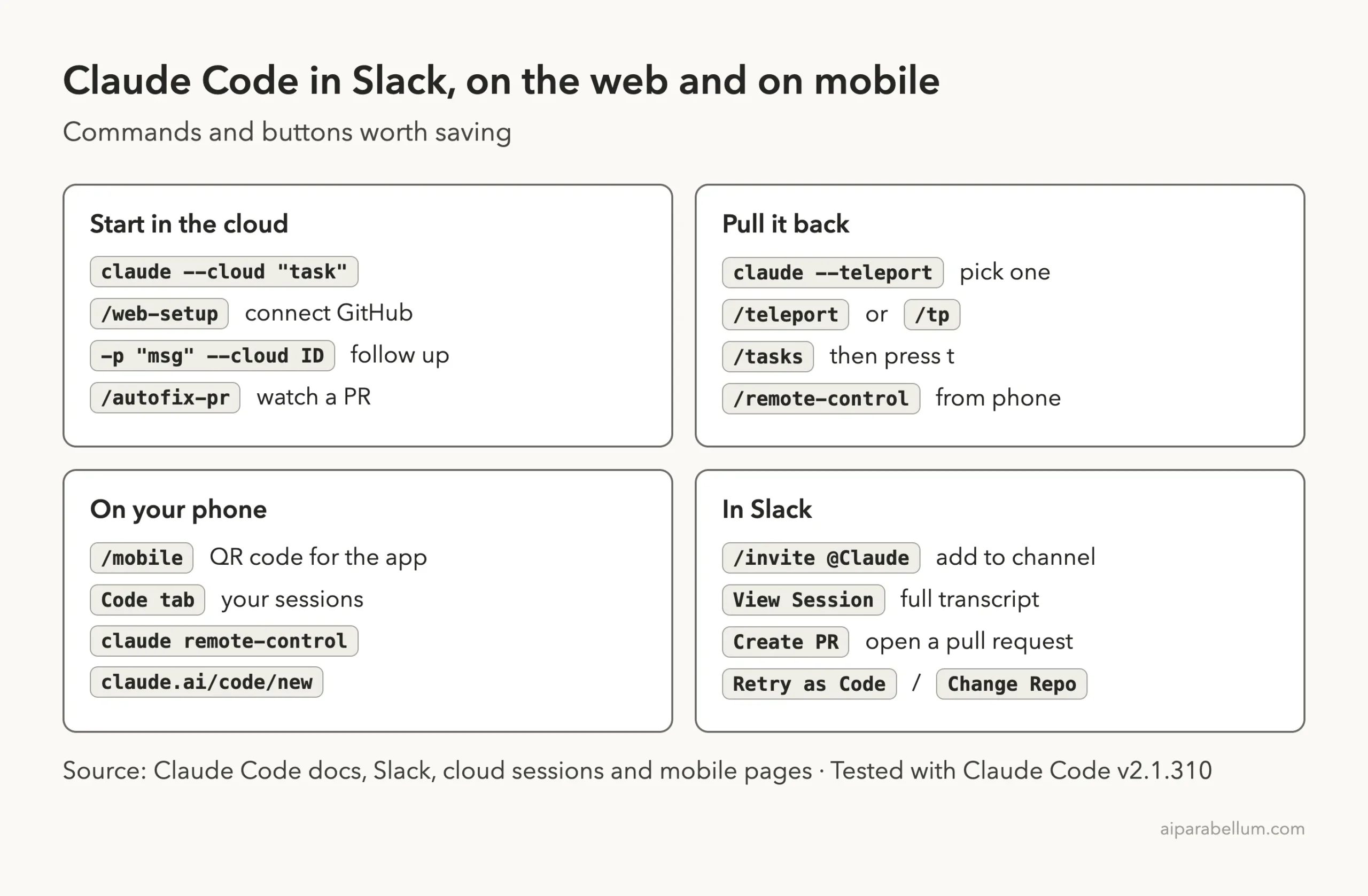
Cheat Sheet
Frequently Asked Questions
Does Claude Code have a mobile app?
No separate one. The Claude app for iOS and Android is a client, and cloud sessions and Remote Control appear in its Code tab.
Do cloud sessions cost extra?
The docs say there is no separate charge for the cloud virtual machine. Cloud sessions count toward your plan’s usage limits, and running several tasks in parallel uses more of your limits.
Can I move a terminal session to the cloud?
Not with the CLI. You can pull a cloud session into your terminal with –teleport, but you cannot push an existing terminal session to the cloud. Start a new cloud session with –cloud instead.
Does Claude Code in Slack work in direct messages?
No. It works only in channels, public or private, where you have added Claude.
Do I need GitHub?
For cloud sessions that clone and push, yes. Slack sessions work with GitHub repositories only. A repository with no GitHub remote can still be bundled and uploaded by claude –cloud.
Conclusion
Claude Code is not tied to your terminal. Start cloud tasks from the web, your terminal or Slack, check them from your phone, and pull them back with claude –teleport when you want to work locally. Connect GitHub first, push before you send a task, and use Remote Control when the work needs your own files and tools. You can find every guide in our Claude Code tutorials hub, and the official cloud sessions, Slack and mobile pages have the full details.
Previous in the series: Part 51: Claude Code in VS Code and JetBrains IDEs
Next in the series: Part 53: The Claude Agent SDK: A Beginner Guide for Developers.