The Claude Agent SDK lets you put the same agent that powers Claude Code inside your own Python or TypeScript program. Instead of typing prompts into a terminal, your code sends a task, Claude reads files, edits code and runs commands, and your program reads the results. This guide walks through what the SDK is, how to build your first agent and how to keep it under control.
You do not need to be an AI expert. If you can run a script and set an environment variable, you can follow along.
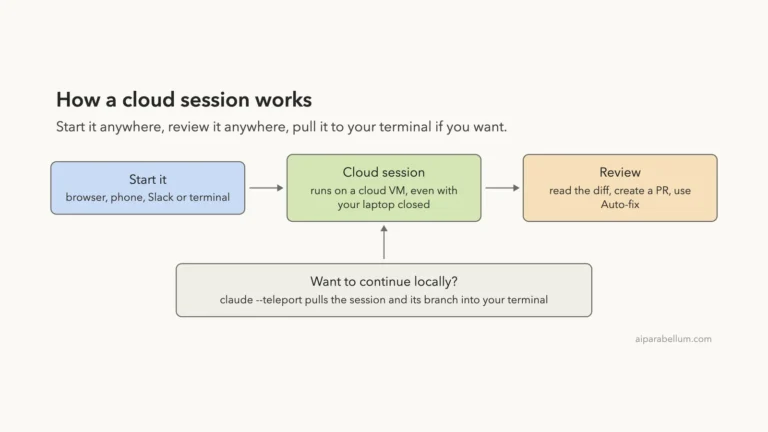
This is Part 53 of 53 in our Claude Code tutorials series. In the previous part we sent Claude Code tasks from Slack, the web and your phone with cloud sessions.
Tested with Claude Code v2.1.310 on October 26, 2026, on macOS.
This is a docs-based tutorial. Every screenshot is a highlighted capture of Anthropic’s official Agent SDK pages, taken that day. We did not run the SDK for this article, because it needs an API key that bills per use, so the steps and code come from the official documentation.
We tested on macOS; the Windows and Linux steps follow Anthropic’s official instructions.
The Claude Agent SDK at a Glance
The Agent SDK is Claude Code as a library: the same tools, agent loop and context management, programmable from your own code.
| Question | Answer |
|---|---|
| What is it? | A library that runs the Claude Code binary and exposes it to your code |
| Languages | Python and TypeScript |
| Requirements | Node.js 18+ or Python 3.10+, plus an API key from the Claude Console |
| Main function | query, which streams messages as Claude works |
| Built-in tools | Read, Write, Edit, Glob, Grep, Bash, WebSearch, WebFetch and more |
| Controls | Allowed tools, permission mode, max turns, max budget |
What Is the Claude Agent SDK?
An agent is an application that completes a task by planning its own steps and calling tools that read files, run commands or edit code. The official overview says the Agent SDK gives you the same tools, agent loop and context management that power Claude Code. You get them in Python and TypeScript.
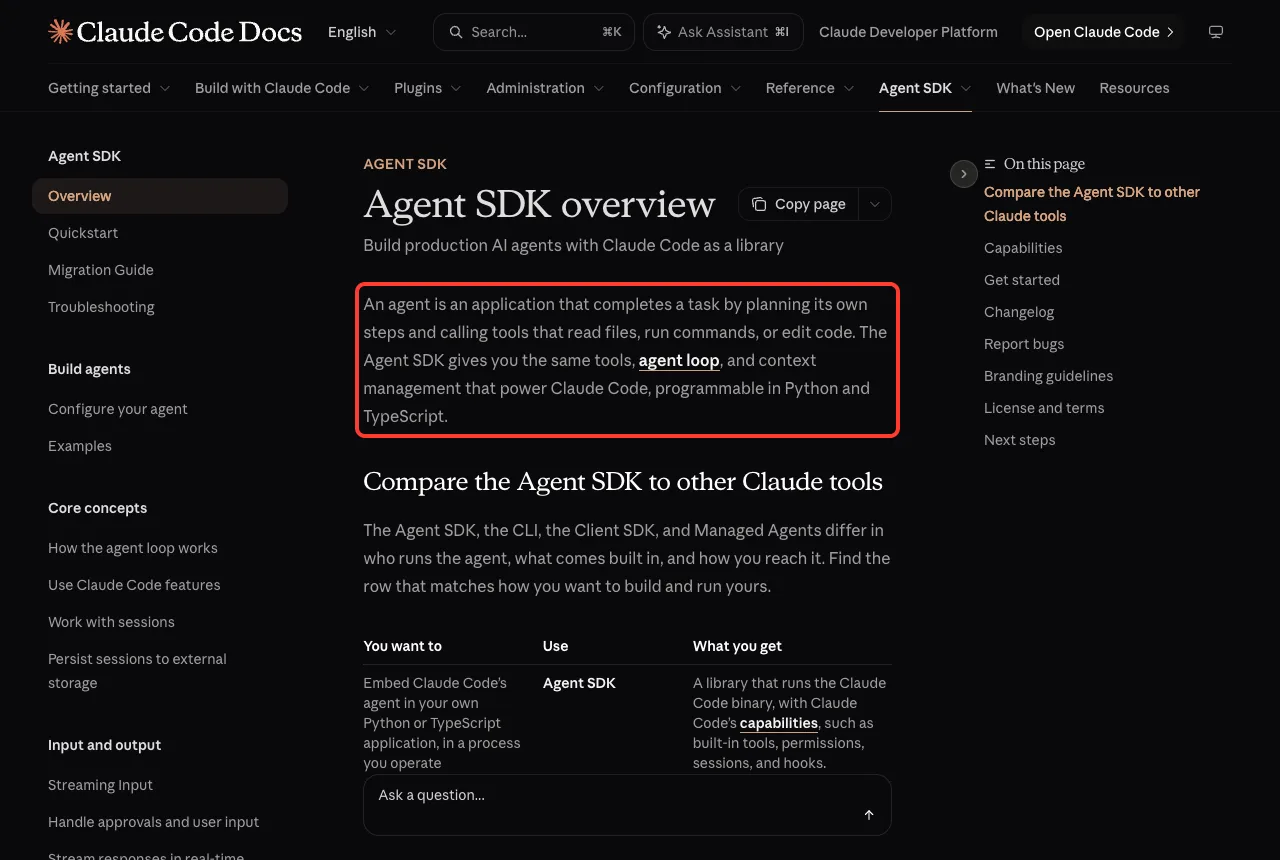
Think of it this way. In the terminal you are the one typing. With the SDK, your program types for you.
That makes it a good fit for background jobs, internal tools and automation. If you only want to chat and code by hand, the normal Claude Code app from our Claude Code introduction is simpler.
Which Claude tool should you use?
Anthropic offers four ways to build with Claude, and they differ in who runs the agent. The official overview lays them out in one table.
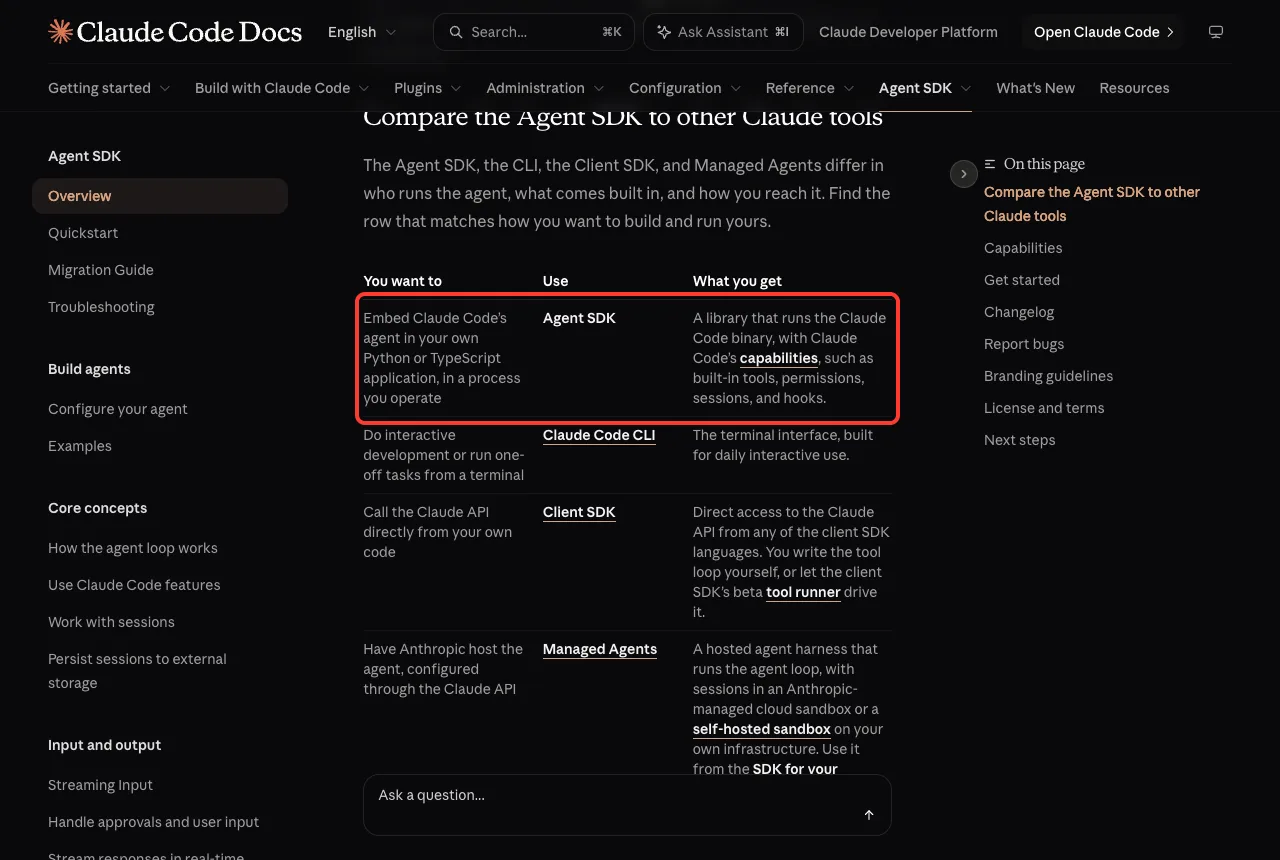
- Agent SDK: embed Claude Code’s agent in your own Python or TypeScript application, in a process you operate.
- Claude Code CLI: interactive development and one-off tasks from a terminal.
- Client SDK: call the Claude API directly. You write the tool loop yourself, or let the beta tool runner drive it.
- Managed Agents: Anthropic hosts the agent harness, with sessions in a managed cloud sandbox or a self-hosted one.
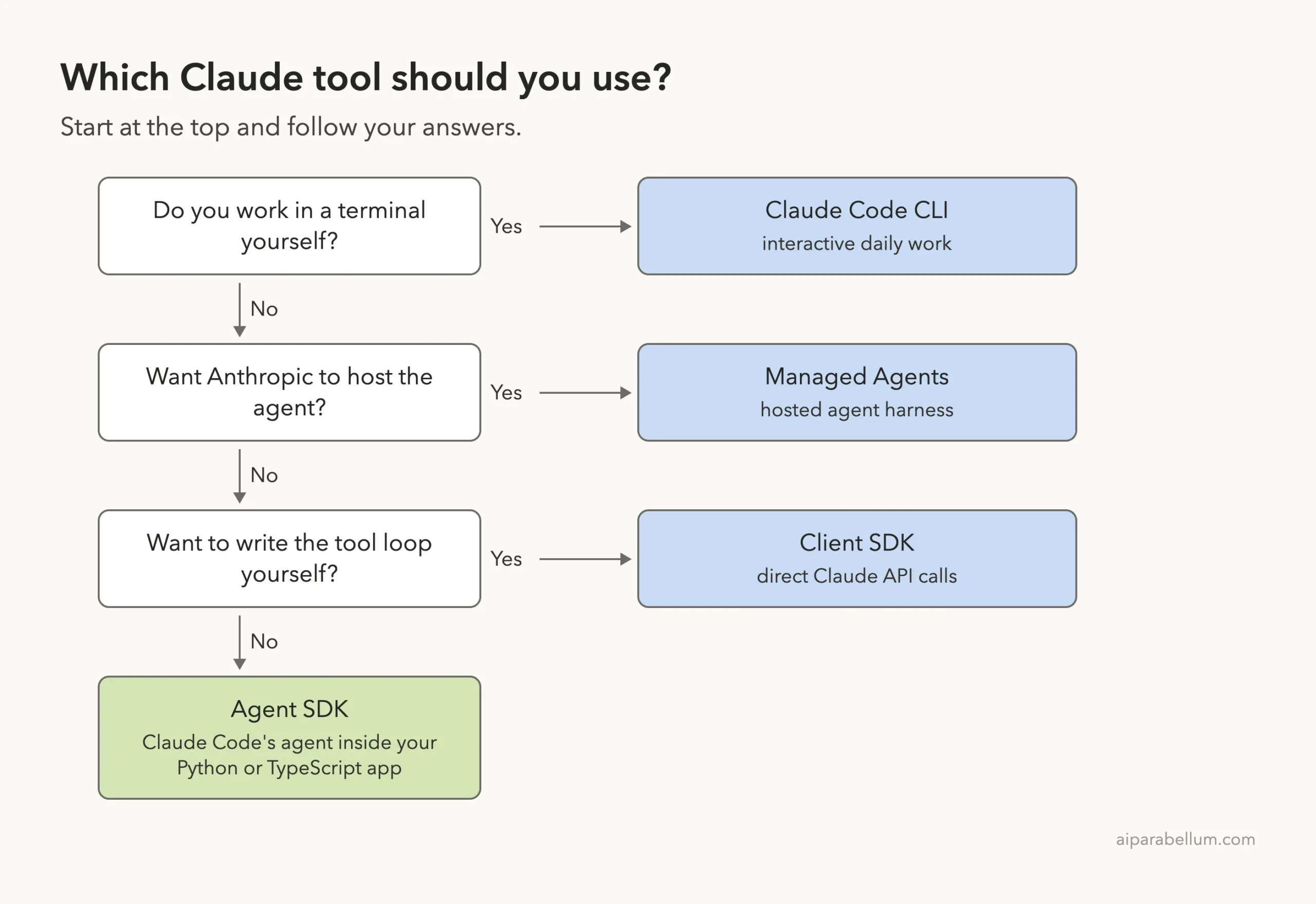
If you want the same agent loop from another language, the docs suggest running the CLI as a subprocess with the -p flag and –output-format json.
What You Get Out of the Box
The SDK is not a bare model call. It brings along many Claude Code features, so you do not have to rebuild them.
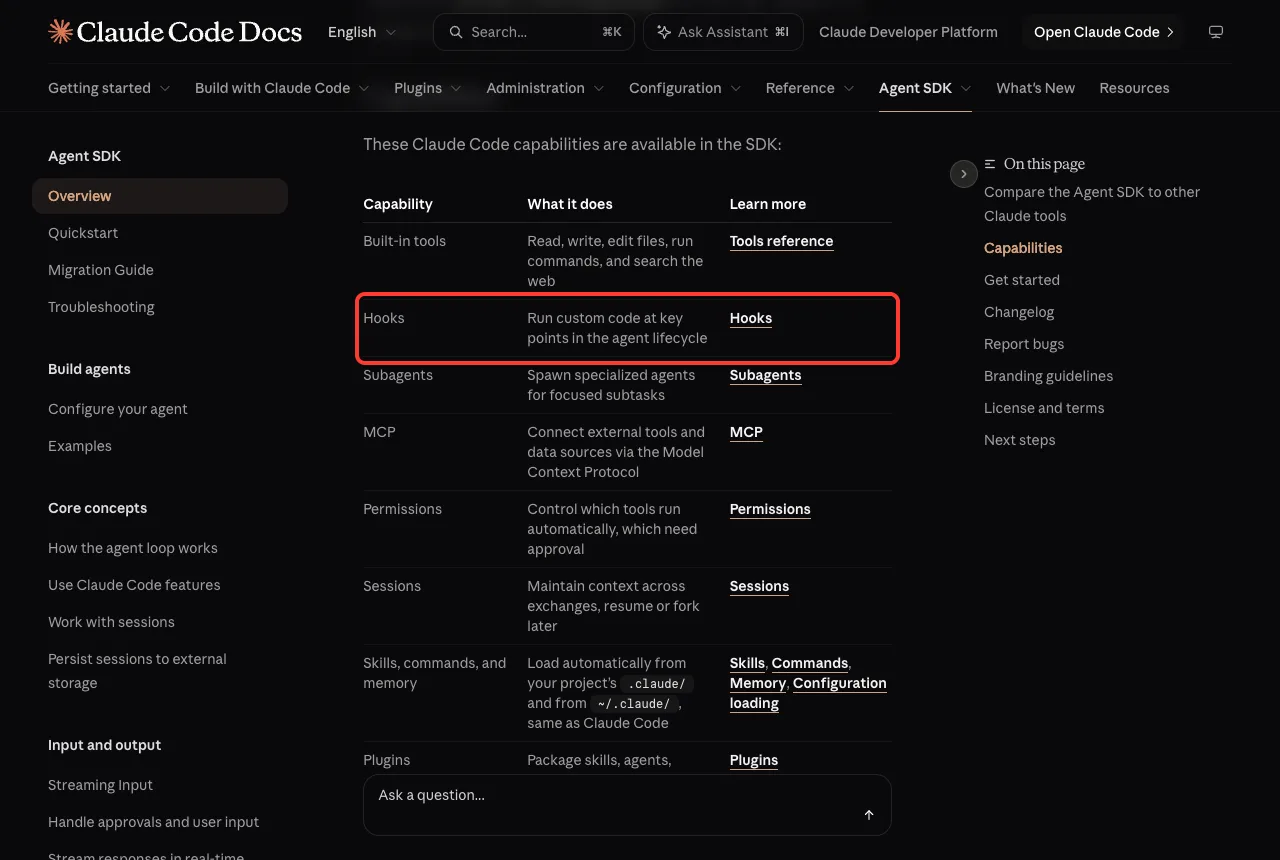
| Capability | What it does |
|---|---|
| Built-in tools | Read, write and edit files, run commands, search the web |
| Hooks | Run custom code at key points in the agent lifecycle |
| Subagents | Spawn specialized agents for focused subtasks |
| MCP | Connect external tools and data sources |
| Permissions | Control which tools run automatically and which need approval |
| Sessions | Keep context across exchanges, then resume or fork later |
| Skills, commands and memory | Load from your project’s .claude folder, like Claude Code |
| Plugins | Package skills, agents, hooks and MCP servers |
Many of these will sound familiar from earlier parts, such as skills and plugins. The SDK uses the same ideas, only driven from code.
Set Up Your First Agent
The official quickstart builds an agent that finds and fixes bugs in a small file. We will follow it in the TypeScript flavor first, then show the Python code.
Step 1: Create a project folder
Make a new folder for the quickstart. For your own projects, the SDK can run from any folder, and it has access to files in that folder and its subfolders by default.
mkdir my-agent
cd my-agent
Step 2: Install the SDK
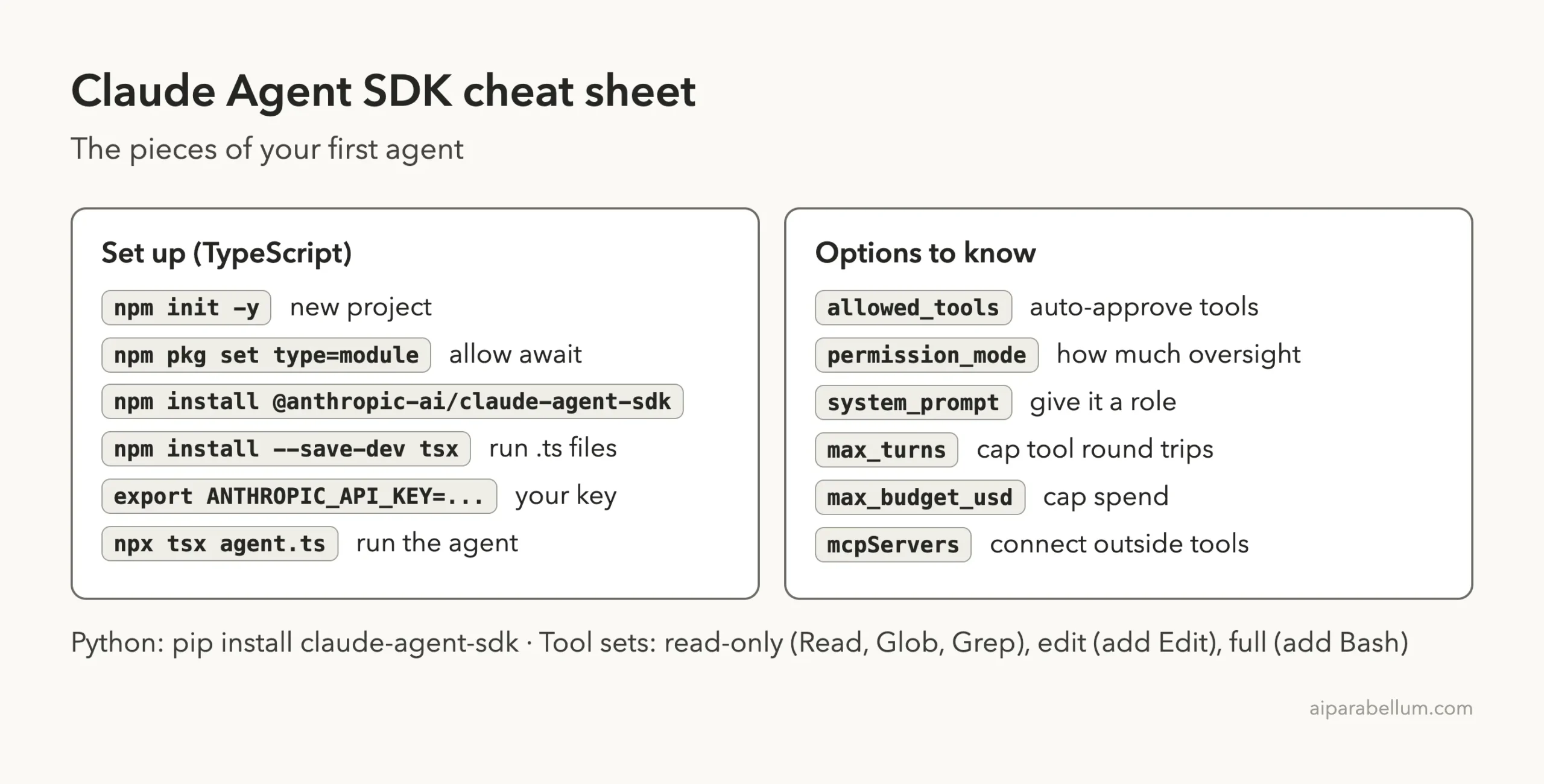
For a new TypeScript project, the docs use these commands. Setting the module type lets your script use top-level await, and tsx runs TypeScript files directly.
npm init -y
npm pkg set type=module
npm install @anthropic-ai/claude-agent-sdk
npm install --save-dev tsx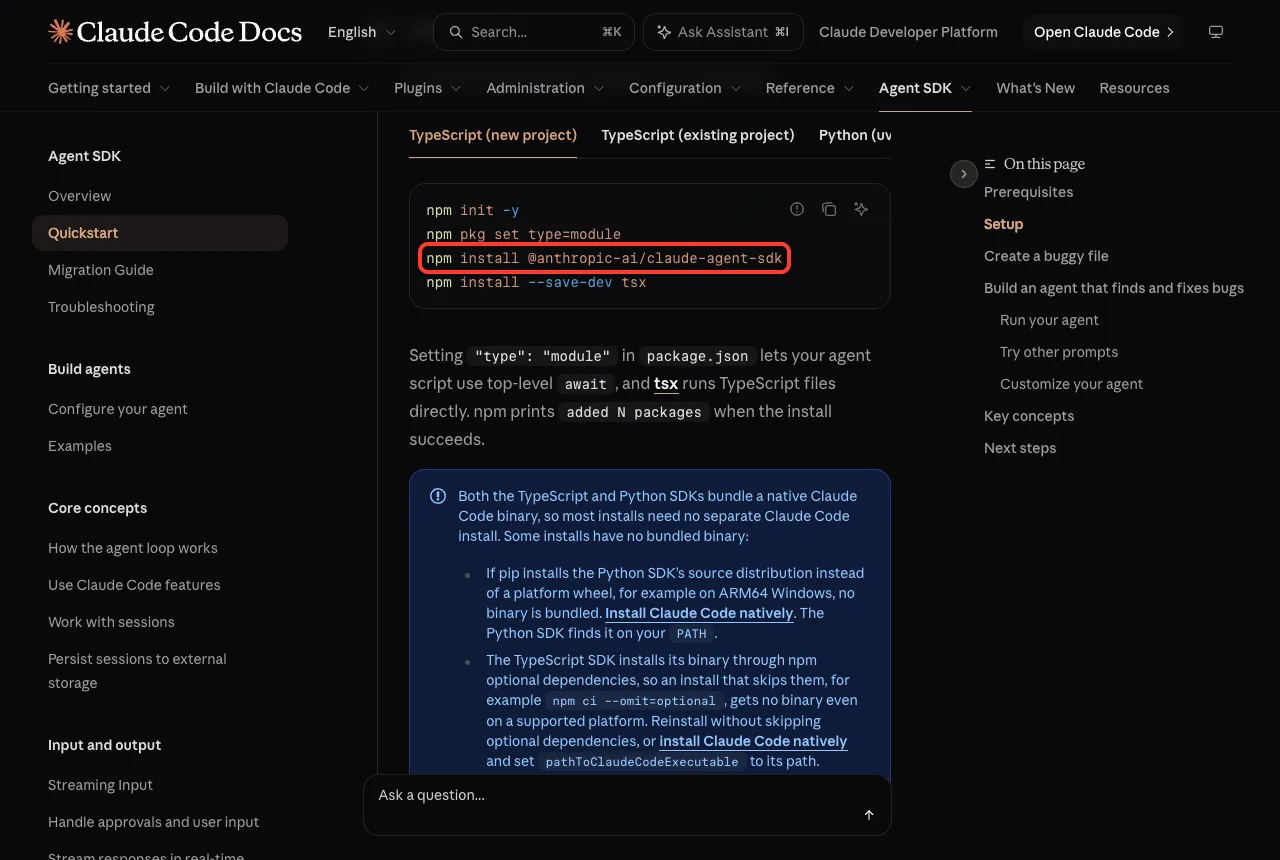
For Python, the docs show uv add claude-agent-sdk, or pip install claude-agent-sdk inside a virtual environment. Both SDKs bundle a native Claude Code binary, so most installs need no separate Claude Code install.
Two exceptions are worth knowing. If pip installs the source distribution instead of a platform wheel, for example on ARM64 Windows, install Claude Code natively. If you skip optional dependencies with npm ci –omit=optional, the TypeScript SDK gets no binary.
Step 3: Set your API key
Get a key from the Claude Console and set it in the shell where you will run your agent.
export ANTHROPIC_API_KEY=your-api-key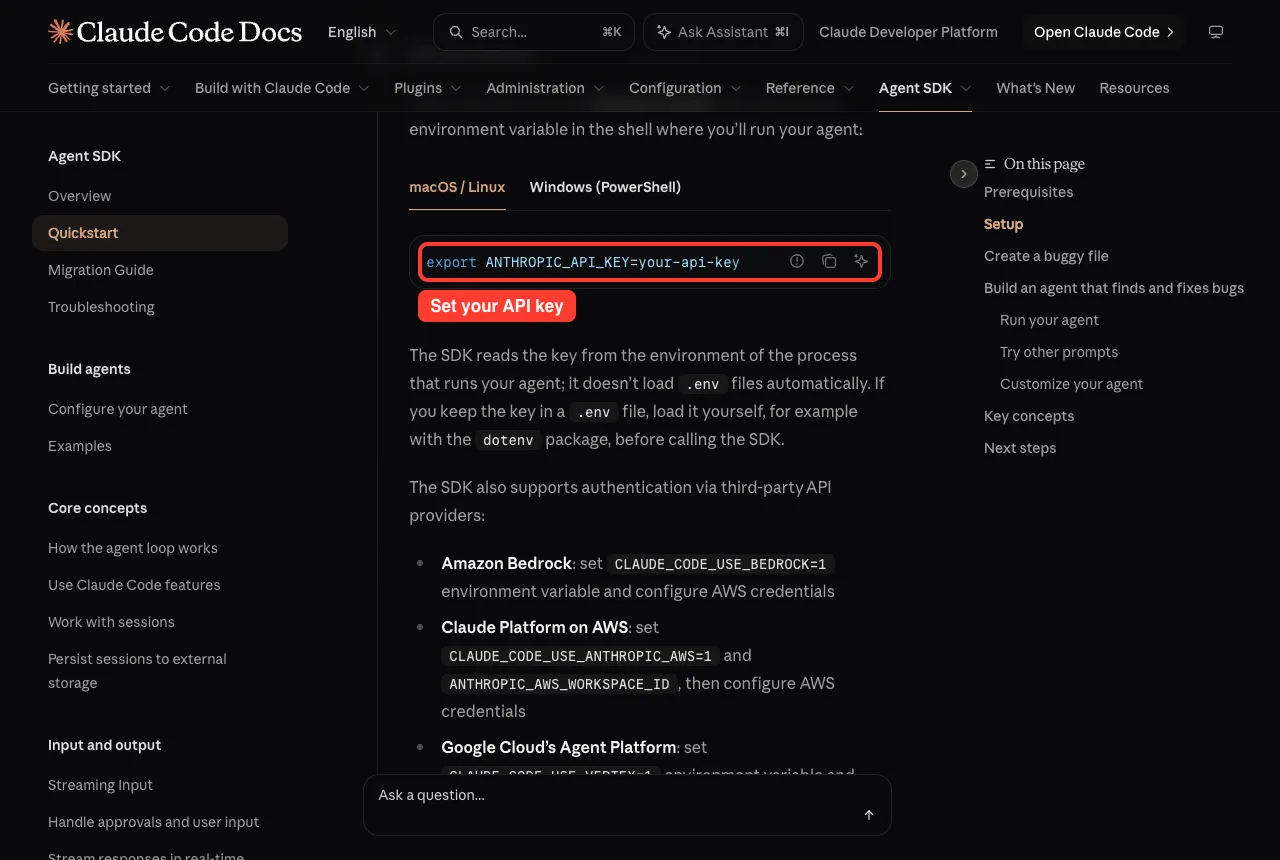
The SDK does not load .env files on its own. If you keep the key in one, load it yourself, for example with the dotenv package.
The docs also describe setting variables for Amazon Bedrock, Google Cloud’s Agent Platform and Microsoft Foundry if you use those providers. Keep your key out of your code and out of Git; our security guide covers safe habits.
One rule from the docs matters if you build products: unless previously approved, Anthropic does not allow third-party developers to offer claude.ai login or rate limits for their products. Use API key authentication instead.
Step 4: Create a file with bugs
The agent needs something to fix. Create utils.py with two planted bugs.
def calculate_average(numbers):
    total = 0
    for num in numbers:
        total += num
    return total / len(numbers)


def get_user_name(user):
    return user["name"].upper()
The first function crashes with a division by zero on an empty list. The second crashes with a TypeError if you pass None.
Write the Agent
Create agent.py for Python, or agent.ts for TypeScript. Here is the Python version from the official quickstart.
import asyncio
from claude_agent_sdk import query, ClaudeAgentOptions, AssistantMessage, ResultMessage


async def main():
    # Agentic loop: streams messages as Claude works
    async for message in query(
        prompt="Review utils.py for bugs that would cause crashes. Fix any issues you find.",
        options=ClaudeAgentOptions(
            allowed_tools=["Read", "Edit", "Glob"],  # Auto-approve these tools
            permission_mode="acceptEdits",  # Auto-approve file edits
        ),
    ):
        # Print human-readable output
        if isinstance(message, AssistantMessage):
            for block in message.content:
                if hasattr(block, "text"):
                    print(block.text)  # Claude's reasoning
                elif hasattr(block, "name"):
                    print(f"Tool: {block.name}")  # Tool being called
        elif isinstance(message, ResultMessage):
            print(f"Done: {message.subtype}")  # Final result


asyncio.run(main())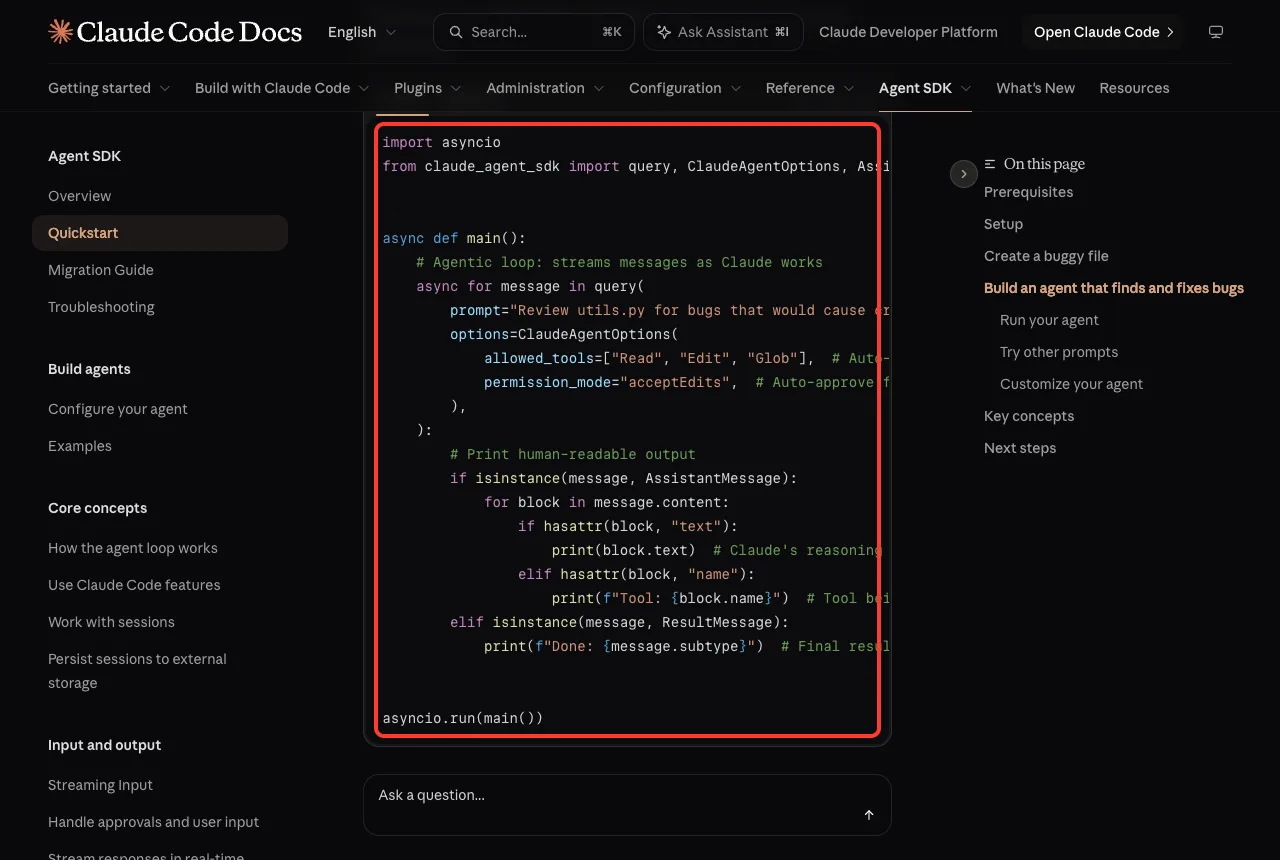
The three parts of the code
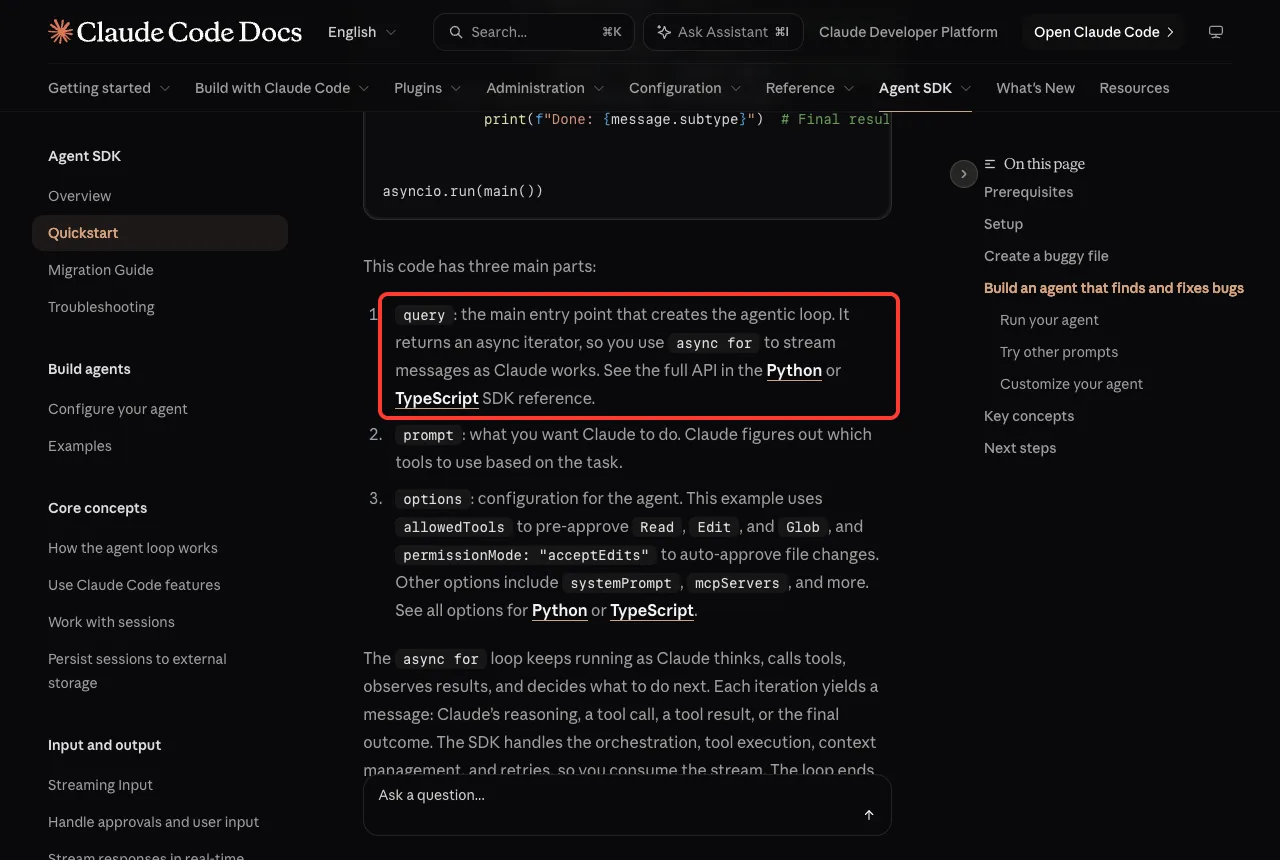
- query is the main entry point. It creates the agentic loop and returns an async iterator, so you use async for to stream messages as Claude works.
- prompt is what you want Claude to do. Claude decides which tools to use.
- options configures the agent. This example pre-approves Read, Edit and Glob, and sets the permission mode to acceptEdits so file changes go through without asking. Other options include a system prompt and MCP servers.
The message handling inside the loop only filters for readable output. Without it you would see raw message objects, including system initialization and internal state, which helps for debugging but is noisy.
Run the Agent and Read the Result
Run it with npx tsx agent.ts for TypeScript, uv run agent.py with uv, or python agent.py with pip. As it works, the agent prints its reasoning and each tool it calls, and ends with Done: success.
Afterward, open utils.py. Per the docs, you will see defensive code that handles empty lists and null users.
The agent read the file, worked out which inputs would crash, and edited the file to add error handling. That is the key difference from a normal API call: Claude executes the tools directly instead of asking you to do it.
If you see an authentication error such as Not logged in or Invalid API key, check that ANTHROPIC_API_KEY is set in the same shell where you ran the agent.
How the Agent Loop Works
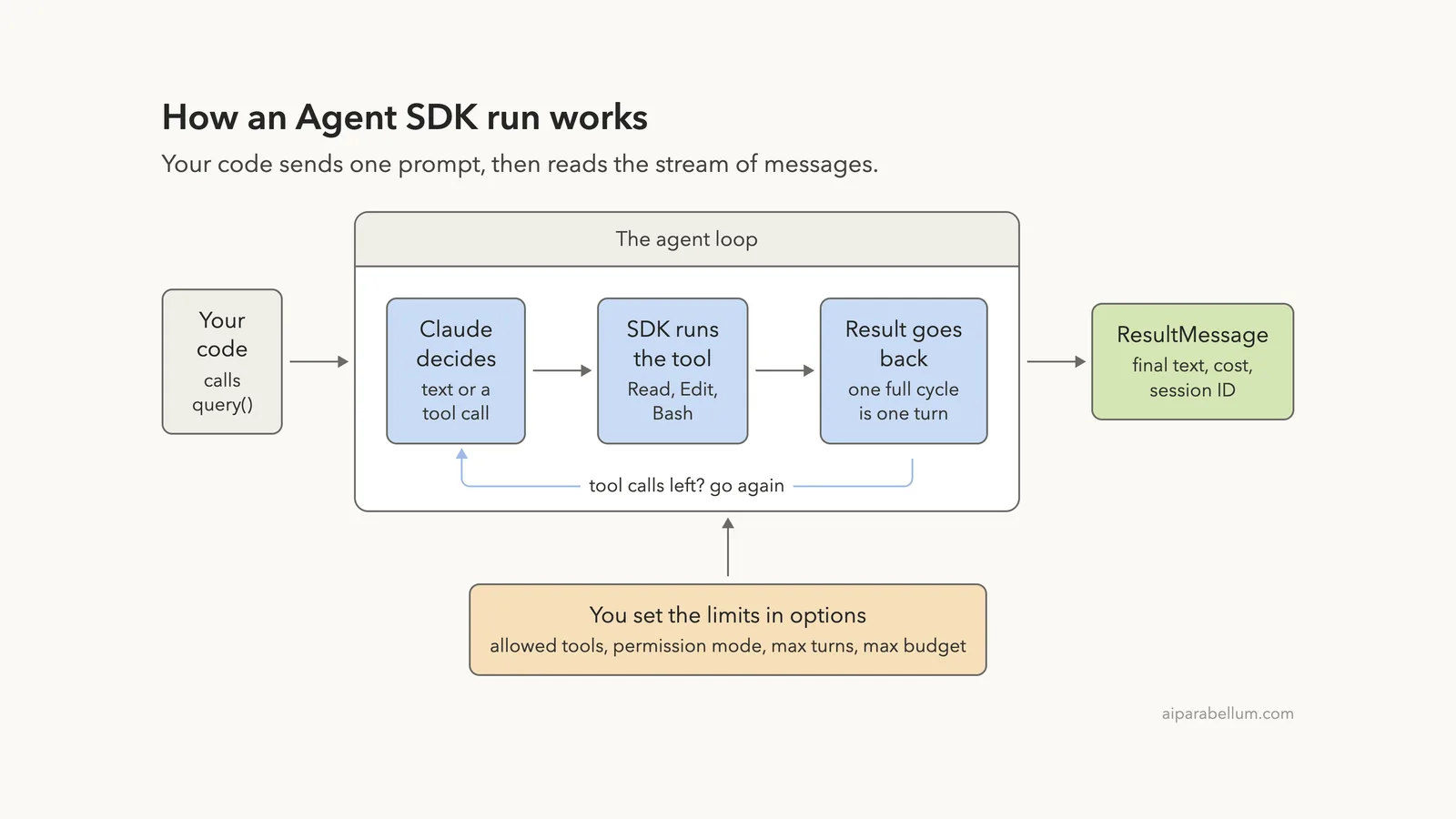
Behind query sits the agent loop. The official loop page describes a simple cycle.
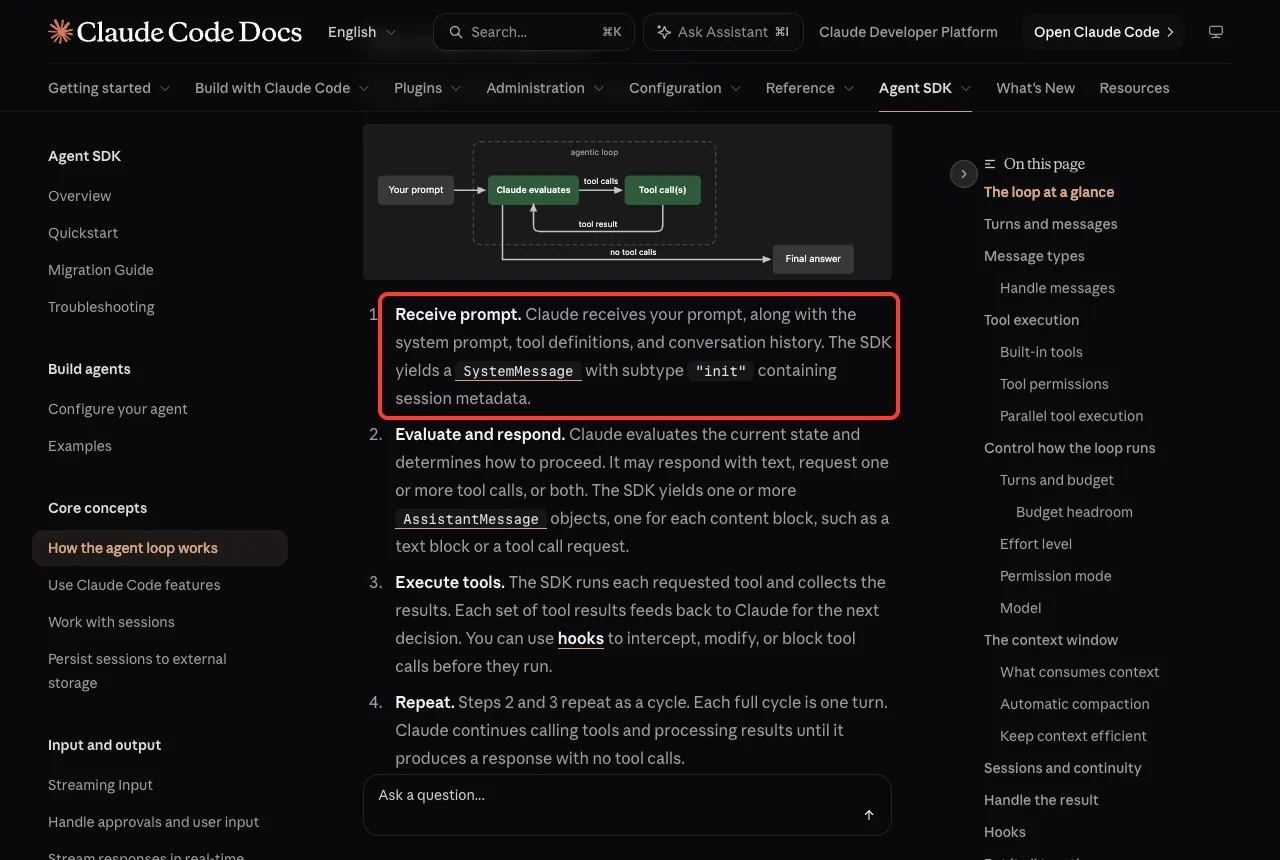
- Receive prompt: Claude gets your prompt, the system prompt, tool definitions and history. The SDK yields a SystemMessage with the subtype init.
- Evaluate and respond: Claude replies with text, tool calls or both.
- Execute tools: the SDK runs each requested tool and feeds the results back.
- Repeat: each full cycle is one turn, and it continues until Claude replies with no tool calls.
- Return result: the SDK yields a final AssistantMessage, then a ResultMessage with the final text, token usage, cost and session ID.
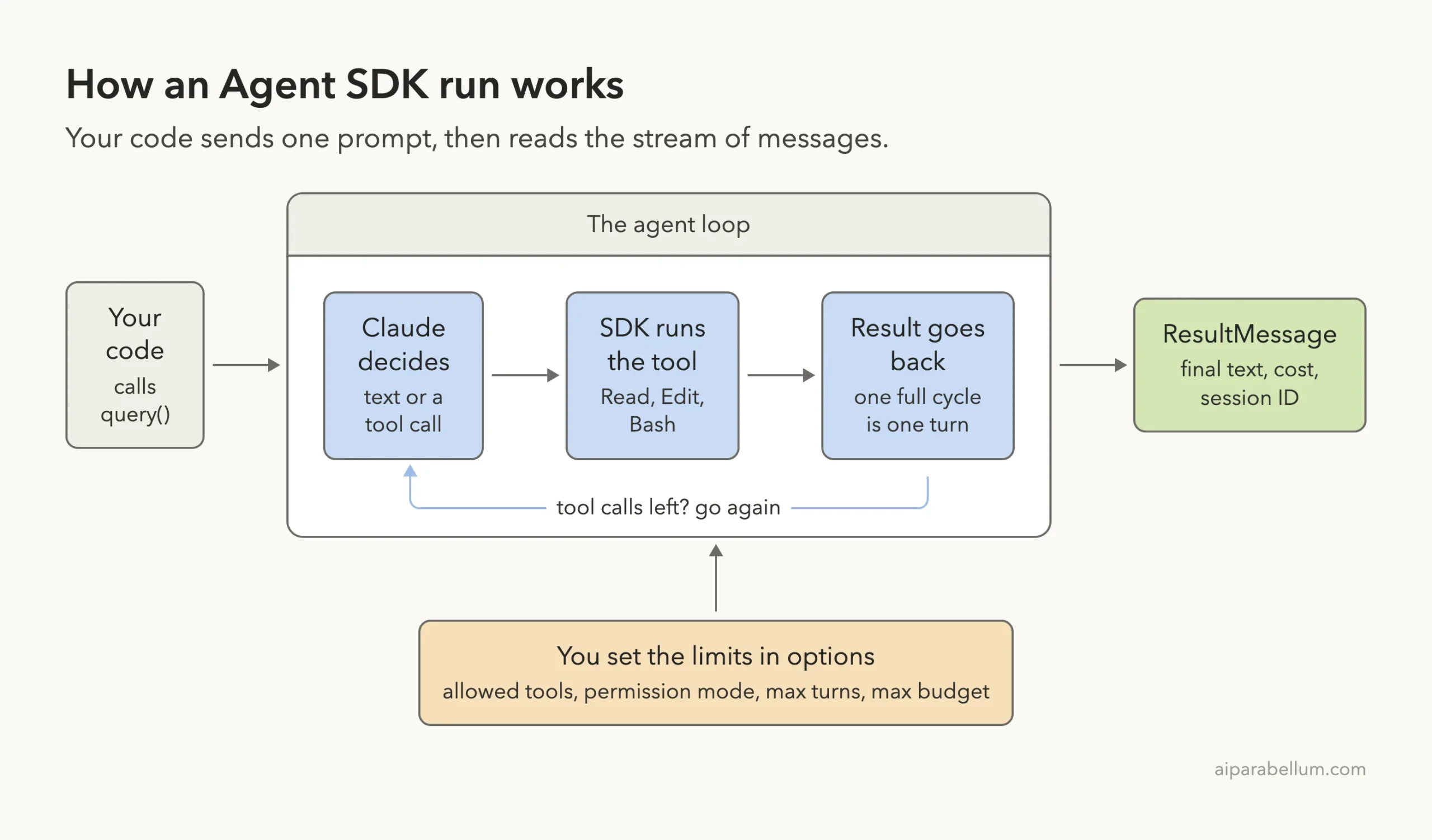
A quick question might take one or two turns. A bigger job, such as fixing failing tests, can chain many tool calls: run the tests, read the files, edit the code and run the tests again. The docs call each of these a turn and count only the tool-use turns against any limit you set.
Choose the Tools and Permissions
Tools decide what your agent can do. The quickstart gives three handy sets.
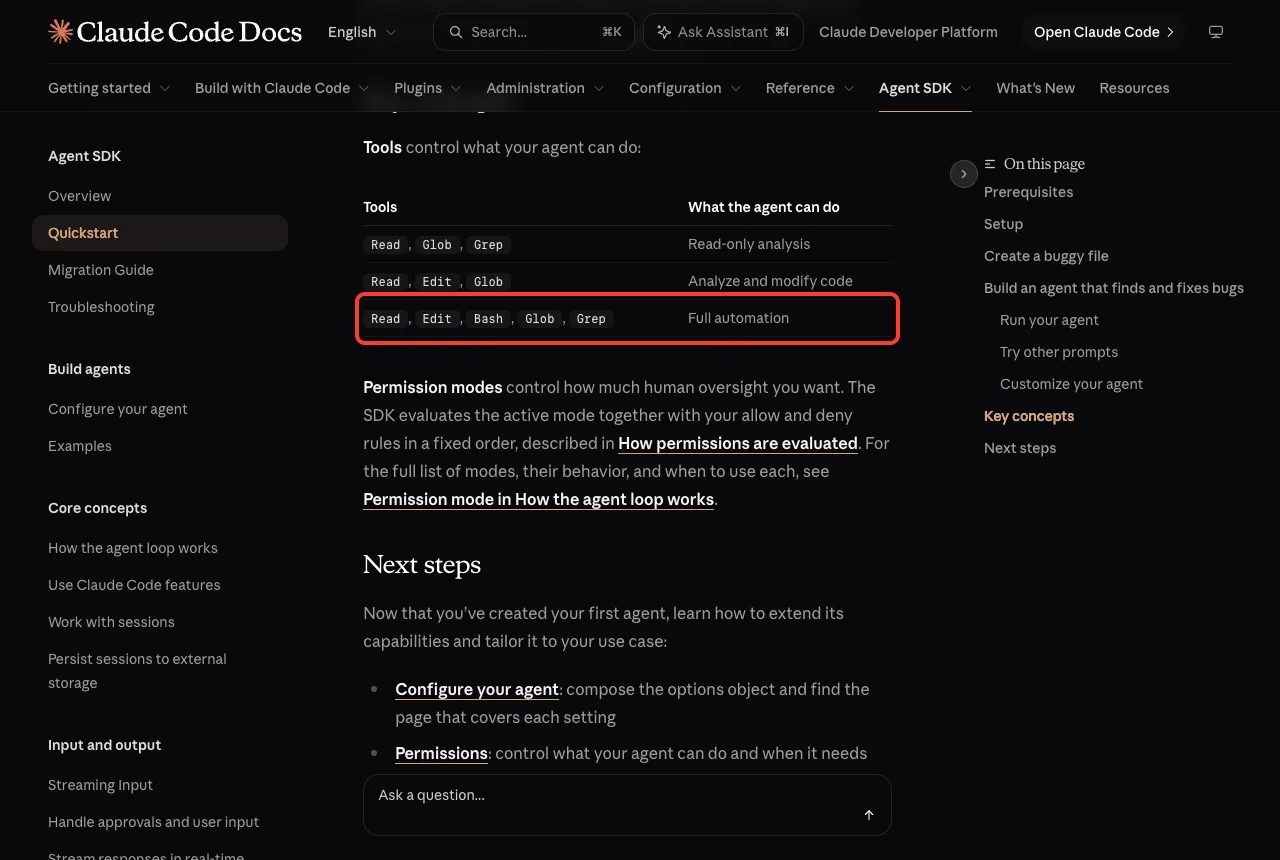
| Tools | What the agent can do |
|---|---|
| Read, Glob, Grep | Read-only analysis |
| Read, Edit, Glob | Analyze and modify code |
| Read, Edit, Bash, Glob, Grep | Full automation |
Three options work together to decide what actually runs.
allowed_tools auto-approves the tools you list. disallowed_tools blocks tools no matter what else is set. permission_mode controls how much human oversight you want.
When a tool call is denied, Claude gets a rejection message and usually tries another approach or tells you it could not continue.
You can also scope a tool with a rule such as Bash(npm *) to allow only certain commands. This mirrors the permission ideas in Claude Code automation, where there is also no person to click Approve.
Keep Cost and Runtime Under Control
An agent with no limits can run long on open-ended prompts. The loop page recommends setting a budget as a good default for production agents.
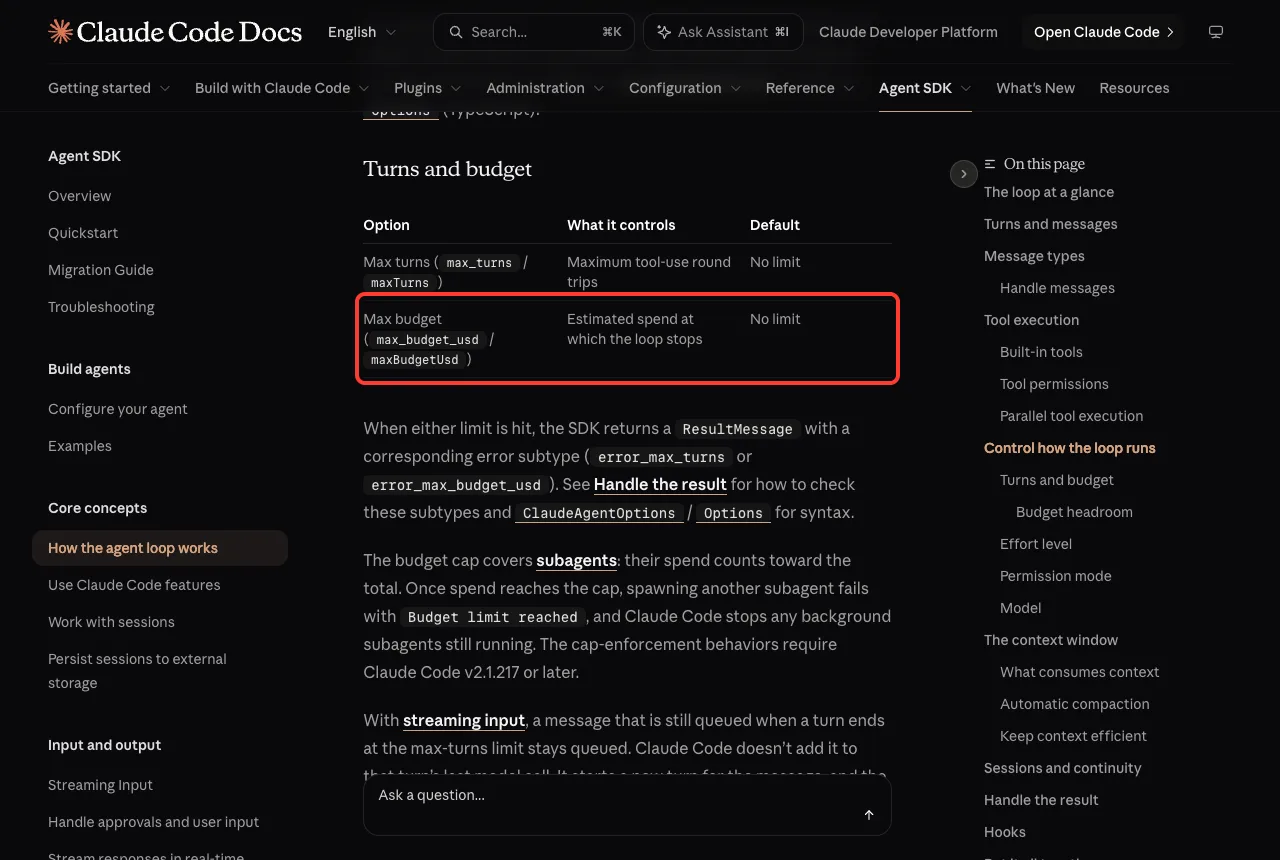
| Option | What it controls | Default |
|---|---|---|
| max_turns (maxTurns in TypeScript) | Maximum tool-use round trips | No limit |
| max_budget_usd (maxBudgetUsd) | Estimated spend at which the loop stops | No limit |
When a limit is hit, the SDK returns a ResultMessage with an error subtype, either error_max_turns or error_max_budget_usd.
One detail to remember: the response that reaches the cap still completes, so spend can pass the cap by about the cost of that one response. Leave some headroom.
There is also an effort option, from low to max, that trades reasoning depth for lower cost and faster replies. For more on spending, see our guide to managing costs.
Customize Your Agent
All of these tweaks change fields on the same options object. The quickstart shows three.
Add web search
options = ClaudeAgentOptions(
    allowed_tools=["Read", "Edit", "Glob", "WebSearch"], permission_mode="acceptEdits"
)
Give Claude a system prompt
options = ClaudeAgentOptions(
    allowed_tools=["Read", "Edit", "Glob"],
    permission_mode="acceptEdits",
    system_prompt="You are a senior Python developer. Always follow PEP 8 style guidelines.",
)
Let it run commands
options = ClaudeAgentOptions(
    allowed_tools=["Read", "Edit", "Glob", "Bash"], permission_mode="acceptEdits"
)
With Bash enabled, the docs suggest the prompt: Write unit tests for utils.py, run them, and fix any failures.
Try It Yourself
Practice with the same project, using the safest setup first. Keep Bash off until you are comfortable.
- Build the my-agent folder and utils.py from this guide.
- Run the agent once and compare utils.py before and after.
- Change only the prompt to one of the docs’ ideas and run it again.
- Add max_turns to your options and watch what happens with a small number.
Copy-paste prompts from the quickstart to try:
Add docstrings to all functions in utils.py
Add type hints to all functions in utils.py
Create a README.md documenting the functions in utils.py
Common Mistakes
- Forgetting the API key. The SDK reads ANTHROPIC_API_KEY from the shell that runs your agent, and it does not read .env files by itself.
- Giving too many tools too early. Start read-only, then add Edit, and add Bash last.
- Running with no limits. Without max_turns or a budget, open-ended prompts can run long.
- Breaking out of the stream early. A few trailing system events can arrive after the ResultMessage, so read the stream to the end.
- Using Claude Code branding in your product. The overview says partners may not call their agent Claude Code or imitate its look.
Pro Tips
- Print only the message types you care about, then log everything when you need to debug.
- Use the same project setup you rely on in the terminal. The SDK loads skills, commands and memory from your .claude folders, so a good CLAUDE.md file still helps.
- Use lower effort for simple, well-scoped tasks such as listing files.
- Read the Agent SDK overview, the quickstart and the agent loop page next, then explore hooks, sessions and MCP servers.
Cheat Sheet
Frequently Asked Questions
What is the difference between the Agent SDK and Claude Code?
Claude Code is the terminal app you use by hand. The Agent SDK is a library that runs the same agent from your Python or TypeScript code.
Do I need Claude Code installed to use the SDK?
Usually not. Both SDKs bundle a native Claude Code binary, so most installs need nothing extra. A few installs, such as pip on ARM64 Windows, have no bundled binary and need a native Claude Code install.
Which languages does it support?
Python and TypeScript. For other languages, the docs suggest running the CLI as a subprocess with the -p flag and –output-format json.
How do I log in?
Set an ANTHROPIC_API_KEY from the Claude Console. The docs also cover Amazon Bedrock, Google Cloud and Microsoft Foundry. Offering claude.ai login in your own product is not allowed unless Anthropic has approved it.
How do I stop an agent from running too long?
Set max_turns to cap tool-use round trips and max_budget_usd to cap estimated spend. When a limit is reached, the final result carries an error subtype you can check.
Conclusion
The Claude Agent SDK turns Claude Code into a building block. With one query call, a short prompt and a few options, you can have an agent read, edit and test code for you, while allowed tools, permission modes, turn limits and budgets keep it in bounds. Start with the bug-fixing quickstart, keep your tools minimal, and grow from there. That also completes our 53-part tour, so head back to the tutorials hub and try the Claude AI tools on your own projects.
Previous in the series: Part 52: Claude Code in Slack, on the Web and on Mobile