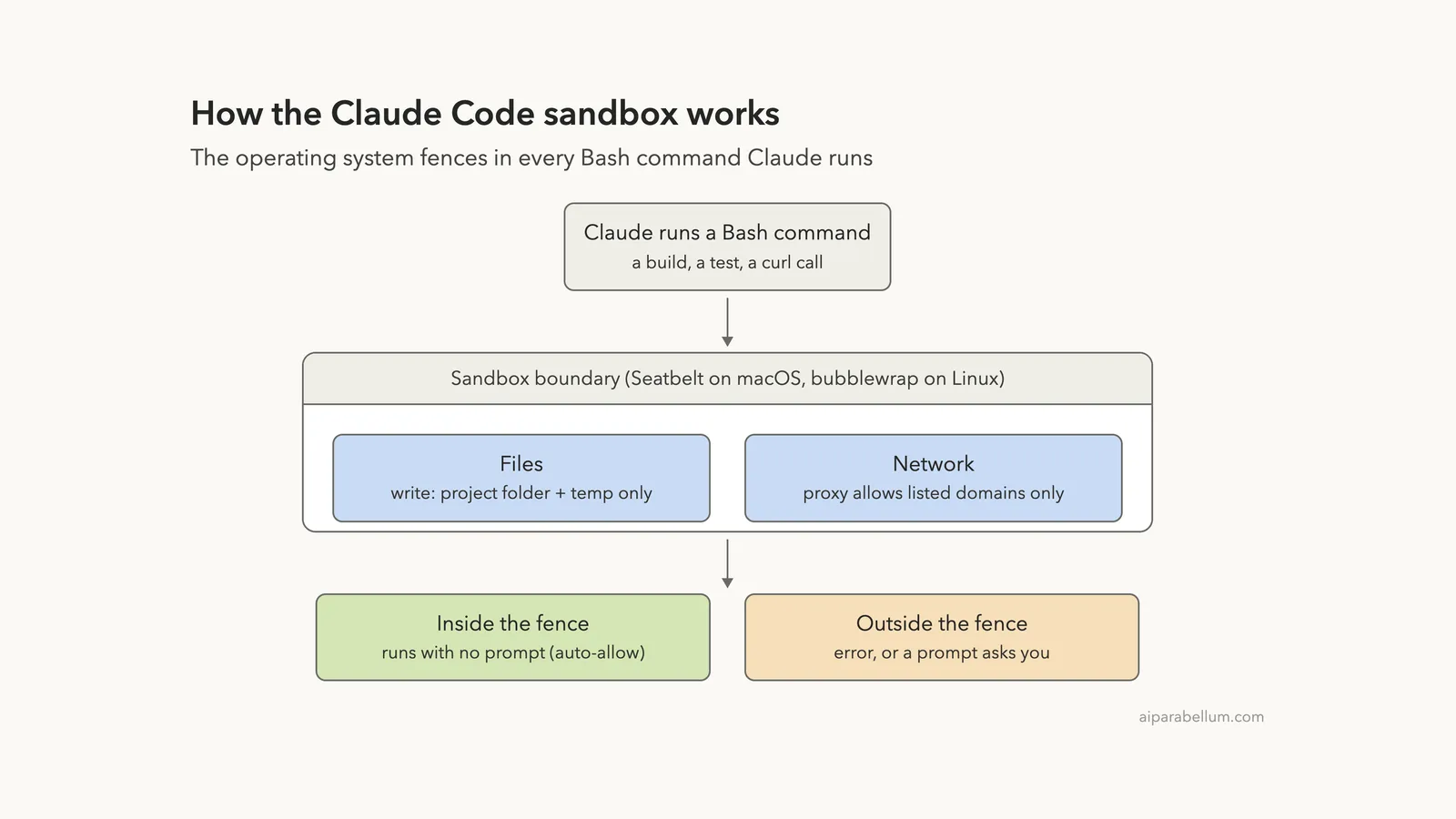
The Claude Code sandbox is a fence that your operating system builds around every shell command Claude runs. You decide which folders those commands can write to and which websites they can reach, and the computer itself enforces the rules. Because the fence holds no matter what command runs, Claude can work through builds and tests without asking you to approve each one.
In this guide you will turn the sandbox on with /sandbox, pick a mode, watch it block a write and a network call, and learn the settings that widen or tighten the fence. We ran every step for real in a tiny demo folder, and every screenshot comes from those sessions.
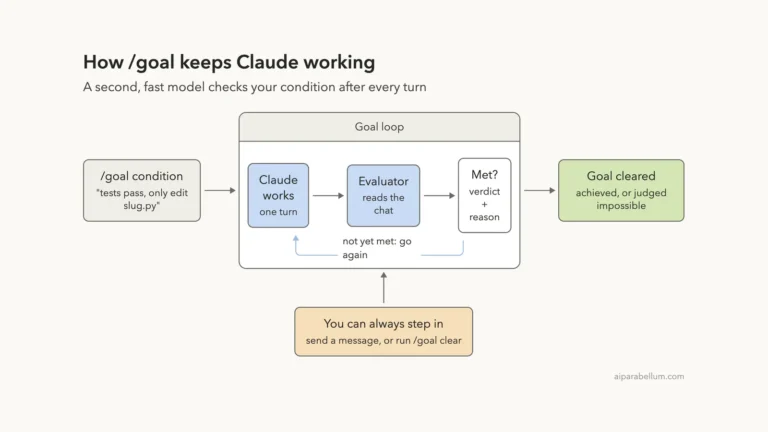
This is Part 41 of 53 in our Claude Code tutorials series. In the previous part we covered the /goal command, which keeps Claude working until a task is done; the sandbox is what makes that kind of hands-off work feel safe.
Tested with Claude Code v2.1.310 on October 25, 2026, on macOS, inside a small throwaway demo folder.
Quick Summary: The Claude Code Sandbox at a Glance
| Question | Short answer |
|---|---|
| What does it limit? | Files and network hosts that shell commands can reach |
| Which tools? | Bash, PowerShell and Monitor commands plus the processes they start |
| Is it on by default? | No. Run /sandbox or set sandbox.enabled to true |
| Default writes | Your working folder, a per-user temp folder and folders you added |
| Default reads | Most of the computer, including credential files, unless you deny them |
| Default network | Nothing until you allow a domain; new hosts trigger a prompt |
| Platforms | macOS (Seatbelt), Linux and WSL2 (bubblewrap); not native Windows |
| Where /sandbox saves | .claude/settings.local.json in your project |
What Is the Claude Code Sandbox?
Every time Claude runs a command like npm test or a build script, that command runs with your access by default. That is why Claude Code normally asks before running Bash commands. Our guide to permission modes explains that approval flow in detail.
The sandbox takes a different approach. Instead of checking the command text before it runs, it limits what the running process can touch.
On macOS it uses the built-in Seatbelt framework, and on Linux and WSL2 it uses a tool called bubblewrap. The official sandboxing documentation calls it a boundary that the operating system enforces.
Permission rules judge a command by its name. The sandbox judges it by what it actually tries to do.
Why it exists
Approving every command gets tiring fast, and tired people click Yes without reading. The sandbox removes that fatigue in a safer way. A command inside the fence can only write to your project and reach the domains you allowed, so letting it run without a prompt carries far less risk.
It also protects you from commands that do more than their name suggests. A test script might quietly try to write to your home folder or call an unknown server. The operating system blocks that, even if the command looked harmless.
What it does not cover
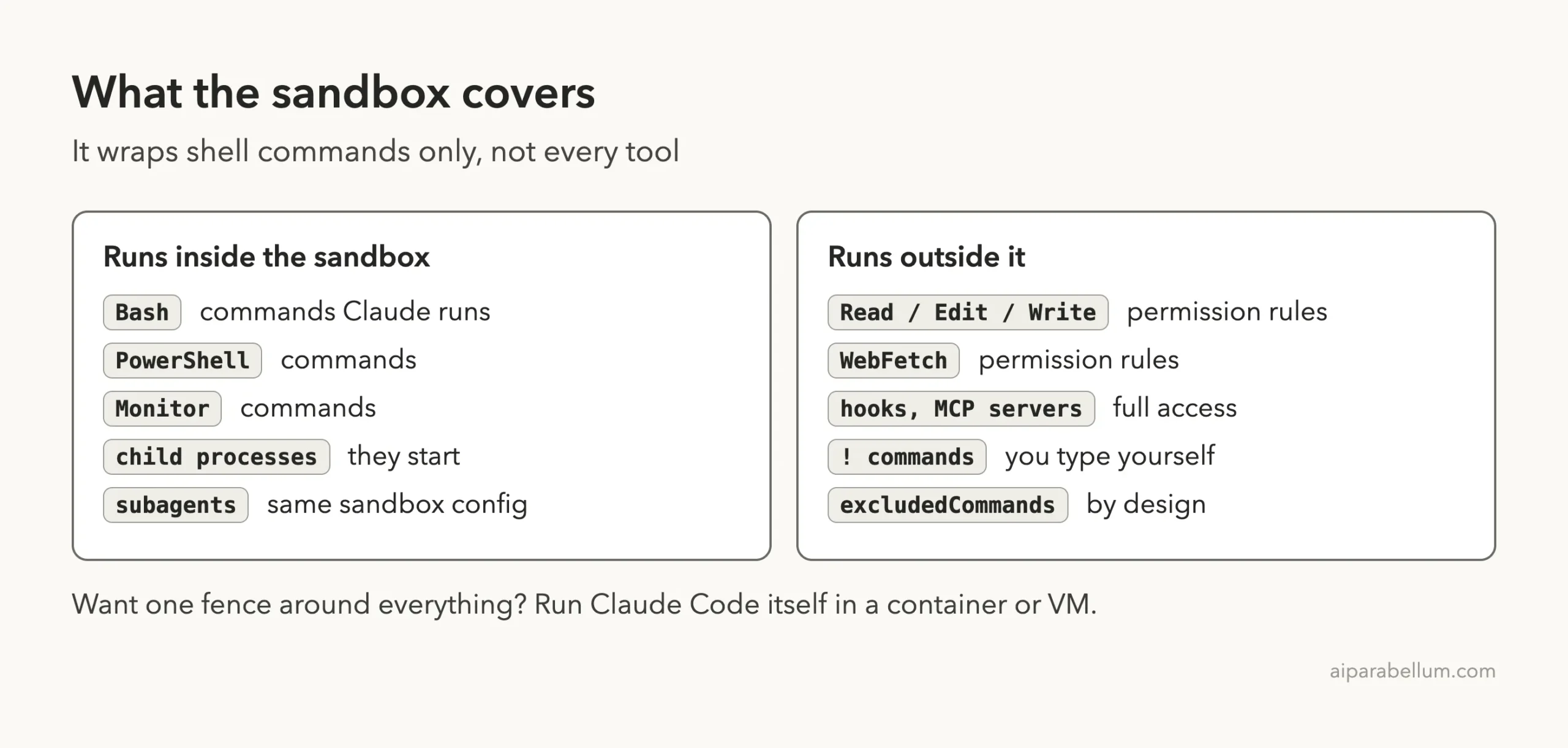
The sandbox wraps shell commands only. Claude’s own file tools such as Read, Edit and Write, plus WebFetch and WebSearch, follow your permission rules instead.
Hooks, local MCP servers, your status line command and commands you type yourself after ! also run outside it.
How to Turn On the Claude Code Sandbox Step by Step
We used a demo folder with two files: notes.txt and a tiny build.sh script that copies the notes into an out folder. Here is the whole process, starting with what happens before the sandbox is on.
Step 1: See the problem first
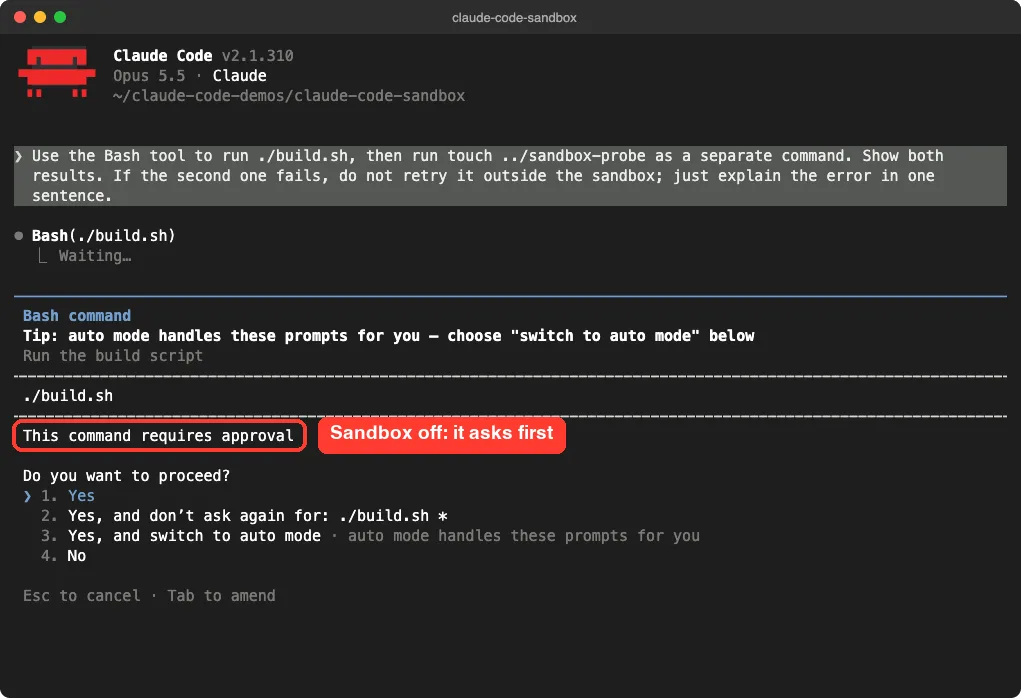
With the sandbox off and Claude Code in manual mode, we asked Claude to run ./build.sh. It stopped and asked for approval, which is the normal, safe behavior. Multiply that by fifty commands in a long task and you can see why people want a better option.
Step 2: Run /sandbox and pick a mode
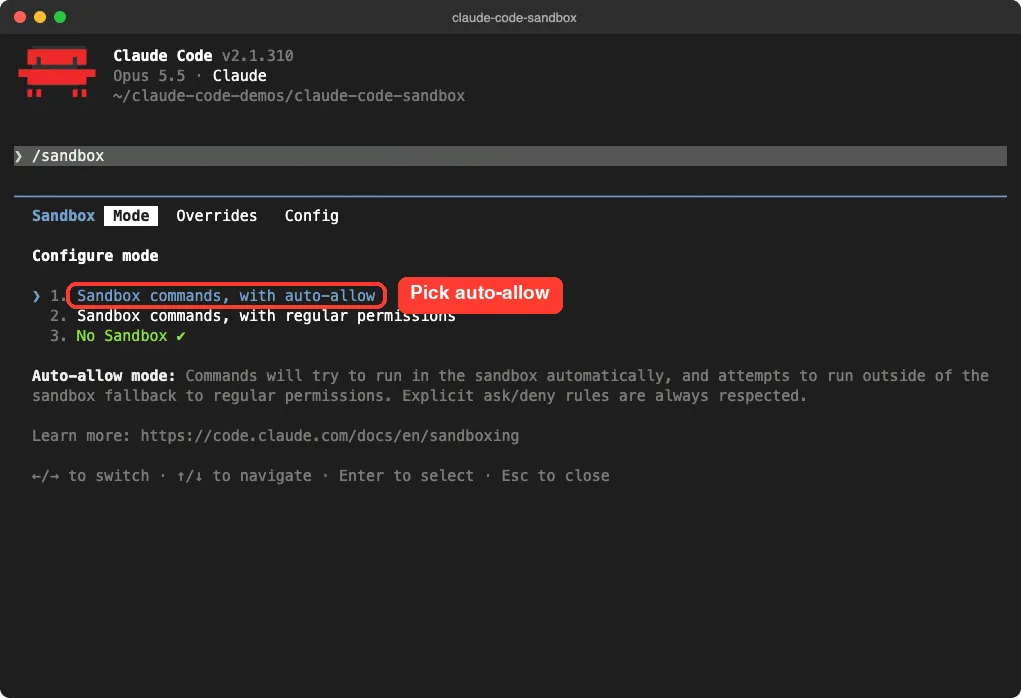
Type /sandbox and press Enter. A panel opens with three tabs: Mode, Overrides and Config. On Linux, a Dependencies tab can also appear when something is missing.
The Mode tab offers three choices. Press the down arrow to move into the list, use the arrows to highlight an option, and press Enter.
- Sandbox commands, with auto-allow: sandboxed commands run with no prompt.
- Sandbox commands, with regular permissions: same fence, but you still approve commands.
- No Sandbox: the default.
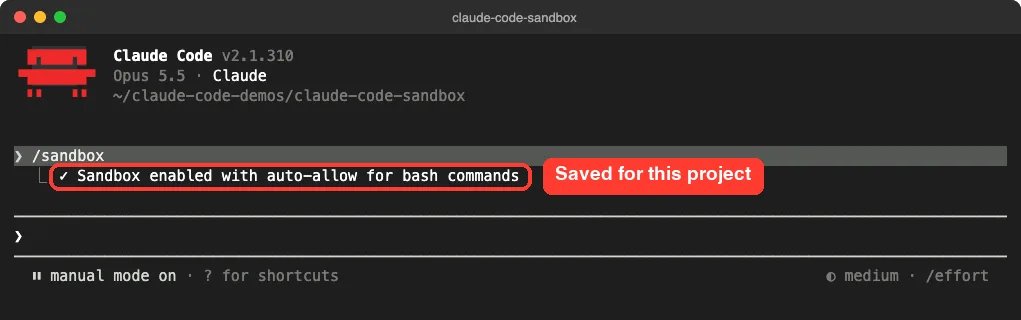
Claude Code confirmed the choice with a one-line message right away.
Step 3: Check the Overrides tab
The Overrides tab controls the escape hatch. With “Allow unsandboxed fallback” (the default), Claude can ask to retry a failed command outside the sandbox. “Strict sandbox mode” removes that option, so commands Claude runs stay sandboxed unless they match an excludedCommands entry.
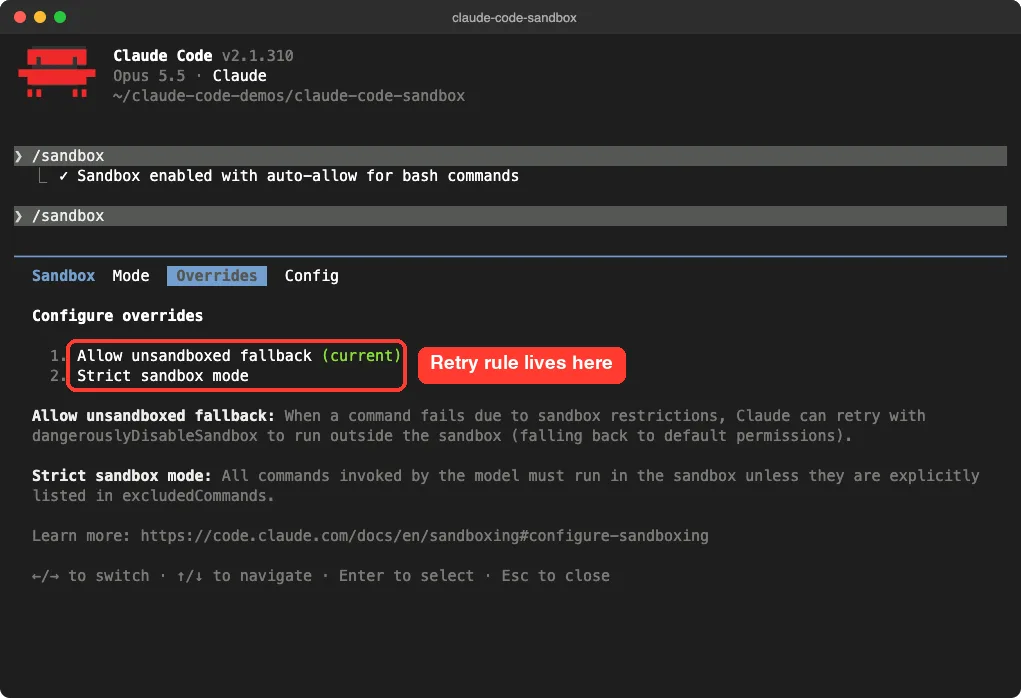
The Config tab lists the resolved settings. In our session it showed a long list of protected paths, such as .mcp.json and the .claude folders, under “Denied within allowed.”
Step 4: Run a command and watch the fence
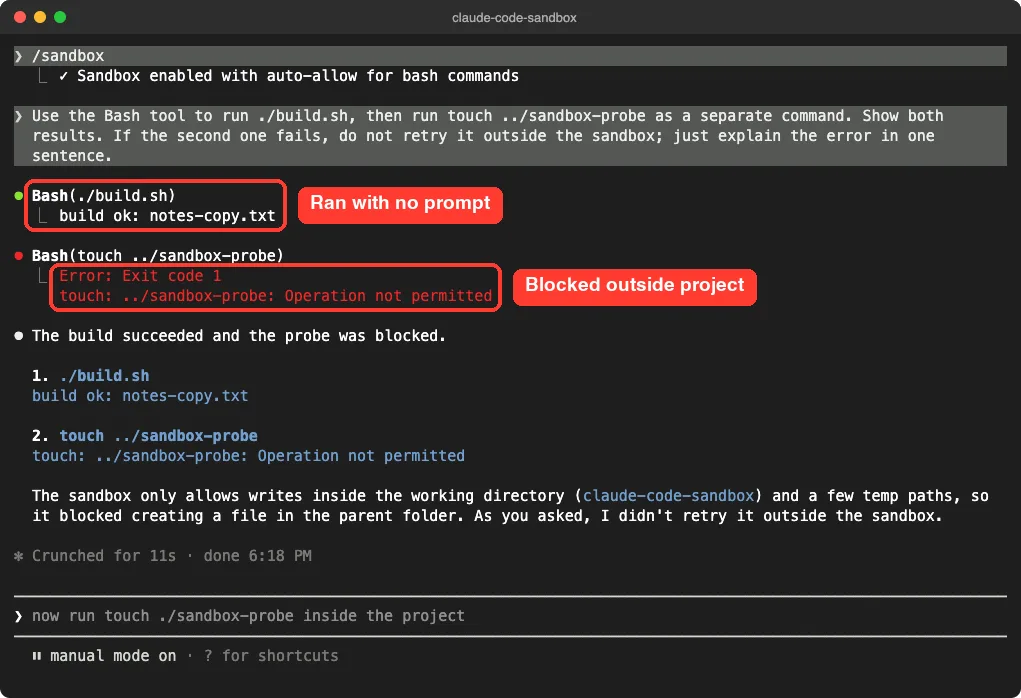
Next we asked Claude to run ./build.sh and then touch ../sandbox-probe, a file one folder above the project. We also told it not to retry outside the sandbox.
The build ran with no prompt this time and printed “build ok: notes-copy.txt.” The second command failed with “Operation not permitted,” because the parent folder sits outside the write boundary. That matches the docs, which say macOS reports exactly this error.
Step 5: Approve a network host
Then we asked Claude to run curl against example.com. The sandbox starts with no allowed domains, so Claude Code paused the connection and showed a “Network request outside of sandbox” prompt naming the host.
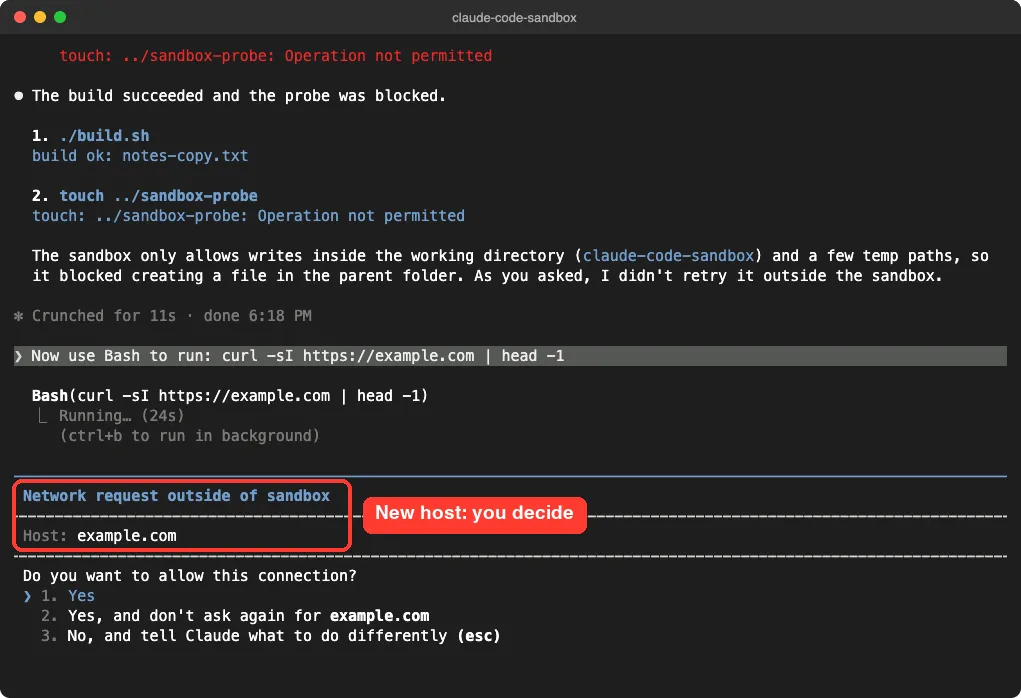
You get three answers.
Yes allows the host for the rest of the session. “Yes, and don’t ask again” saves a WebFetch domain rule to your local settings. No blocks it and lets you tell Claude what to do instead.
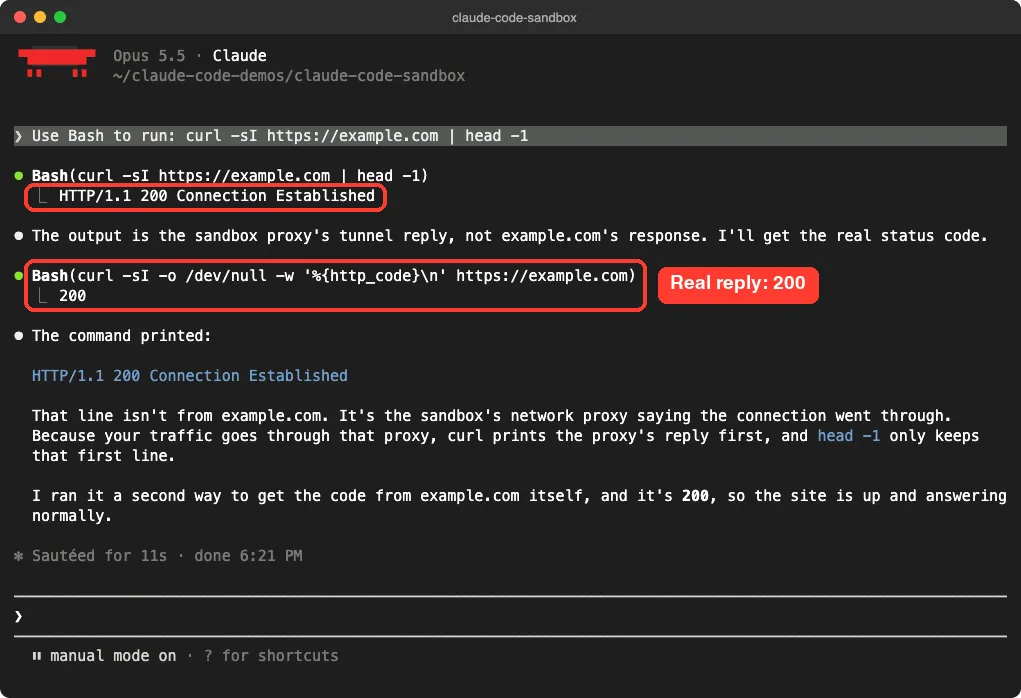
We chose Yes in a fresh session, and the request went through. Notice the first line, “HTTP/1.1 200 Connection Established.” Claude correctly pointed out that this line came from the sandbox proxy, then ran a second check that returned 200 from the site itself.
Step 6: See protected paths in action
Even inside your project, the sandbox denies writes to files Claude Code loads its setup from. We asked Claude to overwrite .mcp.json, and the write failed with “operation not permitted.” This stops a command from quietly adding an MCP server or hook that would later run outside the fence.

Note that an allowWrite entry does not lift this protection. Per the docs, only turning off filesystem isolation entirely does that.
Step 7: Find the saved setting
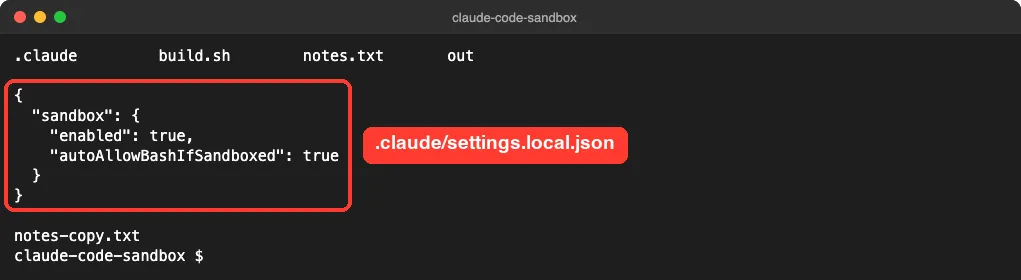
After we exited, the project had a new file at .claude/settings.local.json. Our .claude folder guide covers what else lives there.
How the Sandbox Works Behind the Scenes
The sandbox has two independent layers. Filesystem isolation controls which paths a command can read and write. Network isolation sends all traffic through a proxy on your machine, which checks each hostname against your allowed and denied domains.
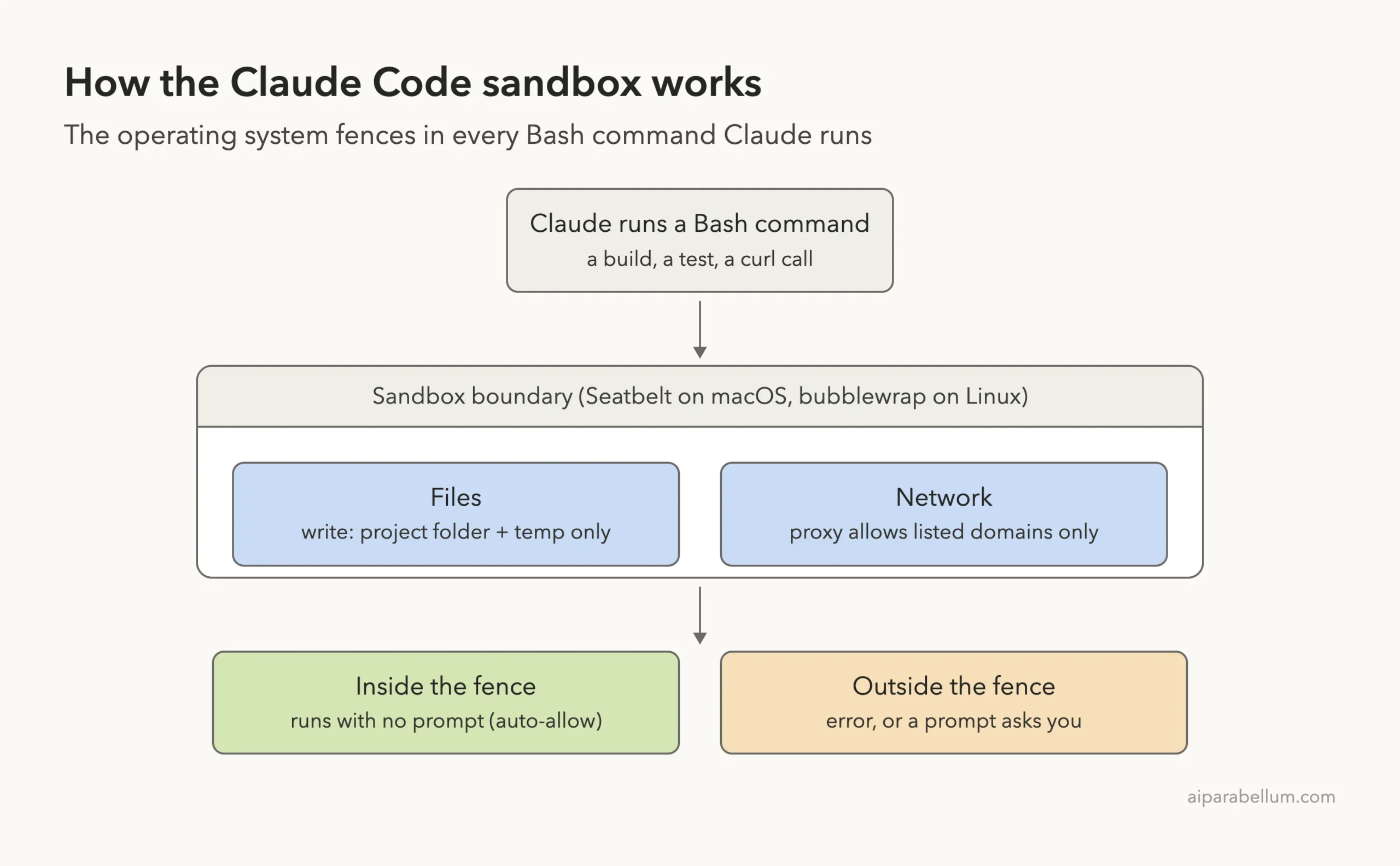
Tools that read the proxy variables, such as curl, npm and git over HTTPS, work once their host is allowed. Tools that ignore them, like plain ssh and most database drivers, cannot connect even to an allowed host. Anything that is not TCP, such as ping, cannot leave at all.
The docs stress that both layers matter. Without network limits, a bad command could send your SSH keys somewhere; without file limits, it could plant something that later widens its own access.
Configure the Sandbox in Settings
The /sandbox panel covers the basics, and your settings files handle the rest. Our settings files guide explains which file wins when they disagree. To turn the sandbox on for every project, add this to ~/.claude/settings.json:
{
  "sandbox": {
    "enabled": true
  }
}
Let a tool write somewhere else
If kubectl or a build tool needs to write outside your project, grant that one path instead of removing the fence:
{
  "sandbox": {
    "enabled": true,
    "filesystem": {
      "allowWrite": ["~/.kube", "/tmp/build"]
    }
  }
}
Pre-allow domains and protect secrets
List hosts in network.allowedDomains to skip the prompt. Remember that reads are wide open by default, so protect credentials you care about. This example from the docs blocks the AWS credentials file and SSH folder and removes two tokens from the environment of sandboxed commands:
{
  "sandbox": {
    "enabled": true,
    "credentials": {
      "files": [
        { "path": "~/.aws/credentials", "mode": "deny" },
        { "path": "~/.ssh", "mode": "deny" }
      ],
      "envVars": [
        { "name": "GITHUB_TOKEN", "mode": "deny" },
        { "name": "NPM_TOKEN", "mode": "deny" }
      ]
    }
  }
}
Key settings at a glance
| Setting | What it does |
|---|---|
| sandbox.enabled | Turns the sandbox on or off |
| autoAllowBashIfSandboxed | Auto-allow mode when true, regular prompts when false |
| allowUnsandboxedCommands | Set to false for strict mode with no unsandboxed retry |
| failIfUnavailable | Exit at startup instead of running unsandboxed if the sandbox can’t start |
| filesystem.allowWrite / denyWrite / denyRead | Widen or narrow file access |
| network.allowedDomains / deniedDomains | Pre-allow or block hosts |
| excludedCommands | Run matching commands outside the sandbox with full access |
To test a setting for one session only, the docs show this command, which also blocks the unsandboxed retry:
claude --settings '{"sandbox": {"enabled": true, "allowUnsandboxedCommands": false}}'Linux, WSL2 and Windows
We tested on macOS; the Windows and Linux steps follow Anthropic’s official instructions. On Linux and WSL2, the sandbox needs bubblewrap and socat. On Ubuntu or Debian you install them with sudo apt-get install bubblewrap socat, and on Fedora with sudo dnf install bubblewrap socat.
If a required package is missing, /sandbox shows only a Dependencies tab until you install it and restart. Native Windows does not support the sandbox, so Claude Code runs commands unsandboxed there; run Claude Code inside WSL2 instead.
Real Examples of When to Use the Sandbox
- Long test-and-fix loops: pair auto-allow with /goal so Claude can run tests over and over without prompts.
- Unfamiliar repositories: a cloned project’s scripts can only write inside that project.
- Package installs: allow registry.npmjs.org or your package host once, and everything else stays blocked.
- Work with Claude Code subagents: their Bash commands use the same sandbox setup as the main session.
Try It Yourself
Make an empty practice folder with one small script, start Claude Code there, run /sandbox, pick auto-allow and paste this prompt:
Use the Bash tool to run these one at a time and show each result:
1. touch ./inside.txt
2. touch ../outside.txt
3. curl -sI https://example.com
If a command fails, do not retry it outside the sandbox. Explain each result in one sentence.
You should see the first command succeed, the second fail with “Operation not permitted,” and a network prompt for the third. If the second one succeeds, run /sandbox to confirm it is really on, and delete the stray file.
Common Mistakes
- Testing with ! commands: what you type at the ! prompt usually runs outside the sandbox, so ask Claude to run the test instead.
- Thinking reads are blocked: by default sandboxed commands can read most of the machine, including ~/.ssh, until you add credentials or denyRead rules.
- Expecting it to limit WebFetch: allowedDomains applies to shell commands, not Claude’s web tools.
- Using broad excludedCommands: a pattern like docker * hands that tool your full access.
- Approving every unsandboxed retry: read the “Bash command (unsandboxed)” prompt carefully, because that retry has no fence.
- Allowing huge domains: the docs warn that broad entries such as github.com can open paths for data to leave.
Pro Tips
- Prefer allowWrite or allowedDomains over excludedCommands, because they keep the command inside the fence.
- Run claude doctor in your terminal to catch sandbox config warnings, such as ambiguous domain entries.
- If jest hangs, run it with –no-watchman, since watchman does not work in the sandbox.
- On macOS, git over SSH fails in the sandbox; switch the remote to HTTPS or exclude git push, pull and fetch.
- pbcopy may not reach your clipboard from inside the sandbox; ask Claude to print the text, then run /copy.
- For one fence around everything, including your hooks and MCP servers, run Claude Code itself in a container or VM.
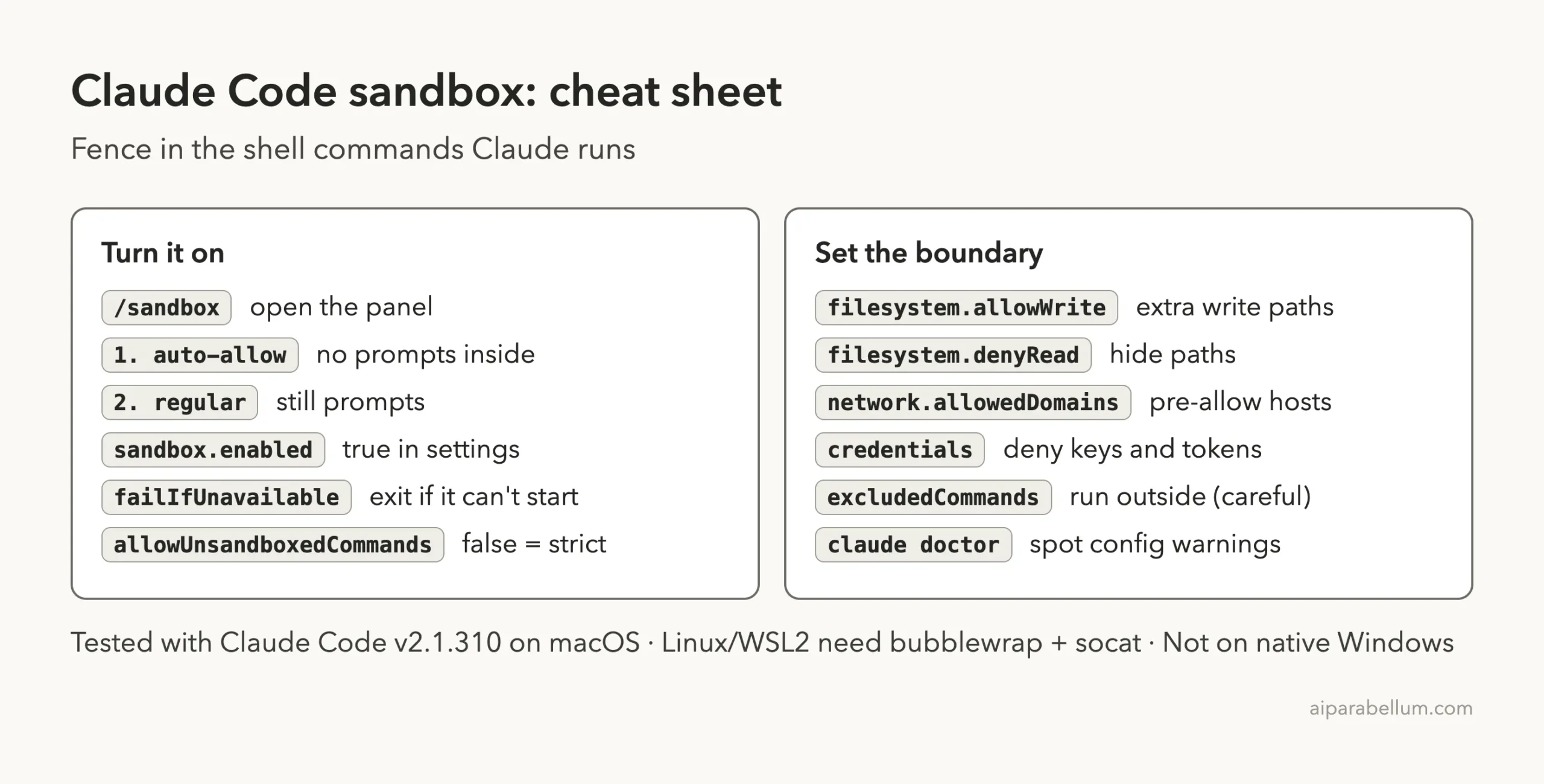
Claude Code Sandbox Cheat Sheet
Frequently Asked Questions
Is the Claude Code sandbox on by default?
No. You turn it on with /sandbox in a session or by setting sandbox.enabled to true in a settings file.
Is the sandbox the same as auto mode?
No. Auto mode uses a classifier to review actions, while the sandbox’s auto-allow approves Bash commands because the fence contains them. They work independently and can be combined.
Does the sandbox work on Windows?
Not on native Windows, where Claude Code runs commands unsandboxed. Run Claude Code inside WSL2 to use it.
What happens if the sandbox can’t start?
By default Claude Code runs commands without sandboxing. Set sandbox.failIfUnavailable to true if you would rather have it exit at startup.
Can Claude still run a command outside the sandbox?
Yes, through the unsandboxed retry or an excludedCommands match. In manual mode the retry shows a “Bash command (unsandboxed)” prompt, and strict sandbox mode turns the retry off.
Conclusion
The Claude Code sandbox gives shell commands a real fence: writes stay in your project, network calls need an allowed host, and key setup files stay protected. In our test, a build script ran with no prompt, a write outside the project was blocked, a new host asked for approval, and a write to .mcp.json was refused. Turn it on with /sandbox, pick auto-allow, protect your credentials, and widen the fence one path or domain at a time, and you will spend less time clicking Yes and more time building with Claude AI.
Previous in the series: Part 40, Keep Claude Code Working Toward a Goal With /goal
Next in the series: Part 42, Review Your Code Locally With /code-review, is coming soon.