You stare at the spreadsheet. The data is all there, rows and columns of numbers that hold the answers you need. But the formula to extract those answers feels like it requires a degree in computer science. You try a VLOOKUP, get an error, switch to INDEX MATCH, get another error, and spend forty-five minutes on something that should take thirty seconds.
This is the daily reality for millions of spreadsheet users. Excel has over 500 built-in functions, and most people use fewer than ten of them because the rest feel impossibly complex. The syntax is unforgiving. One misplaced comma or wrong cell reference breaks everything.
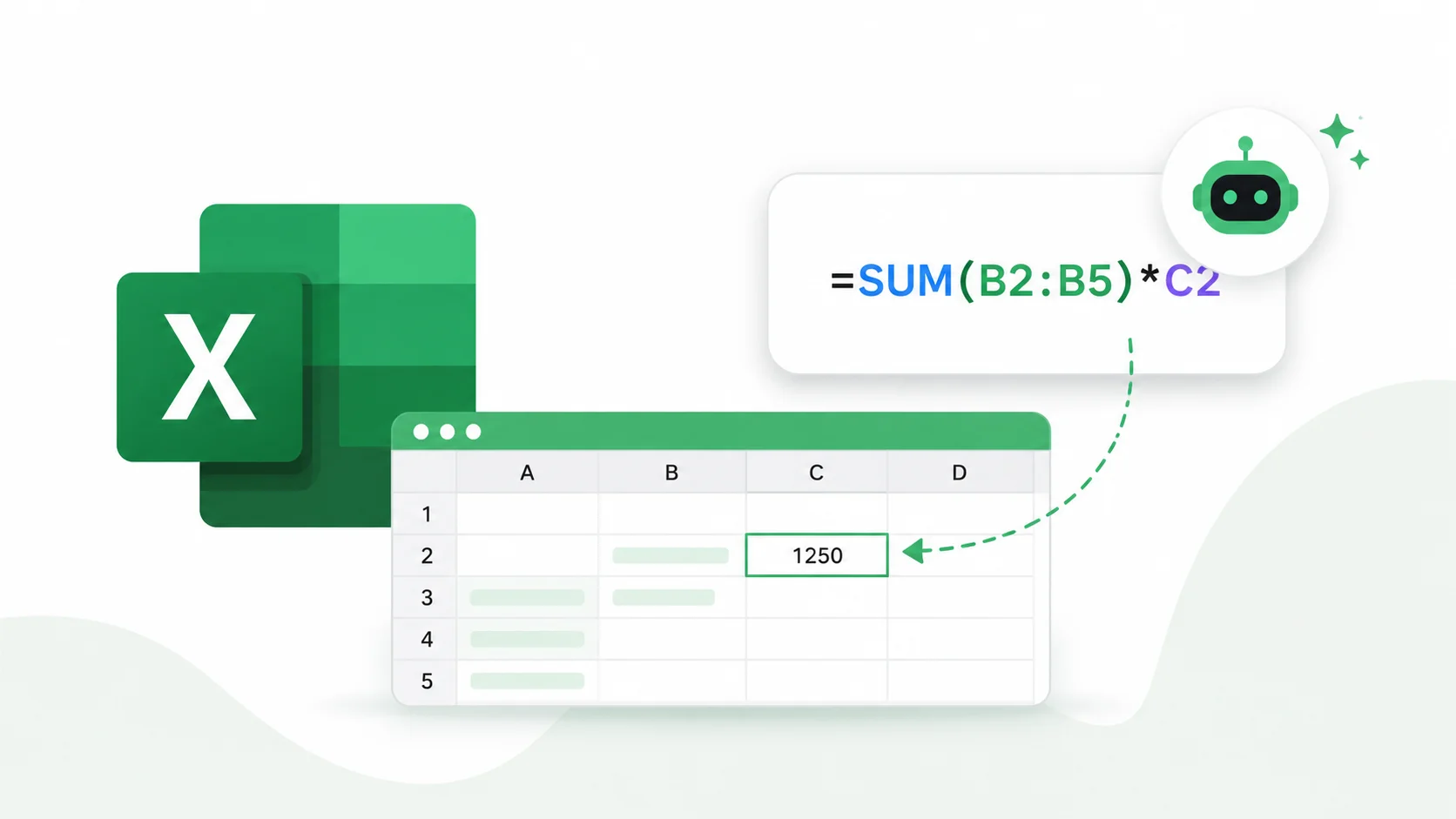
AI tools now generate Excel formulas from plain English descriptions. You describe what you want in normal language, and AI writes the exact formula, complete with correct syntax, nested functions, and cell references. Here is how to use AI to stop wrestling with spreadsheet formulas and start getting answers instantly.
Why Excel Formulas Are Hard for Most People
Excel was designed by engineers for engineers. Its formula language uses a syntax that feels natural to programmers but alien to everyone else. Functions like SUMPRODUCT, XLOOKUP, and array formulas require you to think in a way that contradicts how most people process information.
The problem compounds with complexity. A simple SUM formula is straightforward. But the moment you need to combine conditions, look up values across sheets, handle errors, or create dynamic ranges, the formula becomes a nested chain of functions that is nearly impossible to read or debug.
According to Accenture, knowledge workers spend an average of 2.5 hours per day on data-related tasks, with a significant portion of that time lost to manual spreadsheet work. AI formula generation eliminates the biggest bottleneck in that workflow.
Excel is the most powerful tool most people never learn to use properly. AI bridges the gap between what you want to calculate and the formula that calculates it.
How AI Generates Excel Formulas
AI formula generators use natural language processing to understand your request and translate it into spreadsheet syntax. You type something like “calculate the average sales for each region where the total is above $10,000” and the AI returns the exact formula with the right functions, references, and structure.
Natural Language to Formula Translation
The AI understands context. It knows that “find duplicates” means COUNTIF, that “look up a value from another sheet” means XLOOKUP or VLOOKUP, and that “calculate the running total” requires a SUM with mixed references. It handles the translation layer so you never need to memorize function names or argument orders.
This natural language processing capability means the AI adapts to how you describe problems rather than forcing you to learn its language. Whether you say “sum the values in column B where column A equals ‘Sales'” or “total up all the Sales numbers,” the AI produces the same correct SUMIF formula.
Error Handling and Optimization
AI does not just write formulas. It writes good formulas. It wraps calculations in IFERROR to handle edge cases, uses absolute and relative references correctly, and chooses the most efficient function for the task. A human might write a formula with three nested IFs when a single IFS or SWITCH function does the same thing more cleanly.
The AI also explains what each part of the formula does, turning a cryptic string of functions into an understandable sequence of steps. This explanation is valuable not just for using the formula but for learning how Excel works.
AI Tools for Generating Excel Formulas
Several AI tools specialize in spreadsheet formula generation, each with different strengths and integration options.
| Tool | Free Option | Best For | Key Feature |
|---|---|---|---|
| ChatGPT | Free tier available | Any formula type with detailed explanations | Handles complex multi-step formulas |
| Microsoft Copilot in Excel | Included with Microsoft 365 | Direct in-spreadsheet formula creation | Works inside Excel with your live data |
| Google Sheets AI | Free with Google account | Google Sheets formula generation | Built-in Help Me Organize feature |
| Excelformulabot | Free tier with limits | Quick formula lookups | Simple text-to-formula interface |
| Claude | Free tier available | Complex formulas with step-by-step reasoning | Explains logic clearly for learning |
| SheetAI | Free trial | Google Sheets add-on | Generates formulas directly in cells |
For most users, ChatGPT provides the most versatile formula generation because you can describe any scenario in as much detail as needed. For those working directly in Microsoft 365, Copilot integrates formula generation into the spreadsheet itself.
How to Prompt AI for Excel Formulas
The quality of the formula you get depends entirely on how well you describe what you need. Vague prompts produce vague results. Specific, structured prompts produce formulas you can paste directly into your spreadsheet.
The Effective Formula Prompt Structure
Include these details in every formula request for accurate results.
- Describe your data layout: which columns contain what data, where headers are, and how many rows you have.
- State the exact result you want: what number, text, or outcome should appear in the cell.
- Mention any conditions: filters, date ranges, thresholds, or categories that affect the calculation.
- Specify the Excel version if you know it, since newer versions support functions like XLOOKUP, FILTER, and UNIQUE that older versions do not.
- Ask for the formula to handle errors gracefully if your data might contain blanks or unexpected values.
Mastering how to write effective AI prompts is the single most impactful skill for getting usable formulas on the first try. A well-structured request saves multiple rounds of back-and-forth corrections.
Example Prompts and Results
Here are practical examples showing how different prompt styles produce different formula quality.
| Prompt Quality | Prompt | AI Output |
|---|---|---|
| Weak | “Give me a formula for sales” | =SUM(B:B) — too generic |
| Better | “Sum sales in column B where region in column A is East” | =SUMIF(A:A,”East”,B:B) |
| Strong | “In my sheet, column A has regions, B has dates, C has sales amounts. Give me a formula for cell D2 that sums sales for the East region in Q1 2026 (Jan-Mar). Handle errors.” | =IFERROR(SUMIFS(C:C,A:A,”East”,B:B,”>=”&DATE(2026,1,1),B:B,”<="&DATE(2026,3,31)),0) |
The difference between a weak and strong prompt is the difference between a formula you cannot use and one that works perfectly on the first paste.
Common Excel Formulas AI Can Generate Instantly
These are the formula categories that people struggle with most and where AI saves the most time.
Lookup Formulas
VLOOKUP, HLOOKUP, XLOOKUP, INDEX MATCH, and their variations are the most searched Excel topics online. AI handles all of them, including multi-criteria lookups that would require nested INDEX MATCH MATCH combinations. Just describe the value you want to find and where to find it.
The AI also knows when to recommend XLOOKUP over VLOOKUP. If your Excel version supports it, XLOOKUP is simpler, more flexible, and can search in any direction. AI picks the right tool for the right version.
Conditional Calculations
SUMIF, SUMIFS, COUNTIF, COUNTIFS, AVERAGEIF, and AVERAGEIFS formulas apply conditions to calculations. AI excels at these because it handles multiple criteria, date ranges, and text matching without you needing to know the function argument order.
For complex conditional logic, AI generates nested IF statements, IFS functions, or SWITCH formulas based on what makes the most sense for your scenario. These data analytics capabilities turn raw spreadsheet data into meaningful insights without requiring any programming knowledge.
Text Manipulation
Cleaning and transforming text data is one of the most tedious spreadsheet tasks. AI generates formulas using LEFT, RIGHT, MID, FIND, SUBSTITUTE, TEXTJOIN, and CONCAT to extract, combine, and reformat text data.
Need to pull the domain name from a list of email addresses? Extract the first name from a full name column? Reformat phone numbers from different formats into a consistent pattern? Describe the task in plain English and AI writes the formula instantly.
Date and Time Calculations
Date math in Excel is notoriously confusing. DATEDIF, NETWORKDAYS, EDATE, EOMONTH, and TEXT formatting for dates trip up even experienced users. AI handles the quirks of Excel date formatting and generates formulas that correctly calculate business days, age from birthdate, months between dates, and deadline tracking.
You do not need to know the difference between NETWORKDAYS and WORKDAY. You just need to tell AI “calculate the number of business days between the start date in A2 and the end date in B2, excluding holidays listed in sheet 2.” AI knows the rest.
Using AI for Google Sheets Formulas
Google Sheets uses nearly identical formula syntax to Excel but has its own unique functions like IMPORTRANGE, QUERY, GOOGLEFINANCE, and ARRAYFORMULA. AI tools handle both platforms and translate between them when needed.
The QUERY function in Google Sheets is particularly powerful but uses SQL-like syntax that most spreadsheet users have never seen. AI writes QUERY formulas from plain English descriptions, making one of the most powerful features in Google Sheets accessible to everyone.
If you work across both platforms, ask AI to provide formulas for each version. The same calculation often uses different functions in Excel versus Sheets, and AI knows the equivalents. The same AI productivity tools that streamline other workflows apply directly to spreadsheet tasks.
Advanced Formula Generation With AI
AI does not stop at basic formulas. It handles the advanced techniques that most spreadsheet users never learn.
Array Formulas and Dynamic Arrays
Modern Excel supports dynamic arrays through FILTER, SORT, SORTBY, UNIQUE, and SEQUENCE functions. These single formulas can replace entire columns of helper formulas. AI generates dynamic array formulas that automatically expand as your data grows.
For example, instead of creating a separate filtered list manually, you can ask AI for a formula that shows all orders above $500 sorted by date. The result is a single FILTER formula wrapped in SORT that does everything in one cell.
Dashboard Formulas
Building dashboard metrics usually requires combining multiple functions. AI generates the complex formulas behind KPI calculations, variance analysis, year-over-year comparisons, and rolling averages. Describe the metric you want to track and the AI creates the formula that drives the dashboard cell.
These same capabilities power the AI tools businesses use for reporting and decision-making. The difference is that AI formula generation puts that power directly into your existing spreadsheet without requiring a new platform.
Macro and VBA Alternatives
Many tasks that traditionally required VBA macros can now be solved with formulas alone, thanks to newer Excel functions. AI knows when a formula solution exists and when VBA is truly necessary. It can also write simple VBA scripts when formulas cannot do the job, giving you both options for comparison.
The best formula is the one you understand. AI writes it, but more importantly, AI explains it so you can modify it when your data changes.
Building a Formula Library With AI
Instead of generating the same formulas repeatedly, build a personal library of your most-used formulas with AI-generated explanations.
- Ask AI to generate your ten most common calculation types and save them in a reference sheet within your workbook.
- Include the plain English description next to each formula so anyone on your team can understand what it does.
- Create template workbooks with pre-built formulas for recurring tasks like monthly reports, budget tracking, or inventory management.
- Use AI to document existing complex formulas in your spreadsheets that nobody on the team understands anymore. Paste the formula into AI and ask for a plain English explanation.
This approach turns AI from a one-time helper into a permanent automation upgrade for your entire spreadsheet workflow. The AI research tools that help with other knowledge tasks apply here too, when you need to understand which formula approach fits your specific data scenario.
Common Mistakes When Using AI for Excel Formulas
AI formula generation is powerful but not foolproof. Avoid these common pitfalls to get reliable results.
| Mistake | What Happens | How to Fix |
|---|---|---|
| Not specifying cell references | AI uses generic ranges like A:A instead of A2:A100 | Tell AI your exact data range |
| Ignoring Excel version | AI suggests XLOOKUP in Excel 2016 | Mention your Excel version in the prompt |
| Skipping error handling | Formula breaks on blank cells or missing data | Ask AI to wrap in IFERROR |
| Not testing with sample data | Formula looks right but calculates wrong | Always verify with known values first |
| Pasting without understanding | Cannot modify when requirements change | Ask AI to explain each part of the formula |
The most important habit is testing every AI-generated formula against data where you already know the correct answer. AI produces syntactically correct formulas almost every time, but logical errors can creep in when the prompt is ambiguous. A quick sanity check catches these before they affect real decisions.
Tips for Getting Better Formulas From AI
These strategies consistently produce more accurate and useful formula output.
- Provide a small sample of your data when asking for formulas. Paste three or four rows so AI can see the actual structure, data types, and formatting.
- Ask for the formula and an explanation separately. Read the explanation to verify the logic before trusting the formula.
- Request alternative approaches. Ask “Is there a simpler way to do this?” after receiving the first formula. AI often knows a more elegant solution.
- Build formulas incrementally for complex calculations. Start with the core calculation, verify it works, then ask AI to add conditions, error handling, and formatting layers.
- Use AI to convert formulas between platforms. Paste an Excel formula and ask for the Google Sheets equivalent, or vice versa.
According to Microsoft’s productivity research, workers who use AI assistance for spreadsheet tasks complete data analysis 40 percent faster than those who write formulas manually. The time savings compound as formulas get more complex. What takes an expert five minutes to write manually takes AI five seconds, and the result is often better optimized.
Conclusion
Generating Excel formulas automatically with AI eliminates the steepest learning curve in spreadsheet work. Instead of memorizing hundreds of function names, argument orders, and nesting rules, you describe what you need in plain English and get a working formula in seconds. AI handles lookups, conditionals, text manipulation, date math, and dynamic arrays with equal ease, and it explains every formula so you learn while you work. The spreadsheet is still the most widely used business tool on the planet, and AI finally makes its full power accessible to everyone who uses one.