You open your inbox on Monday morning and find 47 unread emails waiting for you. Some need a quick acknowledgment. Others require a thoughtful, detailed response. A few are politically sensitive and need careful wording. Getting through all of them could easily take your entire morning.
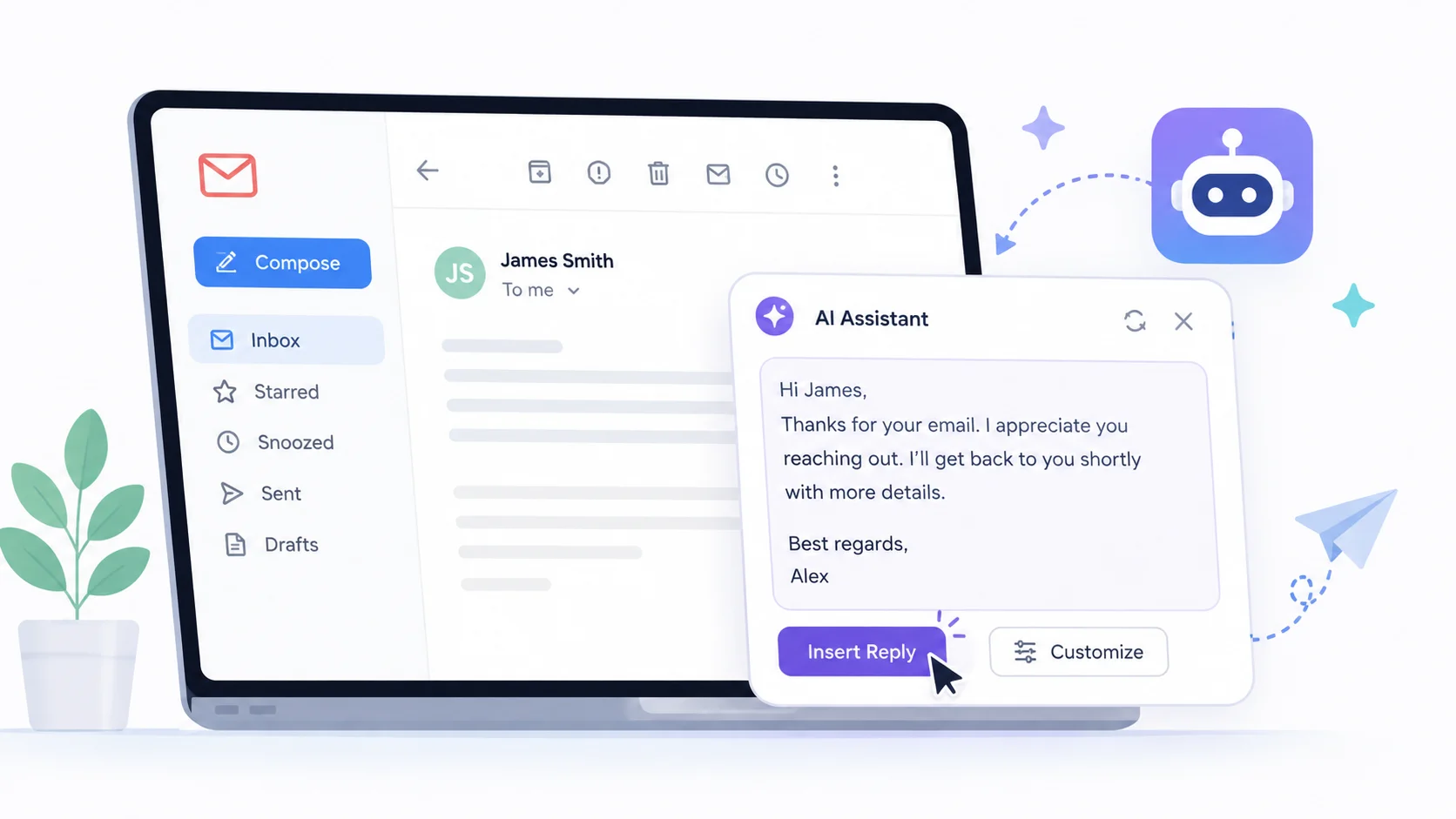
AI email tools change that equation dramatically. They read the incoming email, understand the context, and draft a reply you can send in seconds. What used to take five to ten minutes per email now takes thirty seconds of review and a click.
Why AI Email Reply Tools Save So Much Time
The average professional spends 28 percent of their workweek on email. That is more than 11 hours every week reading, writing, and managing messages. Most of that time goes not toward thinking about what to say but toward the actual typing and formatting.
AI handles the mechanical work of composing a reply while you handle the decision-making. You decide the tone, the key points, and whether to say yes or no. The AI turns that into a polished, professional email in seconds.
This is not about removing thought from email communication. It is about removing the friction between knowing what you want to say and getting it written. The same principle applies to other productivity tools that automate repetitive work so you can focus on what matters.
How AI Email Reply Tools Work
AI email assistants use large language models to analyze the incoming email and generate an appropriate response. The process happens in three steps.
First, the AI reads the incoming email and identifies what the sender is asking or communicating. It picks up on the tone, urgency, specific questions, and any action items requested.
Second, it generates a draft reply that addresses each point in the original email. The draft matches the formality level of the conversation and follows professional email conventions.
Third, you review the draft, make any adjustments, and send it. The entire process takes a fraction of the time it would take to write the reply from scratch. Tools like ChatGPT can do this through direct prompting, while dedicated email AI tools integrate directly into your inbox.
AI Email Tools for Faster Replies
Several AI tools specialize in email composition and reply drafting. Here is how the popular options compare.
| Tool | Integration | Key Feature | Price |
|---|---|---|---|
| Gmail AI (Gemini) | Gmail native | Built-in “Help me write” and smart replies | Free with Gmail / Workspace |
| Microsoft Copilot | Outlook native | Draft replies, summarize threads, adjust tone | $30/user/month |
| ChatGPT | Copy-paste or browser extension | Highly customizable, handles complex emails | Free / $20 month |
| Grammarly | Browser extension, desktop apps | Tone adjustment, rewriting, grammar fixes | Free / $12 month |
| Superhuman AI | Superhuman email client | One-click replies, instant drafts | $30/month |
For most people, Gmail’s built-in AI or Microsoft Copilot in Outlook is the easiest starting point because there is nothing extra to install. ChatGPT offers the most flexibility for complex or unusual emails that need more nuance.
Using Gmail AI to Draft Quick Replies
Gmail’s AI features have evolved significantly. The “Help me write” tool and smart reply suggestions now cover most common email scenarios.
Smart Replies
Gmail’s smart replies appear at the bottom of every email as short, one-line response suggestions. They work well for emails that need a simple acknowledgment like “Sounds good, thanks!” or “I will look into this.” One click and the reply is sent.
These work best for routine emails that do not require a detailed response. For anything more complex, you need the full AI drafting tool.
Help Me Write
The “Help me write” feature in Gmail lets you describe what you want to say in a short prompt, and the AI generates a full email reply. You can say something like “Politely decline the meeting and suggest next week instead” and get a complete, professional response.
You can also refine the draft by asking the AI to make it shorter, more formal, more casual, or more detailed. This iterative process is similar to how you would work with any writing assistant to get the tone exactly right.
Using ChatGPT to Draft Email Replies
ChatGPT is the most powerful option for email replies that need careful handling. It excels at emails where tone, diplomacy, and nuance matter.
The Basic Approach
Copy the email you received, paste it into ChatGPT, and tell it what you want your reply to accomplish. Here is an effective prompt template.
I received the email below. Draft a reply that:
- Agrees to the project timeline but asks for
  additional budget for the extra deliverables
- Keeps a collaborative and positive tone
- Is concise (under 150 words)

[Paste the original email here]
ChatGPT generates a reply that addresses your specific instructions while maintaining a natural, professional tone. You can then iterate with follow-up prompts like “Make it slightly more firm about the budget requirement” or “Add a line thanking them for the opportunity.”
Handling Difficult Emails
AI really shines when you need to reply to a difficult email. Whether it is a complaint from a client, a disagreement with a colleague, or a rejection you need to deliver gracefully, AI helps you find the right words without spending twenty minutes agonizing over every sentence.
For these situations, be specific in your prompt about the relationship and the outcome you want. “Reply to this upset client in a way that acknowledges their frustration, takes responsibility without admitting fault, and offers a concrete next step” gives AI enough context to draft something effective.
Learning to write precise prompts is a skill worth developing. Good AI prompt writing produces dramatically better email drafts.
Making AI Email Replies Sound Like You
The biggest concern people have about AI-drafted emails is that they will sound robotic or generic. This is a valid concern, but it is easy to solve.
Set Your Tone Preferences
When using ChatGPT, include a brief description of your writing style in the prompt. Something like “I write in a direct, friendly tone. I use short sentences. I avoid corporate jargon.” This gives the AI a voice to match.
In Gmail and Outlook, the AI learns from your previous emails over time. The more you use it, the better it gets at matching your natural writing style.
Edit Before Sending
Always make at least one or two small edits to any AI-generated reply. Swap a word for one you actually use. Adjust a phrase to match how you naturally speak. These small changes take seconds but make the email sound authentically yours.
The goal is not to send AI drafts unchanged. It is to start with a solid draft and personalize it, which is much faster than starting from a blank screen. If you want your AI text to sound more natural, techniques for humanizing AI text apply directly to email writing.
AI does not write your emails for you. It gives you a first draft that is 80 percent right, and you spend thirty seconds making it 100 percent yours.
Email Reply Scenarios Where AI Saves the Most Time
Some email types benefit from AI assistance more than others. Here is where AI delivers the biggest time savings.
| Email Type | Without AI | With AI | Time Saved |
|---|---|---|---|
| Meeting scheduling | 3-5 minutes | 30 seconds | 80-90% |
| Client follow-ups | 5-10 minutes | 1-2 minutes | 70-80% |
| Polite declines | 5-15 minutes | 1-2 minutes | 75-85% |
| Status updates | 5-8 minutes | 1 minute | 80-85% |
| Complaint responses | 10-20 minutes | 3-5 minutes | 65-75% |
| Introduction emails | 5-10 minutes | 1-2 minutes | 75-80% |
The pattern is clear: the more routine or emotionally draining the email, the more time AI saves. Simple acknowledgments see the biggest percentage gains, while complex responses still benefit significantly but require more human review.
Tips for Faster AI Email Replies
These practical tips will help you get the most speed and quality out of AI email tools.
- Create saved prompts for email types you handle frequently. A template like “Reply to this sales inquiry, express interest, and ask about pricing and timeline” can be reused dozens of times.
- Use keyboard shortcuts to trigger AI drafts. Both Gmail and Outlook offer shortcut keys that open the AI writing tool without leaving the email thread.
- Specify reply length in your prompt. “Keep it under 100 words” prevents AI from generating a five-paragraph essay when a three-sentence reply would do.
- Include context the AI cannot see. If you have prior history with the sender or internal knowledge that affects the reply, mention it in your prompt.
- Batch your email replies. Set aside two or three email sessions per day and use AI to power through them quickly rather than responding to emails as they arrive.
Privacy and Security Considerations
When using AI to draft email replies, you are sharing email content with an AI system. This raises legitimate privacy and security questions that you should consider.
Gmail and Outlook AI tools process data within their own ecosystems, so they follow the same privacy policies that already govern your email. If you are comfortable using Gmail or Outlook, their AI features do not introduce new privacy risks.
When using ChatGPT or other external tools, be cautious about pasting emails that contain sensitive information like financial data, personal details, or confidential business information. For these situations, either use your email provider’s built-in AI or redact sensitive details before pasting.
Organizations should establish clear policies about which AI tools employees can use for email and what types of information can be shared with external AI services. Being aware of AI-generated phishing emails is also important, since the same technology that helps you write emails can be used to craft convincing scam messages.
Building an AI Email Workflow
The most effective approach is to build AI into your daily email routine rather than using it sporadically. Here is a workflow that consistently saves time.
- Open your inbox and scan all new messages. Sort them mentally into three categories: quick reply, thoughtful reply, and requires action before replying.
- Handle quick replies first using smart replies or one-line AI drafts. Clear these out in under five minutes.
- For thoughtful replies, use AI to generate a draft for each one. Review, edit, and send. This batch approach is faster than switching between reading and writing for each email.
- Flag emails that need action before you can reply. Come back to these after completing the required work.
This structured approach, combined with AI assistance, can cut your daily email time in half. The same principles that make AI-powered personal assistants effective apply here: let AI handle the predictable work while you focus on decisions and relationships.
When Not to Use AI for Email Replies
AI email tools are not appropriate for every situation. Knowing when to write manually is just as important as knowing when to use AI.
- Deeply personal emails like condolence messages, congratulations for major life events, or apologies for serious mistakes deserve genuine human effort.
- Emails that could have legal implications should be written carefully and reviewed by a qualified person, not generated by AI.
- Messages where the relationship matters more than the content. If you are writing to a close mentor, a longtime client, or your CEO, the personal touch matters.
- Any email where being caught using AI would damage trust or the relationship.
AI is a tool for efficiency, not a replacement for empathy. Use it for the emails that drain your time, not the ones that require your heart.
AI Email Tools for Teams
AI email assistance becomes even more powerful at the team level. When an entire team uses AI-assisted email, response times drop across the board and communication quality becomes more consistent.
Microsoft Copilot and Google Workspace AI both offer team-level features that maintain shared tone guidelines and response templates. Customer-facing teams benefit the most because they often handle high volumes of similar inquiries. The same approach works for email marketing, support, and sales teams.
Managers can set up shared prompt libraries that ensure everyone on the team responds to common scenarios with consistent messaging. This is especially valuable for onboarding new team members who need to quickly learn the company’s communication style.
Conclusion
Drafting replies to emails quickly with AI is one of the most practical and immediately useful applications of AI technology available today. Whether you use Gmail’s built-in tools, Microsoft Copilot, or ChatGPT, the process is simple: let AI read the incoming email, generate a draft, and then add your personal touch before sending. The time savings compound throughout the week, giving you back hours that would otherwise be spent typing routine responses. Start with your most repetitive email types, build a habit of using AI for first drafts, and you will wonder how you ever managed your inbox without it.