If you want a Claude Code notification when done, the answer is a Stop hook. You add a small entry to your settings file, and Claude Code runs your command the moment it finishes responding.
That command can show a desktop popup, play a sound or write to a file. This guide shows the exact settings, what we saw when we tested it, and how the built-in terminal bell fits in.
We set up a throwaway project, wired in a Stop hook and a Notification hook, ran a real prompt and checked the result. We also read the official hooks and terminal pages so the steps match what Anthropic documents.
Browse all our Claude Code tutorials for more. If you want more ready-made automations, see our list of ready-to-copy hooks.
Tested with Claude Code v2.1.312 on October 30, 2026. We tested on macOS; the Windows and Linux steps follow Anthropic’s official instructions.
Quick Answer: Which Option Should You Use?
There are three ways to get alerted, and each fits a different need. The table shows them side by side.
| Option | When it alerts you | Best for |
|---|---|---|
| Stop hook | Every time Claude finishes responding | A clear “task done” signal |
| Notification hook | When Claude needs a permission or sits idle | Knowing Claude is waiting on you |
| Terminal bell | When Claude finishes or pauses, if you seem away | The quickest setup, no script |
For most people, the Stop hook is the one that answers the question in the title. The rest of this page shows how to set it up and test it.
How a Claude Code Notification When Done Works
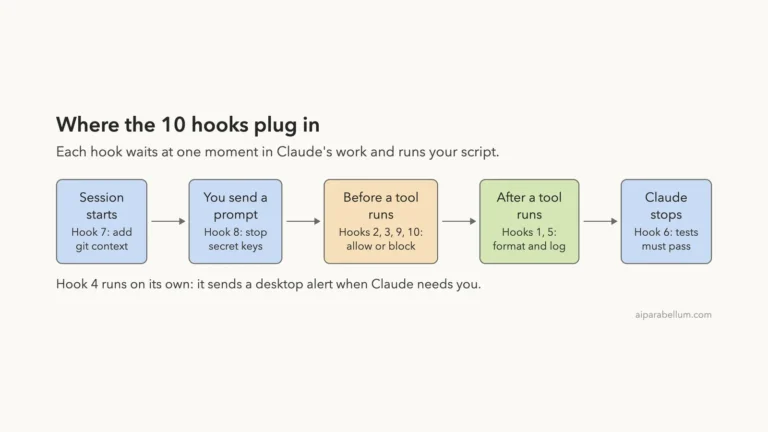
Claude Code has hooks, which are commands that run at fixed moments in a session. Two of them matter here: Stop and Notification.
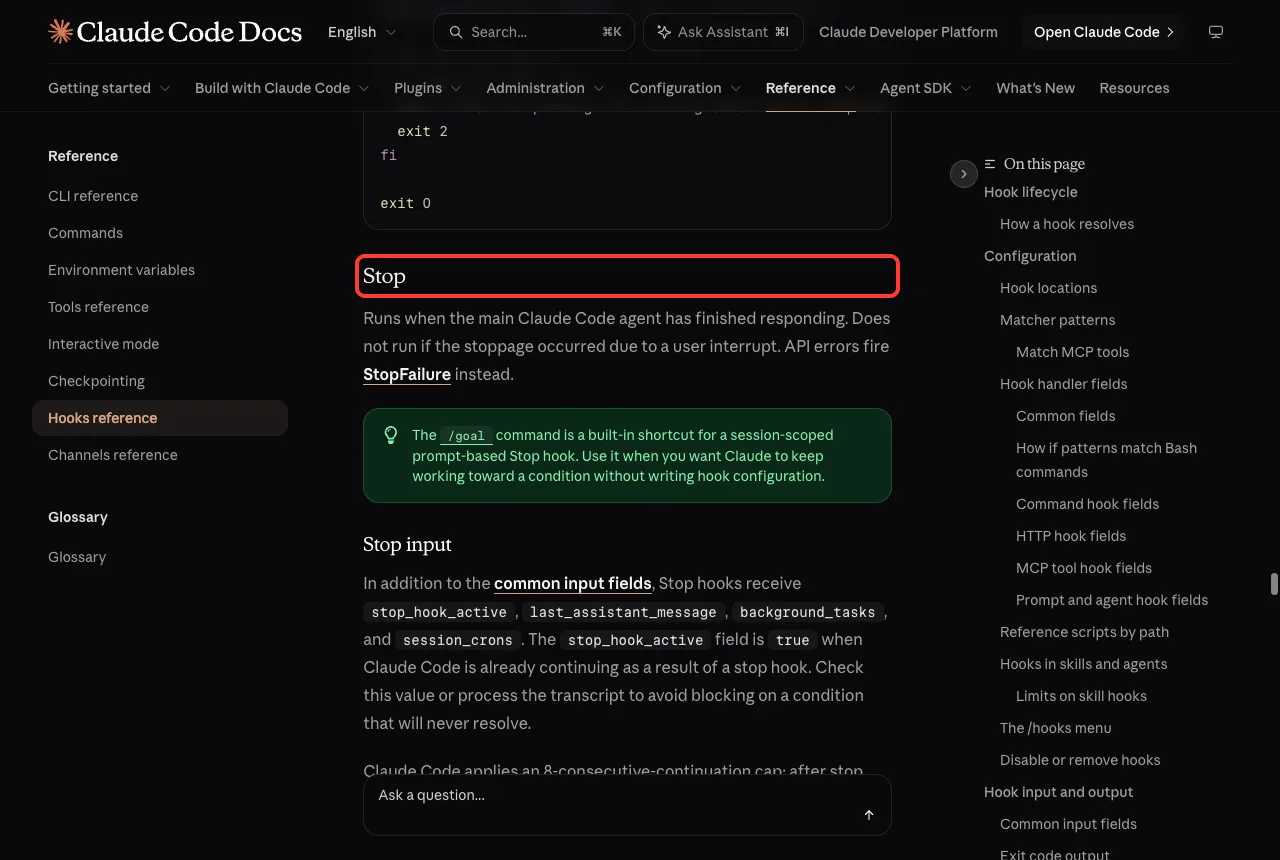
The official hooks reference says the Stop event runs when the main agent has finished responding. It does not run if you interrupted the turn yourself, and API errors fire a separate StopFailure event instead.
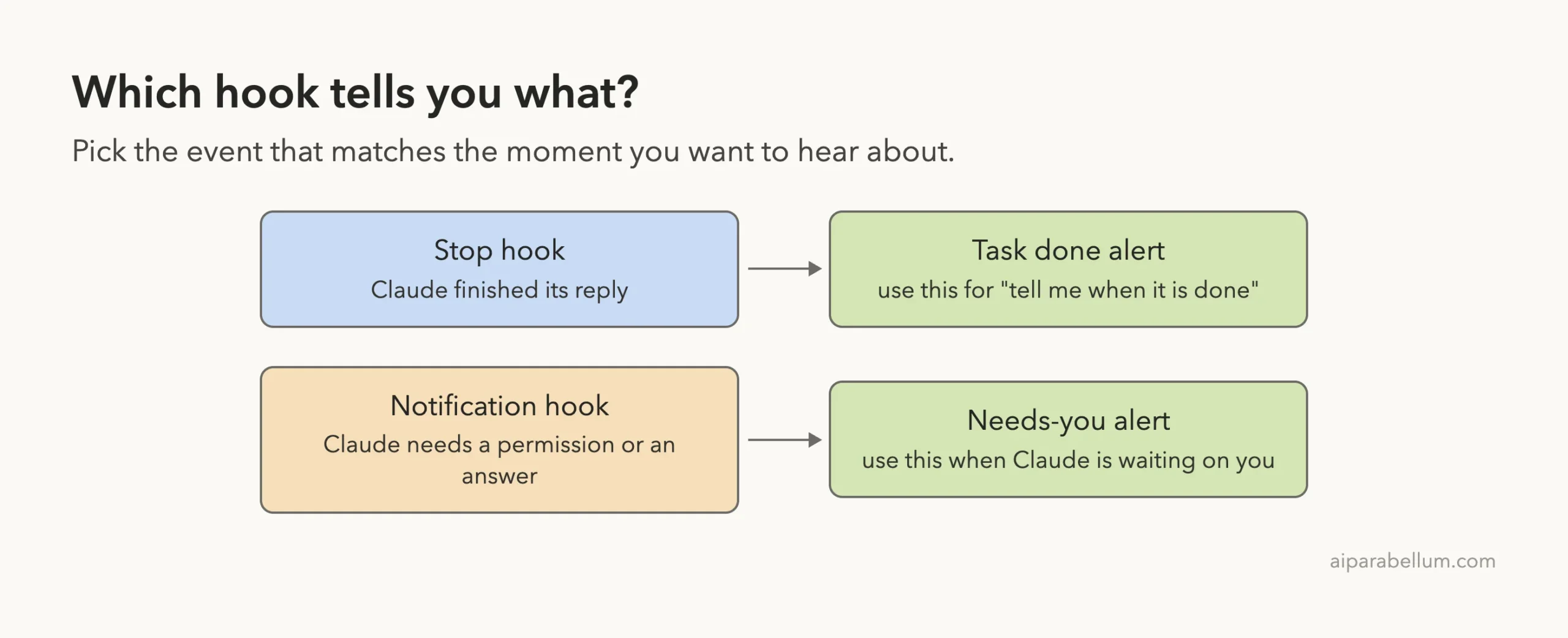
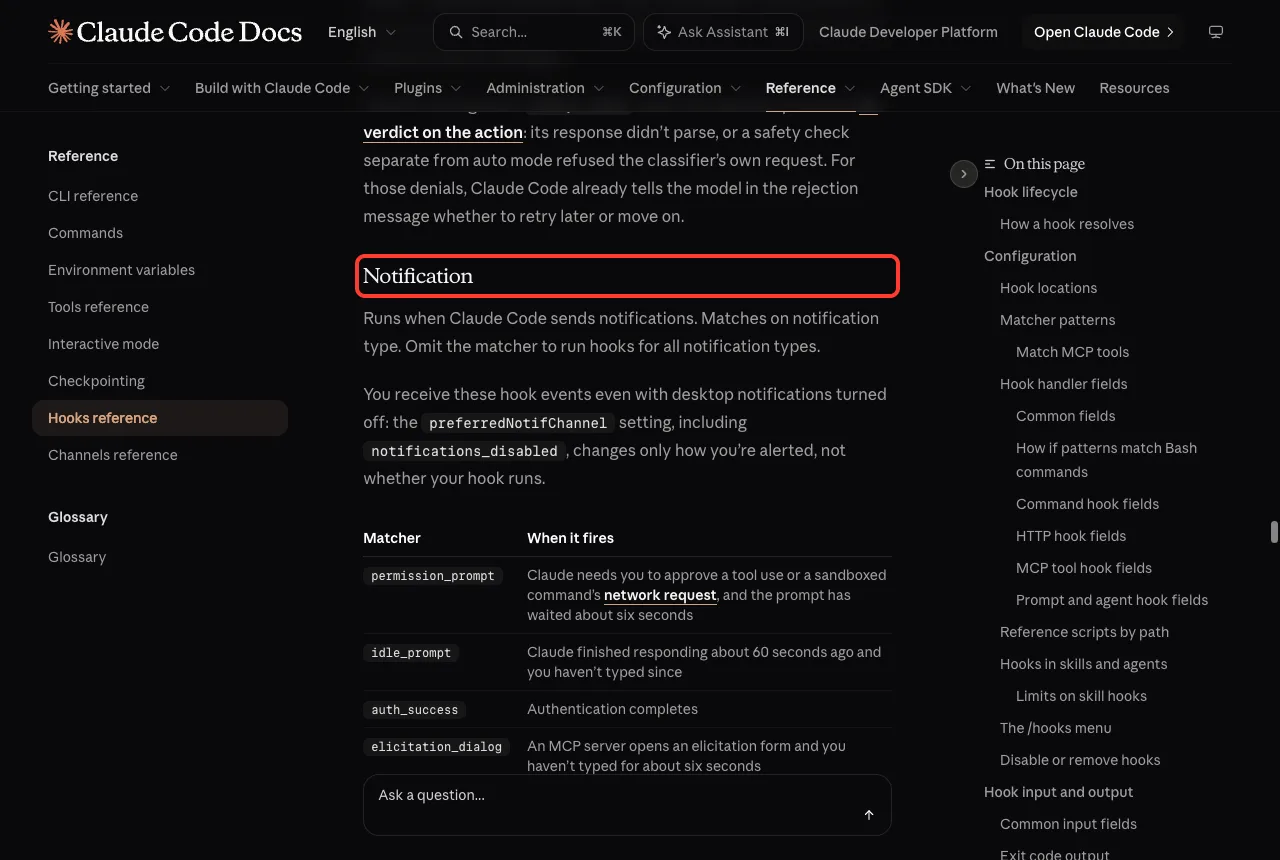
The Notification event is different. It fires when Claude Code sends a notification, such as when it needs you to approve a tool or has been idle for a while.
The Notification Types
The docs list several notification types you can match on. The two you will meet most are permission_prompt and idle_prompt.
permission_promptfires when Claude needs you to approve a tool use and the prompt has waited about six seconds.idle_promptfires when Claude finished responding about 60 seconds ago and you have not typed since.
Because of that 60-second delay, the Notification hook alone is not an instant “done” alert. That is why we use the Stop hook for finish alerts.
Step 1: Create a Demo Folder and a Notify Script
We did everything in a throwaway folder so no real project was touched. You can do the same, or put the hook in your own settings once you are happy with it.
Our script does two things. It writes a time-stamped line to a log file, and it asks macOS to show a desktop notification. The log line is how we proved the hook ran.
#!/bin/bash
# Runs when Claude finishes responding (Stop hook)
echo "$(date '+%H:%M:%S') Claude finished a task" >> "$CLAUDE_PROJECT_DIR/notify.log"
osascript -e 'display notification "Claude Code finished the task" with title "Claude Code"'
Save it as .claude/notify-done.sh and make it executable with chmod +x .claude/notify-done.sh. The hooks guide notes that scripts need this on macOS and Linux.
Step 2: Add the Claude Code Notification Hooks to Settings
Hooks live in a settings file. Use ~/.claude/settings.json for every project, or .claude/settings.json inside one project. We used the project file.
{
  "hooks": {
    "Stop": [
      {
        "hooks": [
          { "type": "command", "command": "$CLAUDE_PROJECT_DIR/.claude/notify-done.sh" }
        ]
      }
    ],
    "Notification": [
      {
        "matcher": "",
        "hooks": [
          { "type": "command", "command": "osascript -e 'display notification \"Claude Code needs your attention\" with title \"Claude Code\"'" }
        ]
      }
    ]
  }
}
The Notification block is the example from the official hooks guide. An empty matcher means it runs for every notification type.
If your file already has a hooks key, add Stop and Notification next to the existing events instead of replacing the whole object. The docs show this with a PostToolUse hook sitting beside a Notification hook.
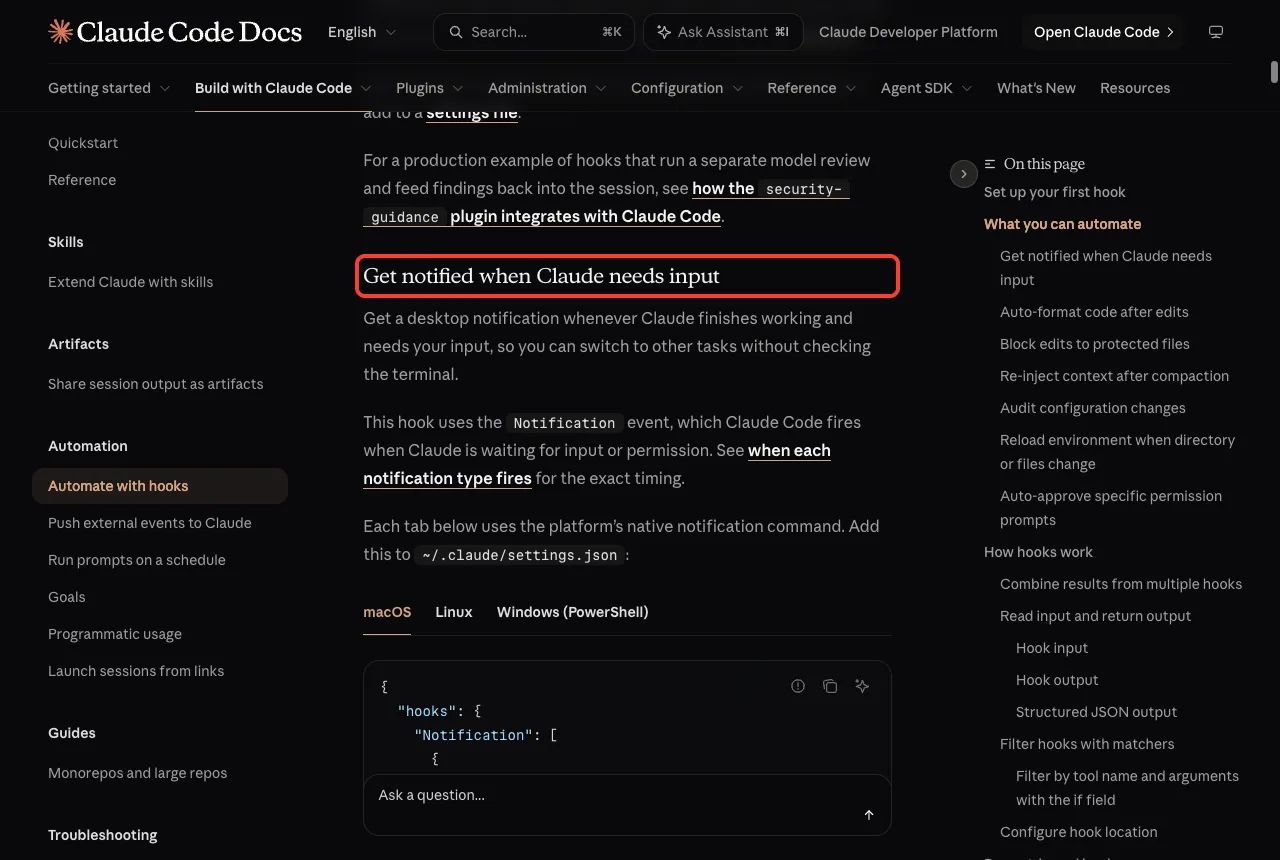
The Stop hook is your done alert, and the Notification hook is your needs-you alert.
Step 3: Check the Hooks With /hooks
Start Claude Code in the folder and type /hooks. The menu is read-only, and it lists every hook grouped by event.
In our test it said 2 hooks on 2 events. Under Stop it showed our script path, and under Notification it showed the osascript command, both marked Project.
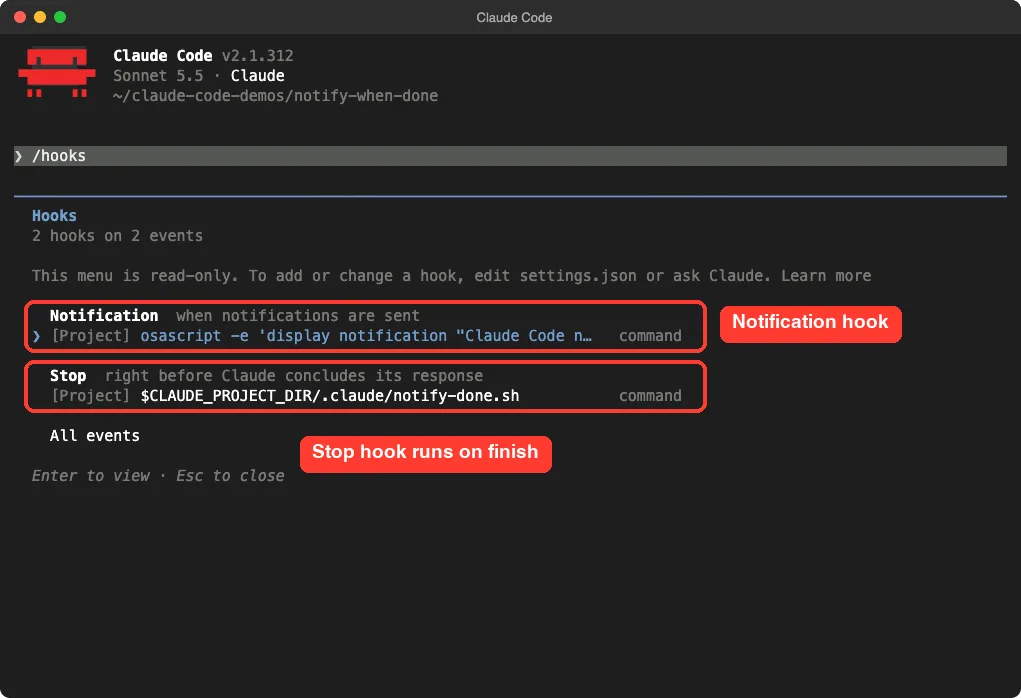
If a hook is missing from this list, fix that first. The official troubleshooting steps say to check that the settings file is in the right place and that the JSON is valid, with no trailing commas or comments.
If You Run Claude Code for the First Time in the Folder
Claude Code asks whether you trust the folder before it loads project settings. Pick the option that trusts it, or the project hooks will not run. We answered the trust prompt and then the hooks appeared.
Step 4: Run a Task and Watch It Fire
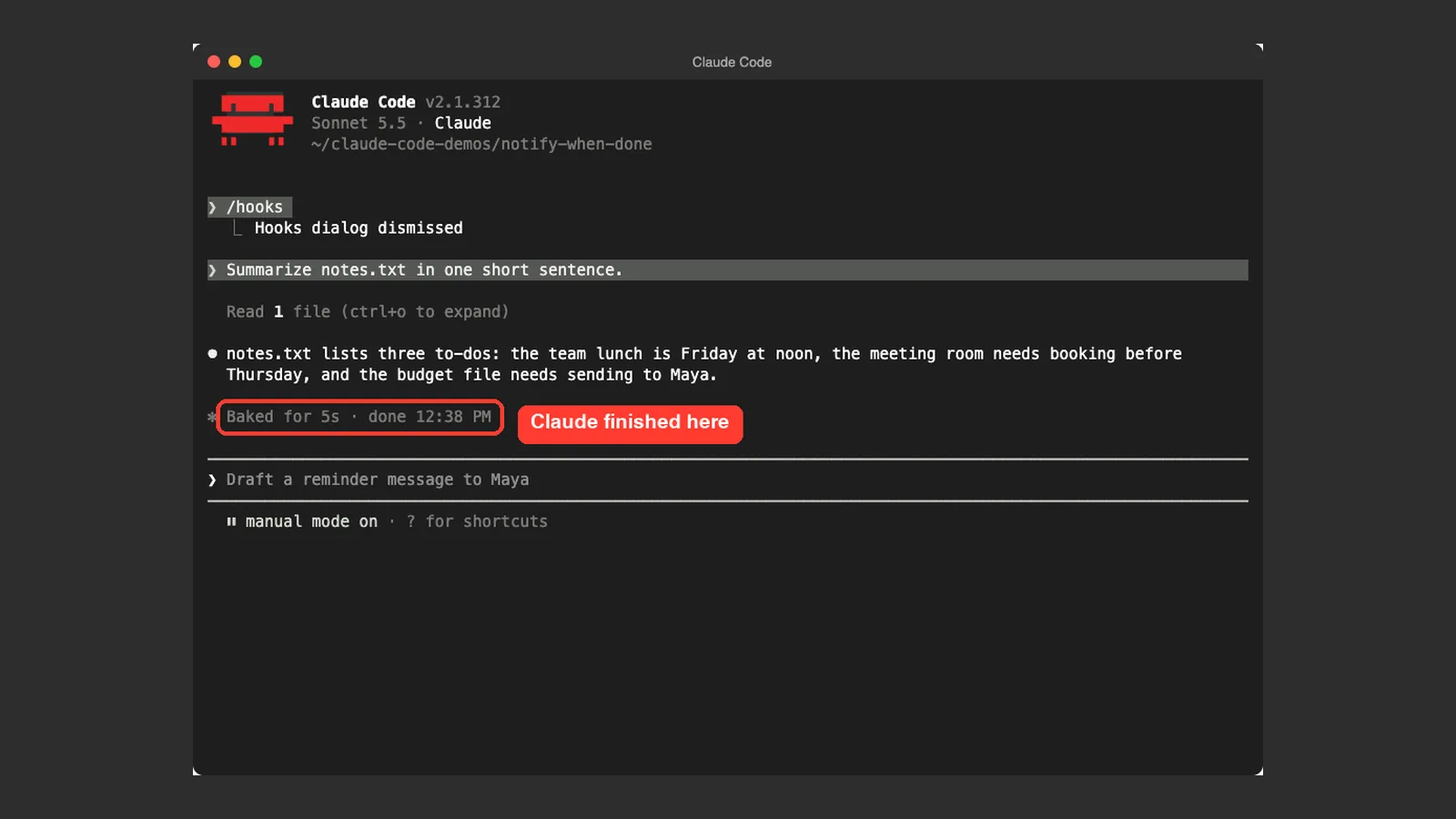
Now send a short prompt. We typed Summarize notes.txt in one short sentence. and waited for the answer.
Claude read the file, replied, and the footer line said done with the time. That is the moment the Stop hook ran.
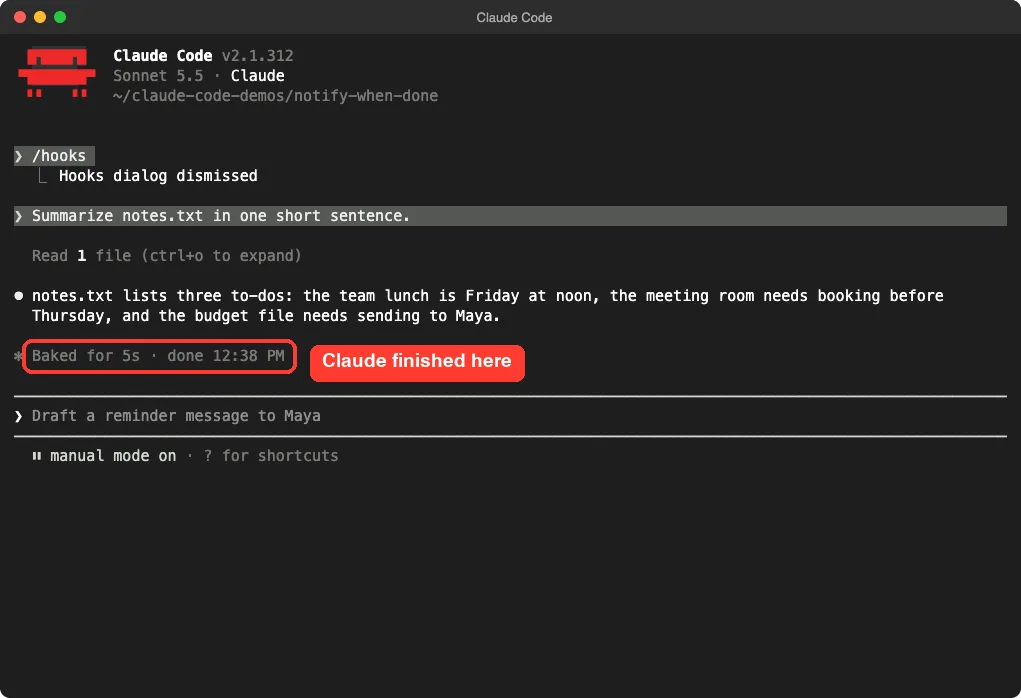
A hook is a normal command, so its output does not show on screen. To prove it ran, we checked the log file the script writes to.
Step 5: Prove the Hook Ran
Inside Claude Code you can run a shell command by starting a line with an exclamation mark. We typed ! cat notify.log to read the log.
It showed two lines, each reading Claude finished a task, at 12:38:40 and 12:39:38. The first came from the summary prompt. The second came from the reply that followed our shell command, which tells you the hook runs after every finished reply, not only after big tasks.
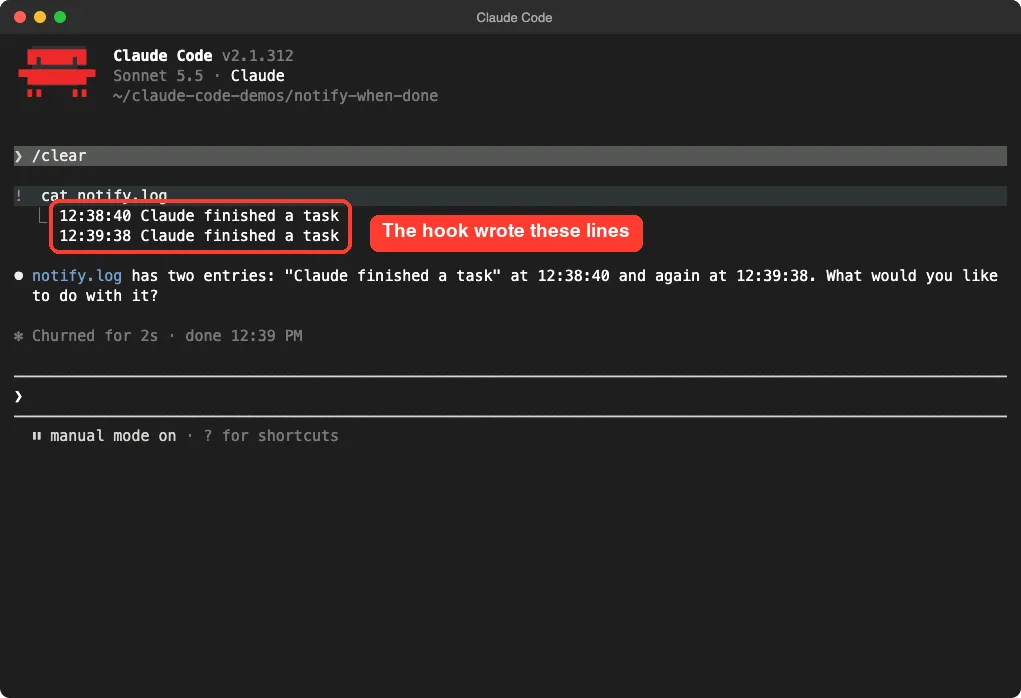
One honest note: we confirmed the script ran through the log file. We did not capture the macOS popup itself, because our test ran in a headless window. If you see no popup on your Mac, read the troubleshooting section below.
Claude Code Notification Without a Hook: The Terminal Bell
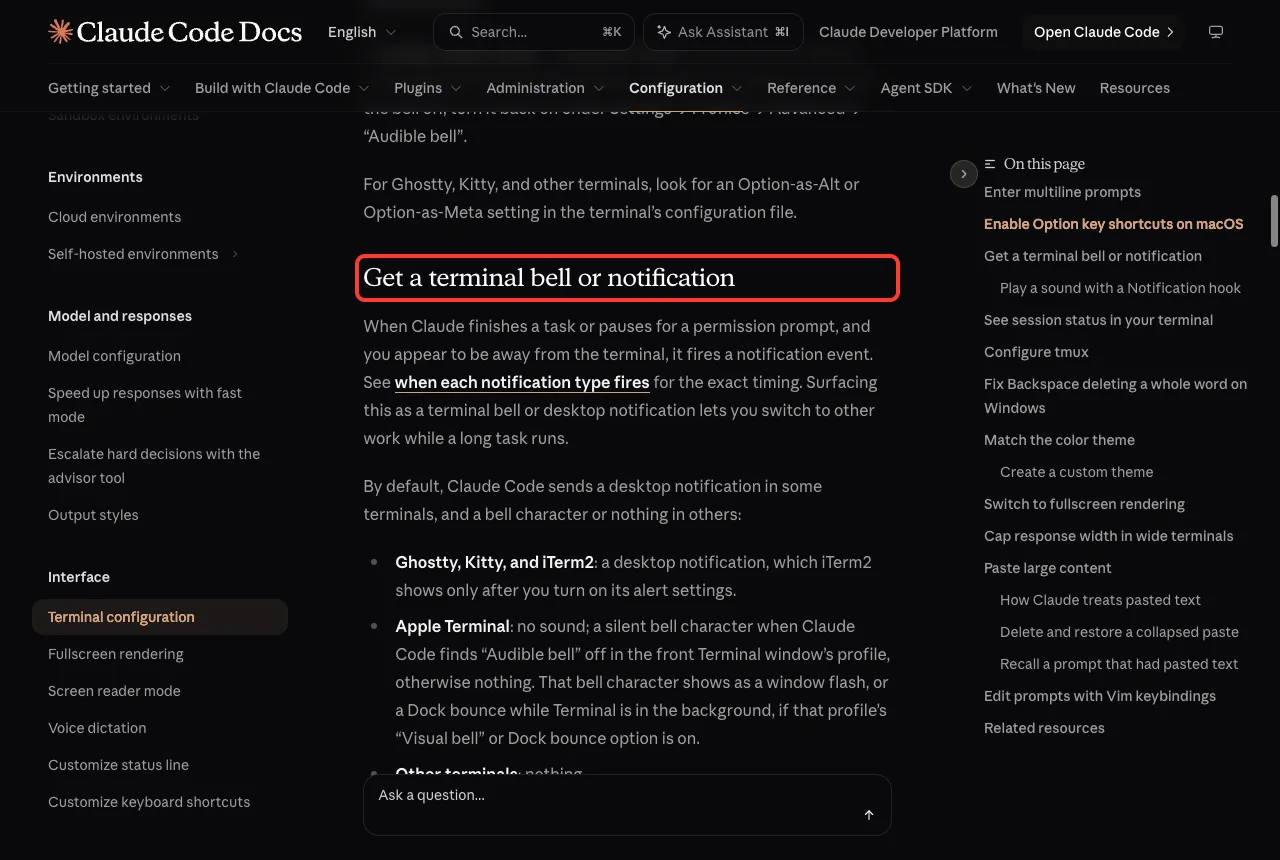
You may not need a hook at all. Claude Code already sends a notification when it finishes or pauses for a permission prompt, as long as you appear to be away from the terminal.
What you get depends on your terminal, according to the docs.
- Ghostty, Kitty and iTerm2 show a desktop notification, and iTerm2 only after you turn on its alert settings.
- Apple Terminal plays no sound. It sends a silent bell character only when Audible bell is off in the front window’s profile, and that can show as a window flash or a Dock bounce.
- Other terminals show nothing by default.
Force the Bell With preferredNotifChannel
To make Claude Code send the bell character in any terminal, set preferredNotifChannel to "terminal_bell" in ~/.claude/settings.json.
{
  "preferredNotifChannel": "terminal_bell"
}
In Apple Terminal, also turn on Audible bell under Settings, Profiles, Advanced if you want to hear it. The docs also say your hooks still run even if desktop notifications are turned off, because that setting only changes how you are alerted.
Play a Sound Instead of a Popup
Sometimes a sound is better than a banner, because you hear it from across the room. The terminal page gives a Notification hook example that plays a macOS system sound.
{
  "hooks": {
    "Notification": [
      {
        "hooks": [{ "type": "command", "command": "afplay /System/Library/Sounds/Glass.aiff" }]
      }
    ]
  }
}
To get a sound on finish instead, put the same afplay command in a Stop hook. The docs note that hooks run alongside the built-in notification rather than replacing it.
Windows and Linux Commands
The hooks guide gives a command for each system. The structure of the settings file stays the same, and only the command line changes. We did not run these, because only a Mac was available.
| System | Command in the hook |
|---|---|
| macOS | osascript -e 'display notification "Claude Code needs your attention" with title "Claude Code"' |
| Linux | notify-send 'Claude Code' 'Claude Code needs your attention' |
| Windows | A powershell.exe command that shows a message box, listed in the official guide |
On Linux, notify-send needs a desktop notification daemon, so headless servers, SSH sessions and most containers will not show anything. On Debian and Ubuntu you can install the libnotify-bin package if the command is missing.
Common Mistakes
Most failures come from a few small things. Check these first.
- No popup on a Mac:
osascriptroutes through Script Editor, and if it lacks permission the command fails silently. Runosascript -e 'display notification "test"'once, then turn on Allow Notifications for Script Editor in System Settings. - Script not running: make it executable with
chmod +x, and use an absolute path or$CLAUDE_PROJECT_DIR. - Hook missing in the menu: check for trailing commas in the JSON and confirm the file location.
- Inside tmux: add
set -g allow-passthrough onto~/.tmux.confso notifications reach the outer terminal. - Expecting an alert after Esc: the Stop hook does not run when you interrupt a turn.
If you are not sure whether the hook ran at all, start Claude Code with claude --debug-file /tmp/claude.log, as the docs suggest. Then read that file from another terminal to see the hook output.
Pro Tips
- Start with the log line. It is easier to trust a file than a popup that might be blocked by Focus mode.
- Keep the script fast. A slow command in a Stop hook delays the end of the turn.
- Use the project file while you test, then move the hook to
~/.claude/settings.jsonwhen you want it everywhere. - Pair this with a smaller task size. Our guide on the context window shows why shorter sessions finish faster.
Try It Yourself
Practice with a short task so you do not spend much. Create the script and settings above in a new folder, start Claude Code, and paste this prompt.
Summarize notes.txt in one short sentence.Then run ! cat notify.log and confirm a new line appeared. If you want a sound, swap the osascript line for afplay /System/Library/Sounds/Glass.aiff.
Cheat Sheet
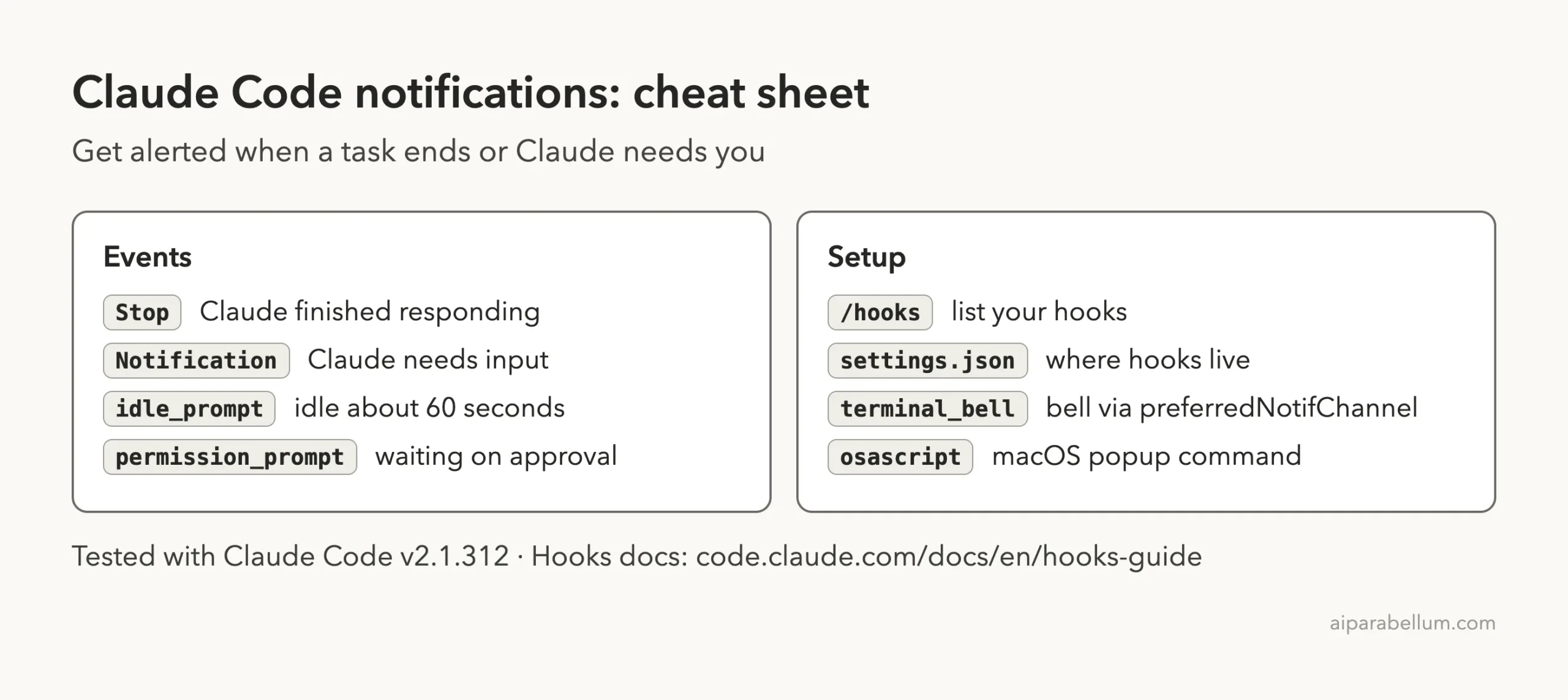
Frequently Asked Questions
Does Claude Code have a built-in notification when it finishes?
Yes, in some terminals. Ghostty, Kitty and iTerm2 show a desktop notification, Apple Terminal can send a silent bell, and other terminals show nothing by default. A hook or the terminal_bell setting covers the rest.
What is the difference between the Stop hook and the Notification hook?
The Stop hook runs when Claude finishes responding. The Notification hook runs when Claude needs permission, or when it has been idle for about 60 seconds after finishing.
Will the Stop hook run if I press Esc?
No. The official docs say Stop does not run when the stoppage was caused by a user interrupt. API errors fire StopFailure instead.
Can I get a sound instead of a popup?
Yes. Use a command such as afplay /System/Library/Sounds/Glass.aiff on macOS in the hook. The official terminal page shows this exact example for a Notification hook.
Why did I get no popup on my Mac?
The most common cause is Script Editor lacking notification permission. Run the test command once and then allow notifications for Script Editor in System Settings.
Conclusion
To get a notification when Claude Code finishes a task, add a Stop hook to your settings and point it at a command that shows a popup, plays a sound or writes a log line. We tested it on macOS, confirmed with /hooks that it loaded, and checked the log to see it fire after each finished reply. If you only need a quick signal, set preferredNotifChannel to terminal_bell, and keep the Notification hook for the moments when Claude is waiting on you. For more on the assistant itself, visit our Claude AI page, and for the official details read the hooks guide and the terminal configuration page.