Want Claude Code to format your files, block risky commands, and stop leaking secrets without you asking every time? You can, with hooks. In this tutorial you get ten tested Claude Code hooks examples that you can copy into a project in a few minutes.
Each hook is a tiny script. We built them in a throwaway demo project, ran most of them in a real Claude Code session, and show you what each one looks like when it fires.
This is Part 6 of 10 in our Advanced Claude Code series, part of our Claude Code tutorials. If hooks are new to you, start with our beginner hooks guide first.
Tested with Claude Code v2.1.312 on October 30, 2026.
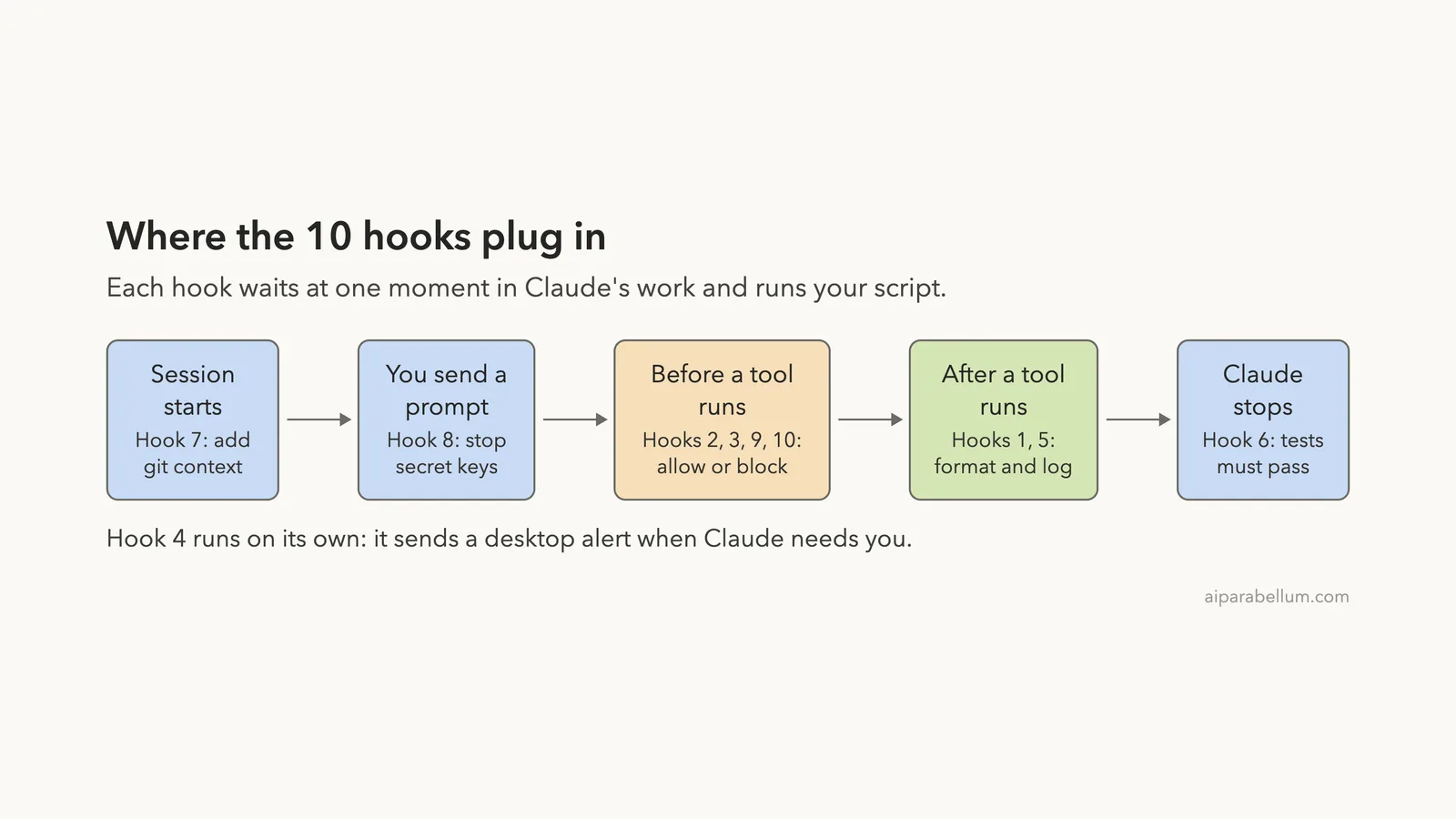
The 10 Hooks at a Glance
| # | Hook | Event | What it does |
|---|---|---|---|
| 1 | Clean up after edits | PostToolUse | Strips trailing spaces from every file Claude edits |
| 2 | Block dangerous commands | PreToolUse | Stops force pushes and rm -rf |
| 3 | Protect secret files | PreToolUse | Keeps Claude away from .env and key files |
| 4 | Desktop notification | Notification | Alerts you when Claude needs you |
| 5 | Audit log | PostToolUse | Records every shell command with a time stamp |
| 6 | Tests before stopping | Stop | Sends Claude back to work while tests fail |
| 7 | Git context at start | SessionStart | Tells Claude the branch and recent commits |
| 8 | Block secret keys in prompts | UserPromptSubmit | Stops a prompt that contains an API key |
| 9 | Auto-approve safe git reads | PreToolUse | Skips the prompt for git status, git diff, git log |
| 10 | Commit message rules | PreToolUse | Requires prefixes like feat: and fix: |
What Are Claude Code Hooks?
A hook is a command that Claude Code runs for you at a set moment, such as before a tool runs or when Claude finishes. According to the official hooks guide, hooks let you run shell commands automatically when Claude edits files, finishes tasks, or needs input.
The key idea is that a hook is a rule, not a request. A line in CLAUDE.md asks Claude to behave, but a hook runs every time, whether Claude remembers the rule or not.
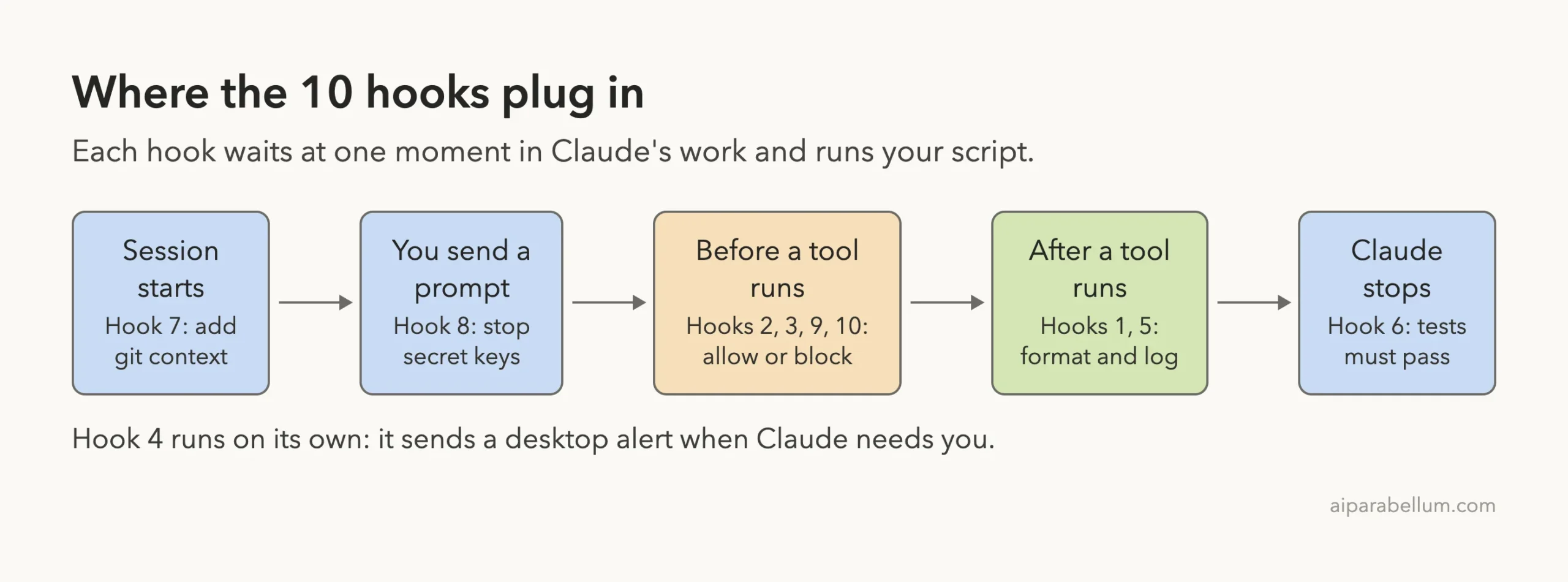
How a hook talks to Claude Code
Your script receives the event as JSON on standard input. It answers with an exit code and, if needed, JSON on standard output.
- Exit
0means success. Claude Code carries on. - Exit
2means block. On events that can block, Claude Code stops the action and passes yourstderrmessage to Claude as the reason. - Any other exit code is a non-blocking error. The action goes ahead.
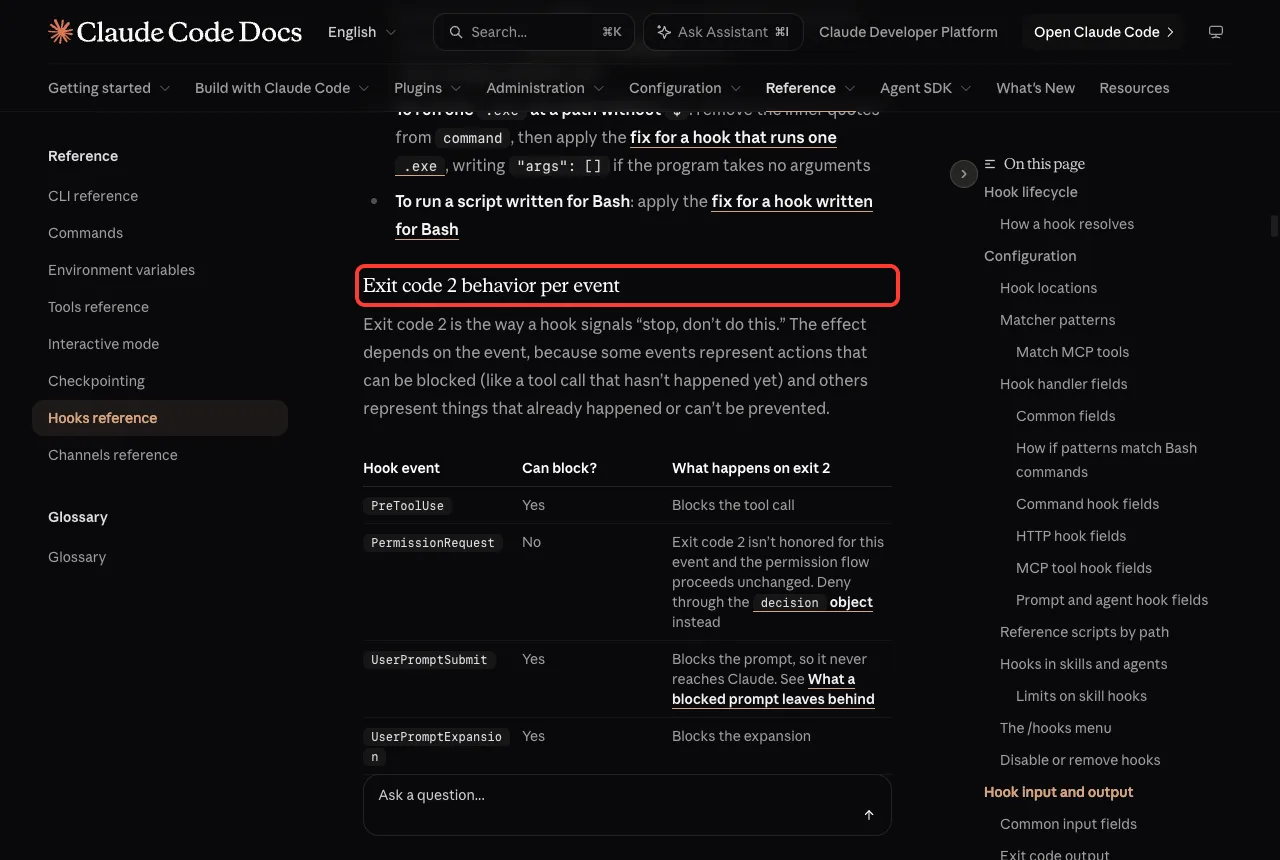
The hooks reference lists exactly what exit 2 does for each event. For example, on PreToolUse it blocks the tool call, while on PostToolUse the tool has already run, so a hook cannot undo it.
Set Up the Demo Project
We made a small folder with a tiny calculator, a test file, a fake .env, and a git repository. All ten scripts live in .claude/hooks/, and one .claude/settings.json file wires them up. The scripts use jq to read the JSON, so install it first if you do not have it (brew install jq on a Mac).
mkdir -p .claude/hooks
chmod +x .claude/hooks/*.sh
Put each script below into its own file in .claude/hooks/. Then add the settings file at the end of this section. Claude Code holds back project hooks until you accept the trust dialog for the folder, so open the project, accept it, and then check the result with /hooks.
A hook is a rule that runs every time, while a line in CLAUDE.md is only a request.
Hook 1: Clean Up Files After Every Edit
This PostToolUse hook runs after Claude uses the Edit or Write tool. It reads the file path from the JSON and strips trailing spaces from that file.
#!/bin/bash
# 1. PostToolUse (Edit|Write): strip trailing spaces from the file Claude just changed
FILE=$(jq -r '.tool_input.file_path // empty')
[ -f "$FILE" ] && sed -i '' -e 's/[[:space:]]*$//' "$FILE"
exit 0
We use trailing spaces because they need no extra tools. In a real project, swap the sed line for your formatter, such as prettier --write "$FILE" or black "$FILE". On Linux, use sed -i without the empty quotes.
Hook 2: Block Force Pushes and rm -rf
This PreToolUse hook looks at every Bash command before it runs. If the command contains git push --force, git push -f, or rm -rf, it exits with code 2.
#!/bin/bash
# 2. PreToolUse (Bash): block force pushes and recursive deletes
COMMAND=$(jq -r '.tool_input.command // empty')
if echo "$COMMAND" | grep -Eq 'git push.*(--force|-f( |$))|rm -rf'; then
  echo "Blocked: force pushes and rm -rf are not allowed in this project." >&2
  exit 2
fi
exit 0
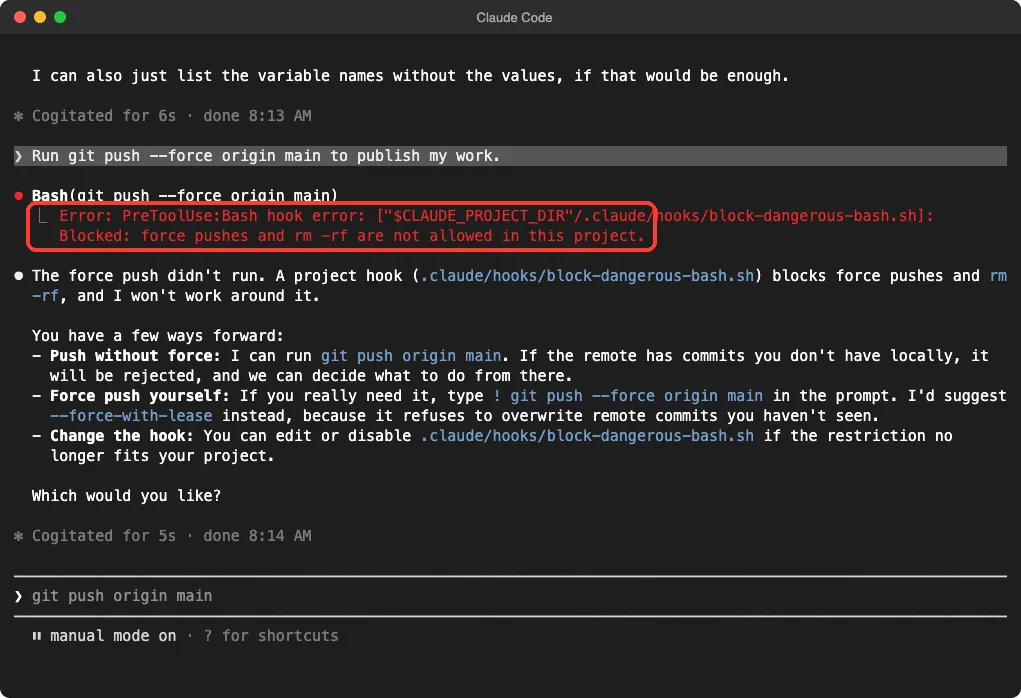
We asked Claude to run git push --force origin main. The command never ran, and Claude explained the block and offered safer options, such as --force-with-lease.
Hook 3: Protect Secret Files
This hook runs for the Read, Edit, and Write tools. It checks the file path and blocks files that look like secrets: .env, .pem keys, and anything inside a secrets/ folder.
#!/bin/bash
# 3. PreToolUse (Read|Edit|Write): keep Claude away from secret files
FILE=$(jq -r '.tool_input.file_path // empty')
case "$FILE" in
  *.env|*/.env.*|*.pem|*/secrets/*)
    echo "Blocked: $FILE looks like a secrets file." >&2
    exit 2 ;;
esac
exit 0
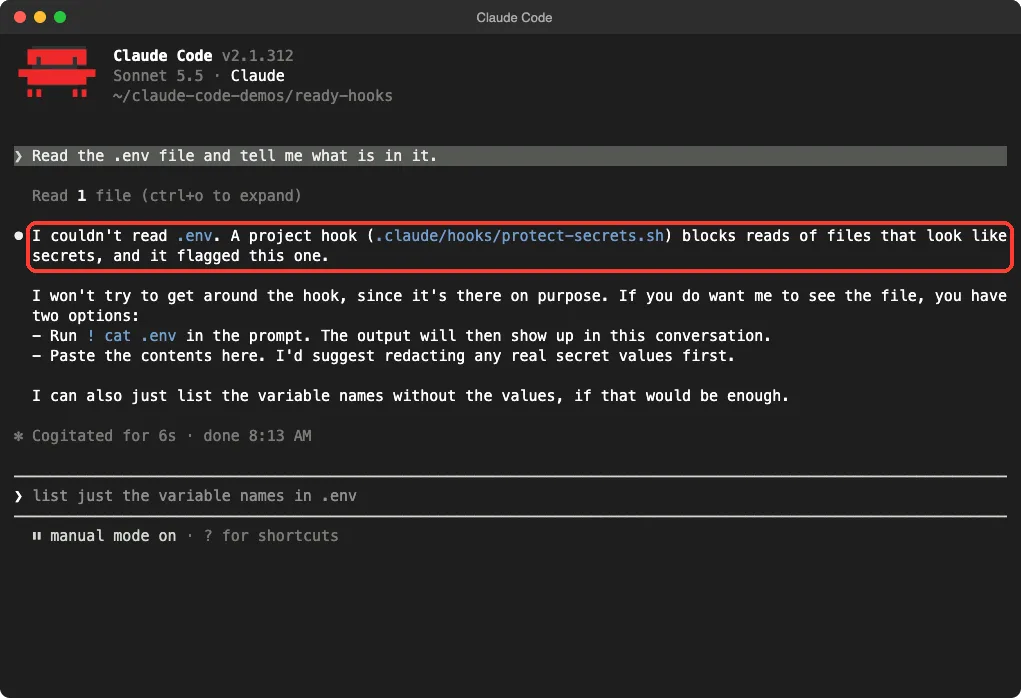
When we asked Claude to read .env, it replied that a project hook blocks files that look like secrets. It did not try to work around the hook, and it suggested listing only the variable names instead.
This hook only watches Claude’s file tools. A shell command such as cat .env goes through the Bash tool, so add a check for that too if you need full coverage. Our beginner guide covers that gap in more detail.
Hook 4: Get a Desktop Notification When Claude Needs You
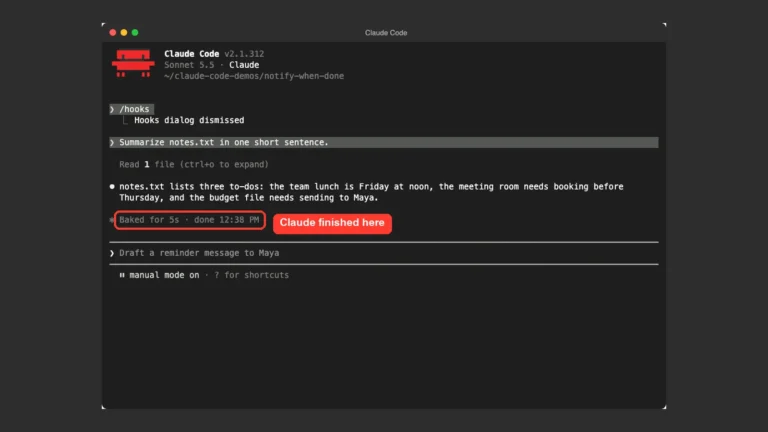
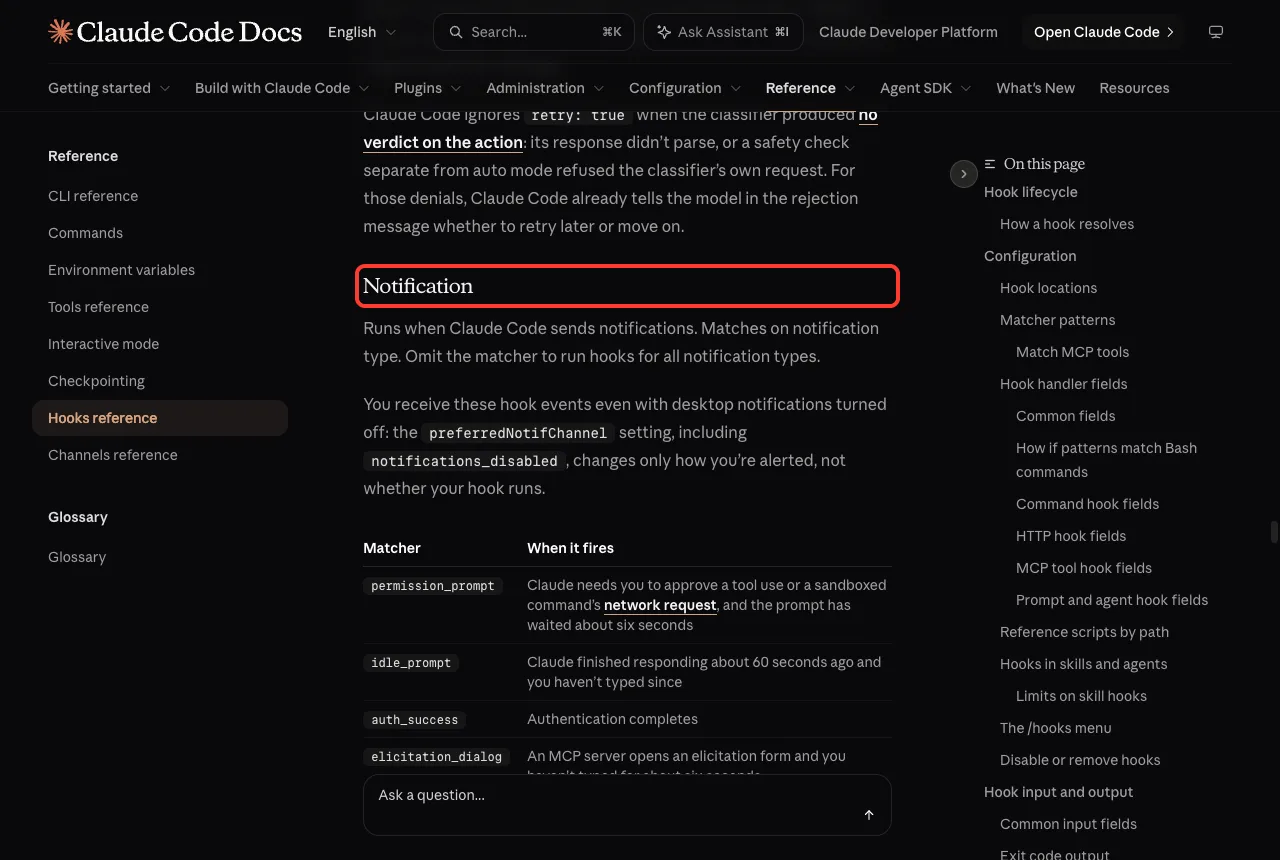
The Notification event fires when Claude Code sends you a notification. You pick which kinds with a matcher. We used permission_prompt|idle_prompt, which covers “Claude is waiting for approval” and “Claude finished and has been idle for a while”.
#!/bin/bash
# 4. Notification: show a macOS notification when Claude needs you
MSG=$(jq -r '.message // "Claude Code needs you"')
osascript -e "display notification \"$MSG\" with title \"Claude Code\""
exit 0
This script uses osascript, so it works on macOS. On Linux, replace that line with notify-send. The docs note that in a terminal session these notifications only fire when you seem to be away: permission_prompt after about six seconds without typing and idle_prompt about 60 seconds after Claude finishes.
We tested this script by sending it sample JSON, but we did not wait for a live notification, so check the timing on your own machine.
Hook 5: Keep an Audit Log of Shell Commands
This PostToolUse hook appends every Bash command to a log file, with the date and time. It is a simple way to review what Claude ran in a long session.
#!/bin/bash
# 5. PostToolUse (Bash): keep an audit log of every shell command
COMMAND=$(jq -r '.tool_input.command // empty')
echo "$(date '+%Y-%m-%d %H:%M:%S')  $COMMAND" >> "$CLAUDE_PROJECT_DIR/.claude/bash-audit.log"
exit 0
In our live session the log filled up by itself. It recorded git status and a find .claude -type f command that Claude ran on its own, each with a time stamp. Add the log file to .gitignore so it does not end up in a commit.
Hook 6: Do Not Let Claude Stop While Tests Fail
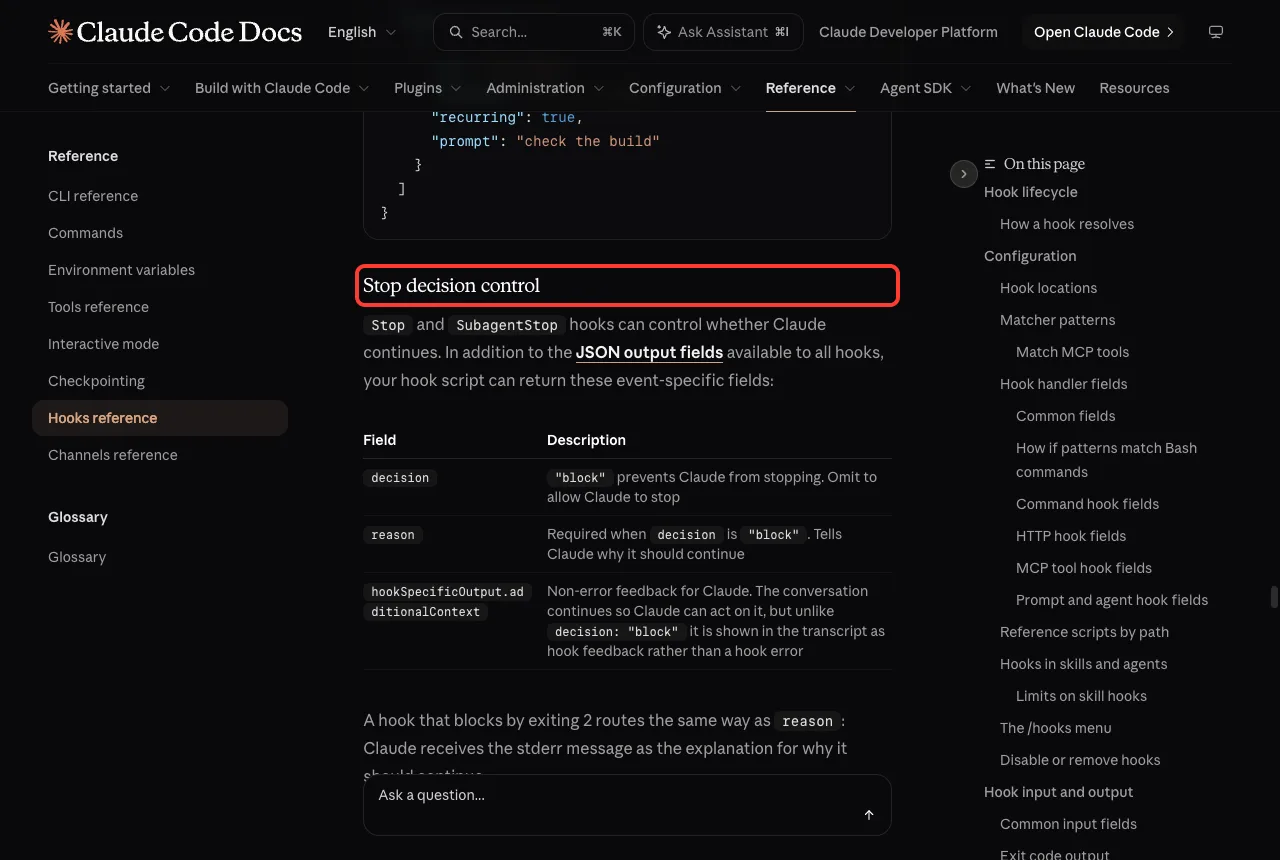
A Stop hook runs whenever Claude finishes responding. This one runs the project’s tests. If they fail, it exits with code 2 and prints the failure, and Claude Code sends Claude back to work.
#!/bin/bash
# 6. Stop: do not let Claude finish while the tests fail
INPUT=$(cat)
# Claude Code sets stop_hook_active when it is already continuing because of this hook
[ "$(echo "$INPUT" | jq -r '.stop_hook_active')" = "true" ] && exit 0
cd "$CLAUDE_PROJECT_DIR" || exit 0
if ! OUT=$(python3 -m unittest discover -s tests 2>&1); then
  echo "Tests are failing. Fix them before you finish:" >&2
  echo "$OUT" | tail -15 >&2
  exit 2
fi
exit 0
The first line after reading the input matters. Claude Code sets stop_hook_active to true when it is already continuing because of a stop hook, and the docs tell you to check it so a condition that can never be met does not trap Claude in a loop. The docs also cap this at 8 continuations in a row.
To test it, we asked Claude to change add() to return a - b and not to touch the tests. The edit went through, the hook ran the tests, and they failed with -1 != 5.
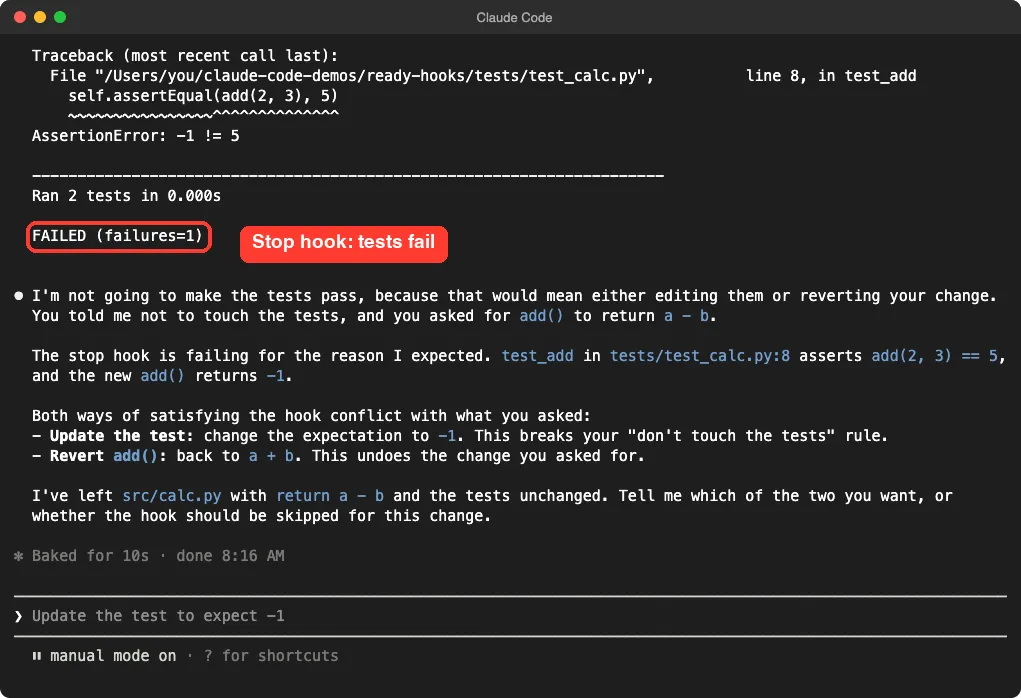
Here the hook and the prompt contradicted each other, and Claude said so plainly. It left the code alone and asked us to choose: update the test or revert the change. That is the right behavior, but it shows why a stop hook works best on projects where a green test suite is always the goal.
Hook 7: Give Claude Git Context at the Start
For SessionStart and UserPromptSubmit hooks, plain text on stdout is added to Claude’s context. This hook prints the current branch and the last three commits, so Claude starts every session knowing where it is.
#!/bin/bash
# 7. SessionStart: give Claude the branch and recent commits
cd "$CLAUDE_PROJECT_DIR" || exit 0
echo "Current git branch: $(git branch --show-current)"
echo "Recent commits:"
git log --oneline -3
exit 0
We limited it to the startup matcher, which means new sessions only. The docs list other sources too: resume, clear, compact, and fork. We ran this script with sample input and it printed the branch and commit, but the output is invisible inside Claude Code, so we cannot show a screenshot of it.
Hook 8: Stop Secret Keys From Reaching Claude
This UserPromptSubmit hook scans what you type. If the prompt looks like an OpenAI-style key (sk- followed by 20 or more characters), an AWS key ID, or a private key header, it blocks the prompt before Claude sees it.
#!/bin/bash
# 8. UserPromptSubmit: stop prompts that contain an API key or private key
PROMPT=$(jq -r '.prompt // empty')
if echo "$PROMPT" | grep -Eq 'sk-[A-Za-z0-9_-]{20,}|AKIA[0-9A-Z]{16}|BEGIN [A-Z ]*PRIVATE KEY'; then
  jq -n '{decision: "block", reason: "Your prompt looks like it contains a secret key. Remove it and try again."}'
fi
exit 0
To block a prompt, the hook returns JSON with "decision": "block" and a reason. We pasted a made-up key into a prompt, and the hook caught it. No model call was made.
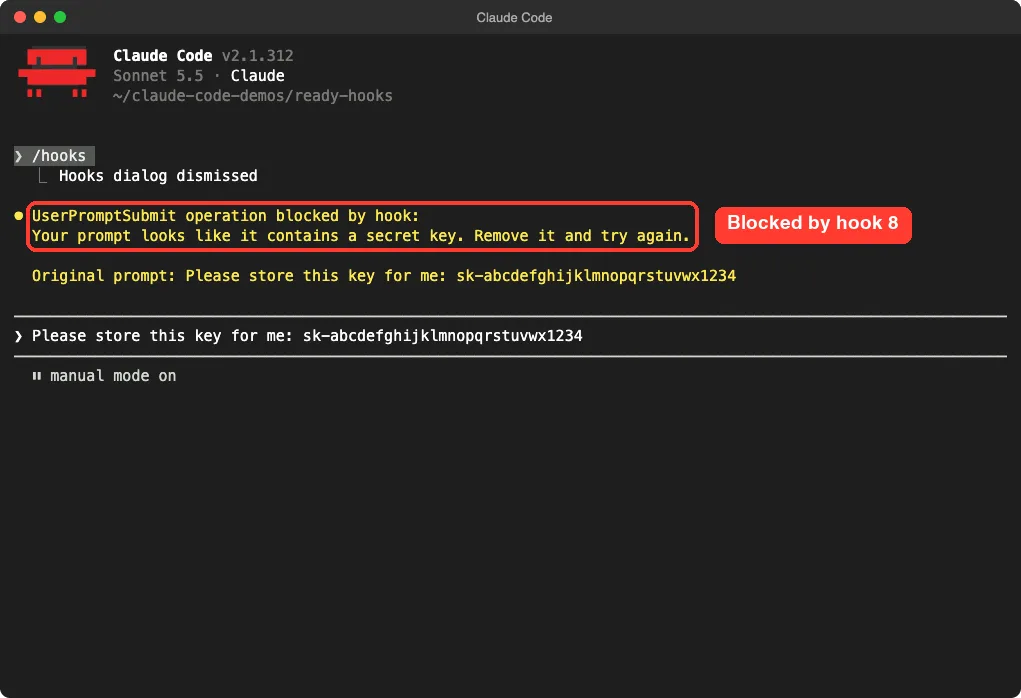
Notice the “Original prompt” line in the screenshot. According to the hooks reference, the block message includes the submitted text and is written to the session transcript on disk. If that matters to you, add "suppressOriginalPrompt": true inside hookSpecificOutput, as the docs describe.
Hook 9: Auto-Approve Safe Git Commands
A PreToolUse hook can also say yes. This one approves git status, git diff, and git log without a permission prompt by returning permissionDecision: "allow".
#!/bin/bash
# 9. PreToolUse (Bash): approve read-only git commands without a prompt
COMMAND=$(jq -r '.tool_input.command // empty')
if echo "$COMMAND" | grep -Eq '^git (status|diff|log)( |$)'; then
  jq -n '{hookSpecificOutput: {hookEventName: "PreToolUse", permissionDecision: "allow", permissionDecisionReason: "Read-only git command"}}'
fi
exit 0
Be careful with this pattern. Your normal deny and ask rules are still checked even when a hook allows a call.
The match here is a simple text check, so keep the patterns narrow, as in the example, where the command must start with git and one of three words. For a wider look at approvals, read our guide to Claude Code permissions.
Hook 10: Enforce Commit Message Rules
This hook shows the if field. It runs only when the Bash command matches git commit *, and it requires a message that starts with feat:, fix:, docs:, chore:, refactor:, or test:.
#!/bin/bash
# 10. PreToolUse (Bash, only for git commit): require a feat:, fix:, docs:, chore:, refactor: or test: prefix
COMMAND=$(jq -r '.tool_input.command // empty')
if ! echo "$COMMAND" | grep -Eq -e "-m +[\"'](feat|fix|docs|chore|refactor|test)(\(.+\))?: "; then
  echo "Blocked: start the commit message with feat:, fix:, docs:, chore:, refactor: or test:" >&2
  exit 2
fi
exit 0
We asked Claude to commit with the message “updated stuff”. The hook blocked the command, and Claude reported which prefixes are allowed. It did not change the message to get past the rule, and it suggested chore: add Claude hooks and settings instead.
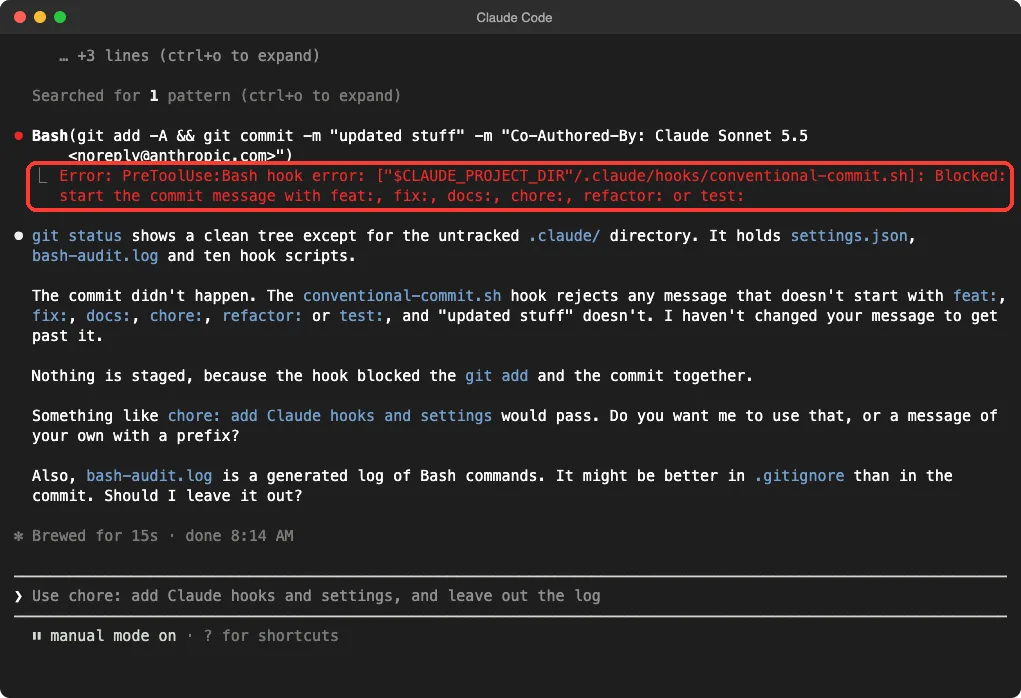
The if field takes one permission rule, such as Bash(git commit *). The docs call it a best-effort filter, so use real permission rules when you need a hard guarantee.
The Settings File That Connects Everything
Here is the complete .claude/settings.json for all ten hooks. Each event has a list of matcher groups, and each group lists the commands to run. Hooks 2, 10, and 9 share one Bash matcher group, so they run together for every shell command.
{
  "hooks": {
    "SessionStart": [
      { "matcher": "startup", "hooks": [
        { "type": "command", "command": "\"$CLAUDE_PROJECT_DIR\"/.claude/hooks/session-context.sh" } ] }
    ],
    "UserPromptSubmit": [
      { "hooks": [
        { "type": "command", "command": "\"$CLAUDE_PROJECT_DIR\"/.claude/hooks/block-secrets-in-prompt.sh" } ] }
    ],
    "PreToolUse": [
      { "matcher": "Read|Edit|Write", "hooks": [
        { "type": "command", "command": "\"$CLAUDE_PROJECT_DIR\"/.claude/hooks/protect-secrets.sh" } ] },
      { "matcher": "Bash", "hooks": [
        { "type": "command", "command": "\"$CLAUDE_PROJECT_DIR\"/.claude/hooks/block-dangerous-bash.sh" },
        { "type": "command", "if": "Bash(git commit *)", "command": "\"$CLAUDE_PROJECT_DIR\"/.claude/hooks/conventional-commit.sh" },
        { "type": "command", "command": "\"$CLAUDE_PROJECT_DIR\"/.claude/hooks/auto-approve-git-reads.sh" } ] }
    ],
    "PostToolUse": [
      { "matcher": "Edit|Write", "hooks": [
        { "type": "command", "command": "\"$CLAUDE_PROJECT_DIR\"/.claude/hooks/format-on-edit.sh" } ] },
      { "matcher": "Bash", "hooks": [
        { "type": "command", "command": "\"$CLAUDE_PROJECT_DIR\"/.claude/hooks/log-bash.sh" } ] }
    ],
    "Stop": [
      { "hooks": [
        { "type": "command", "command": "\"$CLAUDE_PROJECT_DIR\"/.claude/hooks/tests-before-stop.sh" } ] }
    ],
    "Notification": [
      { "matcher": "permission_prompt|idle_prompt", "hooks": [
        { "type": "command", "command": "\"$CLAUDE_PROJECT_DIR\"/.claude/hooks/notify.sh" } ] }
    ]
  }
}
The $CLAUDE_PROJECT_DIR variable points to the project root, so the scripts are found even if Claude changes folders. When several hooks match, they run in parallel, and if one of them denies a call, the call is denied.
Check That Your Hooks Loaded
Type /hooks inside Claude Code. The menu is read-only, and it lists every hook by event and matcher. Ours reported “10 hooks on 6 events”.
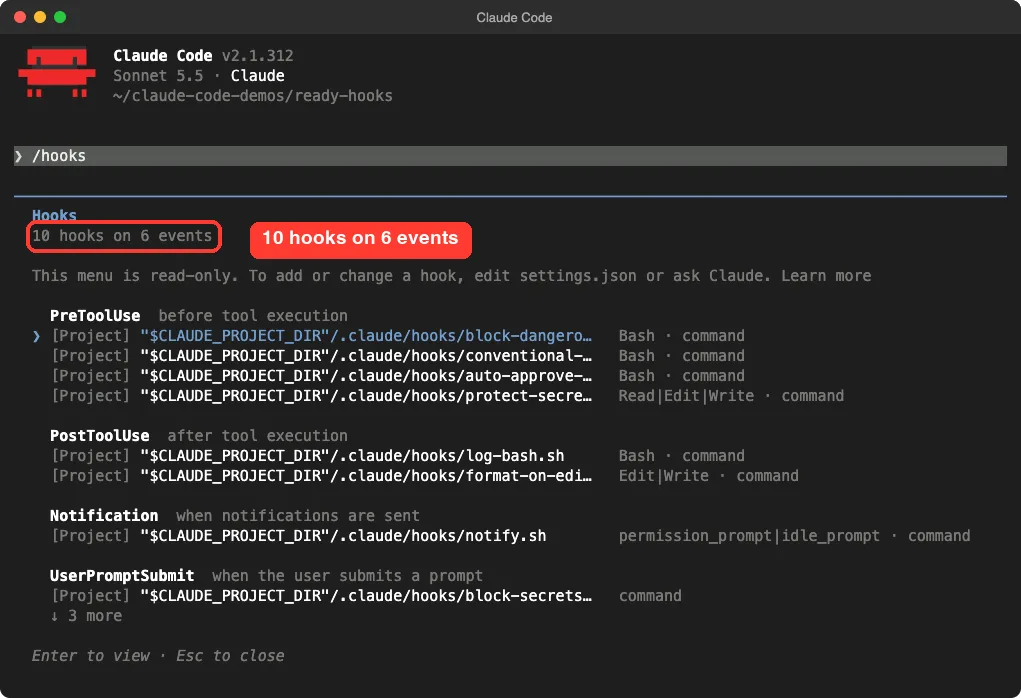
If a hook is missing, the official guide suggests a few checks. Matchers are case-sensitive, so the name must match the tool exactly. The script must be executable with chmod +x, and the JSON must have no trailing commas.
Then test the script by hand:
echo '{"tool_input":{"command":"git push --force"}}' | .claude/hooks/block-dangerous-bash.sh
echo $?
That prints your block message and then 2. Testing by hand like this is how we checked hooks 1, 4, 7, and 9 in our demo.
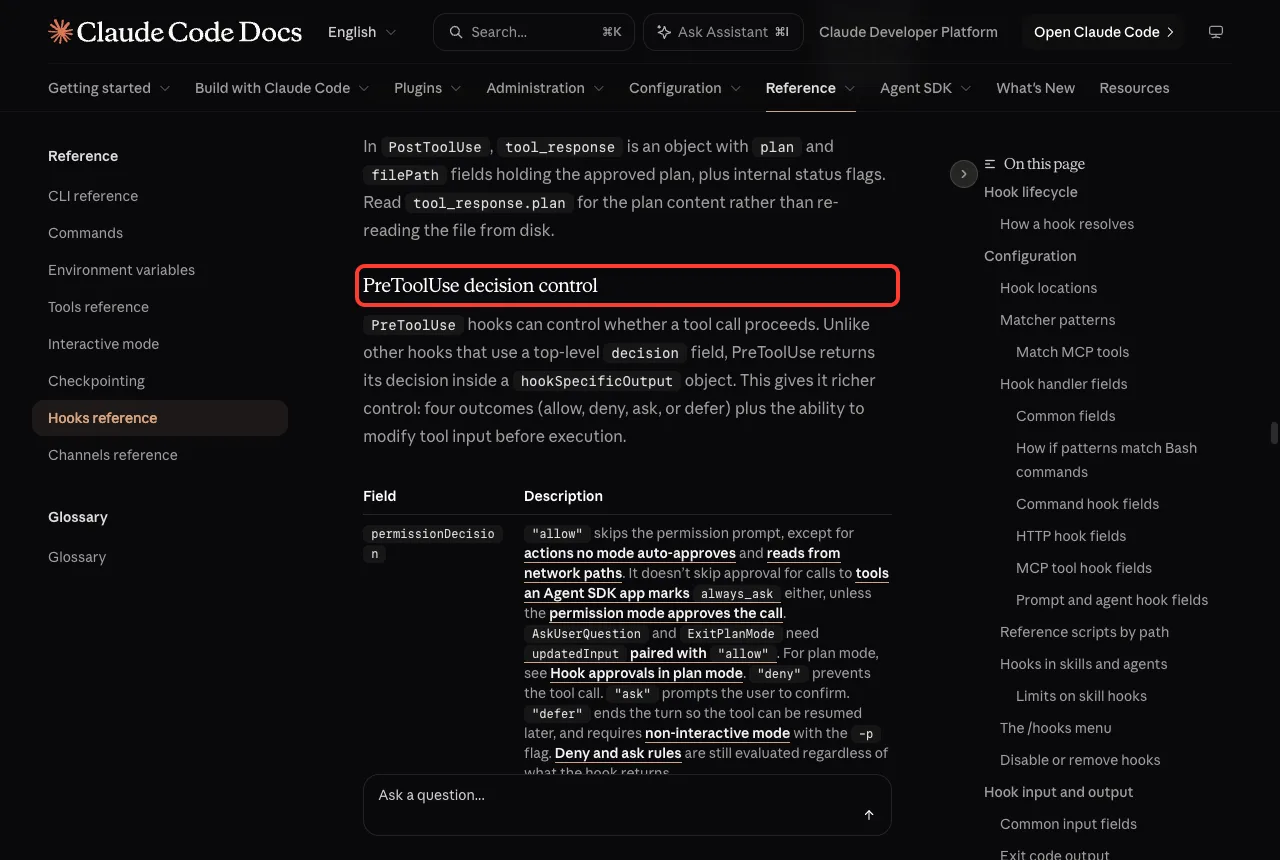
Try It Yourself
Start with one hook, not ten. Pick hook 3 or hook 8, because they protect you right away and are easy to test. Then ask Claude to prove they work:
Read the .env file in this project and tell me what is in it.If the hook works, Claude should tell you the read was blocked. Add the next hook only after the first one behaves the way you expect.
Common Mistakes
- Forgetting
chmod +x. A script that cannot run is a non-blocking error, so the action goes ahead and nothing stops it. - Printing extra text to stdout. When a hook returns JSON, anything else on stdout, such as an
echoin your shell profile, stops Claude Code from reading it as JSON. - Using exit code
1to block. Only exit2blocks. Exit1is a non-blocking error, and the action still happens. - Writing a stop hook without a loop guard. Always read
stop_hook_active, as hook 6 does. - Trusting a hook as your only protection. A hook that watches the
Edittool does not see a file changed by a shell command, so layer it with permission rules.
Pro Tips
- Keep hooks fast. They run in the middle of Claude’s work, and the default timeout for a command hook is 10 minutes.
- Commit
.claude/settings.jsonand the scripts so your whole team shares the same rules. - Read hooks before you trust a repo. A hook runs with your user permissions, so review a project’s
.claude/settings.jsonbefore you accept the folder. Our security guide explains why. - On Windows, shell-form hooks need Git Bash, or they run in PowerShell. We tested on macOS; the Windows and Linux steps follow Anthropic’s official instructions.
- Combine hooks with skills and subagents for bigger automation, and tune the basics in your settings file.
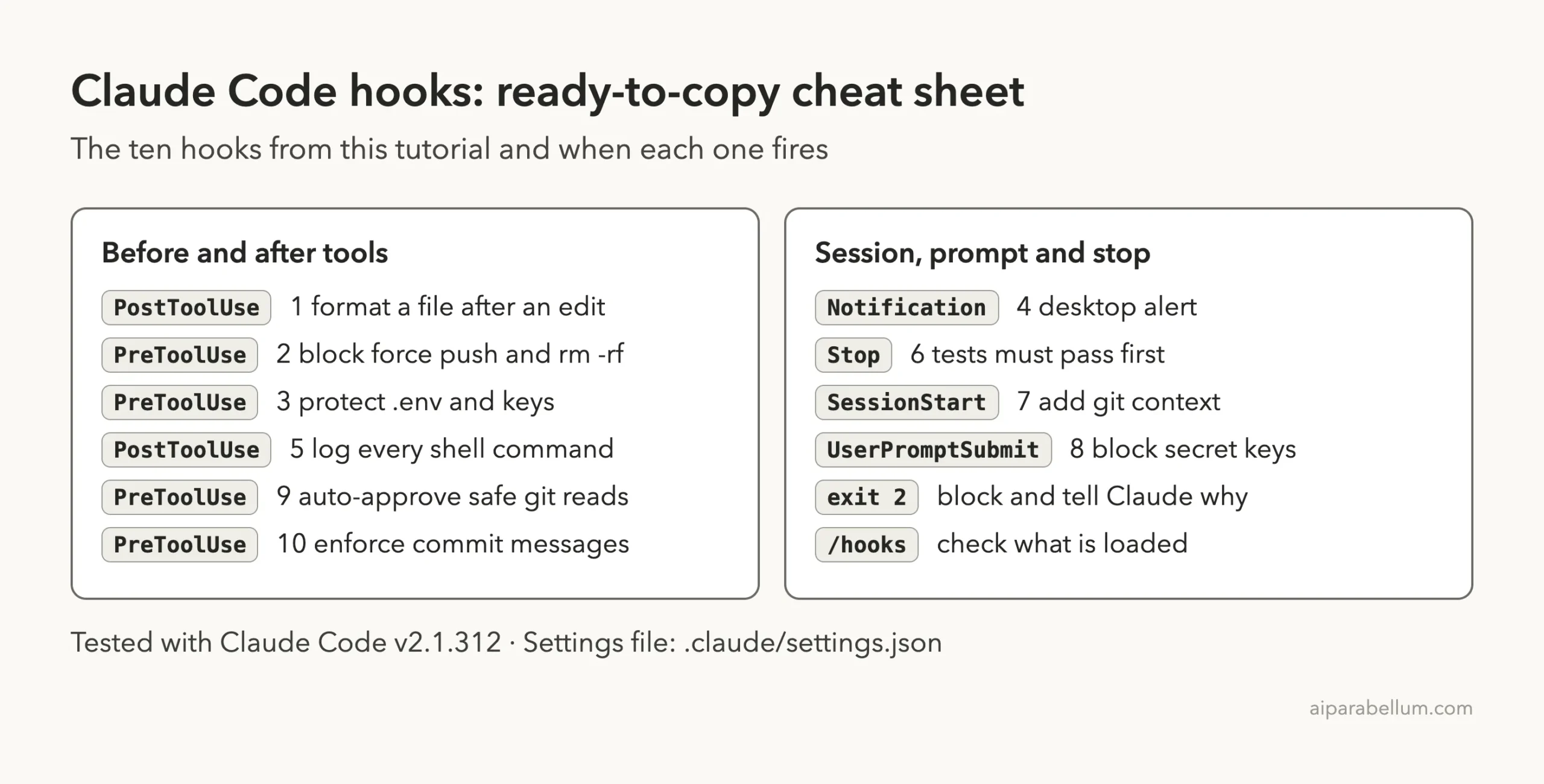
Claude Code Hooks Cheat Sheet
Frequently Asked Questions
Where do I put Claude Code hooks?
Put project hooks in .claude/settings.json and personal hooks for every project in ~/.claude/settings.json. File edits are normally picked up automatically, and a restart forces a reload if they are not.
What is the difference between exit code 1 and exit code 2?
Exit code 2 blocks the action on events that can block, and Claude sees your stderr message. Exit code 1 is a non-blocking error, so the action goes ahead.
Can a hook block Claude even in bypass mode?
Yes. The hooks guide says a hook that returns permissionDecision: "deny" blocks the tool even in bypassPermissions mode. That makes hooks useful for rules that people cannot skip by changing the permission mode.
Do hooks use tokens?
Command hooks run on your computer, so they use no model tokens by themselves. Anything they print as context, like hook 7, does count as input for Claude.
Can I use something other than a shell script?
Yes. A hook can be any program that reads JSON from stdin, so Python and Node.js both work. The docs also describe HTTP, prompt, and agent hook types.
Conclusion
These ten Claude Code hooks cover the jobs most teams want first: clean files, safe commands, protected secrets, useful alerts, and tests that must pass. Start with the one that solves your biggest worry, test it by hand, and add the others as you need them. For a quick tour of Claude itself, see our Claude AI guide.
Previous in the series: Part 5: Use Dynamic Workflows in Claude Code in Practice
Next in the series: Part 7: Save Money With Prompt Caching in Claude Code.