Claude Code prompt caching is the reason a long session does not cost a fortune. Every time you send a message, Claude Code re-sends the whole conversation, and the cache lets the API skip the work it already did.
The catch is that a few everyday actions throw the cache away and make the next turn slower and more expensive. In this guide you will learn how the cache works, which actions break it, how to check your own cache hit rate, and how to keep the savings.
We tested everything on a small demo folder with real commands and real numbers. We also read Anthropic’s official prompt caching page so the details match what is documented.
This is Part 7 of 10 in our Advanced Claude Code series, part of our Claude Code tutorials. Last time we covered ready-to-copy hooks.
Tested with Claude Code v2.1.312 on October 30, 2026. We tested on macOS; the Windows and Linux steps follow Anthropic’s official instructions.
Quick Summary
| Question | Short answer |
|---|---|
| Do I need to turn caching on? | No. Claude Code handles it for you unless you disable it. |
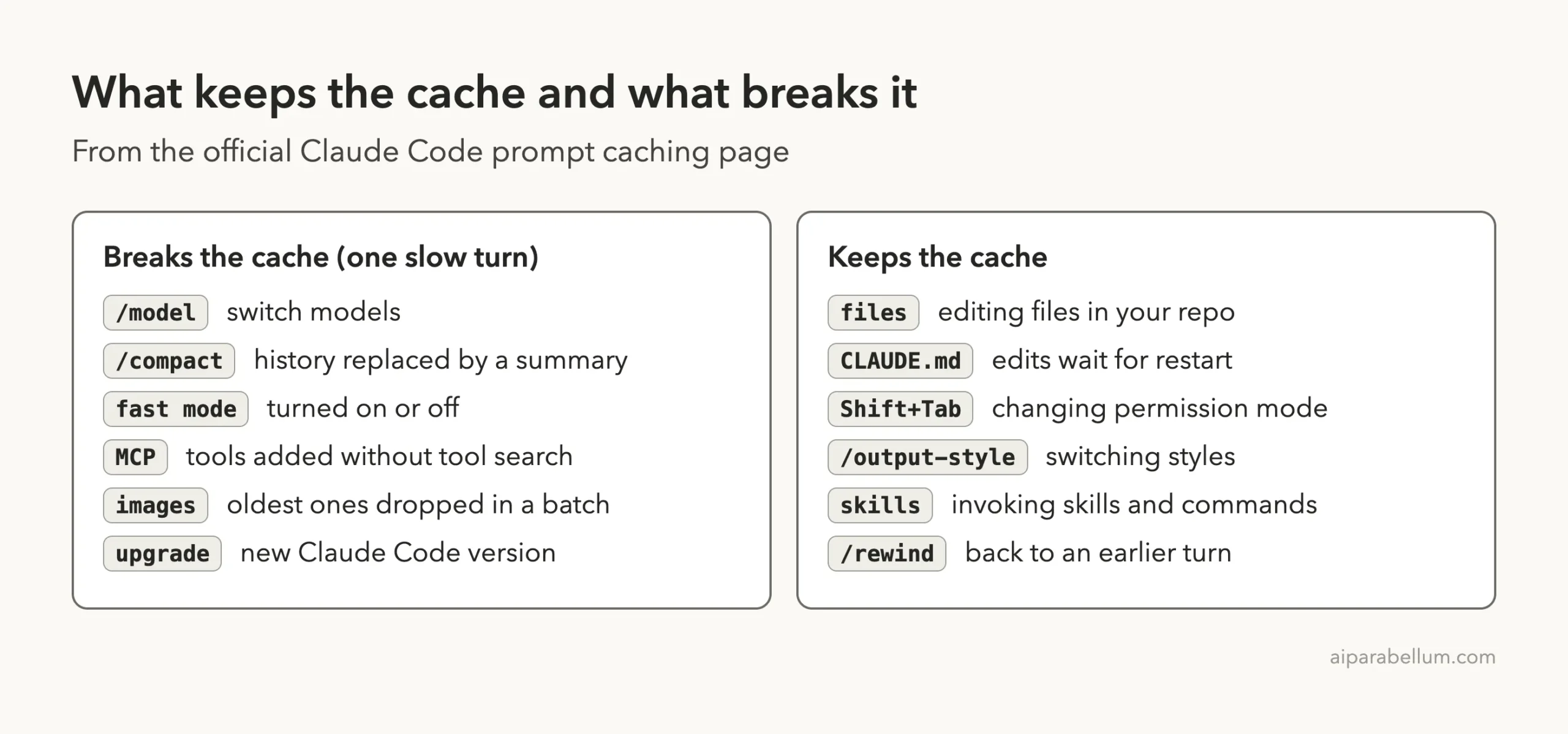
| What breaks the cache? | Switching models, /compact, fast mode changes, new tool definitions, dropped images and upgrades. |
| What keeps it? | Editing files, changing permission mode, switching output style, using skills and /rewind. |
| How do I check it? | Run /usage and read the Prompt cache (main) line. |
| How long does it last? | Five minutes or one hour, depending on your account and settings. |
What Prompt Caching Is and Why Claude Code Needs It
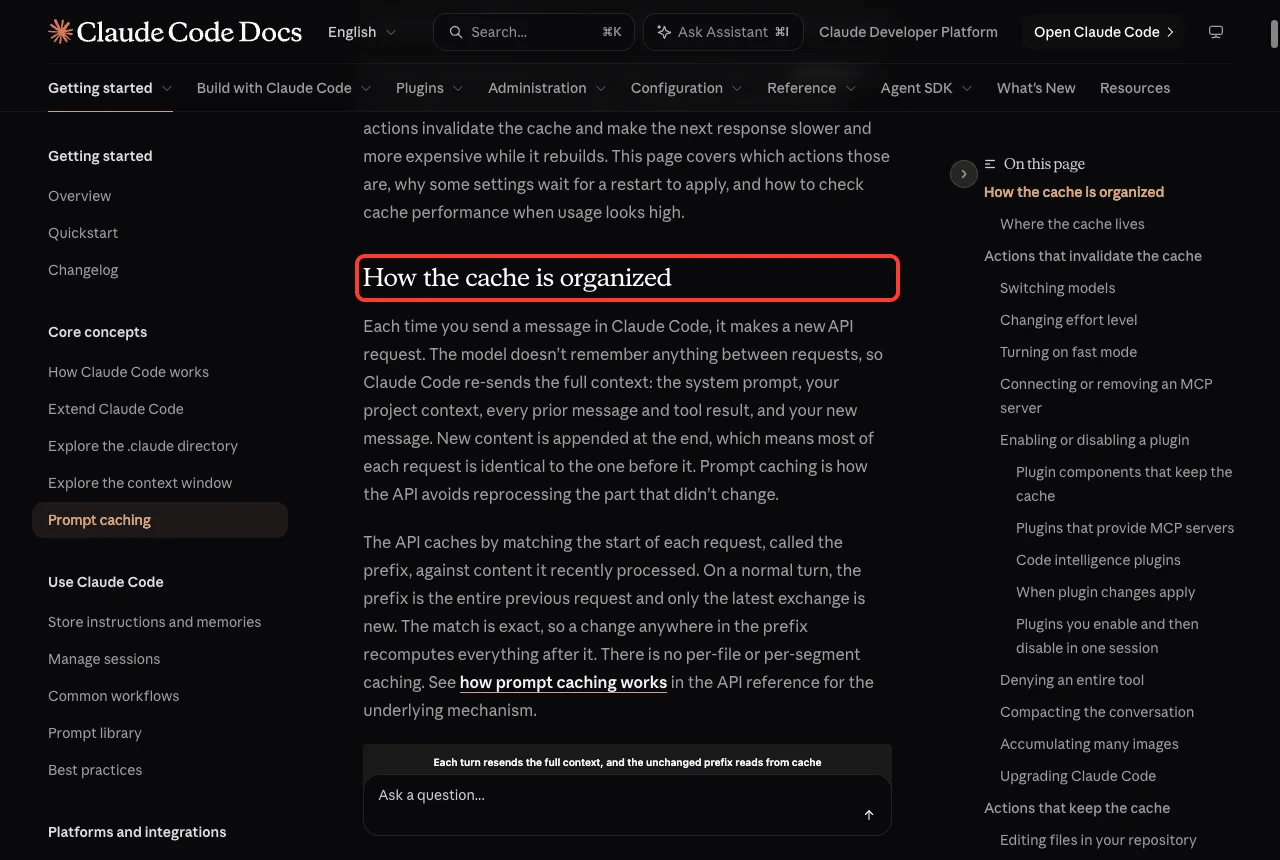
The model does not remember anything between requests. So each time you press Enter, Claude Code sends the system prompt, your project context, every earlier message and tool result, and your new message.
Most of that request is identical to the one before it, because new content is only added at the end. Prompt caching is how the API avoids reprocessing the part that did not change. It reads the repeated part from the cache and bills it at the cached token rate, which is below the standard input rate.
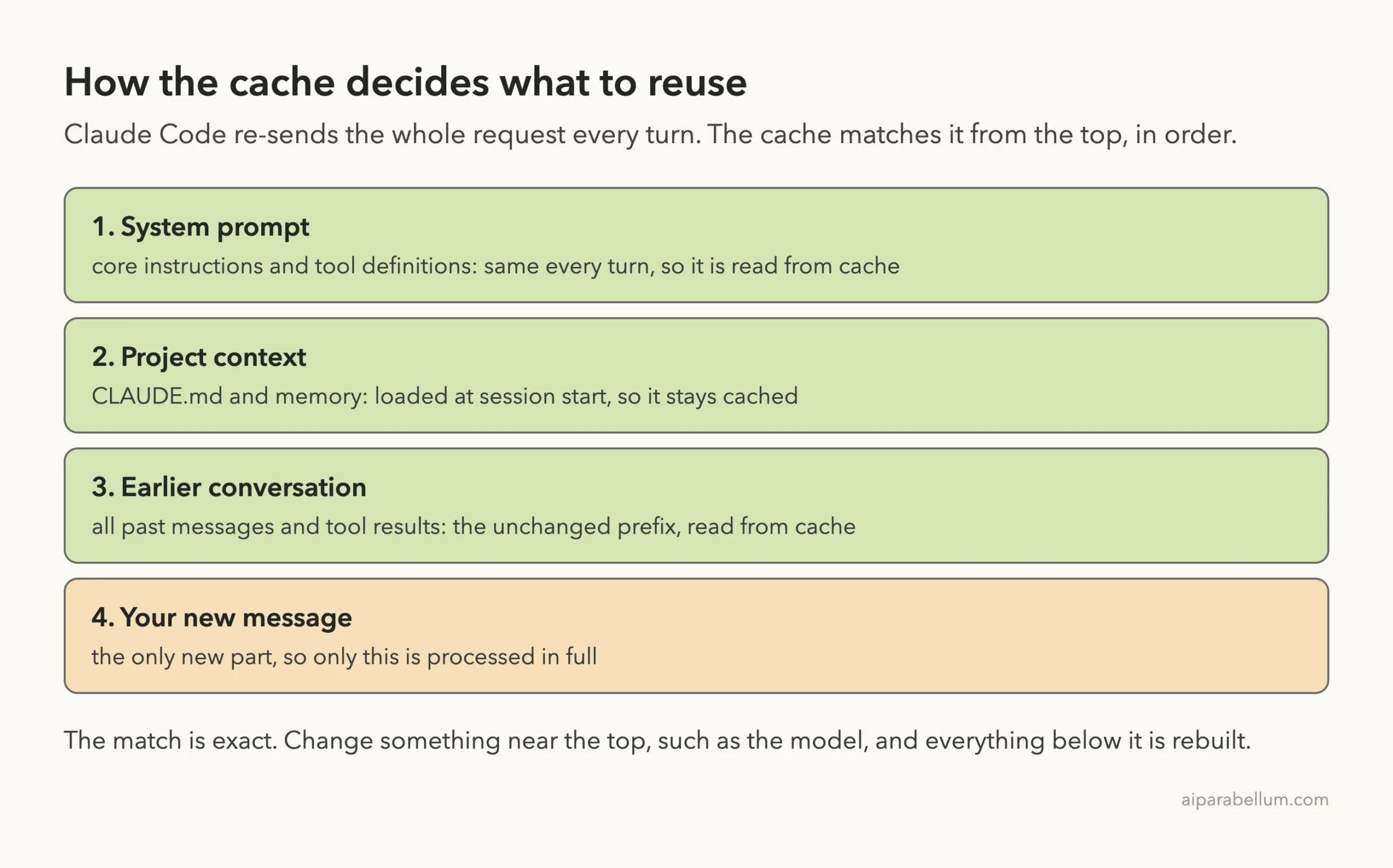
The API matches the start of each request, called the prefix, against content it recently processed. The match is exact, so a change anywhere in the prefix means everything after that point is recomputed. There is no per-file caching.
How the Cache Is Organized
Claude Code orders each request so the content that rarely changes comes first. That gives the cache the longest possible match on every turn.
| Layer | Content | Changes when |
|---|---|---|
| System prompt | Core instructions, tool definitions | The set of loaded tool definitions changes |
| Project context | CLAUDE.md, auto memory, unscoped rules | Session starts, or after /clear or /compact |
| Conversation | Your messages, Claude’s replies, tool results | Every turn |
A change to the conversation layer leaves the first two layers cached. A change to the system prompt invalidates everything, because all later content now sits behind a different prefix.
This is why you can read more in our guide to the context window: everything that loads into context also becomes part of the prefix that gets cached.
Step 1: See Your Cache Working
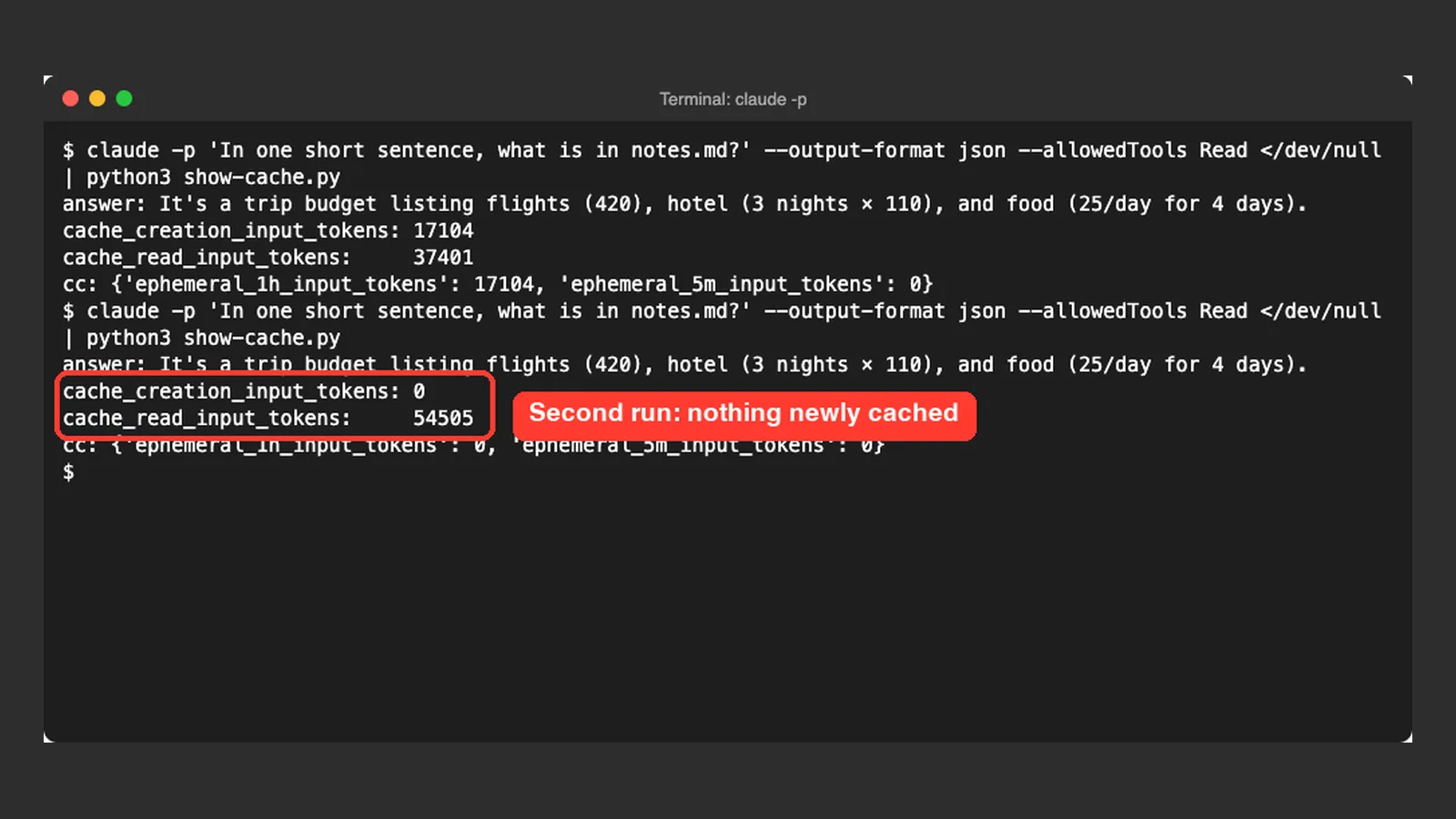
The quickest way to see caching is the JSON output of a one-off prompt. We made a demo folder with a tiny notes.md file and a short CLAUDE.md, then ran the same prompt twice with claude -p and --output-format json.
claude -p 'In one short sentence, what is in notes.md?' \
  --output-format json --allowedTools Read
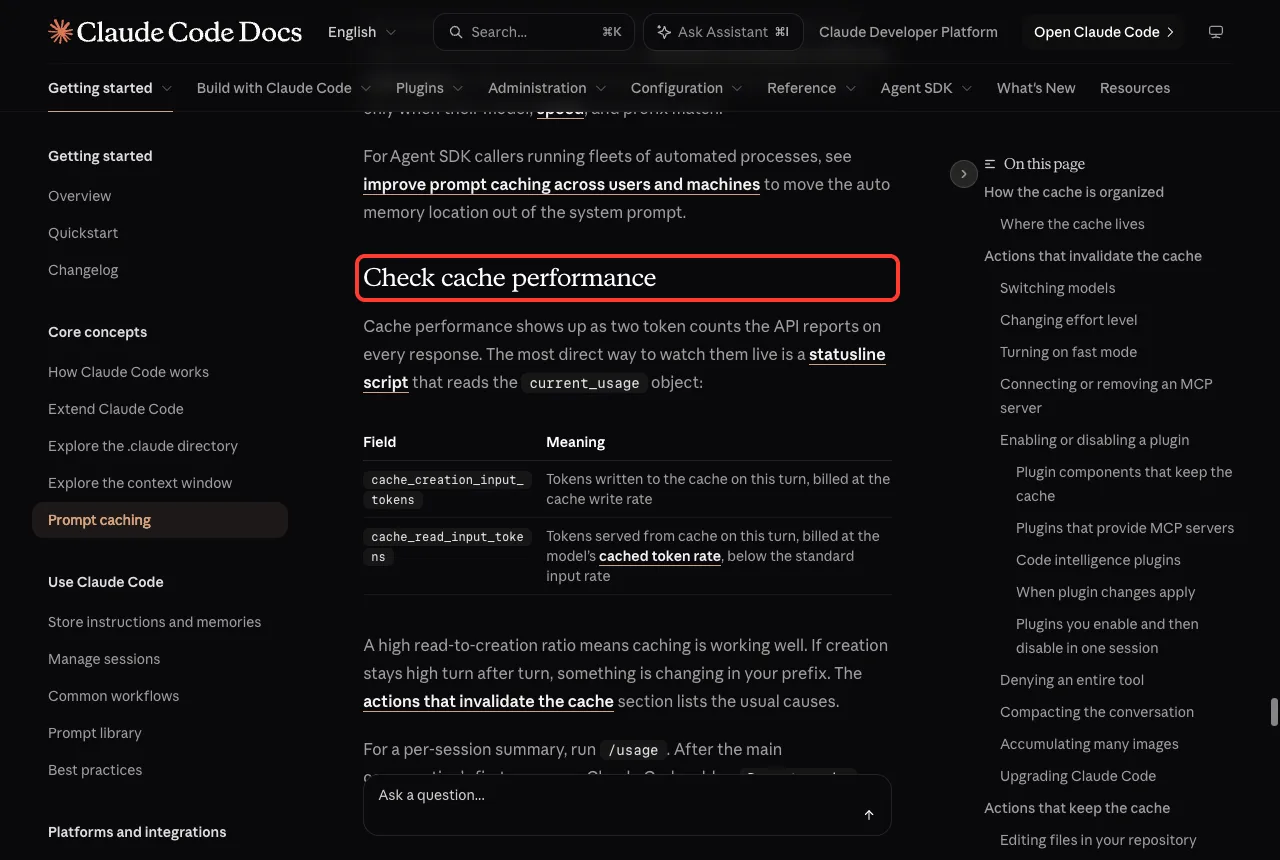
The result contains a usage object. The two fields to watch are cache_creation_input_tokens, which is what was written to the cache this turn, and cache_read_input_tokens, which is what was served from the cache.
In our test, the first of the two runs wrote about 17,000 tokens to the cache and read about 37,000. The second run wrote 0 and read about 54,500. Notice that the first run was not fully cold, because we had already run the same prompt in that folder a moment earlier, so part of the prefix was already warm.
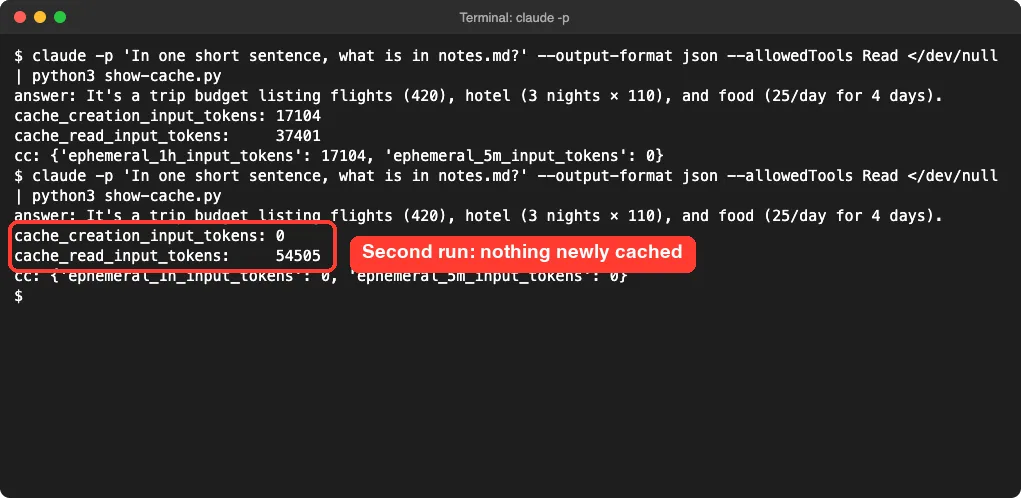
One demo is one demo, so treat the exact numbers as an example. The pattern is the point: a high read count and a low creation count means caching is working.
Step 2: Check the Hit Rate Inside a Session
For an interactive session, run /usage. After the main conversation’s first response, Claude Code adds a Prompt cache (main) line to the Session block. It shows your hit ratio, your miss count and whether the cache is warm right now.
We started a session in the demo folder, asked two short questions and ran /usage. The line read two requests, 82 percent of input tokens from the cache, no misses, and warm on a one-hour TTL.
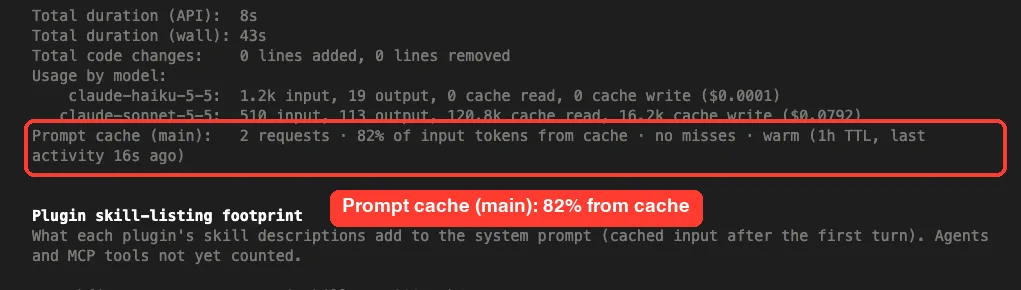
This line requires Claude Code v2.1.251 or later. From v2.1.260, it also names the likely cause of the last miss when Claude Code can identify one, for example that tool definitions changed.
If you want a live view, a status line script can read the same numbers from the current_usage and prompt_cache objects. See the official status line page for the fields.
Actions That Break the Cache
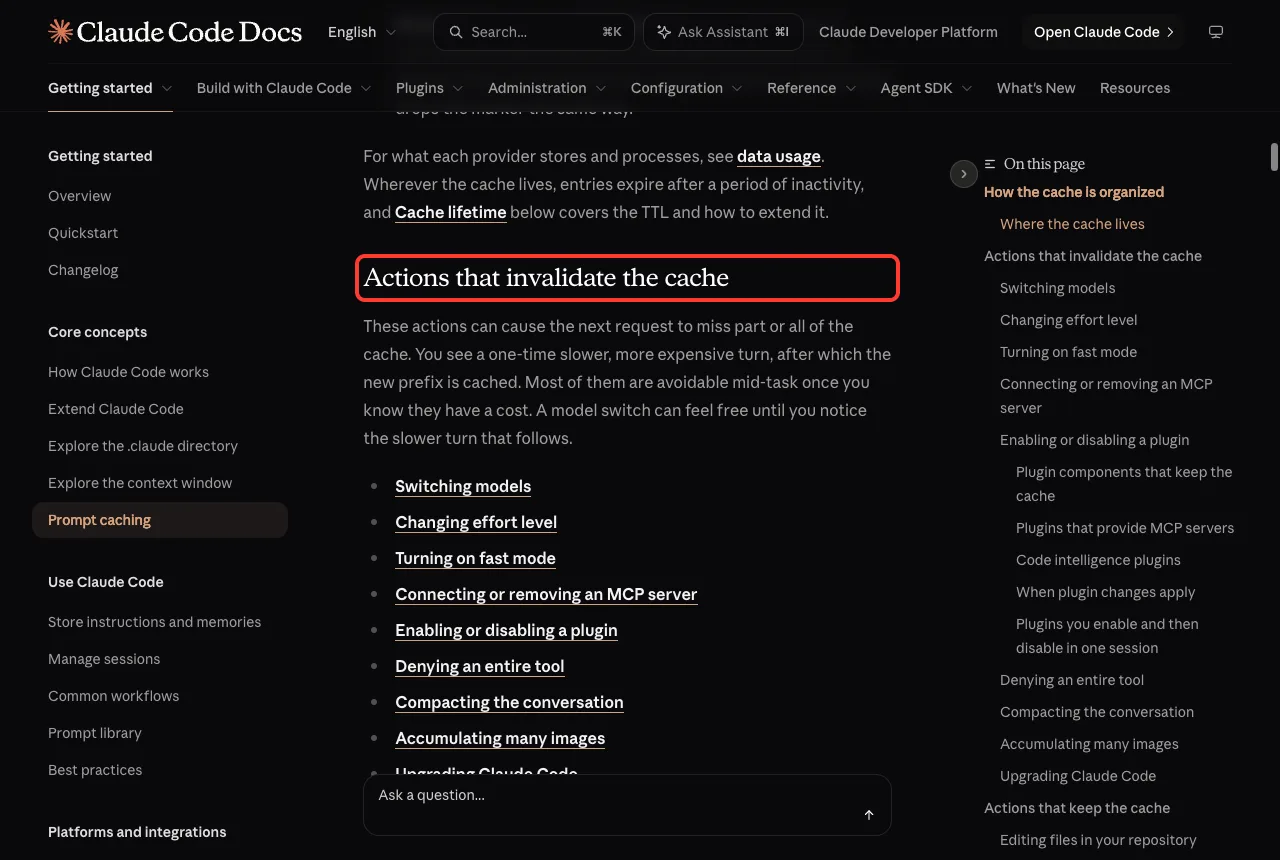
These actions can make the next request miss part or all of the cache. You see one slower, more expensive turn, and then the new prefix is cached again.
| Action | Why it costs you |
|---|---|
Switching models with /model | Each model has its own cache, so the whole history is re-read |
| Changing effort level | On most models each effort level has its own cache |
| Turning on fast mode | Fast and standard speed keep separate caches |
| Adding an MCP server without tool search | New tool definitions change the system prompt |
Running /compact | History is replaced by a summary, so the conversation layer is new |
| Piling up images | Old images are dropped in batches, which changes earlier messages |
| Upgrading Claude Code | The system prompt or tools usually change |
Switching Models Mid-Session
This is the one most people hit. We typed /model opus in the middle of our demo session and Claude Code stopped to warn us before switching.
The prompt said the next response will be slower and use more tokens, because the conversation is cached for the current model and switching means the full history gets re-read. You can answer yes or go back.
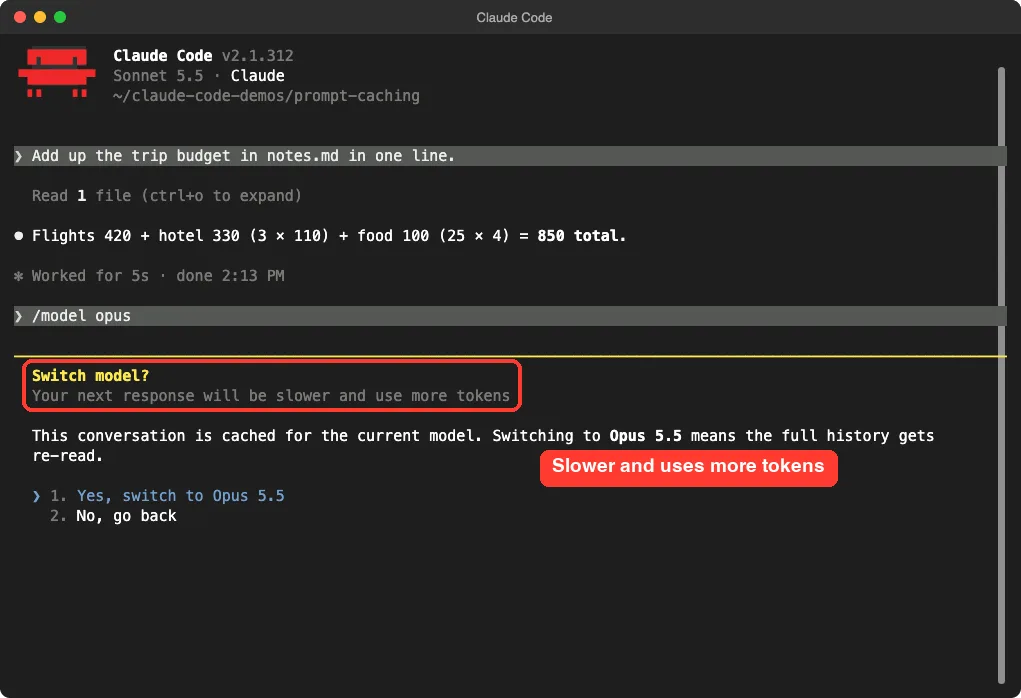
According to the docs, this confirmation only appears while the cache is still warm. Once the cache time has passed, Claude Code switches without asking, because there is nothing left to lose.
We chose to go back, so the demo kept its cache. For model basics see our guide to the Claude Code model setting.
Compacting at the Wrong Time
Compaction replaces your message history with a summary, so it invalidates the conversation layer by design. The system prompt and project context layers can stay cached.
The summary request itself reads your prefix from the cache while the cache is warm, so a mid-session /compact costs much less than the context size suggests. After a break longer than the cache lifetime there is nothing to read, so /compact costs the most on an old, resumed session.
The docs recommend running /compact at a natural break, such as between tasks, instead of waiting for auto-compaction in the middle of one. If you went down a path you want to abandon, rewind to an earlier turn instead, because rewinding goes back to a prefix that is already cached.
Actions That Keep the Cache
The good news is that most daily actions are safe. These either append to the end of the conversation or do not touch the request at all.
- Editing files in your repository: Claude Code appends a system reminder that the file changed instead of rewriting history.
- Changing permission mode with Shift+Tab: the system prompt and tools stay the same.
- Switching output style: the new style arrives as a message in the conversation.
- Invoking skills and commands: their instructions are added as messages at the point of use.
- Running
/recapand using/rewind. - Spawning a subagent: it has its own cache, and the parent’s cache is unaffected.
One exception is worth remembering. A skill whose frontmatter names a different model counts as a model switch for that turn.
Editing CLAUDE.md Mid-Session
Your project-root and user-level CLAUDE.md files are read once at session start. Editing them mid-session does not break the cache, but the edit also does not apply until the next /clear, /compact or restart.
So if you change your rules and Claude seems to ignore them, restart the session. Our guide to the CLAUDE.md file covers what belongs in it.
How Long the Cache Lasts
Cached prefixes expire after a period of inactivity, and each request that hits the cache resets the timer. After a long gap, the next request recomputes everything, which is why the first turn after a break can feel slow.
The API offers a five-minute and a one-hour time to live. The one-hour option keeps the cache warm through longer breaks but charges a higher rate for cache writes.
| Request bucket | Claude subscription, within plan usage | Usage credits, API key or cloud provider |
|---|---|---|
| Main conversation | One hour | Five minutes |
| Everything else (subagents, compaction, titles) | Five minutes, except server-controlled helpers | Five minutes |
Choose the TTL Yourself
You can set the time for the main conversation with the promptCacheTtl setting or the CLAUDE_CODE_PROMPT_CACHE_TTL environment variable. Subagent and other requests use subagentPromptCacheTtl or CLAUDE_CODE_SUBAGENT_PROMPT_CACHE_TTL. Each accepts only 5m or 1h, and these need Claude Code v2.1.242 or later.
If you sign in with an API key or use a cloud provider, the docs suggest setting promptCacheTtl to 1h to give the main conversation a one-hour cache. A short example for your settings file:
{
  "promptCacheTtl": "1h"
}
To confirm which TTL was used, run claude -p "hello" --output-format json and read usage.cache_creation. One-hour writes show under ephemeral_1h_input_tokens and five-minute writes under ephemeral_5m_input_tokens. In our first demo run, all the new cache writes were under the one-hour field.
The longer TTL costs more on short bursts of work that never idle past five minutes. Pick it only if you really step away and come back.
Real Examples: A Cheaper Way to Work
Put it together and a cache-friendly session looks like this. You choose your model and effort level at the start, work through the task, and only compact or clear between tasks.
- Start the session and pick the model first with
/model. - Work through one task without changing models or effort mid-way.
- Use Shift+Tab, skills and file edits freely, because they keep the cache.
- Run
/usagenow and then to check the hit rate. - Between tasks, run
/compactor/clear.
Two more details are worth knowing. The cache is effectively scoped to one machine and directory, so two sessions in different folders miss each other’s cache, while parallel sessions in the same folder can read each other’s. And for a wider look at spending, see our guide to Claude Code costs.
Try It Yourself
Make a throwaway folder, add a small text file, and compare the cache numbers on two identical runs. Then check the cache inside a live session.
mkdir -p ~/claude-code-demos/cache-test
cd ~/claude-code-demos/cache-test
printf '# Notes\n- one\n- two\n' > notes.md
claude -p 'What is in notes.md?' --output-format json --allowedTools Read
claude -p 'What is in notes.md?' --output-format json --allowedTools Read
Compare cache_creation_input_tokens and cache_read_input_tokens in the two results. Then start claude, ask two questions and run /usage to find the Prompt cache (main) line.
Common Mistakes
- Switching models back and forth mid-task. Each switch starts a fresh cache.
- Turning on fast mode halfway through a long session. The first toggle reads the whole conversation uncached at fast mode rates, so turn it on at the start.
- Waiting for auto-compaction to hit in the middle of a task instead of compacting at a break.
- Editing
CLAUDE.mdand expecting an instant change. It applies after a restart,/clearor/compact. - Setting
DISABLE_PROMPT_CACHINGand forgetting about it. The docs say to leave caching on for normal use. - Sending a gateway in front of Claude Code that strips
cache_controlmarkers. Then your whole history can bill as uncached input on every turn.
Pro Tips
- Pick your model and effort level at the top of the session. The docs call this the best habit for a high hit rate.
- Use
/rewindto drop a bad path. It goes back to a prefix that is already cached. - If your hit rate looks low, read the likely cause on the
Prompt cache (main)line. - Use
FORCE_PROMPT_CACHING_5M=1only when you are debugging or comparing the two TTLs. - Pin your Claude Code version with
DISABLE_AUTOUPDATER=1if you need to control when upgrades apply, since a new version builds its cache from scratch on the first turn.
Pick your model first, compact between tasks, and let the cache do the rest.
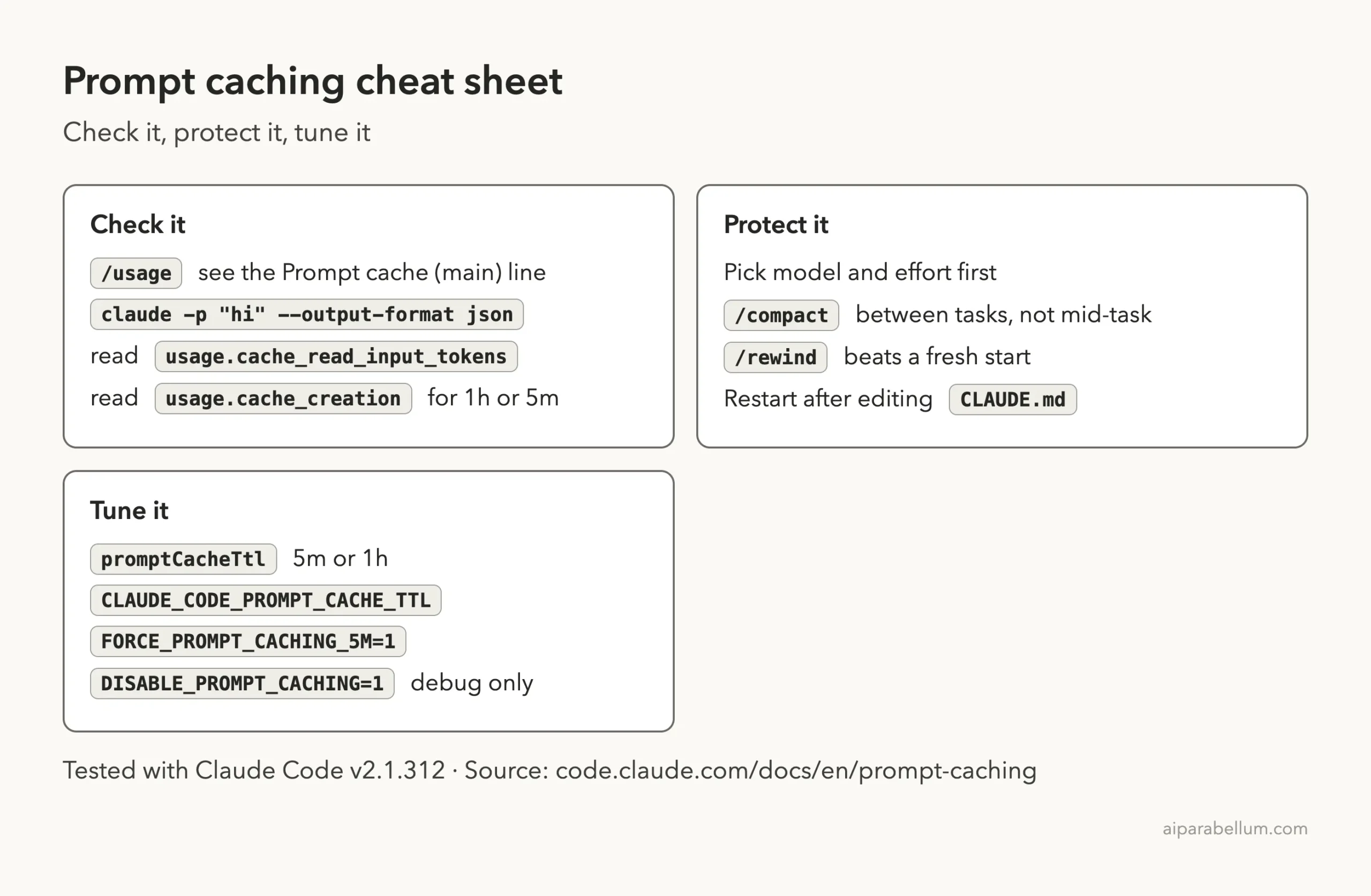
Prompt Caching Cheat Sheet
Frequently Asked Questions
Do I have to enable prompt caching in Claude Code?
No. Claude Code manages it automatically. You only need to act if you want to change the time to live or disable it for debugging.
Why was my first message after a break slow?
The cache expires after a period of inactivity. After a long enough gap, the next request recomputes the full input and sets up the cache again.
Does changing permission mode break the cache?
No. Switching modes such as Manual to accept edits does not change the system prompt or tool definitions. The exception is plan mode with the opusplan model setting, which switches the model.
Is /compact bad for caching?
Not always. It replaces the conversation layer by design, but while the cache is warm the summary request reads your prefix from the cache. It is most expensive when you resume an old session after the cache has expired.
How do I turn prompt caching off?
Set DISABLE_PROMPT_CACHING to 1 to disable it for all models. There are also variables for Haiku, Sonnet, Opus and Fable alone. Use them only to debug caching behavior.
Conclusion
Claude Code prompt caching saves money by reusing everything that did not change since your last message, and it works without any setup. To keep the savings, choose your model and effort level first, compact at natural breaks, and check the Prompt cache (main) line in /usage when costs look high. We confirmed in our own demo that a repeated prompt read tens of thousands of tokens from the cache and that Claude Code warns you before a model switch throws it away. For the full details, read Anthropic’s prompt caching page, and for tools to explore, visit Claude AI.
Previous in the series: Part 6, 10 Ready-to-Copy Claude Code Hooks
Next in the series: Part 8, Monitor Claude Code Usage and Costs, is coming soon.