Green screens used to be the only way to remove a video background. You needed the screen itself, proper lighting to avoid spill, a controlled environment, and editing software that cost hundreds of dollars. For most content creators, small businesses, and remote workers, this setup was out of reach.
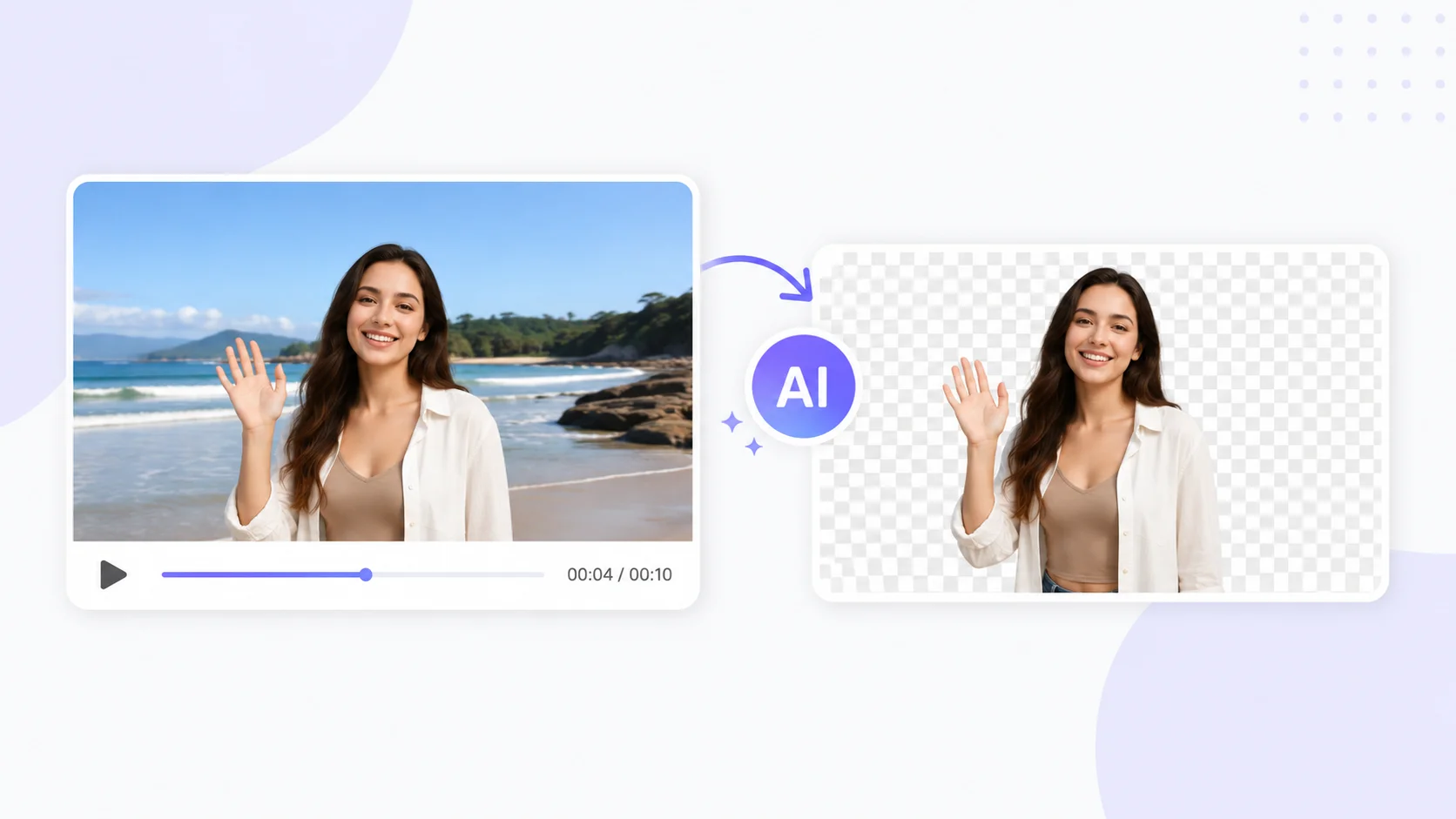
AI has eliminated every one of those barriers. Modern AI tools remove video backgrounds automatically, in real time, without a green screen or any special equipment. You upload a video or turn on your webcam, and AI separates you from the background frame by frame with accuracy that rivals professional studio work.
Here is how to remove video backgrounds with AI, which tools do it best, and how to get clean results that look professional rather than obviously edited.
How AI Video Background Removal Works
Traditional background removal relies on chroma keying, which detects a specific color (usually green or blue) and makes it transparent. This requires a perfectly lit, evenly colored backdrop. Any wrinkles, shadows, or color spill ruin the effect.
AI background removal uses a completely different approach. Machine learning models analyze each frame of video to identify the human subject based on shape, movement, and depth cues rather than color. The AI creates a mask around the person and removes everything outside that mask, regardless of what the background looks like.
This means you can remove the background from video shot in your living room, office, kitchen, or anywhere else. The AI does not care what color your walls are or whether your lighting is perfect. It cares about finding the edges of the human figure and separating it cleanly from the surroundings.
Green screens told creators “come to the studio.” AI says “stay wherever you are. We will handle the background.”
AI Tools for Removing Video Backgrounds
Several AI-powered tools handle video background removal at different quality levels, price points, and use cases. The right choice depends on whether you need real-time removal for video calls, batch processing for pre-recorded content, or browser-based tools that require no installation.
| Tool | Free Option | Best For | Key Feature |
|---|---|---|---|
| WebUtility Video Background Remover | Free to use | Quick browser-based removal | No installation, works directly in browser |
| Unscreen | Free with watermark | Pre-recorded video clips | Automatic removal without green screen |
| Runway | Free tier with limits | Professional video editing | Advanced masking and inpainting |
| CapCut | Free | Social media video editing | One-click background removal in editor |
| Microsoft Teams / Zoom | Included with account | Live video calls | Real-time background blur and replacement |
| Descript | Free tier available | Podcast and video production | Background removal plus full video editing suite |
For quick, no-hassle removal without downloading software, browser-based tools like WebUtility are the fastest path. For professional production work, Runway and Descript offer more control over the final output.
Step-by-Step Guide to Remove Video Background With AI
The exact steps vary by tool, but the general workflow is the same across all AI background removal platforms.
Step 1: Prepare Your Video
Start with the best source footage you can. AI handles imperfect conditions well, but better input always produces better output.
- Record in good lighting. Even, front-facing light helps AI distinguish you from the background more accurately. Natural light from a window works perfectly.
- Avoid wearing colors that match your background. If you sit in front of a white wall wearing a white shirt, the AI may struggle to find the boundary.
- Minimize fast movement during critical moments. AI tracks edges frame by frame, and very rapid motion can cause temporary artifacts at the boundary between you and the background.
- Record at the highest resolution your camera supports. Higher resolution gives AI more pixel data to work with for cleaner edge detection.
Step 2: Upload and Process
Upload your video to the AI tool of your choice. Most platforms accept common formats like MP4, MOV, and WebM. Processing time depends on video length, resolution, and whether the tool works locally or in the cloud.
Short clips under a minute typically process in 30 seconds to two minutes. Longer videos may take proportionally more time. Some tools like Runway let you preview the result on a single frame before processing the entire video, which saves time if adjustments are needed.
Step 3: Replace or Customize the Background
Once the AI removes the original background, you have several options for what goes behind you.
- Transparent background: export with alpha channel for compositing into other video projects.
- Solid color: use a flat color that matches your brand or creates the mood you want.
- Custom image: place any still image as your background, from a professional office setting to a tropical beach.
- Custom video: layer another video clip behind you for dynamic backgrounds, b-roll footage, or animated graphics.
- Blur effect: keep the original background but apply a gaussian blur for a depth-of-field effect that looks cinematic.
Removing the background is the easy part. Choosing the right replacement is where the creative decision lives. A clean, simple background almost always outperforms a flashy one.
Use Cases for AI Video Background Removal
This technology serves a wide range of professional and creative needs beyond just cleaning up Zoom calls.
Content Creation and YouTube
YouTubers and social media creators use background removal to place themselves over slides, gameplay footage, product demos, or custom-designed sets. This technique creates the illusion of a professional studio without actually having one. The same AI content creation tools that handle writing and graphics now handle video production tasks that used to require a full editing team.
E-Commerce Product Videos
Online sellers create professional product demonstration videos by removing cluttered home or warehouse backgrounds and replacing them with clean, branded settings. A product review filmed in a garage looks like it was shot in a studio after AI removes the background and adds a white or branded backdrop.
Online Education and Training
Teachers and corporate trainers overlay themselves on presentation slides, interactive whiteboards, or course materials. This keeps the instructor visible while maximizing screen space for educational content. The AI tools educators use extend beyond background removal into complete virtual classroom setups.
Remote Work and Video Conferencing
Remote workers hide messy home offices, shared living spaces, or distracting environments during professional calls. According to Owl Labs, 70 percent of remote workers report using virtual backgrounds at least some of the time during video meetings. AI background removal makes these virtual backgrounds look significantly more natural than the basic green-screen-style cutouts built into most video conferencing platforms.
Video Marketing and Advertising
Marketing teams create versatile video assets where the spokesperson can be placed over any background. Film the presenter once and reuse the footage across different campaigns by swapping the background for each version. This approach to AI-powered video marketing multiplies the value of every video shoot.
Getting Clean Results From AI Background Removal
AI background removal has improved dramatically, but certain situations still produce visible artifacts. These tips help you get the cleanest possible output.
| Problem | Cause | Solution |
|---|---|---|
| Flickering edges | Inconsistent frame-to-frame detection | Use tools with temporal smoothing or stabilization |
| Hair looks choppy | Fine details are hard for AI to mask | Better lighting, avoid backlight, use tools with hair refinement |
| Hands disappear | Fast gestures leave the detection zone | Slow down hand movements, keep hands in front of torso |
| Props get removed | AI only keeps what it identifies as “person” | Use tools that allow manual mask editing |
| Color fringing | Light from background bleeds onto subject | Increase distance from background, improve front lighting |
The single biggest improvement comes from lighting. Front-facing, diffused light creates a clear contrast between you and the background that AI detects easily. Side lighting or backlighting creates shadows and silhouettes that confuse the detection algorithm.
Hair and Fine Detail Handling
Hair is the hardest element for AI to separate from a background. Curly, flyaway, or backlit hair creates semi-transparent edges that AI must decide whether to keep or remove. Higher-end tools like Runway use trimap-based masking that handles these transitions better than simple binary masks.
If hair edge quality matters for your project, test a short clip before processing the full video. The difference between tools is most visible at the hair boundary, and spending five minutes testing saves hours of frustration with subpar results.
Professional video editors spend more time on hair masking than any other element. AI handles 90 percent of the work instantly. The last 10 percent is where tool choice and lighting technique matter most.
Real-Time vs Pre-Recorded Background Removal
AI background removal works in two modes, and understanding the difference helps you pick the right tool.
Real-Time Removal
Real-time tools process your webcam feed live, removing the background as you speak. Zoom, Microsoft Teams, Google Meet, and OBS Studio with AI plugins all offer this capability. The trade-off is that real-time processing uses significant CPU or GPU resources, which can cause lag, reduced frame rates, or fan noise on older hardware.
For video calls and live streaming, real-time removal is the only option. Keep your system requirements in mind and close unnecessary applications to free up processing power.
Pre-Recorded Processing
Pre-recorded tools process video files after they are filmed. This approach produces higher quality results because the AI can analyze the full video, apply temporal smoothing across frames, and spend more processing time on difficult edges. The AI creativity tools used in professional video production almost always work in pre-recorded mode for maximum quality.
For YouTube videos, course content, marketing materials, and any video where quality matters more than immediacy, pre-recorded processing delivers noticeably better results. Film yourself against whatever background is available, then remove and replace it in post-production.
Free vs Paid Video Background Removal Tools
Free tools work well for basic needs but have limitations that matter for professional use.
| Feature | Free Tools | Paid Tools |
|---|---|---|
| Output quality | Good for social media | Broadcast and production quality |
| Resolution support | Usually up to 1080p | 4K and higher |
| Watermarks | Often present on output | No watermarks |
| Video length limits | Typically under 5 minutes | No length restrictions |
| Edge refinement | Basic automatic masking | Manual edge editing, hair refinement |
| Batch processing | One video at a time | Multiple videos simultaneously |
Start with free tools to test whether AI background removal fits your workflow. If it does, upgrading to a paid tool pays for itself quickly through time saved and quality gained. The same productivity gains AI delivers in other workflows apply directly to video editing.
Combining Background Removal With Other AI Video Tools
Background removal works best as part of a larger AI-powered video production workflow rather than as a standalone step.
- Use AI background removal alongside AI avatar generators to create professional spokesperson videos without filming anyone at all.
- Combine background removal with AI-powered color grading to match the lighting and tone of your replacement background.
- Add AI-generated captions and subtitles after background replacement to create polished, accessible content. Tools like Descript handle transcription, editing, and background removal in a single platform.
- Use AI upscaling to improve the resolution of older footage before removing the background, which gives the masking algorithm more detail to work with.
This integrated approach turns background removal from a single trick into part of a complete production pipeline. A solo creator with AI tools now produces video content that would have required a team of editors, a green screen studio, and thousands of dollars in software just a few years ago.
Conclusion
Removing video backgrounds with AI transforms any space into a professional recording environment. Whether you need clean backgrounds for video calls, YouTube content, product demos, or marketing campaigns, AI handles the separation automatically without green screens, studio lighting, or expensive software. The technology works in real time for live calls and produces even better results when processing pre-recorded footage. Start with a free browser-based tool to see the quality AI delivers, then build a video production workflow that eliminates background concerns from your creative process entirely.