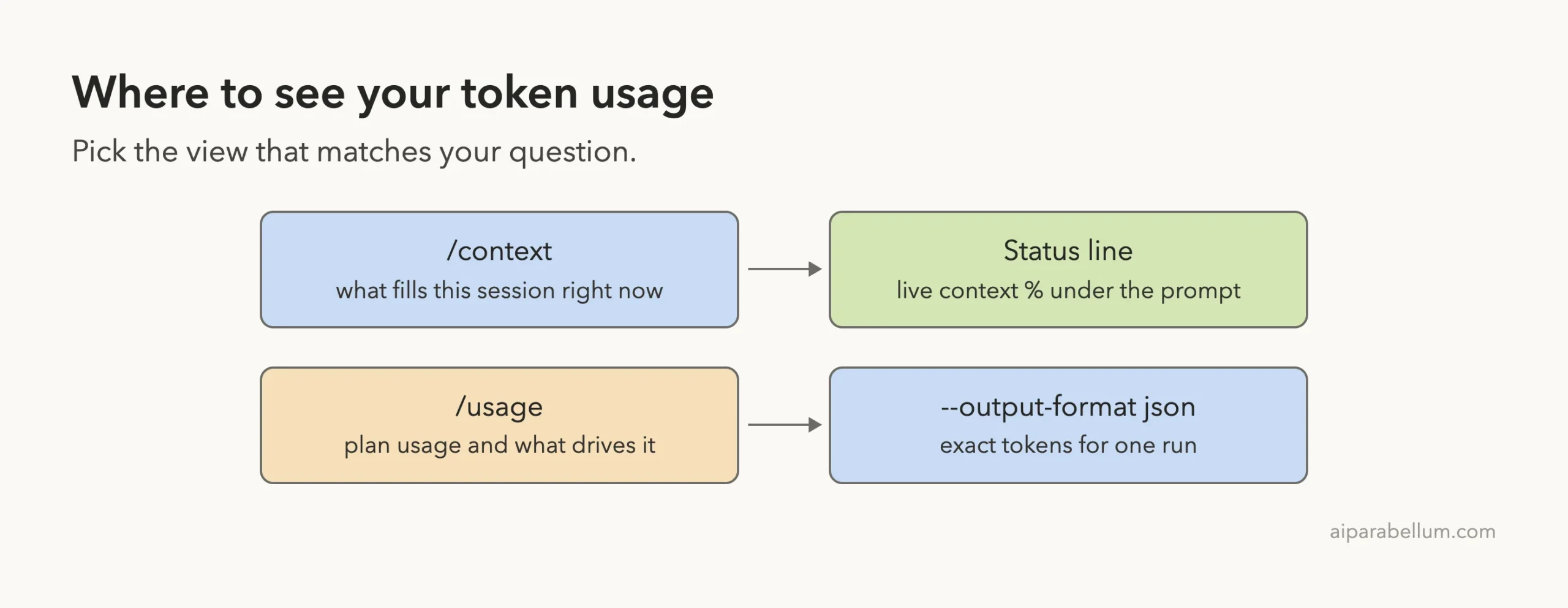
To see Claude Code token usage, type /context to see what fills your session right now, and /usage to see your usage and what drives it. For a live number, add a status line that shows your context percentage under the prompt.
This guide shows each method with real output from a test session, so you know which command answers which question. We also cover the exact token counts you can pull from one headless run.
We read the official costs and status line pages first, then ran Claude Code in a throwaway demo folder and captured what it printed. Browse all our Claude Code tutorials for more.
Tested with Claude Code v2.1.312 on October 30, 2026. We tested on macOS; the Windows and Linux steps follow Anthropic’s official instructions.
Quick Answer: Which Command Shows What?
Each view answers a different question. The table shows them side by side.
| What you want to know | Use this | What you get |
|---|---|---|
| What is filling my session? | /context | Tokens by category, such as system prompt, tools, skills and messages |
| How much am I using overall? | /usage | Usage and a breakdown of what contributes to it |
| A number I can watch live | Status line | Context percentage under the prompt, updated as you work |
| Exact tokens for one run | claude -p with --output-format json | Input, output and cache tokens, plus cost |
| Tokens while Claude is working | Spinner line | A live, approximate count of output so far |
Why Claude Code Token Usage Matters
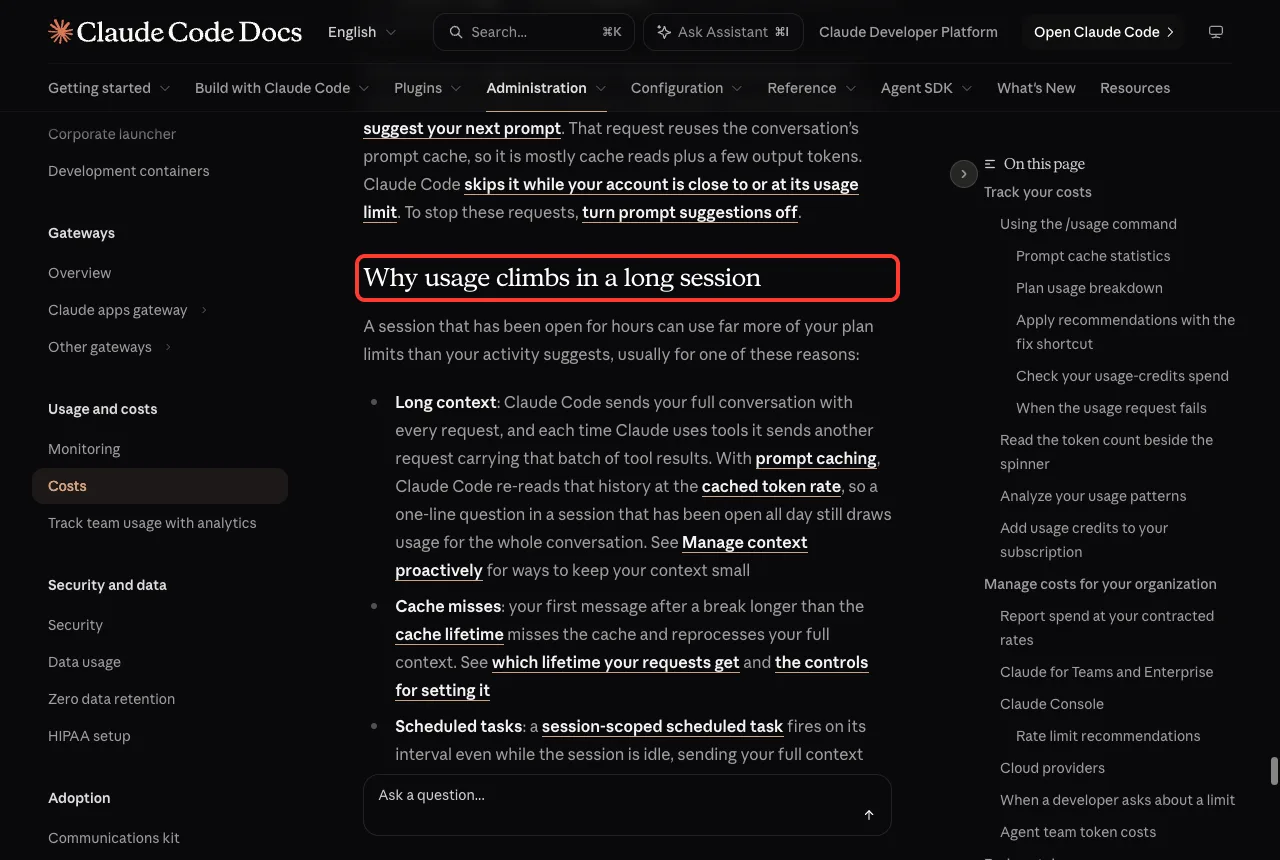
Claude Code sends your full conversation with every request. The official costs page explains that even a one-line question in a long session draws usage for the whole conversation.
That is why a session that has been open all day can use a lot more than a fresh one. Seeing the numbers lets you decide when to clear or compact.
Step 1: See What Fills Your Context With /context
Type /context inside a session. It lists estimated usage by category, so you can see how much goes to the system prompt, tools, skills, custom agents and your messages.
In an interactive session the report is long, because it lists every tool and skill. For a short view, we ran it headless from a terminal and kept the first lines.
claude -p '/context' </dev/null | head -17The output showed 13.5k of 1m tokens used, which is 1 percent. The system prompt took 2.5k, skills took 10k, and messages took only 10 tokens because we had not chatted yet.
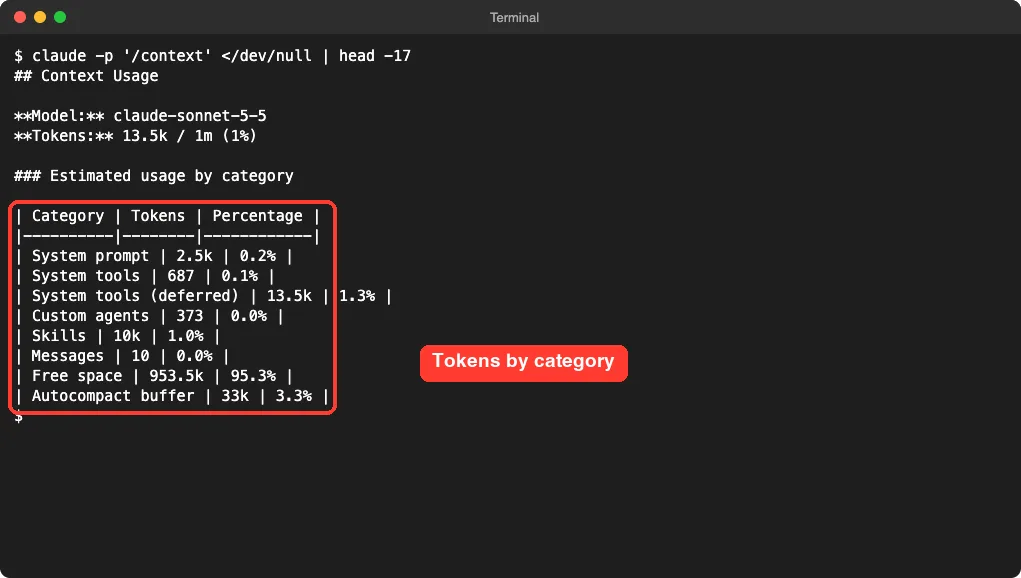
Notice that most of the used space was not our prompt at all. Skills, tools and the system prompt already took a share, which is a good reason to remove plugins and skills you never use.
Auto-Compact Buffer and Free Space
The same table shows free space and an auto-compact buffer. In our run the buffer was 33k tokens, or 3.3 percent. The official costs page describes the auto-compact window as the point where Claude Code summarizes older history to free space.
Step 2: Add a Status Line for a Live Number
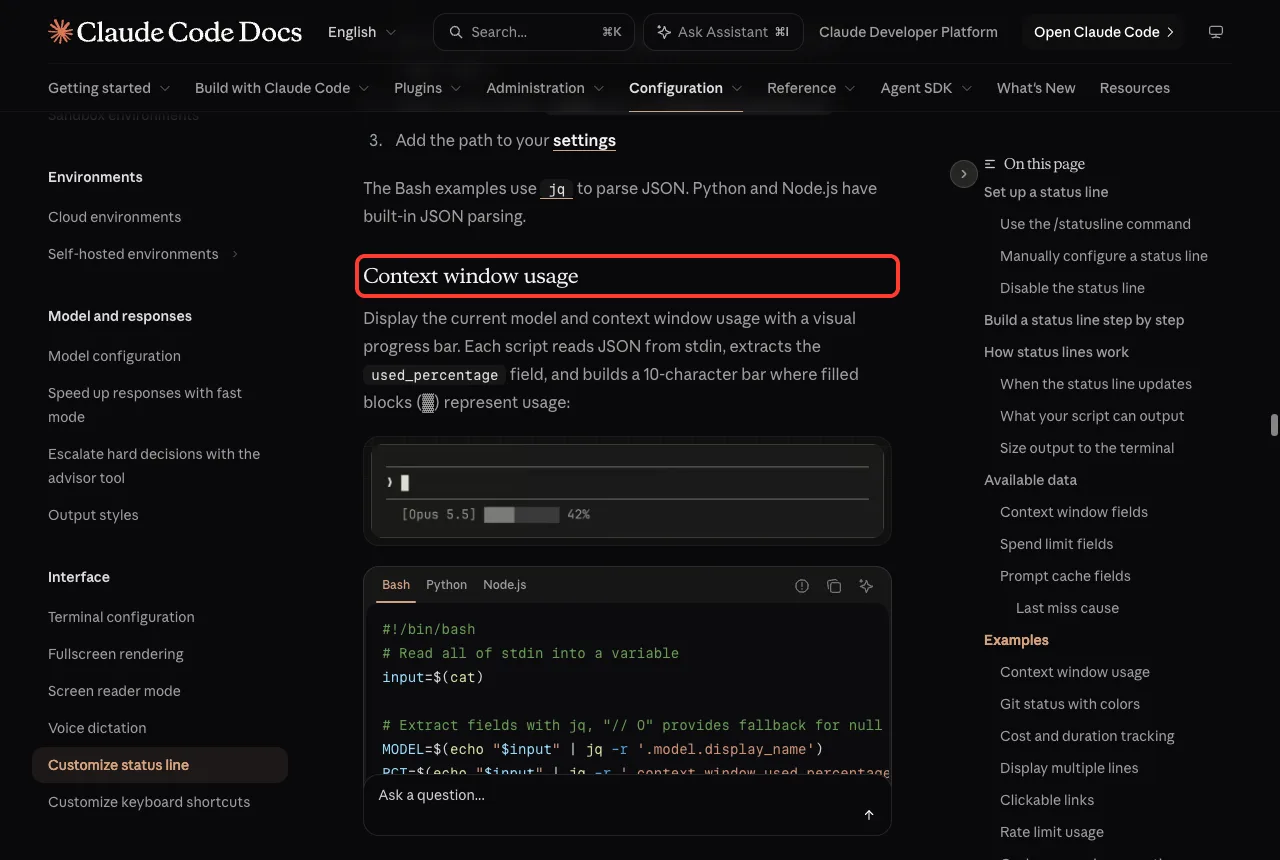
The status line is a bar under the prompt that your own script fills in. Claude Code passes your script JSON that includes context_window.used_percentage and the token counts, and shows whatever your script prints.
We saved this small script as .claude/statusline.sh in the demo folder and ran chmod +x on it.
#!/bin/bash
input=$(cat)
MODEL=$(echo "$input" | jq -r '.model.display_name')
PCT=$(echo "$input" | jq -r '.context_window.used_percentage // 0' | cut -d. -f1)
TOK=$(echo "$input" | jq -r '.context_window.total_input_tokens // 0')
echo "[$MODEL] context: ${PCT}% | tokens in context: ${TOK}"
Then we pointed to it in .claude/settings.json. You can also type /statusline and let Claude write a script for you, as the official page describes.
{
  "statusLine": { "type": "command", "command": ".claude/statusline.sh" }
}
The script uses jq, which was already installed on our Mac. If you do not have it, install it first, or write the script in Python instead.
What We Saw
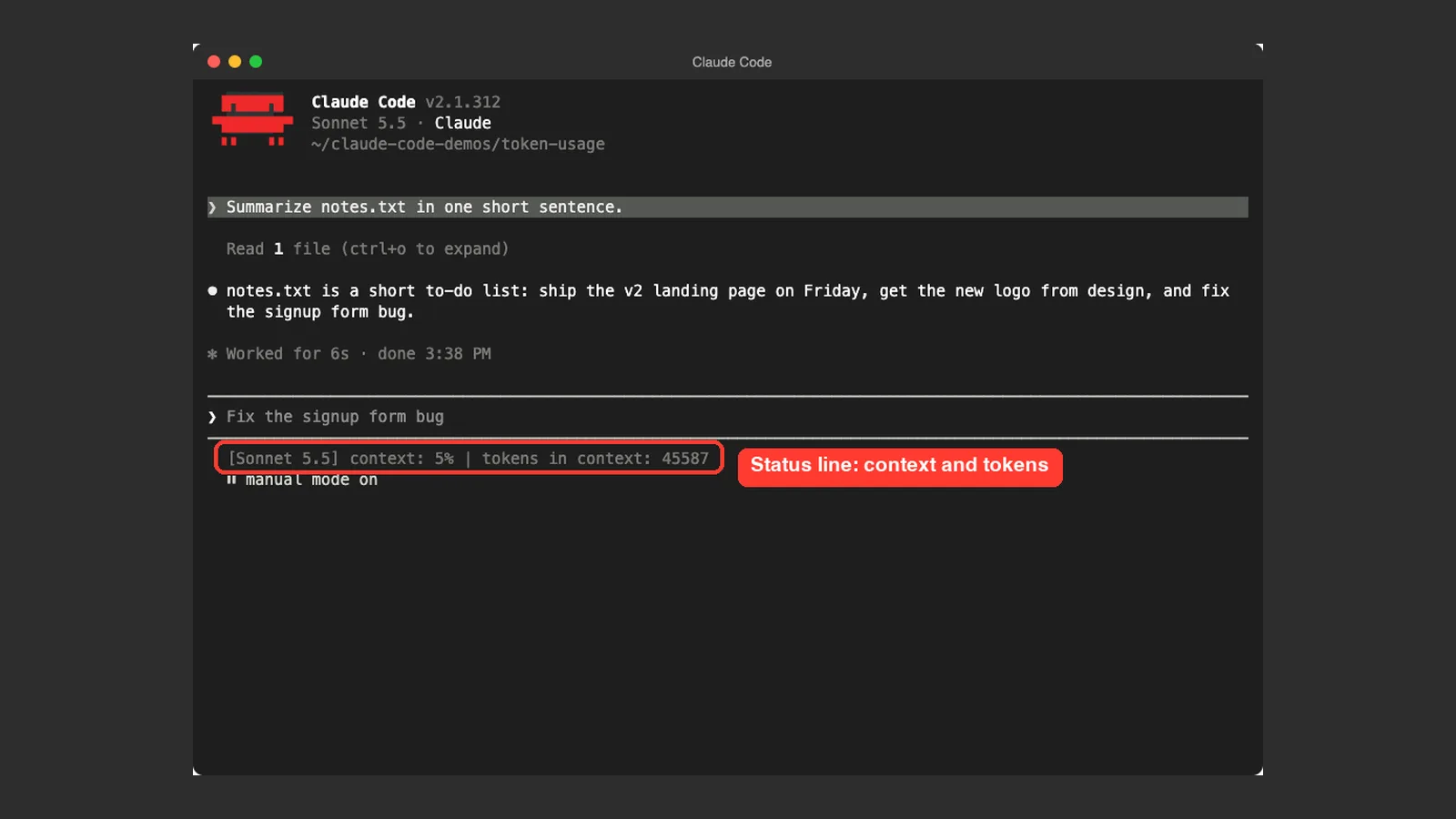
After we asked Claude to summarize a small file, the line under the prompt read [Sonnet 5.5] context: 5% | tokens in context: 45587. It updates after each response, so you can watch the number grow as you work.
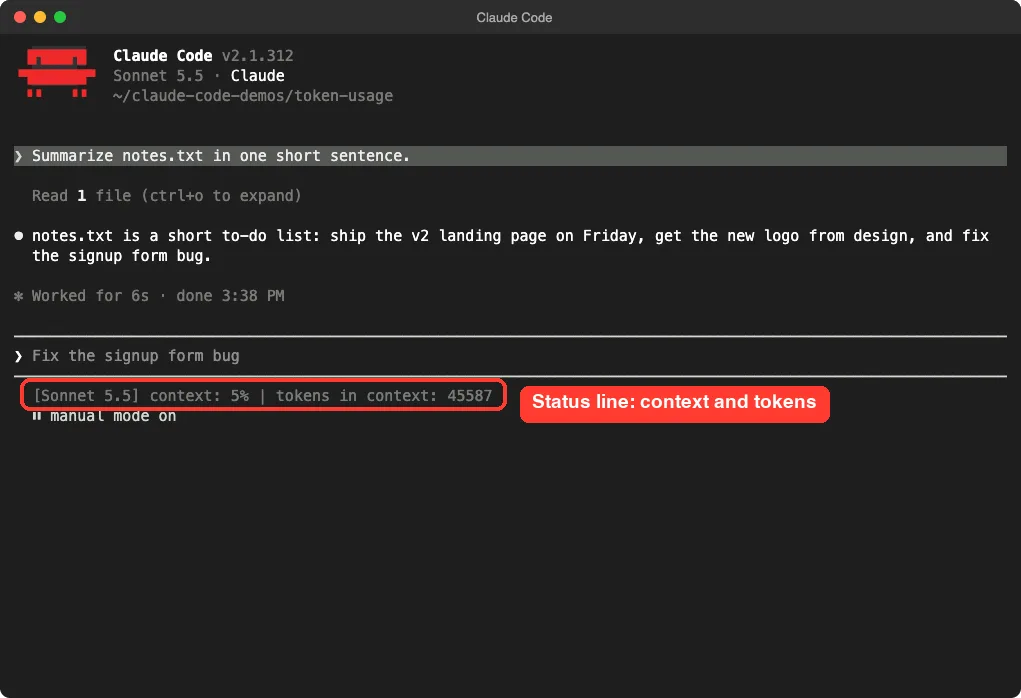
The docs note that these numbers can be missing early in a session, because they are null before the first API response. That is normal, and the line fills in after your first prompt.
The status line turns token usage from a surprise into a number you can see every turn.
Step 3: Check Usage With /usage
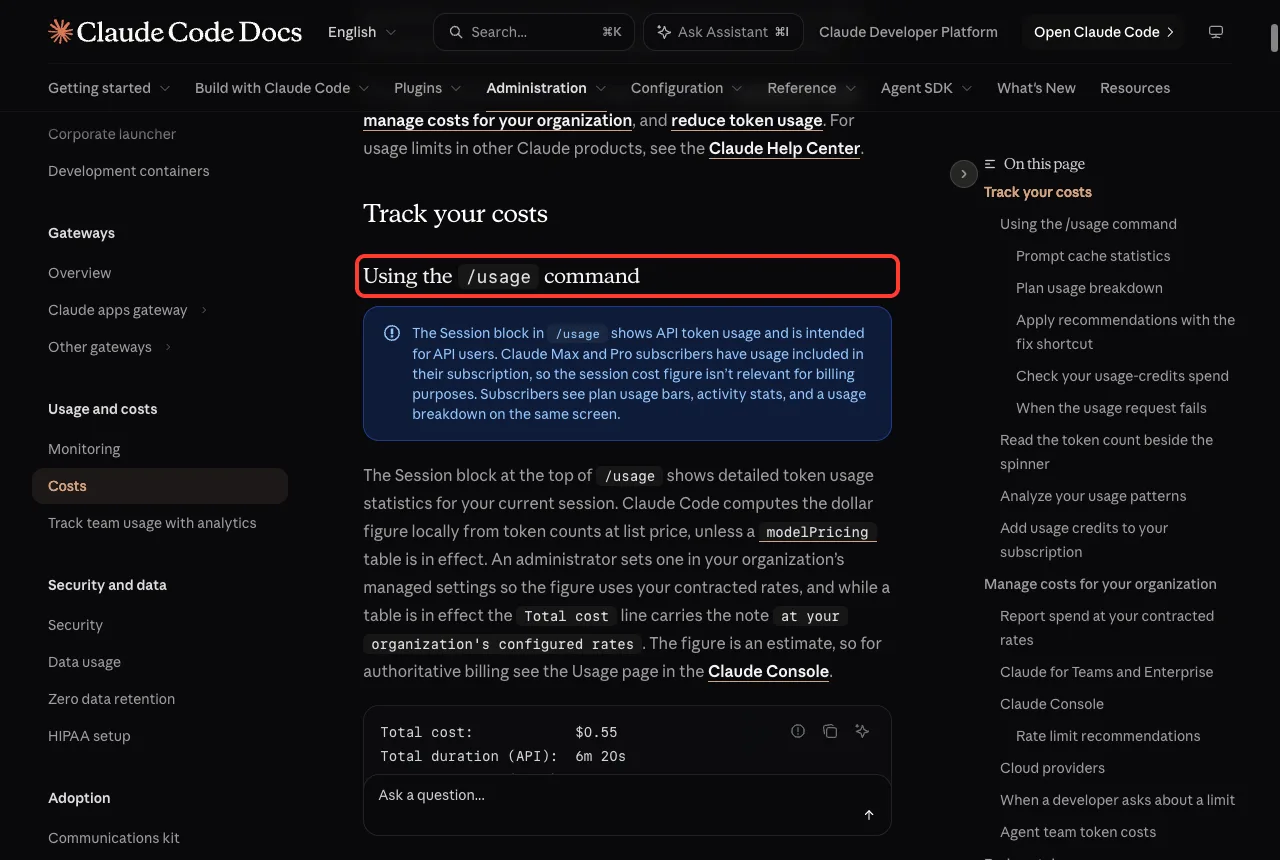
The /usage command opens a screen with your usage. The official page says the Session block shows API token usage and is meant for API users, while subscribers see plan usage bars, activity stats and a usage breakdown on the same screen.
The breakdown part lists what contributes to your usage, with suggestions such as starting fresh with /clear when you switch tasks. It also lists skills, plugins and MCP servers with their share of usage.
We opened it in our test, but we do not show it here because the screen lists details from the machine we used. The official docs page below shows the same section.
Step 4: Read the Token Count Beside the Spinner
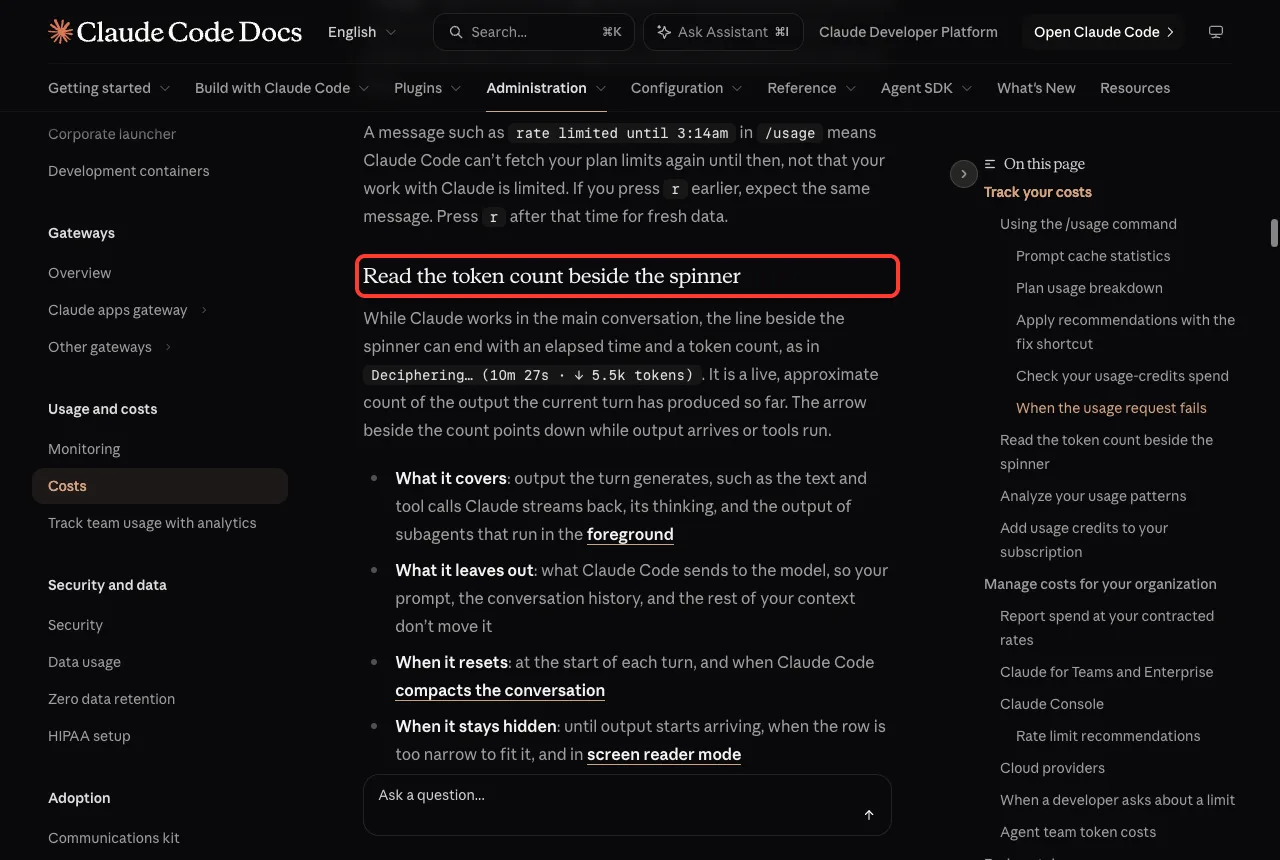
While Claude works, the line beside the spinner can end with an elapsed time and a token count. The docs say it is a live, approximate count of the output the current turn has produced so far.
It leaves out what Claude Code sends to the model, so your prompt and conversation history do not move it. It resets at the start of each turn and when Claude Code compacts the conversation.
Step 5: Get Exact Tokens for One Run
If you want precise numbers, run a single prompt in headless mode and ask for JSON. The result includes a usage object and a cost. We piped it into a small Python script that prints the fields we care about.
import json, sys
d = json.load(sys.stdin)
u = d["usage"]
print("input_tokens:         ", u["input_tokens"])
print("output_tokens:        ", u["output_tokens"])
print("cache_creation_tokens:", u.get("cache_creation_input_tokens"))
print("cache_read_tokens:    ", u.get("cache_read_input_tokens"))
print("total_cost_usd:       ", round(d["total_cost_usd"], 4))
claude -p 'In one short sentence, what is in notes.txt?' --output-format json --allowedTools Read </dev/null | python3 show-usage.pyIn our run, the answer used 4 input tokens, 125 output tokens and 54,215 cache read tokens. The reported cost was $0.0067. These are one demo’s numbers, so yours will differ with your tools, plugins and files.
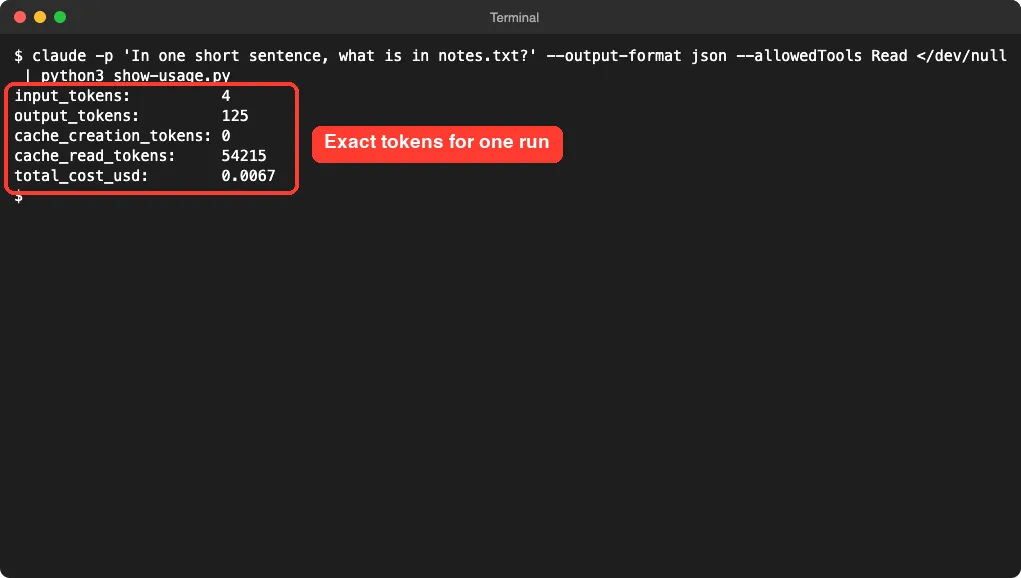
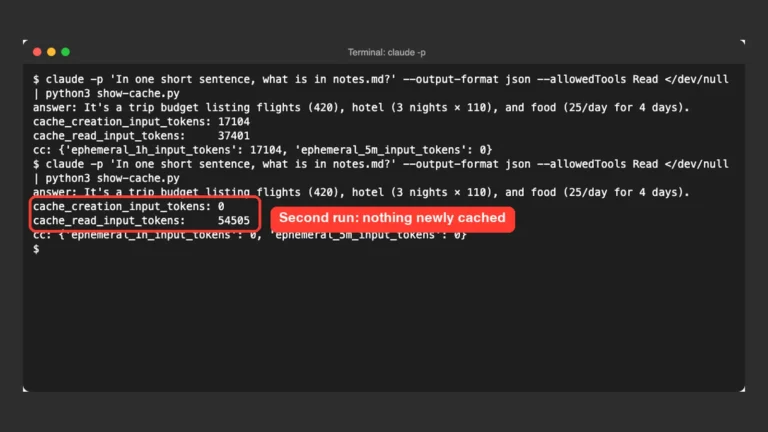
Most of the tokens were cache reads. Our guide on prompt caching explains why that is a good sign.
How to Read the Numbers
A few rules of thumb make the reports easier to use. They come from what we saw in the demo and from the official pages.
- A fresh session is never empty. Our baseline was already 13.5k tokens before any chat, because of the system prompt, tools and skills.
- Messages grow with every turn. The messages row is the part you control by clearing or compacting.
- Free space shrinks as messages grow, and the auto-compact buffer marks where Claude Code starts summarizing older history.
- Cache reads are cheaper than fresh input, so a large cache read number is not a warning by itself.
Numbers also differ between runs. Our interactive session showed about 45k tokens in context, while the headless report showed 13.5k, because the two runs loaded different pieces. Compare readings from the same method, not across methods.
Windows and Linux Notes
The commands in this guide are the same on every system, but the status line script needs a tool that can read JSON. We used jq on a Mac. On Windows or Linux, follow the official status line page, which includes examples in other languages and notes for Windows paths.
What Pushes Token Usage Up
The official costs page lists several causes of rising usage. Knowing them helps you read the numbers.
- Long context: every request carries the whole conversation, plus each batch of tool results.
- Cache misses: the first message after a long break reprocesses your full context.
- Scheduled tasks: a session-scoped task fires on its interval even while the session is idle.
- Subagents: each one sends its own requests on top of the main conversation.
- Compaction:
/compactreads the conversation it summarizes, so compacting a large context is itself a large request.
When you want a fresh start, the docs say /clear costs nothing. Our guide on the context window shows how to manage the space.
Common Mistakes
- Mixing up the spinner count with total usage: the spinner shows output only.
- Treating the dollar figure as a bill: the docs say it is computed locally and is an estimate.
- Forgetting
chmod +xon the status line script, which leaves the bar blank. - Reading an empty status line at the start: values are null until the first response.
- Ignoring the skills and plugins share in
/context, when it is one of the easiest things to trim.
Pro Tips
- Run
/contextright after you start a session, to see your baseline before you type anything. - Use the status line percentage as your cue to run
/clearbetween unrelated tasks. - Use
/renamebefore/clear, so you can return with/resume. - Read the official costs page for team and organization reporting.
Try It Yourself
Create a new folder, add a short text file, and start Claude Code there. Paste this prompt, then run /context and compare the messages row before and after.
Summarize notes.txt in one short sentence.Then add the status line from Step 2 and watch the percentage change as you send more prompts.
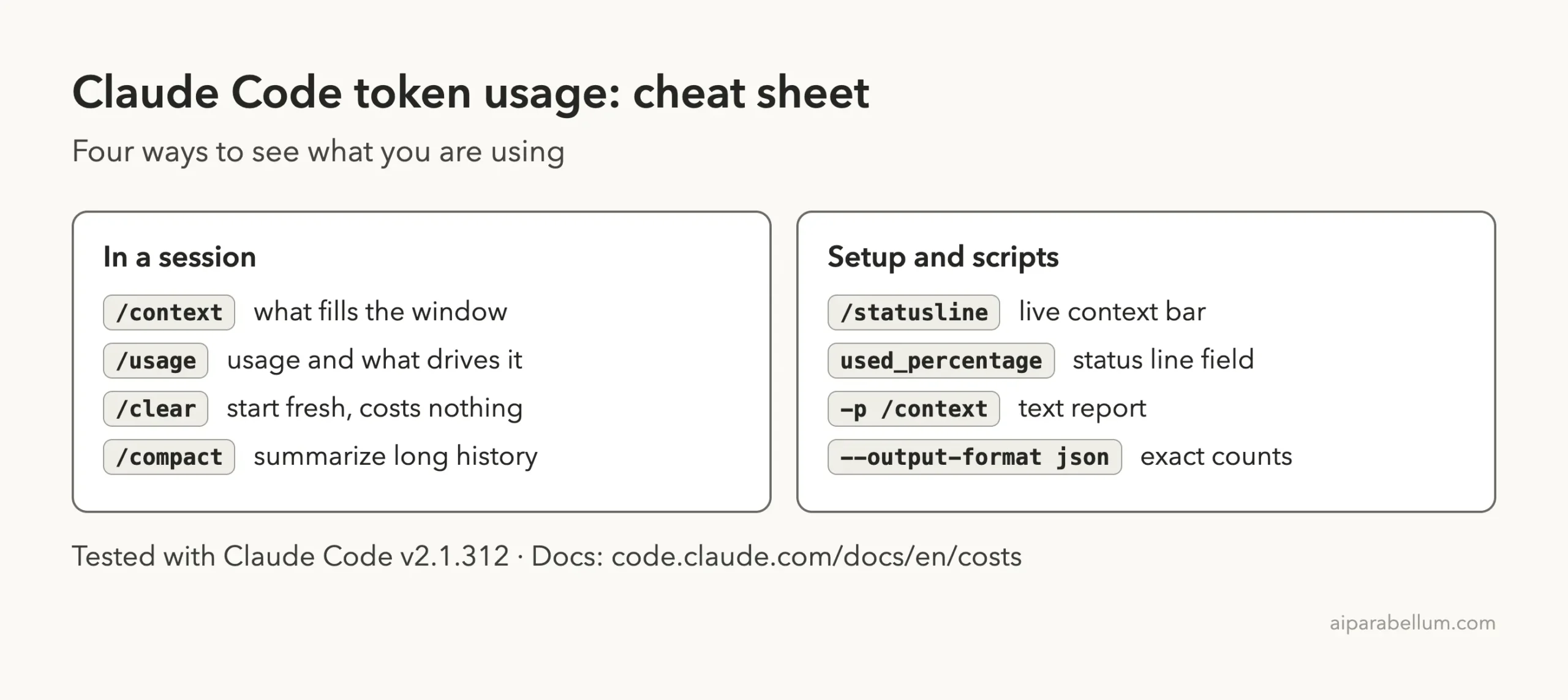
Cheat Sheet
Frequently Asked Questions
How do I check my token usage in Claude Code?
Type /context to see what fills the current session, and /usage to see your usage and what contributes to it.
Does Claude Code show a live token counter?
Yes, two ways. The spinner line shows an approximate output count while Claude works, and a custom status line can show your context percentage and tokens all the time.
Is the cost shown in Claude Code my real bill?
No. The official docs say the dollar figure is an estimate computed locally from token counts. For billing, check the Usage page in the Claude Console, or your plan settings if you subscribe.
How do I get token counts in a script?
Run claude -p with --output-format json and read the usage fields from the result, as shown in Step 5.
How do I lower my token usage?
Use /clear between unrelated tasks, trim unused skills, plugins and MCP servers, and pick a model that fits the job. The costs page covers each of these.
Conclusion
To see Claude Code token usage, use /context for what fills the session, /usage for your overall picture, a status line for a live percentage, and JSON output for exact numbers on one run. We tested each on macOS, and the numbers in this guide come from that single demo. Start with /context at the beginning of your next session, and keep an eye on the status line as the conversation grows. For more on the assistant itself, visit our Claude AI page, and read the status line docs for more examples.