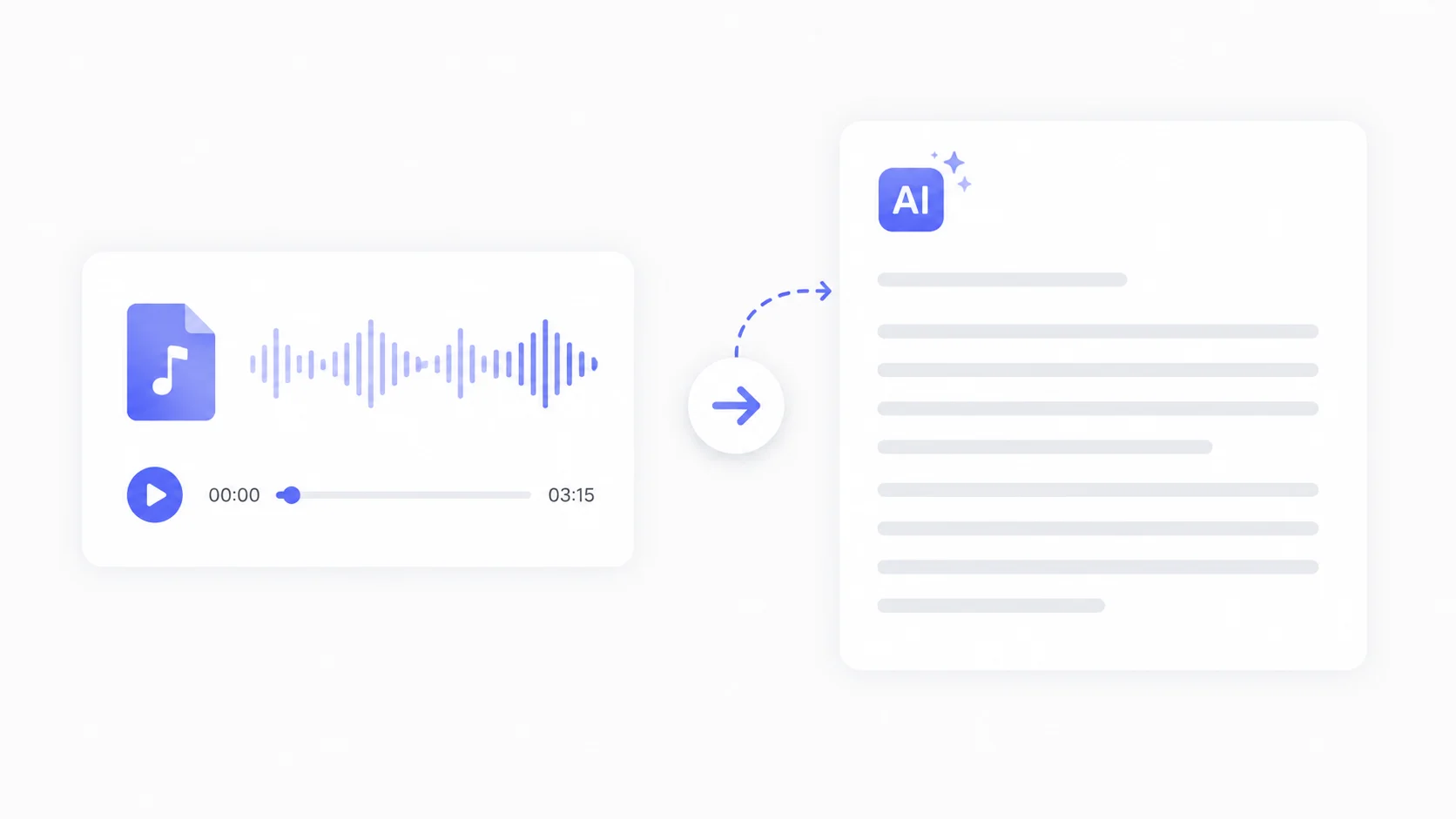
You have a 45-minute interview recording that needs to be turned into a written transcript. Doing it manually means listening, pausing, typing, rewinding, and repeating for hours. It is one of the most tedious tasks anyone can do on a computer.
AI transcription tools have made this process almost effortless. Several of them are completely free and produce surprisingly accurate results. Whether you need to transcribe a podcast, lecture, meeting, or interview, AI can do it in minutes instead of hours.
Here is how to get accurate transcriptions without spending a dime.
Why AI Transcription Has Gotten So Good
AI transcription accuracy has improved dramatically over the past few years. Modern speech recognition models like OpenAI’s Whisper can handle accents, background noise, multiple speakers, and technical vocabulary with accuracy rates above 95 percent in most conditions.
The technology works by converting audio into text using deep learning models trained on hundreds of thousands of hours of speech data. These models understand not just individual words but context, grammar, and sentence structure, which helps them make accurate predictions even when audio quality is poor.
This is the same type of natural language processing that powers tools like ChatGPT and other AI assistants. The difference is that transcription models are specifically optimized for converting spoken language into written text.
Free AI Transcription Tools Compared
Several AI tools offer free transcription with varying limits and features. Here is how they compare.
| Tool | Free Limit | Key Feature | Accuracy |
|---|---|---|---|
| Whisper (OpenAI) | Unlimited (local) | Runs on your computer, supports 99 languages | Excellent |
| Google Docs Voice Typing | Unlimited (live only) | Real-time transcription built into Google Docs | Good |
| Otter.ai | 300 minutes/month | Speaker identification, live transcription | Very Good |
| TurboScribe | 3 files/day | Uses Whisper, browser-based, no install | Excellent |
| Microsoft Word Dictation | Unlimited (live only) | Built into Microsoft 365, auto-punctuation | Good |
| Riverside Transcription | 2 hours/month | Designed for podcasts, SRT export | Very Good |
For most people, the choice comes down to whether you want a browser-based tool that works instantly or a local tool like Whisper that offers unlimited free transcription with no data leaving your machine.
How to Transcribe Audio Using OpenAI Whisper for Free
Whisper is the most powerful free transcription option available. It is open source, runs locally on your computer, and has no usage limits. The tradeoff is that it requires a small amount of setup.
Step 1: Install Whisper
Whisper requires Python installed on your computer. If you have a Mac, Python comes pre-installed. On Windows, download Python from the official website and install it.
Open your Terminal (Mac) or Command Prompt (Windows) and run the following command.
pip install openai-whisper
This downloads and installs Whisper along with all its dependencies. The installation takes a few minutes depending on your internet speed.
Step 2: Choose a Model Size
Whisper comes in several model sizes that trade accuracy for speed.
| Model | Size | Speed | Accuracy | Best For |
|---|---|---|---|---|
| tiny | 39 MB | Very fast | Basic | Quick drafts, clear audio |
| base | 74 MB | Fast | Good | General use |
| small | 244 MB | Moderate | Very Good | Most recordings |
| medium | 769 MB | Slower | Excellent | Difficult audio, accents |
| large | 1.5 GB | Slowest | Best | Professional transcription |
The “small” model offers the best balance of speed and accuracy for most users. If your audio has heavy accents, background noise, or technical terminology, use “medium” or “large” for better results.
Step 3: Run the Transcription
Navigate to the folder containing your audio file and run this command.
whisper your-audio-file.mp3 --model small
Whisper processes the audio and outputs the transcript in multiple formats: plain text, SRT subtitles, and VTT captions. The text file contains the clean transcript you can copy and use immediately.
For a specific language, add the language flag.
whisper your-audio-file.mp3 --model small --language EnglishIf you prefer a browser-based solution with no installation, Otter.ai is one of the most popular options. The free plan gives you 300 minutes of transcription per month, which is enough for most personal and light professional use.
Getting Started With Otter.ai
Create a free account at otter.ai. You can upload audio files directly or use the live transcription feature to record and transcribe in real time. Otter supports MP3, WAV, M4A, and most common audio formats.
After uploading your file, Otter processes it and delivers a transcript within minutes. The tool automatically identifies different speakers and labels them, which is particularly useful for interviews and meetings.
Editing Your Otter Transcript
Otter provides an interactive editor where you can click on any word in the transcript to hear that exact moment in the audio. This makes corrections fast because you do not have to scrub through the entire recording to find a specific section.
The free plan includes basic editing and export features. You can download your transcript as a text file and share it via link. For teams that frequently need transcription, the same productivity tools that streamline other workflows can complement Otter’s capabilities.
Using Google Docs for Free Live Transcription
Google Docs has a built-in voice typing feature that works as a free live transcription tool. While it does not transcribe pre-recorded files directly, there is a simple workaround that makes it work with any audio.
The Direct Method
Open a new Google Doc, go to Tools, and select Voice Typing. Click the microphone icon and start speaking or playing your audio through your computer’s speakers. Google Docs transcribes everything it hears in real time.
The Virtual Audio Cable Trick
For better quality with pre-recorded files, route your computer’s audio output directly to the microphone input using a virtual audio cable. On Mac, use BlackHole (free). On Windows, use VB-Audio Virtual Cable (free). This eliminates background noise from the room and gives Google Docs a clean audio signal.
The process works like this: play the audio file, and the virtual cable sends it directly to Google Docs as if it were live microphone input. The transcription appears in real time as the audio plays.
This method is free with no limits, but it requires the audio to play at normal speed, so a 30-minute recording takes 30 minutes to transcribe.
Tips for Getting Better Transcription Accuracy
AI transcription accuracy depends heavily on audio quality. These tips help you get the cleanest possible transcript from any tool.
- Use a dedicated microphone instead of built-in laptop or phone microphones. Even an inexpensive USB microphone dramatically improves audio clarity.
- Record in a quiet environment. Background noise, echo, and cross-talk are the biggest enemies of accurate transcription.
- Speak clearly and at a moderate pace. AI handles natural speech well, but mumbling and very fast speech reduce accuracy.
- Use WAV or FLAC formats when possible. Compressed formats like MP3 lose some audio detail that can affect transcription quality.
- If transcribing a meeting, have one person speak at a time. Overlapping speech is the hardest scenario for any transcription tool.
The difference between 90 percent and 99 percent transcription accuracy often comes down to audio quality, not the AI model. Invest two minutes in setting up better audio, and save twenty minutes of editing afterward.
Free AI Transcription for Specific Use Cases
Different scenarios call for different transcription approaches. Here is the best free option for each common use case.
Podcast Transcription
Whisper is the best choice for podcasts because episodes are typically long and you do not want monthly minute limits. Run Whisper locally with the “medium” model for the best balance of quality and speed. The SRT output is also useful if you want to add subtitles to video versions of your podcast.
Meeting Transcription
Otter.ai excels at meeting transcription because of its speaker identification feature. It labels who said what, which is essential for meeting notes and action items. The 300 free minutes per month cover roughly five to six hours of meetings. For teams that use AI-powered personal assistants for scheduling and organization, adding transcription creates a comprehensive meeting workflow.
Lecture and Course Transcription
Students benefit most from Google Docs Voice Typing for live lectures and Whisper for recorded ones. Google Docs works in real time, so you get a rough transcript as the lecture happens. Then clean it up afterward or run the recording through Whisper for a more accurate version.
Interview Transcription
Interviews require the highest accuracy because quotes need to be exact. Use Whisper with the “large” model for interviews, and always review the transcript against the audio for any quotes you plan to publish. The extra processing time is worth it for the improved accuracy on names, technical terms, and nuanced phrasing.
Transcription Beyond Text: What AI Can Do After Transcribing
Once you have a transcript, AI can do much more with it than just give you a text file.
- Summarize the transcript into key points and action items. Paste your transcript into an AI chatbot and ask for a structured summary.
- Generate subtitles and captions in SRT or VTT format for video content. Whisper does this automatically.
- Translate the transcript into other languages. Whisper supports 99 languages and can both transcribe and translate in a single step.
- Create blog posts or articles from interview transcripts. AI can restructure conversational speech into polished written content.
- Extract quotes and highlight reels by identifying the most impactful statements in the transcript.
This post-transcription processing is where AI really multiplies your productivity. A single recording can become a transcript, a summary, a blog post, social media quotes, and subtitled video content. The same approach applies to AI content creation workflows where one piece of source material gets repurposed across multiple formats.
Privacy and Security Considerations
When transcribing sensitive audio, privacy matters. Here is how each option handles your data.
| Tool | Data Handling | Privacy Level |
|---|---|---|
| Whisper (local) | Everything stays on your computer | Maximum privacy |
| Otter.ai | Audio uploaded to cloud servers | Moderate (encrypted) |
| Google Docs | Audio processed by Google servers | Moderate (Google privacy policy) |
| TurboScribe | Files deleted after processing | Moderate |
For confidential recordings like legal interviews, medical consultations, or sensitive business meetings, Whisper running locally is the only option that guarantees your audio never leaves your machine. Cloud-based tools process your audio on external servers, which may not meet compliance requirements for certain industries.
Common Transcription Problems and How to Fix Them
Even the best AI transcription tools make mistakes. Here is how to handle the most common issues.
- Wrong words or homophones: AI sometimes confuses words that sound alike, such as “their” and “there.” A quick read-through catches these easily.
- Missing punctuation: Some tools skip punctuation or place it incorrectly. Tools like Grammarly can fix punctuation in your transcript quickly.
- Speaker confusion: When multiple people speak, AI may attribute a sentence to the wrong speaker. Listen to the transitions between speakers to verify.
- Technical jargon and proper nouns: AI often misspells industry-specific terms and names. Search and replace is the fastest fix for repeated errors.
- Filler words: Transcripts filled with “um,” “uh,” and “like” are hard to read. Ask an AI chatbot to clean up the transcript by removing filler words while preserving meaning.
Mobile Transcription: Free AI Apps for Phone
You do not always have a computer handy. These free mobile apps handle transcription directly on your phone.
- Otter.ai (iOS and Android) offers the same 300 free minutes as the web version with the added benefit of recording directly from your phone.
- Google Recorder (Android) transcribes audio in real time with offline support, meaning it works without an internet connection.
- Apple’s built-in transcription in Voice Memos (iOS 18+) provides automatic transcription of voice recordings with searchable text.
Mobile transcription is ideal for capturing ideas on the go, recording impromptu interviews, or transcribing in-person meetings where pulling out a laptop would be awkward. These audio tools continue to improve with each update.
Conclusion
Transcribing audio to text for free with AI is easier than ever. Whisper gives you unlimited, high-accuracy transcription that runs entirely on your computer with complete privacy. Otter.ai provides a polished browser-based experience with speaker identification and 300 free minutes monthly. Google Docs offers a no-install live transcription option that works with any audio source. The right choice depends on your volume, privacy needs, and whether you prefer a local or cloud-based solution. Whichever tool you pick, AI turns hours of manual transcription work into minutes of automated processing, freeing you to focus on what the audio actually says rather than the tedious job of typing it out word by word.