Developers are checking their Codex settings this week after reports that the training switch had turned itself back on. Some teams say they had turned off model training, then found it on again without opting back in.
We couldn’t confirm that, and other users say it never happened to them. But checking takes about a minute, and Codex has a second training switch that many people don’t know about.
Here’s how to turn off Codex and ChatGPT training on your chats, which accounts it applies to, what can still be used with the switch off, and where the same setting lives in Claude and Claude Code.
Does OpenAI Train on Your Codex Chats?
It depends on how you sign in. According to OpenAI’s help pages, Codex follows the training setting of the ChatGPT account you sign in with.
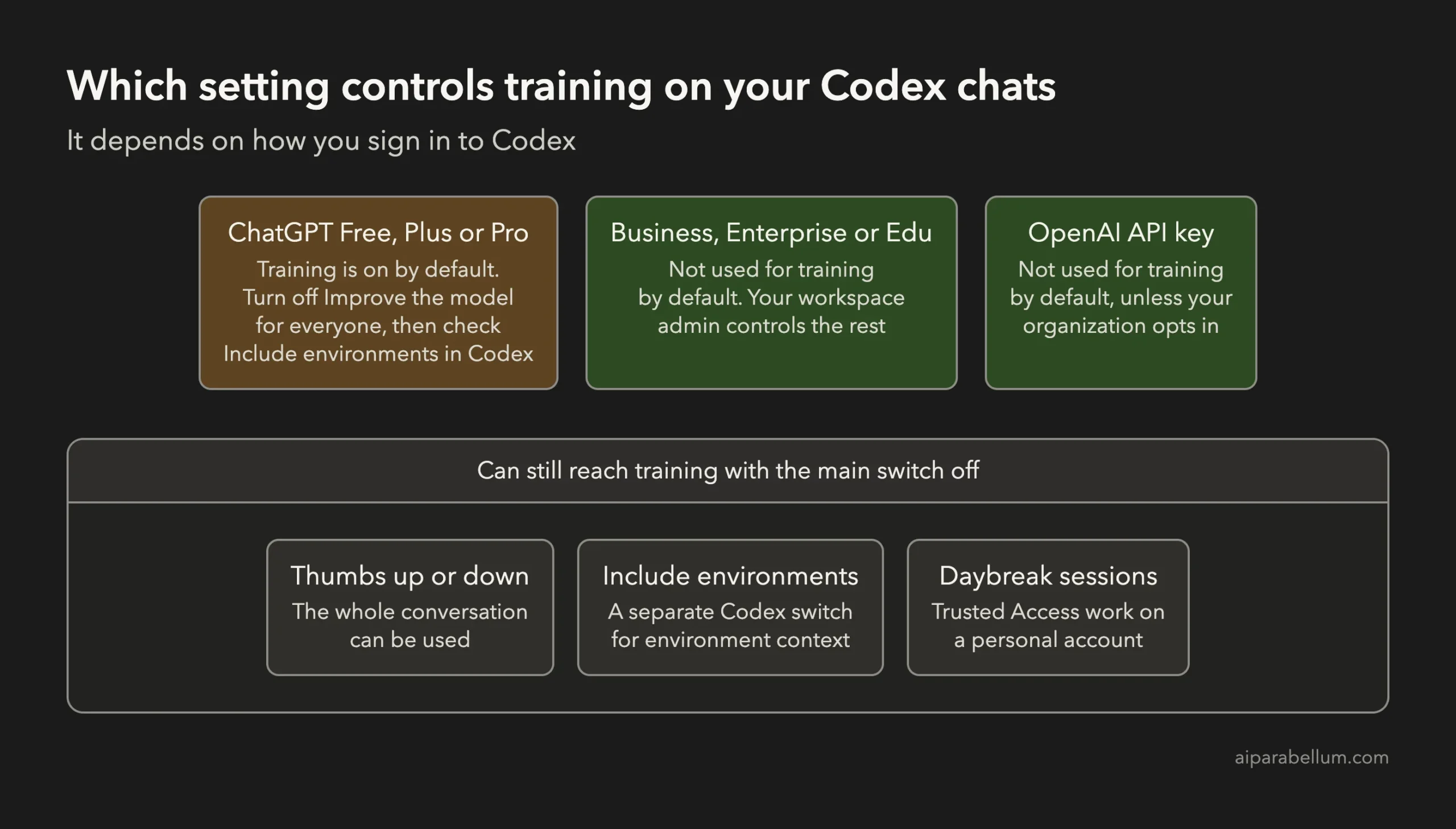
| How you use Codex | Used for training by default? | Who controls it |
|---|---|---|
| Signed in with ChatGPT Free, Plus or Pro | Yes, unless you turn it off | You, in ChatGPT’s data controls |
| Signed in with ChatGPT Business, Enterprise or Edu | No | Your workspace admin |
| Signed in with an OpenAI API key | No, unless your organization opts in | Your API organization owner |
OpenAI also says the ChatGPT setting covers everything Codex processes, including screenshots taken by its Computer Use feature. That matters, because a coding agent sees far more than a chat: your files, your terminal output and sometimes your screen.
Check Which Account Codex CLI Uses
If you use Codex in the terminal, run codex login status. If it says “Logged in using ChatGPT”, your ChatGPT account’s training setting applies to everything you do in the CLI.
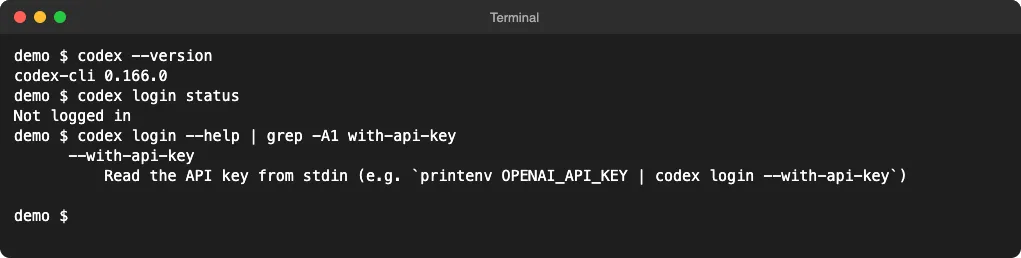
To sign in with an API key instead, use codex login --with-api-key. That moves you to API terms, where data isn’t used for training by default, but you pay for every token instead of using your ChatGPT plan’s limits.
How to Turn Off Improve the Model for Everyone
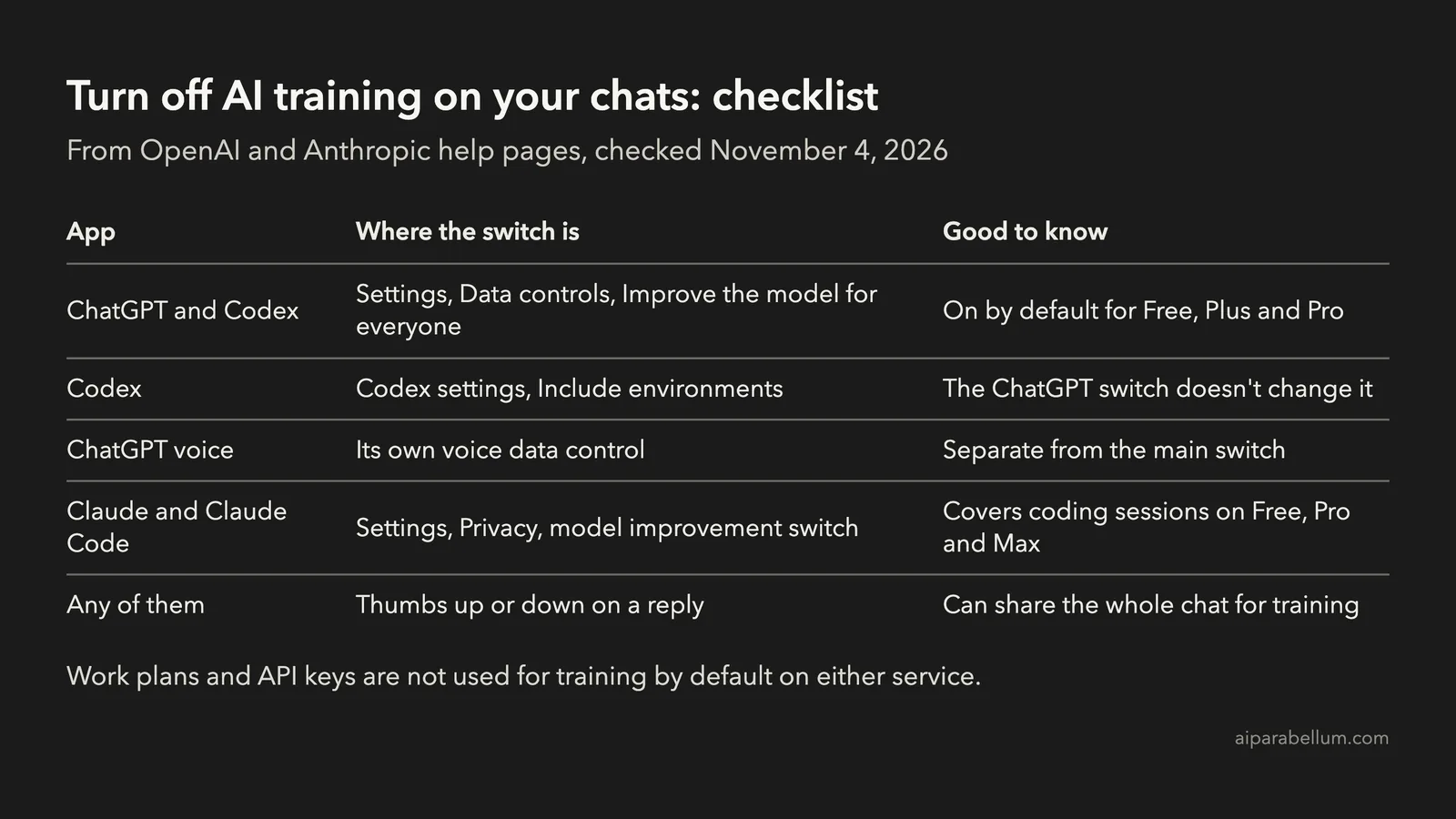
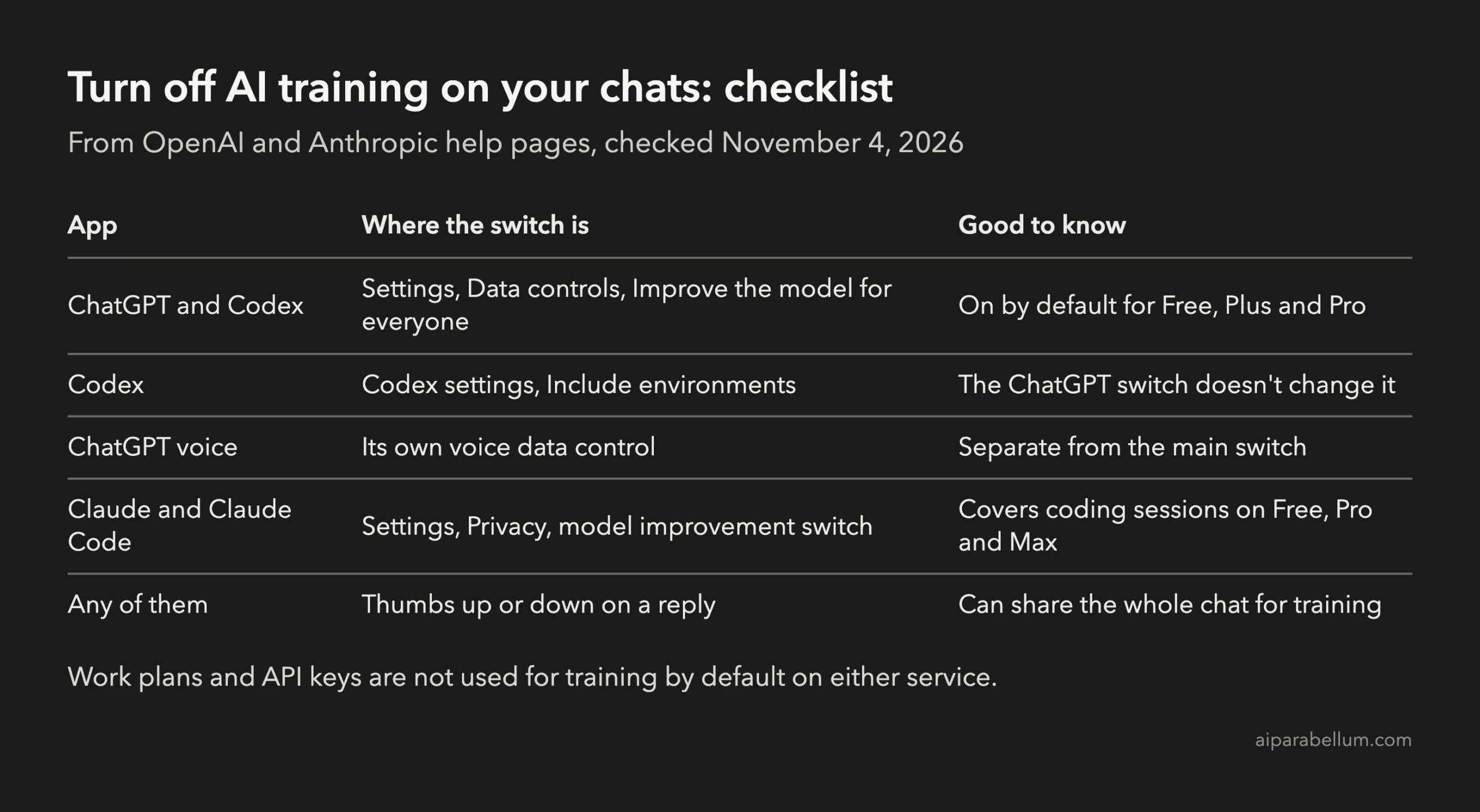
This is the main switch, and it covers both ChatGPT and Codex on a personal plan. On ChatGPT Free, Plus and Pro, it’s on by default.
On the web:
- Open your account menu in ChatGPT and select Settings.
- Select Data controls. You can also go straight to
chatgpt.com/settings/data-controls. - Select Improve the model for everyone, turn it off, and select Done.
On iOS or Android, open the sidebar, tap your profile icon to open Settings, then tap Data controls and turn off Improve the model for everyone.
When you’re signed in, the setting follows your account across the web and mobile apps. Turning it off doesn’t delete or hide your chat history.
Turn Off Include Environments in Codex
This is the step most people miss. Codex has its own Include environments setting in Codex settings, which decides whether extra context from your Codex environments can be used for training.
OpenAI’s help page says plainly that changing the ChatGPT setting, or opting out through the Privacy Portal, doesn’t change this one. Open Codex settings and check it yourself.
Use the Privacy Portal as a Backup
OpenAI also takes training opt-outs through its Privacy Portal at privacy.openai.com, where you can ask it not to train on your content. It’s a useful second record of your choice, separate from the in-app switch.
If you use ChatGPT’s voice mode, check that too. Voice has its own control for sharing data for training, separate from the main switch.
What Can Still Be Used With Training Off
Turning off the main switch doesn’t cover everything. OpenAI’s own help page lists a few exceptions worth knowing:
| What | What happens |
|---|---|
| Thumbs up or down on a reply | The whole conversation tied to that feedback may be used for training |
| Codex Include environments | Follows its own switch, not the ChatGPT one |
| Daybreak Trusted Access sessions | On a personal account, content from these sessions may be used even with the switch off |
| Temporary chats | Not used for training, but may be kept for up to 30 days for safety |
The feedback buttons are the easy one to forget. If you’ve turned training off, skip the thumbs on anything sensitive.
What If the Setting Turned Itself Back On?
Here’s what we know. Some developers report finding the switch back on after turning it off, and others report it never changed for them. We didn’t find a statement from OpenAI about it.
We can’t test it ourselves, because the switch lives in a signed-in account, and a reset like this can’t be reproduced on demand. So treat it as unconfirmed, and protect yourself either way:
- Check Improve the model for everyone now, and again after big app updates.
- Check Include environments in Codex, since the ChatGPT switch doesn’t cover it.
- Send a Privacy Portal request, so your choice is on record outside the app.
- For company code, use a Business or Enterprise workspace or an API key, where training is off by default and set by contract rather than a personal switch.
If your team found the switch back on, a screenshot with the date is the best evidence to send OpenAI support. It also helps your security team decide what to do next.
How to Check the Same Setting in Claude and Claude Code
Claude works the same way. On Claude Free, Pro and Max accounts, Anthropic trains on your chats and coding sessions only if the model improvement setting is on, and that includes Claude Code when you sign in with one of those accounts.
To check it:
- On claude.ai or the desktop app, open Settings and select Privacy. You can also go straight to
claude.ai/settings/data-privacy-controls. - Find the model improvement switch. Anthropic’s help page calls it Help improve our AI models.
- Turn it off to stop new chats and coding sessions being used for training.
The same switch covers Claude Code, so there’s nothing extra to set in the terminal. Run /status in Claude Code if you’re not sure which account it’s signed in with.
What Changes When You Turn It Off in Claude
According to Anthropic’s Claude Code data usage page, consumer data is kept for 5 years with the setting on and 30 days with it off. Team, Enterprise and API accounts aren’t used for training under commercial terms.
Turning the setting off stops future training on your chats and coding sessions. Anthropic says data already in a training run that has started, or in models already trained, stays there.
A few things still apply with it off:
- Thumbs up or down feedback stores the whole conversation for up to 5 years, and may be used for training.
- Reports you send with
/feedback,/bugor/sharein Claude Code are kept for 5 years. - Conversations flagged by safety systems may still be used to improve safety models.
- Incognito chats in the Claude app are never used for training, even with the setting on.
For everything Claude Code sends and stores, including telemetry you can turn off, see our guide to Claude Code data usage, privacy and security. Claude Code also keeps session transcripts on your own computer, and our guide on clearing Claude Code session history shows how to remove them.
Should You Turn Training Off?
For personal side projects, leaving it on is a fair choice. Your chats help make the models better, and that’s the deal on personal plans.
For anything you can’t share, like company code, client data or private keys, turn it off in every app you use. Better still, use a work plan or an API key, where training is off by default.
Either way, don’t rely on a setting you checked once. A quick look every few weeks, and after big updates, costs nothing.
FAQ
Does turning off training in ChatGPT also cover Codex?
Mostly. The Improve the model for everyone switch covers Codex on personal plans, but Codex’s Include environments setting is separate and needs its own check.
Is Codex CLI with an API key used for training?
Not by default. OpenAI doesn’t train on API inputs and outputs unless your API organization chooses to share data. Check with codex login status which way you’re signed in.
Does Claude Code train on my code?
Only if you use a Free, Pro or Max account with the model improvement setting on. Team, Enterprise and API use isn’t used for training by default.
Does turning off training delete my old chats?
No, in both ChatGPT and Claude. Your chat history stays, so delete individual chats or your account separately if you want them gone.
Conclusion
To turn off Codex training, open ChatGPT’s Settings, then Data controls, and switch off Improve the model for everyone, then check Include environments in Codex settings too. Work plans and API keys aren’t used for training by default, and codex login status shows which way you’re signed in.
In Claude and Claude Code, the switch is under Settings, then Privacy, and it covers your coding sessions too. Reports of the Codex switch turning itself back on are unconfirmed, so check your settings now and again after big updates.
The official pages are worth bookmarking: OpenAI’s data controls help page and Anthropic’s Claude Code data usage page.