Typing “draw me an architecture diagram” into Claude Code works, but the result is often a plain Mermaid block. A claude code diagram skill gives Claude a full recipe, so you get a polished file instead. We installed three popular ones in a throwaway sandbox, gave each the same one-sentence request, and compared what came back.
This guide is part of our Claude Code tutorials. Find more add-ons in our Claude Code Skills Directory.
Tested with Claude Code v2.1.318 on 2026-11-07, on macOS. We tested Archify v3.2.0 (commit a406594, dated 2026-10-31), the Diagram Design plugin v2.6.142 (commit e57eda6, dated 2026-11-06) and the Draw.io skill v3.4.4 (commit 053600a, dated 2026-11-06). Each tool got one run, so treat the timings and results as one demo each, not a benchmark.
The Three Diagram Skills at a Glance
| Question | Archify | Diagram Design | Draw.io skill |
|---|---|---|---|
| Maker | tt-a1i | Cathryn Lavery | Agents365-ai |
| Licence | Apache-2.0 | MIT | MIT |
| Form | Skill folder | Plugin with a skill and commands | Skill folder (manual use only) |
| Output we got | Interactive dark HTML page | Static HTML with inline SVG | An editable .drawio file |
| Time reported by Claude Code | 17 seconds | 51 seconds | 25 seconds |
| We saw it rendered | Yes | Yes | No |
| Extra tool needed | Chrome for its browser check | None we noticed | draw.io desktop CLI for export |
The short version: Archify gave the most exciting page, Diagram Design gave the cleanest static picture, and the Draw.io skill gave an editable file that we could not see rendered on our test Mac.
How We Tested Each Claude Code Diagram Skill
We wanted the comparison to be fair and safe. Every tool got the same request, in its own empty project folder, with Claude Code started in a sandbox and told to read only project-level settings.
- The request: a web request where the browser calls the API, the API checks Redis, and on a cache miss it queries PostgreSQL and fills the cache.
- We told Claude to save the file in the folder and not to open it in a browser.
- We read each repository’s scripts and hooks first. None of the three ships a hook. Archify and Draw.io run local scripts, and Diagram Design ships Python checkers and Markdown references.
- Nothing was installed into the main
~/.claudefolder. Archify and Draw.io were copied into a project.claude/skillsfolder, and Diagram Design was loaded with the--plugin-dirflag.
If you want the background first, read our guide to Claude Code skills and our skills versus plugins comparison. Anthropic also documents how plugins load in its plugins guide.
Archify: Interactive Diagrams as One HTML Page
Archify (tt-a1i/archify) turns a description or a codebase into a standalone HTML page. Its README lists ten diagram types, including architecture, sequence, data flow, ERD and timeline, plus a one-page “explainer” format.
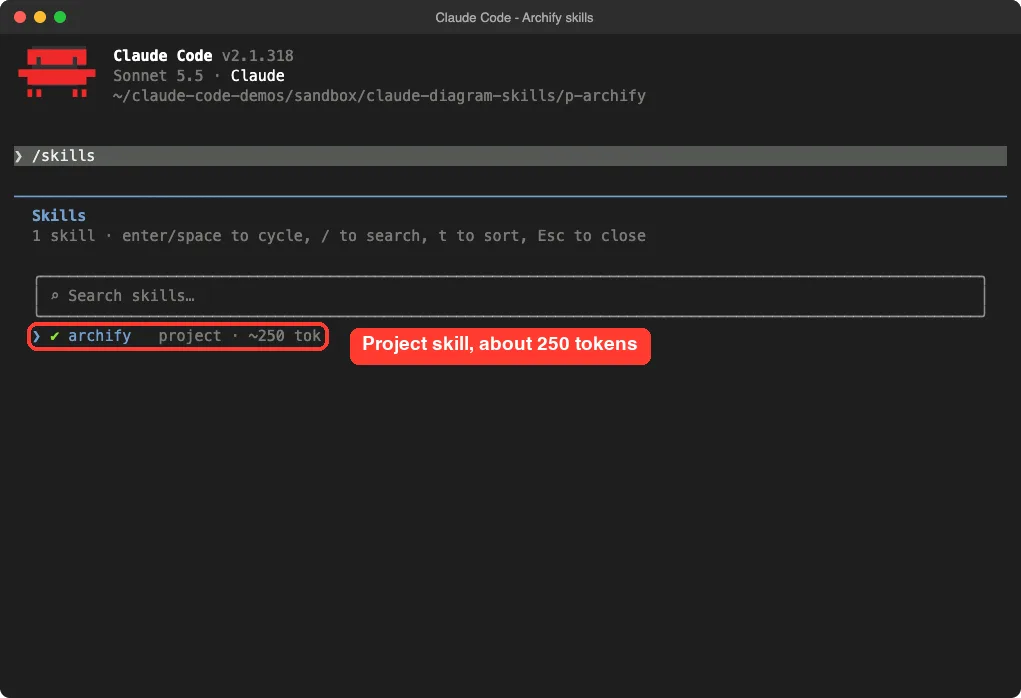
Because it is a plain skill, we copied its folder into the project. Claude Code then listed it as a project skill that costs about 250 tokens before you use it.
What Happened When We Asked for the Diagram
We typed one sentence starting with “Use Archify to diagram”. Claude read the skill’s authoring defaults, picked a sequence diagram, wrote a JSON file and ran the skill’s finalize command.
Claude Code stopped once to ask for permission before running a shell command that wrote the JSON file. We approved it. Then the session ended in 17 seconds, and Claude reported that the automated checks passed.
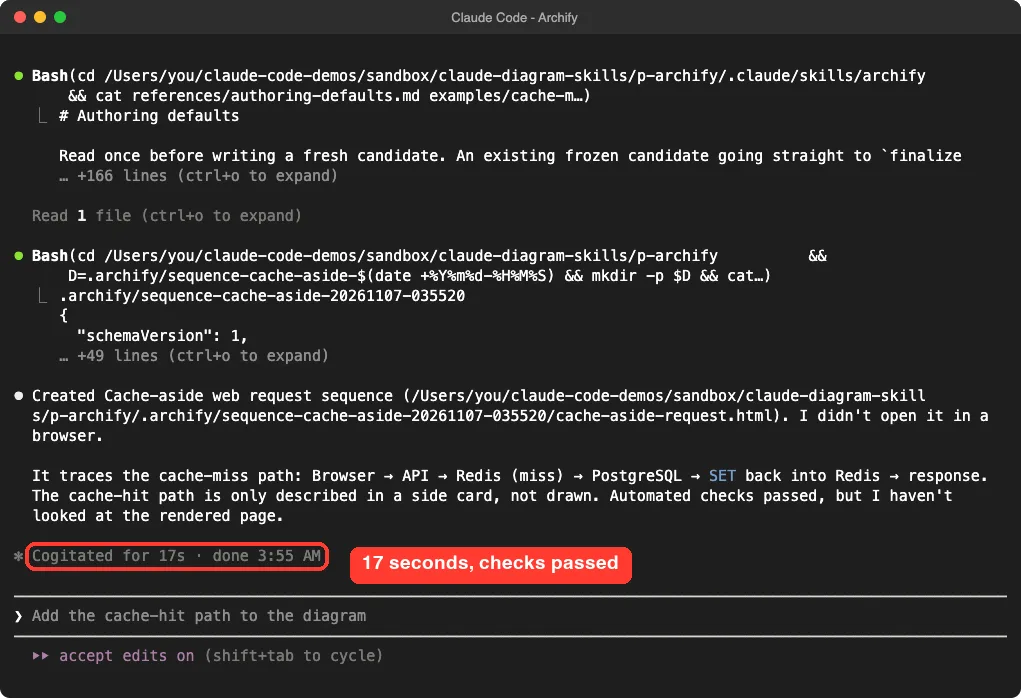
Claude was honest about the gaps. It said it had not looked at the rendered page, and that the cache-hit path was only described in a side card, not drawn. We opened the file ourselves in headless Chrome.
The Archify Result
The page is a dark sequence diagram with four lifelines: Browser, API, Redis and PostgreSQL. It shows the request, the Redis miss, the SQL query, the cache write and the final response. Two “Cache hit” and “Cache miss” cards sit below the diagram.
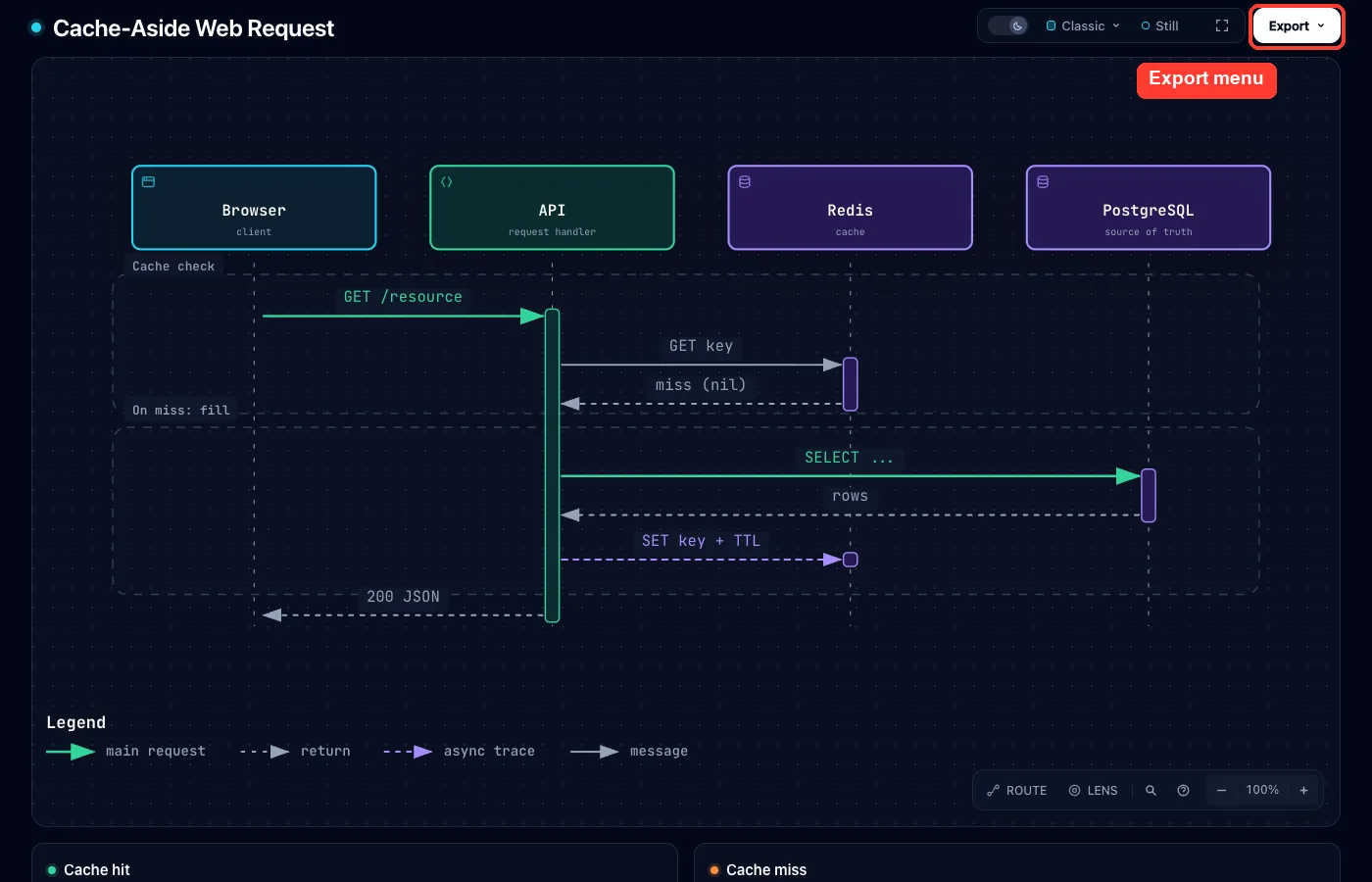
The top bar offers a theme switch, a style picker and an Export menu. According to the README, export covers PNG, WebP and JPG images, and the page can be printed to PDF. We did not click through the export options, so we only know they exist from the README.
One thing to know: Archify’s finalize step includes a bounded update check, and its browser check needs Chrome. Both are described in its own files.
Diagram Design: Editorial Diagrams With 45 Types
Diagram Design (cathrynlavery/diagram-design) is a plugin. It bundles one skill, six slash commands (/export-diagram, /import-mermaid, /import-drawio, /import-excalidraw, /profile and /doctor) and references for 45 diagram types.
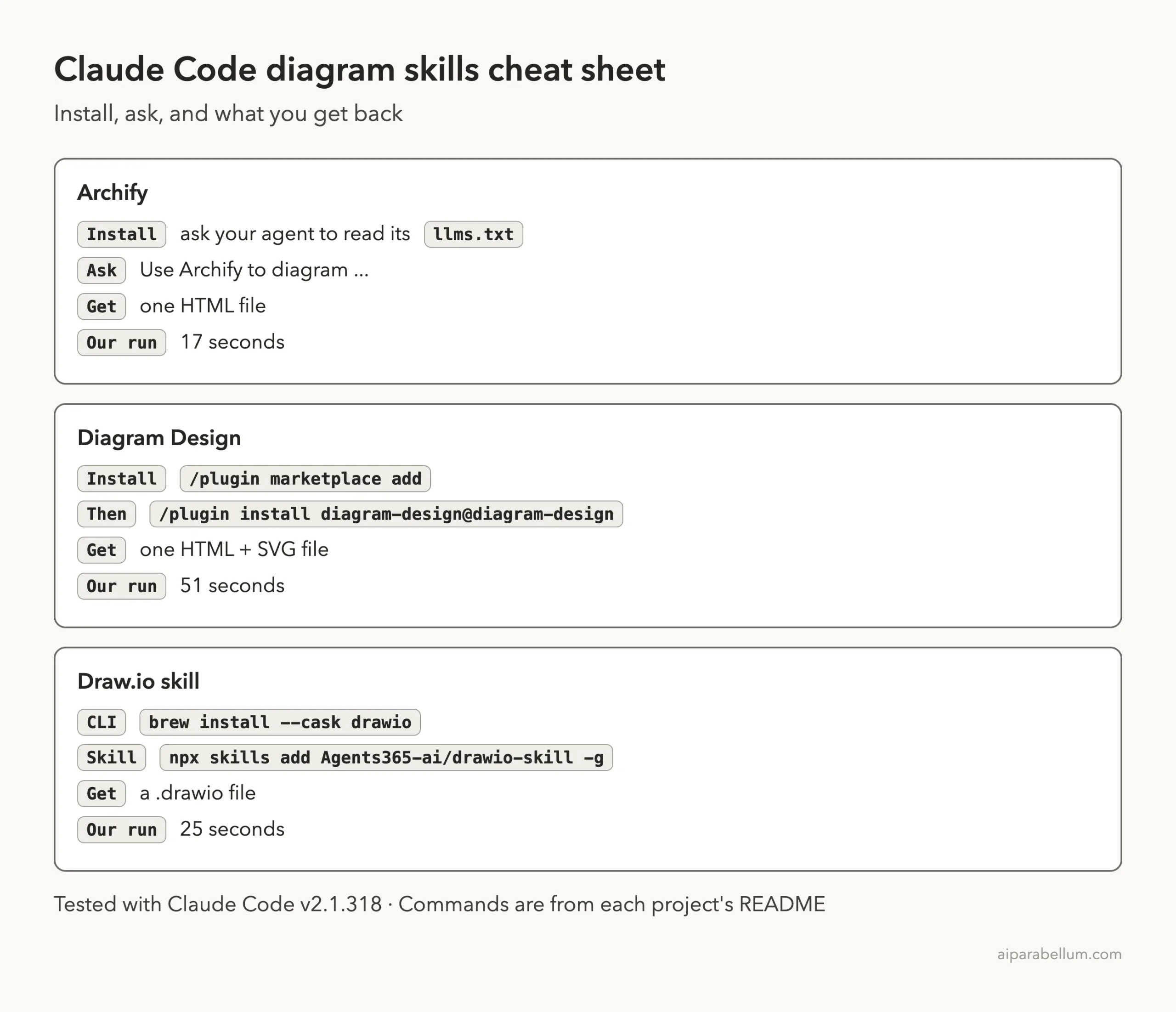
Its README install steps are /plugin marketplace add cathrynlavery/diagram-design followed by /plugin install diagram-design@diagram-design. In our sandbox we loaded the cloned folder with --plugin-dir instead, so the real plugin list stayed untouched. Our plugin marketplaces guide explains the normal route.
What Happened in the Session
This run took more steps. Claude read the skill, the sequence-diagram reference and the style guide. Because the plugin folder sat outside our project, Claude Code asked to read from it, and we allowed that for the session.
Claude then wrote the HTML and ran two of the skill’s checkers, self_check.py and verify-geometry.py. Both passed with zero findings, and the whole run took 51 seconds.
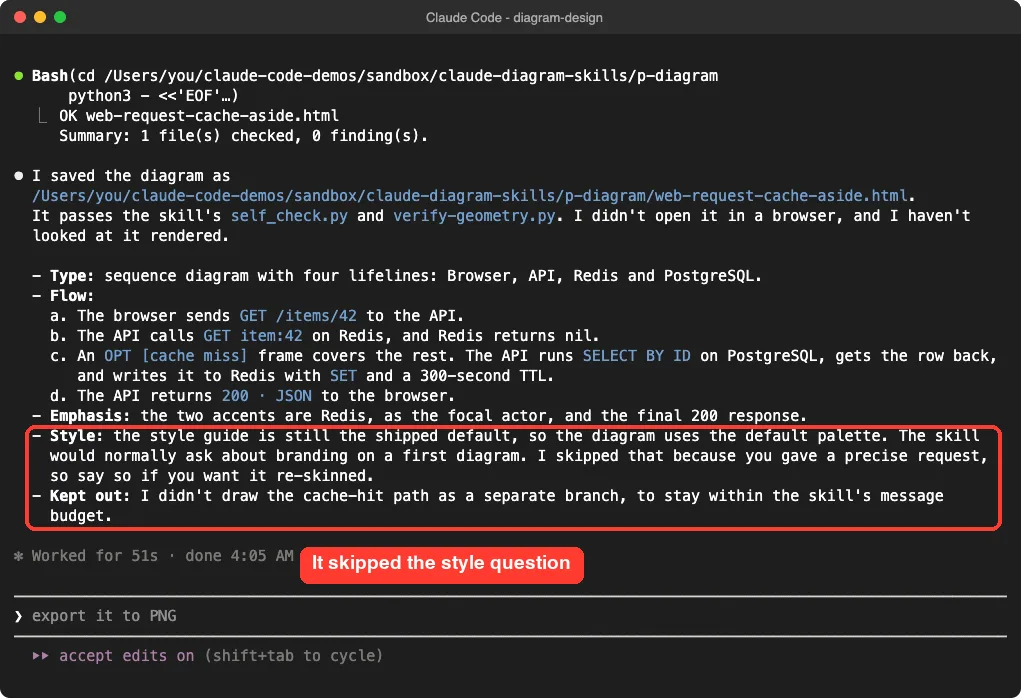
The skill’s SKILL.md says the agent should pause on the first diagram in a project and ask whether to customize the style. Claude skipped that step and told us so, because our request was precise. You can ask it to re-skin the diagram afterwards, or run its onboarding to pull colors and fonts from your own site.
The Diagram Design Result
The output is a light, editorial sequence diagram with small type labels, one accent color on Redis and a red final response arrow. It looks like something from a design blog, not a default chart.
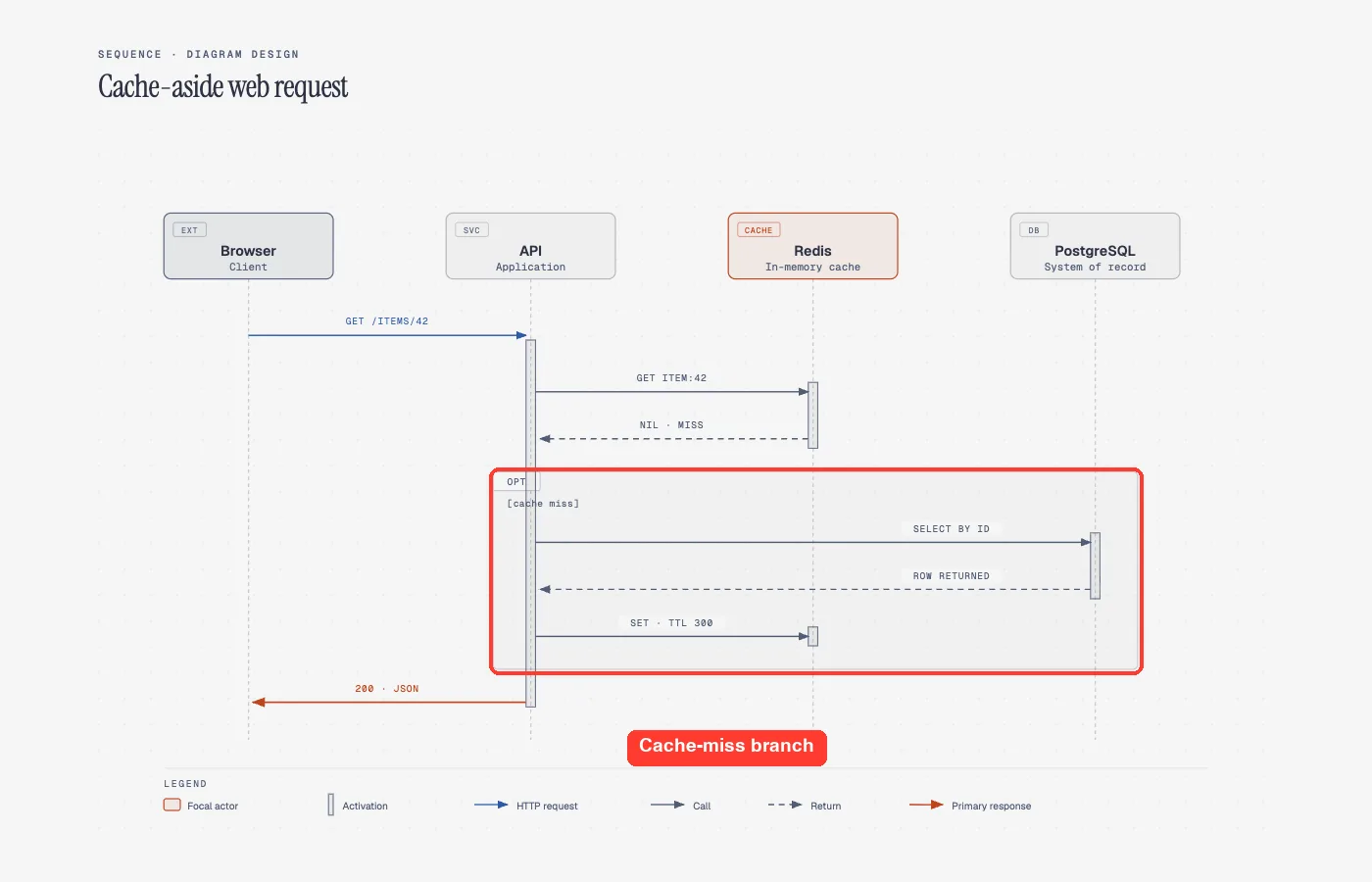
It is not flawless. The small “[cache miss]” label sits on top of the API activation bar, and, like Archify, it did not draw a separate cache-hit branch. Claude said it left that out to stay inside the skill’s message budget.
The plugin’s privacy file also notes that generated diagrams load fonts from Google Fonts when opened in a browser. If you need an offline file, remove that link and the fonts fall back to system fonts.
Draw.io Skill: Editable Files and a Catch
The Draw.io skill (Agents365-ai/drawio-skill) is the most ambitious. Its README describes diagrams from Terraform, Kubernetes, SQL, OpenAPI and other sources, diagram-as-test checks for CI, drift diffs and more.
Two details surprised us.
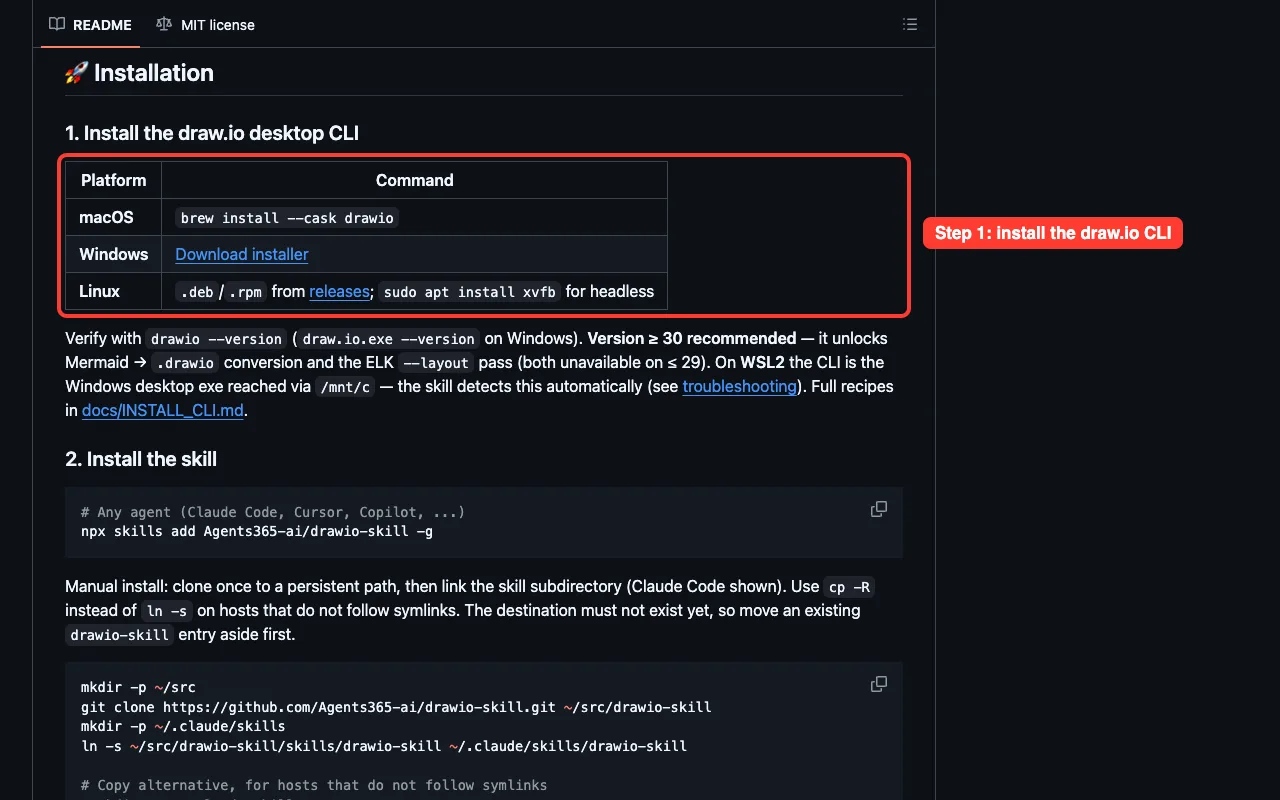
First, its SKILL.md sets disable-model-invocation: true, so Claude will not use it on its own. You have to call it with /drawio-skill followed by your request. Second, PNG and viewer export need the draw.io desktop CLI.
What We Got and What We Could Not Check
We did not have the draw.io CLI on the test Mac, and we chose not to install a desktop app just for this post. The skill still wrote a valid file: five numbered edges, two cylinder shapes for Redis and PostgreSQL, and a dashed arrow for the cache fill.
Claude ran the skill’s validator, which reported zero errors, zero warnings and zero edge crossings. Claude even adjusted one edge and validated again. The run took 25 seconds.
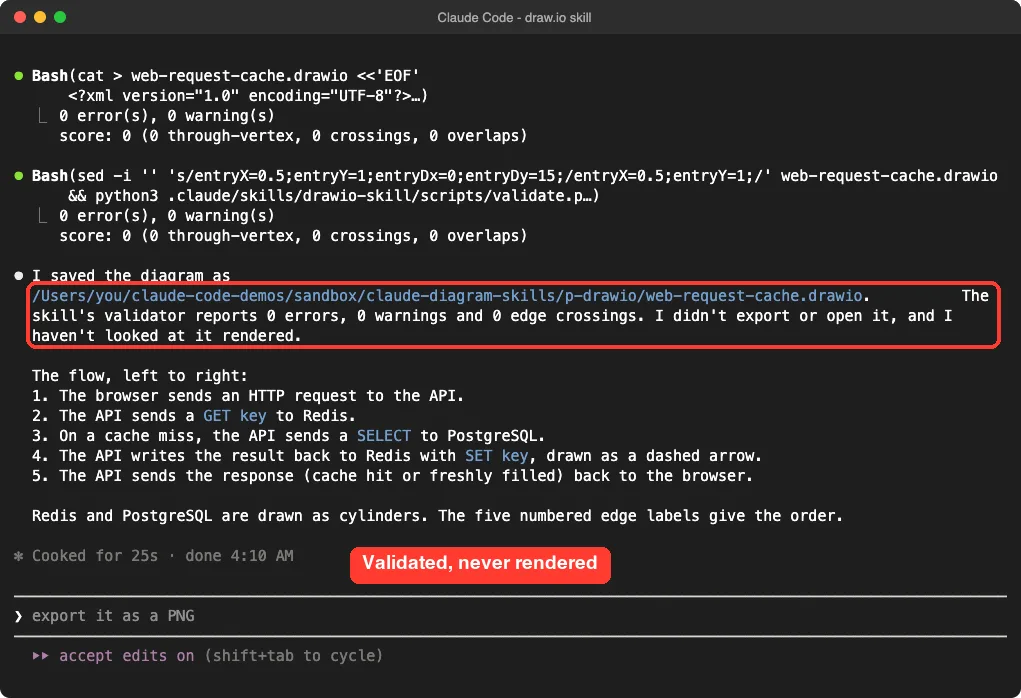
So we can say the file passed the skill’s own checks, but we cannot show you a picture of it. If you have draw.io installed, open the .drawio file there and judge the layout yourself. The README’s install command for macOS is brew install --cask drawio.
How the Three Compare
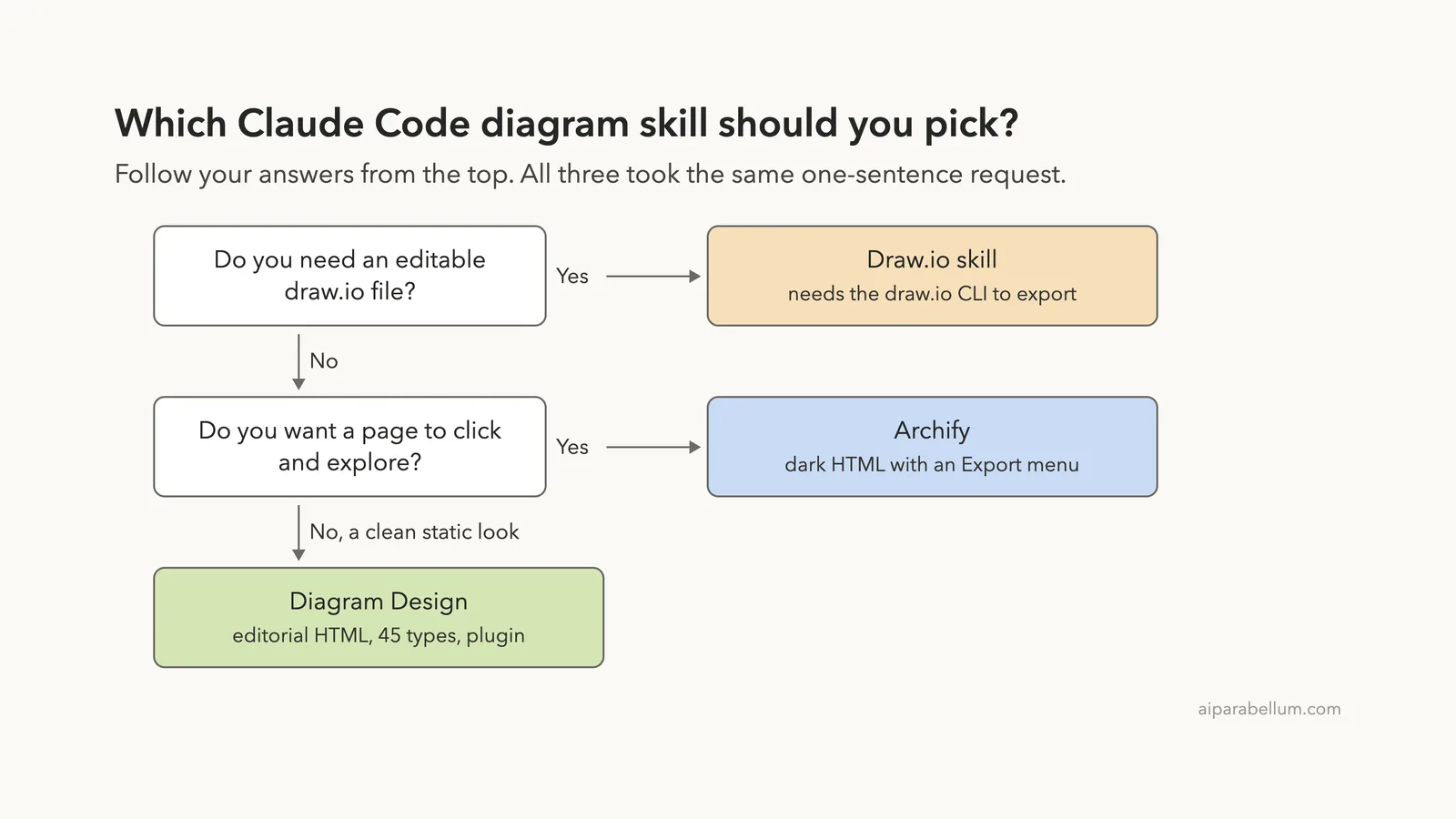
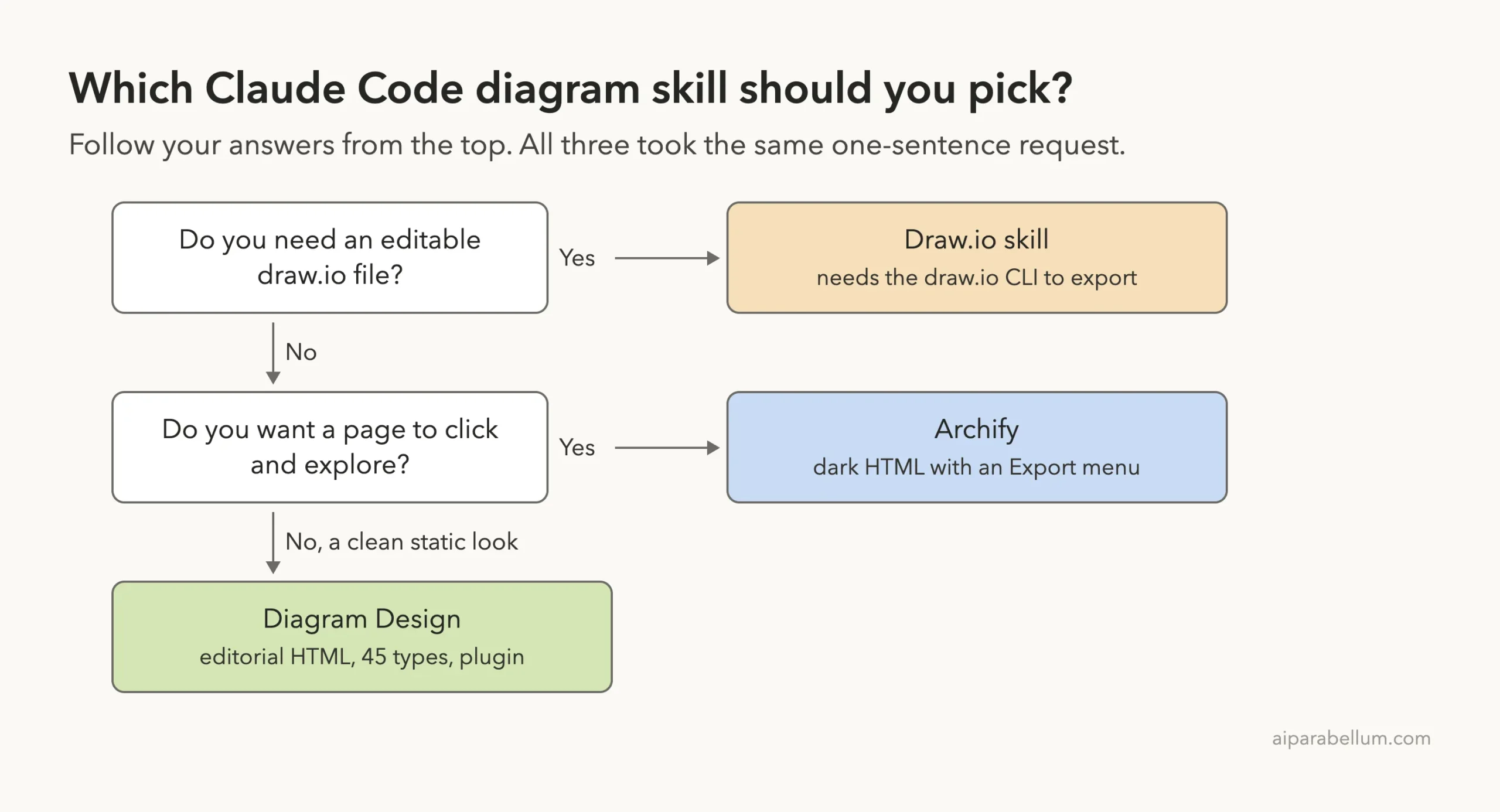
Pick the skill by the file you need at the end, not by the feature list.
All three finished in under a minute and all three were honest about limits. The differences are in what you can do with the result.
Look and Feel
Archify looks like an app: dark, animated controls, clickable. Diagram Design looks like a printed page. The Draw.io file is a working document you can drag around, but only after you open it in draw.io.
Editing Afterwards
With Archify and Diagram Design you ask Claude to change the file, for example “add the cache-hit path”. With the Draw.io skill you can also edit by hand in draw.io, which is a real advantage for diagrams your team keeps updating.
Setup and Risk
Diagram Design was the easiest to load, since it is a plugin with a manifest. Archify needs Chrome for its browser check. The Draw.io skill needs a separate desktop app, and its large script set is worth reading before you run it.
Try It Yourself
Pick one skill, make an empty demo folder and start Claude Code there. Use the same request we did, so you can compare your result with ours.
Use Archify to diagram a web request: the browser calls the API,
the API checks Redis, and on a cache miss it queries PostgreSQL
and fills the cache. Save it in this folder and do not open it in a browser.
Then try a follow-up that tests the weak spot we found in both HTML tools.
Add the cache-hit path to the diagram as its own branch.For the Draw.io skill, start the request with /drawio-skill. For Diagram Design, say “Use diagram-design to diagram” instead.
Need a quick flowchart without installing a skill? Our free text to diagram maker turns one line per connection into a clean diagram right in your browser. You can download it as a PNG, an SVG, an editable draw.io file or Mermaid code.
Common Mistakes
- Expecting a skill to open or export the file. In our runs Claude only wrote and checked it, so open the file yourself.
- Skipping the review of scripts. Skills run code on your machine, so read what they ship first.
- Forgetting that
/drawio-skillmust be typed. The model will not pick it up by itself. - Installing into your main setup to test. Use a project folder or
--plugin-dirinstead. - Trusting “checks passed” as proof the diagram is right. Look at it and compare it with your real system.
Pro Tips
- Ask for one diagram type in the prompt, such as “sequence” or “architecture”, so Claude does not guess.
- Name the branch you care about. Both HTML tools drew only the cache-miss path unless we asked otherwise, so ask for the hit path up front.
- Run Diagram Design’s onboarding once if you want diagrams that match your brand colors.
- Keep generated files in a folder such as
docs/diagramsso they are easy to commit. Our UI design skills has more ideas for visual add-ons.
Cheat Sheet
Frequently Asked Questions
What is a Claude Code diagram skill?
It is a skill or plugin that teaches Claude how to draw a certain kind of diagram and which files to produce. Claude Code loads it from a folder, as described in the plugin discovery docs.
Which one should I install first?
If you want something to show in a meeting, try Archify. If you want a clean image for a document, try Diagram Design. If your team lives in draw.io, install the Draw.io skill and the CLI.
Do these skills need an API key or account?
We did not enter any key or create any account for these tools. Claude Code itself still needs to be signed in to run your prompts.
Can I use them with other AI coding tools?
Each README says it works with other agents too, such as Codex and Cursor. We only tested Claude Code, so check the install notes for your tool.
Can Claude draw diagrams without any skill?
Yes, it can write Mermaid or SVG on its own. A skill adds a repeatable style, checks and export steps. Our Claude overview covers what the assistant does by default.
Conclusion
In our three single runs, each claude code diagram skill produced a usable cache-aside diagram in under a minute: Archify as an interactive dark page in 17 seconds, Diagram Design as a clean editorial page in 51 seconds, and the Draw.io skill as a validated editable file in 25 seconds that we could not render. None drew the cache-hit path until asked, and each told us what it had skipped. Choose by the output you need, load it in a sandbox first, and always open the result yourself.