If Claude Code cannot copy paste or scroll up the way your terminal normally does, the cause is almost always fullscreen rendering. In this mode Claude Code draws its own screen, so the wheel, the scrollback and click-and-drag selection work a little differently.
The quick fix is to scroll with PgUp or the mouse wheel, hold Shift (Option in iTerm2, Fn in Terminal.app) while you drag to copy, or run /tui default to go back to the classic view. This guide shows each fix with real screenshots from a Mac session.
We started a demo session, switched renderers, printed a long file, scrolled it, searched it, opened the copy settings and the scroll speed dialog. We also read Anthropic’s official fullscreen rendering page so every step below matches what is documented.
Tested with Claude Code v2.1.312 on October 29, 2026. We tested on macOS; the Windows and Linux steps follow Anthropic’s official instructions.
Quick Answer: Why Claude Code Cannot Copy Paste or Scroll
Match your symptom to the fix in this table, then read the matching section for the details.
| What you see | Why it happens | Fix |
|---|---|---|
| Mouse wheel does nothing | Your terminal is not passing mouse events on | Use PgUp, then turn on mouse reporting (iTerm2) or mouse mode (tmux) |
| Cannot scroll up past the screen | The chat lives inside Claude Code, not in terminal scrollback | PgUp, Fn+Up on a MacBook, or Ctrl+Home |
| Cmd+F finds nothing | Your terminal cannot see the conversation | Press Ctrl+o, then / to search |
| Drag-to-copy or tmux copy mode misses text | Claude Code captures the mouse | Hold Shift, Option or Fn while dragging |
| You want the old behavior back | Fullscreen rendering is on | Run /tui default |
Why does this happen at all? Read on, because knowing the reason makes every fix easy to remember.
In fullscreen mode, Claude Code owns the screen, so you scroll and copy with its keys or hold a modifier for native selection.
Why Scrolling and Copying Feel Different in Claude Code
Claude Code has two ways to draw its interface. The classic renderer prints text into your terminal, so your terminal keeps the history and handles scrolling and selection. The fullscreen renderer draws on the terminal’s alternate screen, the same way vim or htop do.
In fullscreen mode the conversation is inside Claude Code, not in your terminal’s scrollback. The official docs say this is why a few things work differently: Cmd+F no longer finds text, and your terminal’s own click-and-drag selection is replaced by in-app selection.
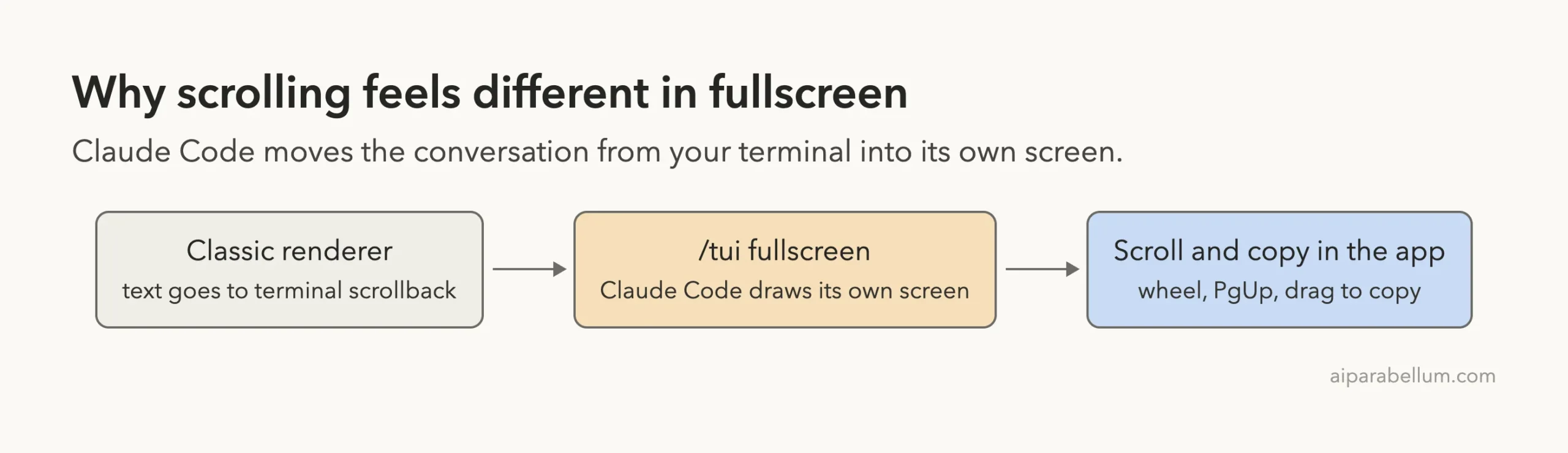
You may be in fullscreen mode without ever choosing it. The docs say that, depending on your setup, Claude Code may start you in fullscreen by default, or show a startup dialog that offers the switch. Our terminal setup guide covers other terminal tweaks.
Step 1: Check Which Renderer You Are Using
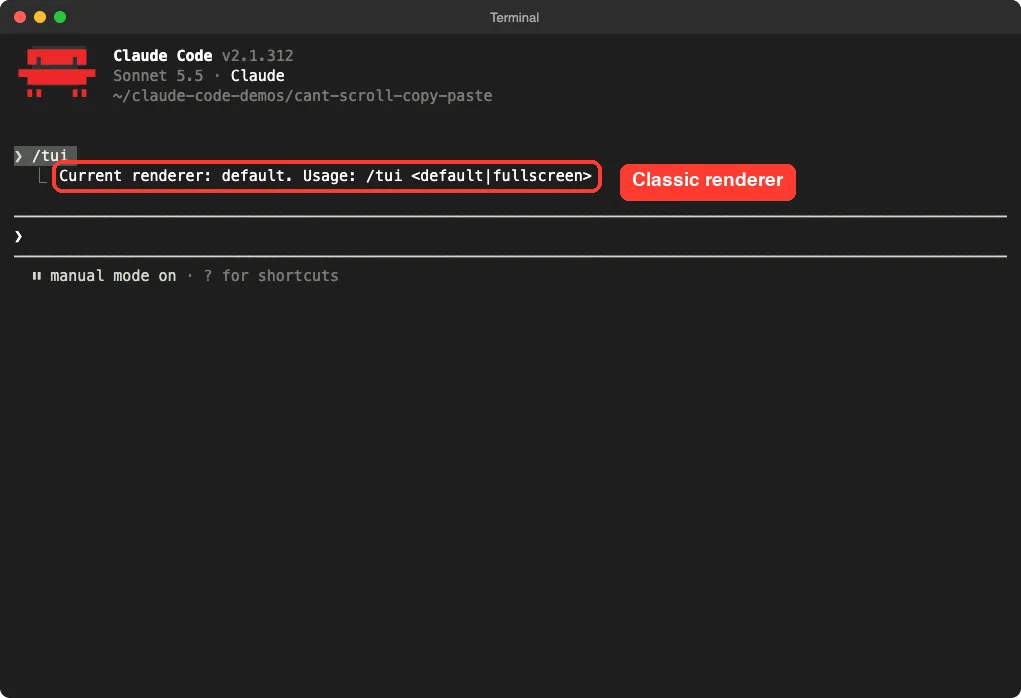
Type /tui with no argument. Claude Code prints which renderer is active. In our first session it answered that the current renderer was default, which is the classic one.
Then we ran /tui fullscreen. Claude Code relaunched with the conversation intact and printed a green line saying it was using flicker-free rendering. Typing /tui again now said the current renderer was fullscreen.
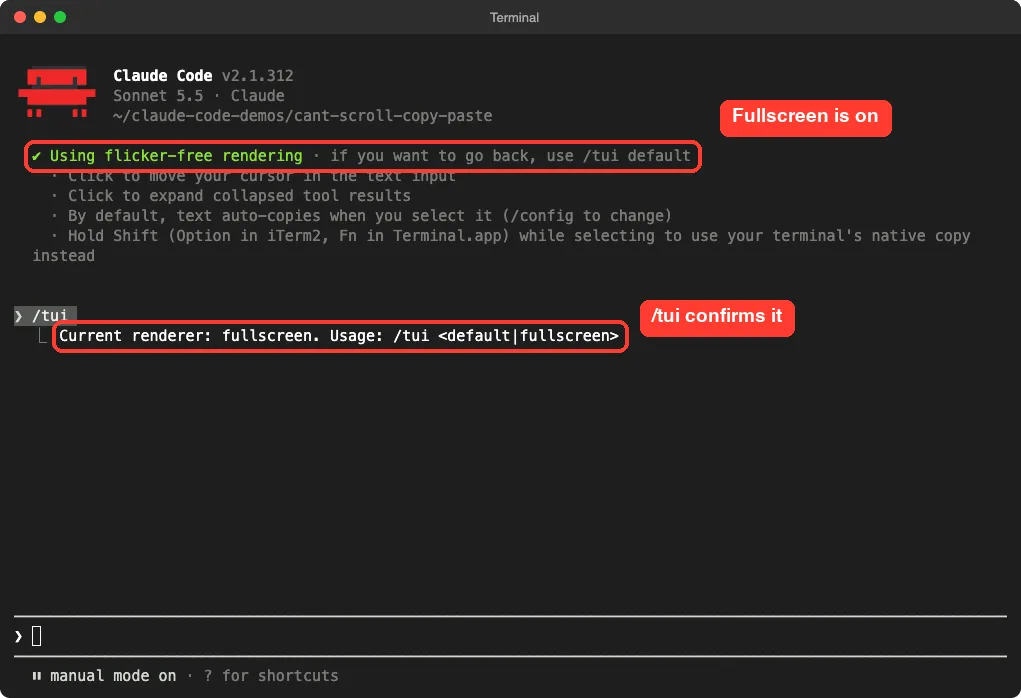
The tips under that green line are worth reading. They say you can click to move the cursor, click to expand collapsed results, that text auto-copies when you select it, and which key to hold for your terminal’s native copy.
Switch Back to Classic Any Time
If you prefer your terminal’s own scrollback, run /tui default. The docs say this saves the tui setting and switches to the classic renderer, where Cmd+F and tmux copy mode work as usual. Run /tui fullscreen whenever you want to try it again.
Step 2: Scroll Up in Fullscreen Mode
Because the app handles scrolling, use these keys. They come from the official scroll table.
| Shortcut | What it does |
|---|---|
| PgUp / PgDn | Scroll up or down by half a screen |
| Ctrl+Home | Jump to the start of the conversation |
| Ctrl+End | Jump to the latest message and follow new output again |
| Mouse wheel | Scroll a few lines at a time |
MacBook Keyboards Have No PgUp Key
Hold Fn with the arrow keys. Fn+Up sends PgUp, Fn+Down sends PgDn, Fn+Left sends Home and Fn+Right sends End. The docs add that Ctrl+Fn+Right does not reach Claude Code on macOS, so a MacBook has no working jump-to-bottom chord by default.
Instead, scroll to the bottom with the wheel or click the Jump to bottom button. In our test we printed a 61-line file, pressed PgUp twice, and the button appeared with a hint that said fn+down to scroll.
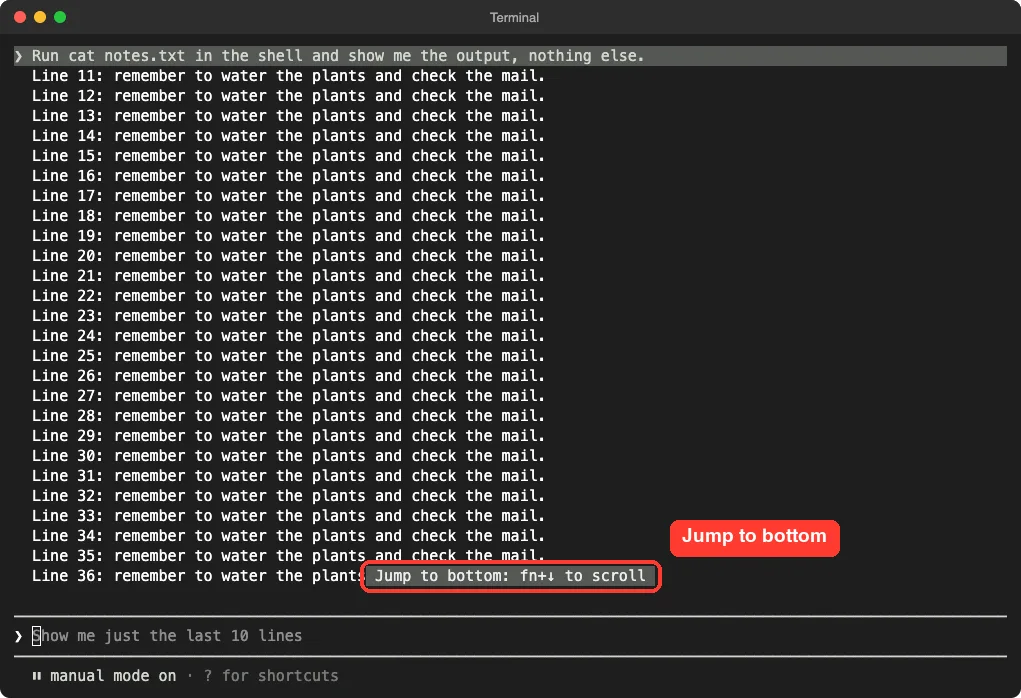
That pause is on purpose. The docs explain that scrolling up stops new output from pulling you back down. To turn auto-follow off entirely, open /config and set Auto-scroll to off.
Step 3: Fix a Mouse Wheel That Does Nothing
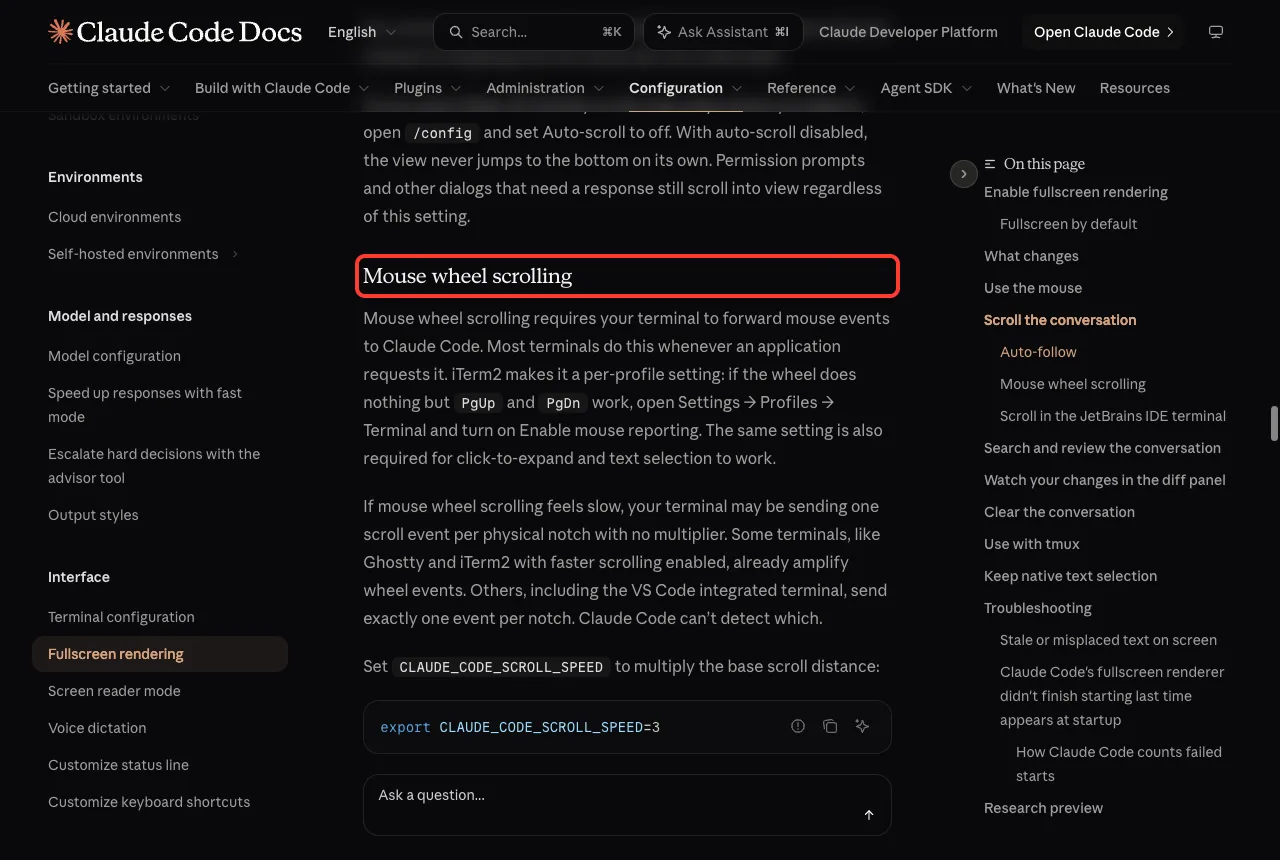
The wheel only works if your terminal forwards mouse events to Claude Code. Most terminals do. The docs name two common exceptions.
- iTerm2: if the wheel does nothing but PgUp and PgDn work, open Settings, then Profiles, then Terminal, and turn on Enable mouse reporting. The same setting is needed for click-to-expand and text selection.
- tmux: add set -g mouse on to ~/.tmux.conf and reload it. Without mouse mode, wheel events go to tmux instead of Claude Code, although PgUp and PgDn still work.
Make Scrolling Faster or Slower
If the wheel feels slow, your terminal may send one event per notch. Run /scroll-speed to open a dialog. Scroll while it is open to feel the change, press the left and right arrows to adjust, press r to reset and Enter to save.
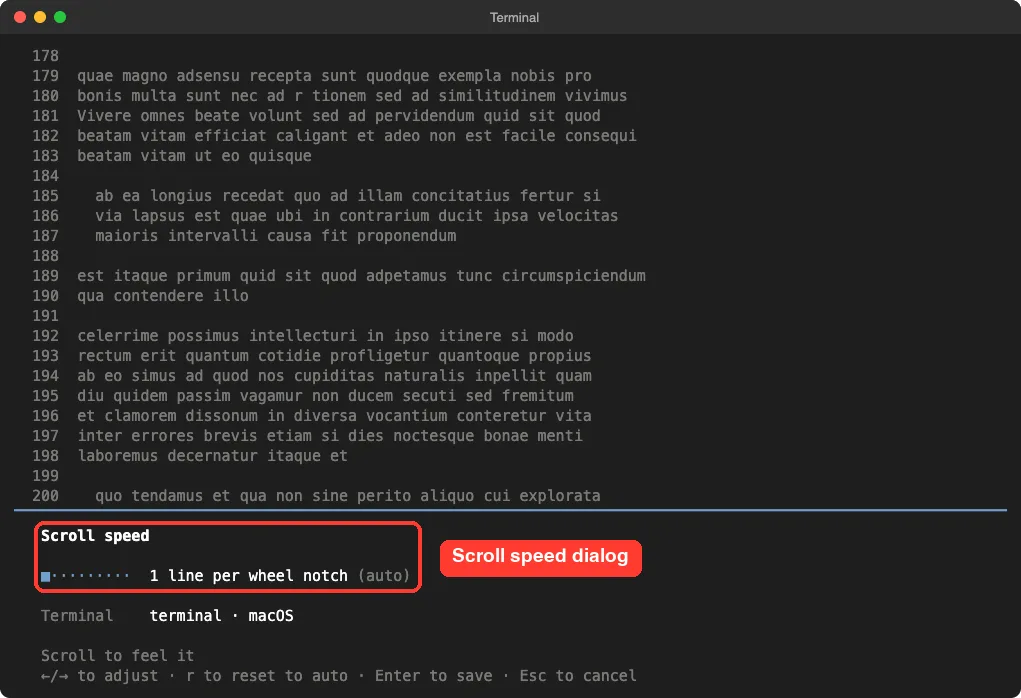
The dialog writes the same value as the CLAUDE_CODE_SCROLL_SPEED environment variable. You can also set it yourself, for example export CLAUDE_CODE_SCROLL_SPEED=3, which the docs say matches the default in vim. See our environment variables guide for where to put it.
Step 4: Search and Review Old Output
Cmd+F cannot see inside the fullscreen conversation. Press Ctrl+o instead to open transcript mode, then press / and type what you need. We searched for Line 42 and Claude Code highlighted the match.
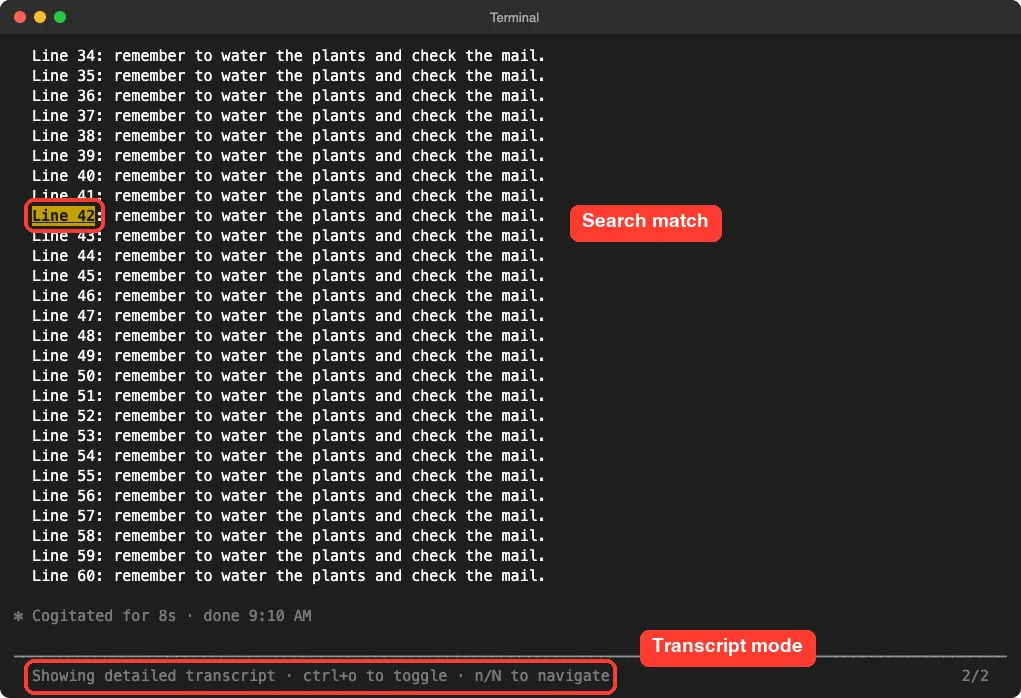
Useful keys in transcript mode, from the docs:
- n and N jump to the next or previous match.
- g and G jump to the top or bottom.
- Ctrl+u and Ctrl+d scroll half a page.
- Esc, q or Ctrl+o leave transcript mode.
Hand the Text Back to Your Terminal
Want your terminal’s own tools on the text? In transcript mode press the [ key. The docs say it writes the full conversation into your terminal’s native scrollback with tool output expanded, so Cmd+F and tmux copy mode work on it.
Press v instead to open the conversation in your $VISUAL or $EDITOR.
Step 5: Fix Claude Code Copy Paste the Right Way
In fullscreen mode you copy with a click and drag inside Claude Code. The docs say the selection copies to your clipboard automatically when you release the mouse. Double-click selects a word and triple-click selects a line.
That auto-copy is a setting. Open /config and type copy in the search box. We found Copy on select set to true.
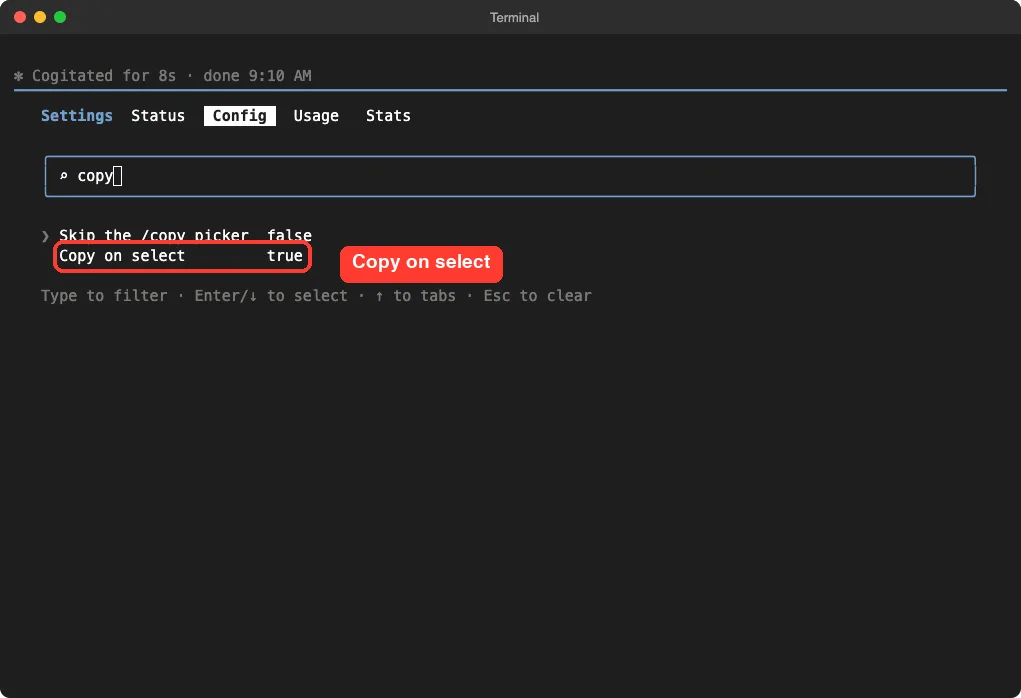
With Copy on select off, press Ctrl+Shift+c to copy by hand. On terminals that support the kitty keyboard protocol, such as kitty, WezTerm, Ghostty and iTerm2, Cmd+c also works. If you have a selection active, Ctrl+c copies instead of cancelling.
Use Your Terminal’s Native Selection Instead
For a one-off native selection, hold a modifier key while you click and drag. Your terminal then handles the selection, so Cmd+C works on it.
| Terminal | Key to hold while dragging |
|---|---|
| Terminal.app | Fn |
| iTerm2 | Option |
| VS Code, Cursor, Devin Desktop | Shift, or Option on macOS with terminal.integrated.macOptionClickForcesSelection enabled |
| Most other terminals | Shift |
Claude Code also shows the right key in its on-screen tip, as we saw in the screenshot above. If you use the integrated terminal in an editor, our VS Code guide has more detail.
Turn Off Mouse Capture Completely
If you always prefer native selection, the docs give an option that keeps the flicker-free rendering. Start Claude Code like this:
CLAUDE_CODE_NO_FLICKER=1 CLAUDE_CODE_DISABLE_MOUSE=1 claudeYou lose click-to-position-cursor, click-to-expand, URL clicking and wheel scrolling inside Claude Code, but PgUp, PgDn, Ctrl+Home and Ctrl+End still work. To keep the wheel and only drop clicks, use CLAUDE_CODE_DISABLE_MOUSE_CLICKS=1 instead.
Step 6: When Claude Code Cannot Copy Paste to the Clipboard
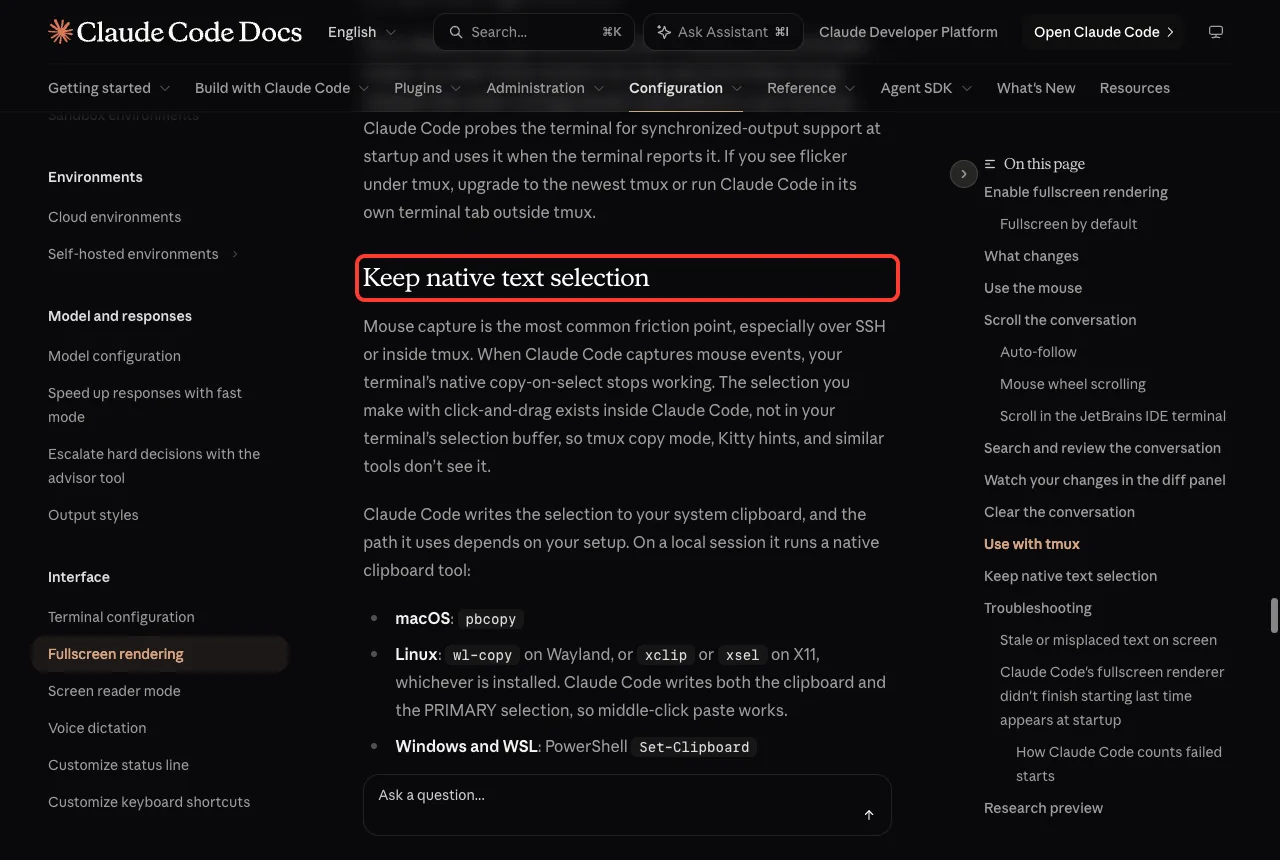
Copy and paste are two halves. Claude Code writes your selection to the system clipboard through a native tool, and the docs list them: pbcopy on macOS, wl-copy or xclip or xsel on Linux, and PowerShell Set-Clipboard on Windows and WSL. On Linux, make sure one of those tools is installed.
Over SSH it falls back to OSC 52 escape sequences, and some terminals block those. The docs say iTerm2 blocks them until you allow it under Settings, General, Selection, Applications in terminal may access clipboard. Running /terminal-setup in iTerm2 turns it on for you.
Why a Big Paste Turns Into a Placeholder
Pasting more than 800 characters or more than three lines collapses into a placeholder like [Pasted text #1 +120 lines]. This is not a bug.
The full text is still sent when you press Enter. For very large content, the docs suggest writing it to a file and asking Claude to read that file.
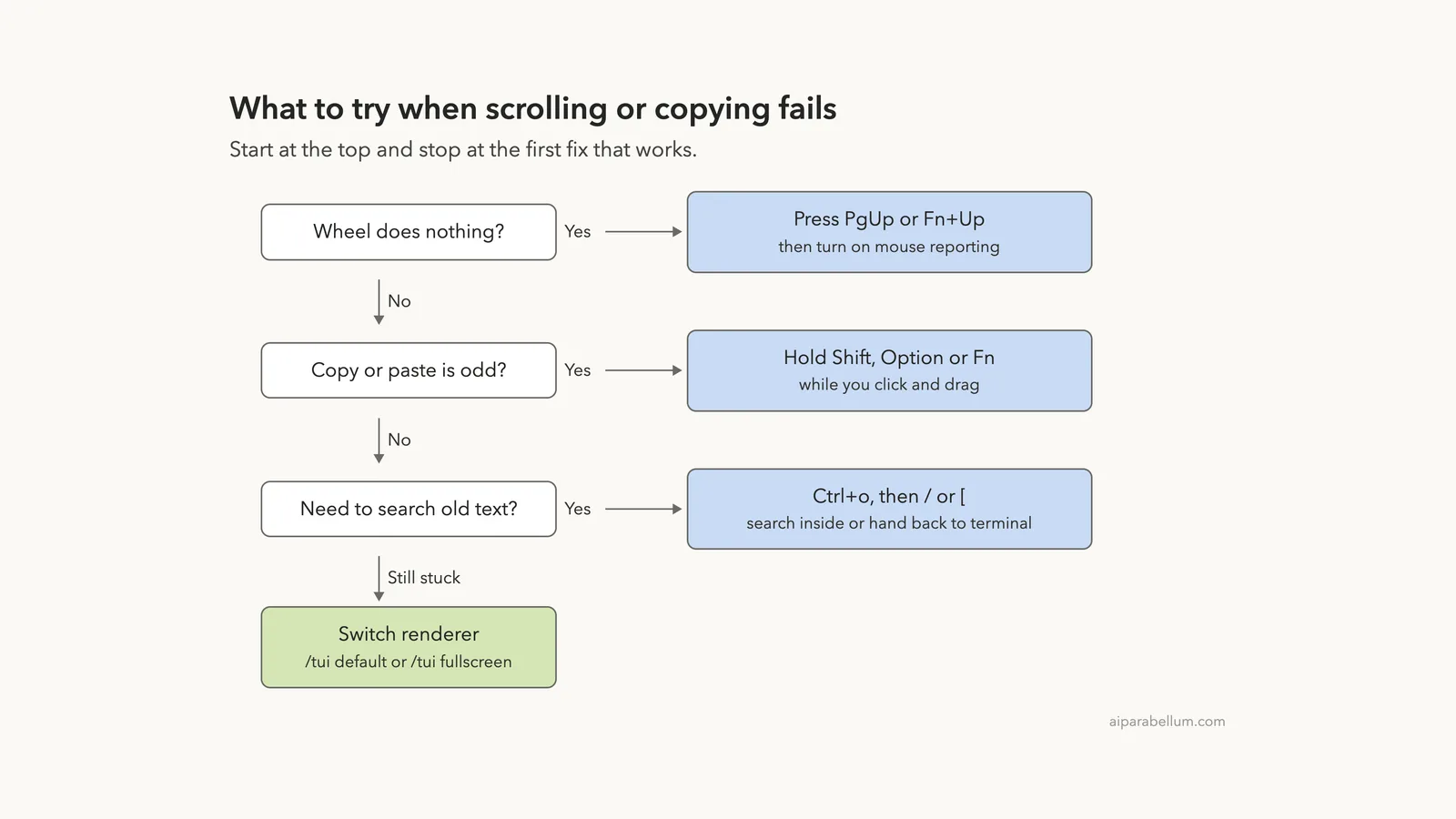
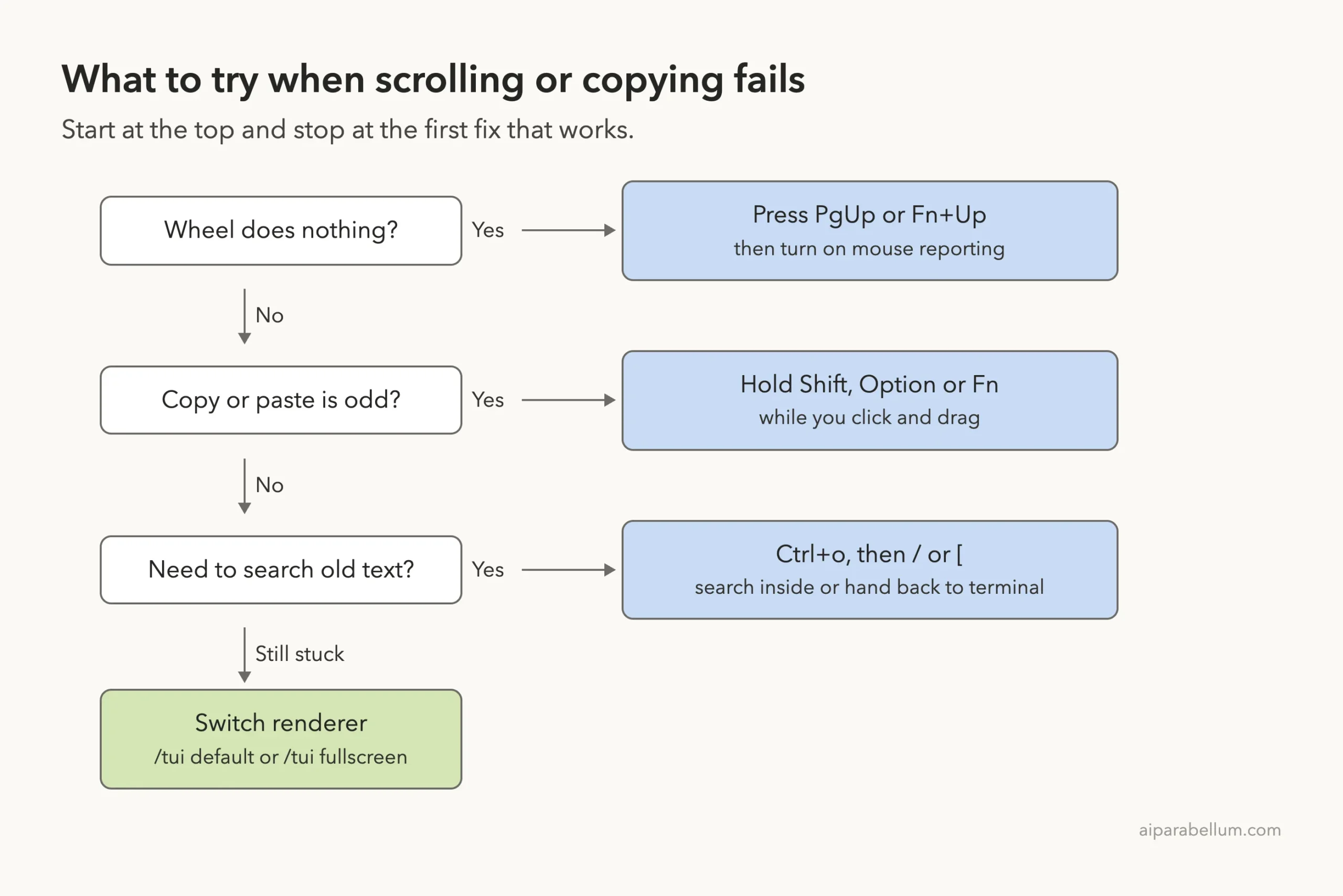
A Simple Order to Follow
When something goes wrong, work down this list and stop at the first fix that works.
Other Display Problems Worth Knowing
Garbled or Partly Blank Screen
Press Ctrl+L to redraw. The docs say the redraw keeps your conversation and input in place. For stale text fragments on Windows Terminal, set CLAUDE_CODE_ALT_SCREEN_FULL_REPAINT=1 before running claude.
The Fullscreen Renderer Did Not Finish Starting
If Claude Code prints that message, a fullscreen session crashed before it started successfully. After two failed starts it keeps the classic renderer until you update Claude Code or run /tui fullscreen. Run /tui to see the reason, and read our guide on updating Claude Code if you are behind.
iTerm2 With tmux -CC
Fullscreen rendering is not compatible with iTerm2’s tmux integration mode (tmux -CC). The docs say the wheel does nothing there, so use the classic renderer in that mode. Regular tmux inside iTerm2 works fine.
Try It Yourself
Practice in a throwaway folder so you feel each key before you need it. Create a text file with 60 lines, start Claude Code there and paste this prompt.
Run cat notes.txt in the shell and show me the output, nothing else.Then try this checklist.
- Run /tui and note which renderer you are in.
- Press PgUp twice and find the Jump to bottom button.
- Press Ctrl+o, then / and search for a line number.
- Open /config, type copy and look at Copy on select.
- Hold your native selection key and drag across a line.
Common Mistakes
- Pressing Cmd+F in fullscreen mode and thinking the text is gone. Use Ctrl+o then / instead.
- Forgetting that a MacBook needs Fn for PgUp and PgDn.
- Using tmux without set -g mouse on and blaming Claude Code for a dead wheel.
- Dragging to copy and expecting tmux copy mode to see it. Hold the native selection key.
- Treating the [Pasted text] placeholder as lost text. It is sent in full.
Pro Tips
- Run /tui before changing anything, so you know the starting point.
- Press the [ key in transcript mode when you need Cmd+F on a long session.
- Run /focus for a quieter view that shows only your last prompt, a summary of tool calls and the final answer.
- Try /scroll-speed with the dialog open, because it lets you feel each setting immediately.
- Use /diff in fullscreen mode to open a panel that shows changes beside the conversation.
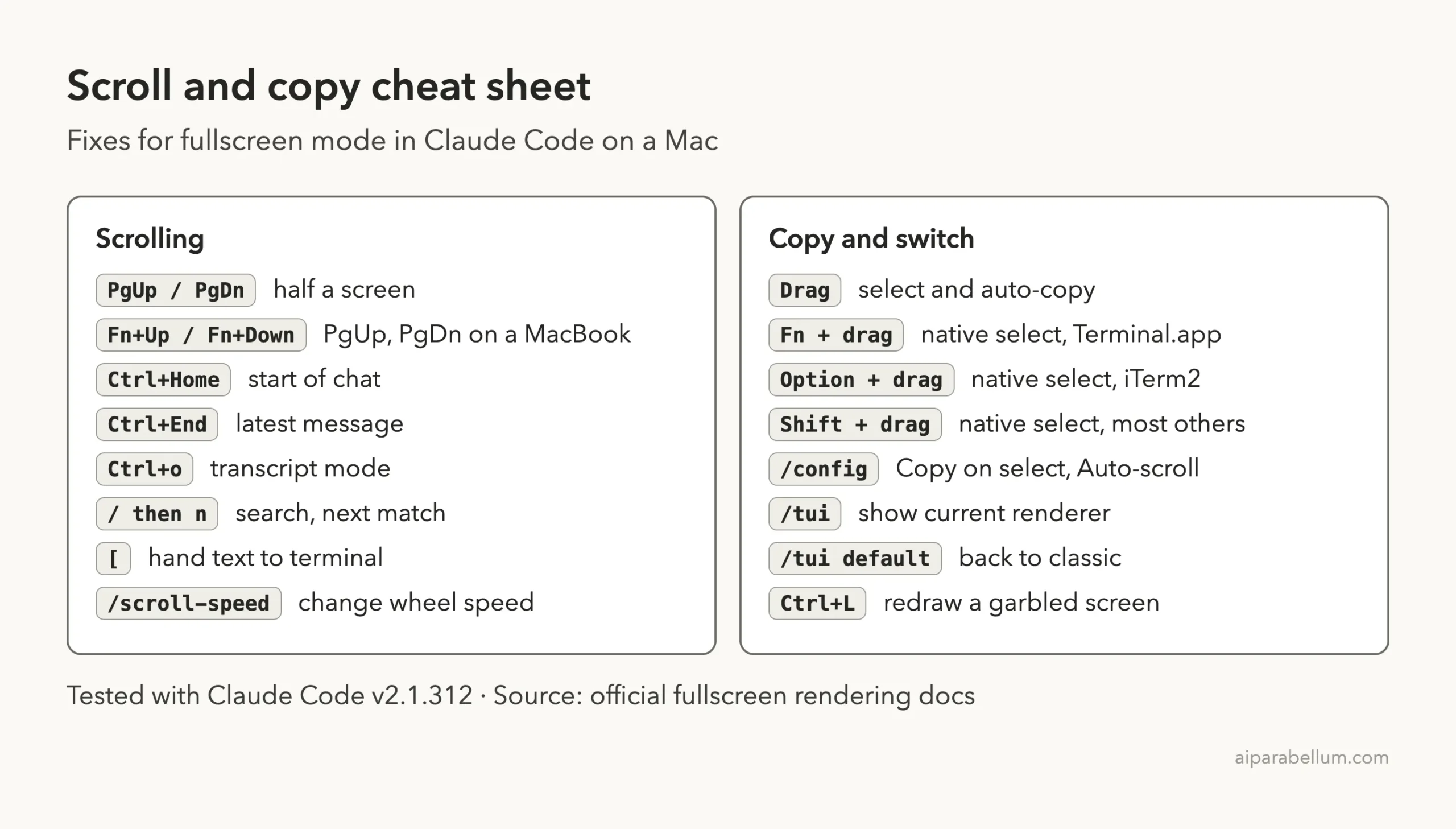
Scroll and Copy Cheat Sheet
Frequently Asked Questions
Why can’t I scroll up in Claude Code?
In fullscreen mode the conversation is inside Claude Code, so your terminal has no scrollback to scroll. Use the mouse wheel, PgUp, Fn+Up on a MacBook, or Ctrl+Home to jump to the start.
How do I copy text from Claude Code?
Click and drag to select, and the text copies when you release the mouse. If you want your terminal to handle it, hold Shift, Option in iTerm2 or Fn in Terminal.app while you drag.
How do I get my normal terminal scrollback back?
Run /tui default. The docs say the classic renderer keeps the conversation in your terminal’s native scrollback, so Cmd+F and tmux copy mode work as usual.
Is fullscreen rendering permanent?
No. The /tui command saves a setting that you can change at any time with /tui default or /tui fullscreen. The docs also describe the CLAUDE_CODE_NO_FLICKER variable for turning it on or off per session.
Why did my pasted text turn into [Pasted text #1]?
Claude Code collapses pastes over 800 characters or three lines into a placeholder so the input box stays usable. The full content is still sent when you submit.
Conclusion
When Claude Code cannot scroll up or copy and paste normally, fullscreen rendering is the usual reason. Check it with /tui, scroll with PgUp or Fn+Up, search with Ctrl+o, hold Shift, Option or Fn to use native copy, and run /tui default if you want the classic view back. For more guides like this, browse all our Claude Code tutorials, read the official fullscreen rendering docs and terminal configuration page, and see our Claude AI overview.