Running two Claude Code sessions in the same folder is a recipe for trouble. They edit the same files, trip over each other’s changes and mix two tasks into one messy diff.
Git worktrees fix that by giving each task its own folder and branch, but the plain git worktree commands are clunky. Worktrunk is a small open-source tool that wraps them in three short commands, and it ships a Claude Code plugin too.
We installed Worktrunk in a throwaway setup and ran real Claude Code tasks through it. Here’s how it works, what the plugin adds, and how it compares to Claude Code’s own --worktree flag.
What Worktrunk Does for Claude Code
Worktrunk is a command-line tool called wt. It’s free, open source under the MIT or Apache 2.0 license, and written in Rust.
The idea is simple: one worktree per task. Each worktree is a separate folder next to your project, on its own branch, so a Claude session in one can’t touch the files in another.
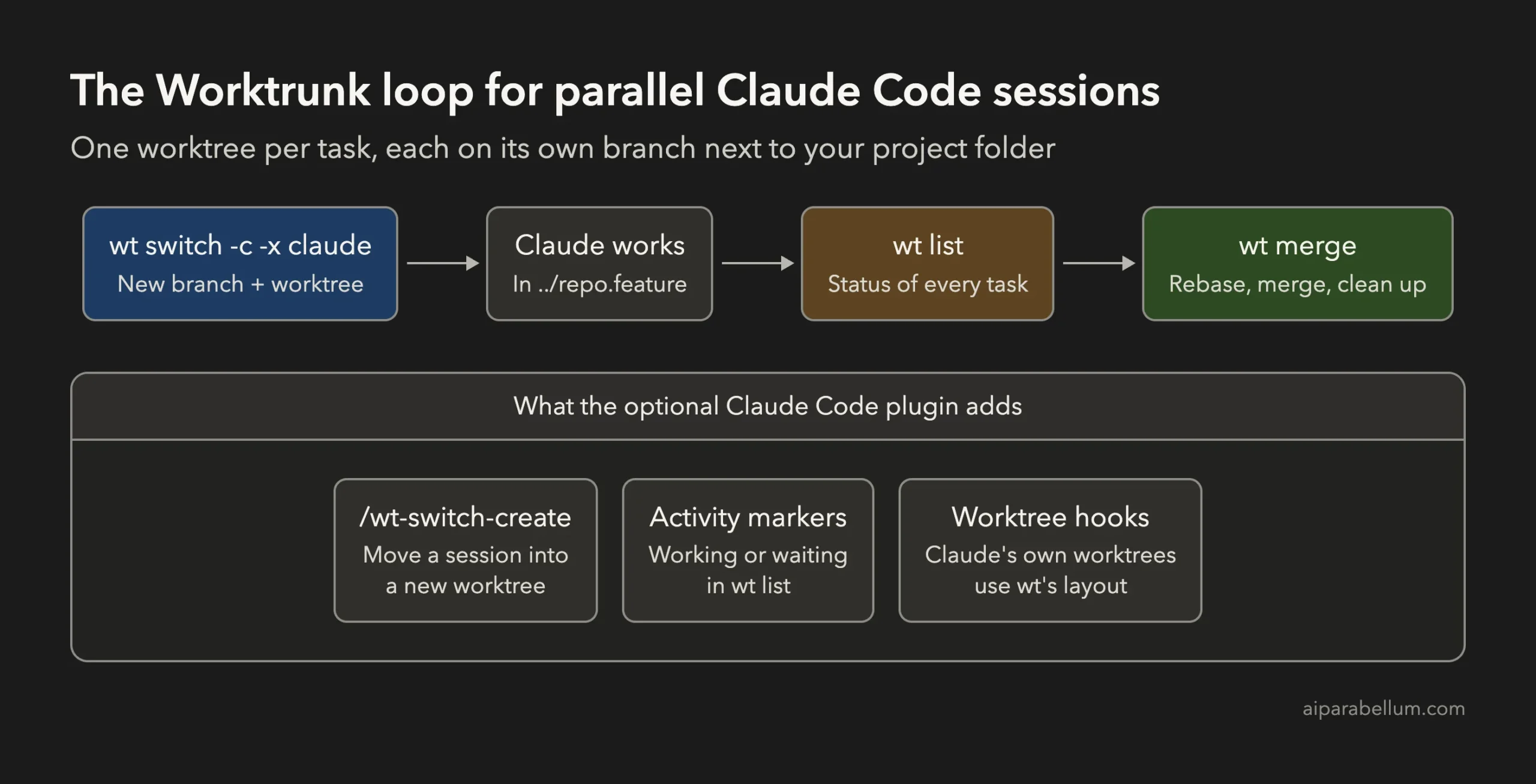
These are the commands you’ll use most:
| Command | What it does |
|---|---|
wt switch -c feature -x claude | Creates a branch and worktree called feature, moves you there and starts Claude Code |
wt list | Shows every worktree with its changes, commits ahead of main and status |
wt merge | Rebases the branch on main, merges it, then removes the worktree and branch |
wt remove | Removes a worktree you don’t want to merge |
If worktrees are new to you, our guide to Claude Code worktrees explains the idea with plain git first.
How to Install Worktrunk
On a Mac or Linux, install it with Homebrew and turn on shell integration in one line:
brew install worktrunk && wt config shell installIf you use Rust, cargo install worktrunk works too, followed by the same wt config shell install. On Windows, winget install max-sixty.worktrunk installs it as git-wt, because wt is already the Windows Terminal command.
Don’t skip the shell integration step. It lets wt change your terminal’s folder, and our test showed what happens without it later in this guide.
Start Claude Code in a New Worktree
From inside your project, this one command creates a branch called docs, makes a worktree for it and starts Claude Code there:
wt switch -c docs -x claudeThe -x flag runs a program once the worktree is ready. Anything after -- goes to that program, so you can hand Claude its task right away:
wt switch -c priority -x claude -- 'Add an optional priority to tasks, with tests'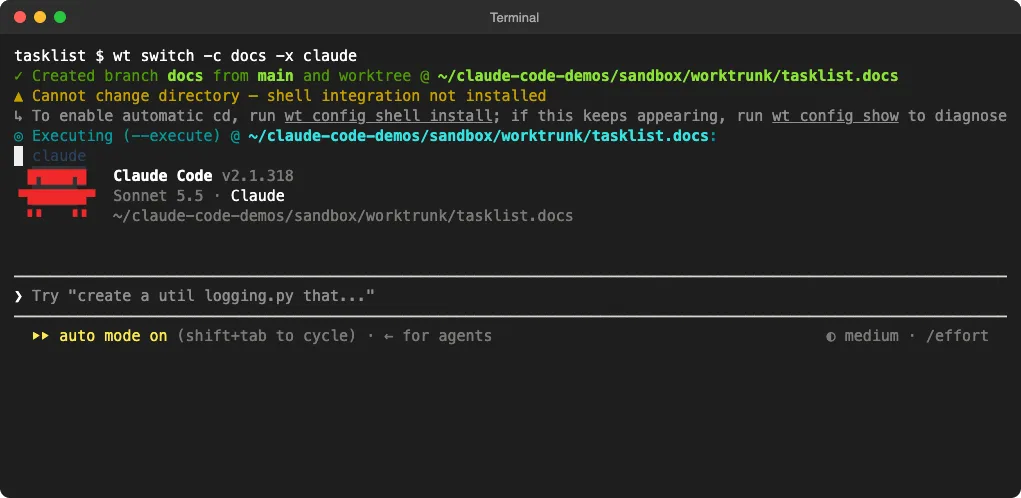
This shot was taken before we turned on shell integration, so wt warns that it can’t change folders. Claude still starts in the right place, because -x runs it inside the new worktree.
One small catch: -x takes a program, not a shell command. If you need pipes or &&, use -x sh -- -c 'your command'.
Our Test: Two Claude Code Tasks in Two Worktrees
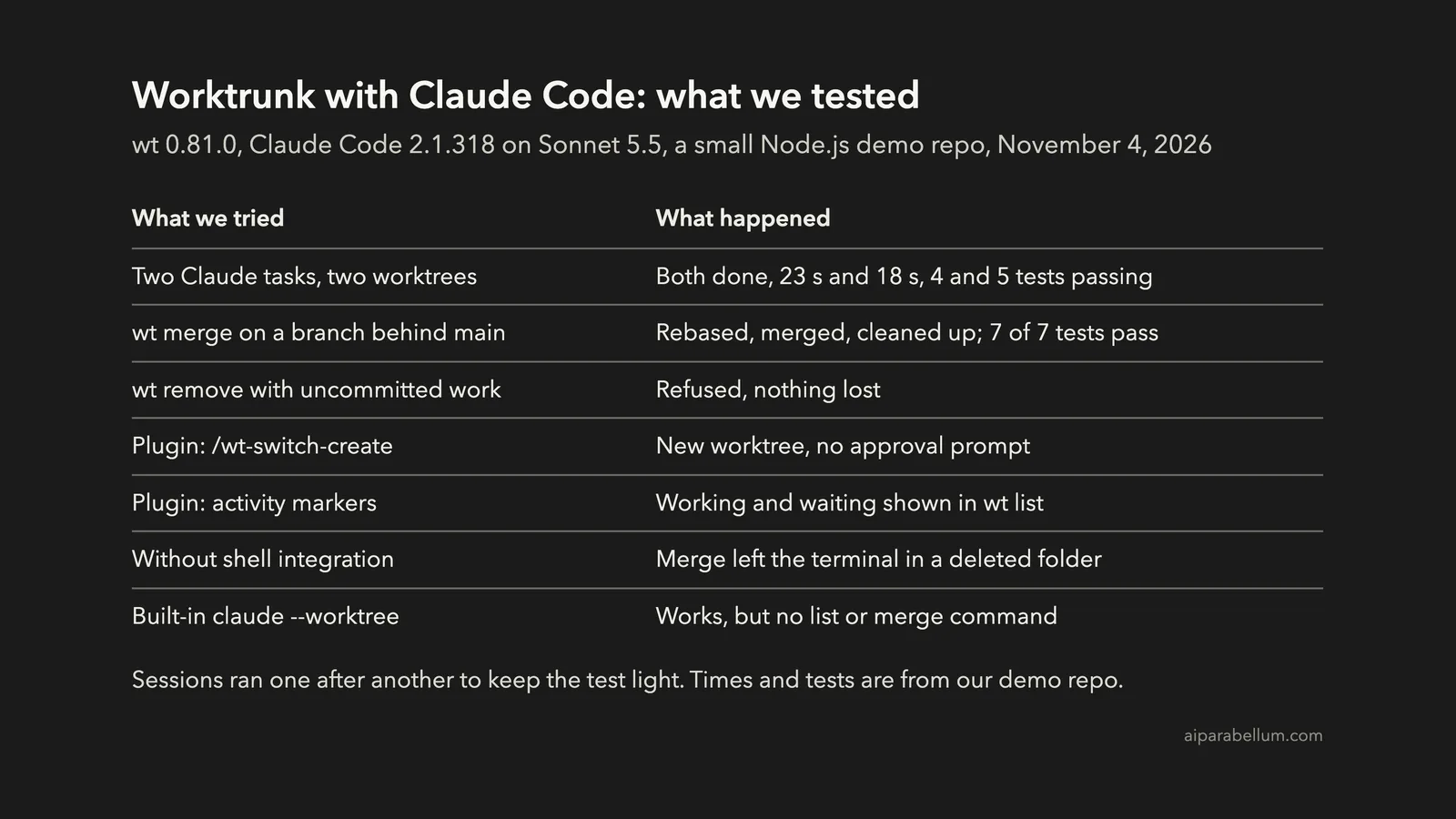
We used a small Node.js task list with two tests. Then we gave Claude Code (version 2.1.318, Sonnet 5.5) two separate jobs, each in its own Worktrunk worktree:
| Worktree | Task | Time | Cost | Result |
|---|---|---|---|---|
| priority | Add an optional low, normal or high priority to tasks | 23 s | $0.095 | Done and committed, 4 tests passing |
| search | Add a searchTasks function in a new file | 18 s | $0.076 | Done and committed, 5 tests passing |
We ran the two sessions one after the other to keep the test light, but nothing about the setup needs that. Each session only saw its own folder, so you can run them side by side in two terminal tabs.
When both were done, wt list showed the two new branches, each one commit ahead of main:
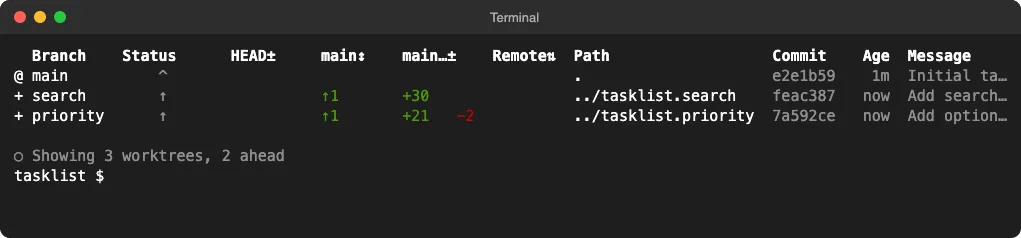
For bigger parallel setups, like many agents at once or subagents that split one job, see our guide to running parallel agents in Claude Code.
Merge Claude’s Work With wt merge
To bring a branch back, switch to its worktree and run wt merge. The -y flag skips the confirmation:
wt switch priority
wt merge -y
The first merge was a simple fast-forward. Worktrunk merged the branch, removed its worktree and branch, and put us back in the main folder.
The second merge was the real test. After the first one, the search branch was behind main, so a plain merge would have needed a manual rebase.
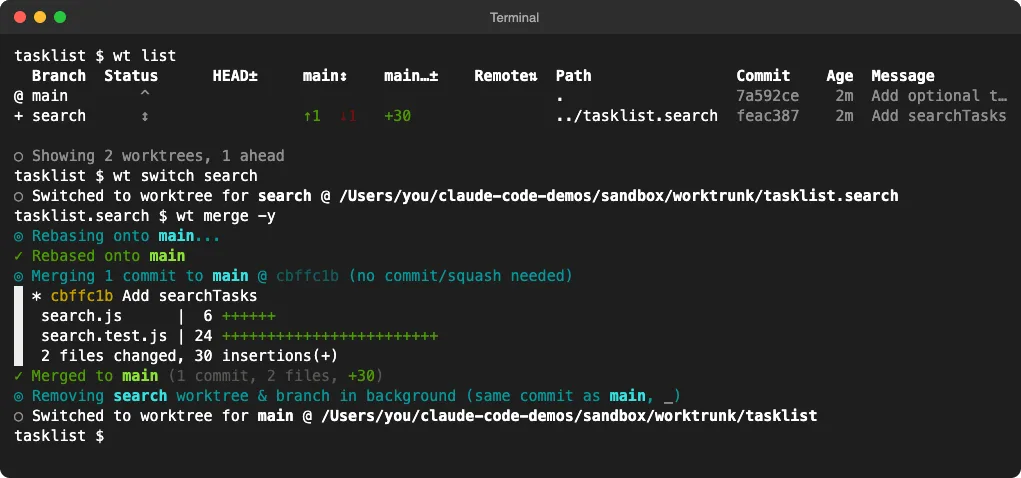
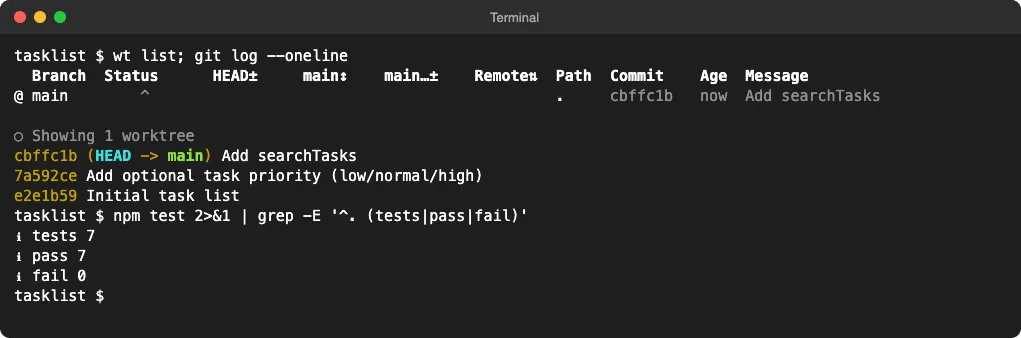
Worktrunk rebased the branch onto main, merged it, cleaned up and switched back without any extra steps. Both features ended up on main, and all 7 tests passed:
Turn On Shell Integration First
Our first run of wt merge was without shell integration. The merge worked, but it deleted the folder our terminal was sitting in, so the next commands failed until we moved back by hand.
With wt config shell install done, the same merge moved the terminal back to the main folder by itself. That’s the step to get right before anything else.
Remove a Worktree Without Losing Work
Not every task deserves a merge. wt remove throws a worktree away, but it’s careful about it.
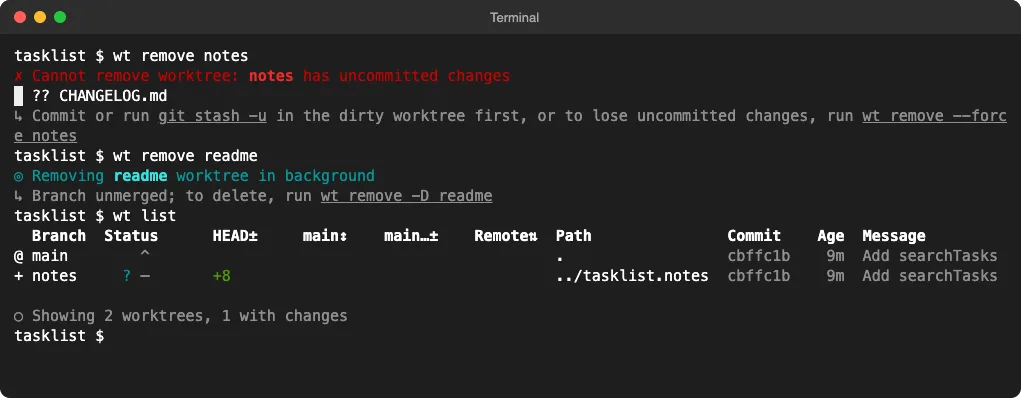
When we tried to remove a worktree with an uncommitted file, Worktrunk refused and told us how to save the change first. When we removed one with an unmerged commit, it deleted the folder but kept the branch, so the commit wasn’t lost.
To delete an unmerged branch on purpose, use wt remove -D branch-name. To throw away uncommitted changes, there’s wt remove --force.
The Worktrunk Plugin for Claude Code
Everything above works with plain Claude Code. Worktrunk also has an optional Claude Code plugin, which needs wt 0.81.0 or later. The quickest install is:
wt config plugins claude installThat does the same as these two commands, which you can also run yourself:
claude plugin marketplace add max-sixty/worktrunk
claude plugin install worktrunk@worktrunk
To take it out again, run wt config plugins claude uninstall. Our guide to Claude Code plugins covers how plugins load if you want the details.
Start a Task in a New Worktree From Inside Claude
The plugin adds a /wt-switch-create skill. It creates a worktree, moves the current session into it and starts the task, all without leaving Claude Code.
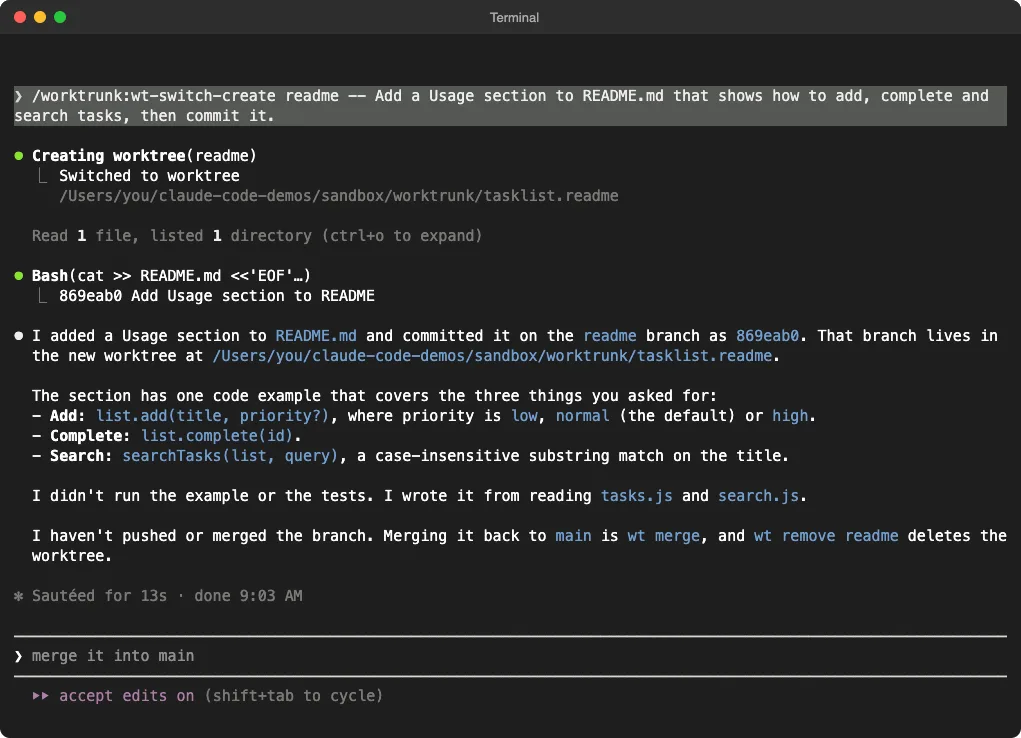
Normally Claude Code asks before a session moves into a folder outside its own worktrees area. The plugin’s permission hook answers yes for the repo’s own Worktrunk worktrees, so there was no prompt for that step, and Claude only asked before the git commit.
See Which Sessions Are Working or Waiting
The plugin also marks each worktree in wt list while Claude runs there. A robot means Claude is working, and a speech bubble means it’s waiting for you.
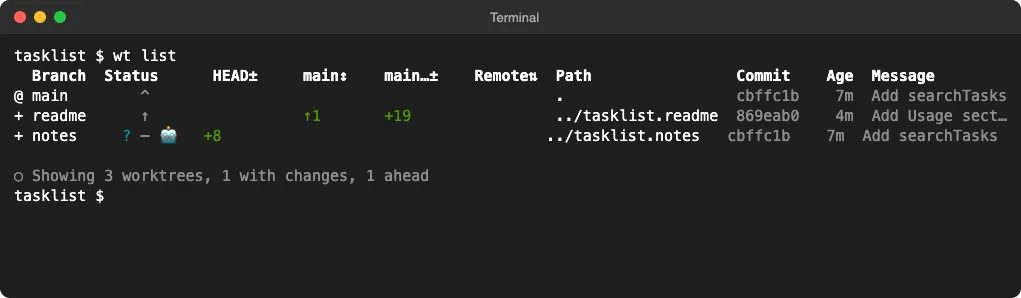
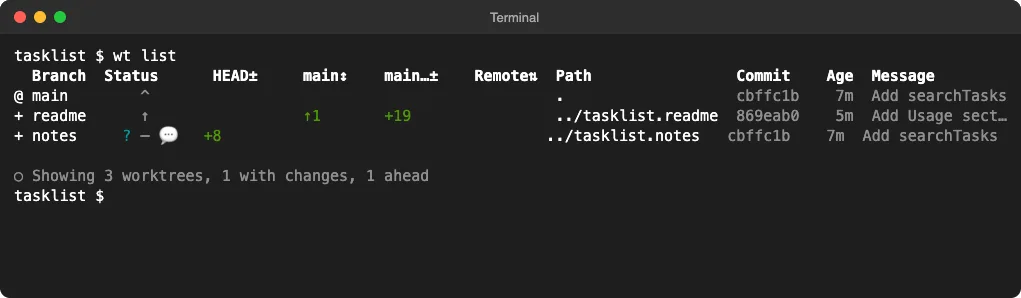
With several sessions open, this is the most useful part of the plugin. You can tell at a glance which tab to check.
One quirk we hit: when /wt-switch-create moved a session into a new worktree, the marker stayed on the branch where the session started. Markers were right for sessions started with wt switch -x claude.
What the Plugin Changes Behind the Scenes
The plugin also hooks into Claude Code’s own worktree feature. According to Worktrunk’s docs, worktrees that Claude Code creates, including for subagents with worktree isolation, then go through wt switch --create and wt remove.
The docs also list a /wt-diff side pane and a status line command. We didn’t test those two, so we’re leaving them out of our results.
Worktrunk vs Claude Code’s Built-In --worktree Flag
Claude Code has its own worktree option. claude -w name (or --worktree name) starts a session in .claude/worktrees/name on a branch called worktree-name.
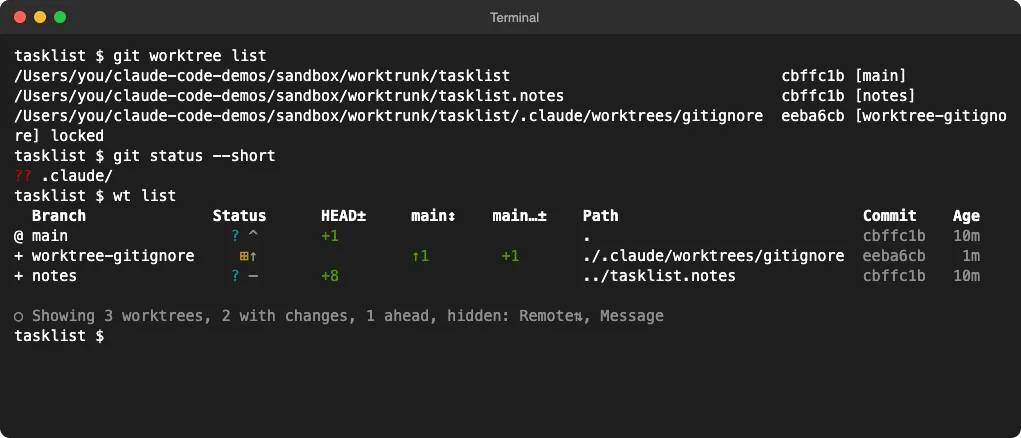
We tried it next to Worktrunk. It worked, and wt list even showed Claude’s worktree alongside its own:
| Feature | claude --worktree | Worktrunk |
|---|---|---|
| Extra install | None | The wt tool, plus shell integration |
| Where worktrees go | Inside the project, in .claude/worktrees/ | Next to the project, like ../project.feature |
| List all worktrees | No command for it | wt list with status |
| Merge back to main | By hand with git | wt merge rebases, merges and cleans up |
| Cleanup | Asks to keep or remove when an interactive session ends | wt merge or wt remove, with safety checks |
| Works with other agents | Claude Code only | Any command, plus plugins for Codex and others |
Two small things to know about the built-in flag. The worktree folder showed up as an untracked .claude/ folder in git status, and Claude Code’s docs suggest adding .claude/worktrees/ to your .gitignore. A worktree made in a non-interactive -p run also stayed behind, locked, with no cleanup prompt.
For one quick side task, the built-in flag is enough. Once you run several sessions a day and merge their work, Worktrunk saves real time.
Our Verdict on Worktrunk With Claude Code
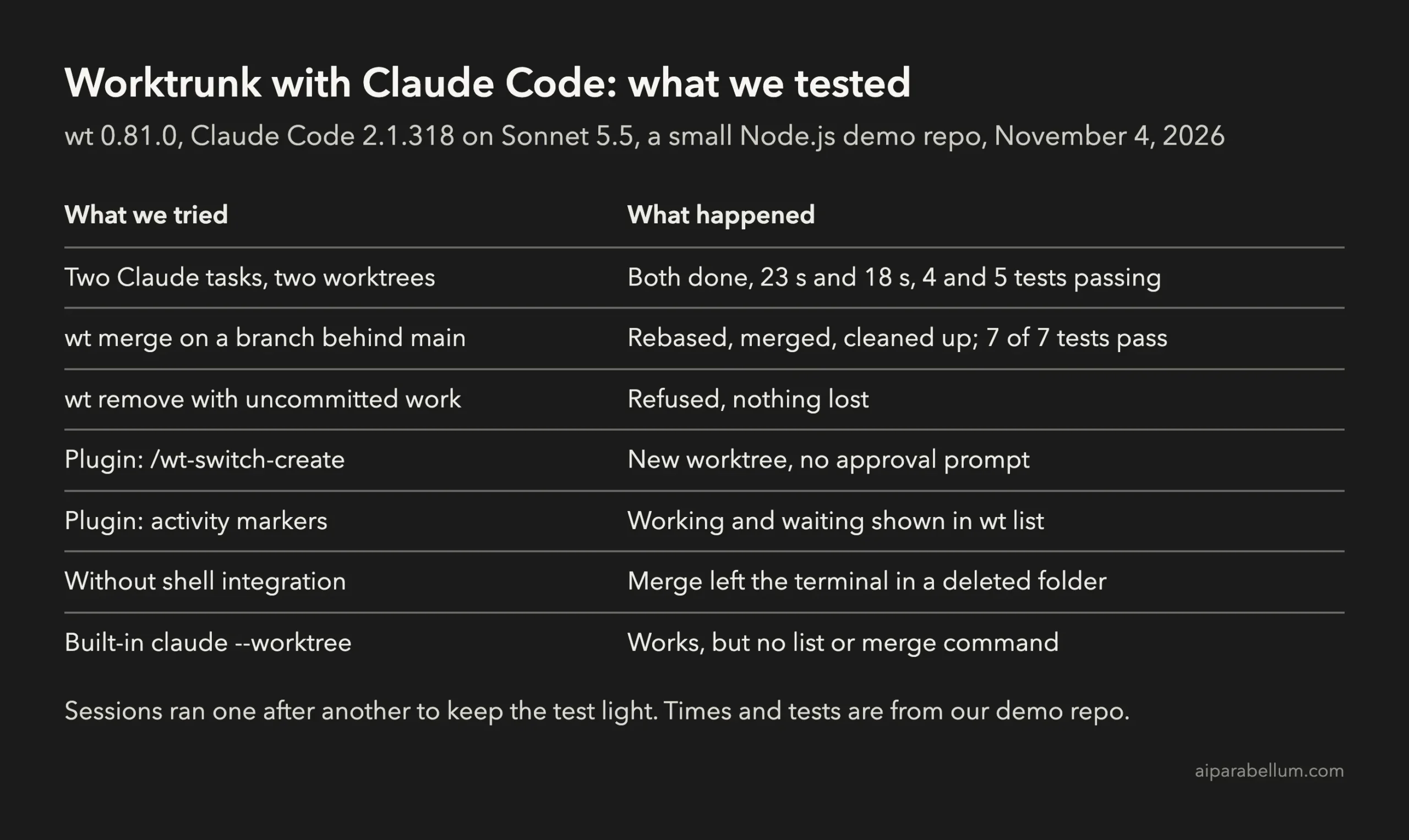
Worktrunk does what it promises. In our test it kept two Claude Code tasks fully apart, merged both cleanly, rebased the one that had fallen behind, and refused to throw away uncommitted work.
The weak spots are small. You must install shell integration or merges strand your terminal, the -x flag doesn’t take shell syntax directly, and the plugin’s marker can stick to the wrong branch after /wt-switch-create.
If you run more than one Claude Code session at a time, it’s worth installing. If you only ever run one, plain Claude Code is fine, and claude --worktree covers the odd side task.
FAQ
Do I need the plugin to use Worktrunk with Claude Code?
No. wt switch -c feature -x claude, wt list and wt merge all work with plain Claude Code. The plugin adds the /wt-switch-create skill, the working and waiting markers and the worktree hooks.
Can I run Claude Code sessions at the same time in different worktrees?
Yes. Each worktree is a separate folder on its own branch, so sessions don’t see each other’s files. Open one terminal tab per worktree, and use wt list to check on all of them.
Does Worktrunk work with Codex and other agents?
Yes. -x runs any program, and Worktrunk has plugins for Codex, OpenCode, Gemini CLI and others. The /wt-switch-create skill and worktree hooks are Claude Code only.
What happens to my dependencies in a new worktree?
A new worktree starts with only the files in git, so folders like node_modules aren’t there. Install them again in the worktree, or set up a Worktrunk project hook to do it every time.
Conclusion
Worktrunk gives Claude Code a clean way to run several tasks at once: wt switch -c name -x claude to start, wt list to check, and wt merge to bring the work home. In our test, two Claude sessions finished in their own worktrees, both branches merged with a rebase where needed, and all 7 tests passed.
Install it with brew install worktrunk && wt config shell install, add the plugin if you want status markers, and keep claude --worktree for quick one-off tasks. The Worktrunk docs cover hooks and more settings.
For more tested guides like this one, see our Claude Code tutorials, or search 500+ add-ons in the Claude Code Skills Directory.