
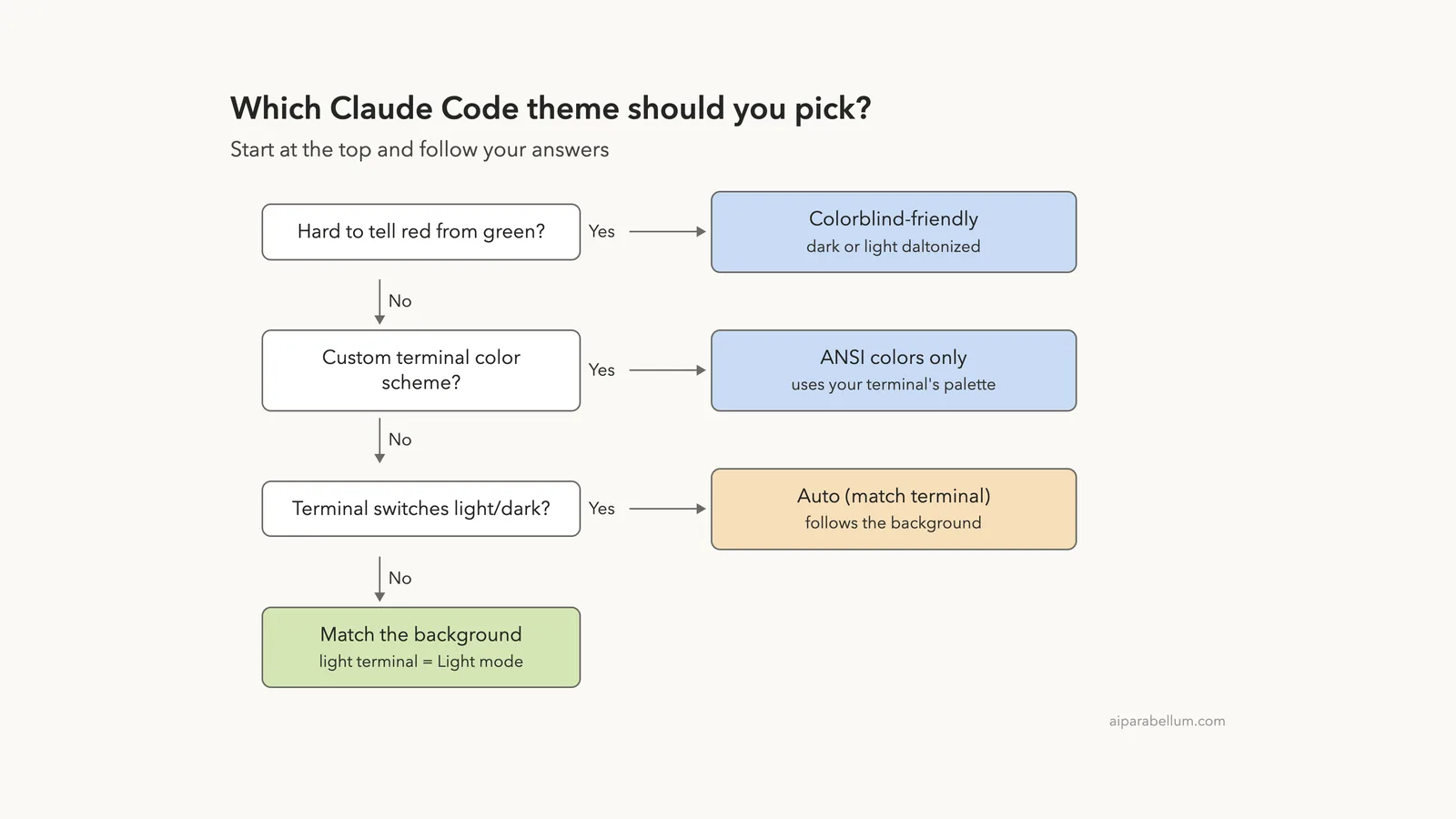
To change the Claude Code theme, type /theme inside a session, move through the list with the arrow keys to preview each option, and press Enter to keep the one you like. The choice is saved for every future session, and there are seven built-in options: Auto, Dark, Light, two colorblind-friendly versions and two that use only your terminal’s own ANSI colors.
If text looks faded, too pale or hard to read, the cause is almost always a mismatch between the Claude Code theme and your terminal’s background. A light theme on a dark terminal, or a dark theme on a white one, washes some colors out. Pick the mode that matches your background, or choose Auto so Claude Code follows the terminal for you.
Below, we walk through the theme picker in a real session, show what a mismatch looks like, and cover every other fix: the theme setting, custom themes, syntax colors, tmux color limits and a theme that refuses to stick.
Browse all our Claude Code tutorials for more fixes and how-tos.
Tested with Claude Code v2.1.330 on macOS on November 25, 2026, in a throwaway demo project. Every terminal screenshot shows a real session; the ones titled “light background” show the captured session drawn on a white terminal background. We tested on macOS; the Windows and Linux steps follow Anthropic’s official instructions.
Quick Summary
| What you want or see | Likely cause | Fix |
|---|---|---|
| Change the Claude Code theme | Default is the dark theme | /theme, then Enter |
| Faded or pale text | Theme doesn’t match the terminal background | Pick Light or Dark to match, or Auto |
| Hard to tell added and removed lines apart | Red and green look alike to you | A colorblind-friendly (daltonized) theme |
| Colors clash with your terminal color scheme | Claude Code uses its own fixed colors | An “ANSI colors only” theme |
| Code colors are distracting or clash | Syntax highlighting | Ctrl+T in /theme, or syntaxHighlightingDisabled |
| Your theme choice keeps reverting | A project or managed settings file sets theme | Check the higher settings levels |
| Washed-out colors inside tmux | tmux limits Claude Code to 256 colors | CLAUDE_CODE_TMUX_TRUECOLOR=1 plus a tmux setting |
Why Claude Code Colors Become Unreadable
Your terminal app paints the background and the default text color. Claude Code paints everything else on top: the prompt bar, menu highlights, hints, diff backgrounds and code colors. Each theme picks its colors for one kind of background, so a theme meant for dark terminals uses light, soft tones, and a light theme uses darker ones.
When the two don’t match, some of Claude Code’s colors land too close to your background. The official terminal configuration docs say it plainly: Claude Code does not control the terminal’s own color scheme, which is set by the terminal application. So the fix happens on the Claude Code side, by choosing a theme that fits the terminal you already have.
The default theme is dark. If you work in a white terminal, such as the default profile in some macOS Terminal setups, that default is the most common reason text looks pale. Our guide on terminal setup basics covers the rest of the terminal side.
How to Change the Claude Code Theme With /theme
The /theme command is the fastest way. It works in any session, and you can also reach the same picker from the Config tab of /config.
Step 1: Open the theme picker
Type /theme at the Claude Code prompt and press Enter. The picker opens with the heading “Choose the text style that looks best with your terminal” and a check mark next to the theme you use now.
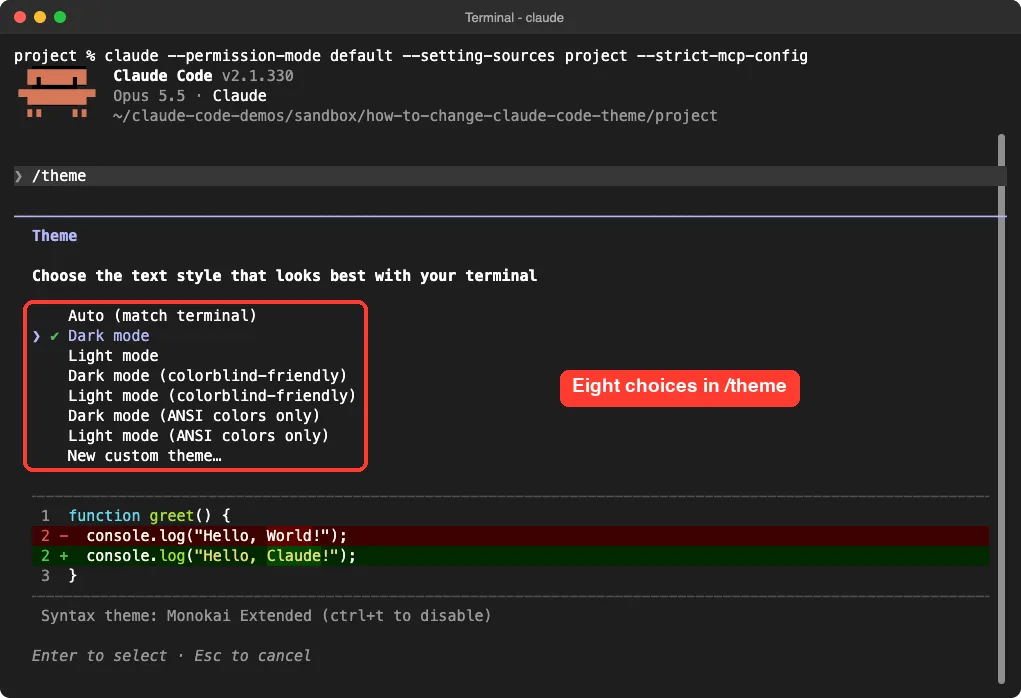
Here is what each entry means, based on the theme setting reference:
- Auto (match terminal): detects whether your terminal background is light or dark, and follows OS appearance changes whenever your terminal does.
- Dark mode and Light mode: the standard pair.
- Dark mode and Light mode (colorblind-friendly): the same themes with colorblind-friendly colors, saved as
dark-daltonizedandlight-daltonized. - Dark mode and Light mode (ANSI colors only): use only your terminal’s ANSI color palette, saved as
dark-ansiandlight-ansi. - New custom theme…: builds your own theme on top of one of these.
Step 2: Preview themes with the arrow keys
Move up and down the list. In our session, the whole screen switched colors as soon as an option was highlighted, including the sample diff at the bottom of the picker. That diff is the best test, because it shows text, red and green backgrounds and code colors all at once.
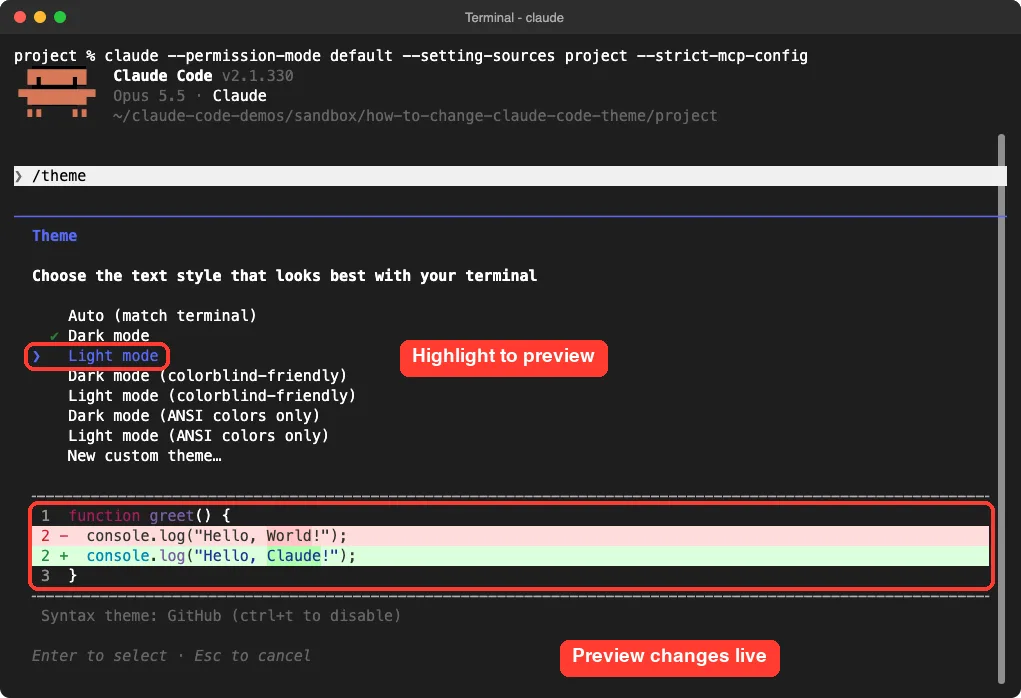
The line under the sample diff also names the code color scheme. In our test it showed “Monokai Extended” for the dark themes, “GitHub” for the light themes and “ansi” for the ANSI-only themes.
Step 3: Press Enter to save, or Esc to cancel
Press Enter to keep the highlighted theme. Claude Code saves it to your user settings file, ~/.claude/settings.json, so every new session starts with it. The official settings docs name the theme as one of the settings saved there.
Press Esc to leave without changing anything. In our run, Esc printed “Theme picker dismissed”, and the saved theme in the settings file stayed exactly as it was.
Faster: set the theme in one line
If you already know which theme you want, skip the menu. The commands reference shows that /config accepts key=value pairs:
/config theme=lightTo try a theme for one session only without saving it, pass it on the command line when you start Claude Code:
claude --settings '{"theme": "light"}'What Unreadable Colors Look Like (and the Fix)
We captured the same picker in two mismatched setups, so you can spot the problem in your own terminal.
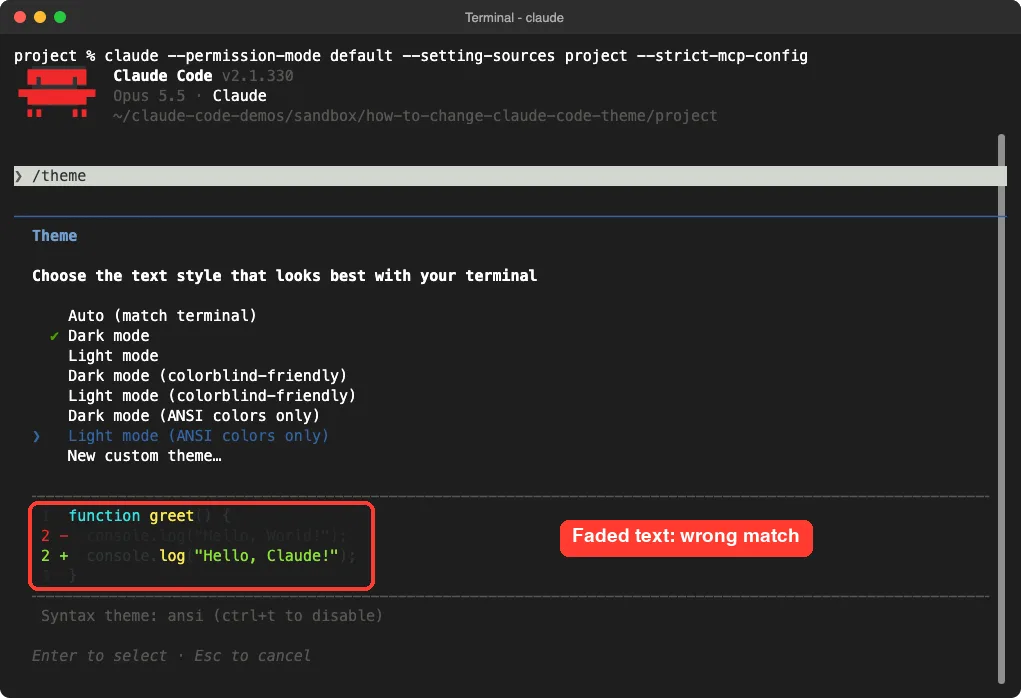
A light theme on a dark terminal
Here we highlighted “Light mode (ANSI colors only)” in a dark terminal. Most of the sample code faded into the background, and only a few words stayed bright. The input bar at the top also turned into a light strip with dark text.
A dark theme on a light terminal
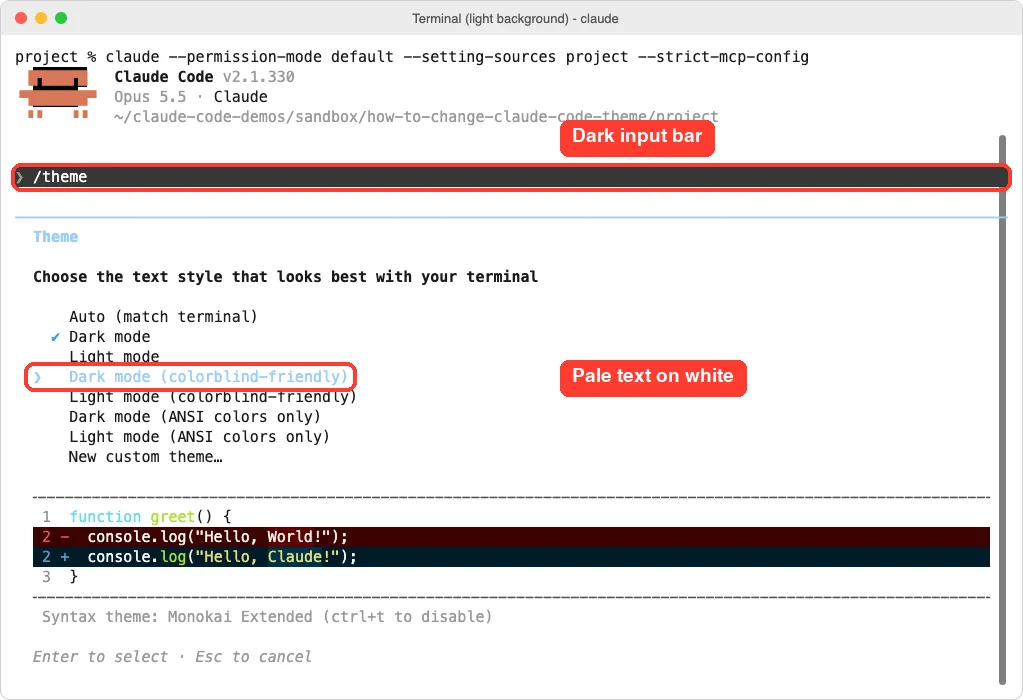
The reverse problem looks different. With the dark theme in a white terminal, the input bar becomes a dark band, and Claude Code’s soft blue highlight text turns pale against the white background.
The fix: match the background
We switched the demo project to the light theme and asked Claude to show a small Python file and suggest one change as a diff. In the same white terminal, the code, the inline file name and the red and green diff lines were all easy to read.
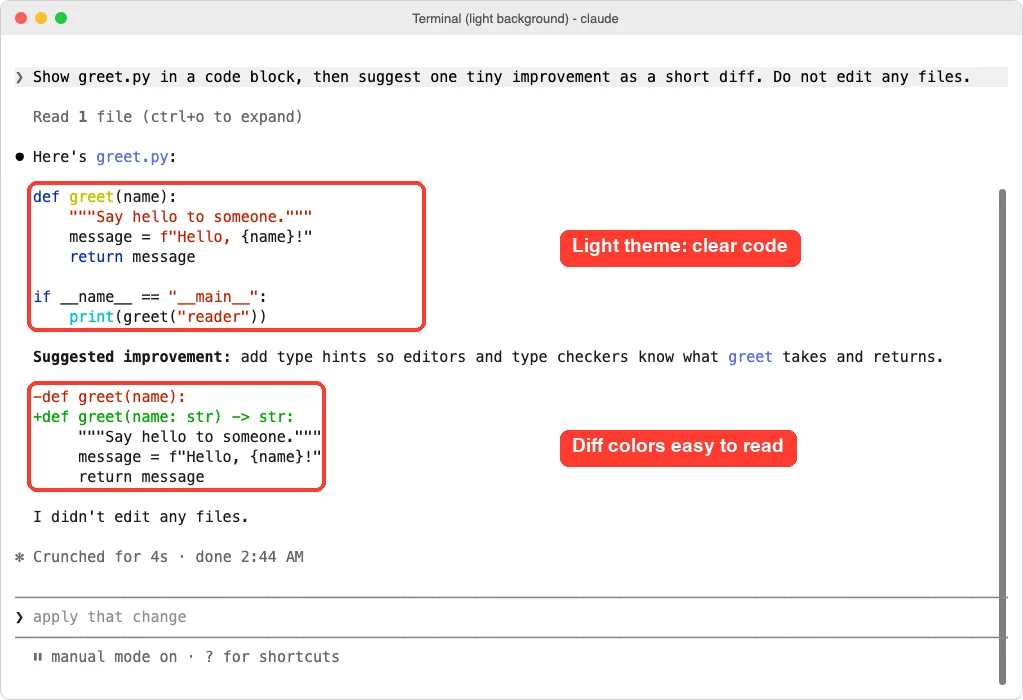
Faded text is almost never a bug. It means the Claude Code theme and your terminal background disagree.
If you switch between light and dark terminal profiles during the day, choose Auto instead. It reads the background and follows your terminal when it changes with the OS appearance.
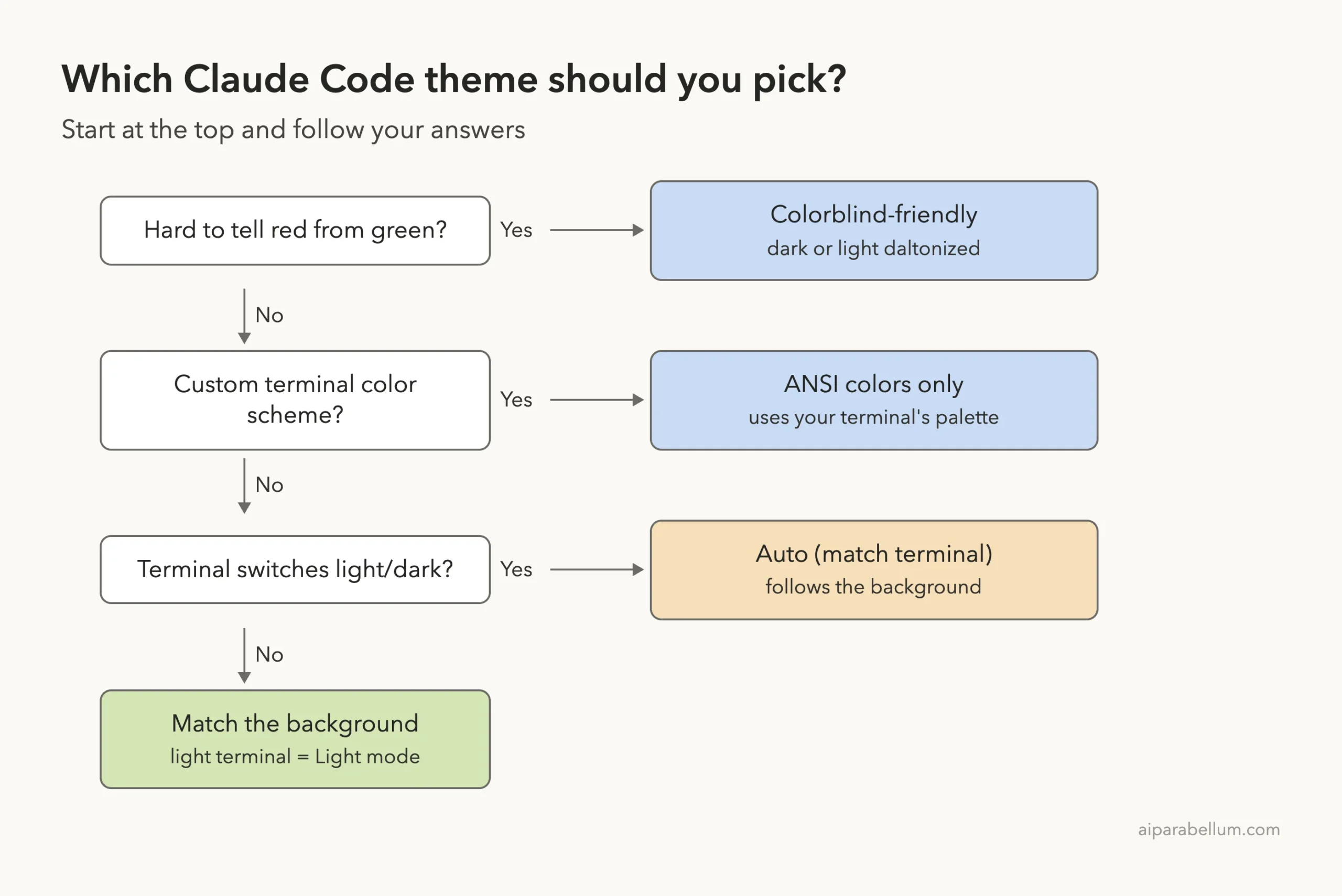
Set the Theme in settings.json
The theme is a normal setting called theme, and the reference lists its scope as “Any file”. That means you can put it in your user file, a project file or a local project file. Use these exact values:
| Value | What you get |
|---|---|
auto | Matches your terminal’s light or dark background |
dark | The dark theme (the default) |
light | The light theme |
dark-daltonized | Dark, with colorblind-friendly colors |
light-daltonized | Light, with colorblind-friendly colors |
dark-ansi | Dark, using only your terminal’s ANSI palette |
light-ansi | Light, using only your terminal’s ANSI palette |
custom:<slug> | Your custom theme from ~/.claude/themes/ |
custom:<plugin-name>:<slug> | A theme that comes with a plugin |
A minimal file looks like this:
{
  "theme": "light"
}
Settings files are strict JSON, so a trailing comma or a comment breaks them. If you’re not sure which file is which, our guide to settings file locations lists every path, and our settings.json examples post has more ready-to-copy blocks.
Why your theme keeps changing back
If you pick a theme with /theme but a project opens in a different one, another settings file is probably setting theme. When the same key appears in several places, Claude Code uses the highest level that sets it.
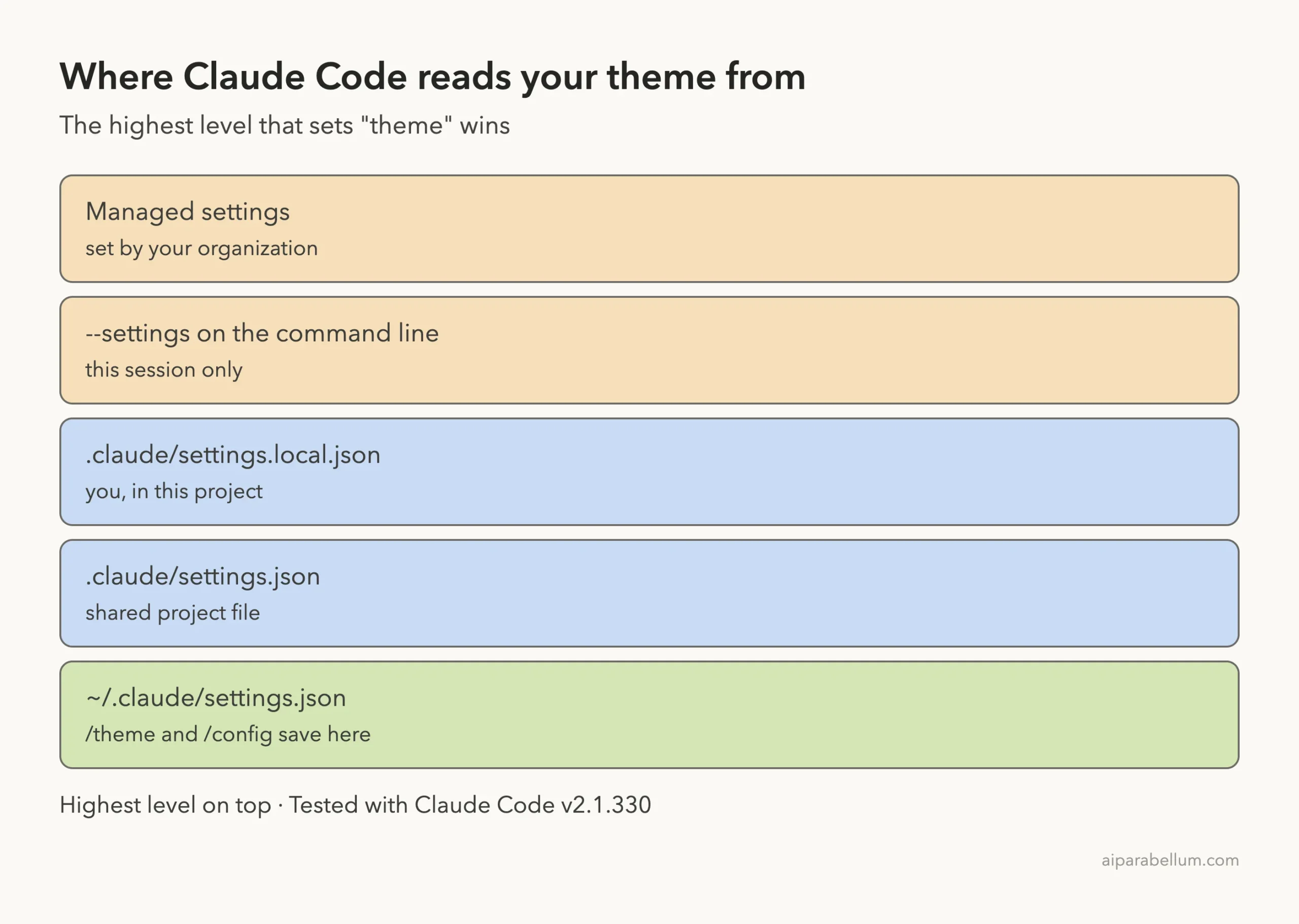
Look for "theme" in the project’s .claude/settings.json and .claude/settings.local.json. If your organization manages Claude Code, a managed setting can’t be overridden from your own files, so ask your admin. Older versions kept the theme in ~/.claude.json; the reference says that value still applies only when no settings file sets one.
Create a Custom Claude Code Theme
When no preset fits, build your own. The quickest route is “New custom theme…” at the bottom of /theme: you name the theme, then pick individual color tokens to change, with a live preview. Press Ctrl+E while a custom theme is highlighted to edit it later.
Each custom theme is a JSON file in ~/.claude/themes/. The file name without .json becomes the theme’s slug, and it has three optional fields:
name: the label shown in/theme.base: the preset it starts from, such aslightordark-ansi(defaultdark).overrides: the color tokens you want to change. Anything you leave out comes from the base.
Colors can be #rrggbb, #rgb, rgb(r,g,b), ansi256(n) or ansi:<name>, such as ansi:cyanBright. Unknown tokens and invalid values are ignored.
To keep the demo out of our real setup, we packed a high-contrast light theme into a tiny local plugin and loaded it with --plugin-dir. The plugin components docs say a plugin can ship themes in a themes/ folder using the same file format.
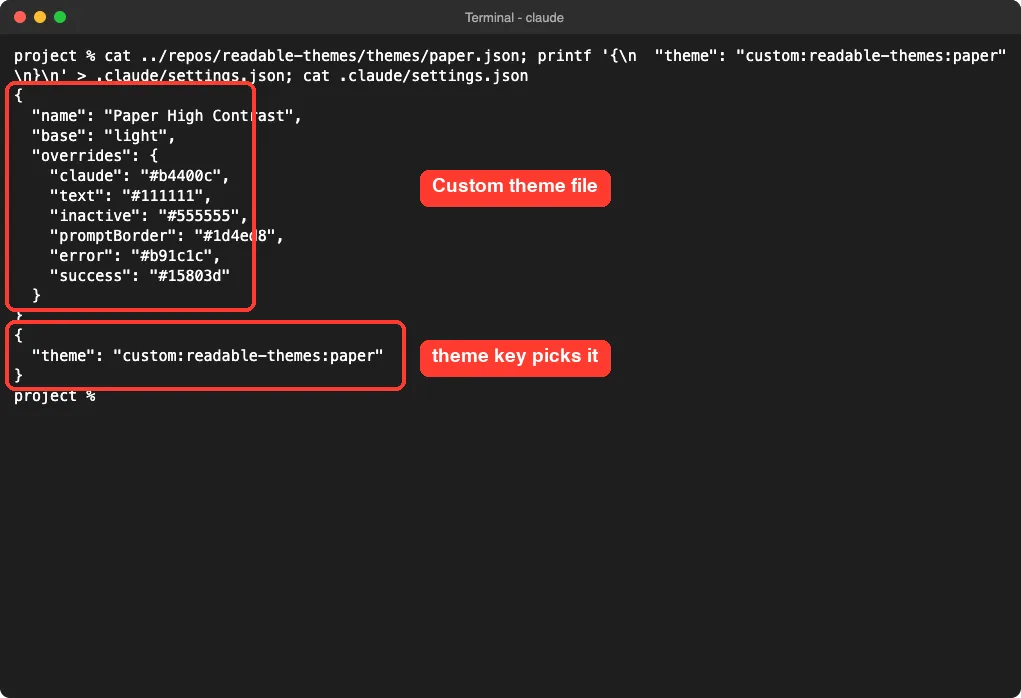
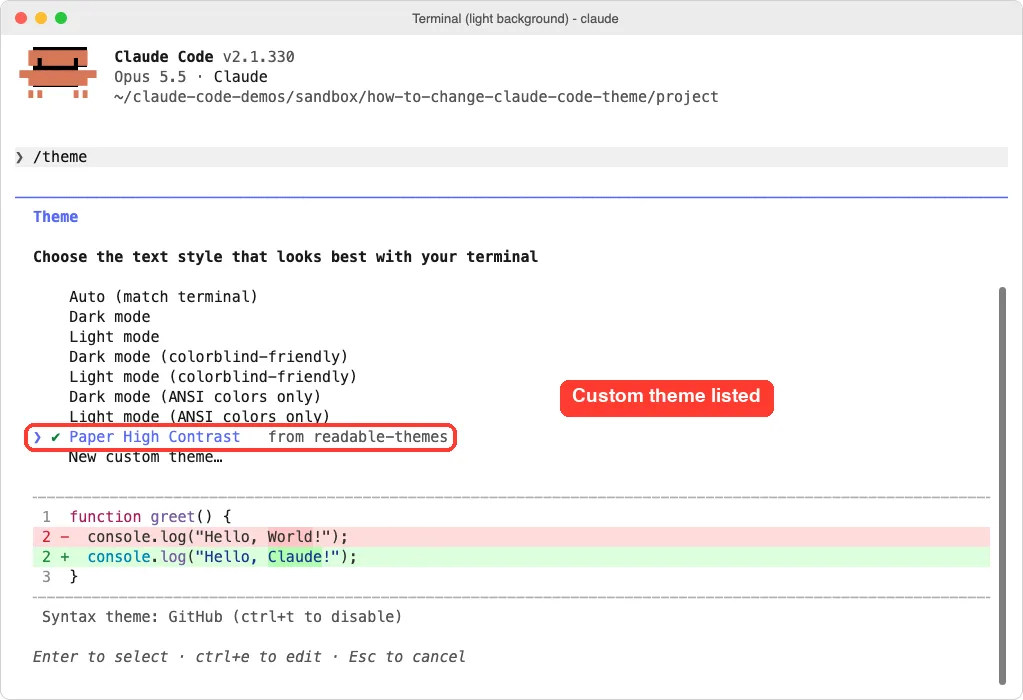
Claude Code listed it in the picker as “Paper High Contrast from readable-themes”, already checked, with a “ctrl+e to edit” hint at the bottom.
Here are the tokens that matter most for readability, from the docs’ color token reference:
| Token | Controls |
|---|---|
text | Default foreground text |
inactive | Hints, timestamps and disabled items (often the faintest text) |
subtle | Faint borders, dividers and symbols |
suggestion | Autocomplete and the highlight in pickers |
promptBorder | The input box border |
diffAdded / diffRemoved | Backgrounds of added and removed lines |
userMessageBackground | Background behind your messages |
Claude Code watches ~/.claude/themes/ and reloads when a file changes, so edits apply without a restart. One catch: if that folder didn’t exist when Claude Code started, restart once after creating your first theme file. If you want to share a theme with a team, our guide to building a plugin shows the folder layout.
Turn Off Syntax Colors
Sometimes the theme is fine but the colors inside code blocks clash with your terminal. Claude Code colors code in diffs, code blocks and file previews with its own highlighter, and you can turn that off.
- In the picker: press
Ctrl+Twhile/themeis open. The interactive mode docs list this shortcut, and it only works inside that menu. - In a settings file: set
"syntaxHighlightingDisabled": true. - For diffs only: set the environment variable
CLAUDE_CODE_SYNTAX_HIGHLIGHT=false.
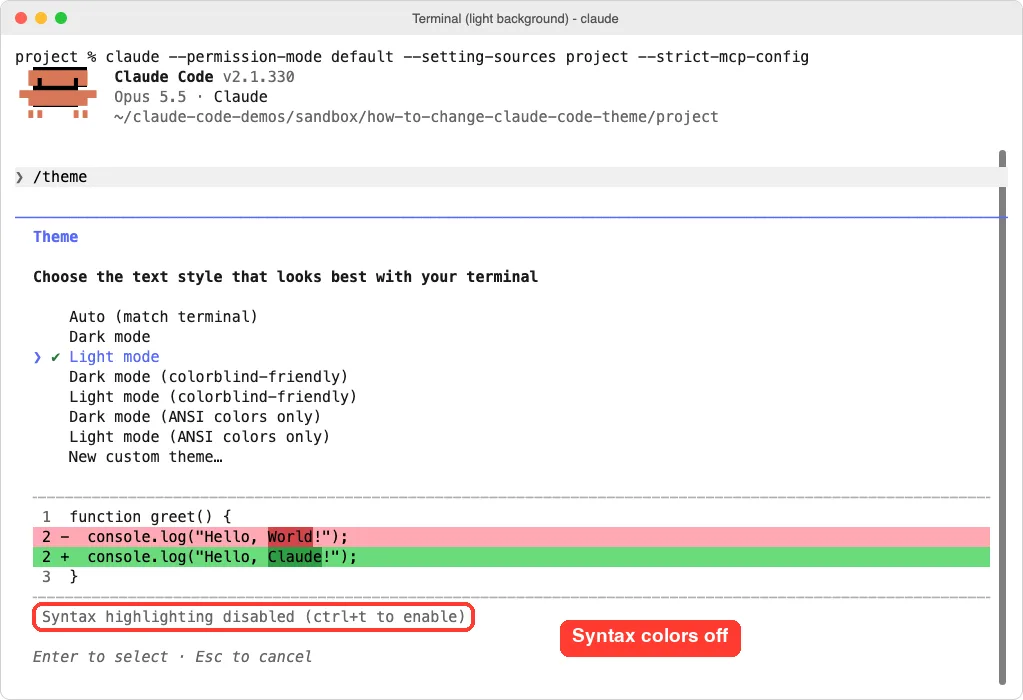
One thing we noticed: in our test, Ctrl+T saved syntaxHighlightingDisabled to the user settings file right away, and pressing Esc afterward did not undo it. If code colors vanish and you’re not sure why, look for that key in ~/.claude/settings.json.
Fix Faded Colors in tmux
Inside tmux, Claude Code limits itself to 256 colors by default, because tmux doesn’t pass through 24-bit color unless it is set up to. Colors can look duller or slightly off as a result. The environment variables reference gives a two-part fix:
# 1. in ~/.tmux.conf
set -ga terminal-overrides ',*:Tc'

# 2. in your shell, before starting Claude Code
export CLAUDE_CODE_TMUX_TRUECOLOR=1
Note the unusual rule for this variable: even 0 or false turns it on. To go back to 256 colors, unset it.
Other Fixes Worth Knowing
The prompt bar color changed on its own
The colored bar around the prompt isn’t always the theme. The /color command sets it for the current session to red, blue, green, yellow, purple, orange, pink or cyan. Run /color default to reset it.
A broken custom theme
If a custom theme makes Claude Code hard to use, start in safe mode with claude --safe-mode. Custom themes don’t load in safe mode, so you can fix or remove the file. For a full clean start, see how to reset Claude Code.
Screen flicker, not colors
If the trouble is a flashing screen rather than bad colors, that’s a renderer issue. Our guide to stopping terminal flicker covers it.
Try It Yourself
Open a Claude Code session in any small practice folder, run /theme, and arrow through all seven presets while watching the sample diff. Then ask Claude for something that shows several colors at once, so you can judge your pick on real output:
Show me a 10-line Python function in a code block, then suggest one small change as a diff. Do not edit any files.If anything still looks faint, note which part it is (hints, borders or diff lines) and override that token in a custom theme.
Common Mistakes
- Changing the terminal’s color scheme and expecting Claude Code to follow, while the theme is set to Dark or Light. Only Auto follows the terminal.
- Choosing an ANSI-only theme with the wrong brightness. “Light mode (ANSI colors only)” still expects a light background.
- Leaving a
"theme"key in a project file, then wondering why/themedoesn’t seem to stick in that project. - Writing JSON with a trailing comma in a settings or theme file, which makes Claude Code ignore or reject it.
- Creating
~/.claude/themes/while Claude Code is running and expecting the first theme to show up without a restart.
Pro Tips
- Judge themes on the sample diff in the picker, not the menu text. Diff colors are usually the first thing to fail.
- Use
claude --settings '{"theme": "light"}'to test a theme for one session without changing your saved choice. - Start a custom theme from the preset that is closest to what you want, and override only two or three tokens.
- If you’re colorblind, try the daltonized themes before building your own; they already change the diff colors.
- A custom status line is the place to change what shows at the bottom of the screen, not the theme.
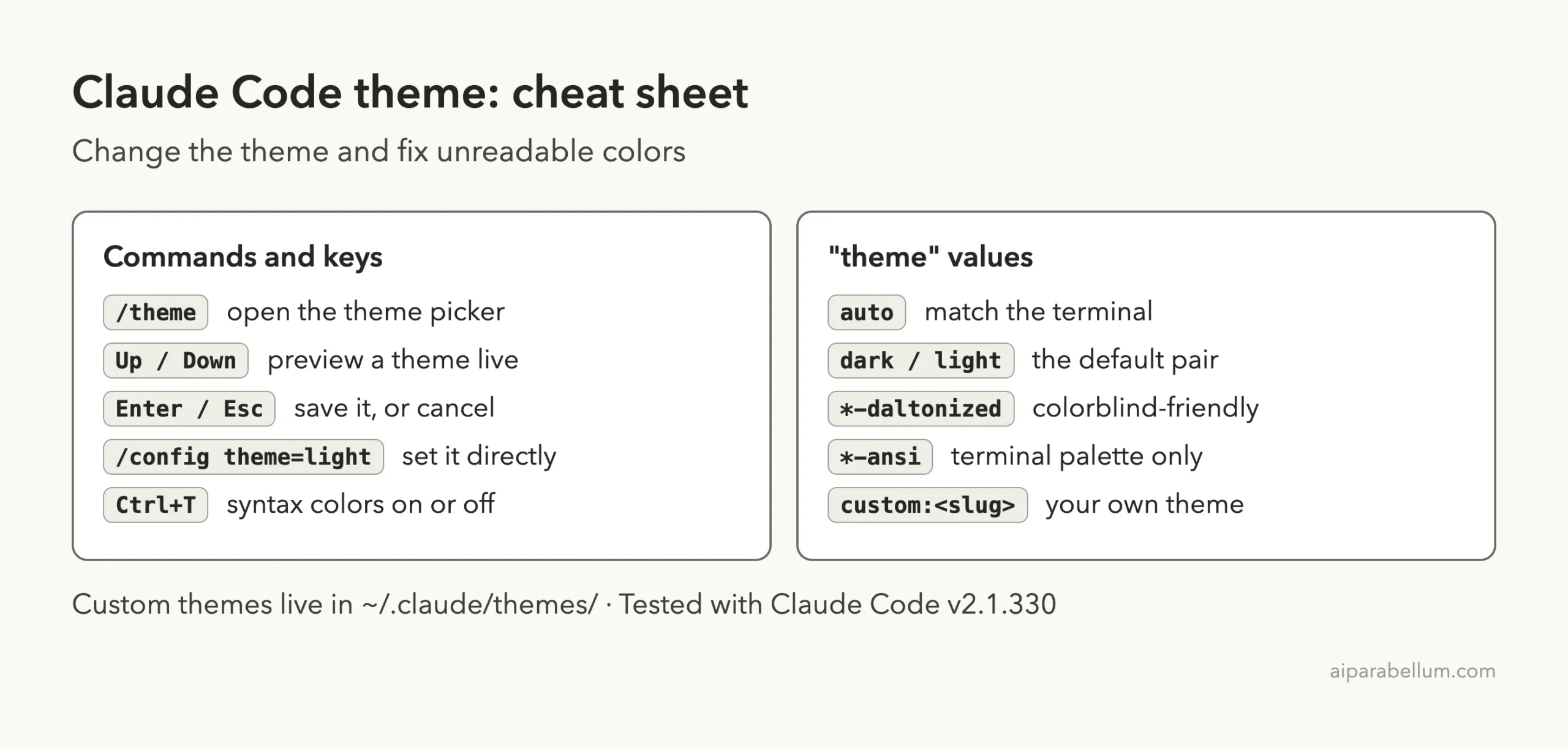
Claude Code Theme Cheat Sheet
Frequently Asked Questions
How do I change the Claude Code theme?
Type /theme in a session, highlight a theme with the arrow keys and press Enter. You can also run /config theme=light or set "theme" in ~/.claude/settings.json.
Does Claude Code have a light mode?
Yes. It has Light mode, a colorblind-friendly light mode and a light mode that uses only your terminal’s ANSI colors. Auto picks light or dark based on your terminal background.
Where is the Claude Code theme saved?
Picking a theme in /theme or /config saves it to ~/.claude/settings.json. Custom theme files live in ~/.claude/themes/.
Why is Claude Code text so faint on my screen?
Your theme probably doesn’t match your terminal background. Switch to the matching Light or Dark mode, or to Auto. If one kind of text is still faint, override its token, such as inactive, in a custom theme.
Can I change the color of the terminal itself with Claude Code?
No. The docs say Claude Code does not control your terminal’s own color scheme. Change the background and default colors in your terminal app’s settings.
Conclusion
Changing the Claude Code theme takes one command: run /theme, preview the options live, and press Enter, or set the theme key directly in a settings file. Unreadable colors nearly always mean the theme and the terminal background don’t match, so pick the matching mode or Auto, use the colorblind-friendly or ANSI-only presets when the defaults don’t suit you, and reach for a custom theme only for the last few faint tokens. If something else is going wrong in your setup, our list of common Claude Code errors and our Claude overview are good next stops.