
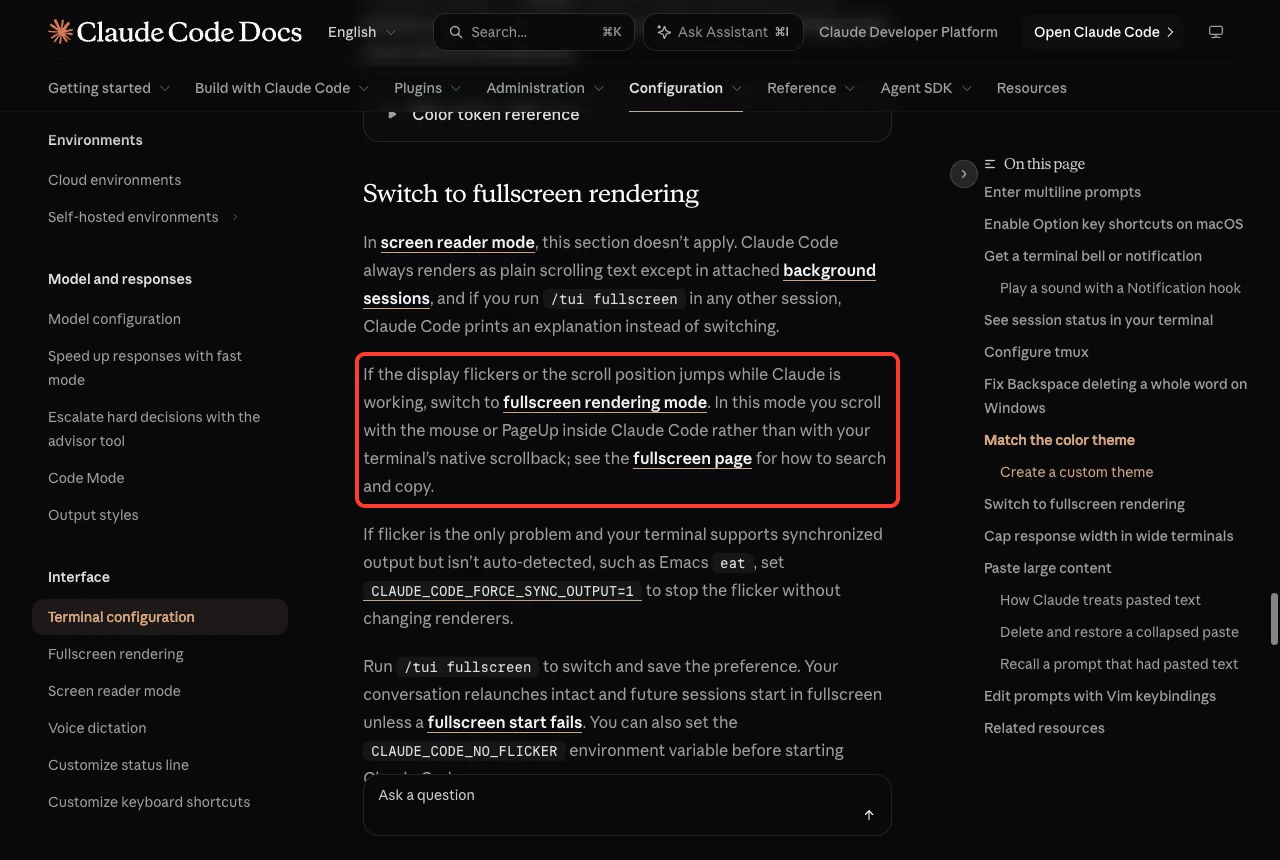
If Claude Code flickering makes your screen flash while Claude works, or your scroll position keeps jumping back to the top, the main fix is to switch Claude Code to its fullscreen renderer. Type /tui fullscreen inside Claude Code, or start it with CLAUDE_CODE_NO_FLICKER=1 claude. The fullscreen renderer draws only what fits on screen, so your terminal has far less to redraw on each update.
If flicker is your only problem and you don’t want a different renderer, there is a smaller fix. Set CLAUDE_CODE_FORCE_SYNC_OUTPUT=1 for terminals that support synchronized output but aren’t detected. Inside tmux, the cause is usually tmux itself, and the fix is a newer tmux or running Claude Code outside it.
Below, we show both renderers side by side in a real session, explain why the screen flickers in the first place, and walk through every documented fix in order.
Browse all our Claude Code tutorials for more fixes and how-tos.
Tested with Claude Code v2.1.330 on macOS on November 24, 2026, in a throwaway demo project. Every terminal screenshot shows a real session. We tested on macOS; the Windows and Linux steps follow Anthropic’s official instructions, and the tmux and VS Code steps come from the official docs.
Quick Summary
| What you see | Likely cause | Fix |
|---|---|---|
| Screen flashes as output streams in | Classic renderer redrawing too much | /tui fullscreen or CLAUDE_CODE_NO_FLICKER=1 |
| Scroll position jumps to the top | Classic renderer and your scrollback | /tui fullscreen |
| Flicker only, in an uncommon terminal | Synchronized output not detected | CLAUDE_CODE_FORCE_SYNC_OUTPUT=1 |
| Flicker only inside tmux | tmux through 3.6 lacks synchronized output | Update tmux or run outside it |
| Boxes or smeared characters in VS Code | Editor terminal GPU renderer | /terminal-setup |
| Leftover text fragments in fullscreen | Windows Terminal or ConPTY host | CLAUDE_CODE_ALT_SCREEN_FULL_REPAINT=1 |
Why Claude Code Flickering Happens
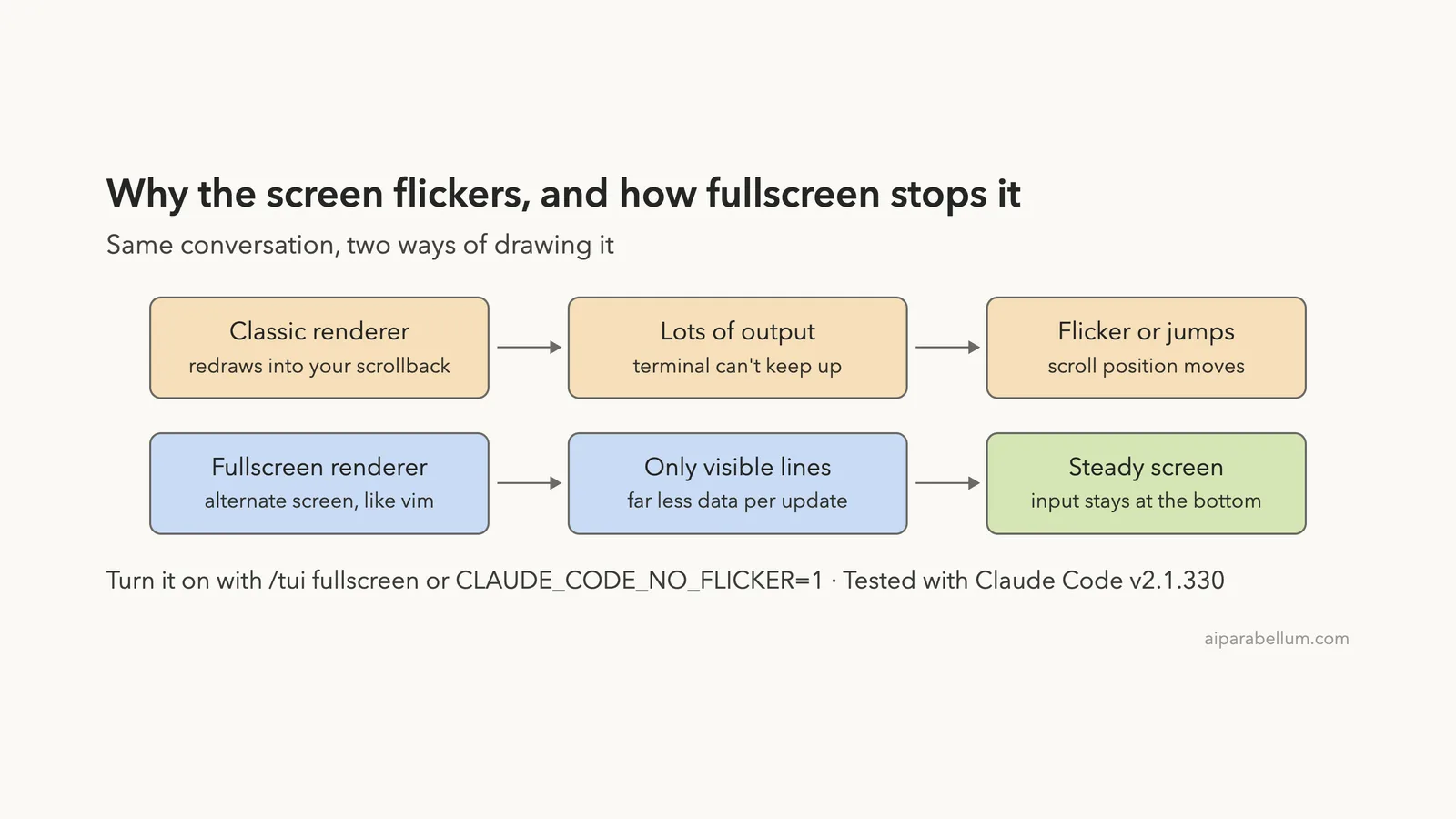
Claude Code paints its interface inside your terminal, and it repaints whenever something changes. In the classic renderer, the conversation lives in your terminal’s normal scrollback. Every update while Claude streams output means a lot of text for the terminal to redraw.
Some terminals can’t keep up with that. Anthropic’s fullscreen docs name the VS Code integrated terminal, tmux and iTerm2 as places where rendering speed is the bottleneck. When the terminal falls behind, you see the screen flash, or the view snaps back to the top of the scrollback.
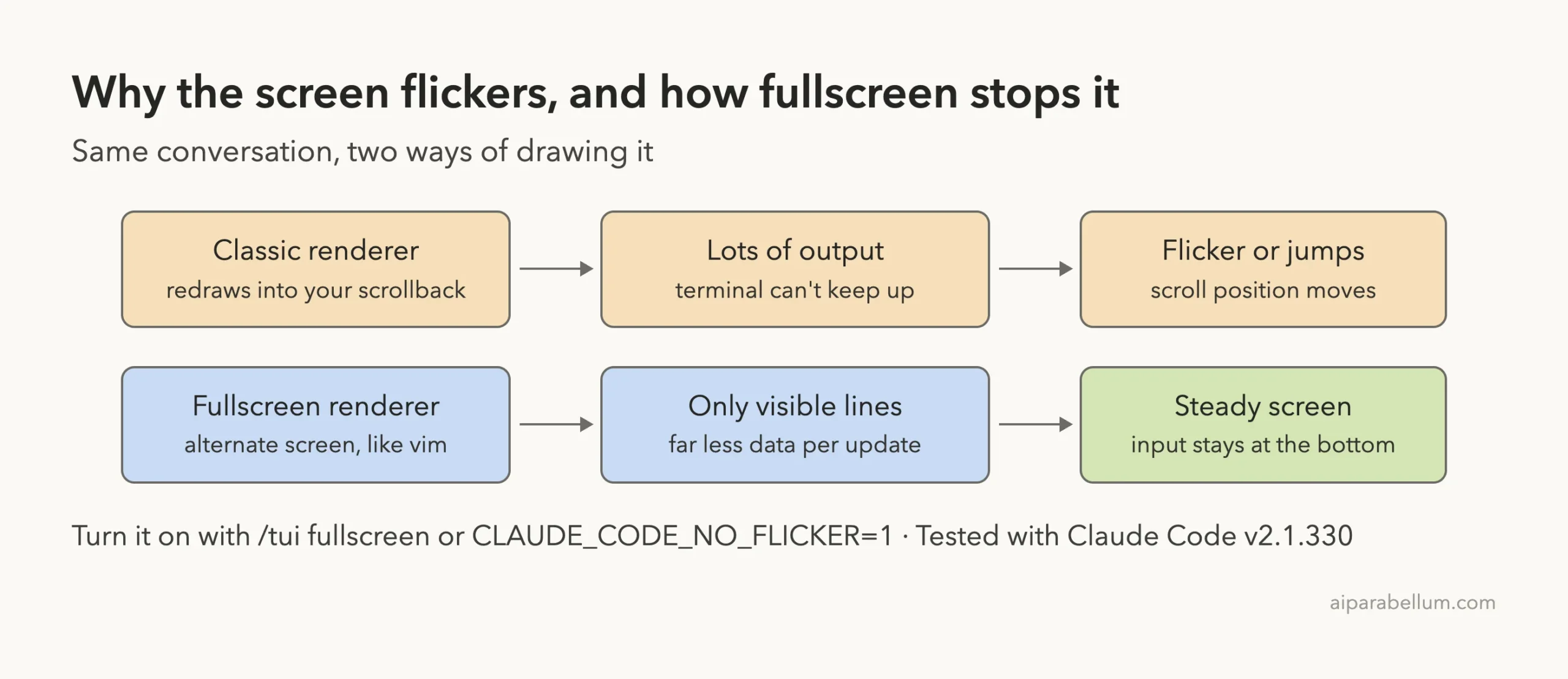
The fullscreen renderer takes a different route. It draws on the terminal’s alternate screen buffer, the same way vim or htop do, and only renders the messages that are visible right now. The docs say this sends less data to your terminal on each update and keeps memory flat in long conversations.
Flicker isn’t a bug in your project. It’s how much text your terminal is asked to repaint at once.
The official terminal configuration guide points to exactly this fix for the symptom.
Step 1: Check Which Renderer You Are Using
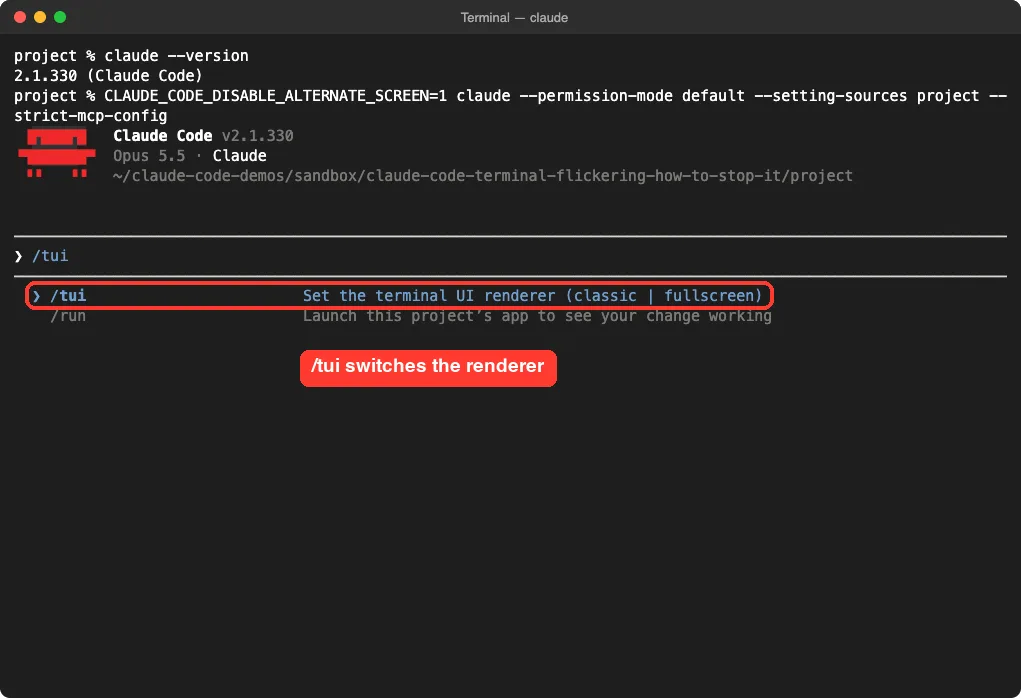
Before you change anything, find out which renderer is active. Type /tui in Claude Code. The command menu describes it as “Set the terminal UI renderer (classic | fullscreen)”.
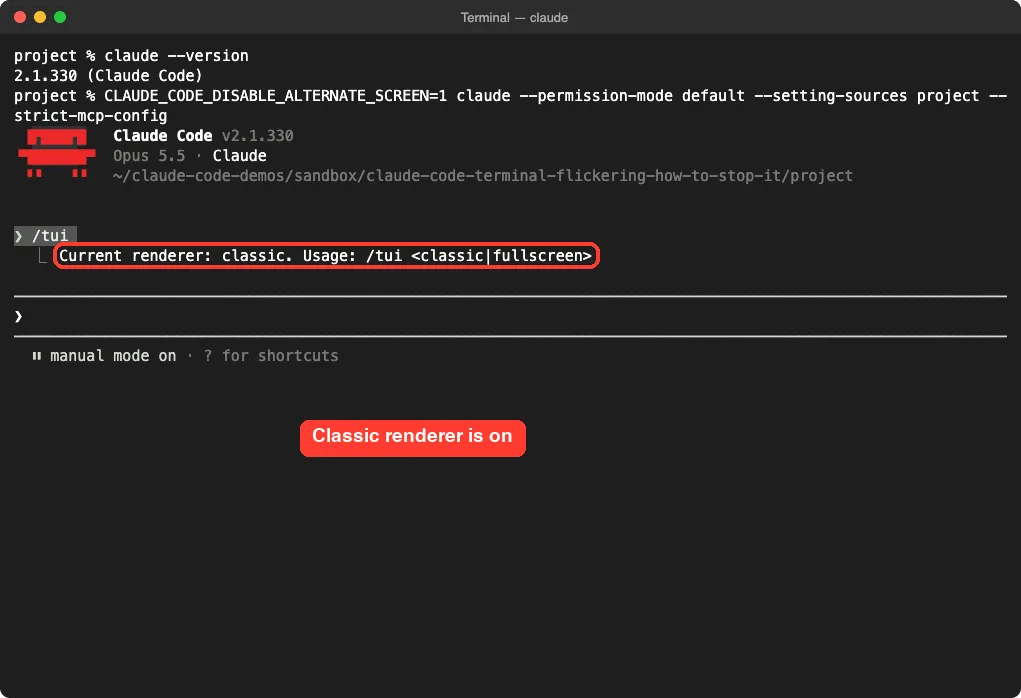
Press Enter with no argument and Claude Code prints the current renderer. In our first session, which we started with the classic renderer forced on, it answered “Current renderer: classic”.
There is also a quick visual test from the docs. If the input box stays fixed at the bottom while Claude is working, fullscreen is active. If the input box moves down as output streams in, you are on the classic renderer.
Step 2: Switch to Fullscreen With /tui fullscreen
This is the main fix for Claude Code flickering. Run /tui fullscreen inside any conversation. According to the docs, Claude Code saves the tui setting and relaunches into fullscreen with your conversation intact.
The relaunch carries over your conversation as it appears on screen, your permission mode, your effort level and the model you last picked. Future sessions start in fullscreen too, unless a fullscreen start fails on your machine.
We started a second session with fullscreen on and ran /tui again. This time it said “Current renderer: fullscreen”, and the input box sat at the very bottom of the window.
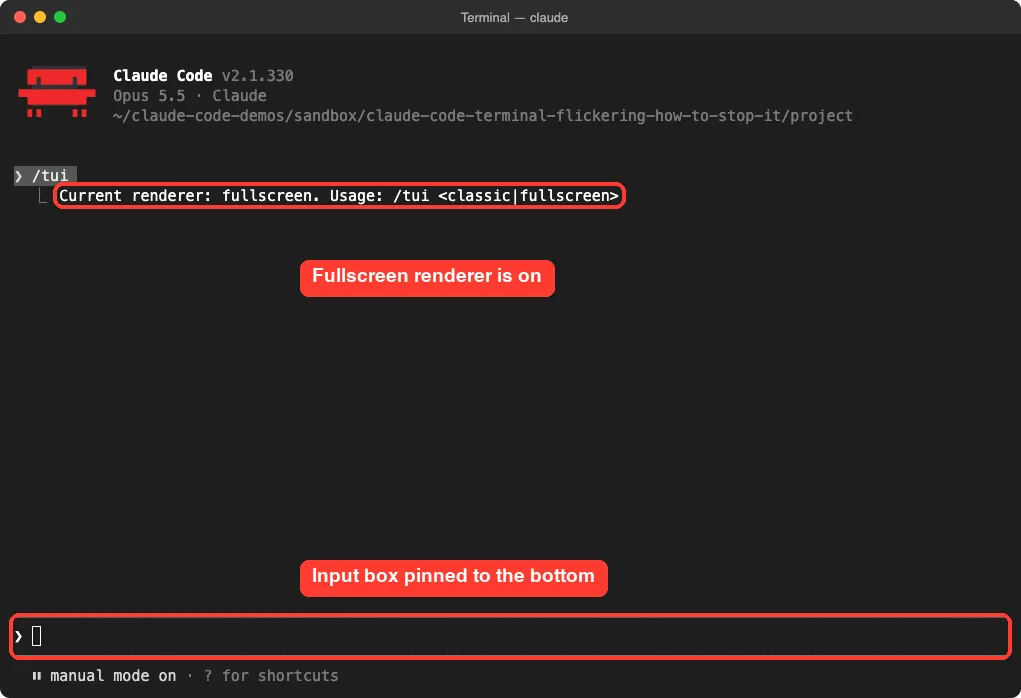
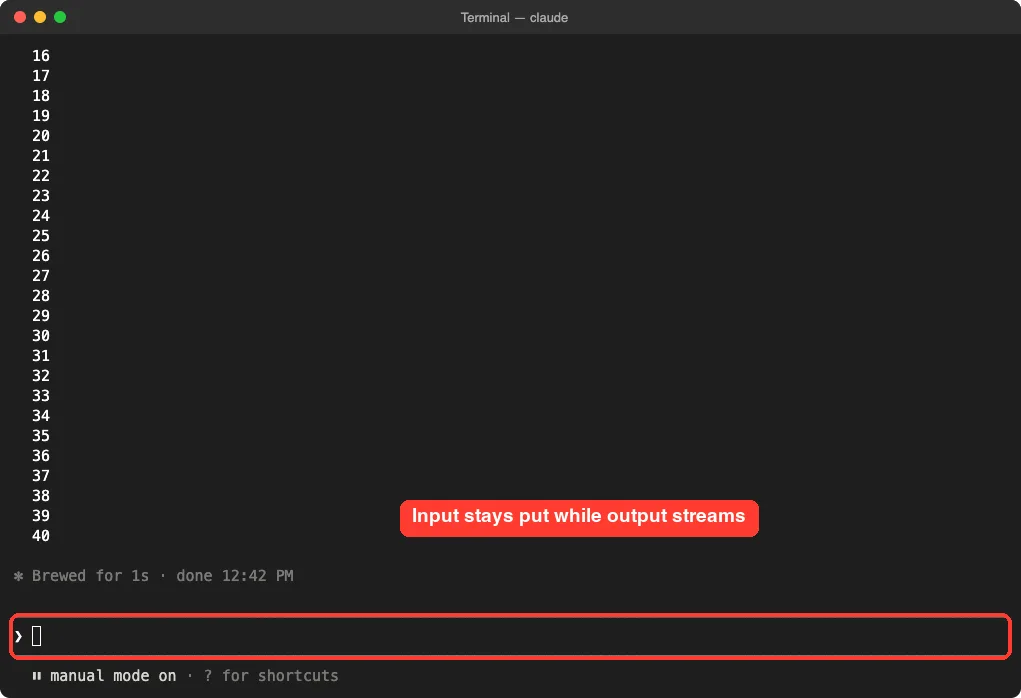
Then we gave Claude one small task that streams a lot of lines: print the numbers 1 to 40. The output scrolled inside Claude Code while the input box stayed in place. That fixed input line is the sign the flicker-free path is working.
When /tui fullscreen Refuses to Switch
Sometimes the switch is blocked. The docs say Claude Code declines to relaunch when the session has a restriction it can’t pass to the new process, such as a --system-prompt replacement, a --tools allowlist or the --setting-sources flag.
We hit this for real, because our demo session was started with --setting-sources project to keep it isolated. Claude Code printed “Cannot switch renderers in this session” and “Nothing was changed”.
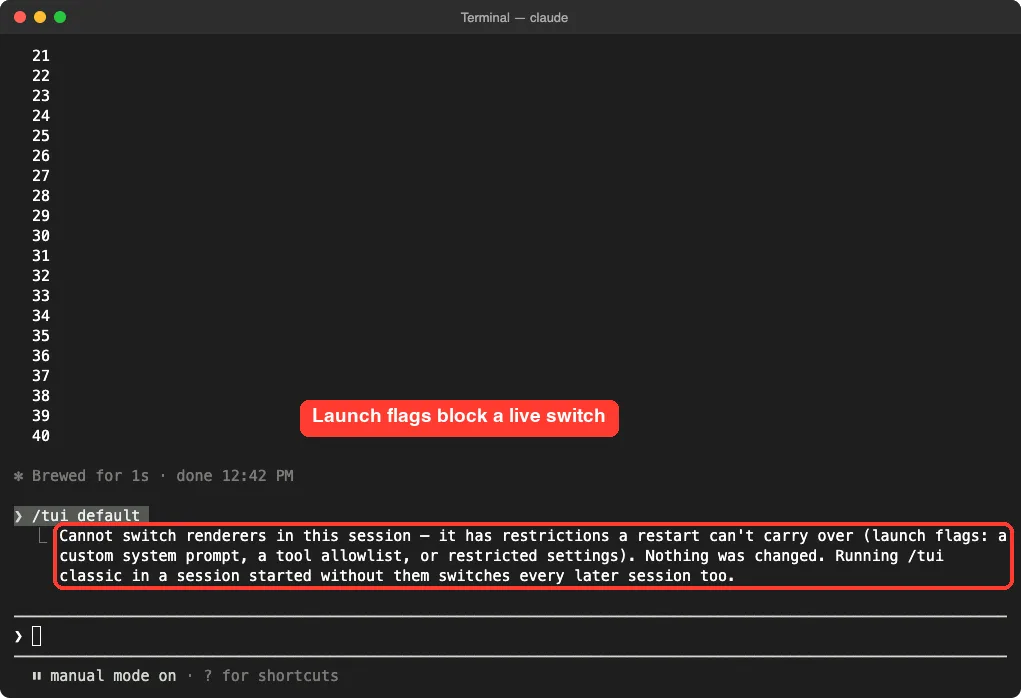
If you see this, quit and start a plain claude session without those flags, then run the command again. Or skip the command and use the environment variable in the next step, which works at launch.
Step 3: Use CLAUDE_CODE_NO_FLICKER Instead
You can also turn on fullscreen with an environment variable before Claude Code starts. On macOS and Linux:
CLAUDE_CODE_NO_FLICKER=1 claudeIn Windows PowerShell, the docs give this form:
$env:CLAUDE_CODE_NO_FLICKER = "1"; claudeTo make it stick, put the variable in the env block of a settings file. The docs show ~/.claude/settings.json; we used a project-level .claude/settings.json in our demo folder so nothing outside it changed. When we started Claude Code there with no variable on the command line, /tui reported fullscreen.
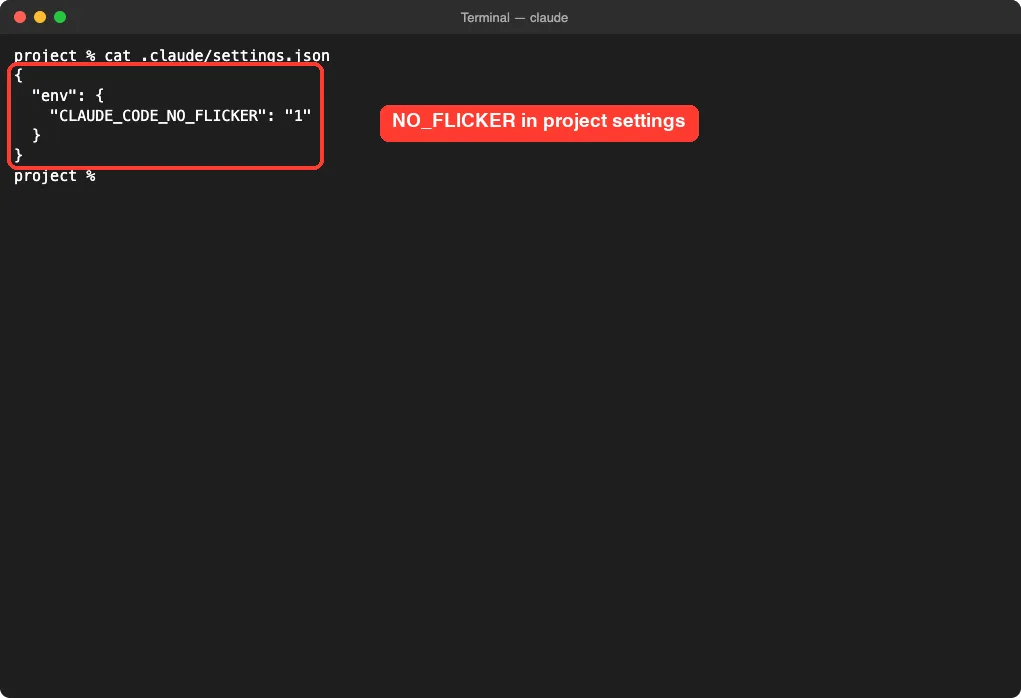
The settings file can also hold the tui key directly, which is what /tui fullscreen writes for you. Its two values are "fullscreen" and "default". A project file with {"tui": "fullscreen"} also started our session in fullscreen.
{
  "tui": "fullscreen"
}
Not sure where your settings files live? Our guide on settings.json locations lists every scope, and our environment variables guide covers how the env block works.
Step 4: Fix Flicker Without Changing Renderers
Maybe you like the classic renderer because your terminal’s own scrollback and search work as usual. If flicker is the only problem, the docs offer a smaller switch.
Many terminals support a feature called synchronized output. It lets a program say “hold on, I’m drawing a full frame” so the terminal shows the frame all at once instead of in pieces. Claude Code checks for this at startup and uses it when the terminal answers.
Some terminals support it but don’t answer the check. The docs name Emacs eat as an example. For those, set this variable:
CLAUDE_CODE_FORCE_SYNC_OUTPUT=1 claude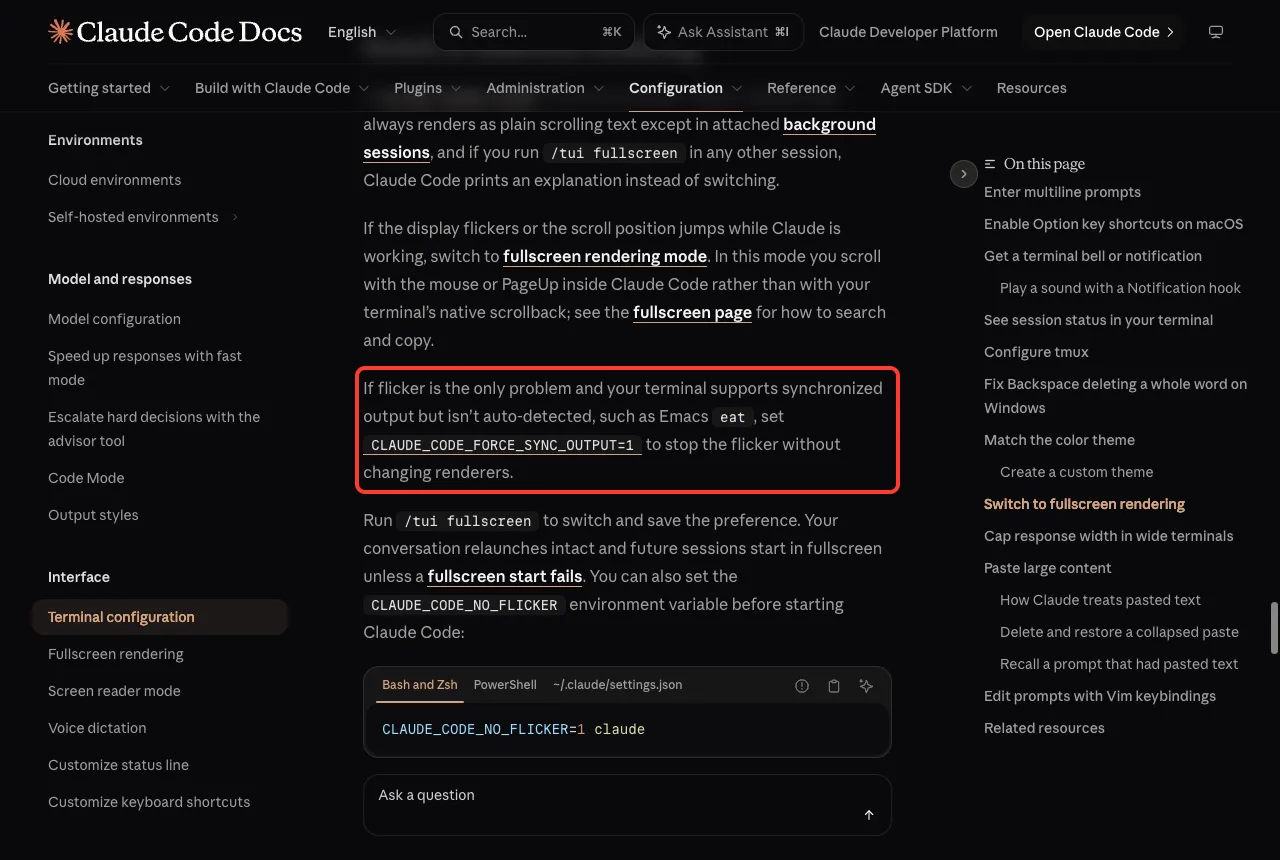
The environment variable reference adds two details. This variable doesn’t change the renderer, and it has no effect under tmux. We didn’t have an affected terminal to test on, so this fix comes from the docs.
Step 5: Stop Flickering in tmux
tmux sits between your terminal and Claude Code, and it has its own say in how the screen is drawn. The fullscreen docs say tmux releases through the 3.6 series don’t implement synchronized output. Under those versions you may see more flicker than when running Claude Code directly in your terminal.
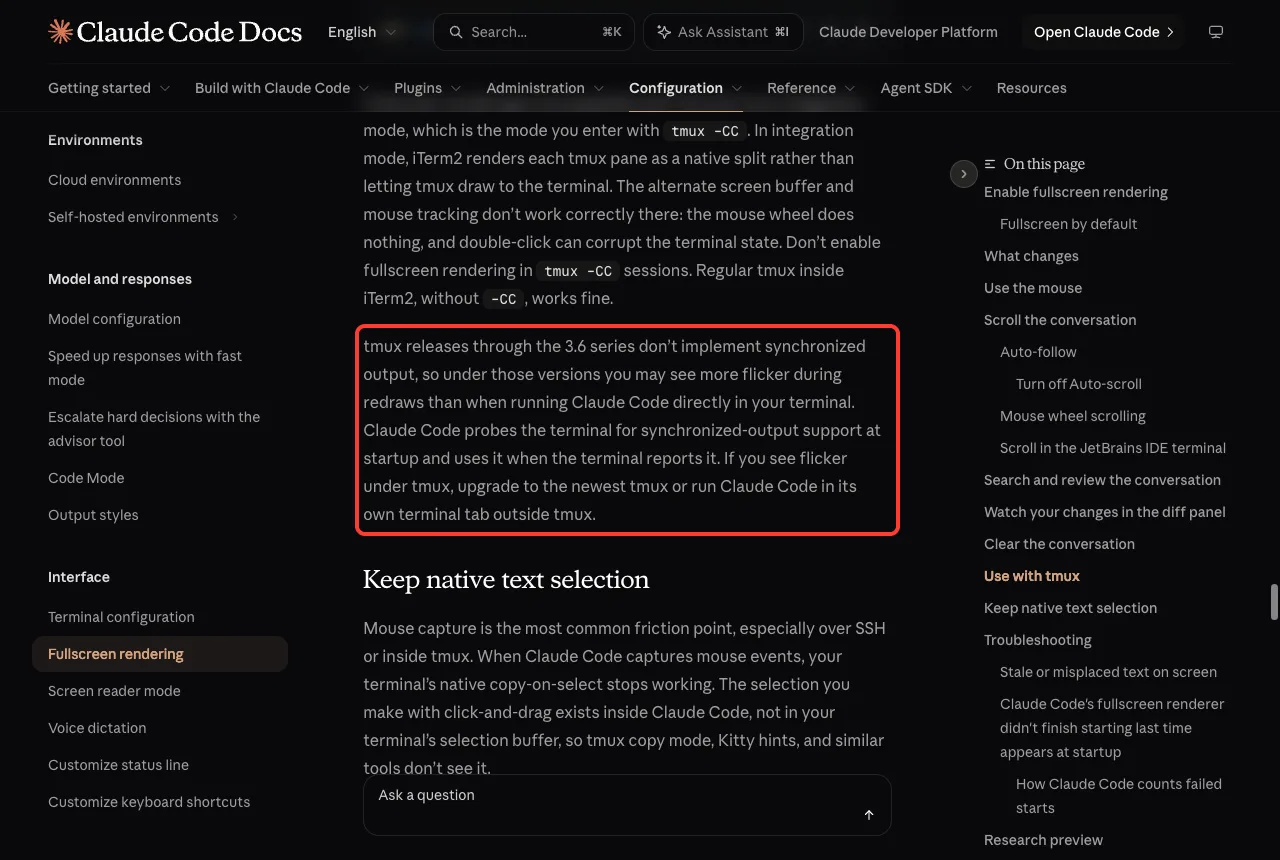
Your options, straight from the docs:
- Check your version with
tmux -V. - Upgrade to the newest tmux release.
- Or run Claude Code in its own terminal tab, outside tmux.
Fullscreen works inside regular tmux, but there are caveats. Add set -g mouse on to ~/.tmux.conf if you want the mouse wheel to scroll Claude Code. Don’t use fullscreen with iTerm2’s tmux -CC integration mode, where the docs say the mouse wheel does nothing and double-click can corrupt the terminal state.
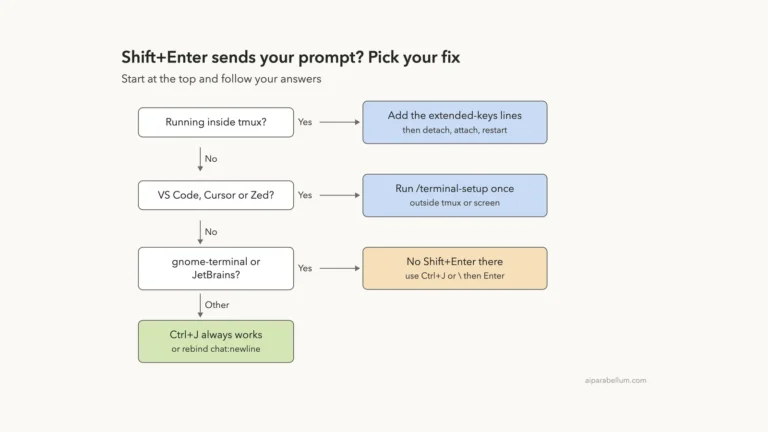
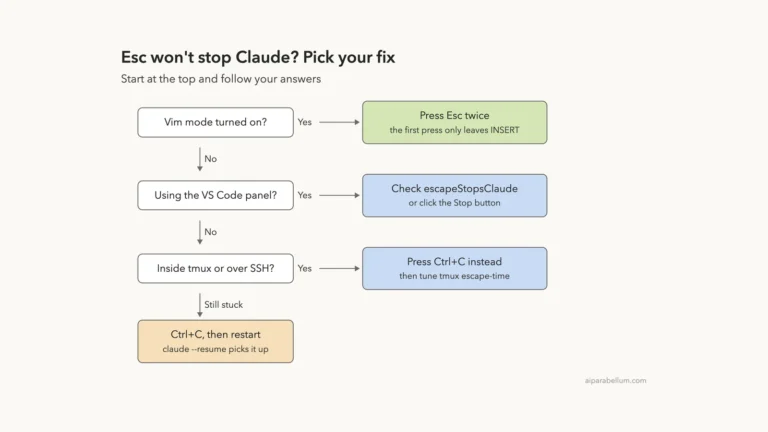
We didn’t have tmux on our test Mac and didn’t install it for this guide, so the tmux steps here come from the official docs. If tmux also breaks your keys, see our fixes for Esc not interrupting and Shift+Enter newlines.
Step 6: Fix Garbled Text and Leftover Fragments
Two problems look a lot like flicker but have their own fixes. Pick the one that matches what you see.
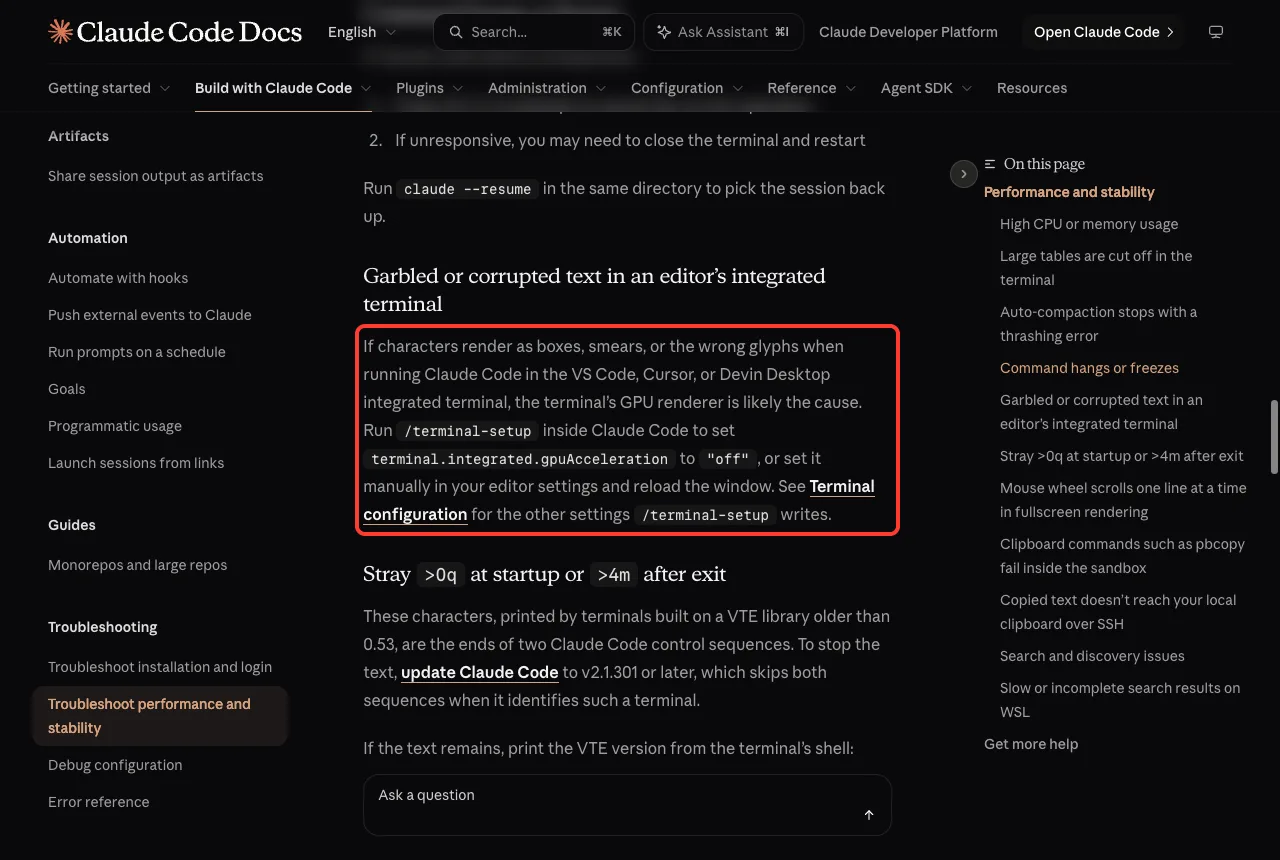
Boxes or Smeared Characters in VS Code, Cursor or Devin Desktop
The troubleshooting docs say the editor terminal’s GPU renderer is the likely cause. Run /terminal-setup inside Claude Code, which sets terminal.integrated.gpuAcceleration to "off". You can also set it by hand in your editor settings and reload the window.
Our VS Code fixes guide covers other editor problems, and our terminal setup guide explains what the command changes.
Stale Text Left on Screen in Fullscreen
Fullscreen sends only the screen cells that changed between frames. The docs say some terminals, most often Windows Terminal and other ConPTY-backed hosts, merge these writes wrongly and leave bits of old output behind until you resize.
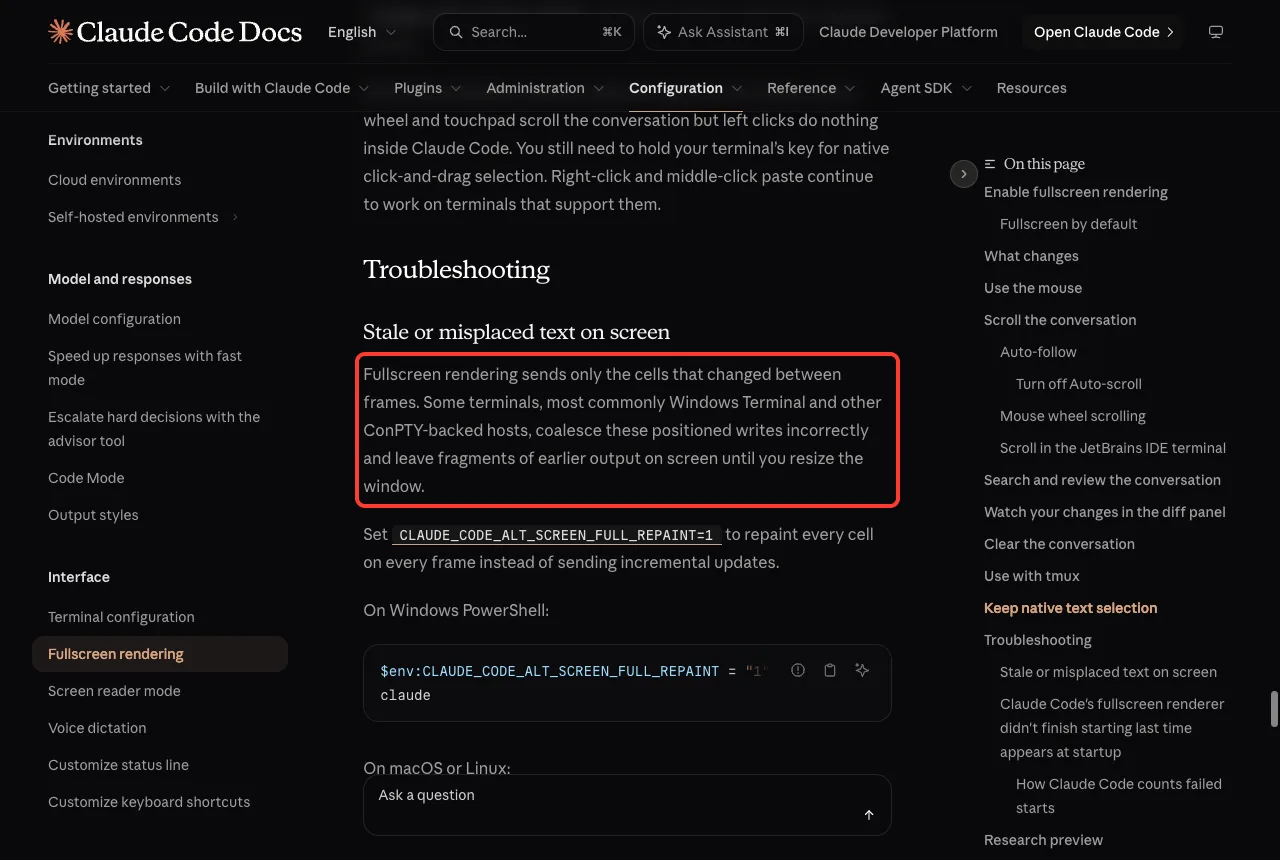
The fix is to repaint the whole screen on every frame. In PowerShell:
$env:CLAUDE_CODE_ALT_SCREEN_FULL_REPAINT = "1"
claude
On macOS or Linux, use CLAUDE_CODE_ALT_SCREEN_FULL_REPAINT=1 claude. We tested on macOS, where we didn’t see this problem; the Windows steps follow Anthropic’s official instructions.
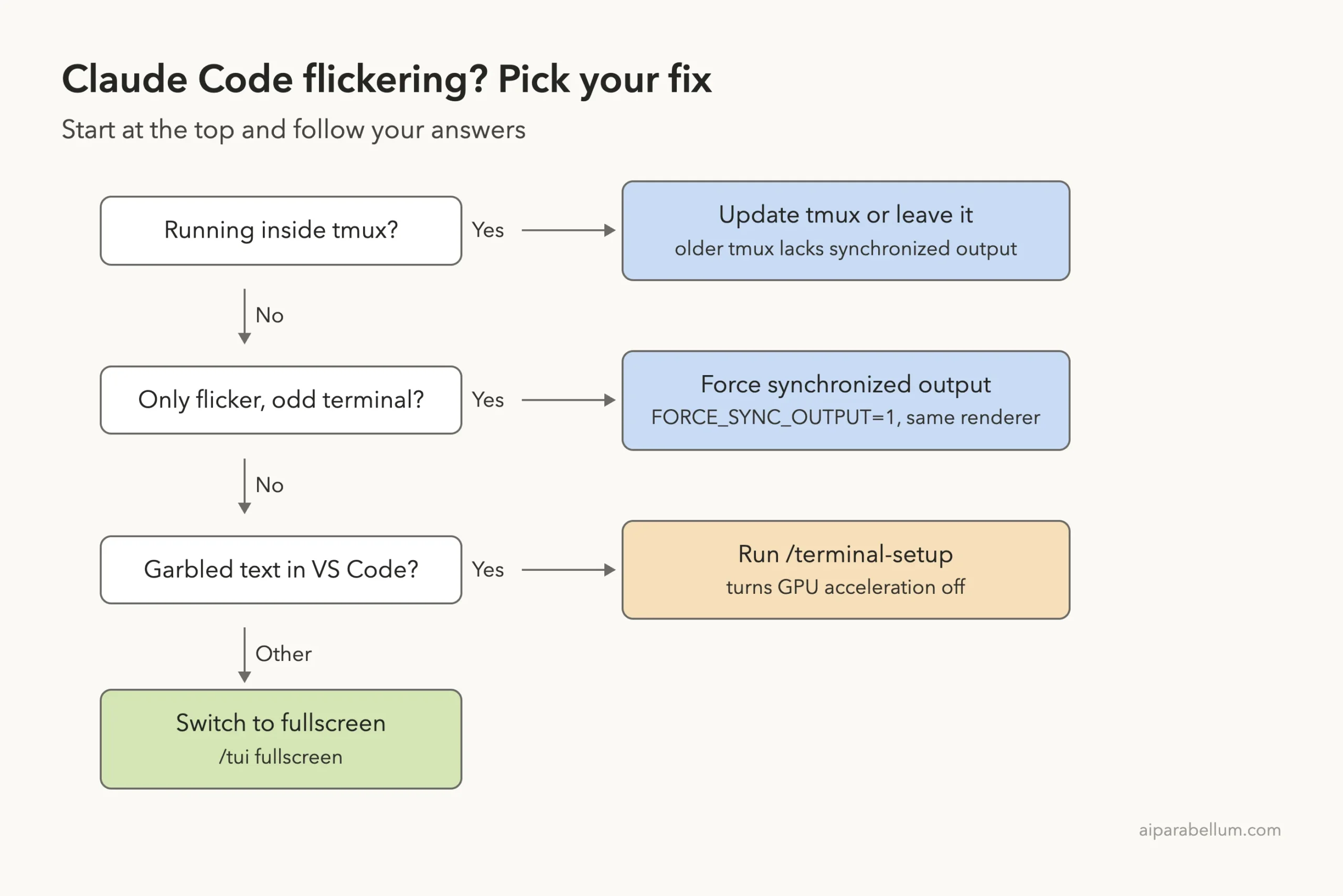
Which Claude Code Flickering Fix Should You Use?
Start at the top of this ladder and stop at the first answer that fits your setup.
What Changes After You Switch to Fullscreen
Fullscreen fixes the flicker, but a few habits change, since the conversation no longer lives in your terminal’s scrollback. Here is what the docs list.
| Before (classic) | In fullscreen |
|---|---|
Cmd+f or tmux search | Ctrl+o for transcript mode, then / to search |
| Terminal click-and-drag to copy | In-app selection that copies on mouse release |
| Terminal scrollback | Mouse wheel or PgUp and PgDn inside Claude Code |
Cmd-click a URL | Cmd-click on macOS, Ctrl-click elsewhere |
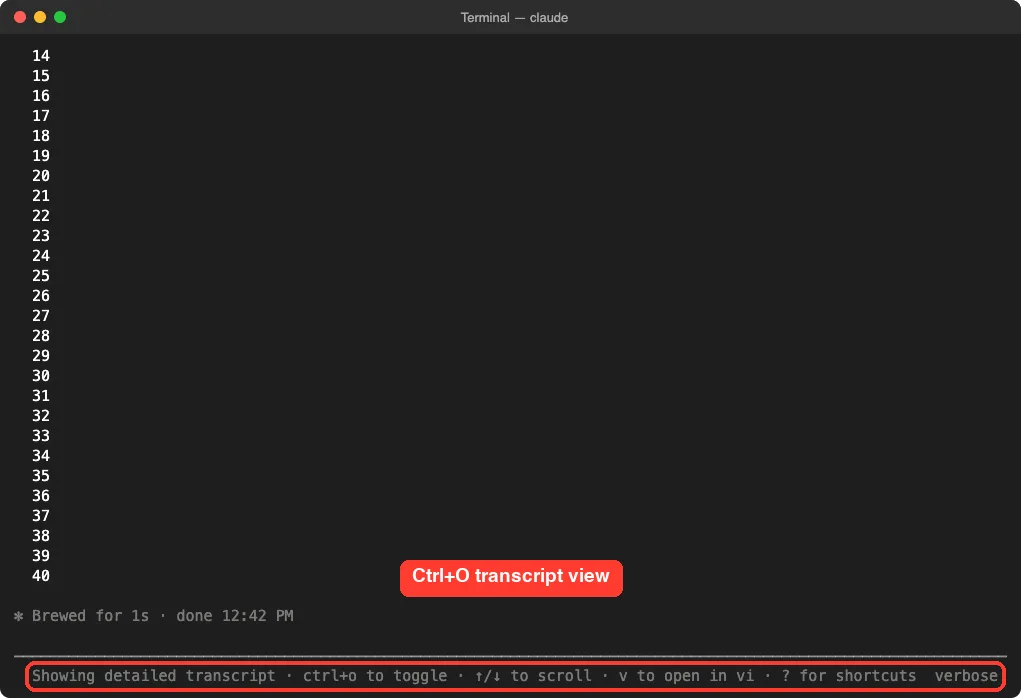
We pressed Ctrl+O after our 40-line test and got the detailed transcript view, with hints for scrolling and opening it in vi.
If mouse capture gets in your way, keep fullscreen and turn the mouse off with CLAUDE_CODE_DISABLE_MOUSE=1. Your terminal then handles selection natively, and PgUp and PgDn still scroll.
CLAUDE_CODE_NO_FLICKER=1 CLAUDE_CODE_DISABLE_MOUSE=1 claudeHow to Go Back to the Classic Renderer
The docs say to run /tui default. In our v2.1.330 session, the usage line printed by /tui listed classic|fullscreen, and the “Cannot switch” message also suggested /tui classic, so the name has shifted between the docs and the CLI. Use whichever your version’s /tui help line shows.
To force classic no matter what is saved, set CLAUDE_CODE_DISABLE_ALTERNATE_SCREEN=1. The docs say it takes priority over both CLAUDE_CODE_NO_FLICKER and the tui setting. We confirmed that: with "tui": "fullscreen" saved in our project, starting with this variable gave us the classic renderer.
Try It Yourself
Make a throwaway folder, start Claude Code there, and compare both renderers with one short prompt. Run it once with CLAUDE_CODE_DISABLE_ALTERNATE_SCREEN=1 claude and once with CLAUDE_CODE_NO_FLICKER=1 claude, and type /tui first each time.
Print the numbers 1 to 40, one per line, and nothing else.Watch the input box. In classic mode it moves as lines stream in. In fullscreen it stays at the bottom, and Ctrl+O opens the transcript.
Common Mistakes
- Thinking “fullscreen” means a maximized window. The docs say it only describes how Claude Code takes over the drawing surface, and it works at any window size.
- Using fullscreen inside iTerm2’s
tmux -CCmode, which the docs say breaks the mouse wheel. - Setting
CLAUDE_CODE_FORCE_SYNC_OUTPUTinside tmux, where it has no effect. - Expecting
Cmd+fto search the chat in fullscreen. UseCtrl+oand then/instead. - Leaving
CLAUDE_CODE_DISABLE_ALTERNATE_SCREEN=1in your shell profile, then wondering why/tui fullscreennever sticks. - Running
/tui fullscreenin a session started with--setting-sourcesor--tools, which blocks the switch.
Pro Tips
- If a fullscreen start crashes, Claude Code falls back to classic and says so. Run
/tuito see whether a failed start is the reason. - Wheel scrolling too slow in fullscreen? The docs point to
/scroll-speedorCLAUDE_CODE_SCROLL_SPEED. - Over SSH, use
CLAUDE_CODE_DISABLE_MOUSE=1if copying text keeps failing. - Fullscreen also keeps memory flat in long chats. If the terminal feels slow too, read our guide on high CPU use.
- Still stuck? Run
/feedbackwith your terminal name and version, as the docs ask for this research preview.
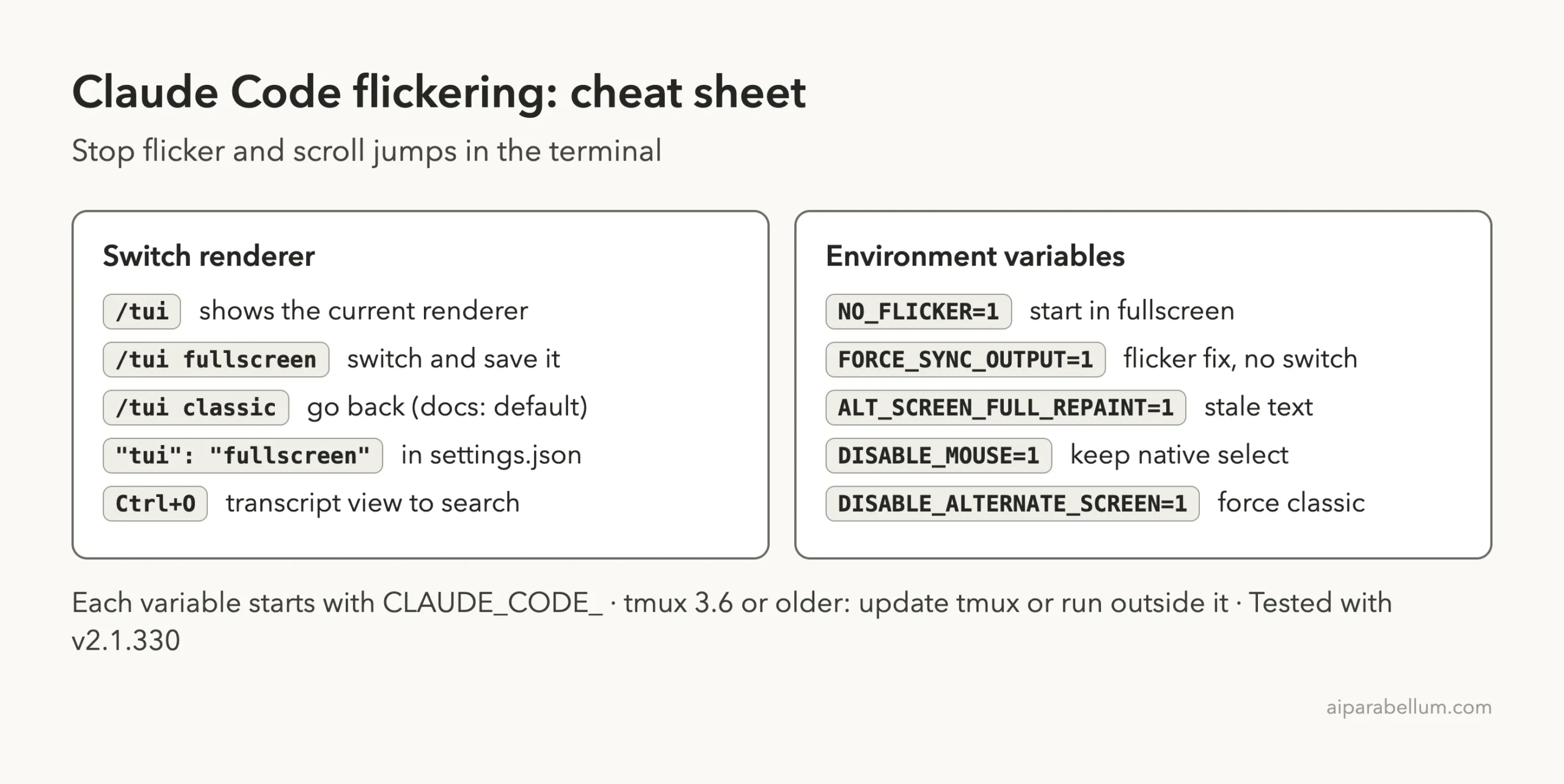
Claude Code Flickering Cheat Sheet
Frequently Asked Questions
Why does Claude Code flicker in VS Code?
The VS Code integrated terminal is one of the terminals the docs name as slow to redraw. Switching to fullscreen with /tui fullscreen is the main fix. If you see garbled characters instead of flashing, run /terminal-setup to turn off GPU acceleration.
Is fullscreen rendering safe to use every day?
It’s a research preview, so behavior may change. Recent installs often start in fullscreen by default, and you can switch back to classic at any time with /tui.
Does CLAUDE_CODE_NO_FLICKER work on Windows?
Yes. Set it in PowerShell with $env:CLAUDE_CODE_NO_FLICKER = "1"; claude, or put it in the env block of your settings file.
Why can’t I search with Cmd+F anymore?
In fullscreen, the chat lives in the alternate screen, not your terminal’s scrollback. Press Ctrl+o for transcript mode and / to search, or go back to classic.
Will switching renderers lose my conversation?
No. The docs say /tui relaunches with the conversation as it appears on screen, plus your permission mode, effort level and model.
Conclusion
Claude Code flickering comes from the terminal struggling to redraw the classic renderer’s output, and the fix is usually one command: /tui fullscreen, or CLAUDE_CODE_NO_FLICKER=1 at launch. If you want to keep the classic view, try CLAUDE_CODE_FORCE_SYNC_OUTPUT=1; in tmux, update tmux or step outside it; and for garbled editor terminals, run /terminal-setup. For other problems, our list of common Claude Code errors and our Claude overview are good next stops.