If Claude Code is not working in VS Code, the cause is usually small: a missing open file, an old extension, a window that needs a reload, or a shortcut your Mac grabbed first. The good news is that Anthropic documents a fix for each of these, and most take under a minute.
The quick answer is to open a file, check that VS Code is version 1.94.0 or later, update the extension, and run Developer: Reload Window from the Command Palette. This guide walks through every documented fix in order, with highlighted screenshots from the official docs.
We read Anthropic’s VS Code page and troubleshooting page in full and captured the exact sections you need. Where the docs link to a separate error page, we point you there instead of guessing.
Browse all our Claude Code tutorials for more guides like this one. Our last fix guide covered scrolling problems.
Tested with Claude Code v2.1.312 on October 30, 2026. We tested on macOS; the Windows and Linux steps follow Anthropic’s official instructions. Because we cannot safely break a real editor on purpose, the screenshots below show the official docs pages rather than made-up error screens.
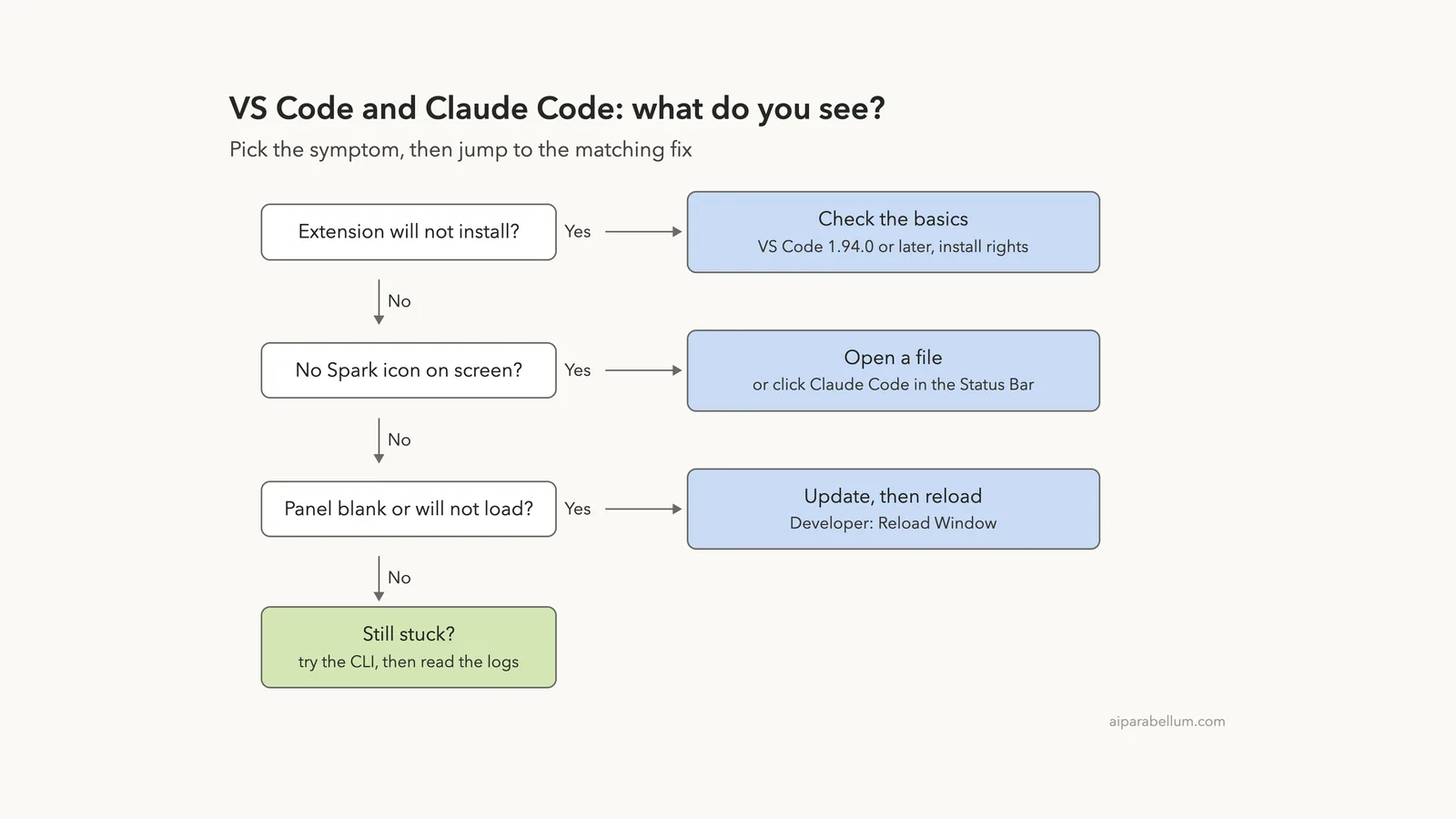
Quick Answer: Match Your Symptom to the Fix
Find what you see in the first column, then jump to the section that explains the fix.
| What you see | Likely cause | Fix |
|---|---|---|
| The extension will not install | VS Code is too old, or it cannot install extensions | Use VS Code 1.94.0 or later and check install permission |
| No Spark icon | No file is open, old version, or Restricted Mode | Open a file, reload, trust the folder |
Cmd+Esc does nothing on a Mac | macOS Game Overlay takes the shortcut | Clear Game Overlay or rebind the key |
Ctrl+J adds a new line | That key is bound to a new line | Unbind it in keybindings.json |
| The panel is blank | Extension older than v2.1.309 | Update the extension, then reload the window |
| Claude never answers | Network, session or setup problem | Check your connection, start a new chat, try the CLI |
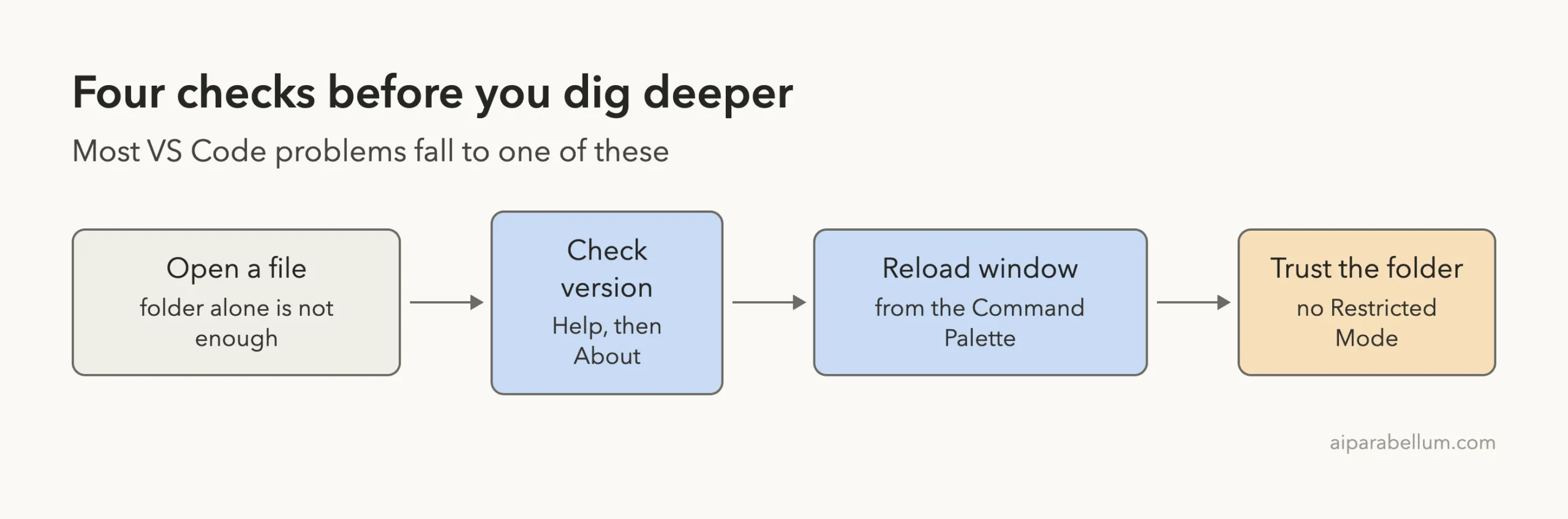
Most VS Code problems with Claude Code come down to four checks: an open file, the version, a window reload, and workspace trust.
How Claude Code Works Inside VS Code
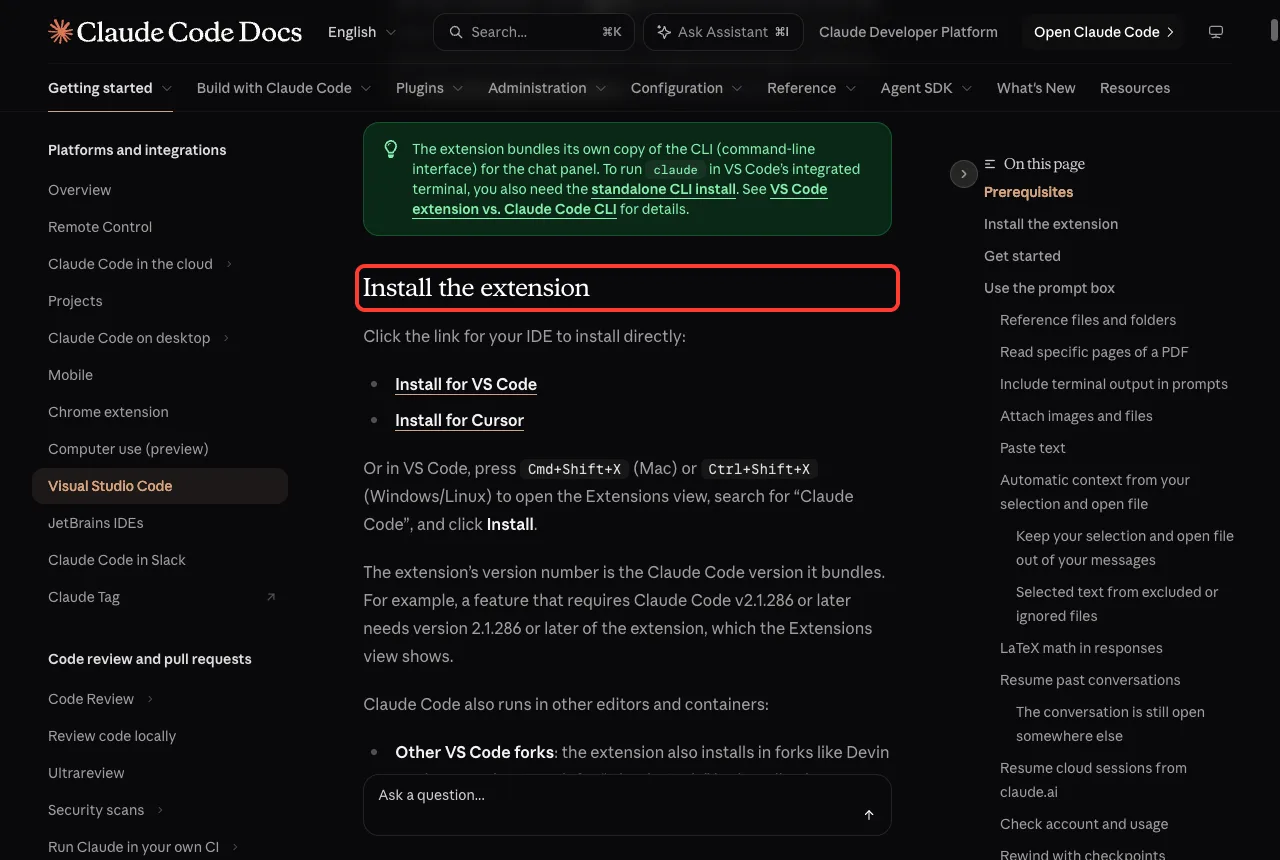
The VS Code extension gives you a graphical chat panel, inline diffs, and a Spark icon in the editor. It is a separate piece of software from the command-line tool, but the two share settings such as ~/.claude/settings.json.
That shared design is useful when you troubleshoot. If the extension misbehaves, the CLI often still works, and running it gives you more detailed errors than the panel does.
Anthropic’s docs list the requirements first. You need an Anthropic account, either a paid Claude subscription or a Console account, and VS Code 1.94.0 or later. If you use a provider such as Amazon Bedrock, the docs have separate setup steps for that.
Start With the Official Symptom Table
The VS Code docs open their troubleshooting section with a table that sends you to the right page for each symptom. Sign-in, network and launch errors have their own entries, so you do not have to read everything.
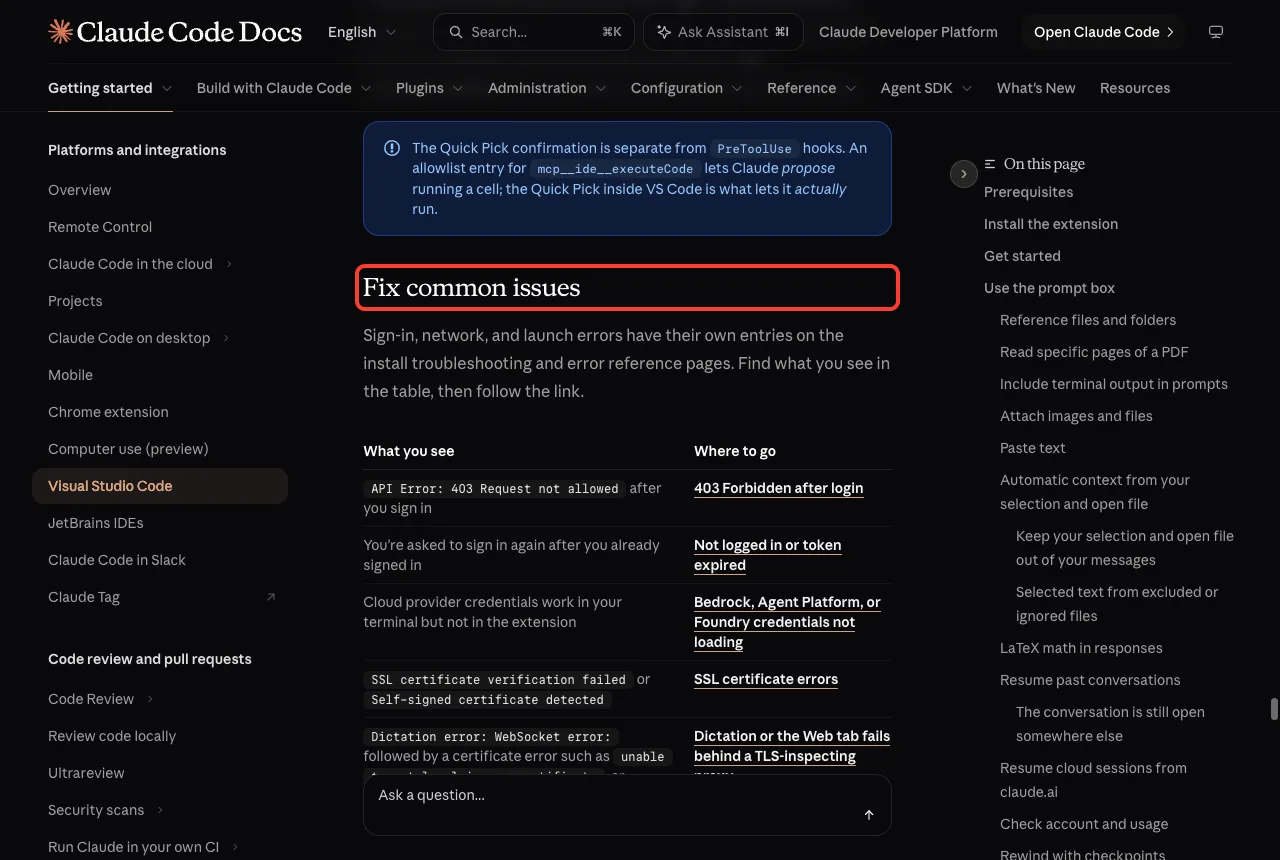
Here is what the table covers, in plain English:
- A
403 Request not allowederror after you sign in - Being asked to sign in again after you already did
- Cloud provider credentials that work in the terminal but not in the extension
- SSL certificate errors, including self-signed certificates
- Dictation or the Web tab failing behind a TLS-inspecting proxy
Claude Code process exited with code 1or another codeCould not locate the Claude CLI on PATH- A connection that ended before a message completed
claudenot found in the VS Code integrated terminal
If your message matches one of these, follow the link in the table on the VS Code docs. For login trouble, our guides on login errors and the login loop go deeper.
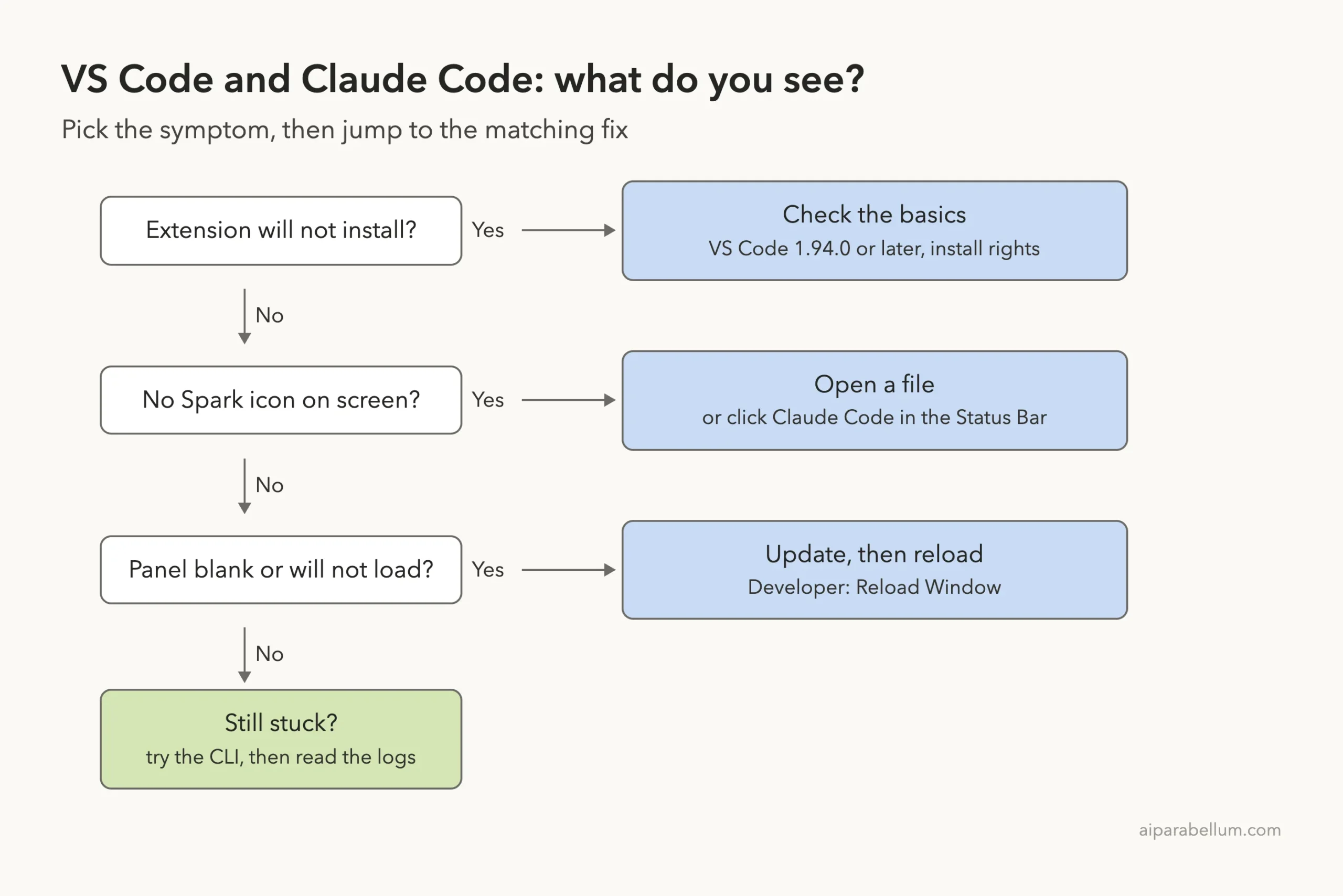
Fix 1: The Extension Will Not Install
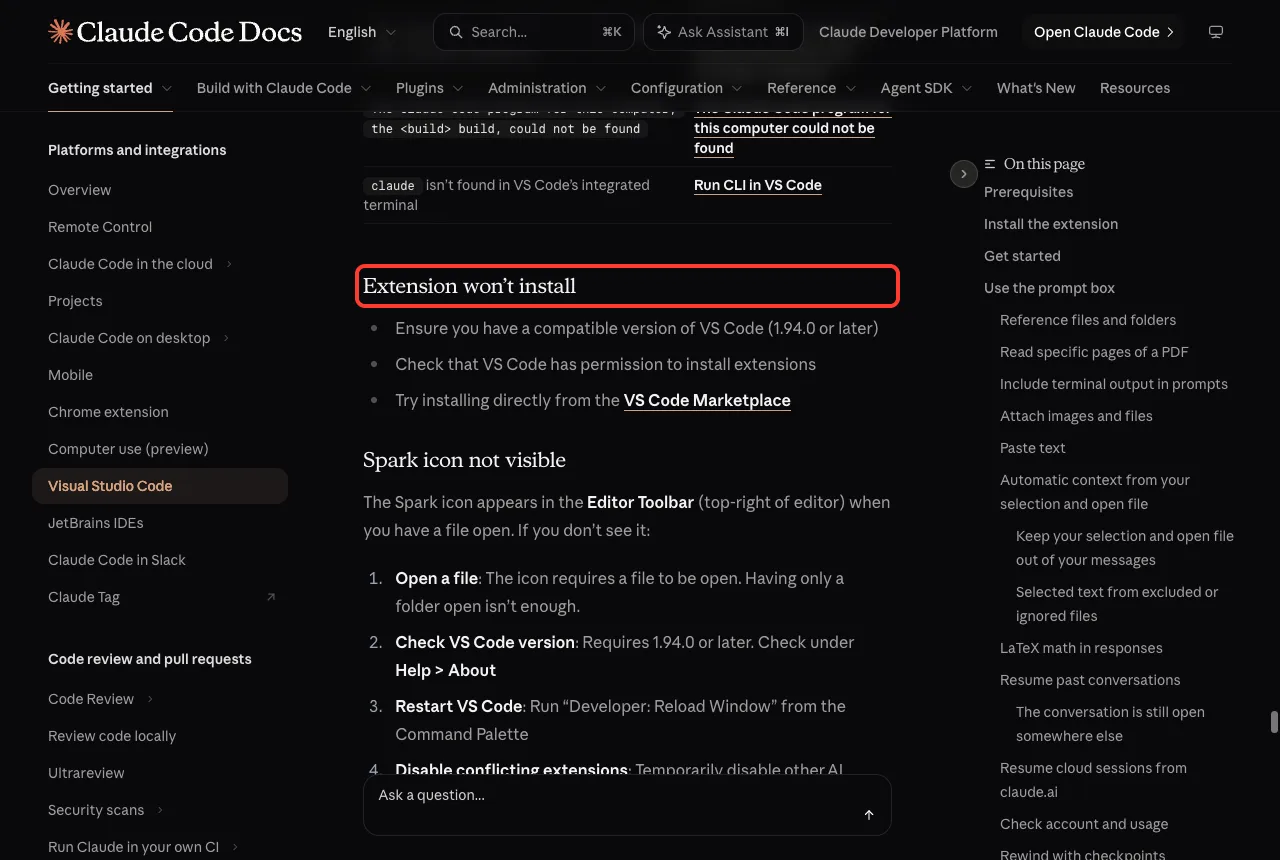
The docs give three checks for an install that fails. They sound simple, and they catch most cases.
- Make sure VS Code is version 1.94.0 or later. Open Help, then About to see yours.
- Check that VS Code has permission to install extensions. Work and school computers sometimes block this.
- Try installing straight from the VS Code Marketplace instead of another route.
Using a VS Code Fork or Another Editor
The docs say the extension also installs in VS Code forks, such as Devin Desktop or Kiro. Search for Claude Code in that editor’s Extensions view, or install it from the Open VSX registry.
If your editor cannot install the extension at all, install the CLI and run claude in the editor’s integrated terminal. The CLI works in any terminal, and our terminal setup guide shows how to set it up well.
Fix 2: Claude Code Not Working Because the Spark Icon Is Missing
This is the most common complaint. The Spark icon lives in the Editor Toolbar at the top right of the editor, and it only shows when a file is open.
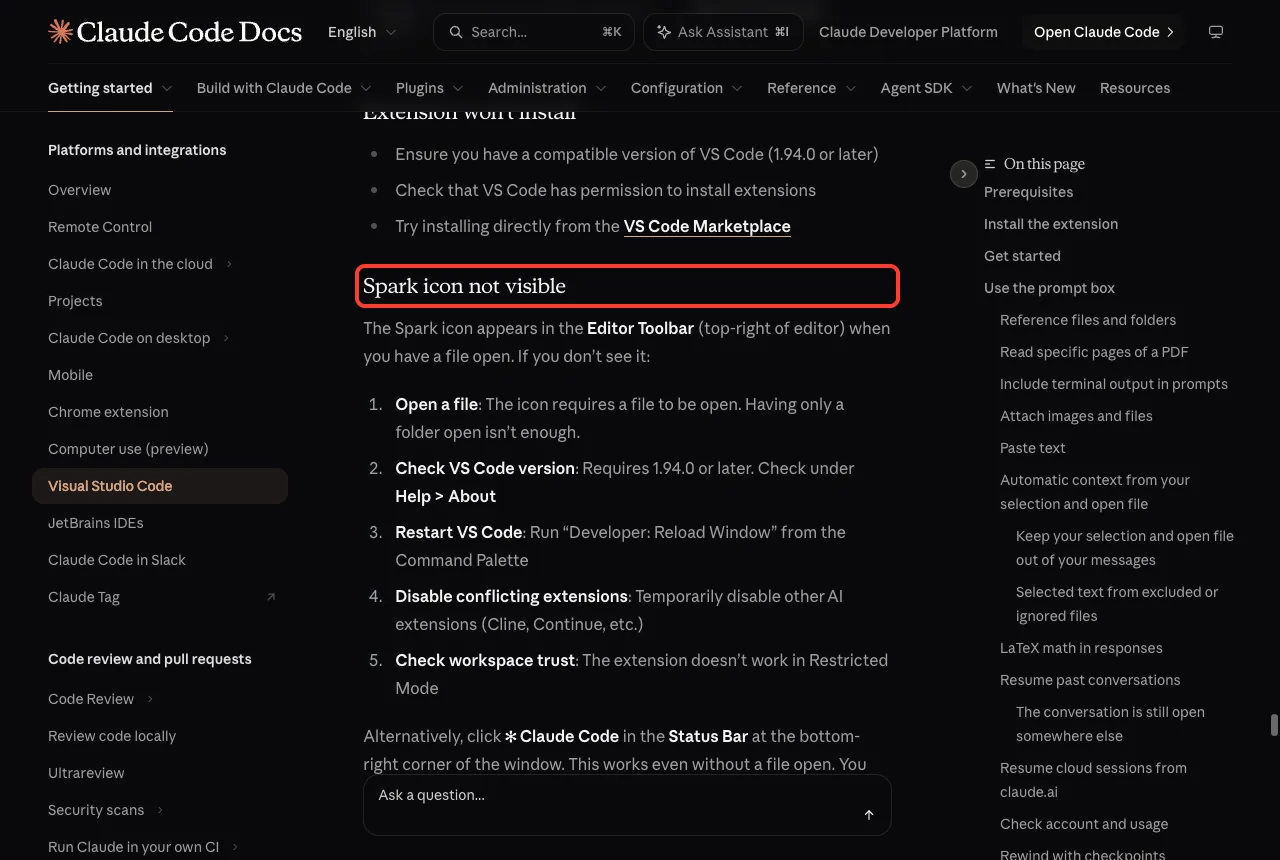
Work through the official checklist in this order:
- Open a file. Having only a folder open is not enough.
- Check the VS Code version. It must be 1.94.0 or later.
- Restart by running
Developer: Reload Windowfrom the Command Palette. - Temporarily disable other AI extensions, such as Cline or Continue, in case they conflict.
- Check workspace trust. The extension does not work in Restricted Mode.
Skip the Icon Entirely
You do not need the icon to start a chat. Click the Claude Code label in the Status Bar at the bottom right, which works even with no file open. You can also press Cmd+Shift+P (Ctrl+Shift+P on Windows and Linux) and type Claude Code.
The docs also describe the Activity Bar: the Spark icon in the left sidebar opens your sessions list and is always visible there.
Fix 3: Cmd+Esc Does Nothing on a Mac
On macOS Tahoe and later, the system Game Overlay shortcut is bound to Cmd+Esc by default. It grabs the keypress before VS Code ever sees it, so the extension looks broken when it is not.
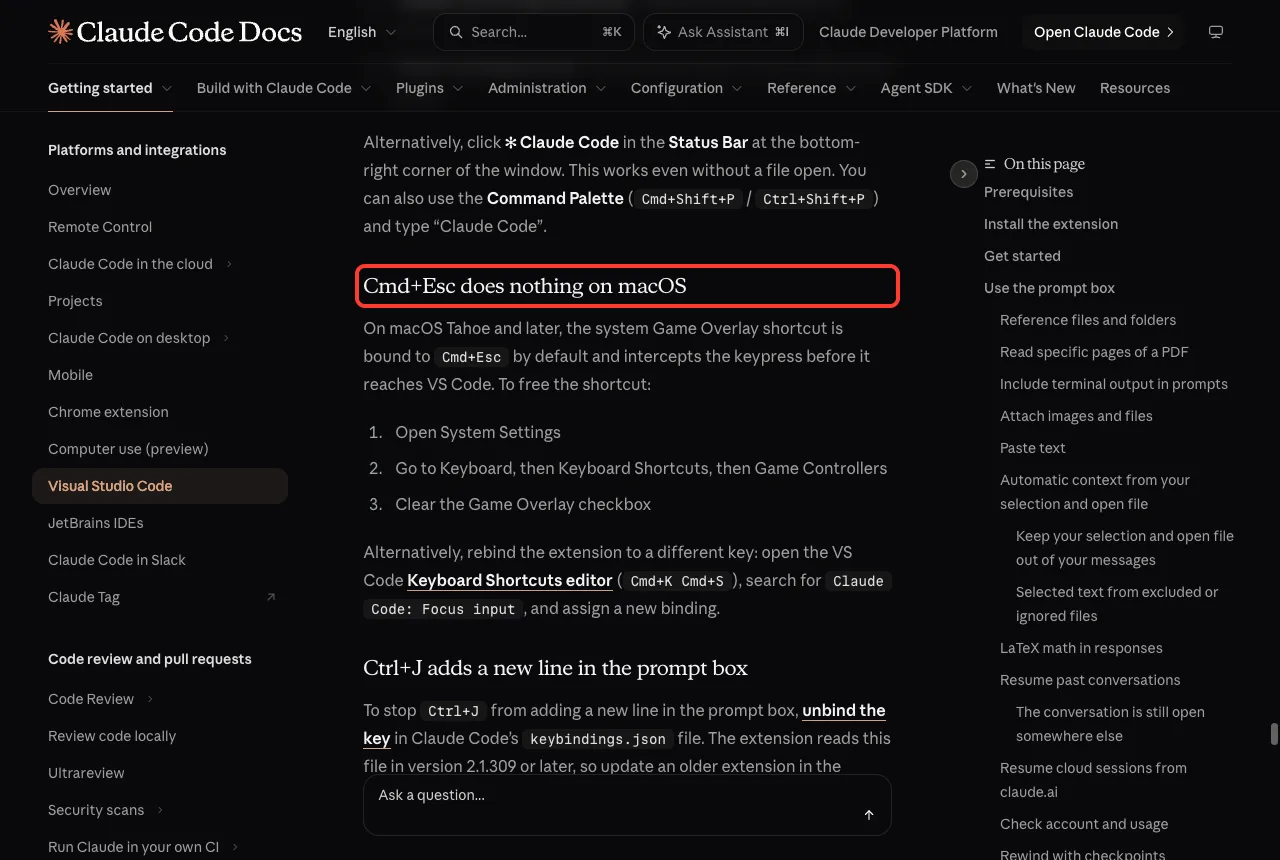
To free the shortcut, follow these steps from the docs:
- Open System Settings.
- Go to Keyboard, then Keyboard Shortcuts, then Game Controllers.
- Clear the Game Overlay checkbox.
Prefer to keep the overlay? Open the VS Code Keyboard Shortcuts editor with Cmd+K Cmd+S, search for Claude Code: Focus input, and assign a different key.
Fix 4: Ctrl+J Adds a New Line
If Ctrl+J adds a new line in the prompt box and you want it to do nothing, unbind it in Claude Code’s keybindings.json. The extension reads this file in version 2.1.309 or later, so update an older extension first in the Extensions view.
The docs show this as the whole file:
{
  "bindings": [
    {
      "context": "Chat",
      "bindings": {
        "ctrl+j": null
      }
    }
  ]
}
The file lives in your Claude Code configuration directory, which is ~/.claude unless you moved it with CLAUDE_CONFIG_DIR. What you do depends on what you find there:
- No
keybindings.jsonyet: create it with exactly the content above. - A file with no Chat block: add the Chat block to the top-level
bindingsarray. - A Chat block with no
"ctrl+j"line: add"ctrl+j": nullto it. - A Chat block that already has a
"ctrl+j"line: change its value tonull.
If the key still adds a line, reload the window; if not, run Claude Code: Show Logs and look for a warning about Ctrl+J in the chat input, which names the file to correct.
Fix 5: Claude Code Not Working Because the Panel Is Blank
A panel that opens but shows nothing, not even the prompt box, is a known case. The docs say to update the extension to v2.1.309 or later in the Extensions view, then run Developer: Reload Window.
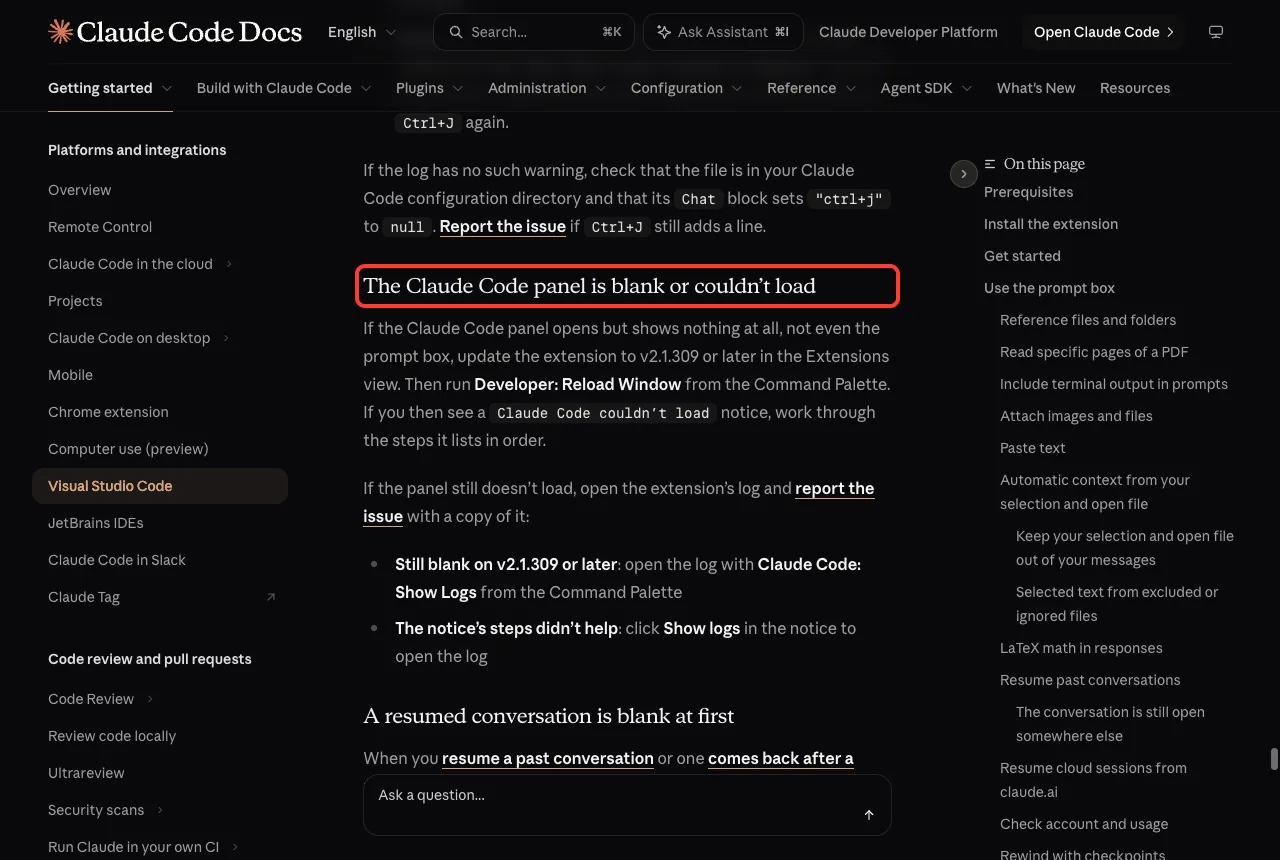
After the reload you may see a notice saying Claude Code couldn’t load. Work through the steps it lists, in order. If the panel still does not load, open the log and report the issue with a copy of it.
- Still blank on v2.1.309 or later: run
Claude Code: Show Logsfrom the Command Palette. - The notice’s steps did not help: click Show logs in the notice to open the same log.
Blank Only for a Moment After Resuming
A resumed conversation can stay blank while its process starts. After about a second, Waiting for your plugins… appears, and the docs say you do not need to do anything. The messages show once the process is ready, or after 20 seconds if starting takes longer.
Panel Freezes Every Time You Reload
If the whole panel crashes or shows only Something went wrong each time a reload brings your conversation back, update the extension to v2.1.301 or later and reload again. After the conversation fails to open twice in a row, you get a fresh chat with a notice that it was not reopened.
Fix 6: Claude Never Responds
When Claude Code does not answer your prompts at all, the docs give three simple steps:
- Check your internet connection and make sure it is stable.
- Start a new conversation to see whether the problem follows the old one.
- Run
claudefrom the terminal, which can show more detailed error messages.
If problems continue, the docs suggest filing an issue on GitHub with details about the error. Long freezes can also come from a full context, so our guides on stuck Thinking and the Prompt too long may help.
Other Fixes Worth Knowing
Switch to Terminal Mode
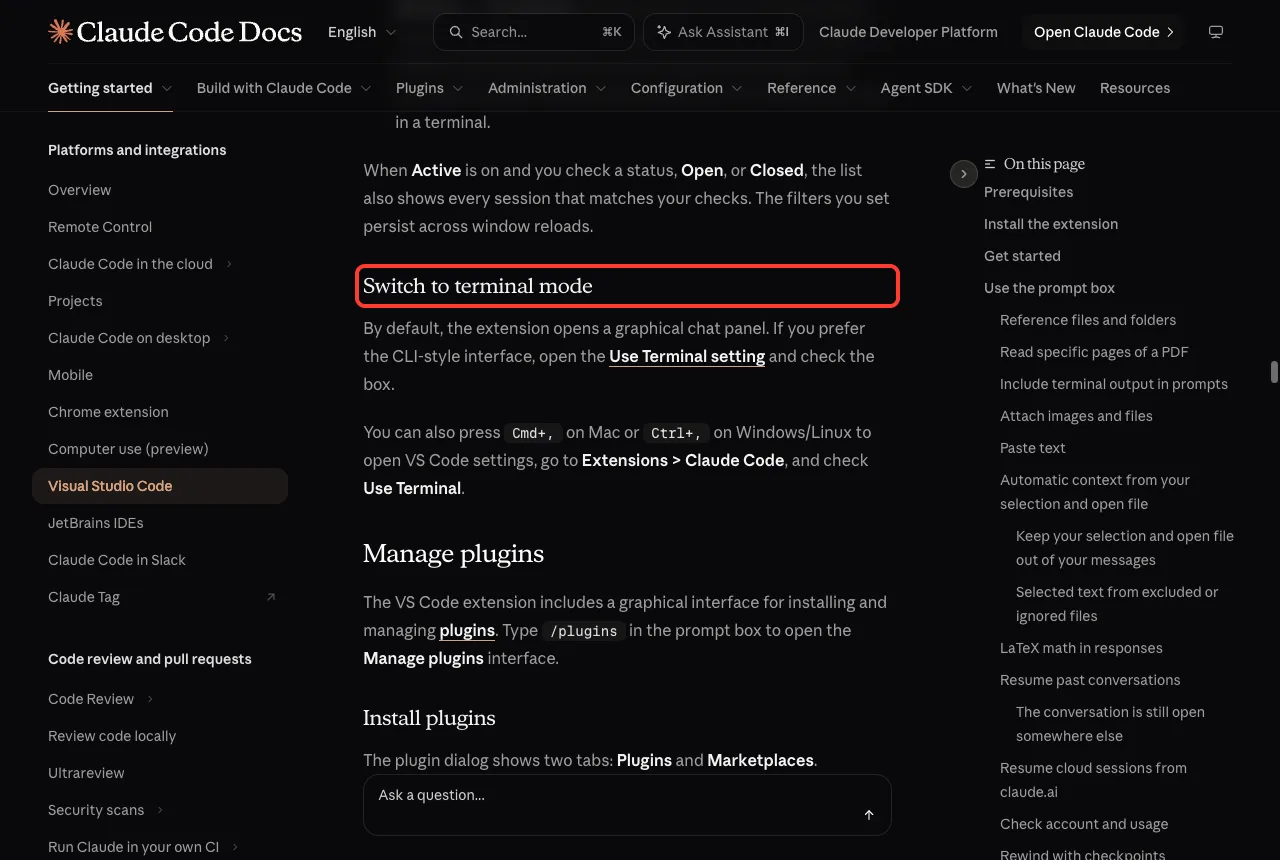
By default the extension opens a graphical chat panel. If the panel keeps giving you trouble, you can switch to the CLI-style interface instead. Open the Use Terminal setting and check the box, or press Cmd+, (Ctrl+, on Windows and Linux), go to Extensions, then Claude Code, and check Use Terminal.
Formulas Show as Raw LaTeX
Math rendering needs extension version 2.1.301 or later, so check the version in the Extensions view first. Terminal mode never typesets math, so uncheck Use Terminal if you want formulas rendered. If only one formula shows as written, ask Claude to resend it as a $$ block on its own lines.
Certificate Errors Behind a Proxy
Dictation or the Web tab can fail with a certificate error behind a TLS-inspecting proxy. The docs say to set NODE_EXTRA_CA_CERTS in the env block of ~/.claude/settings.json to the path of your proxy’s root certificate file, which your IT team can supply. This fix needs extension version 2.1.307 or later.
Write the full path without ~, and on Windows write each backslash twice. In a window connected to WSL, an SSH host or a dev container, edit the file on that system, not on your local computer.
Update the Extension and CLI
Several fixes above start with the same line: update the extension. Open the Extensions view with Cmd+Shift+X (Ctrl+Shift+X on Windows and Linux), find Claude Code, and update it if a button appears.
Then reload the window so VS Code uses the new version. If you also use the CLI, our guide on updating Claude Code covers it step by step.
Try It Yourself
Practice the checks while everything works, so you know the route when something breaks. Do these in order and note where each one lives:
- Open Help, then About, and write down your VS Code version.
- Open the Command Palette and run
Claude Code: Show Logsonce to see what a healthy log looks like. - Run
Developer: Reload Windowand confirm your chat comes back. - Open the Extensions view and note the Claude Code extension version.
If you want Claude’s help diagnosing, paste this prompt into the chat:
Check my VS Code setup for Claude Code problems. Tell me which settings
files to look at and what each one controls. Do not change anything yet.
Common Mistakes
- Opening only a folder and expecting the Spark icon to appear. Open a file.
- Skipping the reload. Many fixes only take effect after
Developer: Reload Window. - Staying in Restricted Mode. The docs say the extension does not work there, so trust the workspace.
- Forgetting that old versions behave differently. The blank-panel fix needs v2.1.309 or later.
- Editing settings on your laptop when VS Code is connected to WSL, SSH or a dev container. Edit on that system.
Pro Tips
- Keep the Status Bar entry in mind. It opens Claude Code even when the icon is hidden.
- Run
claudein a terminal when the panel gives no clue. The CLI often prints a clearer error. - Use
/doctorinside Claude Code for a setup checkup, as the official troubleshooting page suggests. - Use
/feedbackor the Report a problem option in the menu to send a problem to Anthropic directly. - Learn more about the tool itself on our Claude AI page.
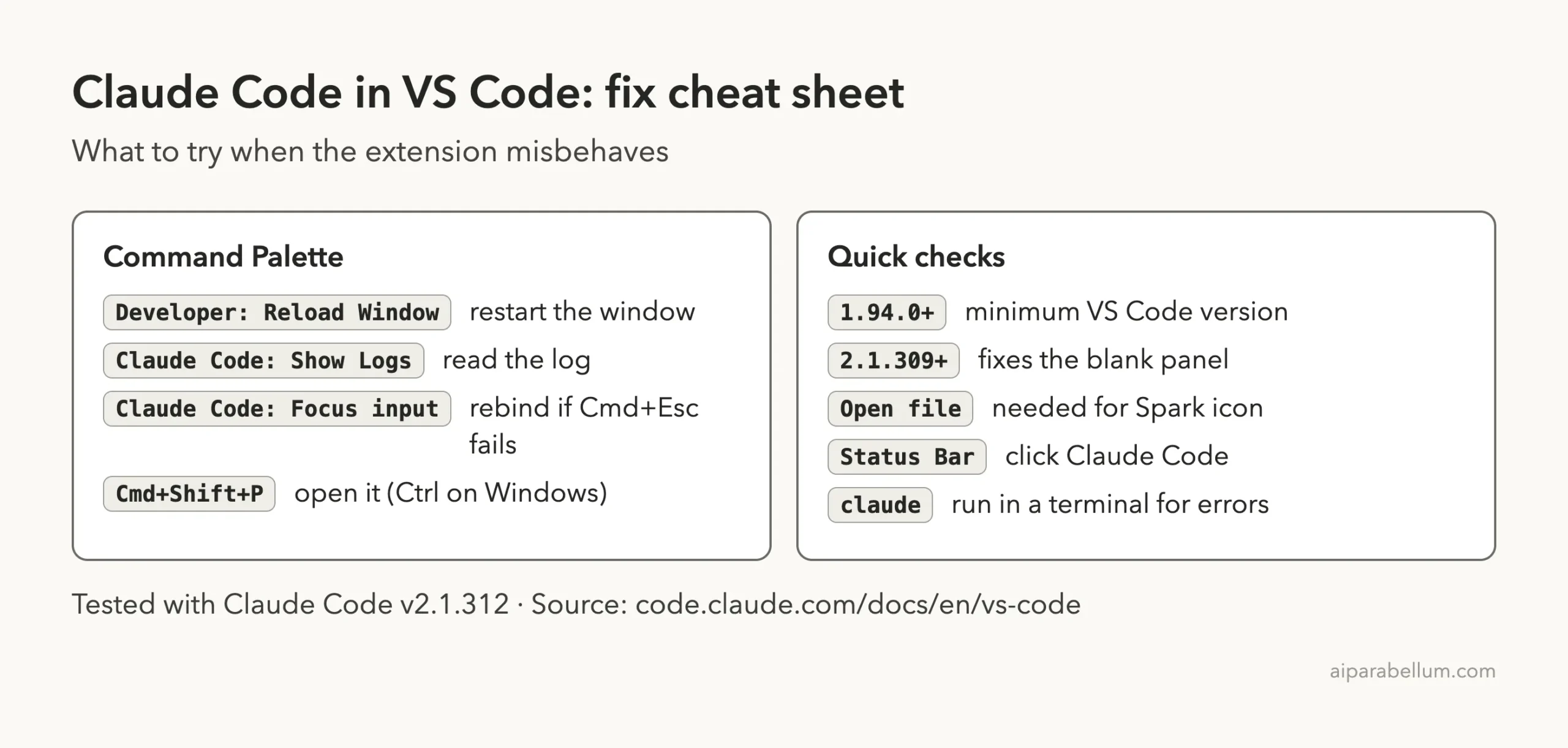
Cheat Sheet
Frequently Asked Questions
Why is the Claude Code icon missing in VS Code?
The Spark icon only appears in the Editor Toolbar when a file is open. Open a file, check that VS Code is 1.94.0 or later, reload the window, and make sure the workspace is trusted. You can also click Claude Code in the Status Bar.
What VS Code version does Claude Code need?
The docs say 1.94.0 or later. Check yours under Help, then About.
Why is the Claude Code panel blank?
Update the extension to v2.1.309 or later and run Developer: Reload Window. If a Claude Code couldn’t load notice appears, follow its steps, then open the logs if the panel still stays empty.
Does the extension work in Restricted Mode?
No. The docs say the extension does not work in Restricted Mode, so trust your workspace first.
Can I use Claude Code in VS Code without the extension?
Yes. Install the CLI and run claude in the integrated terminal. The docs say the CLI works in any terminal, and you can also turn on the Use Terminal setting inside the extension.
Conclusion
When Claude Code stops working in VS Code, start with the four basics: open a file, confirm VS Code 1.94.0 or later, update the extension, and reload the window. Then match your symptom to the right fix, from the Cmd+Esc Game Overlay clash to the blank panel on older versions. If none of that works, run claude in a terminal, open Claude Code: Show Logs, and report the issue with the log attached. For more guides, see the official troubleshooting page.