If Claude Code is stuck on thinking, first look at the spinner line. If the seconds and token count are still changing, Claude is working and you only need to wait.
If nothing moves, press Esc to stop the turn, then send a smaller request or check your connection. This guide shows you how to tell the two cases apart and what to do in each one.
We ran real sessions on a Mac, watched the thinking spinner, interrupted a turn, queued a message and opened the effort slider. We also read the official troubleshooting and error pages so the fixes below match what Anthropic documents.
Tested with Claude Code v2.1.312 on October 29, 2026. We tested on macOS; the Windows and Linux steps follow Anthropic’s official instructions.
Quick Answer: What to Do When Claude Code Stops Responding
Use this table to match what you see on screen with the right action. Most pauses are normal, and only a few need you to step in.
| What you see | What it usually means | What to do |
|---|---|---|
| Spinner with seconds and tokens that keep rising | Claude is thinking or writing | Wait, or press Esc if you changed your mind |
| Waiting for API response banner | No data for at least 20 seconds | Let the countdown run and check your network |
| Retrying in a few seconds, attempt x/y | A request failed and Claude Code is trying again | Wait, and check the status page if it repeats |
| Nothing moves and Esc does nothing | The terminal may be frozen | Press Ctrl+C, then close the terminal and run claude –resume |
The rest of this page explains each row, with screenshots and the exact steps.
Is Claude Code Stuck or Just Thinking?
Before you fix anything, check whether anything is broken.
When Claude works on a request, Claude Code shows a spinner line with a playful word, the time that has passed, and a token counter. In our test it read Grooving, 5s, 248 tokens, thinking. The word changes from turn to turn, so do not worry if yours says something different.
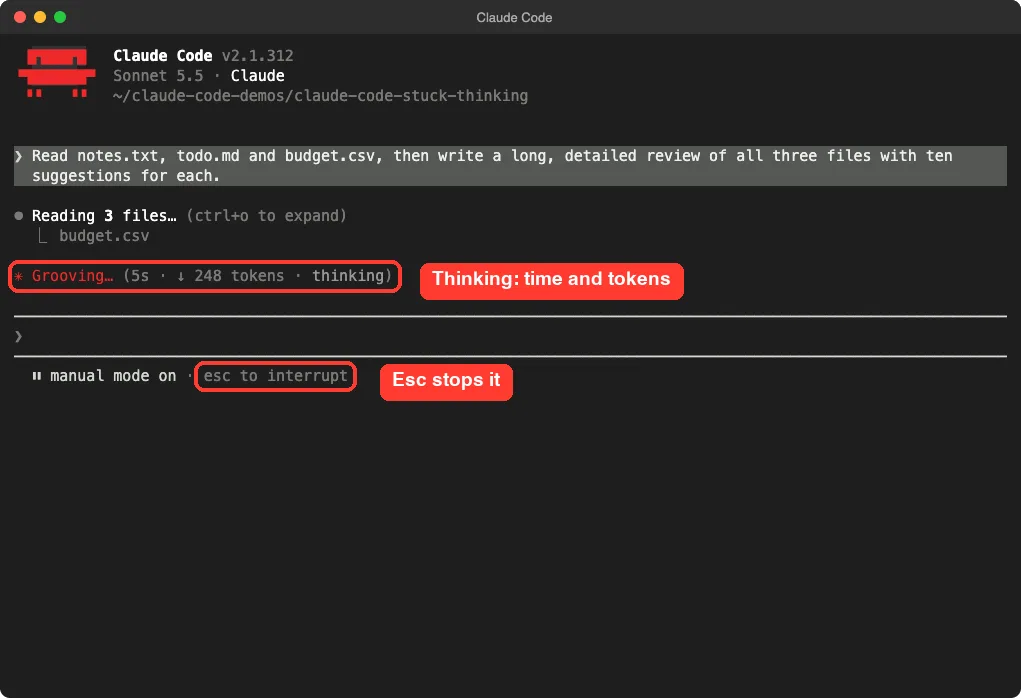
The key sign is movement.
If the seconds count up and the token number grows or the word thinking is on screen, Claude is doing real work.
A bigger request, a long file or a higher effort level can make that stage last a while. Our guide on the context window explains why long chats feel slower.
The footer also says esc to interrupt. That small hint is your way out, and it works at any moment while Claude is busy.
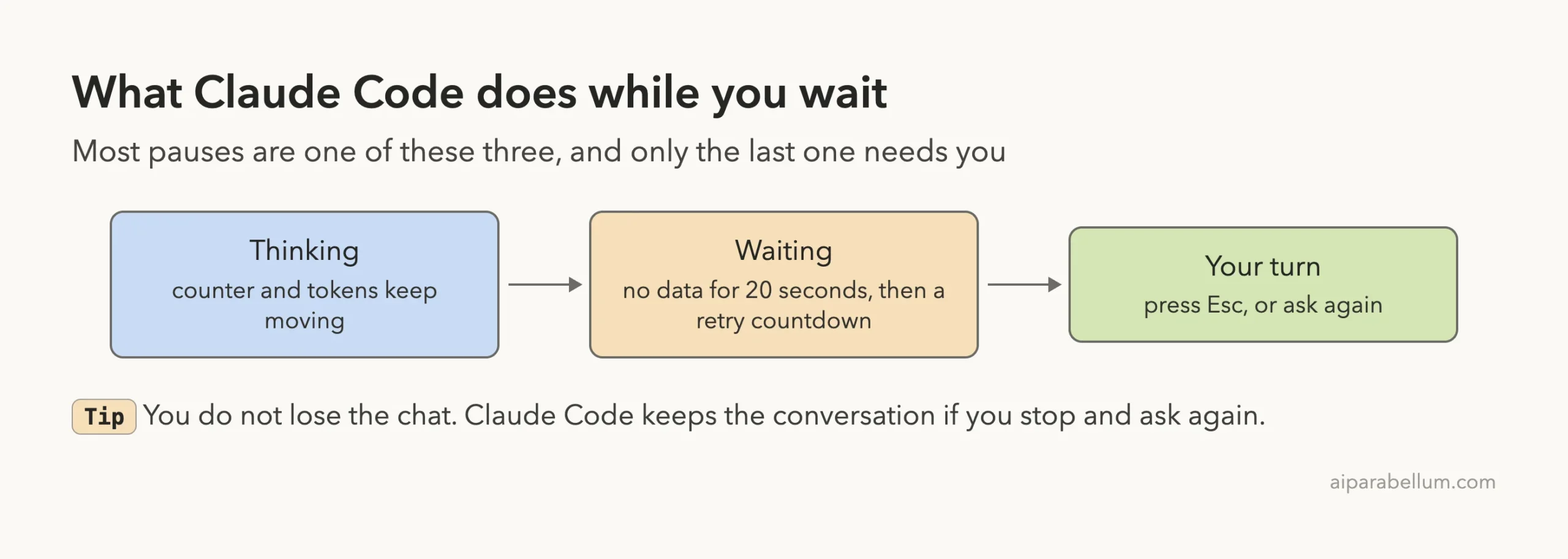
Step 1: Press Esc to Stop the Turn
If the wait is too long or you realize you asked for the wrong thing, press Esc. Claude Code stops the turn and puts the prompt back in your hands. We tried this on a long request and the screen showed Interrupted and What should Claude do instead.
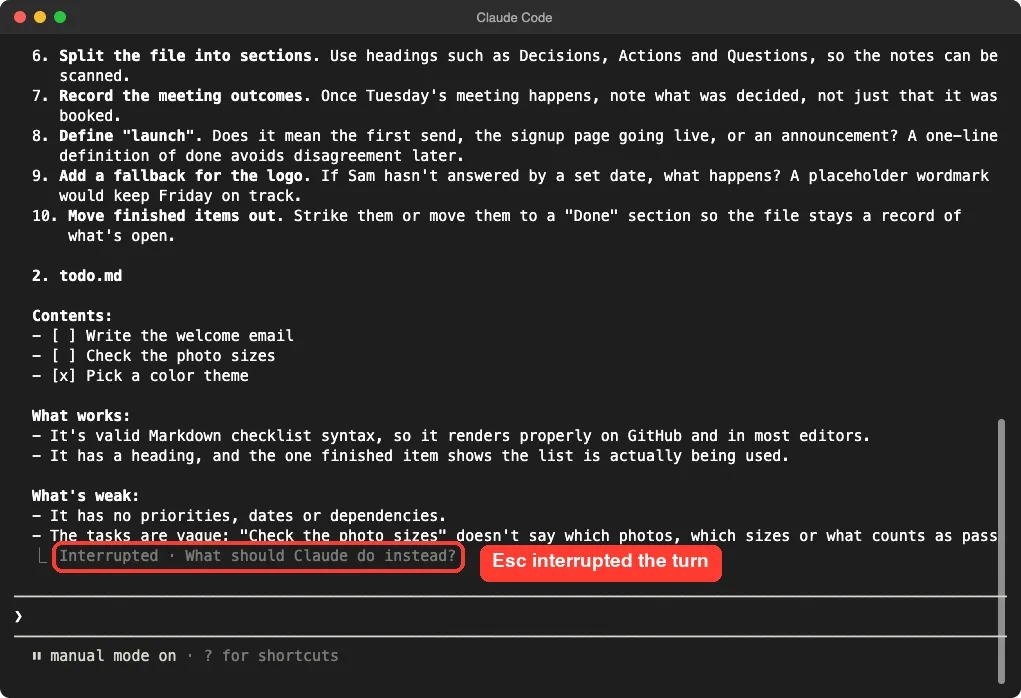
Your conversation stays in place. The text Claude had already written is still on screen, and you can type a new request right away. This is much better than closing the terminal, because you keep your context.
Ask for Less the Second Time
Our test prompt asked for a long review with ten suggestions per file, so it took a while on purpose.
If a big request keeps stalling, split it up. Ask for one file at a time, or ask for a short answer first. Shorter requests finish faster and use fewer tokens.
Step 2: Queue a Message Instead of Waiting
You do not have to sit and watch.
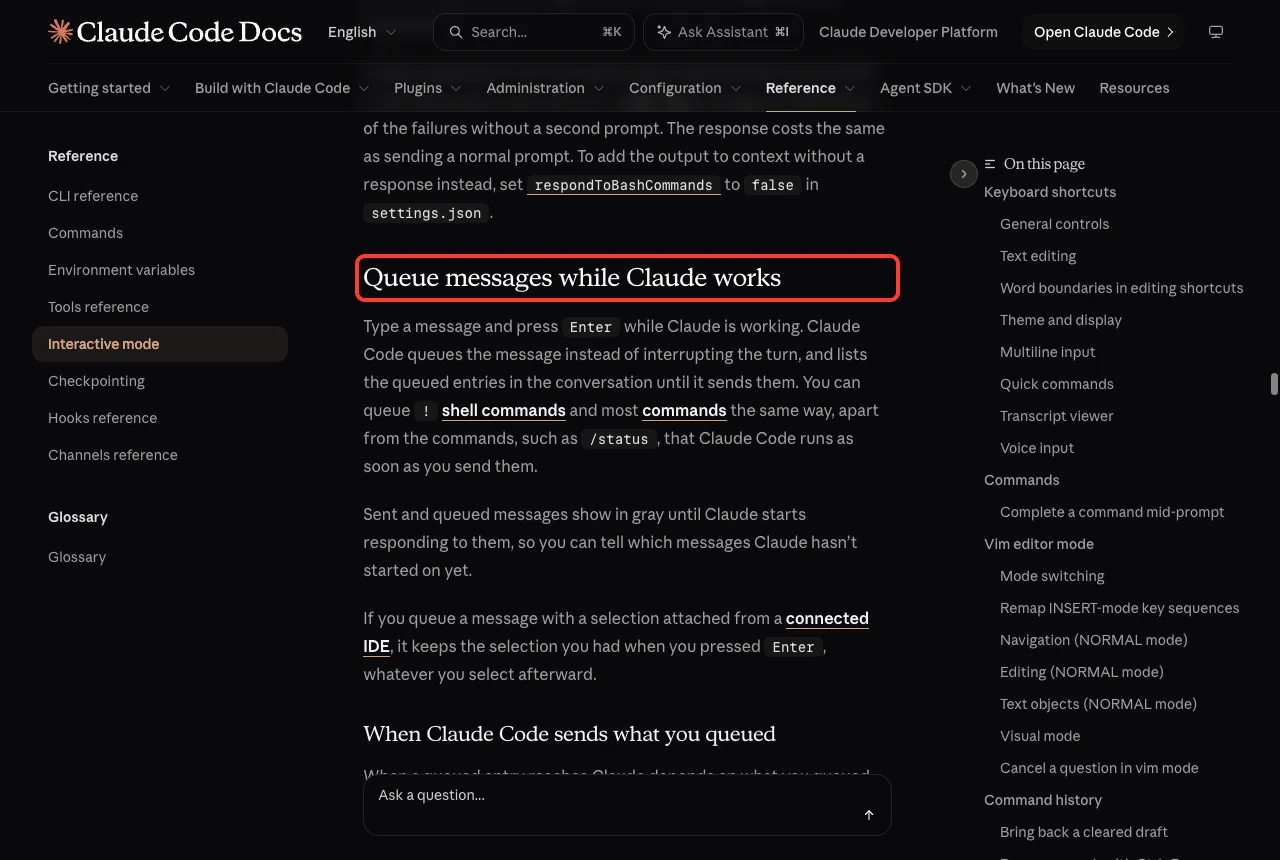
While Claude is working, you can type another message and press Enter. Claude Code queues it instead of interrupting the turn. In our session the queued line showed in gray with the hint ctrl+x ctrl+s to send now, and the input box said Press up to edit queued messages.
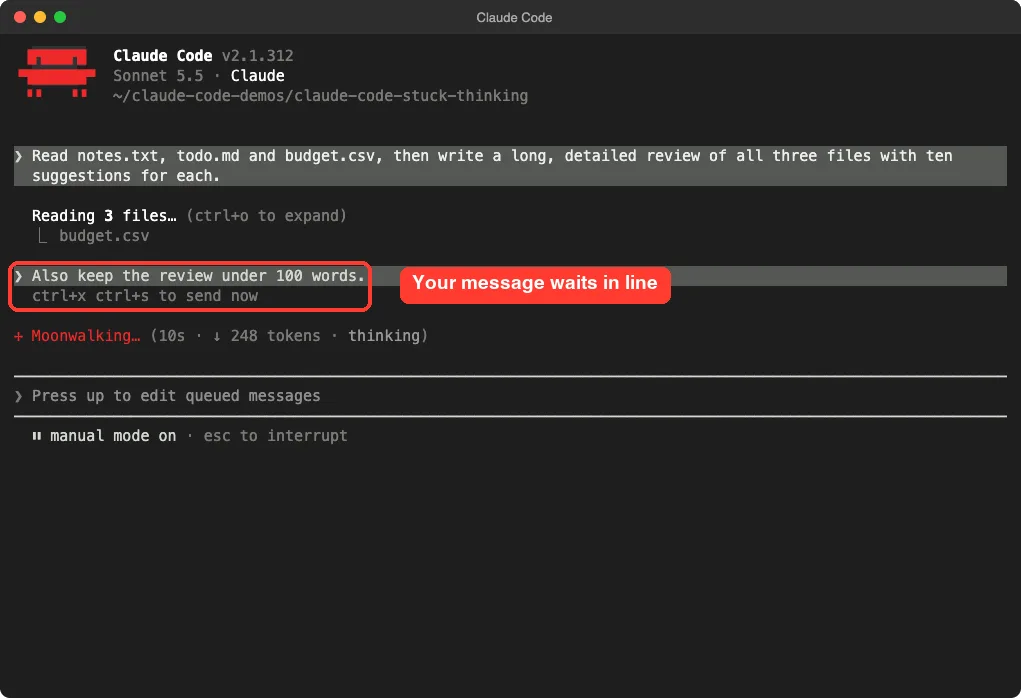
The official page says queued messages go to Claude as soon as its current tool calls finish. If you want to change or remove one, press the up arrow to edit it. Read the interactive mode page for the full rules on when each kind of message is sent.
Step 3: Read the Waiting Banner
Sometimes the spinner stops changing and a banner appears that says Waiting for API response, followed by a retry countdown and the words check your network. The official error reference explains it plainly. It means Claude Code has gone at least 20 seconds without receiving any data for a request.
The request has not failed yet. The countdown runs until Claude Code aborts the stalled connection and tries again. The banner clears on its own once data comes back or a retry works.
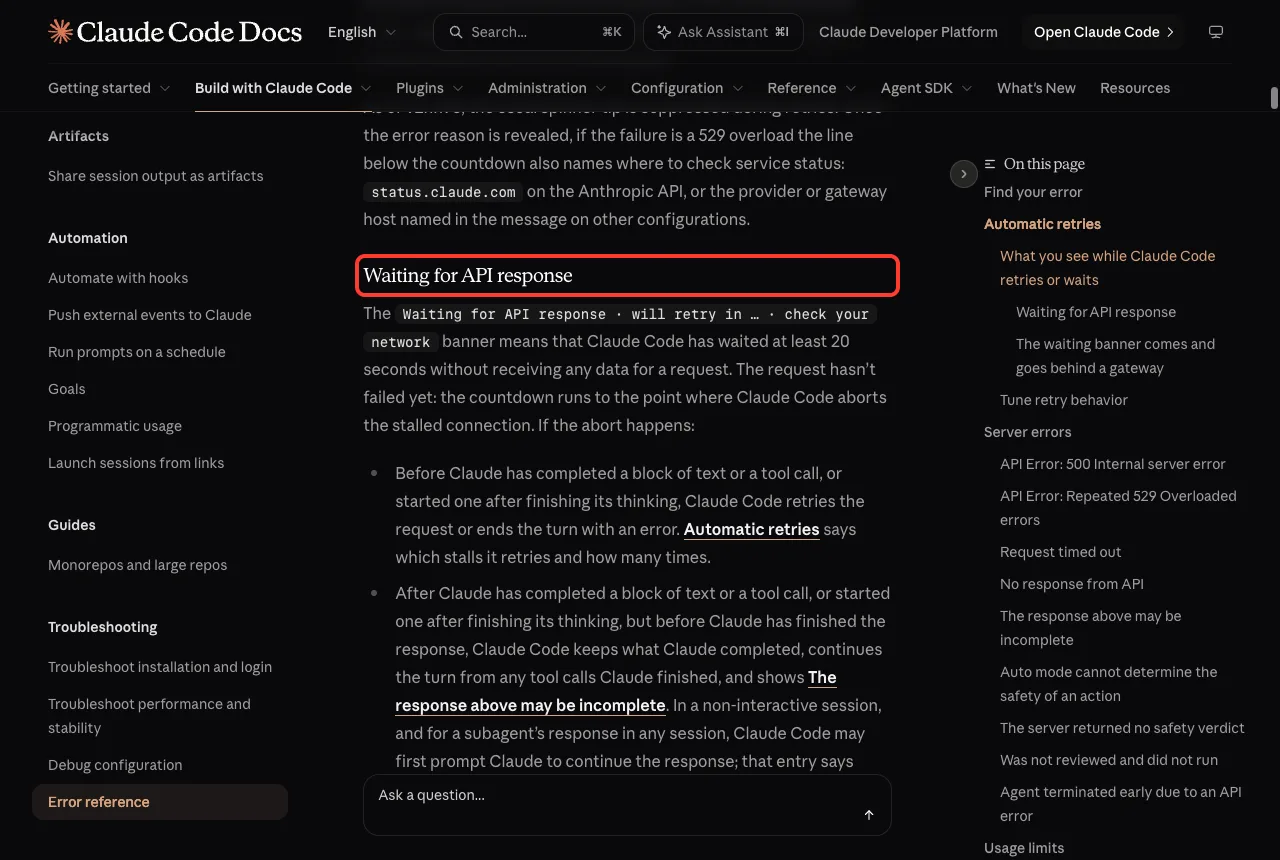
We could not trigger this banner safely without breaking our own connection, so this screenshot comes from the official docs. If you see it on every attempt, treat it as a network problem. Try another network, turn off a VPN, or check whether a proxy is holding the response.
What Happens After the Abort
What happens next depends on how far Claude had got. The docs describe three cases.
- Before Claude finished a block of text or a tool call, Claude Code retries the request or ends the turn with an error.
- After a finished block but before the end of the reply, Claude Code keeps what was completed and shows The response above may be incomplete.
- After Claude finished the whole reply, the turn simply ends normally.
If you see the incomplete notice, type continue and Claude picks up from there.
Step 4: Understand Retries and Timeouts
While Claude Code retries, the spinner shows a line like Retrying in a few seconds with an attempt count. According to the docs, the default is 10 retry attempts, and you can change it with CLAUDE_CODE_MAX_RETRIES. That is why a bad connection can look like a long freeze, since several attempts happen in a row.
The default request timeout is 10 minutes. If a turn ends with Request timed out, the docs say to send your message again. Your original message is still in the conversation, so for a long prompt you can type try again instead of pasting it.
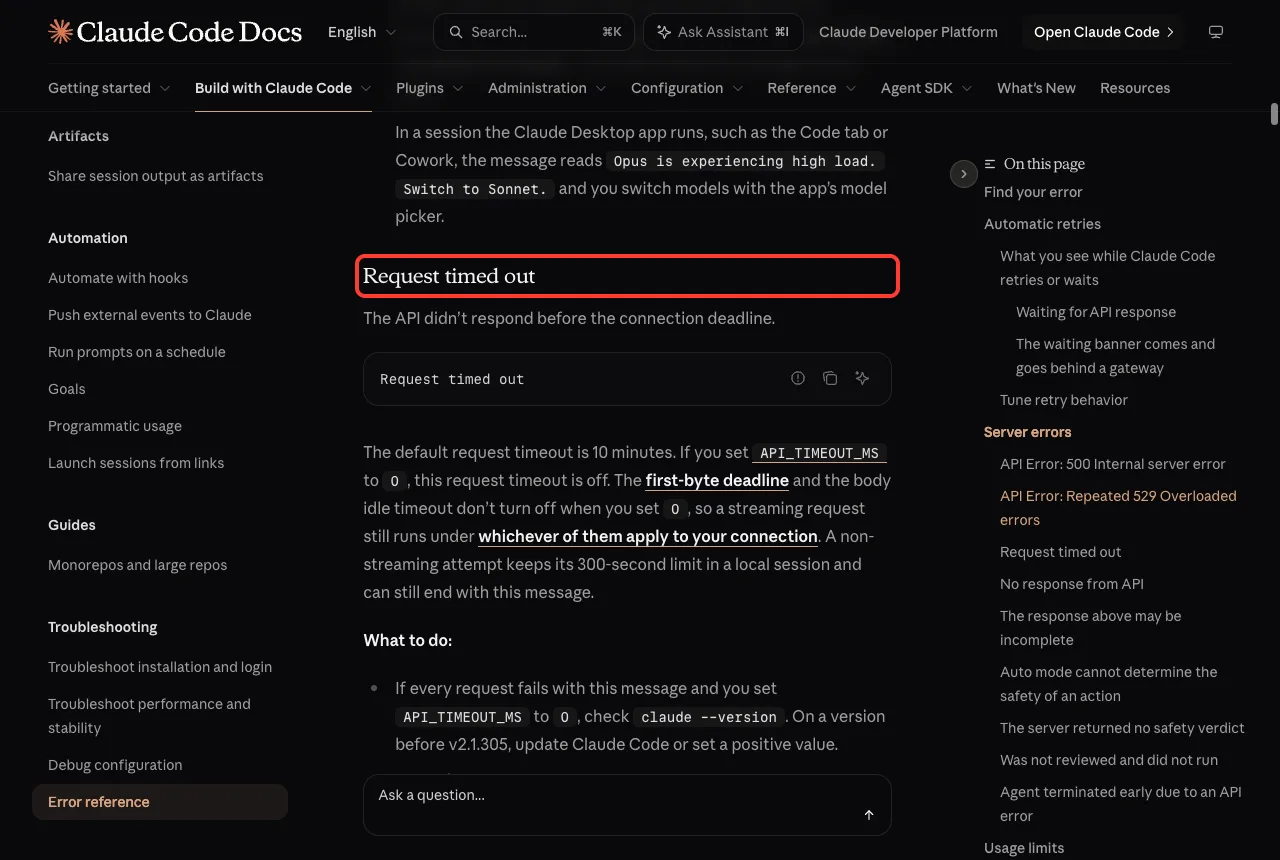
If you are on a slow network or behind a proxy that holds responses until they finish, raise API_TIMEOUT_MS. Our guide to environment variables shows where to set it.
Check Whether the Service Is Busy
If many requests fail or slow down at the same time, the service may be under load.
The docs tell you to check status.claude.com for incidents. For overload errors, you can also run /model and pick another model, because capacity is tracked per model. Our 529 overloaded guide covers that error in depth.
Step 5: Lower the Effort Level for Faster Replies
Thinking time depends partly on the effort level. Run /effort with no arguments to open a slider that goes from low to max, with Faster on the left and Smarter on the right. On our session the slider sat on medium, with the note that this is the default effort for this model.
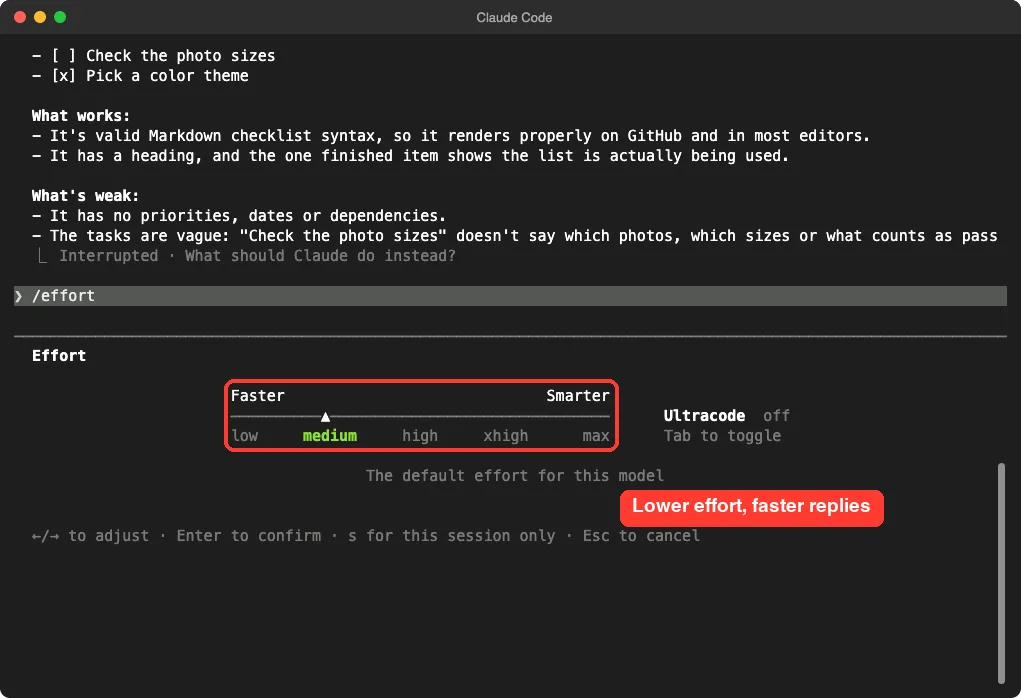
The official model page says the next message you send runs at the new level, and that pressing s applies it to this session only. Use a lower level for simple chores like renaming or short summaries, and keep higher levels for hard problems. Our model guide goes deeper on choosing a model.
Step 6: When the Terminal Is Frozen
Rarely, Claude Code stops responding to keys at all.
The official troubleshooting page gives a short two-step answer. First press Ctrl+C to attempt to cancel the current operation. If it is still unresponsive, close the terminal and restart.
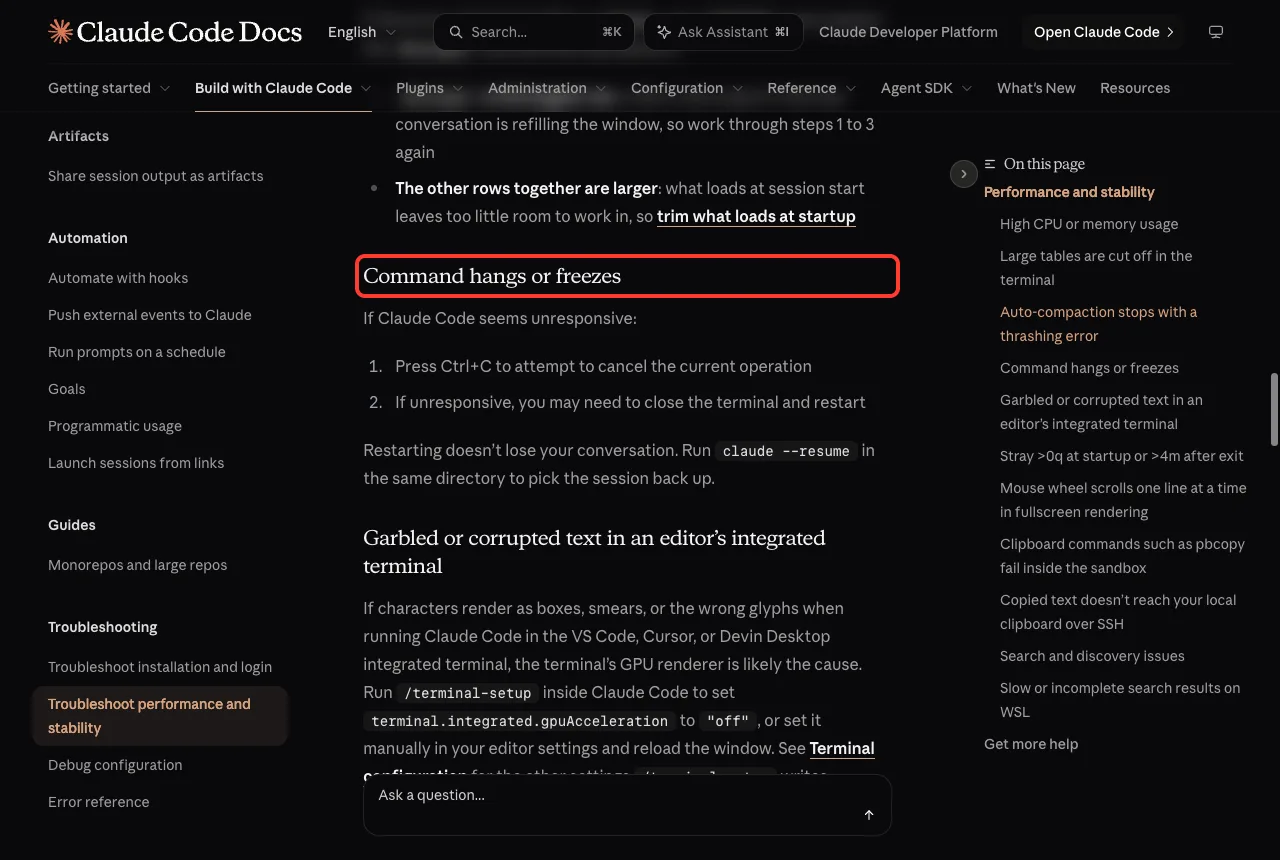
Restarting does not lose your chat. The same page says to run claude --resume in the same folder to pick the session back up. We did not freeze our own terminal on purpose, so this part comes from the docs.
claude --resumeA Simple Order to Follow
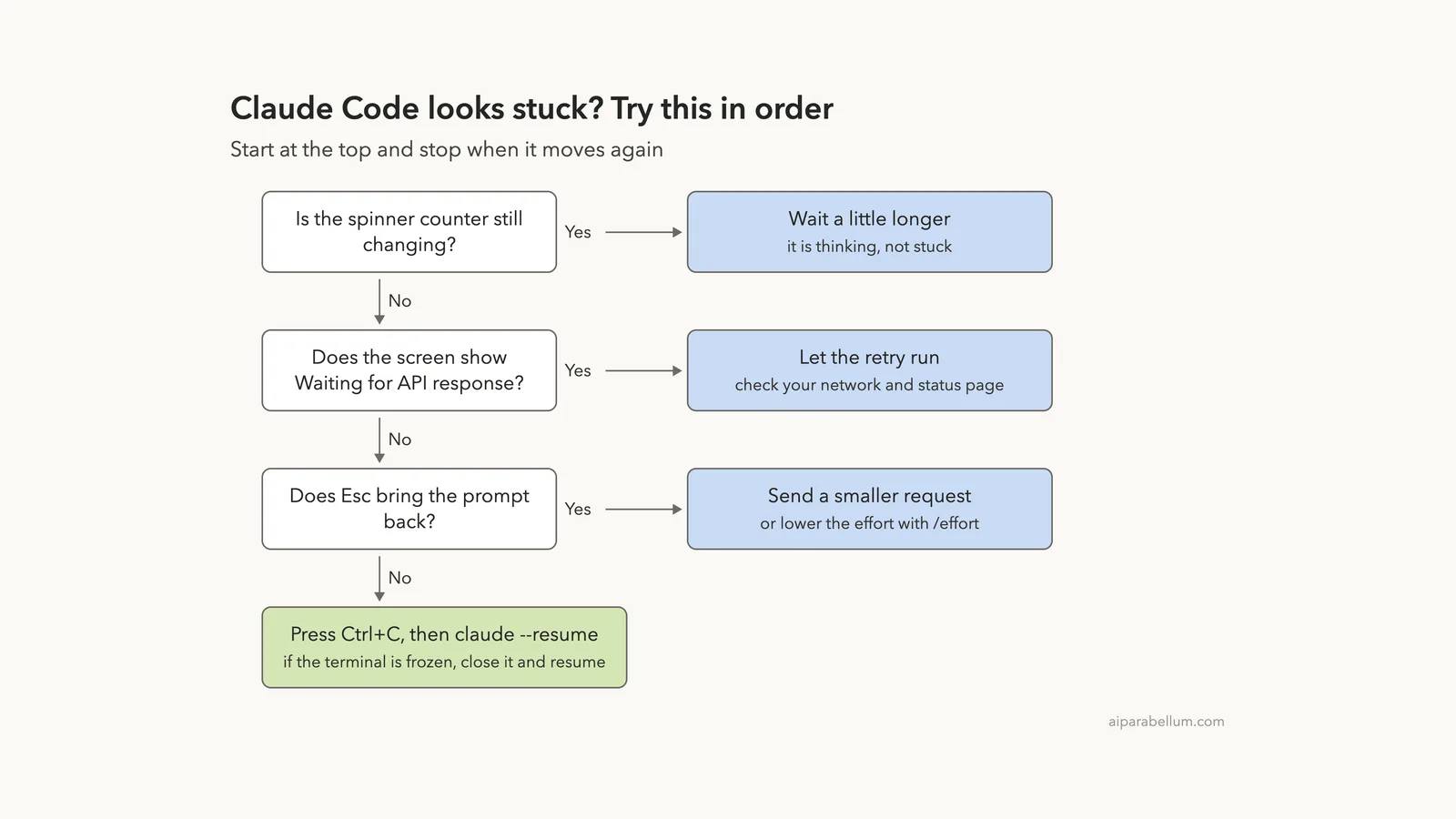
When you are not sure what is wrong, work through this ladder from the top. Stop as soon as Claude Code moves again.
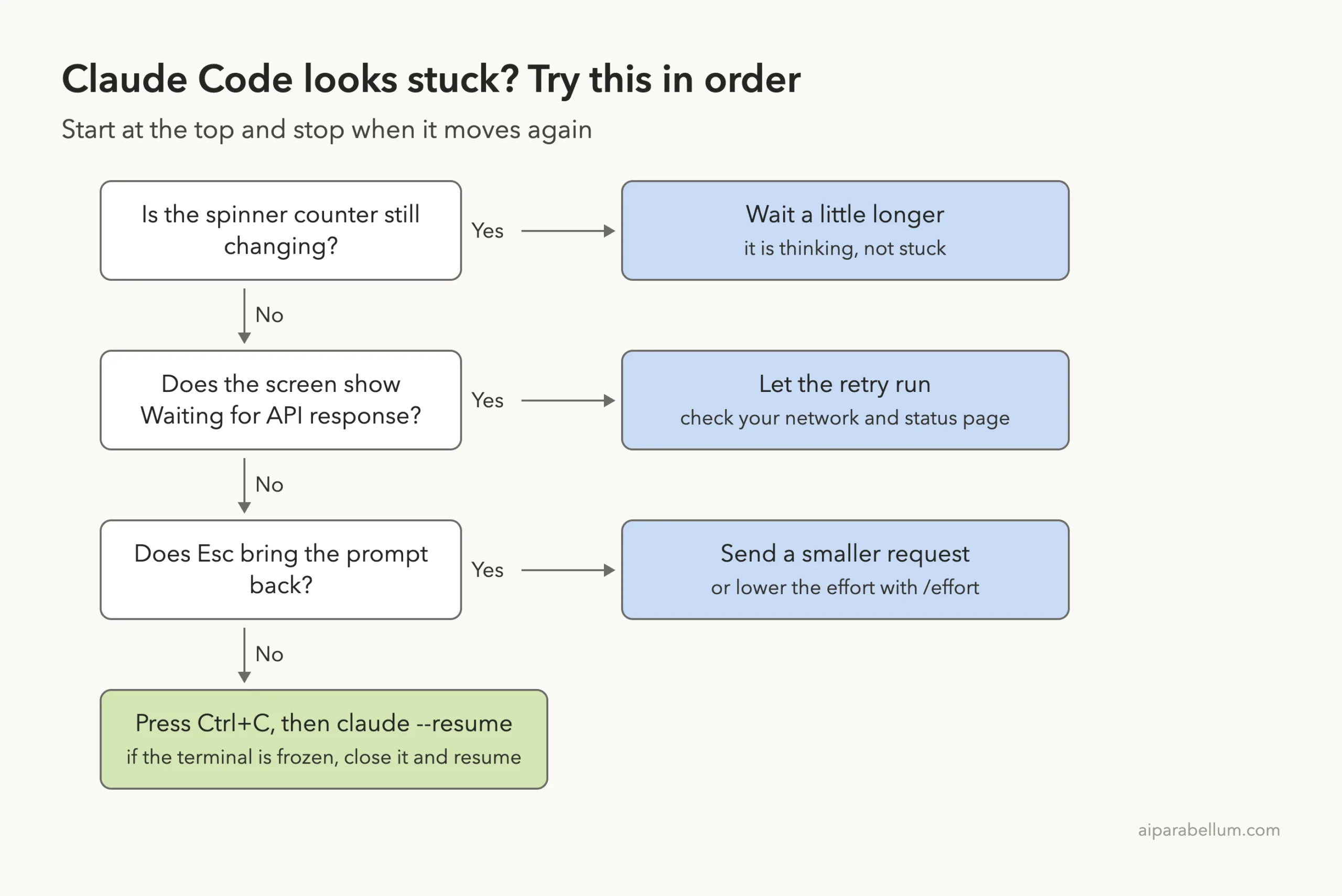
If the counter moves, wait. If it does not, press Esc. If Esc does nothing, press Ctrl+C and resume.
Other Causes Worth Checking
A Very Long Conversation
Long chats are slower to process and can fill the context window. The troubleshooting page suggests using /compact regularly and restarting Claude Code between major tasks. If compaction itself hangs, read our stuck compacting guide.
A Plugin, Hook or Server
Something you installed can slow a turn.
The docs suggest starting with claude --safe-mode, which disables all customizations for that session. If the problem disappears, one of your plugins, MCP servers or hooks is the cause, and you can turn them back on one at a time. Our doctor command guide helps with a general checkup.
Your Computer Went to Sleep
The error reference lists a case where your computer sleeps in the middle of a request. Claude Code treats it as a dropped connection and may show a message that your computer went to sleep before a response was produced. Just send the message again after the machine wakes up.
An Old Version
Some stall and retry fixes are version specific. For example, the docs say that before version 2.1.222 certain gateway connections could report false timeouts. Running claude update is a cheap thing to try, and our guide on updating Claude Code covers it.
Try It Yourself
This practice run takes about five minutes and uses very little. Make a folder with a couple of small text files, start Claude Code there, and paste this prompt.
Read every file in this folder, then write a long, detailed
review of each one with ten suggestions per file.
While it works, do three things.
Look at the spinner line and watch the seconds and tokens change. Type a second message and press Enter to see it queue. Then press Esc and watch the Interrupted line appear.
Finally, run /effort and look at the slider. Press Esc to close it without changing anything.
Common Mistakes
- Closing the terminal at the first pause. Check the spinner counter first.
- Pressing Esc over and over while the banner counts down. One press is enough.
- Pasting the same huge prompt again after a timeout. Type try again instead.
- Asking for one giant task. Split big jobs into smaller steps.
- Forgetting that
claude --resumebrings the chat back after a restart. - Leaving effort on a high level for tiny chores.
Pro Tips
- Keep the footer in view. It tells you esc to interrupt whenever Claude is busy.
- Queue your next thought while Claude works instead of waiting.
- Run
/compactbefore a long chat gets heavy. - Use the status page before you spend time debugging your own setup.
- Check the official error reference when a message appears that you do not recognize.
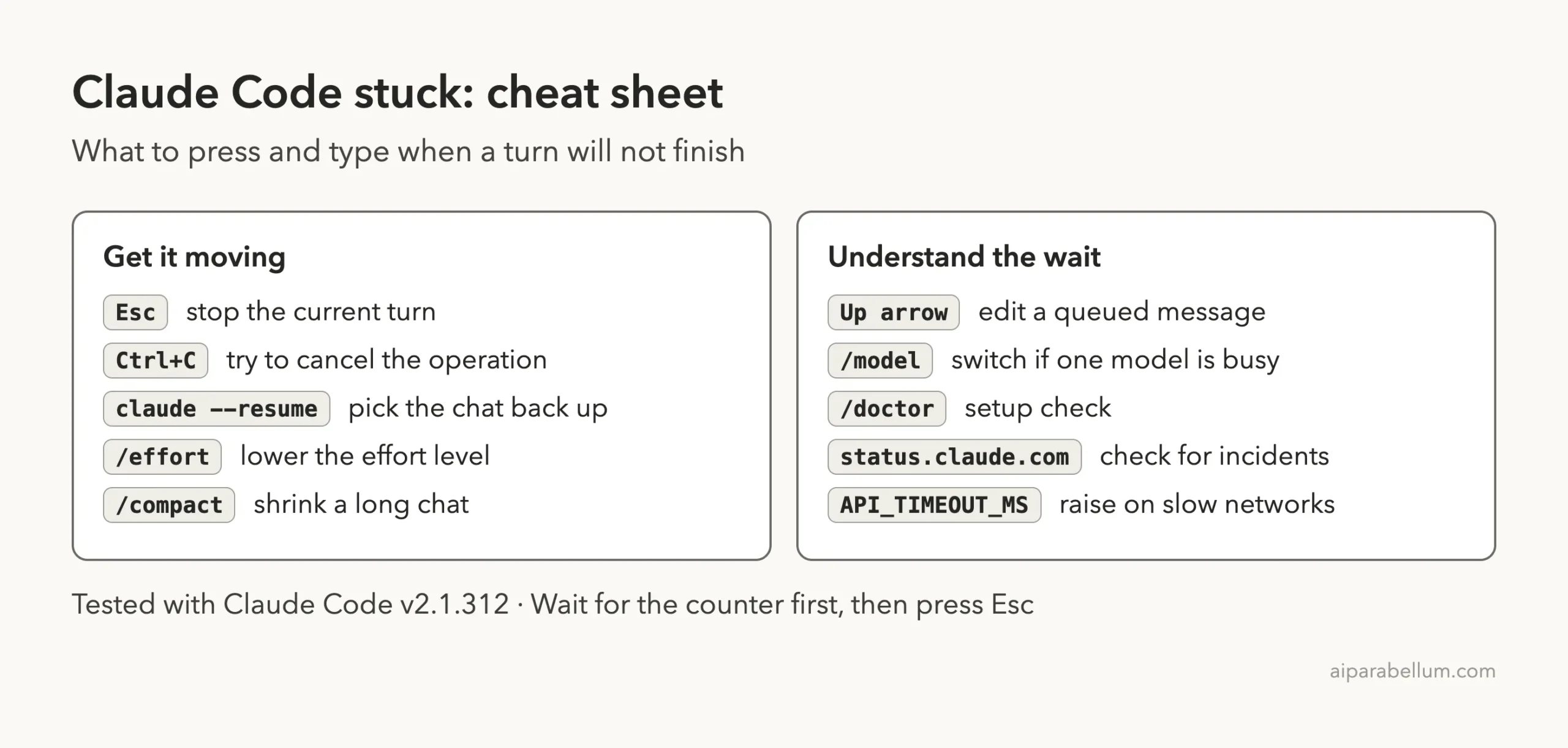
Claude Code Stuck Cheat Sheet
Frequently Asked Questions
How long should Claude Code think before I worry?
There is no fixed number. If the seconds and token counter keep changing, Claude is working. Worry only when nothing on the spinner line moves for a long time or a waiting banner appears.
Does pressing Esc lose my conversation?
No. It stops the current turn and keeps the chat. Claude Code showed Interrupted and asked what to do instead in our test.
What does Waiting for API response mean?
It means Claude Code has received no data for at least 20 seconds. The request has not failed yet, and the countdown shows when Claude Code will abort and retry.
Can I get my chat back after closing the terminal?
Yes. Open a terminal in the same folder and run claude --resume, as the official troubleshooting page describes.
Will a lower effort level make it faster?
Usually yes for simple tasks, since the slider trades depth for speed. Use /effort to change it, and keep higher levels for hard problems.
Conclusion
When Claude Code seems stuck on thinking, check the spinner first, because a moving counter means it is still working. If it is not, press Esc, queue a smaller request, read any waiting banner, and lower the effort level for simple jobs. For a truly frozen terminal, press Ctrl+C, close it and run claude –resume. For more guides like this, browse all our Claude Code tutorials, and see our Claude AI overview.