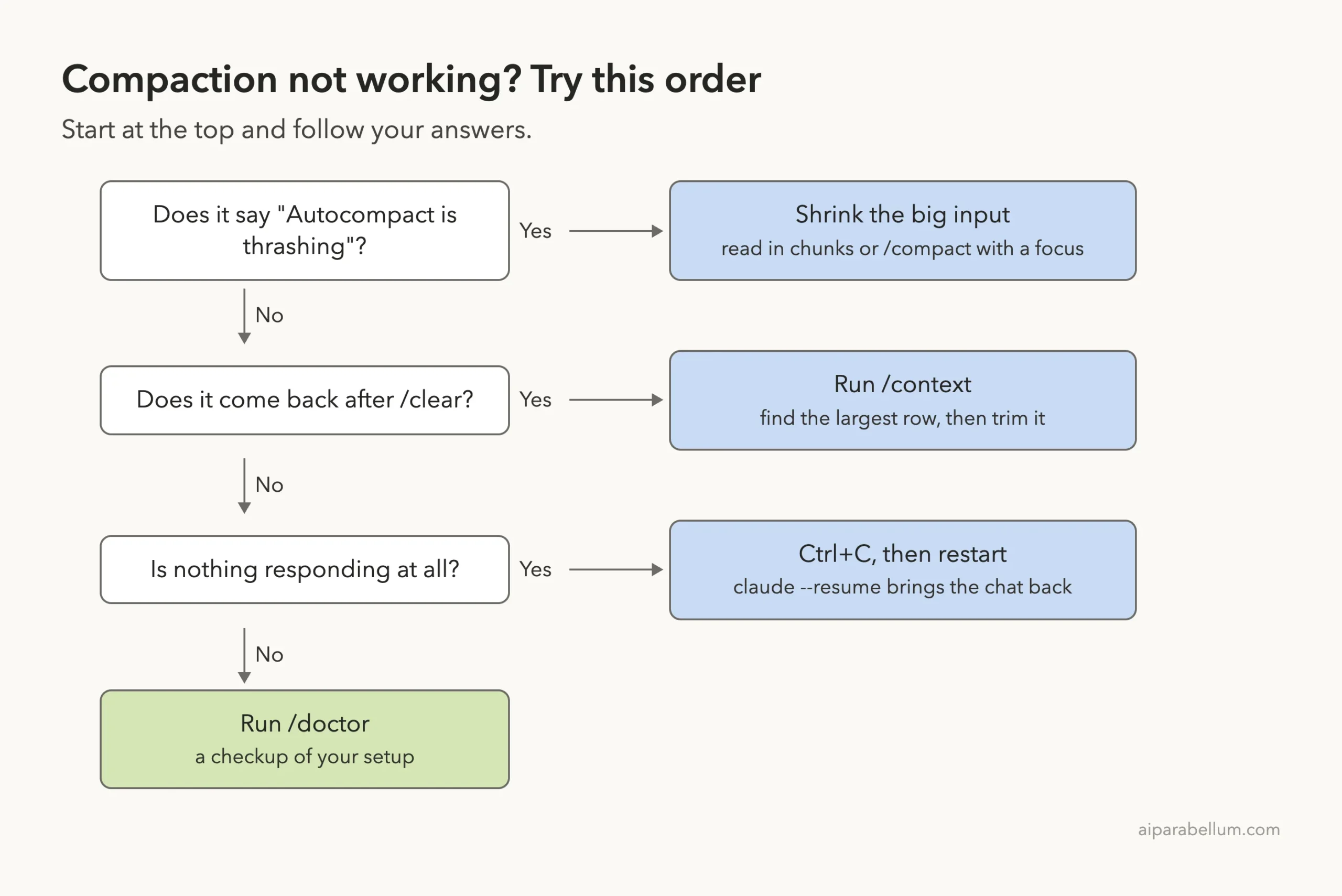
If Claude Code is stuck compacting and nothing seems to move, the fix is almost always the same: shrink whatever is filling the context window, then compact again. First press Ctrl+C to cancel the current work.
Then run /context to see what is taking up space, and run /compact with a short focus such as /compact keep only the plan and the diff. Run /clear if you no longer need the old chat. If the screen says “Autocompact is thrashing,” a file or tool output keeps refilling the window, so read that file in smaller chunks.
That is the short answer. The rest of this guide shows what each step looks like in a real session, why compaction can fail, and how to stop it from happening again. This is a help article in our Claude Code tutorials collection, and it builds on the basics from our guide to the context window.
Tested with Claude Code v2.1.310 on October 27, 2026, on macOS. We tested on macOS; the Windows and Linux steps follow Anthropic’s official instructions.
Quick Answer: What To Try, In Order
| What you see | What to do | Why it helps |
|---|---|---|
| The message “Autocompact is thrashing” | Read the big file in chunks, or run /compact with a focus | The summary worked, but a large file refilled the window |
| The error comes back after /clear | Run /context and compare the Messages row with the other rows | It tells you if the chat or the startup content is too big |
| “Not enough messages to compact” | Run /clear or trim the large paste | There are too few turns to summarize |
| Nothing responds at all | Press Ctrl+C, restart, then run claude –resume | Restarting does not lose your conversation |
| Slow or heavy even when compaction works | Restart with claude –safe-mode | It shows if a plugin, MCP server or hook is the cause |
Why Claude Code Gets Stuck on Compacting Conversation
Claude Code can only keep so much text in its working memory at once. That memory is called the context window, and it holds your chat, every file Claude reads and every command output it sees.
When the window gets close to full, Claude Code compacts it. According to the official context window page, compaction replaces the conversation with a structured summary, and most startup content reloads automatically. In plain words, it trades a long chat for a short recap so work can continue.
You can start it yourself with /compact, or Claude Code starts it for you. That automatic run is called auto-compact.
Compacting is not a crash. It is Claude Code cleaning its desk so the work can go on.
What Makes Compaction Loop
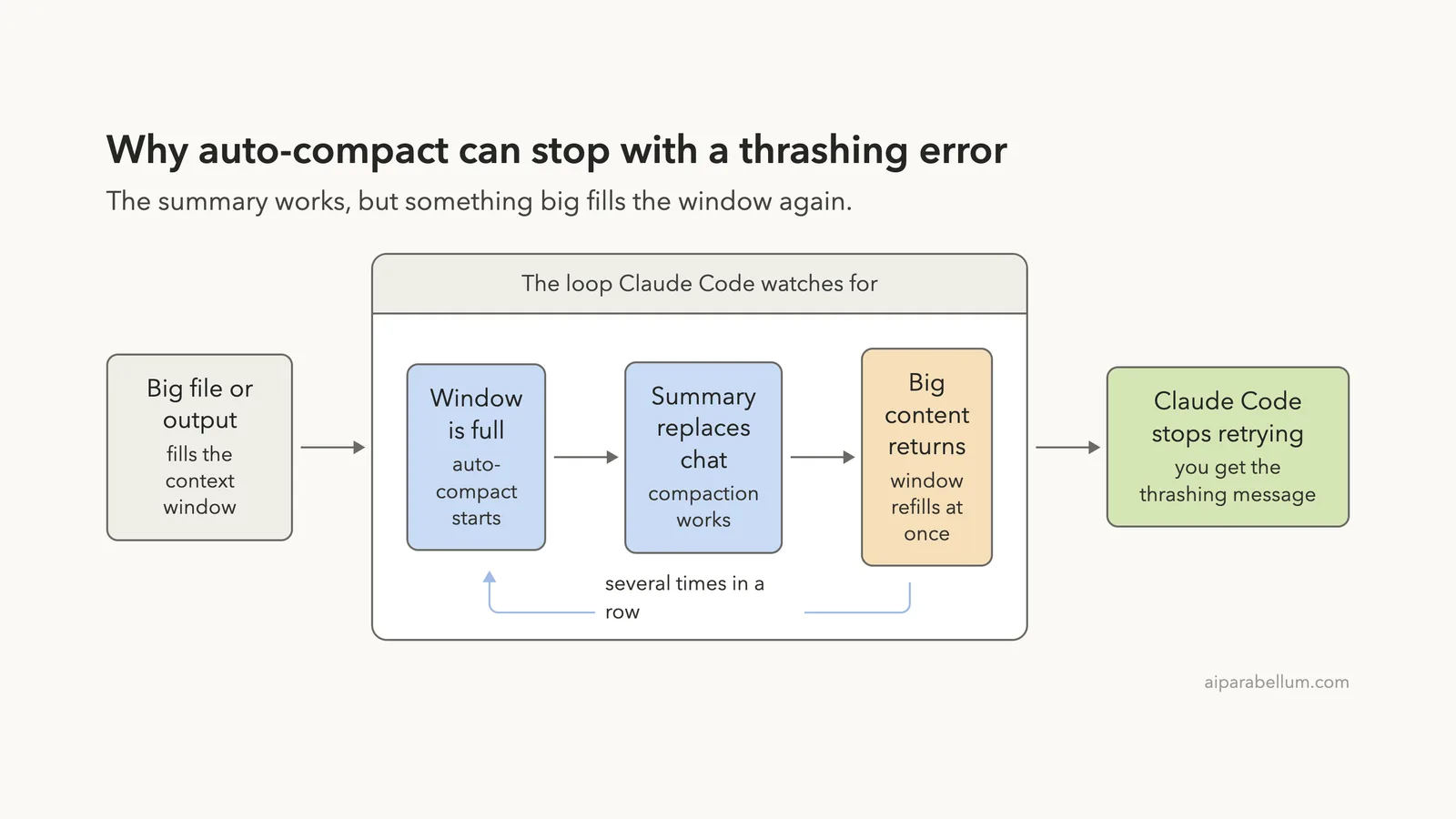
The official troubleshooting page describes one specific failure. If you see a message that starts with “Autocompact is thrashing: the context refilled to the limit,” automatic compaction succeeded, but a file or tool output immediately refilled the context window several times in a row. Claude Code then stops retrying, so it does not waste API calls on a loop that is not making progress.
Think of bailing water out of a boat while a hose keeps pouring water back in. Each bucket works, but the boat never gets lighter.
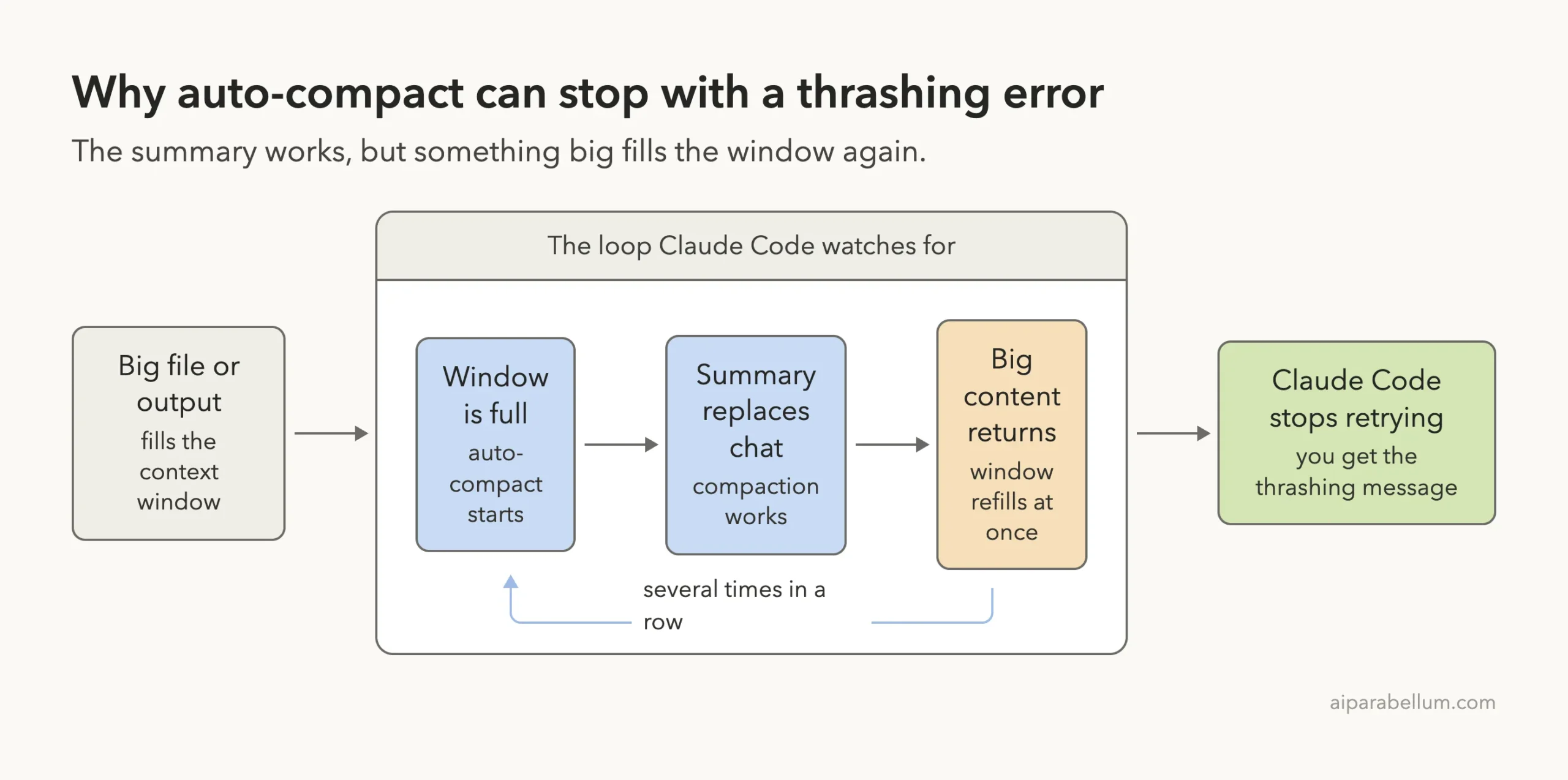
There are a few common sources of that hose:
- A very large file that Claude reads in full again after each compaction
- A command that prints a huge amount of output, such as a long build log
- A large paste that filled the window in a single message
- So much startup content that little room is left to work in
We could not safely force the thrashing error on a real setup, so we do not show it as a live capture. Instead, we reproduced the parts we can show for real: reading a file, checking the context, and compacting with a focus. For the error text itself we use the official docs.
Step 1: Stop the Current Work and Look Around
If Claude Code feels frozen, press Ctrl+C. The troubleshooting page says this attempts to cancel the current operation. If the window is still unresponsive, close the terminal and restart.
Restarting does not lose your conversation. Run claude –resume in the same directory and you can pick the session back up.
Step 2: Run /context to See What Is Filling the Window
Before you fix anything, find out what is big. The /context command shows how many tokens each part of the window uses. A token is a small chunk of text, roughly a short word or a piece of one.
For our test we made a small demo project with a made-up 182-line file called inventory.js. We asked Claude Code to read it and then ran /context.
Read @src/inventory.js and tell me in one sentence what it does.
/context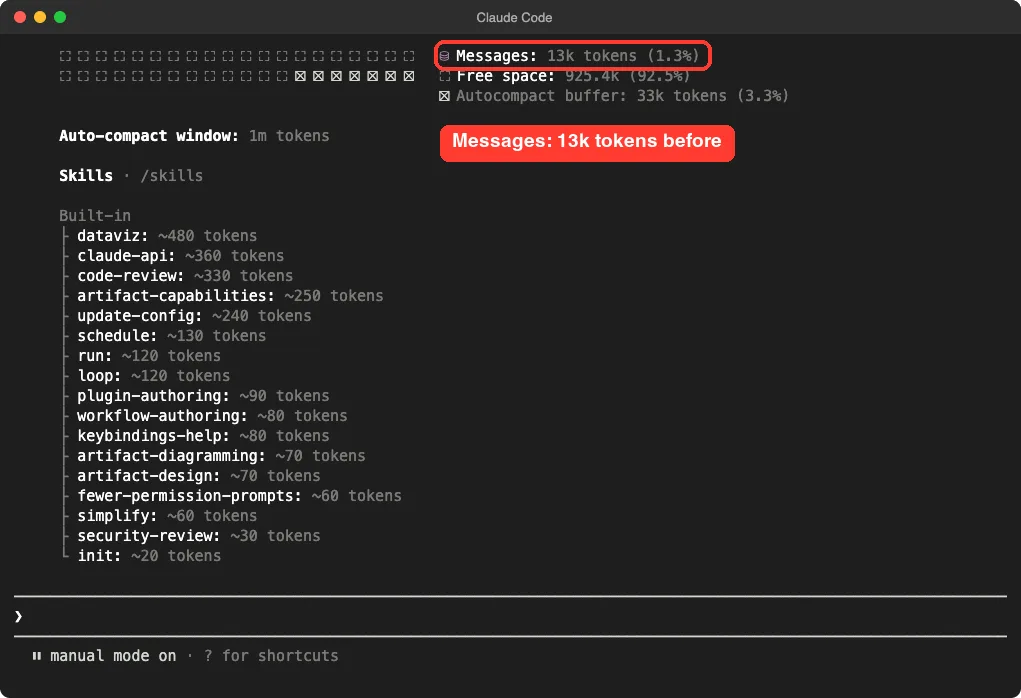
The screen has three lines that matter.
Messages shows what your chat and file reads use, which was 13k tokens here. Free space shows what is left. The autocompact buffer is space reserved so that compaction can run, which was 33k tokens in our session.
The docs give a simple rule for reading this screen. If Messages is the largest row, the chat itself is what is filling the window. If the other rows together are larger, what loads at session start leaves too little room to work in.
Step 3: Compact With a Focus
A plain /compact lets Claude Code guess what is important. A focused compact tells it what to keep. The context window page says the summary keeps what you choose instead of what the automatic pass guesses.
The troubleshooting page gives an example for exactly this problem: /compact keep only the plan and the diff. We used a version that fit our tiny demo.
/compact keep only the file name and what it does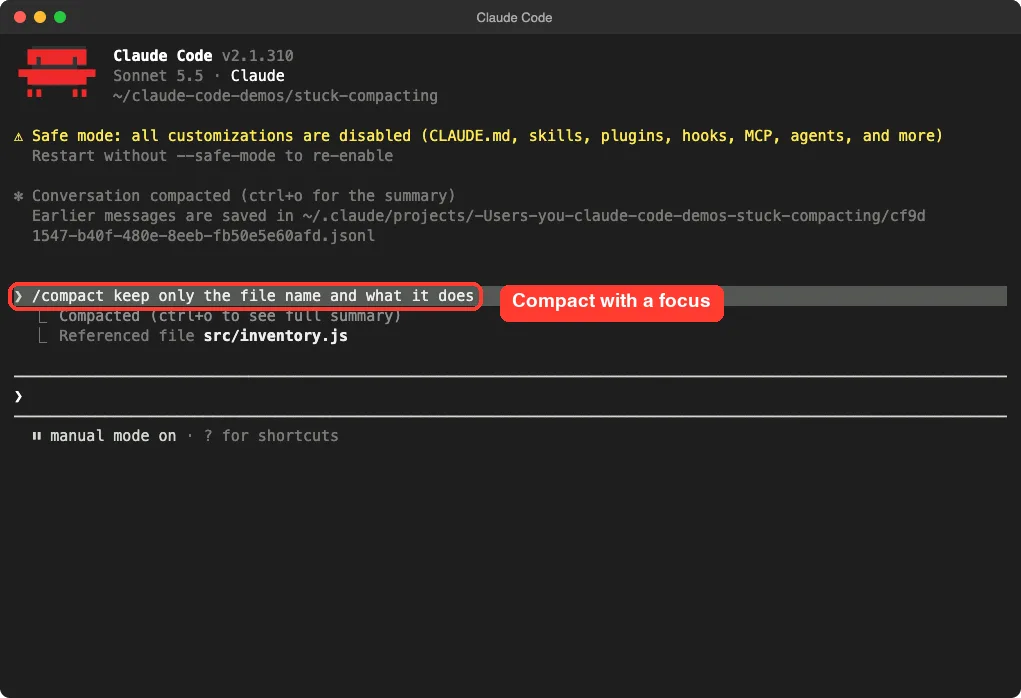
Claude Code printed “Conversation compacted” and noted that the earlier messages are saved in a session file. That note matters: compaction shortens what Claude holds in memory, and the earlier messages remain saved on your computer.
Step 4: Check That It Worked
Run /context again to confirm the window is lighter.
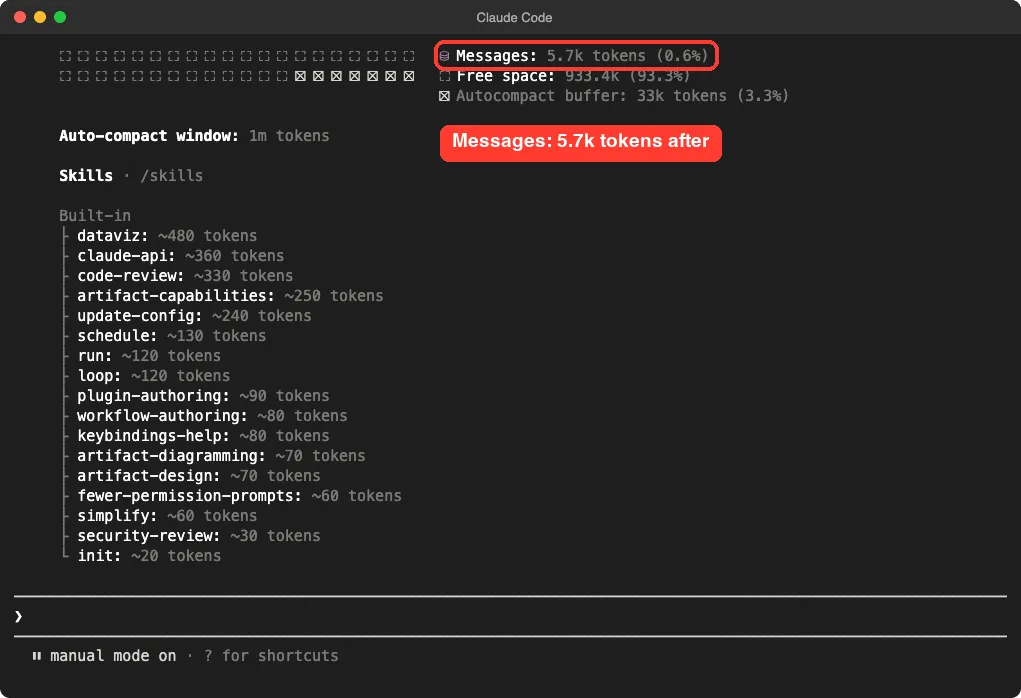
In our demo, Messages fell from 13k tokens to 5.7k tokens.
Free space grew from 925.4k to 933.4k tokens. This was a tiny test, so the numbers are small. In a real long session the difference is far larger, and that is where a focused compact pays off.
One honest note about this demo: we ran it with –safe-mode so the /context screen would be short and clean. Safe mode disables customizations such as CLAUDE.md, skills, plugins, hooks and MCP servers for the session. The numbers you see will depend on your own setup.
Fix for Claude Code Stuck Compacting: Thrashing Error
This is the exact error most people search for when they say Claude Code is stuck compacting. The official docs list four ways to recover, in this order.
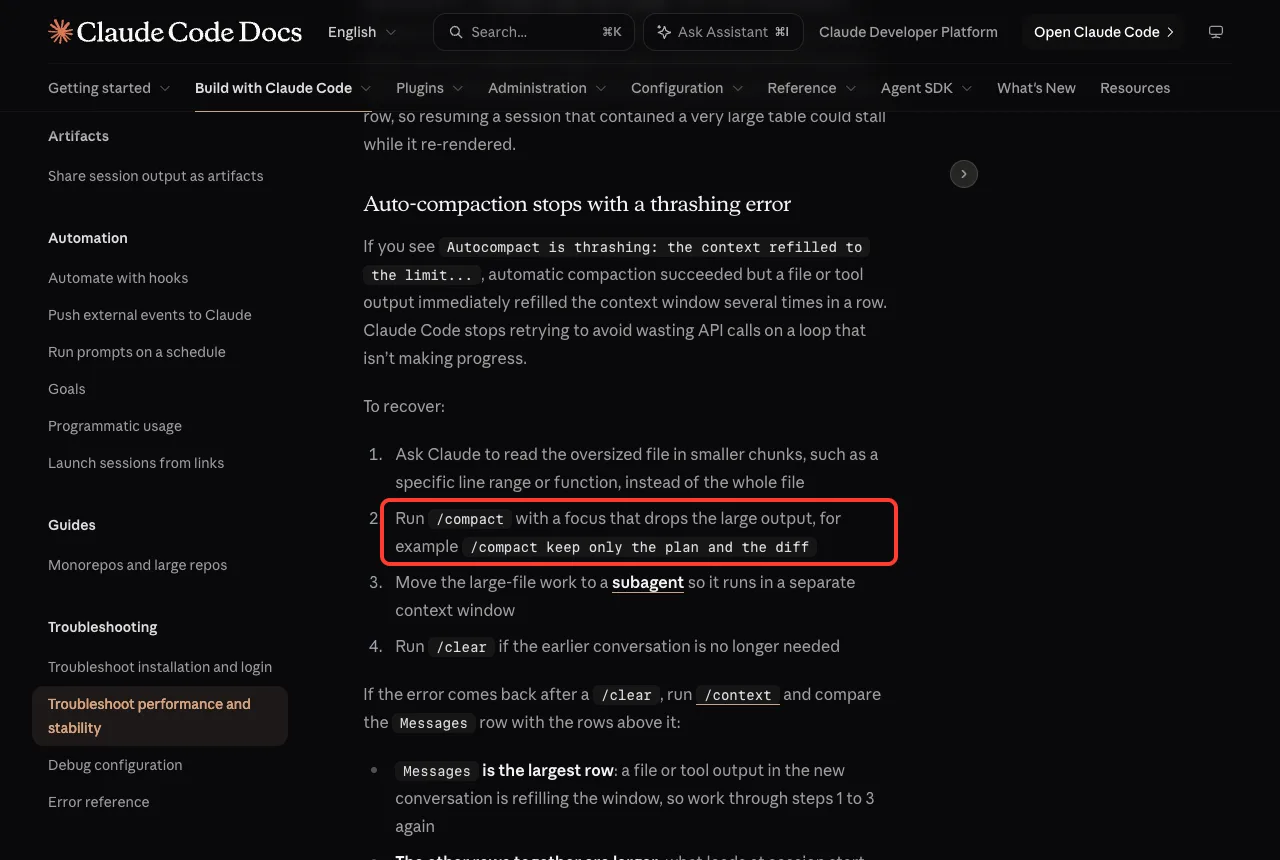
- Ask Claude to read the oversized file in smaller chunks, such as a specific line range or function, instead of the whole file.
- Run /compact with a focus that drops the large output, for example /compact keep only the plan and the diff.
- Move the large-file work to a subagent so it runs in a separate context window.
- Run /clear if the earlier conversation is no longer needed.
A prompt for the first step can be as simple as this:
Read only lines 1 to 80 of src/inventory.js and explain the first three functions. Do not open the rest of the file.Subagents are covered in our guide to Claude Code subagents. The idea is simple: the helper reads the large file in its own window and sends back only a short summary, so the big text never lands in your main chat.
If the Error Comes Back After /clear
If you clear the chat and still see the error, run /context and compare the Messages row with the rows above it. The docs give two cases:
- Messages is the largest row: a file or tool output in the new conversation is refilling the window, so work through the steps above again.
- The other rows together are larger: what loads at session start leaves too little room, so trim what loads at startup.
Startup content includes your CLAUDE.md file, auto memory, MCP tool names and skill descriptions, according to the context window page. A very long CLAUDE.md is a common thing to trim.
Check or Change When Auto-Compact Runs
You can see and change the auto-compact window with the /autocompact command. In our test it showed the current setting for the model, along with the note that the actual threshold is the smaller of this setting and the model’s maximum context window.
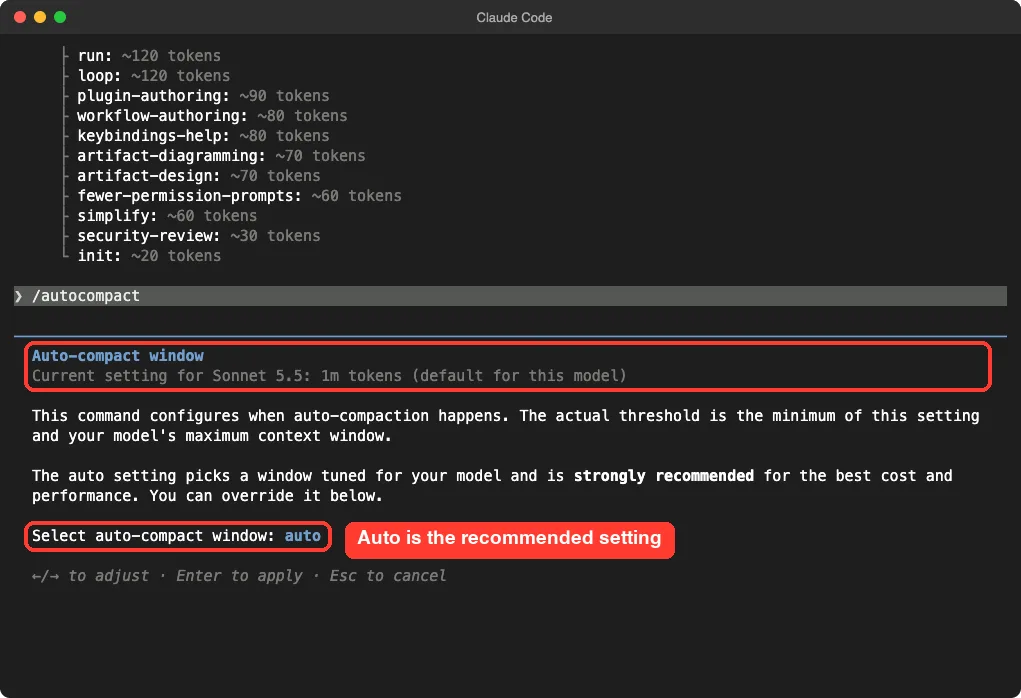
The screen says the auto setting picks a window tuned for your model and is strongly recommended for the best cost and performance. The context window page also says you can run /autocompact with a token count, like /autocompact 500k, to make auto-compact run earlier.
Setting a smaller window is a reasonable choice if you want compaction to happen before the window is almost full. It will not fix a file that refills the window every time, though, so shrink the input first.
When You See “Not Enough Messages to Compact”
Sometimes /compact answers with “Not enough messages to compact.” The troubleshooting page explains that the conversation has too few turns to summarize. This can happen even with a full context when a single large paste filled it.
In that case there is nothing to summarize, because the one big message is the problem. Run /clear to start fresh, then give Claude the same material in smaller pieces, or point it at a file path instead of pasting the whole text.
Compact Only Part of the Conversation
You do not have to compact everything. The context window page says you can run /rewind, select a message, and choose Summarize from here or Summarize up to here. This keeps the recent work word for word while the older part turns into a summary.
It is useful when you spent the first half of a session exploring and the second half building. You can summarize the exploring and keep the building untouched.
When Everything Is Slow, Not Only Compaction
If the whole app feels heavy, the troubleshooting page lists general steps for high CPU or memory use:
- Use /compact regularly to reduce context size.
- Close and restart Claude Code between major tasks.
- Consider adding large build directories to your .gitignore file.
- Restart with claude –safe-mode to check whether a plugin, MCP server or hook is the source. If usage drops, use the official debug your configuration page to find which one.
For a general setup checkup, run /doctor, and check MCP servers with /mcp. Our doctor guide walks through what it checks. You can also use /feedback to report a problem directly to Anthropic.
How To Stop It Happening Again
A few habits keep the window healthy. None of them need extra tools.
- Run /clear when you switch to unrelated work. The context window page says old conversation crowds out the files you need next and costs tokens on every message.
- Run a focused /compact before starting a long new task, such as /compact focus on the auth bug fix.
- Send large reads to a subagent so the file contents stay out of your window.
- Ask for line ranges or single functions instead of whole big files.
- Keep your CLAUDE.md short, since it loads at the start of every session.
These habits also lower your bill, because every message carries the whole context along with it. Our guide to Claude Code costs explains that in more detail.
Try It Yourself
Practice in a throwaway folder, never in a real project. Make a folder with one large text or code file, start Claude Code, and follow this plan:
- Ask Claude to read the file and summarize it in one sentence.
- Run /context and write down the Messages number.
- Run /compact with a short focus sentence.
- Run /context again and compare the two numbers.
Read @bigfile.txt and tell me in one sentence what it is about.
/context
/compact keep only the file name and the one-sentence summary
/context
Common Mistakes
- Pressing Enter again and again. If compaction is looping, repeating it will not help. Change what fills the window instead.
- Using /clear when you still need the work. Try a focused /compact first, because /clear throws the conversation away.
- Asking Claude to read a huge file in full after every compaction.
- Pasting a giant log into the chat. Save it to a file and ask for the relevant lines.
- Ignoring the startup rows in /context and only trimming the chat.
Pro Tips
- Run /context early in a long session, not only when something breaks.
- Write your compact focus as a short list of what must survive, such as the plan, the file names and the open bugs.
- Remember that restarting is safe: claude –resume brings the chat back.
- Use –safe-mode as a test, not a permanent setup, since it turns off CLAUDE.md, skills, plugins, hooks and MCP servers.
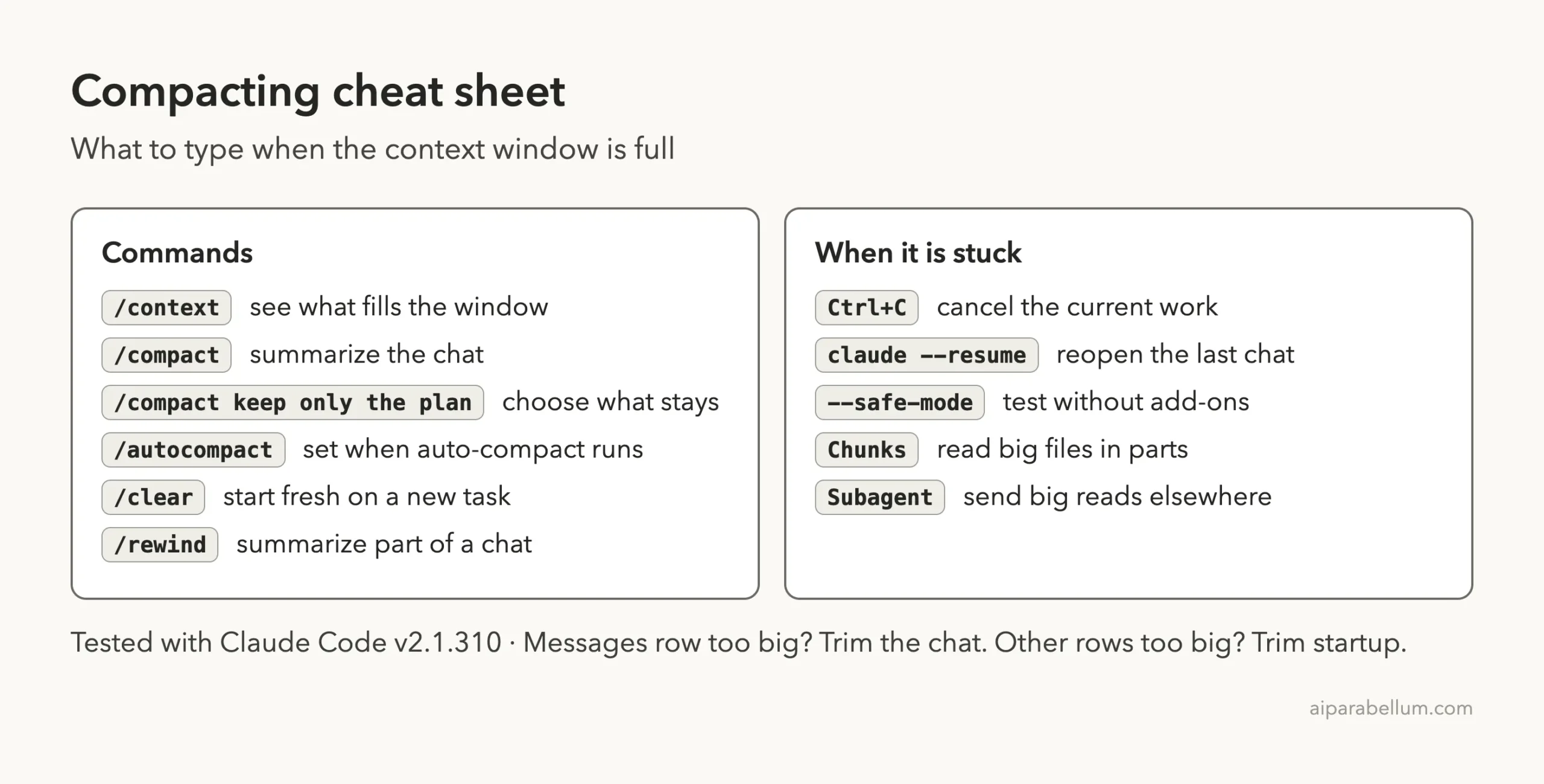
Cheat Sheet
Frequently Asked Questions
How long should compacting take?
Our small demo compacted in well under a minute, but the official docs do not give a time limit. If nothing changes for a long time, press Ctrl+C and check /context.
Will I lose my work if I compact?
Compaction replaces the chat in memory with a summary, and Claude Code told us the earlier messages are saved in a session file on disk. Your project files are not changed by compaction.
Is /clear better than /compact?
They do different jobs. /compact keeps a summary so you can continue the same task, while /clear starts fresh and is best when you switch to unrelated work.
Can I turn auto-compact off?
We did not test turning it off, so we cannot confirm that. What we did confirm is that /autocompact lets you check and change the window, and the auto setting is the recommended one.
Why does it only happen with one file?
That file is likely very large, and Claude keeps reading it back into the window. Ask for a line range or a single function, or hand the reading to a subagent.
Conclusion
When Claude Code is stuck compacting, do not fight the loop: find out what is filling the window with /context, shrink it with a focused /compact, smaller file reads, a subagent or /clear, and use Ctrl+C and claude –resume if nothing responds. Browse all our Claude Code tutorials for more fixes, and learn more about the tool itself on our Claude AI page.